MRx Mk1 - Speaker Ruark Audio - Free user manual and instructions
Find the device manual for free MRx Mk1 Ruark Audio in PDF.



| Product type | Connected wireless speaker |
| Brand | Ruark Audio |
| Model | MRx Mk1 |
| Dimensions with stand (landscape) | 300 x 180 x 180 mm |
| Weight | 3.4 kg |
| Power supply | AC adapter 100-240 V AC, 50-60 Hz, output 14 V DC, 2 A |
| Typical power consumption | 10-12 W |
| Maximum power consumption | 28 W |
| Standby power consumption | 1.8 W |
| Speakers | 2 x 75 mm neodymium magnet drivers |
| Rated amplification | 16 W |
| Network connectivity | Wi-Fi 802.11b/g/n (WEP/WPA/WPA2), Ethernet RJ45 |
| Bluetooth | Bluetooth aptX, SBC, AAC, A2DP |
| Auxiliary input | 3.5 mm combined analog/optical jack |
| USB port | USB for FAT32 drive |
| Supported audio formats | MP3, WMA, AAC, FLAC, WAV |
| Streaming services | Spotify Connect, Amazon Music, Deezer, TIDAL |
| Internet radio | Yes (with UNDOK app) |
| Multiroom | Up to 5 devices per group |
| Wall mount | Possible in portrait or landscape |
| Maintenance | Lint-free cloth slightly damp; avoid solvents and waxes |
| Operating temperature | 5 °C to 40 °C |
| Warranty | 2 years standard, 3 years after registration |
| Repairability | Do not open; contact a qualified professional |
Frequently Asked Questions - MRx Mk1 Ruark Audio
User questions about MRx Mk1 Ruark Audio
0 question about this device. Answer the ones you know or ask your own.
Ask a new question about this device
Download the instructions for your Speaker in PDF format for free! Find your manual MRx Mk1 - Ruark Audio and take your electronic device back in hand. On this page are published all the documents necessary for the use of your device. MRx Mk1 by Ruark Audio.
USER MANUAL MRx Mk1 Ruark Audio
Connected wireless speaker MRx
| User guide | EN |
| Brugervejledning | DA |
| Bedienungsanleitung | DE |
| Guía del usuario | ES |
| Guide de l'utilisateur | FR |
| Manuale dell'utente | IT |
| Gebruikershandleiding | NL |
| Brukerveiledning | NO |
| 사용자 안내서 | KO |
| ユーザーガイド | JA |
ruarkaudio
Thank you for choosing our MRx connected wireless speaker.
Ruark Audio began life as specialists in high-fidelity speaker systems and this passion for sound quality lies at the heart of all our products. With a beautifully handcrafted cabinet, this MRx connected speaker blends streaming technologies with a high-fidelity stereo amplifier and our latest full-range neodymium drivers to produce a remarkably clear, rich and detailed sound.
Enjoy it alone, in a multi-room group or even as a stereo pair.
Please take the time to read this user guide to help you get the best performance from your MRx. Look after it and it will reward you with many years of listening pleasure.
We love the MRx and I hope you will too!
Alan O. Raurke
Alan O'Rourke
Founder and Managing Director
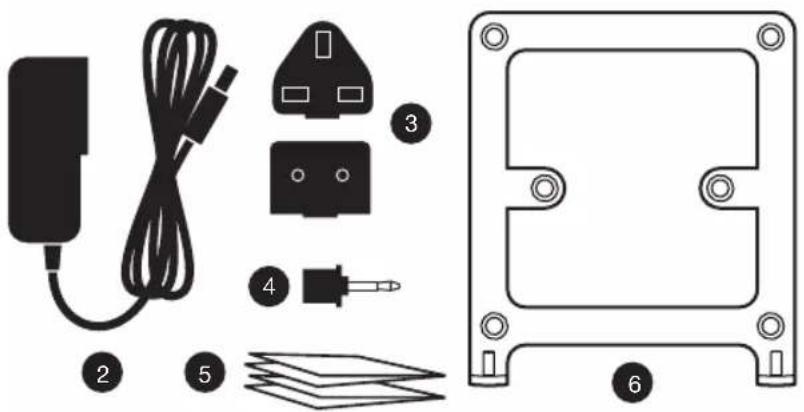
What's in the box
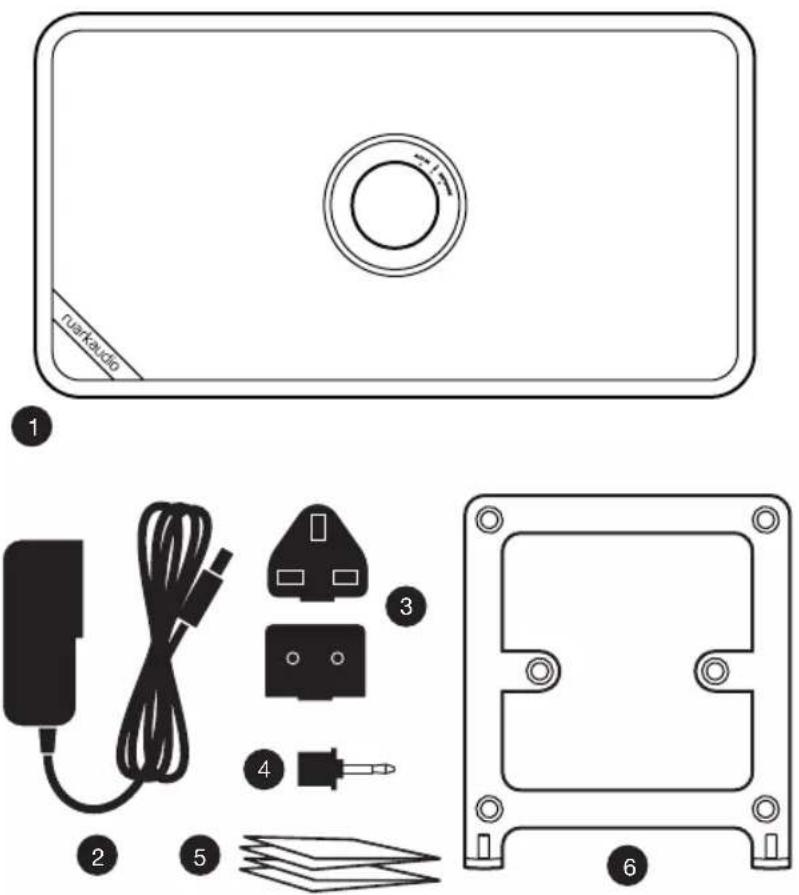
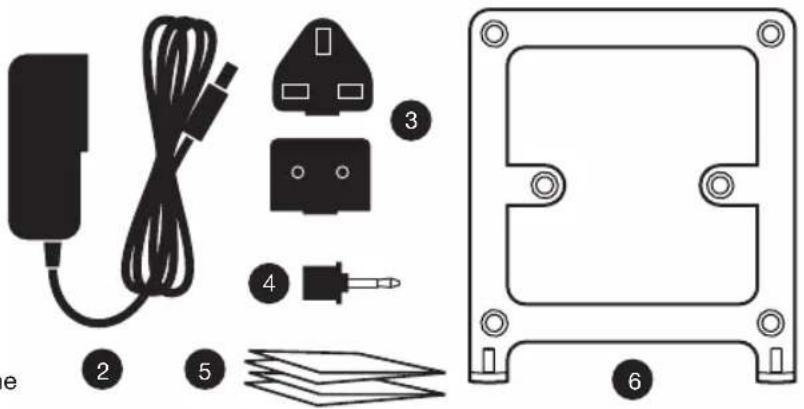
Ensure that all the parts listed below are in the box.
If any part is missing, do not use the MRx. If purchased in the UK, contact us directly. If purchased outside the UK, please contact your Ruark Audio dealer.
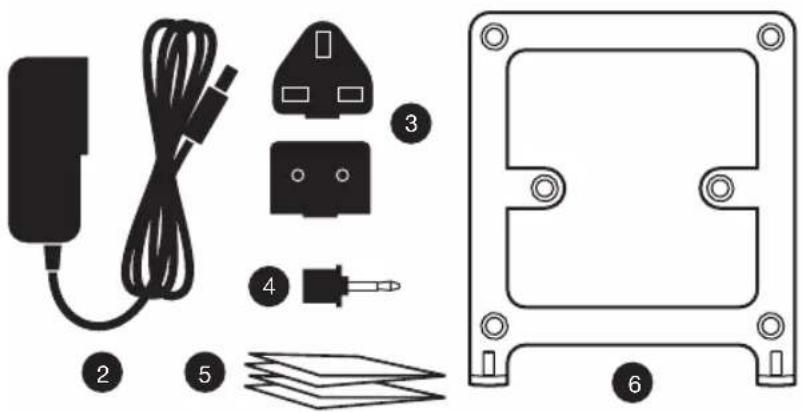
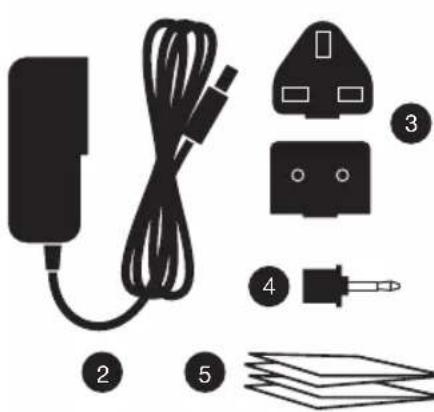
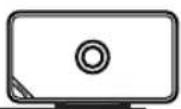
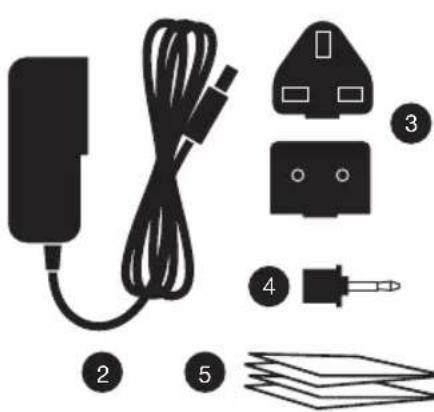
- MRx wireless speaker
- AC power adapter
- Plug(s) for AC power adapter*
- Optical 3.5mm jack adapter
- User guide
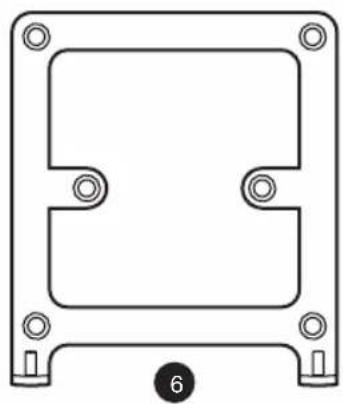
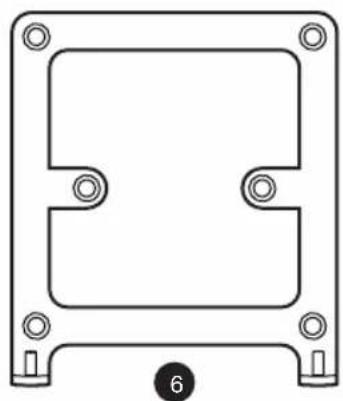
- Stand
Please retain the carton and all packing materials.
* The number and type of plug adapters supplied will vary according to region.
EN-3
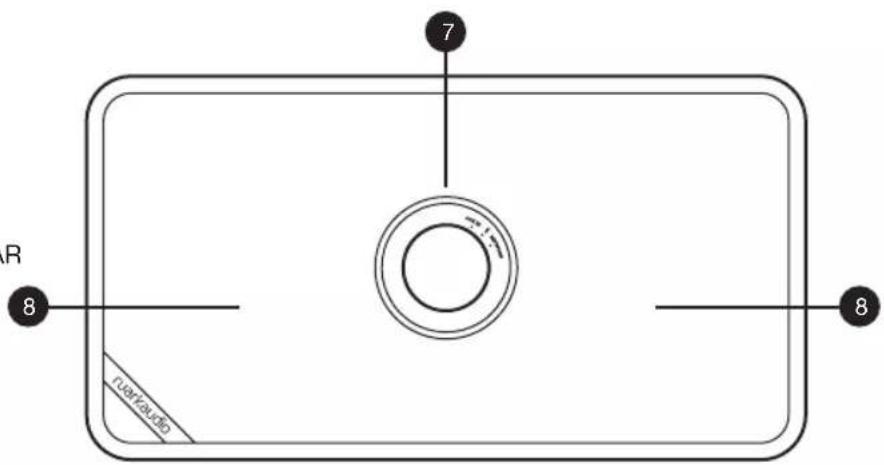
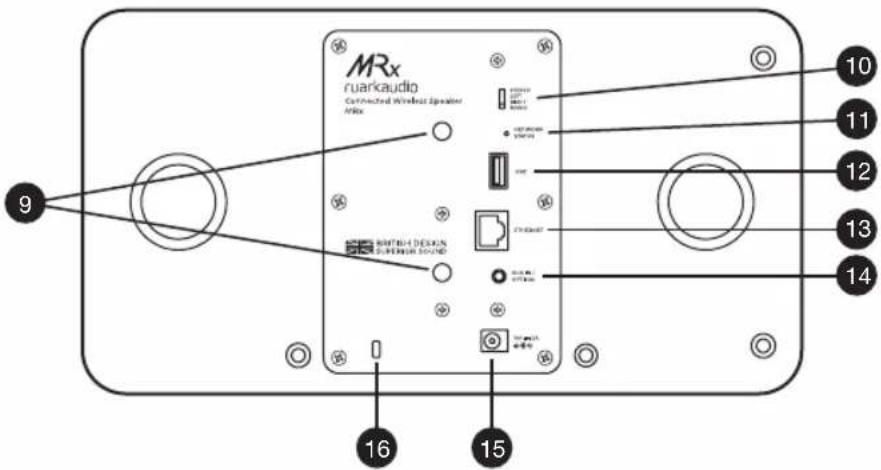
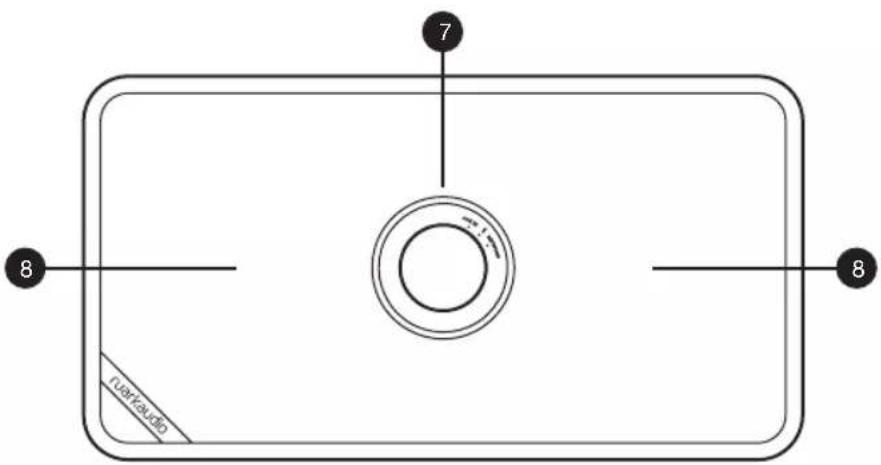
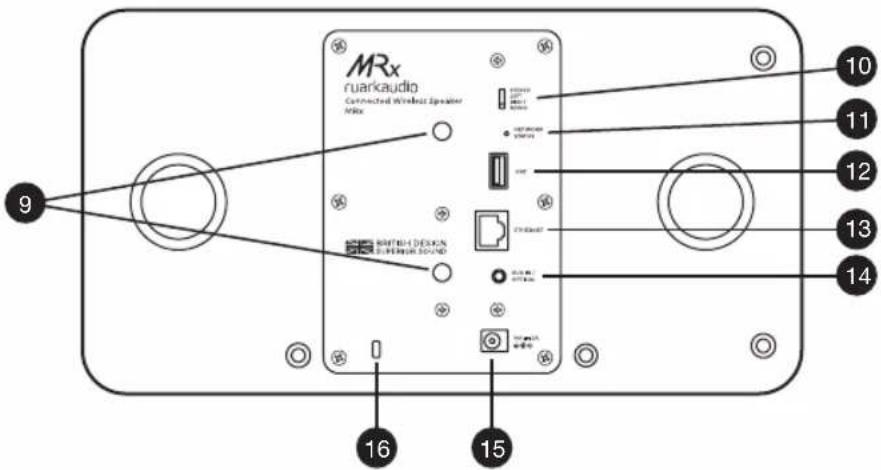
Overview
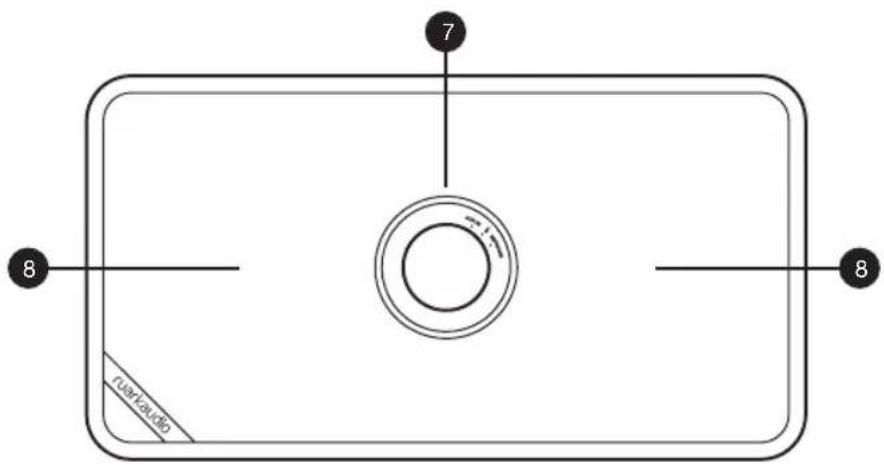
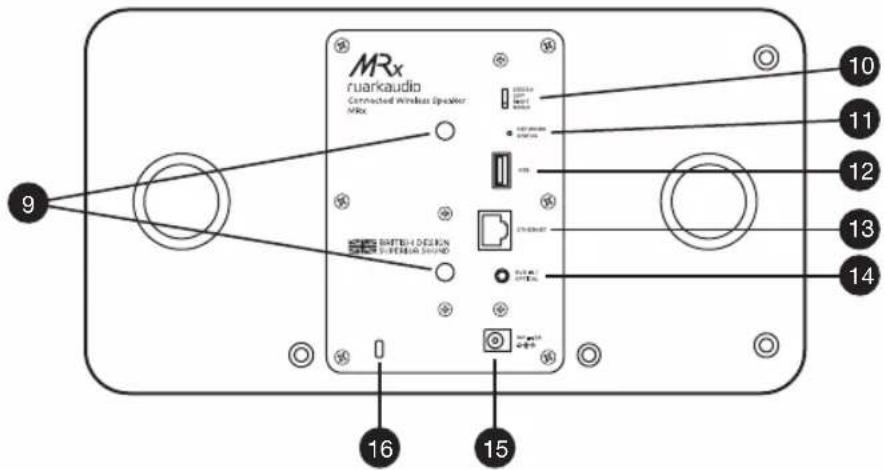
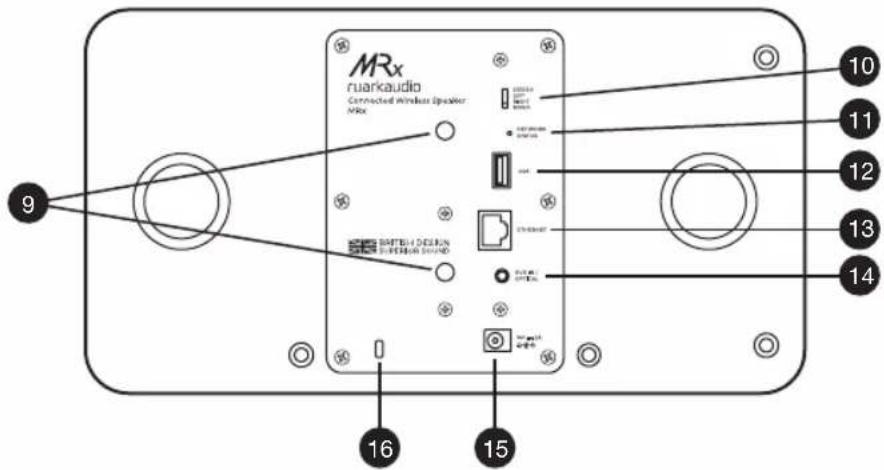
- Controls
- 75mm neodymium driver
- Wall mounting points (1/4-20 UNC)
- STEREO MODE SWITCH
- Network status indicator light
- USB socket
- Ethernet socket (RJ45)
- Combined 3.5mm analogue and optical input jack
- DC power socket (14V 2A)
- Security slot
EN-4
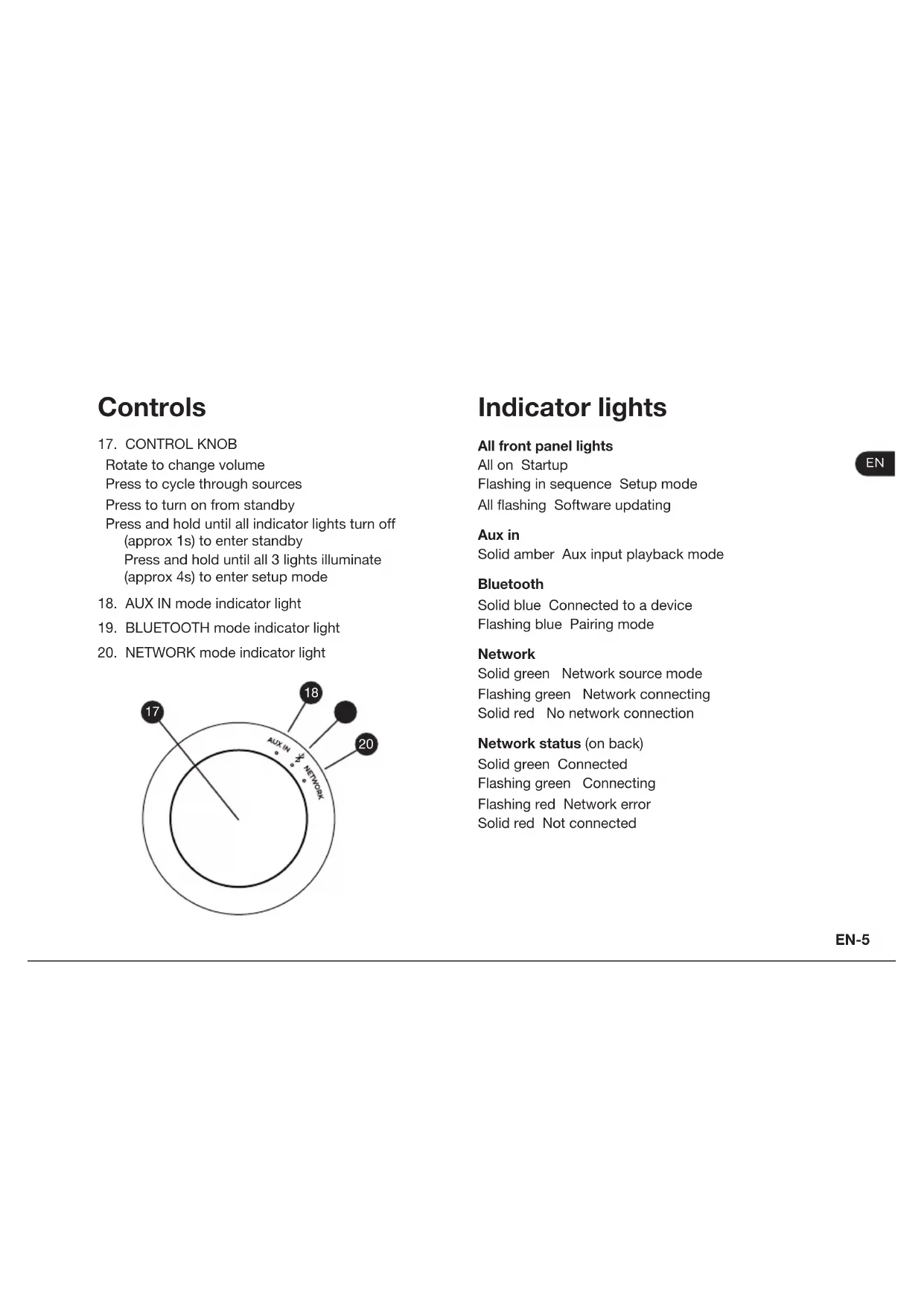
Controls
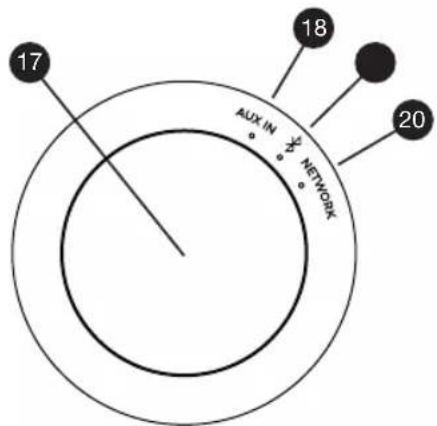
- CONTROL KNOB
Rotate to change volume
Press to cycle through sources
Press to turn on from standby
Press and hold until all indicator lights turn off (approx 1s) to enter standby Press and hold until all 3 lights illuminate (approx 4s) to enter setup mode
- AUX IN mode indicator light
- BLUETOOTH mode indicator light
- NETWORK mode indicator light
Indicator lights
All front panel lights
All on Startup
Flashing in sequence Setup mode
All flashing Software updating
Aux in
Solid amber Aux input playback mode
Bluetooth
Solid blue Connected to a device
Flashing blue Pairing mode
Network
Solid green Network source mode
Flashing green Network connecting
Solid red No network connection
Network status (on back)
Solid green Connected
Flashing green Connecting
Flashing red Network error
Solid red Not connected
Setup
1. Placement
Keep other wireless equipment at least 30cm (1ft) away from your MRx to avoid interference. Avoid placing inside or near a metal cabinet as this will reduce Wi-Fi and Bluetooth range.
2. Fit the stand
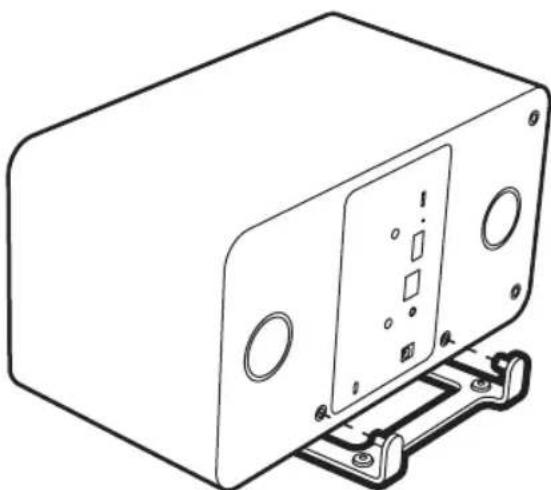
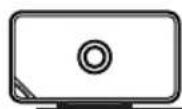
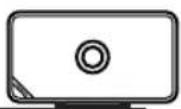
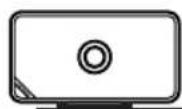
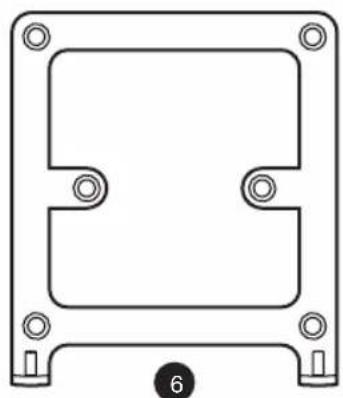
Fit the stand to your MRx in either portrait or landscape mode, ensuring you push the stand firmly into the corresponding rubber sockets on the back of your MRx and place on a stable and level surface.
3. Select stereo mode
Set whether your MRx is in stereo/mono/left/right mode using the STEREO MODE SWITCH on the back panel. See Stereo mode section for more details.
natural_image
Technical line drawing of a rectangular electronic device with mounting brackets and a central panel (no text or symbols)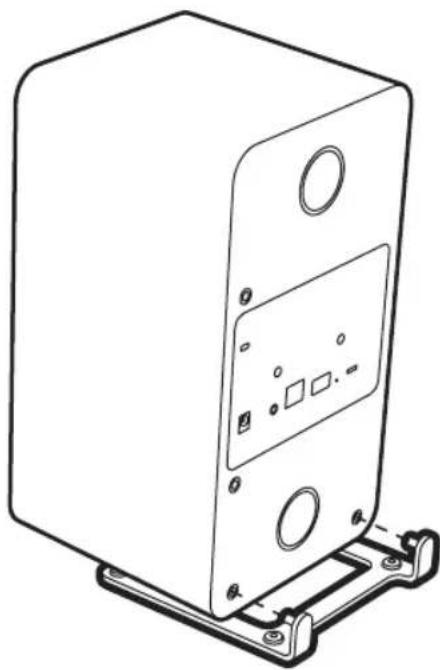
natural_image
Line drawing of a rectangular electronic device with mounting bracket and internal components (no text or symbols)EN-6
4. Install the UNDOK app
Download and install UNDOK app on your mobile device.

5. Connect to mains power
Fit the correct plug for your region to the mains adapter, it will "click" into place. Connect the mains adapter to the DC power socket on the back of your MRx, then connect it to the mains socket. All three indicator lights will illuminate as your MRx starts up.
6. Set up your MRx using UNDOK
Your MRx is in setup mode when all three lights on the front panel flash in sequence.*
Open the UNDOK app on your mobile device, select "SET UP AUDIO SYSTEM" and follow the on-screen instructions.
If the setup wizard is unable to find your MRx, you may need to connect to your MRx's Wi-Fi hotspot manually, go to the Wi-Fi settings on your mobile device and connect to Ruark MRx [code] where [code] is the unique MAC address of your MRx. Once you have connected your device to your MRx Wi-Fi hotspot, return to the UNDOK app and follow the on-screen instructions.
7. Enjoy your MRx
Once set up, you can control your MRx using the UNDOK app from any smartphone or tablet on the same network, as well as access all its features including internet radio, music streaming services and multi-room audio.
* If instead of all the lights flashing in sequence, only one indicator light comes on, press and hold the CONTROL KNOB for approx 4 seconds until all 3 lights illuminate, then release. Your MRx will reboot and come on again in SETUP mode.
Common functions
The CONTROL KNOB allows you to adjust the volume and select source; however, for full control of the network sources and access multi-room functions, you will need the UNDOK app.
For more details see www.ruarkaudio.com/app

Turn on and standby
To go to standby, press and hold the CONTROL KNOB from any playing mode until the current source indicator light turns off.
To turn on from standby, press the CONTROL KNOB.
Change volume
Rotate the CONTROL KNOB while listening to audio.
When you reach the maximum or minimum volume, the source indicator light will briefly turn off.
Connect to a new network
To connect your MRx to a different network (Wi-Fi or Ethernet), press and hold the volume knob until all three source lights illuminate. Your MRx will then reboot in SETUP mode and the front panel lights will flash in sequence. You can now use the UNDOK app to connect your MRx to the new network.
See Setup section for more details.
Change source
Press the CONTROL KNOB to cycle through sources.
If your MRx is connected to Wi-Fi and you want to connect it via Ethernet (or vice versa), you need to run SETUP again.
Bluetooth
To change to Bluetooth mode, press the CONTROL KNOB until the blue Bluetooth indicator light illuminates or use the UNDOK app to select Bluetooth source.
Connecting a Bluetooth device
When you select Bluetooth mode, your MRx will go into pairing mode and the Bluetooth indicator light will flash.
Use the Bluetooth setup on your phone, tablet or laptop to pair and connect it to your MRx. It will appear in the list of paired devices as Ruark MRx although this will change if you rename it using the UNDOK app.
It may take a few seconds for your MRx to appear in the list on your device, and in some cases you may need to input "0000" as the pairing password.
Bluetooth volume
If your phone, tablet or laptop allows you to vary the volume of Bluetooth playback, we recommend you set it to maximum for optimum playback quality.
Auto connect
When you change to Bluetooth mode, your MRx will attempt to reconnect to the last connected device. If it can't connect, it will automatically enter pairing mode.
Pairing additional devices
You can pair up to 5 devices, although you will only be able to play audio from one device at a time.
For more information visit www.ruarkaudio.com/support
Your MRx includes aptX coding technology so if your smart device is also aptX enabled, you will benefit from CD-quality streaming.
Aux input (analogue/optical)
Your MRx can play audio from both analogue and digital sources via the combined analogue/optical input jack on the back panel.
To change to aux input mode, press the CONTROL KNOB until the amber AUX IN indicator light illuminates or use the UNDOK app to select the Aux input source.
To play from an analogue source (eg the headphone output of a media player), connect it to the combined jack socket using a 3.5mm stereo jack cable.
To play from a digital optical source (eg TV), connect it to the combined jack socket using an optical cable and the optical 3.5mm jack adapter provided.
Aux input volume
For optimum playback quality, adjust the volume of the external device so that it is as near to full volume as possible without distorting.
Internet Radio
Your MRx can play thousands of internet radio stations and podcasts from all over the world. Select your MRx in the UNDOK app and under source, select Internet Radio.
When listening to an internet radio station, the green NETWORK indicator light will illuminate.
Station presets
You can store 10 Internet radio stations in your preset list on the UNDOK app.
Music player
Music player enables you to play audio files stored on a computer on your network, a NAS drive or a USB flash drive. Select your MRx in the UNDOK app and under source, select Music Player.
When listening to Music Player audio, the green NETWORK indicator light will illuminate.
USB music player
Connect your USB flash drive into the USB socket on the back panel of your MRx and select USB under the Music Player source in the UNDOK app.
Local Music player
To play audio files stored on your phone or tablet, select your MRx in the UNDOK app and under source, select Local Music.
When listening to Music Player audio, the green NETWORK indicator light will illuminate.
DLNA streaming
Your MRx is a DLNA Digital Media Renderer so you can stream audio to it from a compatible media server. There are many apps available for Mac, iOS, Linux, Android, Windows phone, etc that will turn your smartphone, tablet or laptop into a DLNA media server. Windows Media Player even has a 'Play to' function built in that allows you to stream music stored on your computer directly to your MRx.
When listening to Music Player audio, the green NETWORK indicator light will illuminate.
Your USB disk must be FAT32 format. Rights-protected WMA and AAC tracks cannot be played.
Music streaming services
Your MRx supports the music streaming services shown below*. When listening to music streaming services, the green NETWORK indicator light will illuminate.
Spotify Connect
Use your phone, tablet or computer as a remote control for Spotify. Go to spotify.com/connect to learn how.
Amazon Music
For more details, visit www.amazon.com
Deezer
For more details, visit dzr.fm/airable
TIDAL
For more details, visit tidal.com/try-now
Please note that TIDAL high quality is not supported in multi-room mode. To listen to TIDAL in multi-room mode, change the audio quality to normal using the UNDOK app.
The range of supported music services may change without notice.



EN-13
Multi-room
This device is fully compatible with Ruark Audio multi-room and enables you to seamlessly stream music from one room to another.
Use the UNDOK app on your mobile device to create a group of up to 5 devices that will all play the same synchronised audio. Once you have created a group, other devices can be added to it.
If a group already exists on your network, you can add your MRx either using the UNDOK app on your mobile device or using the controls on the other Ruark devices in that group.
For more information on multi-room and how to set up, access and control this feature, visit www.ruarkaudio.com/support
Audio from a TV may not be perfectly synchronised with the video when in multi-room mode
Wall-mounting
Remove the stand and secure your MRx to a wall-mounting bracket compatible with the following:

Stereo mode
Mono/stereo mode
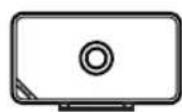
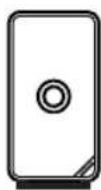
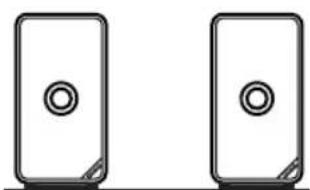
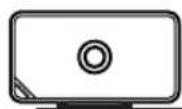
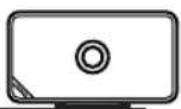
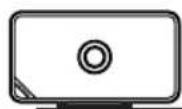
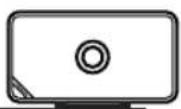
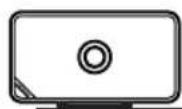
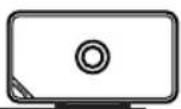
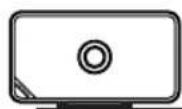
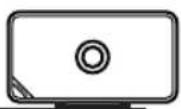
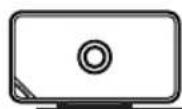
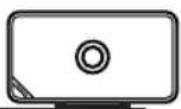
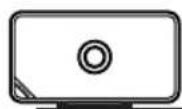
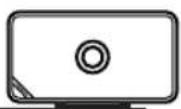
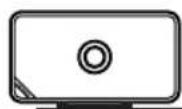
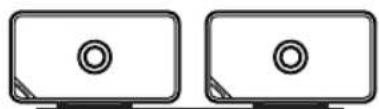
You can position your MRx in both landscape or portrait mode. For best audio performance we recommend you set the STEREO MODE SWITCH on the back panel to STEREO when using in landscape mode and MONO when using in portrait mode.
Left/right mode
You can use a pair of MRx speakers as a left/right stereo pair by adding both speakers to a multi-room group and then setting the STEREO MODE SWITCH on the back panel to LEFT on the left speaker, and RIGHT on the right speaker, see Overview section.
In LEFT mode, the speaker will only reproduce the left channel and in RIGHT mode, only the right channel.

STEREO LEFT RIGHT MONO

STEREO LEFT RIGHT MONO
natural_image
Two identical rectangular devices with circular buttons, no text or symbols visible
STEREO LEFT RIGHT MONO

STEREO LEFT RIGHT MONO

STEREO LEFT RIGHT MONO

STEREO LEFT RIGHT MONO
Please note that audio from a TV may not be perfectly synchronised with the video when used as a stereo pair
Safety and regulatory information
- Read this user guide and follow all instructions, it will help you set up and operate your product properly.
- Heed all warnings and keep this user guide for future reference.
- Do not attempt to use a damaged device as this could result in a dangerous electric shock.
- Do not open the unit or remove any panels or speaker grilles. No user serviceable parts inside.
- Refer all servicing to qualified service personnel. Servicing is required when the device has been damaged in any way, such as power-supply cord or plug is damaged, liquid has been spilled or objects have fallen into the device, the device has been exposed to rain or moisture, does not operate normally, or has been dropped.
- This device is intended to be operated ONLY from the AC voltages listed on the back panel or included power supply. Operation from voltages other than those indicated may cause irreversible damage to the device and void the product warranty.
- Ensure that the mains plug or mains connector into the unit is readily accessible in case disconnection from the mains is required.
-
The mains adapter, mains plug or mains connector must be removed from the socket to completely disconnect the system from mains power.
-
Do not place any naked flame sources, such as lighted candles, on or near the device. Do not install near any heat sources such as radiators, stoves, or other devices (including amplifiers) that produce heat.
- Avoid exposure to extreme heat or cold.
- Only use attachments/accessories specified for this device. Make no modifications to the system or accessories. Unauthorised alterations may compromise safety, regulatory compliance, and system performance.
- To reduce the risk of fire or electrical shock, do not expose the device to rain or moisture. Do not expose this device to dripping or splashing, and do not place objects filled with liquids, such as vases, on or near the device. As with any electronic products, use care not to spill liquids into any part of the system. Liquids can cause a failure and/or a fire hazard.
- Unplug this device during lightning storms or when unused for long periods of time to prevent damage to this device.
- To prevent risk of fire or electric shock, avoid overloading wall outlets, extension cords, or integral convenience receptacles.
- Long-term exposure to loud music may cause hearing damage. It is best to avoid extreme volume when using headphones, especially for extended periods.
- Do not install this device in a confined space. Always leave a space of at least 10cm around the device for ventilation and ensure that curtains or other objects never cover ventilation openings on the device.
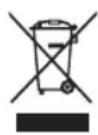
This device is labelled in accordance with European Directive 2012/19/EU concerning waste electrical and electronic equipment. This symbol indicates that the product or associated batteries should not be disposed of as general household waste. As with any electrical equipment, please dispose of it according to local regulations.

CE COMPLIANCE INFORMATION
This product conforms to all EU Directive requirements as applicable by law. Hereby, Ruark Audio, declares that this device complies with the essential requirements and other relevant provisions of the European Radio Equipment Directive 2014/53/EU.
You can download the full CE Declaration of Conformity at www.ruarkaudio.com/doc/MRxdoc.pdf

UK CONFORMITY ASSESSMENT INFORMATION
This product conforms to all UK Conformity Assessment regulations as applicable by law. You can download the full UKCA Declaration of Conformity at www.ruarkaudio.com/doc/MRxUKCA.pdf
Troubleshooting
Sometimes resetting your MRx to factory settings can fix common problems. To reset your MRx complete the following steps:
- Disconnect your MRx from the mains power supply.
- Set the STEREO MODE SWITCH to the LEFT position.
- While holding down the CONTROL KNOB, reconnect the mains power supply.
Once your MRx has rebooted, it will automatically go into setup mode (see Setup section). Set it up as normal and remember to put the STEREO MODE SWITCH back to your desired setting. Resetting it will also clear the Bluetooth pairing list so you will need to pair your Bluetooth devices again.
For further help with your product, please refer to the FAQ (Frequently Asked Questions) page in the support area of our website.
For more information visit www.ruarkaudio.com/support
Specifications
Amplifiers and drivers
- 2 x 75mm neodymium high-fidelity drivers
- Tuned bass reflex cabinet
• 16W nominal power output
• Enhanced 3D sound processor
Digital audio
- Internet radio, UPnP™ DLNA
• 802.11b/g/n Wi-Fi supports WEP, WPA & WPA2 security
• MP3, WMA, AAC, FLAC, WAV
• SBC, AAC, A2DP, aptX Bluetooth
• Optical S/PDIF input - Ruark multi-room compatible (up to 5 devices per group)
Inputs and outputs
- Combined analogue/optical 3.5mm jack input
- USB (FAT32)
Power supply
- Input power 100 to 240VAC 50-60Hz 1A max
• Output power 14VDC 2A
Power consumption
- 10-12W typical
- 28W max
- 1.8W standby
Physical
- Dimensions with stand in landscape mode: W300 x H180 x D180mm (11.8 x 7.1 x 7.1in)
- Dimensions without stand in landscape mode: W300 x H175 x D160mm (11.8 x 6.9 x 6.3in)
• Weight: 3.4kg (7.5lbs) - Security slot
• Wall-bracket compatible
For more information visit www.ruarkaudio.com/support
Specification and design subject to modification without notice.
Guarantee
Register your product to get an extended three-year guarantee.
As standard, this product is guaranteed to be free from defects for a period of two years from date of purchase, but this is extended to three years if you register your product at www.ruarkaudio.com.
This guarantee remains valid providing this product has been treated with due care and attention. Product failure through accidental damage, excessive wear and tear, negligence or unauthorised modification will void this guarantee.
If this product was purchased in the UK and it develops a fault, please contact the retailer from which it was purchased, or contact us directly via our website www.ruarkaudio.com/support.
For products purchased outside the UK the distributor in the country of purchase guarantees the product. For details, please contact the local Ruark distributor or outlet.
If returning this product, please ensure it is packed in its original packaging and a proof of purchase is included.
This guarantee in no way varies or removes the purchaser's statutory rights.
Errors and omissions excepted.
General care
- Clean with a soft, lint-free duster or slightly dampened cloth. Do not use wax sprays or other substances as these may damage the surface finish or impair performance.
- Do not expose your unit to direct sunlight, high humidity, dust, excessive vibration or extreme temperatures, all of which can affect the finish, performance and reliability of the unit.
- Recommended operating temperature range is 5^ to 40^ .
- Natural wood finish cabinets will vary and lighten or darken with age, particularly when exposed to sunlight.
Copyright and trademarks
© Ruark Audio. All rights reserved. Ruark Audio, the Ruark Audio logo, and other Ruark Audio marks are owned by Ruark Audio and may be registered. All other trademarks are the property of their respective owners. Ruark Audio assumes no responsibility for any errors that may appear in this manual and the information contained in it may change without notice. Bluetooth® and associated logos are registered trademarks owned by Bluetooth SIG, Inc.
Qualcomm aptX is a product of Qualcomm Technologies International, Ltd.
The Spotify software is subject to third party licenses found here: www.spotify.com/connect/third-party-licenses
All other trademarks are the property of their respective owners.
EN-19
MRx
natural_image
Technical line drawing of a rectangular electronic device with mounting brackets and a central panel (no text or symbols)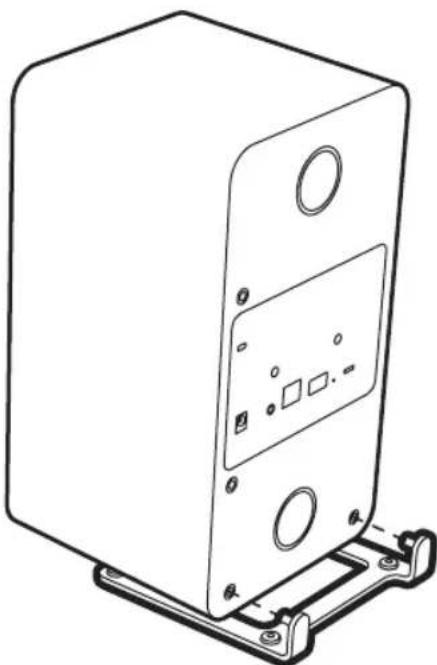
natural_image
Line drawing of a rectangular electronic device with mounting brackets and a central display panel (no text or symbols)4. Installer UNDOK-appen
Stereotilstand
Mono/stereo-tilstand
natural_image
Two identical rectangular devices with circular buttons, placed side by side on a flat base (no text or symbols)
STEREO LEFT RIGHT MONO

STEREO LEFT RIGHT MONO

STEREO LEFT RIGHT MONO

STEREO LEFT RIGHT MONO
natural_image
Technical line drawing of a rectangular electronic device with mounting brackets and a central panel (no text or symbols)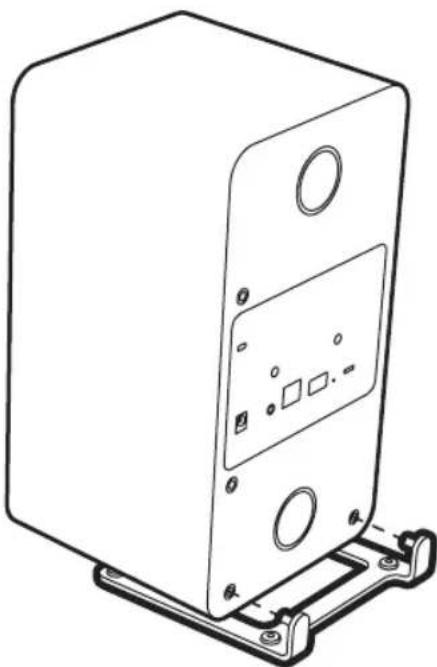
natural_image
Line drawing of a rectangular electronic device with mounting bracket and circular ports (no text or symbols)Stereomodus
Mono-/Stereomodus
natural_image
Two identical rectangular speakers standing upright, each with a circular button on the speaker (no text or symbols)
STEREO
LEFT
RIGHT MONC

STEREO
LEFT
RIGHT MONO
MORO

STEREO
LEFT
RIGHT MONO

STEREO
LEFT
RICH MONO
www.spotify.com/connect/third-party-licenses
natural_image
Technical line drawing of a rectangular electronic device with mounting bracket (no text or symbols)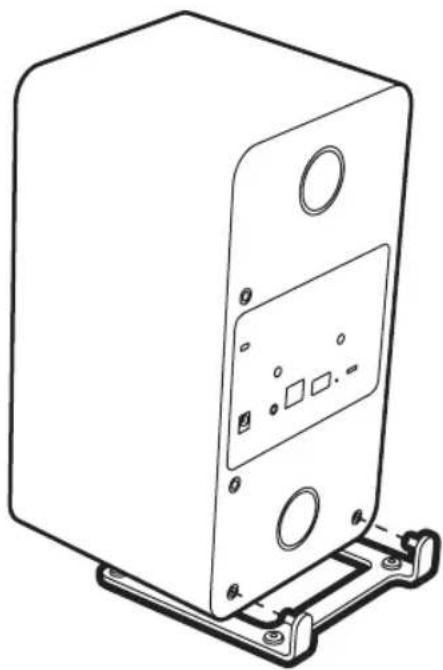
natural_image
Line drawing of a rectangular electronic device with mounting bracket and circular ports (no text or symbols)Modo estéreo
Modo mono/estéreo
natural_image
Two identical rectangular speakers standing upright, each with a circular button on the speaker (no text or symbols)STEREO LEFT RIGHT MONO
STEREO LEFT RIGHT MONO
STEREO LEFT RIGHT MONO
www.spotify.com/connect/third-party-licenses
natural_image
Simple line drawing of a rectangular device with a circular top and side label 'ruarkudio' (no text or symbols on the device itself)1
FR
FR-3
Vue d'ensemble
natural_image
Technical line drawing of a rectangular electronic device with mounting bracket (no text or symbols)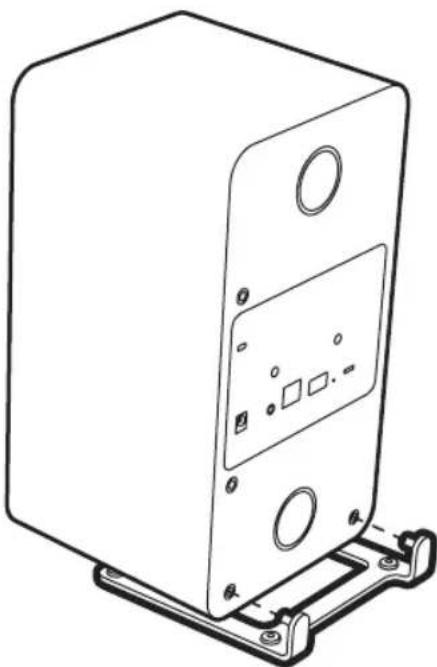
natural_image
Line drawing of a rectangular electronic device with mounting bracket and circular ports (no text or symbols)4. Installer l'application UNDOK
Mode stéréo
Mode Mono / stéréo
natural_image
Two identical rectangular devices with circular buttons, no text or symbols visible
STEREO
LEFT
RIGHT MONO

STEREO
LEFT
RICH
MONO

STEREO
LEFT
RIGHT
MONO

STEREO
LEFT
RICHT
MONO
INFORMATIONS SUR LA CONFORMITÉ À LA CE
natural_image
Simple line drawing of a rectangular device with a circular top and labeled corner (no text or symbols on the body)1
IT
Sommario
natural_image
Technical line drawing of a rectangular electronic device with mounting bracket (no text or symbols)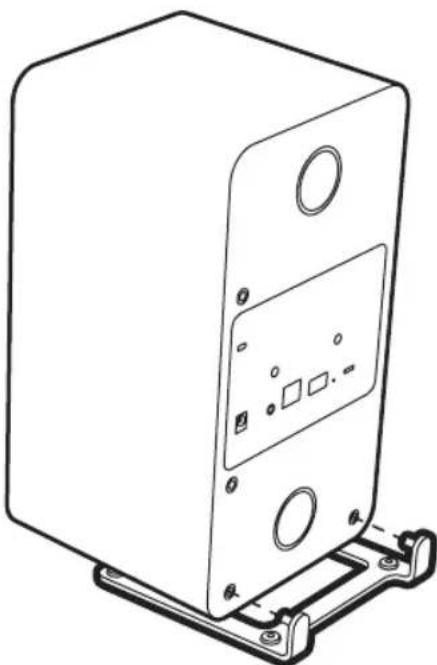
natural_image
Line drawing of a rectangular electronic device with mounting brackets and a central display panel (no text or symbols)Modalità stereo
natural_image
Two identical rectangular devices with circular buttons, no text or symbols visible
STEREO
LEFT
RIGHT MONO

STEREO
LEFT
RICH
MONO

STEREO
LEFT
RIGHT
MONO

STEREO
LEFT
RICHT
natural_image
Simple line drawing of a rectangular device with a circular top and labeled corner (no text or symbols on the body)1
NL
NL-3
Overzicht
- Knoppen
- 75mm neodymium driver
- Muurbevestigingspunten (1/4-20 UNC)
- STEREOMODUS KEUZESCHAKELAAR
- Netwerkstatusindicatielampje
- USB-poort
- Ethernetsocket (RJ45)
- Gecombineerde 3,5mm analoge en optische ingangsstekerbus
- DC stroomcontactdoos (14V 2A)
- Veiligheidssleuf
NL-4
Knoppen
17. BEDIENINGSKNOP
3. Selecteer stereomodu
natural_image
Technical line drawing of a rectangular electronic device with mounting bracket (no text or symbols)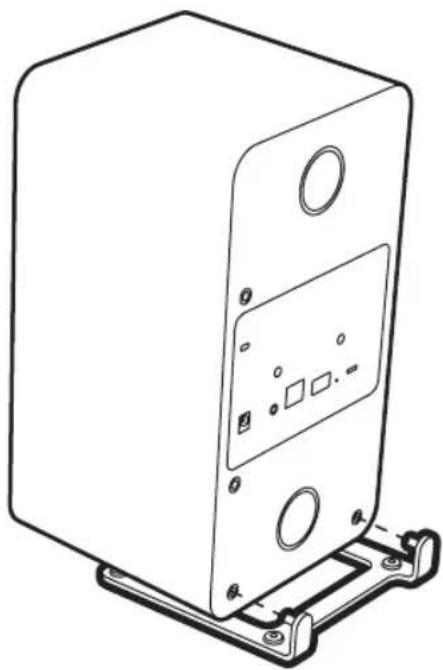
natural_image
Line drawing of a rectangular electronic device with mounting bracket and internal components (no text or symbols)4. Installeer de UNDOK app
Download en installeer de app op je mobiele apparaat.

Stereomodus
Mono-/stereo modus
natural_image
Two identical rectangular devices with circular buttons, placed side by side on a flat base (no text or symbols)
STEREO
LEFT
RIGHT MONO

STEREO
LEFT
RICHT MONO

STEREO
LEFT
RIGHT MONO

STEREO
LEFT
RICH MONO
natural_image
Simple line drawing of a rectangular device with a circular top and side label 'ruarkudio' (no text or symbols on the device itself)1
natural_image
Pure technical line drawing of a mechanical bracket or mounting frame with mounting holes and a circular symbol labeled '6' at the bottom (no text or symbols beyond the number)NO
NO-3
Oversikt
- Kontroller
- 75mm neodym-driver
- Veggmonteringpunkter (1/4-20 UNC)
- VALGBRYTER FOR STEREOMODUS
- Indikatorlampe for nettverksstatus
- USB-port
- Ethernet-kontakt (RJ45)
- Kombinert 3,5mm analog og optisk inngangs-jack
- Strømtilkobling (14V 2A)
- Sikkerhetsspor
Kontroller
- KONTROLLKNAPP
natural_image
Technical line drawing of a rectangular electronic device with mounting brackets and a central panel (no text or symbols)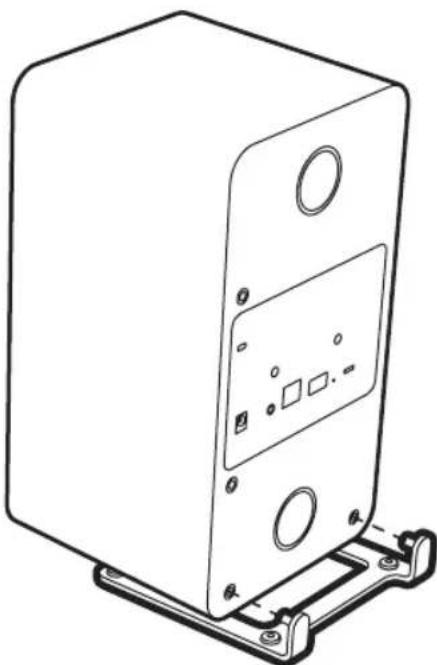
natural_image
Line drawing of a rectangular electronic device with mounting brackets and a central display panel (no text or symbols)4. Installer UNDOK-appen
Stereomodus
Mono/stereo-modus
natural_image
Two identical rectangular electronic devices with circular buttons, shown side by side (no text or symbols)
STEREO
LEFT
RIGHT MONO

STEREO
LEFT
RICH
MONO

STEREO
LEFT
RIGHT

STEREO
LEFT
RICHT
MONO
natural_image
Simple line drawing of a rectangular device with a circular top and labeled corner (no text or symbols on the body)1

natural_image
Pure technical line drawing of a mechanical bracket or mounting frame with mounting holes and a circular symbol labeled '6' at the bottom (no text or symbols on the diagram itself)KO
KO-3
본체구성
컨트롤
- 컨트롤 녹 (Control Knob)
-회전식 볼륨 조절
-누를 때 마다 음원 순차 선택
-대기모드에서 누르면 켜짐
natural_image
Technical line drawing of a rectangular electronic device with mounting bracket (no text or symbols)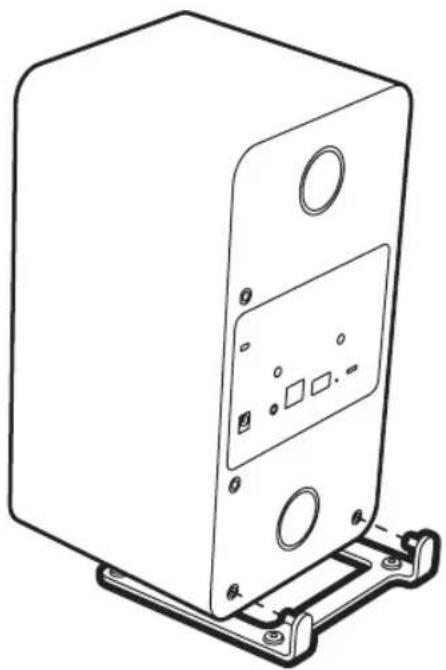
natural_image
Line drawing of a rectangular electronic device with mounting brackets and a central display panel (no text or symbols)4. UNDOK 앱 설치
스테레오 모드
모노/스테레오 모드
natural_image
Two identical rectangular speakers standing side by side, each with a circular button on top (no text or symbols)
STEREO
LEFT
RIGHT MONO

STEREO
LEFT
RICH MONO

STEREO
LEFT
RIGHT MONO

STEREO
LEFT
RICH MONO
Connected wireless speaker MRx
| User guide | EN |
| Brugervejledning | DA |
| Bedienungsanleitung | DE |
| Guía del usuario | ES |
| Guide de l'utilisateur | FR |
| Manuale dell'utente | IT |
| Gebruikershandleiding | NL |
| Brukerveiledning | NO |
| 사용자 안내서 | KO |
ユーザーガイド JA
ruarkaudio
natural_image
Simple line drawing of a rectangular device with a circular top and side label 'ruarkudio' (no text or symbols on the device itself)1
natural_image
Pure technical line drawing of a mechanical bracket or mounting frame with mounting holes and a circular symbol at the bottom (no text or labels)JA
製品の概要
natural_image
Technical line drawing of a rectangular electronic device with mounting bracket (no text or symbols)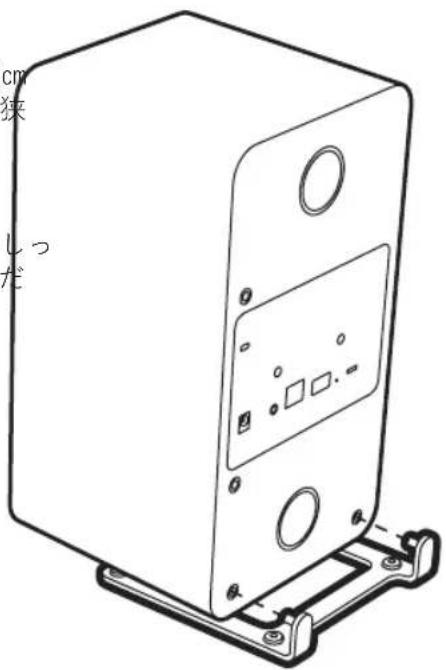
ステレオモード
Mono/stereoモード
natural_image
Two identical rectangular devices with circular buttons, no text or symbols visible
STEREO
LEFT
RIGHT MONO

STEREO
LEFT
RICH MONO
natural_image
Two identical rectangular devices with circular buttons, no text or symbols present
STEREO
LEFT
RICH MONO

STEREO
LEFT
RICHT MONO
natural_image
Silhouette of a tree with a broad canopy and trunk (no text or symbols)ruarkaudio
59 Tailors Court, Temple Farm Industrial Estate, Southend on Sea, Essex, SS2 5TH, UK www.ruarkaudio.com

GREAT BRITISH DESIGN
20210304.1