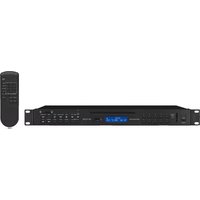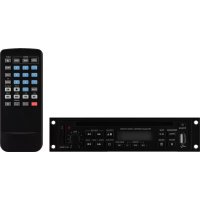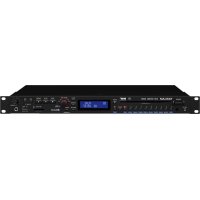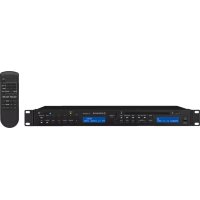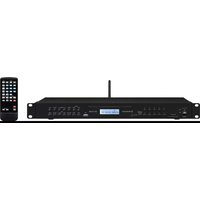
CD-114/BT - Cd player/recorder Monacor - Free user manual and instructions
Find the device manual for free CD-114/BT Monacor in PDF.



| Product type | CD player/recorder with Bluetooth |
| Brand | Monacor |
| Model | CD-114/BT |
| Dimensions (W x H x D) | 482 x 44 x 245 mm (with brackets, without feet) 438 x 47 x 245 mm (without brackets, with feet) |
| Weight | 3.27 kg |
| Mains power supply | ~230 V/50 Hz, 30 VA max., Standby: 9.2 VA |
| Emergency power supply | = 24 V, 1060 mA max., Standby: 290 mA |
| Supported audio formats | CD-DA, MP3, WMA (USB and SD card support: WMA 9.2) |
| Bluetooth version | 4.1, range up to 15 m, max. power 3 dBm |
| Remote control battery | CR2025 button cell, 3 V |
| Audio output | 0.8 V (stereo RCA) |
| Auxiliary input | 3.5 mm stereo jack (AUX IN) |
| Frequency response | 20 - 20,000 Hz |
| Distortion rate | 0.3 % |
| Signal-to-noise ratio | 60 dB |
| Main functions | CD/USB/SD playback, Bluetooth, Auto-Start, track programming, repeat, random mode, single one, A-B loop, pitch, hot key, RS-232 management |
| Care and cleaning | Soft dry cloth; do not use chemicals or water |
| Safety | Indoor use only, temperature 0-40 °C, do not expose to water or high humidity, do not block ventilation slots, repairs to be carried out by a qualified technician |
| Spare parts and repairability | Remote control battery CR2025 replaceable; laser cleaning for a fee at the workshop |
| Warranty | Warranty void in case of unauthorized repair |
Frequently Asked Questions - CD-114/BT Monacor
User questions about CD-114/BT Monacor
0 question about this device. Answer the ones you know or ask your own.
Ask a new question about this device
Download the instructions for your Cd player/recorder in PDF format for free! Find your manual CD-114/BT - Monacor and take your electronic device back in hand. On this page are published all the documents necessary for the use of your device. CD-114/BT by Monacor.
USER MANUAL CD-114/BT Monacor
CD/MP3 Player with Bluetooth Interface

text_image
MONACOR WWW.MONACOR.COM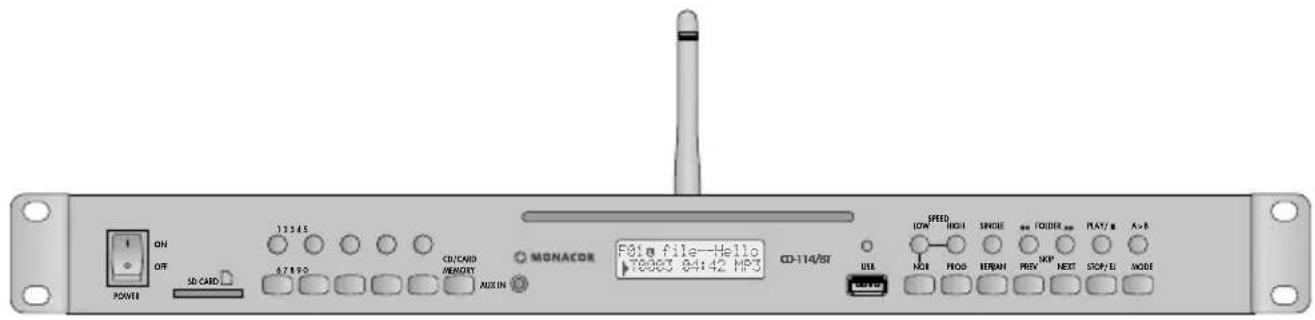
text_image
ON OFF POWER SD CARD 13345 67890 CD/CARD MEMORY AUX IN MONACOR F818 file=Hello 70063 04142 MP3 CD-114/8T USB SPEED LOW HIGH SINGLE FOLDER SP NOI PROG BERAN PREV NEXT STOP/E MODE SPEED LOW HIGH SINGLE FOLDER SP NOI PROG BERAN PREV NEXT STOP/E MODECD-114/BT
Bestellnummer • Order Number 1000951
text_image
Control panel with numeric keypad and function buttons, labeled in ChineseBEDIENUNGSANLEITUNG
INSTRUCTION MANUAL
MODE D'EMPLOI
ISTRUZIONI PER L'USO
GEBRUIKSAANWIJZING
English ...... Page 16
Français ...... Page 28
Italiano.... Pagina 40
WAITING PAIR... BLUE
4 Installation....19
4.1 Setting up/Installation into a rack ..... 19
4.2 Connections ..... 19
4.3 Activating/Deactivating the automatic start function ..... 19
5 Operation 20
5.1 Connecting an audio source to the jack AUX IN . . . . . . . . . . . . . 20
5.2 IR remote control....20
5.2.1 Inserting/Replacing the battery ..... 20
5.3 Switching on/off, standby, selecting the operating mode. . . . . . 21
5.4 Inserting and removing media ..... 21
5.5 Setting the volume, muting ..... 22
5.6 Playing a CD, a USB storage device or an SD card 22
5.6.1 Play, pause, stop 22
5.6.2 Selecting the replay mode ..... 22
5.6.3 Title selection. 23
5.6.4 Fast forward/reverse....24
5.6.5 Programming an individual title sequence 24
5.6.6 Hot key function 24
5.6.7 Playing a loop 25
5.6.8 Changing the speed and the pitch . . . . 25
5.7 "Bluetooth" mode ..... 25
6 Control via RS-232 Interface ..... 26
7 Maintenance and Disposal of the Product 27
8 Specifications 27
8.1 Bluetooth specifications ..... 27
8.1.1 Conformity and approval....27
CD/MP3 Player
These instructions are intended for experts (installation) and for persons without any specific technical knowledge (operation). Please read the instructions carefully prior to operation and keep them for later reference.
1 Applications
CD-114 / BT is a CD / MP3 player with Bluetooth interface and is suited for a wide range of sound applications (e. g. in theatres or restaurants). It offers extensive features such as automatic start function, repeat replay, pitch function, programming of a title sequence.
Suitable media are standard audio CDs (CD-DAs) and CDs, USB storage devices and SD cards (SD / SDHC / SDXC) with MP3 and WMA files. The player also features an RS-232 interface for remote control via a computer.
Note: Due to the large number of storage device manufacturers and device drivers, it cannot be guaranteed that all storage media are compatible with the CD-114/BT.
2 Safety Notes
The product corresponds to all relevant directives of the EU and is therefore marked with C€
The product corresponds to the relevant UK legislation and is therefore marked with UKCA.
WARNING

The product uses dangerous mains voltage. Leave servicing to skilled personnel only and do not insert anything into the air vents. Risk of electric shock!
- The product is suitable for indoor use only. Protect it against dripping water, splash water and high air humidity. The admissible ambient temperature range is 0–40°C.
- Do not place any vessel filled with liquid on the product, e. g. a drinking glass.
- The heat produced inside the product must be dissipated by air circulation. Never cover the air vents.
text_image
RS-232 AUTOPLAY ON OFF OUTPUT L R 4 5 24 Vm + - 6 230V~ /50Hz FUSERear panel

text_image
7 ON OFF SD CARD POWER 8 12345 67890 CD/CARD MEMORY MONACOR AUX IN 11 12 10 CD-114/B USB 13 9 SPEED LOW HIGH SINGLE FOLDER PLAY/A > B NOR PROG REP/RAN PREV SKIP NEXT STOP/EJ MODE Front panel- Do not use this product and disconnect it immediately from the power supply
- if the device or the power supply cable is visibly damaged,
- if a defect might have occurred after the device was dropped or suffered a similar accident,
- if malfunctions occur.
Any repairs must be carried out by specialists.
- Never pull the mains cable to disconnect the mains plug from the socket, always seize the plug.
- If the remote control is not used for a longer period of time, remove the battery as a precaution so that the remote control will not be damaged in case of battery leakage.
No guarantee claims for the product and no liability for any resulting personal damage or material damage will be accepted if the product is not correctly used or not expertly repaired.
3 Short Overview
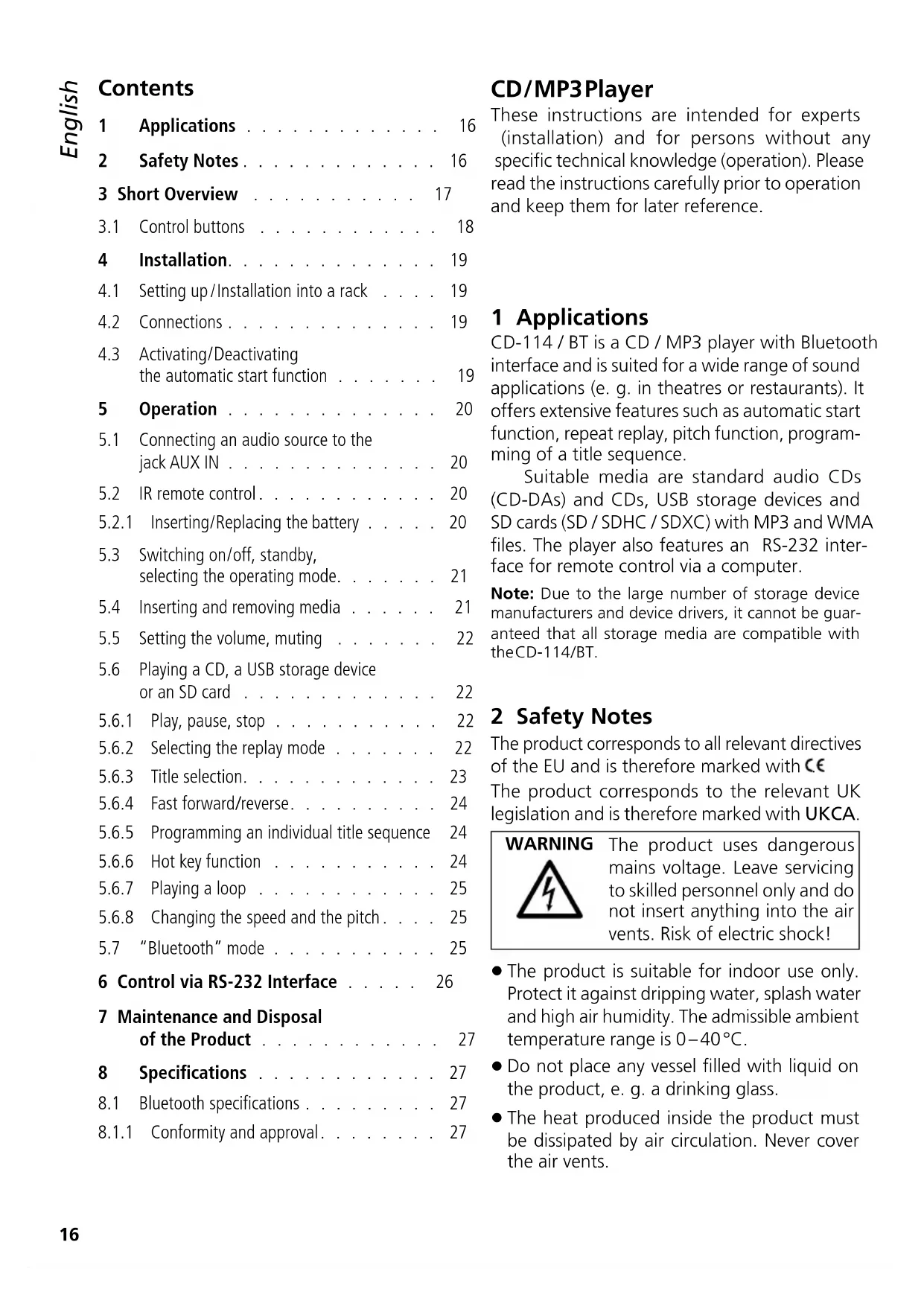
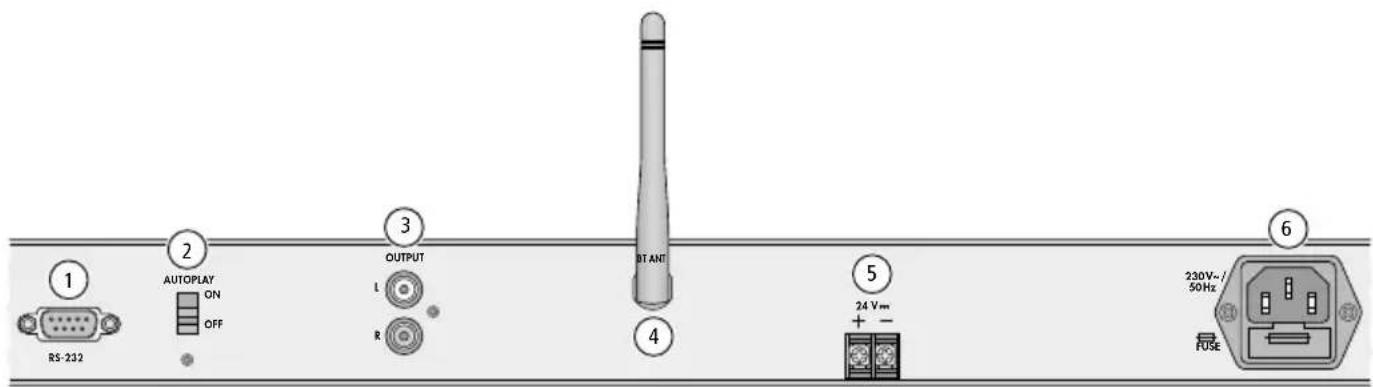
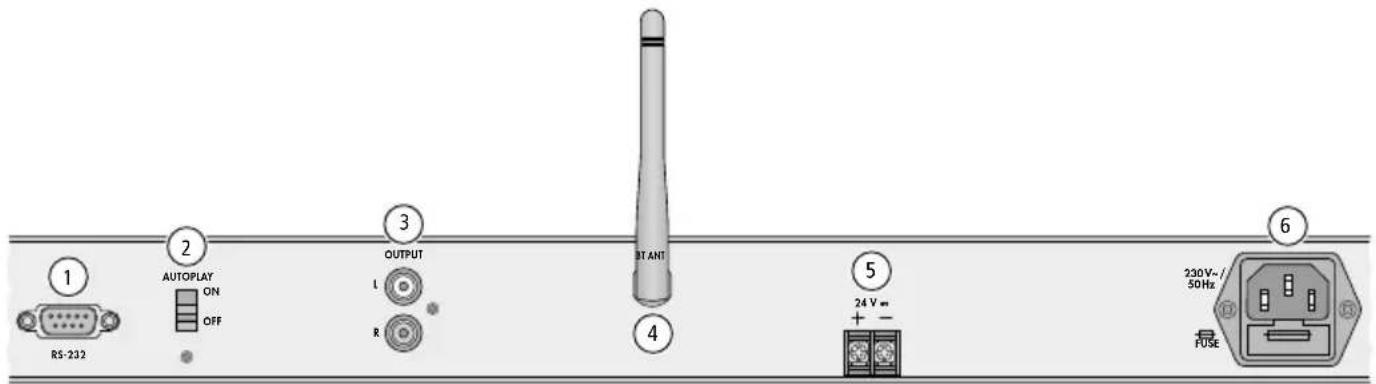
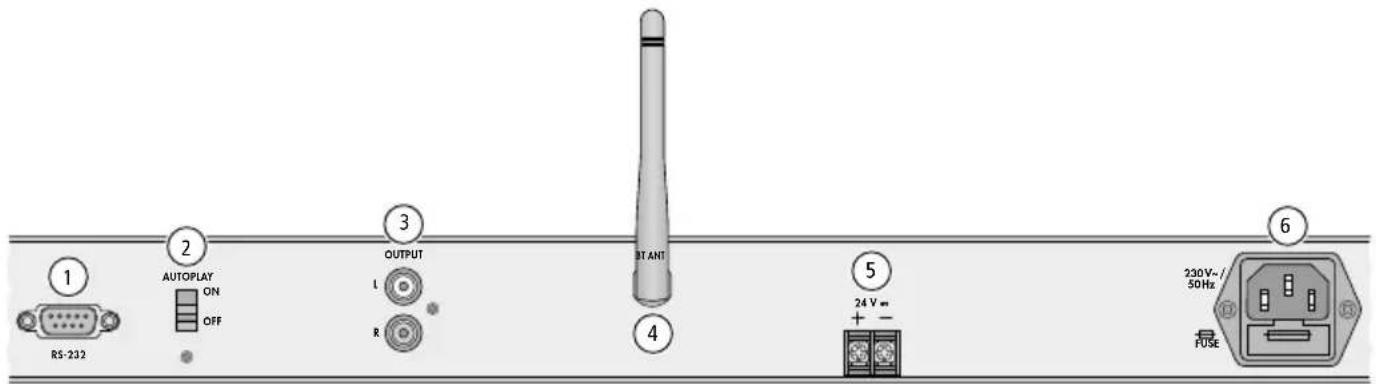
1 RS-232 interface for remote control of the player via a computer
2 Switch to activate /deactivate the automatic start function: switch off the player before changing the position of the switch
3 Stereo audio output to connect the device that follows (e. g. amplifier) via RCA plugs
4 Bluetooth antenna
5 Screw terminals to connect an emergency power supply ( ≈ 24V)
6 IEC connector for connection to a mains socket via the mains cable provided
7 Power switch of the player
Note: If the voltage of an emergency power supply is applied to the terminals (5), it will not be possible to switch off the player.
8 Slot for an SD card (SD / SDHC / SDXC)
9 CD slot
10 IR sensor for the signals of the remote control
11 Stereo audio input to connect an audio source (e. g. smartphone) via 3.5 mm plug
12 Display
Indications for a medium (CD, USB storage device, SD card): 📋 chapter 5.6.1
Indications in "Bluetooth" mode: 📋 chapter 5.7
13 USB port to connect a USB storage device (USB hard disk with individual power supply or USB flash drive)
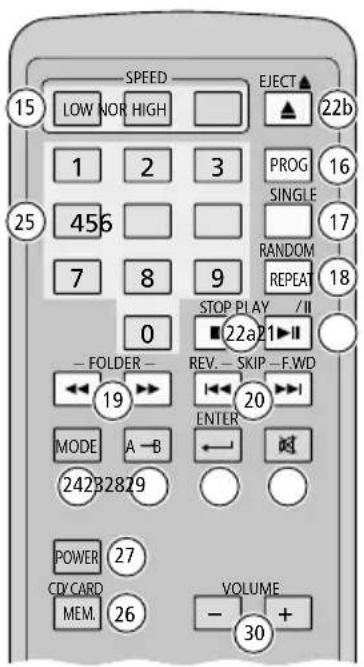
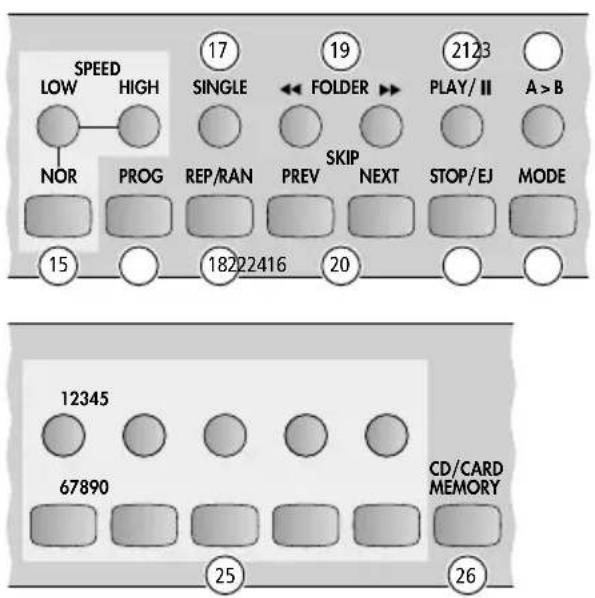
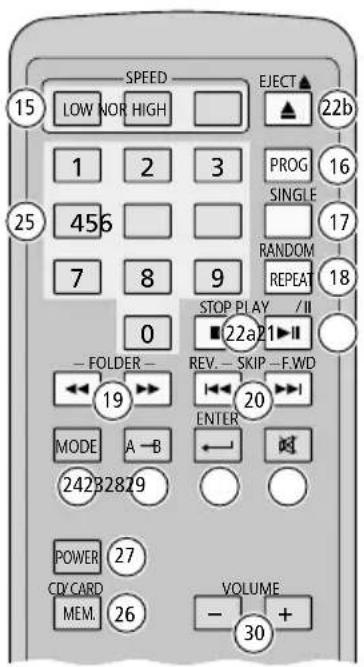
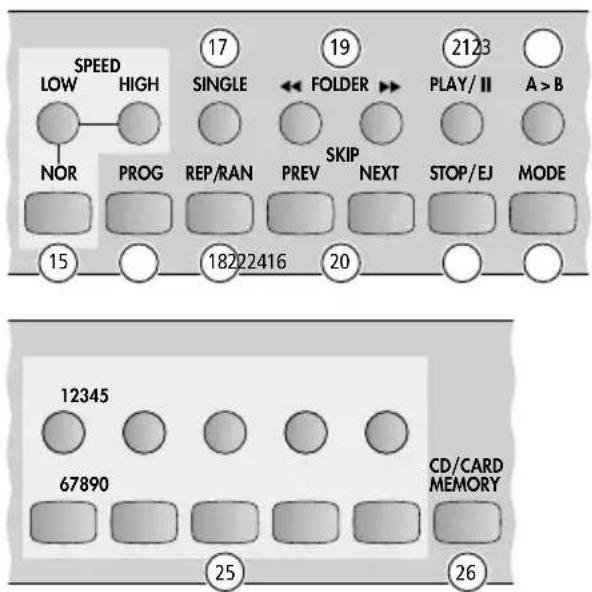
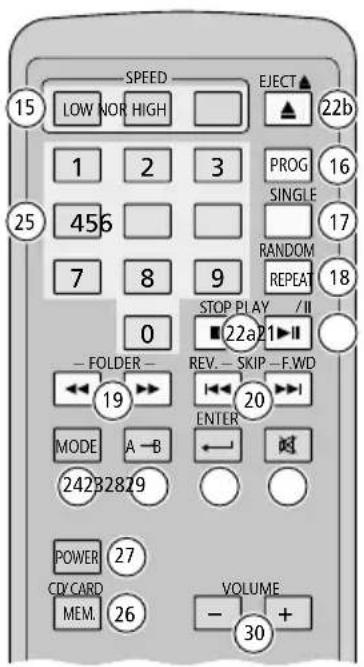
14 Control buttons: 📋 chapter 3.1
text_image
1 RS-232 2 AUTOPLAY ON OFF 3 OUTPUT L R 4 START 5 24 V~ + - 6 230V~ /50Hz FUSERear panel

text_image
7 ON OFF SD CARD POWER 8 12345 67890 CD/CARD MEMORY MONACOR AUX IN 11 12 CD-114/B 10 USB 13 1414 9 SPEED LOW HIGH SINGLE FOLDER PLAY/II A>B NOR PROG REP/RAN PREV SKIP NEXT STOP/EJ MODE Front panel3.1 Control buttons
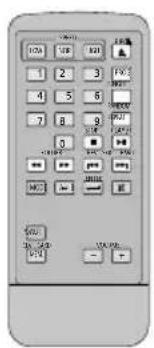
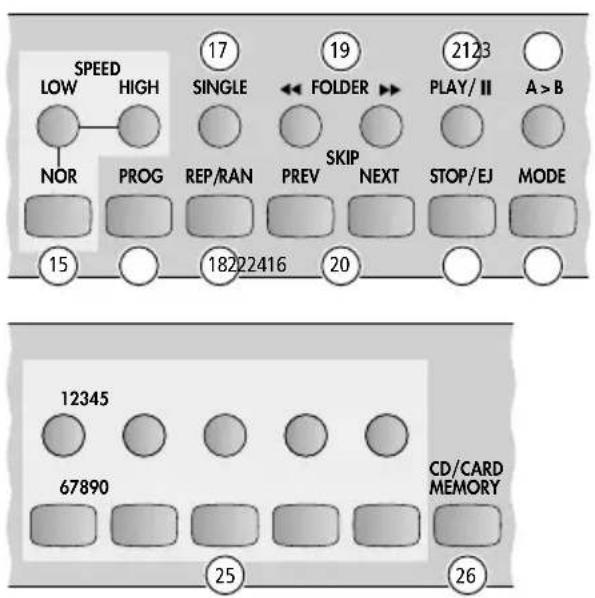
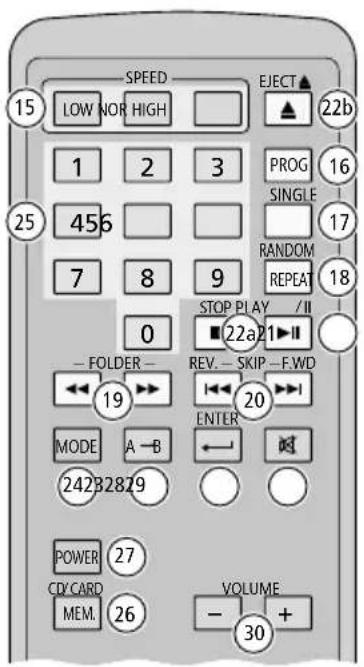
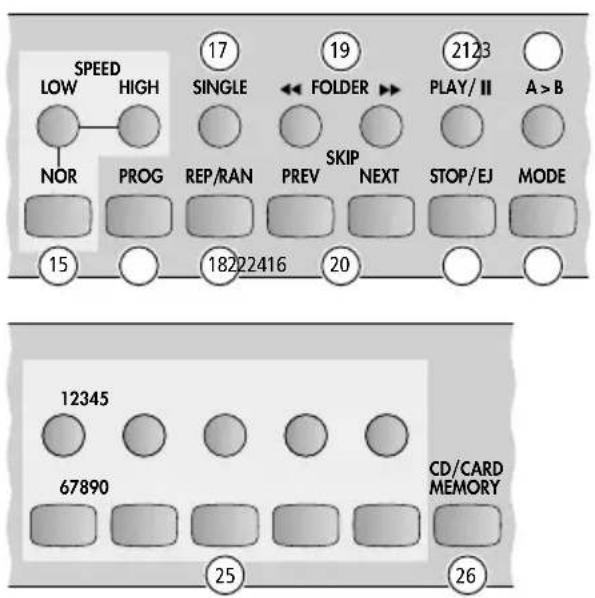
15 Buttons for changing the speed (and thus the pitch):
LOW to reduce the speed step by step HIGH to increase the speed step by step NOR to return to normal speed
16 Button for programming a title sequence
17 Button for switching on /off the replay mode SINGLE ONE (SG1)
18 Button for selecting the replay mode:
– basic setting: All titles are played once one after the other.
- repeat of the title (R-1)
- repeat of the folder (R-F)
- repeat of all titles (R-A)
- repeat of all titles in random order (RAN)
19 Buttons ▶(next) and (previous) for selecting folders
20 Buttons for selecting titles (press button briefly) and for fast forward/reverse (keep button pressed)
| Player | Remote control | Direction |
| NEXT | F.WD ▶▶I | forward |
| PREV | REV. I◀◀ | reverse |
21 Button to start and pause the replay
22 Button STOP / EJ on the player:
- for CD, USB storage device, SD card: to stop the replay
- for CD mode only: to eject the CD in stop mode
Buttons on the remote control:
a STOP ■ for CD, USB storage device, SD card: to stop the replay
b EJECT ▲ for CD mode: to stop the replay and to eject the CD in stop mode
23 Button to play a loop
24 Button to switch between the operating modes "CD", "USB storage device", "SD card" and "Bluetooth"
25 Buttons for selecting titles and for saving and calling up titles when the hot key function has been activated
26 Button to activate/deactivate the hot key function
27 Button to set the player to standby and to switch it on again from standby
28 Button for speeding up the title selection after entering the title number and as a confirmation button while programming a title sequence
29 Mute button to mute /unmute the sound
30 Buttons to set the volume
text_image
SPEED LOW HIGH 17 SINGLE 19 FOLDER 2123 PLAY/ II A > B NOR PROG REP/RAN PREV SKIP NEXT STOP/EJ MODE 15 18222416 20 12345 67890 CD/CARD MEMORY 25 26Buttons on the player
4 Installation
4.1 Setting up/Installation into a rack
Place the player on a flat, horizontal surface or use the two mounting brackets to insert it into a rack for devices with a width of 482 mm (19"). In the rack, one rack unit (1 U = 44.45 mm) is required.
Put the Bluetooth antenna (4) in a vertical position.
4.2 Connections
Before connecting or disconnecting, switch off all devices involved.
1) The stereo audio signal of the player is available at the RCA output (3): Connect the output to the line input of an amplifier (or another device that follows, e.g. a mixer). A suitable cable is provided.
Note: When an audio source is connected to the input AUX IN (11), the output will receive the audio signal from the audio source (chapter 5.1).
2) For remote control of the player via a computer, connect the 9-pole D-Sub connector (1) to the RS-232 interface of the computer (if no RS-232 interface is available on the computer, use an adapter "USB to RS-232"). The parameters for the RS-232 interface and the control commands can be found in chapter 6.
text_image
SPEED EJECT▲ 15 LOW NOR HIGH 22b 1 2 3 PROG 16 SINGLE 25 456 7 8 9 RANDOM 17 REPEAT 18 0 STOP PLAY /II ■22a21▼II - FOLDER - REV. - SKIP -F.WD 19 ← ← → 20 ENTER MODE A-B ← → 242B2829 POWER 27 CD/CARD VOLUME MEM. 26 - + 30Buttons on the remote control
3) To ensure operation of the player in the event of a mains failure, connect the screw terminals (5) to an emergency power supply (=24V).
Note: When a 24V emergency supply voltage is applied to the terminals, the player will be on, regardless of the position of the switch POWER. If the mains supply is also present when the emergency supply voltage is applied, the switch POWER will switch between emergency power operation (position OFF) and mains operation (position ON).
4) Use the mains cable provided to connect the IEC connector (6) to a mains socket.
4.3 Activating/Deactivating the automatic start function
The switch AUTOPLAY (2) is used to activate or deactivate the automatic start function: When the function has been activated (upper position ON), the player will read the medium (CD, USB storage device, SD card) and automatically start playing. When the function has been deactivated (lower position OFF), the player will read the medium and go to stop mode.
With the player switched off, set the switch AUTOPLAY to the desired position and then switch the player on again.
text_image
1 RS-232 2 AUTOPLAY ON OFF 3 OUTPUT L R 4 START 5 24 V~ + - 6 230V~ /50Hz FUSERear panel

text_image
7 ON OFF SD CARD POWER 8 12345 67890 CD/CARD MEMORY MONACOR AUX IN 11 12 CD-114/B 10 USB 13 9 1414 SPEED LOW HIGH SINGLE FOLDER PLAY/II A>B NOR PROG REP/RAN PREV SKIP NEXT STOP/EJ MODE Front panel5 Operation
5.1 Connecting an audio source to the jack AUX IN
To reproduce the audio signal from another audio source (e. g. smartphone), connect this source to the stereo audio input AUX IN (11) via a 3.5 mm plug. The audio signal of the audio source will then be available at the audio output (3) and can be reproduced via an amplifier system connected to this output (even when the player CD-114 / BT is off). It is not possible to control the audio source via the buttons of CD-114/BT.
To reproduce the audio signal of CD-114/BT again, disconnect the plug of the audio source from the jack AUX IN.
Note: Before connecting or disconnecting, set the volume of the source to minimum.
5.2 IR remote control
The remote control is operated with a button cell CR2025. If the battery has already been inserted in the factory, remove the insulating film (to protect the battery against discharge) from the battery holder. The remote control is now ready for use. Always point the remote control at the IR sensor (10) when pressing a button. Make sure that there are no obstacles between the sensor and the remote control.
5.2.1 Inserting/Replacing the battery
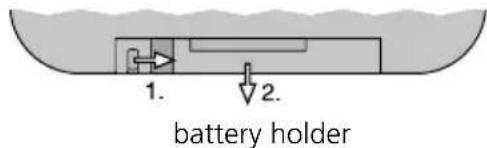
1) The battery holder is on the back of the remote control. Push the latch of the battery holder to the right (arrow 1 in the figure below) and remove the holder (arrow 2).
text_image
1. 2. battery holder2) When replacing the battery, remove the discharged battery.
3) Place the new battery in the holder with the positive pole facing up. Push the holder in again.
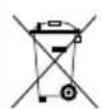
Never put batteries in the household waste. Always dispose of the batteries in accordance with local regulations.
text_image
SPEED LOW HIGH 17 SINGLE 19 FOLDER 2123 PLAY/ II A > B NOR PROG REP/RAN PREV SKIP NEXT STOP/EJ MODE 15 18222416 20 12345 CD/CARD MEMORY 67890 25 26Buttons on the player
text_image
SPEED EJECT▲ 15 LOW NOR HIGH ▲ 22b 1 2 3 PROG 16 25 456 SINGLE 7 8 9 RANDOM 17 0 STOP PLAY /II ■22a21▼ - FOLDER - REV. - SKIP -F.WD 19 ← ← 20 ENTER MODE A-B ← → 242B2829 POWER 27 CD/CARD VOLUME MEM. 26 - + 30Buttons on the remote control
5.3 Switching on/off, standby, selecting the operating mode
To switch on the player, set the switch POWER (7) to "ON". To switch off the player, set the switch to "OFF" again.
Note: If an emergency power supply is connected and the 24 V DC voltage is present, it will not be possible to switch off the player with the switch POWER.
To switch the player to standby, press the button POWER (27) on the remote control. To switch on the player from standby, press the same button.
The player offers four operating modes:
- "CD"
- "USB storage device"
- "SD card"
- "Bluetooth"
After switching on, the last operating mode used will always be activated. If the last mode was "CD", "USB storage device" or "SD card" and the corresponding medium is missing, the player will attempt to read the medium (indication READING ...) and then show this information on the display: e.g. NO DISC.
To change the operating mode, press the button MODE (24) repeatedly until the desired mode is selected. When switching between the modes, the player will recognise any existing media: e.g. if only a CD is inserted, the player will only switch between the modes "CD" and "Bluetooth".
5.4 Inserting and removing media
CD: Insert a CD, label facing up, into the CD slot (9) until it is automatically retracted. If an operating mode other than "CD" is selected, the player will automatically switch to the operating mode "CD" after the CD has been retracted.
To eject the CD, first stop the CD using the button STOP/ EJ (22) on the player or EJECT ▲ (22b) on the remote control. Then press the button again to eject the CD. When the CD has been ejected, it can be retracted again while it is still halfway in the slot by pressing the same button. Ejecting and retracting the CD by pressing the button will only work in the mode "CD".
USB storage device: Connect a USB hard disk with individual power supply or a USB flash drive to the USB port (13).
To remove the USB storage device, stop the replay and disconnect the USB storage device from the USB port.
SD card: Insert an SD card (SD/SDHC/SDXC, 128GB max.) into the slot (8). Make sure the bevelled corner of the card is facing to the right and towards the player.
To remove the card, stop the replay, push the card into the slot until it disengages and remove it from the slot.
5.5 Setting the volume, muting
Use the buttons VOLUME - /+ (30) to reduce /increase the volume. The setting range is 0 ... 30. Each time the button is pressed, the display will briefly show the setting selected (not in "Bluetooth" mode).
To mute the sound, press the button (29). The display will show the symbol ✕. To unmute the sound, press the button again.
5.6 Playing a CD, a USB storage device or an SD card
5.6.1 Play, pause, stop
Depending on the position of the switch AUTO-PLAY on the rear panel of the player, the player will read the medium (indication READING ...) and immediately start playing it or the player will read the medium and go to stop mode.
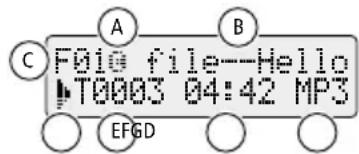
To start and pause the replay, press the button PLAY/II (21). During replay and pause, the display will show:
text_image
C F010 file--Hello T0003 04:42 MP3 A B EFGDA symbol for the medium:
☐ = CD, ☑ = USB storage device, ☒ = SD card
B scrolling text information (file name, title name, artist name, album name)*
C number of the folder*
D symbol for play ▶ or pause Ⅱ
(when the sound is muted: symbol ≈)
E number of the title (in the folder*)
F time already played
G either audio format CD (= CD-DA), MP3 or WMA, when the replay mode selected is basic setting or the replay mode R-1, R-F, R-A, RAN or SG1, when a replay mode other than basic setting is selected
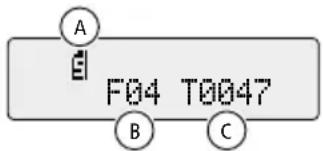
To stop the replay, press the button STOP/EJ (22) on the player or the button STOP (■ (22a) on the remote control. For CDs, the button EJECT ▲ (22b) on the remote control can also be used. After the player has been set to "Stop", the display will show:
text_image
A F04 T0047 B CA symbol for the medium:
B number of folders*
C number of titles
$$ \text { ☐ } = \mathrm{CD}, \text { ☒ } = \text { USB storage device }, \text { ☑ } = \text { SD card } $$
5.6.2 Selecting the replay mode
To activate one of the "Repeat" modes, press the button REP/RAN or RANDOM/REPEAT (18) repeatedly until the desired mode is selected. The mode selected will appear on the right at the bottom of the display:
- indication CD, MP3 or WMA basic setting: All titles are played once one after the other, then the player goes to stop mode.
- indication R-1 REPEAT ONE: repeat of the title
- indication R-F REPEAT FOLDER: repeat of all titles in the folder (not available for CD-DAs)
- indication R-A REPEAT ALL: repeat of all titles
- indication RAN RANDOM: repeat of all titles in random order
To activate the mode SINGLE ONE, press the button SINGLE (17). After playing a title in the mode SINGLE ONE (indication SG1), the player will return to the beginning of the title and go to pause. To deactivate the mode, press the button again. The player will then go to the basic setting (see above).
text_image
SPEED LOW HIGH 17 SINGLE 19 FOLDER 2123 PLAY/ II A > B NOR PROG REP/RAN PREV SKIP NEXT STOP/EJ MODE 15 18222416 20 12345 67890 CD/CARD MEMORY 25 26Buttons on the player
text_image
SPEED EJECT▲ 15 LOW NOR HIGH 22b 1 2 3 PROG 16 SINGLE 25 456 7 8 9 RANDOM 17 REPEAT 18 0 STOP PLAY /II ■22a21▼II - FOLDER - REV. - SKIP - F.WD 19 ← ← → 20 ENTER MODE A-B ← → 242B2829 POWER 27 CD/CARD VOLUME MEM. 26 - + 30Buttons on the remote control
5.6.3 Title selection
Titles can be selected during replay or pause or in stop mode (note on display indications).
1) For media with several folders: Before selecting the title, use a FOLDER button (19) to select the folder containing the title:
▶▶ = skip to next folder
◀◀ = skip to previous folder
After folder selection in play or pause mode, the first title of the folder will start immediately; in stop mode, the first title of the folder will be selected.
2) Title selection via numeric buttons:
Use the corresponding numeric button(s) (25) to enter the number of the title (in the folder). The title will start shortly after that. To speed up the title selection, enter the number and press the button ENTER ← (28).
Title selection via SKIP buttons:
Use a SKIP button (20) to skip to the title: 📋 table below. If the title is in a folder, please note that title selection in stop mode is only possible within the folder.
After a title has been selected in play or pause mode, the title will start immediately; in stop mode, the button PLAY/II (21) must be used to start the title.
| SKIP buttons | ||
| Player | Remote control | Function |
| NEXT | F.WD ▶▶I | to skip to the next title |
| PREV | REV. I◀◀ | for play/pause:to return to the beginning of the current title first, then to go back one title at a time with each press of the button*in stop mode:to skip to the previous title |
*Exception for a CD in pause mode: When the reverse button is pressed, the player will immediately go back one title at a time.
Note on display indications: In stop mode, after a folder has been selected or after a title has been selected with a SKIP button, the display will no longer indicate the number of folders and titles (chapter 5.6.1) but the number of the folder selected and the number of the title selected (in the folder).
5.6.4 Fast forward/reverse
Keep the corresponding SKIP button (20) pressed:
| Player Remote control Function | ||
| NEXT F.WD | ▶▶| | fast forward |
| PREV REV. | |◀◀ | fast reverse |
5.6.5 Programming an individual title sequence
1) Press the button PROG (16). PROGRAM will appear on the display.
2) Program the first title of the title sequence:
- For media with several folders, use a FOLDER button (19) to select the folder containing the title.
- To select the title, press a SKIP button (20) to skip to the title or enter the number of the title (in the folder) using the corresponding numeric button (s) (25).
- After skipping to the title or immediately after entering the title number, press the button PROG or the button ENTER (28) to confirm: The memory location indication will change from P-00 to P-01.
3) Proceed in the same way for all other titles. A title sequence is limited to a maximum of 10 titles.
4) When the last title has been programmed, press the button PLAY/II (21): The title sequence will be played. MEM will appear on the display and underneath it the number of the current title in the title sequence.
The SKIP buttons can be used to skip to the next or previous title of the title sequence.
5) For the title sequence, the replay modes REPEAT ONE, REPEAT ALL and SINGLE ONE are available.
Note: The mode RANDOM does not work for a programmed title sequence.
The title sequence will be deleted as soon as the player goes to stop mode. The title sequence will also be deleted, when the player is switched to another operating mode or to standby or when it is switched off.
5.6.6 Hot key function
For each medium used (CD, USB storage device, SD card), up to 10 titles can be saved and directly called up via a numeric button. To do this, activate the hot key function.
1) When the player is in stop mode, press the button PLAY/II (21) to start the replay. It is only possible to activate the hot key function during replay or pause.
2) To activate the hot key function, press the button CD / CARD MEMORY or MEM. (26). HOT KEY>00 will appear on the display.
3) To save a title:
- Use a SKIP button (20) to select the title. For media with several folders, it may be useful to first select the folder containing the title with a FOLDER button (19).
- Keep the numeric button (25) corresponding to the desired memory location pressed (the buttons 1 ... 0 correspond to the memory locations 1 ... 10): Once the title has been saved, the memory location number will appear on the display next to HOT KEY>.
4) To save further titles, proceed in the same way.
5) To call up a title that has been saved, briefly press the numeric button corresponding to the memory location: The title will be played and its memory location number will appear on the display next to HOT KEY>. After playing the title, the player will go to pause.
6) To deactivate the hot key function, press the button CD / CARD MEMORY or MEM. (26). The indication HOT KEY will disappear.
The hot key function will be deactivated when the player is switched to another operating mode, when it is switched to stop or to standby or when it is switched off. In these cases, the titles that have been saved for the respective medium will remain saved and can be called up when the function is activated. The titles will be deleted, however, when the medium is replaced by a new one and the hot key function is activated for this new medium.
text_image
SPEED LOW HIGH 17 SINGLE 19 FOLDER 2123 PLAY/ II A > B NOR PROG REP/RAN PREV SKIP NEXT STOP/EJ MODE 15 18222416 20 12345 67890 CD/CARD MEMORY 25 26Buttons on the player
text_image
SPEED EJECT▲ 15 LOW NOR HIGH ▲ 22b 1 2 3 PROG 16 25 456 SINGLE 7 8 9 RANDOM 17 0 STOP PLAY /II ■22a21▼ - FOLDER - REV. - SKIP -F.WD 19 ← ← 20 ENTER MODE A-B ← → 242B2829 POWER 27 CD/CARD VOLUME MEM. 26 - + 30Buttons on the remote control
5.6.7 Playing a loop
A section within a title can be repeated continuously as a loop.
1) If the starting point of the section (point A) is reached in the current title, press the button "A > B" or "A → B" (23): H> starts flashing on the display.
2) At the end of the section to be repeated (point B), press the button again: A>B will appear. The section will be repeated continuously.
3) To exit the loop, press the button a third time: A>B will disappear.
5.6.8 Changing the speed and the pitch
The SPEED buttons (15) can be used to change the speed and thus the pitch of the sound.
The setting range is:
-10 (minimum speed) ... 10 (maximum speed). Press the button LOW (to reduce the speed) or HIGH (to increase the speed) repeatedly until the desired speed is reached. Each time the button is pressed, the display will briefly show the setting selected, e.g.
PH 05 = increase normal speed by 5 steps PH-02 = reduce normal speed by 2 steps
To quickly return to normal speed, press the button NOR.
5.7 "Bluetooth" mode
In "Bluetooth" mode, audio data can be transmitted wirelessly from an audio source using Bluetooth transmission (e.g. smartphone) to the player CD-114/BT.
1) To go from another operating mode to "Bluetooth" mode, press the button MODE (24) repeatedly until the mode is selected. Until a Bluetooth connection to a Bluetooth source has been established, the display will show:
WAITING PAIR... BLUE
2) Activate the Bluetooth function on the Bluetooth source. On the list of available devices, CD-114/BT will appear under the name "BLUE". Pair the Bluetooth source with "BLUE" (consult the instructions for the Bluetooth source if necessary). Once the Bluetooth connection has been established, the display will show:
CONNECTING ... BLUE
3) Start the audio reproduction on the Bluetooth source and operate the Bluetooth source as desired. For operation, the following buttons of CD-114/BT can also be used:
– the button PLAY/II (21) to start and pause the replay
– the SKIP buttons (20) to select titles
6 Control via RS-232 Interface
Via the RS-232 interface, the player can be controlled from a computer by means of a terminal program designed for this purpose. Setting up the RS-232 control connection requires suitable technical knowledge.
Communication between the computer and the player is established via UART connection. The following parameters apply:
| Baud rate 192 | 00 Bd | ||
| Start bit 1 | Data bits 8 | ||
| Stop bit 1 | Parity none | ||
Control commands (hexadecimal code)
Please note: The first two digits of a command are followed by a space.
| Function Command | |
| 0 for title selection 71 A0 | |
| 1 for title selection 71 A1 | |
| 2 for title selection 71 A2 | |
| 3 for title selection 71 A3 | |
| 4 for title selection 71 A4 | |
| 5 for title selection 71 A5 | |
| 6 for title selection 71 A6 | |
| 7 for title selection 71 A7 | |
| 8 for title selection 71 A8 | |
| 9 for title selection 71 A9 | |
| ENTER 71 CD | |
| STOP/ EJECT (for CD mode) 71 AA | |
| PROG 71 AB | |
| RANDOM “On” /“Off” 71 AC | |
| REPEAT ONE “On” 71 AD | |
| REPEAT FOLDER “On” | 71 AE |
| REPEAT ALL “On” 71 AF | |
| REPEAT “Off” | 71 2D |
| PLAY/II | 71 BA |
| STOP | 71 BC |
| SKIP: title selection “next” | 71 BD |
| SKIP: title selection “previous” | 71 BE |
| Muting “On” /“Off” | 71 BF |
| SINGLE ONE “On” /“Off” | 71 CA |
| Fast forward “On” /“Off” | 71 CB |
| Fast reverse “On” /“Off” | 71 CC |
| Function Command | |
| A > B ("A", "B", "Loop Off") | 71 D3 |
| FOLDER "next" | 71 D4 |
| FOLDER "previous" 71 D5 | |
| Switching on from standby | 71 D6 |
| Standby | 71 D7 |
| MODE | 71 DB |
| Operating mode "CD" | 71 DC |
| Operating mode "USB storage device" | 71 DD |
| Operating mode "SD card" | 71 DE |
| Operating mode "Bluetooth" | 71 48 |
| Calling up hot key title 1 | 71 30 |
| Calling up hot key title 2 | 71 31 |
| Calling up hot key title 3 | 71 32 |
| Calling up hot key title 4 | 71 33 |
| Calling up hot key title 5 | 71 34 |
| Calling up hot key title 6 | 71 35 |
| Calling up hot key title 7 | 71 36 |
| Calling up hot key title 8 | 71 37 |
| Calling up hot key title 9 | 71 38 |
| Calling up hot key title 10 | 71 39 |
| Saving hot key title 1 | 71 3A |
| Saving hot key title 2 | 71 3B |
| Saving hot key title 3 | 71 3C |
| Saving hot key title 4 | 71 3D |
| Saving hot key title 5 | 71 3E |
| Saving hot key title 6 | 71 3F |
| Saving hot key title 7 | 71 40 |
| Saving hot key title 8 | 71 41 |
| Saving hot key title 9 | 71 42 |
| Saving hot key title 10 | 71 43 |
| VOLUME + | 71 44 |
| VOLUME - | 71 45 |
| VOLUME max. | 71 46 |
| VOLUME min. | 71 47 |
| Hot key function "Off" | 71 4C |
| SPEED HIGH | 71 E7 |
| SPEED LOW | 71 E8 |
| SPEED NOR | 71 E9 |
7 Maintenance and Disposal of the Product
For cleaning, use only a soft, dry cloth; never use water or chemicals.
Protect the device from dust and vibrations. The anti-shock memory of the CD player will be able to compensate temporary shocks or vibrations occurring during CD sampling; however, it will not be able to compensate continuous, severe vibrations.
Note on sound interruptions and reading errors:
Cigarette smoke and dust easily penetrate all openings of the player and also settle on the optics of the laser sampling system. If this deposit leads to reading errors and sound interruptions, the player must be cleaned in a specialist workshop. Please note that this kind of cleaning is at the customer's expense, even during the warranty period!
If the product is to be put out of operation definitively, dispose of the product in accordance with local regulations.
8 Specifications
Frequency response: ..... 20–20 000 Hz
THD: 0.3%
Channel separation: ..... 60 dB
S/N ratio: 60 dB
Audio output: 0.8V
Audio formats supported: . CD-DA, WMA*, MP3
Battery for the
IR remote control: ..... button cell CR2025, 3V
Mains operation
Operating voltage: ..... \~ 230V/50Hz
Power consumption: . . . 30 VA max., standby: 9.2 VA
Emergency mode
Operating voltage: ..... = 24V
Current consumption: . . . 1060 mA max., standby: 290 mA
Ambient temperature: ... 0–40°C
Dimensions W × H × D: .. 482 × 44 × 245 mm
(with brackets, w/o feet)
438 × 47 × 245 mm
(w/o brackets, with feet)
Rack units: ..... 1 U
Weight: 3.27 kg
*USB storage device and SD card: WMA 9.2 only
8.1 Bluetooth specifications
Frequency range: ..... 2402 - 2480 MHz
Transmission power (max.): 3 dBm
Version: 4.1
Range: up to 15 m
(depending on
local conditions)
8.1.1 Conformity and approval
Hereby, Monacor International GmbH & Co KG declares that the radio equipment type CD-114/BT is in compliance with Directive 2014/53/EU. The full text of the EU declaration of conformity is available at the following Internet address: www.monacor-international.com
Subject to technical modification.
All rights reserved by MONACOR ^® INTERNATIONAL GmbH & Co. KG. No part of this instruction manual may be reproduced in any form or by any means for any commercial use.
Table des matières
$$ R - 1, R - F, R - A, R A N o u S G 1, $$
$$ ⓠ = C D, ⓜ = \text { support USB }, Ⓛ = \text { carte SD } $$
WAITING PAIR... BLUE
5.6.1 Play/Pause/Stop 46
5.6.1 Play/Pause/Stop
WAITING PAIR... BLUE
WAITING PAIR... BLUE
8.1 Bluetooth-specificities
Frequentiebereik: .... 2402–2480 MHz
WAITING PAIR... BLUE
5.6.1 Play, pause, stop 82
5.6.1 Play, pause, stop
WAITING PAIR... BLUE
| Baud rate 192 | 00 Bd | ||
| Start bit 1 | Data bits 8 | ||
| Stop bit 1 | Parity none | ||