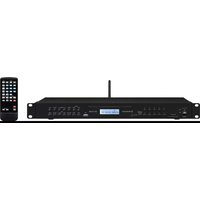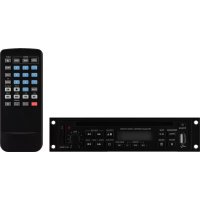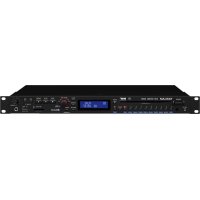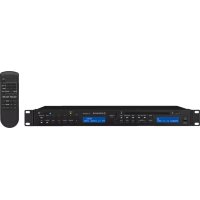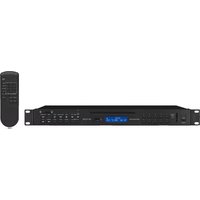
CD-112/BT - Cd player/recorder Monacor - Free user manual and instructions
Find the device manual for free CD-112/BT Monacor in PDF.


User questions about CD-112/BT Monacor
0 question about this device. Answer the ones you know or ask your own.
Ask a new question about this device
Download the instructions for your Cd player/recorder in PDF format for free! Find your manual CD-112/BT - Monacor and take your electronic device back in hand. On this page are published all the documents necessary for the use of your device. CD-112/BT by Monacor.
USER MANUAL CD-112/BT Monacor
CD/MP3 Player with Bluetooth Receiver

text_image
MONACOR® WWW.MONACOR.COM
text_image
MONACOR DISC TR 04 08:27 DDR CD-113/BT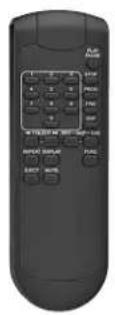
CD-112/BT
These instructions are intended for users without any specific technical knowledge. Please read these instructions carefully prior to operating the unit and keep them for later reference.
All operating elements and connections de scribed can be found on the fold-out page 3.
1 Operating Elements and Connections
1.1 Front panel
1 POWER switch
2 Slot to insert an SD/MMC memory card
3 Numerical keys for direct selection of a title
Examples:
Title number Keys
4 4, PLAY/ PAUSE
27 2,7, PLAY/ PAUSE
135 1, 3, 5, PLAY/ PAUSE
4 CD slot
Insert the CD into the slot until it is pulled in automatically.
5 Display
6 USB interface to connect a USB flash drive or a hard disk
7 IR sensor for the remote control signals
8 Buttons REV – SKIP – CUE for title selection and for fast forward / reverse
Title selection
Each time you press the button CUE, the player will go to the next title; when you press the button REV, the player will return to the beginning of the current title and each time you press it again, it will go back one title at a time.
Fastforward/reverse
For fast forward, keep the button CUE pressed; for fast reverse, keep the button REV pressed.
9 Button STOP to stop the replay
10 Button PLAY/ PAUSE to switch between replay and pause
11 Button EJECT to eject the CD
12 LED PAIR
Keeps flashing when the Bluetooth receiver has been switched on. Lights permanently after the unit has been linked to a Bluetooth signal source.
13 Button PAIR to link the unit to a Bluetooth signal source (Chapter 6.8)
14 Antenna of the Bluetooth receiver
15 Button BT POWER/▶▶ to switch on/off the Bluetooth receiver (keep the button pressed for a longer period) and to pause / continue the replay in Bluetooth mode (press the button briefly)
16 Buttons FOLDER for folder selection of MP3 files:
To select the next folder, press the button
▶. To return to the previous folder, press
the button ◀. The player always goes to the first title of the folder selected.
17 Button REPEAT to select the repeat functions and random replay
basic setting (PLAY ALL)
all titles of the sound carrier or of a programmed title sequence will be re-played once
first actuation of button (PLAY ALL RANDOM) the titles will be replayed once in random order
next actuation of button (REPEAT TRACK) the title selected will be repeated continuously
next actuation of button (REPEAT FOLDER) all titles in the folder selected will be repeated continuously (function available for MP3 files only)
next actuation of button (REPEAT ALL) all titles will be repeated continuously
next actuation of button (RANDOM REPEAT) all titles will be replayed continuously in random order
next actuation of button (PLAY ALL) return to basic setting
18 Button PROG to switch to the programming mode to compile an individual title sequence (Chapter 6.7)
19 Button FUNC to select the sound carrier (CD, USB flash drive, SD/MMC memory card)
20 In Bluetooth mode:
Button DOWN/◀◀ and UP/▶▶ for title selection and for fast forward / reverse
1.2 Rear panel
21 RCA jacks PRIORITY OUT
At this output, either the signal of the Bluetooth receiver or, if no signal is received or if the replay has been set to pause, the signal of the CD / MP3 player is present.
22 RCA jacks BLUETOOTH OUT for the audio output of the Bluetooth receiver
23 RCA jacks CD PLAYER OUT for the audio output of the CD / MP3 player
24 Mains jack for connection to a socket (230V/50 Hz) via the mains cable provided
25 Support for the mains fuse
Always replace a blown fuse by one of the same type.
1.3 Remote control
3, 8–11 and 16–19
These buttons have the same functions as the buttons on the player.
26 Button MUTE to mute the sound
27 Button DISPLAY to change the information in the lower line of the display during replay of MP3 files.
basic setting
The lower line will show the title number (TR) and the time already played of the title.
first actuation of button
The folder name will be displayed.
second actuation of button
The number of folders and the number of titles will be displayed.
third actuation of button return to basic setting
28 Button ID3 to activate/deactivate information on MP3 files scrolling through the upper line of the display (file name, title name, name of artist and album)
29 Button FIND to search for MP3 titles and folders (CHAPTER 6.3.3 and 6.3.4)
2 Safety Notes
This unit corresponds to all relevant directives of the EU and is therefore marked with €€
WARNING

The unit uses dangerous mains
voltage. Leave servicing to skilled personnel only. Inexpert handling or modification of the unit may result in electric shock.
- The unit is suitable for indoor use only. Protect it against dripping water, splash water and high air humidity. The admissible ambient temperature range is 0 – 40 °C.
- Do not place any vessel filled with liquid on the unit, e. g. a drinking glass.
-
Do not operate the unit and immediately disconnect the mains plug from the socket
-
if the unit or the mains cable is visibly damaged,
- if a defect might have occurred after the unit was dropped or suffered a similar accident,
- if malfunctions occur.
In any case the unit must be repaired by skilled personnel.
- Never pull the mains cable to disconnect the mains plug from the socket, always seize the plug.
- For cleaning only use a dry, soft cloth; never use water or chemicals.
- No guarantee claims for the unit and no liability for any resulting personal damage or material damage will be accepted if the unit is used for other purposes than originally intended, if it is not correctly connected or operated, or if it is not repaired in an expert way.

If the unit is to be put out of operation definitively, take it to a local recycling plant for a disposal which will not be harmful to the environment.
3 Applications
The CD / MP3 player CD-112 / BT with Bluetooth receiver is suitable for versatile PA applications (e. g. in theatres, pubs or waiting rooms) and offers special features, e. g. continuous repeat, random replay, MP3 replay of USB storage media and SD / MMC memory cards (32 GB max.).*
It is able to play audio CDs, audio CDs you have burnt yourself (audio CD-R) and CDs with titles in MP3 format. However, problems may occur when replaying rewriteable CDs (CD-RW) depending on the type of CD, the CD burner and the burning program used.
*Note: Due to the large number of storage device manufacturers and device drivers, it cannot be guaranteed that all storage media are compatible with the CD-112/BT.
4 Deactivating the Automatic Start Function
The CD player is provided with an automatic start function: After switching on the unit and reading in a sound carrier (CD, USB flash drive or memory card) the replay of the first title will start automatically. If you do not wish the unit to start automatically [replay will not start before the button PLAY/ PAUSE (10) is pressed], deactivate the automatic start function.
WARNING

To make this modification, the unit must be opened by skilled personnel only. Inexpert handling may result in electric shock!
Always disconnect the mains plug from the socket before opening the unit!
On the PCB with the power supply unit and the audio output jacks there is a jumper (see arrow in fig. 5). The automatic start function is activated when the jumper is in the position AUTO PLAY. To deactivate the function, re arrange the jumper to the position MANUAL PLAY.
5 Setting Up and Connecting the Player
The player is designed for installation into a rack (482 mm / 19"); however, it can also be placed as desired as a desktop unit. For rack installation, 1 rack space (RS = 44.45 mm) is required. Prior to making or changing any connections, switch off the CD-112 / BT and the units to be connected.
1) Three line level outputs are available to route the audio signals to the subsequent unit (e.g. mixer or amplifier):
PRIORITY OUT (21)
At this output, either the signal of the Bluetooth receiver or, if no signal is received or if the replay has been set to pause, the signal of the CD / MP3 player is present.
BLUETOOTH OUT (22)
for the signal of the Bluetooth receiver
CD PLAYER OUT (23)
for the signal of the CD / MP3 player
2) Connect the mains cable provided to the mains jack (24) first and then to a mains socket (230V/50Hz).
6 Operation
Switch on the player with the POWER switch (1). The display (5) will show Welcome.
First the player will read the CD. If no CD has been inserted, the player will read the USB flash drive. If no USB flash drive has been connected, the player will read the SD/MMC memory card. If no memory card has been inserted, the display will show NO DISC.
6.1 Remote control
1) To insert the batteries (2 × 1,5 V, size AAA), remove the battery compartment cover on the rear side of the remote control. Insert the batteries as indicated in the battery compartment. Close the compartment with the cover.
If the remote control is not in use for a longer period of time, remove the batteries to prevent any damage due to battery leakage.
2) When you press a button on the remote control, always direct the remote control towards the sensor IR (7). There must be no obstacles between the remote control and the sensor.
3) If the range of the remote control decreases, the batteries are discharged and must be replaced.

Discharged batteries must not be placed in the household waste; always take them to a special waste disposal, e. g. collection container at your retailer.
6.2 Replaying music titles
1) Insert a CD with the lettering facing up into the slot (4) until it is pulled in automatically and/or
connect a USB flash drive to the USB port (6) or connect a hard disk (with individual power supply, if required) to the USB port and/or
insert an SD/MMC memory card into the slot SD/MMC CARD (2), the notched corner of the card facing up. To remove the card, slightly push it in to eject the card from the slot.
2) Select the sound carrier (CD, USB flash drive, memory card) with the button FUNC (19), if necessary.
3) After reading in the sound carrier, the first title will start automatically. However, if the automatic start function has been deactivated (chapter 4), press the button PLAY/ PAUSE (10) to start the first title. To select other titles see chapter 6.3.
4) While replaying, the upper line of the display will show the replay symbol ▶ on the right. The lower line will show the number (TR ...) of the current title and the time already played of the title (min.: sec.). At the far right, MP3 is shown for titles in MP3 format or CDA for standard audio CDs.
5) For MP3 files, the following additional information will scroll in the upper line: File-...
Title – ...
Artist – ...
Album – ...
Note: If an information is not available, the display will show Unknown instead of a name.
To activate/deactivate this information scrolling through the line, press the button ID3 (28).
6) When you press the button DISPLAY (26) on the remote control, various information for MP3 files will be displayed in the lower line of the display:
basic setting
The lower line will show the title number and the time already played of the title.
first actuation of button
The file name will be displayed.
second actuation of button
The number of folders and the number of titles will be displayed.
third actuation of button return to basic setting
7) Press the button PLAY/ PAUSE to switch between replay and pause. In the pause mode, the pause symbol II will be inserted and the time indication will flash.
8) To stop the replay, press the button STOP (9). The second line of the display will show: for standard audio CDs
– the number of titles (TR ...)
– the total playing time (min.: sec.)
for audio carriers with MP3 files:
– the number of folders
– the number of titles
9) To eject the CD, press the button EJECT (11). The display will show EJECT, the CD will be ejected and can be removed. If the CD is not removed from the slot, the CD player will pull it in again automatically after approx. 10 seconds.
6.3 Title selection
6.3.1 Direct selection of the title number
For direct selection of a title, enter its number with the numerical keys (3). To start the title, press the button PLAY/ PAUSE (10).
Examples:
Title number Keys
4 4, PLAY/ PAUSE
27 2,7,PLAY/PAUSE
135 1, 3, 5, PLAY/ PAUSE
Note: The player will arrange MP3 titles as follows:
-
all titles without folder in the ROOT directory
-
all titles in folders in the ROOT directory
-
all titles in subfolders, etc.
-
all titles without folder in the ROOT directory
- all titles in folders in the ROOT directory
- all titles in subfolders, etc.
The titles and folders will not be arranged in alphabetic order, but can be easily found with the search function ( ^18 chapters 6.3.3 and 6.3.4).
6.3.2 Skipping titles
in forward/reverse direction
To skip one title or several titles in forward or reverse direction, briefly press the button CUE or REV (8) [repeatedly].
Button CUE: to skip to the next title
Button REV: to return to the beginning of the title currently playing. Each time the button REV is pressed again, the unit will go back one title at a time.
Note: Only press the buttons REV and CUE briefly, longer actuation will result in fast forward or reverse.
6.3.3 Alphabetic search for MP3 titles
1) Press the button FIND (29) on the remote control. A magnifying glass symbol will flash on the left at the bottom of the display. On the right of it, the letter will appear and in the upper line of the display the name of the first file beginning with the letter A.
2) Press the button CUE [forward direction] or REV (8) [reverse direction] to select the first letter of the desired file name. The numerals 0 - 9 are also available. If there are no file names beginning with certain letters or numbers, these letters or numbers are marked None.
3) If there are several file names beginning with the same letter, select the desired letter and keep the button REV or CUE pressed until the letter starts flashing next to the magnifying glass symbol. All file names beginning with the letter will now be available to be selected one after the other with the button REV or CUE.
4) When searching, the display will always show the number of the folder and of the title on the right at the bottom. When you have found the desired title, start the replay with the button PLAY/ PAUSE (10).
6.3.4 Selection of folders and search for folders
With MP3 files in several folders (file directories), press the buttons FOLDER (16) during the replay to go to the first title of the next folder (button ▶▶ ) or to the first tile of the previous folder (button ◀◀ ).
If you stop the replay with the button STOP (9) first and then press the button FOLDER or ▶, the upper line of the display will show the folder name and the lower line will show the folder number behind the symbol □
The search function even allows you to find a folder with a certain name during the replay of a title:
1) Press the button FIND (29) twice so that the magnifying glass symbol will flash on the display and Dir (directory) will appear on the right of it.
2) Search for the desired folder with the buttons REV - SKIP - CUE (8). The upper line of the display will show the folder name and the lower line will show the folder number.
3) When you have found the folder, press the button PLAY/ PAUSE (10) to start the first title or keep the button REV or CUE pressed to start another title from the folder until File appears next to the magnifying glass symbol. Press the buttons REV - SKIP - CUE to select the titles from the folder one after another. To start the title selected, press the button PLAY/PAUSE.
6.4 Fast forward/reverse
For fast forward, keep the button CUE (8) pressed; for fast reverse, keep the button REV pressed. With MP3 files, fast forward / reverse will only be possible within a title. You will not be able to trace it acoustically, only by means of the time indication on the display.
6.5 Repeat functions and random replay
Press the button REPEAT (17) to activate one of the repeat functions and the replay of the titles in random order:
basic setting (PLAY ALL) all titles of the sound carrier or of a programmed title sequence will be replayed once, then the replay will stop
first actuation of button (PLAY ALL RANDOM) RDM the titles will be replayed once in random order
next actuation of button (REPEAT TRACK) §1 the title selected will be repeated continuously
next actuation of button (REPEAT FOLDER) all titles in the folder selected will be repeated continuously (function available for MP3 files only)
next actuation of button (REPEAT ALL) 50 all titles will be repeated continuously
next actuation of button (RANDOM REPEAT) RDM 65 all titles will be replayed continuously in random order
next actuation of button (PLAY ALL) return to basic setting
6.6 Muting the sound
To mute the sound of a title during replay, press the button MUTE (26) on the remote control. To reactivate the sound, press the button MUTE once again.
6.7 Compiling an individual title sequence
For replaying a selection of titles in a certain order, a sequence of up to 64 titles can be programmed. For this purpose, in case of MP3 files, the arrangement of the folders should be known to you (Chapter 6.3.4) as it will be necessary to enter the corresponding number of each title to be programmed.
1) Set the CD player to the stop mode; press the button STOP (9), if required.
2) Activate the programming mode with the button PROG (18). Press all other buttons within 15 seconds, otherwise you will exit the programming mode. In this case, press the button PROG once again. The display will show:
- for a CD without MP3 files PROGRAM
CD P-01 00
– with MP3 files PROGRAM
P-01 000 0000
3) For CDs without MP3 files, skip this step and directly proceed with step 4.
For MP3 files, first select the number of the folder containing the first title desired for the title sequence. This is also necessary when all the files are in the ROOT directory without folder. In this case, enter 1 as the folder number.
Select the folder number with the buttons REV - SKIP - CUE (8) or with the nu-
merical keys (3). To save it, press the button PROG. The four zeroes will flash as a prompt to enter the title number.
4) Select the number of the first title of the title sequence with the buttons REV - SKIP - CUE (8) or enter it with the numerical keys (3). For MP3 files in folders, please note that these files are not arranged consecutively but that the first file in each folder is always number 1.
5) To memorize press the button PROG. The display will show the next memory location number, e.g. P-02.
6) Repeat steps (3), 4 and 5 for all further titles desired until the entire title sequence has been programmed.
7) To start the title sequence, press the button PLAY/PAUSE (10). The upper line of the display will show MEM (memory) and the title sequence will be replayed.
8) Press the buttons REV – SKIP – CUE to select any title of the title sequence or keep the corresponding button pressed to activate the fast forward / reverse function within a title.
9) The replay will stop after the title sequence has been replayed or when you press the button STOP. To restart the title sequence, first press the button PROG, then the button PLAY/PAUSE.
Note: A programmed title sequence will be deleted when you change the sound carrier, when you press the button FUNC (19), when you press the button STOP in the programming mode and when you switch off the player.
6.8 Operation of the Bluetooth receiver
The Bluetooth receiver is used for radio communication with a Bluetooth signal source (e.g. notebook, smartphone, tablet PC). Thus, the CD-112/BT will be able to replay the audio files that have been stored on this source.
Note: The Bluetooth signal source must be compatible with the A2DP protocol (Advanced Audio Distribution Profile); otherwise radio communication will not be possible.
1) Enable the Bluetooth function on the notebook, smartphone or tablet PC (see manual of the unit, if necessary).
2) To switch on the Bluetooth receiver of the CD-112/BT, keep the button BT POWER (15) pressed briefly until the LED PAIR (12) starts flashing.
3) To link the CD-112 /BT to the Bluetooth signal source, keep the button PAIR (13) pressed briefly until the LED PAIR keeps flashing more slowly. As soon as the radio communication has been established, the LED PAIR will light permanently.
Note: On the display of the Bluetooth signal source, the CD-112 / BT is indicated as "Audio Bluetooth".
4) Start a title at the Bluetooth signal source.
5) To pause or continue the title, press the button ▶▶ I (15).
Note: As long as the replay is interrupted, the signal of the CD / MP3 player will be present at the output PRIORITY (21).
6) Use the buttons DOWN/◀◀ and UP/▶▶ (20) to go to the previous or next title (press the button briefly) or for fast forward / reverse (keep the button pressed).
7) To switch off the Bluetooth receiver, keep the button BT POWER pressed until the LED PAIR is extinguished.
7 Maintenance
Protect the player from dust, vibrations, humidity and heat (admissible ambient temperature range 0 – 40 °C). For cleaning only use a dry, soft cloth; never use water or chemicals.
Note concerning sound interruptions and reading errors
Cigarette smoke and dust will easily penetrate through all openings of the unit and will also settle on the optics of the laser sampling systems. If this deposit should cause reading errors and sound interruptions, the unit must be cleaned by skilled personnel. Please note that there will be a charge on cleaning, even during the warranty period!
8 Specifications
Frequency range: .....20–20 000 Hz
THD: ....< 0.1 %
Channel separation: ... > 60 dB
Dynamic range: .....> 96 dB
S/N ratio: ....>70 dB
Audio output: .....1.2V
Power supply: .....230 V/50 Hz
Power consumption: . . .50 VA max.
Ambient temperature: .0–40°C
Dimensions (W×H×D): 482 × 44 × 265 mm, 1 rack space
Weight: 4 kg
Subject to technical modification.
LecteurCD/MP3
(PLAY ALL RANDOM) RDM
(RANDOM REPEAT) RDM 95
(PLAY ALL RANDOM) RDM
Wymiary (S × W × G): .482 × 44 × 265 mm, 1 U
Waga: 4kg