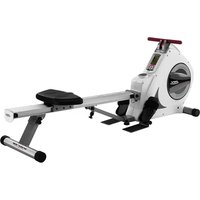
i.Aquo Dual R309UW - Rowing Machine BH FITNESS - Free user manual and instructions
Find the device manual for free i.Aquo Dual R309UW BH FITNESS in PDF.



| Product type | Rowing machine |
| Brand | BH Fitness |
| Model | i.Aquo Dual R309UW |
| Power supply | 220-240 V via mains adapter |
| Display | LCD screen with windows: Speed/SPM, Time, Distance, Watts/Calories, Pulse |
| Exercise programs | Manual, 12 preset programs, User program (PERSONAL), Fitness test, Constant watts program, 4 HRC programs (55%, 75%, 90%, Tag), Random program (RANDOM) |
| Resistance levels | 24 braking levels |
| Pulse sensors | Handlebar sensors + telemetry receiver (optional chest strap) |
| Connectivity | USB port for Bluetooth module (optional) compatible with iOS/Android via PAFERS app |
| Fitness test | Travel the longest distance in 8 minutes; rating from F1 (Excellent) to F6 (Very poor) |
| Programming | Time (5-99 min), Distance (1-99 km), Calories (10-990) |
| Auto stop | After 4 minutes of inactivity |
| Safety | HRC control with automatic resistance adjustment; stops if pulse exceeds target for >30s |
| Maintenance | Protect the monitor from direct sunlight, water, and shocks; check connections |
| After-sales service | Contact SAT (number on last page of manual) |
Frequently Asked Questions - i.Aquo Dual R309UW BH FITNESS
User questions about i.Aquo Dual R309UW BH FITNESS
0 question about this device. Answer the ones you know or ask your own.
Ask a new question about this device
Download the instructions for your Rowing Machine in PDF format for free! Find your manual i.Aquo Dual R309UW - BH FITNESS and take your electronic device back in hand. On this page are published all the documents necessary for the use of your device. i.Aquo Dual R309UW by BH FITNESS.
USER MANUAL i.Aquo Dual R309UW BH FITNESS
text_image
BH down up start stop enter reset Bluetooth® m1 monitor type Iconext down upUNIDAD ELECTRÓNICA ELECTRONIC MONITOR UNITÉ ÉLECTRONIQUE ELEKTRONIKEINHEIT UNIDADE ELECTRÓNICA IMPIANTO ELETTRONICO ELEKTRONISCHER MONITOR
Fig. 1
text_image
Diagram of a waste bin with crossed lines indicating no waste, and a black rectangle below it.Fig. 2
text_image
Technical diagram of a stationary exercise machine with labeled parts and wiring, including a wall-mounted electrical outlet.Fig. 3
text_image
Diagram showing a mobile phone connected to a smartphone via cable, with visible app icons and labelsFig. 4
natural_image
Technical line drawing of a mechanical device with a downward arrow indicating motion or assembly (no text or symbols)Fig.5
natural_image
Line drawing of a person wearing a belt and cap, standing with arms crossed (no text or symbols)Español
PUESTA EN MARCHA.-
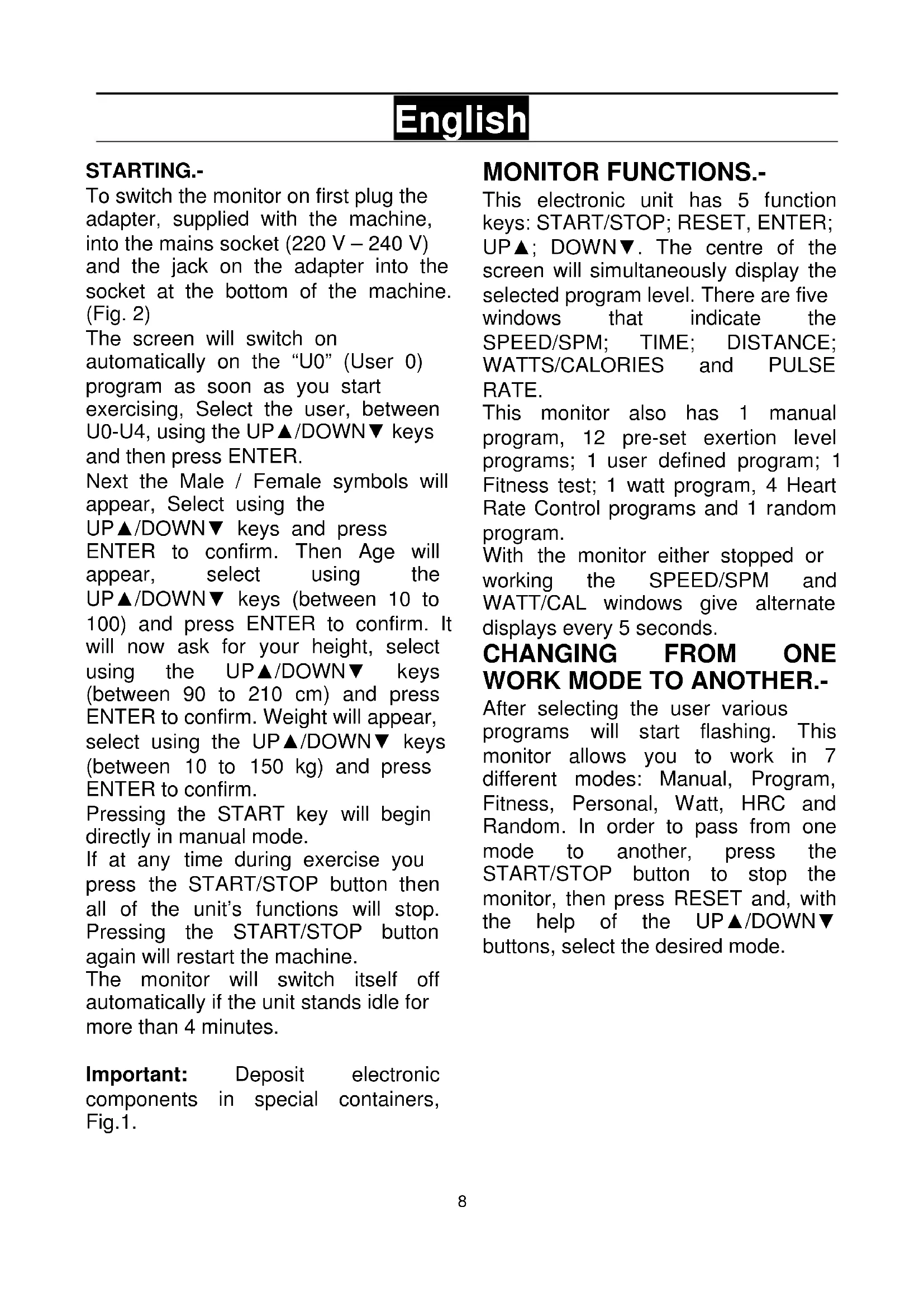
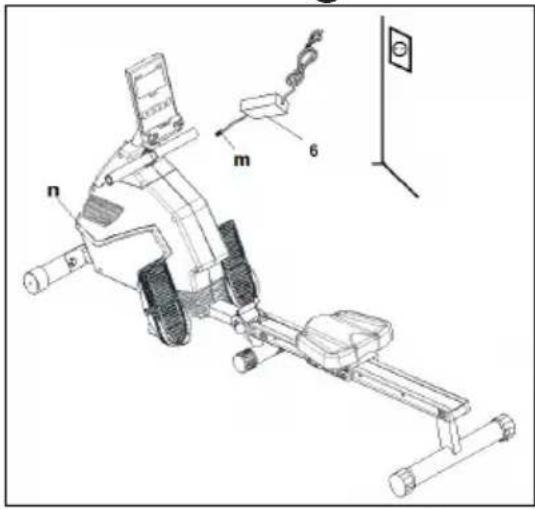
To switch the monitor on first plug the adapter, supplied with the machine, into the mains socket (220 V – 240 V) and the jack on the adapter into the socket at the bottom of the machine. (Fig. 2)
The screen will switch on automatically on the "U0" (User 0) program as soon as you start exercising, Select the user, between U0-U4, using the UP▲/DOWN▼ keys and then press ENTER.
Next the Male / Female symbols will appear, Select using the UP▲/DOWN▼ keys and press
ENTER to confirm. Then Age will appear, select using the UP▲/DOWN▼ keys (between 10 to 100) and press ENTER to confirm. It will now ask for your height, select using the UP▲/DOWN▼ keys (between 90 to 210 cm) and press ENTER to confirm. Weight will appear, select using the UP▲/DOWN▼ keys (between 10 to 150 kg) and press ENTER to confirm.
Pressing the START key will begin directly in manual mode.
If at any time during exercise you press the START/STOP button then all of the unit's functions will stop. Pressing the START/STOP button again will restart the machine.
The monitor will switch itself off automatically if the unit stands idle for more than 4 minutes.
Important: Deposit electronic components in special containers, Fig.1.
MONITOR FUNCTIONS.-
This electronic unit has 5 function keys: START/STOP; RESET, ENTER; UP▲; DOWN▼. The centre of the screen will simultaneously display the selected program level. There are five windows that indicate the SPEED/SPM; TIME; DISTANCE; WATTS/CALORIES and PULSE RATE.
This monitor also has 1 manual program, 12 pre-set exertion level programs; 1 user defined program; 1 Fitness test; 1 watt program, 4 Heart Rate Control programs and 1 random program.
With the monitor either stopped or working the SPEED/SPM and WATT/CAL windows give alternate displays every 5 seconds.
CHANGING FROM ONE WORK MODE TO ANOTHER.-
After selecting the user various programs will start flashing. This monitor allows you to work in 7 different modes: Manual, Program, Fitness, Personal, Watt, HRC and Random. In order to pass from one mode to another, press the START/STOP button to stop the monitor, then press RESET and, with the help of the UP▲/DOWN▼ buttons, select the desired mode.
MANUAL FUNCTION.-
Use the UP▲/DOWN▼ keys to select the manual function and press ENTER. Press the START/STOP key to start exercising and use the UP▲/DOWN▼ keys to increase or decrease the exertion level. There are 24 exertion levels. If you press the START/STOP key while at the start screen, exercise will begin directly in manual mode.
Programming a time limit.-
If, after selecting manual mode, you press the ENTER key the time window will start flashing. By pressing the UP ▲/DOWN ▼ keys you can program a time limit for the exercise (between 5-99 minutes). Select the time and press START/STOP to begin the exercise. The time will begin to count down until it reaches zero and the monitor will beep several times to advise you that you have reached the programmed value.
Programming a distance limit.-
If, after selecting manual mode, you press the ENTER key twice the distance window will start flashing. By pressing the UP▲/DOWN▼ keys you can program a distance for your exercise (between 1–99 km). Select the distance and press START/STOP to begin the exercise. The distance will begin to count down until it reaches zero and the monitor will beep several times to advise you that you have reached the programmed value.
Programming a calorie limit.-
If, after selecting manual mode, you press the ENTER key three times the calorie window will start flashing. By pressing the UP▲/DOWN▼ keys you can program the calories for the exercise (between 10-990 Cal.). Select the calories and press START/STOP to begin the exercise. The calories will begin to count down until they reach zero and the monitor will beep several times to advise you that you have reached the programmed value.
PROGRAM FUNCTION.-
Use the UP▲/DOWN▼ keys to select the PROGRAM function and press ENTER. Press the UP▲/DOWN▼ keys to select the program graph (1-12) that you wish to use and then press the ENTER key. Press START/STOP to start the exercise. The duration of the program graph is 16 minutes, divided into sixteen minute stages.
To program time, distance and/or calories, go through the following procedure: Once the program has been selected and before pressing the START/STOP key, press the ENTER key to program the time using the UP▲/DOWN▼ keys. In this case the time will be divided into sixteen stages. Press the ENTER key to program the distance. Press ENTER again to program the calories. Press START/STOP to start the exercise.
You can vary the exertion level during the exercise by pressing the UP▲/DOWN▼ keys.
FITNESS TEST
Use the UP▲/DOWN▼ keys to select the FITNESS function and press ENTER. Press START/STOP to start the exercise.
The user has to travel the greatest distance possible in 8 minutes.
When the time is up, the electronic device will work out the difference and your fitness rating will be displayed up on the screen: «F1, F2,..., F5, F6»; where «F1» is the best (fitness «Excellent») and «F6» the worst (fitness «Very Poor»).
STEADY WATT RATE PROGRAM
Press the UP▲/DOWN▼ keys to select the WATT function and press ENTER. By pressing the UP▲/DOWN▼ keys you can program the watts to produce for the exercise (between 50-280 Watt.). Select the watts and press ENTER to program the time. Press ENTER again to program the distance. Press the ENTER key one last time to program the calories. Press START/STOP to start the exercise.
The exertion level for the exercise is self adjusting based on the speed and number of watts selected.
USER PROGRAM.-
Use the UP▲/DOWN▼ keys to select the PERSONAL function and press ENTER. The first column of the exercise level will start flashing to the left of the central area of the display. Select the desired level for this first stage using the UP▲/DOWN▼ keys and then press ENTER. Repeat this procedure to program all sixteen stages of the user program. Press START/STOP to start the exercise.
To program time, distance and/or calories, go through the following procedure: Once the user program has been defined and before pressing the START/STOP key, press and hold the ENTER key for 4 seconds until the time function starts to flash. Press the UP▲/DOWN▼ keys to select the time. Press the ENTER key to program the distance. Press ENTER again to program the calories. Press START/STOP to start the exercise.
RANDOM FUNCTION.-
Use the UP▲/DOWN▼ keys to select the RANDOM function and press ENTER.
You will see a random program profile. Press START/STOP to start the exercise. The duration of the program graph is 16 minutes, divided into sixteen minute stages.
To program time, distance and/or calories, go through the following procedure: Once the program has been selected and before pressing the START/STOP key, press the ENTER key to program the time using the UP▲/DOWN▼ keys. In this case the time will be divided into sixteen stages. Press the ENTER key to program the distance. Press ENTER again to program the calories. Press START/STOP to start the exercise.
You can vary the exertion level during the exercise by pressing the UP▲/DOWN▼ keys.
TELEMETRIC PULSE RATE.-
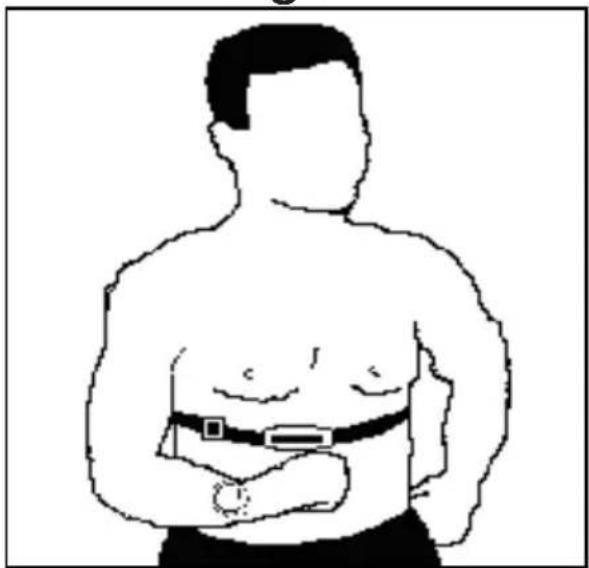
The monitor is equipped to receive signals from a telemetric pulse measurement system.
The system comprises of a receiver (D) and a transmitter (chest band not included) Fig.5.
(See telemetric pulse rate instruction book).
HEART RATE CONTROL PROGRAMS.-
Use the UP▲/DOWN▼ keys to select the H.R.C function and press ENTER. Use the UP▲/DOWN▼ keys to select the desired option (55%, 75% 90% or Tag) and press the ENTER key. The first three represent the percentage with respect to maximum heart rate (220-age) and the fourth is used to specify the target heart rate manually. If you choose Tag then you should use the UP▲/DOWN▼ keys to select the desired heart rate and then press ENTER. Press START/STOP to start the exercise. The exertion level will adjust automatically in accordance with the selected hart rate value. If the pulse rate is below the target value then the exertion setting will increase by one level every 30 seconds until it reaches the maximum 24.
If the pulse rate is above the target value the monitor will give out warning beeps and reduce the exertion settings by one level every 15 seconds until it reaches the minimum 1. If the pulse rate still stays above the target value for more than 30 seconds the monitor will beep and stop in order to protect the user.
To program time, distance, and/or calories, go through the following procedure: Once the heart rate program has been selected and before pressing the START/STOP key, press the ENTER key to program the time limit using the UP▲/DOWN▼ keys. Press ENTER again to program the distance.
Press the ENTER key one last time to program the calories. Press START/STOP to start the exercise. Your hands must be placed on the
pulse sensors (R) when using these programs.
iOS OPERATION (compatible iPhone, iPad and iPod Touch)
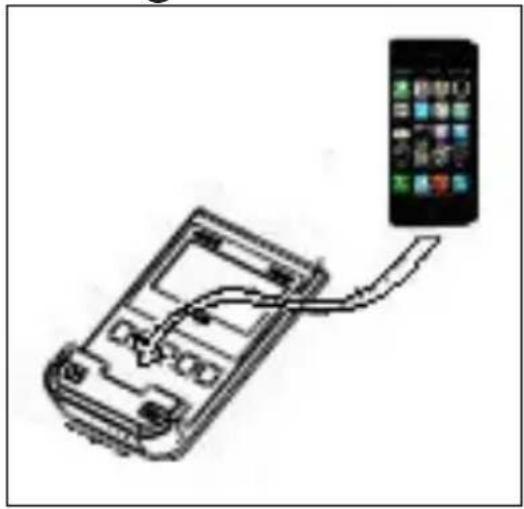
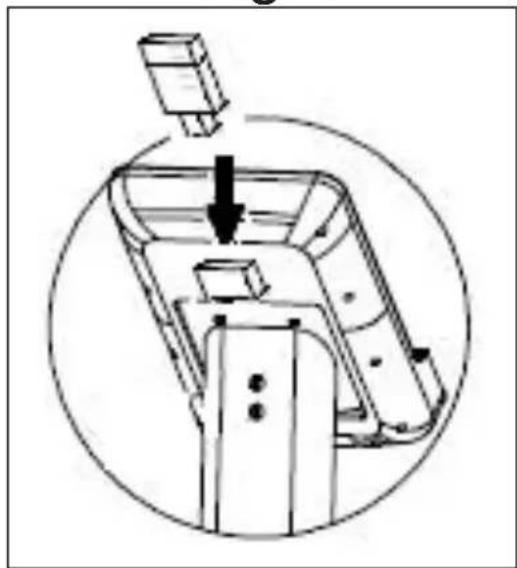
Download a Pafers App from the App Store (Check compatible apps at the BH website: www.bhfitness.com). Then connect the USB Bluetooth module (purchased separately) into the USB port on the back of the monitor (Fig. 4.) Turn Bluetooth to "ON" in settings on the iOS device and the device will begin to search for active Bluetooth equipment in range.
Select the appropriate BH Module from the list displayed on the iOS device to pair. Open the Pafers app to run it.
ANDROID OPERATION (compatible Android devices)
Download a Pafers App from Google Play (Check compatible apps at the BH website: www.bhfitness.com). Then connect the USB Bluetooth module (purchased separately) into the USB port on the back of the monitor (Fig. 4.) Turn Bluetooth to "ON" in settings on the Android device. Open the Pafers app to run it. When prompted by the app, select the appropriate BH Module from the list displayed on the Android device to pair.
TROUBLESHOOTING GUIDE.-
Problem: The display comes on but only the Time function works.
Solution:
a.- Make sure that the connection cable is connected.
Problem: Display segments of a function read-out are not visible or error messages for a particular function appear.
Solution:
a.- Unplug it from the 220 V mains socket for 15 seconds and then plug it back in.
b.- If the above steps do not help then replace the electronic monitor.
Transformer
Problem: The monitor does not switch on.
Solution:
a.- Check the 220 V mains connection
b.- Check the output connection from
the transformer to the machine.
c.- Check the cable connections for the main post.
Avoid leaving the electronic monitor in direct sunlight as this might damage the liquid crystal display. Similarly, do not expose it to water or knocks.
Do not hesitate to get touch with the Technical Assistance Service if you have any queries by phoning customer services (see last page in manual)
BH RESERVES THE RIGHT TO MODIFY THE SPECIFICATIONS OF ITS PRODUCTS WITHOUT PRIOR NOTICE
Français
MISE EN MARCHE.-
PROGRAMMA DEI WATTS COSTANTI
WATT-CONTINU PROGRAMMA
bar
P7 | Category | Value | |---|---| | 1 | 1 | | 2 | 0 | | 3 | 5 | | 4 | 5 | | 5 | 5 | | 6 | 9 | | 7 | 9 | | 8 | 9 | | 9 | 13 | | 10 | 13 | | 11 | 13 | | 12 | 13 | | 13 | 13 | | 14 | 13 | | 15 | 13 | | 16 | 9 | | 17 | 9 | | 18 | 5 | | 19 | 5 | | 20 | 1 | The chart displays a single bar for each category, with values ranging from 1 to approximately 13. The x-axis represents the categories (1 to 20), and the y-axis represents the corresponding values. There is no label for the data series.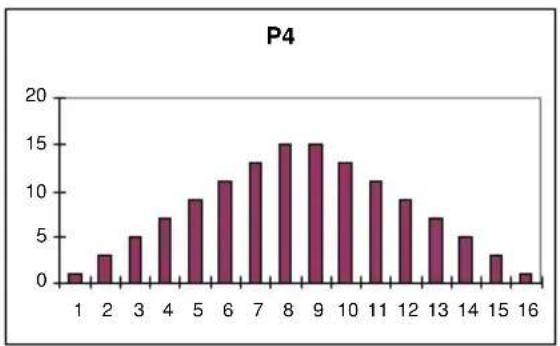
bar
| Index | Value | | ----- | ----- | | 1 | 1 | | 2 | 3 | | 3 | 5 | | 4 | 7 | | 5 | 9 | | 6 | 11 | | 7 | 13 | | 8 | 15 | | 9 | 15 | | 10 | 13 | | 11 | 11 | | 12 | 9 | | 13 | 7 | | 14 | 5 | | 15 | 3 | | 16 | 1 |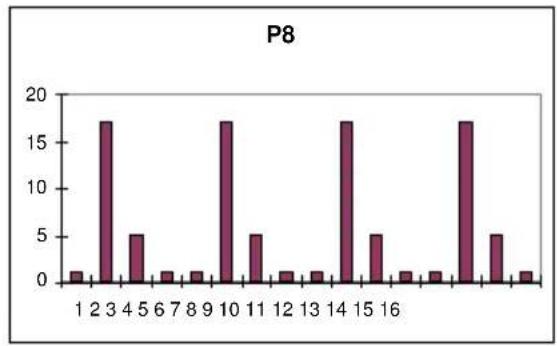
bar
| Category | Value | | -------- | ----- | | 1 | 1 | | 2 | 17 | | 3 | 17 | | 4 | 5 | | 5 | 1 | | 6 | 1 | | 7 | 1 | | 8 | 1 | | 9 | 1 | | 10 | 17 | | 11 | 5 | | 12 | 1 | | 13 | 1 | | 14 | 17 | | 15 | 5 | | 16 | 1 | | | 1 | | | 1 | | | 1 | | | 5 | | | 1 |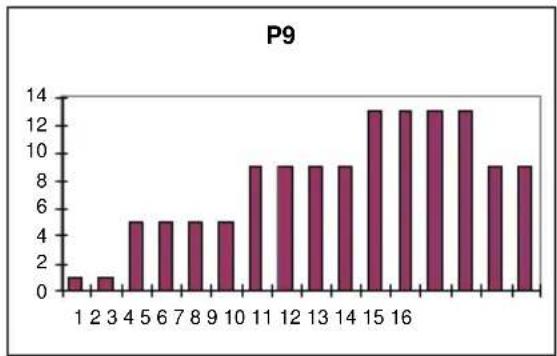
bar
| Index | Value | | ----- | ----- | | 1 | 1 | | 2 | 1 | | 3 | 1 | | 4 | 5 | | 5 | 5 | | 6 | 5 | | 7 | 5 | | 8 | 5 | | 9 | 5 | | 10 | 9 | | 11 | 9 | | 12 | 9 | | 13 | 9 | | 14 | 9 | | 15 | 13 | | 16 | 13 | | 17 | 13 | | 18 | 13 | | 19 | 9 | | 20 | 9 |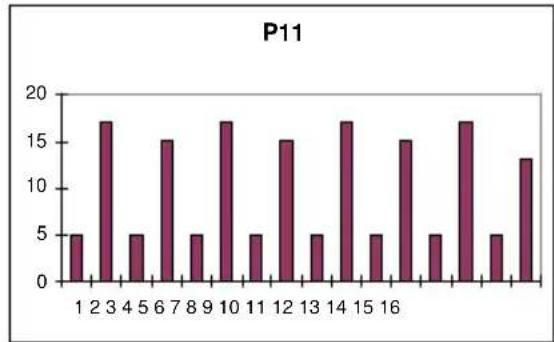
bar
P11 | Category | Value | |---|---| | 1 | 5 | | 2 | 17 | | 3 | 17 | | 4 | 5 | | 5 | 15 | | 6 | 15 | | 7 | 5 | | 8 | 17 | | 9 | 17 | | 10 | 17 | | 11 | 5 | | 12 | 15 | | 13 | 5 | | 14 | 17 | | 15 | 5 | | 16 | 15 | | 17 | 5 | | 18 | 17 | | 19 | 13 |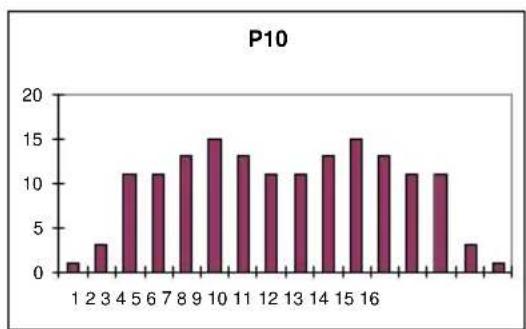
bar
| Index | Value | | ----- | ----- | | 1 | 1 | | 2 | 3 | | 3 | 11 | | 4 | 11 | | 5 | 13 | | 6 | 15 | | 7 | 13 | | 8 | 11 | | 9 | 13 | | 10 | 15 | | 11 | 13 | | 12 | 11 | | 13 | 13 | | 14 | 15 | | 15 | 13 | | 16 | 3 |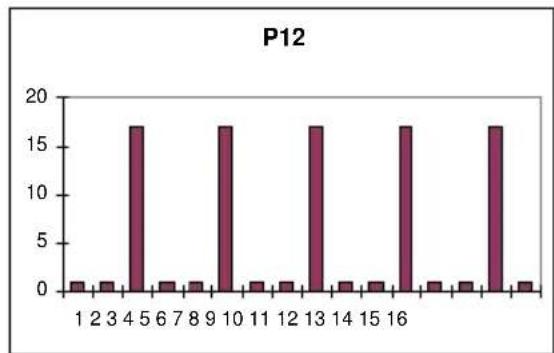
bar
| Category | Value | | -------- | ----- | | 1 | 1 | | 2 | 1 | | 3 | 1 | | 4 | 17 | | 5 | 1 | | 6 | 1 | | 7 | 1 | | 8 | 1 | | 9 | 1 | | 10 | 17 | | 11 | 1 | | 12 | 1 | | 13 | 17 | | 14 | 1 | | 15 | 1 | | 16 | 17 | | 17 | 1 | | 18 | 1 |Lista de dispositivos compatibles: List of supported devices: Liste des périphériques pris en charge: Liste der unterstützten Geräte: Lista de dispositivos suportados: Elenco dei dispositivi supportati: Lijst van ondersteunde apparaten:
iOS:
- iPod touch (5 ^th Gen +)
- iPhone 4S +
- mini iPad +
- iPad 2+
BH Fitness iConcept products need to be compatible with Apple devices with iOS 7.0 or later. It is recommended to update iOS to latest version to obtain the best user experience.
"Made for iPod ", "Made for iPhone," and "Made for iPad" mean that an electronic accessory has been designed to connect specifically to iPod, iPhone, or iPad, respectively, and has been certified by the developer to meet Apple performance standards. Apple is not responsible for the operation of this device or its compliance with safety and regulatory standards. Please note that the use of this accessorywith iPod, iPhone, or iPad may affect wireless performance.
iPad, iPhone, iPod, iPod classic, iPod nano, iPod shuffle, and iPod touch are trademarks of Apple Inc., registered in the U.S. and other countries.
Android:
• Samsung Galaxy Note 2 +
- Nexus 7 +
- Samsung Galaxy S4 +
This App is optimised to be used in the listed devices, but it also works in Android devices equipped with listed Android versions or superior, and Bluetooth 2.1 or superior, and 4.3" screen or superior. However, performance on non-listed devices is not guaranteed.
Check updated list of compatible devices at: www.bhfitness.com
BH FITNESS SPAIN
EXERCYCLE,S.L.
(Manufacturer)
P.O.BOX 195
01080 VITORIA (SPAIN)
Tel.: +34 945 29 02 58
Fax: +34 945 29 00 49
e-mail: sat@bhfitness.com
www.bhfitness.com
POST-VENTA
Tel: +34 945 292 012 /
902 170 258
Fax: +34 945 56 05 27
e-mail: sat@bhfitness.com
BH FITNESS PORTUGAL
MAQUINASPORT, APARELHOS
DE DESPORTO, S.A.
e-mail: info@bhfitness.pt
BH SERVICE PORTUGAL
Tel.: +351 234 729 510
Fax: +351 234 729 519
e-mail: info@bhfitness.pt
BH GERMANY GmbH
Grasstrasse 13
45356 ESSEN
GERMANY
Tel: +49 2015 997018
e-mail:
technik@bhgermany.com
BH FITNESS NORTH AMERICA
20155 Ellipse
Foothill Ranch
CA 92610
Tel: + 1 949 206 0330
Toll free: +1 866 325 2339
service.uk@bhfitness.com
BH FITNESS ASIA
BH Asia Ltd.
No.80, Jhongshan Rd.,
Daya Dist.,
Taichung City 42841,
Taiwan. R.O.C.
Tel.: +886 4 25609200
Fax: +886 4 25609280
Block A, NO.68, Branch Lane
455, Lane 822,
Zhen Nan RD., Li Zi Yuan,
Putuo, Shanghai 200331, P.R.C.
Tel: +86-021-5284 6694
Fax:+86-021-5284 6814
e-mail: info@i-bh.cn
BH FITNESS FRANCE
SAV FRANCE
Tel : +33 0810 000 301
Fax : +33 0810 000 290
savfrance@bhfitness.com
BH SE RESERVA EL DERECHO A MODIFICAR LAS ESPECIFICACIONES DE SUS PRODUCTOS SIN PREVIO AVISO.
SPECIFICATIONS MAY BE CHANGED WITHOUT PRIOR NOTICE DUE TO OUR PROGRAMME OF CONTINUOUS PRODUCT DEVELOPMENT.
BH SE RÉSERVE LE DROIT DE MODIFIER LES SPECIFICATIONS DE SES PRODUITS SANS PRÉAVIS.