CORE-Z5 - Mobile Phone CROSSCALL - Free user manual and instructions
Find the device manual for free CORE-Z5 CROSSCALL in PDF.


User questions about CORE-Z5 CROSSCALL
0 question about this device. Answer the ones you know or ask your own.
Ask a new question about this device
Download the instructions for your Mobile Phone in PDF format for free! Find your manual CORE-Z5 - CROSSCALL and take your electronic device back in hand. On this page are published all the documents necessary for the use of your device. CORE-Z5 by CROSSCALL.
USER MANUAL CORE-Z5 CROSSCALL
natural_image
Line drawing of a smartphone front panel with blank screen (no text or symbols)CORE-Z5
INTERNATIONAL VERSIONS AVAILABLE
VERSIONS INTERNATIONALES DISPONIBLES
FR PT
EN NL
ES SL
DE HR
IT
TABLE DES MATIÈRES
LES AVANTAGES DU CORE-Z5
Protection auditive 45
natural_image
Black handheld device lying on a concrete wall, no visible text or symbolsErgonomique
natural_image
Technical line drawings of three different mechanical components or devices, shown from top, front, and side views (no text or symbols present)natural_image
Technical line drawing of a mobile phone rear panel with a connector and internal components (no text or symbols)natural_image
Diagram of a smartphone rear panel showing internal components and a red button labeled 'Power' (no text or symbols beyond the label)natural_image
Simple line drawing of a U-shaped container with a red upward arrow at the bottom (no text or symbols)natural_image
Hand pressing a circular button with concentric rings (no text or symbols)natural_image
Illustration of two hands pointing at a circular button with an arrow, no text or symbols presentnatural_image
Illustration of a hand pressing a button with a downward arrow (no text or symbols)natural_image
Illustration of two fingers pointing at a circular button with an arrow, no text or symbols presentnatural_image
Hand making a peace sign with two arrows indicating rotation (no text or symbols)natural_image
Illustration of a hand reaching toward two arrows, symbolizing motion or movement (no text or symbols present)Accueil / Assistant vocal
natural_image
Three line drawings showing different mechanical or electrical component configurations (no text or symbols)Calculatrice
natural_image
Two people watching a beach at sunset, one holding a smartphone and the other displaying a 3D video editing interface (no visible text or symbols on the main subjects)APPLICATIONS INSTALLEES
1. Notifications de son
Switching the phone on and off 60
Tips and precautions for charging your battery 60-61
Using the touch-screen 62-63
System navigation 64-65
Phone buttons.... 66-67
USING THE PHONE
Phone calls 67-68
Contacts 68
Messages 69
Camera/QR code reader 69-70
Gallery 70
Transferring files: phone to PC or vice-versa.... 71-72
Transferring files: phone to phone 72-73
SIM card management 73-74
Mobile data 74
Browser 74
Email 74
Battery saver 75
Resetting your phone 76
System updates 76
CUSTOMISING YOUR PHONE
Home screen 76-77
Sound 77
Notifications 78
Date and time 78
Languages 78
TIPS AND SHORTCUTS
Using your CORE-Z5 underwater 78-79
Split screen mode 79
Screenshot.... 79
Automatic screen rotation.... 79
Screen wake 79-80
Glove Mode 80
NFC 80
Battery sharing 80
Charging animation 80-81
Attaching the safety leash 81
Calculator....81
CROSSCALL APPS
X-SENSORS 81-82
X-SAFE 82-85
X-TALK 85
X-STORY 86
X-CAMP 87
TROUBLESHOOTING
Device 88-89
Calls 89
Battery 89-90
Multimedia....90
Storage 90-91
Miscellaneous 91
SAFETY MEASURES
General security information 92-93
Information on water resistance 94
Medical devices 94-95
Road safety 95
Power supply and charge 96
Hearing protection 97
Environmental protection.... 97
Cleaning and maintenance.... 98
Emergency calls 98
Recommendations to reduce the user's exposure to radiation 98
ADDITIONAL INFORMATION
Compliance 99
Frequency bands and power 99-101
Accessory and software information 101
Specific absorption rate (SAR) 101-102
Copyright 102
APPENDIX
Important information 102
Deleting data (factory settings).... 102
Warranty conditions....103-104
Thank you for choosing Crosscall and for purchasing this phone.
The user guide will help you get to know your new device.
THE ADVANTAGES OF THE CORE-Z5

Powerful
The CORE-Z5 has a Qualcomm® QCM6490 ultra-high performance processor combined with 8 powerful cores. You can count on its speed of execution and perform several complex tasks simultaneously. Thanks to its calculating power, you can vary its uses without losing any reactivity. With the CORE-Z5, you also get large storage capacity, which can be expanded to up to 1024 GB with a micro SD card.
Connected
The CORE-Z5 integrates network bands dedicated to the 5G connection: NR-FDD n1 (2100MHz) / n3 (1800MHz) / n5 (850 MHz) / n7 (2600MHz) / n8 (900MHz) / n20 (800MHz) / n28 (700MHz) + NR-TDD n38 (2600MHz) / n40 (2300MHz) / n41 (2500MHz) / n77 (3700MHz) / n78 (3500MHz). These frequency bands cover all French operators and most European operators. Either at home or in the office, thanks to its WiFi 6 and 6E, your CORE-Z5 connects to your network (802.11a; 802.11b; 802.11g; 802.11n; 802.11ac; 802.11ax; 802.11k; 802.11r; 802.11v, 802.11u 2.4 GHz + 5 GHz + 6 GHz WiFi6/6E Certified) and allows you to optimise your mobile data. It has a double SIM and micro-SD slot that allows you to switch from one SIM card to the other, whether for work or personal use, and to choose between operators or temporarily switch to a local tariff when abroad.

natural_image
Black handheld device lying on a concrete wall, no visible text or symbols
Ergonomic
In addition to its 6.08" screen - 19/9 which gives it good legibility, the side buttons on the CORE-Z5 have been designed to be easier to use, particularly when wearing gloves. These four programmable keys give you quick access to certain features without having to unlock your phone, all via a simple press of a button. For example, you can transform it into a walkie-talkie and communicate wherever you are by pressing on a single button, thanks to the Push-To-Talk feature, letting you talk clearly and audibly thanks to the powerful 100 dB speaker.

Durable
Durability is a core feature of CROSSCALL's DNA. The CORE-Z5 is drop-resistant, waterproof and comes with a 5-year guarantee: it ticks all of the boxes for a durable device that's perfectly suited to the world of work.
Repairability is key to ensuring a long lifespan for smartphones, so we paid particular attention to this point when designing the CORE-Z5, making sure that the products in the CORE range continue to be some of the most repairable on the market.
ABOUT YOUR PHONE
Device overview
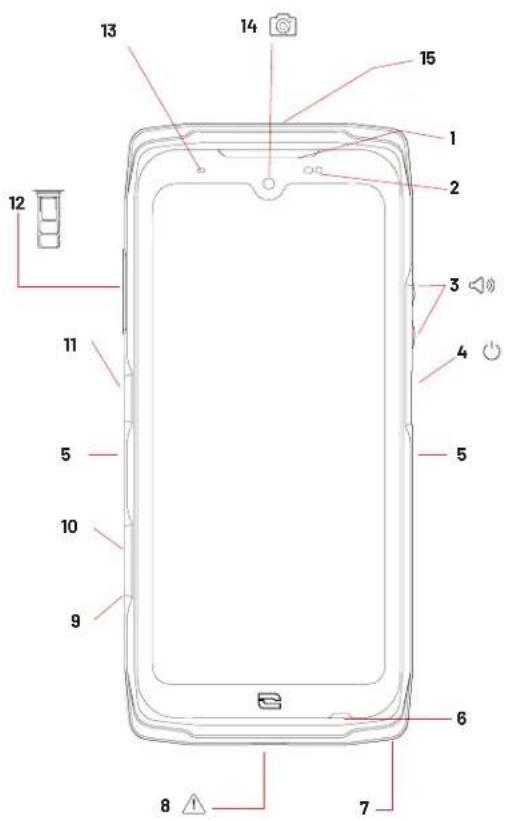
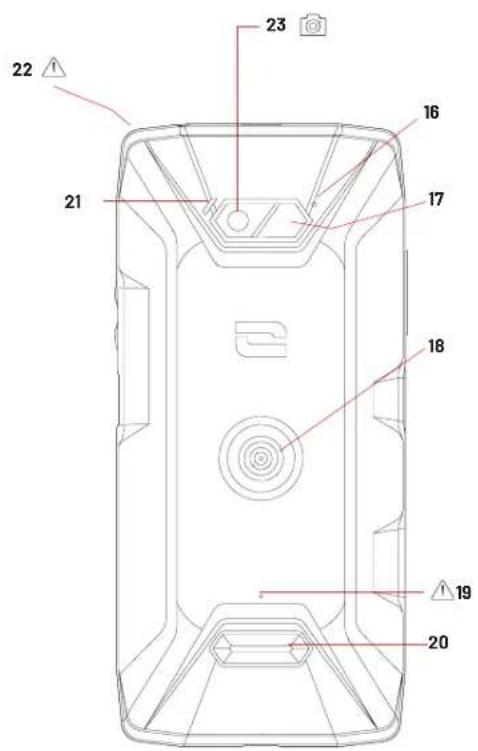
- Speaker
- Brightness and proximity sensors
- Volume +/- button
- On/off button and fingerprint reader
- X-BLOCKER slots
- Microphone
- Hole for safety leash
- USB Type-C (waterproof cap - always keep it properly closed!)
- Programmable button No. 4
- Programmable button No. 3
- Programmable button No. 1
-
SIM card or micro-SD card insertion tray
-
Notification LED
- Front camera 8 MP
- Programmable button No. 2
- Microphone
- Flash
- X-LINK™* (mount/charge/data transfer)
- Do not insert any objects!
- Loud speaker
- Notification LED
- Headphone jack (waterproof cap - always keep it properly closed!)
- Rear camera 48MP Fusion ^4
This magnetic connector located on the back of your phone can be used to attach and connect it with ease to exclusive X-LINK™ accessories.
Depending on the accessories used, the X-LINK™* system also lets you charge your phone and/or transfer data.
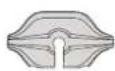
X-BLOCKER
THE REINFORCED MECHANICAL MOUNTING SYSTEM
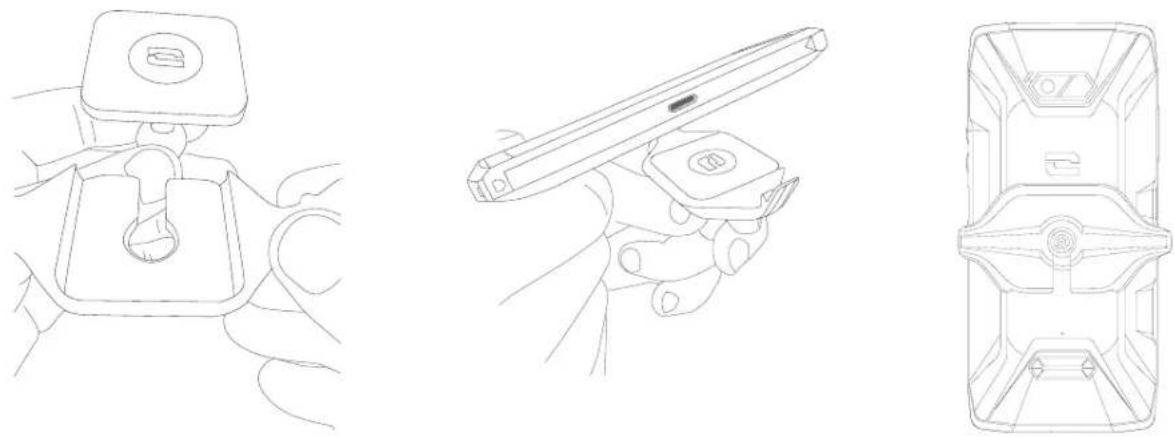
In situations that require maximum hold, this exclusive accessory supplied with your mobile guarantees the secure attachment of your phone to compatible accessories (20kg pull force). It is easily attached to the slots on the side of your mobile. The silicone coating reduces vibrations caused by knocks.
Before starting an activity, check that your X-BLOCKER is properly inserted into the two slots on the phone.
natural_image
Line drawings of three different mechanical or electronic components, shown from top, front, and side views (no text or symbols)See the full range of accessories compatible with the X-LINK™ and X-BLOCKER at www.crosscall.com

ACTIVATING YOUR CORE-Z5
Installing the nano SIM/micro SD card
- Check that your device is turned off. If not, switch it off by pressing the On/Off button.
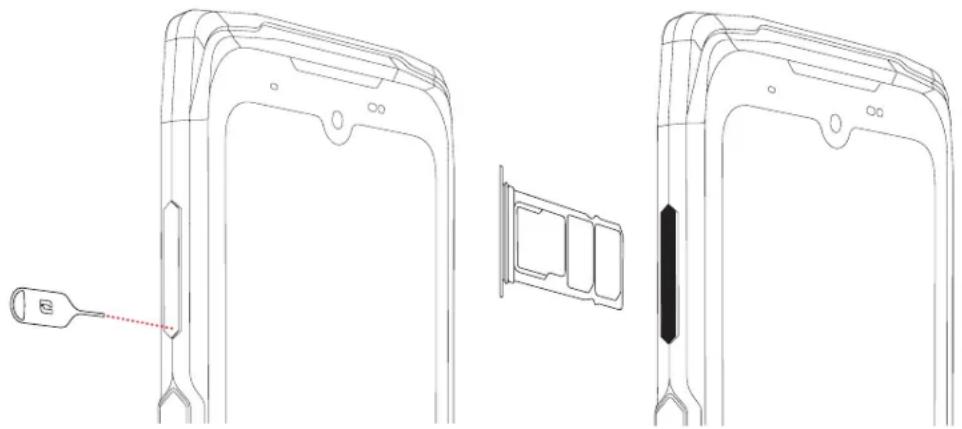
- Eject the nano SIM/micro SD card tray using the tool provided, inserting it into the hole designed for this purpose, as shown below.
natural_image
Technical line drawing of a mobile phone rear panel with a close-up view showing internal components (no text or symbols)- Remove the tray completely.
- You can insert 2 nano SIM cards and one micro-SD card into your phone.
a. To ensure optimal compatibility with operator services, insert your nano SIM card, metal side down, in the smallest compartment (SIM 1).
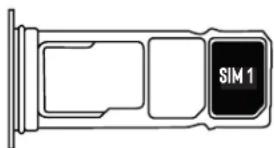
b. If required, you can insert a second nano SIM card, metal side facing downwards, into the middle compartment (SIM 2) and/or a micro SD card (maximum 1024 Go) into the left compartment.
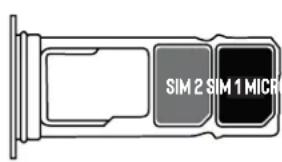
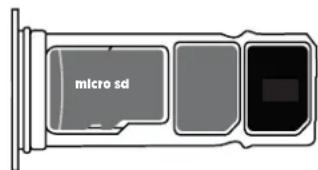
- Slide the tray back into the phone.
a. Make sure the cards are properly aligned.
b. Check that the tray is properly aligned with the slot in the phone when you slide it back in.
c. Insert the tray and push it in, as shown above.
Important: In order to guarantee that your smartphone is sealed and waterproof, make sure that the tray is fully inserted and locked.
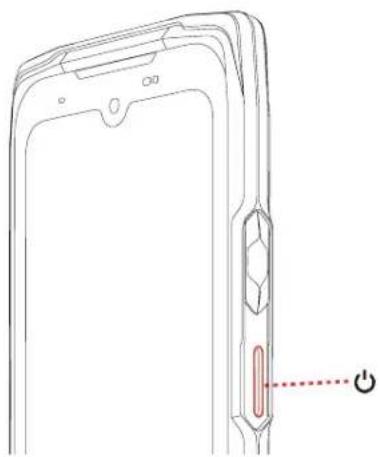
Switching the phone on and off
natural_image
Diagram of a smartphone rear panel showing the edge of the screen and keyhole, with a red indicator button labeled 'Power' (no text or symbols on the diagram itself)Press and hold the phone's On/Off button and wait a few seconds until the display screen turns on.
When you switch on your phone for the first time or after performing a data reset, follow the on-screen instructions to set up your device.
Once the phone is on, this button can also be used to:
- Lock/Unlock your touch screen with a single short press
- Access emergency calls, switch off, restart and stealth mode by pressing and holding.
Tips and precautions for charging your battery
natural_image
Simple line drawing of a container with a red upward arrow at the bottom (no text or symbols)-
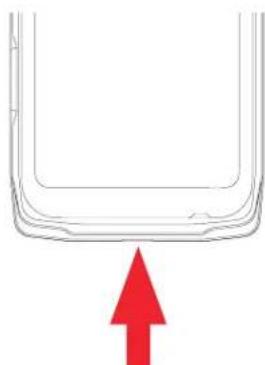
Open the dust cap and connect the cable and AC adapter supplied in your pack using the USB-A port. Then plug the other end of the cable into the USB-C port on your phone.
-
Plug the mains adapter into an electrical socket.
-
When the battery is fully charged, unplug the phone from the charger. First unplug the charger from the device, then unplug it from the electrical outlet.
Never charge your phone using the X-LINK™ magnetic connection and the USB connection together, as this could shorten the lifespan of your phone's equipment.
The battery is built into the phone and is not removable. Do not remove the battery yourself.
- To avoid prematurely draining the device battery, we recommend that you follow the battery charging instructions for each charging cycle. To do this, it is better to top up the battery when it reaches 20% and avoid charging it beyond 80%, rather than topping it all the way up to 100% from zero.
- Only use approved chargers and cables that are compatible with your phone. Using unapproved chargers or cables may cause the battery to explode or damage the phone.
- Avoid using your phone while it is charging. Do not cover your phone or the AC adapter.
- Connecting the charger incorrectly could seriously damage your phone. Any damage caused by misuse is not covered by the warranty.
- Remove the charger from the electrical socket when the phone is not charging.
- The phone may not switch on straight away if you are charging a drained battery. Once it has been charging for a while, the phone will start normally.
- If the mains power supply is lower, your phone may take longer to charge.
- If you use unconventional chargers such as computers, the charging time may be longer.
- The charging time may vary depending on the ambient temperature and the remaining battery level.
- The phone can be safely charged at a temperature between 0 °C and 40 °C. Charging at temperatures below 0°C or above 40°C may compromise battery performance and shorten battery life. Prolonged charging at extreme temperatures will damage the battery.
- During charging, the phone and charger may become hot. This is completely normal and should not reduce the life or performance of the phone. If the battery seems hotter than usual, stop charging it. Put your phone in a cool place and leave it to cool. Avoid prolonged contact with the surface of your phone when it is hot.

The device's features may vary depending on your location, language, operator and model. This device is OTG compatible. Please use a standard OTG cable.
Get to grips with your phone and its apps in a few simple steps.
Using the touch screen
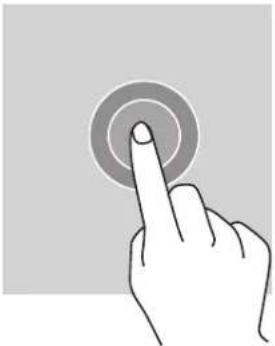
Tap
natural_image
Hand pressing a circular button on a plain background (no text or symbols)To open an app, select a menu item, press a key on the touch screen, or enter a character using the keypad on the screen, and tap the item with your finger.
Long press
Place your finger on an item or on the screen and hold it for 2 seconds to access the available options.
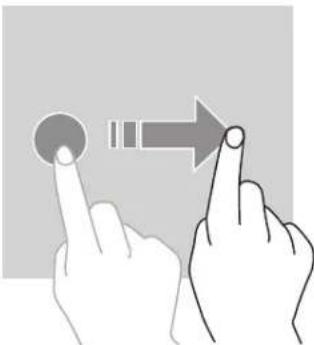
Swipe
natural_image
Illustration of two fingers pointing at a circular button with an arrow indicating right motion (no text or symbols)Swipe left or right on the home screen or apps screen to view other pages.
natural_image
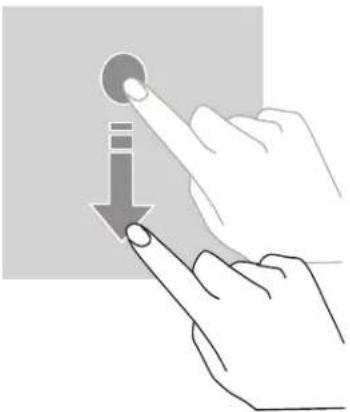
Illustration of a hand pressing a button with an arrow pointing downward (no text or symbols)Swipe up and down to scroll through a web page or list of items.

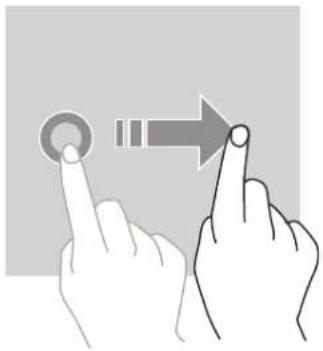
Drag
natural_image
Illustration of two hands interacting with a circular button and an arrow (no text or symbols)To move an item, press and hold with your finger, then drag it to the desired location.
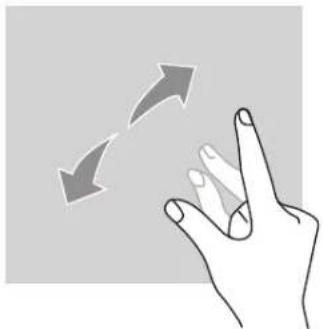
Two-finger actions
natural_image
Hand making a peace sign with two curved arrows indicating rotation (no text or symbols)With two fingers together, spread them apart to zoom in on part of a web page, map or image.

natural_image
Illustration of a hand holding two arrows, indicating movement or rotation (no text or symbols)Pinch closed to zoom out.
System navigation
Your smartphone offers two options for system navigation:
- Three-button navigation
- Gesture navigation
Below you will find details of the three-button navigation system, which is the phone's default setting. To set up the navigation actions, go to the application
Settings > System > Actions > System navigation > Navigation with actions
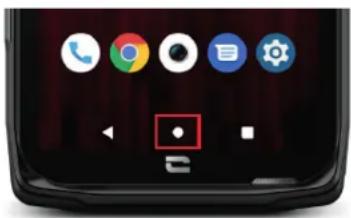
Home/Voice assistant
From any page on your smartphone, tap the circle in the middle of your screen to return to the home screen
A long press on this button will activate the Google voice assistant.
Back
From any page on your smartphone, tap the triangle in the bottom-left of the screen to return to the previous page.
Open apps
From any page on your smartphone, tap the square at the bottom right of your screen to access the location where all open apps are saved.
Phone apps menu
All of the apps installed on your phone are available in your device menu. To access it from your home screen:
- Swipe your screen from bottom to top.
- Scroll through the available apps by swiping from bottom to top on your screen and click on the app you want to open.
- Swipe down or tap the Home button (circle at the bottom of the screen) to close the menu n your phone.
Notification panel
From any screen on your phone, you can access the notifications you have received.
- To open the notifications window, swipe your screen from top to bottom. The list of your notifications is displayed.
- Scroll down the list to view all your notifications, and click on the notifications received to read them in full. Once read, the notification will automatically disappear.
- You can also delete notifications without viewing them. To do this, swipe left or right on the notification. To delete all your notifications at once, click on Delete all.
- Swipe up or tap the Home button (circle at the bottom of the screen) to close the notification panel.
Quick Settings window
From any screen on your phone, you can access the Quick Settings window, which lets you see and easily change your phone's key settings.
- To open the Quick Settings window, swipe your screen from top to bottom. This will display the first settings available in the Quick Settings window on your phone.
- Swipe your screen again from top to bottom to view all settings available in this Quick Settings window.
- Tap on a setting to enable/disable it. The greyed-out settings are disabled. If you want to show more options for a setting, long press on the corresponding icon.
- Swipe your screen from bottom to top or press the Home button (the circle the circle at the bottom middle of the screen) to close the Quick Settings window.
You have the option of adding, removing or moving the settings that you want by clicking on the small pencil icon in the bottom-left of the Quick Settings window.
- To move a setting, long press on it and drag it to the desired location.
- To add a setting, drag it up from the "Select and drag icons to add them" section.
- To remove a setting, drag it down to the "Drag icons here to remove them section".
Phone buttons
On/off button and screen lock/unlock
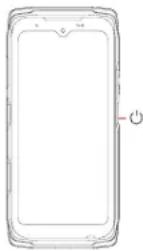
This button is mainly used to:
- switch on/off/restart your phone with a long press
-
lock/unlock your phone with a short press.
-
Press the on/off button to manually lock the screen.
- Press the on/off button to turn the screen back on, and swipe upwards on the screen to unlock it
Your screen will automatically lock and switch to standby mode after a certain period of inactivity, to reduce energy consumption and prevent unintentional actions.
To set the time for automatic standby, go to:
Settings > Screen → Screen timeout and select the desired duration.
Programmable buttons
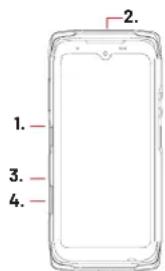
Your CORE-Z5 has four programmable buttons (No. 1, No. 2, No. 3 and No. 4) which can be used in two different ways:
- with a LONG press
- or with three SHORT presses in quick succession.
This feature allows you to configure two functions of your choice for each button, so 8 in total.
The buttons have a default setting but you can tailor them to your needs.
To do this:
- GotoSettings > Buttons and select the action for the button you want to configure (triple tap or long press).
-
For each action, you can:
-
Call a specific phone number
- Launch an app on your phone (X-TALK, X-SAFE, Camera, torch, etc.)
- Enable/Disable a mode (glove mode, "Do not disturb" mode)
Volume button +/-
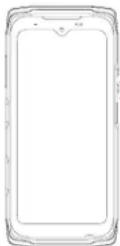
This button, made up of a + key and a - key, lets you set the volume of your calls and notifications by quickly and easily switching between 3 modes:
- Ring mode
- Vibrate mode
- Silent mode
It also allows you to easily adjust the volume:
- of calls
- of ringtones/notifications
- of multimedia content
- of alarms
USING YOUR PHONE
Phone calls
Dialling a number
- Press on 📞 on the home screen or in your phone menu.
- Press on to open the keypad and enter a phone number.
- Presson to make a call.
From the call log or contact list
- Press on 📞 on the home screen or in your phone menu.
- Tap to access your call log and tap the number you want to call.
- Tap 📁 to access your contacts list and tap the contact you want to call.
Making an international call
- Press on 📞 on the home screen or in your phone menu.
- Presson 🎨 to open the keyboard.
- Press and hold the 0 key with your finger until the + sign appears.
-
Enter the country code, area code and phone number.
-
Tap to call the number dialled.
4G calls (VoLTE) / WiFi calls (VoWIFI)
To configure your calls in 4G and WIFI:
- Go to: Settings > Network and Internet
- Click on the SIM card you want to set up.
- You can enable/disable the 4G calland WiFi call function.
Receiving calls
When a call comes in, swipe up on the screen to answer the call.
When a call comes in, swipe down on the screen to reject the call.
Contacts
Manually creating a contact
- Click on the Contacts app in your phone menu.
- Tap + to create a new contact.
- Enter the contact details.
- Click on Save to save the new contact
Creating/editing a contact using the keypad
- Tap to open your phone keypad.
- Enter the number and click on:
a. + Create contact, to save this number as a new contact.
b. + Add to a contact, to add this number to an existing contact.
Creating/Editing a contact from a received call
- Tap to view your call log
- Click on the number you want to save and click on:
a. + Create contact, to save this number as a new contact.
b. + Add to a contact, to add this number to an existing contact.

Messages
Sending a message
- Open the Messages app via your home screen or from your phone menu.
- Click on Démarrer une discussion
- Select the contact(s) to whom you want to send your message.
- Write the message using the touch-screen keyboard.
- Send the message by clicking on SMS.
Displaying messages
- Open the Messages app via your home screen or from your phone menu.
- Select a contact in the message list.
- View your conversation.
Camera
Taking photos/videos
You can take photos and record videos using the camera of your CORE-M5. To do this:
- Press on the Camera app on the home screen or in your phone menu.
- Click on the button at the bottom right of the app to switch from photo to video mode.
- Frame your subject on the screen and press the central key to take the photo or start the video recording.
- Your photo/video will be automatically saved in the Photos app.
QR code reader
Your camera also acts as a QR Code reader. It identifies and deciphers the main types of QR Code (website, business card, WiFi hotspot, sending SMS, calling).
-
Open the Camera app on the home screen or in your phone menu.
-
Frame the QR code to be scanned in the centre of your camera.
- Click on the notification that appears at the bottom of your screen to perform the action related to the QR Code.
Gallery
Viewing images/videos
- Press on the Photos app on the home screen or in your phone menu.
- Select an image or video to view it and access other options.
Deleting images/videos
- In the Photos app, press and hold on the image or video you want to delete. You can now simply tap to select any other photos and/or videos you want to delete.
- Once you have made your selection, click 📄 and confirm the deletion by clicking on OK.
Sharing images/videos
- In the Photos app, press and hold on the image or video you want to share. You can now simply tap to select any other photos and/or videos you want to share.
- Once you have made your selection, click and select a method for sharing.
Transferring files: phone to computer or vice versa

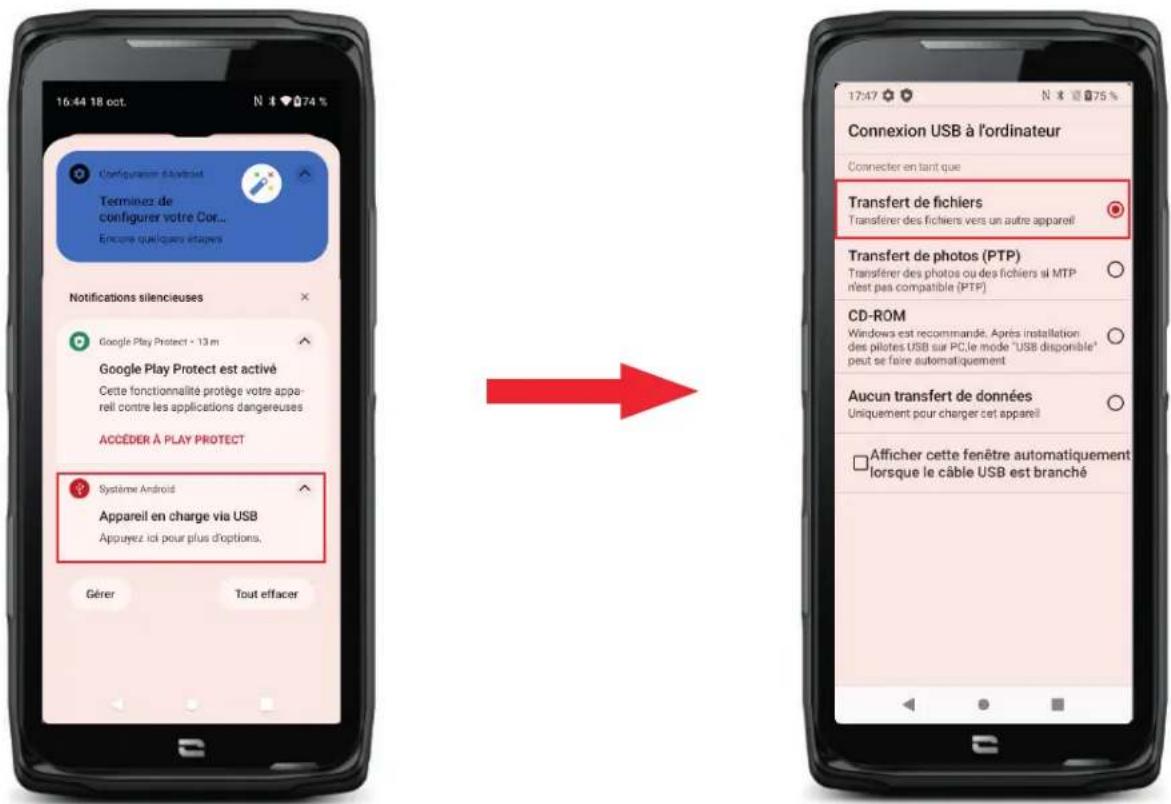
- When you connect your phone to your computer using your USB-C or X-LINK™* cable, a notification will automatically appear in the notification panel.
- Click on this notification and select File transfer to then access the files and folders on your phone via your computer.
Your device appears on your PC. To access the files it contains:
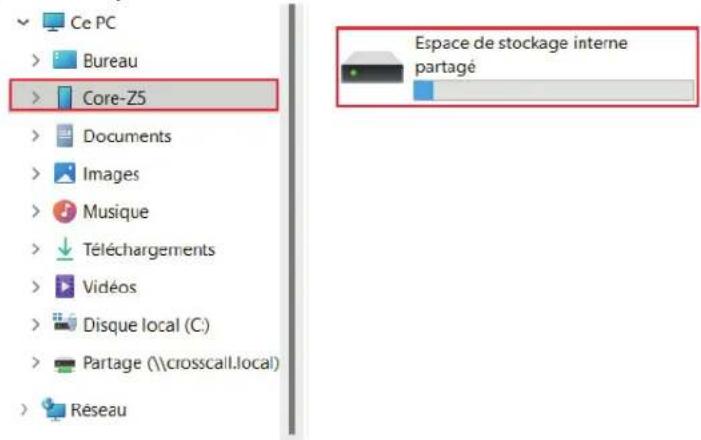
-
Open the file explorer and click on your CORE-Z5 phone.
-
Click on Shared internal device storage or on SD card.
- You now have access to the files on your phone. You can copy these files to your computer or copy files from your computer to the phone.
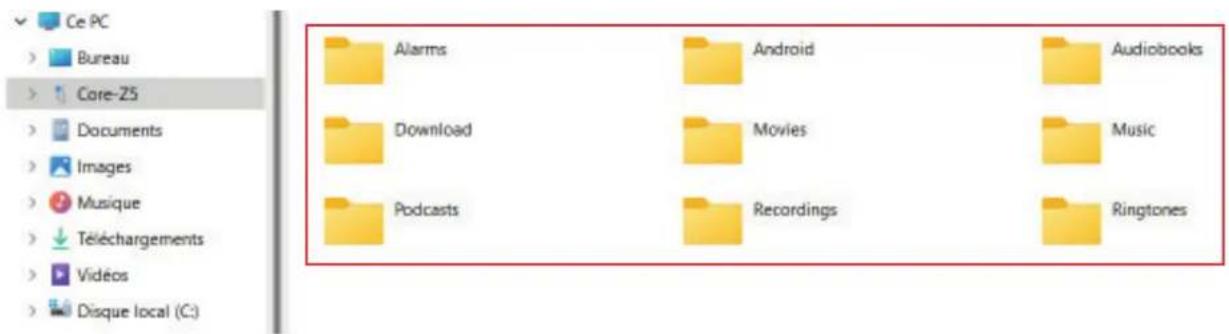

Do not disconnect the USB-C or X-LINK™* cable from the device during data transfer. This could result in loss of data and/or damage to the device.
Specific case for Apple Mac computers
The "Android File Transfer" app must be installed on your Mac to allow Android smartphones to transfer files.
Transferring files: phone to phone
When starting up your new phone, the data transfer stage will automatically be suggested during the initial set-up steps.
- Turn on your new phone, select the language you want to use and click on Start to begin setting up your new phone.
- During these steps, connect your new phone to a mobile or Wi-Fi network. Both your old and new phones must be connected to the Internet
- When you see the "Copy your apps and data" window, click on Next. Option 1 of transferring data via an old device displays, click on Next and follow the steps described in "Option 1: Use your old device".
If you don't have a cable or want to transfer your data via the Google app, select «Don't have a cable?», then «Continue». You can then follow the instructions described in «Option 2: Use the Google app».

Option 1: Use your old device
- Switch on your old device and keep it unlocked
- Use a cable compatible with your old device, like a charging cable
- Connect your old device to the new one using the cable
- Copy the data onto your new device by following the instructions on the old device's screen
Option 2: Use the Google app
- Open the Google app on your old device
- Say "OK Google, Set up my device" or enter "Set up my device" into the search bar
- Follow the instructions and select the "name of your new device" on the old device.
- Validate the forms and values on your old device
- Copy the data onto your new device by following the instructions on the old device's screen
To find out more (transfer from an iPhone backup), refer to the user guide available on the product page www.crosscall.com > CORE-Z5
SIM card management
Your phone allows you to use two different SIM cards at the same time. You can configure each of these SIM cards.
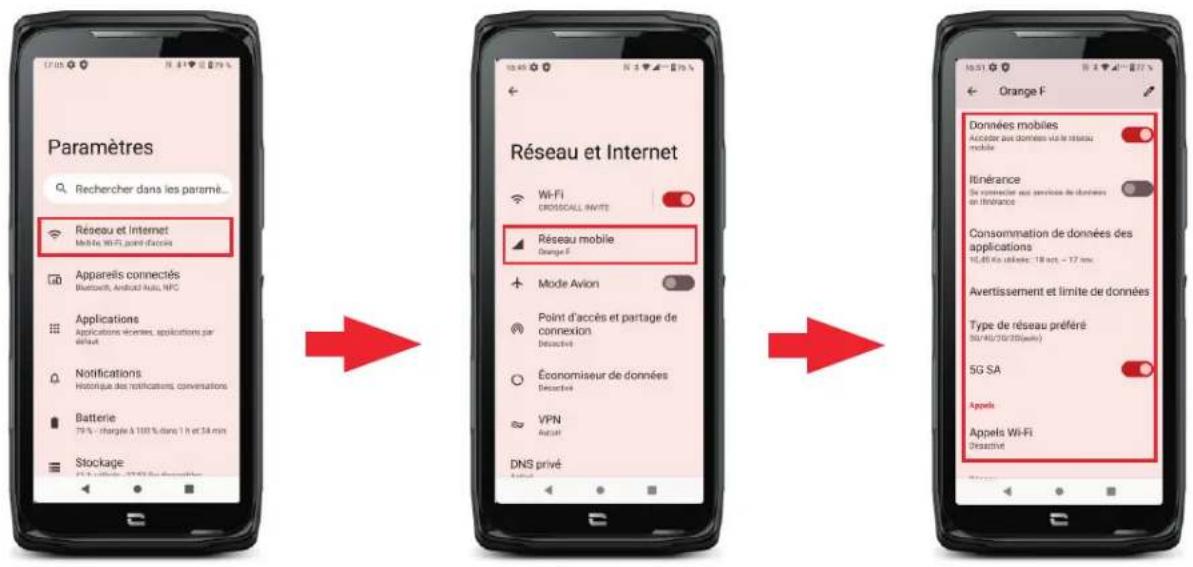
-
On the home screen or in your phone menu, click on Settings > Network and Internet
-
Click on the SIM card you want to set up.
3. Here, you can:
- Change the name of the card
- Set the card to be used for mobile data
- Choose the SIM card to be prioritised for calls
- Choose the SIM card to be prioritised for SMS
Mobile data
Two methods for enabling/disabling your mobile data
OPTION 1:
On the Home screen, open the notification panel and settings shortcuts by swiping down from the top of the screen and click on the Mobile data icon ⏻ to enable/disable this function.
OPTION 2:
In Settings > Network and Internet > Mobile networks, click on the switch to activate/deactivate it.
Browser
Connect to the internet to search for information and bookmark web pages for quick access.
-
Click on the Google Chrome app on your home screen or in your phone menu.
-
Enter the address in the search bar and press the → key on your keypad. This lets you access web pages. Favourites, switching between multiple windows, and other features are also supported.
Configuring your email account
Set up an email account when opening the email app for the first time.
-
Click on the Gmail app in your phone menu.
-
Click on + Add email address and select your email provider.
- Follow the instructions on the screen to complete the set-up.
Battery saver
Your CORE-Z5 has a battery-saver mode. When you activate this mode, your phone:
- Switches to dark theme
- Disables or restricts background activities, certain visual effects, and other features like "Ok Google".
There are two ways to activate Battery Saver mode.
OPTION 1:
- Open the phone's notification panel by swiping down from the top of the screen.
- In the white banner at the top of the screen, click on the + icon.
- Click on this icon again to deactivate this mode.
If you press and hold the icon for a few seconds, it will take you directly to your phone's battery menu to quickly view information on your battery status.
OPTION 2:
-
On your home screen, click on Settings > Battery > Battery saver.
-
Click on Activate now to enable this mode.
-
Click on Deactivate now to disable this mode.
From the battery saver menu, you can reinforce the energy saving by customising this mode. This way, you can deactivate:
- Disable LED notifications
- Disable the NFC ("Near Field Communication": contactless mode)
- Disable the screen wake by turning over
To do this:
-
On your home screen, click on Settings > Battery > Battery saver.
-
Select the options you want.
From the battery-saver menu, you can also configure this mode so that it is automatically activated when your phone reaches a certain battery threshold, which you can define. To do this:
-
From the home screen, click on the app Settings > Battery > Battery saver > Define a programme and tick Based on a percentage.
-
Select the desired battery level.
Resetting your phone

Before performing a reset, make sure you have backed up all important data stored on the device. The device will restart automatically.
To reset your device to factory settings, go to Settings > System > Reset options and click on Erase all data (restore factory settings).
Important: this action will erase all data from your phone's internal memory.
This menu also gives you the option to reset just your preferences or the WiFi, mobile data and Bluetooth ^® .
System updates
Updates are changes made to the software version originally installed on your phone to fix potential bugs, or to make improvements and add new features.
CUSTOMISING YOUR PHONE
Home screen
The home screen is the starting point for accessing all the phone's features. It displays widgets, shortcuts to apps, and much more.

The home screen may display differently depending on the region or operator.
Wallpaper
- Long press an empty area on your home screen to access the home screen settings.
- Select Wallpapers.
- You can choose your wallpaper from a selection of CROSSCALL images or from your own photos.
Widgets
Widgets are miniature stand-alone app views that launch specific app functions to make it easier to access and provide information on your Home screen.
To access the widgets offered by your phone:
- Long press an empty area on your home screen to access the home screen settings.
- Select Widgets.
- Press and hold the widget you want to add to your home screen and arrange it on your home screen, creating a new page if needed. Then release your finger to confirm its position on the screen.
- On the Home screen, press and hold the widget you want to move or delete. Drag it into the X Delete zone at the top of the screen to remove it from your home screen.
App shortcuts
You have the option to customise which app shortcuts you want to display on your home screen.
- Open the menu in which all of the phone's apps are stored.
- Press and hold on the app you want to add a shortcut for.
- Keep pressing this app and drag it around slightly to bring up your home screen.
- Place the app where you would like it to be displayed and release your finger to confirm its position on the screen.
- On the Home screen, press and hold the app shortcut you want to move or delete. Drag it into the X Delete zone at the top of the screen to remove it from your home screen.
Sound
In Settings ▶ Sound, you have the option to:
- Adjust your device's different volumes for multimedia, calls, ringtones, notifications and alarms.
- Choose your phone ringtone for each SIM card, the sound of your notifications, and your alarm sound.
- Manage vibration mode, keyboard sounds, the keypad sound effects, etc.
Remember that some of these settings can be changed from the +/- volume keys on your phone. You can quickly and easily manage the volume of your ringtone and notifications and switch from ring mode to vibrate or silent mode (or vice versa).
Notifications
In Settings > Notifications , you have the option to:
- Choose the display settings for your notifications.
- Enable/Disable notifications from the various apps installed on your phone.
Date and time
In Settings ⚙ > System ⓘ > Date and Time ⏰, you can:
- Enable/Disable the automatic synchronisation of your phone, which automatically sets the time and date according to the time zone of your network.
- Set the time and date manually if automatic synchronisation is disabled
- Enable/Disable use of your network's time zone or manually choose the time zone you prefer.
- Choose the time format (24 hours / 12 hours)
Languages
To chat and send messages in more than one language, you can configure multiple languages so that your keyboard adapts and corrects the language currently in use.
In Settings > System > Languages and input > Languages > + Add language, you can choose the language(s) you want to add to your phone.
When writing a message, just press the space bar and select the language of your choice.
TIPS AND SHORTCUTS
Using your CORE-Z5 underwater
Touch Screen Locking feature: for use in the rain and underwater
For use in the rain or underwater, you'll need to activate the touch screen locking feature. From any screen on your phone, access the Quick Settings window by swiping downwards on your screen. Swipe downwards on your screen again to view all settings available, then swipe twice from right to left. Next, enable touch screen locking.
Touch-lock function: to take pictures/videos underwater

To take pictures/videos underwater, you need to activate the touch-lock function, which locks your touch screen (in photo or video mode, the icon at the top right of your screen). You can then press the volume button or one of the two programmable buttons to take photos or start/stop a video.
To disable this function, simply click twice on the power button of the phone.
After immersion in seawater
After immersion in sea water, rinse your phone with fresh water. Thoroughly dry the caps and connectors.
The speaker and microphone holes may be blocked with water. Wait a few minutes before making a call to get back to optimal functionality.
Split screen mode
This allows you to divide your screen into two so that you can view two different app windows at the same time on your screen
- Once your app is open, click on the square at the bottom right of the screen to open recently opened apps.
- Click on the app icon located at the top of the page of each open app.
- Tap "split screen," then select the second app.

Not all apps are compatible with split screen mode
- To return to a single screen, drag the black bar that separates the two screens up or down depending on which screen you want to keep active.
Screenshot
To take a screenshot, simultaneously click the Power key and the - volume button on your phone.
Automatic screen rotation
- Open the phone's notification panel by swiping down from the top of the screen.
- In the white banner at the top of the screen, click on the 🔔 icon to enable/disable automatic rotation of the screen, which automatically rotates your device's screen when you switch your phone between landscape and portrait mode.
Screen wake
You no longer need to press on your smartphone's power button to wake up your screen; now, all you have to do is to double tap your black screen repeatedly.
This function is particularly useful in situations where your power button is difficult to access: on an X-BIKE, an X-CAR PRO, etc.
To enable/disable this function, go to Settings > Screen >Screen wake.
Glove mode
Activating this mode will increase the screen's sensitivity so that you can use your smartphone while still wearing your gloves.
-
Open the phone's notification panel by swiping down from the top of the screen.
-
In the white banner at the top of the screen, click on the icon to enable/disable glove mode, which lets you use your smartphone and touch the screen even when wearing gloves.
NFC
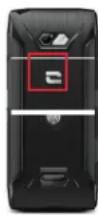
The NFC antenna of your CORE-Z5 is located on the upper-left section on the rear of your phone.
Make sure to position this part of the phone correctly on contactless readers (payment terminals, transport terminals, badge readers, etc.) for optimal operation.
Battery sharing
With the CORE-Z5, you can now charge another phone or accessory using your battery power.
This function is automatically activated when you connect a second phone or accessory via a USB-C cable.
The Battery Share 📋 icon in your notification panel lets you:
- check that charging is in progress
- reverse the charging direction if necessary (in the case of two phones)
Charging animation
When your phone is charging, you can display the phone name and battery level using a proximity sensor that detects the movement of your hand.
This feature is particularly useful in the case of a company that has a fleet of mobile phones and uses the POWER STATION to charge the phones in its fleet: with a quick wave of your hand, you can easily find your phone.

To activate this function, go to Settings >Screen >Enable/Disable Information when charging.
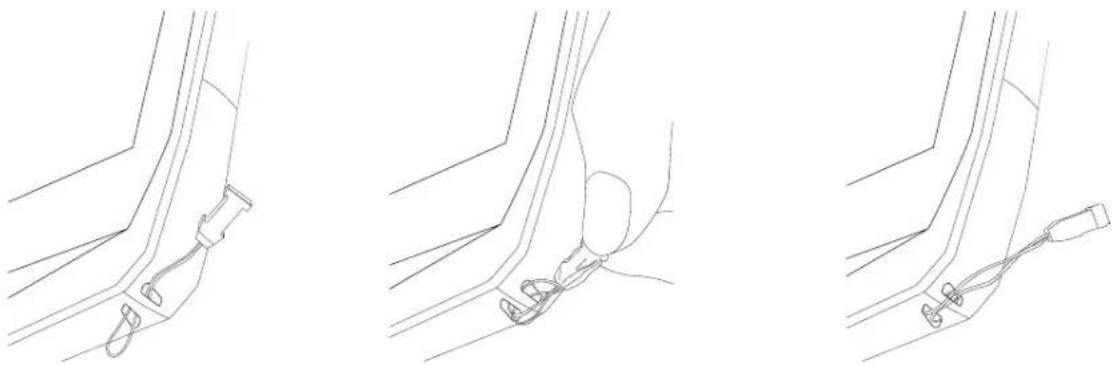
Attaching the safety leash\*
* Leash not included
natural_image
Three line drawings showing different anatomical or mechanical configurations of a foot and ankle (no text or symbols present)Calculator
The Calculator app lets you to perform simple and complex calculations.
-
Tap in your phone's menu.
-
Change the screen orientation to switch from the standard calculator to the scientific calculator.
CROSSCALL APPS

X-SENSORS
X-SENSORS is an app that provides you with information about the sensors built into your CROSSCALL mobile phone.
When you open the app for the first time and before using it, please read and agree to the terms and conditions of use by clicking "Agree".
The magnetometer
This tool acts as a compass, measuring the orientation of the phone in relation to magnetic north. Calibrate your compass by following the on-screen instructions.
The accelerometer
The accelerometer measures and observes the phone's acceleration in space along 3 axes. It uses mathematical integration to measure the device's speed of movement while tracking its position.
The GPS
This provides the position of the device and the accuracy of the GPS signal. You can find out the number of satellites in range as well as your altitude.
Proximity sensor
This feature is used to turn off the screen during phone calls when the phone is placed near the ear.
Light sensor
The light sensor measures the intensity of light projected on the phone screen. It helps you to optimise your screen brightness based on the ambient light to save your battery or to optimise readability.
Bluetooth® (5.2), WiFi (6/6E) and cellular networks (2G, 3G, 4G and 5G)
These provide information on the presence and strength of communication networks.
Battery status
This function provides an instant visual indication of the battery charging status.

X-SAFE
X-SAFE is a CROSSCALL app that allows you to quickly and easily raise the alarm in the event of an emergency.
Step 1: Setting up X-SAFE
- Open the X-SAFE app. It is enabled on your phone by default.
- Enter the relevant information: your name and address
- Then, enter the emergency number(s) you would like to contact if needed:
a. Click on Make emergency call
b. Click on the 3 little dots in the upper-right of your screen.
c. Click on Select a contact if the number is already saved in your contacts, or on Enter a number if you want to add a number that is not already saved in your phone.
- You can then choose between two different options to notify your loved ones in the event of an emergency. You can also combine and activate these two options simultaneously
a. If you want to send an emergency message: enable Send an emergency message and click on it to enter the content of the message you want to send.
b. If you want to make an emergency call: Enable Make an emergency call

- Lastly, you can also configure some of the app features by clicking on Settings:
a. Enable/Disable LED flashing
b. Enable/Disable the audible alarm
c. Enable/Disable the loudspeaker
Step 2: Connecting X-SAFE and the programmable button
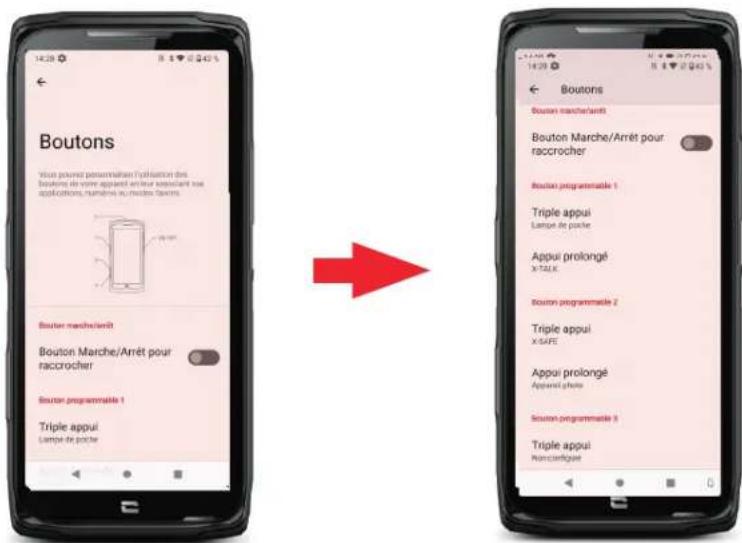
By default, the X-SAFE app is linked to programmable button No. 2 (bottom-right of the phone) and the triple-tap to trigger it.
But you can also choose to link the app to your other programmable button (no. 1, at the top left of your phone) as well as change the activation mode:
- the triple tap
- the long press
If you want to change the default setting for this app:
-
Go to Settings >Buttons
-
Choose the button to which you want to link this app (1 or 2) as well as the means of triggering it, and click on it.
-
Then click on the settings icon next to the app field, and choose X-SAFE.
Step 3: Issuing an alert

We strongly recommend that you issue an alert to check that the configuration of your X-SAFE app is operational. A countdown begins. The user can stop the alert by pressing the "Cancel" button. At the end of the countdown, a call and/or SMS is automatically sent to the person previously selected.
WARNINGS
Any activity is potentially dangerous and can sometimes result in injury or death. App Users are entirely responsible for their activity and must know how to anticipate potential hazards. They must also be able to assess their physical capacity for a given activity. In particular, while images of sometimes extreme sports activities may be used to advertise and promote a device, to demonstrate the resistance and performance of your phone, UNDER NO CIRCUMSTANCES should these images incite the User to engage in these or other similar activities.
LIMITATION OF LIABILITY
Access and use of the Apps are at the sole risk of the User. As a result, CROSSCALL shall not be held liable for any damage resulting from access and/or use of the App or the information it contains. The User is also informed that CROSSCALL could be forced to temporarily interrupt access to the App for technical reasons, in particular for maintenance purposes. The User accepts these interruptions and waives any claims in this regard.
The User declares that they are aware of and accept the characteristics and limitations of the mobile telephone network and the internet and, in particular, the functional characteristics and technical performance of these networks; problems related to connection and/or access to networks and/or websites; problems related to availability and congestion of the networks; problems related to the failure or saturation of networks; problems related to transit time, access to online information, response times for displaying, consulting, querying or otherwise transferring data; risks of interruption; lack of protection of certain data against possible hijacking or hacking;

the risks of contamination by any viruses circulating on the said networks, etc. for which CROSSCALL may not be held liable. The User acknowledges that they have been informed of these provisions, and may not hold CROSSCALL liable in the event of death, accident, illness and/or any type of incident caused in particular by inappropriate practice or use.
X-TALK
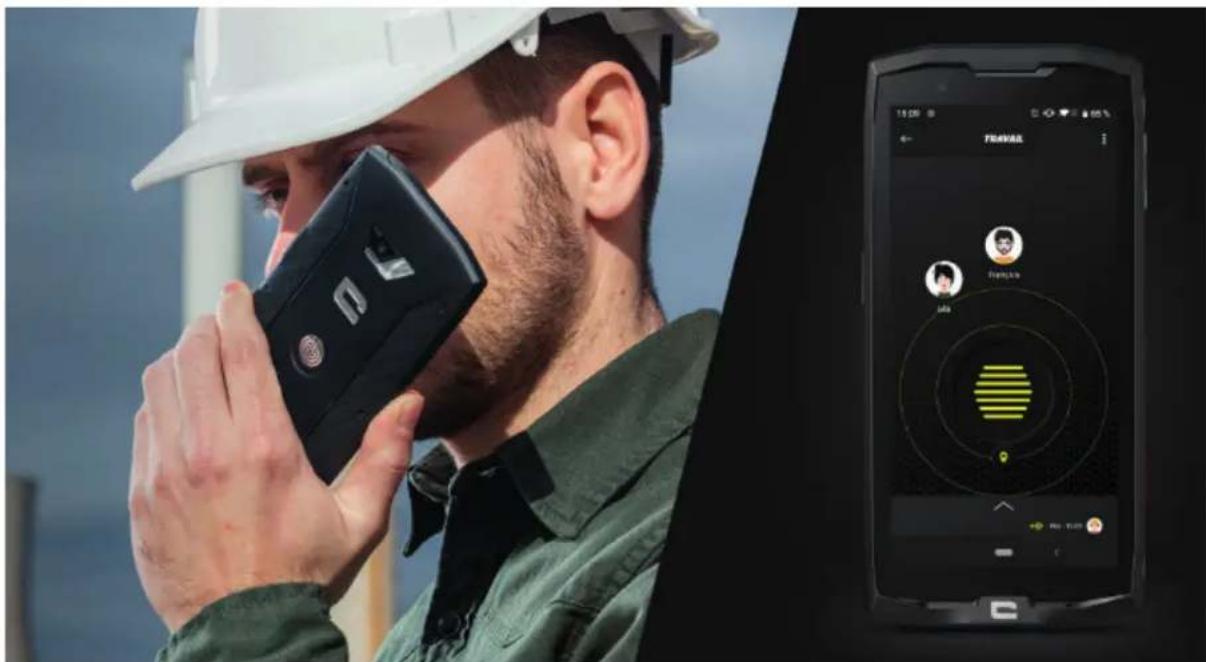
X-TALK is a walkie-talkie app developed by CROSSCALL for communicating:
- As a group
- Without a mobile phone number
- Without making a call
-
Without picking up
-
To find out more about this app, go to:https://www.crosscall.com/fr_FR/x-talk.html
- You can also find an app tutorial on our YouTube channel at the following link:https://www.youtube.com/watch?v=V_vEC55WqOM&t=1s
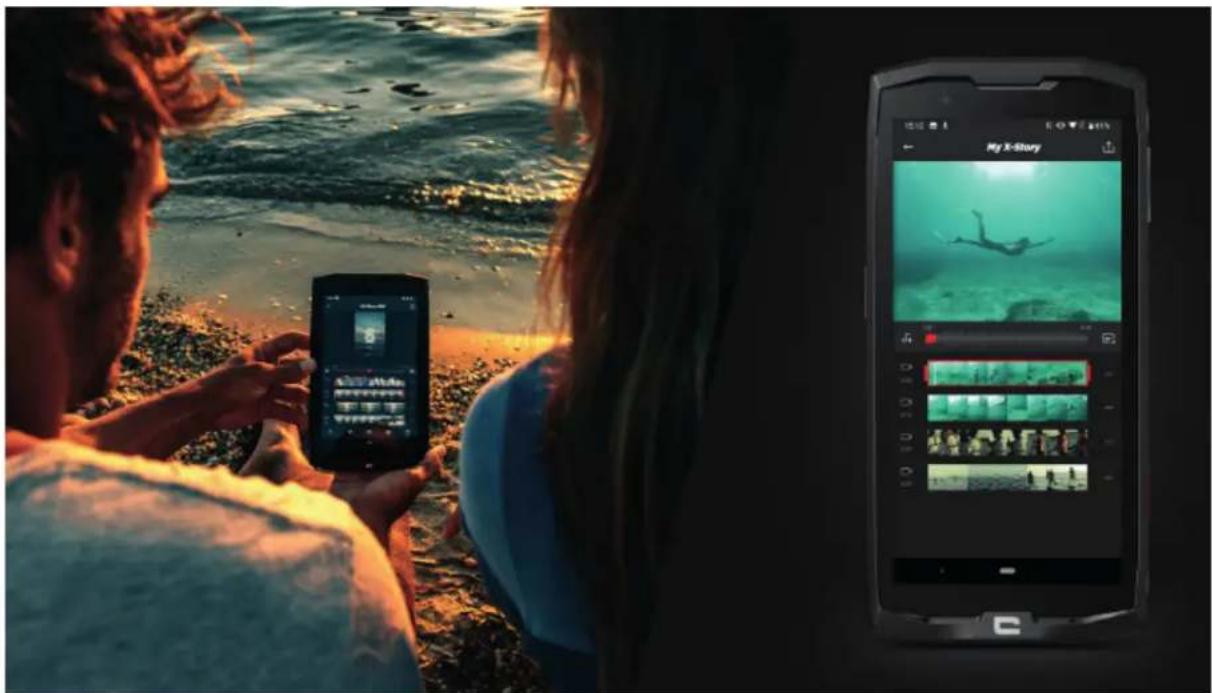
natural_image
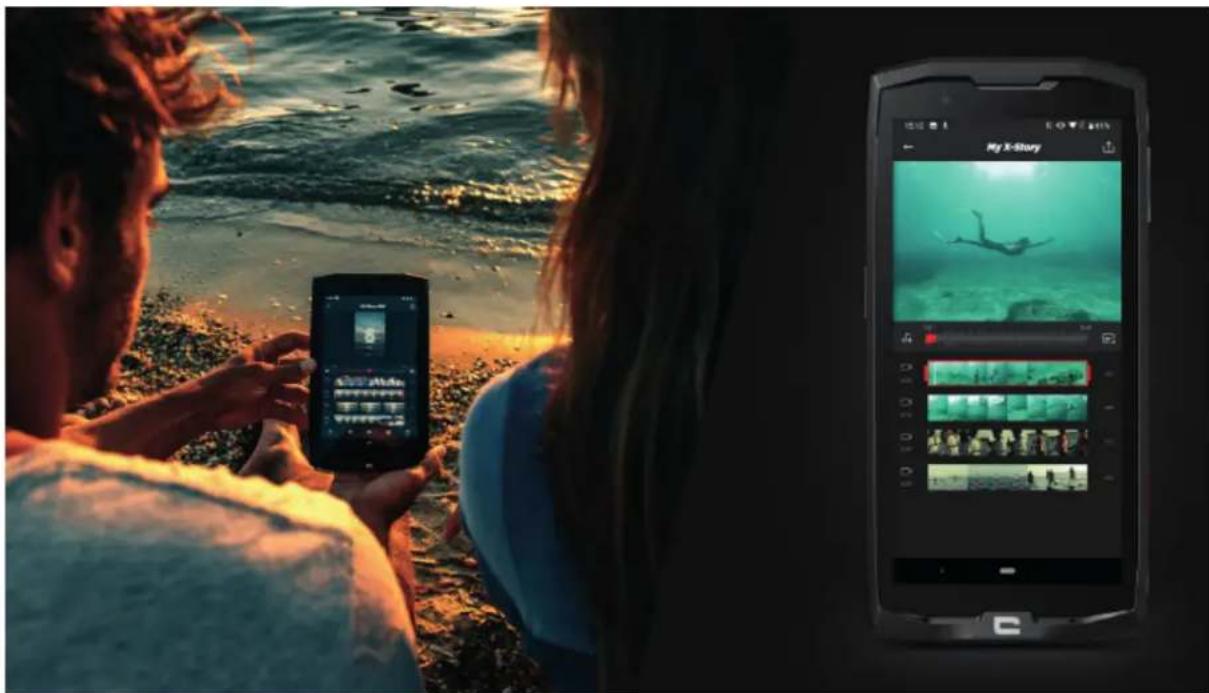
Two people watching a beach scene with a smartphone displaying a live streamer's underwater photo; no visible text or symbols on the main subjects.The X-STORY app is a photo and video editing app developed by CROSSCALL. It lets you:
- Trim
- Assemble/Reorganise
- Add music
-
Slow down/Speed up
-
To find out more about this app, go to:https://www.crosscall.com/fr_FR/x-story.html
- You can also find an app tutorial on our YouTube channel at the following link:https://www.youtube.com/watch?v=2IVsk7BHN7I

The X-CAMP app has been developed by CROSSCALL to answer all your questions. It lets you:
- You can ask any questions you have to the CROSSCALL community and experts
- Get a quick and reliable response
- Access all CROSSCALL services and information thanks to the guide menu.
-
Buy or Resell second-hand CROSSCALL products
-
To find out more about this app, go to: https://www.crosscall.com/fr_FR/x-camp.html
- You can also find an app tutorial on our YouTube channel at the following link:https://www.youtube.com/watch?v=2IVsk7BHN7I
TROUBLESHOOTING GUIDE
If you encounter any issues or difficulties with your smartphone, below you can find a few simple solutions to try to resolve some of the issues you may come across.
Before getting in touch with the Crosscall After-Sales Service, you can also sign in to the Crosscall X-CAMP app to chat and exchange tips with Crosscall users and experts who may be able to help you.
Display
Example: The screen won't turn on and/or won't show any information.
Solutions available:
- Routine test: Press the lock button (on/off) to make sure that the device isn't in standby mode or switched off.
- Charge your smartphone: it only takes around 15 minutes to restart it.
- Forced restart: If the screen remains black, force a restart by pressing and holding the power button and the volume down button simultaneously for 10 seconds.
- Faulty screen detection: If the issue persists, test the screen by calling the smartphone to see whether it can make sounds but not display any visuals.
Screen sensitivity
Example: Touch screen reacting erratically.
Solutions available:
- Cleaning the screen: Clean your screen with a soft, dry cloth and make sure that the screen is clean and dry.
- Restart: Restart the device to see if the issue is persisting.
- Enable "Glove mode": For optimal use of the touch screen when wearing gloves, or if you have dirty hands, you can enable "Glove Mode", which will increase the screen's sensitivity.
- Screen protection: Some screen protectors may interfere with the touch screen's sensitivity. If you need to add a screen protector, we recommend using the X-GLASS screen protectors sold by Crosscall.
- Software update: Check whether there are any pending updates for the device in Settings > System > System update.
Connecting to the WiFi network
Example: The smartphone won't connect to the WiFi network or keeps losing the connection.
- Solutions available:
- Routine test: Enable then disable Flight mode to reset the connections.
- Network settings: Go into Settings > Network and Internet > Internet > WiFi, select the WiFi network, delete it and then start a new search and select it again. Reconnect your smartphone to the router by entering the new password.
- Software update: Check whether there are any pending updates for the device in Settings > System > System update.
Battery and Battery Life
Example: The smartphone is quickly losing charge for no apparent reason.
Solutions available:
- Routine test: Identify any energy-intensive apps via Settings > Battery > Battery usage. Close any apps that you no longer need.
- Energy saving settings: Enable energy saving mode by going into Settings > Battery > Battery saver.
- Notification settings: Disable unnecessary notifications that may entail excessive battery used. (Settings > Notifications).
- Software update: Check whether there are any pending updates for the device in Settings > System > System update.
Battery and Charging
Example: The smartphone won't charge anymore.
Solutions available:
- Verification of the cable and adaptor: Use a different cable and a different charger that is compatible with your smartphone to check whether there's an issue with the charging equipment. Make sure that the charger is properly plugged in, or that the smartphone is correctly positioned over the X-LINK™ accessory for charging your device (X-CABLE, X-DOCK, etc.).
- Restart the device: Sometimes, simply restarting the phone can solve the charging issue.
- Software update: Check whether there are any pending updates for the device in Settings > System > System update.
Start-up
Example: Your smartphone won't switch on.
Solutions available:
- Charge the smartphone: Charge the phone for at least 15 minutes, then try to switch it on by pressing the on/off button for a few seconds.
- Forced restart: Press and hold the power button and the volume down button for 10-20 seconds.
- Verification of the charger and cable: Use a different cable or charger that is compatible with your smartphone to check whether there's an issue with the charging.
- Software update: Check whether there are any pending updates for the device in Settings > System > System update.
Performance
Example: The smartphone is slow or experiencing slowdowns.
Solutions available:
- Routine test: Restart the device to clear temporary caches.
- Storage manager: Go to Settings > Storage. Enable the storage space manager.
- Software update: Check whether there are any pending updates for the device in Settings > System > System update.
Example: The smartphone is crashing (freezes).
Solutions available:
- Close the apps: If your device crashes or freezes, first try closing any open apps by clicking on the square in the lower-right of your system navigation bar, then click on CLOSE ALL. Secondly, try to switch off or restart your device like you usually do.
- Forced restart: Simultaneously press the power button and the volume down button until the device restarts.
- Verification of recently used apps: Identify and uninstall any apps installed recently that may be causing the issue.
- Software update: Check whether there are any pending updates for the device in Settings > System > System update.
Example: Critical error message.
Solution available:
- Forced restart: Simultaneously press the power button and the volume down button until the device restarts.
- Software update: Check whether there are any pending updates for the device in Settings > System > System update.
GPS connectivity
Example: Weak GPS signal or GPS not working.
Solutions available:
- Restarting the GPS: Disable then re-enable the GPS in Settings > Location services > Enable location services.
- Enhanced location precision mode: Switch to Enhanced location precision mode in the GPS settings to improve your signal acquisition. (Settings > Location > Location services > Location precision > Enhance location precision)
- Software update: Check whether there are any pending updates for the device in Settings > System > System update.
E.g.: Difficulties when making/taking calls.
Solutions available:
- Verification of the network: Check that the phone is in an area with sufficient network coverage. If necessary, move a few metres away to try and connect with your operator's network.
- Verification of the SIM card: make sure that it hasn't been disabled. For this, go into Settings > Network and Internet > SIM & eSIM profiles.
- Call restrictions: If the call restriction function has been enabled for the phone number that you're dialling or for the caller's phone number, you'll need to disable it. To do this, go into Phone >Press the 3 dots in the upper-right of the interface >Settings >Blocked numbers.
- Flight mode: Enable and disable flight mode to reset connections.
- Software update: Check whether there are any pending updates for the device in Settings > System > System update.
Audio and Notifications
Example: I can't hear incoming calls or notifications.
Solutions available:
- Routine test: Make sure that the volume of notifications, the ringtone and calls is correctly set in Settings > Sound and vibrate.
-
"Do not disturb" mode: Check whether Do Not Disturb mode has been enabled and, if necessary, disable it in Settings > Sound and vibrate > Do not disturb.
Software update: Check whether there are any pending updates for the device in Settings > System > System update. -
Example: No sound during calls or the person you're talking to can't hear you.
- Solutions available:
- Testing earphones and the speaker: Use the speaker, a USB-C headset or Bluetooth earphones to identify whether the issue is coming from the internal microphone.
- Software update: Check whether there are any pending updates for the device in Settings > System > System update.
Multimedia files
Example: Can't open certain audio, photo or video files, etc.
Solutions available:
- Verification of the format: Check that the file format is supported by the smartphone.
- Verification of storage: Make sure that the files are not corrupt by transferring them to another device.
Sensor and Equipment Features
Example: The fingerprint sensor isn't working.
Solutions available:
- Cleaning the sensor: Make sure that the fingerprint sensor is clean and dry.
- Recalibrating fingerprints: Delete saved fingerprints and reconfigure them in Settings > Security and confidentiality > Unlocking the device > Digital fingerprint.
- Software update: Check whether there are any pending updates for the device in Settings > System > System update.
Example: The proximity sensor has stopped working (the screen stays on during calls). Solutions available:
- Cleaning the sensor zone: Make sure that the sensor at the top of the screen is clean by cleaning it with a soft, dry cloth.
- Software update: Check whether there are any pending updates for the device in Settings > System > System update.
Example: The NFC isn't working.
Solutions available:
- Restart the NFC function: Go into Settings > Connected devices > Connection preferences > NFC, and disable then re-enable the feature.
- Test with another device: Try to connect another NFC device to check whether the issue is with the smartphone or the other device.
- Software update: Check whether there are any pending updates for the device in Settings > System > System update.
Example: The camera isn't working.
Solutions available:
- Restart the Camera app: Close and restart the X-CAM app.
- Clear the app's cache: Press and hold the X-CAMM app icon > App info > Storage space and cache > Clear cache.
- Software update: Check whether there are any pending updates for the device in Settings > System > System update.
SAFETY MEASURES
General security information
Failure to adhere to the following safety instructions could result in fire, electric shock, injury, or damage to your phone or other property. Please read all the safety instructions below before using your phone.
- Always switch off your phone whenever it is forbidden to use it, or when it may cause interference or danger.
- Avoid exposure to magnetic fields.
- Please switch off your phone in aeroplanes and airports when prompted.
- Switch off your phone when you are in the vicinity of high-precision electronic equipment. The phone could affect the performance of this type of device.
- Do not put your phone or accessories in containers that produce a strong magnetic field.
- Do not leave magnetic data storage devices near your phone. The radiation emitted by the phone could erase the information stored on it.
- Keep the phone away from direct sunlight. Do not expose your phone to high temperatures, and do not use it in the presence of flammable gases (e.g. at a petrol station).
- Keep your phone at least 15 mm away from your body when you make calls.
- Small parts may cause choking.
- Your phone can emit a loud sound.
- Avoid impacts or damage to your phone.
- Some parts of your phone are made of glass. The glass is likely to break if your phone falls on a hard surface or suffers an impact. If the glass breaks, do not touch the glass parts of the phone and do not attempt to remove the broken glass from the phone. Do not use your phone until the glass has been replaced by an authorised operator.
- Do not attempt to take apart your phone or its accessories. Phones should only be serviced or repaired by qualified personnel.
- The power outlet should be located near the phone and must be easy to access.
- Comply with all laws and regulations relating to the use of the phone. Respect the privacy and rights of others when using your phone.
-
Follow the instructions in this manual for using the USB cable. Otherwise, your phone or PC may become damaged.
-
Clean your phone with a soft, dry cloth. Unless you meet the conditions mentioned below in "Information on water resistance", do not use water, alcohol, soap, or chemicals.
- Be sure to back up your important data. A repair or other factors may lead to data loss.
- Do not disconnect the phone when transferring files or formatting the memory. This could cause program failure or file damage.
- Keep the phone and charger out of the reach of children. Do not let children use the phone or charger unattended.
- This device is not intended to be used by people (including children) with reduced physical, sensory or mental capacities, or whose lack of experience or knowledge prevents them from safely using the device, if they are not supervised or have not been given instructions beforehand by the person responsible for their safety.
- Keep small phone accessories out of reach of children in order to avoid choking hazards.
- Do not let your children or pets chew or lick the device.
- Do not modify or recondition your phone.
- Do not expose your phone to flames, explosions, or other sources of danger.
- Switch off your phone when in the vicinity of explosive materials or liquids.
- The ideal operating temperature is between 0^ and 40^ . The ideal storage temperature is between 20^ and 50^ .
- Stop using your device if it overheats or if any of its parts are cracked or broken.
- Do not press your device against your eyes, ears or any other part of your body, and do not put it in your mouth.
- Do not use the flash close to the eyes of people or animals.
- Only use the original accessories for this phone and do not install its battery in another phone.
Information on water resistance
- You have just purchased an IP68-compliant mobile phone. To guarantee optimal use and water resistance, please ensure that all caps and guards covering slots or openings, and the case are correctly sealed.
- Do not open the caps or SIM card drawer if the device is in water or in a very humid environment.
-
Make sure the caps are not damaged when you open or close them. Ensure that the seal is free from any debris, such as sand or dust, to avoid damaging the device.
-
The caps covering the openings may come loose in the event of a fall or knock.
- Check that all the covers are properly aligned and completely closed.
- If the device has been submerged in water or the microphone or loud speaker is wet, the sound may not be clear during a call. It is recommended to wait a few minutes after immersing your device for it to return to its original audio quality. Make sure that the microphone or loud speaker is clean and dry by wiping it with a dry cloth.
- If the device gets wet with salt or chlorinated water, rinse it with tap water, then dry with a soft, clean cloth. Carefully wipe the caps and connectors.
- The water resistance of the device can lead to slight vibrations under certain circumstances. These vibrations, for example when the volume is turned up high, are entirely normal and do not affect the device's performance.
- Do not remove the waterproof membrane covering the microphone or speakers, and do not use any tool that could damage this (sharp, spiky, etc.).
- Do not expose the device to metal particles: these could build up on your phone's loud speaker due to the magnet embedded in its component. Metal particles can be cleaned with a soft cloth. Alternatively, you can place the device in a transparent plastic bag.
- Changes in temperature can increase or decrease pressure on the device, which can affect the quality of the sound. If necessary, open the caps to evacuate the air.
Medical devices
- Please switch off your telephone in hospitals and other medical facilities requiring it.
- Your phone has radio antennae that emit electromagnetic fields. These electromagnetic fields can interfere with pacemakers and other medical devices.
- If you wear a pacemaker, a minimum distance of at least 20 cm should be maintained between your pacemaker and your phone.
- Keep the device on the opposite side to an implant.
- If you think your phone is interfering with your pacemaker or other medical device, stop using it and consult your doctor for specific information about your medical device.
- When doing repetitive activities, such as text messaging or games on your phone, you may experience occasional discomfort in your hands, arms, wrists, shoulders, neck, or other parts of your body. If you experience any discomfort, stop using your phone and consult your doctor.
Road safety
- Comply with all safety standards and measures relating to the use of your device when driving.
- Obey all local laws. Always keep your hands free to operate the vehicle while driving. When driving, road safety should be your primary concern.
- Pull over and park before you make or receive a call, if traffic conditions require it.
- Radio frequency signals can interfere with certain electronic systems in your vehicle, such as the car radio or safety equipment.
- If your vehicle is equipped with an airbag, please do not obstruct its access by placing portable or fixed wireless equipment in front of it. Otherwise, you risk preventing the airbag from opening and could cause serious bodily injury. Hand-held mobile phone use while driving is prohibited.
- When listening to music, be sure to keep the volume at a reasonable level so that you can hear what is going on around you. This point is especially important when you are near a road.
- Using your phone in certain circumstances may distract you and cause danger. Adhere to any rules that prohibit or restrict the use of a phone or earphones (for example, not sending text messages while driving or using earphones while cycling).
- Hand-held mobile phone use while driving is prohibited.
Power supply and and charge
- Do not throw your phone into fire
- Do not short-circuit
- Do not expose it to temperatures above 60^ / 140^
- Recycle the battery according to standards in force.
- Charge your phone using the USB cable and power adapter supplied. Using an incompatible adapter or cable could permanently damage your phone.
- The adapter should be plugged in near the phone and must be easily accessible.
- Using damaged cables or chargers, or charging in the presence of moisture, may cause an electric shock.
- The power adapter is intended for indoor use only.
- The electrical power must be easy to access. The plug must not be blocked during use.
• To completely disconnect the phone from the mains power supply, unplug the charger
from the wall socket.
- Power adapters can become hot during normal use, and prolonged contact may cause injury.
• Always ensure adequate ventilation around the power adapters when in use. - Ventilation should not be obstructed by covering air vents with objects (newspapers, tablecloths, curtains, etc.) to prevent overheating and malfunction. Leave at least 10cm of space free around the phone.
- The phone should be used in areas with a temperate climate.
- Do not insert or remove a USB port with wet hands as this could lead to a risk of electric shock.
- Because the phone is equipped with an internal rechargeable battery, do not expose the product to excessive heat (sun, fire, etc.).
- Avoid using the connector to perform several actions at once, and make sure that the battery terminals are noting touch any conductive elements, such as metal or liquid.
Hearing protection
This phone adheres to the regulations in force in terms of limiting the maximum output volume. Listening with earphones at high volume for extended periods can cause hearing loss!
- Stop using the product or lower the volume if you feel that your ears are ringing.
- Do not listen on full volume; medical professionals advise against exposure to high noise levels for an extended period of time.
- Use earphones wisely, as excessive sound pressure coming from earbuds or an audio headset can cause hearing loss.
- To prevent damage to your hearing, avoid listening at high volumes for long periods of time.
Environmental protection
- Please respect local regulations in terms of waste elimination when you are getting rid of packaging, the battery or the used phone. Take them to a collection point so they can be properly recycled. Do not dispose of telephones or used batteries in ordinary rubbish bins.
- Please dispose of used lithium batteries that you do not want to keep in a designated place for this purpose. Do not dispose of them in rubbish bins. Do not dispose of phones or used batteries in ordinary rubbish bins.

There is a risk that the battery will explode if you replace it with an unsuitable model. Dispose of used batteries according to the instructions.
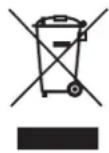
This symbol affixed on the product means that it is a device whose treatment as waste is subject to Waste Electrical and Electronic Equipment (WEEE) regulations.
Cleaning and maintenance
- Switch off your phone before any cleaning or maintenance. The charger must be unplugged from the outlet. The phone and charger must be disconnected to avoid electric shock or short circuit of the battery or charger. Close the caps.
- Do not clean the phone or charger with chemicals (alcohol, benzene), chemical agents or abrasive cleaners so as not to damage the parts or cause a malfunction. The device can be cleaned with a soft, anti-static, slightly damp cloth, or with tap water following the instructions in the INFORMATION ON WATER RESISTANCE on page 38.
- Do not scratch or tamper with the phone, as the substances in the paint may cause an allergic reaction. If such a reaction occurs, stop using the phone immediately and consult a doctor.
- Remove dust from the power socket and keep it dry to prevent the risk of fire.
- If the phone or any of its accessories do not work properly, contact your local service provider.
- Do not disassemble the phone or its accessories yourself.
Emergency calls
In the event of an emergency, if the phone is switched on and you are in the network coverage area, it can be used to make an emergency call. However, emergency numbers may not be accessible on all networks. You should never rely on your phone to make emergency calls.
Recommendations to reduce the user's exposure to radiation
- Use your mobile phone in areas covered by your network to reduce the amount of radiation received (especially in underground car parks or when travelling by train and by car).
-
Use your phone when there is good reception (i.e. maximum number of bars is displayed for the network).
-
Use a hands-free kit.
- During calls, keep the phone away from the tummy of pregnant women and the lower abdomen of teenagers.
- Children and teenagers should use of mobile phones reasonably by avoiding, for example, night-time calls and limiting the frequency and duration of calls.
ADDITIONAL INFORMATION
Compliance
CE UK CA
- CROSSCALL confirms that this device complies with the basic recommendations and other relevant measures set out in Directive 2014/53/EU. The latest applicable version of the Certificate of Conformity can be found on the website: https://docs.crosscall.com/public/CERTIFICAT/CORE-Z5_CERTIFICATE-OF-CONFORMITY_INTERNATIONAL.pdf.
Represented by : Authorised Rep Compliance Ltd., ARC House, Thurnham, Lancaster, LA2 0DT, UK.
- Restrictions relating to the 2.4GHz band: Norway: this sub-paragraph does not apply to the geographical area located within a 20 km radius from the centre of Ny-Ålesund. Restrictions relating to the 5 GHz band: According to Article 10, paragraph 10 of Directive 2014/53/EU, the packaging indicates that this radio equipment is subject to certain restrictions when placed on the market in Belgium (BE), Bulgaria (BG), Czech Republic (CZ), Denmark (DK), Germany (DE), Estonia (EE), Ireland (IE), Greece (EL), Spain, (ES), France (FR), Croatia (HR), Italy (IT), Cyprus (CY), Latvia (LV), Lithuania (LT), Luxembourg (LU), Hungary (HU), Malta (MT), the Netherlands (NL), Austria (AT), Poland (PL), Portugal (PT), Romania (RO), Slovenia (SL), Slovakia (SK), Finland (FI), Sweden (SE), the United Kingdom (UK (NI)), Turkey (TR), Norway (NO), Switzerland (CH), Iceland (IS) and Liechtenstein (LI).
Frequency bands and power
- Frequency band used by radio equipment: certain bands may not be available in all countries or all regions. Please contact the local operator to get more detailed information.
- Maximum radio signal frequency emitted in the frequency band where the radio equipment operates: the maximum power for all the bands is less than the highest specified limit value under the associated harmonised standard. The nominal frequency band and power transmission limits (radiated and/or by conduction) applicable to this radio equipment are the following:
Bands Frequency maximum power
| GSM850 824MHz-894MHz 33±2dBm | ||
| GSM900 880MHz-960MHz 33±2dBm | ||
| DCS1800 1710MHz-1880MHz 30±2dBm | ||
| PCS1900 1850MHz-1990MHz 30±2dBm | ||
| WCDMA Band1 1920MHz-2170MHz 23±2dBm | ||
| WCDMA Band2 1850MHz-1990MHz 23±2dBm | ||
| WCDMA Band4 | 1710 MHz-2170 MHz 23±2dBm | |
| WCDMA Band5 824MHz-894MHz 23±2dBm | ||
| WCDMA Band8 880MHz-960MHz 23±2dBm | ||
| LTE Band1 | 1920MHz-2170MHz 23±2dBm | |
| LTE Band2 | 1850MHz-1990MHz 23±2dBm | |
| LTE Band3 | 1710MHz-1880MHz | 23±2dBm |
| LTE Band5 | 824MHz-894MHz 23±2dBm | |
| LTE Band7 | 2500MHz-2690MHz | 23±2dBm |
| LTE Band8 | 880MHz-960MHz | 23±2dBm |
| LTE Band20 | 791MHz-862MHz | 23±2dBm |
| LTE Band28 | 703MHz-803MHz | 23±2dBm |
| LTE Band32 | 1452 MHz-1496 MHz | Only DL |
| LTE Band68 | 698 MHz-783 MHz | 23±2dBm |
| LTE Band38 | 2570 MHz-2620 MHz | 23±2dBm |
| LTE Band39 | 1880 MHz-1920 MHz | 23±2dBm |
| LTE Band40 | 2300 MHz-2400 MHz | 23±2dBm |
| LTE Band41 | 2496 MHz-2690 MHz | 23±2dBm |
| LTE Band42 | 3400 MHz-3600 MHz | 23±2dBm |
| LTE Band43 | 3600 MHz-3800 MHz | 23±2dBm |
| NR FDD Band n1 | 1920MHz-2170MHz 23±2dBm | |
| NR FDD Band n3 | 1710MHz-1880MHz | 23±2dBm |
| NR FDD Band n5 | 824MHz-894MHz | 23±2dBm |
| NR FDD Band n7 | 2500MHz-2690MHz | 23±2dBm |
| NR FDD Band n8 | 880MHz-960MHz | 23±2dBm |
| NR FDD Band n20 | 791MHz-862MHz | 23±2dBm |
| NR FDD Band n28 | 703MHz-803MHz | 23±2dBm |
Bands Frequency maximum power
| NR TDD Band n38 2570 MHz-2620 MHz 23±2dBm | ||
| NR TDD Band n40 2300 MHz-2400 MHz 23±2dBm | ||
| NR TDD Band n41 2496 MHz-2690 MHz 25.5 dBm | ||
| NR TDD Band n77 3300 MHz-4200 MHz 25.5 dBm | ||
| NR TDD Band n78 3300 MHz-3800 MHz 25.5 dBm | ||
| Bluetooth® 2402 MHz-2480 MHz <10 dBm | ||
| Wi-Fi 2.4G 2402 MHz-2482 MHz | <20 dBm | |
| Wi-Fi 5G | 5170MHz-5835MHz | <20 dBm |
| Wi-Fi 6G | 5945 MHz-7125 MHz | <20 dBm |
| NFC | 13.56MHz | <42 dBuA/m |
Accessory and software information
We recommend that you use the following accessories:
| ACCESSORY | MODEL | TECHNICAL DATA |
| Ref. Crosscall:1909140199976 | USB-C / USB-C1m |
The software version of the product is N1982.x (or X=0 to 9, A to Z, representing updates for the user experience, Google security patches, etc.). Software updates are published by the manufacturer to correct bugs or improve certain features after the product's launch. All the software versions published by the manufacturer have been verified and always comply with the applicable regulations.
Not all the radio frequency settings (for example, the frequency band and output power) are accessible by the user or can be modified by him/her. The latest information relating to accessories and software is available in the Certificate of Conformity, which can be viewed on the website: https://docs.crosscall.com/public/certificat/core-Z5_certificate-of-conformity_international.pdf
Specific absorption rate (SAR)
- This device adheres to the directives relating to exposure to radio frequencies, when it is used near the head or at a minimal distance of 5mm from the body. According to ICNIRP (International Commission on Non-Ionising Radiation Protection) guidelines, the SAR limit is 2W/kg on average for the head and body, and 4W/kg for the limbs for 10g of cell tissue absorbing the majority of frequencies.
Maximum values for this model:
- SAR head: 1.50 (W/kg) ==> authorised limit value: 2 (W/kg)
- SAR body: 1.03 (W/kg) ==> authorised limit value: 2 (W/kg)
- SAR limbs: 2.63(W/kg) ==> authorised limit value 4 (W/kg)
Copyright
This equipment is reserved for private use. Copying CDs or downloading music, videos or photos for resale or for any other commercial purpose may constitute a violation of copyright law. Permission may be required to copy or save all or part of a document, book and/or presentation subject to copyright law. Please make sure you are familiar with all applicable laws regarding the saving and use of such content in your country and jurisdiction.
APPENDIX
Important information
To provide you with an optimal experience, the phone connects regularly to internet and messaging servers. This automatically and inevitably generates data exchanges that may be billed in addition to your existing subscription, or deducted from your prepaid plan.
In order to avoid any billing problems related to services that use the internet, we strongly advise you to opt for a suitable package that includes unlimited internet and messaging access. Also, please avoid changing the pre-configured default settings. If you wish, you can connect to a WiFi network to improve speed and efficiency. We particularly recommend using a WiFi network when streaming or downloading games, videos or movies.
Deleting data (factory settings)
To reset to default settings, in your phone's menu, click on Settings > System > Reset options > Delete all data (restore factory settings).
Before performing a reset, make sure you have backed up your important data stored on the device.

This action will erase all data from your phone's internal memory.
This menu also gives you the option of resetting just your preferences or the Wi-Fi, mobile data and Bluetooth®

Accessibility Features
Accessibility features on smartphones are designed to assist users with specific needs, such as visual, hearing, or motor impairments. These features make the device easier and more efficient to use.
You can configure your device to enhance its accessibility. Open Settings, then tap Accessibility and choose which features to enable.
INSTALLED APPLICATIONS
1. Sound Notifications
Be alerted when important sounds are detected in your home, such as a smoke alarm or a doorbell.
More information is available on the Android support page.
2. Live Transcribe
Live Transcribe displays spoken words as text on your screen to help you follow conversations more easily.
Once activated, you can start Live Transcribe using the floating Accessibility button via a shortcut or other customisable options such as:
- Quick settings
• Volume buttons - Swiping up with two fingers on the screen
More information is available on the Android support page.
3. Voice Access
Allows you to control your device hands-free. Use voice commands to open apps, press buttons, scroll the screen, and enter text.
SCREEN READER
1. TalkBack
TalkBack is an accessibility feature that helps blind or visually impaired users interact with their device using spoken feedback and touch gestures.
More information is available on the Android support page.
DISPLAY
1. Select to Speak
Lets you select items on the screen to be read aloud or described.
To use Select to Speak:
- Tap an item on the screen, such as text or an image.
- To hear multiple items, drag your finger across the screen.
• To hear a description of everything, tap Play.
More information is available on the Android support page.
2. Display Size and Text
Allows you to adjust font size, screen display size, enable bold text, or modify contrast.
More information is available on the Android support page.
3. COLOUR AND MOTION
a. Colour Correction
Helps distinguish colours more accurately or remove colours to improve focus.
b. Colour Inversion
Applies to the entire device, including multimedia content (e.g. black text on a white background becomes white text on a black background). This may affect the quality or
readability of colours.
More information is available on the Android support page.
Dark Theme
Dark theme applies to the Android user interface and supported apps. It does not affect the colours of media content such as videos.
More information is available on the Android support page.
c. Remove Animations
Reduces screen motion to improve focus.
d. Large Cursor
Increases the size of the cursor to make it more visible.
4. Extra Dim
For greater reading comfort, you can reduce screen brightness below your phone's minimum setting.
5. Magnification
Allows you to zoom in or enlarge elements displayed on the screen.
More information is available on the Android support page.
INTERACTION CONTROLS
1. Switch Access
Switch Access allows you to use one or more external switches instead of the touchscreen to interact with your device.
More information is available on the Android support page.
2. Touch and Hold Delay
Allows you to set the delay for long presses, the display time for interactive messages, and auto-click.
3. SYSTEM CONTROLS
a. Navigation Mode
Allows you to enable gesture navigation or 3-button navigation.
More information is available on the Android support page.
CAPTIONS
1. Live Captions
Automatically captions spoken content on your phone with a simple gesture. You can use it with media content such as videos, podcasts, phone or video calls, and voice messages.
More information is available on the Android support page.
2. Caption Preferences
Allows you to customise caption size and style for easier reading
AUDIO
1. Audio Description
Lets you hear a description of what's happening on screen for supported videos.
2. Flash Notifications
Makes the screen or flash blink when receiving notifications or alarms.
IMPORTANT: If you are sensitive to light, use flash notifications with caution.
3. Hearing Aids
Allows you to use hearing aids with your phone.
4. Sound Settings
Allows you to enable mono audio and adjust left/right sound balance.
5. Text-to-Speech Output
Converts typed text into spoken output. You can choose the language, speed, and pitch of the voice.
EAL-TIME TEXT (depending on your carrier)
This feature enables real-time message exchange during a phone call. It helps people who are deaf or hard of hearing, have a speech impairment, or need a transcription in addition to voice.
Real-time text calls are saved as transcriptions.
More information is available on the Android support page.
Warranty conditions
Your phone, along with the accessories in the box, are guaranteed against any defect or malfunction that may arise due to their design or manufacture, or an equipment failure, under normal conditions of use, for the duration of the warranty period (available to read with our after-sales T&Cs on www.crosscall.com > Assistance > Warranty) valid from the date of purchase of the phone, as shown on your original invoice. The commercial warranty automatically terminates at the end of this period. The period of availability of spare parts required for the use of new products is ten (10) years from the end-of-sale date.
For more information on the warranty terms and conditions, go to www.crosscall.com > Assistance > Guarantee.
Before contacting our After-Sales Service, we advise you to follow the following instructions:
• Fully charge the battery;
- Upgrade the software or restore factory settings to format the phone.
CAUTION: ALL the phone's user data (contacts, photos, messages, files and downloaded applications) will be permanently lost. You are strongly advised to perform a full backup of your phone data before formatting your phone.

In the event that your phone has a defect that prevents normal use, you will need to take your device to our After-Sales Service. Your phone will not be repaired or replaced if the trademarks or serial numbers (IMEI) have been removed or changed, or if your purchase receipt is missing or illegible.
If the lack of conformity or defect is confirmed, all or part of your phone will be replaced or repaired. This warranty covers the cost of parts as well as labour.
Before sending your phone to our After-Sales Service, we recommend:
- note down and keep your IMEI somewhere safe (*);
- removing the SD card and the SIM card;
- saving all your personal data. Our repair centre might need to format your phone.
(*) Your IMEI code is the serial number used to identify your device and monitor after-sales service. There are several ways to find your IMEI code: - Type *#06# on your mobile phone keyboard;
- Check the packaging of your phone;
- On the back of your phone and depending on the model, the IMEI may be given on a label or engraved on your phone's SIM tray.
Documents and information to enclose when sending your phone to our After-Sales Service:
- A copy of the invoice or receipt, showing the date of purchase, the type of product, and the name of the distributor;
•The IMEI number of the phone;
• A description of the fault with the phone.
We recommend reading the terms and conditions of service available on the Crosscall website at the following address: www.crosscall.com
The CORE-Z5, designed in France and assembled in China
Created and imported by:
CROSSCALL - 245 Rue Paul Langevin 13290 Aix-en-Provence (FR) - FRANCE.
ÍNDICE
VENTAJAS DE CORE-Z5
Potente 106
Conectado 106
Ergonómico.... 108
Duradero 108
natural_image
Black handheld device lying on a concrete wall, no visible text or symbols
Ergonómico
5
natural_image
Technical line drawings of three mechanical components: a hand holding a key, a hand holding a tray, and a 3D model (no text or symbols)natural_image
Technical line drawing of a mobile phone rear panel with a close-up view showing internal components (no text or symbols)natural_image
Diagram of a smartphone rear panel showing the edge of the screen and keyhole, with no text or symbols present.natural_image
Pure geometric lines forming a U-shape with corner brackets (no text or symbols)
natural_image
Hand icon pointing at a circular button (no text or symbols)natural_image
Illustration of two hands pointing at a circular button with an arrow, no text or symbols presentnatural_image
Illustration of a hand pressing a button with an arrow symbol (no text or labels)natural_image
Illustration of two hands interacting with a circular button and an arrow (no text or symbols)natural_image
Hand making a peace sign with two curved arrows indicating rotation (no text or symbols)natural_image
Illustration of a hand holding three arrows pointing upward (no text or symbols)natural_image
Three line drawings showing different anatomical or mechanical configurations (no text or symbols present)Calculadora
natural_image
Worker in hard hat using a mobile phone to use a handheld device, with a smartphone displaying a face detection interface (no readable text or symbols)natural_image
Two people watching a beach scene with a smartphone displaying a live streamer's underwater photo; no visible text or symbols on the main subjects.natural_image
Black handheld device lying on a textured wall surface, no visible text or symbols
Ergonomisch
natural_image
Line drawing of a hand holding a small object inside a container (no text or symbols)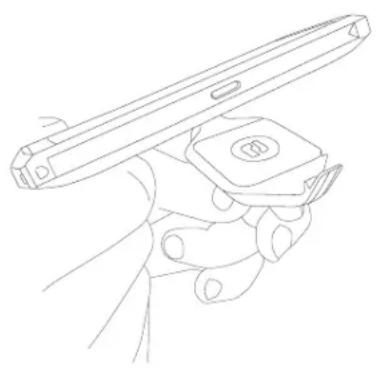
natural_image
Line drawing of a hand holding a tablet device (no text or symbols)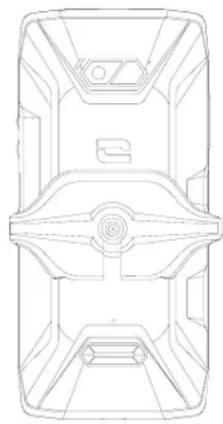
natural_image
Technical line drawing of a mechanical component with symmetrical supports and central hub (no text or symbols)natural_image
Technical line drawing of a mobile phone rear panel with a connector and internal components (no text or symbols)natural_image
Line drawing of a smartphone rear panel with a red button and power button, no text or symbols presentnatural_image
Simple line drawing of a U-shaped container with a red upward arrow at the bottom (no text or symbols)natural_image
Illustration of two hands pointing at a circular button with an arrow, no text or symbols presentnatural_image
Illustration of a hand pressing a button with an arrow symbol (no text or labels)natural_image
Illustration of two hands pointing at a circular button with an arrow, no text or symbols presentnatural_image
Hand making a peace sign with two arrows indicating rotation (no text or symbols)natural_image
Illustration of a hand holding two arrows pointing upward (no text or symbols)natural_image
Blank smartphone outline with a small screen and two colored arrows pointing to the right side (no text or symbols)natural_image
Three line drawings showing different anatomical or mechanical configurations of a vehicle's foot and arm (no text or symbols present)Taschenrechner
natural_image
Two people watching a beach at sunset, one holding a smartphone and the other displaying a video editing interface (no visible text or symbols on the main subjects)natural_image
Black handheld device lying on a concrete wall, no visible text or symbols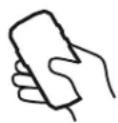
Ergonomico
natural_image
Technical line drawings of three different mechanical components: a hand holding a small component, a hand holding a tray, and a multi-view final view (no text or symbols present)natural_image
Technical line drawing of a mobile phone rear panel with a connector and internal components (no text or symbols)natural_image
Line drawing of a smartphone rear panel with a red button and power button, no text or symbols present
natural_image
Simple line drawing of a container with a red upward arrow at the bottom (no text or symbols)natural_image
Illustration of two hands pointing at a circular button with an arrow (no text or symbols)natural_image
Illustration of a hand pressing a button with an arrow symbol (no text or labels)natural_image
Illustration of two hands pointing at a circular button with an arrow, no text or symbols presentnatural_image
Hand making a peace sign with two curved arrows indicating rotation (no text or symbols)natural_image
Illustration of a hand holding two arrows pointing upward (no text or symbols)natural_image
Three line drawings showing different anatomical or mechanical configurations of a foot and ankle (no text or symbols present)Calcolatrice
natural_image
Two people watching a beach scene with a smartphone displaying a photo; the right displays a mobile app interface showing underwater scenes.X-SENSORS....289-290
X-SAFE 290-293
X-TALK 293
X-STORY 294
X-CAMP 295
natural_image
Black handheld device lying on a concrete wall, no visible text or symbols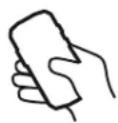
Ergonómico
natural_image
Technical line drawings of three mechanical components: a hand gripping a key, a lever mechanism, and a final view (no text or symbols present)natural_image
Technical line drawing of a mobile phone rear panel with a connector and internal components (no text or symbols)natural_image
Line drawing of a smartphone rear panel with a highlighted internal component and a power button indicator (no text or symbols)natural_image
Simple line drawing of a U-shaped container with a red upward arrow at the bottom (no text or symbols)natural_image
Illustration of two hands pointing at a circular button with an arrow, no text or symbols presentnatural_image
Illustration of a hand pressing a button with an arrow symbol (no text or labels)natural_image
Illustration of two hands pointing at a circular button with an arrow, no text or symbols presentnatural_image
Illustration of a hand making a peace sign with two arrows indicating rotation (no text or symbols)natural_image
Illustration of a hand holding two arrows pointing upward (no text or symbols)Mostrar as mensagens
natural_image
Three line drawings showing different anatomical or mechanical configurations of a foot and ankle (no text or symbols present)Calculadora
natural_image
Two people watching a beach scene with a smartphone displaying a live streamer's underwater photo; no visible text or symbols on the main subjects.natural_image
Black handheld device lying on a textured wall, no visible text or symbols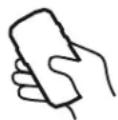
Ergonomisch
natural_image
Three technical line drawings of a device with different angles and components, shown from top, front, and side views (no text or symbols)natural_image
Technical line drawing of a mobile phone rear panel showing internal components and a close-up view (no text or symbols)natural_image
Diagram of a smartphone rear panel showing the edge of the screen and keyhole, with no text or symbols present.natural_image
Simple line drawing of a U-shaped container with a red upward arrow at the bottom (no text or symbols)natural_image
Hand icon pointing at a circular button (no text or symbols)natural_image
Illustration of two hands pointing at a circular button with an arrow, no text or symbols presentnatural_image
Illustration of a hand pressing a button with a downward arrow (no text or symbols)natural_image
Illustration of two hands pointing at a circular button with an arrow, no text or symbols presentnatural_image
Hand making a peace sign with two arrows indicating rotation or movement (no text or symbols)natural_image
Illustration of a hand holding two arrows, indicating movement or rotation (no text or symbols)natural_image
Three line drawings showing different anatomical or mechanical configurations (no text or symbols present)Rekenmachine
natural_image
Two people watching a beach scene with a smartphone displaying a live underwater scene; no visible text or symbols on the main subjects.natural_image
Black handheld device lying on a concrete wall, no visible text or symbols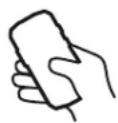
Ergonomičen
natural_image
Technical line drawings of three mechanical components: a hand gripping a key, a lever mechanism, and a multi-view final view (no text or symbols)Celoten izbor dodatne opreme, združljive z X-LINK™ in X-BLOCKER, najdete na www.crosscall.com
VKLOP DELOVANJA TELEFONA CORE-Z5
natural_image
Technical line drawing of a mobile phone rear panel with a connector and internal components (no text or symbols)natural_image
Diagram of a smartphone rear panel showing the edge of the screen and keyhole, with a red dotted arrow pointing to the power button (no text or symbols present)Dolgo pritiskajte gumb za vklop/izkloptelefona in počakajte nekaj sekund, da se prižge zaslon.
natural_image
Simple line drawing of a container with a red upward arrow pointing to the bottom (no text or symbols)natural_image
Illustration of two hands pointing at a circular button with an arrow, no text or symbols presentNa začetnem zaslonu ali na zaslonu aplikacij povlecite v levo ali desno za prikaz drugih strani.
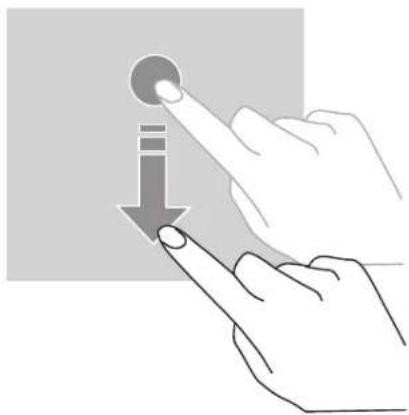
natural_image
Illustration of a hand pointing at a circular button with an arrow, no text or symbols presentnatural_image
Illustration of two fingers pressing a button with an arrow indicating right motion (no text or symbols)Če želite premakniti element, postavite nanj prst, ga pridržite in povlecite na želeno mesto.
Dejanja z dvema prstoma
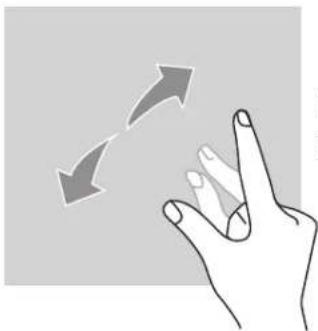
natural_image
Hand making a peace sign with two curved arrows indicating rotation (no text or symbols)Najprej stisnite dva prsta skupaj in ju nato razmaknite, da povečate del spletne strani, zemljevida ali slike.
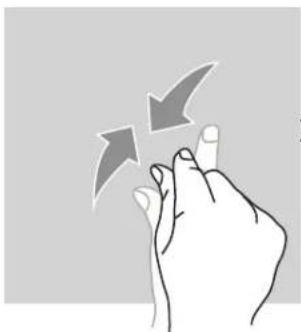
natural_image
Illustration of a hand holding two arrows, indicating movement or rotation (no text or symbols)Aplikacija X-TALK je aplikacija za voki-toki, ki jo je razvil CROSSCALL za komuniciranje:
natural_image
Two people watching a beach scene with a smartphone displaying a live underwater photo; no visible text or symbols on the main subjects.Aplikacija X-STORY je aplikacija za montažo, ki jo je razvil CROSSCALL za vaše fotografije in videoposnetke. Omogoča:
natural_image
Black handheld device lying on a concrete wall, no visible text or symbols
Ergonomičan
Uz zaslon od 6,08" - 19/9 što mu daje dobru čitljivost, bočne tipke CORE-Z5 su dizajnirane da olakšaju njihovu upotrebu, posebno s rukavicama. Ova četiri programabilna gumba omogućuju vam vrlo brz pristup određenim funkcijama vašeg telefona bez potrebe da ga otključate, jednostavnim pritiskom. Na primjer, možete ga transformirati u walkie-talkie i komunicirati gdje god se nalazili pritiskom na jednu tipku s funkcijom Push-To-Talk i razmjenjivati jasno i čujno zahvaljujući snažnom zvučniku od 100 dB.

Trajan
natural_image
Technical line drawings of three mechanical components: a hand gripping a key, a lever mechanism, and a final frame (no text or symbols present)Otkrijte cijelu liniju X-LINK kompatibilnog pribora X-LINK™ i X-BLOCKER na www.crosscall.com
POČETAK KORIŠĆENJA VAŠEG CORE-Z5
Umetanje nano SIM/micro SD kartice
natural_image
Technical line drawing of a mobile phone rear panel with a connector and internal components (no text or symbols)- Potpuno izvucite ladicu.
- Imate mogućnost ugradnje 2 nano SIM kartice i jedne micro SD kartice u svoj pametni telefon.
a. Kako biste osigurali optimalnu kompatibilnost s uslugama operatera, preporučujemo da umetnete svoju SIM karticu, metalnom stranom prema dolje, u desni odjeljak (SIM 1).
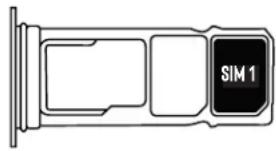
b. Po želji umetnite drugu nano SIM karticu, metalnom stranom prema dolje, u srednji odjeljak (SIM 2) i/ili micro SD karticu (maks. 1024 Go) u lijevi odjeljak.
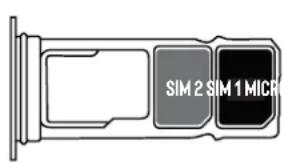
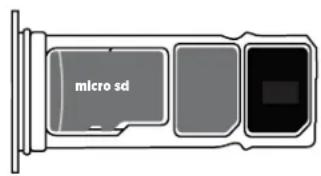
- Vratite ladicu u telefon.
natural_image
Diagram of a smartphone rear panel showing the blade and keyway (no text or symbols)natural_image
Simple line drawing of a U-shaped container with a red upward arrow at the bottom (no text or symbols)-
Otvorite poklopac za spriječavanje ulaska prašine i spojite kabel i adapter za napajanje isporučene u pakiranju putem USB-A priključka. Zatim drugi kraj kabela priključite u USB-C priključak na telefonu.
-
Uključite ispravljač u električnu utičnicu.
-
Kada je baterija potpuno napunjena, iskopčajte telefon iz punjača. Najprije odspojite punjač iz uređaja, a zatim ga odspojite iz zidne utičnice.
Nikada nemojte puniti telefon pomoću magnetske veze X-LINK™* i USB veze zajedno, jer to može skratiti vijek trajanja opreme vašeg telefona.
Baterija je ugrađena u telefon i ne može se ukloniti. Nemojte sami vaditi bateriju.

- Da ne biste prerano istrošili bateriju vašeg uređaja, preporučuje se pridržavati se ispravnih pravila upotrebe za svaki ciklus punjenja. Zbog toga je bolje napuniti bateriju čim dosegne 20% i izbjegavati je da napunite više od 80%, nego da obavljate kompletne cikluse punjenja (od 0 do 100%).
- Koristite samo odobreni punjač i kabel koji su kompatibilni s vašim telefonom. Uporaba neodobrenih punjača ili kabela može uzrokovati eksploziju baterije ili oštećenje telefona.
- Izbjegavajte uporabu telefona tijekom njegova punjenja. Nemojte prekrivati telefon ili adapter za napajanje.
- Neispravno priključivanje punjača moglo bi ozbiljno oštetiti vaš telefon. Jamstvo ne pokriva štetu uzrokovanu pogrešnom uporabom.
- Izvadite punjač iz električne utičnice dok se telefon ne puni.
- Telefon se možda neće odmah uključiti ako punite ispražnjenu bateriju. Nakon nekog vremena punjenja, telefon će se normalno upaliti.
- Ako je snaga izmjenične struje (AC) slabija, vrijeme punjenja može biti duže.
- Ako upotrebljavate nekonvencionalne punjače kao što su računala, vrijeme punjenja može biti dulje.
- Vrijeme punjenja može varirati ovisno o temperaturi okoline i preostalog kapaciteta baterije.
- Telefon se može sigurno puniti na temperaturama između 0°C i 40°C. Svako punjenje na temperaturama ispod 0°C ili iznad 40°C može nepovoljno utjecati na performanse baterije i smanjiti njezino trajanje. Dugotrajno punjenje pri ekstremnim temperaturama oštetit će bateriju.
- Tijekom punjenja telefon i punjač mogu se zagrijati. To je sasvim normalno i ne bi trebalo utjecati na vijek trajanja ili performanse telefona. Ako se baterija zagrijava više nego inače, prestanite s punjenjem. Postavite telefon na hladno mjesto i pustite ga da se ohladi. Izbjegavajte dulji kontakt s površinom telefona ako se on zagrijava.

Značajke uređaja razlikuju se ovisno o vašoj lokaciji, jeziku, mobilnom operateru i modelu. Ovaj uređaj kompatibilan je sa OTG značajkom. Upotrebljavajte standardni OTG podatkovni kabel.
DODIRNI ZASLON, NAVIGACISJKI SUSTAV I GUMBI CORE-Z5
natural_image
Illustration of two hands pointing at a circular button with an arrow, no text or symbols presentnatural_image
Illustration of a hand pointing at a button with an arrow, no text or symbols presentPovucite prema gore ili prema dolje da biste se pomicali na mrežnoj stranici ili popisu stavki.
Premještanje
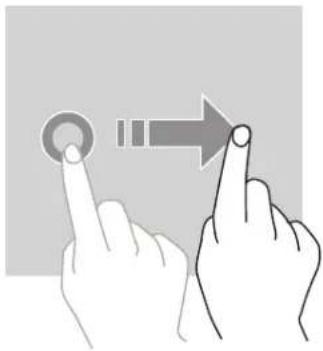
natural_image
Illustration of two hands pointing at a circular button with an arrow, no text or symbols presentDa biste pomaknuli element, postavite prst na njega, držite ga i povucite na željeno mjesto.
Radnje s pomoću dva prsta
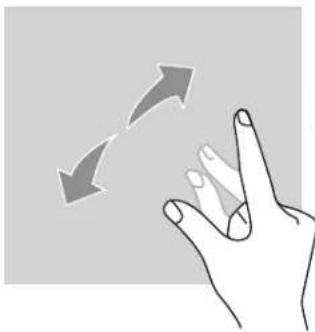
natural_image
Hand making a peace sign with two curved arrows indicating rotation (no text or symbols)Prvo spojite dva prsta, a zatim ih razdvojite da biste povećali dio web stranice, karte ili slike.
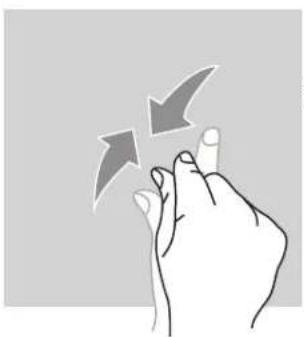
natural_image
Illustration of a hand holding three arrows pointing upward (no text or symbols)Približite ih da biste je smanjili.
Navigacija sustavom
Vaš pametni telefon nudi vam dva načina navigacije sustavom:
- Navigacija s tri gumba
- Navigacija pokretima
U nastavku ćete detaljno pronaći navigaciju s tri gumba koja je zadana navigacija telefona. Za konfiguriranje navigacije pokretima idite u aplikaciju
Postavke 📋 > Sustav ➕ Pokreti > Navigacija sustavom > Navigacija pokretima
Na bilo kojoj stranici na pametnom telefonu pritisnite krug u sredini ekrana za povratak na početni zaslon
Na bilo kojoj stranici na pametnom telefonu, pritisnite trokut u donjem lijevom kutu zaslona za povratak na prethodnu stranicu.
Otvorene aplikacije
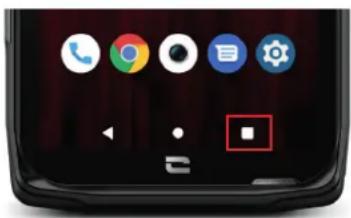
natural_image
Worker in hard hat using a mobile phone to use a handheld device, with a smartphone displaying a face detection interface (no readable text or symbols)Aplikacija X-TALK je aplikacija za voki-toki koju je razvio CROSSCALL za komunikaciju:
- Nekoliko sosba
- Bez 06
- Bez telefoniranja
-
Bez podizanja
-
Da biste pronašli sve informacije o ovoj aplikaciji, idite na: https://www.crosscall.com/fr_FR/x-talk.html
- Vodič zaaplikacije pronadite i na našem YouTube kanalu putem sljedeće veze https://www.youtube.com/watch?v=V_vEC55Wq0M&t=1s

X-STORY