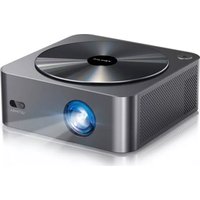
Apollo P40 - Projector ULTIMEA - Free user manual and instructions
Find the device manual for free Apollo P40 ULTIMEA in PDF.



| Product Type | Portable LED Projector |
| Brand | Ultimea |
| Model | Apollo P40 |
| Native Resolution | Full HD (1920 x 1080) |
| Brightness | 200 ANSI lumens (estimated) |
| Image Size | 35 to 150 inches (recommended 50-100 inches) |
| Wireless Connectivity | Wi-Fi (2.4/5 GHz), Bluetooth 5.0 |
| Wired Connectivity | HDMI, AV, USB 2.0 x2, AUX |
| Screen Mirroring | AirPlay (iOS), Miracast (Android) |
| Built-in Speaker | Yes, also usable as Bluetooth speaker mode |
| Autofocus | Yes, built-in autofocus lens |
| Keystone Correction | Manual (4 points) |
| Light Source | LED (estimated lifespan 30,000 hours) |
| Power Supply | Mains (power cable included) |
| Power Consumption | Approx. 65 W |
| Dimensions (L x W x H) | Approx. 200 x 150 x 100 mm |
| Weight | Approx. 1.5 kg |
| Included Accessories | Remote control (batteries not included), HDMI, AV and power cables, quick guide |
| Maintenance | Clean the lens with a soft dry cloth; avoid liquids |
| Warranty | 1 year (depending on seller) |
Frequently Asked Questions - Apollo P40 ULTIMEA
User questions about Apollo P40 ULTIMEA
0 question about this device. Answer the ones you know or ask your own.
Ask a new question about this device
Download the instructions for your Projector in PDF format for free! Find your manual Apollo P40 - ULTIMEA and take your electronic device back in hand. On this page are published all the documents necessary for the use of your device. Apollo P40 by ULTIMEA.
USER MANUAL Apollo P40 ULTIMEA
natural_image
Exterior view of a modern black Yenlun projector with a circular lens and ventilation grille, displayed against a white background (no text or symbols on the device itself)Setup guidance video and User Manuals on ULTIMEA website.


support.ultimea.com
@Ultimea_Official
+1 888-598-8875 (US) Mon-Fri 9am-5pm (PST) +49 89-628-25828 (EU) Mon-Fri 9am-5pm (CET)
IMPORTANT: Before using the projector, make sure you read these instructions and the safety instructions in the online User Manual. Your product may differ from the illustrations on this sheet, but the instructions are the same.
Note: Due to HDCP protocol, Netflix, Amazon Prime and similar services can not be played by the projector wirelessly. Please use a Fire TV stick, Roku stick or Chromecast TM (not included) and connect it to the projector to use their streaming services.
1 Accessories List
Apollo P40 Remote (Batteries not included)


Quick guide


AV Cable Cable HD Power Cable
2 Product
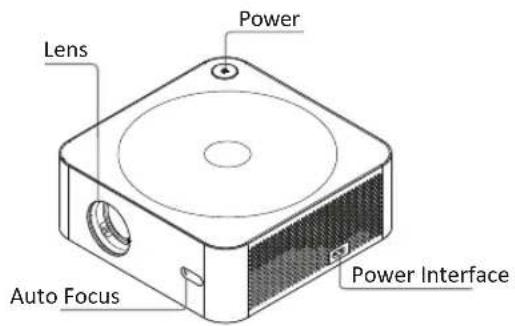
text_image
Lens Power Auto Focus Power Interface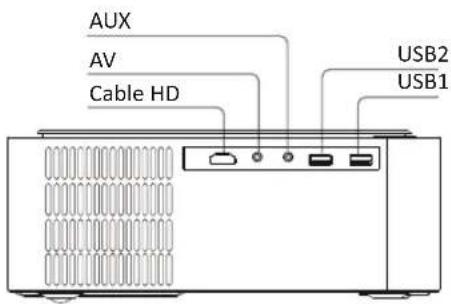
text_image
AUX AV Cable HD USB2 USB13 Remote Control
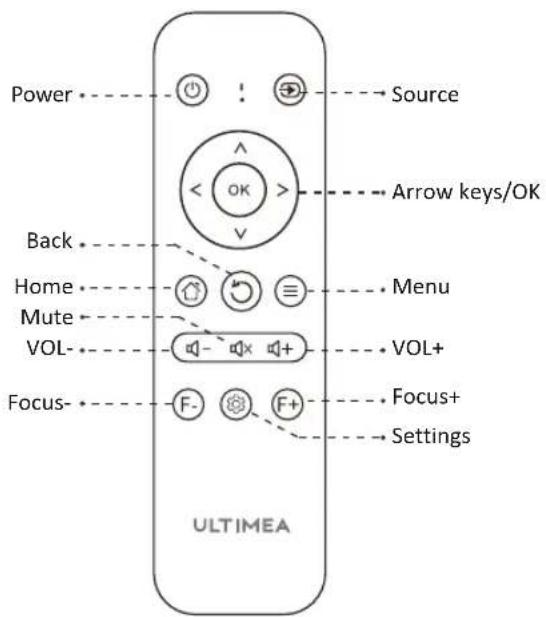
text_image
Power Back Home Mute VOL- Focus- Source Arrow keys/OK Menu VOL+ Focus+ Settings ULTIMEA4 Quick Setup
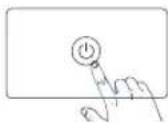
4.1 Power On / Power Off
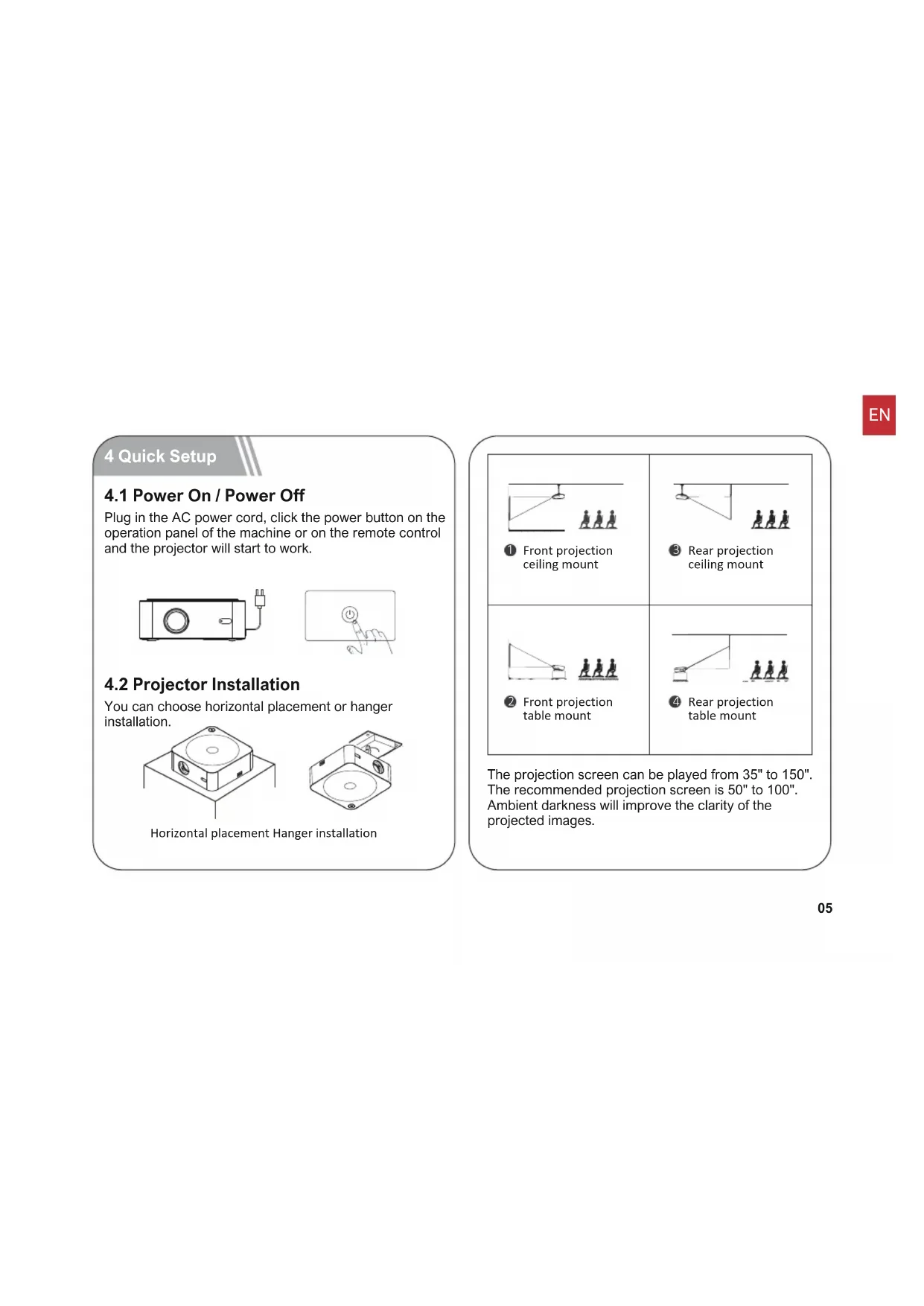
Plug in the AC power cord, click the power button on the operation panel of the machine or on the remote control and the projector will start to work.
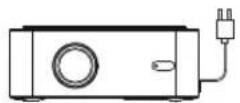
4.2 Projector Installation
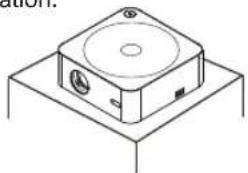
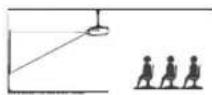
You can choose horizontal placement or hanger installation.
natural_image
Isometric line drawing of a square electronic device with circular top and base (no text or symbols)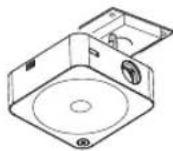
Horizontal placement Hanger installation
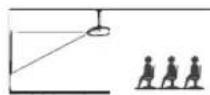
1 Front projection ceiling mount
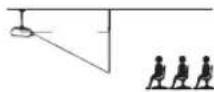
③ Rear projection ceiling mount
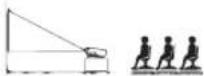
② Front projection table mount
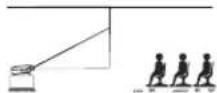
4 Rear projection table mount
The projection screen can be played from 35" to 150". The recommended projection screen is 50" to 100". Ambient darkness will improve the clarity of the projected images.
4.3 Adjust the Image Projected On the Screen
Check the horizontal and vertical settings of the screen.
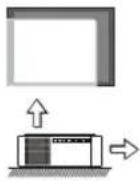
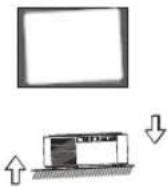
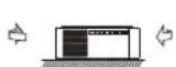
4.4 WiFi Settings
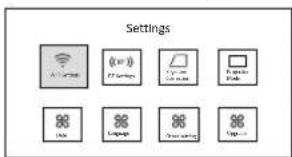
text_image
Settings A: Smart Home B: Wi-Fi C: Smart Home D: Smart Home E: Smart Home F: Smart Home G: Smart Home H: Smart Home I: Smart Home- Click the settings icon on the homepage to enter the projector settings.
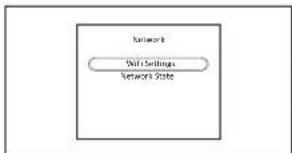
flowchart
graph TD
    A["Network"] --> B["Skill Settings"]
    B --> C["Network State"]
- Select "WiFi" and click "OK" to confirm.
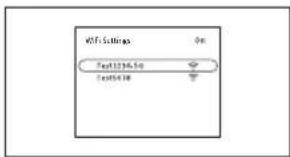
text_image
WiFi Settings Text1334.56 Text54.08- The network list will appear after searching for the network. Select the wireless network that needs to be connected and press the "OK" button to confirm.
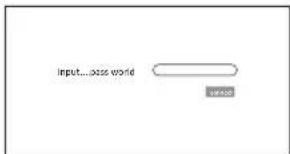
text_image
Input...pass world OK- Click the connect button after entering the password.
4.5 BT Settings
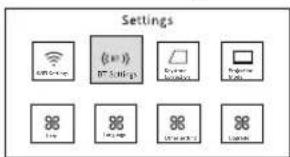
text_image
Settings Wireless Wi-Fi Home Screen Digital Digital Digital Digital Digital Digital Digital Digital Digital- Click the settings icon on the homepage to enter the to projector settings, select the "BT" click "OK" button to confirm.
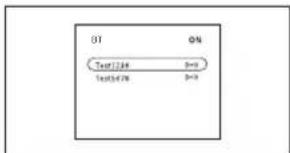
text_image
OT ON Test1248 0-1 Test3478 0-2- Turn on BT and select the BT signal that needs to be connected.
5 Screen Mirroring
For iOS Device
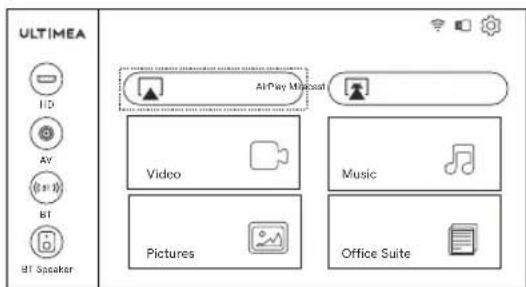
- Move the projector cursor to AirPlay on the homepage, select AirPlay and click the "OK" button.
text_image
ULTIMEA I/O AV BI BI Speaker AirPlay Microsoft Video Music Pictures Office SuiteNote: Make sure that the projector and mobile phone are connected to the same network.
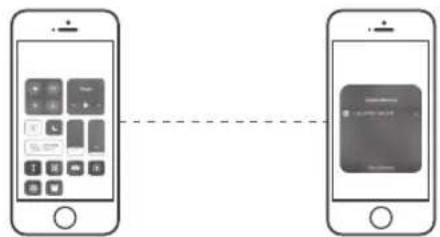
- The operation steps of the mobile phone are as follows: No setting is required on the projector.
flowchart
graph LR
    A["Smartphone"] --> B["Mobile App Icon"]
    B --> C["Payment Card"]
Step 1 : Open the Control Center and tap the Screen Mirroring on your iOS device.
Step 2 : Select the device U0320 to be cast from the searched devices.
For Android Device
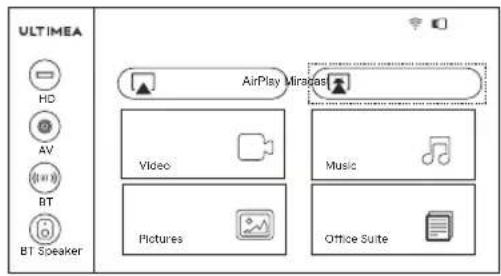
- Move the projector cursor to Miracast on the homepage, select Miracast and click the "OK" button.
text_image
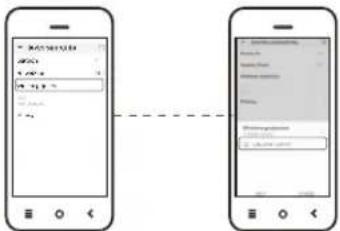
ULTIMEA HD AV BT BT Speaker AirPlay Miragas Video Pictures Music Office Suite- Turn on the Android device, enter phone settings to find "Device Connectivity", click on "Wireless Display", search for U0320 of the projector and select U0320. Make sure that the projector and Android device are connected to the same network.
text_image
Two smartphone screenshots showing a mobile app interface with input fields and a dashed line indicating connection between them.Note:
Due to HDCP protocol, Netflix, Amazon Prime and similar services can not be played by the projector wirelessly. Please use a Fire TV stick, Roku stick or Chromecast TM (not included) and it connect to the projector to use their streaming services.
6 Wired Connection to Devices

text_image
Fire TV StickHow to connect the Fire TV stick to the projector:
- Connect the TV stick to power using the USB cable.
- Plug the stick to the HD port on the projector.
- Select the HD option in the settings on the projector. The content of the Fire TV stick will be displayed on the projection screen. Use the Fire stick's remote to select and stream your content.
6.1 HD Channel
Use an HD cable to connect the projector with a computer, game console, set-top box and other devices that support HD output and select HD option in settings.
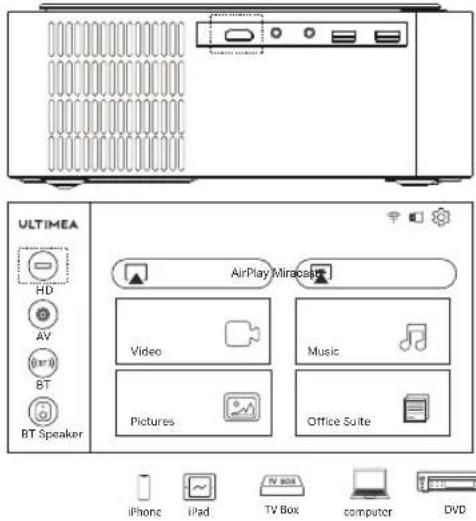
text_image
ULTIMEA HD AV BT BT Speaker AirPlay Miracles Video Music Pictures Office Suite iPhone iPad TV Box computer DVDNote: Due to type-C protocols, android device can not be played by HD cable connection.
6.2 AV Channel
Use an AV cable to connect the projector with a DVD player, set-top box and other devices that support AV output.
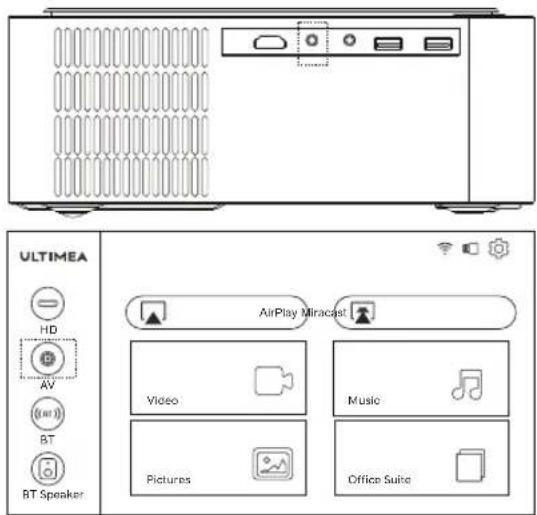
text_image
ULTIMEA HD AV BT BT Speaker AirPlay Miracast Video Music Pictures Office Suite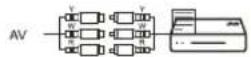
6.3 Multimedia Channel
After inserting the USB, select the movie, music, pictures or office file according to the type of file you need to play and enter the corresponding playback menu.
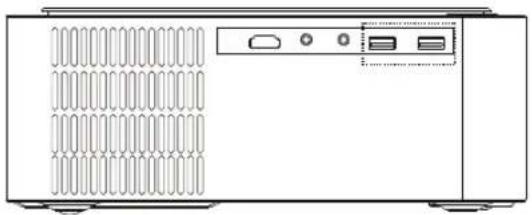
natural_image
Front view of a server rack unit with ventilation grilles and two ports (no text or symbols visible)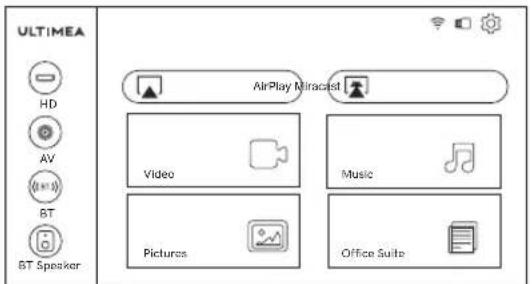
text_image
ULTIMEA HD AV BT BT Speaker AirPlay Miracost Video Music Pictures Office Suite7 BT Speaker Mode
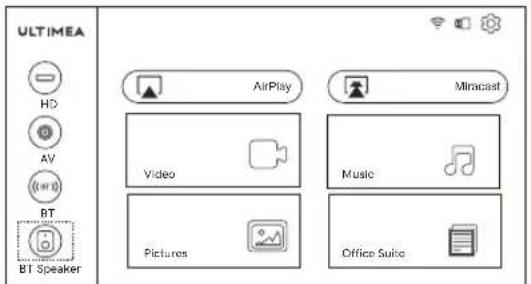
Turn on the projector and enter the homepage, use the remote control to select the BT speaker and press the "OK" button. The display will show BT speaker mode and enter 'waiting to pair'. You can connect to the projector (Name: BT-U0320) through the BT settings of the mobile device.
To use the projector function, press the return button to exit BT speaker mode. Now the machine will turn on and enter projector mode.
text_image
ULTIMEA HD AV BT BT Speaker AirPlay Mincast Video Music Pictures Office Suite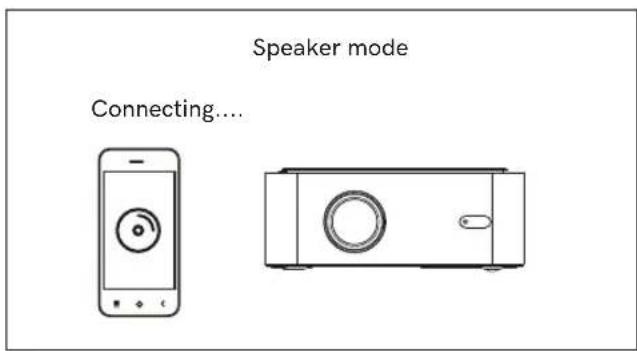
text_image
Speaker mode Connecting.... -Enjoy your new projector!

WIR SIND BEREIT ZU HELFEN
support@ultimea.com
natural_image
Isometric line drawing of a rectangular electronic device with a circular top and mounting base (no text or symbols)text_image
Einstellungen A B C D E F G H I J K L M N O P Q R S T U V W X Y Zflowchart
graph LR
    A["App icon"] --> B["Payment card"]
    C["App icon"] --> D["Payment card"]
    style A fill:#f9f,stroke:#333
    style C fill:#bbf,stroke:#333
text_image
Two smartphone screenshots showing a configuration interface with input fields and a dashed line indicating connection or alignment.Anmerkung:
text_image
Fire TV Sticktext_image
ULTIMEA iPhone iPad TV Box computer DVDnatural_image
Front view of a server rack unit with ventilation grilles and two ports (no text or symbols visible)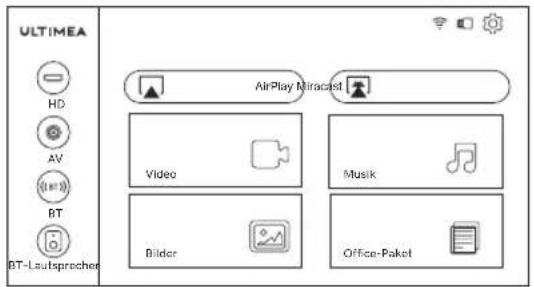
text_image
ULTIMEA HD AV BT BT-Lautsprecher AirPlay Miracet Video Bilder Musik Office-Paketnatural_image
Isometric line drawing of a rectangular electronic device with circular top and base (no text or symbols)text_image
Ajustes Frical Switch Ajuster SET Circuit Lamps Lamp Lamps Switch Switch Switch Switchtext_image
Two smartphone screenshots showing a form with input fields and a separate dialog box containing text fields.Nota:
text_image
Fire TV Sticknatural_image
Front view of a server rack unit with ventilation grilles and two ports (no visible text or labels)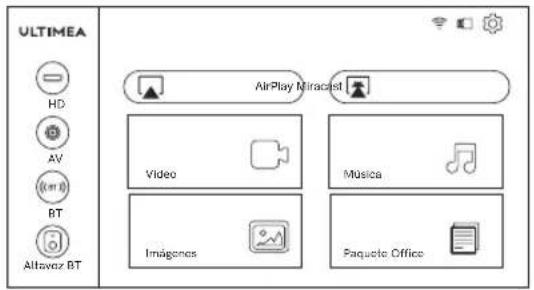
text_image
ULTIMEA HD AV BT Altavez BT AirPlay Miracist Video Música Imágenes Paquete Office7 Modo Parlante BT
natural_image
Isometric line drawing of a rectangular electronic device with a circular top and base (no text or symbols)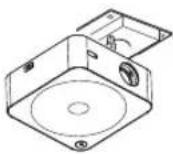
Placement Horizontal Installation Suspendue
flowchart
graph LR
    A["Smartphone"] --> B["App icon with icons"]
    B --> C["Payment Card icon with text"]
    C --> D["Mobile payment card icon"]
text_image
Two smartphone screenshots showing a data entry interface with fields for 'Data' and 'Value', connected by a dashed line.Remarque:
text_image
Fire TV Sticknatural_image
Front view of a server rack unit with ventilation grilles and two ports (no text or symbols visible)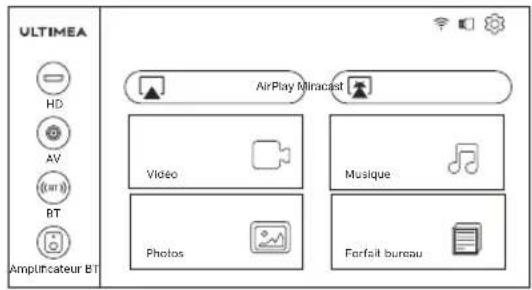
text_image
ULTIMEA HD AV BT Amplificateur BT AirPlay Miracast Video Music Photos Forfait bureaunatural_image
Isometric line drawing of a square electronic device with a circular top and two ports, mounted on a base (no text or symbols)text_image
India Impeduction With Stabo cells ratetext_image
2T 0% Test1234 =0 Test478 =0flowchart
graph LR
    A["App icon"] --> B["Payment card"]
    C["App icon"] --> D["Payment card"]
text_image
Two smartphone screenshots showing a configuration interface with input fields and a dashed line indicating connection.Nota:
text_image
Fire TV Sticknatural_image
Front view of a server rack unit with ventilation grilles and two ports (no text or symbols visible)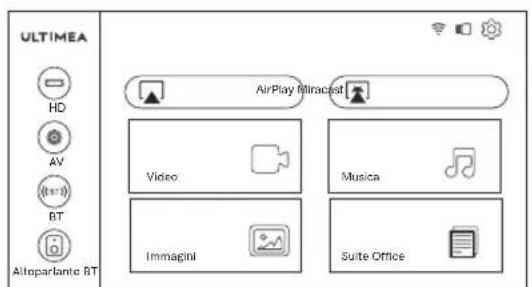
text_image
ULTIMEA HD AV RT Altoparlante BT AirPlay Miracist Video Musica Immagini Suite OfficeThis device complies with Part 15 of the FCC Rules. Operation is subject to the following two conditions:
(1) This device may not cause harmful interference.
(2) This device must accept any interference received, including interference that may cause undesired operation.
ISED WARNINGS
This device contains licence-exempt transmitter(s)/receiver(s) that comply with Innovation, Science and Economic Development Canada's licence-exempt RSS(s).
Operation is subject to the following two conditions:
(1) This device may not cause interference.
(2) This device must accept any interference, including interference that may cause undesired operation of the device.
FCC Radiation Exposure Statement:
This equipment complies with FCC radiation exposure limits set forth for an uncontrolled environment. This equipment should be installed and operated with minimum distance 20cm between the radiator&your body.
WARNING
Changes or modifications not expressly approved by the party responsible for compliance could void the user's authority to operate the equipment.
NOTE: This equipment has been tested and found to comply with the limits fora Class B digital device, pursuant to Part 15 of the FCC Rules. These limits are designed to provide reasonable protection against harmful interference in a residential installation. This equipment generates uses and can radiate radio frequency energy and, if not installed and use in accordance with the instructions, may cause harmful interference to radio communications. However there is no guarantee that interference will not occur in a particular installation. If this equipment does cause harmful interference to radio or television reception, which can be determined by turning the equipment off and on, the user is encouraged to try to correct the interference by one or more of the following measures:
Reorient or relocate the receiving antenna.
Increase the separation between the equipment and receiver.
Connect the equipment into an outlet on a circuit different from that to which the receiver is connected.
Consult the dealer or an experienced radio/TV technician for help.
Declaration of Conformity
We(Manufacturer is responsible for this declaration) Dynamic (Shenzhen) Technology Limited
20th Floor, Building 4, Tianan Cloud Park, Bantian St., Longgang District, Shenzhen, China
Declare under our sole responsibility that the product
Trade name: ULTIMEA
Equipment: Projector
Model No.: U0320
To which this declaration relates is in conformity with the essential requirementset out in the Council Directive on the Approximation of the laws of the Member
States relating to LVD Directive(2014/53/EU)&Rohs (2011/65/EU) product is
responsible to affix CE marking, the following standards were applied:
EN 62368-1:2014+A11:2017
EN IEC 62311:2020
ETSI EN 301 489-1 V2.2.3(2019-11)
ETSI EN 301 489-17 V3.2.4(2020-09)
EN 55032:2015
EN 55035:2017
EN 61000-3-2:2019
EN 61000-3-3:2013+A1:2019
ETSI EN 300 328 V2.2.2(2019-7)
IEC 62321-3-1:2013
IEC 62321-5:2013
IEC 62321-4:2013+AMD1:2017
IEC 62321-6:2015
IEC 62321-7-2:2017
IEC 62321-6:2015
IEC 62321-8:2017
Signature: Deter: 2023.1.6
@Dynamic Inc. All rights reserved, registered in the United States and other countries.
16192 Coastal Hwy Lewes DE 19958, United States
| EC | REP |
SHUNSHUN GmbH
Römeräcker 9 Z2021, 76351 Linkenheim-Hochstetten, Germany
| UK | REP |
UK Crossborder limited
7 Bell Yard London WC2A 2JR, UK United Kingdom
Made in China
Manufacturer: Dynamic (Shenzhen) Technology Limited
Address: 20th Floor, Building 4, Tianan Cloud Park, Bantian St.,
Longgang District, Shenzhen, China 518000
FCC ID: 2A9OO-U0320P
IC: 29805-U0320P





ULTIMEA
If we can be of assistance, please do not hesitate to contact us.