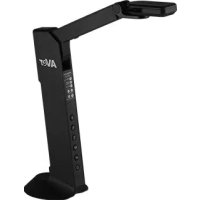
M11 - Scanner AVERMEDIA - Free user manual and instructions
Find the device manual for free M11 AVERMEDIA in PDF.


| Product Type | Visualizer (document camera) |
| Brand | AVerMedia |
| Model | M11 (M11-8MV) |
| Sensor | CMOS 1/3.06 inch, 8 megapixels |
| Display frame rate | Up to 60 fps |
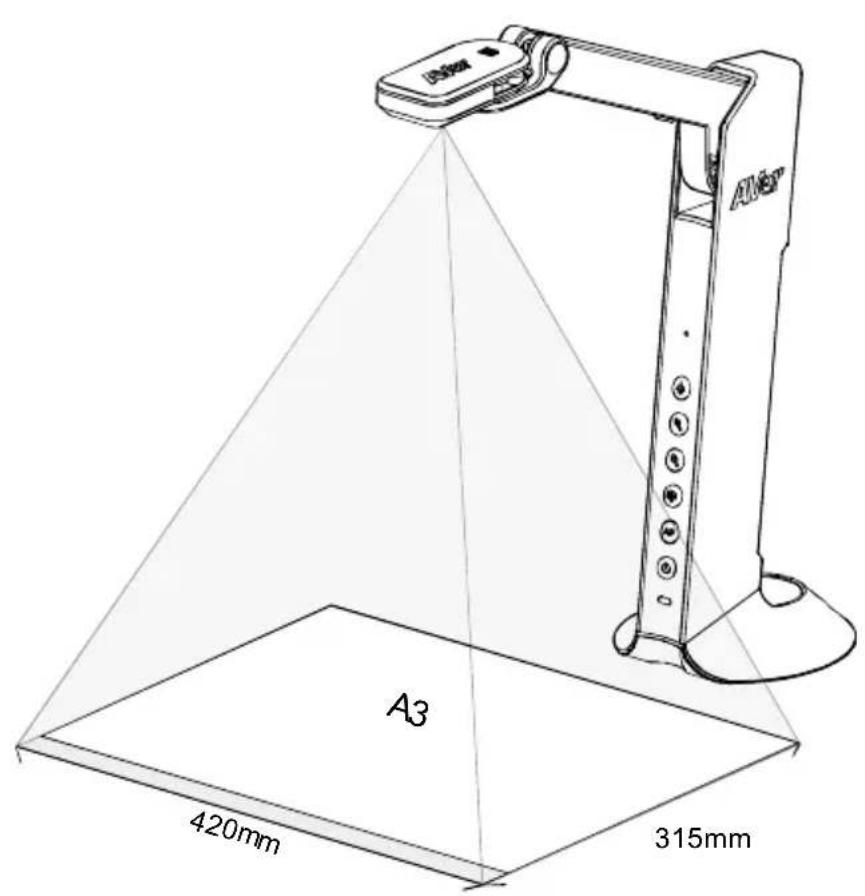
| Maximum shooting area | A3 (420 mm × 315 mm) |
| Zoom | Digital 20x |
| Focus | Automatic and manual |
| Video outputs | HDMI, VGA, USB |
| Output resolutions | HDMI: 1920×1080, 1280×720, 720×480; VGA: same; USB: up to 3168×2376 |
| Image modes | Color, Black & White, Negative |
| Lighting | Built-in LED |
| Microphone | Built-in microphone |
| Storage | micro SD card (FAT32, 32 GB max) and USB flash drive (FAT32, 32 GB max) |
| Additional functions | PIP, PBP, annotation, slideshow, video recording, image capture |
| Power supply | 5 V DC, 1 A via mini USB (power adapter not included) |
| Power consumption | 4.5 W (lamp on), 4 W (lamp off) |
| Dimensions (unfolded) | 360.4 mm (H) × 116.7 mm (L) × 303.4 mm (D) |
| Dimensions (folded) | 296.1 mm (H) × 116.7 mm (L) × 143.1 mm (D) |
| Net weight | 0.83 kg |
| Gross weight | 1.301 kg |
| Included software | AVerTouch (downloadable) |
| Compatibility | PC and Mac via USB |
Frequently Asked Questions - M11 AVERMEDIA
User questions about M11 AVERMEDIA
0 question about this device. Answer the ones you know or ask your own.
Ask a new question about this device
Download the instructions for your Scanner in PDF format for free! Find your manual M11 - AVERMEDIA and take your electronic device back in hand. On this page are published all the documents necessary for the use of your device. M11 by AVERMEDIA.
USER MANUAL M11 AVERMEDIA
natural_image
Line drawing of a medical or laboratory device with labeled ports (no text or symbols beyond branding)M11-8MV
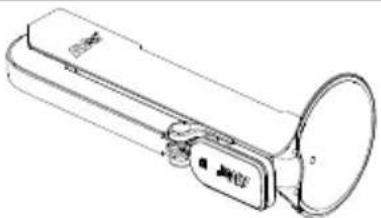
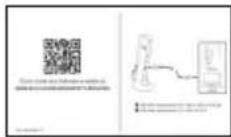
The items below are included with this product. If any item is missing, contact the dealer from whom you purchased this product.
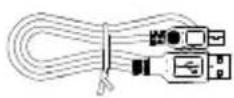
M11-8MV unit USB Cable QR Code Card
natural_image
Line drawing of a handheld electric light bulb with a speaker and control knob (no text or symbols)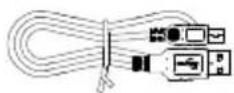
Warranty card*
* Only for Europe, Japan, and Taiwan
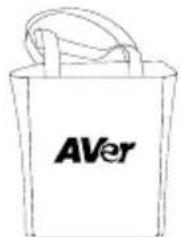
Optional Accessories
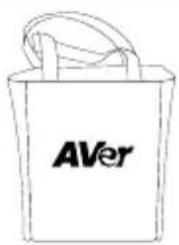
Carrying Bag Anti-glare Sheet
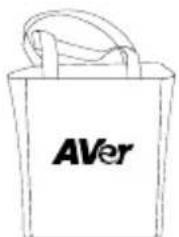
natural_image
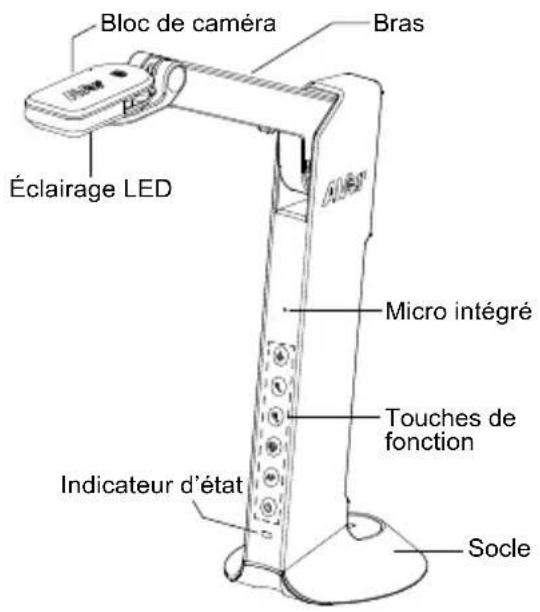
Simple line drawing of a folded paper or document (no text or symbols)Overview

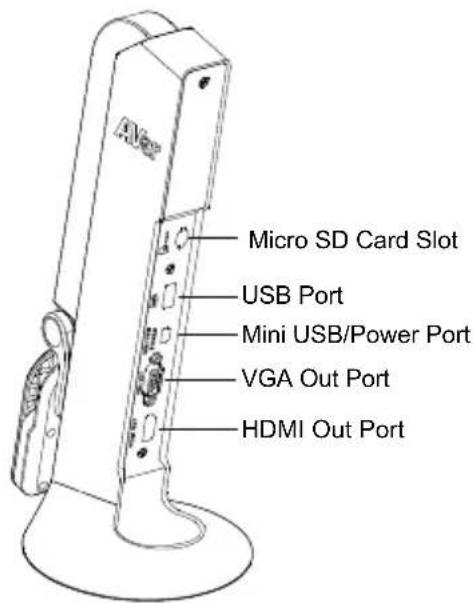
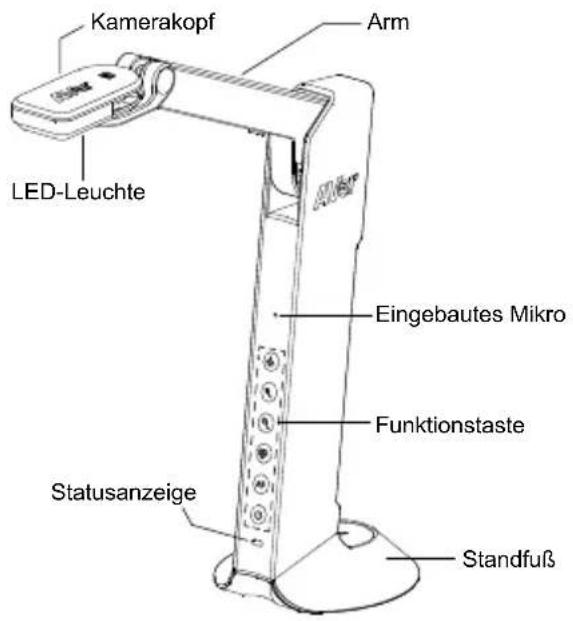
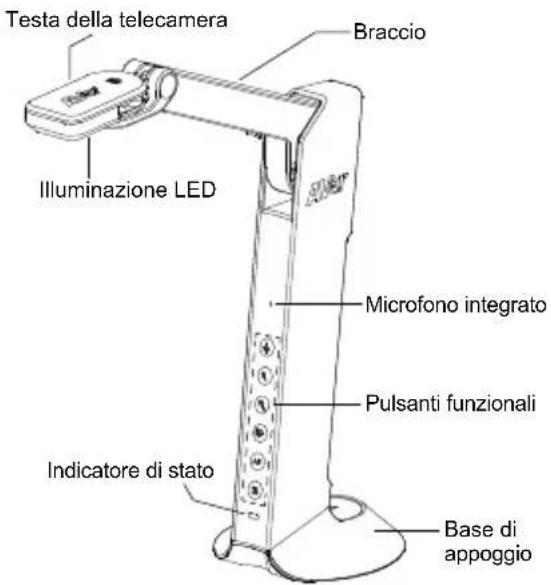
Function Buttons
Control Panel
| Button Function | |
 | Lamp on/offPress and hold 3 seconds to call out OSD menu. |
 | Zoom in |
 | Zoom out |
 | Rotate 0/180^ Press and hold 3 seconds to freeze the screen. To un-freeze, press and hold 3 seconds again. |
 | Auto focusPress and hold 3 seconds to start recording.To stop recording, press and hold AF 3 seconds again. |
 | Power on/off |
OSD Mode
| Button Function | |
 | ■ Back to last menu level page■ Exit from OSD menu |
 | Up (selection item) |
 | Down (selection item) |
 | Selection enter |
Compound Key
Press keys to operate the compound key function.
| Button Function | |
  | Back to factory default settings |
  | Capture image |
[Note] For Recording and Capture, please change to "Power Supply Only" mode.
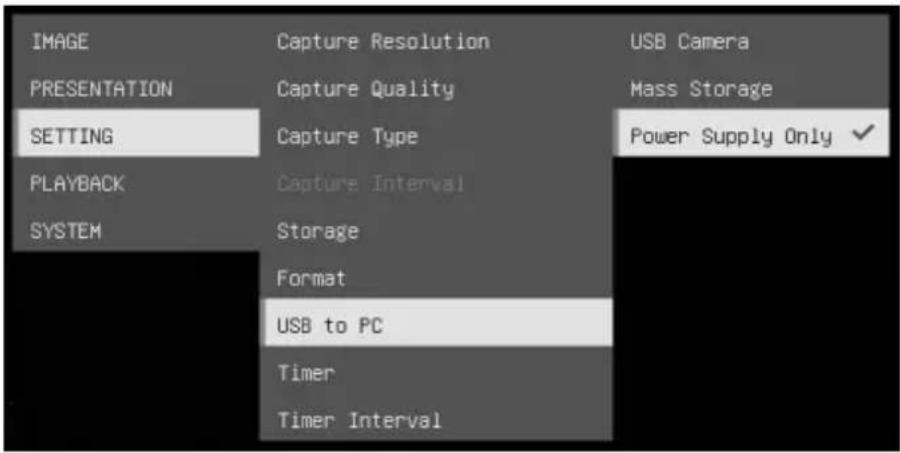
LED Indicator
| Power | Solid green: Power onSolid red: StandbyFlashing red: The camera is in start-up process. |
Device Connection
Power Connection to Wall Outlet
1 Plug in power and turn on M11-8MV.
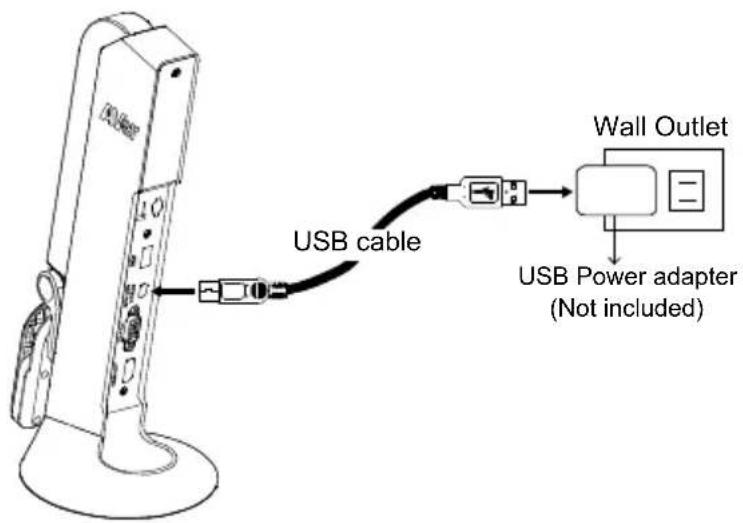
[Note]
■ Use the USB cable included in the package to connect to mini USB/Power port of M11-8MV with USB power adapter (not included) to wall outlet.
■ User needs to purchase a 5V/1A USB power adapter (not included) to connect the USB cable to wall outlet.
■ When the camera is start-up, the power indicator is in flashing red.
Power Connection to PC/Laptop
1 Connect to USB port of PC/laptop for power supply.
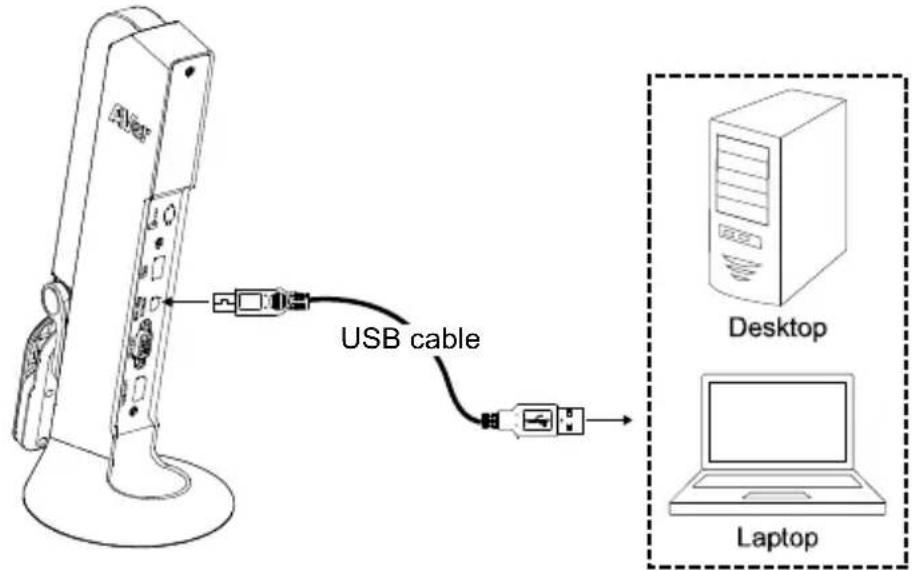
[Note]
■ Use the USB cable included in the package to connect to mini USB/ Power port of M11-8MV with laptop/PC.
■ When the camera is start-up, the power indicator is in flashing red.
■ USB power requirement of M11-8MV is USB 5V/1A.
■ For Storage, Format, Capture, Recording and Playback functions, please change to "Power Supply Only" mode
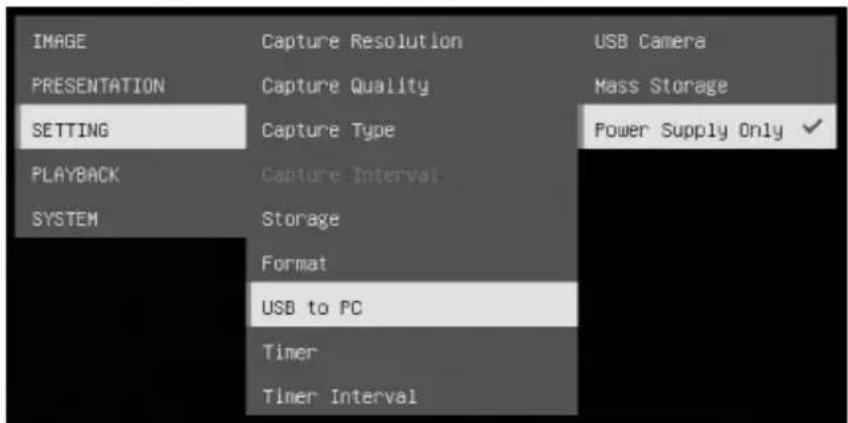
HDMI Connection
1 Connect M11-8MV to HDMI display with HDMI output port.
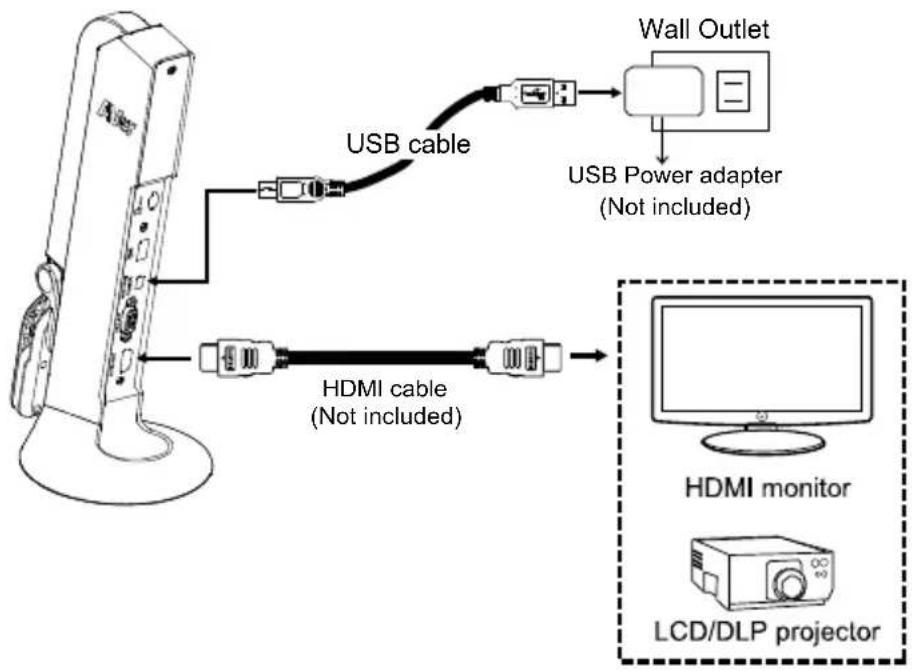
flowchart
graph TD
    A["Device"] -->|USB cable| B["Wall Outlet"]
    A -->|USB cable| C["HDMI monitor"]
    A -->|USB cable| D["LCD/DLP projector"]
    B --> E["USB Power adapter (Not included)"]
    C --> F["LED Monitor"]
    D --> G["LED projector"]
VGA Connection
1 Connect M11-8MV to VGA display with VGA output port.
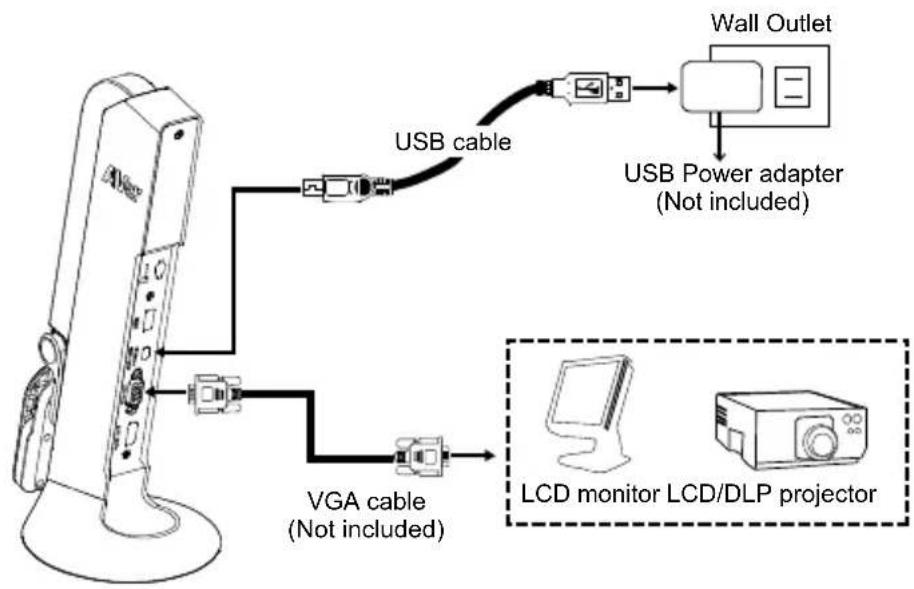
flowchart
graph TD
    A["Device"] -->|USB cable| B["Wall Outlet"]
    A -->|VGA cable (Not included)| C["LCD monitor LCD/DLP projector"]
    B --> D["USB Power adapter (Not included)"]
USB Connection
1 Connect USB flash drive to USB port to save the capture and recording file.
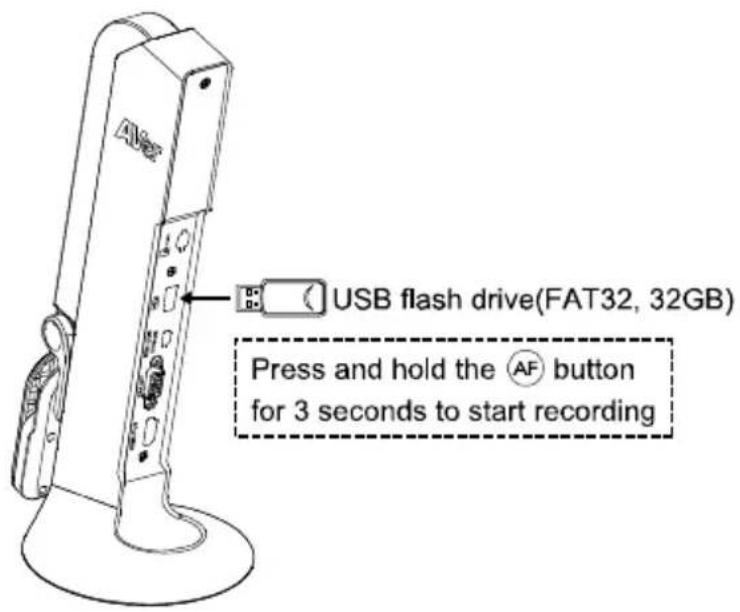
[Note] The supported USB flash drive maximum is 32G (FAT32).
Insert a Micro SD Card
1 Insert the card to micro SD card slot.
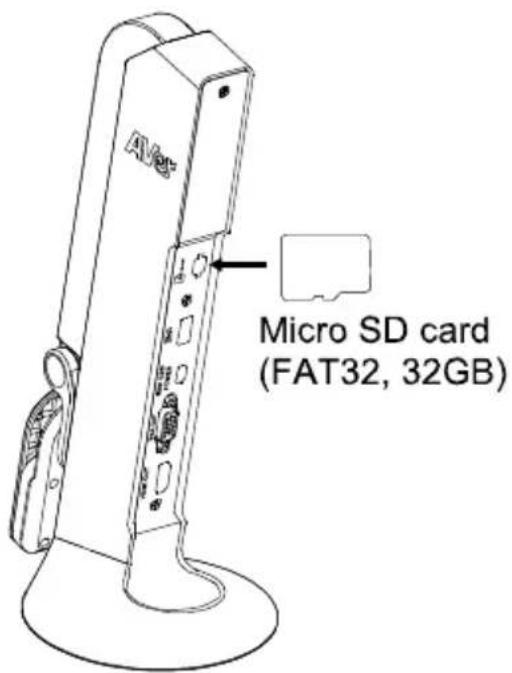
[Note]
■ Micro SD card can store capture images and recording files.
■ The supported micro SD card capacity maximum is 32G (FAT32).
Operate the Camera with AVerTouch
1
Connect the camera to PC/laptop and Install the AVerTouch application.
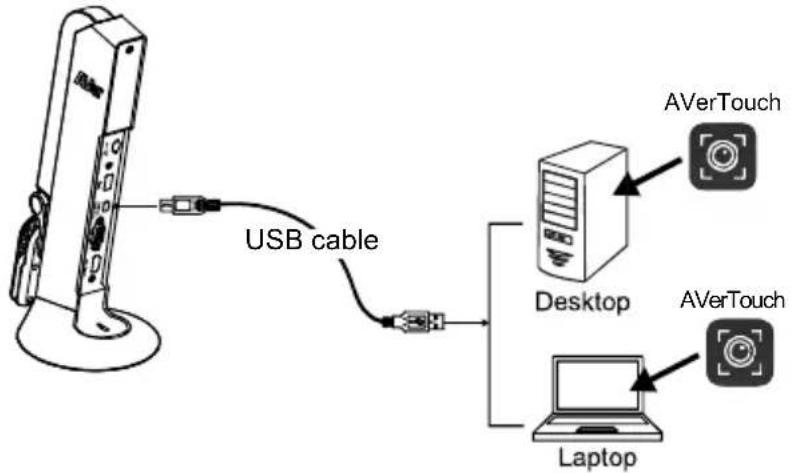
flowchart
graph TD
    A["USB cable"] --> B["Desktop"]
    B --> C["Laptop"]
    D["AVerTouch"] --> E["Desktop"]
    F["AVerTouch"] --> G["Laptop"]
[Note]
■ Download AVerTouch application at:
https://presentation.aver.com/download-center/
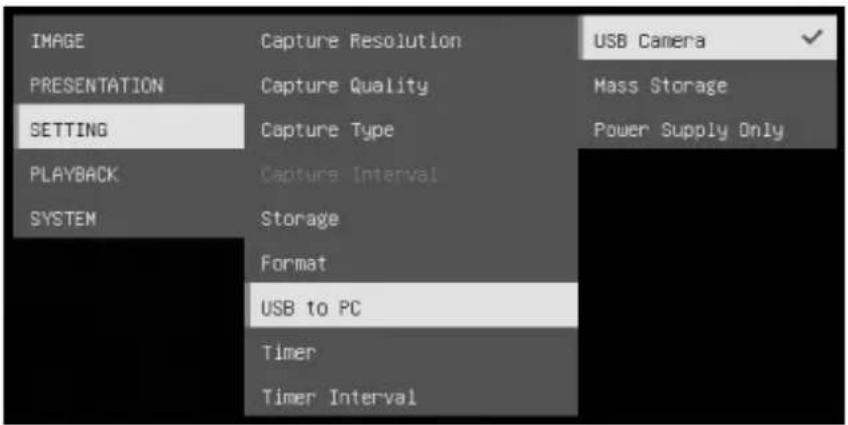
■ Please set the camera to USB mode. Go to OSD menu >
SETTING > USB to PC > USB Camera.
2
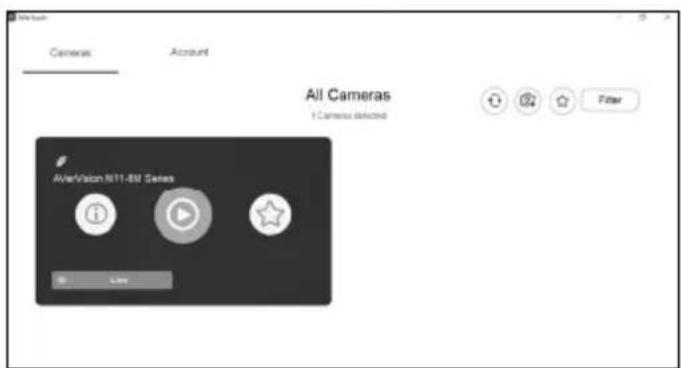
Open AVerTouch application, click to connect the camera.
Presentation Mode (Live)
[Note] Before using annotation feature or PIP/PBP function of presentation mode, set the camera to Power Supply Only mode first. Go to OSD menu > SETTING > USB to PC > Power Supply Only.
Annotation
In single image live (preview) mode, user can use the annotation feature to overlay straight line or freeform line on the captured image with the USB mouse connected to the USB port of M11-8MV.
- Connect the mouse to USB port of M11-8MV.
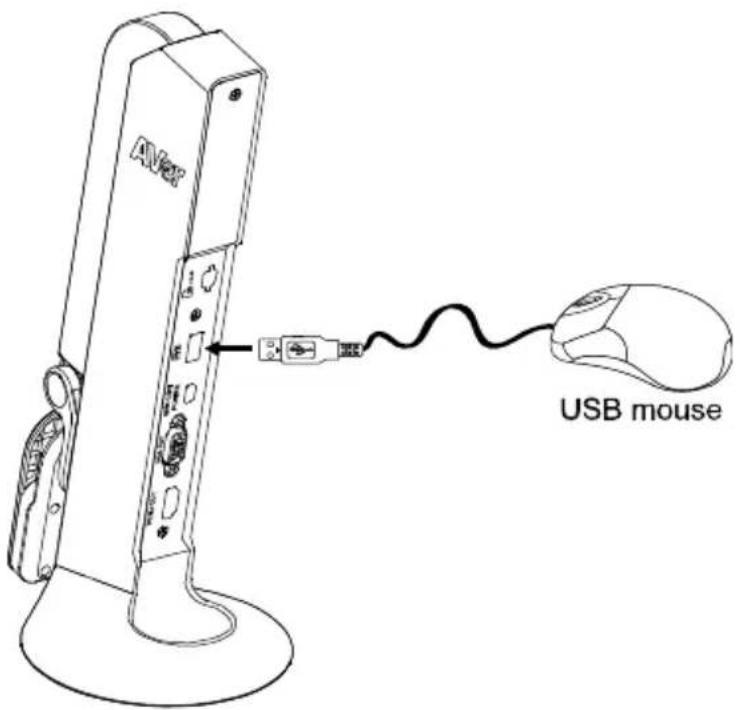
- Go to OSD menu > PRESENTATION > Annotation.
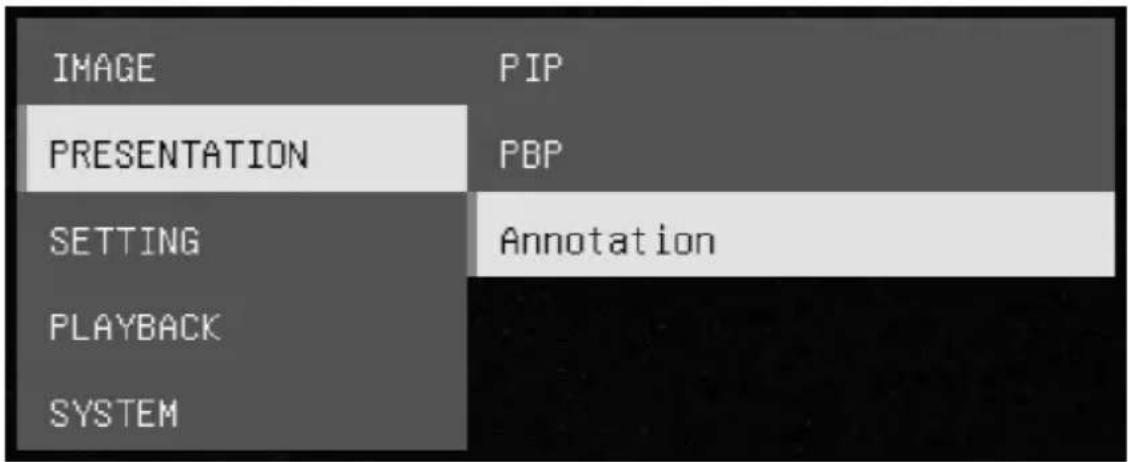
- In live screen, right-click mouse to call out annotation bar.
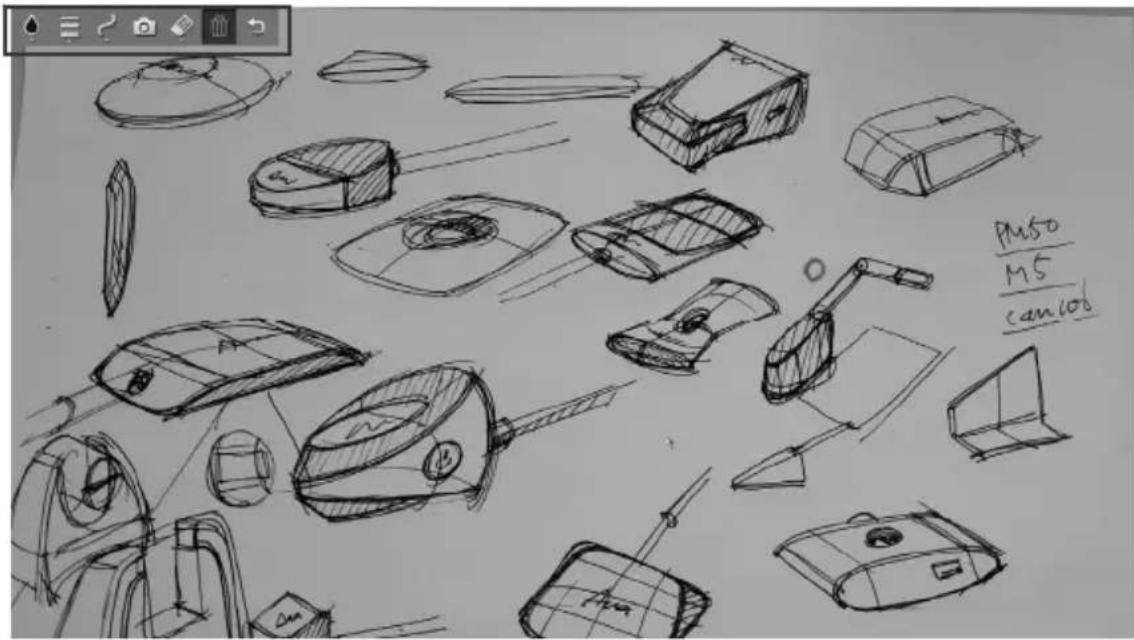
Annotation bar description

natural_image
Toolbar with icons including water drop, menu, camera, edit, and trash bin (no text or labels)| Button | Function | |
 | Color Palette | Select the line color.   |
 | Line Thickness | Select the thickness of the line.  |
 | Line | Select a straight line, freehand or sharp to draw.   |
 | Capture | Capture the image with the annotation and save it as a new file. |
 | Eraser | Select to erase any part of the annotation that it comes in contact with or delete all annotation. |
 | Delete | Clear all annotation on the screen. |
 | Back | Exit annotation bar. |
PIP Function
Select the thumbnail playback screen location and show the thumbnail playback screen at the corner of the screen to recall the captured image from the SD card.
- In camera mode, press and hold menu.

button for 3 seconds to call out OSD 2. Use and buttons to move to
PRESENTATION > PIP. Press

to confirm the selection.
- Select the display location of thumbnail playback screen – Upper Left, Upper Right, Lower Left, or Lower Right. Press AF to confirm the selection.
| IMAGE | PIP | Upper Left |
| PRESENTATION | PBP | Upper Right |
| SETTING | Annotation | Lower Left |
| PLAYBACK | Lower Right | |
| SYSTEM |
- The PIP display screen shows as following.
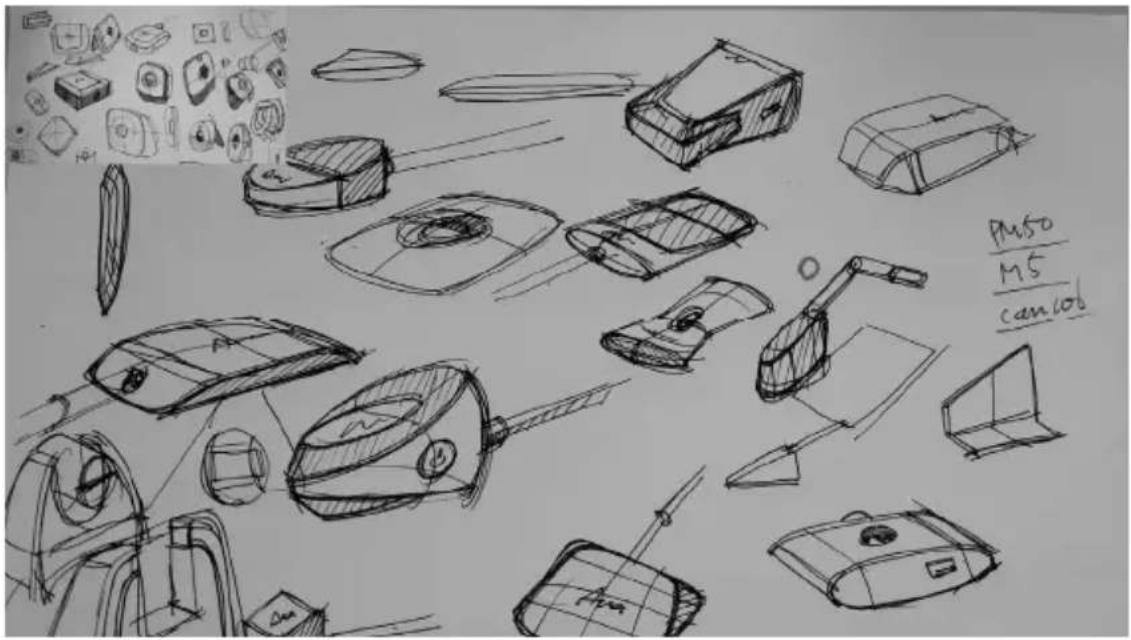
PBP Function
Select the captured image location and show the capture image on the screen to recall the captured image from the SD card.
- In camera mode, press and hold 📋 button for 3 seconds to call out OSD menu.
- Use and buttons to move to PRESENTATION > PBP. Press AF to confirm the selection.
- Select the display location of thumbnail playback screen – Upper Left, Upper Right, Lower Left, or Lower Right. Press AF to confirm the selection.
| IMAGE | PIP | Up |
| PRESENTATION | PBP | Down |
| SETTING | Annotation | Left |
| PLAYBACK | Right | |
| SYSTEM |
- Use ⬆ and ⬇ buttons to select the captured image from the list
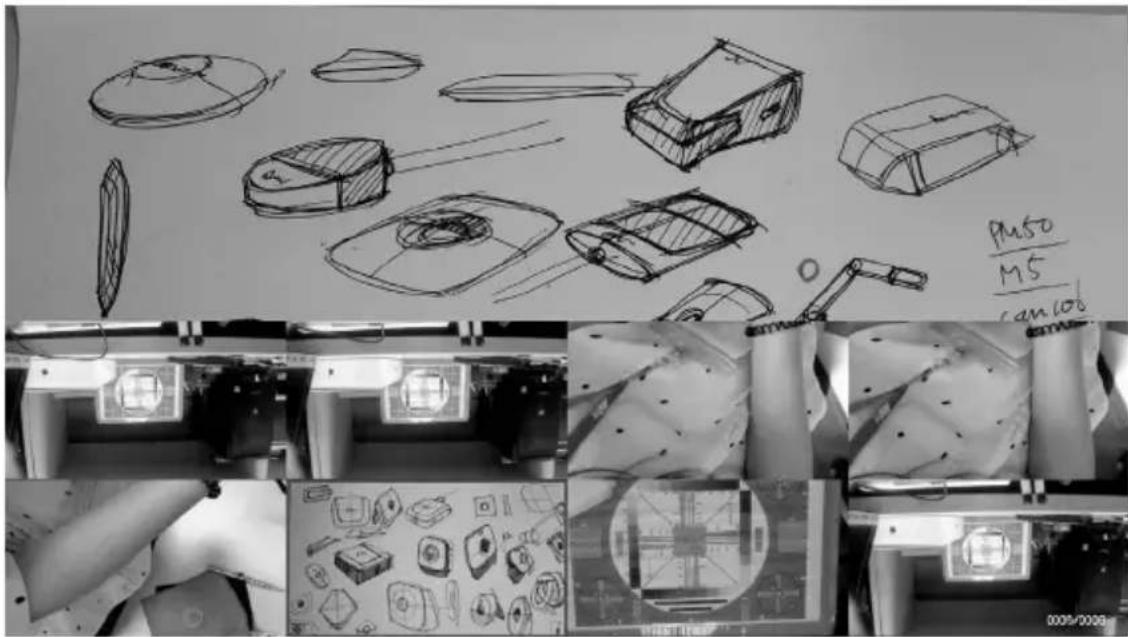
- The PBP display screen shows as following (PBP is down location). Use and buttons to move the captured image up and down to view.
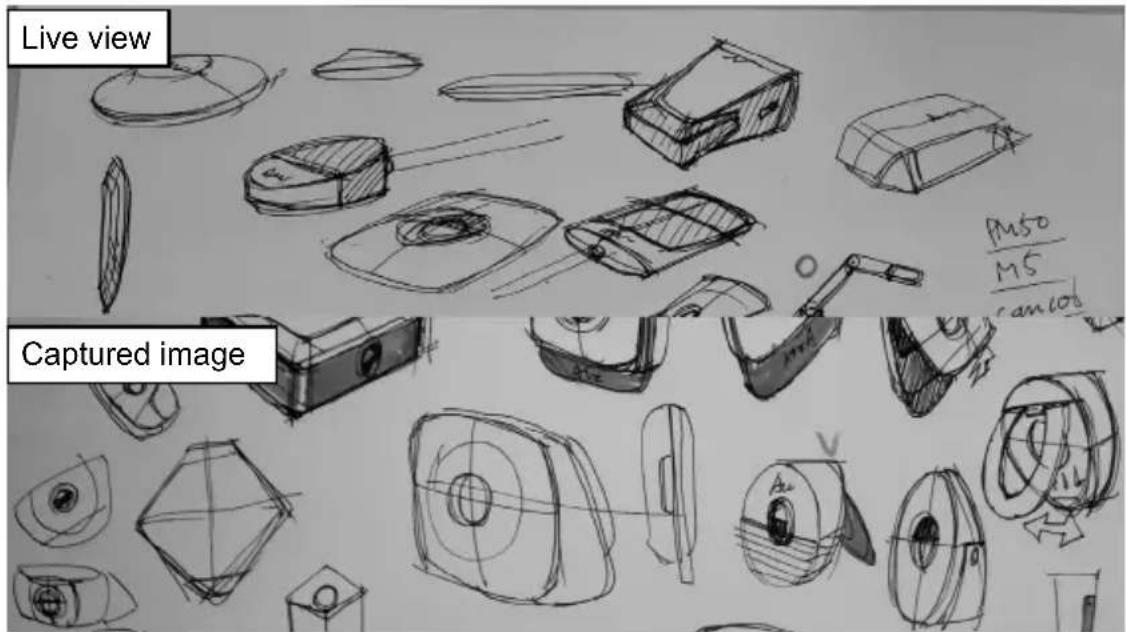
Playback Mode
View the capture images and recording files.
Switch to Playback Mode
- In camera mode, press and hold button for 3 seconds to call out OSD menu.
- Use 🔒 and 🔒 buttons to move to SETTING > USB to PC > Power Supply Only.
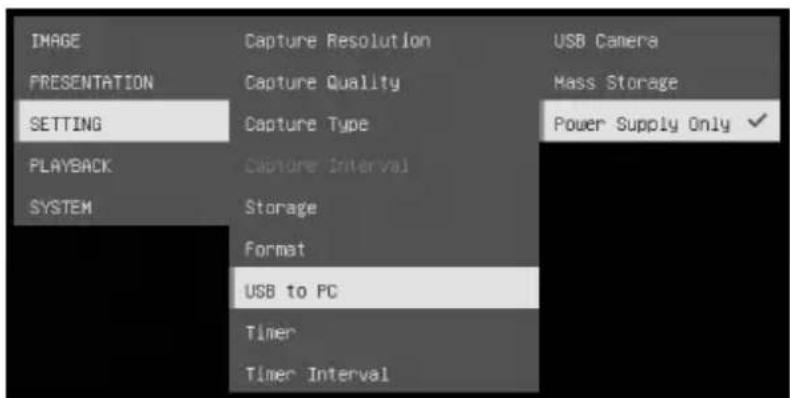
- Use and buttons to move to PLAYBACK selection.
- Then, press AF to confirm the selection and switch to playback mode.
- In Playback mode, use

and

buttons to
select image or video to view manually. To play a video, press

button to start playback.
To pause playback, press AF
button again. Press 📷 to stop playback.
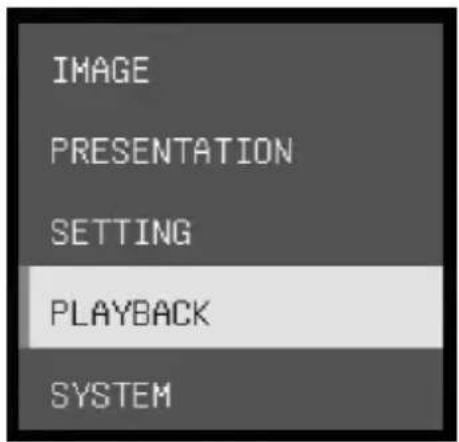
OSD Menu Buttons
| Button Function | |
 | Back to last menu level page |
 | Up (selection item) |
 | Down (selection item) |
 | Selection enter |
Playback Menu Buttons
| Button Function | |
  | ■ Image / video selection ■ + Fast forward while playback video ■ + : Fast rewind while playback video |
 | Zoom in image |
 | Zoom out image |
 | ■ Play video ■ Press and hold to pause while video is playback |
 | Stop play video |
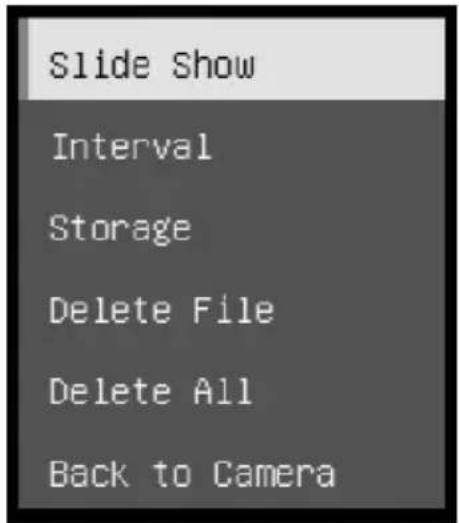
Slide Show
To automatically play all capture images and recorded videos; but videos only display files and will not play video contents.
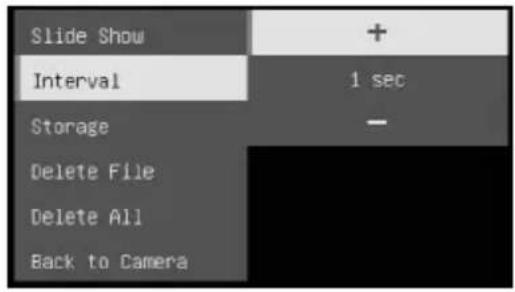
Interval
Set the interval before displaying the next picture. The length can be set up to 120 sec.
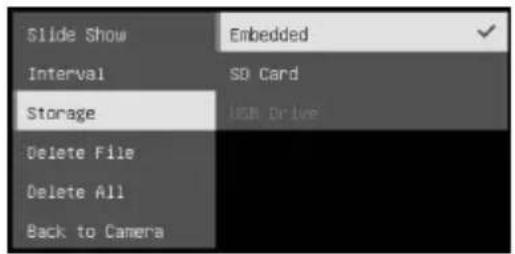
Storage
Select the source of the images and videos.
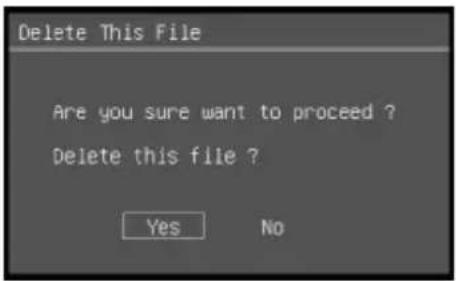
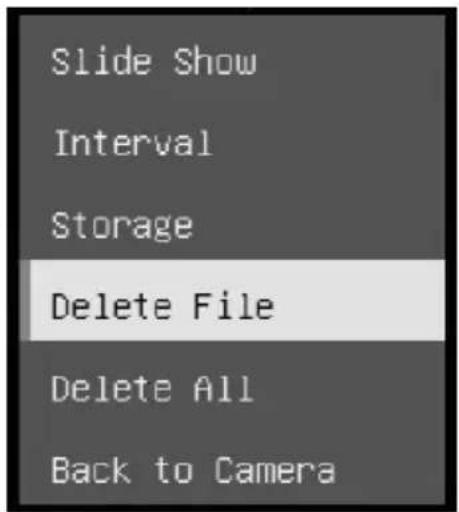
Delete File
Permanently delete the image or video in selected. A Warning Message will appear. Select Yes to continue and No to cancel the deletion.
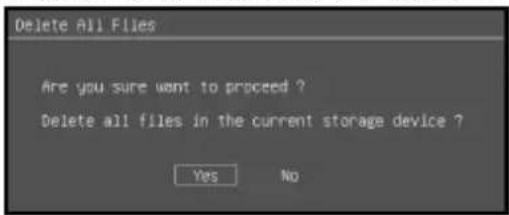
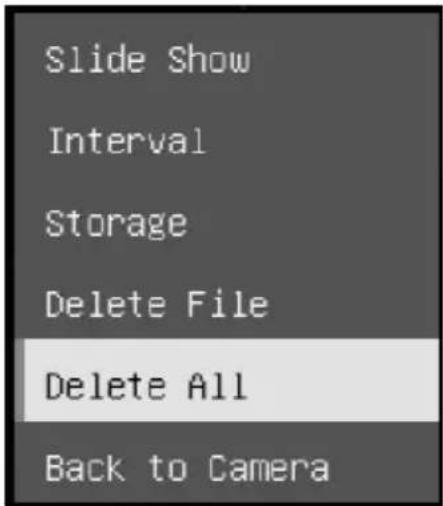
Delete All
Permanently delete all the data in selected memory source. A Warning Message will appear. Select Yes to continue and No to cancel the deletion.
Annotation
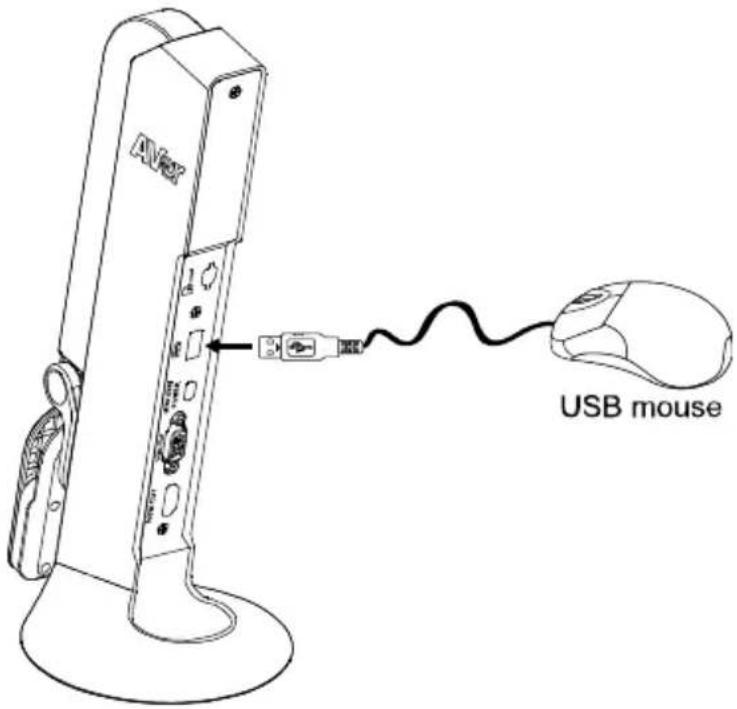
In single image playback mode, user can use the annotation feature to overlay straight line or freeform line on the captured image with the USB mouse connected to the USB port of M11-8MV.
[Note] Annotation function is not supported with video file.
- Connect the mouse to USB port of M11-8MV.
- Press ⏻ to call out OSD menu.
- Select "Playback".
- Select the image and playback tool bar is displayed. Or right-click mouse to call out playback tool bar.
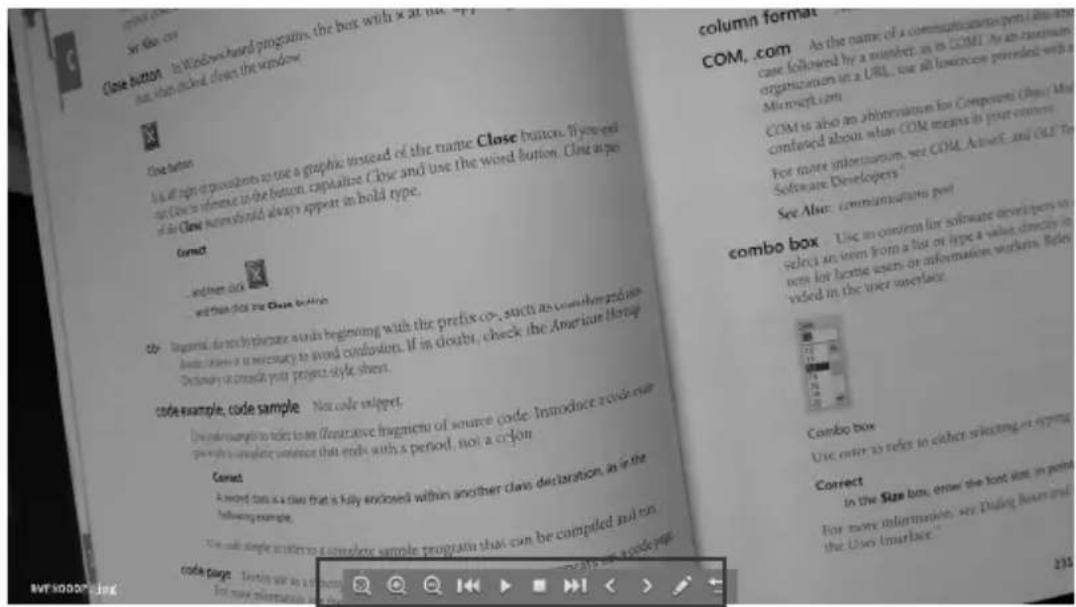
English-18

| Button Function | |
 | Move the image to left, right, up, and down.Select [IMAGE] to expand the direction buttons.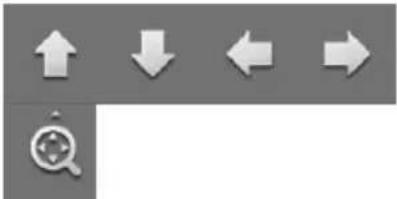 |
 | Zoom in image |
 | Zoom out image |
 | Fast rewind |
 | Start to play video |
 | Stop playing video |
 | Fast forward |
 | Go to next or back to last image or file |
 | Switch to annotation function. |
 | Back to image or file list |
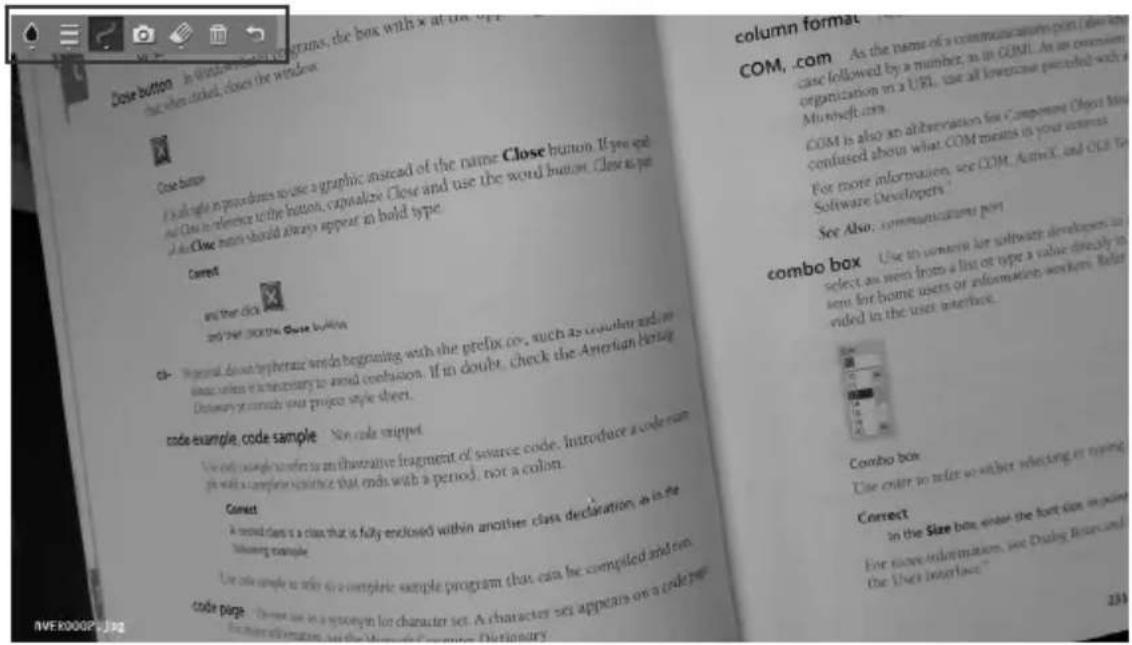
- To switch to annotation mode, select on playback tool bar.

natural_image
Toolbar with icons including water drop, menu bar, camera, pencil, trash bin, and refresh arrow (no text or labels)| Button | Function | |
 | Color Palette | Select the line color.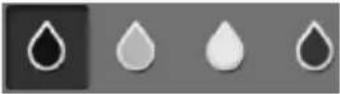 |
 | Line Thickness | Select the thickness of the line.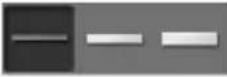 |
 | Line | Select a straight line, freehand or sharp to draw. |
 | Capture | Capture the image with the annotation and save it as a new file. |
 | Eraser | Select to erase any part of the annotation that it comes in contact with or delete all annotation. |
 | Delete | Clear all annotation on the screen. |
 | Back | Back to playback tool bar. |
Use the Camera
Camera Head Angle
Move the camera head as figure shown.
[CAUTION] To avoid damage the camera head, hold the edge of the camera head to rotation the camera head.
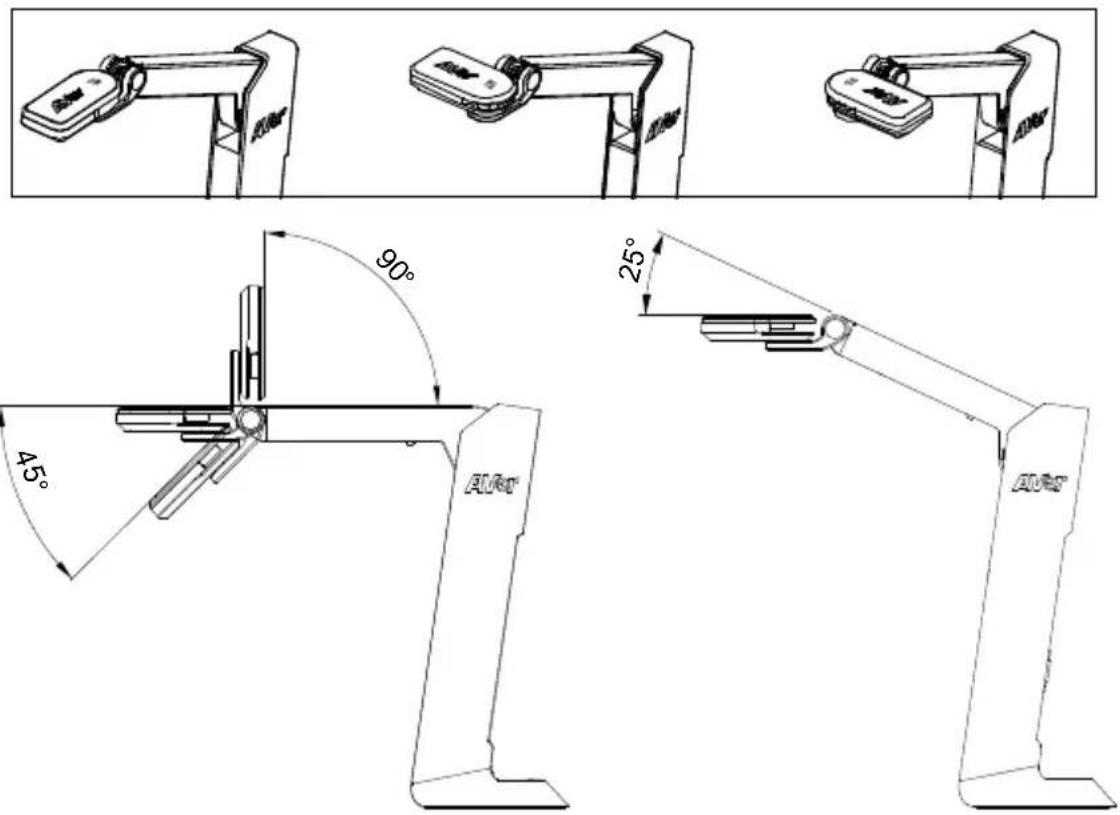
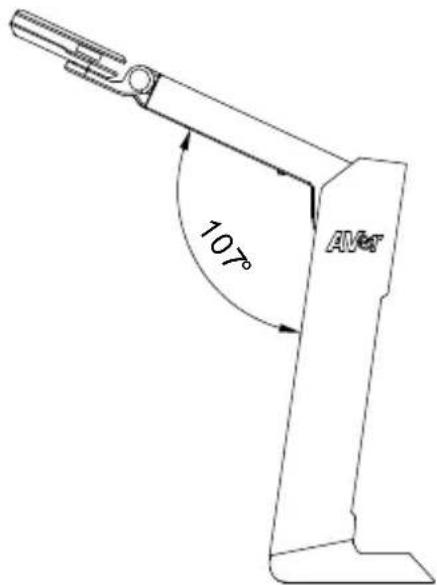
Camera Body Angle
[CAUTION] To avoid damage the camera unit, DO NOT pull the arm angle over 107^ .
English-21
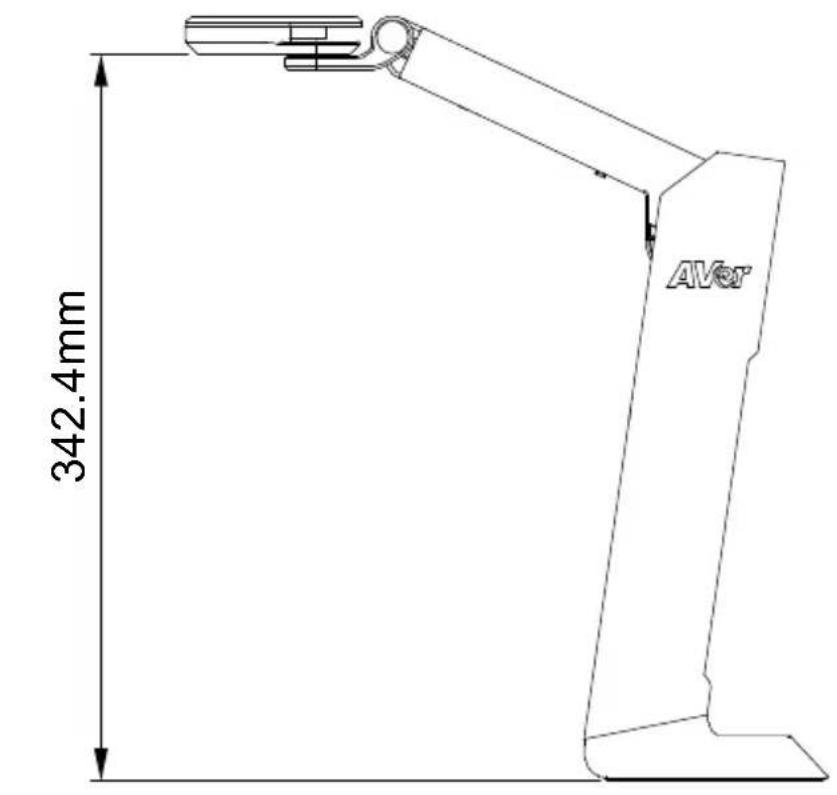
Shooting Area
When camera position is 342.4mm high, the shooting area will be A3 size.
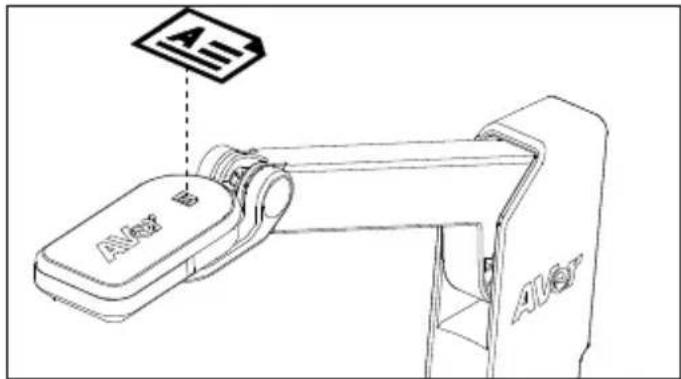
Object Position
The icon on top of camera head can help user to place objects in a positive direction.
Store the Camera
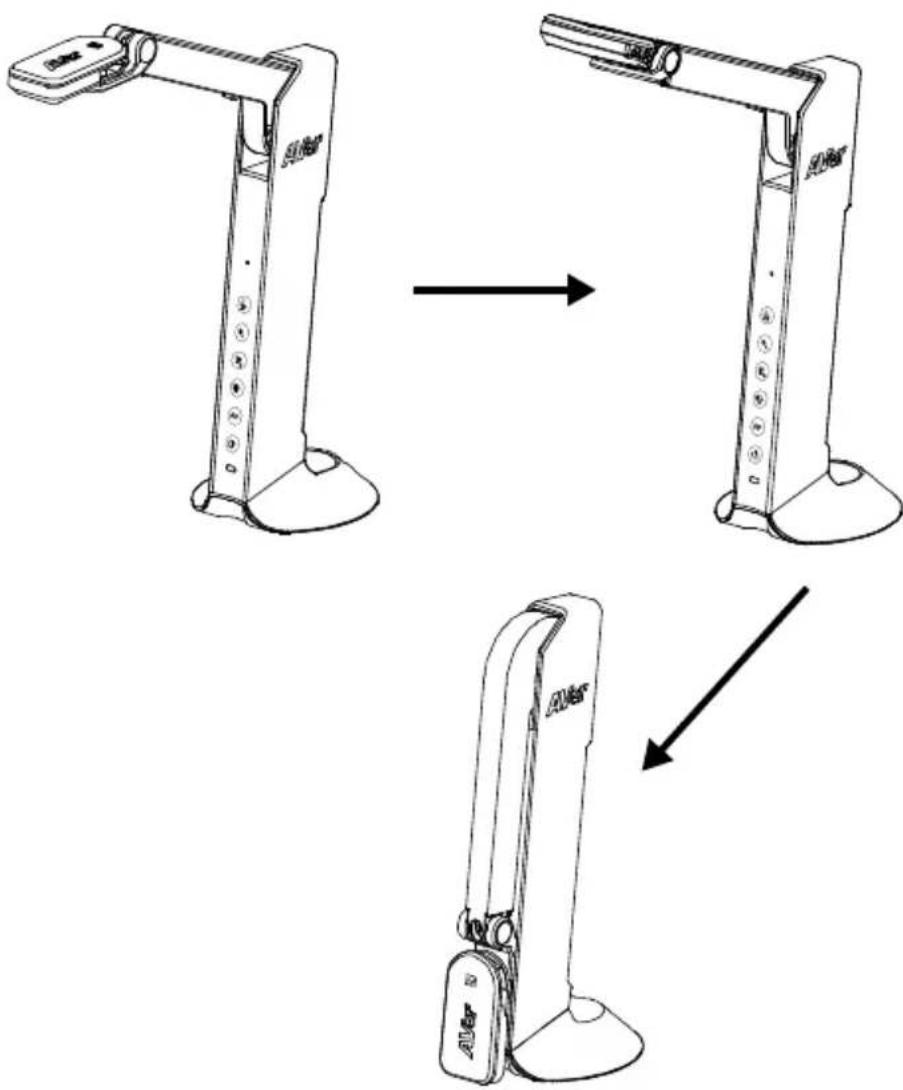
flowchart
graph TD
    A["Top Arm"] --> B["Left Arm"]
    B --> C["Right Arm"]
    C --> D["Bottom Arm"]
Specification
| Sensor 1/3.06" CMOS sensor | |
| Pixel Count 8MP | |
| Frame Rate Max.60fps (display) | |
| Image Mode Normal / Motion / High Quality | |
| Effect Color / B&W / Negative | |
| Focusing Auto / Manual | |
| Shooting Area A3, 420mm (H) * 315mm (V) | |
| Zooming 20x digital zoom | |
| Power Source Mini-USB in, 5V/1A | |
| Consumption | 4.5 Watts (lamp on)4 Watts (lamp off) |
| USB Bus Power Yes, via mini-USB port | |
| Lamp Type LED light | |
| USB | USB2.0 Type-A x1 (< 5V/0.1A, USB flash drive FAT32, 32GB)USB Type mini-B x 1(Power) |
| USB Output | 3168 x 2376, 1920 x 1080, 1280 x 720, 1024 x 768, 800 x 600, 640 x 480 |
| HDMI Output 1920 x | 1080, 1280 x 720, 720 x 480 |
| VGA Output | 1920 x 1080, 1280 x 720, 720 x 480 |
| Image Capture | 120 pictures (2 megapixel) |
| Built-in MIC | Yes |
| Micro SD Card Slot | FAT 32, 32GB |
| Operating | 360.4mm (H) * 116.7mm (W) * 303.4mm (D) |
| Folded | 296.1mm (H) * 116.7mm (W) * 143.1mm (D) |
| Net Weight | 1.83 lbs (0.83 Kg) |
| Gross Weight | 2.87 lbs (1.301 Kg) |
| Software Support | AVerTouch |
WARNING
■ To reduce the risk of fire or electric shock, do not expose this appliance to rain or moisture. Warranty will be void if any unauthorized modifications are done to the product.
■ Do not drop the camera or subject it to physical shock.
■ Use the correct power supply voltage to avoid the damaging camera.
■ Do not place the camera where the cord can be stepped on as this may result in fraying or damage to the lead or the plug.
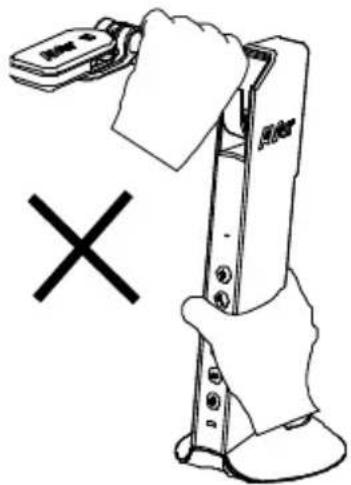
■ Hold the bottom of the camera with both hands to move the camera. Do not grab the lens or arm to move the camera.
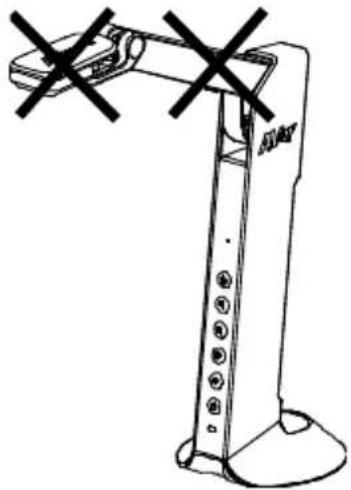
natural_image
Line drawing of a robotic arm with no visible text or symbols■ Do not pull the camera arm and camera part in the opposite direction.
COPYRIGHT
©2020 AVer Information Inc. All rights reserved.
FEDERAL COMMUNICATIONS COMMISSION
NOTE: This equipment has been tested and found to comply with the limits for a Class A digital device, pursuant to part 15 of the FCC Rules. These limits are designed to pro-vide reasonable protection against harmful interference when the equipment is operate in a commercial environment. This equipment generates, uses, and can radiate radiofrequency energy and, if not installed and used in accordance with the instruction manual, may cause harmful interference to radio communications. Operation of this equipment in a residential area is likely to cause harmful interference in which case the user will be required to correct the interference at his own expense.
FCC Caution: Any changes or modifications not expressly approved by the party responsible for compliance could void the user's authority to operate this equipment.
This device complies with part 15 of the FCC Rules.
Operation is subject to the following two conditions:
(1) This device may not cause harmful interference, and
(2) this device must accept any interference received, including interference that may cause undesired operation.
Warning:
This is a class A product. In a domestic environment this product may cause radio interference in which case the user may be required to take adequate measures.
THE MARK OF CROSSED-OUT WHEELED BIN INDICATES THAT THIS PRODUCT MUST NOT BE DISPOSED OF WITH YOUR OTHER HOUSEHOLD WASTE. INSTEAD, YOU NEED TO DISPOSE OF THE WASTE EQUIPMENT BY HANDING IT OVER TO A DESIGNATED COLLECTION POINT FOR THE RECYCLING OF WASTE ELECTRICAL AND ELECTRONIC EQUIPMENT. FOR MORE INFORMATION ABOUT WHERE TO DROP OFF YOUR WASTE EQUIPMENT FOR RECYCLING, PLEASE CONTACT YOUR HOUSEHOLD WASTE DISPOSAL SERVICE OR THE SHOP WHERE YOU PURCHASED THE PRODUCT.
DISCLAIMER
No warranty or representation, either expressed or implied, is made with respect to the contents of this documentation, its quality, performance, merchantability, or fitness for a particular purpose. Information presented in this documentation has been carefully checked for reliability; however, no responsibility is assumed for inaccuracies. The information contained in this documentation is subject to change without notice.
In no event will AVer be liable for direct, indirect, special, incidental, or consequential damages arising out of the use or inability to use this product or documentation, even if advised of the possibility of such damages.
More Help
For FAQs, technical support, software and instruction manual download, please visit:
Global:
http://presentation.aver.com/download-center/
Technical Support:
https://aver.com/technical-support
Contact Information
Global
AVer Information Inc.
www.aver.com
8F, No.157, Da-An Rd.
Tucheng Dist.
New Taipei City, Taiwan
Europe B.V.
AVer Information Inc.
www.aver.com
Westblaak 140, 3012KM
Rotterdam, Netherland
Tel: +31(0)10 7600 550
Technical support: EU.RMA@aver.com
包裝內容物
natural_image
Line drawing of a handheld electronic device with a speaker and control knob (no text or symbols)USB 連接線
QR Code 卡
保固卡*
*只有歐洲、日本和台灣使用
選購配件
手提袋 防眩光片
natural_image
Simple line drawing of a folded paper or document (no text or symbols)硬體介紹
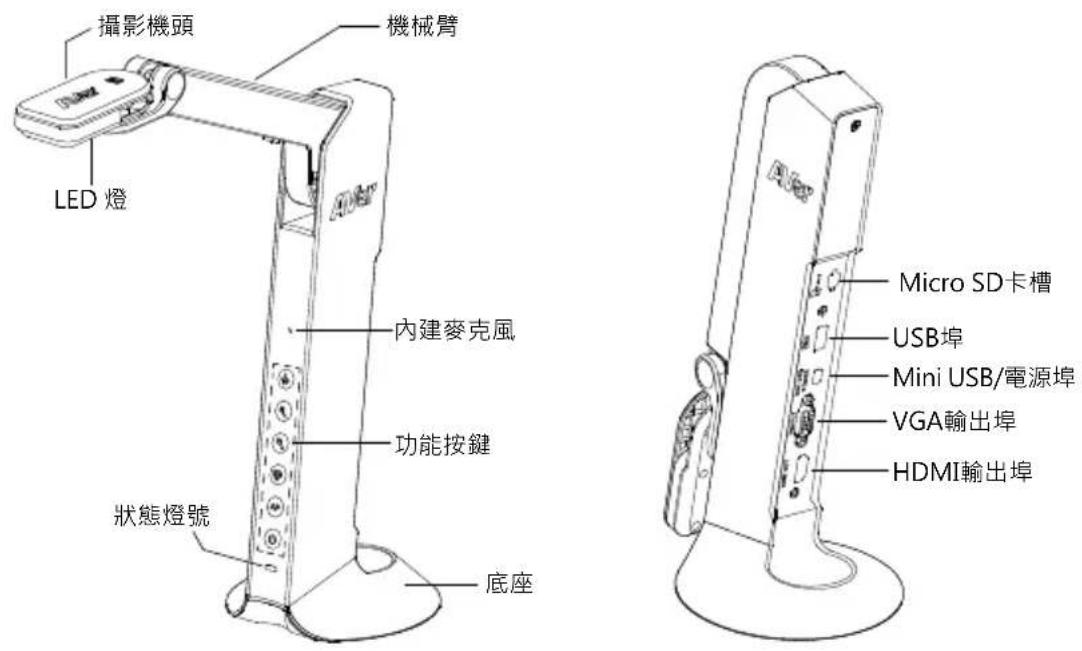
功能按鍵說明
面板功能鍵
natural_image
Toolbar with eight application icons including a water droplet, menu bar, camera, edit, trash bin, and refresh arrow (no text or labels visible)繁體中文-46
播放工具列說明


natural_image
Toolbar with icons including water drop, menu bar, camera, edit, trash bin, and refresh (no text or symbols)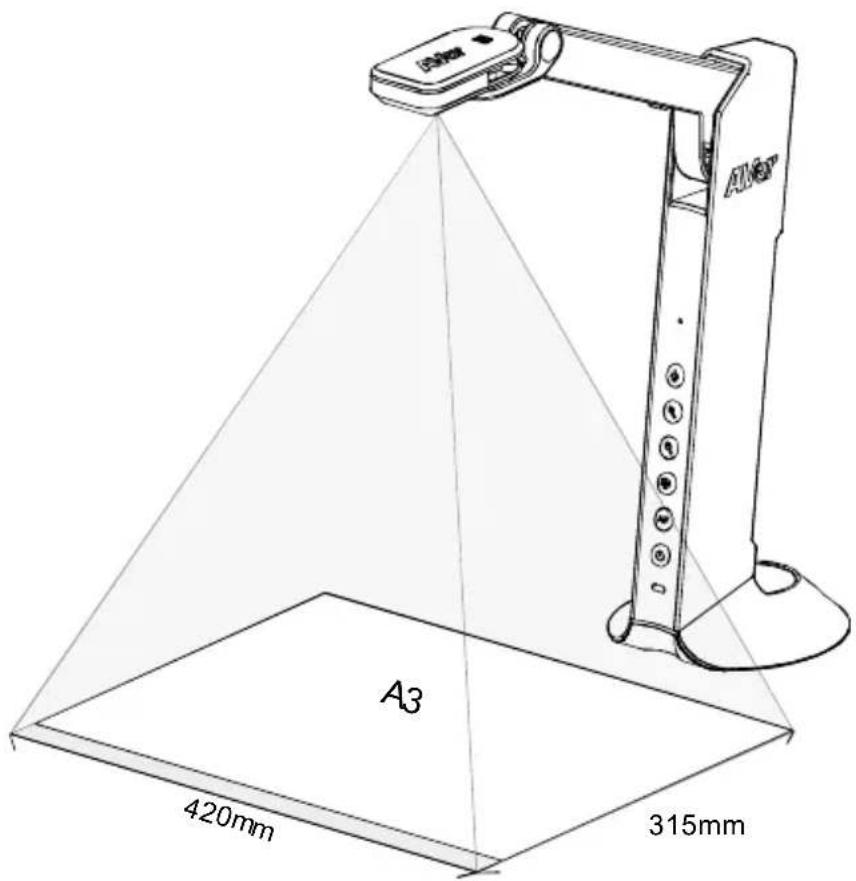
繁體中文-50
物體擺放位置
flowchart
graph TD
    A["Top Arm"] --> B["Left Arm"]
    B --> C["Right Arm"]
    C --> D["Bottom Arm"]
規格
natural_image
Line drawing of a robotic arm with two crossed X marks (no text or symbols)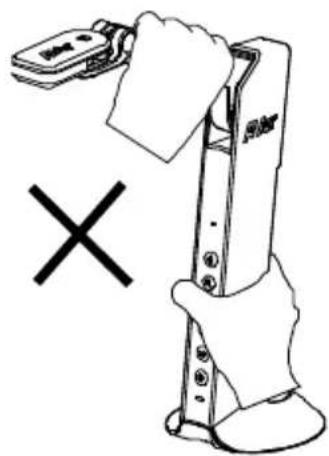
免責聲明
natural_image
Line drawing of a handheld electronic device with a speaker and control knob (no text or symbols)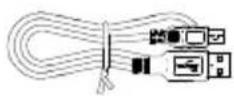
保証書*
*日本・ヨーロッパのみ
オプション(別売)
キャリーバッグ 反射防止シート
natural_image
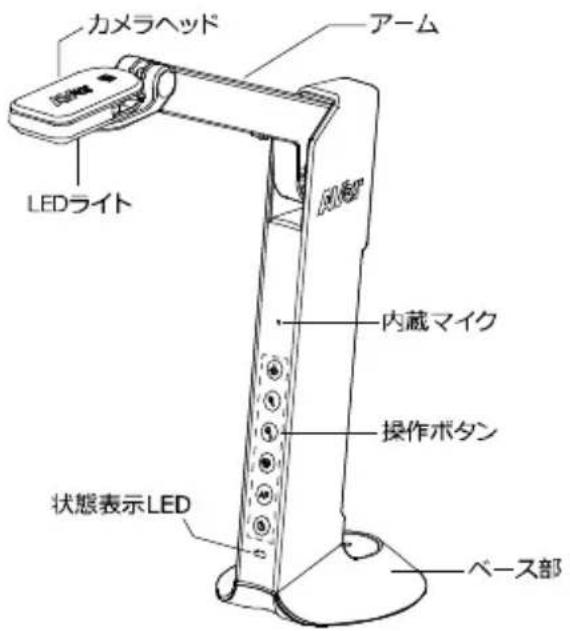
Simple line drawing of a folded paper or sheet (no text or symbols)ハードウェア部位 名称
https://jp.presentation.aver.com/download-center/
natural_image
Toolbar with icons including water drop, menu, camera, edit, trash bin, and refresh symbol (no text or labels)PBP 機能


natural_image
Toolbar with icons including water drop, menu, camera, edit, and refresh (no text or labels)natural_image
Three identical line drawings of a robotic arm with control buttons, shown from different angles (no text or symbols)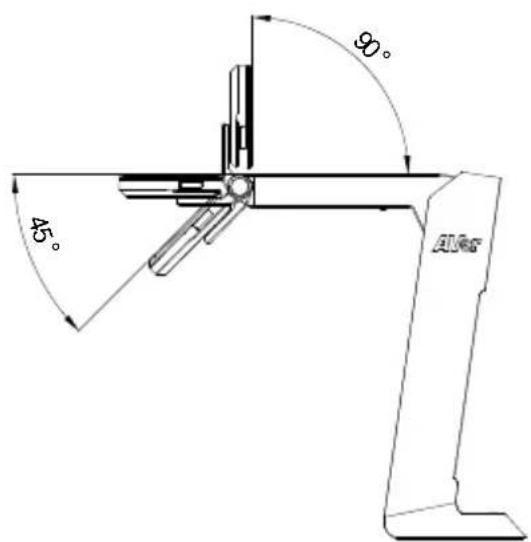
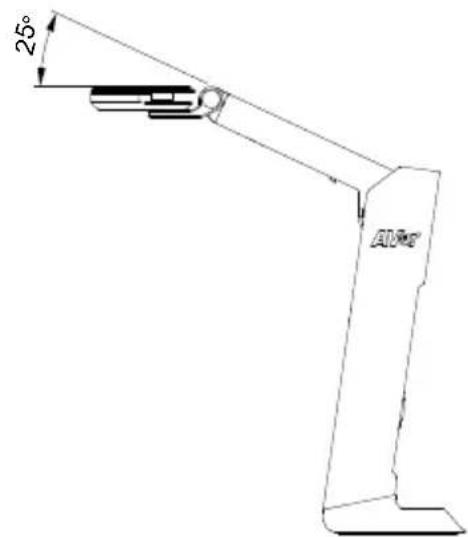
カメラアーム部の角度調節
日本語-77
撮影範囲
日本語-78
撮影方向
flowchart
graph TD
    A["Step 1: Initial support"] --> B["Step 2: Assembly"]
    B --> C["Step 3: Final assembly"]
製品仕様
natural_image
Line drawing of a robotic arm with two crossed X marks (no text or symbols)著作權
http://jp.aver.com/technical-support
ヘルプ詳細
http://presentation.aver.com/download-center/
日本
https://jp.aver.com/
技術的なご質問・
https://jp.aver.com/technical-support
修理のご依頼:
https://jp.aver.com/repair-request
natural_image
Line drawing of a handheld electronic device with a speaker and lens (no text or symbols)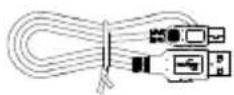
natural_image
Simple line drawing of a folded paper or document (no text or symbols)Übersicht
natural_image
Toolbar with icons including water drop, menu, camera, edit, and trash bin (no text or labels)Deutsch-101

natural_image
Toolbar with eight application icons including water drop, menu bar, swirl, camera, pencil, trash bin, and refresh arrow (no text or labels visible)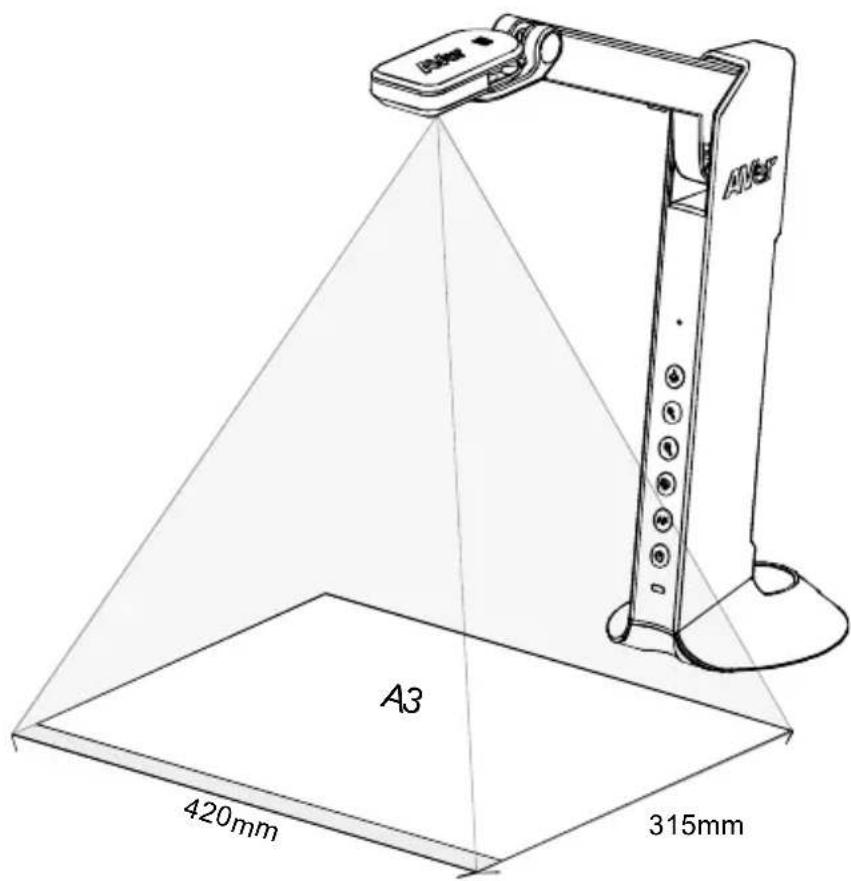
Deutsch-105
Objektposition
flowchart
graph TD
    A["Step 1: Vertical arm mechanism"] --> B["Step 2: Horizontal arm mechanism"]
    B --> C["Step 3: Double-headed arm mechanism"]
Technische Daten
natural_image
Line drawing of a robotic arm with two crossed X marks (no text or symbols)natural_image
Illustration of a hand holding a handheld device with a cross symbol (no text or labels)COPYRIGHT
http://presentation.aver.com/download-center/
8F, No.157, Da-An Rd., Tucheng Dist.,
New Taipei City, Taiwan
Tel: +886-2-2269-8535
European Headquarters
AVer Information Europe B.V.
Westblaak 140, 3012KM, Rotterdam, Netherland
Tel: +31(0)10 7600 550
Technical support: EU.RMA@aver.com
natural_image
Line drawing of a handheld device with a circular lens and control knob (no text or symbols)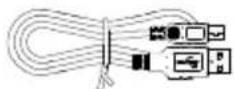
natural_image
Simple line drawing of a folded paper or sheet (no text or symbols)Présentation
[Remarque]
natural_image
Row of grayscale icons representing software tools (no text or symbols)Fonction PBP
Français-129

natural_image
Toolbar with icons including water drop, menu, camera, edit, and refresh (no text or labels)natural_image
Three identical line drawings of a robotic arm with control knobs, shown from different angles (no text or symbols)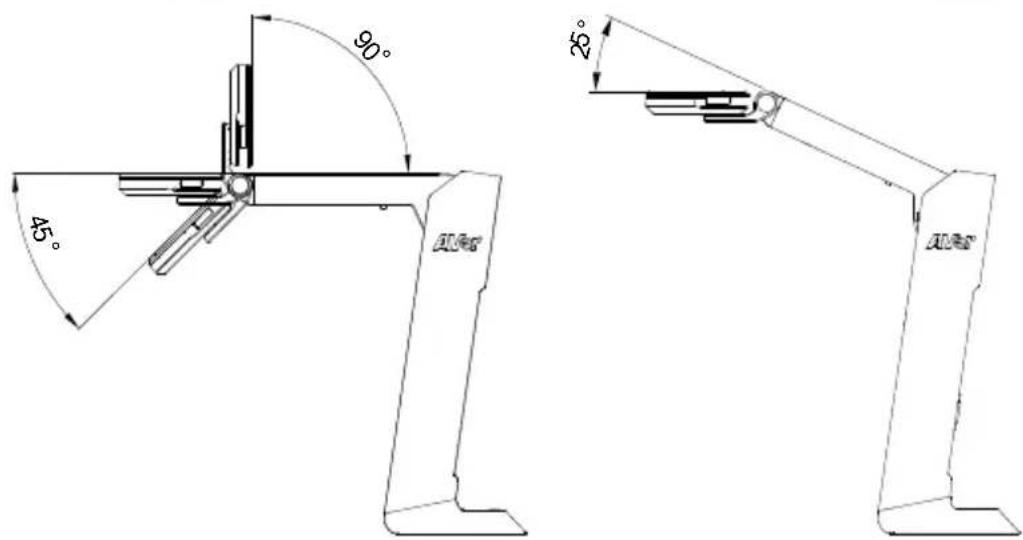
Français-132
Champ de vision
Français-133
Position de l'objet
flowchart
graph TD
    A["Step 1: Initial support"] --> B["Step 2: Assembly"]
    B --> C["Step 3: Final assembly with component labels"]
Français-134
Caractéristiques
natural_image
Line drawing of a robotic arm with no visible text or symbolsnatural_image
Illustration of a hand holding a mobile phone with a 'X' symbol below (no text or symbols on the device itself)COPYRIGHT
http://presentation.aver.com/download-center/
Support Technique :
8F, No.157, Da-An Rd., Tucheng Dist.,
New Taipei City
Taiwan
Siège européen
AVer Information Europe B.V.
Westblaak 140, 3012KM, Rotterdam, Pays-Bas
Tel: +31(0)10 7600 550
Assistance technique : EU.RMA@aver.com

natural_image
Toolbar with icons including water drop, menu, camera, edit, and trash bin (no text or labels)
natural_image
Toolbar with icons including water drop, document, camera, edit, and refresh (no text or labels visible)natural_image
Three identical line drawings of a robotic arm with no text or symbols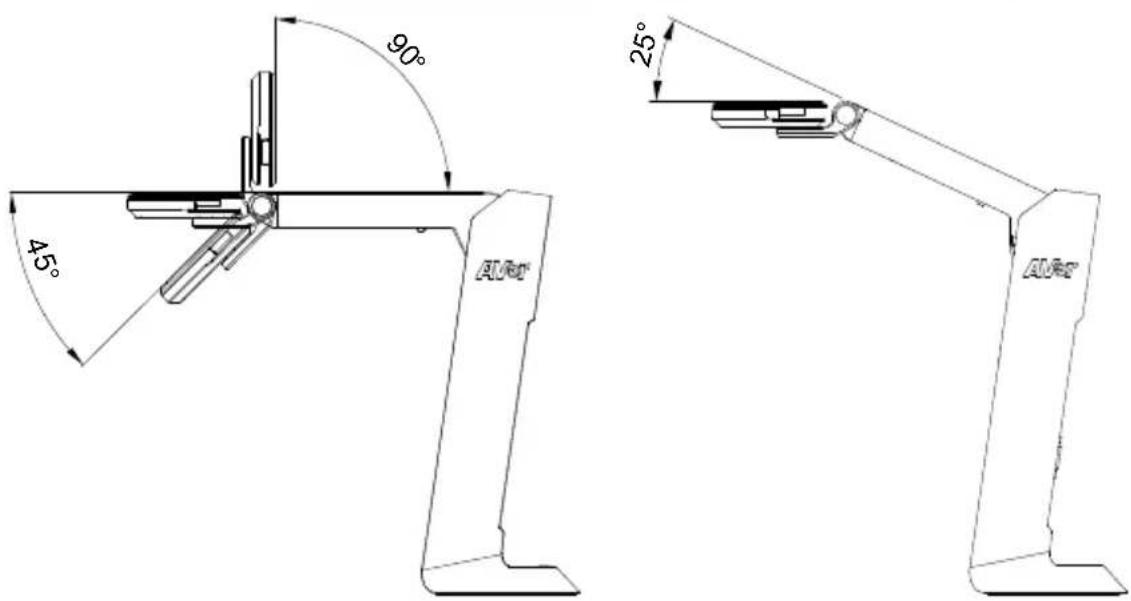
Español-161
flowchart
graph TD
    A["Top Arm"] --> B["Left Arm"]
    B --> C["Right Arm"]
    C --> D["Bottom Arm"]
Especificaciones
natural_image
Line drawing of a robotic arm with two crossed black X marks (no text or symbols)natural_image
Illustration of a hand gripping a mechanical device with a cross symbol (no text or labels)COPYRIGHT
http://presentation.aver.com/download-center/
Soporte técnico:
8F, No.157, Da-An Rd., Tucheng Dist.,
New Taipei City
Taiwan
Sede europea
AVer Information Europe B.V.
Westblaak 140, 3012KM, Rotterdam, Netherland
Tel.: +31(0)10 7600 550
natural_image
Line drawing of a handheld electronic device with a circular lens and control knob (no text or symbols)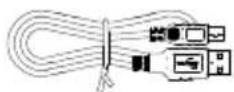
natural_image
Simple line drawing of a folded paper or document (no text or symbols)Panoramica
[Nota]
natural_image
Row of grayscale icons representing software tools (no text or symbols)Funzione PBP
Italiano-184
Playback tool bar description


natural_image
Toolbar with icons including water drop, menu bar, camera, edit, trash bin, and refresh (no text or symbols)natural_image
Three identical line drawings of a robotic arm with control knobs, shown from different angles (no text or symbols)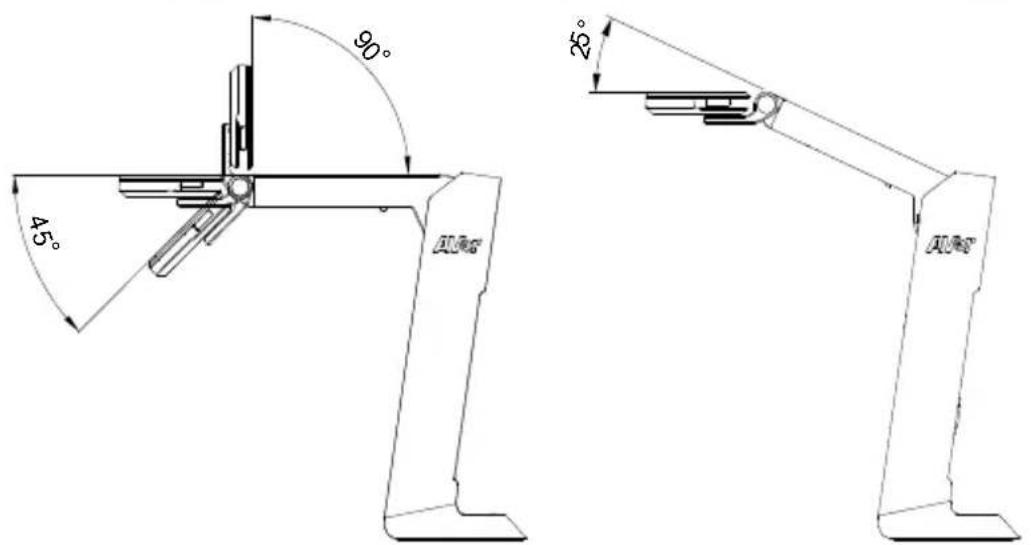
Italiano-188
flowchart
graph TD
    A["Step 1: Initial support"] --> B["Step 2: Assembly"]
    B --> C["Step 3: Final assembly with component labels"]
Italiano-189
Specifiche tecniche
natural_image
Line drawing of a robotic arm with two crossed X marks (no text or symbols)natural_image
Illustration of a robotic arm with a hand holding a paper, marked with a black 'X' symbol (no text or symbols on the robot itself)COPYRIGHT
http://presentation.aver.com/download-center/
Assistenza tecnica:
https://aver.com/technical-support
8F, No.157, Da-An Rd.,
Tucheng Dist., New Taipei City
Taiwan
Tel: +886-2-2269-8535
European Headquarters
AVer Information Europe B.V.
Westblaak 140, 3012KM, Rotterdam, Netherland
Tel: +31(0)10 7600 550
Technical support: EU.RMA@aver.com
- M11-8MV
- Optional Accessories
- Overview
- Function Buttons
- Control Panel
- OSD Mode
- Compound Key
- LED Indicator
- Device Connection
- Power Connection to Wall Outlet
- Plug in power and turn on M11-8MV.
- [Note]
- Power Connection to PC/Laptop
- Connect to USB port of PC/laptop for power supply.
- HDMI Connection
- VGA Connection
- USB Connection
- Insert a Micro SD Card
- Operate the Camera with AVerTouch
- 1
- 2
- Presentation Mode (Live)
- Annotation
- Annotation bar description
- PIP Function
- PBP Function
- Playback Mode
- Switch to Playback Mode
- OSD Menu Buttons
- Playback Menu Buttons
- Slide Show
- Interval
- Storage
- Delete File
- Delete All
- Use the Camera
- Camera Head Angle
- Camera Body Angle
- Shooting Area
- Object Position
- WARNING
- COPYRIGHT
- FEDERAL COMMUNICATIONS COMMISSION
- Warning:
- DISCLAIMER
- More Help
- Contact Information
- Global
- Europe B.V.
- 包裝內容物
- 選購配件
- 功能按鍵說明
- 播放工具列說明
- 物體擺放位置
- 免責聲明
- オプション(別売)
- PBP 機能
- カメラアーム部の角度調節
- 撮影範囲
- 撮影方向
- 著作權
- ヘルプ詳細
- Übersicht
- Objektposition
- European Headquarters
- Présentation
- [Remarque]
- Fonction PBP
- Champ de vision
- Position de l'objet
- Soporte técnico:
- Sede europea
- Panoramica
- [Nota]
- Funzione PBP
- Playback tool bar description
- Assistenza tecnica:
Brand : AVERMEDIA
Model : M11
Category : Scanner