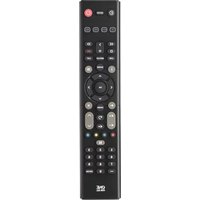
KE4914 - Remote control ONE FOR ALL - Free user manual and instructions
Find the device manual for free KE4914 ONE FOR ALL in PDF.



| Product type | Universal remote control |
| Brand | One For All |
| Model | KE4914 |
| Power source | 2 AAA alkaline batteries (not included) |
| Main functions | Control of TV and soundbar/amplifier, shortcut keys for apps (Netflix, Freeview Play, Viera Link), learning function |
| Compatibility | Panasonic TVs and other brands (manual setup possible) |
| Color keys | Red, Green, Yellow, Blue for teletext and additional functions |
| Infrared range | Approximately 10 meters (estimate) |
| Maintenance and cleaning | Clean with a soft, dry cloth. Do not use abrasive products. |
| Safety instructions | Use quality alkaline batteries. Do not mix new and old batteries. Respect polarity. Remove batteries if not used for an extended period. |
| Warranty | 2 years |
| Environmental information | Do not dispose of with household waste. Comply with local regulations for WEEE and battery recycling. |
Frequently Asked Questions - KE4914 ONE FOR ALL
User questions about KE4914 ONE FOR ALL
0 question about this device. Answer the ones you know or ask your own.
Ask a new question about this device
Download the instructions for your Remote control in PDF format for free! Find your manual KE4914 - ONE FOR ALL and take your electronic device back in hand. On this page are published all the documents necessary for the use of your device. KE4914 by ONE FOR ALL.
USER MANUAL KE4914 ONE FOR ALL
text_image
ENGLISH 3 | DEUTSCH 7 | FRANÇAIS 11 | ESPAÑOL 15 | PORTUGUÊS 19 | ITALIANO 23 | NEDERLANDS 27 | DANSK 31 | NORSK 35 | SVERIGE 39 | SUOMI 43 | EΛΛΗΝΙΚΑ 47 | PYCCKИЙ 51 | TÜRKÇE 55 | POLSKI 59 | ČESKY 63 | MAGYAR 67 | БЪЛГАРСКИ 71 | ROMÂNĂ 75 | SLOVENSKY 79 | HRVATSKI 83 |AUDIO CODELIST93
text_image
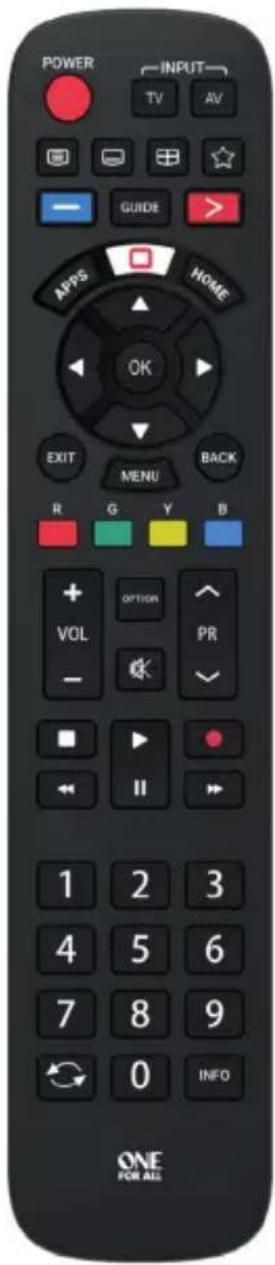
POWER INPUT TV AV GUIDE APPS HOME OK EXIT MENU BACK R G Y B + OPTION VOL PR - 1 2 3 4 5 6 7 8 9 0 INFO ONE FOR ALL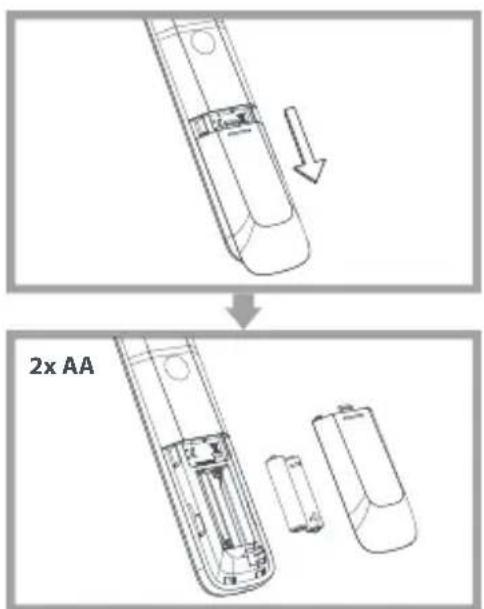
text_image
2x AA
AUTION: Risk of explosion if battery is replaced by an incorrect type. Use quality Alkaline batteries.
text_image
POWER 1 SUBTITLE 5 TEXT 4 APP 1 8 APP 2 12 APPS 11 UP,DOWN, LEFT, RIGHT, OK EXIT 15 RED,GREEN, YELLOW, BLUE 18 VOL + / - 19 STOP, PLAY, REC, REW, PAUSE, FF 23 LAST CHANNEL 25 INPUT TV AV AV ASPECT FAVORITE GUIDE HOME OPEN HOME MENU BACK R G Y B OPTION PR MUTE 0-9 26 INFO 24 7 8 9 1 2 3 1 2 3 4 5 6 ← ← → ← → ← → ← → ← → ← → ← → ← → ← → ← → ← → ← → ← → ← → ← → ← → ← → ← → ← → ← → ← → ← → ← → ← → ← → ← → ← → ← → ← → ← → ← → ← → ← → ← → ← → ← → ← → ← → ← → ← → ← → ← → ← → ← → ← → ← → ← → ← → ← → ← → ←→ ONE FOR ALLENGLISH
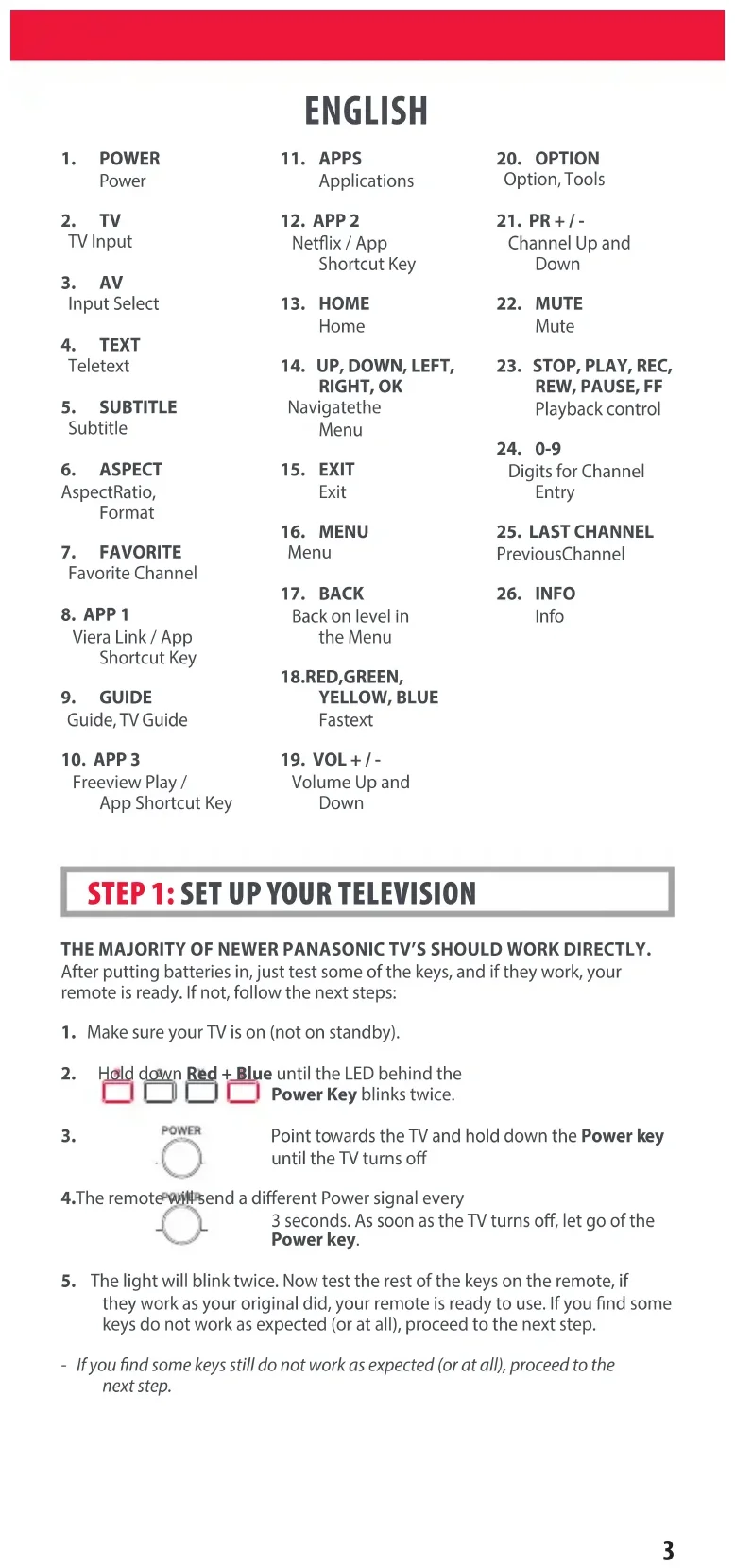
1. POWER
Power
2. TV
TV Input
3. AV
Input Select
4. TEXT
Teletext
5. SUBTITLE
Subtitle
6. ASPECT
AspectRatio,
Format
7. FAVORITE
Favorite Channel
8. APP 1
Viera Link / App
Shortcut Key
9. GUIDE
Guide, TV Guide
10. APP 3
Freeview Play /
App Shortcut Key
11. APPS
Applications
12. APP 2
Netflix / App
Shortcut Key
13. HOME
Home
14. UP, DOWN, LEFT, RIGHT, OK
Navigate the
Menu
15. EXIT
Exit
16. MENU
Menu
17. BACK
Back on level in
the Menu
18.RED,GREEN,
YELLOW, BLUE
Fastext
19. VOL + / -
Volume Up and
Down
20. OPTION
Option, Tools
21. PR + / -
Channel Up and
Down
22. MUTE
Mute
23. STOP, PLAY, REC, REW, PAUSE, FF
Playback control
24. 0-9
Digits for Channel
Entry
25. LAST CHANNEL
PreviousChannel
26. INFO
Info
STEP 1: SET UP YOUR TELEVISION
THE MAJORITY OF NEWER PANASONIC TV'S SHOULD WORK DIRECTLY.
After putting batteries in, just test some of the keys, and if they work, your remote is ready. If not, follow the next steps:
-
Make sure your TV is on (not on standby).
-
Hold down Red + Blue until the LED behind the


Power Key blinks twice.
3.

Point towards the TV and hold down the Power key
until the TV turns off
- The remote will send a different Power signal every
3 seconds. As soon as the TV turns off, let go of the
Power key.
- The light will blink twice. Now test the rest of the keys on the remote, if they work as your original did, your remote is ready to use. If you find some keys do not work as expected (or at all), proceed to the next step.
- If you find some keys still do not work as expected (or at all), proceed to the next step.
ENGLISH
STEP 2: IF STEP 1 DOES NOT WORK AS EXPECTED
ARE SOME KEYS NOT WORKING AS EXPECTED?
If you find some keys do not work as expected (or at all), proceed to the next step.
-
Make sure your TV is on (not on standby).
-
Hold down RFD + BLUE until the LED behind the Power Key blinks twice
-
Point towards the TV and hold one of the keys that is not working correctly (for example Menu).
-
The remote will send a signal every 3 seconds.
-
When the correct function is shown on the screen (in this case the Menu), let go of the key.
-
The LED will blink twice - your remote is ready to use.
LEARNING
LEARN A NEW FUNCTION TO YOUR REMOTE
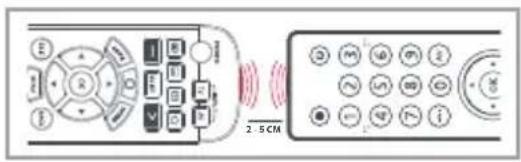
Your One For All remote can learn any function from your original (working) remote.
text_image
2.5 CM-
Place the original remote facing the One For All remote on a flat surface.
-
R G Y B To learn: Hold down GREEN + YELLOW until the LED blinks twice.
-
Press 975. The LED will blink twice.
-
Press the key on the One For All remote you want to learn on, for Example: the VOL + key. The LED will blink rapidly.
-
Press the key on the Original remote you want to learn, for Example: the VOL + key of your Audio Device
6.Twoblinks:ok. Repeat from step 4 for any more keys to learn. Long blink: try again from step 4.
- When you have learned all the keys you need, press and hold the OK key for 3 seconds. The LED will blink twice.
HOW TO DELETE A LEARNED FUNCTION!
- Hold down GREEN + YELLOW until the LED blinks twice.
- Press 976.
- Press the key to reset twice.
- The LED flashes twice and the key will revert to the original function.
ENGLISH
SOUND BAR / AUDIO RECEIVER VOLUME CONTROL
SOUND BAR / AUDIO RECEIVER VOLUME CONTROL
If you have your TV connected to a Sound Bar or Audio Receiver, it's possible to set up your One For All remote to control the Volume and Mute of this device. There are two ways to do this:
AUDIO SIMPLESET
If you have a Sound Bar or Audio Device from one of the brands listed in the table below, you can use the SimpleSet method to program your remote to control it. If you do not have one of the below brands, please proceed to the next section.
| Digit | Brand |
| 1 | Bose |
| 2 | Denon |
| 3 | Samsung / Harman/Kardon / JBL |
| 4 | LG / JVC |
| 5 | Marantz / Philips |
| 6 | Onkyo |
| 7 | Panasonic / Technics |
| 8 | Pioneer |
| 9 | Sony |
| 0 | Yamaha |
Note that each of the brands has a digit associated with it, for example 4 for LG (and JVC).
To set up your remote to control your Sound Bar / Audio Device, first make sure your TV and Sound Bar / Audio Device are both powered on, and that there is something playing that you can hear (this procedure will test the Mute function). Next:
-
Hold down the VOLUME UP and VOLUME DOWN buttons together until the LED under the POWER key blinks twice.
-
Now point the remote towards your Sound Bar / Audio Devices and hold down the digit key for your brand (for example 4 for LG). The remote will send the Mute function to your device every 3 seconds.
-
As soon as your Sound Bar / Audio Device mutes the volume, release the digit key. The LED under the Power key will blink twice, and the Volume Up, Down and Mute keys should now control your Sound Bar / Audio Device.
AUDIO CODE SETUP
If your Sound Bar / Audio Device is not one of the brands listed above, you can also set up the remote to control it by entering a 4 digit code. The codes are listed in the Audio Codelist section of this manual, and are listed by brand and then popularity. Locate the brand of your Sound Bar / Audio Device in this code list and then the procedure is:
ENGLISH
- Hold down the VOLUME UP and VOLUME DOWN keys until the LED under the Power key blinks twice.
- Enter the first 4 digit code for your Sound Bar / Audio Device. The LED should blink twice on the last digit.
- Now try the Volume Up, Down and Mute and see if they control your Sound Bar or Audio Device.
- If they work, your remote is set up. If not try again from step 1 using the next code in the list.
POWER MACRO
If you have set up your Sound Bar or Audio Device using SimpleSet or Code Setup, you can now turn your TV and Audio Device both on and off using a single key. Simply hold down the Power key for 3 seconds and the remote will send the Power function to both the TV and the Audio Device / Sound Bar. If you press and release the key, it will only control the TV.
APP SHORTCUT KEYS


The One For All remote features three App Shortcut Keys which can be used to open apps on your TV. If your original remote control has a Viera Link, Netflix, or Freeview Play key, these keys will perform the same function.
However if you try these keys and they do not work, but your TV still has the ability to watch a streaming service, you can use this key as a shortcut by programming a macro (a series of button presses) on it. You could also program the keys to access other apps on your TV.
To program the macro, you first need to know the sequence keys you use to access the service. For example, some TVs will start Netflix by pressing the Home key, then Menu Right twice, and finally the Enter key.
Once you have determined the sequence for the app you want on your TV, follow these steps:
- Sit in front of your device with It switched on (not on standby)
- Hold down the App Shortcut key until the LED blinks twice.
- Now perform the sequence of keys exactly as would normally. The remote will operate your TV and the macro is recorded in real time - so if it normally takes a few seconds for your device to react don't worry.
- Once you have finished the sequence - and the Streaming Service has started on your device - hold down the App Shortcut key until the LED blinks twice and goes out. The macro is now stored.
Tips
- Make sure the OFA remote Is operating the TV before programming
- If you find the Macro doesn't work as expected, you can just repeat the same sequence to reprogram
- When programming, wait for your TV to respond first, the remote will remember the timing
RESET
If you would like to reset your remote back to its default settings, please do the following:
- Hold down the Green and Yellow keys until the LED blinks twice
- Press 977
- The LED will blink 4 times and the remote is now reset.
DEUTSCH
natural_image
Diagram of a remote control panel with buttons and indicator lights (no text or labels)23. REW, PLAY, FF, REC, PAUSE, STOP
natural_image
Diagram showing two connected devices with circular ports and a red signal icon (no text or symbols)MACRO ASSOCIÉE AU BOUTON D'ALIMENTATION
text_image
Diagram showing two remote control panels connected via a 25°C signal to a keypad, with labeled buttons and ports.23. REW, PLAY, FF, REC, PAUSE, STOP
text_image
Diagram showing a remote control interface with labeled buttons and signal icons, likely for digital or audio system use.text_image
Diagram showing front panel and remote control with labeled buttons and signal icons23. REW, PLAY, FF, REC, PAUSE, STOP
Afspelen beheren
24. 0-9
Cijfers voor
kanaalkeuze
25. LAST
Vorig kanaal
26. INFO
Info
STAP 1: UW TELEVISIE INSTELLEN
DE MEESTE NIEUWE PANASONIC-TV'S WERKEN DIRECT.
SNELTOETSEN VOOR APPS


sluk-knappen blinker to gange.
INDSTILLING AF LYDKODE
TRINN 1: SETTE OPP TV-APPARATET
FLESTEPARTEN AV NYERE TV-APPARATER FRA PANASONIC VIL VIRKE DIREKTE.
text_image
Diagram showing two connected devices with labeled ports and a signal icon, likely representing a remote control or data interface.23. REW, PLAY, FF, REC, PAUSE, STOP
23. REW, PLAY, FF, REC, PAUSE, STOP
Tlačítka přehrávání
24. 0-9
14. FEL, LE, BALRA, JOBBRA, OK
Navigálás a menüben
15. EXIT
Kilépés a menüböl
16. MENU
Menü
17. BACK
23. REW, PLAY, FF, REC, PAUSE, STOP
The crossed out wheeled bin symbol on this product ensures that this product is manufactured using high quality components that can be recycled and reused according European Directive 2012/19/EU. Please do not dispose of this product with your normal household waste, refer to local regulations for the proper collection or disposal of electrical and electronic products. This will help this will help in preventing negative effects on the environment and/or human health.
BATTERY DISPOSAL (EUROPEAN DIRECTIVE 2006/66/EC)
Please do not dispose of your batteries with your normal household waste, refer to local regulations for the proper collection or disposal. This will help preventing potential negative effects on the environment and/or human health.
GUARANTEE TERMS AND CONDITIONS UNIVERSAL ELECTRONICS warrants to the original purchaser that this product will be free from defects in materials and workmanship under normal and correct use for a period of two (2) years from the date of original purchase. This product will be repaired or if necessary, replaced free of charge if it has been proven to be defective within the two(2) year warranty period. The forwarding costs are on the account of the owner; the costs of returning the product are on the account of UNIVERSAL ELECTRONICS.
This warranty does not cover damage or failures caused by products or services not supplied by UNIVERSAL ELECTRONICS, or which result from not mounting the product according to manual instructions. This also applies when the product has been modified / repaired by others than UNIVERSAL ELECTRONICS or if a fault is the result of accident, misuse, abuse, neglect, mishandling, misapplication, faulty installation, improper maintenance, alteration, modifications, fire, water, lightning, natural disasters, wrong use or carelessness.
To obtain warranty service during the warranty period contact [...], and please note that we need your original purchase receipt so that we may establish your eligibility for service. If you have bought this product for purposes which are not related to your trade, business or profession, you may have legal rights under your national legislation governing the sale of consumer goods. This guarantee does not affect those rights. www.oneforall.com
UTYLIZACJA BATERII (DYREKTYWA EUROPEJSKA 2006/66/WE)
Dutch Originals 5070
Energy Sistem 3654
Epworth 0121, 0406, 0158, 0159
Goodmans 4146,0609,2151,1199
Grundig 0189, 0269, 5174, 1199
Harman/Kardon 1304, 0110, 1004, 3756, 4197, 0189, 0269
HIFIAkademie 0269,0189
Hitachi 4590,3050,5130,1199
Horizon 4411
IKEA 4050
Inkel 0027
Insten 2151
Integra 1805, 2989, 2993, 1320, 3992, 0135
Jay-tech 4146
JBL 3756,4575,5070, 0110
JTC 4146
JVC 1400,0074,0464, 4411,1199
Kenwood 0313,0027,1400
Kogan 3654
LG 2676,4043,4667
Linn 0269,0189
Loewe 0269,0189
Logik 4242
Logitech 2436, 1408, 3561
Magnat 4485
Magnavox 0189, 1269, 3282, 0269
Majority 4146
Marantz 2117,0189,0269, 4673,0039,0641, 1269,3347,4556
Maxell 3997
MCS 0039
Medion 4242
Meridian 0715
Micromega 0269,0189
Musical Fidelity 0688
Myryad 0189,0269
NAD 0320, 1093, 1743, 0609
Naim 1895
Nakamichi 3296
New Acoustic
Dimension 0320, 1093, 1743, 0609
Nikko 0609
Nubert 4331
Onkyo 1805, 0135, 1320, 2989, 2993, 3050, 4533, 3992
Optimus 0300,0013
Orbitsound 4098
Otone 4242
Panasonic 0309, 1779, 4007, 3425, 0308, 0367, 0039
Philips 1269,0189,2459, 4105,3289,2986, 1673,0269,3282, 0641
Philips Magnavox 0189
Pioneer 1935,0013,1459, 3742,0300,1284, 3629,3631
Polk Audio 0269,0189
Proficient 0609
Proson 0609
AUDIO CODELIST
Pyle 4242
Quasar 0039
RCA 0300, 1459, 0082
Restek 0189
Revox 0140, 0189, 0269
Rotel 0793
Samsung 2660, 2809, 1199, 2137, 3822, 1304
Sansui 0189,0609
Sanyo 3282
Schaub Lorenz 4242
Sentra 0688
Sharp 3096,5070
Siemens 0609
Sonos 3919
Sony 0158, 0159, 2522, 1758
Soundwave 0609
Sunfire 0313
Sungpo 3096, 5070
T+A 2302,1270
Teac 0609, 1199, 3253, 4242
Technics 0309, 0308, 0039, 0208
TechniSat 4134, 4486
Techwood 0609
Teufel 4051, 3296, 3574, 4477, 2322, 4159, 4460, 4559
Thomson 1194, 3654
Thorens 0269, 0189
Toshiba 3627,5070
Universum 0609, 0269, 0189
Victor 0074
Wards 0013, 0158, 0189
Yamaha 0176, 1276, 2061, 2467, 3283, 2469, 0082, 0848, 1176, 1949, 0354, 3267, 3602, 2342
Connect with us

facebook.com/
oneforal worldwide

@oneforall.worldwide

linkedin.com/
company/one-for-all-worldwide/

youtube.com/
user/oneforallproducts