EasyManual
AccuSync LCD92VM - Monitor NEC - Free user manual and instructions
Find the device manual for free AccuSync LCD92VM NEC in PDF.



User questions about AccuSync LCD92VM NEC
0 question about this device. Answer the ones you know or ask your own.
Ask a new question about this device
Download the instructions for your Monitor in PDF format for free! Find your manual AccuSync LCD92VM - NEC and take your electronic device back in hand. On this page are published all the documents necessary for the use of your device. AccuSync LCD92VM by NEC.
USER MANUAL AccuSync LCD92VM NEC
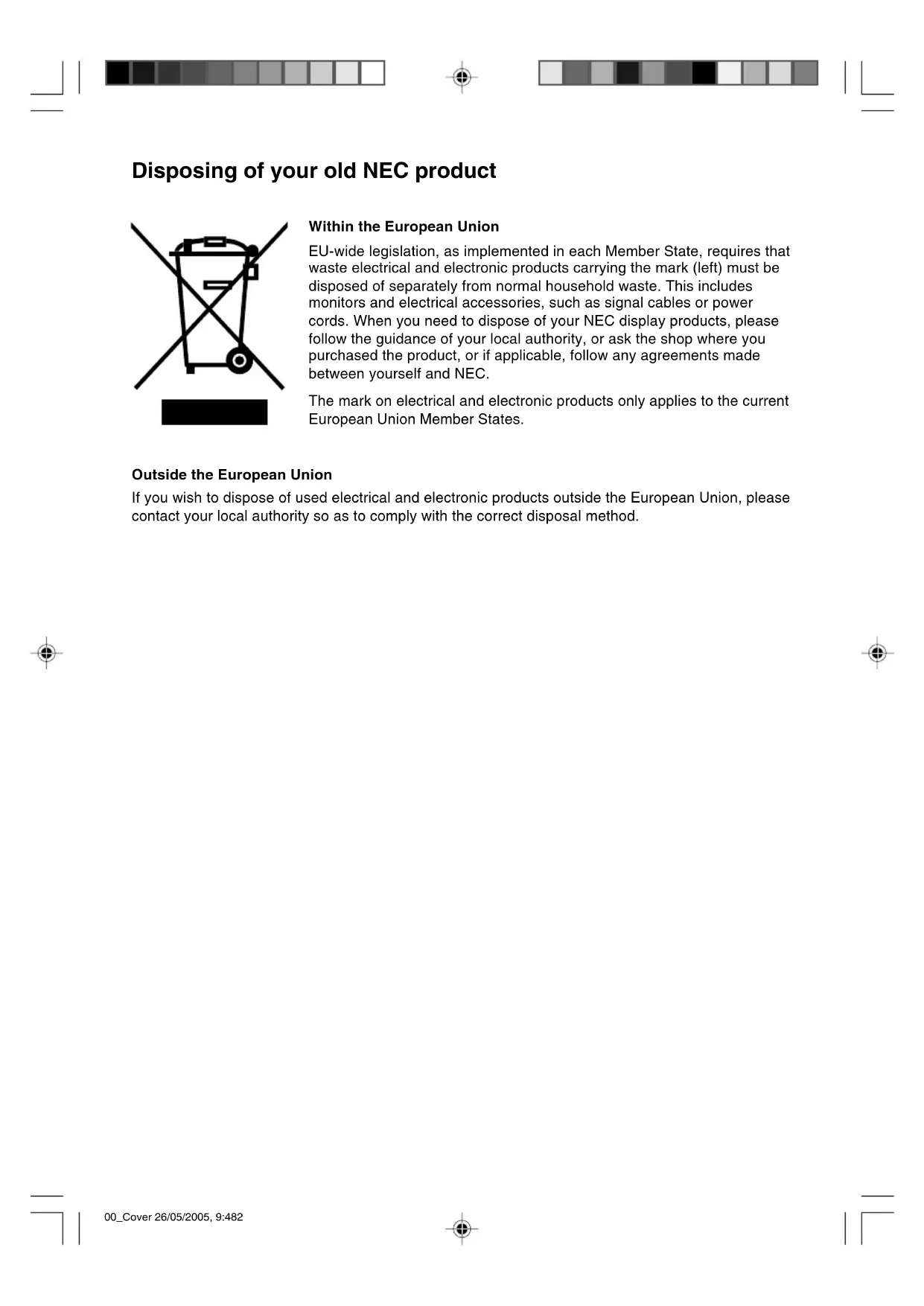
AccuSync LCD52VM AccuSync LCD72VM AccuSync LCD92VM User’s Manual Bedienerhandbuch Manual del usuario Manuel Utilisateur Manuale utente Руководство пользователя 00_Cover 26/05/2005, 9:481Disposing of your old NEC product Within the European Union EU-wide legislation, as implemented in each Member State, requires that waste electrical and electronic products carrying the mark (left) must be disposed of separately from normal household waste. This includes monitors and electrical accessories, such as signal cables or power cords. When you need to dispose of your NEC display products, please follow the guidance of your local authority, or ask the shop where you purchased the product, or if applicable, follow any agreements made between yourself and NEC. The mark on electrical and electronic products only applies to the current European Union Member States. Outside the European Union If you wish to dispose of used electrical and electronic products outside the European Union, please contact your local authority so as to comply with the correct disposal method. 00_Cover 26/05/2005, 9:482English-1 English Declaration of the Manufacturer We hereby certify that the colour monitor AccuSync LCD52VM(L154F0)/AccuSync LCD72VM (L174F1)/AccuSync LCD92VM(L194F2) are in compliance withCouncil Directive 73/23/EEC:– EN 60950-1Council Directive 89/336/EEC:– EN 55022– EN 61000-3-2– EN 61000-3-3– EN 55024RISK OF ELECTRIC SHOCK • DO NOT OPEN TO PREVENT FIRE OR SHOCK HAZARDS, DO NOT EXPOSE THIS UNIT TO RAIN OR MOISTURE. ALSO, DO NOT USE THIS UNIT’S POLARIZED PLUG WITH AN EXTENSION CORD RECEPTACLE OR OTHER OUTLETS UNLESS THE PRONGS CAN BE FULLY INSERTED.REFRAIN FROM OPENING THE CABINET AS THERE ARE HIGH VOLTAGE COMPONENTS INSIDE. REFER SERVICING TO QUALIFIEDSERVICE PERSONNEL. WARNING CAUTION: TO REDUCE THE RISK OF ELECTRIC SHOCK,DO NOT REMOVE COVER (OR BACK). NO USERSERVICEABLE PARTS INSIDE. REFER SERVICINGTO QUALIFIED SERVICE PERSONNEL.This symbol warns user that uninsulated voltagewithin the unit may have sufficient magnitude to causeelectric shock. Therefore, it is dangerous to make anykind of contact with any part inside this unit.This symbol alerts the user that important literatureconcerning the operation and maintenance of thisunit has been included. Therefore, it should be readcarefully in order to avoid any problems. CAUTION and marked withNEC Display Solutions, Ltd.4-13-23, Shibaura,Minato-KuTokyo 108-0023, Japan Contents Your new NEC AccuSync LCD monitor box* should contain thefollowing:• AccuSync LCD monitor with tilt base• Audio Cable• Power Cord• Video Signal Cable• User’s Manual• CD-ROM• Base Stand• Cable Holder
Remember to save your original box and packing material to transport or ship the monitor. User’sManualAudioCablePower Cord Video SignalCable Base StandAccuSync LCD monitor(base stand not connected)CD-ROM Quick Start To attach the Base to the LCD Stand:1. Insert the front of the LCD stand into the holes in the front of theBase (Figure S.1).2. Next, position the locking tabs on the back side of the LCD standwith the holes on the Base. Lower the Stand in place until lockingtabs are secure (Figure S.1).To attach the Cable Holder:1. Insert the tabs of Cable Holder into the hole of Stand neck (Figure S.1). NOTE: Please confirm that the tabs are completely secure.To attach the AccuSync LCD monitor to your system, follow theseinstructions:1. Turn off the power to your computer.
2. For the PC with Analog output: Connect the 15-pin mini D-SUB
signal cable to the connector of the display card in your system(Figure A.1). Tighten all screws.For the Mac: Connect the MultiSync Macintosh cable adapter (notincluded) to the computer. Attach the 15-pin mini D-SUB signal cable to the MultiSync Macintosh cable adapter (Figure A.2). Tighten all screws.NOTE: Some Macintosh systems do not require a Macintosh cableadapter.3. Connect the 15-pin mini D-SUB of the video signal cable andAudio Cable to the appropriate connector on the back of themonitor (Figure B.1). Connect the Headphone (not included) tothe appropriate connector at the front of the monitor (Figure C.1).4. Connect one end of the power cord to the monitor and the otherend to the power outlet. Place the Video Signal Cable and powercord to the Cable holder (Figure B.1).NOTE: Adjust position of cable that place under the Cable holder toavoid damage for cable or monitor.Figure S.1 Base Locking TabsStandFigure A.1 Figure A.2Macintosh CableAdapter (not included)Cable holderAUDIO INPUTInput (D-Sub)Connect to Computeraudio outputCable HolderFigure B.1Cable Holder 01_English 26/05/2005, 9:481English-2 English Headphone Figure C.1 Power Button Figure TS.1 Figure R.1 Non-abrasive surface Figure R.2 Figure R.3 4-SCREWS (M4)(MAX depth: 8.5 mm)If use otherscrew, checkdepth of hole.Weight of LCD assembly: 2.9 kg - LCD52VM (MAX)4.3 kg - LCD72VM (MAX)5.5 kg - LCD92VM (MAX) Specifications Replace screwsTighten all screws75 mm (LCD52VM)100 mm (LCD72VM/LCD92VM)Thicknessof Bracket (Arm)2.0 ~ 3.2 mm Controls OSM (On-Screen Manager) control buttons on the front of the monitor function as follows:
1. Basic function at pressing each key
Showing OSM. Shortcut to Bright adjust window. Button At No OSD showing Shortcut to Volume adjust window. At OSD showing (Icon selection stage) Go to Adjustment stage. Cursor goes to left. Cursor goes to right. At OSD showing (Adjustment stage) Go to Icon selection stage. Adjust value decrease or Cursor for adjust goes to left. Adjust value increase or Cursor for adjust goes to right. SELECT
“Auto adjust” operate. Reset operation. Mute off/on switch on Volume adjustment window. AUTO/RESET NOTE: Please refer to Caution section of this manual for proper selection of power cord.
5. Turn on the monitor with the front power button and the computer
settings upon initial setup for most timings. For further adjustments, use the following OSM controls:
- Auto Adjust Contrast
- Auto Adjust Refer to the Controls section of this User’s Manual for a full description of these OSM controls. NOTE: If you have any problem, please refer to the Troubleshooting section of this User’s Manual. Tilt Grasp both sides of the monitor screen with your hands and adjust the tilt as desired (Figure TS.1). Remove Monitor Stand for Mounting To prepare the monitor for alternative mounting purposes:
3. Remove the 4 screws connecting the monitor to the stand and
remove the stand as indicated (Figure R.2). The monitor is now ready for mounting in an alternative manner.
4. Connect the AC cord and signal cable to the back of the monitor
5. Reverse this process to re-attach stand.
NOTE: Use only VESA-compatible alternative mounting method. NOTE: Handle with care when removing monitor stand. Removing the Base NOTE: Always remove the Base when shipping the LCD.
1. Place monitor face down on a non-abrasive
bottom tabs upward to unlock.
3. Press the top tabs down to unlock and
pull off the stand. Connecting a Flexible Arm This LCD monitor is designed for use with a flexible arm. Please use the attached screws (4pcs) as shown in the picture when installing. To meet the safety requirements, the monitor must be mounted to an arm which guaranties the necessary stability under consideration of the weight of the monitor. The LCD monitor shall only be used with an approved arm (e.g. GS mark). 01_English 26/05/2005, 9:482English-3 English
Sub Menu (Icon Select) Press “–” or“+” Sub Menu (Adjust) Press “SELECT” key Press “–” or“+” Example Tool: Press “SELECT” key Press “SELECT” key VOLUME MUTE
Main Menu (Icon Select) Main Menu (Adjust) Press“SELECT” key Press“SELECT” key Press “SELECT” key Adjust by using “–” or “+” Adjust by using “–” or “+” AUDIO Audio volume icon is chosen, depending on the volume condition (AUTO/RESET). BRIGHTNESS Adjusts the overall image and background screen brightness. CONTRAST Adjusts the image brightness in relation to the background. AUTO CONTRAST Adjusts the image displayed for non-standard video inputs. AUTO ADJUST Automatically adjusts the Image Position, the H. Size and Fine setting. LEFT/RIGHT Controls Horizontal Image Position within the display area of the LCD. DOWN/UP Controls Vertical Image Position within the display area of the LCD. H. SIZE Adjusts the horizontal size by increasing or decreasing this setting. FINE Improves focus, clarity and image stability by increasing or decreasing this setting.
COLOUR CONTROL SYSTEMS
Four colour presets (9300/7500/6500/USER) select the desired colour setting. COLOUR RED Increase or decreases Red. The change will appear on screen. COLOUR GREEN Increase or decreases Green. The change will appear on screen. COLOUR BLUE Increase or decreases Blue. The change will appear on screen. TOOL Selecting TOOL allows you to get into the sub menu. FACTORY PRESET Selecting Factory Preset allows you to reset all OSM control settings back to the factory settings. The RESET button will need to be held down for several seconds to tage effect. Individual settings can be reset by highlighting the control to be reset and pressing the RESET button. EXIT Selecting EXIT allows you exit OSM menu/ sub menu. LANGUAGE OSM control menus are available in seven languages.
The OSM control menu will stay on as long as it is in use. In the OSM Turn OFF submenu, you can select how long the monitor waits after the last touch of a button to shut off the OSM control menu. The preset choices are 10 - 120 seconds by 5 seconds step.
This control completely locks out access to all OSM control functions without Brightness and Contrast. When attempting to activate OSM controls while in the Lock Out mode, a screen will appear indicating the OSM are locked out. To activate the OSM Lock Out function, press “AUTO/ RESET”, then “+” key and hold down simultaneously. To de-activate the OSM Lock Out, press “AUTO/ RESET”, then “+” key and hold down simultaneously. RESOLUTION NOTIFIER If ON is selected, a message will appear on the screen after 30 seconds, notifying you that the resolution is not at optimal resolution. MONITOR INFO Indicates the model and serial numbers of your monitor. OSM Warning OSM Warning menus disappear with Exit button. NO SIGNAL: This function gives a warning when there is no signal present. After power is turned on or when there is a change of input signal or video is inactive, the No Signal window will appear. RESOLUTION NOTIFIER: This function gives a warning of use with optimized resolution. After power is turned on or when there is a change of input signal or the video signal doesn’t have proper resolution, the Resolution Notifier window will open. This function can be disabled in the TOOL menu. OUT OF RANGE: This function gives a recommendation of the optimized resolution and refresh rate. After the power is turned on or there is a change of input signal or the video signal doesn’t have proper timing, the Out Of Range menu will appear.