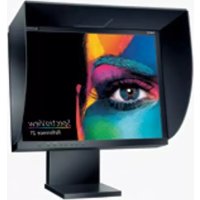
USER MANUAL SpectraView Reference 21 NEC
Canadian Department of Communications Compliance Statement
DOC: This Class B digital apparatus meets all requirements of the Canadian Interference-Causing Equipment Regulations.
C-UL: Bears the C-UL Mark and is in compliance with Canadian Safety Regulations according to CAN/CSA C22.2 No. 60950-1.
- Use the attached specified cables with the SpectraView LCD2180 WideGamut LED (L215GF) colour monitor so as not to interfere with radio and television reception.
(1) Please use the supplied power cord or equivalent to ensure FCC compliance.
(2) Please use the supplied shielded video signal cable, DVI-D to DVI-D cable.
Use of other cables and adapters may cause interference with radio and television reception.
-
This equipment has been tested and found to comply with the limits for a Class B digital device, pursuant to part 15 of the FCC Rules. These limits are designed to provide reasonable protection against harmful interference in a residential installation. This equipment generates, uses, and can radiate radio frequency energy, and, if not installed and used in accordance with the instructions, may cause harmful interference to radio communications. However, there is no guarantee that interference will not occur in a particular installation. If this equipment does cause harmful interference to radio or television reception, which can be determined by turning the equipment off and on, the user is encouraged to try to correct the interference by one or more of the following measures:
-
Reorient or relocate the receiving antenna.
- Increase the separation between the equipment and receiver.
- Connect the equipment into an outlet on a circuit different from that to which the receiver is connected.
- Consult your dealer or an experienced radio/TV technician for help.
If necessary, the user should contact the dealer or an experienced radio/television technician for additional suggestions. The user may find the following booklet, prepared by the Federal Communications Commission, helpful: "How to Identify and Resolve Radio-TV Interference Problems." This booklet is available from the U.S. Government Printing Office, Washington, D.C., 20402, Stock No. 004-000-00345-4.
This device complies with Part 15 of FCC Rules. Operation is subject to the following two conditions. (1) This device may not cause harmful interference, and (2) this device must accept any interference received, including interference that may cause undesired operation.
U.S. Responsible Party: NEC Display Solutions of America, Inc.
Address: 500 Park Blvd, Suite 1100
Itasca, Illinois 60143
Tel. No.: (630) 467-3000
Type of Product: Display Monitor
Equipment Classification: Class B Peripheral
Model: SpectraView LCD2180 WideGamut LED (L215GF)

We hereby declare that the equipment specified above conforms to the technical standards as specified in the FCC Rules.
NEC DISPLAY SOLUTIONS is strongly committed to environmental protection and sees recycling as one of the company's top priorities in trying to minimize the burden placed on the environment. We are engaged in developing environmentally-friendly products, and always strive to help define and comply with the latest independent standards from agencies such as ISO (International Organisation for Standardization).
For more information, and for help in recycling your old NEC monitors, please visit our website at
http://www.nec-display-solutions.com (in Europe) or
http://www.necdisplay.com (in USA).
Country-specific recycling programmes can also be found at:
Sweden - http://www.el-retur.se
Germany - http://www.recyclingpartner.de/
This monitor features an advanced energy saving capability. When a VESA Display Power Management Signaling (DPMS) Standard signal is sent to the monitor, the Energy Saving mode is activated. The monitor enters a single Energy Saving mode.
| Mode Power consumption LED colour | |
| Normal Operation Approx. 100W Green | |
| Energy Saving Mode Less than 7W Amber | |
| Off Mode Less than 0.1W Unlit | |
Disposing of your old NEC product
natural_image
Simple line drawing of a trash bin with crossed lines indicating no waste or prohibition (no text or symbols)
Within the European Union
EU-wide legislation, as implemented in each Member State, requires that waste electrical and electronic products carrying the mark (left) must be disposed of separately from normal household waste. This includes monitors and electrical accessories, such as signal cables or power cords. When you need to dispose of your NEC display products, please follow the guidance of your local authority, or ask the shop where you purchased the product, or if applicable, follow any agreements made between yourself and NEC.
The mark on electrical and electronic products only applies to the current European Union Member States.
Outside the European Union
If you wish to dispose of used electrical and electronic products outside the European Union, please contact your local authority so as to comply with the correct disposal method.
Index
Warning, Caution ...... English-1
Declaration ...... English-1
Contents ...... English-2
Quick Start ...... English-3
Controls ...... English-5
Recommended use ...... English-7
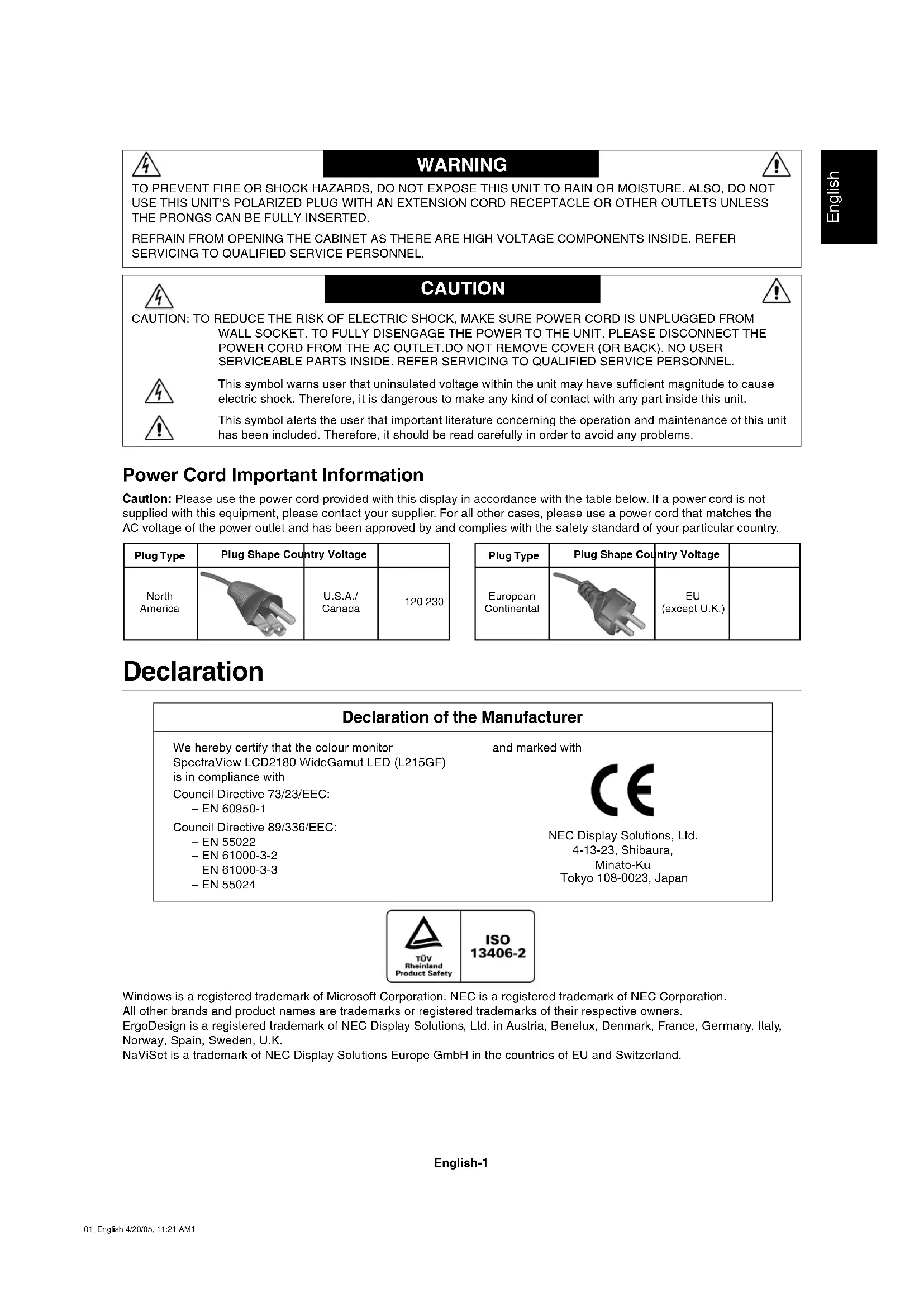
TO PREVENT FIRE OR SHOCK HAZARDS, DO NOT EXPOSE THIS UNIT TO RAIN OR MOISTURE. ALSO, DO NOT USE THIS UNIT'S POLARIZED PLUG WITH AN EXTENSION CORD RECEPTACLE OR OTHER OUTLETS UNLESS THE PRONGS CAN BE FULLY INSERTED.
REFRAIN FROM OPENING THE CABINET AS THERE ARE HIGH VOLTAGE COMPONENTS INSIDE. REFER SERVICING TO QUALIFIED SERVICE PERSONNEL.

CAUTION

CAUTION: TO REDUCE THE RISK OF ELECTRIC SHOCK, MAKE SURE POWER CORD IS UNPLUGGED FROM WALL SOCKET. TO FULLY DISENGAGE THE POWER TO THE UNIT, PLEASE DISCONNECT THE POWER CORD FROM THE AC OUTLET.DO NOT REMOVE COVER (OR BACK). NO USER SERVICEABLE PARTS INSIDE. REFER SERVICING TO QUALIFIED SERVICE PERSONNEL.

This symbol warns user that uninsulated voltage within the unit may have sufficient magnitude to cause electric shock. Therefore, it is dangerous to make any kind of contact with any part inside this unit.

This symbol alerts the user that important literature concerning the operation and maintenance of this unit has been included. Therefore, it should be read carefully in order to avoid any problems.
Caution: Please use the power cord provided with this display in accordance with the table below. If a power cord is not supplied with this equipment, please contact your supplier. For all other cases, please use a power cord that matches the AC voltage of the power outlet and has been approved by and complies with the safety standard of your particular country.
| Plug Type | Plug Shape Country Voltage | |
| North America | | U.S.A./Canada 120 230 |
| Plug Type | Plug Shape Country Voltage | |
| European Continental | | EU(except U.K.) |
Declaration
Declaration of the Manufacturer
We hereby certify that the colour monitor
SpectraView LCD2180 WideGamut LED (L215GF)
is in compliance with
Council Directive 73/23/EEC:
- EN 60950-1
Council Directive 89/336/EEC:
- EN 55022
- EN 61000-3-2
- EN 61000-3-3
-EN55024
and marked with

NEC Display Solutions, Ltd.
4-13-23, Shibaura,
Minato-Ku
Tokyo 108-0023, Japan

TÜV
Rheinland Product Safe
Product Safety
ISO
13406-2
Windows is a registered trademark of Microsoft Corporation. NEC is a registered trademark of NEC Corporation.
All other brands and product names are trademarks or registered trademarks of their respective owners.
ErgoDesign is a registered trademark of NEC Display Solutions, Ltd. in Austria, Benelux, Denmark, France, Germany, Italy, Norway, Spain, Sweden, U.K.
NaViSet is a trademark of NEC Display Solutions Europe GmbH in the countries of EU and Switzerland.
Contents
Your new NEC LCD monitor box* should contain the following:
- SpectraView LCD2180 WideGamut LED monitor with tilt stand
• Power Cord (North America and European Continental)
• Video Signal Cable (DVI-D to DVI-D cable)
- User's Manual
- CD-ROM
- Cable Cover
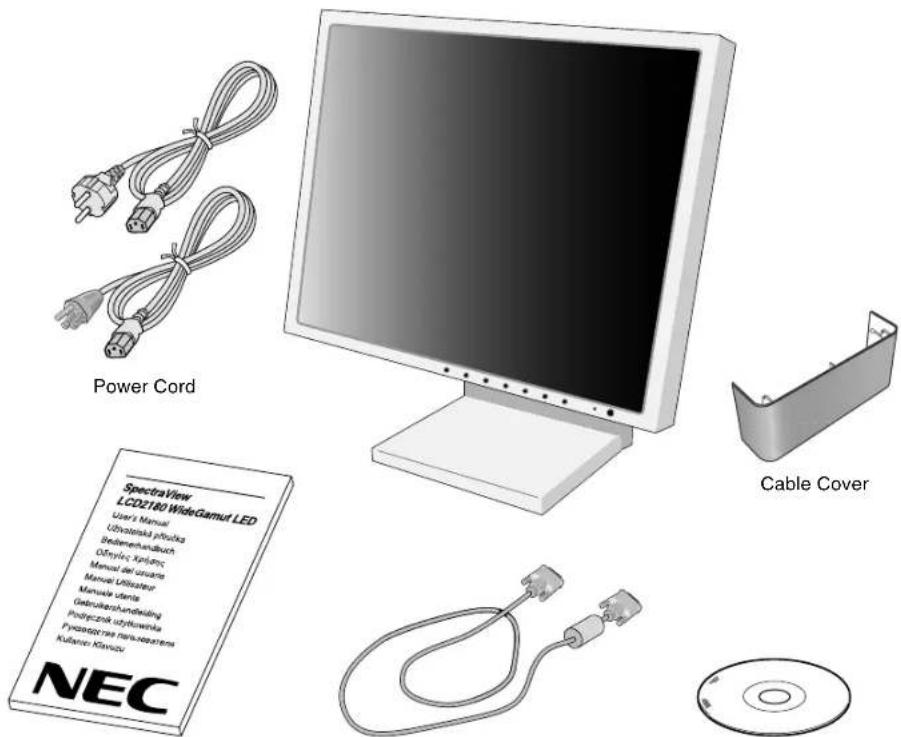
User's Manual DVI-D to DVI-D cable CD-ROM
* Remember to save your original box and packing material to transport or ship the monitor.
Quick Start
To attach the LCD monitor to your system, follow these instructions:
- Turn off the power to your computer.
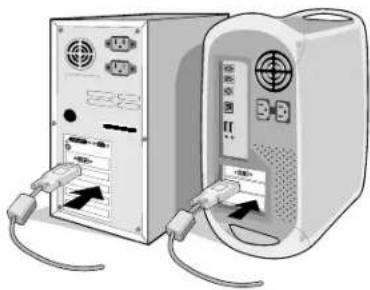
- Connect the DVI signal cable to the connector of the display card in your system (Figure A.1). Tighten all screws.
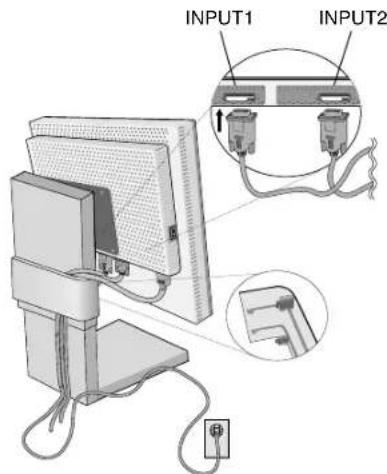
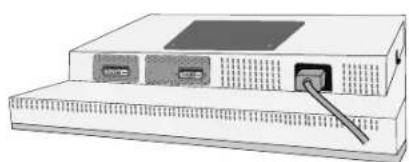
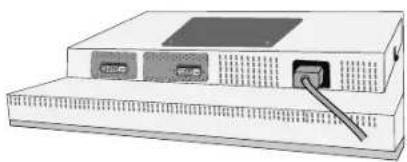
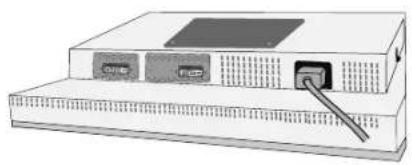
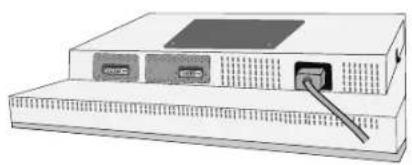
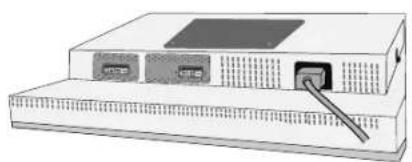
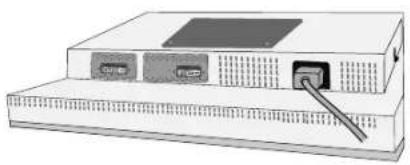
- Connect the DVI signal cable to the connector on the back of the monitor (Figure C.1).
NOTE: Incorrect cable connections may cause irregular operation, damage to the display and LCD module components and may shorten the lifespan of the module.
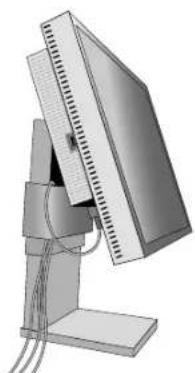
Collect cables and keep them in the stand with attached cable cover. The cable cover can be attached on the front or back side of Tilt Stand (Figure C.1, C.2). Please check Tilt when you manage cables.
- Connect one end of the power cord to the AC inlet on the back of the monitor and the other end to the power outlet (Figure C.1).
natural_image
Two electronic devices with attached cables and ports, no visible text or symbols
Figure A.1
NOTE: Please refer to Caution section (Power Cord Important Information) of this manual for proper selection of AC power cord.
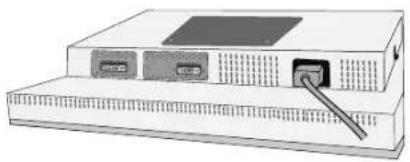
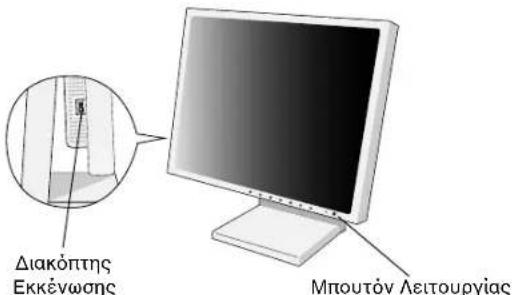
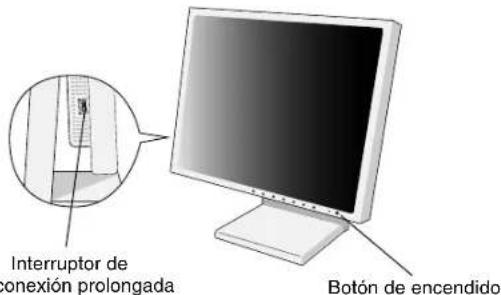
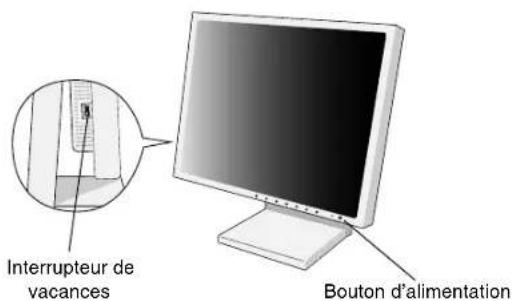
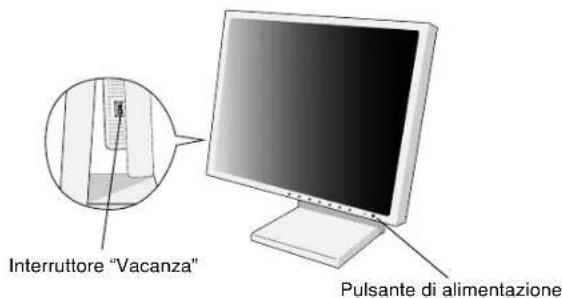
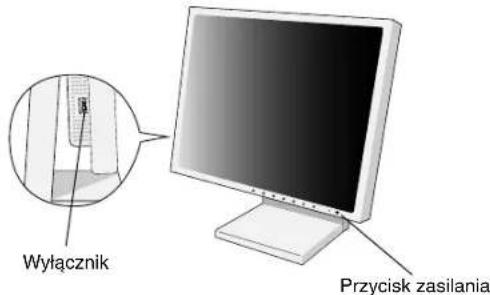
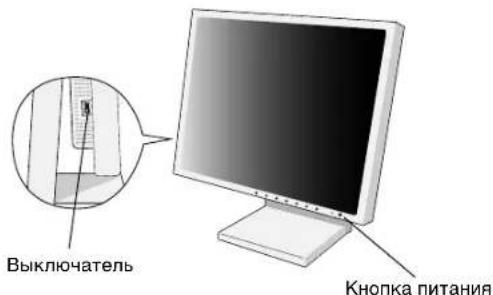
5. The Vacation Switch on the left side of the monitor must be turned on. Turn on the monitor with the front power button (Figure D.1) and the computer.
NOTE: The Vacation Switch is a true on/off switch. If this switch is on the OFF position, the monitor cannot be turned on using the front button. DO NOT switch on/off repeatedly.
NOTE: If you have any problems, please refer to the Troubleshooting section of this User's Manual.
natural_image
3D rendering of a computer monitor with a stand and cable, no visible text or symbols
Figure C.2
Figure C.1
natural_image
Illustration of a desktop computer tower with an attached cable (no text or symbols visible)
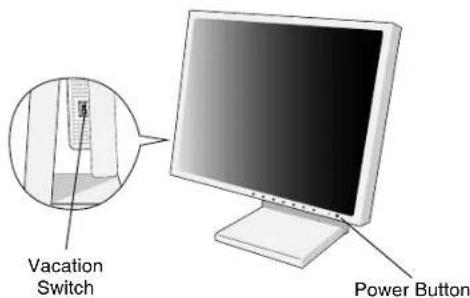
Figure D.1
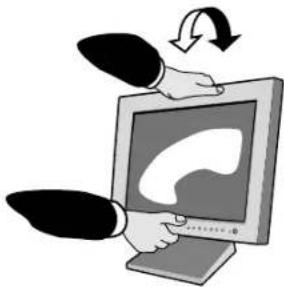
Tilt
Grasp top and bottom sides of the monitor screen with your hands and adjust the tilt as desired (Figure TS.1).
natural_image
Illustration of hands interacting with a computer monitor displaying a stylized white graphic (no text or symbols)
Figure TS.1
NOTE: Handle with care when tilting the monitor screen.
Remove Monitor Stand for Mounting
To prepare the monitor for alternate mounting purposes:
- Disconnect all cables.
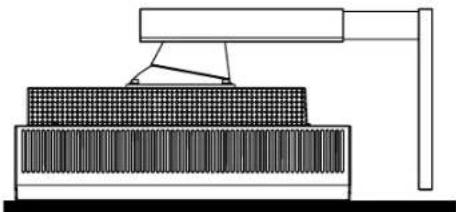
- Place monitor face down on a non-abrasive surface (Figure S.1).
natural_image
Diagram of a mechanical or structural assembly with layered components and directional arrows (no text or symbols)
Figure S.1
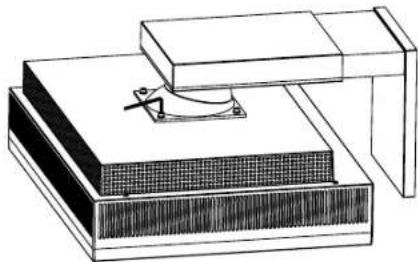
- Remove the four screws connecting the monitor to the stand using the Hexagon Socket Screw keys (Figure S.2). Lift the stand of the monitor. The monitor is now ready for mounting in an alternate manner.
- Reverse this process to reattach stand: tighten the four screws.
NOTE: Use only VESA-compatible alternative mounting method (100 mm pitch).
NOTE: Handle with care when removing monitor stand.
natural_image
Technical line drawing of a mechanical assembly with layered components and a central component (no text or symbols)
Figure S.2
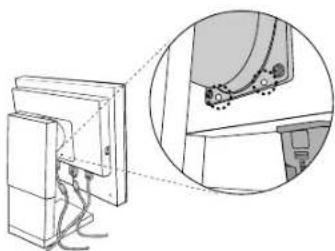
NOTE: When using the original stand, be sure the two round indents are at the bottom of the screen (Figure S.3).
Caution: Use the original screws (4 pcs) when mounting to avoid damage to the monitor and stand. To fulfil the safety requirements the monitor must be mounted to an arm which guarantees the necessary stability under consideration of the weight of the monitor. The LCD monitor should only be used with an approved arm (e.g. GS mark).
Caution: This monitor does not support the portrait mode. The brightness become dark when using portrait mode to avoid damage when internal display temperature exceed the limited temperature.
natural_image
Technical line drawing of a mechanical assembly with an inset close-up showing a component detail (no text or symbols)
Figure S.3
To access OSM menu, press any of the control buttons (EXIT, ◀, ▶, −, +). To change signal input, press the SELECT button.
NOTE: OSM must be closed in order to change signal input.
EXIT
Exits the OSM controls.
Exits to the OSM main menu.
CONTROL
Moves the highlighted area left/right to select control menus.
Moves the highlighted area up/down to select one of the controls.
ADJUST - / +
Moves the bar left/right to increase or decrease the adjustment.
SELECT
Active Auto Adjust function. Enter the OSM controls. Enter the OSM sub menu.
RESET
Resets the highlighted control menu to the factory setting.
NOTE: When RESET is pressed in the main and sub-menu, a warning window will appear allowing you to cancel the RESET function by pressing the EXIT button.
NOTE: The OSD icon of "Brightness" and "Colour Control" may cause blinking if the colour feedback control system is under operation. It means that if the icon is blinking, then the colour of screen has not stabilized to target colour. When you change the "Brightness", "Colour Control" settings, the OSD causes blinking until colour is settled to target. And you see the same operation after every power on. Please wait until it stops the blinking.

Brightness Controls

BRIGHTNESS
Adjusts the overall image and background screen brightness.
Image Controls

LEFT / RIGHT
Controls Horizontal Image Position within the display area of the LCD.

DOWN / UP
Controls Vertical Image Position within the display area of the LCD.
RGB Colour Control Systems
Colour Control Systems: Five colour temperature presets, in addition to sRGB, AdobeRGB and PROGRAMMABLE.
R,Y,G,C,B,M: Increases or decreases the Red, Yellow, Green, Cyan, Blue or Magenta colour Saturation and Hue depending upon which is selected. The colour change will appear on screen in the corresponding colours of the displayed image.
sRGB: sRGB mode provides a standard colour space that is compatible with conventional display monitors.
AdobeRGB: Provides a standard colour space used in high-end graphics applications including Digital Still Camera and imaging, provides the highest level of colour matching to other output devices.
PROGRAMMABLE: Selects the colour settings that have been configured by an optional colour calibration software system.


VIDEO DETECT: Selects the method of video detection when more than one computer is connected.
FIRST DETECT: The video input has to be switched to "FIRST DETECT" mode. When current video input signal is not present, then the monitor searches for a video signal from the other video input port. If the video signal is present in the other port, then the monitor switches the video source input port to the new found video source automatically. The monitor will not look for other video signals while the current video source is present.
LAST DETECT: The video input has to be switched to the "LAST DETECT" mode. When the monitor is displaying a signal from the current source and a new secondary source is supplied to the monitor, then the monitor will automatically switch to the new video source. When current video input signal is not present, then the monitor searches for a video signal from the other video input port. If the video signal is present in the other port, then the monitor switches the video source input port to the new found video source automatically.
NONE: The Monitor will not search the other video input port unless the monitor is turned on.

OFF TIMER: Monitor will automatically power-down when the end user has selected a pre-determined amount of time.


LANGUAGE: OSM control menus are available in seven languages.

OSM LEFT/RIGHT: You can choose where you would like the OSM control image to appear on your screen. Selecting OSM Location allows you to manually adjust the position of the OSM control menu left or right.

OSM DOWN/UP: You can choose where you would like the OSM control image to appear on your screen. Selecting OSM Location allows you to manually adjust the position of the OSM control menu down or up.

OSM TURN OFF: The OSM control menu will stay on as long as it is use. In the OSM Turn Off submenu, you can select how long the monitor waits after the last touch of a button to shut off the OSM control menu. The preset choices are 10-120 seconds by 5 seconds step.

OSM LOCK OUT: This control completely locks out access to all OSM control functions. When attempting to activate OSM controls while in the Lock Out mode, a screen will appear indicating the OSM controls are locked out. There are two types of OSM LOCK OUT:
OSM LOCK OUT with BRIGHTNESS control: To activate the OSM Lock Out function, press SELECT, then "+" key and hold down simultaneously. To deactivate the OSM Lock Out, press SELECT, then "+" key and hold down simultaneously. BRIGHTNESS can be adjusted while in the lock out mode.
OSM LOCK OUT with no control: To activate the OSM Lock Out function, press SELECT, then “>” key and hold down simultaneously. To deactivate the OSM Lock Out, press SELECT, then “>” key and hold down simultaneously. No controls can be adjusted while in the lock out mode.

RESOLUTION NOTIFIER: This optimal resolution is 1600 x 1200. If ON is selected, a message will appear on the screen after 30 seconds, notifying you if the resolution is not at 1600 x 1200.

HOT KEY: You can adjust the brightness directly. When this function is set to ON, you can adjust the brightness with ◀ or ▶ while the OSM menu is off. The standard OSM can be accessed with the EXIT button.

FACTORY PRESET: Selecting Factory Preset allows you to reset all OSM control settings (BRIGHTNESS, IMAGE CONTROL, COLOUR CONTROL SYSTEM, OFF TIMER, OSM LEFT/RIGHT, OSM DOWN/UP, OSM TURN OFF, DISPLAY MODE) back to the factory settings. Individual settings can be reset by highlighting the control to be reset and pressing the RESET button.

MODE
DISPLAY MODE: Provides information about the current resolution display and technical data including the preset timing being used and the horizontal and vertical frequencies. Increases or decreases the current resolution.

MONITOR INFO.: Indicates the model and serial numbers of your monitor.
OSM Warning
OSM Warning menus disappear with Exit button.
NO SIGNAL: This function gives a warning when there is no Horizontal or Vertical Sync. After power is turned on or when there is a change of input signal, the No Signal window will appear.
RESOLUTION NOTIFIER: This function gives a warning if the optimized resolution is not used. After power is turned on or when there is a change of input signal or the video signal doesn't have proper resolution, the Resolution Notifier window will open. This function can be disabled in the TOOL menu.
OUT OF RANGE: This function gives a recommendation of the optimized resolution and refresh rate. After the power is turned on or there is a change of input signal or the video signal doesn't have proper timing, the Out Of Range menu will appear.
For advanced user menu see "Appendix".
Safety Precautions and Maintenance


- DO NOT OPEN THE MONITOR. There are no user serviceable parts inside and opening or removing covers may expose you to dangerous shock hazards or other risks. Refer all servicing to qualified service personnel.
- Do not spill any liquids into the cabinet or use your monitor near water.
- Do not insert objects of any kind into the cabinet slots, as they may touch dangerous voltage points, which can be harmful or fatal or may cause electric shock, fire or equipment failure.
- Do not place any heavy objects on the power cord. Damage to the cord may cause shock or fire.
- Do not place this product on a sloping or unstable cart, stand or table, as the monitor may fall, causing serious damage to the monitor.
- Do not place any objects onto the monitor and do not use the monitor outdoors.
Immediately unplug your monitor from the wall outlet and refer servicing to qualified service personnel under the following conditions:
- When the power supply cord or plug is damaged.
- If liquid has been spilled, or objects have fallen into the monitor.
- If the monitor has been exposed to rain or water.
- If the monitor has been dropped or the cabinet damaged.
- If the monitor does not operate normally by following operating instructions.
- Do not bend power cord.
- Do not use monitor in hot, humid, dusty, or oily areas.
- If glass is broken, handle with care.
- Do not cover vent on monitor.
- If monitor or glass is broken, do not come in contact with the liquid crystal. Handle with care.

- Allow adequate ventilation around the monitor so that heat can properly dissipate. Do not block ventilated openings or place the monitor near a radiator or near other heat sources. Do not put anything on top of monitor.
- The power cable connector is the primary means of detaching the system from the power supply. The monitor should be installed close to a power outlet which is easily accessible.
- Handle with care when transporting. Save packaging for transporting.
- Image Persistence: Image persistence is when a residual or "ghost" image of a previous image remains visible on the screen. Unlike CRT monitors, LCD monitors' image persistence is not permanent, but constant images being displayed for a long period of time should be avoided.
To alleviate image persistence, turn off the monitor for as long as the previous image was displayed. For example, if an image was on the monitor for one hour and a residual image remains, the monitor should be turned off for one hour to erase the image.
NOTE: As with all personal display devices, NEC DISPLAY SOLUTIONS recommends using a moving screen saver at regular intervals whenever the screen is idle or turning off the monitor when not in use.

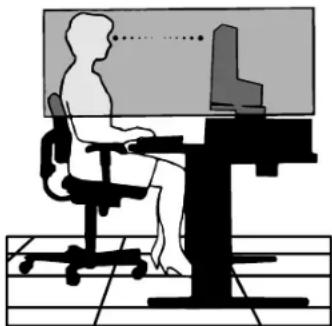
CORRECT PLACEMENT AND ADJUSTMENT OF THE MONITOR CAN REDUCE EYE, SHOULDER AND NECK FATIGUE. CHECK THE FOLLOWING WHEN YOU POSITION THE MONITOR:

- Adjust the monitor height so that the top of the screen is at or slightly below eye level. Your eyes should look slightly downward when viewing the middle of the screen.
- Position your monitor no closer than 40 cm and no further away than 70 cm from your eyes. The optimal distance is 50 cm.
- Rest your eyes periodically by focusing on an object at least 20 feet away. Blink often.
- Position the monitor at a 90° angle to windows and other light sources to minimize glare and reflections. Adjust the monitor tilt so that ceiling lights do not reflect on your screen.
• If reflected light makes it hard for you to see your screen, use an anti-glare filter.
- Clean the LCD monitor surface with a lint-free, non-abrasive cloth. Case of persistent dirt, wipe with cloth permeated by water, ethanol, isopropyl-alcohol completely. Avoid using any cleaning solution or glass cleaner (ex Acid, Alkali and Acetone).
- Adjust the monitor's brightness control to enhance readability.
- Use a document holder placed close to the screen.
- Position whatever you are looking at most of the time (the screen or reference material) directly in front of you to minimize turning your head while you are typing.
- Avoid displaying fixed patterns on the monitor for long periods of time to avoid image persistence (after-image effects).
- Get regular eye checkups.
natural_image
Silhouette of a person sitting at a desk with a computer, no text or symbols visible
Ergonomics
To realize the maximum ergonomics benefits, we recommend the following:
- Adjust the Brightness until the background raster disappears.
- Use the preset Size and Position controls with standard signals.
- Use non-interlaced signals with a vertical refresh rate more than 60 Hz.
- Do not use primary colour blue on a dark background, as it is difficult to see and may produce eye fatigue due to insufficient contrast.
Cleaning the LCD Panel
Recommended cleaning of the LCD:
• To remove dust and dirt from the surface of the LCD panel, wipe gently with a soft cloth.
- Do not rub the LCD panel with rough material.
- Do not press on the surface of the LCD panel.
To avoid scratches
- Do not touch LCD panel with hard objects.
- Use only a soft cloth for cleaning the surface of the LCD panel.
To avoid stains
- Clean fingerprints, water drips, chemical spills and etc. from the LCD panel immediately or discoloration and spot will occur.
- If the LCD panel is rubbed with too much force, cracking may occur, which will lead to abnormalities in the display.
To avoid breakage or screen trouble
- Do not push hard on the LCD panel surface.
- Do not set heavy objects on the LCD panel surface.
- Do not leave the LCD panel under constant pressure.
Cleaning the Cabinet
- Unplug the power supply.
- Use a soft cloth.
- Dampen the cloth with a mild detergent mixed with water, wipe the cabinet and dry with a soft cloth.
NOTE: Many plastics are used on the cabinet surface. DO NOT clean with benzene, alkaline detergent, alcoholic system detergent, glass cleaner, wax, polish cleaner, soap powder or insecticide. Do not touch the cabinet with rubber or vinyl for a prolonged period. These types of fluids and fabrics can cause the paint to deteriorate, crack or peel.

VAROVÁNÍ

CHRAŃTE ZAŘÍZENÍ PŘED DEŠTĚM A VLHKEM. ZABRÁNÍTE TAK NEBEZPEČÍ POŽÁRU NEBO ÚRAZU ELEKTRICKÝM PROUDEM. POLARIZOVANOU ZÁSTRČKU JEDNOTKY NEPOUŽÍVEJTE VE SPOJENÍ SE ZÁSUVKOU PRODLUŽOVACÍ ŠNŮRY NEBO JINÝMI ZÁSUVKAMI, POKUD KOLÍKY NELZE ZCELA ZASUNOUT.
UVNITŘ ZAŘÍZENÍ SE NACHÁZÍ VYSOKONAPĚTOVÉ KOMPONENTY, PROTO SKŘÍŇ NEOTEVÍREJTE. SERVIS SVĚRTE KVALIFIKOVANÉ OSOBĚ.

UPOZORNĚNÍ

UPOZORNĚNÍ: PRO SNÍŽENÍ RIZIKA ÚRAZU ELEKTRICKÝM PROUDEM ZKONTROLUJTE, ZDA JE NAPÁJECÍ ŠNŮRA ODPOJENA ZE ZÁSUVKY. PRO ÚPLNÉ ODPOJENÍ ZDROJE NAPÁJENÍ OD JEDNOTKY ODPOJTE NAPÁJECÍ ŠNŮRU Z ELEKTRICKÉ ZÁSUVKY (NEOSTRAŇUJTE KRYT). UVNITŘ SE NENACHÁZEJÍ DÍLY, DO KTERÝCH UŽIVATEL MŮŽE ZASAHOVAT. SERVIS SVĚRTE KVALIFIKOVANÉ OSOBĚ.

NEC Display Solutions, Ltd.
4-13-23, Shibaura,
Minato-Ku
Tokyo 108-0023, Japan

TÜV
Rheinland Product Safety
ISO
13406-2
natural_image
Illustration of hands interacting with a computer monitor displaying a stylized white graphic (no text or symbols)
Obrázek TS.1
natural_image
Diagram of a mechanical or structural assembly with layered components and a vertical support (no text or symbols)
Obrázek S.1
natural_image
Technical line drawing of a layered mechanical or architectural component with no visible text or symbols
Obrázek S.2
natural_image
Technical line drawing of a mechanical assembly with an inset close-up showing a component detail (no text or symbols)
Obrázek S.3
natural_image
Silhouette of a person sitting at a desk with a computer, no text or symbols visible

WARNUNG

NEC Display Solutions, Ltd.
4-13-23, Shibaura,
Minato-Ku
Tokyo 108-0023, Japan

TÜV
Rheinland Product Safety
ISO
13406-2
natural_image
Two electronic devices with attached cables and ports, no visible text or symbols
Abbildung A.1
natural_image
Illustration of a computer monitor with a stand and cables, no text or symbols present
Abbildung C.2
natural_image
Illustration of a computer tower with an attached cable and drive port (no text or symbols)
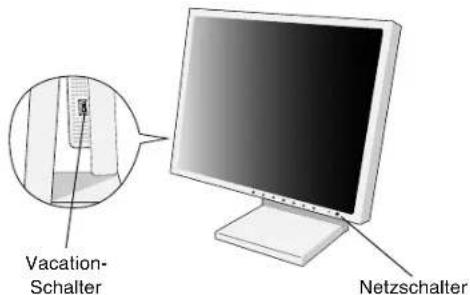
Abbildung D.1
Neigen
natural_image
Illustration of hands interacting with a computer monitor displaying a stylized white graphic (no text or symbols)
Abbildung TS.1
natural_image
Diagram of a mechanical or structural assembly with layered components and directional arrows (no text or symbols)
Abbildung S.1
natural_image
Technical line drawing of a layered mechanical or architectural component with no visible text or symbols
Abbildung S.2
natural_image
Technical line drawing of a mechanical assembly with an inset close-up showing a component detail (no text or symbols)
natural_image
Silhouette of a person sitting at a desk with a computer, no text or symbols visible
Ergonomie
NEC Display Solutions, Ltd.
4-13-23, Shibaura,
Minato-Ku
natural_image
Two computer units with attached cables and connectors, no visible text or symbols
Σχήμα Α.1
natural_image
Illustration of a computer monitor with a stand and cables, no text or symbols present
Σχήμα Γ.2
Σχήμα Γ.1
natural_image
Illustration of a computer interface with a USB port and cable connector (no text or symbols)
natural_image
Illustration of hands interacting with a computer monitor displaying a stylized white graphic (no text or symbols)
Σχήμα ΤΣ.1
natural_image
Diagram of a mechanical or structural assembly with layered components and a suspended beam (no text or symbols)
Σχήμα Σ.1
natural_image
Technical line drawing of a layered mechanical or electronic assembly with no visible text or symbols
Σχήμα Σ.2
natural_image
Technical line drawing of a mechanical assembly with an inset showing a close-up view of a component (no text or symbols present)
Σχήμα Σ.3
natural_image
Silhouette of a person sitting at a desk with a computer, no text or symbols visible
Εργονομία
natural_image
Two electronic devices with attached cables, one front-mounted and one side-mounted, shown from different angles (no visible text or symbols)
Figura A.1
natural_image
3D rendering of a computer monitor with a stand and cables, no visible text or symbols
Figura C.2

natural_image
Illustration of a desktop computer with an open port and cable (no text or symbols visible)
natural_image
Illustration of hands interacting with a computer monitor displaying a stylized white graphic (no text or symbols)
Figura TS.1
natural_image
Diagram of a mechanical or structural assembly with layered components and directional arrows (no text or symbols)
Figura S.1
natural_image
Technical line drawing of a mechanical assembly with layered components and a central component (no text or symbols)
Figura S.2
natural_image
Technical line drawing of a mechanical assembly with an inset close-up showing a component detail (no text or symbols)
Figura S.3
Español-4
natural_image
Silhouette of a person sitting at a desk with a computer, no text or symbols visible
Ergonomía
NEC Display Solutions, Ltd.
4-13-23, Shibaura,
Minato-Ku
Tokyo 108-0023, Japon

TÜV
Rheinland Product Safety
ISO
13406-2
natural_image
Two electronic devices with attached cables and ports, no visible text or symbols
Figure A.1
natural_image
3D illustration of a computer monitor with stand and cables (no text or symbols)
Figure C.2
natural_image
Illustration of a computer monitor with a cable inserted, showing ports labeled 'CPU' and 'FSP' (no text or symbols beyond labels)
natural_image
Illustration of two hands holding a computer monitor with a curved white shape on screen, no text or symbols present.
Figure TS.1
natural_image
Diagram of a mechanical or structural assembly with layered components and a suspended platform (no text or symbols)
Figure S.1
natural_image
Technical line drawing of a mechanical assembly with layered components (no text or symbols)
Figure S.2
natural_image
Technical line drawing of a mechanical assembly with a magnified inset showing internal components (no text or symbols)
natural_image
Silhouette of a person sitting at a desk with a computer, no text or symbols present
Ergonomie
NEC Display Solutions, Ltd.
4-13-23, Shibaura,
Minato-Ku
natural_image
Two electronic devices with attached cables, one front-mounted and one side-mounted, shown from different angles (no visible text or symbols)
Figura A.1
natural_image
3D rendering of a computer monitor with stand and cables (no text or symbols visible)
Figura C.2
Figura C.1
natural_image
Illustration of a computer monitor with ports and a cable inserted (no text or symbols)
natural_image
Illustration of two hands holding a computer monitor with a curved white shape on screen, no text or symbols present.
Figura TS.1
natural_image
Diagram of a mechanical or structural assembly with layered components and a suspended beam (no text or symbols)
Figura S.1
natural_image
Technical line drawing of a mechanical assembly with layered components (no text or symbols)
Figura S.2
natural_image
Technical line drawing of a mechanical assembly with a magnified inset showing internal components (no text or symbols)
Figura S.3
Italiano-4
natural_image
Silhouette of a person sitting at a desk with a computer, no text or symbols visible
Ergonomia
in overeenstemming is met
NEC Display Solutions, Ltd.
4-13-23, Shibaura,
Minato-Ku
Tokyo 108-0023, Japan

TÜV
Rheinland Product Safety
ISO
13406-2
natural_image
Two electronic devices with attached cables, one connected to a wall-mounted interface (no visible text or symbols)
Illustratie A.1
natural_image
Illustration of a computer monitor with cables, no text or symbols present
Illustratie C.2
natural_image
Illustration of a computer monitor with an attached cable (no text or symbols visible)
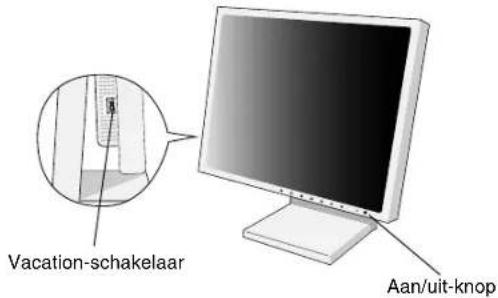
Illustratie D.1
Kantelen
natural_image
Illustration of two hands holding a computer monitor with a curved white shape on screen, no text or symbols present.
Illustratie TS.1
natural_image
Diagram of a mechanical or structural assembly with layered components and directional arrows (no text or symbols)
Illustratie S.1
natural_image
Technical line drawing of a mechanical assembly with layered components (no text or symbols)
Illustratie S.2
natural_image
Technical line drawing of a mechanical assembly with a magnified inset showing internal components (no text or symbols)
natural_image
Silhouette of a person sitting at a desk using a computer, with no visible text or symbols
Ergonomie
NEC Display Solutions, Ltd.
4-13-23, Shibaura,
Minato-Ku
Tokyo 108-0023, Japonia

TÜV
Rheinland Product Safety
ISO
13406-2
natural_image
3D rendering of a computer monitor with cables and stand (no text or symbols visible)
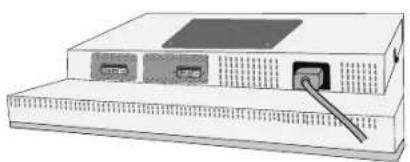
Rysunek C.2
Rysunek C.1
natural_image
Illustration of a computer monitor with ports and a cable inserted (no text or symbols)
natural_image
Illustration of hands holding a computer monitor with a curved interface, no text or symbols present
Rysunek TS.1
natural_image
Diagram of a mechanical or structural assembly with layered components and a support structure (no text or symbols)
Rysunek S.1
natural_image
Technical line drawing of a layered mechanical or architectural component with no visible text or symbols
Rysunek S.2
natural_image
Diagram showing cable routing between two panels with a magnified inset highlighting the detail of the cable (no text or symbols present)
Rysunek S.3
DOWN/UP (POZYCJA PIONOWA)
natural_image
Silhouette of a person sitting at a desk with a computer, no text or symbols visible
Ergonomia
NEC Display Solutions, Ltd.
4-13-23, Shibaura,
Minato-Ku
Tokyo 108-0023, Japan

BZ 02

ISO
13406-2
Rheinland Product Safety
natural_image
Two electronic devices with attached cables and ports, no visible text or symbols
Рисунок А.1
natural_image
3D rendering of a computer monitor with a stand and cable, no visible text or symbols
Рисунок С.2
natural_image
Illustration of a desktop computer with a cable inserted into the front panel (no text or symbols visible)
natural_image
Illustration of hands holding a computer monitor with a curved white graphic on screen, no text or symbols present
Рисунок TS.1
natural_image
Diagram of a mechanical or structural assembly with layered components and directional arrows (no text or symbols)
Рисунок S.1
natural_image
Technical line drawing of a mechanical assembly with layered components (no text or symbols)
Рисунок S.2
natural_image
Technical line drawing of a mechanical assembly with an inset close-up showing internal components (no text or symbols)
Рисунок S.3
ПРИМЕЧАНИЕ. OSM must be closed in order to change signal input.
Меню
natural_image
Silhouette of a person sitting at a desk using a computer, no text or symbols visible
NEC Display Solutions, Ltd.
4-13-23, Shibaura,
Minato-Ku
Tokyo 108-0023, Japonya

TÜV
Rheinland Product Safe
Product Safety
ISO
13406-2
natural_image
Two computer units connected by cable, one with ports and cables, the other with a display (no visible text or symbols)
Şekil A.1
natural_image
Illustration of hands holding a computer monitor with a curved white graphic on screen, no text or symbols present
Şekil TS.1
natural_image
Diagram of a mechanical or structural assembly with layered components and a suspended beam (no text or symbols)
Şekil S.1
natural_image
Technical line drawing of a layered mechanical or architectural assembly with no visible text or symbols
Şekil S.2
natural_image
Technical line drawing of a mechanical assembly with an inset close-up showing a component detail (no text or symbols)
Şekil S.3
natural_image
Silhouette of a person sitting at a desk with a computer, no text or symbols present
Ergonomi