MultiSync LCD1530V - Monitor NEC - Free user manual and instructions
Find the device manual for free MultiSync LCD1530V NEC in PDF.



| Brand | NEC |
| Model | MultiSync LCD1530V |
| Product Type | Color LCD Monitor |
| Screen Size | 15 inches (15.0 inches viewable) |
| Native Resolution | 1024 x 768 pixels |
| Aspect Ratio | 4:3 |
| Panel Technology | Active matrix LCD |
| Video Connectivity | 1x VGA (mini D-SUB 15-pin) |
| Power Supply | 126-240 V AC, 50/60 Hz |
| Power Consumption (Normal Mode) | Less than 3 W (power saving mode) |
| Weight (approx.) | 3.5 kg |
| Tilt | Yes (adjustable) |
| OSM Functions | Brightness, Contrast, Position, Width, Fineness, Color Control, Auto Adjustment |
| OSM Lock | Yes (by key combination) |
| Box Contents | Monitor with stand, power cord, VGA cable, user manual on CD-ROM |
| Maintenance and Cleaning | Lint-free, non-abrasive cloth; do not use cleaning products |
| Safety | Do not open the enclosure; do not expose to water or liquids; unplug if problems occur |
| Certifications | ENERGY STAR, CE, compliance with directives 73/23/EEC and 89/336/EEC |
| Mac Compatibility | Yes (adapter not included) |
Frequently Asked Questions - MultiSync LCD1530V NEC
User questions about MultiSync LCD1530V NEC
0 question about this device. Answer the ones you know or ask your own.
Ask a new question about this device
Download the instructions for your Monitor in PDF format for free! Find your manual MultiSync LCD1530V - NEC and take your electronic device back in hand. On this page are published all the documents necessary for the use of your device. MultiSync LCD1530V by NEC.
USER MANUAL MultiSync LCD1530V NEC
TO PREVENT FIRE OR SHOCK HAZARDS, DO NOT EXPOSE THIS UNIT TO RAIN OR MOISTURE. ALSO, DO NOT USE THIS UNIT'S POLARIZED PLUG WITH AN EXTENSION CORD RECEPTACLE OR OTHER OUTLETS UNLESS THE PRONGS CAN BE FULLY INSERTED.
REFRAIN FROM OPENING THE CABINET AS THERE ARE HIGH VOLTAGE COMPONENTS INSIDE. REFER SERVICING TO QUALIFIED SERVICE PERSONNEL.
CAUTION
RISK OF ELECTRIC SHOCK • DO NOT OPEN


TO REDUCE THE RISK OF ELECTRIC SHOCK, DO NOT REMOVE COVER (OR BACK). NO USER SERVICEABLE PARTS INSIDE. REFER SERVICING TO QUALIFIED SERVICE PERSONNEL.

This symbol warns user that uninsulated voltage within the unit may have sufficient magnitude to cause electric shock. Therefore, it is dangerous to make any kind of contact with any part inside this unit.

This symbol alerts the user that important literature concerning the operation and maintenance of this unit has been included. Therefore, it should be read carefully in order to avoid any problems.
Caution:
When operating the MultiSync LCD1530V with a 126-240V AC power source in Europe except UK, use the power cord provided with the monitor.
In the UK, a BS approved power cord with a moulded plug has a Black (five Amps) fuse installed for use with this equipment. If a power cord is not supplied with this equipment please contact your supplier.
When operating the MultiSync LCD1530V with a 126-240V AC power source in Australia, use the power cord provided with the monitor.
For all other cases, use a power cord that matches the AC voltage of the power outlet and has been approved by and complies with the safety standard of your particular country.
ENERGYSTAR is a U.S. trademark.
As an ENERGYSTAR ^® Partner, NEC-Mitsubishi Electronics Display of America, Inc. has determined that this product meets the ENERGYSTAR guidelines for energy efficiency. The ENERGYSTAR emblem does not represent EPA endorsement of any product or service.
IBM PC/XT/AT, PS/2, MCGA, VGA, 8514/A and XGA are registered trademarks of International Business Machines Corporation.
Apple and Macintosh are registered trademarks of Apple Computer Inc.
Microsoft and Windows are registered trademarks of the Microsoft Corporation.
NEC is a registered trademark of NEC Corporation.
All other trademarks or registered trademarks are property of their respective owners.
English-1
Declaration
Declaration of the Manufacturer
We hereby certify that the colour monitor MultiSync LCD1530V (LA-15R01)
are in compliance with
Council Directive 73/23/EEC:
- EN 60950
Council Directive 89/336/EEC:
- EN 55022
- EN 61000-3-2
- EN 61000-3-3
- EN 55024
and marked with

NEC-Mitsubishi Electric Visual Systems, Corp.
686-1, NISHIOI OI-MACHI
ASHIGARAKAMI-GUN
KANAGAWA 258-8533, JAPAN
Power consumption of the monitor is less than 3 W when in power-saving mode.

English-2
Contents
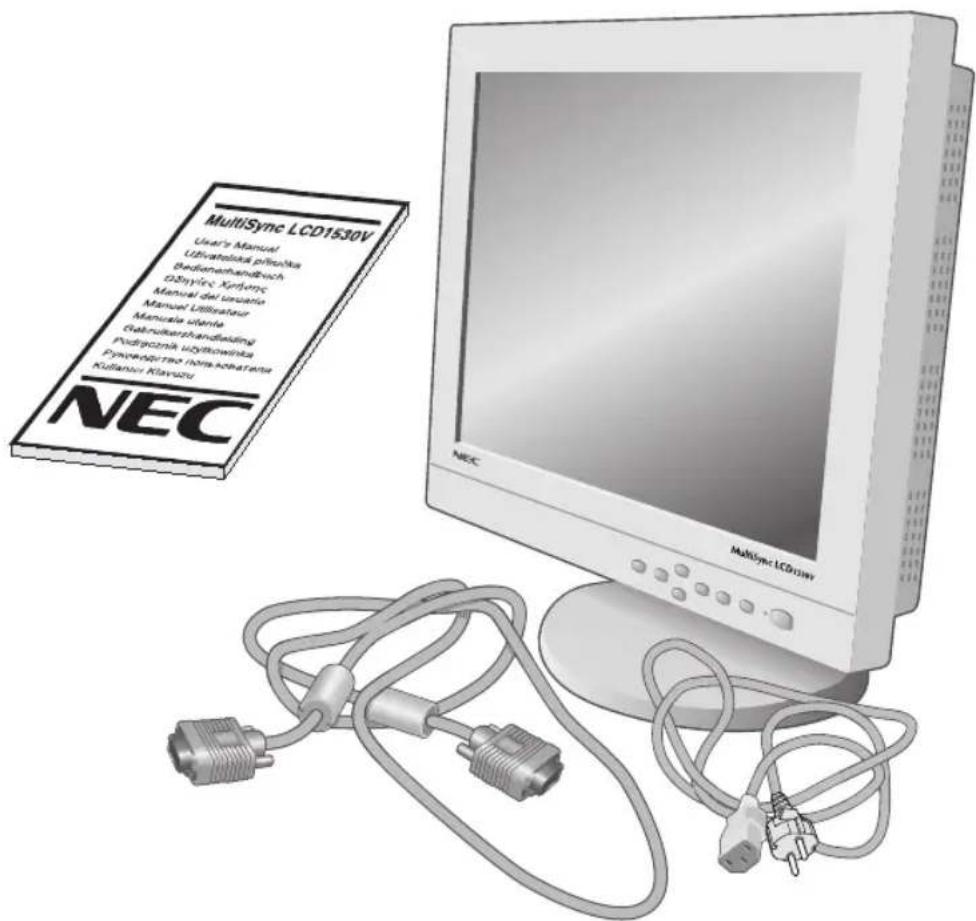
Your new NEC-Mitsubishi MultiSync LCD monitor box* should contain the following:
- MultiSync LCD1530V monitor with tilt base
- Power Cord
- Video Signal Cable
- User's Manual
- CD-ROM includes complete User's Manual in PDF format and Windows related files (Inf file and color profile). To see the complete User's Manual, Acrobat Reader 4.0 must be installed on your PC.
* Remember to save your original box and packing material to transport or ship the monitor.
English-3
Quick Start
To attach the MultiSync LCD monitor to your system, follow these instructions:
-
Turn off the power to your computer.
-
For the PC: Connect the 15-pin mini D-SUB of the appropriate signal cable to the connector of the display card in your system (Figure A.1). Tighten all screws.
For the Mac: Connect the MultiSync LCD1530V Macintosh cable adapter to the computer (Figure B.1). Attach the 15-pin mini D-SUB end of the appropriate signal cable to the MultiSync LCD1530V Macintosh cable adapter (Figure B.1). Tighten all screws.
Remove connector cover and cable cover on back of monitor (Figure E.1).
- Connect the 15-pin mini D-SUB of the video signal cable to the appropriate connector on the back of the monitor (Figure C.1).
NOTE: Incorrect cable connections may result in irregular operation, damage display quality/components of LCD module and/or shorten the module's life.
- Connect one end of the power cord to the MultiSync LCD Series monitor and the other end to the power outlet. Place the video signal cable and AC power cord under the clips. (Figure C.1). Replace connector cover and cable cover. (Figure E.1)
NOTE: Adjust the position of the cable under the clips to avoid damage for cable or monitor.
-
Turn on the monitor (Figure D.1) and the computer.
-
To complete the setup of your MultiSync LCD monitor, use the following OSM controls:
• Auto Adjust Contrast
- Auto Adjust
Refer to the Controls section of this User's Manual for a full description of these OSM controls.
NOTE: If you have any problems, please refer to the Troubleshooting section of this User's Manual.
NOTE: For easy removal of the cable cover or signal cable, place the monitor face down. (Figure R.2)
English-4
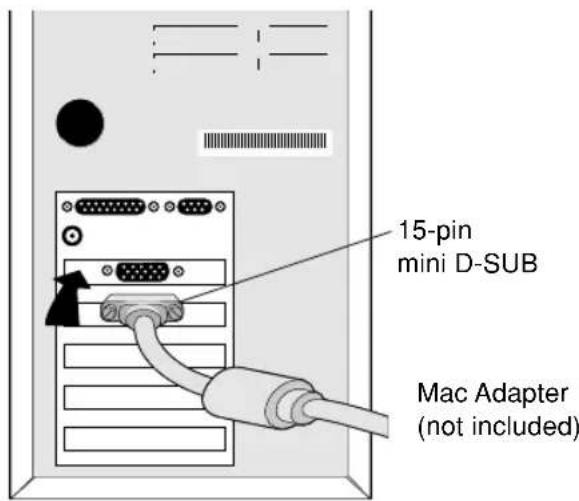
Figure A.1
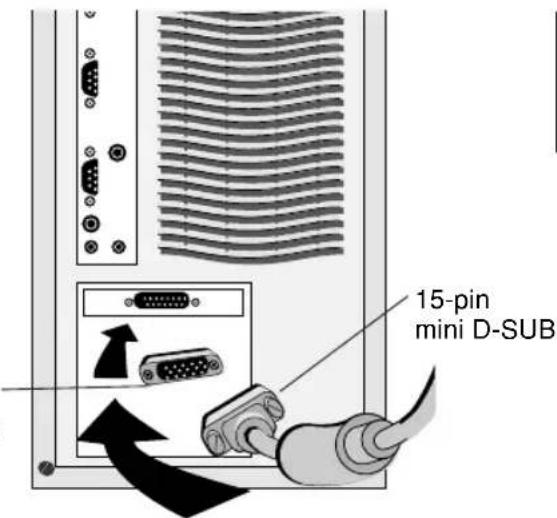
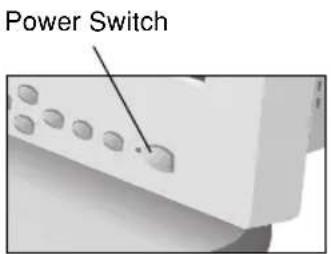
Figure D.1
English-5
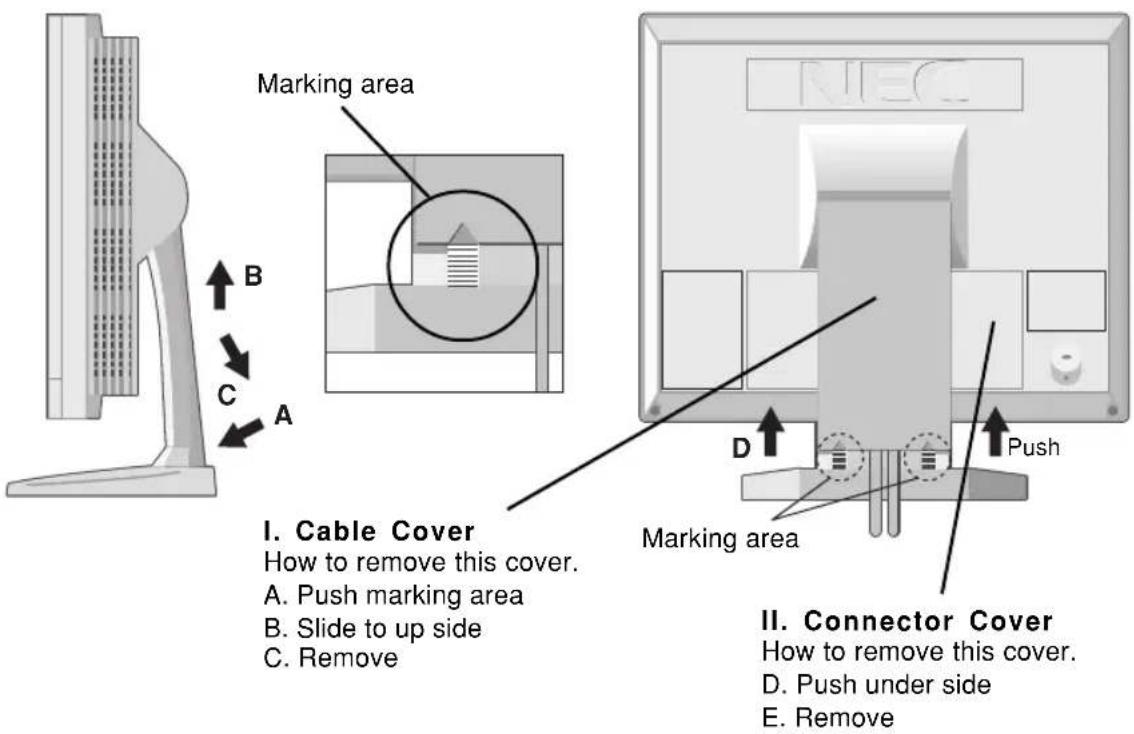
Figure E.1
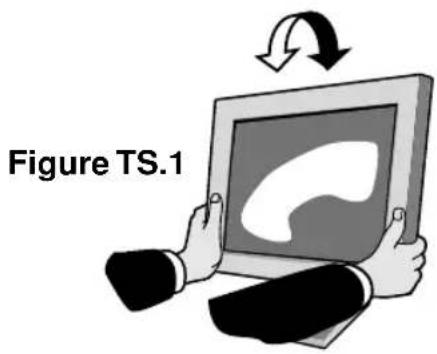
Tilt
Grasp both sides of the monitor screen with your hands and adjust the tilt as desired (Figure TS.1).
English-6
Controls
OSM (On-Screen-Manager) Controls
The OSM controls on the front of the monitor function as follows: To access OSM press any of the control buttons (◀, ▶, ▲, ▼) or the PROCEED button
| Control | Main Menu | Sub-Menu |
| EXIT | Exits the OSM controls. | Exits to the OSM controls main menu. |
| CONTROL ▲▼ | Moves the highlighted area up/down to select one of the controls. | Moves the highlighted area up/down to select one of the controls. |
| CONTROL ◀▶ | Moves the highlighted area left/right to select control menus. | Moves the bar left/right to increase or decrease the adjustment. |
| PROCEED | Has no function. | Activates Auto Adjust and all RESET functions. |
| RESETThe currently highlighted control to factory setting. | Resets all the controls within the highlighted menu. | Resets the highlighted control. |
NOTE: When RESET is pressed, a warning window will appear allowing you to cancel the reset function.

Brightness/Contrast Controls

BRIGHTNESS
Adjusts the overall image and background screen brightness.

CONTRAST
Adjusts the image brightness in relation to the background.
AUTO
AUTO ADJUST CONTRAST
Adjusts the image displayed for non-standard video inputs.
English-7
OSM LOCK OUT
The OSM LOCK OUT control completely locks out access to all OSM control functions. When attempting to activate OSM controls while in the LOCK OUT mode, a screen will appear indicating that OSM controls are locked out.
• To enter the LOCK OUT mode, simultaneously press the PROCEED and ▼ button. The LOCK OUT window will appear.
- To activate the LOCK OUT function, simultaneously press and hold down the PROCEED and ▲ button. The OSM window will disappear within seconds and the LOCK OUT function will be activated.
- To deactivate the LOCK OUT mode, simultaneously press the PROCEED and ▲ button.
AUTO
Auto Adjust
Automatically adjusts the Image Position, the H. Size and Fine setting.

Position Controls

H. POSITION
Controls Horizontal Image Position within the display area of the LCD.

V. POSITION
Controls Vertical Image Position within the display area of the LCD.
AUTO
AUTO
Automatically sets the Horizontal and Vertical Image Position within the display area of the LCD.

Image Adjust Controls

H. SIZE
Adjusts the horizontal size by increasing or decreasing this setting.
English-8

FINE
Improves focus, clarity and image stability by increasing or decreasing this setting.
AUTO
Automatically adjusts the H. Size and Fine setting.

Color Control System
Five color presets select the desired color setting. Each color setting is adjusted at the factory.
R,G,B: Increases or decreases Red, Green or Blue color depending upon which is selected. The change in color will appear on screen and the direction (increase or decrease) will be shown by the bars.

Tools

OSM H POS.

SM V POS.
You can choose where you would like the OSM control window to appear on your screen. Selecting OSM Location allows you to manually adjust the position of the OSM control menu left, right, up or down.

ALL RESET
Selecting ALL RESET allows you to reset all OSM control settings back to the factory settings. Individual settings can be reset by highlighting the control to be used and pressing the RESET button.
i Information 1
Indicates the current display resolution and frequency setting of the monitor.
i Information 2
Indicates the Model Name, Serial Number and URL.
Resolution Notifier: While the display is capable of other resolutions (as with all flat panel displays), it is a fixed matrix of pixels and best used at its native resolution - 1024 x 768. For further information, please refer to your display card or system manual.
English-9
Recommended Use
Safety Precautions and Maintenance

FOR OPTIMUM PERFORMANCE, PLEASE NOTE THE FOLLOWING WHEN SETTING UP AND USING THE MULTISYNC LCD COLOR MONITOR:

- DO NOT OPEN THE MONITOR. There are no user serviceable parts inside and opening or removing covers may expose you to dangerous shock hazards or other risks. Refer all servicing to qualified service personnel.
- Do not spill any liquids into the cabinet or use your monitor near water.
- Do not insert objects of any kind into the cabinet slots, as they may touch dangerous voltage points, which can be harmful or fatal or may cause electric shock, fire or equipment failure.
- Do not place any heavy objects on the power cord. Damage to the cord may cause shock or fire.
- Do not place this product on a sloping or unstable cart, stand or table, as the monitor may fall, causing serious damage to the monitor.
- When operating the MultiSync LCD monitor with its AC 126-240V power supply, use a power supply cord that matches the power supply voltage of the AC power outlet being used. The power supply cord you use must have been approved by and comply with the safety standards of your country. (Type H05VV-F should be used in UK.)
- Do not place any objects onto the monitor and do not use the monitor outdoors.
- The inside of the flourescent tube located within the LCD monitor contains mercury. Please follow the bylaws or rules of your municipality to dispose of the tube properly.
- In UK, use a BS-approved power cord with molded plug having a black (5A)fuse installed for use with this monitor. If a power cord is not supplied with this monitor, please contact your supplier.
Immediately unplug your monitor from the wall outlet and refer servicing to qualified service personnel under the following conditions:
- When the power supply cord or plug is damaged.
- If liquid has been spilled, or objects have fallen into the monitor.
- If the monitor has been exposed to rain or water.
- If the monitor has been dropped or the cabinet damaged.
English-10
- If the monitor does not operate normally by following operating instructions.
- Do not bend power cord.
- Do not use monitor in high temperatured, humid, dusty, or oily areas.
- Do not cover vent on monitor.
- If monitor is broken, do not come in contact with the liquid crystal.
- If glass is broken. Handle with care.

Caution
- Allow adequate ventilation around the monitor so that heat can properly dissipate. Do not block ventilated openings or place the monitor near a radiator or other heat sources. Do not put anything on top of monitor.
- The power cable connector is the primary means of detaching the system from the power supply. The monitor should be installed close to a power outlet which is easily accessible.
- Handle with care when transporting. Save packaging for transporting.

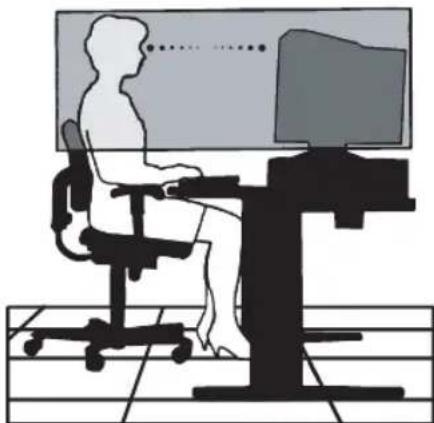
CORRECT PLACEMENT AND ADJUSTMENT OF THE MONITOR CAN REDUCE EYE, SHOULDER AND NECK FATIGUE. CHECK THE FOLLOWING WHEN YOU POSITION THE MONITOR:

- For optimum performance, allow 20 minutes for warm-up.
- Adjust the monitor height so that the top of the screen is at or slightly below eye level. Your eyes should look slightly downward when viewing the middle of the screen.
- Position your monitor no closer than 16 inches and no further away than 28 inches from your eyes. The optimal distance is 21 inches.
- Rest your eyes periodically by focusing on an object at least 20 feet away. Blink often.
- Position the monitor at a 90° angle to windows and other light sources to minimize glare and reflections. Adjust the monitor tilt so that ceiling lights do not reflect on your screen.
- If reflected light makes it hard for you to see your screen, use an anti-glare filter.
natural_image
Silhouette of a person sitting at a desk using a computer, with no visible text or symbolsEnglish-11
- Clean the LCD monitor surface with a lint-free, non-abrasive cloth. Avoid using any cleaning solution or glass cleaner!
- Adjust the monitor's brightness and contrast controls to enhance readability.
- Use a document holder placed close to the screen.
- Position whatever you are looking at most of the time (the screen or reference material) directly in front of you to minimize turning your head while you are typing.
- Avoid displaying fixed patterns on the monitor for long periods of time to avoid image persistence (after-image effects).
• Get regular eye checkups.
Ergonomics
To realize the maximum ergonomics benefits, we recommend the following:
- Do not position the Contrast control to its maximum setting
- Use the preset Size and Position controls with standard signals
- Use the preset Color Setting
- Use non-interlaced signals with a vertical refresh rate between 60-75 Hz
- Do not use primary color blue on a dark background, as it is difficult to see and may produce eye fatigue to insufficient contrast
English-12

VAROVÁNÍ

CHRAŃTE ZAŘÍZENÍ PŘED DEŠTEM A VLHKEM. ZABRÁNÍTE TAK NEBEZPEČÍ POŽÁRU NEBO ÚRAZU ELEKTRICKÝM PROUDEM. POLARIZOVANOU ZÁSTRČKU JEDNOTKY NEPOUŽÍVEJTE VE SPOJENÍ SE ZÁSUVKOU PRODLUŽOVACÍ ŠŇÚRY NEBO JINÝMI ZÁSUVKAMI, POKUD KOLÍKY NELZE ZCELA ZASUNOUT. UVNITŘ ZAŘÍZENÍ SE NACHÁZÍ VYSOKONAPĚTOVÉ KOMPONENTY, PROTO SKŘÍŇ NEOTEVÍREJTE. SERVIS SVĚRTE KVALIFIKOVANÉ OSOBĚ.
UPOZORNĚNÍ
RIZIKO ÚRAZU ELEKTRICKÝM PROUDEM • NEOTVÍRAT

Z DÜVODU SNÍŽENÍ RIZIK ÚRAZU ELEKTRICKÝM PROUDEM NEODNÍMEJTE KRYT (NEBO ZADNÍ ČÁST). UVNITŘ SE NENACHÁZEJÍ DÍLY, DO KTERÝCH UŽIVATEL MŮŽE ZASAHOVAT. SERVIS SVĚŘTE KVALIFIKOVANÉ OSOBĚ.

Česky-2
Obsah dodávky
Česky-6
Ovládací prvky
Ovladač Brightness/Contrast (Jas a kontrast)

BRIGHTNESS (Jas)
natural_image
Silhouette of a person sitting at a desk with a computer monitor, no text or symbols visibleČesky-11
Deutsch-2
Inhalt
natural_image
Silhouette of a person sitting at a desk with a computer monitor, no text or symbols presentDeutsch-11
Ελληνικά-2
Περιεχόμενα
natural_image
Silhouette of a person sitting at a desk using a computer, with no visible text or symbolsΕλληνικά-11
Español-2
Contenido
natural_image
Silhouette of a person sitting at a desk with a computer monitor, no text or symbols visibleEspañol-11
natural_image
Silhouette of a person sitting at a desk with a computer monitor, no text or symbols visibleFrançais-11

Italiano-2
Contenuto
natural_image
Silhouette of a person sitting at a desk with a computer monitor, no text or symbols visibleItaliano-11
in overeenstemming is met
natural_image
Close-up of a white electronic device with multiple circular ports and a black pointer line pointing to a small component (no text or symbols visible)natural_image
Silhouette of a person sitting at a desk with a computer monitor, no text or symbols presentNederlands-12
Polski-3
natural_image
Silhouette of a person sitting at a desk using a computer, with no visible text or symbolsPolski-12
natural_image
Silhouette of a person sitting at a desk using a computer, with no visible text or symbolsРусский
Русский-11
Türkçe-2
İçindekiler
H. SIZE (YATAY BOYUT)
natural_image
Silhouette of a person sitting at a desk with a computer monitor, no text or symbols visibleTürkçe-11


- CAUTION
- Caution:
- English-1
- Declaration
- Declaration of the Manufacturer
- English-2
- Contents
- English-3
- Quick Start
- English-4
- English-5
- Tilt
- Controls
- OSM (On-Screen-Manager) Controls
- Brightness/Contrast Controls
- BRIGHTNESS
- CONTRAST
- AUTO ADJUST CONTRAST
- English-7
- OSM LOCK OUT
- Auto Adjust
- Position Controls
- POSITION
- POSITION
- AUTO
- Image Adjust Controls
- SIZE
- English-8
- FINE
- Color Control System
- Tools
- OSM H POS.
- SM V POS.
- ALL RESET
- i Information 1
- i Information 2
- English-9
- Recommended Use
- Safety Precautions and Maintenance
- English-10
- English-11
- Ergonomics
- English-12
- VAROVÁNÍ
- UPOZORNĚNÍ
- Obsah dodávky
- Ovládací prvky
- Ovladač Brightness/Contrast (Jas a kontrast)
- BRIGHTNESS (Jas)
- Česky-11
- Inhalt
- Περιεχόμενα
- Contenido
- Español-11
- Contenuto
- Italiano-11
- Nederlands-12
- Русский-11
- İçindekiler
- SIZE (YATAY BOYUT)
- Türkçe-11
Brand : NEC
Model : MultiSync LCD1530V
Category : Monitor