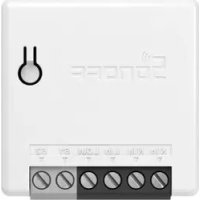
ZBMINI - Smart Home Sonoff - Free user manual and instructions
Find the device manual for free ZBMINI Sonoff in PDF.


| Product Type | ZigBee Smart Switch |
| Brand | Sonoff |
| Model | ZBMINI |
| Dimensions | 42.6 x 42.6 x 20 mm |
| Weight | Less than 1 kg |
| Power Supply | 100-240 V AC, 50/60 Hz, 10 A max |
| Wireless Protocol | ZigBee 3.0 (IEEE 802.15.4) |
| Main Functions | Remote on/off, scheduling, voice control, smart scenes, timing |
| Care and Cleaning | Clean with a dry cloth; do not use liquid or abrasive products |
| Safety | Installation by a qualified professional; do not touch the switch during use; disconnect before any intervention |
| Spare Parts and Repairability | Sealed device, no detachable parts available; in case of malfunction, contact the retailer |
| Operating Temperature | -10 °C to 40 °C |
| Housing Material | PC (polycarbonate) |
| Compatibility | ZigBee gateways (SONOFF, SmartThings, Amazon Alexa, Hue) |
| Mobile Apps | eWeLink (Android & iOS), Alexa |
Frequently Asked Questions - ZBMINI Sonoff
User questions about ZBMINI Sonoff
0 question about this device. Answer the ones you know or ask your own.
Ask a new question about this device
Download the instructions for your Smart Home in PDF format for free! Find your manual ZBMINI - Sonoff and take your electronic device back in hand. On this page are published all the documents necessary for the use of your device. ZBMINI by Sonoff.
USER MANUAL ZBMINI Sonoff
ZigBee Smart Switch
确保零火线接入无误。

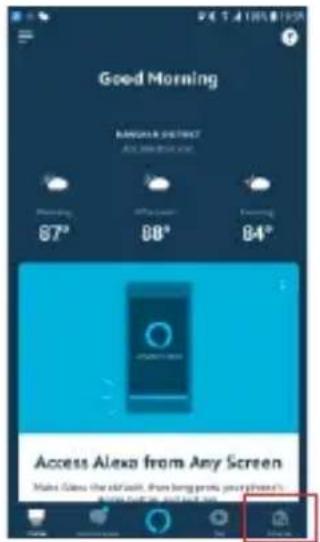
2. 添加亚马逊音箱
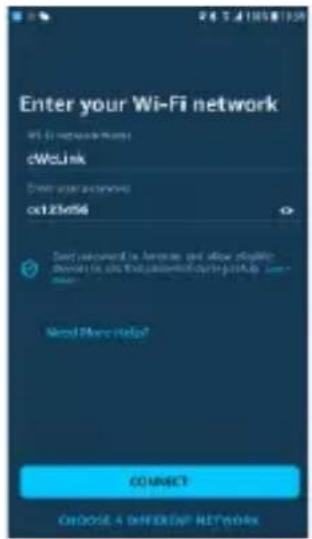
3. 添加设备
恢复出厂设置
The device can be operated intelligently via working with the SONOFF ZigBee Bridge.
The device can work with other gateways supporting ZigBee 3.0 wireless protocol. Detailed information is in accordance with the final product.
Power off
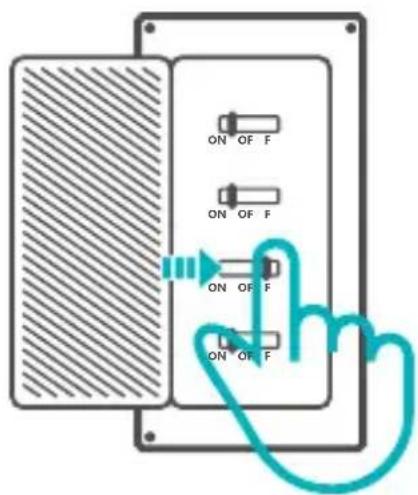
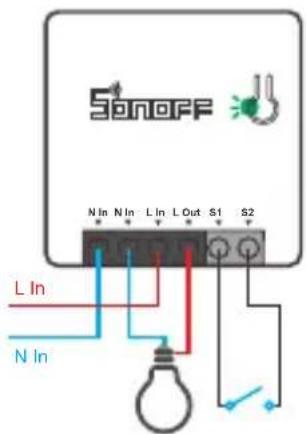
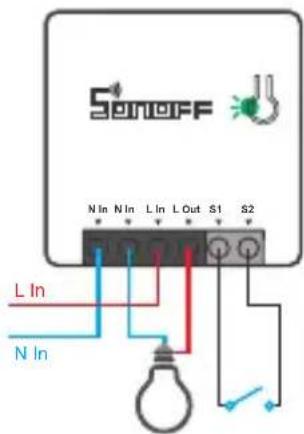
To avoid electric shocks, please consult the dealer or a qualified professional for help when installing and repairing! Please do not touch the switch during use.
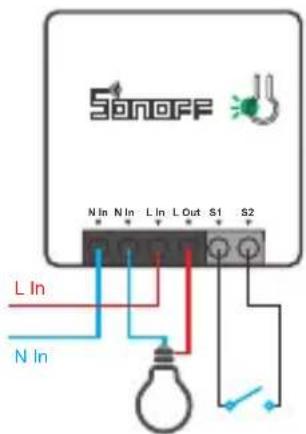
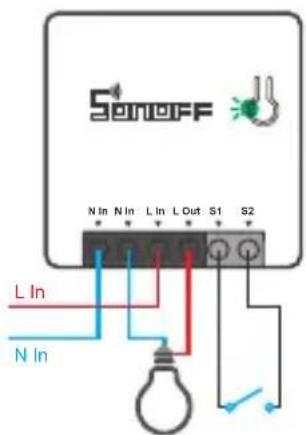
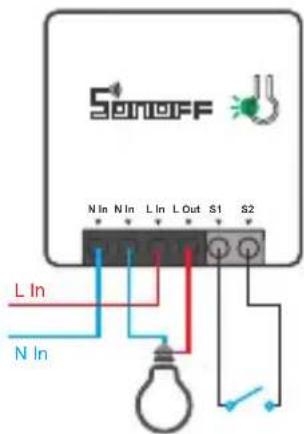
Wiring instruction
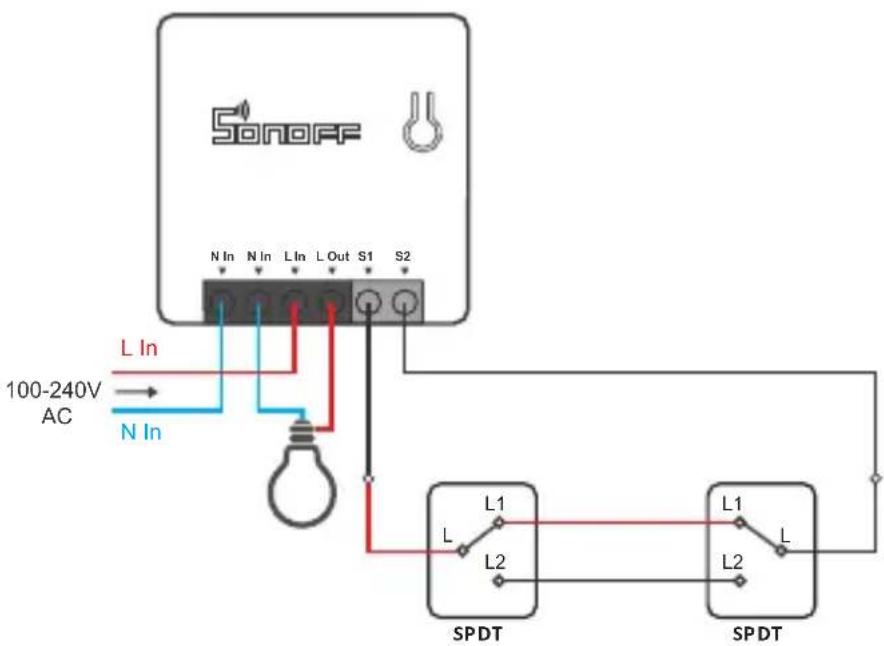
Make sure the neutral wire and live wire connection is correct.
S1/S2 can connect with the rocker light switch (the self-return rocker light switch is not supported) or doesn't connect. To ensure safety, do not connect the neutral wire and live wire to it.
ZSS setup instruction
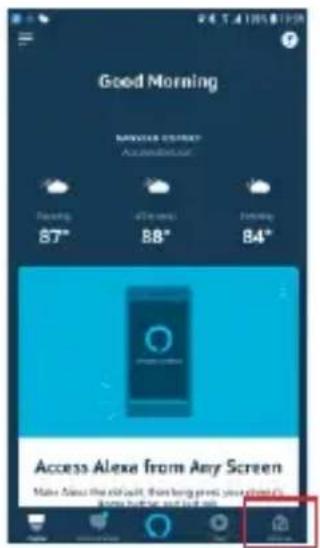
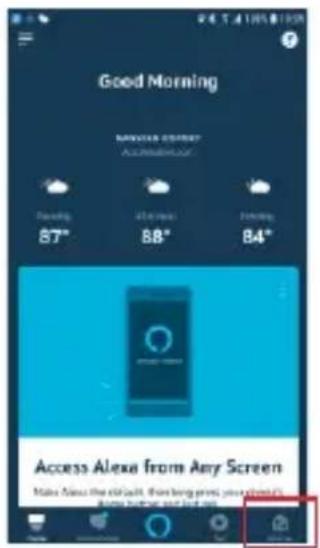
- Download the latest Alexa App


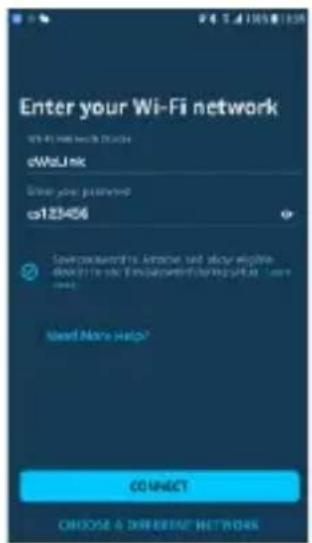
- Add Amazon Echo
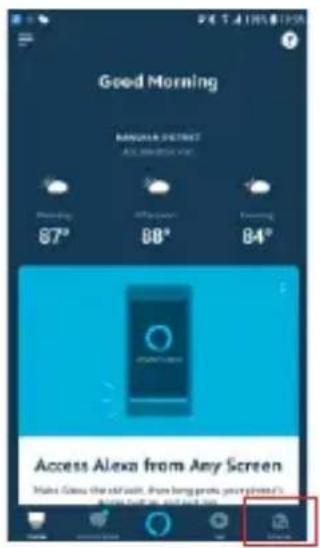
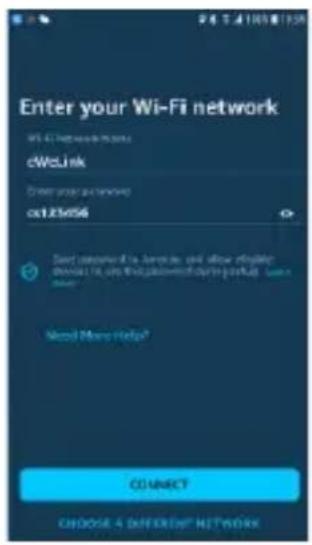
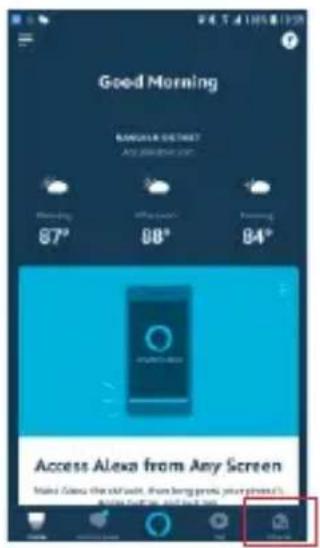
- Add device
After the device is powered on the LED signal indicator flashes., wait 1-2 mins to fresh the device list in Alexa App, and the added device will appear in the device list.
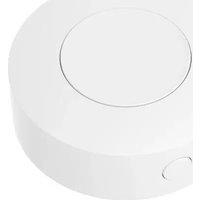
The device will exit the pairing mode if no next operation for a long time. If enter again, please long press the manual switch for 5s until the LED signal indicator flashes and release.
Please try to pair the device using eWeLink App if ZSS setup is failed.
eWeLink App pairing
1. Download APP

Android™ & iOS
- Add SONOFF ZigBee Bridge
- Power on
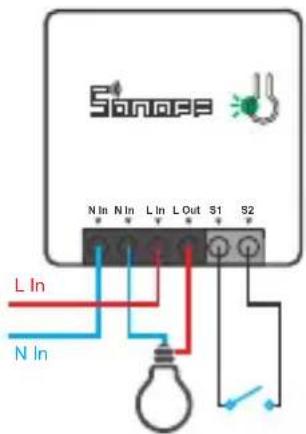
After powering on, the device will enter the pairing mode during the first use and the LED signal indicator flashes.
The device will exit the pairing mode if no next operation for a long time. If enter again, please long press the manual switch for 5s until the LED signal indicator flashes and release.
4. Add sub-devices
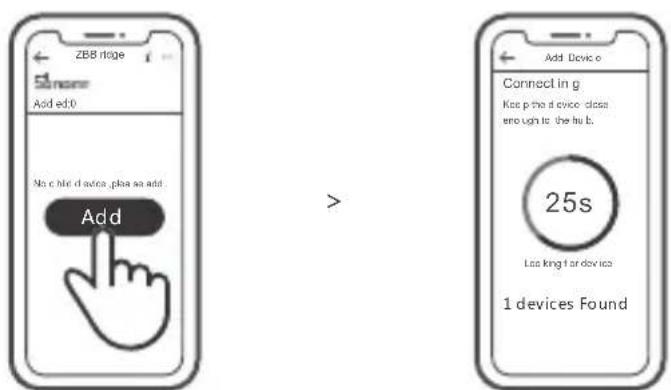
Access eWeLink APP, select the Bridge that you want to connect, and tap "Add" to add a sub-device, and be patient until the pairing completes.
If the addition failed, move the sub-device closer to the Bridge and try again.
SONOFF ZigBee Bridge supports connecting multiple sub-devices at the same time.
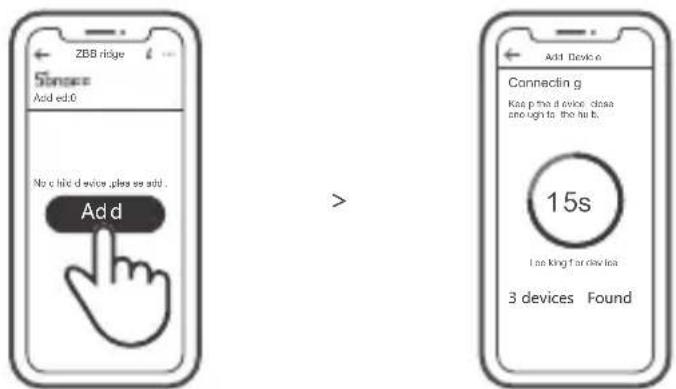
Power the Bridge on, set the sub-device to the pairing mode. Then access the Bridge page in the eWeLink APP to tap "Add", and be patient until the pairing completes.
More APP application platforms and gateway recommendations

SmartThings

Amazon Alexa

Hue
This device supports the following gateways besides SONOFF ZigBee:
| Echo Studio |
| Echo (4th Gen) |
| Echo Plus (model: ZE39KL) |
| 2nd Gen Echo Show (model: DW84JL) |
| 2nd Gen Echo Plus (model: L9D29R) |
| Samsung SmartThings hub |
| Philips Hue Smart Hub |
Gateway adding instruction:
- Refer to the gateway user manual to download the matched APP and get it paired.
- Set ZBMINI to the pairing mode.
- Add ZBMINI according to the prompt of APP. Please select eWeLink or SONOFF when adding.
If the addition failed, move the sub-device closer to the Bridge and try again.
Specifications
| Model | ZBMINI |
| Input | 100-240V AC 50/60Hz 10A Max |
| Output | 100-240V AC 50/60Hz 10A Max |
| ZigBee | IEEE 802.15.4 |
| Operating systems | Android & iOS |
| Working temperature | -10~40°C |
| Material | PC |
| Dimension | 42.6x42.6x20mm |
Product Introduction
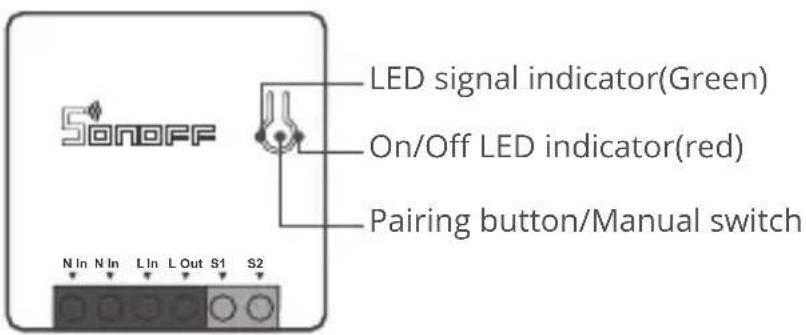
The device weight is less than 1 kg. The installation height of less than 2 m is recommended.
Features
The is a smart device with ZigBee wireless communication protocol that allows you to remotely turn on, schedule on/off and set smart scenes to trigger other devices, etc.

Remote Control

Single/Countdown Timing

Voice Control

Smart Scene

Share Control
Above functions are determined by the connected ZigBee Hub.
Switch Network
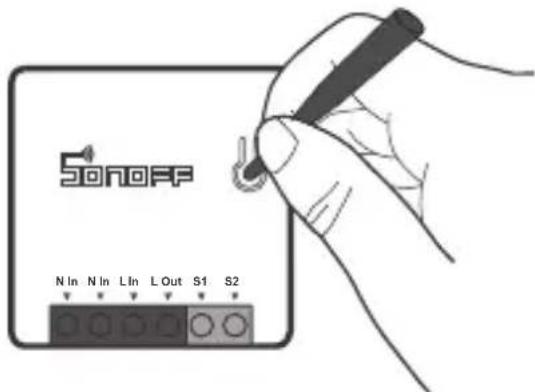
If you need to change the network, long press the pairing button for 5s until the ZigBee LED signal indicator flashes and release, then the device enters quick pairing mode and you can pair again.
Factory Reset
Deleting the device on the eWeLink app indicates you restore it to factory setting.

- Gerät hinzufügen
If the addition failed, move the sub-device closer to the Bridge and try again.
Technische Daten

2. Adicione Amazon Echo

- Ajouter Amazon Echo
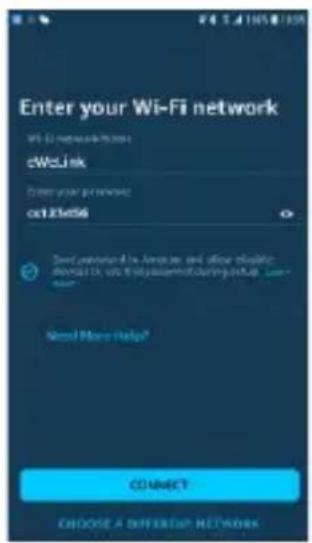
- Ajouter l'appareil
| Echo Studio |
| Echo (4th Gen) |
| Echo Plus (model: ZE39KL) |
| 2nd Gen Echo Show (model: DW84JL) |
| 2nd Gen Echo Plus (model: L9D29R) |
| Samsung SmartThings hub |
| Philips Hue Smart Hub |

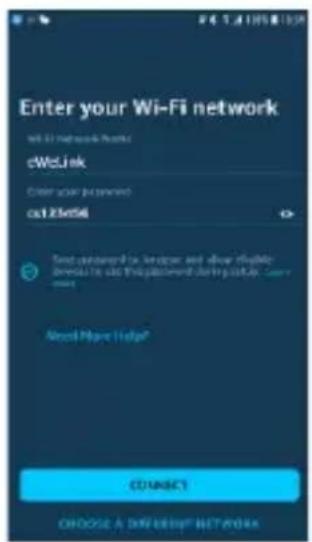

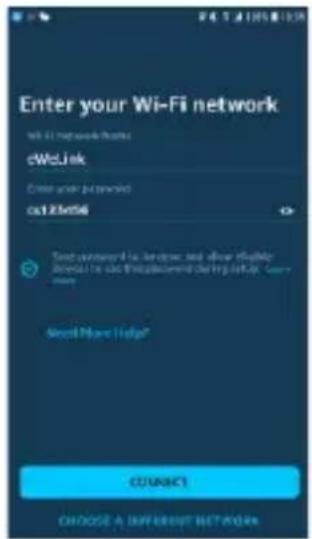
- Добавить устройство

2. Adicione Amazon Echo
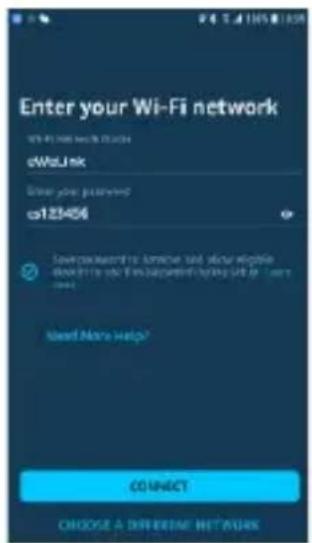
After powering on, the device will enter the pairing mode during the first use and the LED signal indicator flashes.
Changes or modifications not expressly approved by the party responsible for compliance could avoid the user's authority to operate the equipment.
This device complies with part 15 of the FCC Rules. Operation is subject to the following two conditions: (1) This device may not cause harmful interference, and (2) this device must accept any interference received, including interference that may cause undesired operation.
FCC Radiation Exposure Statement:
This equipment complies with FCC radiation exposure limits set forth for an uncontrolled environment. This equipment should be installed and operated with minimum distance20cm between the radiator & your body. This transmitter must not be co-located or operating in conjunction with any other antenna or transmitter.
Note:
This equipment has been tested and found to comply with the limits for a Class B digital device, pursuant to part 15 of the FCC Rules. These limits are designed to provide reasonable protection against harmful interference in a residential installation. This equipment generates, uses and can radiate radio frequency energy and, if not installed and used in accordance with the instructions, may cause harmful interference to radio communications. However, there is no guarantee that interference will not occur in a particular installation. If this equipment does cause harmful interference to radio or television reception, which can be determined by turning the equipment off and on, the user is encouraged to try to correct the interference by one or more of the following measures:
— Reorient or relocate the receiving antenna.
— Increase the separation between the equipment and receiver.
— Connect the equipment into an outlet on a circuit different from that to which the receiver is connected.
— Consult the dealer or an experienced radio/TV technician for help.
Hereby, Shenzhen Sonoff Technologies Co., Ltd. declares that the radio equipment type ZBMINI is in compliance with Directive 2014/53/EU. The full text of the EU declaration of conformity is available at the following internet address:
https://www.sonoff.tech/usermanuals
TX Frequency:
2405-2480MHz
RX Frequency:
2405-2480MHz
Output Power:
1.80dBm

Shenzhen Sonoff Technologies Co., Ltd.
1001, BLDG8, Lianhua Industrial Park, shenzhen, GD, China
ZIP code: 518000
Website: sonoff.tech
MADE IN CHINA




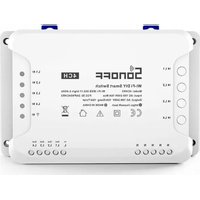
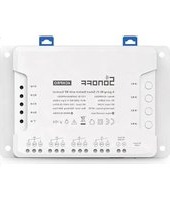
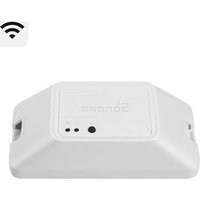
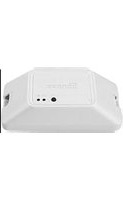
- ZIGBEE SMART SWITCH
- 添加亚马逊音箱
- 添加设备
- 恢复出厂设置
- POWER OFF
- WIRING INSTRUCTION
- ZSS SETUP INSTRUCTION
- EWELINK APP PAIRING
- DOWNLOAD APP
- ADD SUB-DEVICES
- SONOFF ZIGBEE BRIDGE SUPPORTS CONNECTING MULTIPLE SUB-DEVICES AT THE SAME TIME
- MORE APP APPLICATION PLATFORMS AND GATEWAY RECOMMENDATIONS
- GATEWAY ADDING INSTRUCTION
- SPECIFICATIONS
- PRODUCT INTRODUCTION
- FEATURES
- SWITCH NETWORK
- FACTORY RESET
- TECHNISCHE DATEN
- ADICIONE AMAZON ECHO
- FCC RADIATION EXPOSURE STATEMENT
- NOTE
Brand : Sonoff
Model : ZBMINI
Category : Smart Home