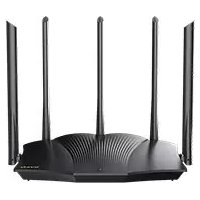
RX12 Pro - Router Tenda - Free user manual and instructions
Find the device manual for free RX12 Pro Tenda in PDF.



| Product Type | Router |
| Brand | Tenda |
| Model | RX12 Pro |
| Ports | 1 Gigabit WAN port, 3 Gigabit LAN ports (including 2 IPTV ports) |
| Buttons | WPS/MESH button, Reset button |
| Wireless technology | Wi-Fi (standard not specified) |
| Power supply | Included power adapter |
| Operating conditions | Temperature: 0°C to 40°C, Humidity: 10% to 90% non-condensing |
| Mounting | Horizontal desktop or wall-mounted (height ≤ 2 m) |
| Mesh network | Compatible with RX9, TX9, RX12 Pro, TX12 Pro, RX27 Pro, TX27 Pro, Mesh6X, Mesh12X, Mesh15XP, Mesh21XEP |
| Configuration | Web interface (tendawifi.com) or Tenda WiFi app |
| Security | WPS, hardware reset |
| Maintenance | Clean with a soft, dry cloth |
| Spare parts and repairability | Not user-serviceable, contact support |
| Technical support | support.fr@tenda.cn |
Frequently Asked Questions - RX12 Pro Tenda
User questions about RX12 Pro Tenda
0 question about this device. Answer the ones you know or ask your own.
Ask a new question about this device
Download the instructions for your Router in PDF format for free! Find your manual RX12 Pro - Tenda and take your electronic device back in hand. On this page are published all the documents necessary for the use of your device. RX12 Pro by Tenda.
USER MANUAL RX12 Pro Tenda
Get support and services

https://www.tendacn.com/service/default.html
English
For technical specifications, user guides and more information, please visit the product page or service page on www.tendacn.com. Multiple languages are available. You can see the product name and model on the product label.
Deutsch
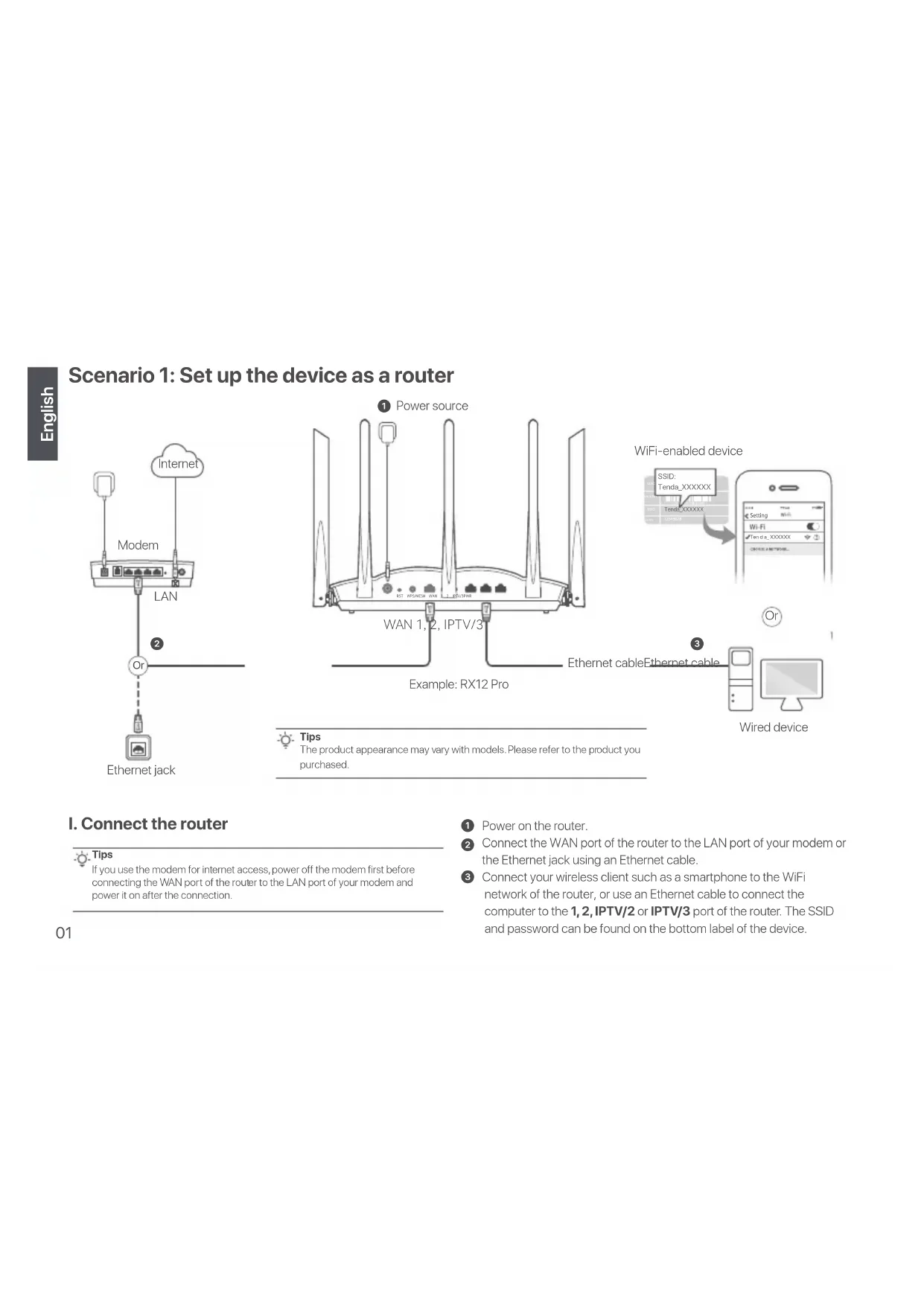
Scenario 1: Set up the device as a router
Ethernet jack

Tips
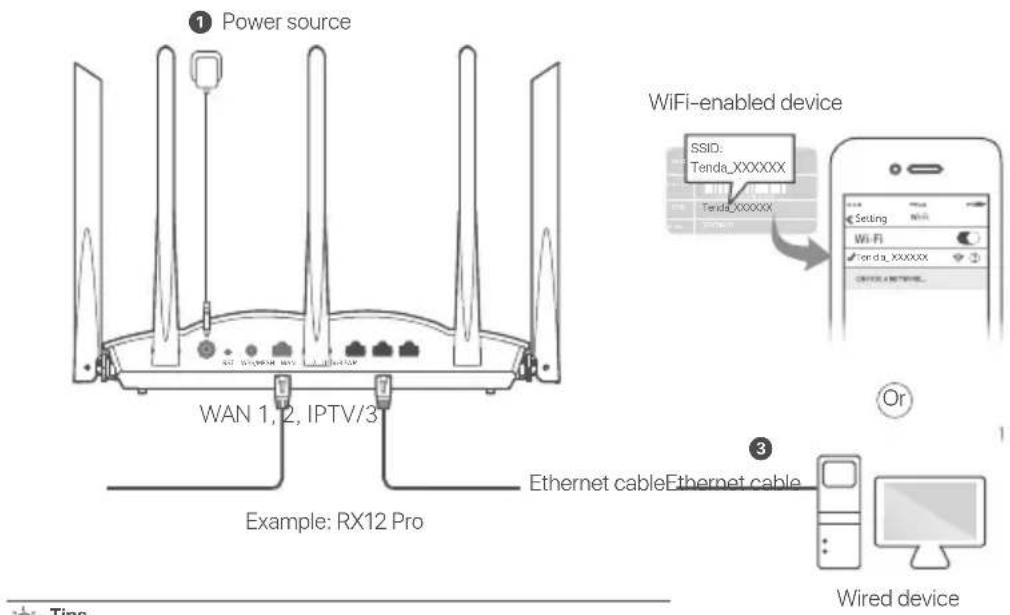
The product appearance may vary with models. Please refer to the product you purchased.
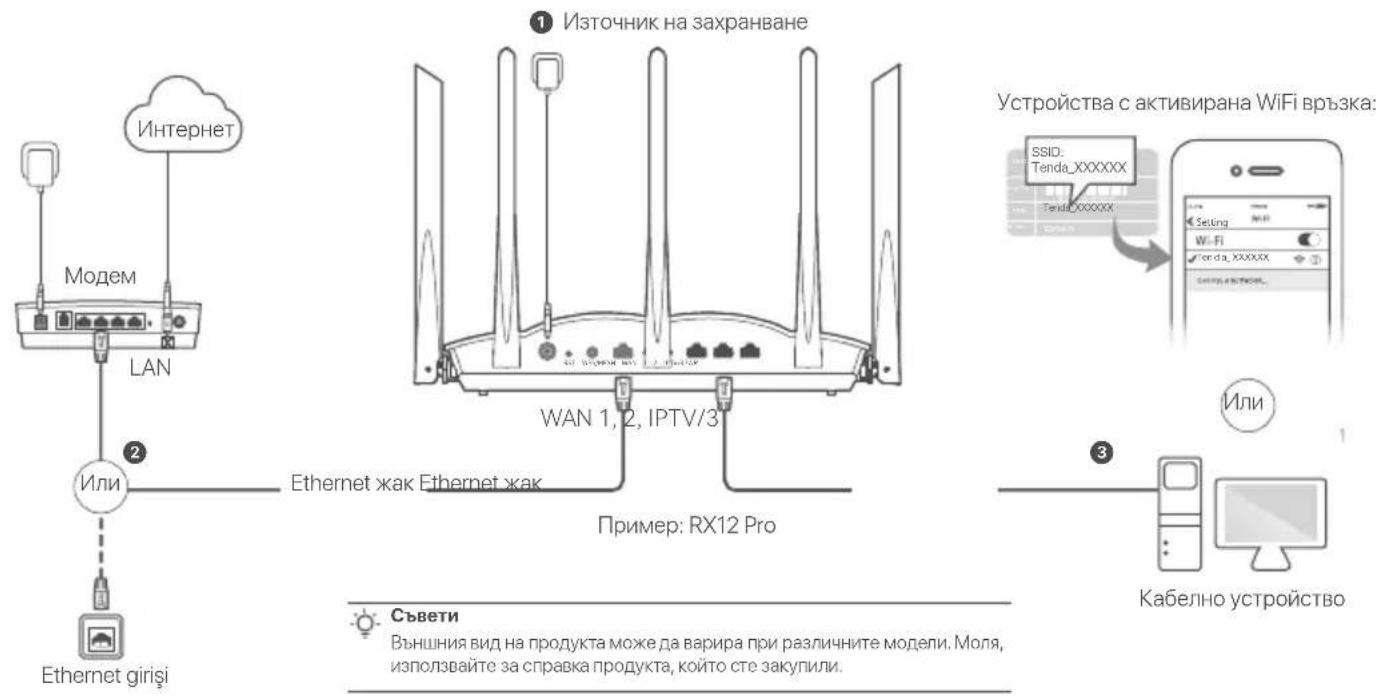
I. Connect the router

If you use the modem for internet access, power off the modem first before connecting the WAN port of the router to the LAN port of your modem and power it on after the connection.
Power on the router.
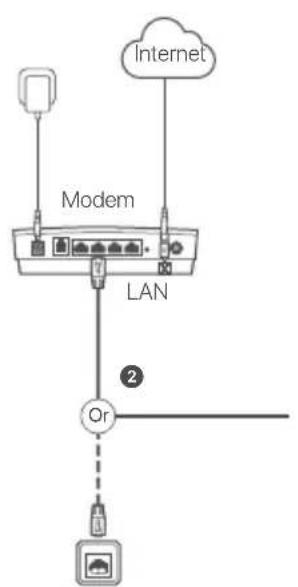
Connect the WAN port of the router to the LAN port of your modem or the Ethernet jack using an Ethernet cable.
3 Connect your wireless client such as a smartphone to the WiFi network of the router, or use an Ethernet cable to connect the computer to the 1,2,IPTV/2 or IPTV/3 port of the router. The SSID and password can be found on the bottom label of the device.
II. Connect the router to the internet
- Start a browser on the client and enter tendawifi.com in the address bar to access the web UI, or run the Tenda WiFi App to configure the router.
Download Tenda WiFi App
- Perform operations as prompted.
Done.
To access the internet with:
- WiFi-enabled devices: Connect to the WiFi network using the WiFi name and password you set.
- Wired devices: Connect to a LAN port (1,2,IPTV/2 or IPTV/3) of the router using an Ethernet cable.

If you completed the configurations using the Tenda WiFi App and want to remotely manage the network, tap on the App home page and use your account to log in.
Scenario 2: Set up as an add-on node

- Please ensure that the router has never been used. If not, reset it first.
-
Currently, RX12, TX12, RX12 Pro, TX12 Pro, RX27 Pro, TX27 Pro, Mesh6X, Mesh12X, Mesh 15XP and Mesh21XEP can be networked with each other.
-
Place the router in an elevated and open position within 3 meters from your existing node.
- Use the power adapter to connect the router to a power source, and wait until its LED indicator blinks green slowly.
- Press the WPS or WPS/MESH button of the router for about 1-3 seconds. The LED indicator blinks green fast. Within 2 minutes, press the MESH/WPS button of the node of the existing network for 1-3 seconds to negotiate with this router.
When the LED indicator of the router lights solid green, the networking is successful and the router becomes a secondary node in the network. Now you can relocate the router by referring to the following relocation tips:
- Ensure that the distance between any two nodes is less than 10 meters.
- Keep your nodes away from electronics with strong interference, such as microwave ovens, induction cookers, and refrigerators.
- Place the nodes in a high position with few obstacles.
Done.
To access the internet with:
-Wired devices: Connect to the LAN ports of your nodes.
- Wireless devices: Connect to your WiFi network using the WiFi name and password of your existing WiFi network.
FAQ Wall Mounting
Q1: I cannot log in to the web UI by visiting tendawifi.com. What should I do?
A1: Try the following solutions:
- If you are using a WiFi-enabled device, such as a smartphone:
- Ensure that it connects to the WiFi network of the router.
- Ensure that the cellular network (mobile data) of the device is disabled.
If you are using a wired device, such as a computer: - Ensure that tendawifi.com is entered correctly in the address bar, rather than the search bar of the web browser.
- Ensure that the computer is connected to the LAN port of the router properly using an Ethernet cable.
- Ensure that the computer is set to Obtain an IP address automatically and Obtain DNS server address automatically.
If the problem persists, reset the router by referring to Q2 and try again.
Q2: How to restore my device to factory settings?
A2: When your device is working properly, hold down the RST or Reset button of your device using a needle-like item (such as a pin) for about 8 seconds, and release it when the LED indicator blinks red fast. When the LED indicator lights solid green, your device is reset successfully.
Q3: When I use the product as a router, I cannot access the internet after the configuration. What should I do?
A3: Try the following solutions:
- Check whether the WAN port of the router is connected to a modem or Ethernet jack properly.
- Log in to the web UI of the router and navigate to the Internet Settings page. Follow the instructions on the page to solve the problem.
If the problem persists, try the following solutions:
- For WiFi-enabled devices:
- Check whether your WiFi-enabled devices are connected to the WiFi network of the router.
- Visit tendawifi.com to log in to the web UI and change your WiFi name and WiFi password on the WIFI Settings page. Then try again.
For wired devices:
- Check whether your wired devices are connected to a LAN port properly.
- Check whether wired devices are set to Obtain an IP address automatically and Obtain DNS server address automatically.
This router can be installed on the wall with two screws. The recommended wall mounting tools are as follows:
[Expansion bolt] Outer diameter: 6.0 mm; Length: 26.4 mm
[Screws] Thread diameter: 3 mm; Length: 14 mm; Head diameter: 5.2 mm
English: Safety Precautions
Before performing an operation, read the operation instructions and precautions to be taken, and follow them to prevent accidents. The warning and danger items in other documents do not cover all the safety precautions that must be followed. They are only supplementary information, and the installation and maintenance personnel need to understand the basic safety precautions to be taken.
- The device is for indoor usage only.
-For desktop mounting, the device must be horizontally mounted for safe use.
-If the device supports wall mounting, the device is only suitable for mounting at heights ≤ 2m - Do not use the device in a place where wireless devices are not allowed.
- Please use the included power adapter.
- The mains plug is used as the disconnect device, and shall remain readily operable.
- Operating environment: Temperature: 0^ - 40^ ; Humidity: (10% -90%) RH, non-condensing; Storage environment: Temperature: -40^ to +70^ ; Humidity: (5% -90%) RH, non-condensing.
- Do not use the power adapter if its plug or cord is damaged.
- Disassembling or modifying the device or its accessories without authorization voids the warranty, and might cause safety hazards.
For latest safety precautions, see Safety and Regulatory Information on
www.tendacn.com.
Czehapn 1: HactpoBaHe Ha ycTpoIcTBOTO KaTo pyTeP
I. Cbbp3BaHe Ha pyTepa
CbBETN
Ako nnoiBATE MoDEM 3a doctbI da nHTpeHET, moJI, npBO nKIOJIOeTe. 3axpaHbAHeTo HA MODEM, pIeIN Da CBpKTe WAN nopTa hpyTePA KBM LAN npTa h BaIIHnMoDEM, cNeI KOeTO BkIOeTe 3axpaHbAHeTo.
I IycheTe 3axpaHbHeTo Ha pyTepa.
CbpxeT WAn npTa Ha HOBn pyTe p c LAN npTa Ha MoEma Nn Ethernet xaka, kaTo n3noJ3BaTe Ethernet ka6en.
3 CBpbxTe BaIeTo 6e3xNHy yCtpoiCTBO, HApMep Mo6nHeH TelefoH, KbM WiFi MpeXaTa Ha pyTepa nnu n3no3BaYte Ethernet KaBEn, 3a Da CbPkeTe KOMIOBpa KbM Nopt 1,2, IPTV/2 nnl IPTV/3 Ha pyTepa. SSID nnapoIa Moar da 6bDat OKpTN OTdoHaTa CTpaHa Ha yCtpoiCTBO.To.
II. CbpbxkeTe pyTepa KbM INHTepHET
- CtapTnpaIte 6paay3bp Ha yctpoiCTBOTo N BbBeJeTe tendawifi.com B aDpeChATA neHTA, 3a da DCtBnTE noTpbeHtENckn yeb nHTepFeic INI cTapTnpaIte npinnoXeHneTo Tenda WiFi.


I3TeTne npnloxeneHTo 3a WiFi Ha Tenda
gagaly LAN jia gally wAN jia Jwogpi 2
i
a 3
Cui! J.S puiuui g aegally apolll WiFi
IPTV/3g IPTV/21 1 jaiy jgiu
jagall aag SSID jgall jSao agally
jglsl glalgl algl
yIgJgI
jagw. jg3-1 jg w J g WPS/MESH WPS JJd aol 3
j. 4e, uu, uuLED
5.20221111 3111 1111 MESH/WPS JJ Jc Ja, jj
jgljg 3-1
aAly Jaiy 1000000000000000000000000000000000000000000
a 2gill sac agall
aaii jaii yai jiy jgi jia gao nai ci
jul 10 no jai nuiu ci i aalil o
Jgai jaiu 13 aig ayiyjy 1c liuyu dac dc bdo
allololgaggsall
.
glal no jall go gairo kao dail
.
puiuuiuyiuyjU jUgogU
yolal LAN jaoj: slw 5
WiFi pwi pluiknuwifi aSui Jauogiy a3:aaSLuW10 8j451
logiiy Caa 2111 yraal a85
aJlWJdLwJ1
ggo yjy jks no ggl paaa aegy glg 11
$ git merge tendawifi.com
:10101010101010101010101010101010101010101010101010101010101010
:()()()()()
jijj jijuyuowifi WiFi a5uuyuoyoju 5t-
Jauuulnll (juaal) aagai daaa Jauan
jss
yjgai jayo kaytendawifi.com JsoJ 05t
y
algie (automaticallyObtain
Obtain DNS server address automatically) DNS
yjgjg2jgljgljgljgljgljgljgljglj
gaaal c1sla Jg jgea 2
Reset RST jI JcJgkaanaii 1000 1000
jia) ayiyuyy yayy playdy
yLLLED 8
jssyLED
1
Cjjyjj Jgogjj gjsy jjglj jgeaaiial piai1oic:3
- Jadl lslu. a. gull. uay
:JUJUJUJUJU3JUJU
jao jao jao jgjgljqjogalWAN jia 0813 lao jao
Gauw Kui Cij
1 1
(Internet Settings)
aJ11111111111111111111111
Laaaal aay aay aay aay aay bolo 1000 0000000000000000
ba jywliln wjg -
a 1
jio 2 cai jie jie jie jie jie jie jie jie jie jie jie jie jie jie jie jie jie jie jie jie jie jie jie jie jie jie jie jie jie jie jie jie jie jie jie jie jie jie jie jie jie jie
A
Jaaaill 1
a0gj(%90-10):agjgl+agjgao40-aogjao20:ayjall
401
103 200-70-C40j
AeJgaiiHjIaHjIaHjIaHjIaHjIaHjIaHjIaHjIaHjIaHjIaHjIaHjIaHjIaHjIaHjIaHjIaHjIaHjIaHjIaHjIaHjIaHjIaHjIaHjIaHjIaHjI
dally jaln 10000000000000000000000000000000000000
www.tendacn.com. Information Safety and Regulatory
Declaration of Conformity
English
Hereby, SHENZHEN TENDA TECHNOLOGY CO., LTD. declares that the device is in compliance with Directive 2014/53/EU.
The full text of the EU declaration of conformity is available at the following internet address:https://www.tendacn.com/download/list-9.html
Блгарский
ONPOCTEHA EC DEKJAPALUN 3A CbOTBETCTBNE
C HACTOJIOTO SHENZHEN TENDA TECHNOLOGY CO.,LTD. deknapupa,ue yctpoictbotoe b cboTBeCTBVEc DnpekTtBa 2014/53/EC.
LAnocTHnT TeKCT Ha EC DeKlapaunTa 3a CbOtBeTcTBHe MoXe Da CE HAmepn Ha cnEHNHHTepHET aDpec:https://www.tendacn.com/download/list-9.html
Polski
UPROSZCZONA DEKLARACJA ZGODNOSCI UE
Floor 6-8, Tower E3, No.1001, Zhongshanyuan Road, Nanshan District, Shenzhen, China. 518052
Website: www.tendacn.com
E-mail: support@tenda.com.cn
support.uk@tenda.cn (United Kingdom)
support.us@tenda.cn (North America Support)
© 2023 Shenzhen Tenda Technology Co., Ltd. All rights reserved.
V2.0 Keep for future reference.