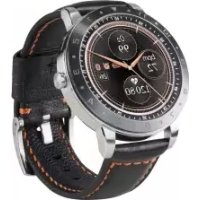
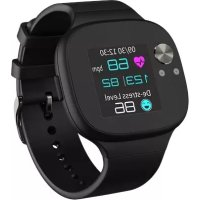
VivoWatch 5 HCB05 - Smartwatch ASUS - Free user manual and instructions
Find the device manual for free VivoWatch 5 HCB05 ASUS in PDF.



| Product type | Smartwatch |
| Brand | ASUS |
| Model | VivoWatch 5 HCB05 |
| Screen | Touchscreen |
| Power supply | 5V DC, 0.5 A (via magnetic charging cable) |
| Battery life | Several days depending on use (not specified) |
| Water resistance | 5 ATM (withstands pressure equivalent to 50 meters) |
| Connectivity | Bluetooth, built-in GPS |
| Sensors | PPG (photoplethysmogram), electrode, accelerometer |
| Main functions | Heart rate measurement, SpO2, TTP index, stress level, sleep, daily activity (steps, calories), exercise with GPS, call and message notifications, medication reminders |
| Companion app | ASUS HealthConnect (Android / iOS) |
| Operating system | ASUS proprietary |
| Strap material | Silicone (standard) |
| Operating temperature | 5°C to 40°C |
| Storage temperature | -20°C to 45°C |
| Care and cleaning | Clean the charging connectors and PPG sensor with a clean, dry cloth. Avoid salt water and chemicals. |
| Safety | Do not use as a medical device. Avoid prolonged contact in case of skin irritation. Keep out of reach of children. |
| Spare parts and repairability | Not applicable (device not user-serviceable) |
| General information | HealthAI technology, compact and lightweight design |
Frequently Asked Questions - VivoWatch 5 HCB05 ASUS
User questions about VivoWatch 5 HCB05 ASUS
0 question about this device. Answer the ones you know or ask your own.
Ask a new question about this device
Download the instructions for your Smartwatch in PDF format for free! Find your manual VivoWatch 5 HCB05 - ASUS and take your electronic device back in hand. On this page are published all the documents necessary for the use of your device. VivoWatch 5 HCB05 by ASUS.
USER MANUAL VivoWatch 5 HCB05 ASUS
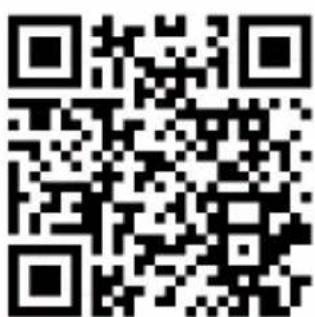
iOS AppAndroid Ap
Table of Contents
English 1
Français....39
Deutsch 73
Italiano....109
Русский 145
Español 179
Português 215
Čeština 251
Polski 287
Appendix 323
Introduction
Thank you for purchasing the ASUS VivoWatch 5! ASUS VivoWatch 5 is the wearable device that packs ASUS HealthAI technology and some fitness functions with all the benefits of being accurate, smart, and compact. Please fill in the following information for future reference:
DATE PURCHASED: ____
SERIAL NUMBER: ____
Staple your receipt here
Register your product at https://account.asus.com/product_reg.aspx
About this manual
This manual provides information about the hardware and software features of your ASUS VivoWatch 5, organized through the following chapters:
Chapter 1: Getting started
This chapter details the hardware components of your ASUS VivoWatch 5 and shows you how to use the different parts of your ASUS VivoWatch 5.
Chapter 2: Using your ASUS VivoWatch 5
This chapter provides an overview of using your ASUS VivoWatch 5.
Appendix
This section includes notices for your ASUS VivoWatch 5.
Read all of the information in the instruction manual and any other literature in the box before operating the device. For the full manual version of your ASUS VivoWatch 5, visit our multi-language web site at: https://www.asus.com/Mobile/Wearable-Healthcare/VivoWatch/ASUS-VivoWatch-5-HC-B05/HelpDesk_Manual/
Conventions used in this manual
To highlight key information in this manual, some text are presented as follows:
This message contains vital information that must be followed to complete a task.

This message contains additional information and tips that can help complete tasks.

This message contains important information that must be followed to keep you safe while performing tasks and prevent damage to your ASUS VivoWatch 5's data and components.
Typography
Bold = This indicates a menu or an item that must be selected.
Italic = This indicates sections that you can refer to in this user guide.
Safety precautions
- The ASUS VivoWatch 5 and the charging cable must be recycled or disposed of properly.
- Keep any small components away from children.
- Your ASUS VivoWatch 5 should only be used in environments with ambient temperatures between 5^ and 40^ , and stored in environments with ambient temperatures between -20^ and 45^ .
- DO NOT leave your ASUS VivoWatch 5 in a hot car. Temperatures in a parked car on sunny days can exceed the recommended ambient temperatures.
- Some people may experience irritations to certain materials used in jewelry, watches, and other wearable items that are in prolonged contact with their skin. This can be due to allergies, environmental factors, extended exposure to irritants like soap, sweat, or other causes.
- You may be more likely to experience irritation from any wearable device if you have allergies or other sensitivities.
- If you have known skin sensitivities, please take special care when wearing your ASUS VivoWatch 5.
- You may be more likely to experience irritation from your ASUS VivoWatch 5 if you wear it too tightly.
-
Remove your ASUS VivoWatch 5 periodically to allow your skin to breathe.
-
Keeping your ASUS VivoWatch 5 and the strap clean and dry will reduce the possibility of skin irritation.
- If you experience redness, swelling, itchiness, or any other irritation or discomfort on your skin around, or beneath, your ASUS VivoWatch 5, please remove your ASUS VivoWatch 5 and consult your physician before resuming wear.
- Continued use, even after symptoms subside, may result in renewed or increased irritation.

- The ASUS VivoWatch 5 is not a medical device and makes no medical claims. It is not intended to diagnose health conditions. The measurement results are only for your reference.
- DO NOT adjust medication based on the measurement results from the ASUS VivoWatch 5. Take medication as prescribed by your physician. Only a physician is qualified to diagnose and treat the disease.
Battery precautions
- Do not dispose of in fire.
- Never attempt to short-circuit the battery.
- Never attempt to disassemble and reassemble the battery.
- Discontinue usage if leakage is found.
1
Getting started
Getting to know your ASUS VivoWatch 5
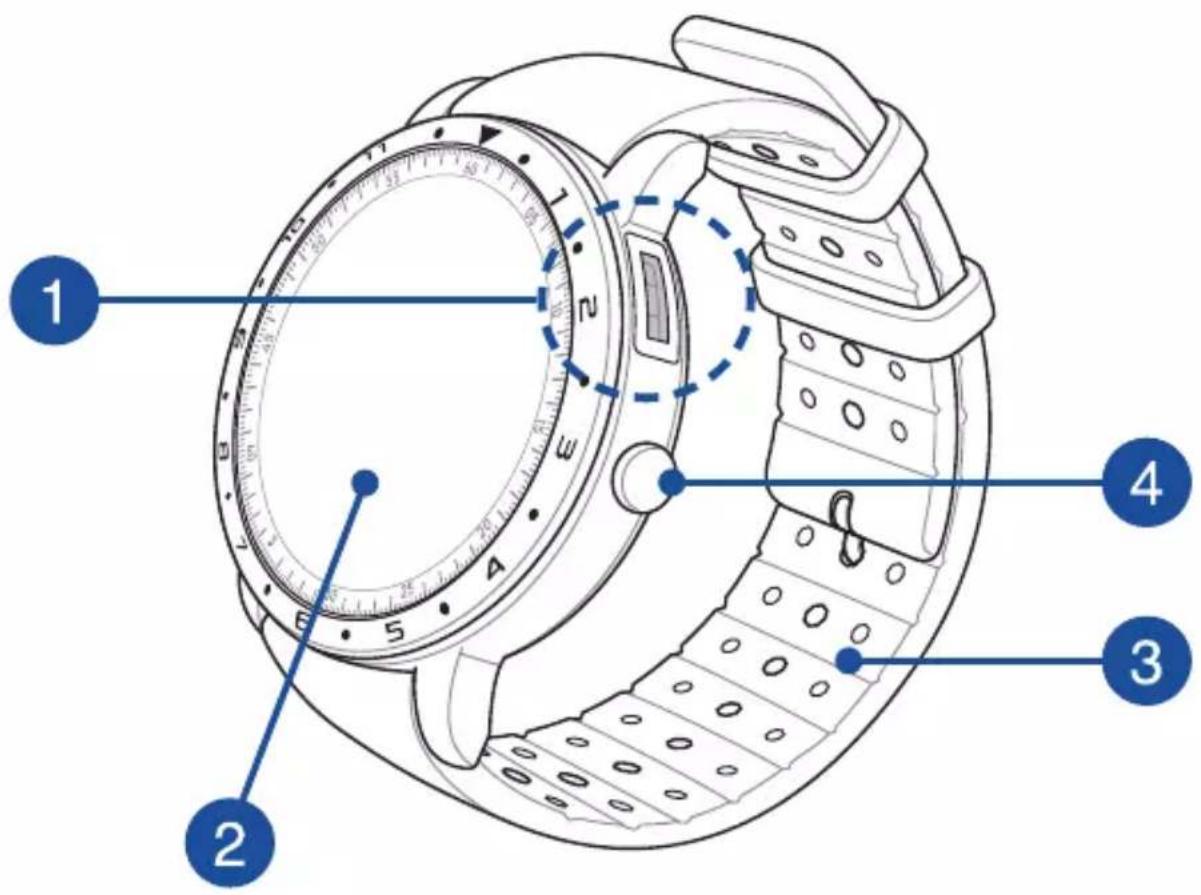
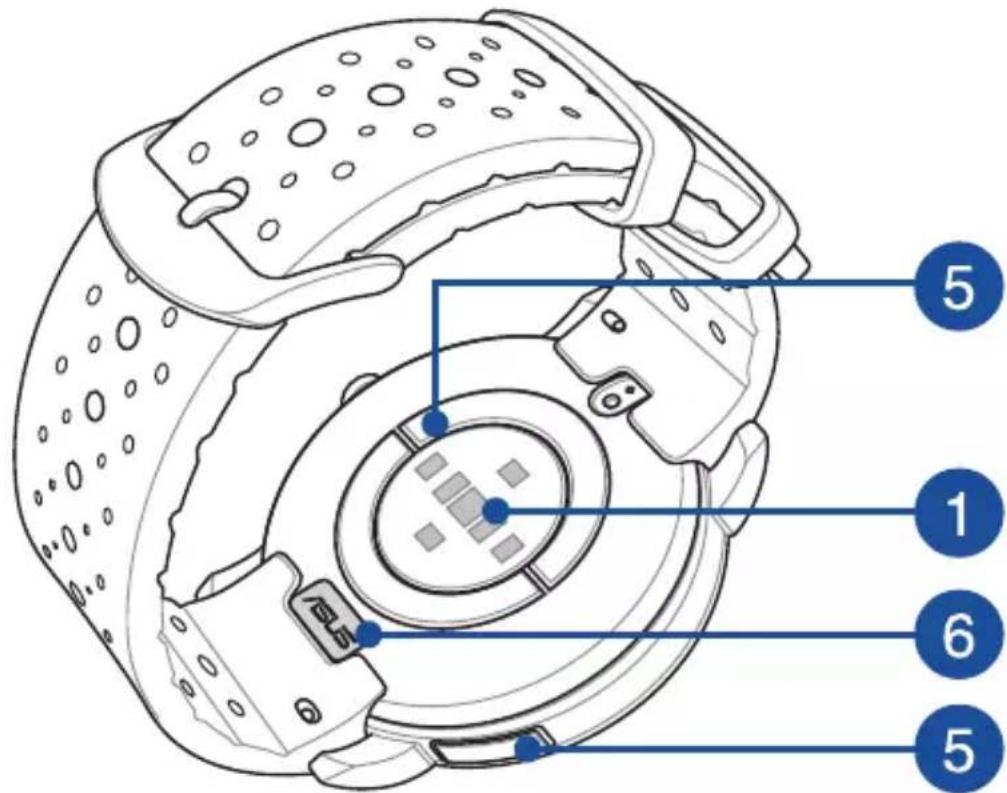
- Your ASUS VivoWatch 5 can be used as a standalone device for measurements and time adjustments.
- Download and install the companion app for a complete overview of your health data. For more details, refer to the Installing the companion app section in this manual.
• ASUS VivoWatch 5 features 5 ATM water resistance that withstands pressures equivalent to a depth of 50 meters. Suitable for splashes, rain, showering and swimming.
- DO NOT use your ASUS VivoWatch 5 in liquids with chemicals or salt water (such as sea water, swimming pools, or hot springs) as it may damage the charging connectors. If your ASUS VivoWatch 5 has been in contact with the mentioned liquids, ensure to thoroughly rinse the connectors with fresh water and dry it with a clean cloth to prevent corrosion.

PPG (Photoplethysmogram) sensor
This sensor works in conjunction with the electrode to allow you to measure your health data. This sensor also allows you to measure your heart rates.

For more details, refer to the Using your ASUS VivoWatch 5 section in this manual.

Touch screen display panel
Use the touch screen display panel to operate your ASUS VivoWatch 5 using gestures.

For more details, refer to the Using your ASUS VivoWatch 5 section in this manual.

Strap
The strap allows you to wear your ASUS VivoWatch 5 on your wrist.

Home button
Press this button on your ASUS VivoWatch 5 to return to the home screen. You can also press this button to unlock your ASUS VivoWatch 5 or enable other functions.
Press and hold this button for one (1) second to power on your ASUS VivoWatch 5, or press and hold this button for two (2) seconds to power off your ASUS VivoWatch 5. Press and hold this button for ten (10) seconds if you need to force restart your ASUS VivoWatch 5.
To prevent data lost, ensure to upload your data before powering off your ASUS VivoWatch 5.

Electrode
This electrode works in conjunction with the PPG sensor to allow you to measure your heart rate and health data.
For more details, refer to the Using your ASUS VivoWatch 5 section in this manual.

Charging connectors (Input: 5Vdc, 0.5A)
Align and connect these charging connectors to the charging cable to charge the battery of your ASUS VivoWatch 5. You can use the connector cover in the package to protect them.
Charging your ASUS VivoWatch 5
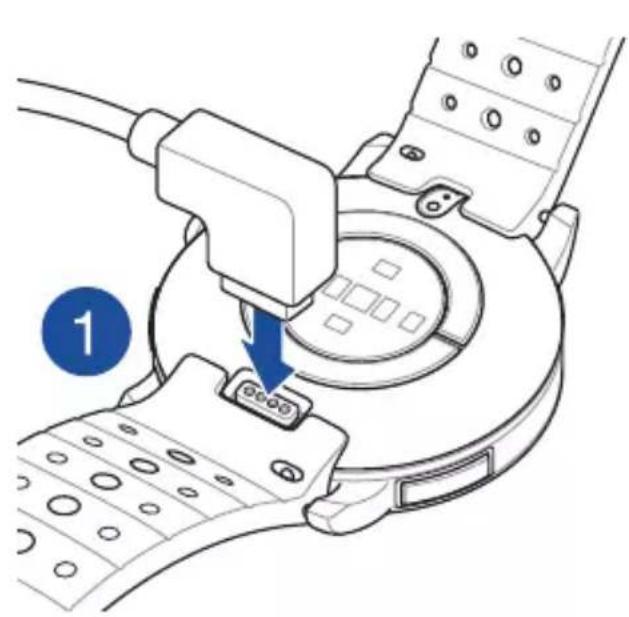
- On the back of your ASUS VivoWatch 5, align and place the charging pins of the USB charging cable onto the charging connectors.
- Connect the USB charging cable to a power source to start charging.
natural_image
Diagram of a mechanical device with a blue arrow indicating a step, showing a component inserted into a circular housing (no text or symbols present)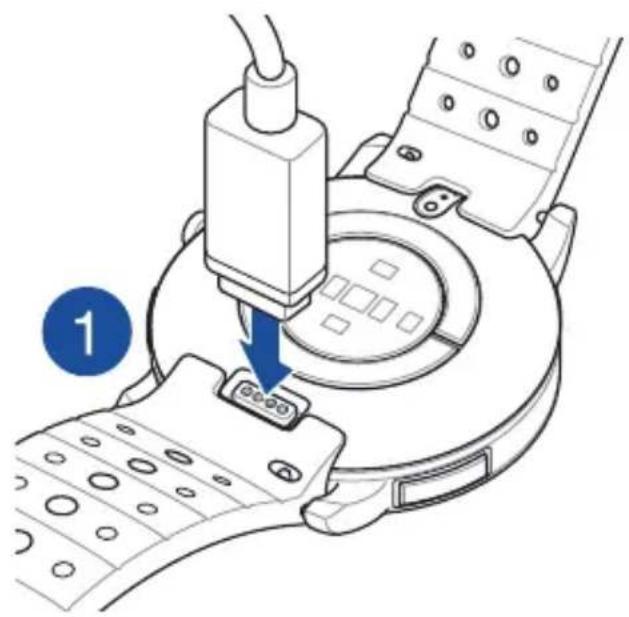
natural_image
Diagram of a mechanical device with a tool inserted into a circular component, showing a blue arrow indicating the process (no text or symbols present)
- The charging cable may vary in appearance, depending on models and your region.
- Your ASUS VivoWatch 5 automatically powers on when fully charged.

- Before connecting the charging cable to your ASUS VivoWatch 5, ensure that the charging connectors and the bottom of the ASUS VivoWatch 5 are clean and dry to prevent corrosion and malfunction:
- Gently wipe the charging connectors with a clean flannel.
- Wipe dry your ASUS VivoWatch 5.
- Do not short circuit the charging connectors on the charging cable.
• Some power banks can not detect low current devices, and will therefore not be able to charge the ASUS VivoWatch 5.
2
Using your ASUS VivoWatch 5
Installing the companion app
Pair your ASUS VivoWatch 5 with the companion app to take advantage of all its features, such as activity data, pill reminders, path tracking, message and call notifications, and sleep and health recommendations.
- On your phone, log in or sign up for a Google account or Apple ID.
- Launch Play Store or App Store.


natural_image
Blue square icon with white abstract geometric design resembling a stylized letter 'A' or cross (no text or symbols)- Search for ASUS HealthConnect App, then install the companion app.

natural_image
Simple grayscale magnifying glass icon (no text or symbols)
natural_image
Abstract heart-shaped logo design on a dark blue background (no text or symbols)Pairing for the first time
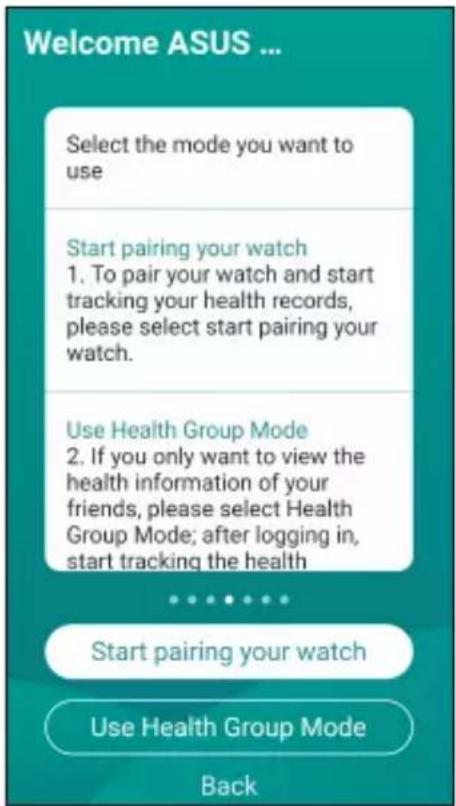
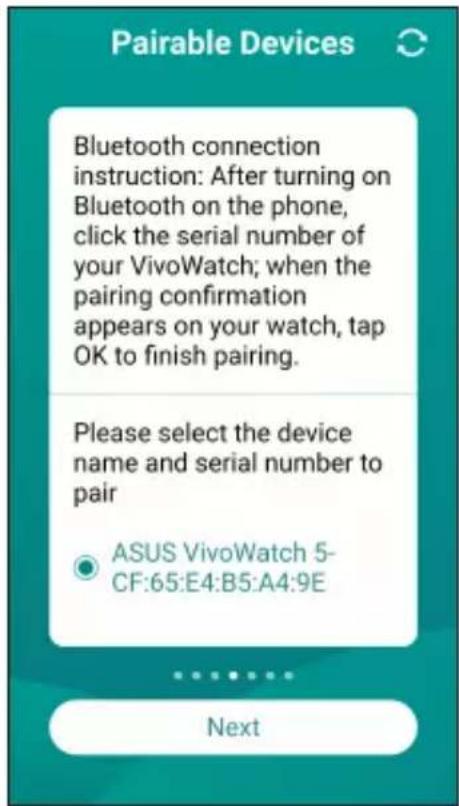
- Turn on the Bluetooth of your phone before pairing.
-
Ensure that the ASUS VivoWatch 5 is within three meters from your phone.
-
Press and hold the Home button for one (1) second to power on your ASUS VivoWatch 5.
- Launch the ASUS HealthConnect App.
- Follow the onscreen instructions on your phone and ASUS VivoWatch 5 to complete the pairing process.
Navigating your ASUS VivoWatch 5
Unlocking your ASUS VivoWatch 5
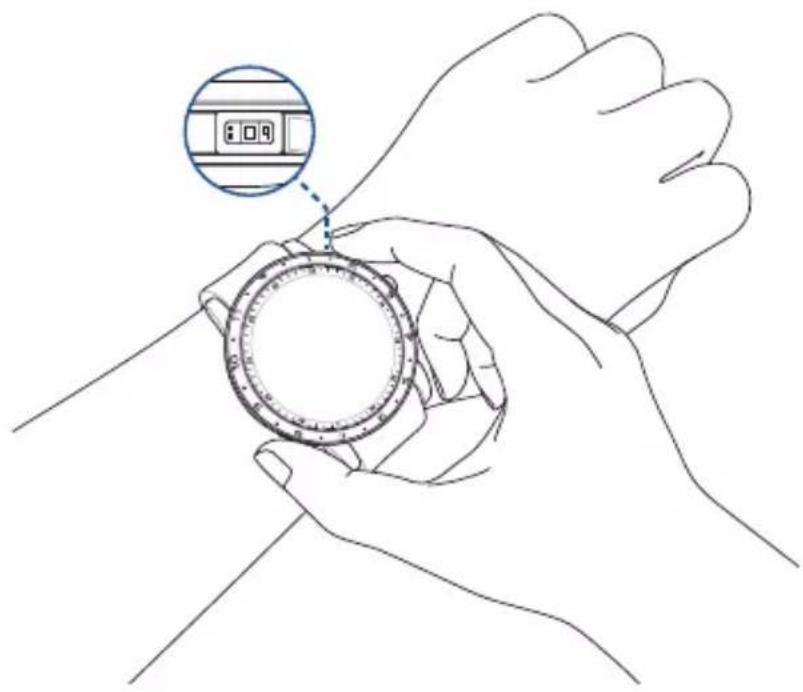
Press the Home button to unlock your ASUS VivoWatch 5. You can scroll through the ASUS VivoWatch 5 features after it is unlocked.

natural_image
Line drawing of a smartwatch with a blue arrow indicating motion or change, showing no text or symbols on the device itself.
After a period of inactivity, the ASUS VivoWatch 5 returns to the home screen and is locked to prevent unwanted operations.
Scrolling through ASUS VivoWatch 5 features
Swipe left or right to scroll through the ASUS VivoWatch 5 features.

You can press the Home button to return to the HOME screen.
Viewing more information for the selected feature
Swipe up or down to view more information for the selected ASUS VivoWatch 5 feature or change the watch face.
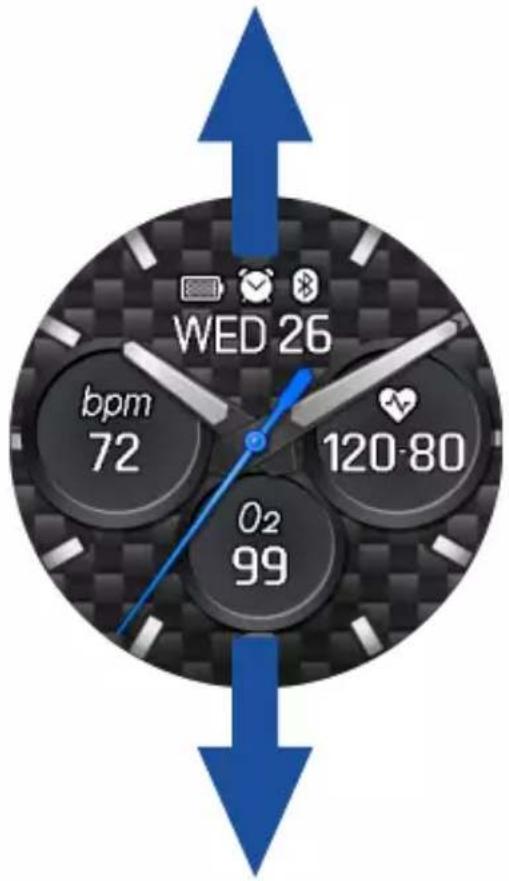
Not all features contain additional information.
ASUS VivoWatch 5 features
Your ASUS VivoWatch 5 shows information about your daily activity status, exercise time, and sleep quality to assist you towards a healthier life.

The screens shown in this manual are for reference only.
Home screen
The ASUS VivoWatch 5 home screen displays the time, date, and status of your ASUS VivoWatch 5.
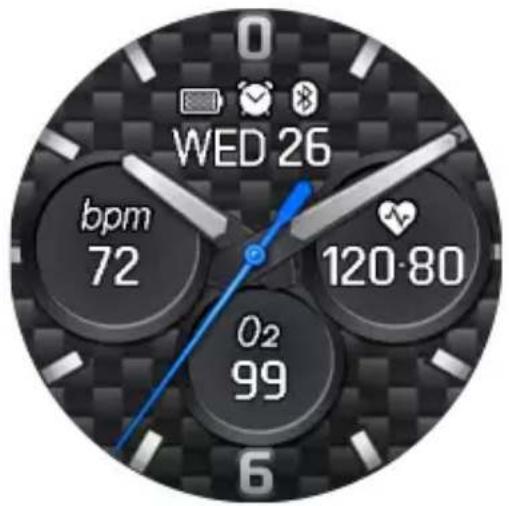
| Icon Description | |
 | Battery level |
 | Connected |
 | Alarm |
PTT index screen
This screen allows you to measure your health data. Your ASUS VivoWatch 5 can also estimate your emotional stress by using the PTT (Pulse Transit Time) Index.
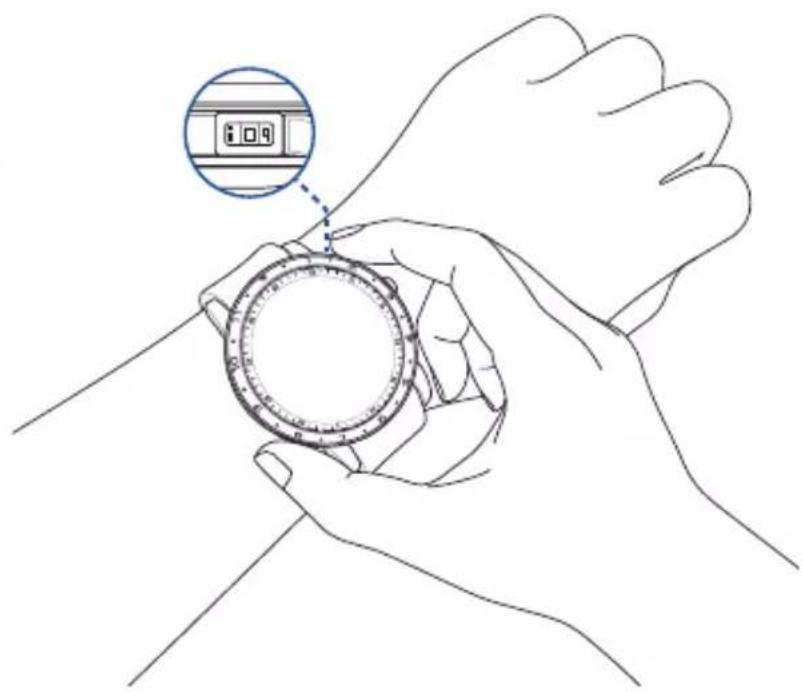
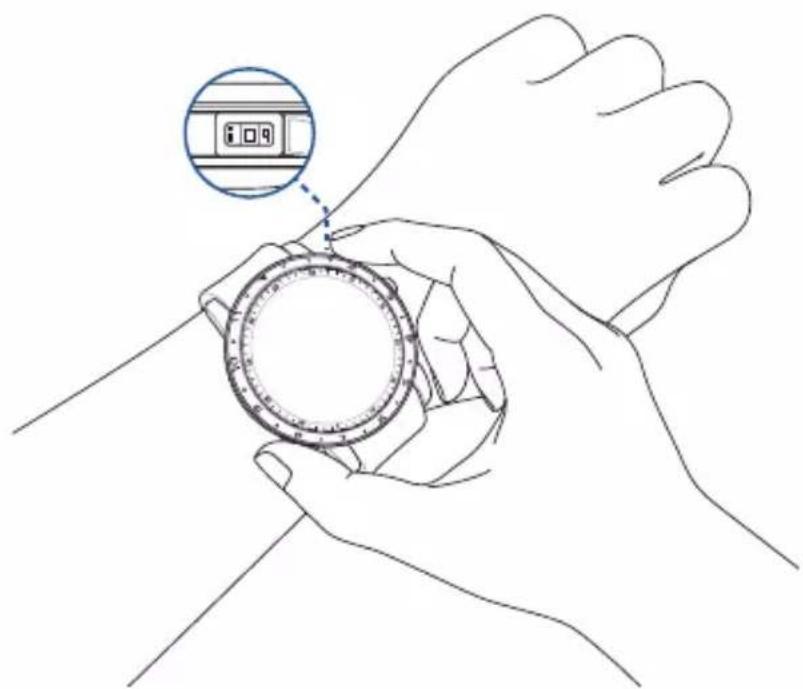
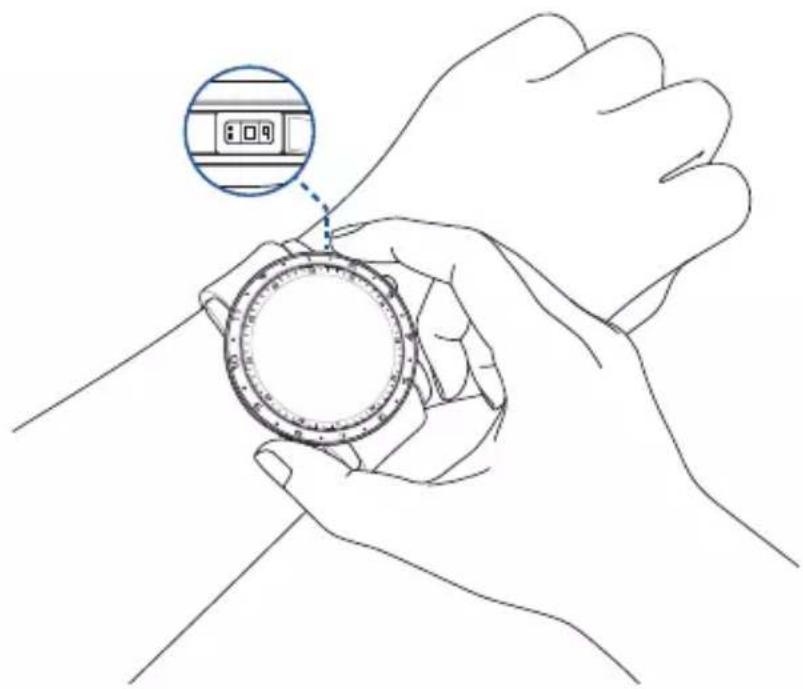
Swipe right from the Home screen to enter the PTT index screen. Place your thumb and index finger onto the electrode and the PPG sensor.
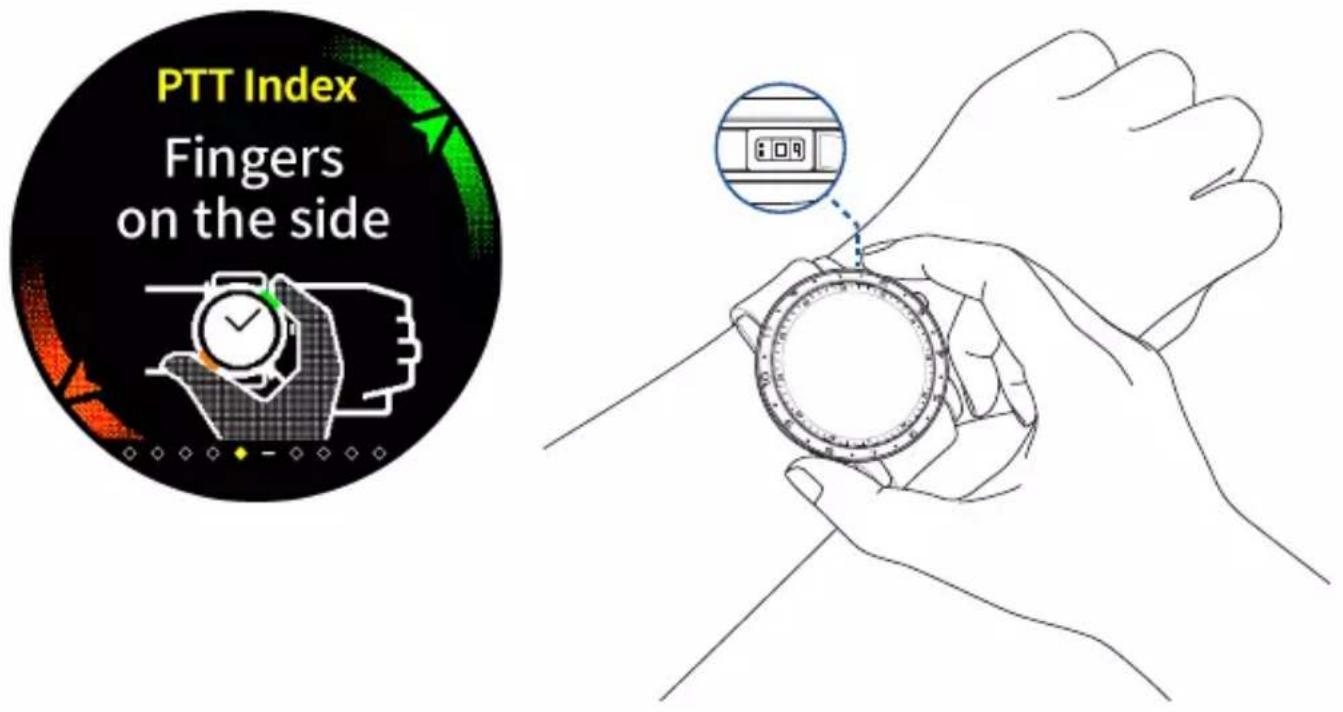
Visit our FAQ page for more information on PTT index measurement at https://www.asus.com/Mobile/Wearable-Healthcare/VivoWatch/ASUS-VivoWatch-5-HC-B05/HelpDesk_knowledge/.
Your ASUS VivoWatch 5 uses the PPG sensor in conjunction with the electrode to allow you to pick up your health data, and the way you wear your ASUS VivoWatch 5 can affect the accuracy of the measurements.
To get more accurate results:
- Wear the ASUS VivoWatch 5 in a normal way with the watch face facing up, the bottom of the ASUS VivoWatch 5 touching your skin, and the ASUS VivoWatch 5 away from your wrist bone.
- Wear your ASUS VivoWatch 5 in a way without being uncomfortable. Do not strap the ASUS VivoWatch 5 too tight to your wrist.
- Place your finger gently on the electrode and cover the PPG sensor while measuring your health data.
- Remain still while measuring to get the most accurate results.
- The accuracy of the PPG sensor may vary depending on measurement conditions and surroundings. If the PPG sensor is dirty, clean the sensor and try again.
- Do not look directly into the PPG sensor, the sensor light may impair your vision.
- Please make sure children do not look directly into the sensor light.
- The ASUS VivoWatch 5 is not a medical device and makes no medical claims. It is not intended to diagnose health conditions. The measurement results are only for your reference.
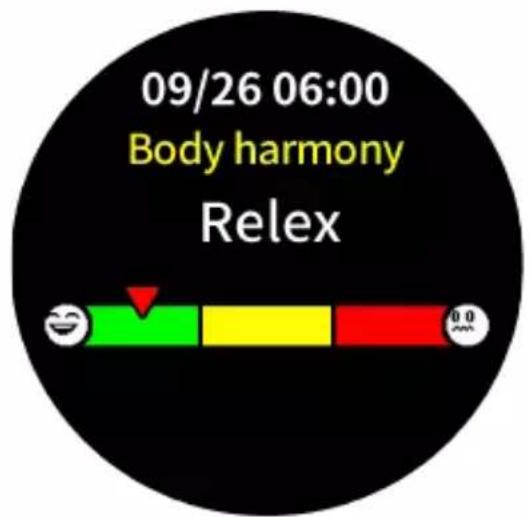
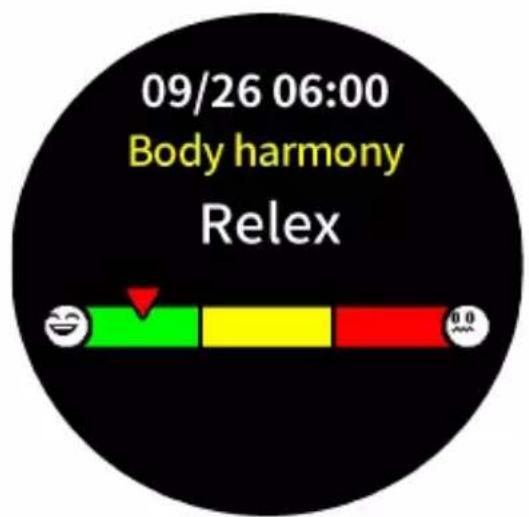
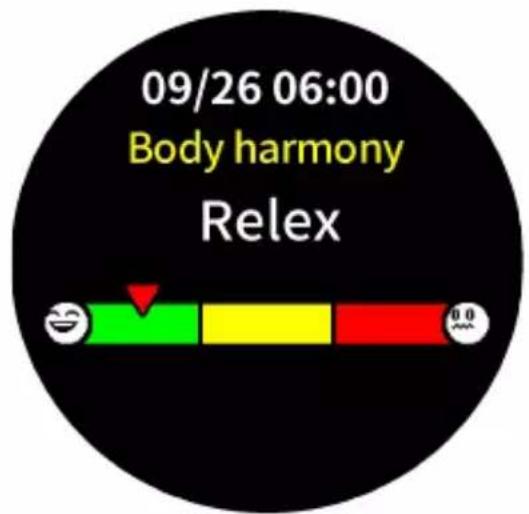
Body Harmony measuring screen
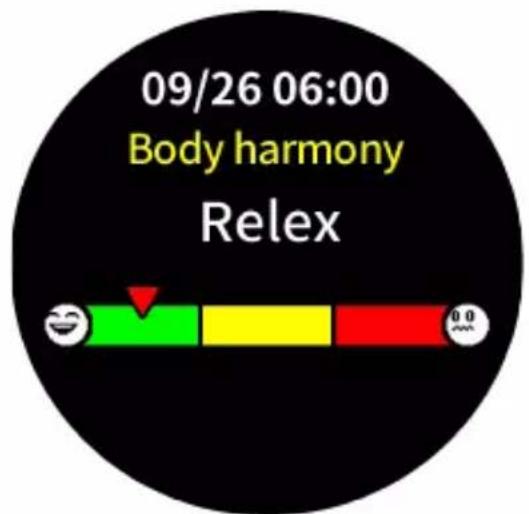
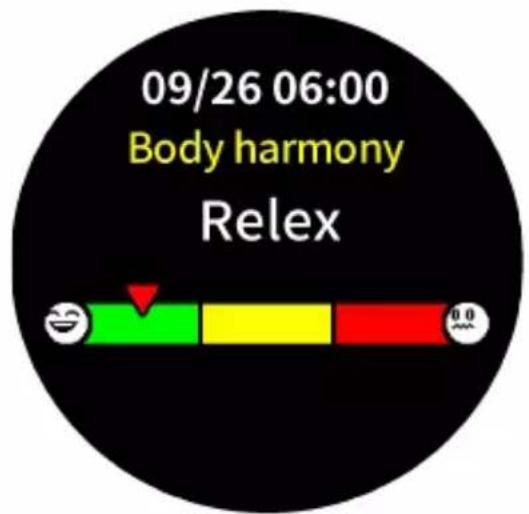
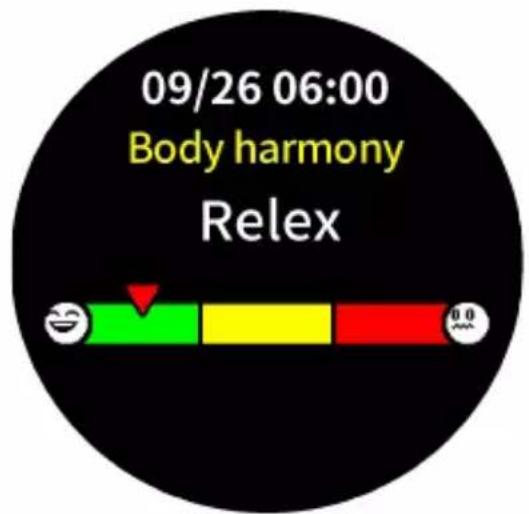
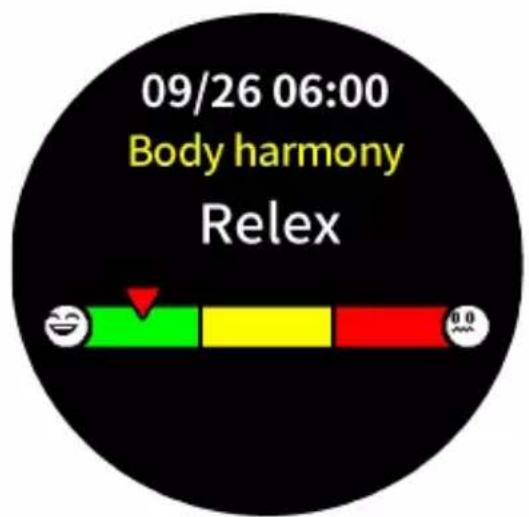
This screen allows you to measure your Body Harmony (including Relax, Balance and Stress Status). The Body Harmony data will help you to keep track of your well-being, and ultimately, enable you to improve the balance of your body and mind.
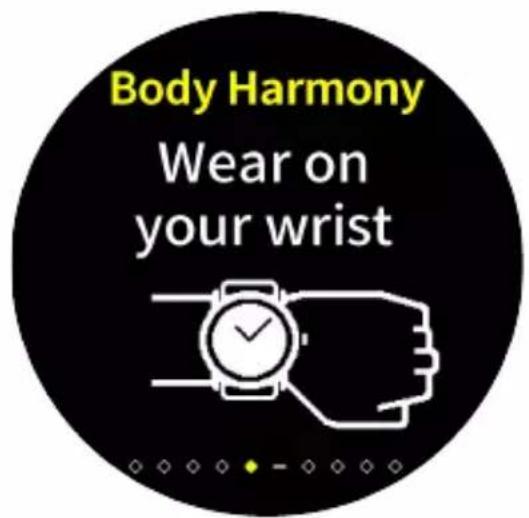
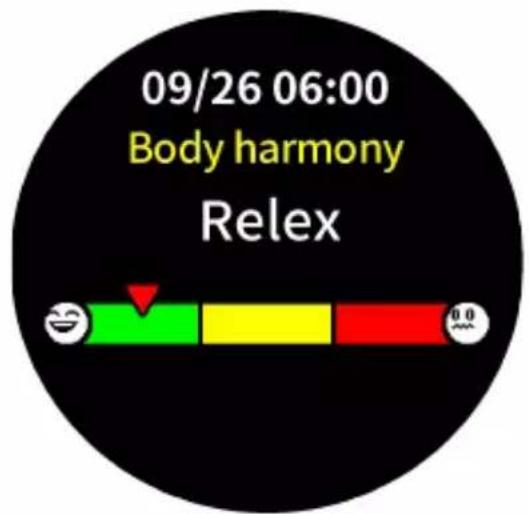
Pulse O2 level screen
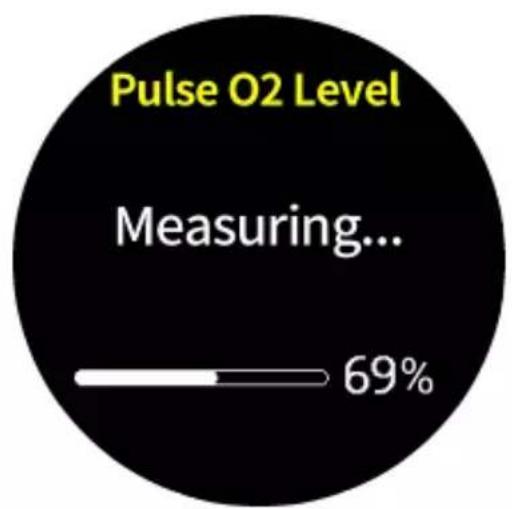
Your ASUS VivoWatch 5 features a wrist-based Pulse O2 level function. It will help you determine how your body is acclimating to high altitudes for alpine sports and expeditions.
Entering Pulse O2 level mode
To enter Pulse O2 level mode, swipe left or right to the screen that displays Pulse O2 Level. Please wear it on your wrist and place your thumb and index finger onto the electrode and the PPG sensor. Make sure your ASUS VivoWatch 5 sits properly on your wrist, the measurement will begin automatically.
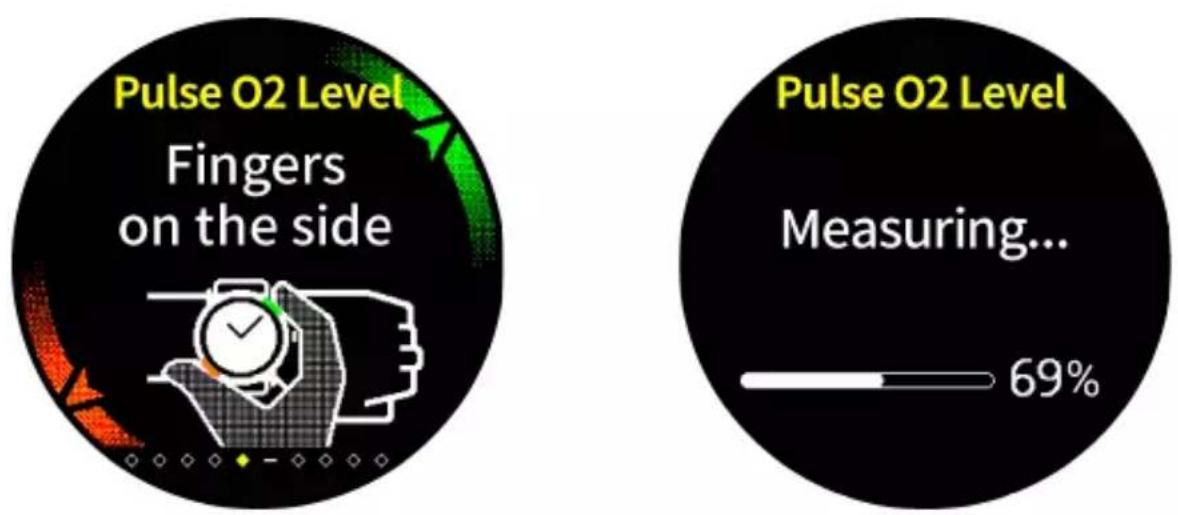
On your ASUS VivoWatch 5, your Pulse O2 level reading appears as a percentage and color on the graph.
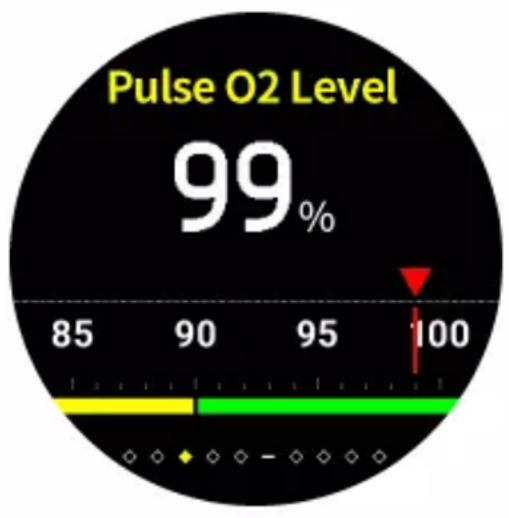
gauge
| Value | |-------| | 99% |Using the ASUS HealthConnect App for Pulse O2 level reading
On the ASUS HealthConnect app, you will have access to additional details about your Pulse O2 level readings, including trends over multiple days.
Heart rate screen
This screen shows your current heart rate. The PPG sensor on your ASUS VivoWatch 5 automatically determines your current heart rate.

To get more accurate results:
- Wear the ASUS VivoWatch 5 in a normal way with the watch face facing up, the bottom of the ASUS VivoWatch 5 touching your skin, and the ASUS VivoWatch 5 away from your wrist bone.
- Wear your ASUS VivoWatch 5 in a way without being uncomfortable. Do not strap the ASUS VivoWatch 5 too tight to your wrist.
- You can get the most accurate results from the heart rate monitor when you are warmed up.
Exercise screen
This screen allows you to keep track of your exercise sessions. When you start exercise mode, your ASUS VivoWatch 5 will record information about the current exercise session and show the information as they are recorded.
Entering exercise mode
To enter exercise mode, swipe left or right to the Exercise screen, then tap √ to select exercise item.
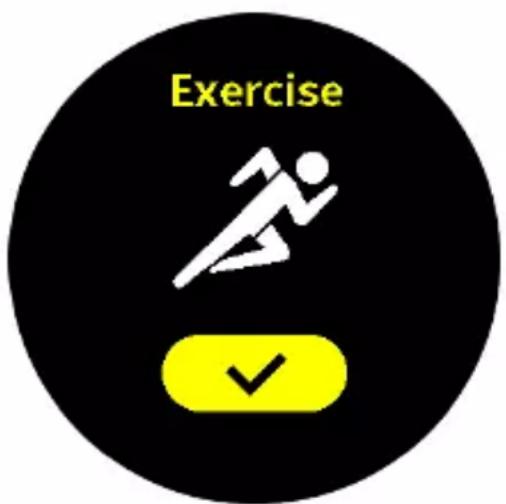

- When you select the outdoor exercise, wait for the GPS signal to lock on in an outdoor open area before you start your exercise session.
- The GPS icon will stop blinking when the GPS signal is locked on.
From the exercise screen, swipe up or down to view information such as the real time heart rate, exercise time, calories, steps, and distance for the current exercise session.
Pausing exercise mode
To pause exercise mode, press the Home button, then tap to pause exercise mode.

gauge
| Metric | Value | |--------|-------| | Distance | 3622m | | Trip | 35 |Settings
This screen allows you to change settings directly on your ASUS VivoWatch 5. Swipe left from the Home screen three times to enter the Settings screen.
Swipe up or down on the Settings screen to view the configurable settings listed below.
| Setting Description | |
| Time Adjust the time. | |
| Profile Adjust your profile. | Enter your personal information correctly for more accurate health data. |
| Target Set your daily calorie goal and step goal. | |
| Brightness Adjust the brightness of your ASUS VivoWatch 5. This effect is more noticeable in darker environments. | |
| Language Change device language. | |
| Power Saving mode This will disable the Always on display feature. You can press the home button to enable the display temporarily. | |
| Assisted reading mode The text size becomes larger when enabled. | |
| About View more information about your device, such as firmware version, serial number, e-label, reset device, etc. | |
Activities screen
Your ASUS VivoWatch 5 will automatically record your daily activities and display them on this screen. Swipe left from the Home screen to enter the Activities screen.
You can view your daily activities such as steps you have taken, calories you have burned, the altitude you are at, your sleep time, and your comfort sleep time as they are recorded.


Swipe up or down to view other activities.
Notifications
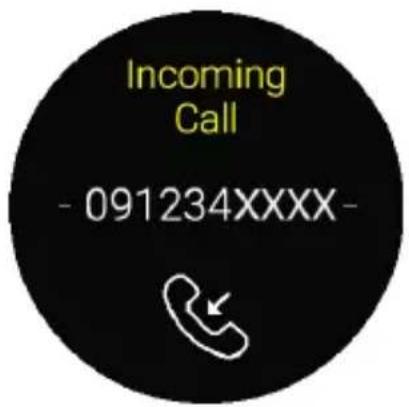
When you receive a call or message on your paired phone, your ASUS VivoWatch 5 will vibrate and show you the phone number of the caller or a preview of the message.

Reminders
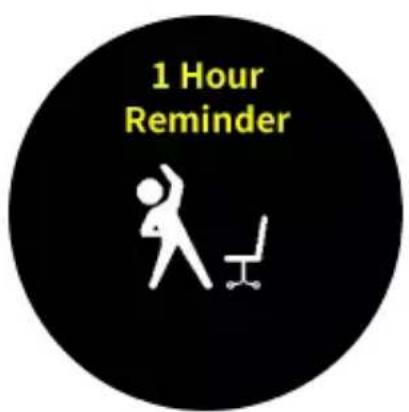
Your ASUS VivoWatch 5 will also show you walk and pill reminders to aid you towards a healthier lifestyle.

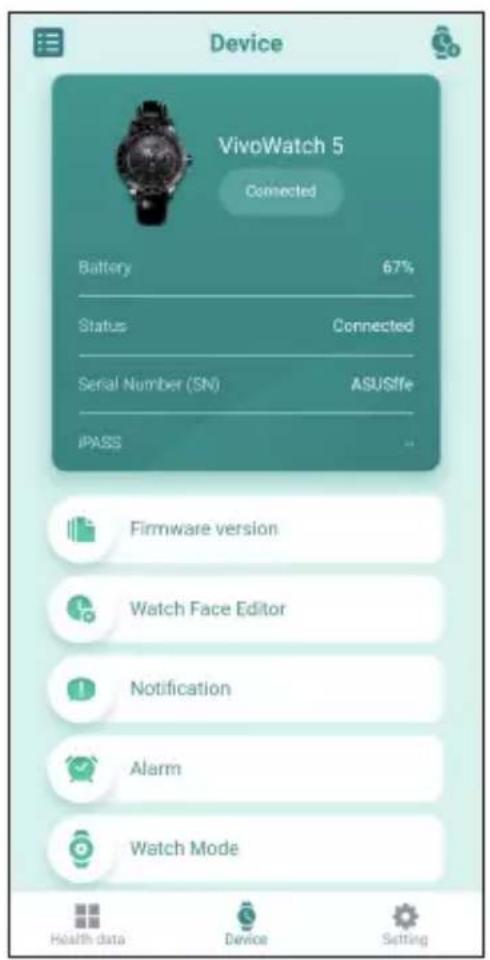
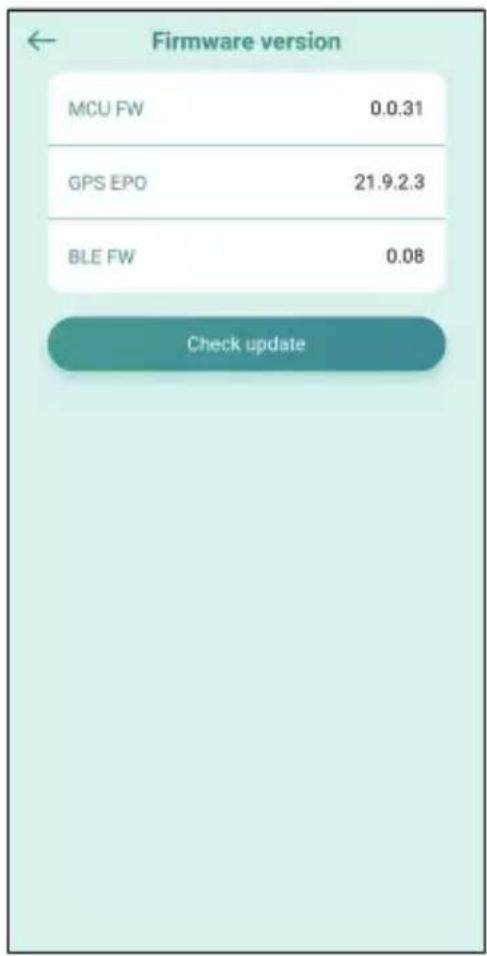
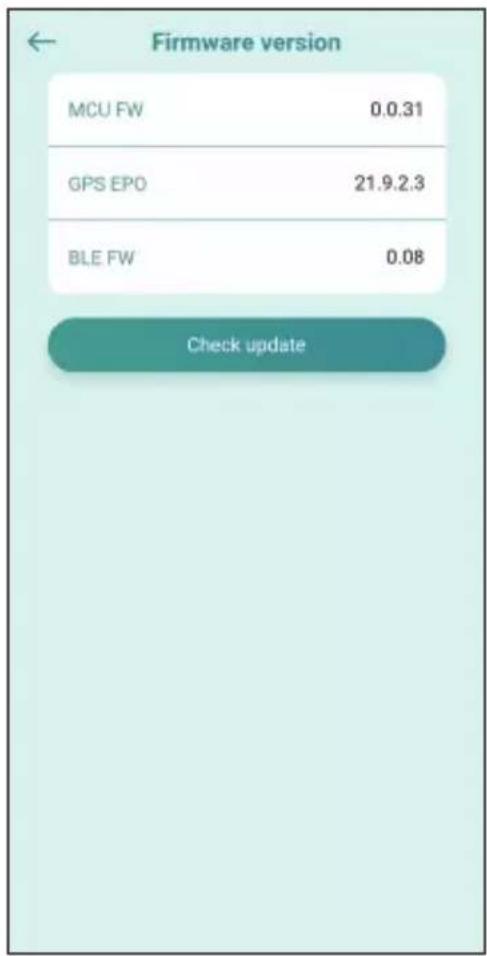
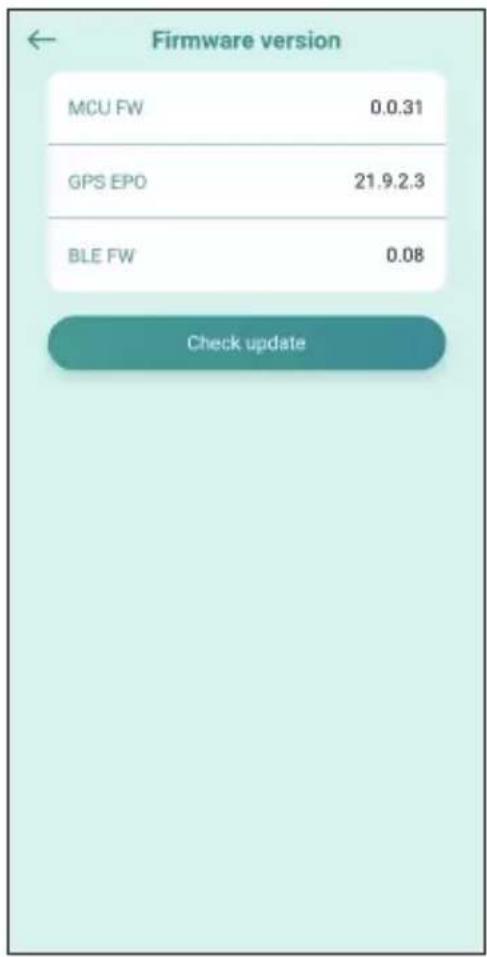
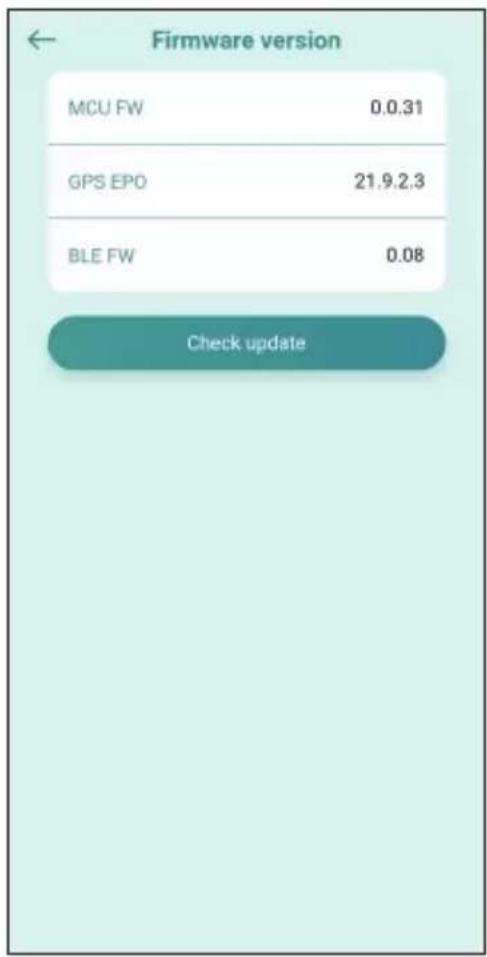
Updating your ASUS VivoWatch 5 Updating through the ASUS HealthConnect App
- Launch the ASUS HealthConnect App.
- From the Today screen, tap Device on the bottom.

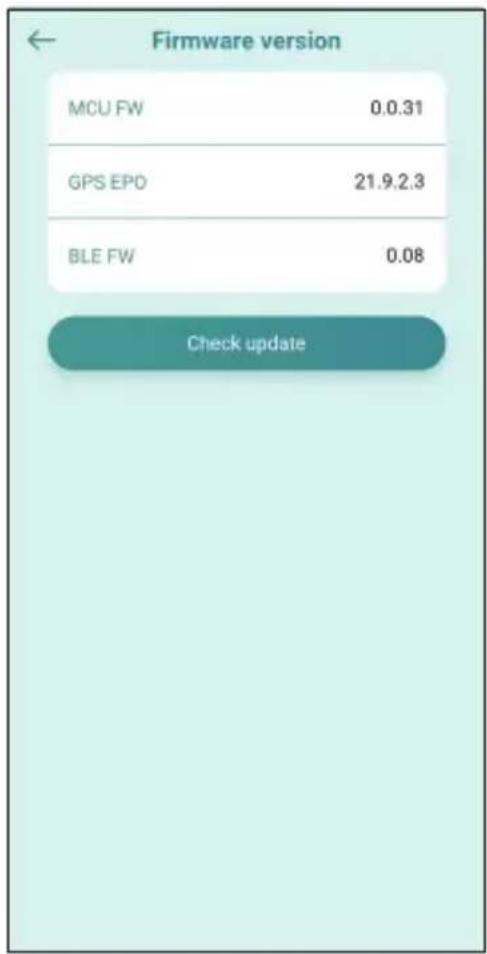
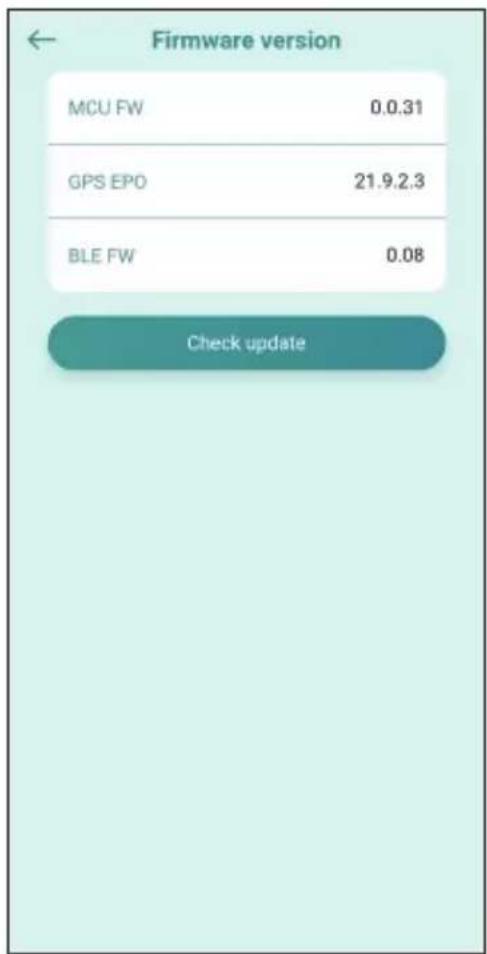
- On Device screen, select Firmware version and tap Check update to check if your current version is up to date.

Introduction
natural_image
Diagram of a device being inserted into a circular component, showing a blue arrow indicating the insertion point (no text or symbols present)
natural_image
Diagram of a mechanical device with a tool inserted into a circular component, showing a blue arrow indicating the process (no text or symbols present)
natural_image
Blue square icon with white stylized 'A' and fork design (no text or symbols)natural_image
Simple grayscale magnifying glass icon (no text or symbols)
natural_image
Heart-shaped logo on a dark blue background (no text or symbols)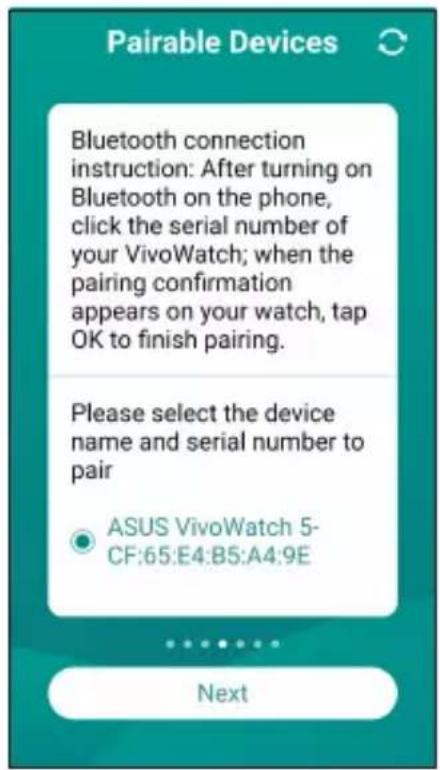
natural_image
Line drawing of a smartwatch with a blue arrow indicating motion or change, showing no text or symbols on the device itself.
Rappels
Einführung
https://account.asus.com/product_reg.aspx
natural_image
Diagram of a mechanical device with a tool interacting with a circular component, showing a blue arrow indicating motion (no text or symbols present)
natural_image
Diagram of a mechanical device with a tool inserted into a circular component, showing a blue arrow indicating the process (no text or symbols present)
natural_image
Blue square icon with white abstract geometric design resembling a stylized letter 'A' or cross (no text or symbols)natural_image
Simple grayscale magnifying glass icon (no text or symbols)
natural_image
Abstract heart-shaped logo design on a dark blue background (no text or symbols)Erste Kopplung

Ihre ASUS VivoWatch 5 navigieren
Ihre ASUS VivoWatch 5 entsperren
natural_image
Line drawing of a smartwatch with a blue arrow indicating motion or change, showing no text or symbols on the device itself.

https://www.asus.com/Mobile/Wearable-Healthcare/Vivo-Watch/ASUS-VivoWatch-5-HC-B05/HelpDesk knowledge/.
Erinnerungen
Introduzione
natural_image
Diagram of a mechanical device with a blue arrow indicating a step, showing a component being inserted or placed on a curved surface (no text or symbols present)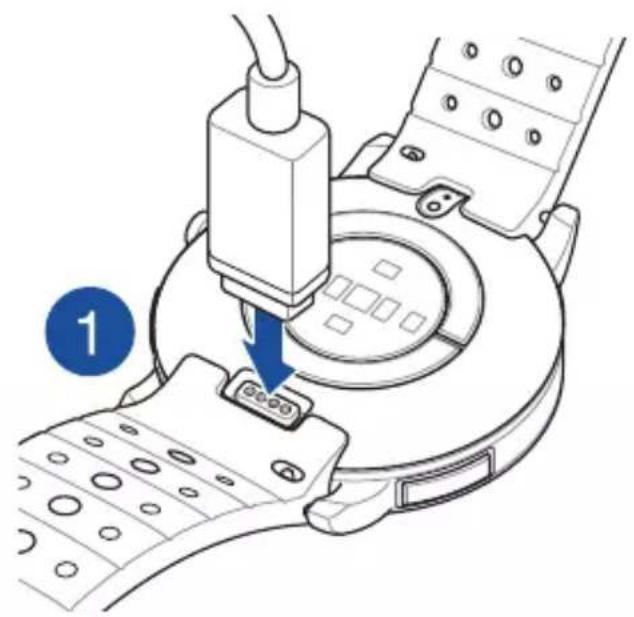
natural_image
Diagram of a mechanical device with a tool inserted into a circular component, showing a blue arrow indicating the process (no text or symbols present)
natural_image
Blue square icon with white abstract geometric design resembling a stylized letter 'A' or cross (no text or symbols)natural_image
Simple grayscale magnifying glass icon (no text or symbols)
natural_image
Abstract heart-shaped logo design on a dark blue background (no text or symbols)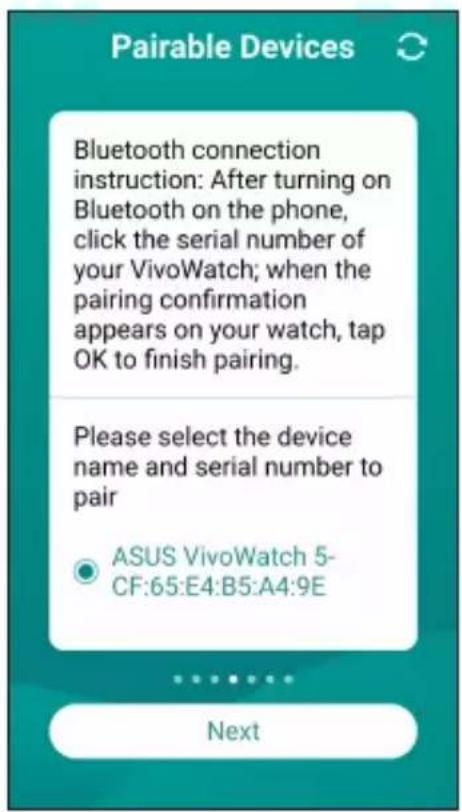
Navigare ASUS VivoWatch 5
natural_image
Line drawing of a smartwatch with a blue arrow indicating motion or change, showing no text or symbols on the device itself.
Schermata Pulse O2 Level
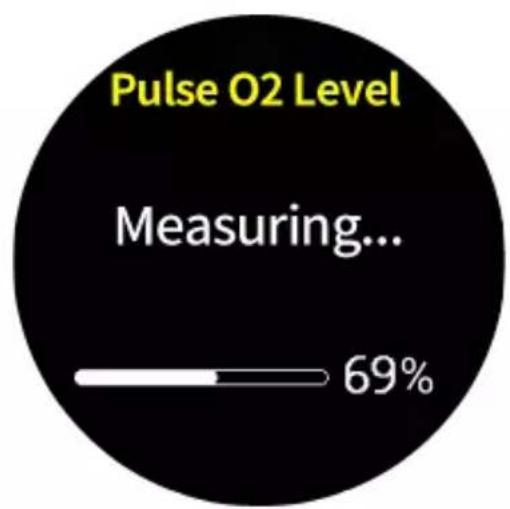
bar
| Metric | Value | |--------|-------| | Measuring... | 69% |
Promemoria

Введение
natural_image
Diagram of a mechanical device with a blue arrow indicating a step, showing a component being inserted or placed on a curved surface (no text or symbols present)
natural_image
Diagram of a mechanical device with a tool inserted into a circular component, showing a blue arrow indicating the process (no text or symbols present)
natural_image
Blue square icon with white abstract geometric design resembling a stylized letter 'A' or cross (no text or symbols)natural_image
Simple grayscale icon of a magnifying glass (no text or symbols)
natural_image
Abstract heart-shaped logo design on a dark blue background (no text or symbols)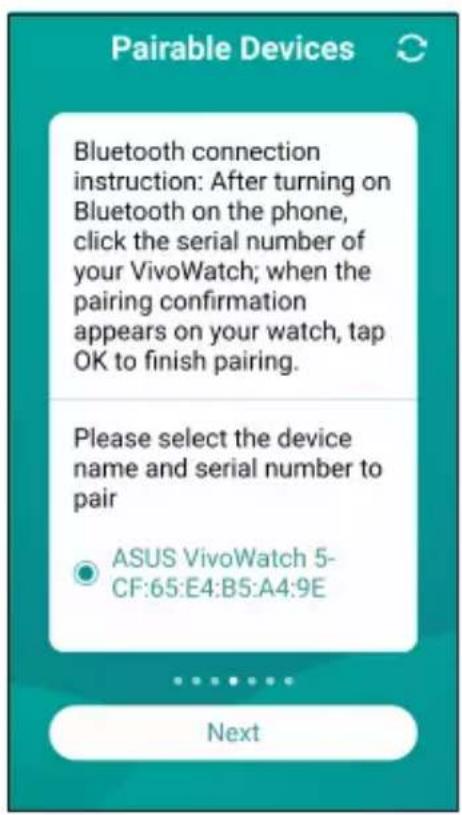
natural_image
Line drawing of a smartwatch with a blue arrow pointing to the wrist (no text or symbols present)


Напоминания
Introducción
natural_image
Diagram of a mechanical device with a valve and connector, showing a blue arrow indicating assembly or operation (no text or symbols present)
natural_image
Diagram of a mechanical device with a lever and adjustment knob, no text or symbols present
natural_image
Two app icons: a colorful play triangle and a blue square with white musical notes (no text or symbols)natural_image
Two app icons: a magnifying glass and a heart-shaped logo on a dark background (no text or symbols)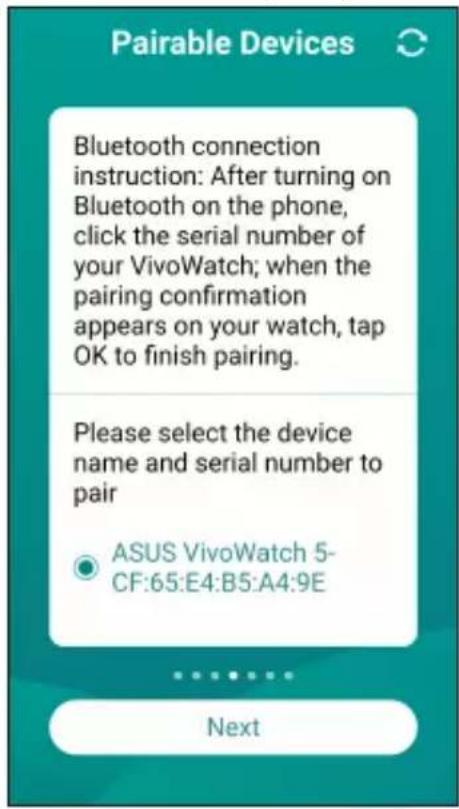
natural_image
Line drawing of a smartwatch with a blue arrow indicating motion or change, showing no text or symbols on the watch face.

Recordatorios
Introdução
natural_image
Diagram of a device being inserted into a circular component, showing a blue arrow indicating the process (no text or symbols present)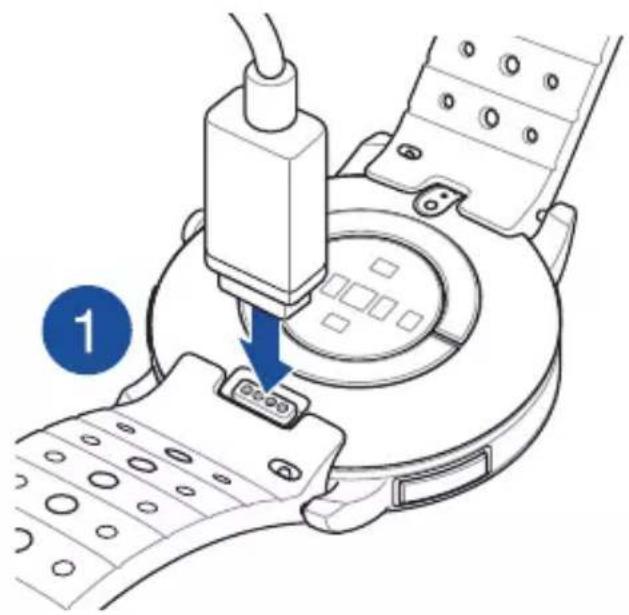
natural_image
Diagram of a mechanical device with a tool inserted into a circular component, showing a blue arrow indicating the process (no text or symbols present)
natural_image
Blue square icon with white abstract geometric design resembling a stylized letter 'A' or cross (no text or symbols)natural_image
Simple grayscale magnifying glass icon (no text or symbols)
natural_image
Abstract heart-shaped logo design on a dark blue background (no text or symbols)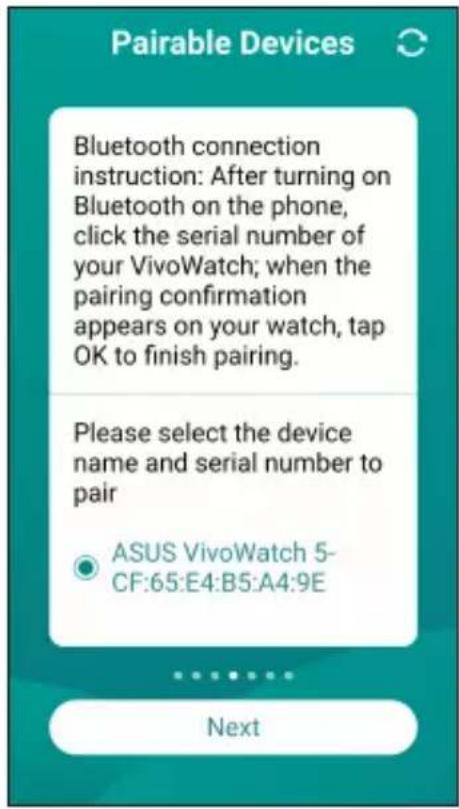
natural_image
Line drawing of a smartwatch with a blue arrow pointing to the dials (no text or symbols present)

Lembretes
Úvod
natural_image
Diagram of a mechanical device with a tool inserted into a circular component, showing a blue arrow and numbered label (1), no readable text or symbols present.
natural_image
Diagram of a mechanical device with a clamping tool inserted into a circular component, showing a blue arrow indicating the process (no text or symbols present)
natural_image
Blue square icon with white abstract geometric design resembling a stylized letter 'A' or cross (no text or symbols)natural_image
Simple grayscale magnifying glass icon (no text or symbols)
natural_image
Abstract heart-shaped logo design on a dark blue background (no text or symbols)První spárování

natural_image
Line drawing of a smartwatch with a blue arrow pointing to the dials (no text or symbols present)
Obrazovka Úroveň O2
Připomenutí

Wstęp
natural_image
Diagram of a mechanical device with a blue arrow indicating a step, showing a component being inserted (no text or symbols present)
natural_image
Diagram of a mechanical device with a blue arrow indicating a process step, no text or symbols present
natural_image
Blue square icon with white stylized 'A' or 'X' symbol (no text or numbers)natural_image
Simple grayscale magnifying glass icon (no text or symbols)
natural_image
Abstract heart-shaped logo design on a dark blue background (no text or symbols)
natural_image
Line drawing of a smartwatch with a blue arrow pointing to the wrist (no text or symbols present)
Przypomnienia
Appendix
Federal Communications Commission Interference Statement
This equipment has been tested and found to comply with the limits for a Class B digital device, pursuant to part 15 of the FCC Rules. These limits are designed to provide reasonable protection against harmful interference in a residential installation. This equipment generates, uses and can radiate radio frequency energy and, if not installed and used in accordance with the instructions, may cause harmful interference to radio communications. However, there is no guarantee that interference will not occur in a particular installation. If this equipment does cause harmful interference to radio or television reception, which can be determined by turning the equipment off and on, the user is encouraged to try to correct the interference by one or more of the following measures:
- Reorient or relocate the receiving antenna.
- Increase the separation between the equipment and receiver.
- Connect the equipment into an outlet on a circuit different from that to which the receiver is connected.
- Consult the dealer or an experienced radio/ TV technician for help.
CAUTION:
Any changes or modifications not expressly approved by the grantee of this device could void the user's authority to operate the equipment.
This device complies with Part 15 of the FCC Rules. Operation is subject to the following two conditions: (1) this device may not cause harmful interference, and (2) this device must accept any interference received, including interference that may cause undesired operation.
RF exposure warning
The equipment complies with FCC RF exposure limits set forth for an uncontrolled environment.
The equipment must not be co-located or operating in conjunction with any other antenna or transmitter.
Compliance Statement of Innovation, Science and Economic Development Canada (ISED)
This device complies with Innovation, Science and Economic Development Canada licence exempt RSS standard(s). Operation is subject to the following two conditions: (1) this device may not cause interference, and (2) this device must accept any interference, including interference that may cause undesired operation of the device.
CAN ICES-3(B)/NMB-3(B)
Radio Frequency (RF) Exposure Information
The radiated output power of the Wireless Device is below the Industry Canada (IC) radio frequency exposure limits. The Wireless Device should be used in such a manner such that the potential for human contact during normal operation is minimized.
This device has also been evaluated and shown compliant with the IC RF Exposure limits under portable exposure conditions (antennas are less than 20 cm of a person's body).
Regional notice for Mexico

Simplified EU Declaration of Conformity
ASUSTek Computer Inc. hereby declares that this device is in compliance with the essential requirements and other relevant provisions of Directive 2014/53/EU. Full text of EU declaration of conformity is available at https://www.asus.com/support/.
| AT BE | BG CZ DK EE FR | ||||
| DE IS | IE IT EL ES CY | ||||
| LV | LI | LT | LU | HU | MT |
| NO PL | PT RO SI SK TR | ||||
| FI SE | CH HR UK(NI) |
CE

The Simplified EU Declaration of Conformity of this device has been updated. This device now complies with Radio Equipment Directive 2014/53/EU, and no longer complies with R&TTE Directive 1999/5/EC.
CE RED RF Output table (Directive 2014/53/EU)
| Function Frequency | Maximum Output Power (EIRP) | |
| Bluetooth | 2402 - 2480 MHz | 3 dBm |
Simplified UKCA Declaration of Conformity
ASUSTek Computer Inc. hereby declares that this device is in compliance with the essential requirements and other relevant provisions of The Radio Equipment Regulations 2017 (S.I. 2017/1206). Full text of UKCA declaration of conformity is available at https://www.asus.com/support/.
UKCA RF Output table
(The Radio Equipment Regulations 2017)
| Function Frequency Maximum Output Power (EIRP) | |
| Bluetooth 2402 - 2480 MHz 3 dBm | |
NCC警語:
Global Environmental Regulation Compliance and Declaration
ASUS follows the green design concept to design and manufacture our products, and makes sure that each stage of the product life cycle of ASUS product is in line with global environmental regulations. In addition, ASUS disclose the relevant information based on regulation requirements.
Please refer to http://csr.asus.com/english/Compliance.htm for information disclosure based on regulation requirements ASUS is complied with:
EU REACH SVHC
ASUS Recycling/Takeback Services
ASUS recycling and takeback programs come from our commitment to the highest standards for protecting our environment. We believe in providing solutions for you to be able to responsibly recycle our products, batteries, other components as well as the packaging materials. Please go to http://csr.asus.com/english/Takeback.htm for detailed recycling information in different regions.
Do not throw your ASUS VivoWatch 5 in municipal waste. This product has been designed to enable proper reuse of parts and recycling. The symbol of the crossed out wheeled bin indicates that the product (electrical, electronic equipment and mercury-containing button cell battery) should not be placed in municipal waste. Check local regulations for disposal of electronic products.

Do not throw the battery in municipal waste. The symbol of the crossed out wheeled bin indicates that the battery should not be placed in municipal waste.
Rechargeable Battery Recycling Service in North America

For US and Canada customers, you can call 1-800-822-8837 (toll-free) for recycling information of your ASUS products' rechargeable batteries.
Regional notice for Singapore
Complies with IMDA Standards DB103778
This ASUS product complies with IMDA Standards.
Notices for removable batteries
- Risk of explosion if battery is replaced by an incorrect type.
- The battery and its component must be recycled or disposed of properly.
Nordic Lithium Cautions (for lithium-ion batteries)
CAUTION! Danger of explosion if battery is incorrectly replaced. Replace only with the same or equivalent type recommended by the manufacturer. Dispose of used batteries according to the manufacturer's instructions. (English)
| Manufacturer ASUSTek COMPUTER INC. | |
| Address 1F., No. 15, Lide Rd., Beitou Dist.,Taipei City 112, Taiwan | |
| Authorized Representative in Europe | ASUS COMPUTER GmbH |
| Address Harkortstrasse 21-23, 40880Ratingen, Germany | |
COPYRIGHT AND WARRANTY INFORMATION
No part of this user guide, including the products and software described in it, may be reproduced, transmitted, transcribed, stored in a retrieval system, or translated into any language in any form or by any means, except documentation kept by the purchaser for backup purposes, without the express written permission of ASUSTeK Computer INC. ("ASUS").
Product warranty or service will not be extended if: (1) the product is repaired, modified or altered, unless such repair, modification of alteration is authorized in writing by ASUS; or (2) the serial number of the is defaced or missing.
ASUS PROVIDES THIS User guide "AS IS" WITHOUT WARRANTY OF ANY KIND, EITHER EXPRESS OR IMPLIED, INCLUDING BUT NOT LIMITED TO THE IMPLIED WARRANTIES OR CONDITIONS OF MERCHANTABILITY OR FITNESS FOR A PARTICULAR PURPOSE. IN NO EVENT SHALL ASUS, ITS DIRECTORS, OFFICERS, EMPLOYEES OR AGENTS BE LIABLE FOR ANY INDIRECT, SPECIAL, INCIDENTAL, OR CONSEQUENTIAL DAMAGES (INCLUDING DAMAGES FOR LOSS OF PROFITS, LOSS OF BUSINESS, LOSS OF USE OR DATA, INTERRUPTION OF BUSINESS AND THE LIKE), EVEN IF ASUS HAS BEEN ADVISED OF THE POSSIBILITY OF SUCH DAMAGES ARISING FROM ANY DEFECT OR ERROR IN THIS User guide OR PRODUCT.
Products and corporate names appearing in this user guide may or may not be registered trademarks or copyrights of their respective companies, and are used only for identification or explanation and to the owners' benefit, without intent to infringe.
SPECIFICATIONS AND INFORMATION CONTAINED IN THIS User guide ARE FURNISHED FOR INFORMATIONAL USE ONLY, AND ARE SUBJECT TO CHANGE AT ANY TIME WITHOUT NOTICE, AND SHOULD NOT BE CONSTRUED AS A COMMITMENT BY ASUS. ASUS ASSUMES NO RESPONSIBILITY OR LIABILITY FOR ANY ERRORS OR INACCURACIES THAT MAY APPEAR IN THIS User guide, INCLUDING THE PRODUCTS AND SOFTWARE DESCRIBED IN IT.
Copyright © 2021 ASUSTeK Computer INC. All Rights Reserved.
LIMITATION OF LIABILITY
Circumstances may arise where because of a default on ASUS' part or other liability, you are entitled to recover damages from ASUS. In each such instance, regardless of the basis on which you are entitled to claim damages from ASUS, ASUS is liable for no more than damages for bodily injury (including death) and damage to real property and tangible personal property; or any other actual and direct damages resulted from omission or failure of performing legal duties under this Warranty Statement, up to the listed contract price of each product.
ASUS will only be responsible for or indemnify you for loss, damages or claims based in contract, tort or infringement under this Warranty Statement.
This limit also applies to ASUS' suppliers and its reseller. It is the maximum for which ASUS, its suppliers, and your reseller are collectively responsible.
UNDER NO CIRCUMSTANCES IS ASUS LIABLE FOR ANY OF THE FOLLOWING: (1) THIRD-PARTY CLAIMS AGAINST YOU FOR DAMAGES; (2) LOSS OF, OR DAMAGE TO, YOUR RECORDS OR DATA; OR (3) SPECIAL, INCIDENTAL, OR INDIRECT DAMAGES OR FOR ANY ECONOMIC CONSEQUENTIAL DAMAGES (INCLUDING LOST PROFITS OR SAVINGS), EVEN IF ASUS, ITS SUPPLIERS OR YOUR RESELLER IS INFORMED OF THEIR POSSIBILITY.
SERVICE AND SUPPORT
Visit our multi-language web site at https://www.asus.com/support/
ASUS®
IN SEARCH OF INCREDIBLE


- Table of Contents
- Introduction
- About this manual
- Chapter 1: Getting started
- Chapter 2: Using your ASUS VivoWatch 5
- Appendix
- Conventions used in this manual
- Typography
- Safety precautions
- Battery precautions
- 1
- Getting started
- Getting to know your ASUS VivoWatch 5
- PPG (Photoplethysmogram) sensor
- Touch screen display panel
- Strap
- Home button
- Electrode
- Charging connectors (Input: 5Vdc, 0.5A)
- Charging your ASUS VivoWatch 5
- 2
- Using your ASUS VivoWatch 5
- Installing the companion app
- Pairing for the first time
- Navigating your ASUS VivoWatch 5
- Unlocking your ASUS VivoWatch 5
- Scrolling through ASUS VivoWatch 5 features
- Viewing more information for the selected feature
- ASUS VivoWatch 5 features
- Home screen
- PTT index screen
- Body Harmony measuring screen
- Pulse O2 level screen
- Entering Pulse O2 level mode
- Using the ASUS HealthConnect App for Pulse O2 level reading
- Heart rate screen
- Exercise screen
- Entering exercise mode
- Pausing exercise mode
- Settings
- Activities screen
- Notifications
- Reminders
- Updating your ASUS VivoWatch 5 Updating through the ASUS HealthConnect App
- Rappels
- Einführung
- Erste Kopplung
- Ihre ASUS VivoWatch 5 navigieren
- Ihre ASUS VivoWatch 5 entsperren
- Erinnerungen
- Introduzione
- Navigare ASUS VivoWatch 5
- Schermata Pulse O2 Level
- Promemoria
- Введение
- Напоминания
- Introducción
- Recordatorios
- Introdução
- Lembretes
- Úvod
- První spárování
- Obrazovka Úroveň O2
- Připomenutí
- Wstęp
- Przypomnienia
- Federal Communications Commission Interference Statement
- CAUTION:
- RF exposure warning
- Compliance Statement of Innovation, Science and Economic Development Canada (ISED)
- Radio Frequency (RF) Exposure Information
- Regional notice for Mexico
- Simplified EU Declaration of Conformity
- CE
- Simplified UKCA Declaration of Conformity
- UKCA RF Output table
- (The Radio Equipment Regulations 2017)
- NCC警語:
- Global Environmental Regulation Compliance and Declaration
- EU REACH SVHC
- ASUS Recycling/Takeback Services
- Rechargeable Battery Recycling Service in North America
- Regional notice for Singapore
- Notices for removable batteries
- Nordic Lithium Cautions (for lithium-ion batteries)
- COPYRIGHT AND WARRANTY INFORMATION
- LIMITATION OF LIABILITY
- SERVICE AND SUPPORT
- ASUS®
- IN SEARCH OF INCREDIBLE
Brand : ASUS
Model : VivoWatch 5 HCB05
Category : Smartwatch