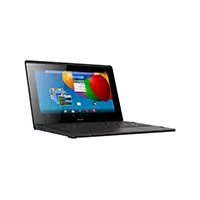
ARCHOS ArcBook - Graphic tablet

ArcBook - Graphic tablet ARCHOS - Free user manual and instructions

Find the device manual for free ArcBook ARCHOS in PDF.

📄 162 pages English EN Download 💬 AI Question 10 questions ⚙️ Specs
Notice ARCHOS ArcBook - page 9
Pick your language and provide your email: we'll send you a specifically translated version.
Product type Graphic tablet with integrated keyboard
Brand ARCHOS
Model ArcBook
Operating system Android
Processor Quad-core (estimated)
RAM 2 GB (estimated)
Internal storage 32 GB (estimated)
Screen 10.1 inches (estimated)
Screen resolution 1280 x 800 pixels (estimated)
Connectivity Wi-Fi 802.11 b/g/n, Bluetooth (estimated)
Ports 1x micro-USB, 1x USB, 1x audio jack input, 1x micro-SD card reader
Battery Rechargeable lithium-ion, capacity not disclosed
Battery life Up to 8 hours (estimated)
Dimensions Approximately 260 x 170 x 15 mm (estimated)
Weight Approximately 600 g (estimated)
Power supply Mains charger 5V, 2A (estimated)
Main features Touchscreen tablet, physical keyboard, ARCHOS Mapping Tool for games, ARCHOS Music app
Care and cleaning Clean with a soft, dry cloth. Do not use abrasive products.
Security Screen lock by pattern, PIN code, or password. Reset button and full restore.
Spare parts and repairability Parts not specified by the manufacturer. Contact ARCHOS support for any repairs.
General information Manual available in several languages. Product registration at www.archos.com/register.

Frequently Asked Questions - ArcBook ARCHOS

How to turn the ArcBook on and off?
To turn on, press the ON/OFF button. To turn off, long press the ON/OFF button and then select the power off option. A short press puts the device to sleep.
How to charge the ArcBook battery?
Plug the supplied charger into the tablet's power connector and into a wall outlet. The charge indicator is red during charging and blue when fully charged. You can use the tablet while charging.
How to connect to a WiFi network?
Swipe down the status bar, press 'WiFi off', turn on the WiFi switch, select your network and enter the password if necessary. You can also use the WPS button in Settings > Wireless & networks.
What is the ARCHOS Mapping Tool and how to use it?
It is an app that allows you to map virtual game buttons to the physical keyboard buttons. Open it from the system bar during a game, drag a mapping button onto a virtual button, then select the corresponding physical button.
How to reset the ArcBook to factory settings?
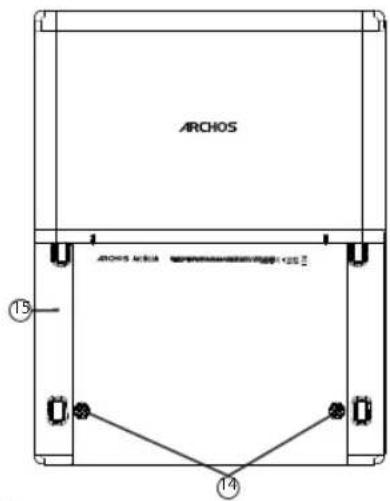
Insert a pointed object into the full restore button (13) while plugging in the power cable. The Android recovery system appears. You can also do it via Settings > Backup & reset.
What to do if the tablet screen becomes unresponsive?
Press the ON/OFF button for 10 seconds or use the Reset button (15) with a paperclip. If the problem persists, recharge the battery.
How to use the touchpad?
For a short press, tap once. For a long press, hold down the touchpad button. Use it to navigate, move icons, or uninstall apps.
How to customize the home screen?
To change the wallpaper, long press on an empty spot or long press the touchpad button. To add widgets, go to All Apps > Widgets.
How to lock the tablet with a code?
Go to Settings > Security > Screen lock and choose pattern, PIN, or password. The lock screen will appear each time you wake the device.
How to launch the ARCHOS Music app?
Long press the Play/Pause button on the keyboard. You can also open the app from the app menu.

User questions about ArcBook ARCHOS

0 question about this device. Answer the ones you know or ask your own.

Ask a new question about this device

The email remains private: it is only used to notify you if someone responds to your question.

No questions yet. Be the first to ask one.

Download the instructions for your Graphic tablet in PDF format for free! Find your manual ArcBook - ARCHOS and take your electronic device back in hand. On this page are published all the documents necessary for the use of your device. ArcBook by ARCHOS.

USER MANUAL ArcBook ARCHOS

Package contents....2

Getting started....3

Description of the device....4

Connecting to a WiFi network....6

The Android ^TM interface....8

Getting familiar with Android™....18

Troubleshooting....20

For more information, please consult the FAQs on www.archos.com. Make sure to read them before considering any product return. Your deal may be no big deal. As we are often updating and improving our products, your device's software may have a slightly different appearance or modified functionality than presented in this Quick Start Guide.


ARCHOS ArcBook - 1

ARCHOS ArcBook - 2

ARCHOS ArcBook - 3

ARCHOS ArcBook - 4

Package contents

ARCHOS ArcBook - Package contents - 1

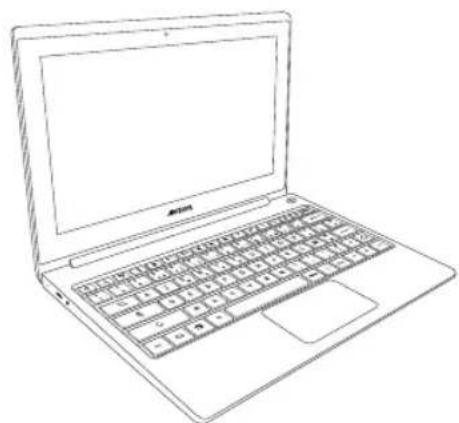
natural_image Line drawing of a laptop computer with visible keyboard and mouse (no text or symbols)

ARCHOS ArcBook

ARCHOS ArcBook - Package contents - 2
QSG booklet

ARCHOS ArcBook - Package contents - 3
Warranty, legal & safety booklet

ARCHOS ArcBook - Package contents - 4
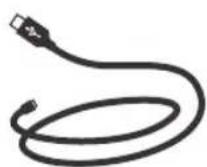
USB cable

ARCHOS ArcBook - Package contents - 5

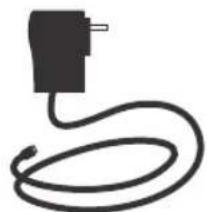
natural_image Simple black line drawing of a plug connected to a coiled cable (no text or symbols)

Charger

2

UserGuide_Archos_ArcBook_book.indd 2 17/07/2014 11:44:39

ARCHOS ArcBook - Package contents - 6

ARCHOS ArcBook - Package contents - 7

ARCHOS ArcBook - Package contents - 8

ARCHOS ArcBook - Package contents - 9

Getting Started

Charging

Connect the supplied power cable to the ARCHOS and to a wall outlet.

The ARCHOS device will turn on and start charging.

The charging indicator light is red while the battery is charging.

It will turn blue when the battery is fully charged.

When the device is off Press the ON/OFF button to turn it on.

When the device is on

- Short press the ON/OFF button to turn it in sleep mode

-Long press the ON/OFF button to display options and select to turn it off

TIPS:

You can use your ARCHOS whilst it charges. Let your device charge completely the first time you use it. Use only the supplied charger.

To receive more complete service, please register your product. From a computer, go to www.archos.com/register.


ARCHOS ArcBook - TIPS: - 1

ARCHOS ArcBook - TIPS: - 2

ARCHOS ArcBook - TIPS: - 3

ARCHOS ArcBook - TIPS: - 4

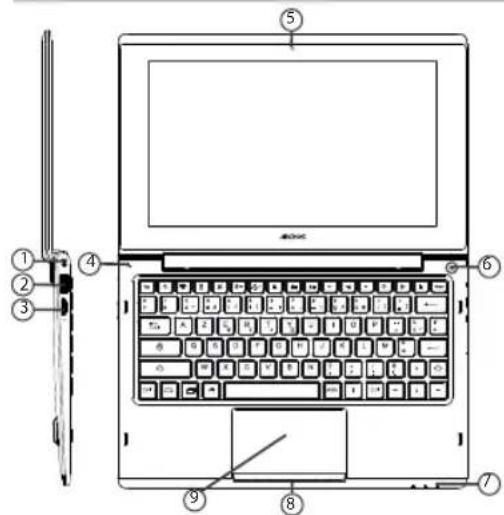
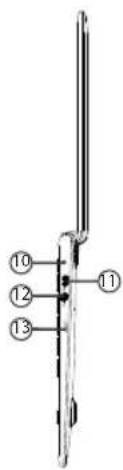
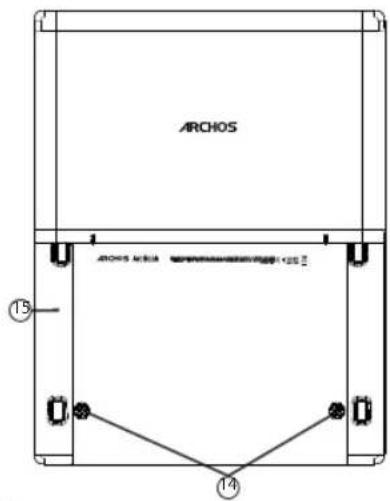
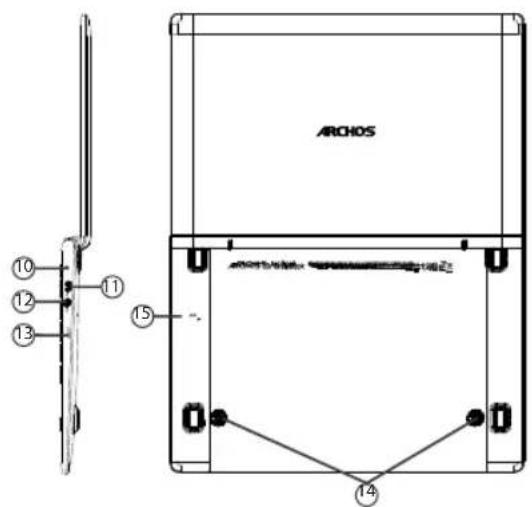
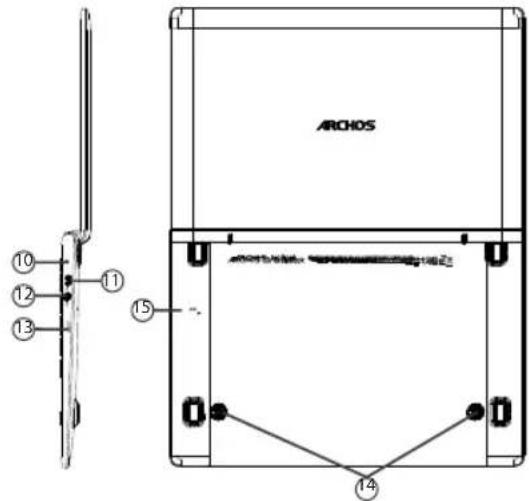
Description of the device
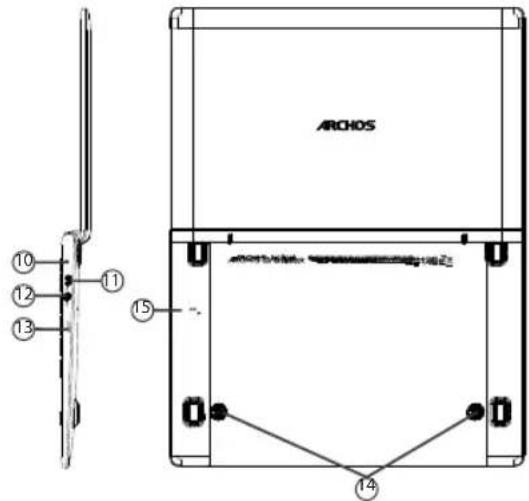
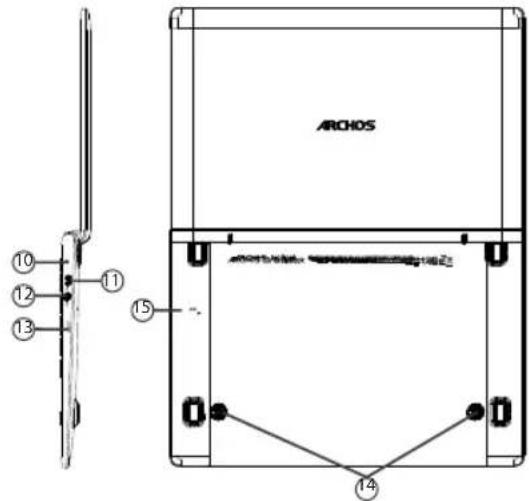
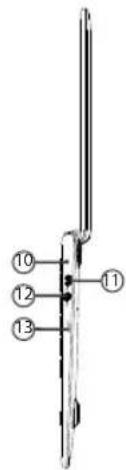
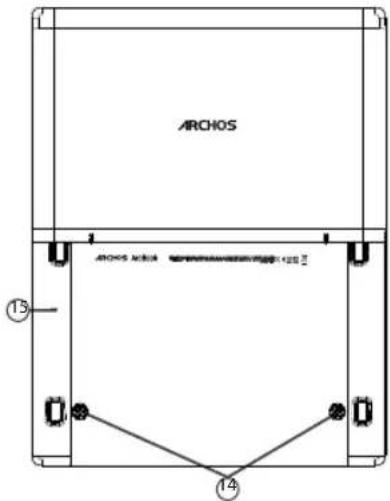
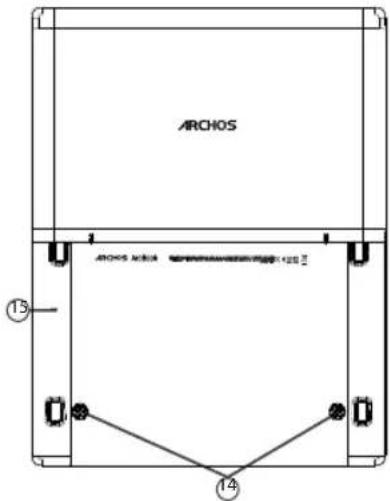
Laptop keyboard diagram with numbered parts for identification and assembly reference

⑩ ⑫ ⑬ ⑬

ARCHOS ARCHOS ARCHOS 15 14

ARCHOS ArcBook - TIPS: - 8

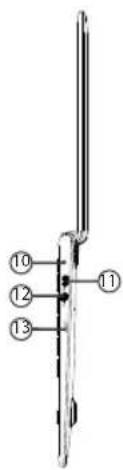
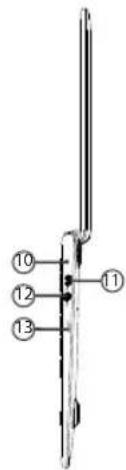
① Locking hole
② USB port
③ Micro-SD card slot
④ Microphone
⑤1015

⑥ ON/OFF button
⑦ Charging indicator
⑧ Touch panel button
⑨ Touch panel
Power connector

⑪ Micro-USB port
⑫ Headphone jack
⑬ Restore button
14 Loudspeakers
Reset button

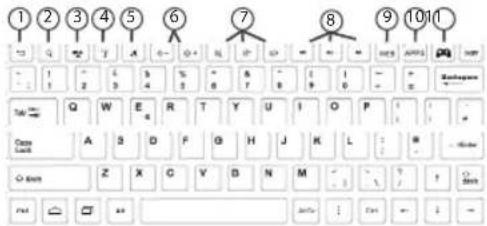
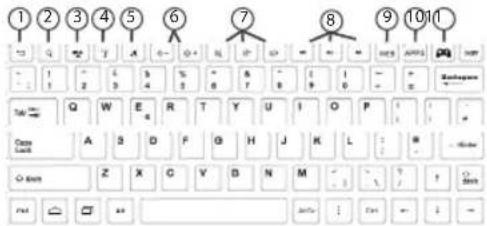
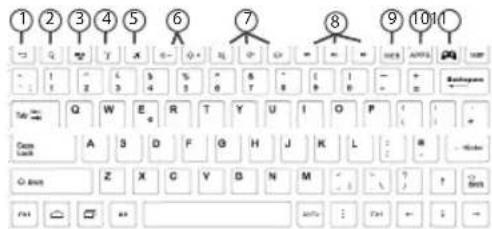
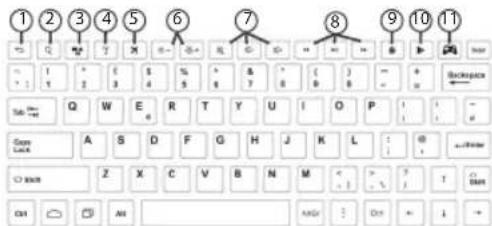
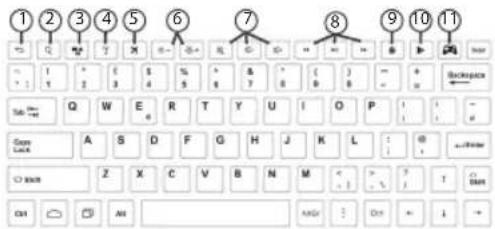
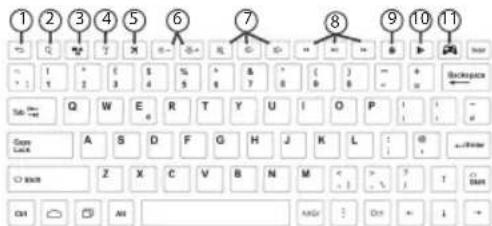
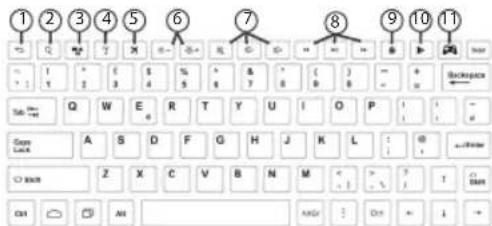
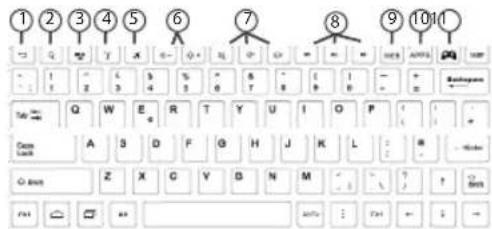
Keyboard shortcut buttons

① Back button
② Search button
③ Notification button
④ WiFi button

⑤ Airplane mode button
⑥ Brightness buttons
⑦ Volume buttons
⑧ ARCHOS Music buttons

⑨ WEB button
⑩ APPS button

ARCHOS ArcBook - Keyboard shortcut buttons - 1

ARCHOS ArcBook - Keyboard shortcut buttons - 2

ARCHOS ArcBook - Keyboard shortcut buttons - 3

ARCHOS ArcBook - Keyboard shortcut buttons - 4

Connecting to a WiFi Network

CAUTION: Make sure that you are in a WiFi zone.

8:18

① Touch and hold the time & battery icons to reveal the status bar. A blue line is displayed.

ARCHOS ArcBook - Connecting to a WiFi Network - 2

natural_image Close-up of a finger pressing a blue horizontal line with concentric circular waves against a black background (no text or symbols)

② Pull the blue line down to display the status dashboard.

WIFI OFF EMERGENCY CALLS ONLY AUTO ROTATE

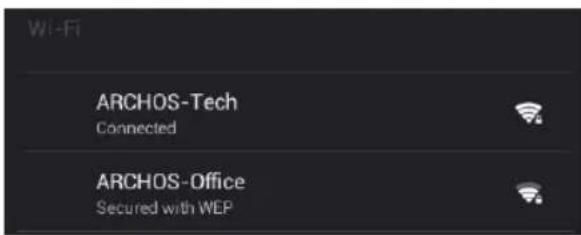
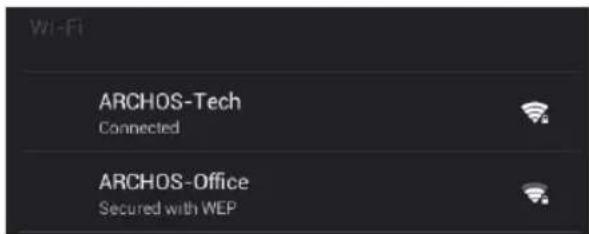
③ Touch "WiFi off" in the status dashboard. The WiFi page will be displayed.

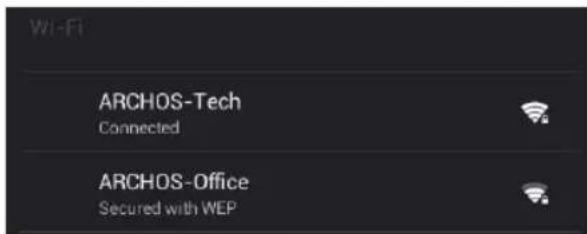
Wi-Fi

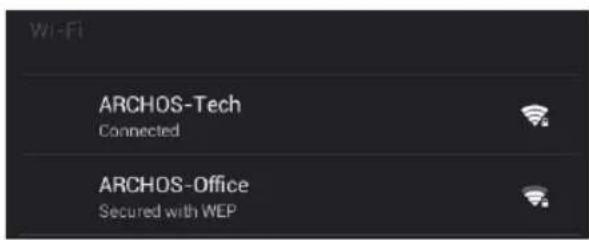
④ Slide the WiFi switch to "ON" positon.
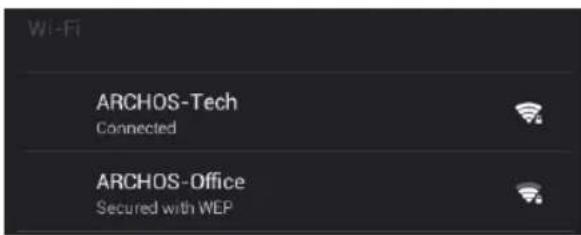
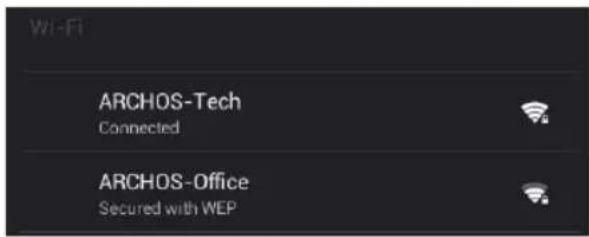
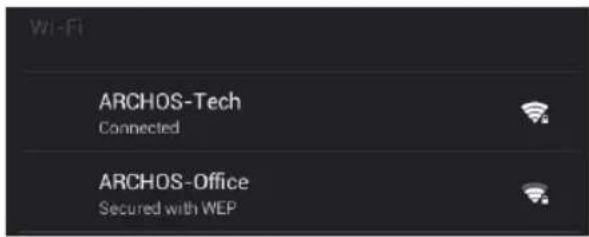
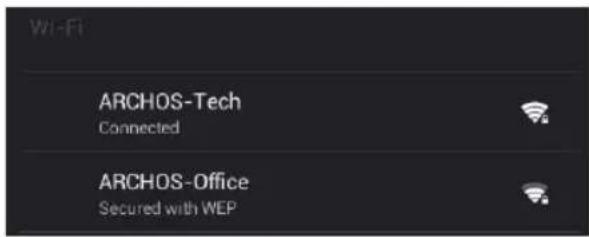
Wi-Fi ARCHOS-Tech Connected ARCHOS-Office Secured with WEP

⑤ The ARCHOS will scan for Wifi networks in range. Touch the name of network you want to connect to.

Private networks are shown with a lock icon and will require you to enter your password.

ARCHOS ArcBook - Connecting to a WiFi Network - 6

ARCHOS ArcBook - Connecting to a WiFi Network - 7

ARCHOS ArcBook - Connecting to a WiFi Network - 8

ARCHOS ArcBook - Connecting to a WiFi Network - 9

EN

Quick connection

You can connect to your WiFi network through WiFi Protected Setup.
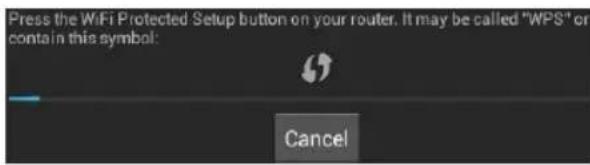
Press the WiFi Protected Setup button on your router. It may be called "WPS" or contain this symbol: Cancel

① Press the WiFi Protected Setup button Settings > Wireless & networks.
② In your Internet router, Press the WiFi Protected Setup button called WPS or containing the symbol

ARCHOS ArcBook - Quick connection - 2

TIPS:

- When entering a WiFi password, we recommend that you select "Show password" so you can see the characters you are typing. To get the correct WiFi password (or settings) for the network, contact the WiFi network provider. If your WiFi is on and you are in range of a network that you previously connected to, your ARCHOS will automatically attempt to connect to it.

- To keep your WiFi connection ON when the device is on sleep, select the Menu icon in the "WiFi" page. Then, select Advanced > Keep WiFi on during sleep > Always.
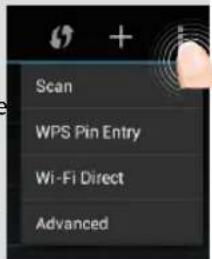
Scan WPS Pin Entry Wi-Fi Direct Advanced

ARCHOS ArcBook - TIPS: - 2

ARCHOS ArcBook - TIPS: - 3

ARCHOS ArcBook - TIPS: - 4

ARCHOS ArcBook - TIPS: - 5

The Android™ Interface
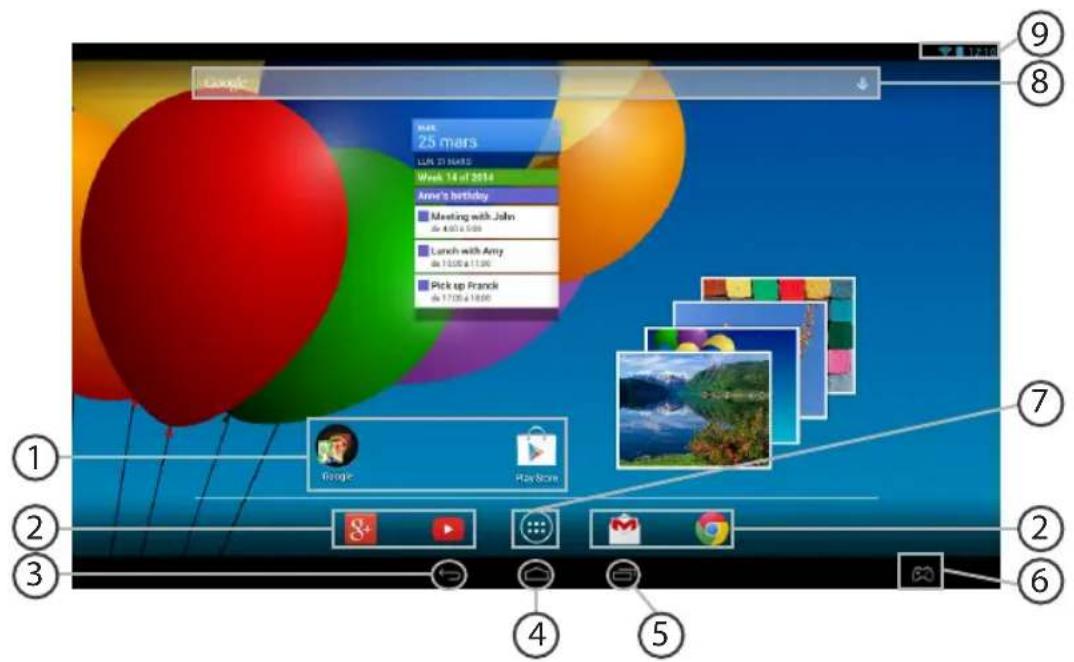
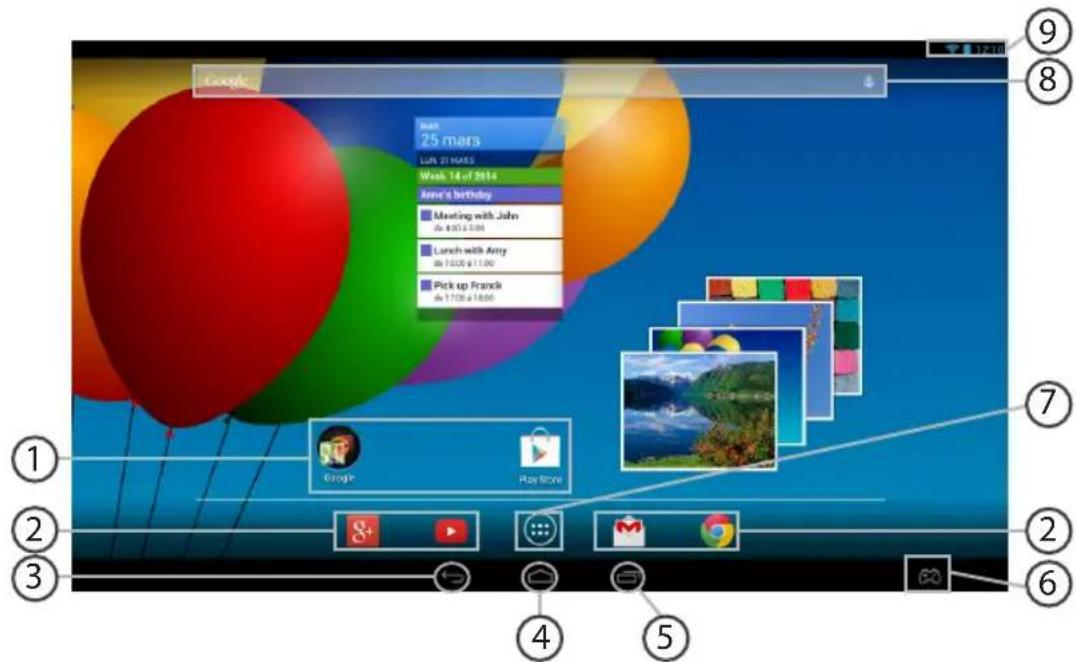
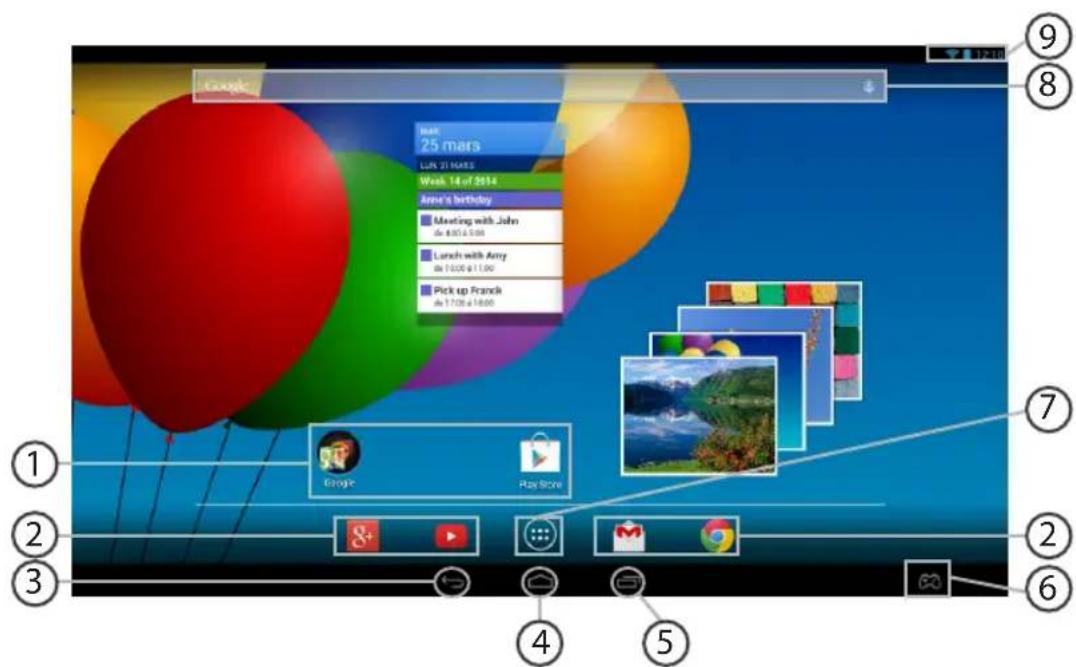
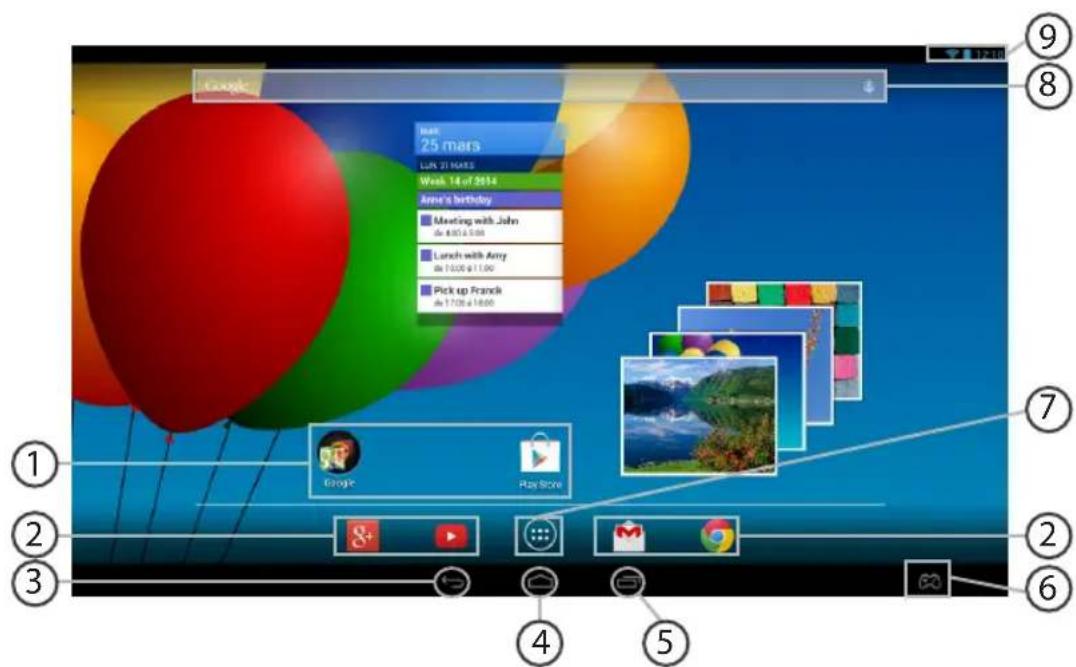
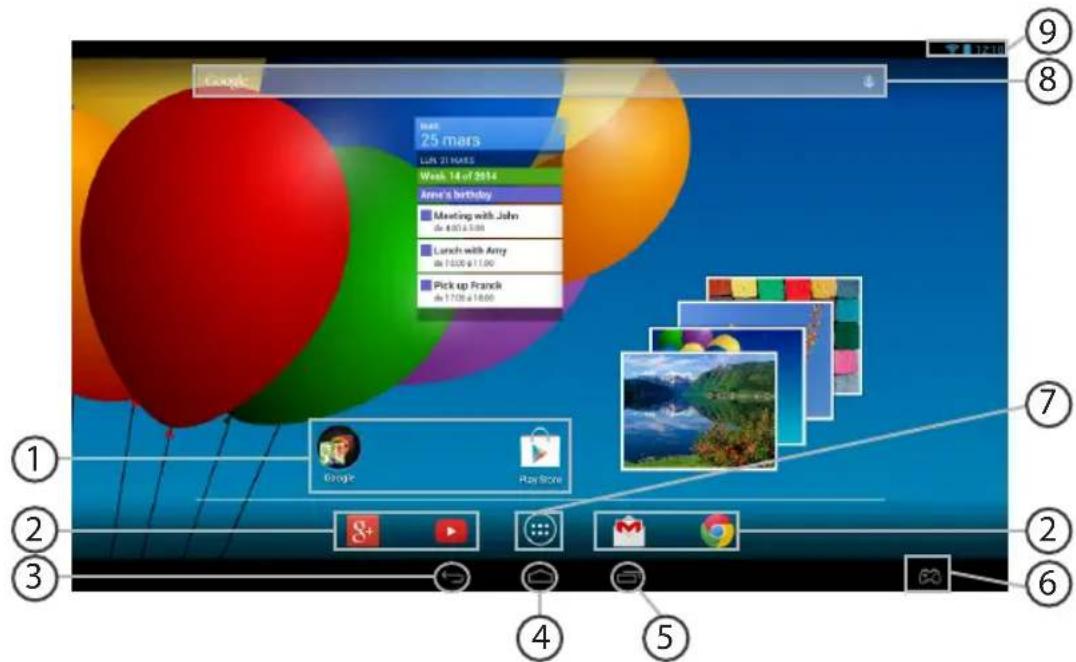
Google Max. 25 mars LUN 21 March Week 14 of 2014 Anne's birthday ■ Meeting with John de 4:00 a 5:00 ■ Lunch with Amy de 13:00 a 17:00 ■ Pick up Frank de 17:00 a 18:00 ① ② ③ ④ ⑤ ⑥ ⑦ ⑧ ⑨

ARCHOS ArcBook - TIPS: - 7

ARCHOS ArcBook - TIPS: - 8

ARCHOS ArcBook - TIPS: - 9

ARCHOS ArcBook - TIPS: - 10

EN

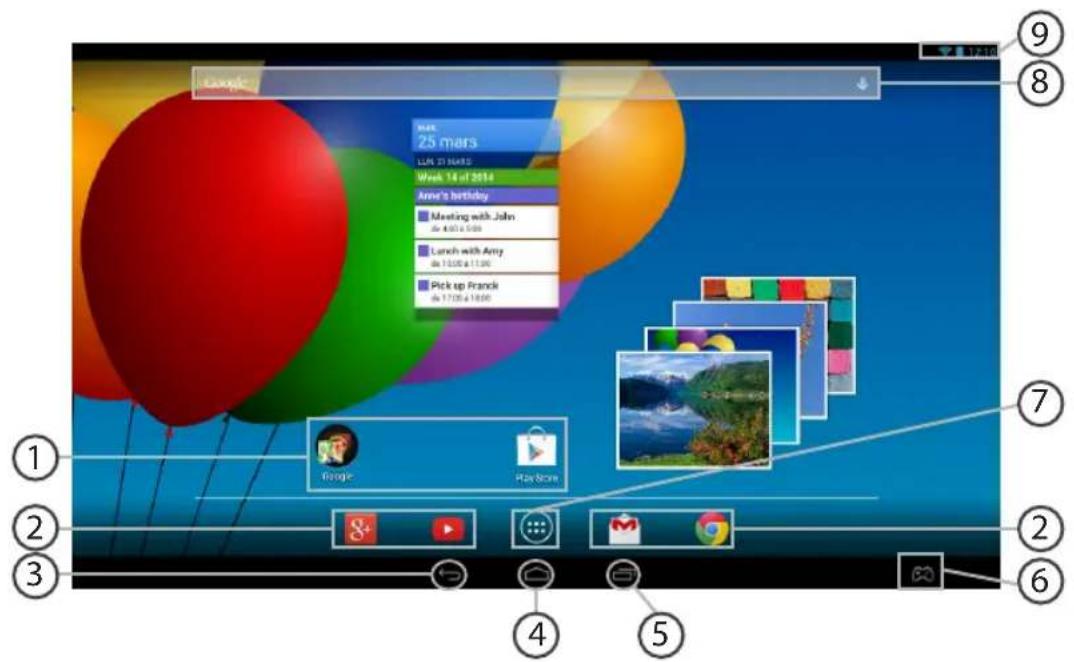
① Android™ apps shortcuts

Touch to start an application.
2 Permanent Android™ apps shortcuts
Touch to start an application
③ Back button
④ Home button
⑤ Recent apps buttons
⑥ Archos mapping tool icon
⑦ All Apps button
⑧ Google™ Search
The status bar
Displays notifications and quick settings

Touch this icon to show all the applications and widgets installed on your ARCHOS. All your downloaded applications are here.

Touch "Google" for text search or touch the microphone icon for voice search.

ARCHOS ArcBook - TIPS: - 11

ARCHOS ArcBook - TIPS: - 12

ARCHOS ArcBook - TIPS: - 13

ARCHOS ArcBook - TIPS: - 14

The Android™ Interface

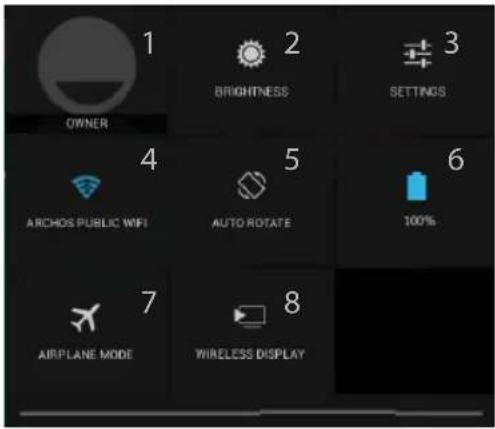
1 BRIGHTNESS 2 3 OPTIONS OWNER 4 ARCHOS PUBLIC WIFI 5 AUTO ROTATE 6 100% 7 AIRPLANE MODE 8 WIRELESS DISPLAY

3:18 The Quick settings

1 Current user ^(1)
2 To adjust the screen brightness.
3 To access all your settings.
4 To turn on/off your WiFi connection.
5 To activate/deactivate automatic screen orientation as you turn your ARCHOS.
6 Percentage of battery remaining
7 To activate/deactivate all wireless connections, especially when flying.
8 To enable wireless display ^(2)

(1)New multi-user support for tablets lets different users have their own separate, customizable spaces on a single device. Add users in Settings > Device.
(2)You can share movies, YouTube videos, and anything that's on your screen on an HDTV. You need to connect a wireless display adapter to any HDMI-enabled TV to mirror what's on your screen quickly and easily.


ARCHOS ArcBook - 3:18 The Quick settings - 1

ARCHOS ArcBook - 3:18 The Quick settings - 2

ARCHOS ArcBook - 3:18 The Quick settings - 3

ARCHOS ArcBook - 3:18 The Quick settings - 4

EN

ARCHOS ArcBook - 3:18 The Quick settings - 5

The Recent Apps

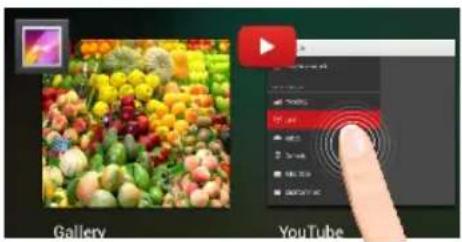
Opens a list of thumbnail images of apps you've worked with recently:
Gallery YouTube

Touch: to open an app.

Hold down: to display options
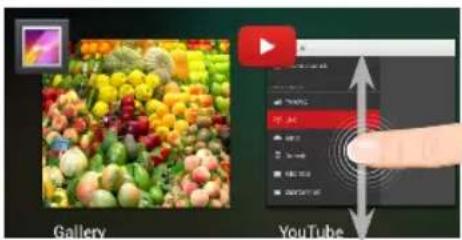
Gallery YouTube

Swipe up or down: to close an app.

ARCHOS ArcBook - The Recent Apps - 3

ARCHOS ArcBook - The Recent Apps - 4

ARCHOS ArcBook - The Recent Apps - 5

ARCHOS ArcBook - The Recent Apps - 6

ARCHOS ArcBook - The Recent Apps - 7

ARCHOS mapping tool

ARCHOS mapping tool is an application installed in your ArcBook. It allows you to link the virtual controls of games to the physical controls of the ArcBook by using mapping controls.
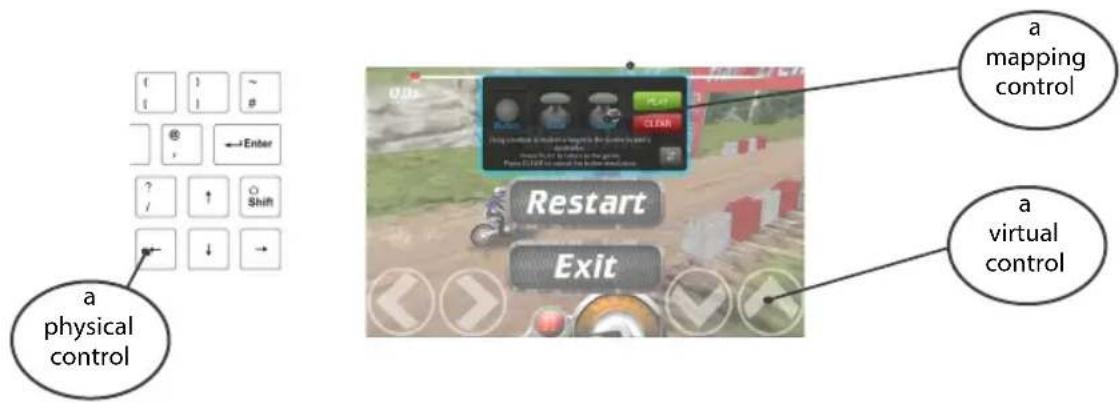
a physical control a mapping control a virtual control

Tip 1:

Within ARCHOS mapping tool, there are already mapping profiles for over 100 games. Also, many games function automatically with physical buttons.

Tip 2:

Whenever you launch a game whose virtual controls are mapped, the right mapping profile will automatically be selected.


ARCHOS ArcBook - ARCHOS mapping tool - 2

ARCHOS ArcBook - ARCHOS mapping tool - 3

ARCHOS ArcBook - ARCHOS mapping tool - 4

ARCHOS ArcBook - ARCHOS mapping tool - 5

EN

Starting ARCHOS mapping tool

  1. Launch a game.
    When you reach the starting screen, the virtual controls are displayed.
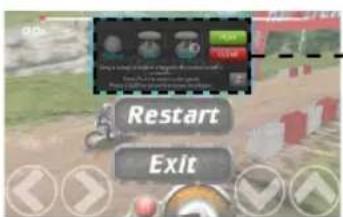
  2. Select the ARCHOS mapping tool icon from the system bar.

ARCHOS ArcBook - Starting ARCHOS mapping tool - 1

ARCHOS mapping tool icon

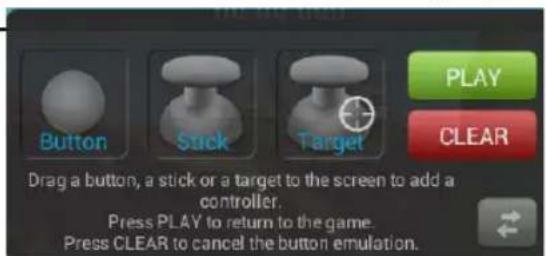
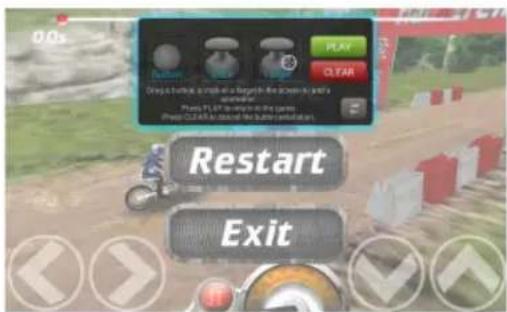
The mapping overlay is displayed with the mapping tool interface.

ARCHOS ArcBook - Starting ARCHOS mapping tool - 2

Restart Exit

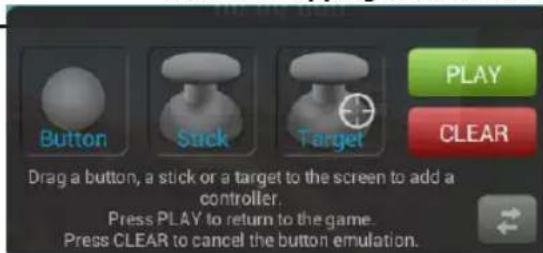
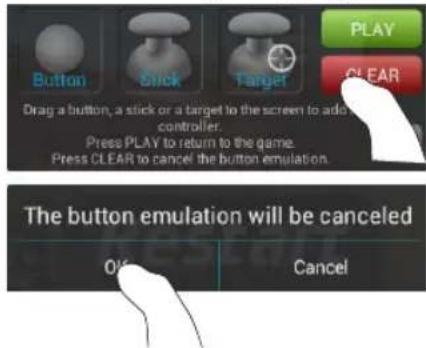
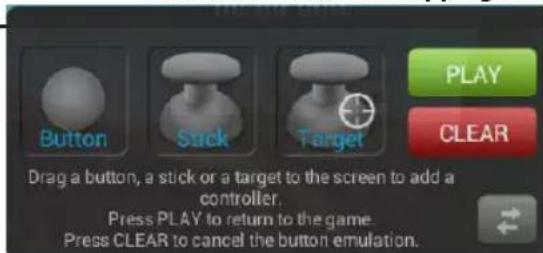
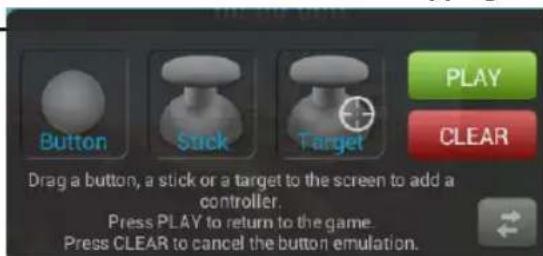
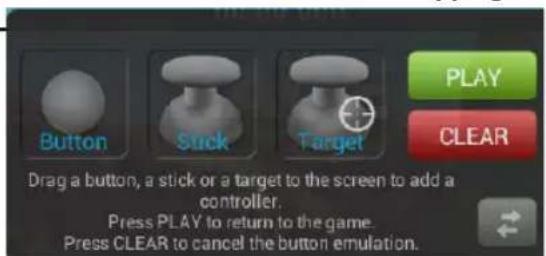
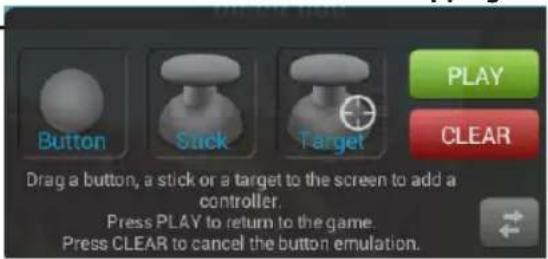
ARCHOS mapping tool interface
NO NO ONE PLAY CLEAR Button Sick Target Drag a button, a stick or a target to the screen to add a controller. Press PLAY to return to the game. Press CLEAR to cancel the button emulation.

ARCHOS ArcBook - Starting ARCHOS mapping tool - 5

ARCHOS ArcBook - Starting ARCHOS mapping tool - 6

ARCHOS ArcBook - Starting ARCHOS mapping tool - 7

ARCHOS ArcBook - Starting ARCHOS mapping tool - 8

ARCHOS mapping tool

Positioning a mapping control

Hold and drag a type of mapping control to the desired virtual button.

There are three types of mapping control

ARCHOS ArcBook - Positioning a mapping control - 1

Button

It is for the directional pad

,▶,▼, the X, Y, B, A, buttons and the L1, R1, L2, R2, Start, Select buttons.

ARCHOS ArcBook - Positioning a mapping control - 2

Stick

It is for the analog directional sticks.

ARCHOS ArcBook - Positioning a mapping control - 3

Target

It is for analog stick targeting. It is placed normally in the central area of the screen on shooting games.
0.0s PLAY OK OK Play OCTAR On the back, it is a length in the game to start a start point. Play PLAY to return the game Play OCTAR to take off the next position. Restart Exit

ARCHOS ArcBook - Positioning a mapping control - 5

ARCHOS ArcBook - Positioning a mapping control - 6

ARCHOS ArcBook - Positioning a mapping control - 7

ARCHOS ArcBook - Positioning a mapping control - 8

EN

Linking a mapping control to a physical control

  1. When a mapping control is placed on a virtual control, you are asked to select the desired physical control you want to associate with it.
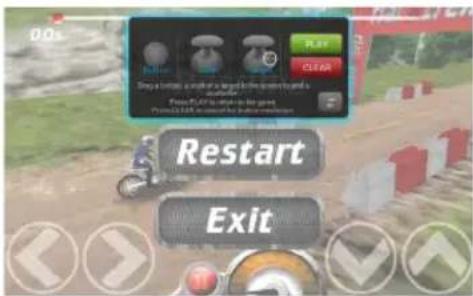
DOs Play a move, a push or a target in the next game Play PC's action on the next From 12:45 to 13:00 to 13:00 RESTART Exit

  1. Once a physical control is associated to the mapping control, the name of the physical control is displayed on the mapping control.
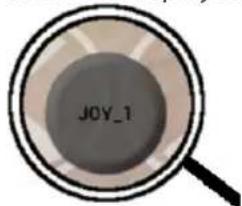
JOY_1

15

ARCHOS ArcBook - Linking a mapping control to a physical control - 3

ARCHOS ArcBook - Linking a mapping control to a physical control - 4

ARCHOS ArcBook - Linking a mapping control to a physical control - 5

ARCHOS ArcBook - Linking a mapping control to a physical control - 6

ARCHOS mapping tool

Enlarging a mapping control

Some virtual controls are larger than the mapping controls.

Enlarge the mapping control so that it is tailored to the virtual control.

  1. Resize with right analog stick.

  2. Press button A when done

You can only enlarge the mapping controls Stick and Target.

Saving your parameters

When you have mapped the virtual controls of a game, select "Play" to validate.

The profile is saved and associated with that game.

The mapping overlay disappears and you can play.

Whenever you start the game, you are informed that the emulation of virtual controls is running. Each mapping is specific to a game.

Press the notification to display the mapping profile of the game. You can either modify it, or delete it.

ARCHOS ArcBook - ARCHOS mapping tool - 1

ARCHOS ArcBook - ARCHOS mapping tool - 2

ARCHOS ArcBook - ARCHOS mapping tool - 3

ARCHOS ArcBook - ARCHOS mapping tool - 4

ARCHOS ArcBook - ARCHOS mapping tool - 5

ARCHOS ArcBook - ARCHOS mapping tool - 6

EN

Q&A about the mapping

You placed a mapping control on a virtual control but no option is available?

  1. Tap the mapping control.
    A menu box is displayed.
  2. Select the icon to set up the mapping control.
    You want to remove a mapping control that you set?

  3. Tap the mapping control.
    A menu box is displayed.

  4. Select the xon to remove the mapping control.

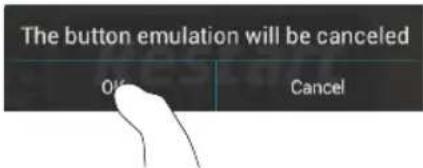
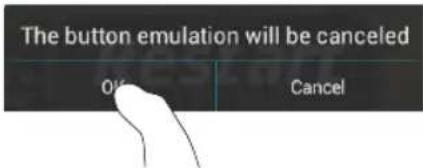
You want to remove a mapping profile set for a game?

  1. In the interface of the Game, select the mapping tool icon.
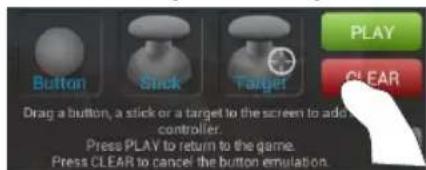
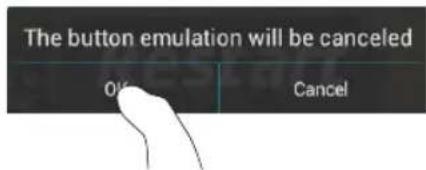
  2. From ARCHOS mapping tool, select "Clear".
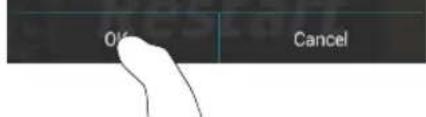
  3. Select "OK" to confirm.

Displaying options
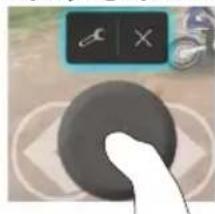
ARCHOS ArcBook - Q&A about the mapping - 1

natural_image Close-up of a finger pressing a button on a circular interface (no text or symbols visible)

Removing a mapping profile
PLAY CLEAR Button Stick Target Drag a button, a stick or a target to the screen to add a controller. Press PLAY to return to the game. Press CLEAR to cancel the button emulation. The button emulation will be canceled OK Cancel

ARCHOS ArcBook - Q&A about the mapping - 3

ARCHOS ArcBook - Q&A about the mapping - 4

ARCHOS ArcBook - Q&A about the mapping - 5

ARCHOS ArcBook - Q&A about the mapping - 6

Getting familiar with Android™

You can use your device as a regular computer with the keyboard and touch panel or you can interact with touchscreen.

Using the Touch Panel:

To do a short press: tap the Touch Panel once.

To do a long press: hold the Touch Panel button

The extended home screen:

Finger: Navigate between different home screen panels by swiping left and right.

Touch Panel: Hold the Touch Panel button while moving the cursor with the Touch Panel

Moving a home screen item:

Finger: Touch and hold your finger onto it until the positioning gridlines appear, then slide it to the desired location, and release your finger.

Touch panel: Select the item with the cursor and hold the Touch Panel button. While holding the Touch Panel button, use the Touch Panel to move the item.

Removing a home screen item:

Finger: Touch and hold it, slide your finger towards the top of the screen and drop it over the "Remove" icon.

Touch panel: Select the item with the cursor and hold the Touch Panel button. While holding the Touch Panel button, use the Touch Panel to move it towards the top of the screen and drop it over the Remove icon ✗

Uninstalling an item:

Finger: From the "All apps" screens, touch and hold it, slide your finger towards the top of the screen and drop it over "Uninstall" bin.


ARCHOS ArcBook - Uninstalling an item: - 1

ARCHOS ArcBook - Uninstalling an item: - 2

ARCHOS ArcBook - Uninstalling an item: - 3

ARCHOS ArcBook - Uninstalling an item: - 4

EN

Touch panel: From the "All apps" screens, select the item with the cursor and hold the Touch Panel button. While holding the Touch Panel button, use the Touch Panel to move it towards the top of the screen and drop it over the Bin icon.

Creating application folders:

Drop one app icon over another on a home screen and the two icons will be combined.

Widgets:

Touch the "All Apps" icon on your home screen. Touch "Widgets" at the top of the screen. From the main Widget screen, you can move around widgets just as you do for app icons.

Changing your wallpaper:

Finger: Hold your finger on a home screen at an empty location, then choose from the list.

Touch panel: On an empty space of the homescreen, hold the Touch Panel button.

Locking the touchscreen:

From the quick settings dashboard in the status bar, touch "Settings". In "Settings", scroll down and touch "Security". Touch "Screen lock". Touch the type of lock you would like to use. After you set a lock, a lock screen is displayed whenever your screen wakes up, requesting the pattern, pin or other specified key.

Opening ARCHOS Music app

Long press on the Play/Pause shortcut button on the keyboard.

ARCHOS ArcBook - Opening ARCHOS Music app - 1

ARCHOS ArcBook - Opening ARCHOS Music app - 2

ARCHOS ArcBook - Opening ARCHOS Music app - 3

ARCHOS ArcBook - Opening ARCHOS Music app - 4

Troubleshooting

If your device is frozen:

Press the ON/OFF button for 10 seconds or use the reset button. To use the reset button, press the

"pinhole reset" button by using a sharp object such as a toothpick.

If your device doesn't turn on:

  1. Charge your device.
  2. Press the ON/OFF button for 10 seconds or use the reset button. To use the reset button, press the "pinhole reset" button by using a sharp object such as a toothpick.

If you want to extend the life of your battery:

Decrease the screen brightness and turn off the wireless connections if not in use.

If your device functioning is too slow:

Close all apps which are not currently used.

If your WiFi reception is too low:

Make sure you are not far from the WiFi hotspot. Update the firmware of the device: http://www.archos.com/support.

Reset and redefine your connection parameters.

Contact your WiFi connection provider.

If you want to restore your product (forgotten password? erase all your settings?):

  1. Insert a paper clip in the Restore button.
  2. While holding the paper clip, connect the plugged power cable to the ARCHOS.

The device turns on. The Android system recovery is displayed.

ARCHOS ArcBook - If you want to restore your product (forgotten password? erase all your settings?): - 1

ARCHOS ArcBook - If you want to restore your product (forgotten password? erase all your settings?): - 2

ARCHOS ArcBook - If you want to restore your product (forgotten password? erase all your settings?): - 3

ARCHOS ArcBook - If you want to restore your product (forgotten password? erase all your settings?): - 4

Table des matières

natural_image Line drawing of a laptop computer with visible keyboard and mouse (no text or symbols)

ARCHOS ArcBOOK

natural_image Simple black line drawing of a plug connected to a coiled cable (no text or symbols)

22

UserGuide_Archos_ArcBook_book.indd 22 17/07/2014 11:44:51

ARCHOS ArcBook - Table des matières - 1

ARCHOS ArcBook - Table des matières - 2

ARCHOS ArcBook - Table des matières - 3

ARCHOS ArcBook - Table des matières - 4

Mise en route

Charger la batterie
⑩ ⑫ ⑬ ⑬

ARCHOS ARCHOS ARCHOS 15 14

①②③④⑤⑥⑦⑧⑨⑩⑪ T G T A E Q H L P Q R S T U V W X Y Z 1 2 3 4 5 6 7 8 9 10 11 Pay Q W E R T Y U I O P I J K L M Close Lock A S D F G H J K L N O box Z X C V B N M 1 2 3 4 5 6 7 8 9 10 11 P#S □ □ □ □ □ □ □ □ □ □ □ □ □ □ □ □ □ □ □ □ □ □ □ □ □ □ □ □ □ □ □ □ □ □ □ □ □ □ □ □ □ □ □ □ □ □ □ □ □ □ ▢

ARCHOS ArcBook - Charger la batterie - 4

ARCHOS ArcBook - Charger la batterie - 5

ARCHOS ArcBook - Charger la batterie - 6

ARCHOS ArcBook - Charger la batterie - 7

FR

③ Bouton Notifications

⑦ Boutons de volume

④ Bouton WiFi

natural_image Close-up of a finger pressing a blue horizontal line with circular motion indicators (no text or symbols)


WIFI OFF EMERGENCY CALLS ONLY AUTO ROTATE

Wi-Fi

Wi-Fi ARCHOS-Tech Connected ARCHOS-Office Secured with WEP

ARCHOS ArcBook - FR - 4

ARCHOS ArcBook - FR - 5

ARCHOS ArcBook - FR - 6

ARCHOS ArcBook - FR - 7

L'interface Android™

Google Max. 25 mars LUN 21 March Week 14 of 2014 Anne's birthday ■ Meeting with John de 4:00 a 5:00 ■ Lunch with Amy de 13:00 a 17:00 ■ Pick up Frank de 17:00 a 18:00 ① ② ③ ④ ⑤ ⑥ ⑦ ⑧ ⑨

ARCHOS ArcBook - L'interface Android™ - 2

ARCHOS ArcBook - L'interface Android™ - 3

ARCHOS ArcBook - L'interface Android™ - 4

ARCHOS ArcBook - L'interface Android™ - 5

FR

Interface de l'ARCHOS mapping tool
PLAY CLEAR Button Stick Target Drag a button, a stick or a target to the screen to add a controller. Press PLAY to return to the game. Press CLEAR to cancel the button emulation.

ARCHOS ArcBook - L'interface Android™ - 7

ARCHOS ArcBook - L'interface Android™ - 8

ARCHOS ArcBook - L'interface Android™ - 9

ARCHOS ArcBook - L'interface Android™ - 10

L'ARCHOS mapping tool

Placer un bouton de mapping

ARCHOS ArcBook - Placer un bouton de mapping - 1

ARCHOS ArcBook - Placer un bouton de mapping - 2

ARCHOS ArcBook - Placer un bouton de mapping - 3

ARCHOS ArcBook - Placer un bouton de mapping - 4

FR

natural_image Close-up of a finger pressing a button on a circular surface, with no visible text or symbols.

ARCHOS ArcBook - Placer un bouton de mapping - 5

ARCHOS ArcBook - Placer un bouton de mapping - 6

ARCHOS ArcBook - Placer un bouton de mapping - 7

ARCHOS ArcBook - Placer un bouton de mapping - 8

natural_image Line drawing of a laptop computer with visible keyboard, keyboard, and mouse (no text or symbols)

ARCHOS ArcBOOK

ARCHOS ArcBook - Placer un bouton de mapping - 9

ARCHOS ArcBook - Placer un bouton de mapping - 10

natural_image Simple black line drawing of a plug connected to a coiled cable (no text or symbols)

USB Kabel Ladegerät

42

ARCHOS ArcBook - Placer un bouton de mapping - 11

ARCHOS ArcBook - Placer un bouton de mapping - 12

ARCHOS ArcBook - Placer un bouton de mapping - 13

ARCHOS ArcBook - Placer un bouton de mapping - 14

Erste Schritte

Aufladen des Akkus
⑩ ⑫ ⑬ ⑬

ARCHOS ARCHOS ARCHS 13 14

①②③④⑤⑥⑦⑧⑨⑩⑪ G G T X A B- Q L Q P - = H N E W 1015 T Y U I O P Q W E R T Y U I K L A B D F G H J K L C X C Y B N M - 7 F4 22 34 56 78 91 102 113

ARCHOS ArcBook - Aufladen des Akkus - 4

ARCHOS ArcBook - Aufladen des Akkus - 5

ARCHOS ArcBook - Aufladen des Akkus - 6

ARCHOS ArcBook - Aufladen des Akkus - 7

Geräteanschlüsse

natural_image Close-up of a blue horizontal line with a finger pointing at it, against a black background (no text or symbols)


WI-FI OFF EMERGENCY CALLS ONLY AUTO ROTATE

Wi-Fi

Wi-Fi ARCHOS-Tech Connected ARCHOS-Office Secured with WEP

ARCHOS ArcBook - Geräteanschlüsse - 4

ARCHOS ArcBook - Geräteanschlüsse - 5

ARCHOS ArcBook - Geräteanschlüsse - 6

Restart Exit

ARCHOS ArcBook - Geräteanschlüsse - 8

ARCHOS ArcBook - Geräteanschlüsse - 9

ARCHOS ArcBook - Geräteanschlüsse - 10

ARCHOS ArcBook - Geräteanschlüsse - 11

ARCHOS Mapping-Tool

ARCHOS ArcBook - ARCHOS Mapping-Tool - 1

ARCHOS ArcBook - ARCHOS Mapping-Tool - 2

ARCHOS ArcBook - ARCHOS Mapping-Tool - 3

DOs Play a move, a move or a target in the terrain. The game is Pace NFL's move in the game From: 12:45 at close to the next game. Restart Exit

natural_image Close-up of a finger pressing a button with abstract background elements (no text or symbols)

The button emulation will be canceled OK Cancel

ARCHOS ArcBook - ARCHOS Mapping-Tool - 6

ARCHOS ArcBook - ARCHOS Mapping-Tool - 7

ARCHOS ArcBook - ARCHOS Mapping-Tool - 8

ARCHOS ArcBook - ARCHOS Mapping-Tool - 9

ARCHOS mapping tool....72

natural_image Line drawing of a laptop computer with visible keyboard, keyboard, and mouse (no text or symbols)

ARCHOS ArcBOOK

ARCHOS ArcBook - ARCHOS Mapping-Tool - 10

ARCHOS ArcBook - ARCHOS Mapping-Tool - 11

natural_image Simple line drawing of a plug connected to a coiled cable (no text or symbols)

Cable USB Cargador

ARCHOS ArcBook - ARCHOS Mapping-Tool - 12

ARCHOS ArcBook - ARCHOS Mapping-Tool - 13

ARCHOS ArcBook - ARCHOS Mapping-Tool - 14

Laptop keyboard diagram with numbered parts for identification and assembly reference

ARCHOS ⑩ ⑫ ⑬ ⑭ ⑮ ⑭

①②③④⑤⑥⑦⑧⑨⑩⑪ C G T X E+ R G H I J K L : @ 10 T Y 2 3 4 5 % & 6 ( ) - + Backspace Tab: Free Q W E R T Y U I O P : - - Copy: LIME A S D F G H J K L : @ 10 ON Z X C V B N M < + ? T ON AU ANG : Off - ↓ →

ARCHOS ArcBook - ARCHOS Mapping-Tool - 18

ARCHOS ArcBook - ARCHOS Mapping-Tool - 19

ARCHOS ArcBook - ARCHOS Mapping-Tool - 20

ARCHOS ArcBook - ARCHOS Mapping-Tool - 21

natural_image Close-up of a blue horizontal line with a finger pointing at it, against a black background (no text or symbols)

WI-FI OFF EMERGENCY CALLS ONLY AUTO ROTATE

Wi-Fi

Wi-Fi ARCHOS-Tech Connected ARCHOS-Office Secured with WEP

ARCHOS ArcBook - ARCHOS Mapping-Tool - 25

ARCHOS ArcBook - ARCHOS Mapping-Tool - 26

ARCHOS ArcBook - ARCHOS Mapping-Tool - 27

Google MAR 25 mars LUN 21 MARS Week 14 of 2014 Ann's birthday ■ Meeting with John Dr. 4/01/2008 ■ Lunch with Amy Dr. 13:00 @ 11:00 ■ Pick up Frank Dr. 17:00 @ 18:00 ① ② ③ ④ ⑤ ⑥ ⑦ ⑧ ⑨

ARCHOS ArcBook - ARCHOS Mapping-Tool - 29

ARCHOS ArcBook - ARCHOS Mapping-Tool - 30

ARCHOS ArcBook - ARCHOS Mapping-Tool - 31

Restart Exit

interfaz de ARCHOS mapping tool
PLAY CLEAR Button Sick Target Drag a button, a stick or a target to the screen to add a controller. Press PLAY to return to the game. Press CLEAR to cancel the button emulation.

ARCHOS ArcBook - ARCHOS Mapping-Tool - 34

ARCHOS ArcBook - ARCHOS Mapping-Tool - 35

ARCHOS ArcBook - ARCHOS Mapping-Tool - 36

ARCHOS ArcBook - ARCHOS Mapping-Tool - 37

ARCHOS mapping tool

ARCHOS ArcBook - ARCHOS mapping tool - 1

ARCHOS ArcBook - ARCHOS mapping tool - 2

ARCHOS ArcBook - ARCHOS mapping tool - 3

DOs Play a bottom search at a length in the sport to be Press PLAY, you can go to the game. Try CLEAR as search by before next step Restart Exit

natural_image Close-up of a finger pressing a button with a small icon in the background (no readable text or symbols)

ARCHOS ArcBook - ARCHOS mapping tool - 5

ARCHOS ArcBook - ARCHOS mapping tool - 6

ARCHOS ArcBook - ARCHOS mapping tool - 7

ARCHOS ArcBook - ARCHOS mapping tool - 8

ARCHOS mapping tool....92

Conoscere Android™ 98

natural_image Line drawing of a laptop computer with visible keyboard, keyboard, and mouse (no text or symbols)

ARCHOS ArcBOOK

ARCHOS ArcBook - ARCHOS mapping tool - 9

ARCHOS ArcBook - ARCHOS mapping tool - 10

natural_image Simple line drawing of a plug connected to a coiled cable (no text or symbols)

Caricatore

ARCHOS ArcBook - ARCHOS mapping tool - 11

ARCHOS ArcBook - ARCHOS mapping tool - 12

ARCHOS ArcBook - ARCHOS mapping tool - 13

ARCHOS ArcBook - ARCHOS mapping tool - 14

Avvio

ARCHOS ⑩ ⑫ ⑬ ⑭ ⑮ ⑭

①②③④⑤⑥⑦⑧⑨⑩⑪ 1 2 3 4 5 6 7 8 9 10 C # T # E # G # H I O P : @ a/Forward 1 2 3 4 5 6 7 8 9 10 Backspace Tak: Q W E R T Y U I O P : @ a/Forward Goo: A S D F G H J K L : @ a/Forward C: Z X C V B N M < - ? T G: AN ANDY : D: + ↓ →

ARCHOS ArcBook - Avvio - 3

ARCHOS ArcBook - Avvio - 4

ARCHOS ArcBook - Avvio - 5

ARCHOS ArcBook - Avvio - 6

③ Slot scheda micro SD

natural_image Blue horizontal line with circular gradient dots on black background, no text or symbols present

WI-FI OFF EMERGENCY CALLS ONLY AUTO ROTATE

Wi-Fi

Wi-Fi ARCHOS-Tech Connected ARCHOS-Office Secured with WEP

ARCHOS ArcBook - Avvio - 10

ARCHOS ArcBook - Avvio - 11

ARCHOS ArcBook - Avvio - 12

ARCHOS ArcBook - Avvio - 13

Interfaccia Android™

Google Last 25 mars Last 21 March Week 14 of 2014 Army's birthday ■ Meeting with John dr. 4:07:33:08 ■ Lunch with Amy dr. 13:00 @11:00 ■ Pick up Frank dr. 17:00 @18:00 ① ② ③ ④ ⑤ ⑥ ⑦ ⑧ ⑨

ARCHOS ArcBook - Interfaccia Android™ - 2

ARCHOS ArcBook - Interfaccia Android™ - 3

ARCHOS ArcBook - Interfaccia Android™ - 4

Restart Exit

Interfaccia ARCHOS mapping tool
Button Sick Target PLAY CLEAR Drag a button, a stick or a target to the screen to add a controller. Press PLAY to return to the game. Press CLEAR to cancel the button emulation.

ARCHOS ArcBook - Interfaccia Android™ - 7

ARCHOS ArcBook - Interfaccia Android™ - 8

ARCHOS ArcBook - Interfaccia Android™ - 9

ARCHOS ArcBook - Interfaccia Android™ - 10

ARCHOS mapping tool

ARCHOS ArcBook - ARCHOS mapping tool - 1

ARCHOS ArcBook - ARCHOS mapping tool - 2

ARCHOS ArcBook - ARCHOS mapping tool - 3

DOs Play a character, quick or a long in the game to send it Press PC12.5 on the game Press CLEAR or search by the next game Restart Exit

natural_image Close-up of a finger pressing a button with abstract circular background (no text or symbols)

IT

The button emulation will be canceled OK Cancel

ARCHOS ArcBook - ARCHOS mapping tool - 6

ARCHOS ArcBook - ARCHOS mapping tool - 7

Conoscere Android™

natural_image Line drawing of a laptop computer with visible keyboard, keyboard, and mouse (no text or symbols)

ARCHOS ArcBOOK

ARCHOS ArcBook - Conoscere Android™ - 1

ARCHOS ArcBook - Conoscere Android™ - 2

natural_image Simple line drawing of a plug connected to a coiled cable (no text or symbols)

Lader

102

ARCHOS ArcBook - Conoscere Android™ - 3

ARCHOS ArcBook - Conoscere Android™ - 4

ARCHOS ArcBook - Conoscere Android™ - 5

ARCHOS ArcBook - Conoscere Android™ - 6

Aan de slag

De batterijen laden

ARCHOS ⑩ ⑫ ⑬ ⑭ ⑮ ⑭

①②③④⑤⑥⑦⑧⑨⑩⑪ C G T X E+ R G H I J K L : @ 10 T Y 2 3 4 5 % & 6 ( ) - + Backspace Tab: Free Q W E R T Y U I O P : - - Copy: LIME A S D F G H J K L : @ 10 ON Z X C V B N M < + ? T ON AU ANG : Off - ↓ →

ARCHOS ArcBook - De batterijen laden - 3

ARCHOS ArcBook - De batterijen laden - 4

ARCHOS ArcBook - De batterijen laden - 5

ARCHOS ArcBook - De batterijen laden - 6

Aansluitingen

① Vergrendelopening

⑥ AAN/UIT-knop

⑪ Micro-USB-poort

② USB-poort

⑦ Oplaadlampje

natural_image Close-up of a blue horizontal line with a finger pointing at it, against a black background (no text or symbols)

WI-FI OFF EMERGENCY CALLS ONLY AUTO ROTATE

Wi-Fi

Wi-Fi ARCHOS-Tech Connected ARCHOS-Office Secured with WEP

ARCHOS ArcBook - Aansluitingen - 4

ARCHOS ArcBook - Aansluitingen - 5

ARCHOS ArcBook - Aansluitingen - 6

ARCHOS ArcBook - Aansluitingen - 7

De Android™-Interface
Google MAR 25 mars LUN 21 MARS Week 14 of 2014 Ann's birthday ■ Meeting with John Dr. 4/01/2008 ■ Lunch with Amy Dr. 13:00 @ 11:00 ■ Pick up Frank Dr. 17:00 @ 18:00 ① ② ③ ④ ⑤ ⑥ ⑦ ⑧ ⑨

ARCHOS ArcBook - Aansluitingen - 9

ARCHOS ArcBook - Aansluitingen - 10

ARCHOS ArcBook - Aansluitingen - 11

ARCHOS ArcBook - Aansluitingen - 12

① Android™-apps

Interface van ARCHOS-mappingtool

PLAY CLEAR Button Sick Target Drag a button, a stick or a target to the screen to add a controller. Press PLAY to return to the game. Press CLEAR to cancel the button emulation.

ARCHOS ArcBook - Aansluitingen - 14

ARCHOS ArcBook - Aansluitingen - 15

ARCHOS ArcBook - Aansluitingen - 16

ARCHOS ArcBook - Aansluitingen - 17

ARCHOS-mapping tool

ARCHOS ArcBook - ARCHOS-mapping tool - 1

ARCHOS ArcBook - ARCHOS-mapping tool - 2

ARCHOS ArcBook - ARCHOS-mapping tool - 3

DQs Buy a games, a move or a length in the game is found to be Prest P.10.24 is made in the game. Press: 0.544, so much for the next game Restart Exit

ARCHOS ArcBook - ARCHOS-mapping tool - 5

ARCHOS ArcBook - ARCHOS-mapping tool - 6

ARCHOS ArcBook - ARCHOS-mapping tool - 7

ARCHOS ArcBook - ARCHOS-mapping tool - 8

ARCHOS ArcBook - ARCHOS-mapping tool - 9

ARCHOS mapping tool....132

natural_image Line drawing of a laptop computer with visible keyboard, keyboard, and mouse (no text or symbols)

ARCHOS ARCBOOK

ARCHOS ArcBook - ARCHOS-mapping tool - 10

ARCHOS ArcBook - ARCHOS-mapping tool - 11

natural_image Simple line drawing of a plug connected to a coiled cable (no text or symbols)

Cabo USB Carregador

122

ARCHOS ArcBook - ARCHOS-mapping tool - 12

ARCHOS ArcBook - ARCHOS-mapping tool - 13

ARCHOS ArcBook - ARCHOS-mapping tool - 14

ARCHOS ArcBook - ARCHOS-mapping tool - 15

Inicio

Carregar a bateria

ARCHOS ⑩ ⑫ ⑬ ⑭ ⑮ ⑭

①②③④⑤⑥⑦⑧⑨⑩⑪ C G T X E+ R G H I J K L : @ 10 T Y 2 3 4 5 % & 6 ( ) - + Backspace Tab: Free Q W E R T Y U I O P : - - Copy: LIME A S D F G H J K L : @ 10 ON Z X C V B N M < + ? T ON AU ANG : Off - ↓ →

124

ARCHOS ArcBook - Carregar a bateria - 3

ARCHOS ArcBook - Carregar a bateria - 4

ARCHOS ArcBook - Carregar a bateria - 5

ARCHOS ArcBook - Carregar a bateria - 6

natural_image Close-up of a blue horizontal line with a finger pointing at it, against a black background (no text or symbols)

WI-FI OFF EMERGENCY CALLS ONLY AUTO ROTATE

Wi-Fi

Wi-Fi ARCHOS-Tech Connected ARCHOS-Office Secured with WEP

ARCHOS ArcBook - Carregar a bateria - 10

ARCHOS ArcBook - Carregar a bateria - 11

ARCHOS ArcBook - Carregar a bateria - 12

ARCHOS ArcBook - Carregar a bateria - 13

A Interface Android™

Google MAR 25 mars LUN 21 MARS Week 14 of 2014 Ann's birthday ■ Meeting with John Dr. 4/01/2008 ■ Lunch with Amy Dr. 13:00 @ 11:00 ■ Pick up Frank Dr. 17:00 @ 18:00 ① ② ③ ④ ⑤ ⑥ ⑦ ⑧ ⑨

128

ARCHOS ArcBook - A Interface Android™ - 2

ARCHOS ArcBook - A Interface Android™ - 3

ARCHOS ArcBook - A Interface Android™ - 4

Restart Exit

Interface da ARCHOS mapping tool
PLAY CLEAR Button Suck Target Drag a button, a stick or a target to the screen to add a controller. Press PLAY to return to the game. Press CLEAR to cancel the button emulation.

ARCHOS ArcBook - A Interface Android™ - 7

ARCHOS ArcBook - A Interface Android™ - 8

ARCHOS ArcBook - A Interface Android™ - 9

ARCHOS ArcBook - A Interface Android™ - 10

ARCHOS mapping tool

Posicionar um controlo de mapeamento

ARCHOS ArcBook - Posicionar um controlo de mapeamento - 1

ARCHOS ArcBook - Posicionar um controlo de mapeamento - 2

ARCHOS ArcBook - Posicionar um controlo de mapeamento - 3

DOs Play a character, park or a length in the game. The game is Pens PC25 to save in the game. Pens CLEAP is saved by the next game. Restart Exit

natural_image Close-up of a finger pressing a button with a small icon above (no readable text or symbols)

PT

Remover um perfil de mapeamento
PLAY CLEAR Button Stick Target Drag a button, a stick or a target to the screen to adopt controller. Press PLAY to return to the game. Press CLEAR to cancel the button emulation.

The button emulation will be canceled
OK Cancel

ARCHOS ArcBook - Posicionar um controlo de mapeamento - 7

ARCHOS ArcBook - Posicionar um controlo de mapeamento - 8

ARCHOS ArcBook - Posicionar um controlo de mapeamento - 9

ARCHOS ArcBook - Posicionar um controlo de mapeamento - 10

natural_image Line drawing of a laptop computer with visible keyboard, keyboard, and mouse (no text or symbols)

ARCHOS ArcBOOK

ARCHOS ArcBook - Posicionar um controlo de mapeamento - 11

ARCHOS ArcBook - Posicionar um controlo de mapeamento - 12

natural_image Simple black-and-white line drawing of a plug connected to a coiled cable (no text or symbols)

⑩ ⑫ ⑬ ⑬

ARCHOS ARCHOS ARCHS 13 14

①②③④⑤⑥⑦⑧⑨⑩⑪ G G T X A B- Q L Q P - = H N S W 1015 T Y U I O P Q W E R T Y U I K L A B D F G H J K L C X C Y B N M - 7 F4 22 34 56 78 91 102 113

144

ARCHOS ArcBook - Posicionar um controlo de mapeamento - 16

ARCHOS ArcBook - Posicionar um controlo de mapeamento - 17

ARCHOS ArcBook - Posicionar um controlo de mapeamento - 18

ARCHOS ArcBook - Posicionar um controlo de mapeamento - 19

Разъемы устройства

natural_image Close-up of a blue horizontal line with a finger pointing at it, against a black background (no text or symbols)

WI-FI OFF EMERGENCY CALLS ONLY AUTO ROTATE

Wi-Fi

Wi-Fi ARCHOS-Tech Connected ARCHOS-Office Secured with WEP

ARCHOS ArcBook - Разъемы устройства - 4

ARCHOS ArcBook - Разъемы устройства - 5

ARCHOS ArcBook - Разъемы устройства - 6

ARCHOS ArcBook - Разъемы устройства - 7

Интерфейс Android™
Google Last 25 mars Last 21 March Week 14 of 2014 Army's birthday ■ Meeting with John dr. 4:07:33:08 ■ Lunch with Amy dr. 13:00 @11:00 ■ Pick up Frank dr. 17:00 @18:00 ① ② ③ ④ ⑤ ⑥ ⑦ ⑧ ⑨

ARCHOS ArcBook - Разъемы устройства - 9

ARCHOS ArcBook - Разъемы устройства - 10

ARCHOS ArcBook - Разъемы устройства - 11

0.0s PLAY CLEAR Create a move to a progress in the game in action <|vision_start|> Press PLAY to exit on the game Press CLEAR to catch this in the game. Restart Exit

ARCHOS ArcBook - Разъемы устройства - 13

ARCHOS ArcBook - Разъемы устройства - 14

ARCHOS ArcBook - Разъемы устройства - 15

00s Play a robot, a single or a length in the speed train and to Place P.1, 24 km/h in the game From 12:54:00 to 12:54:00 RESTART Exit

natural_image Close-up of a finger pressing a button with icons above (no readable text or symbols)

RU

The button emulation will be canceled OK Cancel
ARCHOS ArcBook - Разъемы устройства - 18

ARCHOS ArcBook - Разъемы устройства - 19

ARCHOS ArcBook - Разъемы устройства - 20

ARCHOS ArcBook - Разъемы устройства - 21

National restrictions

This device is intended for home and office use in all EU countries (and other countries following the EU directive 1999/5/EC) without any limitation except for the countries mentioned below:

Country Restriction Reason/remark

Bulgaria None General authorization required for outdoor use and public service

France Outdoor use limited

to 10 mW e.i.r.p.

within the band

2454-2483.5 MHz

Military Radiolocation use. Refarming of the 2.4 GHz band has been ongoing in recent years to allow current relaxed regulation. Full implementation planned 2012

Italy None If used outside of own premises, general authorization is required.

Luxembourg None General authorization required for network and service supply (not for spectrum)

Norway Implemented This subsection does not apply for the geographical aera within a radius of 20 km from the centre of Ny-Alesund

Russian Federation None Only for indoor applications

Note: Frequency 2454-2483.5MHZ are restricted to indoor use in France.

Consult the declaration of conformity on http://www.archos.com/products/declaration_conformity.html

161161

ARCHOS ArcBook - National restrictions - 1

ARCHOS ArcBook - National restrictions - 2

ARCHOS ArcBook - National restrictions - 3

ARCHOS ArcBook - National restrictions - 4

Open Source Software Offer

The software bundled with this product includes software files subject to certain open source license requirements. Such open source software files are subject solely to the terms of the relevant open source software license. Such open source software is provided on an "AS IS" basis to the maximum extent permitted by applicable law.

For the open source files contained herein, please access "Open source license" section located at: Settings\About tablet\Legal information on the device for the relevant copyright and licensing terms. You may obtain a copy of Apache License, Version 2.0 at http://www.apache.org/licenses/LICENSE-2.0. You may also obtain a copy of GNU General Public License, Version 2 at the Free Software Foundation, INC, 51 Franklin Street, Fifth Floor, Boston, MA 02110-1301, USA.

Until the date that is three years after our last shipment of this product, you may obtain a copy of the source code corresponding to the binaries for any GPL-Licensed file by contacting ARCHOS customer service at http://www.archos.com and ARCHOS will send you a link to such source code or will provide instructions to get the source on a physical medium.

This offer is valid to anyone in receipt of this information.

Archos company declares that this device is in compliance with the essential requirements and other relevant provisions of Directive 1999/5/EC

CE 1622

162

ARCHOS ArcBook - CE 1622 - 1

Table of contents Click a title to access it
Manual assistant
Powered by Anthropic
Waiting for your message
Product information

Brand : ARCHOS

Model : ArcBook

Category : Graphic tablet