116 Neon - Graphic tablet ARCHOS - Free user manual and instructions
Find the device manual for free 116 Neon ARCHOS in PDF.



| Product Type | Graphics tablet / Android |
| Brand | Archos |
| Model | 116 Neon |
| Dimensions (approx.) | 290 x 180 x 10 mm |
| Weight (approx.) | 700 g |
| Power Supply | Mains charger via DC-in port, built-in rechargeable battery |
| Operating System | Android (version as per update) |
| Screen | 11.6-inch capacitive touchscreen |
| Connectivity | Wi-Fi 802.11 b/g/n, Bluetooth (not specified), Mini-HDMI, USB, micro-USB, 3.5mm jack |
| Camera | Rear camera (not specified) and front camera (not specified) |
| Sensors | Accelerometer, gyroscope (not specified) |
| Memory | Internal storage (not specified), expandable via microSD (not specified) |
| Care and cleaning | Clean with a soft, dry cloth. Avoid water and abrasive products. |
| Security | Screen lock by PIN, pattern, or password; Android Device Manager in case of loss. |
| Spare parts and repairability | Contact ARCHOS support for repairs. No consumer spare parts. |
| General Information | Compliant with directive 2014/53/EU. Declaration of conformity available at archos.com. |
Frequently Asked Questions - 116 Neon ARCHOS
User questions about 116 Neon ARCHOS
0 question about this device. Answer the ones you know or ask your own.
Ask a new question about this device
Download the instructions for your Graphic tablet in PDF format for free! Find your manual 116 Neon - ARCHOS and take your electronic device back in hand. On this page are published all the documents necessary for the use of your device. 116 Neon by ARCHOS.
USER MANUAL 116 Neon ARCHOS
Congratulations for the purchase of an ARCHOS device! This quick start guide helps you to start using your device properly. If you have more questions concerning the use of your device, visit us at:

twitter.com/archos

www.facebook.com/archos

https://blog.archos.com/

http://faq.archos.com/

www.archos.com, click Support > After-sales support

www.archos.com, click Support > Downloads > Declaration of conformity
As we are often updating and improving our products, your device's software may have a slightly different appearance or modified functionality than presented in this quick start guide.

Unboxing

natural_image
Blank rectangular frame with no text, numbers, or symbols visibleARCHOS 116 Neon
Quick start guide
Warranty, legal and safety notice
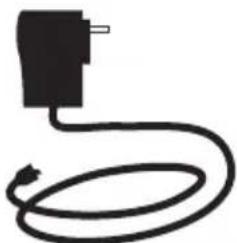
natural_image
Simple black line drawing of a plug connected to a coiled cable (no text or symbols)Charger
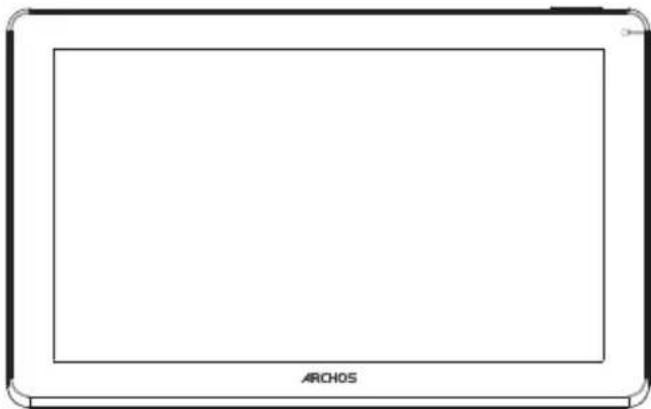
Describing your device

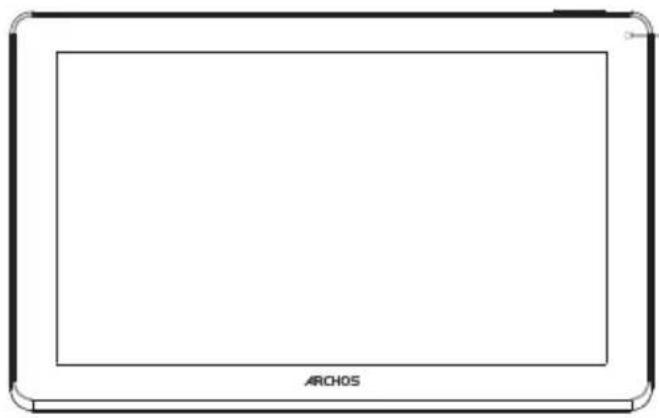
natural_image
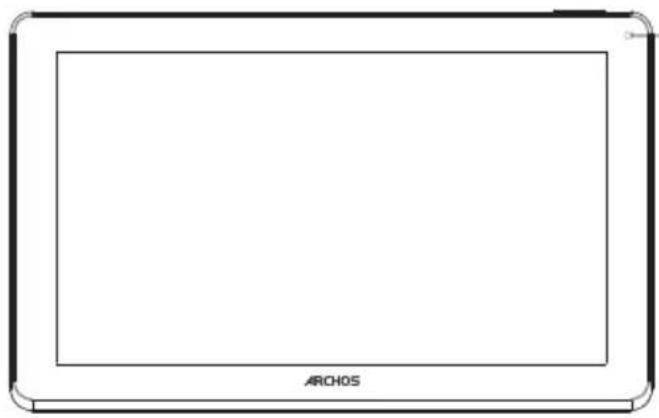
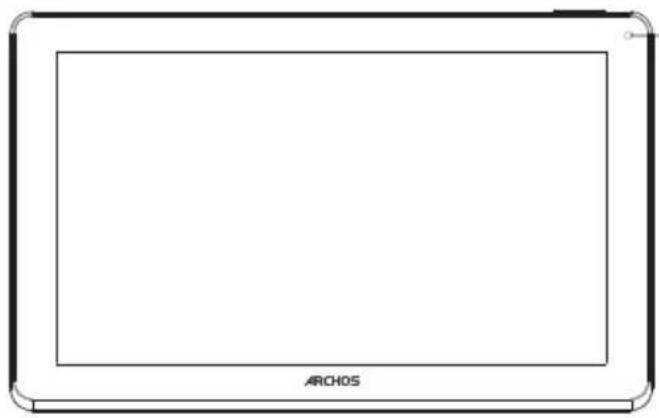
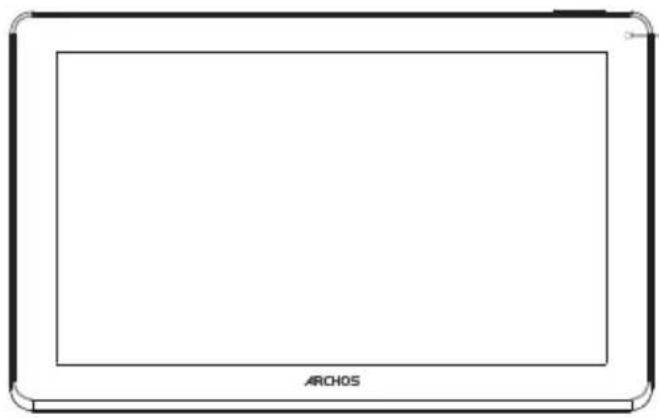
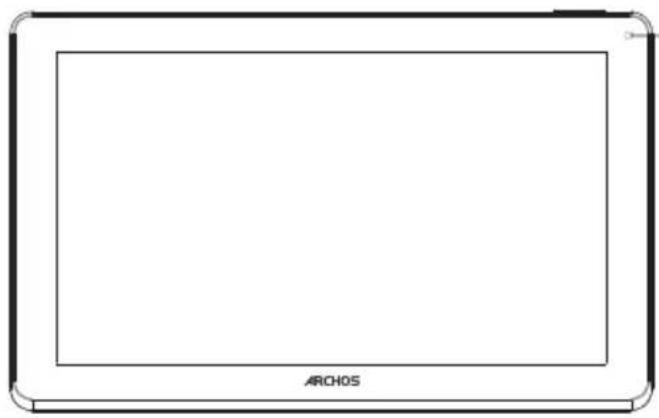
Front view of a tablet device labeled ARCHOS (no other text or symbols visible)Front camera

text_image
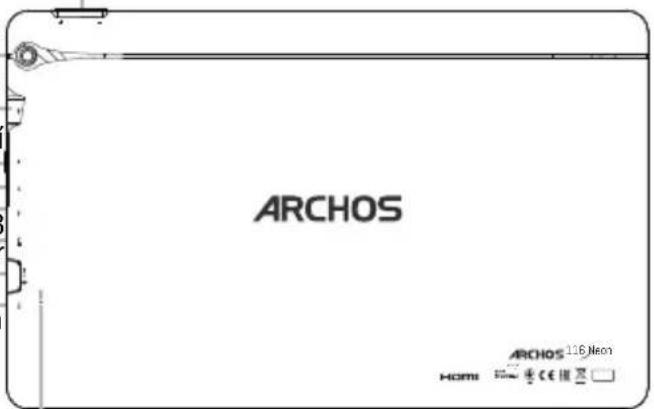
Holding hole Holding holeConnecting port
Volume+/-
Back camera
USB
ON/OFF
Headphone jack
Micro-USB
Power connector
Mini-HDMI port
Microphone
ARCHOS
Reset button

Starting up
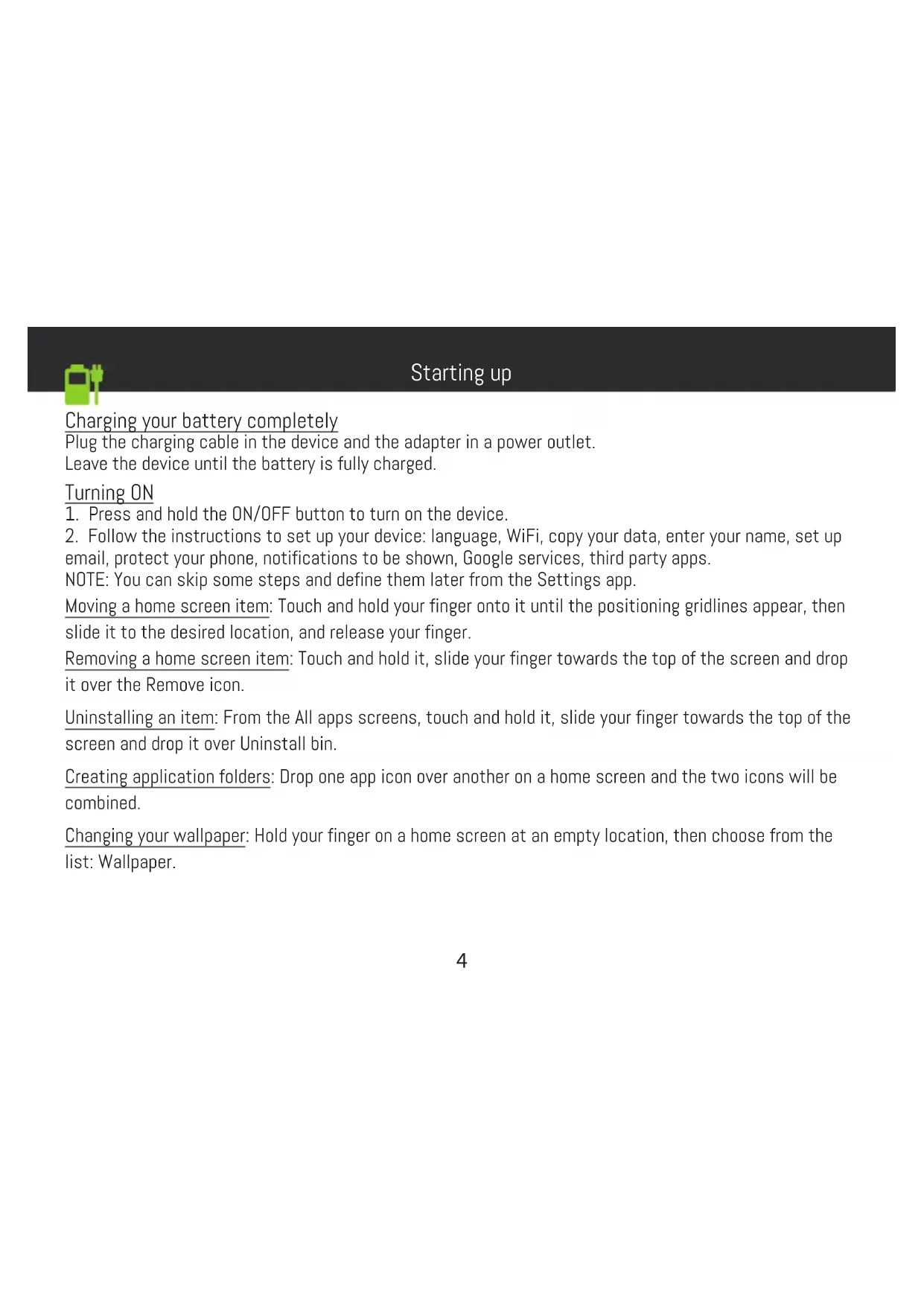
Charging your battery completely
Plug the charging cable in the device and the adapter in a power outlet.
Leave the device until the battery is fully charged.
Turning ON
- Press and hold the ON/OFF button to turn on the device.
- Follow the instructions to set up your device: language, WiFi, copy your data, enter your name, set up email, protect your phone, notifications to be shown, Google services, third party apps.
NOTE: You can skip some steps and define them later from the Settings app.
Moving a home screen item: Touch and hold your finger onto it until the positioning gridlines appear, then slide it to the desired location, and release your finger.
Removing a home screen item: Touch and hold it, slide your finger towards the top of the screen and drop it over the Remove icon.
Uninstalling an item: From the All apps screens, touch and hold it, slide your finger towards the top of the screen and drop it over Uninstall bin.
Creating application folders: Drop one app icon over another on a home screen and the two icons will be combined.
Changing your wallpaper: Hold your finger on a home screen at an empty location, then choose from the list: Wallpaper.
Hints & tips

Widgets: Hold your finger on a home screen at an empty location, then choose from the list: Widgets.
Securing your device: Define a lock screen to protect your privacy. Select the Settings app, then Security.
Choose a screen lock.
Android device manager: When your device is lost, you can use the android device manager page (https://www.google.com/android/devicemanager) to erase all your contents, to lock the device, to locate the device or to make it ring.
Scheduled power on&off: Schedule power on & off to set when the device turns off and turn on. For example, you can set it for sleep time.
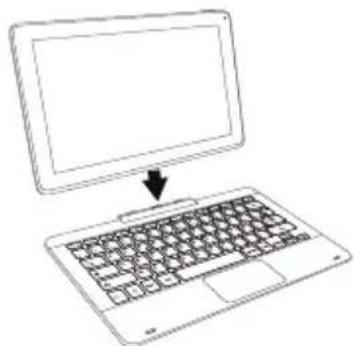
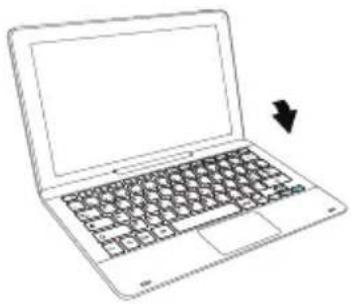
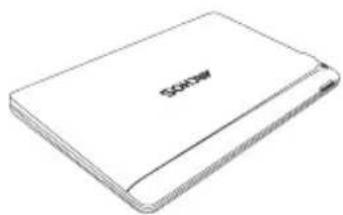
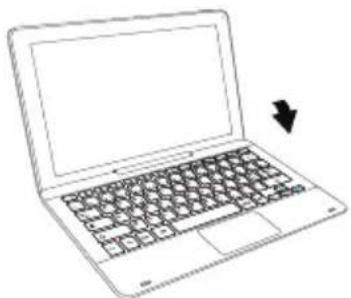
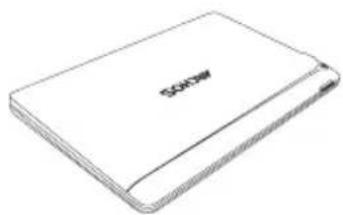
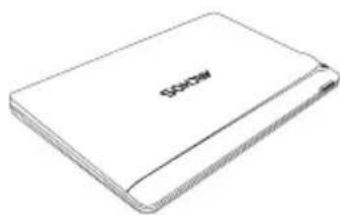
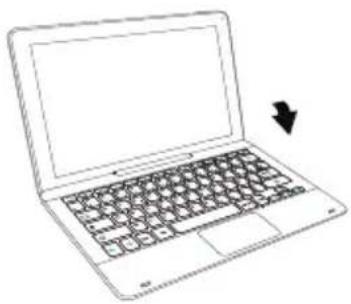
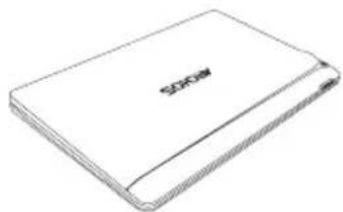
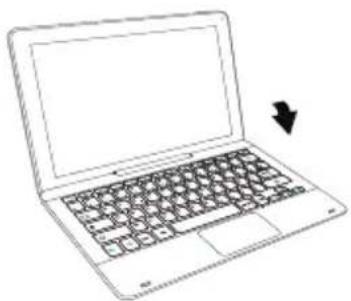
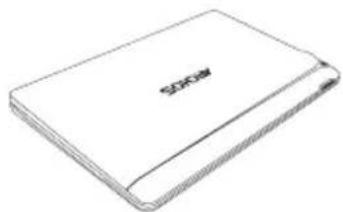
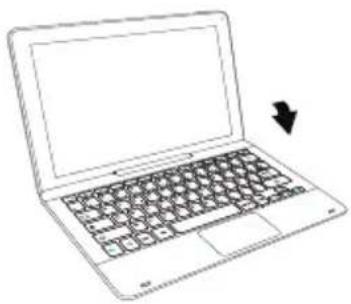
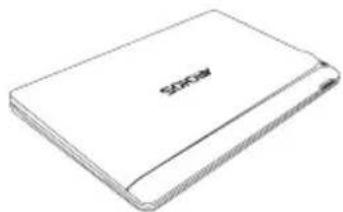
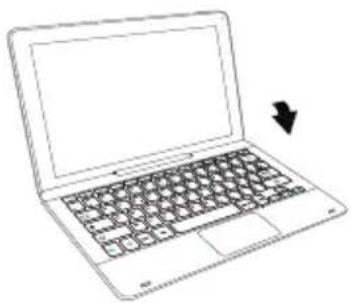
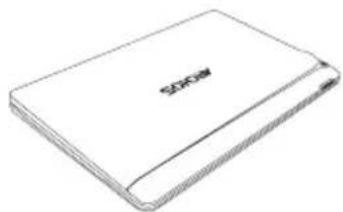
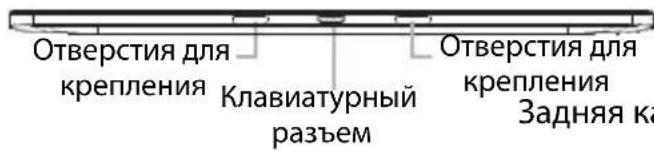
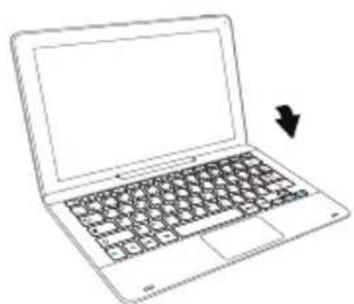
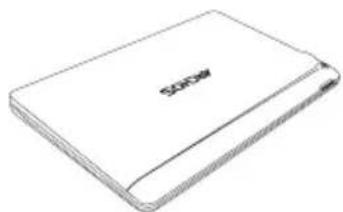
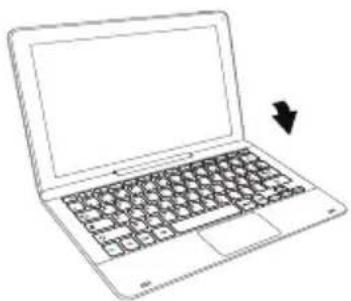
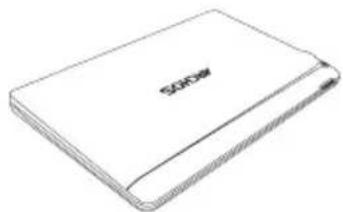
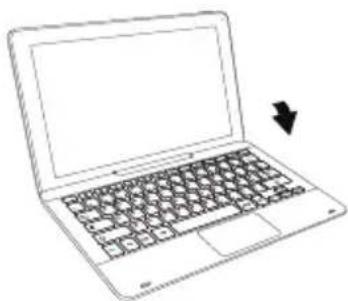
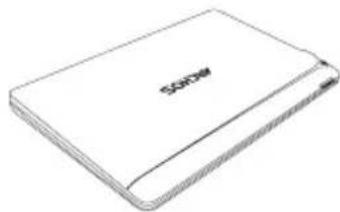
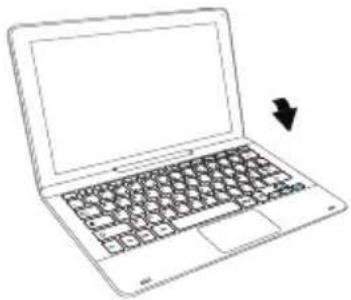
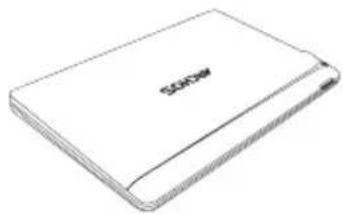
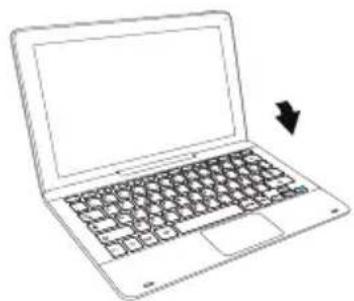
Installing the tablet on the keyboard*:
1
natural_image
Line drawing of a laptop with a blank screen and a keyboard, no text or symbols present2
natural_image
Line drawing of a laptop with a black arrow pointing to the right side (no text or symbols)3
natural_image
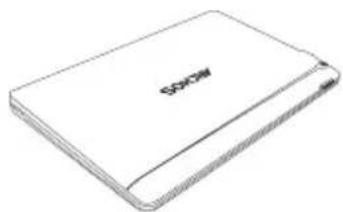
Line drawing of a rectangular electronic device with a logo on the front face (no text or symbols on the body)*The keyboard might be included with your device. It is available only with a specific version of the ARCHOS 116 Neon.


Troubleshooting
- If your device is frozen: Press the ON/OFF button for 10 seconds or use the reset button.
- If your device doesn't turn on:
- Charge your device.
- Press the ON/OFF button for 10 seconds.
- If your device functioning is too slow:
Close all apps which are not currently used. - If your WiFi reception is too low:
Make sure you are not far from the WiFi hotspot.
Reset and redefine your connection parameters.
Contact your WiFi connection provider.
- If your device has dysfunctions:
Reinitialize your device. Go to Settings > Backup & reset > Factory data reset. If you can't have access to the settings for any reason, consult our FAQs about the reinitialization process.
For more answers about your technical difficulties, do not hesitate to visit: faq.archos.com

Contactez-nous

www.archos.com, click Support > After-sales support

natural_image
Simple black line drawing of a plug connected to a coiled cable (no text or symbols)Chargeur
natural_image
Front view of a tablet device labeled ARCHOS (no other text or symbols visible)Caméra avant

natural_image
Line drawing of a laptop with a blank screen and keyboard, no text or symbols present2
natural_image
Line drawing of a laptop with a black arrow pointing to the right side (no text or symbols)3
natural_image
Line drawing of a rectangular electronic device with a logo on the front face (no text or symbols on the body)natural_image
Simple black line drawing of a plug connected to a coiled cable (no text or symbols)Ladegerät
natural_image
Front view of a tablet device labeled ARCHOS at the bottom (no other text or symbols visible)Frontkamera

natural_image
Line drawing of a laptop with a blank screen and a downward arrow pointing to it (no text or symbols)natural_image
Line drawing of a laptop with a black arrow pointing to the right side (no text or symbols)3
natural_image
Line drawing of a closed book with the word 'SPOOW' on the cover (no additional text or symbols)

Fehlerbehebung
natural_image
Simple black line drawing of a plug connected to a coiled cable (no text or symbols)Cargador
natural_image
Front view of a tablet device labeled ARCHOS (no other text or symbols visible)Cámara frontal

natural_image
Line drawing of a laptop with a keyboard and an arrow pointing to it (no text or symbols)2
natural_image
Line drawing of a laptop with a black arrow pointing to the right side (no text or symbols)3
natural_image
Line drawing of a closed laptop with visible screen and cover (no text or symbols)natural_image
Simple black line drawing of a plug connected to a coiled cable (no text or symbols)Caricabatterie
natural_image
Front view of a tablet device labeled ARCHOS at the bottom (no other text or symbols visible)Fotocamera anteriore

natural_image
Line drawing of a laptop with a keyboard and an arrow pointing to it (no text or symbols)2
natural_image
Line drawing of a laptop with a black arrow pointing to the right side (no text or symbols)3
natural_image
Line drawing of a closed electronic device with no visible text or symbolsnatural_image
Simple black line drawing of a plug connected to a coiled cable (no text or symbols)Oplader
natural_image
Front view of a tablet device labeled ARCHOS at the bottom (no other text or symbols visible)natural_image
Line drawing of a laptop with a keyboard and an arrow pointing to it (no text or symbols)2
natural_image
Line drawing of a laptop with a black arrow pointing to the right side (no text or symbols)3
natural_image
Line drawing of a rectangular electronic device with no visible text or symbolsnatural_image
Simple line drawing of a rectangular electronic device with no text or symbols on the bodyARCHOS 116 Neon
Guia do usuário
natural_image
Simple black line drawing of a plug connected to a coiled cable (no text or symbols)Transformador do carregador
natural_image
Line drawing of a tablet device with no text or symbols on the screen or bodyCâmara dianteira

natural_image
Line drawing of a laptop with a keyboard and an arrow pointing to it (no text or symbols)2
natural_image
Line drawing of a laptop with a black arrow pointing to the right side (no text or symbols)3
natural_image
Line drawing of a closed book with a visible cover and spine (no text or symbols)natural_image
Simple black line drawing of a plug connected to a coiled cable (no text or symbols)natural_image
Front view of a tablet device labeled ARCHOS at the bottom (no other text or symbols visible)Фронтальная камера
natural_image
Line drawing of a laptop with a keyboard and an arrow pointing to it (no text or symbols)2
natural_image
Line drawing of a laptop with a black arrow pointing to the right side (no text or symbols)3
natural_image
Line drawing of a rectangular electronic device with a printed label (no readable text or symbols beyond the label)natural_image
Simple line drawing of a rectangular electronic device with no text or symbols on the body, labeled 'ARCHS' at the bottom (no other text or symbols)ARCHOS 116 Neon
natural_image
Simple black line drawing of a plug connected to a coiled cable (no text or symbols)Ładowarka
Opis urządzenia

natural_image
Front view of a tablet device labeled ARCHOS (no other text or symbols visible)Kamera przednia

natural_image
Line drawing of a laptop with a keyboard and an arrow pointing to it (no text or symbols)2
natural_image
Line drawing of a laptop with a black arrow pointing to the right side (no text or symbols)3
natural_image
Line drawing of a closed hard drive with a logo on the cover (no text or symbols present)natural_image
Simple black line drawing of a plug connected to a coiled cable (no text or symbols)Töltöadapter
A készülék leírása

natural_image
Front view of a tablet device labeled ARCHOS (no other text or symbols visible)Elülsö kamera

natural_image
Line drawing of a laptop with a keyboard and an arrow pointing to it (no text or symbols)2
natural_image
Line drawing of a laptop with a black arrow pointing to the right side (no text or symbols)3
natural_image
Line drawing of a rectangular electronic device with a printed 'SOSA' logo on the cover (no additional text or symbols)natural_image
Simple black line drawing of a plug connected to a coiled cable (no text or symbols)Nabíjačka
Popis zařízení

natural_image
Front view of a tablet device labeled ARCHOS (no other text or symbols visible)Přední fotoaparát

text_image
Držte otvor Držte otvorPřipojovací port
Hlasitost +/-
Zadní kamera
USB
Zapnutí/vypnutí
Konektor sluchátek
Micro-USB
Nabíjecí konektor
Port mini-HDMI
Mikrofon
text_image
ARCHOS ARCHOS 1.6 Neon HOMI 三七 CE 模板Reset
63 63


Začínáme
natural_image
Line drawing of a laptop with a keyboard and an arrow pointing to it (no text or symbols)2
natural_image
Line drawing of a laptop with a black arrow pointing to the right side (no text or symbols)3
natural_image
Line drawing of a rectangular electronic device with a logo on the front face (no text or symbols on the body)natural_image
Simple black line drawing of a plug connected to a coiled cable (no text or symbols)Nabíjačka
Popis zariadenia

natural_image
Front view of a tablet device labeled ARCHOS (no other text or symbols visible)Predná kamera

natural_image
Line drawing of a laptop with a keyboard and mouse, showing no text or symbols2

natural_image
Line drawing of a laptop with a black arrow pointing to the right side (no text or symbols)3
natural_image
Line drawing of a closed laptop with 'SOPAR' branding on the cover (no additional text or symbols)natural_image
Simple black line drawing of a plug connected to a coiled cable (no text or symbols)Зарядний пристрій
Опис пристрою

natural_image
Front view of a tablet device labeled ARCHOS (no other text or symbols visible)Фронтальна камера

natural_image
Line drawing of a laptop with a keyboard and an arrow pointing to it (no text or symbols)2
natural_image
Line drawing of a laptop with a black arrow pointing to the right side (no text or symbols)3
natural_image
Line drawing of a rectangular electronic device with 'SOSOW' branding on the cover (no additional text or symbols)National restrictions
This device is intended for home and office use in all EU countries (and other countries following the EU directive 2014/53/
EU) without any limitation except for the countries mentioned below:
Country Restriction Reason/remark
Bulgaria None General authorization required for outdoor use and public service
France Outdoor use limited to 10 Military Radiolocation use. Refarming of the 2.4 GHz band has been ongoing in
mW e.i.r.p. within the band recent years to allow current relaxed regulation. Full implementation planned
2454-2483.5 MHz 2012
Italy None If used outside of own premises, general authorization is required.
Luxembourg None General authorization required for network and service supply (not for
spectrum)
Norway Implemented This subsection does not apply for the geographical aera within a radius of 20
km from the centre of Ny-Alesund
Russian None Only for indoor applications
Federation
Note: Frequency 2454-2483.5MHZ are restricted to indoor use in France.
Archos company (Contact address : ARCHOS SA 12 Rue Ampère 91430 Igny France) declares that this tablet ARCHOS 116
Neon is in compliance with the essential requirements and other relevant provisions of Directive 2014/53/EU:
https://www.archos.com/products/conformity.html
https://www.archos.com/products/conformity.html
| WLAN | ||
| Standard Frequency Avg. Power (dBm) | ||
| 802.11b/g 2412 ~ 2472 | MHz 8~10 | |
| 802.11n – HT20 2412 ~ | 2472 MHz 8~9 | |
| 802.11n – HT40 2422 ~ | 2462 MHz 8~9 | |
| Bluetooth | ||
| Bluetooth Version Frequency Range Avg. Power (dBm) | ||
| EDR 2402 ~ 2480 MHz 6~8 | ||
| BLE 2402 ~ 2480 MHz -1~0.5 | ||