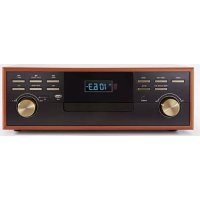
TD113SPS - Turntable BIGBEN - Free user manual and instructions
Find the device manual for free TD113SPS BIGBEN in PDF.


| Product type | Turntable with radio, CD, cassette, USB/SD, recording |
| Brand and model | BigBen TD113SPS |
| Dimensions (W × D × H) | 421 × 229 × 139 mm |
| Weight | 5.6 kg (approx) |
| Power supply | 230 V ~ 50 Hz |
| Power consumption | 25 W |
| Audio output power | 2 × 1.5 W |
| Rotation speeds | 33⅓, 45, 78 rpm |
| Turntable motor | DC servo motor, belt drive |
| Cartridge type | Stereo ceramic cartridge |
| Phono output level | 500 mV (at 1 kHz) |
| Signal-to-noise ratio (phono) | > 35 dB |
| Wow and flutter | < 0.3% (WTD) |
| Frequency response | 60 Hz – 20,000 Hz |
| Internal speaker impedance | 8 Ω |
| External speaker impedance | 4 Ω (recommended) |
| Main functions | Phono, AM/FM radio, CD/MP3, cassette, USB/SD, recording, AUX-IN, headphone, bass boost, auto stop |
| Supplied accessories | Remote control, 45 rpm adapter, instruction manual |
| Maintenance and cleaning | Dust with a soft cloth; clean the cartridge with a brush; do not expose to moisture |
| Safety | Do not open the cover, avoid exposure to rain or moisture, Class 1 laser upon opening |
| Repairability / After-sales service | Contact Bigben after-sales service at 09 69 39 79 59 (toll-free call) |
| Warranty | 2 years (in accordance with legislation) |
Frequently Asked Questions - TD113SPS BIGBEN
User questions about TD113SPS BIGBEN
0 question about this device. Answer the ones you know or ask your own.
Ask a new question about this device
Download the instructions for your Turntable in PDF format for free! Find your manual TD113SPS - BIGBEN and take your electronic device back in hand. On this page are published all the documents necessary for the use of your device. TD113SPS by BIGBEN.
USER MANUAL TD113SPS BIGBEN
MANUEL D'INSTRUCTIONS
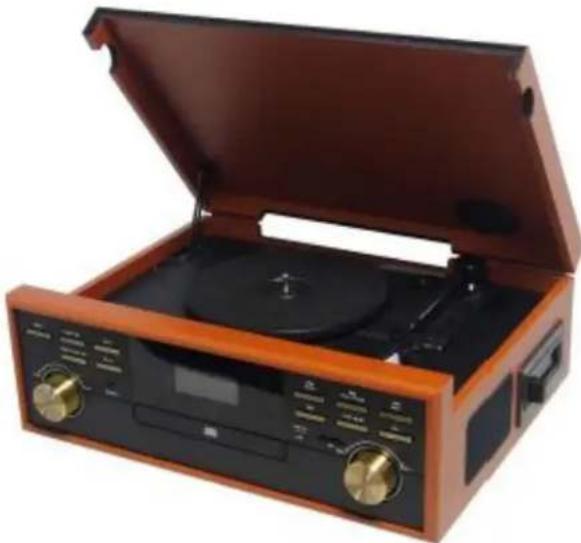
natural_image
Vintage wooden open-glc portable radio with black and brown casing, no visible text or symbolsINSTRUCTIONS D'UTILISATION
VEUILLEZ LIRE ATTENTIVEMENT CES INSTRUCTIONS D'UTILISATION AVANT D'UTILISER L'APPAREIL, ET LE CONSERVER POUR VOUS Y RÉFÉRER ULTÉRIEUREMENT.
FR
Rév 0
AVERTISSEMENT
RISQUES D'ÉLECTROCUTION
NE PAS OUVRIR

AVERTISSEMENT : POUR RÉDUIRE LES RISQUES D'ÉLECTROCUTION, NE RETIREZ PAS LE CAPOT (OU L'ARRIÈRE). IL N'Y A AUCUNE PIÈCE RÉPARABLE PAR L'UTILISATEUR À L'INTÉRIEUR. POUR TOUTE RÉPARATION, CONSULTEZ DU PERSONNEL QUALIFIÉ

text_image
Technical diagram of a mechanical device with numbered components for identification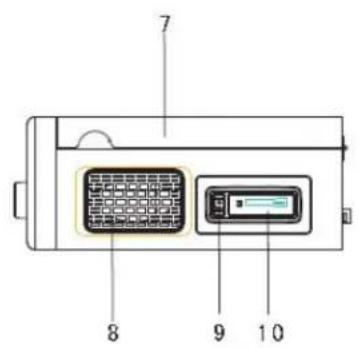
text_image
7 8 9 10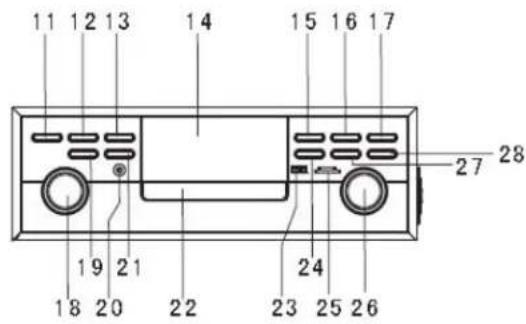
text_image
11 12 13 14 15 16 17 27 28 19 21 24 18 20 22 23 25 26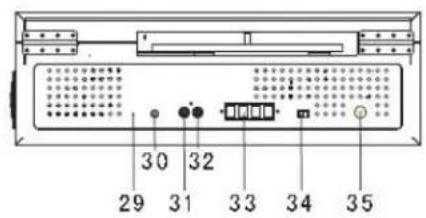
text_image
30 32 29 31 33 34 35Vitesse.... 33-1/3 tours/minute, 45 tours/minute et 78 tours/minute
customerservice@bigben-interactive.be
ESPAÑA, sat@bigbeninteractive.es
ITALIA, support@bigbeninteractive.it
www.bigben.eu

bigben® INTERACTIVE
TURNTABLE WITH AM/FM STEREO RADIO, USB ENCODING
TD113
INSTRUCTION MANUAL
natural_image
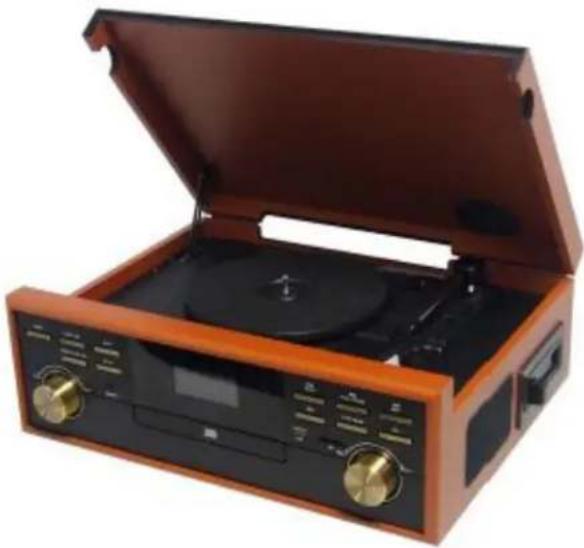
Vintage wooden open-glc portable radio with dual dials and a CD, no visible text or labelsOPERATING INSTRUCTIONS
PLEASE READ OPERATING INSTRUCTIONS CAREFULLY BEFORE USE AND KEEP FOR FUTURE REFERENCE.
Rev 0
EN

CAUTION RISK OF ELECTRIC SHOCK DO NOT OPEN

CAUTION: TO REDUCE THE RISK OF ELECTRIC SHOCK, DO NOT REMOVE THE COVER (OR BACK). NO USER-SERVICEABLE PARTS INSIDE. REFER ALL SERVICING TO QUALIFIED SERVICE PERSONNEL.

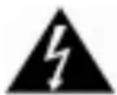
The lightning bolt with an arrowhead within a triangle indicates the presence of uninsulated dangerous voltage within the product enclosure that may be of sufficient magnitude to constitute a risk of electric shock to persons.

The exclamation point within a triangle indicates the presence of important operating and maintenance (servicing) instructions in the literature accompanying the unit.
WARNING:
- TO REDUCE THE RISK OF FIRE OR ELECTRIC SHOCK, DO NOT EXPOSE THIS UNIT TO RAIN OR MOISTURE.
- To avoid any damage, do not force the cover into position.
CAUTION!

Visible and invisible laser radiation when open and with interlocks disabled. Avoid direct exposure to
beam.
ACCESSORIES INCLUDED
- Remote control
- User manual
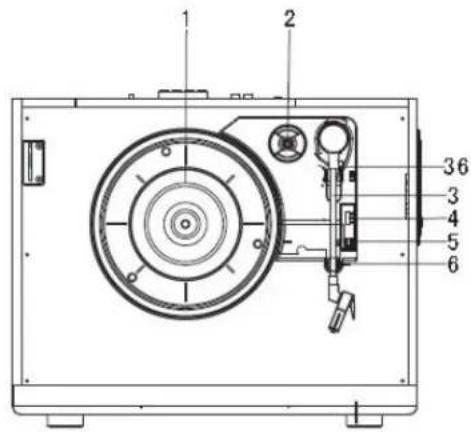
PARTS / BUTTONS
MAIN UNIT
text_image
Technical diagram of a device with numbered components, likely an electrical or mechanical assembly.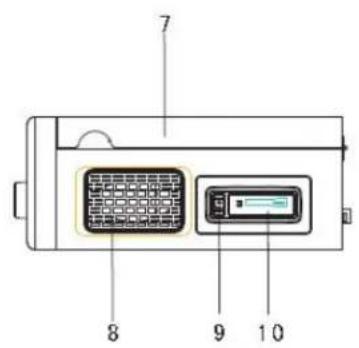
text_image
7 8 9 10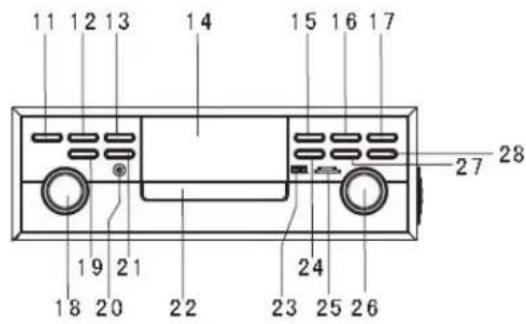
text_image
11 12 13 14 15 16 17 27 28 19 21 24 18 20 22 23 25 26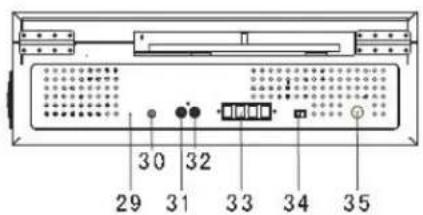
text_image
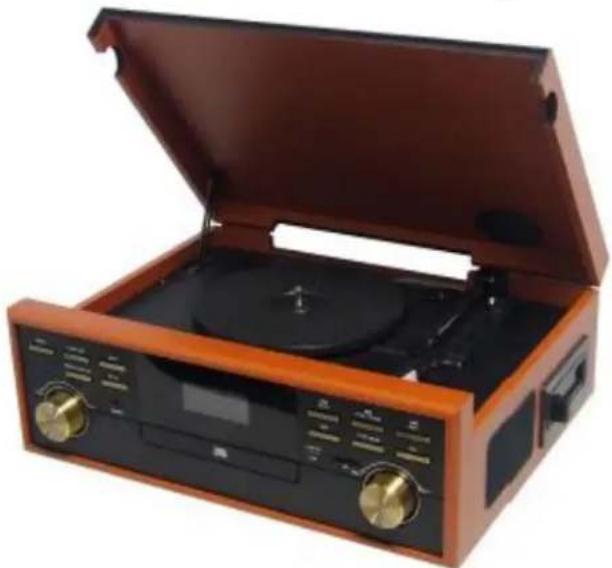
30 32 29 31 33 34 35- Turntable platter
- 45 rpm adapter
- Tone arm
- Speed selector
- Auto-stop (ON/OFF) switch
- Tone arm rest
- Dust cover
- Speaker
- Cassette eject / Fast-forward (FF) button
- Cassette door
- Power button
- Function button
- Bass button
- LCD display
- Back [◀] button
- Play/Pause[▶]button
-
Next [▶] button
-
Tuning control knob
- Programme/Clock set button
- Headphone jack
- CD door Open/Close button
- CD door
- USB port
- Record button
- SD/MMC card slot
- Volume control
- Stop/Band selector
- Delete button
- FM antenna
- AUX-IN jack
- RCA line-out R
- RCA line-out L
- External speaker terminals
- Internal speaker On/Off switch
- AC power cord
- Lift lever
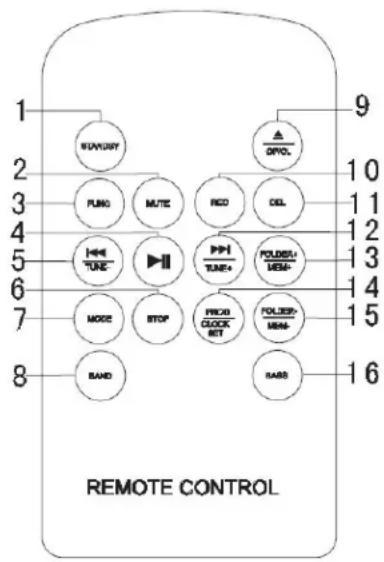
REMOTE CONTROL
Remove the plastic insulator tag sticking out of the battery compartment of the remote control by pulling on it. Once the tag is removed, the remote control will be ready for use.
- STANDBY button
- MUTE button
- FUNCTION button
- PLAY/PAUSE button
- TUNE-/BACK button
- STOP button
- MODE button
- BAND button
- CD door OPEN/CLOSE button
- RECORD button
- DELETE button
- TUNE+/NEXT button
- FOLDER+/MEM+ button
- PROGRAMME/CLOCK SET button
- FOLDER-/MEM- button
- BASS button
text_image
1 2 3 4 5 6 7 8 RUMUNY PUNG MUTE REO DEL TUNE PHI TUNE+ POLESL/ MEM+ MODE STOP FIXO CLOCK SET POLEE MEM+ BAND SABS 9 10 11 12 13 14 15 16 REMOTE CONTROLBATTERY REPLACEMENT
When the battery runs low, the distance at which the remote control will opera greatly reduced and you will need to replace the lithium battery.
- Remove the battery compartment from the bottom of the remote control.
- Install 1 CR2025 lithium battery with the positive side facing up.
- Replace the battery compartment.
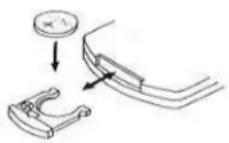
USING THE REMOTE CONTROL
- To use the remote control, point it at the remote sensor and press the button gently but firmly. Since the remote control range is reduced when the unit is used at an angle, try to aim it directly at the remote sensor.
- Do not expose the remote sensor to strong light (direct sunshine or artificial light) and make sure that there are no obstacles between the remote sensor and the remote control.
GETTING STARTED
CONNECTING THE AC POWER CORD
- Unwind the AC power cord and connect it to a household 230V\~50Hz AC outlet.
SETTING THE TIME
- In Standby mode, press and hold the Programme/Clock set button (19) for 3 seconds. "24 Hr" will be displayed blinking.
- Press the BACK/NEXT buttons (15, 17) to select the clock display format (12 hrs or 24 hrs). Press the Programme/Clock set button (19) to confirm; the hour digits will blink. Press the BACK/NEXT buttons (15/17) to set the hour. Press the Program/Clock set button (19) to confirm; the
minute digits will blink. Press the BACK/NEXT buttons (15/17) to set the minutes, then press the Program/Clock set button (19) again to confirm and finish setting the time.
Note: The LCD illumination will automatically brighten for 5 seconds when you press any button in Standby mode.
OPERATING THE RADIO
AM/FM TUNER
- Set the FUNCTION button (12) to the TUNE position.
- Select the desired frequency with the BAND selector.
- Tune in to the desired radio station by turning the Tuning control knob (18). You can also use the BACK/NEXT buttons (15/17) to automatically search for the previous or next available radio station.
- Adjust the volume +/- to the desired level.
- Press the POWER (11) button to turn off the radio.
FM stereo and mono reception
When an FM signal is tuned in, press the MODE button on the remote to select FM ST; this will enable stereo reception for the broadcast. The FM stereo indicator 'ON' will appear on the LCD display.
Hints for best reception:
- AM: The receiver has a built-in AM antenna. If AM reception is weak, slightly turning or changing the position of the unit will usually improve the AM reception.
- FM: The receiver has a built-in FM antenna (29) hanging at the rear cabinet. This wire should be fully unravelled and extended for best reception.
Before use, please make sure to:
- Remove the stylus protector.
- Ensure the tonearm is free to move from the tonearm rest. Lock the tonearm in place again when not in use.
Listening to records
- Set the FUNCTION button (12) to the PHONO position and lift the turntable Dust cover (7).
- Place a record on the turntable, over the central spindle. Place the EP adapter over the central spindle when playing 17cm EP records.
- Set the Speed selector (4) to 33, 45 or 78 rpm depending on the record.
- Lift the tonearm from the tonearm rest by using the Lift lever (36) and slowly move it over the record. The Turntable platter (1) will start turning.
- Place the tonearm (3) on the desired position of the record.
- Gently lower the tonearm onto the record to start playing.
- When the record is finished the tonearm will automatically stop. Lift the tonearm from the record and put it back on the rest.
- To stop manually, lift the tonearm from the record and return it to the rest.
Note: Do not stop or turn the platter manually.
Moving or jarring the turntable without securing the tonearm clamp could result in damage to the tonearm.
Replace the protective cap on the stylus when not in use.
AUTO-STOP SWITCH OPERATION
Certain types of records may have an auto-stop area outside the pre-set limit, so the turntable may stop before the last track finishes. If this occurs, set the AUTO-STOP switch (5) to the OFF position. This allows the record to play to the end, but please note that it will not stop automatically. You must manually raise the tonearm and place it back in the rest and then turn the power OFF to stop the turntable from spinning.
LINE-OUT CONNECTION
You can connect this unit to an external stereo system or amplifier by connecting the RCA LINE-OUT jacks (31, 32) to the auxiliary input jacks on your stereo or amplifier with RCA cables (not included).
Note: The unit's Volume Control (26) will not adjust the volume when line-out jacks are in use.
INTERNAL SPEAKER
- Sound will come simultaneously from the system's built-in speakers and any speakers connected to the external amplifier.
- Set the Internal speaker switch (34) to ON and adjust the sound level using the Volume control (26) as desired.
- Set the Internal speaker switch (34) to OFF. You can connect the unit to external 4 ohm speakers (not included) via the External speaker terminals (33).
Note: Sound will still come from the original built-in speakers even after the external speakers are connected.
USING HEADPHONES (NOT INCLUDED)
Plugging your headphones into the Headphone jack (20) will allow you to listen in private.
PLEASE READ THIS IMPORTANT INFORMATION BEFORE USING YOUR HEADPHONES
- Avoid extended play at a very high volume as it may impair your hearing.
- If you experience ringing in your ears, reduce the volume or shut off your unit.
- Keep the volume at a reasonable level even if your headset is an open-air type designed to allow you to hear outside sounds. Note that excessively high volume may still block outside sounds.
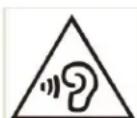
WARNING! Risk of hearing impairment
- Set the volume on the playback device to low before connecting the headphones to the sound source.
- Avoid excessive volume, particularly over extended periods or frequent use. Excessive volume can result in permanent hearing impairment.
LOADING AND UNLOADING COMPACT DISCS
- Set the FUNCTION button (12) to CD mode.
- Open the disc compartment by pressing the CD door Open/Close button (21).
- When the disc compartment has opened, carefully place the CD in the compartment with the label facing up. Position smaller discs in the central depression in the compartment.
- Close the disc compartment. When the compartment is fully closed, the disc will automatically start turning. The total number of tracks on the CD will appear on the LCD display and will play automatically.
- Press the PLAY/PAUSE button again to pause playback.
- To stop playback, press the STOP button.
SKIPPING TRACKS
Selecting a different track during playback
- Press the BACK/NEXT button. The track number appears on the display.
- Release the button on the desired track number; the unit will start playing the selected track.
SKIP MODE FOR MP3 DISCS
- Press the FOLDER + /- buttons on the remote control to change the album number.
- Press the BACK/NEXT buttons on the remote control to change the track number.
- When the desired track has been selected, press the PLAY button to start playback.
REPEAT CD PLAY
- When playing a CD, if you wish to listen to the same track repeatedly, press the MODE button (7) on the remote followed by ⏻.
- To play the entire disc over and over again, press MODE twice and will be displayed.
- To cancel repeat play, press the STOP button.
RANDOM CD PLAY
- When playing a CD or MP3 disc, press the MODE button three times. The RANDOM indicator will light up.
- Press the BACK/NEXT button. The tracks will play randomly.
- To cancel random play, press the STOP button once (the random indicator will disappear).
PROGRAMMED DISC PLAY (CD)
You cannot enter programs while playing a CD. Press the STOP button and then follow the instructions below.
- Press the unit's PROGRAMME button (19). The information is displayed on the CD display.
- Press the unit's BACK/NEXT buttons (15, 17) to select the location in which the track should be stored i.e. track 03.
- Press the PROGRAMME button. The first programmed selection is now stored in the programme memory.
Listening to programmed tracks
Press the PLAY/PAUSE button. The CD will start playing at the beginning of the first programmed track.
To clear the programmed memory: if the disc is playing, press the STOP button.
RECORDING FROM CD
You can record your favourite CD songs in MP3 format and store them on a memory device via the USB port or SD/MMC card slot.
-
Set the FUNCTION button (12) to CD mode.
-
Insert the USB flash drive into the USB slot. Press the RECORD button (24). "CHE" will flash on the display for around 3 seconds and then show "ONE". Press the BACK/NEXT buttons (15, 17) to record ONE track or ALL and then press the RECORD button to confirm.
- Press the BACK/NEXT buttons (15, 17) to select the track and then press the RECORD button to confirm. "REC→USB" will be displayed to indicate the track is being recorded to USB.
- Insert the SD/MMC card into the SD/MMC slot. Press the RECORD button (24) to start synchronised recording. "REC CARD←" will be displayed to indicate the track is being recorded to SD or MMC.
- Press the STOP button (15) to stop recording.
- If you insert the USB flash drive and SD/MMC card into the unit at the same time: press the RECORD button (24) to start synchronised recording; "USB" will be displayed. Then press the BACK/NEXT button to select recording to USB or card and press the RECORD button to confirm.
- Press the STOP button (15) to stop recording.
- Note: CD recording must be synchronised. Press the STOP button to confirm.
Attention: Some original CDs may not be recordable as they are copy-protected.
You cannot enter programs while playing a disc. Press the STOP button and then follow the instructions below.
- Set the FUNCTION button to CD mode and insert the MP3 disc in the CD compartment.
- Insert the USB flash drive into the USB slot. Press the RECORD button (24). "CHE" will flash on the display for around 3 seconds and then show "ONE". Press the BACK/NEXT buttons (15, 17) to copy "ONE" track, or "FOL" or "ALL". Press the RECORD button to confirm.
- "COPY→USB" will be displayed, indicating that it is being recorded to USB.
- Press the STOP button (15) to stop copying.
You can record you favourite vinyl songs in MP3 format and store them on a memory device via the USB port or SD/MMC card slot.
- Set the FUNCTION button (12) to PHONO mode.
- Insert the USB flash drive into the USB slot. Press the RECORD button (24). "CHE" will flash on the display for around 3 seconds and then show "REC→USB", indicating that it is being recorded to USB.
- Insert the SD/MMC card into the SD/MMC slot. Press the RECORD button (24) to start synchronised recording. "REC CARD←" will be displayed, indicating that it is being recorded to SD or MMC.
- Press the STOP button (15) to stop recording.
- If you insert the USB flash drive and SD/MMC into the unit at the same time: press the RECORD button (24) to start synchronised recording; "USB" will be displayed. Then press the BACK/NEXT button to select recording to USB or card and press the RECORD button to confirm.
- Press the STOP button (15) to stop recording.
- Set the FUNCTION button (12) to RADIO mode.
- Insert the USB flash drive into the USB slot. Press the RECORD button (24). "CHE" will flash on the display for around 3 seconds and then show "REC→USB", indicating that it is being recorded to USB.
- Insert the SD/MMC card into the SD/MMC slot. Press the RECORD button (24) to start synchronised recording. "REC CARD←" will be displayed, indicating that it is being recorded to SD or MMC.
-
Press the STOP button (15) to stop recording.
-
If you insert the USB flash drive and the SD/MMC into the unit at the same time: press the RECORD button (24) to start synchronised recording; "USB" will be displayed. Then press the BACK/NEXT button to select recording to USB or card and press the RECORD button to confirm.
- Press the STOP button (15) to stop recording.
COPYING FROM USB TO SD OR FROM SD TO USB
- Insert the MP3 player or USB flash drive into the USB slot and the SD card into the SD card slot. Set the FUNCTION button to USB and press the RECORD button. "CHE" will flash on the display for around 3 seconds and then "ONE" will be displayed. Press the BACK/NEXT buttons (15, 17) to record "ONE" track, or "FOL" or "ALL". Press the RECORD button to confirm.
- Press the BACK/NEXT buttons (15, 17) to select the track and then press the RECORD button to confirm. "COPY CARD←" will be displayed, indicating that it is being recorded to USB. The display will indicate from 1 to 100% during copying.
- Do not interrupt the copying process until completed or none of the files be copied.
After loading the USB / SD, the total number of tracks / files will be shown on the display and play automatically. Press the STOP button to stop playing.
Remark: Please note that the unit can only read FAT32 format USB drives with less than 32GB.
- Set the FUNCTION button to TAPE mode and then insert the tape into the compartment. The cassette will play automatically.
- Press and hold the FF button until you reach the desired position on the tape.
- Release the FF button to the 'PLAY' position to start playback.
- Eject the cassette tape after use.
AUXILIARY INPUT
- Set the FUNCTION button (12) to PHONO mode and then use an audio cable (not included) with a 3.5 mm stereo plug on each end of the cable.
- Plug one end of the cable into the AUX-IN jack (30) on the back of the unit ("Aux" will be displayed) and the other end into the Line-out jack or Headphone jack of your external audio device to be able to listen to the external source through that system's speakers.
- The volume level can now be controlled through the main unit. Operate all other functions on the auxiliary device as usual.
Note:
(1). If the Line-Out jack of your external device is connected, you only need to adjust the system's volume control. If your external device's Headphone jack is connected, you may need to adjust the volume control on both your external device and this system to achieve the desired volume.
(2). Press the POWER button (11) to turn off the system when you have finished listening. Don't forget to switch off the power on your external device as well.
SPEAKER CONNECTION FOR EXTERNAL SPEAKERS - RCA JACK
You can connect the external speakers (4 ohm) via the "Speaker output" L, R sockets (cables and external speakers are not included).
Note: Sound will still come from the original built-in speakers even after the external speakers are connected.
BASS BOOST
BASS BOOST
Press the BASS button once to the ON position to enjoy a more powerful Bass sound.
TROUBLESHOOTING GUIDE
| Problem Possible cause Solution | ||
| The unit does not respond (no power) | The unit is disconnected from the AC outlet.The AC outlet has no power. | Connect to the AC outlet.Try the unit on another outlet. |
| No sound | Volume not adjusted.Wrong source selected.No device installed.Device not turned ON.Volume set too low. | Adjust the volume level.Select the correct source.Insert a correct device.Turn ON the device.Press the Volume + button to turn the sound level up. |
| The CD player does not work | Disc is inserted upside down.Disc is dirty.Disc is scratched.Disc is warped.A non-standard disc is inserted(DVD/ VCD) | Insert the disc correctly.Wipe the disc clean with a soft cloUse a new disc.Use a new disc. |
| Noise or sound distorted on FM broadcast | Station not tuned properly for FM.The FM wire antenna is not fully extended. | Retune the FM broadcast station.Fully extend the FM wire antenna. |
| Sound is distorted | Volume level is set to high. | Decrease the volume. |
| Unit becomes warm after extended play at high volume. | This is normal. | Turn the unit off for some time or lower the volume. |
Remark: In order to save energy when the unit has no sound output for a while, the unit will automatically switch to stand-by. It can be switched ON by using the function selector again.
Specifications
AMPLIFIER
Output power.... 1.5W+1.5W
Frequency response.... 60 TO 20,000 Hz
GRAMOPHONE
Motor..... DC servo motor
Drive system..... Belt drive
Speed.... 33-1/3 rpm, 45 rpm and 78 rpm
Wow & Flutter.... Less than 0.3% (WTD)
SNR ...... More than 35 dB
Cartridge type...... Ceramic stereo cartridge
Output level.... 1 KHz -500 mV
SPEAKER SYSTEM
Impedance....8 ohm
Input power.... Max. 3 W
GENERAL
Power requirements..... AC 230 V \~ 50 Hz
Power consumption.... 25W
Dimensions (LxDxH) 421x229x139mm
Weight.... 5.6 kg (approx.)
Standard accessories...... Instruction manual
Remote control
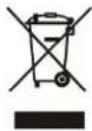
Don't discard electrical and electronic appliances with regular waste.
• Take them to an official collection point.
• Some components may be hazardous to health and the environment.
Imported by BIGBEN INTERACTIVE SA
396, Rue de la Voyette
CRT2 - FRETIN
CS 90414
59814 LESQUIN Cedex - France
www.bigben.eu
Made in China
bigben INTERACTIVE
customerservice@bigben-interactive.be
ESPAÑA, sat@bigbeninteractive.es
ITALIA, support@bigbeninteractive.it
www.bigben.eu


bigben® INTERACTIVE
natural_image
Vintage wooden open-glc portable radio with black and brown casing, no visible text or symbolsINSTRUCCIONES DE USO
customerservice@bigben-interactive.be
ESPAÑA, sat@bigbeninteractive.es
ITALIA, support@bigbeninteractive.it
www.bigben.eu

bigben® INTERACTIVE
GIRADISCHI CON RADIO STEREO AM/FM E LETTURA/SCRITTURA USB
TD113
natural_image
Exterior view of a vintage wooden open-glc portable radio with dual dials and control knobs (no visible text or symbols)ISTRUZIONI PER L'USO
PRIMA DI UTILIZZARE IL PRODOTTO, LEGGERE ATTENTAMENTE LE ISTRUZIONI PER L'USO E CONSERVARLE PER CONSULTAZIONI FUTURE.
Rev 0
IT
ATTENZIONE
RISCHIO DI SCARICHE ELETTRICHE NON APRIRE

ATTENZIONE: PER RIDURRE IL RISCHIO DI SCARICHE ELETTRICHE, NON RIMUOVERE IL COPERCHIO (O IL PANNELLO POSTERIORE). NON CONTIENE PARTI RIPARABILI DALL'UTENTE. PER QUALSIASI TIPO DI RIPARAZIONE, RIVOLGERSI A TECNICI QUALIFICATI.

customerservice@bigben-interactive.be
ESPAÑA, sat@bigbeninteractive.es
ITALIA, support@bigbeninteractive.it
www.bigben.eu

bigben® INTERACTIVE
GIRA-DISCOS COM RÁDIO AM/FM ESTÉREO E SUPORTE USB
TD113
MANUAL DE INSTRUÇÕES
natural_image
Wooden portable radio with open lid and black case, featuring two gold tuning knobs (no visible text or labels)text_image
Technical diagram of a mechanical device with numbered components for identification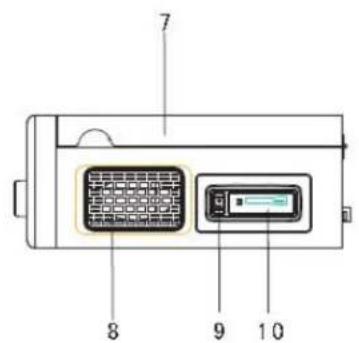
text_image
7 8 9 10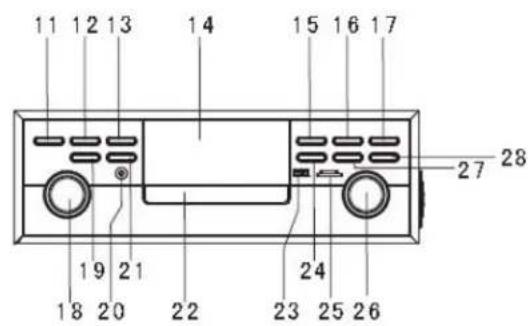
text_image
11 12 13 14 15 16 17 27 28 19 21 24 18 20 22 23 25 26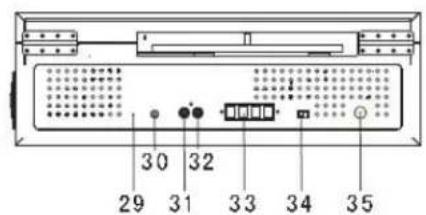
text_image
30 32 29 31 33 34 35customerservice@bigben-interactive.be
ESPAÑA, sat@bigbeninteractive.es
ITALIA, support@bigbeninteractive.it
www.bigben.eu


bigben® INTERACTIVE
natural_image
Vintage wooden open-glc portable radio with black and brown casing, no visible text or symbolsBEDIENUNGSANLEITUNG
text_image
Technical diagram of a mechanical device with numbered components for identification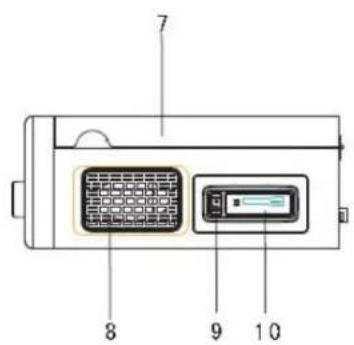
text_image
7 8 9 10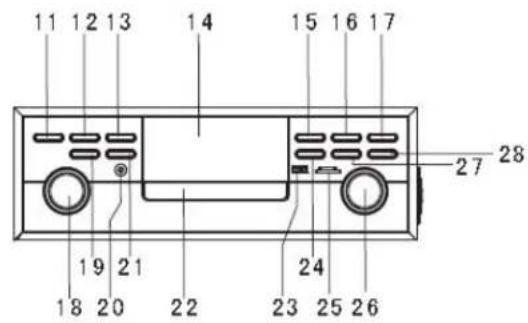
text_image
11 12 13 14 15 16 17 27 28 19 21 24 18 20 22 23 25 26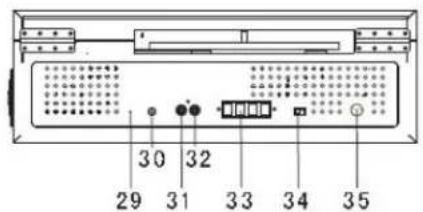
text_image
30 32 29 31 33 34 35customerservice@bigben-interactive.be
ESPAÑA, sat@bigbeninteractive.es
ITALIA, support@bigbeninteractive.it
www.bigben.eu



text_image
bigben® INTERACTIVEDRAAITAFEL MET AM/FM-STEREORADIO, USB-CODERING
TD113
GEBRUIKERSHANDLEIDING
natural_image
Exterior view of a vintage portable electronic ticker with open lid and gold buttons (no visible text or symbols)BEDIENINGSINSTRUCTIES
LEES ALVORENS EEN GEBRUIK DE HANDLEIDING AANDACHTIG DOOR EN BEWAAR VOOR TOEKOMSTIGE NASLAG.
Rev 0
NL
WAARSCHUWING
RISICO OP ELEKTRISCHE SCHOK
NIET OPENEN

WAARSCHUWING: VERWIJDER HET DEKSEL (OF DE ACHTERKANT) NIET OM EEN ELEKTRISCHE SCHOK TE VOORKOMEN. ER ZIJN GEEN DOOR DE GEBRUIKER TE REPAREREN ONDERDELEN IN HET APPARAAT; LAAT ONDERHOUD EN REPARATIE OVER AAN ERKEND ONDERHOUDSPERSONEEL.

text_image
Technical diagram of a device with numbered components, likely an electrical or mechanical assembly.
text_image
7 8 9 10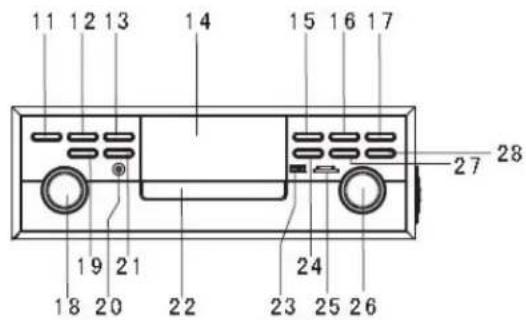
text_image
11 12 13 14 15 16 17 27 28 19 21 24 18 20 22 23 25 26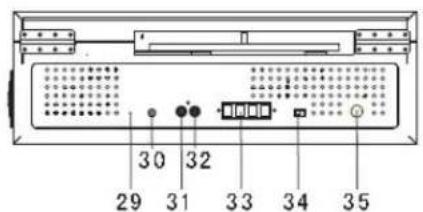
text_image
30 32 29 31 33 34 35- Draaiplateau
- 45 rpm-adapter
- Toonarm
- Keuzeschakelaar snelheid
- Auto-stop (AAN/UIT) keuzeschakelaar
- Toonarmstandaard
- Stofhoes
- Speaker
- Cassette uitwerpen / vooruitspoelen
- Cassettedeur
- Aan-/uitknop
- Functieknop
- Bas-knop
- LCD-display
- Terug []◆◆◆◆◆◆◆◆◆◆◆◆◆◆◆◆◆◆◆◆◆◆◆◆◆◆◆◆◆◆◆◆◆◆◆◆◆◆◆◆◆◆◆◆◆◆◆◆◆◆◆◆◆◆◆◆◆◆◆◆◆◆◆◆◆◆◆◆◆◆◆◆◆◆◆◆◆◆◆◆◆◆◆◆◆◆◆◆◆◆◆◆◆◆◆◆◆◆◆◆ ◆◆◆◆◆◆◆◆◆◆◆◆◆◆◆◆◆◆◆◆◆◆◆◆◆◆◆◆◆◆◆◆◆◆◆◆◆◆◆◆◆◆◆◆◆◆◆◆◆◆◆◆◆◆◆◆◆◆◆◆◆◆◆◆◆◆◆◆◆◆◆◆◆◆◆◆◆◆◆◆◆◆◆◆◆◆◆◆◆◆◆◆◆◆◆◆◆◆◆◆◇
- Afspelen/pauzere n [▶II] knop
- Volgende [] knop
-
Afstelregelknop
-
Programmeren / klok instellen
- Koptelefooningang
- CD-lade openen/sluiten
- CD-dekplaatje
- USB-aansluiting
- Opnameknop
- Micro SD/MMC-kaartsleuf
- Volumebediening
- Stop/band-kiezer
- Wisknop
- FM-antenne
- AUX-IN aansluiting
- RCA line-out R
- RCA line-out L
- Externe luidsprekeraansluitingen
- Interne speaker aan-/uitschakelaar
- AC-stroomsnoer
- Lifthendel
AFSTANDSBEDIENING
customerservice@bigben-interactive.be
ESPAÑA, sat@bigbeninteractive.es
ITALIA, support@bigbeninteractive.it
www.bigben.eu