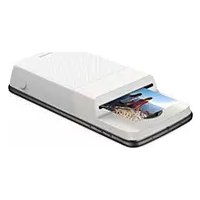
Polaroid InstaShare Printer - Portable printer MOTOROLA - Free user manual and instructions
Find the device manual for free Polaroid InstaShare Printer MOTOROLA in PDF.



| Product type | Portable smartphone printer (Moto Mod) |
| Brand | Motorola |
| Model | Polaroid InstaShare Printer |
| Printing technology | ZINK (Zero-Ink) cartridge-free |
| Print size | 2 x 3 inches (5 x 7.6 cm) |
| Paper capacity | Up to 10 sheets |
| Power supply | Rechargeable Li-ion battery via USB-C |
| Charge level | 4 LED indicator |
| Battery check button | Yes |
| Connectivity | Moto Mod (magnetic attachment) |
| Compatibility | Motorola smartphones compatible with Moto Mods |
| Main functions | Photo taking, direct printing, editing (crop, filters, borders) |
| Recommended paper | Polaroid ZINK Photo Paper 2x3 |
| Cleaning sheet | Yes (blue sheet included) |
| Sticky photos | Yes |
| Removable front cover | Yes |
| Maintenance and cleaning | Use the blue sheet with each new paper pack; protect from heat and humidity |
| Spare parts | ZINK 2x3 paper, front cover |
| Repairability | Not specified |
| Copyright year | 2017 |
| Manual available in | Multiple languages (FR, EN, DE, ES, etc.) |
Frequently Asked Questions - Polaroid InstaShare Printer MOTOROLA
User questions about Polaroid InstaShare Printer MOTOROLA
0 question about this device. Answer the ones you know or ask your own.
Ask a new question about this device
Download the instructions for your Portable printer in PDF format for free! Find your manual Polaroid InstaShare Printer - MOTOROLA and take your electronic device back in hand. On this page are published all the documents necessary for the use of your device. Polaroid InstaShare Printer by MOTOROLA.
USER MANUAL Polaroid InstaShare Printer MOTOROLA
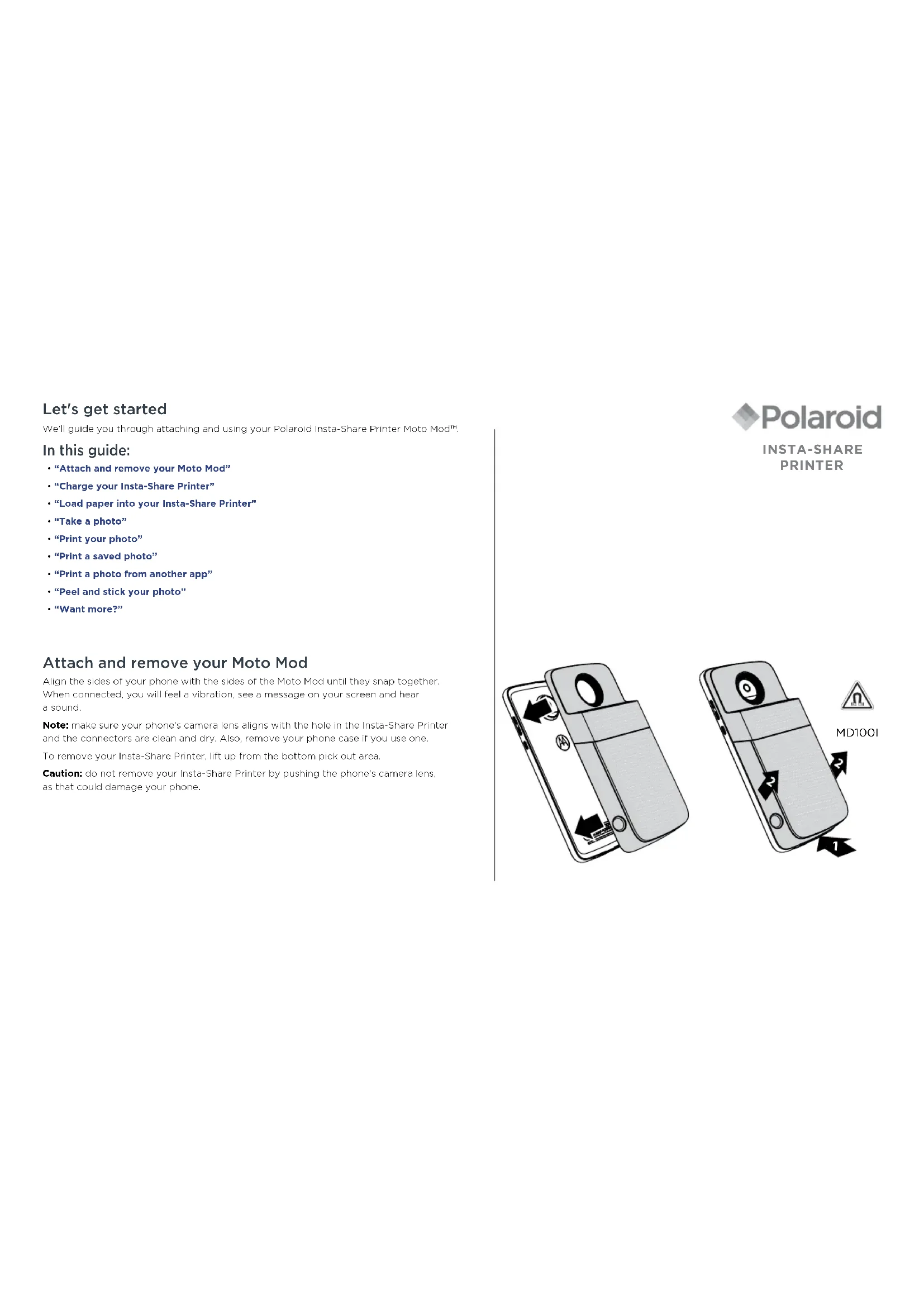
We'll guide you through attaching and using your Polaroid Insta-Share Printer Moto ModTM.
In this guide:
- "Attach and remove your Moto Mod"
"Charge your Insta-Share Printer - "Load paper into your Insta-Share Printer"
"Take a photo"
Print your photo
Print a saved photo
Print a photo from another app
"Peel and stick your photo"
"Want more?"
Attach and remove your Moto Mod
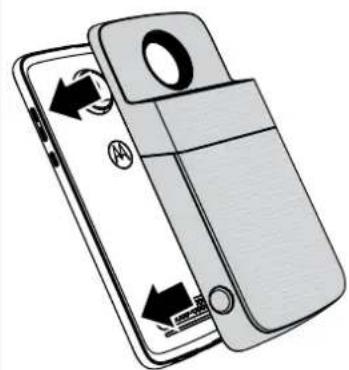
Align the sides of your phone with the sides of the Moto Mod until they snap together. When connected, you will feel a vibration, see a message on your screen and hear a sound.
Note: make sure your phone's camera lens aligns with the hole in the Insta-Share Printer and the connectors are clean and dry. Also, remove your phone case if you use one.
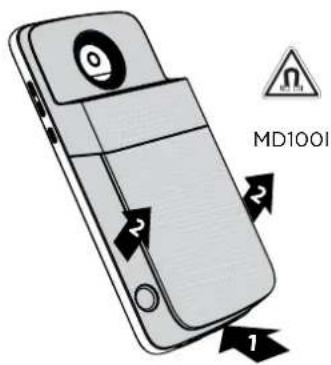
To remove your Insta-Share Printer, lift up from the bottom pick out area.
Caution: do not remove your Insta-Share Printer by pushing the phone's camera lens, as that could damage your phone.

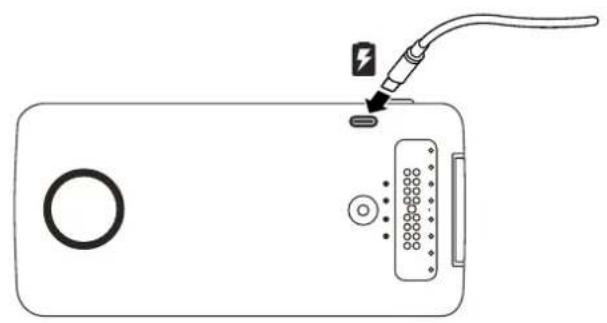
Charge your Insta-Share Printer
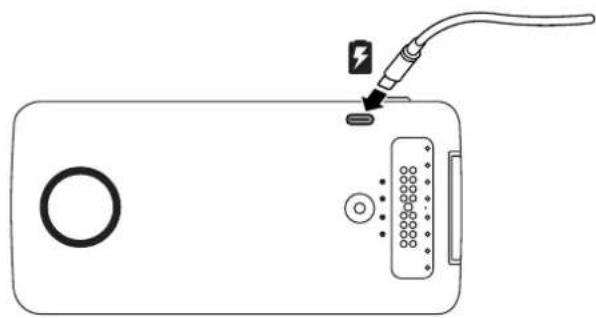
Note: the fastest way to charge your Moto Mod is to plug the charger into your InstaShare Printer.
To charge, connect your Insta-Snare Printer to a power outlet with a USB-C cable. Alternatively, charge your device by attaching it to your phone and charging your phone.
Note: fully charge your Moto Mod using the charger that came with your phone. Using other chargers with a USB-C connector is not recommended and can slow charge speed. Avoid incompatible USB-B (micro USB) chargers and uncertified adapters and cables, as they may damage your device.
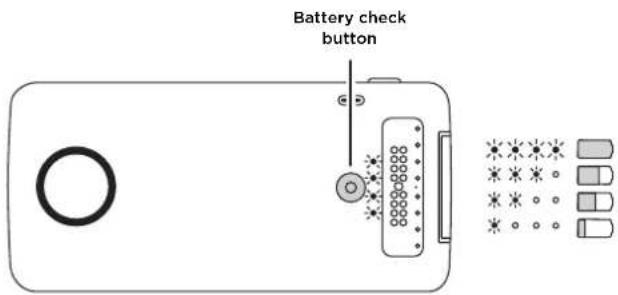
Charge levels
Press the battery check button to check the charge level. The LEDs indicate the charge level.
LEDs Charge %
4 75 to 100
350to74
2 25 to 49
10 to 24
Note: your Insta-Share Printer must be charged at least 20% (or 2 LED lights) in order to print.
Load paper into your Insta-Share Printer
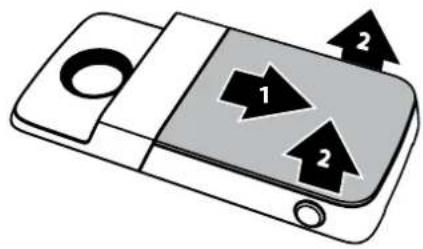
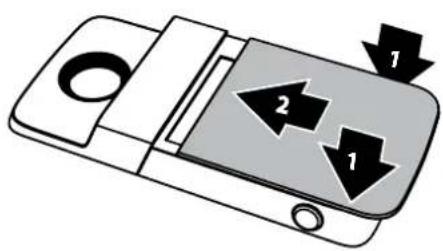
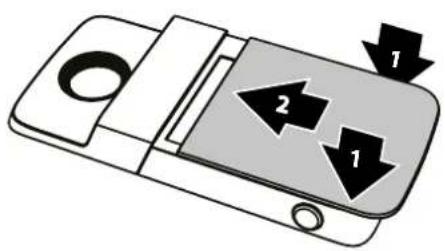
You'll need to remove the back cover to insert printer paper.
Remove the back cover
1 Press down on the cover and slide it partially off.
2 Lift off the cover.
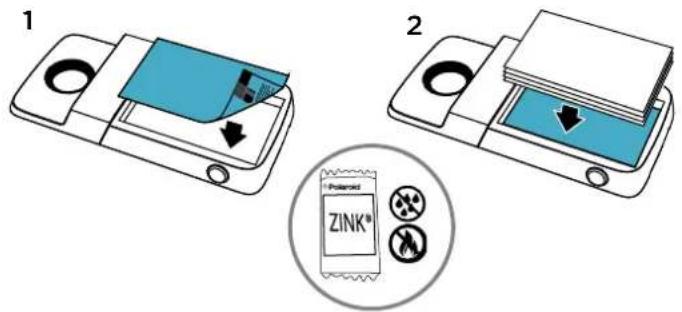
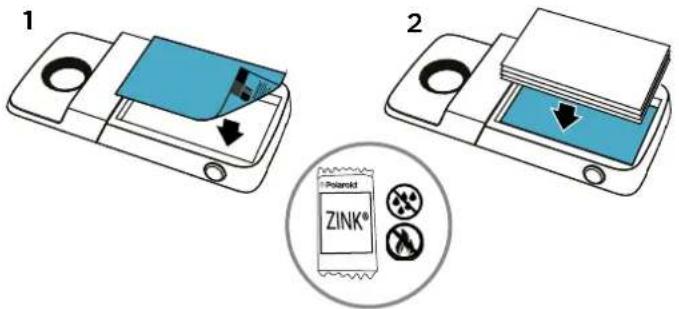
Insert the paper
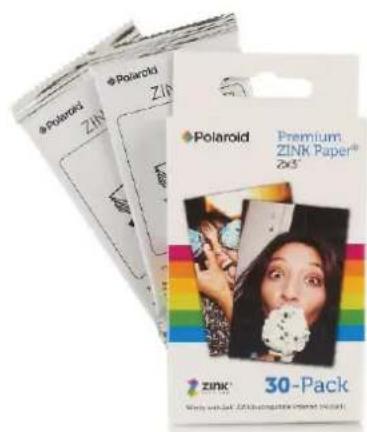
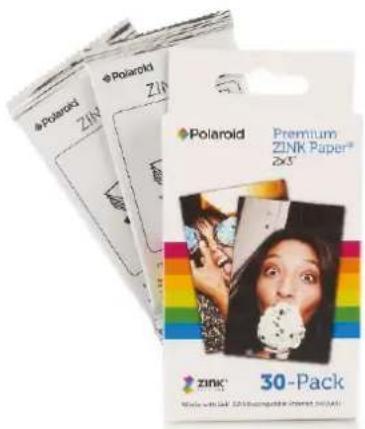
Note: Use only Polaroid ZINK® Zero-Ink® Printing Technology 2^ × 3^ paper in your InstaShare Printer or else it may not print correctly.
1 Insert the blue piece of paper with the barcode side facing down.
Note: the blue piece of paper cleans and sets up the printer. You must use the blue sheet of paper that came with that pack each time you open a new pack of paper.
2 Insert the white paper with the ZINK logo facing down.
Note: put all ten sheets into the printer, but no more than one pack at a time. Because ZINK paper is heat-activated, protect it from heat and moisture by leaving the paper in the foil pack until you're ready to load it into your printer.
Put the cover back on
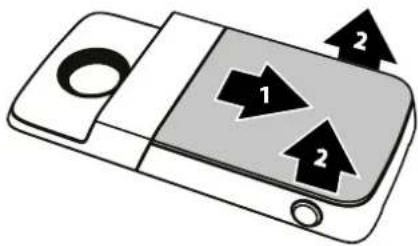
After you put in the paper (see the previous page for instructions), press and slide the cover back on.
1 Place the cover most of the way on the printer.
2 Press down and slide it on until it clicks.
Need to buy more photo paper?
You can purchase ZINK 2" x 3" paper through your phone's Polaroid Insta-Share app or online from an authorised Polaroid retailer.
Find it: on your phone's Home screen, swipe up > Insta-Share Printer > Buy Paper.
Take a photo
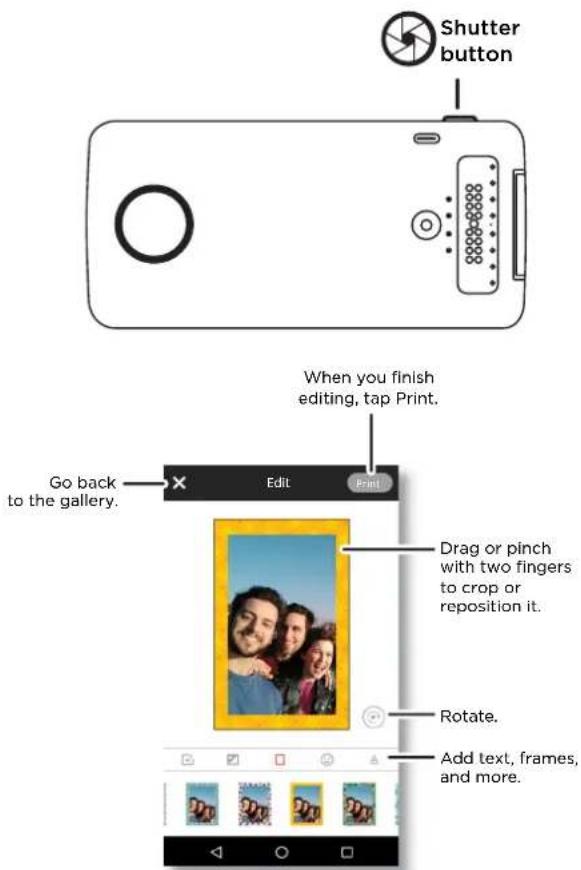
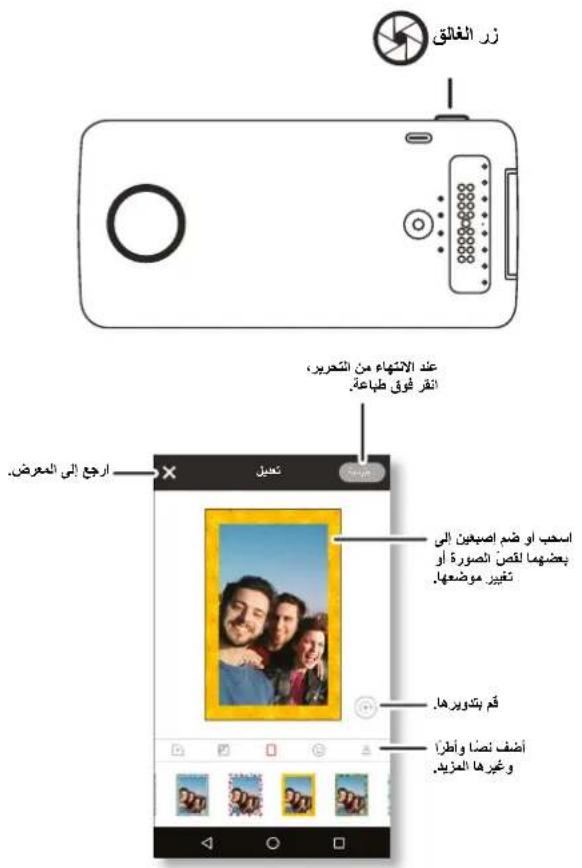
Press and hold the shutter button on the side of your device to open the camera app. Press the shutter button to take a photo.
Note: you can also open your camera app with two twists of your wrist or by tapping Camera on your phone's Home screen.
Print your photo
1 After you take a photo, tap to open the Insta-Share Printer app.
2 Crop your photo or add a border, stickers or filter.
3 Top Print.
Note: be careful not to block the printer paper slot.
Print a saved photo
Find it: on your phone's Home screen, swipe up 一 _ 1 ^ 一 Insta-Share Printer
1 Select a photo on the screen or swipe left or right to see photos from other sources.
2 Crop your photo or add a border, stickers or filter.
3 Tap Print.
Note: be careful not to block the printer paper slot.
Print a photo from another app
You can print pictures from other apps that have photos. From within the app, tap Share > Insta-Share Printer.
Peel and stick your photo
Your photos are also stickers. Peel the backing paper off your photo and stick it anywhere.
Want more?
- Go to www.motorola.com/mymotomods for tutorials, videos and more.
- Moto Moda are sold separately. View the complete collection at www.motomods.com.
Get the Moto Moda app. From your phone's Home screen, swipe up Play Store to buy and download apps.
Copyright & trademarks
Motorola Model
222 W. Merchandise Mar Plaza
Chicago, IL 60554
www.motorola.com
Crt t a t
any information or specifications without notice or obligation.
Note: the images in this guide are examples only.
OIOA 104
Product ID:MDI001
Manual number: S5C8C21986-A
C'est parti!
Insta-Share Printer.
Klistra fast dina foton
Insta-Share Printer.
2017 Molorola Mobility LLC
MD100L
SSC8C21986-A:
s
1
Insta-Share Printer 2
1
J 1
151
j 1
iJus Jus uaiil 1
juaia 2
yss
Polaroid Polaroid Insta-Share ZINK 2" x3"
Insta-Share Printer
Aaalj y jas jilai jilai jil
yao 1
2
J
Zero-Ink 2x3y1
gall
1
a 1
342
ZINK 2
ZINK 1y
dla 1
Insta-Share Printer
Insta-Share Printer 1
d 1
m = 311
·In
·
· = ·
·
·
·
all wlll E j
( xt^2 + x) ( 1 - x) = 0
·
Moto Mod
Moto Mod
la saaa
Insta-Share Printer 1
1
jiai jia i jia jia jia jia Insta-Share Printer
d 1