UniBuds - Earplug EDIFIER - Free user manual and instructions
Find the device manual for free UniBuds EDIFIER in PDF.



| Product Type | Wireless Earbud |
| Brand | Edifier |
| Model | UniBuds |
| Power | Rechargeable lithium-ion battery, input 5V 60mA (earbuds), 5V 500mA (case) |
| Estimated battery life | Approximately 5 hours (earbuds) + 15 hours (case) |
| Connectivity | Bluetooth 5.0 (estimated) |
| Main functions | Calls, touch control, voice assistant, play/pause, next/previous track |
| Touch controls | Double tap (left: call/assistant, right: pause/play), triple tap (left: previous track, right: next track) |
| Display | LED screen on charging case (battery level, Bluetooth status) |
| Included accessories | Charging case, USB-C cable, ear tips (3 sizes), ear fins (4 pairs), carrying pouch |
| Estimated weight | Approximately 4g per earbud, 40g for the case |
| Estimated dimensions | Earbuds: 25 x 20 x 20 mm, case: 60 x 40 x 25 mm |
| Material | ABS plastic |
| Maintenance and cleaning | Do not use corrosive chemicals. Clean with a soft, dry cloth. |
| Safety | Do not expose to moisture, high temperatures, or shocks. Do not disassemble. |
| Repairability | Not user-repairable. Contact after-sales service. |
| Warranty | Legal warranty of conformity |
Frequently Asked Questions - UniBuds EDIFIER
User questions about UniBuds EDIFIER
0 question about this device. Answer the ones you know or ask your own.
Ask a new question about this device
Download the instructions for your Earplug in PDF format for free! Find your manual UniBuds - EDIFIER and take your electronic device back in hand. On this page are published all the documents necessary for the use of your device. UniBuds by EDIFIER.
USER MANUAL UniBuds EDIFIER
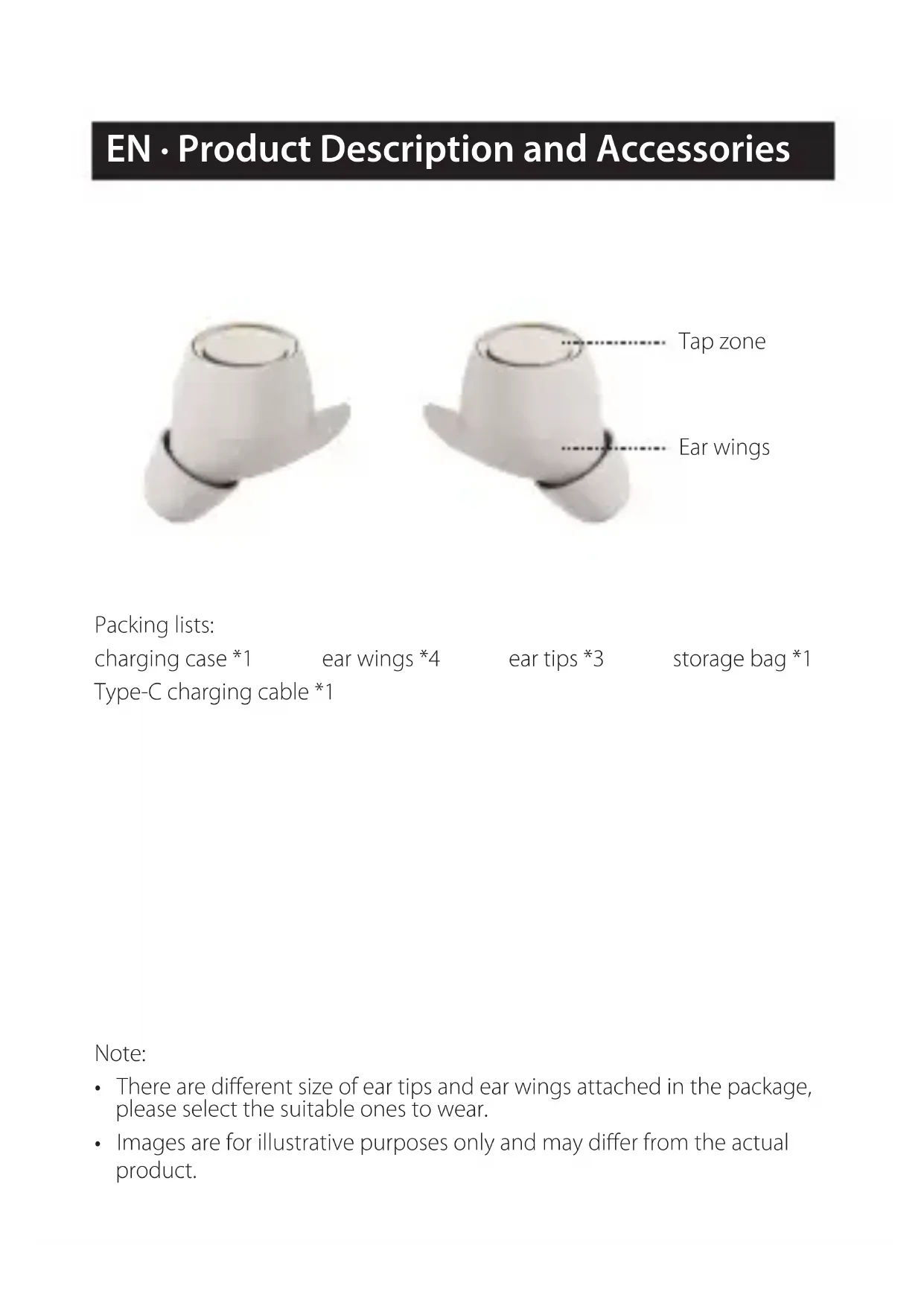
EN · Product Description and Accessories

Tap zone
Ear wings
Packing lists:
charging case *1
ear wings *4
ear tips *3
storage bag *1
Type-C charging cable *1
Note:
- There are different size of ear tips and ear wings attached in the package, please select the suitable ones to wear.
- Images are for illustrative purposes only and may differ from the actual product.
■ User guide
- Charge the earbuds
- Place the earbuds in the charging case, it will auto-charge the earbuds when the case is closed.
- Charge the charging case
- Connect the charging case to power source with the included Type-C charging cable for charging.
Rated input: 5V - 60mA (earbuds)
5V = 500mA (charging case)
Power display
- When the charging case closed, press the button to check the battery level on the case;
- When the charging case opened, press the button to check the battery level of the case and earbuds;
-
Low battery display: when the charging case opened, the low battery icon flashes automatically for around 3 seconds and then turns off.
-
Low battery display
-
When the charging case has only 10% remaining power, it will enable the low battery protection function. The button will not work at this time, and the charging case can power on/off only.
Power on - When in the charging case, power on automatically while the case is opened.
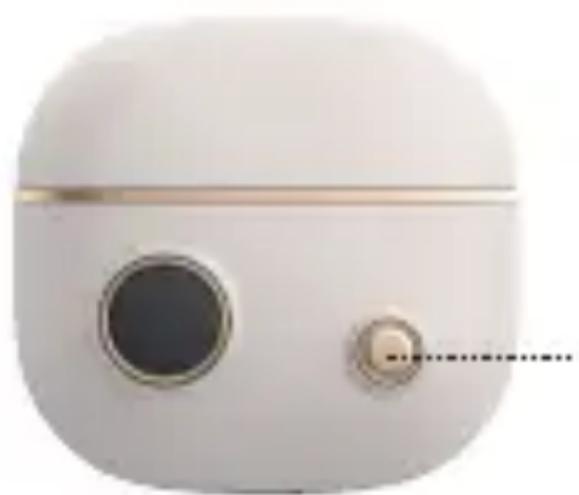
Press: battery display
Power off
- When placed in the charging case, power off automatically while the case is closed.
Bluetooth connection
-
Connection of earbuds and mobile phone
-
Place the earbuds in the charging case, press and hold the button on the case for around 3 seconds to enter Bluetooth pairing, the Bluetooth icon on the screen flashes.
-
Set mobile phone to search and connect to the Bluetooth name, take out the earbuds after pairing is successful.
-
TWS pairing of the left and right earbuds
-
When TWS pairing is not connected, place the earbuds in the charging case, press and hold the button on the case for approx. 6 seconds to enter TWS pairing, the left and right ear icons on the display screen flash alternately. Note: This function will not work when TWS pairing is done.
- Restore to factory settings
- Place the earbuds in the charging case, press and hold the button on the case for approx. 10 seconds to restore to factory settings.
Note: Restoring the factory settings will clear the pairing records between earbuds and the mobile phone, and it will also restore the settings in the APP to the factory settings.
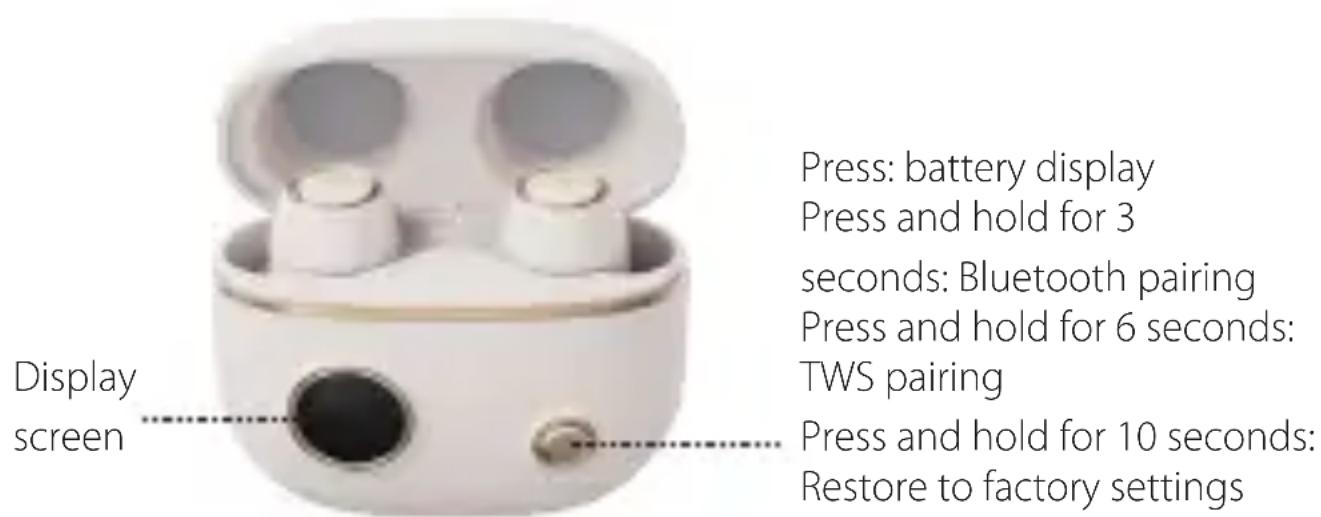
Rated input: 5V - 60mA (earbuds) 5V - 500mA (charging case)
Note: To avoid misoperation, the button will only respond when the charging case is opened.
Icons description
| Open the case | Close the case Place the earbuds in the case | Bluetooth pairing |
| TWS pairing Pairing successful Pairing failed Clear pairing records | ||
| Battery display of the earbuds | 100% Battery display of charging case | Low battery prompt of charging case |
Functional operation instructions
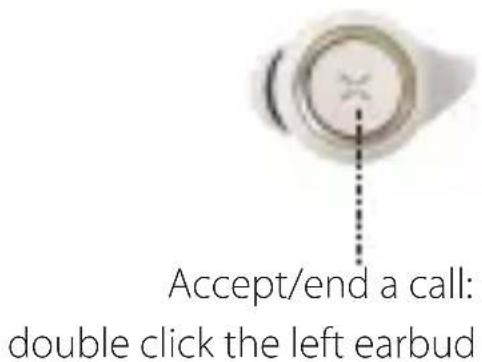
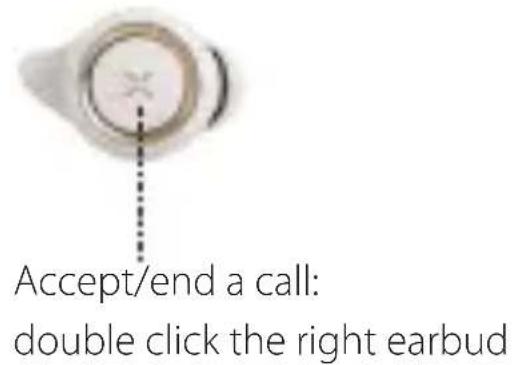
Call
Music playback
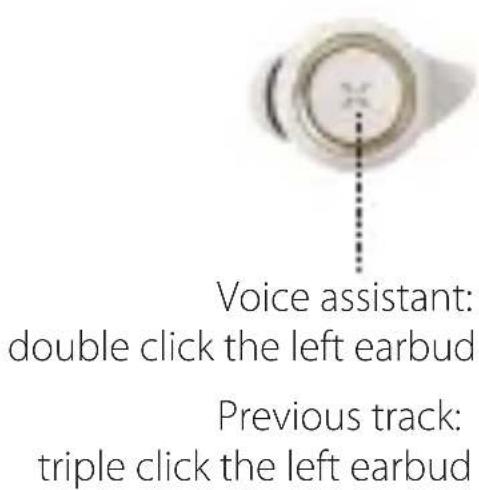
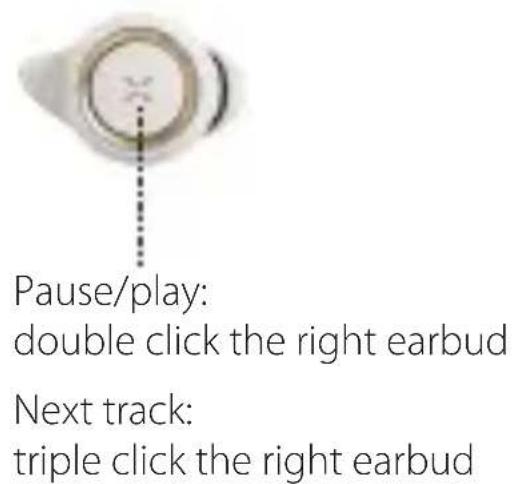
FAQs
When charging the charging case, the battery icon does not display
- Please ensure the charging case is correctly connected with power source.
- If the earbuds are not used for a long time, the battery will not respond at once. At this time, recharge for about 30 minutes to back to the charging state.
No sound
- Check if the earbuds are operating.
- Check if the earbuds volume are at an appropriate level.
- Check if the earbuds are correctly connected with mobile phone.
- Check if the earbuds are operating within a normal working range.
The call quality of the earbuds are not good.
- Check if mobile phone is in an area with strong signal.
- Please ensure the earbuds are within effective distance (10m) and no obstacle between the earbuds and mobile phone.
When playing music, cannot control pause/play/previous/next track via the earbuds.
- Please ensure the paired device support AVRCP (Audio/Video Remote Control Profile) profile.
Tap sensitivity is not good
- Please make sure to touch in the effective tap zone of the earbuds and the intensity/angle is moderate; if the tap sensitivity setting of this earbuds does not meet your usage habits, you can adjust it to suit your tap sensitivity in EDIFIER CONNECT.
After one earbud is connected to another device, the other earbud has no sound when used again
- When connected one earbud to another device separately, the pairing records of the left and right earbuds may be lost. To back to the two earbuds mode, press and hold the button of the charging case for 6 seconds to reconnect the left and right earbuds.
■ Maintenance
- Keep the product away from humid places to avoid affecting internal circuit.
- Do not put the product in places exposed to sun or with high temperature. High temperature will shorten service life of electronic components, damage battery and make plastic components deformed.
- Do not put the product in cold places to avoid damaging internal circuit board.
- Do not dismantle the product. Non-professional personnel may damage the product.
- Do not drop, strongly vibrate, strike the product with hard object to avoid damaging internal circuit.
- Do not use drastic chemicals or cleaner to clean the product.
- Do not use sharp objects to scratch product surface to avoid damaging shell and affecting facade.
Editier International Limited
P.O.Box 6264
General Post Office
Hong Kong
www.edifier.com
2020 Edif ierInternational Limited. All rights reserved.
Printed in China
NOTICE:
For the need of technical improvement and system upgrade, information contained herein may be subject to change from time to time without prior notice.
Products of EDIFIER will be customized for different applications.
Pictures and illustrations shown on this manual may be slightly different from actual product. Images are for illustrative purposes only and may differ from the actual product.
Editier International Limited
P.O.Box 6264
General Post Office
Hong Kong
www.edifier.com
Editier International Limited
P.O.Box 6264
General Post Office
Hong Kong
www.edifier.com

2020 Edif ierInternational Limited. Todos losarethos reservados.
Impreso en China
NOTIFICACION:
Editier International Limited
P.O.Box 6264
General Post Office
Hong Kong
www.edifier.com
Editier International Limited
P.O.Box6264
General Post Office
Hong Kong
www.edifier.com
2020 EdifierInternational Limited. Tutti diritti riservati.
Stampato in China
COMUNICAZIONE:
Editier International Limited
P.O.Box 6264
General Post Office
Hong Kong
www.edifier.com
General Post Off Ice
Hong Kong
www.edifier.com
2020 Edifier International Limited. 禁無断軌載
印刷:中国