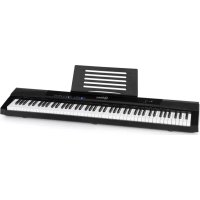
Preludio - MIDI Keyboard Schubert - Free user manual and instructions
Find the device manual for free Preludio Schubert in PDF.



User questions about Preludio Schubert
0 question about this device. Answer the ones you know or ask your own.
Ask a new question about this device
Download the instructions for your MIDI Keyboard in PDF format for free! Find your manual Preludio - Schubert and take your electronic device back in hand. On this page are published all the documents necessary for the use of your device. Preludio by Schubert.
USER MANUAL Preludio Schubert
004 Rhodes Piano 039 Synth Bass 2 074 Recorder 109 Bagpipe
005 Chorused Piano 040 Violin 075 Pan Flute 110 Fiddle
006 Harpsichord 041 Viola 076 Bottle Blow 111 Shanai
007 Clavichord 042 Cello 077 Shakuh achi 112 Tink le Bell
008 Celesta 043 Contrabass 078 Whistle 113 Agogo
009 Glockenspiel 044 Tremolo Strings 079 Ocarina 114 Steel Drums
010 Music Box 045 Pizzicato Strings 080 Lead 1 (square) 115 Woodblock
011 Vibraphone 046 Orchestral Harp 081 Lead 2 (sawtooth) 116 Taiko Drum
012 Marimba 047 Timpani 082 Lead 3 (calliope lead) 117 Melodic Tom
013Xylophone 048St ring Ensemble 1 083 Lead 4 (chiff lead) 118 Synth Drum
014 Tubular Bell 049 St ring Ensemble 2 084 Lead 5 (charang) 119 Reverse Cymbal
015 Dulcimer 050 Synth Strings 1 085 Lead 6 (voice) 120Guitar Fret Noise
016 Drawbar Organ 051 Synth Strings 2 086 Lead 7 (f ifths) 121 Breath Noise
017 Percussive Organ 052 ChoiAahs 087 Lead 8 (bass+lead) 122 Seashore
018 Rock Organ 053 Voice Oohs 088 Pad 1 (new age) 123 Bird Tweet
019 Church Organ 054 Synth Voice 089 Pad 2 (warm) 124 Telephone Ring
020 Reed Organ 055 Orchestra Hit 090 Pad 3 (polysynth) 125 Helicopter
021 Accordion 056 Trumpet 091 Pad 4 (eh oir) 126 Applause
022 Harmonica 057 Trombone 092 Pad 5 (bowed) 127 Gunshot
023 Tango Accordion 058 Tuba 093 Pad 6 (metallic) 128 Yong Gin
024 Acoustic Guitar (nylon) 059 Muted Trumpet 094 Pad 7 (halo) 129 Zheng
025 Acoustic Guitar (steel) 060 French Horn 095 Pad 8 (sweep) 130 Zhong Ruan
026 Electric Guitar uazz) 061 Brass Sect ion 096 FX 1 (rain) 131 Pi Pa
027 Electric Guitar (clean) 062 Synth Brass 1 097 FX2 (sound dtrack) 132 Big Souna
028 Electric Guitar (muted) 063 Synth Brass 2 098 FX 3 (crystal) 133 Souna
029 Overdriven Guitar 064 Soprano Sax 099 FX4 (atmosphere) 134 Er Hu
030 Distortion Guitar 065Alto Sax 100 FX 5 (brightness) 135 YueHu
031Guitar Harmonics 066 Tenor Sax 101 FX6 (goblins) 136 Di Zi
032 Acoustic Bass 067 Baritone Sax 102 FX 7 (echoes) 137 Bong Di
033 Electric Bass (finger) 068 Oboe 103 FX 8 (sci-fi) 138 Koto
034 Electric Bass (pick) 069 English Horn 104 Sitar 139 Qu Di
Member of Berlin Brands Group
Handwerkerstr. 11
15366 Dahlwitz-Hoppegarten
Deutschland
Congratulations on purchasing this device. Please read the following instructions carefully and follow them to prevent possible damages. We assume no liability for damage caused by disregard of the instructions and improper use. Scan the QR code to get access to the latest user manual and more product information.
CONTENTS
Safety Instructions 24
Device Overview and Function Buttons 25
Connections 26
Operation and Functions 29
Rhythms 31
Effect Change 33
Lesson Mode 37
Record Mode 38
Timbre Table 39
Disposal Considerations 40
Declaration of Conformity 40
TECHNICAL DATA
| Item number 10034897 | |
| Power supply 220-240 V ~ 50/60 Hz |
SAFETY INSTRUCTIONS
Please read the operating instructions carefully before installing and commissioning the device and keep them for future use.
- Only use the included power adapter.
- If the power supply is damaged, replace it immediately.
- The keyboard may only be disassembled by qualified personnel. Do not make any changes inside the keyboard. If a malfunction occurs during use, switch off the unit immediately and send it to qualified personnel for maintenance.
- Make sure that when you connect the keyboard to another device, both devices are turned off.
- Do not permanently adjust the maximum or increased volume while playing.
- Keep the keyboard away from heat sources to prevent damage.
- Do not allow dust, liquids, or foreign matter to enter the keyboard enclosure as this may cause a short circuit.
- Before cleaning the keyboard, unplug the power cord from the wall outlet. Do not touch the power plug with wet hands.
- Use a soft, dry cloth to clean the keyboard. Paint, alcohol, or other chemical solutions should not be used to clean the keyboard as they may damage the keyboard.
- Switch off the keyboard after use or if it will not be used for an extended period of time and unplug it from the wall outlet.
DEVICE OVERVIEW AND FUNCTION BUTTONS
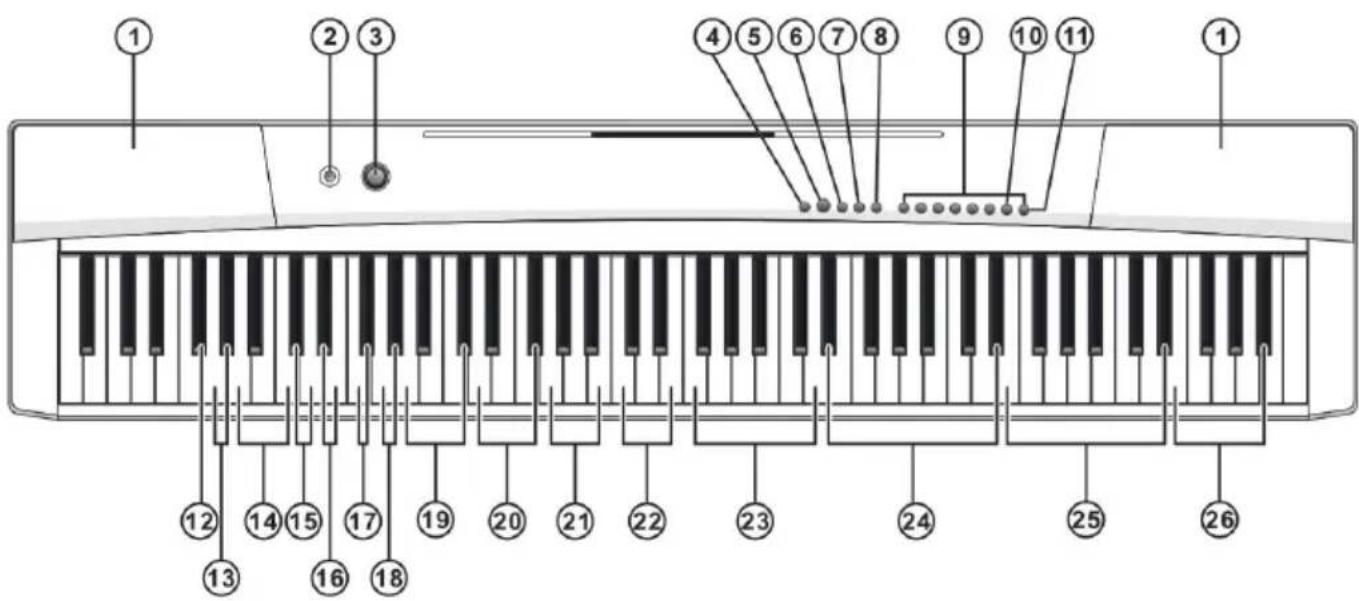
Front panel
1 Speaker 4 + 12 Click
2 Power Switch 4 + 13 Record
3 Master Volume 4 + 14 Touch
4 Function 4 + 15 Sustain
5 Demo 4 + 16 Vibrato
6 Metronome 4 + 17 Transpose
7 Lesson 4 + 18 Octave
8 Split 4 + 19 Split Volume
9 Timbre 4 + 20 Lower Volume
10 Percussion 4 + 21 Upper Volume
11 GM Timbre 4 + 22 Metronome Volume
4 + 23 Metronome
4 + 24 Tempo
4 + 25 Demo Song
11 +25 GM Timbre (Select)
4 + 26 UDISK Music Player (USB)
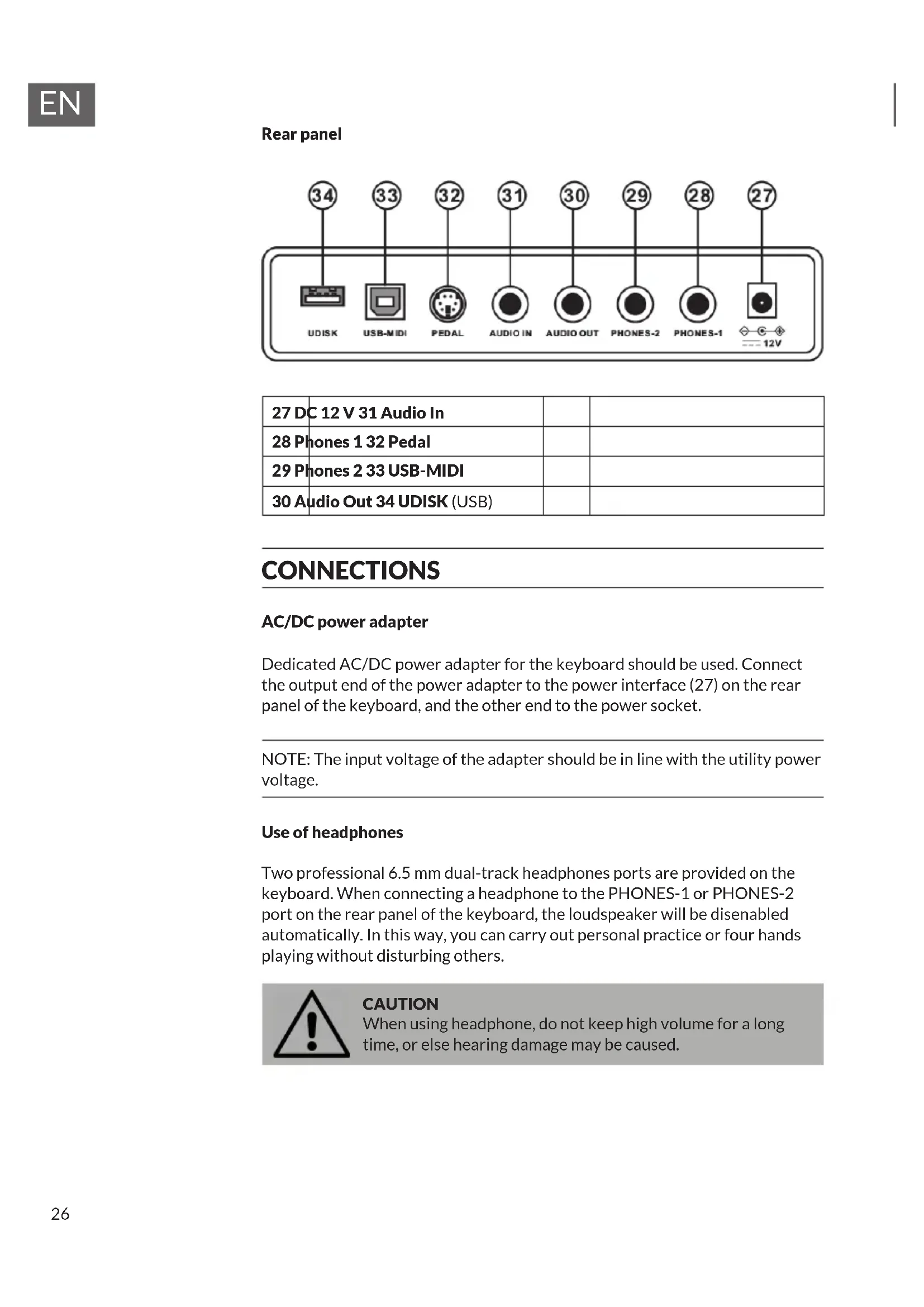
Rear panel
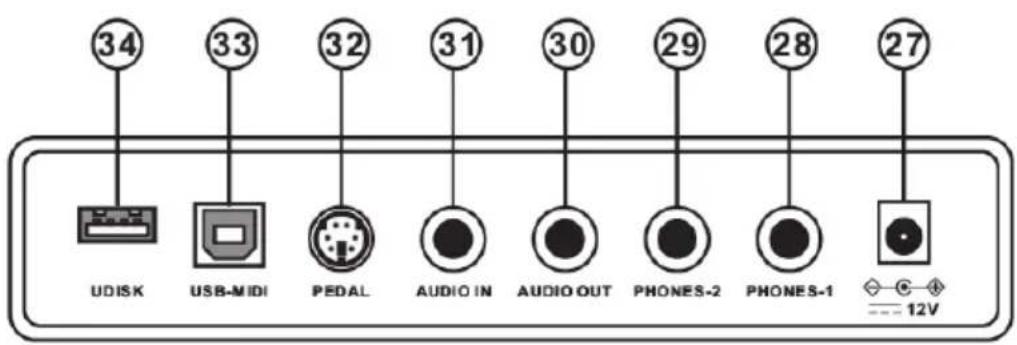
| 27 DC 12 V 31 Audio In | ||
| 28 Phones 1 32 Pedal | ||
| 29 Phones 2 33 USB-MIDI | ||
| 30 Audio Out 34 UDISK (USB) |
CONNECTIONS
AC/DC power adapter
Dedicated AC/DC power adapter for the keyboard should be used. Connect the output end of the power adapter to the power interface (27) on the rear panel of the keyboard, and the other end to the power socket.
NOTE: The input voltage of the adapter should be in line with the utility power voltage.
Use of headphones
Two professional 6.5 mm dual-track headphones ports are provided on the keyboard. When connecting a headphone to the PHONES-1 or PHONES-2 port on the rear panel of the keyboard, the loudspeaker will be disenable automatically. In this way, you can carry out personal practice or four hands playing without disturbing others.

Connection with amplifier or audio device
The keyboard is configured with an in-built loudspeaker. You may connect the keyboard to other external audio devices. Firstly, turn off the keyboard and the external audio device, secondly, connect one end of the audio cable to the AUDIO OUT (audio output) port on the rear panel of the keyboard, and finally connect the other end to the audio input port of the audio device.
Audio input port
The keyboard is equipped with a stereo input function. Sound signals from mobile phone, MP3 player, computer and other audio devices can be input into the keyboard for playing. Firstly, turn off the keyboard, secondly, connect one end of the audio cable to the output port of an audio device, and the other end to the AUDIO IN port on the rear panel of the keyboard, finally, turn on the keyboard.
Pedal port
The keyboard is configured with a 3-in-1 pedal port which can be used for the connection of a single pedal (sustain pedal) or three pedals (soft pedal, sustain pedal and damper pedal) to simulate various sound effects during the piano performance. Connect the pedal connector to the PEDAL port on the rear panel of the keyboard, and carry out required operations with the pedal.
NOTE: The panel is an operational item. Different configurations are provided with different pedals.
USB-MIDI (APP) port
The USB-MIDI (APP) port of the keyboard is used for the connection with a mobile phone or a tablet PC. Download and install APP teaching software to realize the connection of the keyboard with smart devices, facilitating teaching and learning.
- Connecting method: A dedicated OTG data cable of the keyboard should be used for the connection between the keyboard and a mobile phone or a tablet PC.
The USB-MIDI (APP) port of the keyboard can also be used for the connection with other musical Instruments and computer with MIDI.
You can output performance records to a computer for advanced recording, composing and editing with computer software, or input the MIDI music stored in the computer to the keyboard for playing.
Play music from USB (UDISK MUSIC PLAYER)
The keyboard is configured with an in-built USB music player with 32 G memory, which can be used to play music of MP3 format.
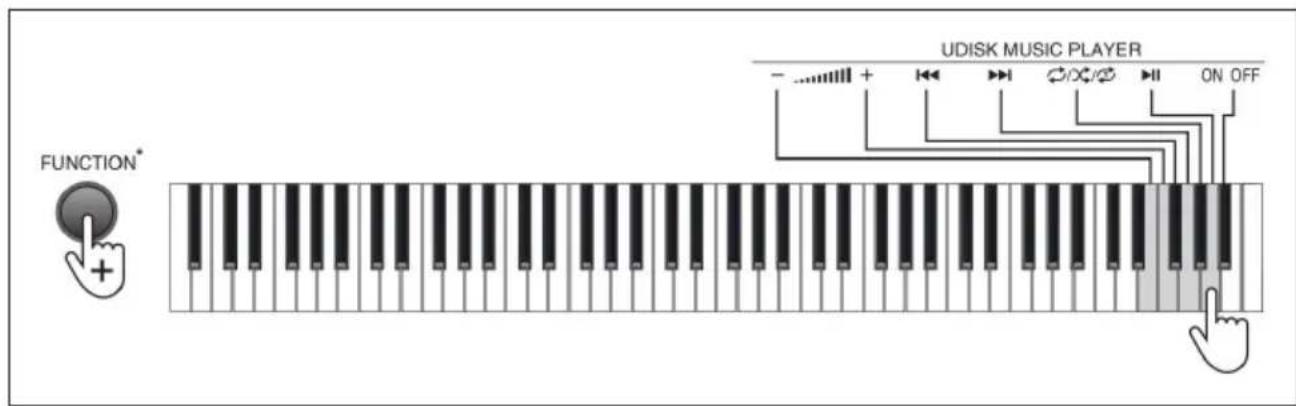
- Insert a USB flash drive into the UDISK port on the rear panel, press the [FUNCTION] button (4) and the [UDISK MUSIC PLAYER] selection key [ON/OFF] (26) to play MP3 music.
- Press the [FUNCTION] button and the [UDISK MUSIC PLAYER] selection key play or pause a track.
- Press the [FUNCTION] button and the [UDISK MUSIC PLAYER] volume keys to adjust the volume.
- Press the [FUNCTION] button and the [UDISK MUSIC PLAYER] keys or go to the previous or next track.
- Press the [FUNCTION] button and one of the three [UDISK MUSIC PLAYER] selection keys to cycle through the repeat modes for continuous, random or single playback.
- Press the [FUNCTION] button and the [UDISK MUSIC PLAYER] selection key [ON/OFF] again to deactivate the MP3 music playing function.
OPERATION AND FUNCTIONS
Switch on the device
- Press the [POWER] button (2), the [PIANO] lamp lights up and now you may operate the keyboard as required.
Master volume adjustment
- Turn the [MASTER VOLUME] knob (3) clockwise to increase master volume, and anti-clockwise to decrease master volume. The master volume controls all volumes simultaneously.
Key tone
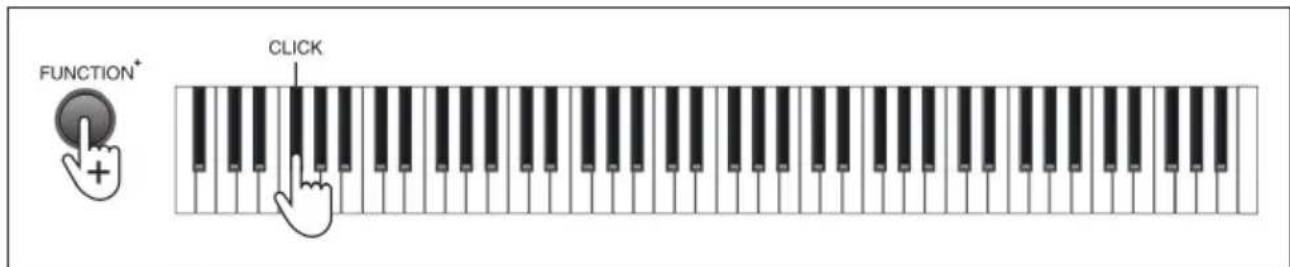
- The click function is defaulted to be enabled, press the [FUNCTION] button (4) and the [CLICK] key (12) on the keyboard, a prompt tone "click" will be heard.
- Press the [FUNCTION] button and the [CLICK] key to enable or disable the key tone function.
Timbre selection
The keyboard provides 140 timbres, from "000" to "139", for your selection. When the keyboard is turned on, the [PIANO] lamp lights up.
- Default timbre: The keyboard provides 8 default timbres for your selection, among which, the default timbre of [GM TIMBRE] is "088 Pad 1 (New Age)".
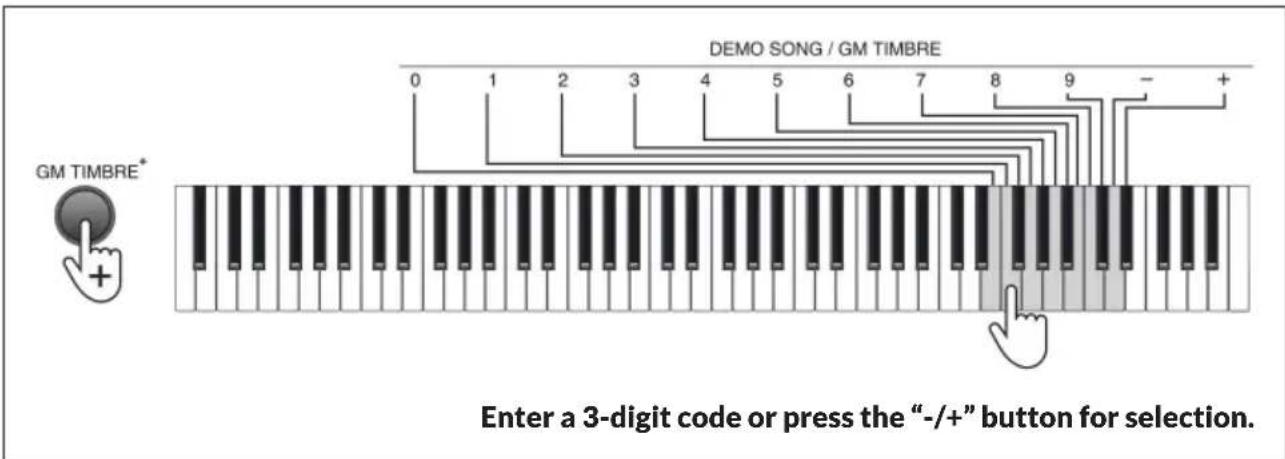
- Select other timbres: Press the [GM TIMBRE] button (11) and the [DEMO SONG / GM TIMBRE] selection keys (25) to select one of the timbres from "000" to "139" (see: section "Timbre Table").
Play demo songs
- Press the [DEMO] button (5) to play the demo songs.
- Press the [DEMO] button again to stop playing.
The keyboard provides 16 demo songs, from "00" to "15", for your selection.
- Press the [FUNCTION] button (4) and the [DEMO SONG / GM TIMBRE] selection keys (25) to select the corresponding demo song.
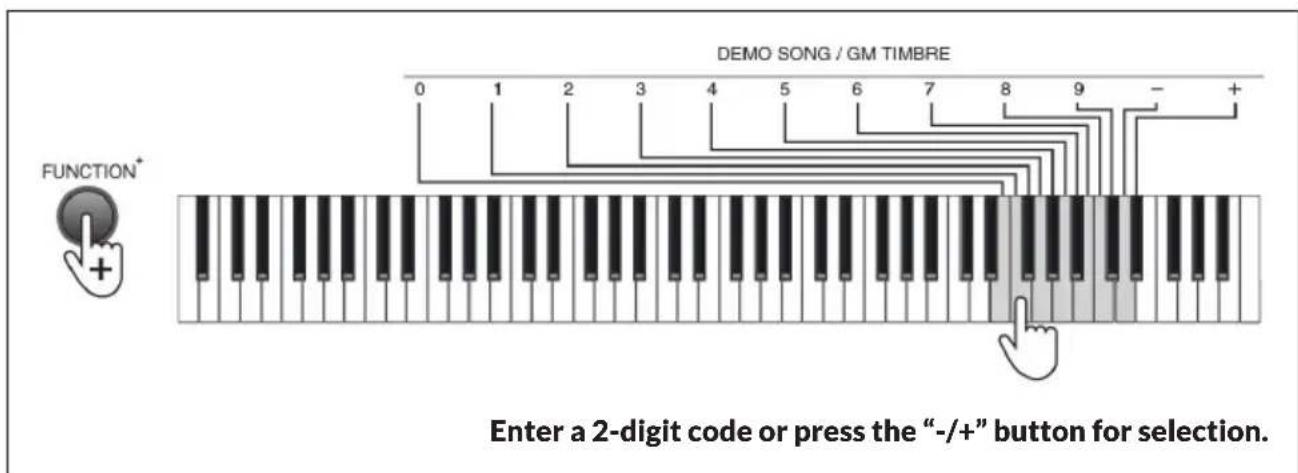
During the demo song playing process, you can select other timbres for playing the demo song.
NOTE: "Percussion" and "Dual timbre" is not applicable.
RHYTHMS
Metronome
- Press the [METRONOME] button (6) to activate the metronome.
- Press the [METRONOME] button again to deactivate the metronome.
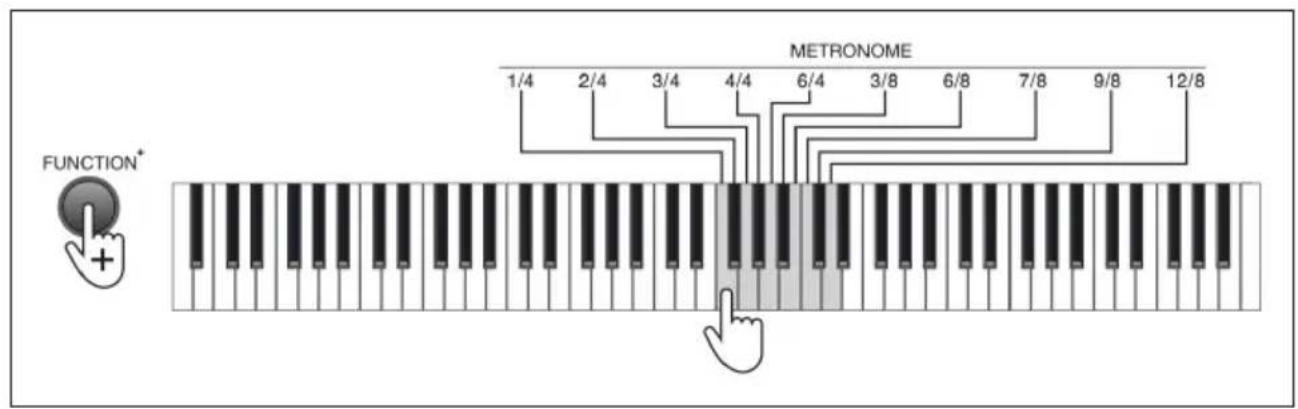
The keyboard contains 10 tempos.
- Press the [FUNCTION] button (4) and the [METRONOME] selection keys (23) for metronome setting of 1/4 - 12/8 .
Metronome volume
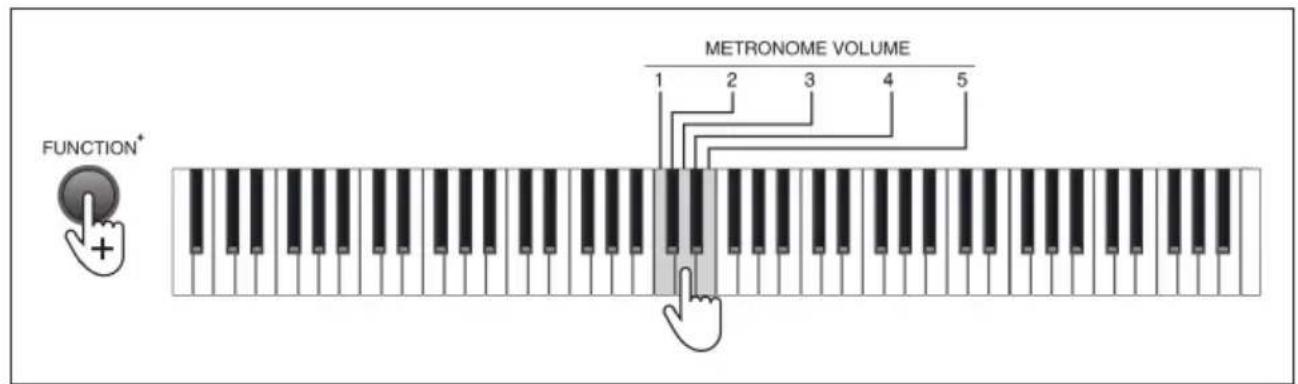
The keyboard contains 5 metronome volume settings.
- Press the [FUNCTION] button (4) and the [METRONOME VOLUME] selection keys, to set a metronome volume level from 1 - 5.
Tempo
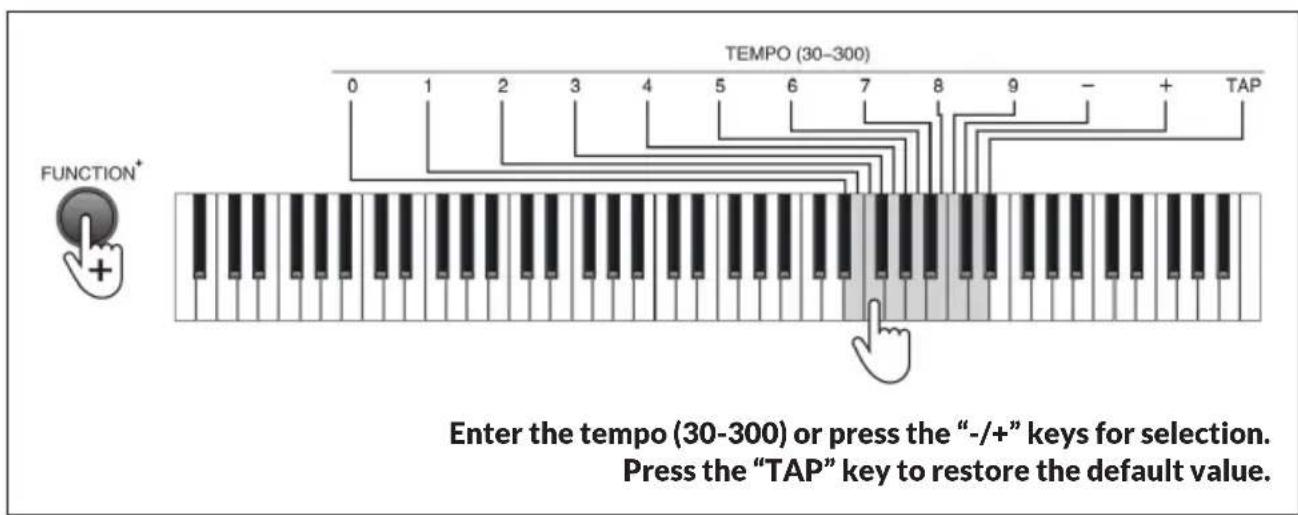
The tempo is defaulted to be 120, which is adjustable between the range of "30" to "300".
- Press the [FUNCTION] button (4) and the [TEMPO] selection keys [0] to [9] and [-] or + to select the required tempo.
- Press the [FUNCTION] button and the [TAP] key of the [TEMPO] selection keys to restore the default value.
EFFECT CHANGE
Timbre change
Sustain
This function prolonges the lasting time of a pitch.
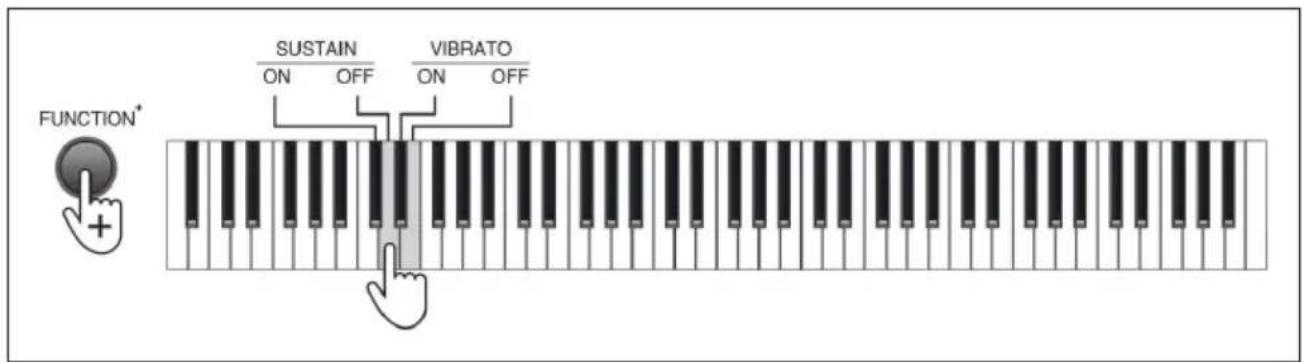
- Press the [FUNCTION] button (4) and the [SUSTAIN - ON] key (15, black) to enable the sustain effect.
- Press the [FUNCTION] button (4) and the [SUSTAIN-OFF] key (15, white) to disable the sustain effect.
Vibrato
This function adds a pulsating change to the pitch.
- Press the [FUNCTION] button(4) and the [VIBRATO - ON] key (16, black) to enable the vibrato effect.
- Press the [FUNCTION] button (4) and the [VIBRATO - OFF] key (16, white) to disable the vibrato effect.
Pedals (- not included in delivery!)
NOTE: The following pedal functions are only available if a pedal with corresponding functions is purchased and connected to the keyboard.
- Soft pedal: decreases the pitch volume.
Press and hold the soft pedal to enable the soft effect, and release the pedal to disable such effect.
Note: This function is only supported if an additional pedal part with 3 pedals is connected.
- Sustain pedal: prolongs the lasting time of a pitch.
Press and hold the sustain pedal to enable the sustain effect, and release the pedal to disable such effect.
Note: This function is only supported if an additional pedal part with 1 or 3 pedals is connected.
- Damper pedal: prolongs the lasting time of the pressed key.
Press and hold the sustain pedal to enable the damper effect, and release the pedal to disable such effect.
Note: This function is only supported if an additional pedal part with 3 pedals is connected.
Transpose
The transpose control function of the keyboard is adjustable from “-6” to “+6”, and the default setting is “0”.
- Press the [FUNCTION] button (4) and the [TRANSPOSE] selection keys [-] and [+] (17) to adjust the transpose value within ± 6 .
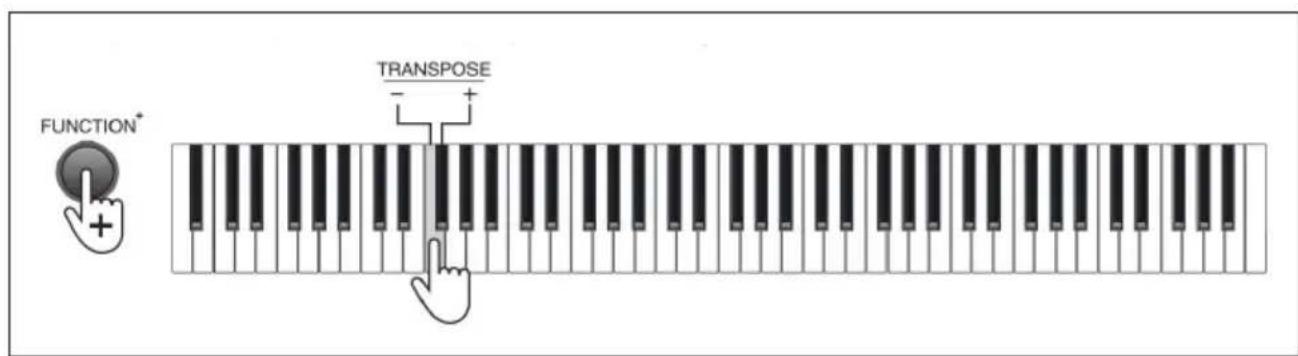
The transpose function saves the trouble of raising and lowering the key when playing on the keyboard. You can play songs in every key in the same way as that for playing songs in key C. It may decrease the key by half-step (minor second), thus the keys positions for key C is changed to those for key B.
- Press the [TRANSPOSE +] button to increase all keys by half-step (minor second). In this case, the tone of the key position of key C is changed to key C# or key Db.
- If the [TRANSPOSE +] button is pressed for twice, key C will decrease to Bb.
- If the [TRANSPOSE +] button is pressed for fifth times, key C will decrease to key F.
- Press the [TRANSPOSE +] and [TRANSPOSE -] buttons simultaneously to reset key C.
Touch control
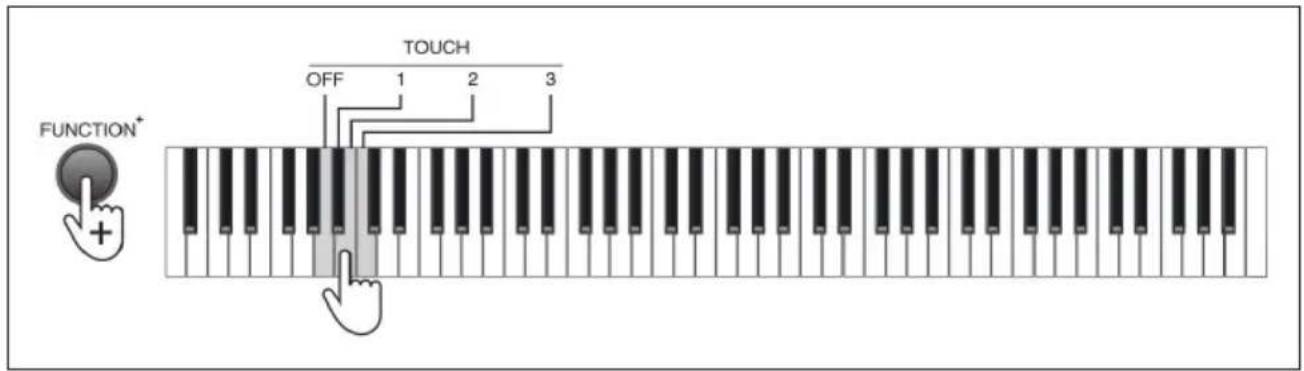
- Press the [FUNCTION] button (4) and the [TOUCH] selection buttons (14) to adjust the key touch force.
- Use the [TOUCH-OFF] key to deactivate the function, and use the [1] to [3] keys to set one of the 3 touch force grades.
Split
The keyboard can be split into two zones, in this way, you can play two different timbres with your left and right hands respectively. You should set the timbre for the right hand side after the timbre that you were using before splitting is applied to the left-hand side. For example, you can set the timbre of the left-hand side to "Bass" and the right-hand side to "Piano".
- Press the [SPLIT] button (8) to split the keyboard, and press the [SPLIT] button again to disable the keyboard split.
- You can set the SPLIT point where you want to split the keyboard. Press the [SPLIT] button first and then press the key simultaneously from which you want to split the keyboard. The currently pressed key (SPLIT point) will be the first key of the right-hand side.
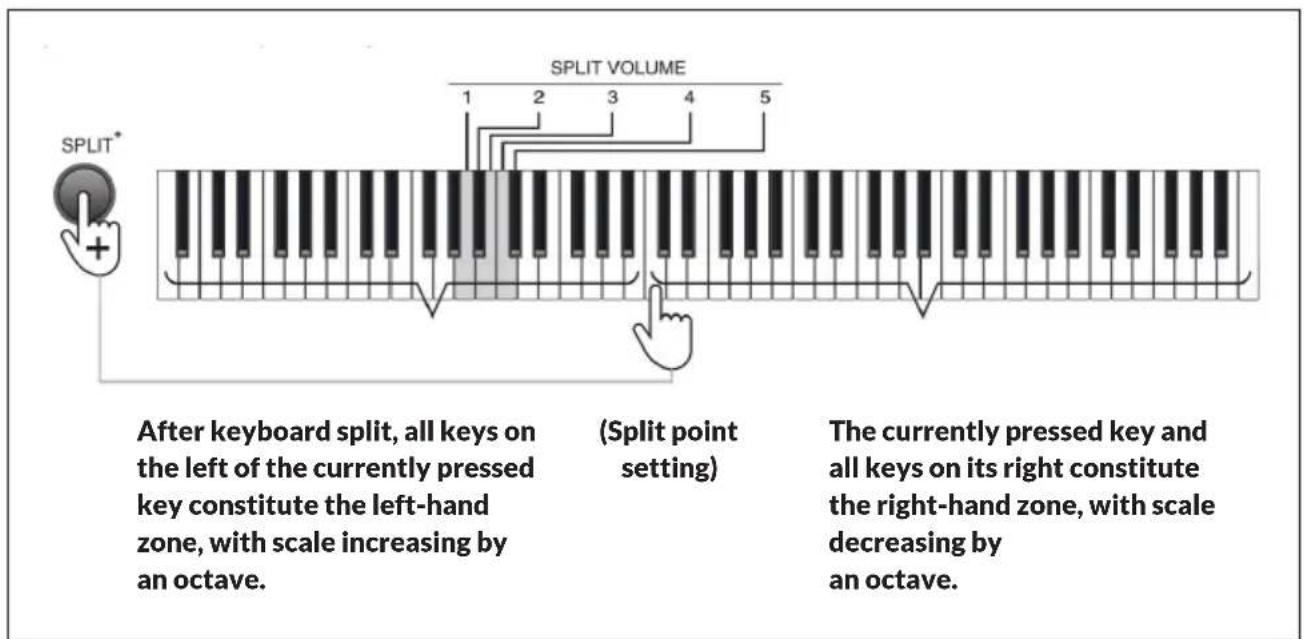
When the keyboard split function is enabled, the scale of the left-hand zone will increase by an octave, and the scale of the right-hand zone will decrease by an octave. Take the default split point as an example, scales of Keys A0 - G2# will change to those of Keys A1 - G3#, while scales of Keys A2 - C8 will change to those of Keys A1 - C7.
- Press the [FUNCTION] button (4) and the [SPLIT VOLUME] selection keys [1] to [5] (19) to set the volume for the left-hand zone.
- After the keyboard split function is enabled, you can reselect a timbre for the right-hand zone.
Dual timbre
Press any two timbre buttons simultaneously to enable the dual timbre function, in this case, the two selected timbre will be overlaid.
- When overlay of other timbres are required, press the [GM TIMBRE] button (11) and the [DEMO SONG / GM TIMBRE] keys (25) to select other timbres.
- Then press the [GM TIMBRE] button (11) and other [TIMBRE] buttons (9) simultaneously.
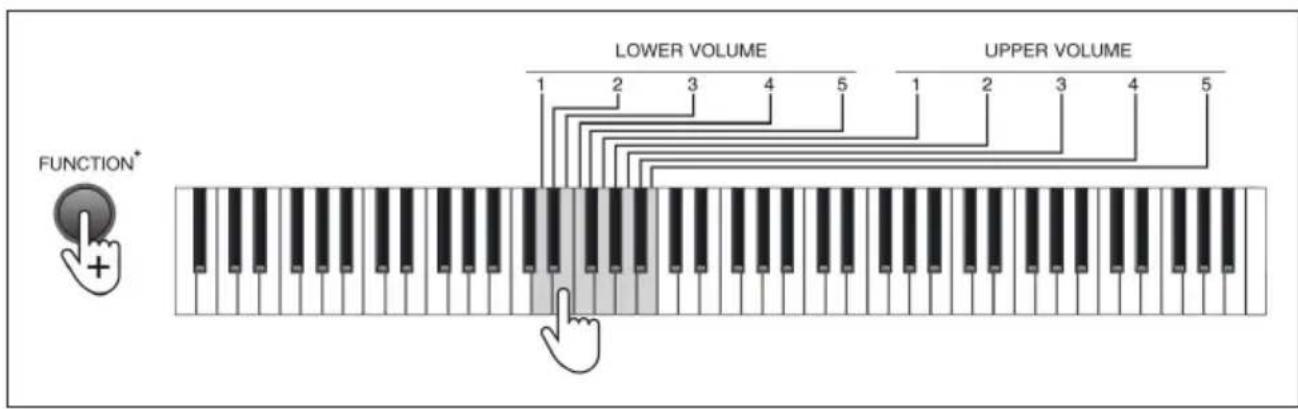
Both volumes for the upper layer and the lower layer have 5 grades:
- The volume of the first selected timbre is adjusted via the upper volume by pressing the [FUNCTION] button (4) and the [UPPER VOLUME] selection keys [1] to [5] (21) on the keyboard.
- The volume of the later selected timbre is adjusted via the upper volume by pressing the [FUNCTION] button (4) and the [LOWER VOLUME] selection keys [1] to [5] (21).
LESSON MODE
Lesson Mode
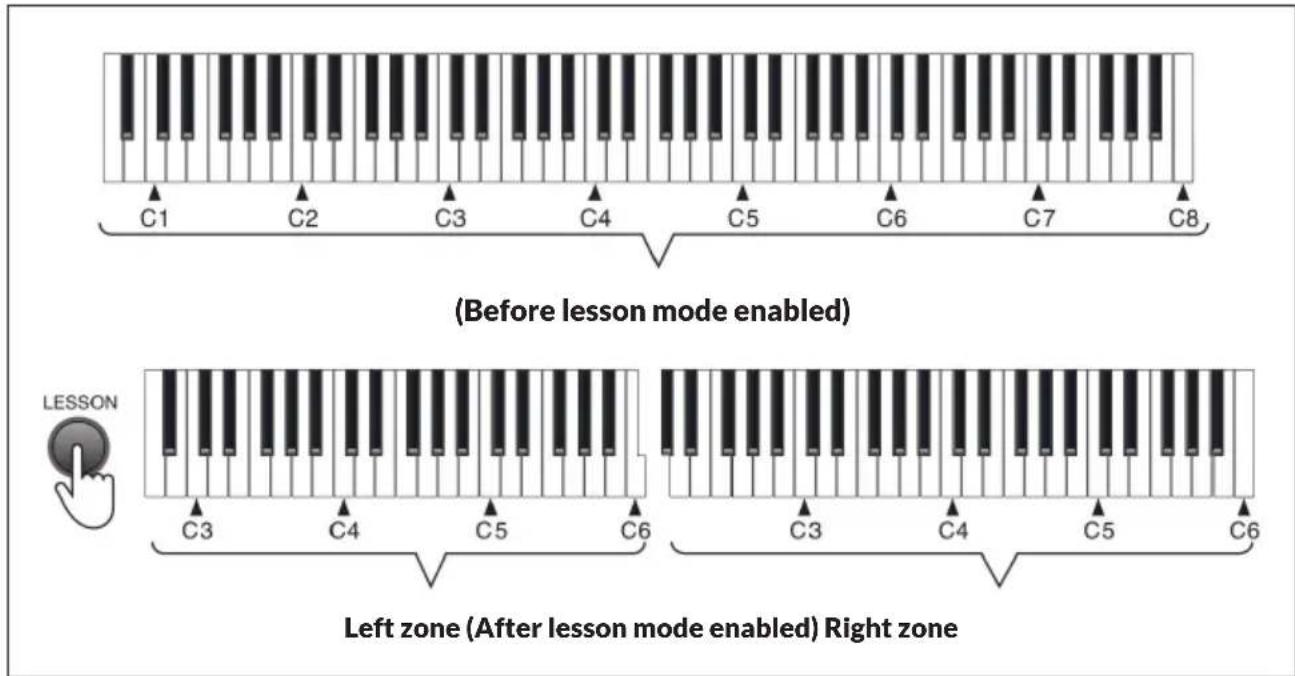
In the lesson mode, the 88 keys are split into two zones with identical tone and timbre, which facilitates the demonstration by teacher-level students, and two persons can play the keyboard simultaneously.
- Press the [LESSON] button (7) for the first time to activate the lesson mode, press the [LESSON] button again to disable this function.
- Under the lesson mode, the scales of Keys A0 - C5 in the left zone will change to the scales of Keys A2 - C6, while the scales of Keys C4# - C8 in the right zone will change to the scales of Keys C2# - C6.
Octave control
Under the lesson mode, you can perform octave adjustment from -2 to +2 , and the default setting is "0".
- Press the [FUNCTION] button (4) and the [OCTAVE] selection keys [-] and [+] (18) for octave adjustment within ± 2 . For example, when adjusting octave to "-2", the left zone will change to A0 - C4 while the right zone will change to C0# - C4.
- Press the [FUNCTION+] button (4) and the [OCTAVE] selection keys [-] and [+] simultaneously to restore the default setting.
NOTE: Octave control can only be enabled under the lesson mode.
RECORD MODE
Record
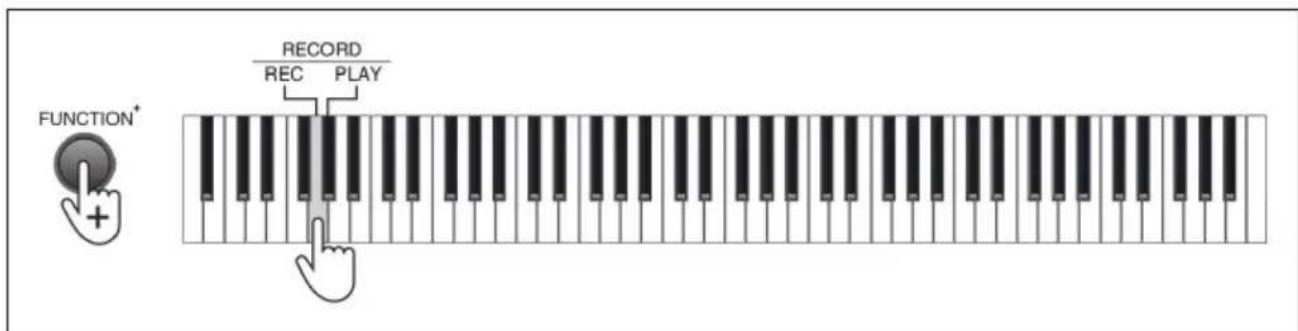
- Press the [FUNCTION] button (4) and the [RECORD] selection key [REC] (13) to enable the record mode. Press the [FUNCTION] button and the [REC] key again to disable the record mode.
- Under the record mode, the metronome will be enabled automatically, and you can press any key to start recording.
- Press the [FUNCTION] button (4) and the [TEMPO] key (24) to adjust the tempo.
The keyboard can record 700 notes at maximum. When the storage memory is full, the record mode will be disabled and the metronome will shut down automatically.
Play
- Press the [FUNCTION] button (4) and the [RECORD] selection key [PLAY] (13) to play the records.
- During the playing process, press the [FUNCTION] button and the [PLAY] key again to stop playing.
TIMBRETABLE
000 Acoustic Grand Piano 035 Fretless Bass 070 Bassoon 105 Banjo
001 Bright Acoustic Piano 036 Slap Bass 1071 Clarinet 106 Shamisen
002 Electric Grand Piano 037 Slap Bass 2 072 Piccolo 107 Koto
003 Honky-tonk Piano 038 Synth Bass 1073 Flute 108 Kalimba
004 Rhodes Piano 039 Synth Bass 2 074 Recorder 109 Bagpipe
005 Chorused Piano 040 Violin 075 Pan Flute 110 Fiddle
006 Harpsichord 041 Viola 076 Bottle Blow 111 Shanai
007 Clavichord 042 Cello 077 Shakuh achi 112 Tink le Bell
008 Celesta 043 Contrabass 078 Whistle 113 Agogo
009 Glockenspiel 044 Tremolo Strings 079 Ocarina 114 Steel Drums
010 Music Box 045 Pizzicato Strings 080 Lead 1 (square) 115 Woodblock
011 Vibraphone 046 Orchestral Harp 081 Lead 2 (sawtooth) 116 Taiko Drum
012 Marimba 047 Timpani 082 Lead 3 (calliope lead) 117 Melodic Tom
013Xylophone 048St ring Ensemble 1 083Lead4(chiff lead) 118Synth Drum
014 Tubular Bell 049 St ring Ensemble 2 084 Lead 5 (charang) 119 Reverse Cymbal
015 Dulcimer 050 Synth Strings 1 085 Lead 6 (voice) 120Guitar Fret Noise
016 Drawbar Organ 051 Synth Strings 2 086 Lead 7 (f ifths) 121 Breath Noise
017 Percussive Organ 052 ChoiAahs 087 Lead 8 (bass+lead) 122 Seashore
018 Rock Organ 053 Voice Oohs 088 Pad 1 (new age) 123 Bird Tweet
019 Church Organ 054 Synth Voice 089 Pad 2 (warm) 124 Telephone Ring
020 Reed Organ 055 Orchestra Hit 090 Pad 3 (polysynth) 125 Helicopter
021 Accordion 056 Trumpet 091 Pad 4 (eh oir) 126 Applause
022 Harmonica 057 Trombone 092 Pad 5 (bowed) 127 Gunshot
023 Tango Accordion 058 Tuba 093 Pad 6 (metallic) 128 Yong Gin
024 Acoustic Guitar (nylon) 059 Muted Trumpet 094 Pad 7 (halo) 129 Zheng
025 Acoustic Guitar (steel) 060 French Horn 095 Pad 8 (sweep) 130 Zhong Ruan
026 Electric Guitar uazz) 061 Brass Sect ion 096 FX 1 (rain) 131 Pi Pa
027 Electric Guitar (clean) 062 Synth Brass 1 097 FX2 (sound dtrack) 132 Big Souna
028 Electric Guitar (muted) 063 Synth Brass 2 098 FX 3 (crystal) 133 Souna
029 Overdriven Guitar 064 Soprano Sax 099 FX4 (atmosphere) 134 Er Hu
030 Distortion Guitar 065Alto Sax 100 FX 5 (brightness) 135 YueHu
031Guitar Harmonics 066 Tenor Sax 101 FX6 (goblins) 136 Di Zi
032 Acoustic Bass 067 Baritone Sax 102 FX 7 (echoes) 137 Bong Di
033 Electric Bass (finger) 068 Oboe 103 FX 8 (sci-fi) 138 Koto
034 Electric Bass (pick) 069 English Horn 104 Sitar 139 Qu Di
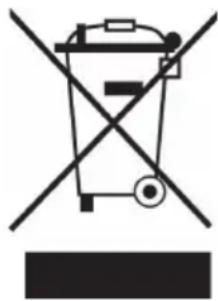
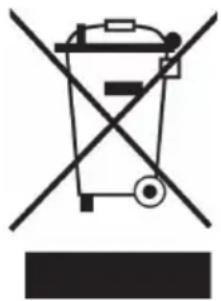
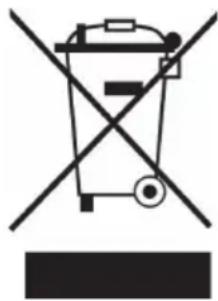
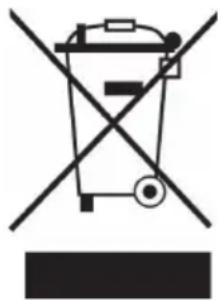
If there is a legal regulation for the disposal of electrical and electronic devices in your country, this symbol on the product or on the packaging indicates that this product must not be disposed of with household waste. Instead, it must be taken to a collection point for the recycling of electrical and electronic equipment. By disposing of it in accordance with the rules, you are protecting the environment and the health of your fellow human beings from negative consequences. For information about the recycling and disposal of this product, please contact your local authority or your household waste disposal service.
DECLARATION OF CONFORMITY
CE UK CA
Manufacturer:
Chal-Tec GmbH, Wallstrasse 16, 10179 Berlin, Germany.
Importer for Great Britain:
Berlin Brands Group UK Ltd
PO Box 1145
Oxford,OX19UW
United Kingdom
Hereby, Chal-Tec GmbH declares that the radio equipment type Prelude is in compliance with Directive 2014/53/EU. The full text of the EU declaration of conformity is available at the following internet address: use.berlin/10034897
For Great Britain: Hereby, Chal-Tec GmbH declares that the radio equipment type Prelude is in compliance with the relevant statutory requirements. The full text of the declaration of conformity is available at the following internet address: use.berlin/10034897
Chere cliente, cher client,
3 Master Volume (volume principal)
4+14 Touch (velocite)
4 Function (fonction) 4 + 15 Sustain (pédale de maintain)
5 Demo 4 + 16 Vibrato
6 Metronome (Métronome) 4 + 17 Transpose (transposer)
7 Lesson (mode apprentice) 4 + 18 Octave
8 Split (division) 4 + 19 Split Volume (division des
volumes)
11+25 GM Timbre (selection)
004 Rhodes Piano 039 Synth Bass 2 074 Recorder 109 Bagpipe
005 Chorused Piano 040 Violin 075 Pan Flute 110 Fiddle
006 Harpsichord 041 Viola 076 Bottle Blow 111 Shanai
007 Clavichord 042 Cello 077 Shakuh achi 112 Tink le Bell
008 Celesta 043 Contrabass 078 Whistle 113 Agogo
009 Glockenspiel 044 Tremolo Strings 079 Ocarina 114 Steel Drums
010 Music Box 045 Pizzicato Strings 080 Lead 1 (square) 115 Woodblock
011 Vibraphone 046 Orchestral Harp 081 Lead 2 (sawtooth) 116 Taiko Drum
012 Marimba 047 Timpani 082 Lead 3 (calliope lead) 117 Melodic Tom
013Xylophone 048St ring Ensemble 1 083Lead4(chiff lead) 118Synth Drum
014 Tubular Bell 049 St ring Ensemble 2 084 Lead 5 (charang) 119 Reverse Cymbal
015 Dulcimer 050 Synth Strings 1 085 Lead 6 (voice) 120Guitar Fret Noise
016 Drawbar Organ 051 Synth Strings 2 086 Lead 7 (f ifths) 121 Breath Noise
017 Percussive Organ 052 ChoiAahs 087 Lead 8 (bass+lead) 122 Seashore
018 Rock Organ 053 Voice Oohs 088 Pad 1 (new age) 123 Bird Tweet
019 Church Organ 054 Synth Voice 089 Pad 2 (warm) 124 Telephone Ring
020 Reed Organ 055 Orchestra Hit 090 Pad 3 (polysynth) 125 Helicopter
021 Accordion 056 Trumpet 091 Pad 4 (eh oir) 126 Applause
022 Harmonica 057 Trombone 092 Pad 5 (bowed) 127 Gunshot
023 Tango Accordion 058 Tuba 093 Pad 6 (metallic) 128 Yong Gin
024 Acoustic Guitar (nylon) 059 Muted Trumpet 094 Pad 7 (halo) 129 Zheng
025 Acoustic Guitar (steel) 060 French Horn 095 Pad 8 (sweep) 130 Zhong Ruan
026 Electric Guitar uazz) 061 Brass Sect ion 096 FX 1 (rain) 131 Pi Pa
027 Electric Guitar (clean) 062 Synth Brass 1 097 FX2 (sound dtrack) 132 Big Souna
028 Electric Guitar (muted) 063 Synth Brass 2 098 FX 3 (crystal) 133 Souna
029 Overdriven Guitar 064 Soprano Sax 099 FX4 (atmosphere) 134 Er Hu
030 Distortion Guitar 065Alto Sax 100 FX 5 (brightness) 135 YueHu
031Guitar Harmonics 066 Tenor Sax 101 FX6 (goblins) 136 Di Zi
032 Acoustic Bass 067 Baritone Sax 102 FX 7 (echoes) 137 Bong Di
033 Electric Bass (finger) 068 Oboe 103 FX 8 (sci-fi) 138 Koto
034 Electric Bass (pick) 069 English Horn 104 Sitar 139 Qu Di
CONSEILS POUR LE RECYCLAGE
Berlin Brands Group UK Ltd
PO Box 1145
Oxford,OX19UW
United Kingdom
004 Rhodes Piano 039 Synth Bass 2 074 Recorder 109 Bagpipe
005 Chorused Piano 040 Violin 075 Pan Flute 110 Fiddle
006 Harpsichord 041 Viola 076 Bottle Blow 111 Shanai
007 Clavichord 042 Cello 077 Shakuh achi 112 Tink le Bell
008 Celesta 043 Contrabass 078 Whistle 113 Agogo
009 Glockenspiel 044 Tremolo Strings 079 Ocarina 114 Steel Drums
010 Music Box 045 Pizzicato Strings 080 Lead 1 (square) 115 Woodblock
011 Vibraphone 046 Orchestral Harp 081 Lead 2 (sawtooth) 116 Taiko Drum
012 Marimba 047 Timpani 082 Lead 3 (calliope lead) 117 Melodic Tom
013Xylophone 048St ring Ensemble 1 083Lead4(chiff lead) 118Synth Drum
014 Tubular Bell 049 St ring Ensemble 2 084 Lead 5 (charang) 119 Reverse Cymbal
015 Dulcimer 050 Synth Strings 1 085 Lead 6 (voice) 120Guitar Fret Noise
016 Drawbar Organ 051 Synth Strings 2 086 Lead 7 (f ifths) 121 Breath Noise
017 Percussive Organ 052 ChoiAahs 087 Lead 8 (bass+lead) 122 Seashore
018 Rock Organ 053 Voice Oohs 088 Pad 1 (new age) 123 Bird Tweet
019 Church Organ 054 Synth Voice 089 Pad 2 (warm) 124 Telephone Ring
020 Reed Organ 055 Orchestra Hit 090 Pad 3 (polysynth) 125 Helicopter
021 Accordion 056 Trumpet 091 Pad 4 (eh oir) 126 Applause
022 Harmonica 057 Trombone 092 Pad 5 (bowed) 127 Gunshot
023 Tango Accordion 058 Tuba 093 Pad 6 (metallic) 128 Yong Gin
024 Acoustic Guitar (nylon) 059 Muted Trumpet 094 Pad 7 (halo) 129 Zheng
025 Acoustic Guitar (steel) 060 French Horn 095 Pad 8 (sweep) 130 Zhong Ruan
026 Electric Guitar uazz) 061 Brass Sect ion 096 FX 1 (rain) 131 Pi Pa
027 Electric Guitar (clean) 062 Synth Brass 1 097 FX2 (sound dtrack) 132 Big Souna
028 Electric Guitar (muted) 063 Synth Brass 2 098 FX 3 (crystal) 133 Souna
029 Overdriven Guitar 064 Soprano Sax 099 FX4 (atmosphere) 134 Er Hu
030 Distortion Guitar 065Alto Sax 100 FX 5 (brightness) 135 YueHu
031Guitar Harmonics 066 Tenor Sax 101 FX6 (goblins) 136 Di Zi
032 Acoustic Bass 067 Baritone Sax 102 FX 7 (echoes) 137 Bong Di
033 Electric Bass (finger) 068 Oboe 103 FX 8 (sci-fi) 138 Koto
034 Electric Bass (pick) 069 English Horn 104 Sitar 139 Qu Di
4 + 14 Touch (tocco tasty)
4 Function (funzione) 4 + 15 Sustain (pedale sustain)
5 Demo 4 + 16 Vibrato
6 Metronome (metronomo) 4 + 17 Transpose
004 Rhodes Piano 039 Synth Bass 2 074 Recorder 109 Bagpipe
005 Chorused Piano 040 Violin 075 Pan Flute 110 Fiddle
006 Harpsichord 041 Viola 076 Bottle Blow 111 Shanai
007 Clavichord 042 Cello 077 Shakuh achi 112 Tink le Bell
008 Celesta 043 Contrabass 078 Whistle 113 Agogo
009 Glockenspiel 044 Tremolo Strings 079 Ocarina 114 Steel Drums
010 Music Box 045 Pizzicato Strings 080 Lead 1 (square) 115 Woodblock
011 Vibraphone 046 Orchestral Harp 081 Lead 2 (sawtooth) 116 Taiko Drum
012 Marimba 047 Timpani 082 Lead 3 (calliope lead) 117 Melodic Tom
013Xylophone 048St ring Ensemble 1 083Lead4(chiff lead) 118Synth Drum
014 Tubular Bell 049 St ring Ensemble 2 084 Lead 5 (charang) 119 Reverse Cymbal
015 Dulcimer 050 Synth Strings 1 085 Lead 6 (voice) 120Guitar Fret Noise
016 Drawbar Organ 051 Synth Strings 2 086 Lead 7 (f ifths) 121 Breath Noise
017 Percussive Organ 052 ChoiAahs 087 Lead 8 (bass+lead) 122 Seashore
018 Rock Organ 053 Voice Oohs 088 Pad 1 (new age) 123 Bird Tweet
019 Church Organ 054 Synth Voice 089 Pad 2 (warm) 124 Telephone Ring
020 Reed Organ 055 Orchestra Hit 090 Pad 3 (polysynth) 125 Helicopter
021 Accordion 056 Trumpet 091 Pad 4 (eh oir) 126 Applause
022 Harmonica 057 Trombone 092 Pad 5 (bowed) 127 Gunshot
023 Tango Accordion 058 Tuba 093 Pad 6 (metallic) 128 Yong Gin
024 Acoustic Guitar (nylon) 059 Muted Trumpet 094 Pad 7 (halo) 129 Zheng
025 Acoustic Guitar (steel) 060 French Horn 095 Pad 8 (sweep) 130 Zhong Ruan
026 Electric Guitar uazz) 061 Brass Sect ion 096 FX 1 (rain) 131 Pi Pa
027 Electric Guitar (clean) 062 Synth Brass 1 097 FX2 (sound dtrack) 132 Big Souna
028 Electric Guitar (muted) 063 Synth Brass 2 098 FX 3 (crystal) 133 Souna
029 Overdriven Guitar 064 Soprano Sax 099 FX4 (atmosphere) 134 Er Hu
030 Distortion Guitar 065Alto Sax 100 FX 5 (brightness) 135 YueHu
031Guitar Harmonics 066 Tenor Sax 101 FX6 (goblins) 136 Di Zi
032 Acoustic Bass 067 Baritone Sax 102 FX 7 (echoes) 137 Bong Di
033 Electric Bass (finger) 068 Oboe 103 FX 8 (sci-fi) 138 Koto
034 Electric Bass (pick) 069 English Horn 104 Sitar 139 Qu Di
SMALTIMENTO
Berlin Brands Group UK Ltd
PO Box 1145
Oxford,OX19UW
United Kingdom