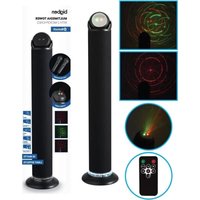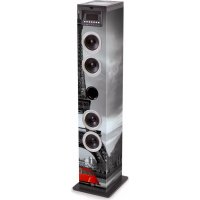
TWIN12CD - Speaker BIGBEN - Free user manual and instructions
Find the device manual for free TWIN12CD BIGBEN in PDF.



User questions about TWIN12CD BIGBEN
0 question about this device. Answer the ones you know or ask your own.
Ask a new question about this device
Download the instructions for your Speaker in PDF format for free! Find your manual TWIN12CD - BIGBEN and take your electronic device back in hand. On this page are published all the documents necessary for the use of your device. TWIN12CD by BIGBEN.
USER MANUAL TWIN12CD BIGBEN
Specifications techniques 3
Remarque 9
CLASS 1 LASER PRODUCT
CLASS 1 LASER PRODUCT APPAREL LASER DE CLASSE 1 PRODUCTO LASER DE CLASE 1
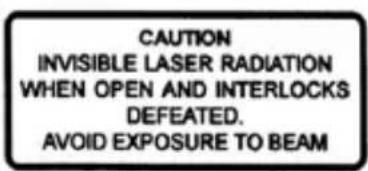
CAUTION INVISIBLE LASER RADIATION WHEN OPEN AND INTERLOCKS DEFEATED. AVOID EXPOSURE TO BEAM

This product contains a low power laser device.
customerservice@bigben-interactive.be
ESPANAsat@bigbeninteractive.es
ITALIA, support@bigbeninteractive.it
www/bigben.eu
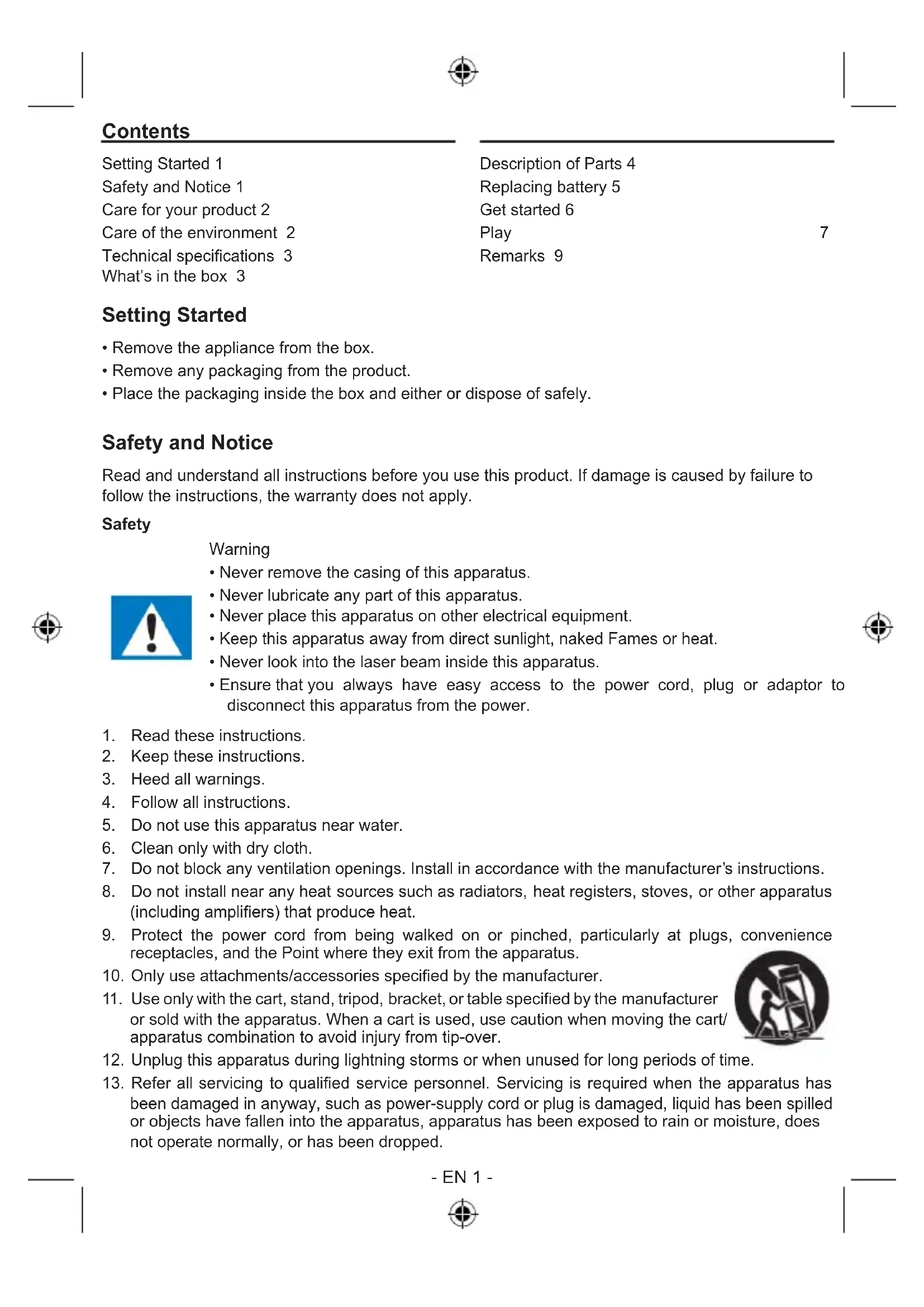
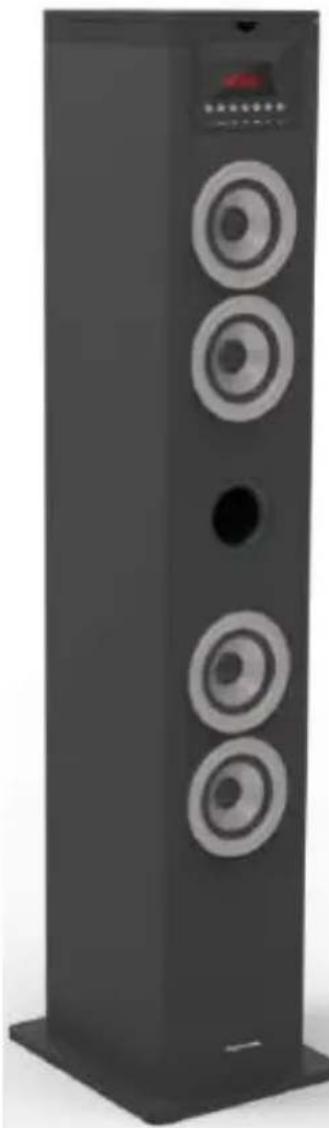
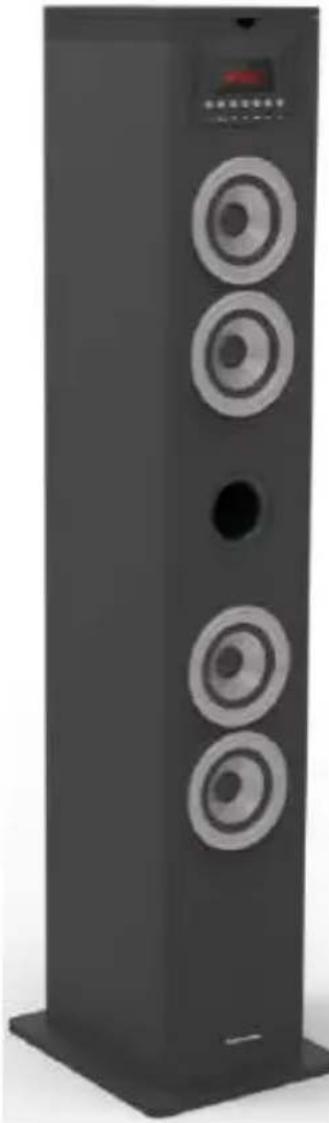
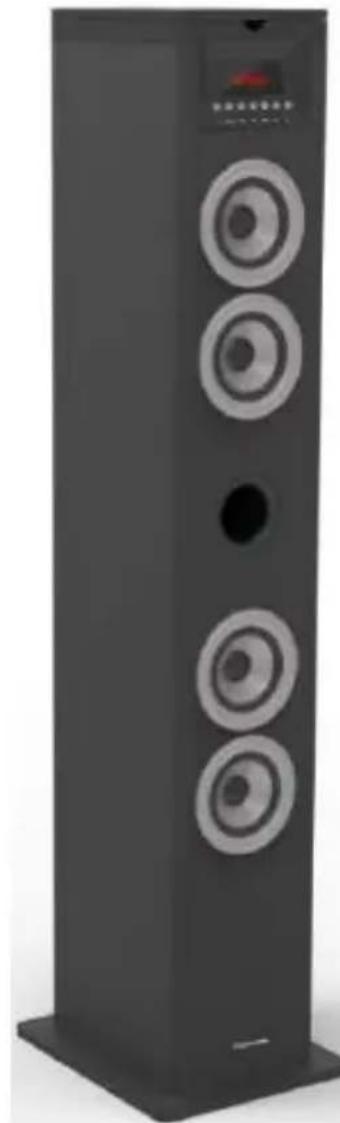
bigben TW12CD
SYSTEME 2.0 CD / BLUETOOTH / FM USB / SD / AUDIO IN
OPERATING INSTRUCTIONS
PLEASE READ THIS USER MANUAL COMPLETELY BEFORE OPERATING THIS UNIT AND RETAIN THIS BOOKLET FOR FUTURE REFERENCE.
BBI_TW12CD_1703_Ver1
Contents
Setting Started 1
Safety and Notice 1
Care for your product 2
Care of the environment 2
Technical specifications 3
What's in the box 3
Description of Parts 4
Replacing battery 5
Get started 6
Play
Remarks 9
7
Setting Started
- Remove the appliance from the box.
- Remove any packaging from the product.
- Place the packaging inside the box and either or dispose of safely.
Safety and Notice
Read and understand all instructions before you use this product. If damage is caused by failure to follow the instructions, the warranty does not apply.
Safety
Warning
- Never remove the casing of this apparatus.
- Never lubricate any part of this apparatus.
- Never place this apparatus on other electrical equipment.
- Keep this apparatus away from direct sunlight, naked Fames or heat.
- Never look into the laser beam inside this apparatus.
- Ensure that you always have easy access to the power cord, plug or adaptor to disconnect this apparatus from the power.



- Read these instructions.
- Keep these instructions.
- Heed all warnings.
- Follow all instructions.
- Do not use this apparatus near water.
- Clean only with dry cloth.
- Do not block any ventilation openings. Install in accordance with the manufacturer's instructions.
- Do not install near any heat sources such as radiators, heat registers, stoves, or other apparatus (including amplifiers) that produce heat.
- Protect the power cord from being walked on or pinched, particularly at plugs, convenience receptacles, and the Point where they exit from the apparatus.
- Only use attachments/accessories specified by the manufacturer.
- Use only with the cart, stand, tripod, bracket, or table specified by the manufacturer or sold with the apparatus. When a cart is used, use caution when moving the cart/ apparatus combination to avoid injury from tip-over.
- Unplug this apparatus during lightning storms or when unused for long periods of time.
-
Refer all servicing to qualified service personnel. Servicing is required when the apparatus has been damaged in anyway, such as power-supply cord or plug is damaged, liquid has been spilled or objects have fallen into the apparatus, apparatus has been exposed to rain or moisture, does not operate normally, or has been dropped.
-
Apparatus shall not be exposed to dripping or splashing.
- Do not place any sources of danger on the apparatus (e.g. liquid filled objects, lighted candles).
- Where the MAINS plug or an appliance coupler is used as the disconnect device, the disconnect device shall remain readily operable.
- Make sure there is enough free space around the product for ventilation.
- Batteries (battery pack or batteries installed) shall not be exposed to excessive heat such as sunshine, fire or the like.
Care for your product
- Always unplug the appliance when not in use and before cleaning.
- Do not play music at excessive volume levels as damage to hearing and or the equipment may occur.
- Do not use this unit in wet or damp conditions.
- Always disconnect the unit from the mains power supply before cleaning. Clean the appliance with a soft, damp, lint free cloth. Do not use abrasives or harsh cleaners.
Care of the environment

Your product is designed and manufactured with high quality materials and components, which can be recycled and reused.
Your product contains batteries covered by the European Directive 2006/66/EC, which cannot be disposed with normal household waste. Please inform yourself about the local rules on separate collection of batteries because correct disposal helps to prevent negative consequences for the environmental and human health.
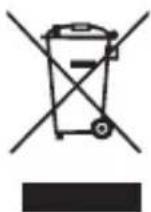
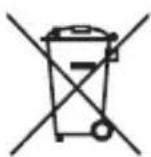
When this crossed-out wheeled bin symbol is attached to a product it means that the product is covered by the European Directive 2002/96/EC. Please inform yourself about the local separate collection system for electrical and electronic products. Please act according to your local rules and do not dispose of your old products with your normal household waste. Correct disposal of your old product helps to prevent potential negative consequences for the environment and human health.
Compliance

This product complies with the radio interference requirements of the Europe Community.
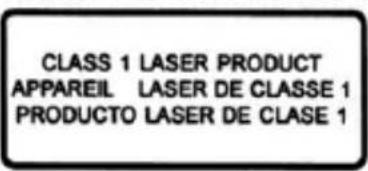
This apparatus includes this label
CLASS 1 LASER PRODUCT
CLASS 1 LASER PRODUCT APPAREL LASER DE CLASSE 1 PRODUCTO LASER DE CLASE 1
CAUTION INVISIBLE LASER RADIATION WHEN OPEN AND INTERLOCKS DEFEATED. AVOID EXPOSURE TO BEAM

This product contains a low power laser device.
Technical specifications
Power supply: 230V 50Hz
Total consumption: 10W
- Input sensitivity: LINE IN 700mV
- Speakers impedance: 4ohm
· S/N (A): 75db
- THD(1kHz,1W): 0.5%
Frequency response: 80Hz - 20kHz
Total music output: 10W
What's in the box
Check and identify the contents of your package:
- Main unit
Remote control - User manual
Line in cable
Description of Parts
Overview of the main unit

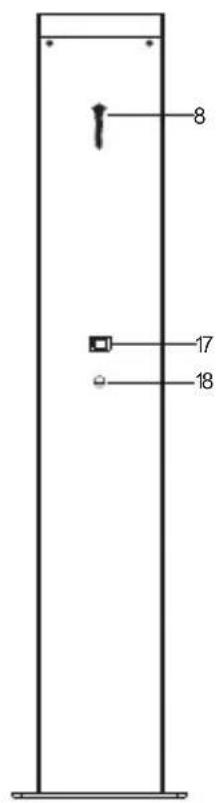
- USB socket
- USB Charge
- Audio in
Connect an external audio device
- SD slot
5.CD door - Tweeter speaker
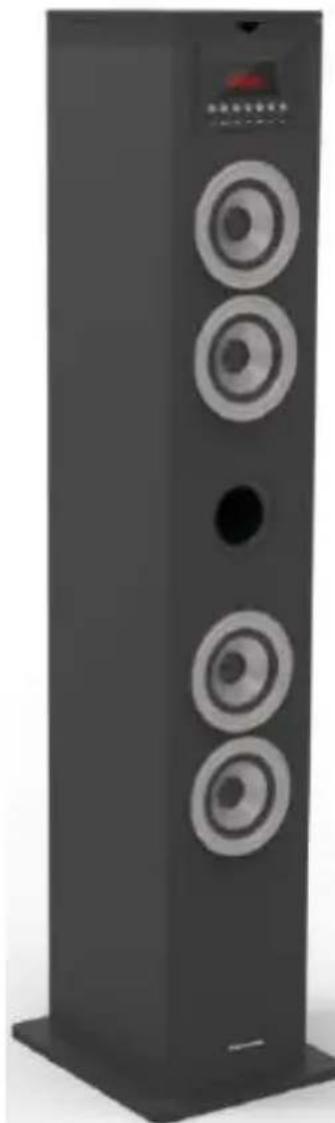
- Speakers
- FM antenna
- Display panel
Show the current status
- Standby
Turn on the unit, switch to Standby mode
- Source
Select a source: CD, Bluetooth, USB, FM or AUDIO IN
12.
Skip to the previous track
Tune to a radio station
Press and hold the key to search within a track / USB
13.
Start or pause play
14.
Skip to the next track
Tune to a radio station
Press and hold the key to search within a track / USB
15.VOL -
Adjust the Volume
- VOL +
Adjust the Volume+
- Power switch
Switch on or off your tower
- AC~ Mains
Power supply cable
Overview of Remote Control
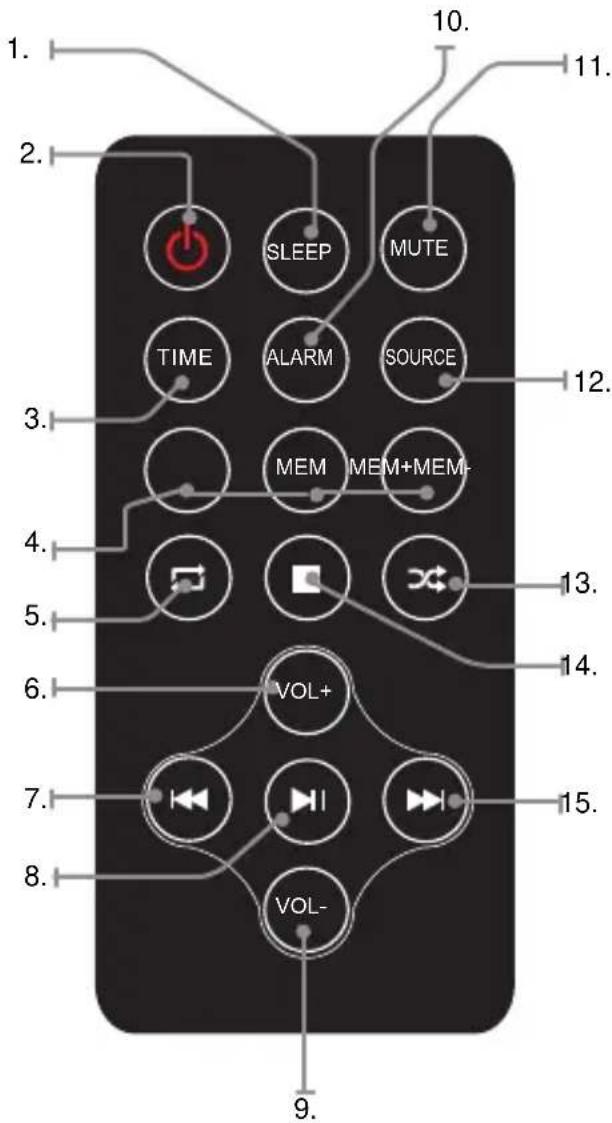
- SLEEP
Press repeatedly to set a sleep timer to turn the tower of after a set amount of time has passed
- POWER
Press to power the tower off and on
- TIME
Press to set alarm on standby
- MEM / MEM+ / MEM-
Press MEM to save the current radio station to a preset channel.
Press MEM+/MEM- to choose the FM stations
5.
Select the repeat play in CD mode
- VOLUME+
Press to adjust the volume+
7.
Skip to the previous track
8.
start or pause play
- VOLUME
Press to adjust the volume
- ALARM
Press to set alarm on standby mode
- MUTE
Press to Mute or restore volume
- SOURCE
Select a source: CD, Bluetooth, USB, FM or Audio in
13.
Select the random play mode in CD mode
14.
Stop play
15.
Skip to the next track
Use: The remote control operates on 1 pc CR2025 lithium battery (included).to power up the remote control; remove the insulation tab from the back unit.
Replacing battery
The remote control works with lithium button cell CR2025 3 V batteries. When the remote no longer works you need to replace the batteries as follows:
-
Press the tab on the side of the battery cover to release it and allow the battery support to come out.
-
Replace the battery paying attention to the correct orientation of the poles.
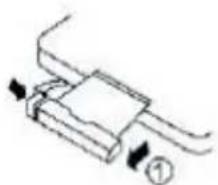
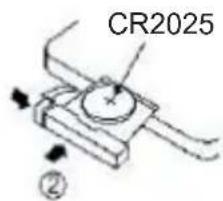
- Replace the battery support pushing it inside until you hear a "click".
ATTENTION: Danger of explosion if batteries are not inserted correctly.
Get started
Power

CAUTION
- Risk of product damager! Make sure that the power voltage corresponds to the voltage printed on the back label.
- Risk of electric shock! When you unplug the AC power cord always pull the plug from the socket. Never pull the cord.
- Before connecting the AC power cord, ensure you have completed all other connections.
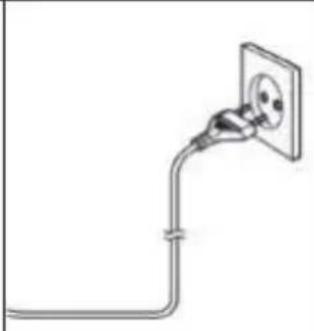
Place the unit in the desired position and unravel the mains cable. Insert the cable into the supply socket and switch on if applicable.
Auto standby
When playing media from a connected device, the Tower automatically switches to standby if:
- No button is pressed for 10 minutes,
- No audio from a connected device for 10 minutes.
Setting Clock
After the unit is plugged into a mains supply or mains power failure, the display will show the "0:00" on the LED display. The unit should be in standby mode to set the current clock.
- Press TIME button, the digits for the display will blink.
- Press the button repeatedly until correct hour is set. Press the TIME to confirm the hour setting.
- The minute digits on the display will blink.
- Press the button repeatedly until correct minute is set. Press the TIME to confirm the minute setting.
Setting Alarm
This unit can be used as an alarm clock, CD /USB/ FM is activated to play at a preset time.
- Press to switch the unit to standby mode.
- Make sure that you have set the clock correctly.
- Press and hold ALARM button in shutdown state, the display will flash ON to select setting alarm and the display will blink.
- Press the ALARM confirm, the time display will blink.
- Press button repeatedly to set hour. Press ALARM to confirm.
- Press / set minute.
- Press ALARM to confirm, and then press select CD/FM/USB status. Press ALARM to confirm.
- The volume would turn up from 0 to 20 gradually.
- Press ALARM button in shutdown state, the display will flash ON to select setting alarm, and the display will blink.
- Press the / select OFF to cancel alarm.
Sleep Mode
Press and hold the SLEEP button, the display will blink. Press the button repeatedly until the display shows the minute you want to set. You can set 10 to 90 minutes.
It blinks three times to confirm, and then return to the interface before. If you want to cancel the sleep mode, press to OFF, after blanking three times, the sleep mode will cancel.
Play
Play a disc
- Press SOURCE repeatedly to select DISC source.
- Put on a disc with the printed side facing upward.
- Play starts automatically, if not, Press
- Press the VOL+/VOL- to adjust the volume.
Pause/resume play
- During play, press to pause/resume play.
- During play, long press / button to fast forward/fast rewind.
Skip to a track
For CD:
- Press / select another track.
- Press the VOL+/VOL - to adjust the volume.
For MP3 disc and USB/SD
- Press / select a track or a file.
- Press the VOL+VOL - to adjust the volume.

Search within a track
- During play, press and hold
- Release to resume normal play.
Listening to radio
You can program a maximum of 20 preset radio stations (FM).
- Press the SOURCE button to select RADIO mode. The unit will be in FM radio mode.
- Press / search radio station.
- Select the desired radio station by pressing the / button.
- Once you find a station you want to save, press the MEM button on the remote control, "P01" will be shown on the display, press MEM+/MEM- until the desired memory position number appears on the display. Press the MEM again to confirm and save the current station.
- (Auto) Press and hole MEM button, The unit will automatically start and search the frequencies, all available stations are programmed in the order of waveband reception strength, the first programmed radio station is broadcast automatically.
ATTENTION: For optimal reception, fully extend and adjust the position on the antenna.
Play from external audio
You can play from an external audio device such as MP3 player through this unit.
Line in Jack (Requires a 3.5mm cable)
- Connect a 3.5mm cable to the Line jack on top panel. Connect the other end of the 3.5mm cable to an Mp3 player or other audio device.
- Press the button to turn the unit on.
- Press the SOURCE button to switch to Line In mode.
- Use the controls on the connected device to begin playing audio routed through the unit.
Using the USB/SD input
- Plug your USB flash drive or SD card to the USB socket or SD slot.
- Press SOURCE button to select USB or SD mode, the unit can play automatically. If not, press
- Press the /to select track.
- Press the VOL+VOL- to adjust the volume.
Remarks:
- USB/SD port is easy to sensitive equipment, will cause the equipment work is not stable.
USB charging
There is a USB charger on the top of the unit to charge small devices such as smartphones that can be charged via USB.
Output power: 5V/1A max
Bluetooth Mode
A. Pairing with a Bluetooth cell phone
Please make sure your cell phone is Bluetooth-enabled. Specific pairing steps may vary with different cell phones. Please refer to the user manual of your cell phone for further information. The general pairing steps are as follows:
- Keep TW12CD and Bluetooth cell phone within 1 meter when pairing.
- Press button, and press the SOURCE to select the Bluetooth mode.
- Switch on your cell phone's Bluetooth function and search for Bluetooth devices. After the search is completed, select "TW12CD" from the Bluetooth device list.
- According to indication, enter password or PIN No: "0000" and press "Yes" or "confirm".
- After successful pairing, select "TW12CD" from the Bluetooth device list and press "connect".
B. Pairing with a Bluetooth stereo transmitter
Different Bluetooth transmitters have different pairing ways. Please refer to the user manual of your Bluetooth transmitter for further information. The general pairing steps are as follows:
- Keep TW12CD and Bluetooth transmitter within 1 meter when pairing.
- Press button, and press the SOURCE to select the Bluetooth mode.
- Switch on your Bluetooth transmitter and let it enter pairing mode.
- The transmitter will search and connect with TW12CD automatically. After successful connecting, the Bluetooth voice will change when connected successfully.
Remarks:
- TW12CD will return to pairing mode automatically after disconnecting from a Bluetooth device.
C. MusicPlayback
Connecting with a A2DP cell phone or Bluetooth transmitter
- Connect your cell phone or Bluetooth transmitter with TW12CD.
- You can listen to your music from TW12CD now when playing it back.
- Press Vol+ to turn up the volume, press Vol- to turn down the volume.
- Press to skip to the previous song.
- Press to skip to the next song.
Remarks:
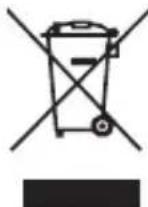
Don't discard the electrical and electronic appliances in the regular waste disposal.
- Take them to a collection point.
-
Some components in these appliances may be hazardous to health and the environment.
-
In order to save energy when the unit has no sound output for a while, the unit will be switched to stand-by automatically. It can be switched ON by using the POWER selector again.
- If there is an incoming call while TW12CD is connected to your cell phone for music playback, it will pause at once when you answer the call and resume after the call ended. (Sometimes it will pause after end the call, it depend on your cell phone.)
- The Bluetooth ® word, mark and logo are registered trademarks owned by Bluetooth SIG, Inc. and any use of such marks by Bigben Interactive is under license. Other trademarks and trade names are those of their respective owners.
- Hereby, Bigben Interactive SA, declares that the TW12CD device complies with the essential requirements of the directive 1995/5/EC of the European Parliament and of the Council of 9 March 1999 on radio equipment and telecommunications terminal equipment and the mutual recognition of their conformity.
To download the full statement, please visit our website: http://www/bigben-interactive.co.uk/support and the section <

Manufactured by BIGBEN INTERACTIVE SA
396, Rue de la Voyette
CRT2-FRETIN
CS 90414
59814 LESQUIN Cedex - France
www/bigben.eu
Made in China








Fabricant : Bigben Interactive FRANCE
- Rue de la Voyette, C.R.T. 2 Fretin,
CS 90414 - 59814 LESQUIN Cedex
customerservice@bigben-interactive.be
ESPANA, sat@bigbeninteractive.es
ITALIA, support@bigbeninteractive.it
www/bigben.eu
bigben
TW12CD
SYSTEME 2.0 CD / BLUETOOTH / FM USB / SD / AUDIO IN
CLASS 1 LASER PRODUCT
CLASS 1 LASER PRODUCT APPAREIL LASER DE CLASSE 1 PRODUCTO LASER DE CLASE 1
CAUTION INVISIBLE LASER RADIATION WHEN OPEN AND INTERLOCKS DEFEATED. AVOID EXPOSURE TO BEAM

This product contains a low power laser device.
Especificaiones Tecnicas
CLASS 1 LASER PRODUCT
CLASS 1 LASER PRODUCT APPAREIL LASER DE CLASSE 1 PRODUCTO LASER DE CLASE 1
CAUTION INVISIBLE LASER RADIATION WHEN OPEN AND INTERLOCKS DEFEATED. AVOID EXPOSURE TO BEAM

This product contains a low power laser device.
Specifiche tecniche
customerservice@bigben-interactive.be
ESPANA, sat@bigbeninteractive.es
ITALIA, support@bigbeninteractive.it
www/bigben.eu
bigben
TW12CD
SISTEMA 2.0
CD / BLUETOOTH / FM
USB / SD / ENTRADA DE ÁUDIO
CLASS 1 LASER PRODUCT
CLASS 1 LASER PRODUCT APPAREL LASER DE CLASSE 1 PRODUCTO LASER DE CLASE 1
CAUTION INVISIBLE LASER RADIATION WHEN OPEN AND INTERLOCKS DEFEATED. AVOID EXPOSURE TO BEAM
This product contains a low power laser device.

Characteristicas先进技术
customerservice@bigben-interactive.be
ESPAN, sat@bigbeninteractive.es
ITALIA, support@bigbeninteractive.it
www/bigben.eu
bigben
TW12CD
2.0 SYSTEM
CD / BLUETOOTH / FM
USB / SD / AUDIO IN
CLASS 1 LASER PRODUCT
CLASS 1 LASER PRODUCT APPAREIL LASER DE CLASSE 1 PRODUCTO LASER DE CLASE 1
CAUTION INVISIBLE LASER RADIATION WHEN OPEN AND INTERLOCKS DEFEATED. AVOID EXPOSURE TO BEAM

This product contains a low power laser device.
Technische Daten
customerservice@bigben-interactive.be
ESPANA, sat@bigbeninteractive.es
ITALIA, support@bigbeninteractive.it
www/bigben.eu

TW12CD
SYSTEEM 2.0 CD / BLUETOOTH / FM USB / SD / AUDIO IN
VEILIGHEIDSINSTRUCTIES
LEES DEZE GEBRUKSAANWIJZING VOLLEDIG DOOR ALVORENS
DEZE EENHEID TE BEDIENEN, EN BEWAAR DIT BOEKJE VOOR UW ADMINISTRATIE.
Inhoud
Aandeslag1
CLASS 1 LASER PRODUCT

This product contains a low power laser device.
Technische gegevens
customerservice@bigben-interactive.be
ESPAN, sat@bigbeninteractive.es
ITALIA, support@bigbeninteractive.it
www/bigben.eu


BBI_TW12CD_1703_Ver1