USER MANUAL Bremen SQR 46 DAB BLAUPUNKT
Operating instructions
1.

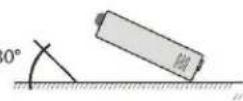
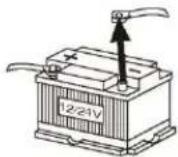
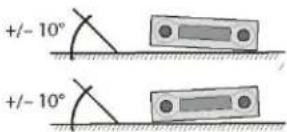
3.


Installation notes
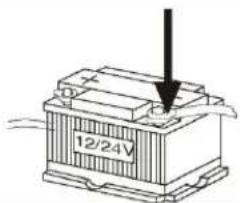
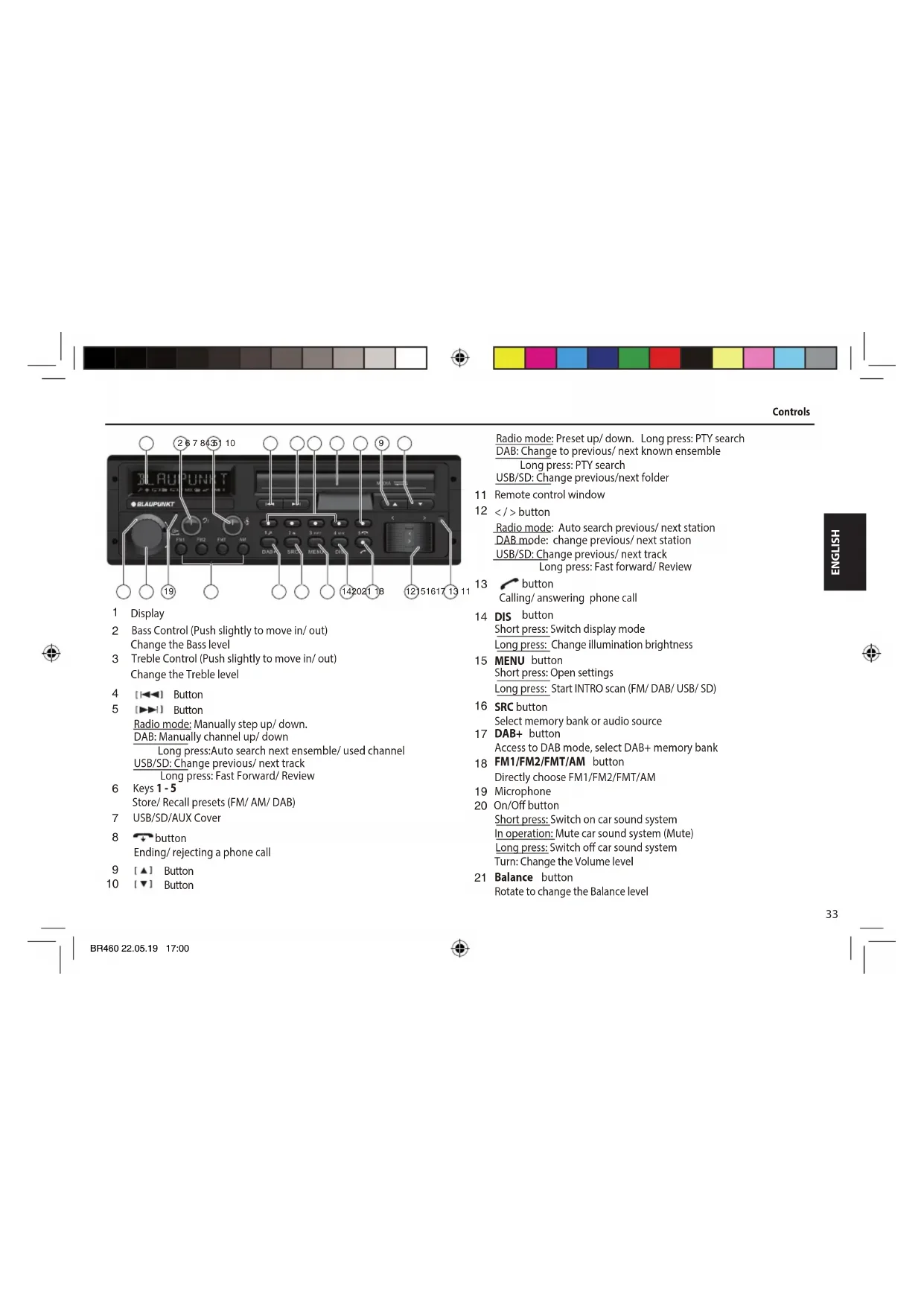
1 Display 2 Bass Control (Push slightly to move in/out) Change the Bass level 3 Treble Control (Push slightly to move in/out) Change the Treble level 4 [◀◀] Button 5 [▶▶] Button
Radio mode: Manually step up/down.
DAB: Manually channel up/down
Long press: Auto search next ensemble/used channel
USB/SD: Change previous/next track
Long press: Fast Forward/Review
6 Keys 1 - 5 Store/Recall presets (FM/AM/DAB) 7 USB/SD/AUX Cover 8 button Ending/rejecting a phone call 9 [▲] Button 10 [▼] Button
Radio mode: Preset up/down. Long press: PTY search
DAB: Change to previous/next known ensemble
Long press: PTY search
USB/SD: Change previous/next folder
11 Remote control window 12</>button Radio mode: Auto search previous/next station
DAB mode: change previous/next station USB/SD: Change previous/next track
Long press: Fast forward/Review 13 button Calling/answering phone call 14 DIS button Short press: Switch display mode Long press: Change illumination brightness 15 MENU button Short press: Open settings Long press: Start INTRO scan (FM/DAB/USB/SD) 16 SRC button Select memory bank or audio source 17 DAB+ button Access to DAB mode, select DAB+ memory bank 18 FM1/FM2/FMT/AM button Directly choose FM1/FM2/FMT/AM 19 Microphone 20 On/Off button Short press: Switch on car sound system In operation: Mute car sound system (Mute) Long press: Switch off car sound system Turn: Change the Volume level 21 Balance button Rotate to change the Balance level




Safety notes | Road safety
Safety notes
The car sound system was manufactured according to the state of the art and established safety guidelines. Even so, dangers may occur if you do not observe the safety notes in these instructions. These instructions contain important information to easily and safely install and operate the car sound system.
- Read these instructions carefully and completely before using the car sound system.
- Keep the instructions in a location where they are always accessible to all users. Always pass on the car sound system to third parties together with these instructions.
In addition, observe the instructions of the devices used in conjunction with this car sound system.
Symbols used
These instructions employ the following symbols:

DANGER!
Warns about injuries

CAUTION!
Warns about damaging the CD drive

DANGER!
Warns about high volume

The CE mark confirms compliance with EU directives.
Identifies a sequencing step
Identifies a listing
Road safety
Observe the following notes about road safety:
- Use your device in such a way that you can always safely control your vehicle. In case of doubt, stop at a suitable location and operate your device while the vehicle is standing.
- Always listen at a moderate volume to protect your hearing and to be able to hear acoustic warning signals (e.g. police sirens). During mute phases (e.g. when changing the audio source), changing the volume is not audible. Do not increase the volume during this mute phase.
General safety notes
Observe the following notes to protect yourself against injuries:
- Do not modify or open the device. The device contains a Class 1 laser that can cause injuries to your eyes.
- Do not increase the volume during mute phases, e.g. when changing the audio source. Changing the volume is not audible during a mute phase.
Use as directed
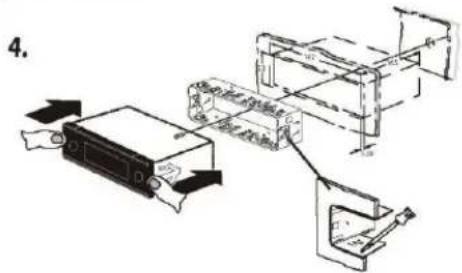
This car sound system is intended for installation and operation in a vehicle with 12 V vehicle system voltage and must be installed in a DIN slot. Observe the performance limits in the technical data. Repairs and installation, if necessary, should be performed by a specialist.
Installation instructions
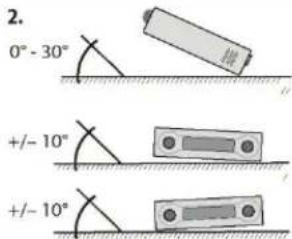
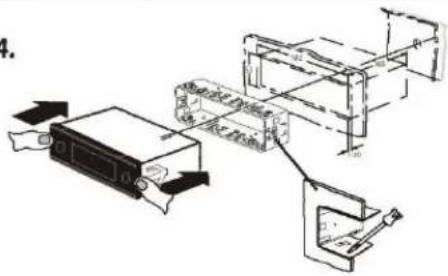
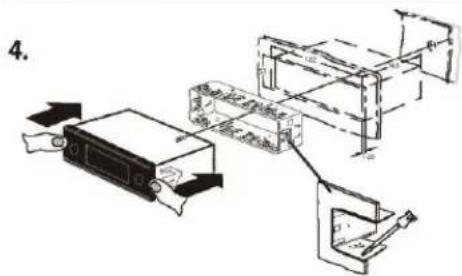
You may only install the car sound system yourself if you are experienced in installing car sound systems and are very familiar with the electrical system of the vehicle. For this purpose, observe the installation instructions at the end of these instructions.




Cleaning notes | Disposal notes | Scope of delivery | Placing the device in operation
The Blaupunkt Competence Center Car Multimedia Evo Sales GmbH declares that the devices complies with the basic requirements and the other relevant regulations of the directive 2014/53/EU.
The declaration of conformity can be found on the Internet under www.blaupunkt.com.
Cleaning notes
Solvents, cleaning and scouring agents as well as dashboard spray and plastics care products may contain ingredients that will damage the surface of the car sound system.
- Use only a dry or slightly moistened cloth for cleaning the car sound system.
- If necessary, clean the contacts of the control panel regularly using a soft cloth moistened with cleaning alcohol.
Disposal notes

Do not dispose of your old unit in the household trash!
Use the return and collection systems available to dispose of the old device.
Scope of delivery
The scope of delivery includes:
1 Car sound system, 1 Operating/installation instructions, 1 Support frame, 1 Antenna connection adapter, 2 Disassembly tools, 1 Spacer screw, 1 Connecting cable chamber A (Optional), 1 Connecting cable chamber B (Optional), 1 Handheld remote control (incl. battery)
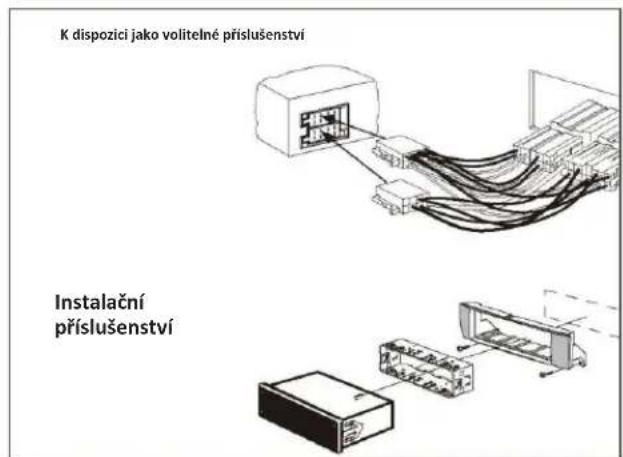
Optional equipment (not part of the scope of delivery)
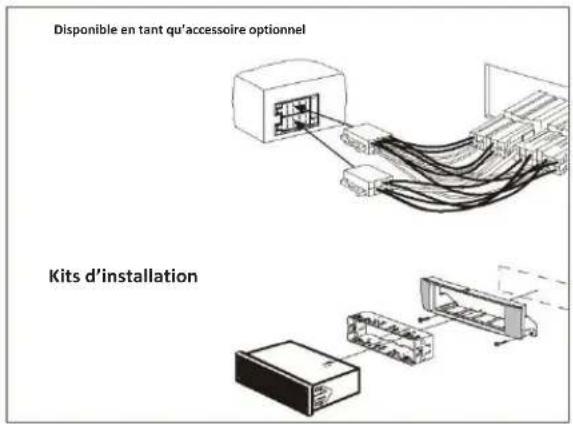
Use only accessories approved by Blaupunkt. Information is available from your Blaupunkt specialised dealer or on the Internet under www.blaupunkt.com.
Display language
You can define whether the language for messages on the display is English or German. The setting is performed in the user menu (see the chapter "User settings", section "Making settings in the "DISPLAY" menu", menu item "LANGUAGE").
Important note for radio reception
This car sound system is designed for operation in different regions with different frequency ranges and station technologies. Available reception areas are "EUROPE", "ASIA", "USA", "SOUTH AMERICA" and "THAILAND". You may have to set a suitable reception area first for the radio reception in the user menu (see the chapter "User settings", section "Making settings in the "TUNER" menu", menu item "TUNER AREA").
Switching on/off
For switch-on, press the On/OFF button. The car sound system switches on. For switch-off the device, press and hold the On/OFF button longer than 2 seconds. The car sound system switches off.
Note:
If you switch on the car sound system while the vehicle ignition is switched off, it automatically switches off after 1 hour to preserve the vehicle battery.




Volume | DAB mode
Switching on/off via vehicle ignition
The car sound system will switch off/on simultaneously with the ignition if the device is correctly connected to the vehicle's ignition as shown in the installation instructions and you did not switch the device off by pressing the On/Off button.
Volume
Adjusting the volume
You can adjust the volume in steps from 0 (off) to 50 (maximum).
Turn the VOL control to change the Volume.
Note:
If a telephone is connected with the car sound system as described in the installation instructions, the car sound system is muted in case of a phone call. During muting, the display shows "TELEPHONE".
Muting the car sound system (Mute)
Briefly press the On/Off button to mute the car sound system or to reactivate the previous volume. While it is muted, the display shows "MUTE".
In the reception area "EUROPE", an FM station can identify traffic reports by means of an RDS signal. If priority for traffic reports is switched on, a traffic report is automatically switched through, even if the car sound system is currently not in radio mode.
If priority is switched on, the display shows the traffic jam symbol ( ). "TRAFFIC" is displayed during a switched-through traffic announcement.
The priority is activated and deactivated in the user menu (see the chapter "User settings", section "Making settings in the "TUNER" menu", menu item "TRAFFICINFO").
Note:
The volume is increased for the duration of the switched-through traffic announcement. You can adjust the minimum volume for traffic
announcements (see the chapter "User settings", section "Making settings in the "VOLUME" menu", menu item "TRAFFIC VOL"). To cancel a switched-through traffic announcement, press the SRC button.
DAB mode
With DAB, you can enjoy radio in digital sound quality. In contrast with standard radio broadcasting, several programmes (services) are always broadcast over the same frequency for DAB. These services are combined into a so-called ensemble. In some cases, the same service can be received in different ensembles.
Note:
You will need a special DAB antenna to be able to receive DAB signals. This can be a separate DAB roof/ window antenna or a DAB/ AM/FM combination antenna.
Changing to DAB mode or selecting a DAB memory bank
Press the DAB+ button repeatedly until the desired DAB memory bank is displayed: DAB1 >DAB2 >DAB3. If D AB mode is switched on, the display shows the symbol
Notes:
- Up to 5 services can be stored in each DAB memory bank.
- DAB memory banks can be activated or deactivated via the user menu (see the chapter "User settings", section "Making settings in the "DAB TUNER" menu, "PRESETS" menu item). Deactivated DAB memory banks are skipped during the source selection with the SRC button.
Tuning into ensembles/services
With DAB, several services broadcast over the same frequency are always combined into an "ensemble".




DAB mode
Selecting an ensemble
You can directly select ensembles that you have received once already (for this to work, the ensemble must be receivable).
Briefly press the △/▽ button to change to the previous/next ensemble. The first available service in the ensemble is played.
Note:
With activated PTY function, long press the △/▽ button to search the PTY programme type.
Ensemble seek tuning
You can find new ensembles using seek tuning.
In DAB mode, seek starts with long press button /▶.
Selecting a service
After you have tuned into an ensemble, you can select a service from the ensemble.
For this, briefly press the </> keys.
List selection
Services or ensembles that have previously been received can be selected directly in lists without interrupting the ongoing playback (for this purpose, the services/ensembles must be receivable).
Long press the DAB+ button to enter List selection.
Press the < button to display the list of all received ensembles. The display shows the current ensemble.
Press the A/V button or hold the button to select a different ensemble.
Press the > button to display the services of the selected ensemble. The first service of the ensemble is shown on the display.
Note:
Press the < button to return to the list of ensembles.
Press the △/▽ button once or several times, or hold the button pressed, to select a different service.
Press the > button to play back the service.
The selected service is being played. You are exiting the list selection.
Saving a service or calling up a saved service
Select the desired DAB memory bank.
If necessary, set the desired service.
- Press the station button 1-5 for approx. 2 seconds to store the current service under the button
-or-
Briefly press the station 1-5 to call up the stored service.
Scanning services
You can use the scan function to play all the receivable services briefly.
Press the MENU button for approx. 2 seconds to start scanning. During the scanning, "SCAN" and the current service name are intermittently shown on the display.
Briefly press the MENU button to continue listening to the service that is currently being scanned.
Refreshing services received
To update the received service, read the section "Making settings in the "DAB TUNER" menu", menu item "SERVICE SCAN" in the chapter "User settings".



DAB | Radio mode
Switching between DAB and FM
You can select various settings for switching between DAB and FM radio mode. Switching may become necessary if the reception quality in the DAB or FM mode drops significantly.
DAB-PTY
You can select a programme type with the PTY function to purposefully search for services, for example, that broadcast rock music or sport events.
Note:
- The PTY function is only available if it has been activated (see the chapter "User settings", section "Making settings in the "DAB TUNER" menu", menu item "PTY").
Selecting a programme type
To select a programme type, read the section "Making settings in the "DAB TUNER" menu", menu item "PTY TYPE" (programme type) in the chapter "User settings".
Searching for service
Press the button △/▽
During the seek tuning, the currently selected programme type is shown on the display. As soon as a service with the desired programme type is found, it remains being tuned into.
Note:
- If no service with the selected programme type is found, "PTY NONE" is briefly displayed and 2 beeps can be heard. The radio will then return to the service that it played last.
Switching the display
Press the button DIS to toggle between these displays.
| Display Meaning |
| ABCDEF | Service name |
| DLS mode | Dynamic Label Service |
| ABCDEF Ensemble name |
| DAB1 5CorP1 5C | DAB memory bank/frequencyorMemory location/frequency |
| DAB1 18:30orP1 18:30 | DAB memory bank/timeorMemory location/time |
Radio mode
RDS
Many FM stations broadcast an RDS (Radio Data System) signal in addition to their programme in the reception area "EUROPE" that allows the following additional functions:
• The station name is shown on the display. - The car sound system recognises traffic announcements and news broadcasts and can automatically switch them through in other operating modes. - Alternate frequency: If RDS is activated, the car sound system automatically selects the best receivable frequency for the station that is currently set. - Regional: At certain times, some radio stations divide their programme into regional programmes providing different content. If the REGIONAL function is activated, the car sound system changes only to those alternate frequencies on which the same regional programme is being broadcast. • Radio text information is shown on the display.




Radio mode
The functions RDS and REGIONAL are activated and deactivated in the user menu (see the chapter "User settings", section "Making settings in the "TUNER" menu", menu items "RDS AF" and "REGIONAL").
Note:
- If you adjust a different reception area than "EUROPE", RDS is automatically switched off. The station name continues to be shown on the display. If you want to use radio stations with RDS features in your region, switch on RDS in the user menu.
Changing to radio mode or selecting a memory bank
The following memory banks are available in the different reception areas:
| Region Memory banks | |
| EUROPE | FM1, FM2, FMT, AM |
| ASIA | FM1, FM2, FMT, AM |
| USA |
| SOUTH AMERICA |
| THAILAND |
Press the button FM1>FM2>FMT>AM to directly select the desired memory bank. The selected memory bank is displayed.
Note:
- Up to 5 stations can be stored in each memory bank.
Tuning into a station
There are various ways of tuning into a station.
Starting station seek tuning
Press the button <//> to start automatic station seek tuning.
Notes:
- For the reception area "EUROPE": In the FM waveband, only traffic information stations are tuned into if the priority for traffic information ( ) is switched on.
- The sensitivity of seek tuning can be adjusted. In FM setting, the sensitivity can be selected, Low or High.
Tuning into stations manually
Press the ◀◀/▶▶ button to manually search and change the frequency in decrements/increments.
Storing stations or calling stored stations
Select the desired memory bank. If necessary, set the desired station. Press the station button 1 - 5 for approximately 2 seconds to store the current station under that button.
Briefly press the station button 1 - 5 to call up the stored station.
Scanning stations
With the scan function, you can scan either every receivable station or every stored station of the current waveband.
Note:
- You can adjust the scan time for each station (see the chapter "User settings", section "Making settings in the "VARIOUS" menu", menu item "SCAN TIME").
Scanning all receivable stations of the waveband
- Press the MENU button for approximately 2 seconds to start scanning. During the scan, the display alternately shows "SCAN" and the current frequency as well as memory bank or station name.




Radio mode | PTY
Briefly press the MENU button to continue listening to the station that is currently playing.
Storing stations automatically (Travelstore)
With Travelstore, you can automatically search for and store the 5 FM stations offering the strongest reception in the region in the FMT memory bank. Any previously stored stations in this memory bank are deleted in the process.
In the reception areas "ASIA", "USA", "SOUTH AMERICA", and "THAILAND", you can also store 5 AM stations in the AMT memory bank.
Select a memory bank of the desired waveband, e.g. FMT or AM. Press the SRC button for approx. 2 seconds. The tuner starts the automatic station seek tuning; the display shows "FM TSTORE". After the storing is completed, the radio plays the station at memory location 1 of the FMT or AMT level.
Note:
- For the reception area "EUROPE": If the priority for traffic information is switched on ( ), only traffic information stations are stored.
- If the FMT or AMT memory bank is deactivated (see the chapter "User settings", section "Making settings in the "TUNER" menu", menu item "BAND SELECTION"), it is automatically reactivated if you initiate the Travelstore function.
In the reception areas "EUROPE" and "USA", an FM station can transmit its current programme type, e.g. CULTURE, POP, JAZZ, ROCK, SPORT or SCIENCE. Hence, the PTY function allows a targeted search for broadcasts of a certain programme type, e.g. for rock or sports broadcasts. Note that PTY is not supported by all stations.
Note:
The PTY function is only available if it has been activated (see the chapter "User settings", section "Making settings in the "TUNER" menu", menu item "PTY").
Selecting a programme type
To select a programme type, read the section "Making settings in the "TUNER" menu", menu item "PTY TYPES" in the chapter "User settings".
Note:
In the reception area "EUROPE", you can adjust the language in which the programme types are displayed (see the chapter "User settings", section "Making settings in the "TUNER" menu", menu item "PTY LANGUAGE").
Searching for stations
Prerequisite: PTY function is switched on.
Long press the / button to search the PTY programme type.
Note:
- If no station with the selected programme type is found, "NO PTY" is briefly displayed and 2 beeps can be heard. The radio will then retune to the station that it played last.
- If the tuned radio station or another station on the broadcasting network broadcasts your selected programme type at a later point in time, the car sound system will automatically switch from the currently tuned station or from the current audio source (e.g. USB) to the station whose programme type matches the one you selected. Note that this function is not supported by all stations.




Configuring the display | MP3/WMA/iPod mode
Configuring the display
Press the DIS button to toggle between the displays:
| Display | Meaning |
| ABCDEF | Station name |
| RADIO TEXT | Radio text, only if available |
| P1 FM1 89.90 | Memory location/memory bank/frequency |
| P1 FM1 08:40 | Memory location/memory bank/time |
Changing to MP3/WMA/iPod mode
Press the SRC button repeatedly until the desired audio source is displayed:
- "SD(HC)": Inserted memory card
- "USB FRONT" or "USB REAR": USB data carrier connected to the front or rear.
- "IPOD FRONT / IPHONE FRONT" or "IPOD REAR / IPHONE REAR": Connected iPod / iPhone at the front or rear side • "AUX": Connected external audio source.
iPod mode
You can connect numerous iPod and iPhone models to the car sound system via the USB port in the front of the device and the USB port at the rear and control the audio playback from the car sound system.
Note:
- A list of compatible iPod and iPhone models is located at the end of these instructions. Blaupunkt can not guarantee the flawless function of other iPod and iPhone models.
- If an iPhone and an iPod are connected at the same time, the devices are charged via the USB ports. If two iPhones are connected at the same time, charging is not possible.
Use a suitable adapter cable to connect your iPod or iPhone to the USB port of the car sound system.
Connecting/removing a USB data carrier
Note:
- You can connect USB data carriers to the USB port at the front of the device as well as the rear USB port.
Connecting a USB data carrier
Switch off the car sound system so that the data carrier will be correctly registered. First, pull the protective cap of the USB port: pull it to the front until it moves out of the port, then fold it to the right to connect a data carrier to the USB port at the front of the device. Connect the USB data carrier. Turn on the car sound system. If the USB data carrier is initially selected as audio source, the data are read first.
Note:
- If the connected USB data carrier cannot be seen, "USB ERROR" is briefly displayed.
- The time required for reading in the data depends on the design and size of the USB data carrier.




MP3/WMA/iPod mode
Removing a USB data carrier
Switch off the car sound system so that the data carrier will be correctly unregistered. Disconnect the USB data carrier. After you pull the data carrier from the USB port at the front of the device, close the protective cap of the USB port.
Inserting/removing the memory card
Open the USB cover. Insert the memory card with its labelled side up and its contacts first into the card slot until it clicks into place. After switch-on, the device automatically selects the inserted memory card as audio source. The data of the memory card are being read. Afterwards, the playback starts in MP3 mode.
Notes:
- If the inserted memory card cannot be played, "SD ERROR" is briefly displayed.
- The time required for reading the card depends on the design and size of the memory card.
Removing the memory card
Push on the memory card until it disengages. Pull the memory card out of the card slot.
Selecting tracks
Press the button or </> to change to the previous/next track. Fast search with long press ◀◀/▶▶ or </> button. Press the button △/∇ to change folder during playback.
Notes:
- Press the button 1 and the display will show track name.
- Turn the rotary volume button to select your desired track.
• If the current track plays longer than 3 seconds and press 1 📋 then you turn rotary control one notch counter-clockwise or clockwise, the tracks starts playing again.
Selecting a folder (in MP3/WMA mode only)
Press the button 1 USB boot folder. and long press the rotary control back to Turn the rotary volume button to select your desired folder.
Notes:
- If you turn rotary control notches counter-clockwise or clockwise, you jump forward or reverse by the corresponding number of folders.
Interrupting playback
Press the button to interrupt the playback ("PAUSE") or to continue it.
Scanning all tracks (not in iPod mode)
The scan function scans all available tracks.
Press the rotary control for approx. 2 seconds to start the scan, or briefly to continue playing the currently scanned track. During the scanning, "SCAN" and the file name are intermittently shown on the display.
Note:
The scan time can be adjusted (see the chapter "User settings", section "Making settings in the "VARIOUS" menu", menu item "SCAN TIME").




MP3/WMA/iPod mode
Repeatedly playing individual tracks or directories
Press the RPT button to change among the playback modes:
| Operation | Display | Meaning |
| iPod | REPEAT TRACK | Repeating tracks |
| MP3/WMA | REPEAT TRACK | Repeating tracks |
| REPEAT FOLDER | Repeating folders |
| Gen. | REPEAT OFF | Regular playback |
If the REPEAT function is switched on, the icon 📄 (repeat tracks) or 📋 (repeat folders) is shown on the display.
Configuring the display
Press the DIS button once or several times to toggle between these displays:
| Operation | Display / icon | Meaning |
| MP3/WMA/iPod | PLAY TIME 00:15 | Playing time |
| TOTAL TIME 03:37 | Track duration |
| CLOCK 18:40 | Time |
| ALL INFO | All information as scrolling text |
Note:
With every track change, the file name is briefly shown in MP3/WMA mode and the track name in iPod mode before the display switches to the defined display.
Browse mode
In browse mode, you can directly search for and select a certain track on the MP3/WMA data carrier or iPod without interrupting the current playback.
Browse mode in MP3/WMA mode
In MP3/WMA mode, you can select and play a track from a directory of the data carrier.
Briefly press the 1 button to call up the browse mode in MP3/WMA mode. The icon flashes on the display. The currently playing track is shown.
Notes:
- The browse mode remains switched on for 5 minutes without confirming a selection.
- You can exit the browse mode at any time by pressing the 1 button.
Repeat the operating procedure until the desired track is selected.
Browse mode in iPod mode
In iPod mode, the tracks can be selected and played via categories. Briefly press the 1 🔍 button to call up the browse mode in iPod mode.
Notes:
- The browse mode remains switched on for 5 minutes without confirming a selection.
- You can exit the browse mode at any time by pressing the 1 button.
Turn the rotary control to select the desired category and press the rotary control to confirm. The first folder of the selected category is shown on the display. Repeat the operating procedure until the desired track is selected. The playback starts. You are exiting the browse mode.




MP3/WMA/iPod mode | Bluetooth®
Searching by track names (not in iPod mode)
On MP3/WMA data carriers, you can find a track based on its file name and start the playback.
Press the 1 button for approx. 2 seconds to start the search function. You can now enter a file name with up to 16 characters:
Notes:
- You do not have to enter the complete file name. You can enter only the first characters of the file name and select the desired track from the list of tracks found.
- You can exit the search function at any time by briefly pressing the 1 button.
Turn the rotary control to select a character for the respective position. Briefly press the rotary control to go to the next position. Press the rotary control for approx. 2 seconds to start the search. All tracks corresponding to the file name entered are listed. If necessary, turn the rotary control to select a track. Briefly press the rotary control to start the playback.
Bluetooth®
You can connect the car sound system via Bluetooth with other Bluetooth ready devices, such as cell phones or MP3 players. This allows you to use the car sound system with its integrated microphone as hands-free system for connected cell phones and control the audio output of other Bluetooth devices and play them back via loudspeakers of the car sound system (Bluetooth streaming).
If a navigation app is installed on a cell phone connected with the car sound system, you can play back the announcements of the navigation app simultaneously with one of the internal audio sources of the car sound system (e.g. radio). In addition, you can adjust the volume levels of both audio sources to each other. For further details, please read the sections "Activating/deactivating combined playback" and "Adjusting volume" in the chapter "Additional functions in the Bluetooth menu".
Note:
You can also connect an external microphone for hands-free calling (see the chapter "Installation instruction").
Bluetooth technology is a wireless connection of short range. For this reason, Bluetooth devices must be located near the car sound system (in the vehicle) to establish and maintain a connection. To establish a Bluetooth connection, you must first pair the car sound system and the Bluetooth device. When you pair the devices, a Bluetooth connection is subsequently established automatically. This connection remains in effect as long as the Bluetooth device is within range. If the connection is interrupted, e.g. because you moved the cell phone outside the range, the connection is automatically re-established as soon as you are back within range.
You can connect 2 Bluetooth devices with the car sound system at the same time (Twin Connect). Two cell phones can be connected at the same time, but only one streaming device. If you connect a new device with the car sound system, the connection to a currently connected device may automatically be interrupted. However, the car sound system keeps up to 5 different Bluetooth devices paired, and you can quickly and easily connect any of these devices with the car sound system again.
In the Bluetooth menu, you will find all the functions for pairing, connecting, and managing Bluetooth® devices.
Briefly press the MENU button to open the user menu. Turn the rotary control until the "BLUETOOTH" menu item is selected. Press the rotary control to open the Bluetooth® menu. Turn the rotary control until the desired menu item is selected. Perform the setting (see the following sections). Briefly press the MENU button to exit the menu.




Bluetooth®
Notes:
- The Bluetooth® menu is automatically exited approx. 30 seconds after the last button activation, and you are returned to the display of the current audio source.
- To go back to the next higher-level menu, turn the rotary control until the "<<" option is selected and press the rotary control.
- If a Bluetooth® process is running (e.g., re-establishing the connection to the last connected device), the functions of the Bluetooth® menu are blocked. If you attempt to open the Bluetooth® menu during this time, "LINK BUSY" briefly appears on the display. If you want to cancel the Bluetooth® process and open the Bluetooth® menu, press the 📋 button.
Pairing and connecting a device
Note:
You can pair up to 5 Bluetooth® devices with this car sound system. Before you can pair a sixth device, you must first unpair one of the 5 already paired devices (see ch. "Additional functions in the Bluetooth menu", section "Managing paired devices").
If you should attempt to pair a sixth Bluetooth® device, "PHONE LIST FULL – PLEASE DELETE ENTRIES FROM LIST" is displayed.
Pairing and connecting a cell phone
Note:
If a connection with a cell phone currently exists, this connection is automatically disconnected if you pair and connect another cell phone.
In the Bluetooth* menu, select the "PAIRING" menu item. Press the rotary control to open the menu. The "MOBILE PHONE" menu item is selected. Press the rotary control to register a cell phone.
The display intermittently shows "ENTER PIN" and the currently stored PIN (default "1234"). In addition, the Bluetooth® icon flashes. The car sound system can now be recognised by a Bluetooth® cell phone for approx. 2 minutes and connected.
Search the car sound system from your cell phone (Bluetooth® name) and establish the connection. Enter the PIN displayed by the car sound system, if necessary. The display may show "PAIRED", followed by "CONNECTED", as soon as the car sound system and the cell phone are paired and connected.
Note:
If no connection can be established, the display briefly shows "CONNECT FAILED".
Pairing and connecting a Bluetooth® streaming device
Note:
If a connection with a streaming device currently exists, this connection is automatically disconnected if you pair and connect another streaming device.
In the Bluetooth® menu, select the "PAIRING" menu item. Press the rotary control to open the menu.
The "MOBILE PHONE" menu item is selected.
Turn the rotary control to select the "STREAMING" menu item. Press the rotary control to register a streaming device. The display shows the currently stored PIN (default "1234"). If required, enter the PIN of the streaming device. Turn the rotary control to select a digit for the respective position. Press the rotary control to go to the next position.
Note:
Not all streaming devices require the entry of a PIN on the car sound system. For some streaming devices, you have to enter the PIN of the car sound system instead. For these devices, press only the rotary control repeatedly until you reach beyond the last position, enter this PIN on the streaming device. The display intermittently shows "ENTER PIN" and the currently stored PIN (default "1234"). In addition, the Bluetooth® icon flashes. The car sound system can now be recognised by the streaming device for approx. 2 minutes and connected.





Bluetooth®
Search the car sound system from your streaming device (Bluetooth® name) and establish the connection. Enter the PIN displayed by the car sound system, if necessary.
The display may show "PAIRED", followed by "CONNECTED", as soon as the car sound system and the streaming device are paired and connected.
Notes:
- If no connection can be established, the display briefly shows "CONNECT FAILED".
- If a Bluetooth® device is connected with the car sound system, the display shows the Bluetooth® icon ✗.
- After switch-on, the car sound system automatically attempts to reconnect the device connected last. If the connection attempt fails, the display briefly shows "NODEVICE". If necessary, attempt to re-establish the connection from the Bluetooth® device.
Twin connect
If you want to connect two Bluetooth® devices with the car sound system at the same time, Twin Connect needs to be activated in the Bluetooth® menu (see the chapter "Additional functions in the Bluetooth® menu", section "Activating/deactivating Twin Connect"). If two cell phones are connected with the car sound system, one of the connected phones must be selected as master telephone (see the chapter "Additional functions in the Bluetooth® menu", section "Managing paired devices"). Upon activating Twin Connect, the currently connected telephone is automatically specified as master telephone. If no telephone is connected with the car sound system, the previously connected telephone is specified as master telephone. In the list of telephones, an asterisk symbol (*) is shown next to the Bluetooth® name of the master telephone.
Notes:
Only the master telephone is used for outgoing calls.
- You can access only the phone book of the master telephone.
- You can select the other connected telephone as master telephone at any time.
Telephone functions
Answering/rejecting an incoming phone call
With an incoming call, the display alternately shows "INCOMING CALL" and the number of the caller. The current audio source is muted and a ring tone is played via the loudspeakers of the car sound system.
Note:
If the number of the caller is not being transmitted, the display shows "PRIVATE NUMBER" instead of the number. If the number of the caller is stored together with a name, the name of the entry and the number are displayed (see the section "Storing a phone number in the car sound system" in this chapter).
Press the button to answer the call. "CALL" and the duration of the ongoing call are displayed. Press the button to reject the call or to end the current call. The display shows "CALL END".
Notes:
- During the call, you can adjust the volume with the volume control or mute the microphone and the loudspeakers with a short press to the On/Off button.
- You can preset the minimum volume for the call playback in the user menu (see the chapter "User settings", section "Making settings in the "VOLUME" menu", menu item "HANDSFREEVOL").
- You can switch the call playback back and forth between the loud speakers of the car sound system and the cell phone with the button.
- If another call is received during an ongoing phone call, the second call cannot be answered via the car sound system.
- If the car sound system is switched off with active ignition, it automatically switches on with an incoming call. This allows you to make the call over the hands-free system. After the call has ended, the car sound system automatically switches off again.




Bluetooth®
Making a call
In the Bluetooth® menu, select the "DIAL NEW NUMBER" menu item. Press the rotary control to open the entry menu. You can now enter a phone number with up to 20 digits: Turn the rotary control to select a digit for the respective position. Press the rotary control to go to the next position.
Note:
To return to the previous position in the entry menu, turn the rotary control until the "<" option is selected, and press the rotary control.
Press the button to call the number entered. "CALLING" and the dialed number are alternately shown on the display. As soon as your calling party answers the call, the display shows "CALL" and the time of the current phone call. Upon ending the call, the display briefly shows "CALL END".
Calling an entry in the phone book
Note:
This function is available only if the phone book of the connected cell phone was transferred to the car sound system (see the chapter "Phone book functions").
In the Bluetooth® menu, select the "PHONEBOOK" menu item.
Press the rotary control to open the phone. The display shows first phone book entry.
Note:
If the phone book has not yet been transferred, the display briefly shows "PHONEBOOK NOT AVAILABLE".
In the Bluetooth® menu, select the "PBSEARCH" (phone book search) menu item.
Press the rotary control to open the entry menu. Turn the rotary control to select the first letter of the desired entry. Press the rotary control to confirm the selection.
The display shows the first phone book entry that starts with the selected letter.
Note:
If the phone book does not contain any entry with the selected first letter, the display briefly shows "NOT FOUND". Turn the rotary control to select a different entry. Press the rotary control or the button to call the number. "CALLING" and the dialed number are alternately shown on the display.
Note:
You can also call an entry in the phone book via speed dial (see the section "Speed dial for phone book entries" in this chapter).
Making a call with voice dial
Note:
This function is only available if the connected cell phone supports voice dial.
In the Bluetooth® menu, select the "VOICE DIAL" menu item. Press the rotary control or the button to activate voice recognition. The car sound system is muted and the display shows "SPEAK NOW". Say the name of the desired calling partner.
Notes:
- If no Bluetooth® connection is established when voice recognition is activated, the display briefly shows "VOICE DIAL FAILED - NO BT CONNECTION".




Bluetooth®
- If the spoken name is not being recognized or the time for the voice recognition has already expired, the display briefly shows "DIAL FAILED".
- You can cancel the voice recognition by pressing the button.
- Please note that the duration of the voice recognition is limited and depends on the respective cell phone.
- You can also activate the voice recognition via speed dial (see the section "Speed dial for voice dial" in this chapter).
Storing a phone number in the car sound system
You can store phone numbers in the car sound system and make calls using the speed dial (see the following section).
A phone number is stored for the currently connected telephone and is available only for this telephone. The car sound system can store up to five numbers for up to five paired devices.
Enter the phone number as described in the section "Making a call".
Press the desired memory button 1 - 5 for approx. 2 seconds to store only the number.
Press the rotary control for approx. 2 seconds to enter a name for the entry. You can now enter a name with up to 15 characters.
Turn the rotary control to select a character for the respective position.
Press the rotary control to go to the next position.
Note:
To return to the previous position in the entry menu, turn the rotary control until the "<" option is selected, and press the rotary control.
Press the desired memory button > for approx. 2 seconds to store the number and name.
The display briefly shows "NUMBER SAVED". Afterwards, you are returned to the Bluetooth® menu and the "DIAL NEW NUMBER" menu item.
Notes:
- A number previously stored on the memory button is replaced.
- If a telephone is unpaired, the numbers stored for this telephone are automatically deleted.
Speed dial for any phone number or for the number dialed last or a stored number
With speed dial, you can make a call without first having to select the corresponding function in the Bluetooth® menu.
To call the number dialed last,
press the button. The display shows the number dialed last.
Note:
If no cell phone is currently connected, the Bluetooth® menu is opened. The "PAIRING" menu item is selected.
Press the button to call the number. "CALLING" and the dialed number are alternately shown on the display.
To call a stored number,
press the ↘ button.
Press a memory button 1 - 5 > to call the number stored.
Note:
If no number is stored under the selected memory button, the display briefly shows "NO NUMBER".
Press the ↘ button to call the number. "CALLING" and the dialed number are alternately shown on the display.
To call any number,
press the \~ button.
Press the rotary control to open the entry menu and enter a number (enter the phone number as described in the section "Making a call").
Press the button to call the number. "CALLING" and the dialed number are alternately shown on the display.


Bluetooth®
Speed dial for phone book entries
Note:
This function is only available
- if the phone book of the connected cell phone was transferred to the car sound system (see the chapter "Phone book functions"). • if the speed dial is set for phone book entries (see the chapter "Additional functions in the Bluetooth® menu", section "Setting the button function for speed dial").
To select an entry of the phone book with the speed dial and call it.
press the \~ button for approx. 2 seconds.
The display shows the first phone book entry or the search function for phone book entries.
If necessary, select another entry as described in the section "Calling an entry in the phone book".
Press the button to call the number. "CALLING" and the dialed number are alternately shown on the display.
Speed dial for voice dial
Note:
This function is only available
• if the connected cell phone supports voice dial. - if the speed dial is set for voice dial (see the chapter "Additional functions in the Bluetooth® menu", section "Setting the button function for speed dial").
To activate the voice recognition with the speed dial,
press the ↘ button for approx. 2 seconds.
The car sound system is muted and the display shows "SPEAK NOW".
Say the name of the desired calling partner.
Bluetooth® streaming mode
You can play back music from a Bluetooth® audio device via the loudspeakers of the car sound system if the audio device supports the Blue-
tooth® profile A2DP (Advanced Audio Distribution Profile).
Starting the Bluetooth® streaming mode
Press the SRC button repeatedly until "BT-STREAM" appears on the display. The playback starts.
Notes:
- The Bluetooth® streaming mode can be selected only if a suitable streaming device is connected.
- If the connection to the streaming device is lost during playback, the display briefly shows "CONNECTION LOST" and the car sound system changes to the previous audio source.
- If a call is received during the music playback, the playback is interrupted and continued after the call.
Selecting tracks
Press the button ↕/▶ to change to the previous /next track. or Press the button < / > to change to the previous /next track. or Press the button △/▽ to change to the previous /next track.
Interrupting playback
Press the button ▶ to interrupt the playback ("PAUSE") or to continue it.
Phone book functions
Transferring the phone book of the cell phone to the car sound system
You can transfer the phone book of the connected cell phone to the car sound system to call entries of the phone book using the car sound system.
Notes:
- The car sound system accepts only entries from the memory of the telephone and not from the SIM card inserted in the telephone.



Bluetooth®
- The transfer does not delete the phone book from the cell phone.
- You can access the phone book of the master telephone only if two cell phones are simultaneously connected with the car sound system.
The car sound system can store the phone books of the paired telephones with a total of up to 1000 entries. If several numbers are stored on the telephone for one contact (e.g. landline, cell phone number, office number and similar), each number is stored as a separate entry by the car sound system.
Each entry consists of a name and a number, each up to 20 characters on digits.
Note:
Do not switch off the car sound system while transferring the phone book. If you do or if the power supply of the car sound system should be interrupted for any reason, you have to restart the transfer.
In the Bluetooth® menu, select the "DOWN-LOAD P-BOOK" menu item. Press the rotary control and display shows "PLEASE CONFIRM". Press the rotary control again.
"PHONEBOOK DOWNLOADING-PLEASE WAIT" appears on the display.
After the download is complete, the display briefly shows "DOWNLD COMPLETE".
Notes:
• To cancel the transfer, press the ↓ button. - If the transfer of the phone book fails, the display briefly shows "DOWNLOAD FAILED". - If the transfer of the phone book exceeds the storage capacity of the car sound system, the display briefly shows "PHONE- BOOK FULL". The phone book entries transferred so far remain stored.
- If you supplemented or changed entries on your cell phone since the last transfer, you can update the phone book on the car sound system by transferring it again. If the storage capacity of the car sound system is exceeded in the process, first delete the already transferred phone book (see the next section) or unpair another cell phone, if necessary, so that its phone book is also deleted from the car sound system (see the chapter "Additional functions in the Bluetooth® menu", section "Managing paired devices").
Deleting the phone book of the cell phone from the car sound system
You can delete the phone book of the connected cell phone.
Note:
The telephone remains connected.
In the Bluetooth® menu, select the "DELETE P-BOOK" menu item. Press the rotary control and display shows "PLEASE CONFIRM". Press the rotary control again and display briefly shows "EMPTY LIST".
Activating/deactivating twin connect
Activate/deactivate twin connect (two Bluetooth ® devices can simultaneously be connected with the car sound system).
In the Bluetooth® menu, select the "TWIN CONNECT" menu item. Press the rotary control to change the setting. Turn the rotary control to toggle between the settings ON and OFF. Press the rotary control to confirm the setting.
Changing the Bluetooth® PIN
The factory-set Bluetooth® PIN of the car sound system is "1234"; e.g. it must be entered on the cell phone when pairing a cell phone. This PIN can be changed.
In the Bluetooth® menu, select the "PIN EDIT" menu item. Press the rotary control to open the entry menu. The current PIN is shown on the display.




Bluetooth®
Press the rotary control again. You can now enter the PIN:
Turn the rotary control to select a digit for the respective position. Press the rotary control to go to the next position.
Managing paired devices
In the Bluetooth® menu, you can manage the paired Bluetooth® devices (cell phones and streaming devices such as MP3 player).
In the device lists for cell phones and streaming devices, the Bluetooth® names of the paired devices are displayed. You can do the following:
- Disconnecting the connection to the currently connected Bluetooth® device
- Establishing a connection to one of the paired Bluetooth® devices
- Unpairing Bluetooth® devices
- Select master telephone (for Twin Connect)
In the Bluetooth® menu, select the menu item "PHONE LIST" or "STREAMING LIST". Press the rotary control to open the menu. The first device on the list is displayed.
Note:
If no device is paired, "EMPTY LIST" is briefly displayed.
Turn the rotary control to select a different device or the "DELETE ALL" option. You have the following options to connect the displayed device: press the button
- or -
Press the rotary control to open the menu. Select the "CONNECT" menu item.
Note:
The "CONNECT" menu item is shown only if the device is not connected.
As soon as the device is connected, "CONNECTED" is briefly displayed and you are returned to the device list.
Note:
If no connection can be established, the display briefly shows "CONNECT FAILED". If the device is already connected, the display briefly shows "CONNECT EXIST".
To disconnect the connection to the displayed device,
press the + button - or - Press the rotary control to open the menu. Select the "DISCONNECT" menu item.
Note:
The "DISCONNECT" menu item is shown only if the device is connected. The display briefly shows "DISCONNECTED" and you are returned to the device list.
Note:
If the device was not connected, the display briefly shows "NO CONNECTION".
To unpair the displayed device,
press the + button for approx. 2 seconds.
- or -
Press the rotary control to open the menu. Select the "DELETE" menu item. Press the rotary control and the display briefly shows "DELETED" and you are returned to the device list.
Note:
If a telephone is unpaired, the numbers stored for this telephone and a phone book transferred from this cell phone are automatically deleted.




Bluetooth® | External audio sources
To select the device shown as master telephone,
press the rotary control to open the menu. Select the "SET AS MASTER" menu item.
Note:
The "SET AS MASTER" menu item is shown only if two cell phones are simultaneously connected with the car sound system.
Press the rotary control and you are returned to the device list, and an asterisk symbol (*) is shown next to the Bluetooth® name of the device.
To unpair all the cell phones or streaming devices,
select the "DELETE ALL" menu item. Press the rotary control and the display shows "PLEASE CONFIRM". Press the rotary control again.
The display briefly shows "EMPTY LIST".
You can select whether the long press of the button directly opens the phone of the search function for phone book entries or activates voice dialing.
In the Bluetooth® menu, select the "SOFTKEY" menu item. Press the rotary control to change the setting. Turn the rotary control to toggle between the settings "SEARCH" (for search function), "P-BOOK" (for phone book) and "VOICE" (for voice dial). Press the rotary control to confirm the setting.
Adjusting the mode for Bluetooth® streaming mode
For the music playback, select between Bluetooth® streaming device or Android cell phone with app control.
In the Bluetooth® menu, select the "BT MUSIC mode" menu item. Press the rotary control to open the menu. Turn the rotary control to change between the settings "STREAMING MODE" (for streaming devices) and "APP MODE" (for Android cell phones with app control).
Press the rotary control to confirm the setting.
Activating/deactivating combined playback
Prerequisite: The cell phone must be connected with the car sound system as a streaming device. With the setting ON, navigation announcements of the connected cell phone are played back simultaneously with the respective active internal audio source of the car sound system (e.g. radio).
In the Bluetooth® menu, select the "BT NAVI MIX" menu item. Press the rotary control to change the setting. Turn the rotary control to toggle between the settings ON and OFF. Press the rotary control to confirm the setting.
Adjusting volume
Only possible with activated combined playback (BT NAVI MIX ON): This setting allows raising or lowering the level of the navigation announcements to adjust it to the level of the other active audio source. Settings: -5 to +5.
In the Bluetooth® menu, select the "BT NAVI GAIN" menu item. Press the rotary control to change the setting. Turn the rotary control to set the level adjustment. Press the rotary control to confirm the setting.
External audio sources
Front AUX-IN socket

Danger!
Increased risk of injury from connector.
In case of an accident, the protruding connector in the front AUX-IN socket may cause injuries. The use of straight plugs or adapters leads to an increased risk of injury.
For this reason, it is recommended to use angled jack plugs.
As soon as an external audio source, such as a portable MP3 player is connected to the front AUX-IN socket, it can be selected with the SRC button. "AUX" then appears on the display.




Sound settings
Sound settings
The following sound settings can be changed in the "AUDIO" menu:
• Adjusting bass and treble - Setting the left/right volume distribution (Balance) or front/rear (Fader) - Adjusting the increase of bass at low volume (Loudness) - Selecting a sound profile - Selecting level and frequency of the preamplifier output (Sub-Out). - Adjusting the time delay for switching in an external amplifier. • Setting the 3-band equaliser
Calling and exiting the "AUDIO"
Briefly press the MENU button to open the user menu. Turn the rotary control until the "AUDIO" menu item is selected. Press the rotary control to open the "AUDIO" menu. Turn the rotary control until the desired menu item is selected. Perform the setting (see the next section). Briefly press the MENU button to exit the menu.
Notes:
- The menu is automatically exited approx. 15 seconds after the last button activation and you are returned to the display of the current audio source.
- To go back to the next higher-level menu, turn the rotary control until the "<<" option is selected and press the rotary control.
BASS
Bass level. Settings: -7 to +7.
Rotate the bass control to change the setting until the desired level is set.
TREBLE
Treble level. Settings: -7 to +7.
Rotary treble control to change the setting until the desired level is set.
BALANCE
Left/right BALANCE distribution. Settings: L9 (left) to R9 (right).
Rotary balance control to change the setting until the desired volume distribution is set.
FADER
Front/Rear FADER distribution. Settings: F9 (front) to R9 (rear).
Press the rotary control to change the setting. Turn the rotary control to change between the settings. Press the rotary control to confirm the setting.
LOUDNESS
Increase of bass at low volume. Settings: ON, OFF.
Press the rotary control to change the setting. Turn the rotary control to change between the settings. Press the rotary control to confirm the setting.
PRESET EQ (sound profile)
Selecting equalizer presettings. Settings: POP, ROCK, CLAS (classic), OFF (no presetting).
Press the rotary control to change the setting. Turn the rotary control to change between the settings. Press the rotary control to confirm the setting.
SUB-OUT
Setting the level and frequency of the preamplifier output.
Press the rotary control to open the menu. Turn the rotary control to change between the following menu items:
– FREQUENCY (settings: 80/120/160 Hz) - GAIN (settings: 0 to +7)





Sound settings
Press the rotary control to change the setting for the selected menu item. Turn the rotary control to set the level or frequency. Press the rotary control to confirm the setting.
AMP DELAY
Setting the delay with which a connect amplifier is switched in. Settings: 0.5/1.0/1.5/2.0/2.5 seconds and OFF (no delay).
Press the rotary control to change the setting. Turn the rotary control until the desired delay is set. Press the rotary control to confirm the setting.
Setting the 3-band equaliser
The radio features a 3-band equaliser. For each of the three treble, middle and bass bands, you can select a frequency as well as adjust the level. In addition, you can adjust the quality factor for bass and middle. The equaliser also provides an adjustable increase of the bass at low volume (X-bass).
In the "AUDIO" menu, select the "EQUALIZER" menu item. Press the rotary control to open the menu. Turn the rotary control to change between the following menu items:
- EQUALIZER
- EQ TREBLE
- EQ MIDDLE
- EQ BASS
- EQ X-BASS
Note:
The submenus in the "EQUALIZER" menu are not automatically exited after the last key has been activated. After the setting, press the MENU button to exit the menu.
EQUALIZER
Switching the equalizer on or off. Settings: ON, OFF.
Press the rotary control to change the setting. Turn the rotary control to change between the settings. Press the rotary control to confirm the setting.
EQ TREBLE
Adjusting treble frequency and level of the equalizer.
Press the rotary control to open the menu. Turn the rotary control to change between the following menu items:
- FREQUENCY (settings: 10 / 12.5 / 15 / 17.5 kHz)
- GAIN (settings: -7 to +7)
Press the rotary control to change the setting for the selected menu item. Turn the rotary control to set the level or frequency. Press the rotary control to confirm the setting.
EQ MIDDLE
Adjusting centre frequency and level of the equalizer.
Press the rotary control to open the menu. Turn the rotary control to change between the following menu items:
- FREQUENCY (settings: 0.5 / 1.0 / 1.5 / 2.5 kHz)
- GAIN (settings: -7 to +7)
- Q-FACTOR (settings: 0.5 / 0.75 / 1.0 / 1.25)
Press the rotary control to change the setting for the selected menu item. Turn the rotary control to set the level, frequency or Q-factor. Press the rotary control to confirm the setting.




Sound settings | User settings
EQ BASS
Adjusting bass frequency and level of the equalizer.
Press the rotary control to open the menu. Turn the rotary control to change between the following menu items: – FREQUENCY (settings: 80/100/200 Hz) - GAIN (settings: -7 to +7) – Q-FACTOR (settings: 1.0/1.25/1.5/2.0)
Press the rotary control to change the setting for the selected menu item. Turn the rotary control to set the level, frequency or Q-factor. Press the rotary control to confirm the setting.
EQ X-BASS
Adjusting the frequency and level for the increase of bass at low volume.
Press the rotary control to open the menu. Turn the rotary control to change between the following menu items:
- FREQUENCY (settings: 60/80/100 Hz)
- GAIN (settings: 0 to +3) Press the rotary control to change the setting for the selected menu item. Turn the rotary control to set the level or frequency. Press the rotary control to confirm the setting.
User settings
Calling the user menu and selecting
Briefly press the MENU button to open the user menu. In the user menu, the user settings can be found in the following menus:
• FM TUNER • DAB TUNER • AUDIO (see chapter "Sound settings") - DISPLAY • VOLUME - CLOCK • VARIOUS - BLUETOOTH (see the chapter "Bluetooth®") Turn the rotary control until the desired menu is selected. Press the rotary control to open the selected menu. Turn the rotary control until the desired menu item is selected. Perform the setting (see the following sections). Briefly press the MENU button to exit the menu.
Notes:
- The menu is automatically exited approx. 15 seconds after the last button activation and you are returned to the display of the current audio source.
- To go back to the next higher-level menu, turn the rotary control until the "<<" option is selected and press the rotary control.
TRAFFIC (traffic information) (only for reception area EUROPE)
Only possible in FM radio mode: Switching priority for traffic announcements on or off. Settings: ON, OFF
Press the rotary control to change the setting. Turn the rotary control to change between the settings. Press the rotary control to confirm the setting. If priority is switched on for traffic information, the display shows the icon 📄.




User settings
REGIONAL (only for reception area EUROPE)
Only possible in FM radio mode: Switching REGIONAL function on, off.
Settings: ON, OFF
Press the rotary control to change the setting. Turn the rotary control to change between the settings. Press the rotary control to confirm the setting.
SENSITIVITY
Setting the sensitivity of station seek tuning. Settings: LO (low), HI (high).
Press the rotary control to change the setting. Turn the rotary control to change between the settings. Press the rotary control to confirm the setting.
HIGH CUT
Setting the value of high cut. Settings: OFF, 1, 2, 3
Press the rotary control to change the setting. Turn the rotary control to change between the settings. Press the rotary control to confirm the setting.
RDS
Switching the RDS function on or off. Settings: ON, OFF
Press the rotary control to change the setting. Turn the rotary control to change between the settings. Press the rotary control to confirm the setting.
Note:
If the reception area "ASIA", "USA", "SOUTH AMERICA" or "THAILAND" is selected, RDS is automatically switched off. The station name continues to be shown on the display.
PTY
Switching the PTY function on or off. Settings: ON, OFF
Press the rotary control to change the setting. Turn the rotary control to change between the settings. Press the rotary control to confirm the setting.
PTY TYPES
Only possible with activated PTY function: Select a programme type.
Note:
As soon as a programme type has been selected, this programme type is shown as a menu item in the menu instead of "PTY TYPES".
Press the rotary control to change the setting. Turn the rotary control to change between the available programme types. Press the rotary control to select the programme type.
PTY LANGUAGE (only for reception area EUROPE)
Only possible with activated PTY function: Select a language for the display of the programme types. Settings: ENGLISH, DEUTSCH (German), FRANCAIS (French).
Press the rotary control to open the menu. Turn the rotary control to change between the languages. Press the rotary control to confirm the selected language.
TUNER AREA (reception area)
Select the reception area for the radio reception. Settings: EUROPE, ASIA, USA, SOUTH AMERICA, THAILAND.
Press the rotary control to open the menu. Turn the rotary control to change between the reception areas. Press the rotary control to select a reception area. The display shows "PLEASE CONFIRM". Press the rotary control to confirm the selected reception area.
ANT (ANTENNA)
Switching the DAB antenna 12 volts power supply on or off.
Settings: ON, OFF
Press the rotary control to change the setting. Turn the rotary control to change between the settings. Press the rotary control to confirm the setting.


User settings | Making settings in the "VOLUME" menu
SERVICE SCAN
Start DAB service scan.
Press the rotary control and the display shows CONFIRM.
Press again to start service scan.
SERVICE LINK
Select the service link type. Settings: OFF, ALL, DAB, FM
Press the rotary control to change the setting.
Turn the rotary control to change between the settings.
Press the rotary control to confirm setting.
PRESET
Select the PRESET of DAB2 or DAB3. Settings: DAB2 : ON,OFF, DAB3: ON,OFF
Press the rotary control to change the setting.
Turn the rotary control to change between the settings.
Press the rotary control to confirm setting.
PTY (DAB)
Switching the DAB PTY function on or off. Settings: ON, OFF.
Press the rotary control to change the setting.
Turn the rotary control to change between the settings.
Press the rotary control to confirm setting.
SERVICE NAME
Select the SERVICE NAME digit number. Settings: DIGIT 8, DIGIT 16.
Press the rotary control to change the setting.
Turn the rotary control to change between the settings.
Press the rotary control to confirm setting.
Select automatic or manual switching of the display brightness for day or night. Settings: AUTO (display brightness is automatically switched by switching the driving lights on or off), MANUAL (display brightness can be switched manually).
Press the rotary control to change the setting.
Turn the rotary control to change between the settings.
Press the rotary control to confirm setting.
Automatic switching of the display brightness is possible only if your car sound system is installed as described in the installation instructions and your vehicle features the corresponding connection.
Select the display of scrolling text (e.g. when displaying MP3 file names with more than 15 characters) either as single display or continued display. Settings: 1X (single display), ON (continued display).
Press the rotary control to change the setting.
Turn the rotary control to change between the settings.
Press the rotary control to confirm setting.
LANGUAGE
Select the language for the display. Settings: ENGLISH, DEUTSCH (German).
Press the rotary control to change the setting.
Turn the rotary control to change between the settings.
Press the rotary control to confirm setting.
DAY
Change the panel illumination of day mode brightness value. Settings: 01-16.
Press the rotary control to change the setting.
Turn the rotary control to change between the settings.
Press the rotary control to confirm setting.




User settings | Making setting in the "VOLUME" menu
NIGHT
Select the panel illumination for night mode brightness value. Settings: 01-16.
Press the rotary control to change the setting. Turn the rotary control to change between the settings. Press the rotary control to confirm setting.
COLOR
Change the panel illumination color.
You can change the R (RED), G (GREEN), B (BLUE) value to change the illumination color.
Press the rotary control to change "R" setting. Turn the rotary control to change the value between 0-8. Press the rotary control to confirm setting.
then
Press the rotary control to change "G" setting. Turn the rotary control to change the value between 0-8. Press the rotary control to confirm setting.
then
Press the rotary control to change "B" setting. Turn the rotary control to change the value between 0-8. Press the rotary control to confirm setting.
Note:
There are 729 colors can be selected for panel illumination through changing the R/G/B value.
ON VOLUME
Setting the power-on volume. Settings: ON VOLUME (power-in volume; 1-50) or LAST VOLUME (volume set last before switching off the car sound system).

Danger! High volume
The power-on volume can be unexpectedly high if the LAST VOLUME setting is selected and a high volume was set the last time the radio was switched off.
Always set the device to a moderate volume.
Press the rotary control to open the menu. Turn the rotary control to switch between the menu items "LAST VOLUME" and "ON VOLUME" (power-on volume). Upon selecting "LAST VOLUME": Press the rotary control twice to confirm the setting. Upon selecting "ON VOLUME": Press the rotary control to change the setting. Turn the rotary control to set the volume. Press the rotary control to confirm the setting. Setting the minimum volume for traffic information
Setting the minimum volume for traffic announcements. Settings: 1 – 50.
Press the rotary control to change the setting. Turn the rotary control to set the volume. Press the rotary control to confirm the setting.




User settings
HANDSFREE VOL
Adjusting the minimum volume for telephone calls. Settings: 1 - 50.
Press the rotary control to change the setting. Turn the rotary control to set the volume. Press the rotary control to confirm the setting.
Note:
During the phone call, you can change the volume directly by means of the volume control.
Switching the confirmation beep on or off Settings: ON, OFF.
Note:
When storing radio stations, a confirmation beep sounds even if the OFF setting is selected.
Press the rotary control to change the setting. Turn the rotary control to change between the settings. Press the rotary control to confirm the setting.
Switching the permanent display on or off Settings: ON, OFF.
Press the rotary control to change the setting: Turn the rotary control to change between the settings. Press the rotary control to confirm the setting.
If the permanent display of the time is switched on, the time is shown on the display. The display of the respective audio source is shown only after pressing a button. Approximately 15 seconds after the button is pressed last, the time is displayed again.
HOUR MODE
Selecting the 12 or 24-hour time. Settings: 12, 24.
Press the rotary control to change the setting. Turn the rotary control to change between the settings. Press the rotary control to confirm the setting.
SET
Setting the time.
Press the rotary control to change the setting. Turn the rotary control clockwise to set the hours. Turn the rotary control counter-clockwise to set the minutes. Press the rotary control to confirm the time setting.
Note:
When you set the time in 12-hour mode (HOUR MODE 12), an "AM" is displayed before the time for the time before noon or a "PM" for the time after noon.
RDS CLOCK (automatic time setting) (only for reception area EUROPE)
Switching automatic clock setting with clock data transmitted via RDS on or off. Settings: ON, OFF.
Note:
The time set with the clock data may not be correct, even if an RDS station is being received.
Press the rotary control to change the setting. Turn the rotary control to change between the settings. Press the rotary control to confirm the setting.
DEMO MODE
Switching the DEMO mode on or off. Settings: ON, OFF.
Press the rotary control to change the setting. Turn the rotary control to change between the settings. Press the rotary control to confirm the setting.
In demo mode, the features of the radio are shown as scrolling text on the display.




User settings | Factory settings
SCAN TIME
Setting the scan time in seconds. Settings: 4/8/12/16/60 seconds.
Press the rotary control to change the setting. Turn the rotary control clockwise to set the hours. Turn the rotary control counter-clockwise to set the minutes. Press the rotary control to confirm the time setting.
SWC (Steering Wheel Configuration)
Configuring the buttons of a connected steering wheel control.
Press the rotary control to open the menu. Turn the rotary control to change between the functions. Press the rotary control to select a function. Press the corresponding button on the steering wheel control for approx. 1 second to program the button with the selected function.
VERSION
Displaying the current software version of the radio.
Press the rotary control to open the menu. Turn the rotary control to display the version number of the current software.
NORMSET
Restoring the original factory settings of the car sound system.
Press the rotary control and the display shows "PLEASE CONFIRM". Press the rotary control again to confirm the resetting. The car sound system switches off and is reset to the factory settings.
Factory settings
Important factory settings in the user menu:
| Menu item Factory setting |
| TUNER AREA | EUROPE |
| HICUT | 1 |
| RDS ON | |
| REGIONAL | OFF |
| TRAFFICINFO | OFF |
| SENSITIVITY | HI |
| PTY | OFF |
| TRAFFIC VOL | 20 |
| BEEP | ON |
| SCAN TIME 8 SEC | |
| DIMMER | MANUAL |
| HOUR MODE | 24 |
| CLOCK SET 00:00 | |
In the user menu, you can restore the original factory settings of the car sound system (see the chapter "User settings", section "Making settings in the "VARIOUS" menu", menu item "NORMSET").





Factory settings | Useful information | Technical data | installation
Warranty
The warranty terms can be called up from www.blaupunkt.com.
Service
If you ever need to use a repair service you will find information about service partners in your country under
www.blaupunkt.com.
Technical data
Voltage supply
Operating voltage: 10.5 – 14.4 V
Current consumption
In operation: <10A
10 sec. after switch-off: < 3.5mA
Amplifier
Output power: 4 x 24 watts sine at
14.4 V at 4 ohms.
4x50 watts max.p
Tuner
Wavebands in Europe/Asia/Thailand:
FM: 87.5 – 108 MHz
AM (MW): 531 - 1,602 kHz
Wavebands in the US:
FM: 87.7 - 107.9 MHz
AM (MW): 530 - 1,710 kHz
Wavebands in South America:
FM: 87.5 - 107.9 MHz
AM (MW): 530 - 1,710 kHz
FM frequency response: 30 – 15,000 Hz
30
4 channels: 4 V
MIC: 300 mV / 10 kΩ
Dimensions and weight
W x H x D: 178 x 50 x 110 mm
Weight: approx. 0.85 kg

EN Installation instructions Safety instructions
When carrying out installation work and making connections please observe the following
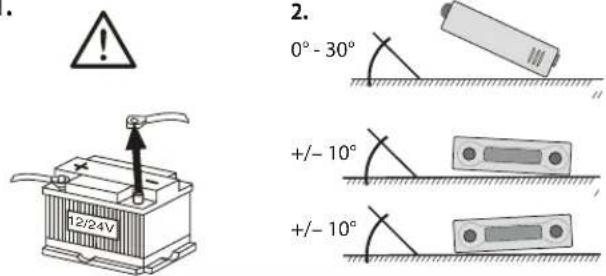
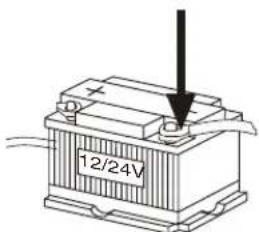
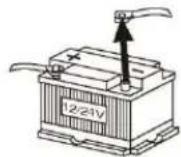
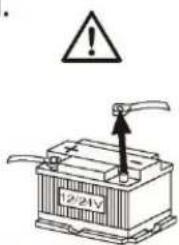
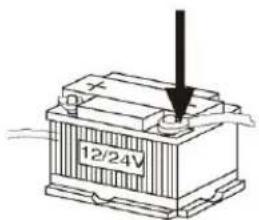
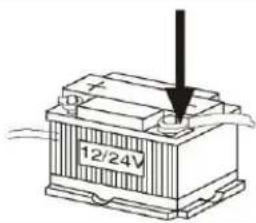
Disconnect the negative terminal of the battery! When doing so, please observe the vehicle manufacturer's safety instructions.
Make sure you do not damage vehicle components when drilling any holes.
The cross sections of the positive and negative cables must not be less than 1.5mm2 .
Do not connect the vehicle's plug connectors to the radio!
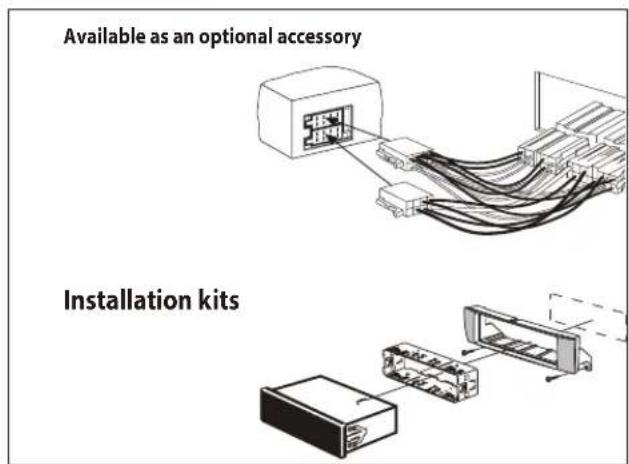
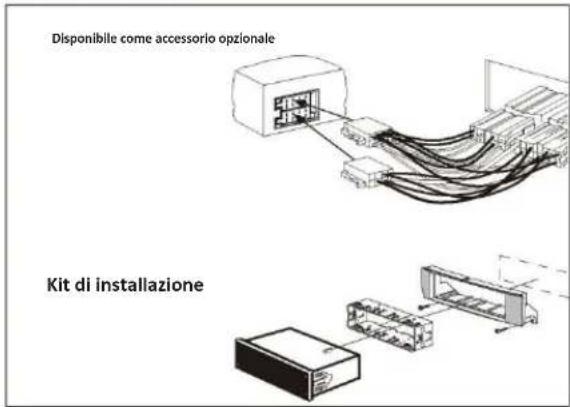
You can obtain the adapter cable required for your vehicle type from any BLAUPUNKT dealer.
Depending on the model, your vehicle may differ from the description provided here. We accept no responsibility for any damages due to incorrect installation or connection or for any consequential damages.
If the information provided here is not suitable for your specific installation requirements, please contact your Blaupunkt dealer, your vehicle manufacturer or our telephone hotline.
When installing an amplifier, you must first connect the device earth connections before connecting the plugs for the line-out jacks.
Earth connection of external devices may not be connected to earth of car sound system (housing).




Installation instructions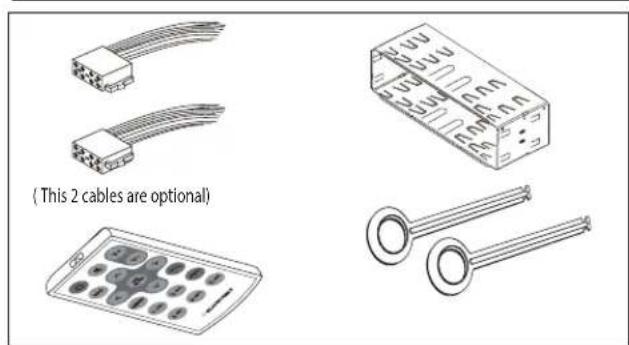
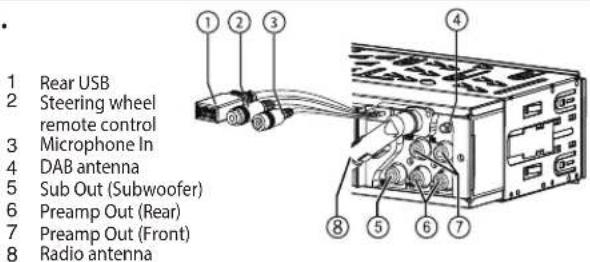
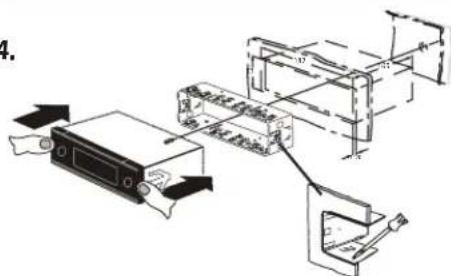



Installation instructions
5.


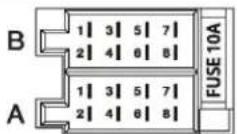
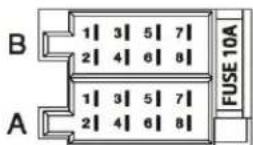
| A | B |
| 1 NC 1 Speaker out RR+ | | |
| 2 Telephone Mute 2 Speaker out | RR- | |
| 3 NC 3 Speaker out RF+ | | |
| 4 Permanent +12V 4 Speaker out | RF- | |
| 5 Auto antenna* 5 Speaker out LF+ | | |
| 6 Illumination 6 Speaker out LF- | | |
| 7 KI.15/Ignition 7 Speaker out LR+ | | |
| 8 Ground 8 Speaker out LR- | | |
* Switched power supply +12 V / max. 150 mA
max. USB power: 5V/1A
max. ANT. power (DAB): 12V/200mA




Controls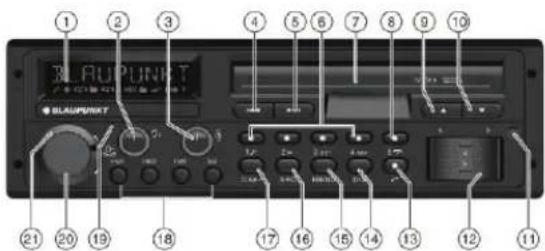
Sound settings
1.

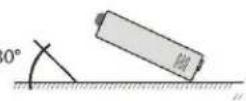
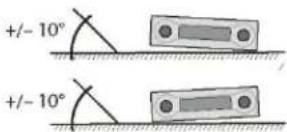
3.
1 USB rear
DAB mode
Radio operation
AM (MW): 530-1,710 kHz



Bluetooth®
AM (MW): 531 - 1,602 kHz
AM (MW): 530 - 1,710 kHz
AM (MW): 530 - 1,710 kHz
FM frequency response: 30 - 15,000 Hz
Four channels: 4 V
Input sensitivity
MIC: 300 mV/10 kΩ
Volume control I DAB mode
Sound settings I User settings
EQ BASS
SERVICE SCAN





Radio mode | PTY mode
Bluetooth*
Bluetooth®
AM (MW): 531 - 1602 kHz
Band in USA:
FM:
87.7-107.9 MHz
AM (MW): 530-1710 kHz




Assembly instructions
5.

AM (MW): 531 - 1,602 kHz
Bands in the USA:
FM: 87.7-107.9 MHz
AM (MW): 530-1,710 kHz
AM (MW): 530-1,710 kHz




Assembly instructions
Bluetooth®
NORMSET (reset)
AM (MW): 531 - 1602 kHz
AM (MW): 530 - 1710 kHz




AM (MW): 531 - 1602 kHz
Bands in the USA:
FM: 87.7-107.9 MHz
AM (MW): 530 - 1710 kHz
Bands in South America:
FM: 87.5-107.9 MHz
AM (MW): 530-1710 kHz





Evo-Sales GmbH
Hastenbecker Weg 33