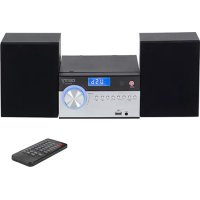
CR 1173 - Hi-fi system CAMRY - Free user manual and instructions
Find the device manual for free CR 1173 CAMRY in PDF.



| Product type | Hi-fi system with CD player, FM radio, Bluetooth, USB, auxiliary input |
| Brand | Camry |
| Model | CR 1173 |
| Power supply | 230 V~ 50 Hz (mains plug) |
| Backup batteries | 2 AAA batteries (not included) |
| Remote control | CR2025 3V lithium battery (included) |
| Speaker power | 2 x 5 W (RMS), max. 28 W |
| FM radio | Range 87.5 – 108.0 MHz, 50 kHz step, wire antenna |
| CD player | Audio CD, CD-R/RW, MP3 (plays discs up to 32 programmed tracks on CD, 99 on MP3) |
| Bluetooth | Version unspecified, typical range 10 m, PIN code 0000 for pairing |
| Auxiliary input | 3.5 mm stereo jack (AUX IN) |
| USB port | MP3 file playback, compatible with FAT16/FAT32 |
| Headphone output | 3.5 mm stereo jack |
| Equalizer | 4 preset modes (EQ) via remote control |
| Timer | Alarm (wake-up) and sleep (up to 90 min) |
| Display | LCD screen |
| Dimensions (approx.) | Approximately 260 x 140 x 230 mm (W x H x D) – estimate |
| Weight (approx.) | Approximately 2.5 kg – estimate |
| Care and cleaning | Unplug before cleaning, use a soft dry cloth, avoid water and solvents |
| Safety | Do not expose to moisture, do not open, use only indoors, keep out of reach of unsupervised children |
| Spare parts and repairability | Have repaired by an authorized professional, do not open yourself, spare parts not listed |
| General information | Class 2 device (electrical insulation), CE marking, compliant with LVD and EMC directives |
Frequently Asked Questions - CR 1173 CAMRY
User questions about CR 1173 CAMRY
0 question about this device. Answer the ones you know or ask your own.
Ask a new question about this device
Download the instructions for your Hi-fi system in PDF format for free! Find your manual CR 1173 - CAMRY and take your electronic device back in hand. On this page are published all the documents necessary for the use of your device. CR 1173 by CAMRY.
USER MANUAL CR 1173 CAMRY
natural_image
Black and white photo of a Canry audio recording device with two speakers, a digital display, and a remote control (no visible text or symbols on main components)CR 1173
SAFETY CONDITIONS IMPORTANT INSTRUCTIONS ON SAFETY OF USE PLEASE READ CAREFULLY AND KEEP FOR FUTURE REFERENCE
The warranty conditions are different, if the device is used for commercial purpose.
- Before using the product please read carefully and always comply with the following instructions. The manufacturer is not responsible for any damages due to any misuse.
- The product is only to be used indoors. Do not use the product for any purpose that is not compatible with its application.
- The applicable voltage is 230V, \~50Hz. For safety reasons it is not appropriate to connect multiple devices to one power outlet.
- Please be cautious when using around children. Do not let the children to play with the product. Do not let children or people who do not know the device to use it without supervision.
5.WARNING: This device may be used by children over 8 years of age and persons with reduced physical, sensory or mental capabilities, or persons without experience or knowledge of the device, only under the supervision of a person responsible for their safety, or if they were instructed on the safe use of the device and are aware of the dangers associated with its operation. Children should not play with the device. Cleaning and maintenance of the device should not be carried out by children, unless they are over 8 years of age and these activities are carried out under supervision. - After you are finished using the product always remember to gently remove the plug from the power outlet holding the outlet with your hand. Never pull the power cable!!!
- Never put the power cable, the plug or the whole device into the water. Never expose the product to the atmospheric conditions such as direct sun light or rain, etc.. Never use the product in humid conditions.
- Periodically check the power cable condition. If the power cable is damaged the product should be turned to a professional service location to be replaced in order to avoid hazardous situations.
- Never use the product with a damaged power cable or if it was dropped or damaged in any other way or if it does not work properly. Do not try to repair the defected product yourself because it can lead to electric shock. Always turn the damaged device to a professional service location in order to repair it. All the repairs can be done only by authorized service professionals. The repair that was done incorrectly can cause hazardous situations for the user.
- Never put the product on or close to the hot or warm surfaces or the kitchen appliances like the electric oven or gas burner.
- Never use the product close to combustibles.
- Do not let cord hang over edge of counter or touch hot surfaces.
- Never leave the product connected to the power source without supervision. Even when use is interrupted for a short time, turn it off from the network, unplug the power.
- In order to provide additional protection, it is recommended to install residue current
device (RCD) in the power circuit, with residual current rating not more than 30 mA. Contact professional electrician in this matter.
- Avoid getting the device wet.
- The device may only be wiped with a dry cloth. Do not use water or cleaning fluids.
- The device should be kept in a dry room.
DEVICE:
- POWER ON/OFF STANDBY INDICATOR 2.SOURCE 3.TIME SET/MEMORY BUTTON
- TUNER CHANNEL - 5.AUX IN 6.USB 7.TUNER CHANNEL +
- CD STOP BUTTON / BLUETOOTH PAIR BUTTON
- CD / BLUETOOTH PLAY / PAUSE / RADIO AUTO SEARCH BUTTON
- CD / BLUETOOTH SKIP PREVIOUS / TUNE - BUTTON
- CD / BLUETOOTH SKIP NEXT / TUNE + BUTTON
- VOLUME CONTROL KNOB 13.LCD DISPLAY
- CD DOOR OPEN / CLOSE BUTTON 15.CD DOOR 16.FM ANTENNA
- HEADPHONE JACK 18.RIGHT SPEAKER CONNECTOR 19.LEFT SPEAKER CONNECTOR
- DC POWER ADAPTOR 21. BATTERY COMPARTMENT DOOR
REMOTE CONTROL:
- POWER ON/OFF STANDBY INDICATOR 2.DISC DIRECT SEARCH BUTTON
- PROG. BUTTON 4. CD/USB TRACK DOWN OR TIME DOWN BUTTON, TUNER DOWN BUTTON.
- EQUALIZER BUTTON 6.REPEAT BUTTON 7.X-BASS BUTTON 8.TRACK DOWN BUTTON
- CD / BLUETOOTH PLAY / PAUSE / RADIO AUTO SEARCH BUTTON
- CD / BLUETOOTH SKIP PREVIOUS / TUNE - BUTTON
- CD / BLUETOOTH SKIP NEXT / TUNE + BUTTON
12.CLOCK SET 13.LCD DISPLAY 14.CD DOOR OPEN / CLOSE BUTTON - CD DOOR 16.FM ANTENNA 17. HEADPHONE JACK
- RIGHT SPEAKER CONNECTOR 19. LEFT SPEAKER CONNECTOR
- RANDOM BUTTON AND INTRO BUTTON 21.BATTERY COMPARTMENT DOOR
- BT PLAY / PAUSE BUTTON 23.VOLUM UP AN DOWN BUTTON
- CD PLAY / PAUSE BUTTON 25.CD STOP BUTTON
SYSTEM CONNECTIONS
Make sure to unplug the AC power cord is unplugged from the wall outlet before making any connections.
AC Power Connection
Plug the AC power cord into an available 230V\~50Hz AC Outlet. Make sure the plug is securely inserted into the AC outlet.
Installing the Batteries for the Battery Back-Up
- Remove the battery compartment door located on the bottom of the main unit.
- Follow the polarity markings inside the battery compartment, and insert 2 x AAA batteries (not included) into the two battery slots located in the battery compartment.
- Replace the battery door.
NOTES:
- When replacing the back-up batteries, do not disconnect the AC power cord from the wall outlet. If you do, all the current date time and alarm settings will be erased.
- If the unit will be left unplugged for a long period of time, remove the batteries to avoid any damage that may occur if the batteries leak and cause corrosion.
Remote Control
The remote control operates on one CR2025 3V lithium battery (included in the remote). To activate the remote control, remove the insulator tab inserted in the battery compartment.
If the remote operation becomes intermittent or unsatisfactory, replace the original battery with a new CR2025 3V lithium battery.
- Press down on the compartment cover, slide out the battery holder from the remote control case.
- Replace the battery making sure the battery is installed correctly. The remote will not work if the battery is installed with the wrong polarity.
CAUTION:
1.) Danger of explosion if the battery is replaced incorrectly.
2.) Replace only with the same or equivalent type battery.
3.) Insert the battery holder back into the battery slot.
- In Off (standby) mode, tap the POWER / STANDBY Button (A1,B1) on main unit or remote control to turn the unit ON. The unit will turn on, the last selected input mode icon will show on LCD display.
- To turn the unit OFF (standby), tap the Power On POWER / STANDBY Button (A1,B1) on main unit or remote control again. The LCD DISPLAY will go dim and show the current time. The standby mode indicator lights.
SETTING THE CLOCK
After plugging in the AC power, "00:00" will appear and start blinking on the LCD display.
- In Power Off (Standby) mode, press and hold the CLOCK SET Button (B13) on remote control or main unit, the 24 HOUR format "24H" will show in display.
- Tap the Previous / Next Button (B4, B18) on remote control or main unit to select 24 Hour format if necessary. Otherwise, press the CLOCK SET (B12) Button to confirm 12 Hour clock format and enter clock setup mode, Hour digits will be flashing.
- Tap the Previous / Next Button (B4, B18) on remote control or main unit to adjust the hour. Press and hold the button for fast advance / reverse setting.
Note: Make sure the hour is set so that the PM indicator is displayed correctly.
-
Press the CLOCK SET (B12) Button on remote control to confirm the hour setting, the minute digits will flash to prompt for input.
-
Tap the Previous / Next Button (B4, B18) on remote control or main unit to adjust the minute. Press and hold the button for fast advance / reverse setting.
-
Press the CLOCK SET (B12) Button on remote control again to complete the setting.
NOTE: The clock and radio station presets will need to be reset if the power is interrupted or in the event of a power outage. "00:00" will appear and start blinking on the LCD display to notify you that the power was interrupted and the clock will need to be reset. Please follow steps 1-6 above to reset the clock.
CHECKING THE CLOCK
The unit will show the current time in standby mode. To check the current time in Power ON mode, press and hold the CLOCK SET (B12) Button on main unit or remote control for 3 seconds, the current time will show for 5 seconds and then return to the previous screen.
ALARM OPERATION (REMOTE CONTROL ONLY)
SETTING THE ALARM CLOCK
This function allows the system to turn on automatically and wake you using a beeping alarm, the CD, USB or BU the RADIO.
- Press and hold the TIMER (B13) button on the remote control until the display shows "On", and the hour digits flash.
- Press the Previous / Next Button (B4, B18) buttons to adjust the hour digits, and then press the TIMER button to confirm. The minute digits will flash on the display.
- Press the Previous / Next Button (B4, B18) buttons to adjust the minute digits, and then press the TIMER (B13) button to confirm.
- When the Previous / Next Button (B4, B18) On Timer Clock set is set, the display will show "OFF" and the hour digits will flash.
- Press the Previous / Next Button (B4, B18) buttons to adjust the hour digits, and then press the TIMER (B13) button to confirm. The minute digits will flash on the display.
- Press the Previous / Next Button (B4, B18) buttons on the remote control to adjust the minute digits, and then press the TIMER button to confirm.
- Press the buttons to select CD, USB, BT or FM mode, then press the TIMER (B13) button to confirm. The display will show "VOL#" and flash.
Press the Previous / Next Button (B4, B18) buttons to adjust the volume, and then press the TIMER button to confirm.
- Press the TIMER (B13) button to select "Timer On", and the Timer is now
set.
- In standby mode, the Timer Icon will show on the display to indicate the Timer is On.
NOTE:
1.) If "Wake to CD, USB" is selected but a CD is not inserted, the alarm will default to the Beeping Alarm automatically when the alarm wake time is reached.
2.) For "Wake to Radio", the system will default to the last FM radio station listened to before switching off.
3.) The crescendo alarm will increase to the volume level you have set.
ACTIVE/DE-ACTIVE ALARM FUNCTION
- To active ALARM, tap the TIMER (B13) Button once, and the alarm icon will show on LCD display.
- Cancel the ALARM function by tapping on the TIMER (B13) Button again. The alarm icon will go off.
Wake to Radio, CD, USB or BUZZER Alarm
- When the alarm time is reached, the CD, USB or radio beeping alarm will sound for 60 minutes then shut off and reset itself for the following day (without pressing the snooze button).
- To stop the alarm immediately after it sounds, tap the POWER / STANDBY Button (A1,B1) on remote control or on main unit once. It resets itself for the following day.
- To cancel the following day alarm, tap the TIMER (B13) BUTTON once, ALARM icon goes off.
RADIO OPERATION
- Tap the POWER / STANDBY Button (A1,B1) on main unit or remote control to turn on the unit.
- Tap the SOURCE Button (A1, B11) on main unit or remote control to select FM mode, the FM radio frequency appear in display.
- To manually tune to a specific radio station, tap the Track Down, Track up (A10, A11, B8, B18) on either main unit or remote control repeatedly. Use the manual tuning method to tune in weaker stations that are bypassed during Automatic Tuning.
- To automatically tune to the next available radio station, press and hold the Track Down Button (A10, A11, B8, B18) on main unit or remote control for 1-2 seconds until frequency readout on the display begins to scan and then release the button. The tuner will stop scanning when it receives the next broadcasting station of adequate signal strength.
- Press the volume control on main unit or remote control to adjust the volume control to the desired volume level.
When listening to the FM radio, press the ST./MONO Button (B16) on remote control to switch between stereo mode and mono mode. The FM stereo icon "ST" will appear on the display if unit is in stereo mode. It is preferable to receive the program in mono when you are receiving a weak station.
HINTS FOR BEST RECEPTION:
FM - For best FM reception, the FM lead wire antenna located on the back of the unit should be fully unwrapped and extended.
NOTE: Automatic tuning depends on the signal strength of the broadcasting station, so weak stations may be skipped. You can manually tune to find the weak stations if a station gets skipped. With strong signals, the tuner may stop before it reaches the actual broadcast frequency, so you may need to manually tune for the best reception.
PRESET RADIO STATIONS
- Press the POWER / STANDBY Button (A1,B1) on main unit or remote control to turn on the unit.
- Tap the SOURCE Button (A1, B11) on main unit or remote control to select FM radio mode.
- Press and hold tap the Track Down, Track up (A10, A11, B8, B18) button on main unit or remote control until frequency readout on the display begins to scan and then release the button for auto search and program preset channels. "PROG" appears in display and flashing. Auto searching and program will stop at P01 after scan finished, "PROG" shows in display steadily.
Note: If the channels stored during the auto search & programmed preset are not ones you want saved, use the method below for the manually saving radio presets. - Tune to the desired radio station either by "manually" or "automatically" tuning method.
- Tap the PROG. (B3) on remote control, the next available preset memory number and a flashing PROG. (B3) icon will show in the LCD display. (Note: "P01" will show in the display if you are programming preset for first time)
- Tap the PRE. Button (B15, B19) on main unit or remote control to select the preset number you want to assign the station to.
- Tap the PROG. (B3) Button to confirm the setting.
- Repeat above steps 4 - 8 to preset up to 30 FM stations.
RECALLING PRESET MEMORY CHANNELS
In radio mode, recall the pre-set channels by pressing the PRE. Button (B15, B19) on remote control repeatedly.
CD PLAYER OPERATION
Note:
- This CD player will not only play commercial CDs, but also self-compiled CD-R/RW,MP3 discs. Do not attempt to play CD-ROM, CDI, VCD, DVD or computer CDs.
- MP3 is a form of compression. It is an acronym which stands for MPEG Audio Layer 3. MP3 is a type of audio code which is processed by significant compression from the original audio source with very little loss in sound quality.
- This system supports MPEG 1 Layer 3 and VBR files.
- During VBR file playback, time counter in the display may differ from its actual playback time.
- Bitrate which is supported by MP3 is 32 \~ 320 kbps
PLEASE READ THIS IMPORTANT INFORMATION:
CD mechanisms used in devices like this are designed to read all commercial CDs. It will also read self-compiled CD-R/CD-RW,MP3 discs, but it may take up to 10 seconds for the actual playback to begin. If playback does not start, it is likely due to the quality of the CD-R/RW ,MP3 disc and/or the compatibility of the CD compilation software. The manufacturer is not responsible for the playback quality of CD-R/RW ,MP3 discs.
Do not attach a label or seal to either side of the CD-R/RW,MP3 disc. It may cause a malfunction.
PLAYING A CD
- Press the POWER / STANDBY Button (A1,B1) on main unit or remote control to turn on the unit.
- Tap the SOURCE Button (A1, B11) on remote control or main unit to select CD mode and then press the Open the disc compartment.
- Place an audio CD on the center spindle with its label side facing out towards the CD DOOR. Close the disc compartment.
- Unit starts to read the disc, “---” shows in display and flashing. After few seconds, the total number of tracks show one second and then total time of the CD will be shown on the LCD DISPLAY.
- Press the PLAY / PAUSE (A9, B22) Button on main unit or remote control, PLAY indicator shows in display, the CD will start playing from first track.
- Press the volume control Adjust the volume . on main unit or remote control to adjust to the desired volume level.
- To pause playback, press the PLAY / PAUSE (A9, B22) Button on main unit or remote control. The track time will be paused and PAUSE indicator will show in display. To resume playing, press the CD PLAY / PAUSE (A9, B22) Button again.
- You can choose to play your favorite track directly by pressing either the Track Down, Track up (A10, A11, B8, B18). The LCD Display will indicate the correct track number selected.
- To locate a particular section within a track, press and hold the Track Down, Track up (A10, A11, B8, B18) until the section is found. Release the button to continue playing your selection.
- To stop playing, press the STOP (A8, B25) button.
PROCEDURE TO PLAYBACK MP3 DISC
To play back CD-R/RW,MP3
1 Press the SOURCE Button (A1, B11) on the remote control, and load an MP3 disc.
2 Press the FOLDER (B15, B19) button to select desired playback folder.
3 Select desired file to be played back by pressing the Track Down, Track up (A10, A11, B8, B18) Button.
4 Press the PLAY / PAUSE (A9, B22). Playback will start and file name will be displayed.
s In case of playback with the folder mode on, press the FOLDER (B15, B19) button, and the folder can be selected even though it is in playback/pause mode. It will continue playback/pause mode in the 1st track of the selected folder.
TO PLAY BACK USB/MP3 PLAYER WITH FOLDER
-
Press the SOURCE Button (A1, B11) on the remote control or SOURCE Button (A1, B11) repeatedly on main unit to select USB function. Connect the USB memory device that has MP3 format files on the unit. When the USB memory is connected to the main unit, the device information will be displayed.
-
Press the FOLDER (B15, B19) button to select desired playback folder. To start playback with folder mode on, go to step .
-
Select desired file to be played back by pressing the Track Down, Track up (A10, A11, B8, B18) button.
-
Press the PLAY / PAUSE (A9, B22). Playback will start and the file name will be displayed.
NOTE:
- This product is not compatible with MTP and AAC file systems from USB mass storage device or MP3 player.
This unit supports FAT16 and FAT32, but some USB storage media may not support both file systems. For details, refer to the operation manual of the USB storage device in question or contact the manufacturer.
SKIP AND SEARCH MODE
-
During Play or Pause mode, tap the Track Down, Track up (A10, A11, B8, B18) Button to go to the next track or go back to the beginning of the current track.
-
During playback, press and hold the Track Down, Track up (A10, A11, B8, B18) to search within the current track with audible high speed playback.
DIFFERENT PLAY MODES (REMOTE CONTROL ONLY)
Press the REPEAT Button (B6) on remote control repeatedly to select different of play modes when CD is playing.
When playing CD, the play modes are shown as below:
Repeat
Repeat All
Normal
REPEAT 1 - the track being played and will repeat continuously. Repeat one icon "REPEAT 1" shows in display.
REPEAT ALL - all tracks will repeat continuously. Repeat All icon "REPEAT ALL" shows in display.
RANDOM PLAY
When the RANDOM (B20) button is pressed three, the "RDM "indicator will light in the LCD display. The tracks on the disc can be played in random order automatically.
To Cancel Random Play:
Press the RANDOM (B20) button again. "RDM" indicator will disappear.
NOTE:
If you press the button during random play, you can move to the track selected next by the random operation. On the other hand, the button does not allow you to move to the previous track. The beginning of the track being played will be located.
In random play, the unit will select and play tracks automatically. (You cannot select the order of the tracks.)
INTRO PLAYBACK
-
Press INTRO (B20) on the remote control. The "INTRO (B20)" indicator will show on the display. The unit will play the first 10 seconds of each track.
-
Press INTRO (B20) on the remote control again to resume normal playback.
PLAY TRACK SEQUENCE PROGRAMMING
This function allows the tracks to be played in a programmed sequence. User can program up to 32 tracks in CD mode or 99 tracks in MP3 in any
NOTE: Program can only be set in STOP mode.
-
Tap the PROG. Button (B3) on remote control, the program number "1" shows in display, "PROG" icon and CD track number "--" also flashing in the LCD display. (Note: "1 --" will be in the display if you are programming first time).
-
Use the Track Down, Track up (A10, A11, B8, B18) on main unit or remote control to select the desired track. The track number will be shown in display.
-
Tap the PROG. Button (B3) on main unit or remote control to store the selected track in the memory, the next program number will advance one (i.e. "2") in LCD display.
-
Repeat steps 2 to 3 to store more tracks in the memory. You can store up to CD 32 track, MP3 99 tracks. Display will show "FUL" after tracks have been programmed.
-
Tap the PLAY / PAÜSË (A9, B22). on main unit or remote control to start playing the CD in the programmed sequence.
-
Press the REPEAT Button (B6) on remote control to select Repeat 1/All if necessary.
-
To stop playing, press the STOP Button (A8, B25) on main unit or remote control.
To cancel the program play, press the STOP Button (A8, B25) on main unit or remote control twice, "PROG" icon disappears from display.
BLUETOOTH OPERATION
Press the POWER / STANDBY Button (A1,B1) to turn ON the unit and follow the directions below to connect via Bluetooth.
PAIRING (Linking) a BLUETOOTH ENABLED cell phone OR OTHER BLUETOOTH ENABLED DEVICE to the Device
If the CR 1173 has never been paired with a Bluetooth device before. You need to follow the pairing instructions below to link the Device with your Bluetooth device.
-
Press the POWER / STANDBY Button (A1,B1) on main unit or remote control to turn on the unit.
-
Tap the SOURCE Button (A1, B11) on main or remote control to select Bluetooth mode, Bluetooth "bt" message appears in display and flashing.
-
If the CR 1173 has never been paired with a Bluetooth device before or cannot find the last paired device, the flashing "bt" on LCD will indicate the XXX is in search mode. You need to follow the pairing instructions below to link the Device with your Bluetooth device.
- Turn on the Bluetooth function of your Bluetooth device and enable the search or scan function to find the CR 1173.
- Select "CR 1173" from the device list when it appears on your device screen. If required, enter the pass code "0000" to pair (link) the CR 1173 with your device.
-
After successfully pairing (linking), display will change to show "bt" steadily, the Bluetooth icon also will show in display. You can begin playing music from your Bluetooth device wirelessly to the speaker.
-
After selecting your favorite song, press PLAY PAUSE (B22, A9) Button on the unit or remote control to play or pause the song.
-
Press the volume control on main unit or remote control to adjust to the desired volume level.
-
Press Track Down, Track up (B8, B9) Button on main unit or remote control to skip to previous or next song.
-
If you want to pair the Device with another Bluetooth enabled device, press and hold the PAIR (B10) Button for 3 seconds or turn off the Bluetooth function of device currently paired with Device then repeat step 3 above.
Notes:
1.) Refer to the manual of your cell phone, tablet PC, computer or other Bluetooth enabled devices for Bluetooth operation since it may vary from model to model.
2.) If your Bluetooth enabled device does not support A2DP profile, it will not play the music through the speaker, even if paired (linked).
3.) If you are pairing (linking) your computer to the unit using Bluetooth, you may need to set the speaker as your computer's default sound device.
This unit features an auxiliary audio signal input jack for connecting external audio devices like MP3 players, Digital Audio Device and listen to them through the speakers of this unit.
-
Use an audio cable (not included) with one 3.5 mm stereo plug on each end of the cable.
-
Plug one end into the AUX IN JACK (A5) on main unit and the other end of the cable into the Line-out Jack or Headphone Jack of your external audio device.
-
Turn on the unit and external audio device.
-
Tap the SOURCE Button (A1, B11) on main or remote control to select AUX mode, "AUX" icon turns on, display shows "AUX" message.
-
The volume level can now be controlled through the main unit. Operate all other functions on the auxiliary device as usual.
Note:
- If you connect this unit to the Line-Out Jack of your external device then you only need to adjust the volume control of this unit. If you connect the Headphone Jack of your external device then you may need to adjust both the volume controls of your external device and this unit to obtain the desirable volume setting.
PRESET EQ (REMOTE CONTROL ONLY)
This unit provides 4 different EQ modes to enhance your listening experience. You can select the desired effect by pressing the EQ Button (B5) on remote control repeatedly at following sequence:
- Press the MUTE Button (B21) on remote control to mute the sound output from the speaker temporarily. The "V 00" will appear in display.
- Press the MUTE Button (B21) again or VOLUME CONTROL (B23, A12) to resume the normal speaker playback.
SLEEP OPERATIONS (REMOTE CONTROL ONLY)
The sleep timer allows you to turn the unit off after a designated time is reached.
-
To activate the sleep timer, turn the unit on and tap the SOURCE Button (A1, B11) to select FM radio, CD, USB, Bluetooth or listening to music via AUX IN.
-
Tap the SLEEP button (B14) on remote control, the sleep time icon "SLEEP" appears on the display.
-
Repeatedly tap the SLEEP button (B14) to select a sleep time. The unit will turn off after 10, 20, 30, 40, 50, 60, 70, 80 or 90 minutes. Wait for 3 seconds after your selection for the unit to confirm the selection, the unit will play for the selected length of time then automatically turn off.
-
To cancel the sleep timer, tap the SLEEP button (B14) repeatedly until timer shows "OFF", the sleep time icon "SLEEP" disappears on the display
-
To turn the unit off before the selected length of time, press the POWER / STANDBY Button (A1,B1) at any time.
Notes:
1.) To check the remaining sleep time, tap the SLEEP button (B14) once.
2.) If you are falling asleep to music from an external device connected to the AUX input, the sleep timer will shut off the power to this system but it will not turn off the external device.
USING HEADPHONES (NOT INCLUDED)
Inserting the plug of your headphones into the Stereo Headphone Jack (A17) will enable you to listen to the CD or Radio music in private. When using headphones, the Built-in Speakers will be disconnected.
READ THIS IMPORTANT INFORMATION BEFORE USING YOUR HEADPHONES
-
Avoid extended play at very high volume as it may impair your hearing.
-
If you experience ringing in your ears, reduce the volume or shut off your unit.
-
Keep the volume at a reasonable level even if your headset is an open-air type designed to allow you to hear outside sounds. Please note that excessively high volume may still block outside sounds.
RESETTING
If the system does not respond or has erratic operation, you may have experienced an electrostatic discharge (ESD) or a power surge that triggered the internal computer to shut down automatically. If this occurs, unplug the AC cord from power source, wait for 60 seconds, then plug the AC cord to power source again. The unit will be reset, you need to setup the clock, alarm and preset radio channels.
CARE AND MAINTENANCE
- Do not subject the unit to excessive force, shock, dust or extreme temperature (Above 40C).
- Do not tamper the internal components of the unit.
- Clean your unit with a dry cloth. Solvent or detergent should never be used.
- Avoid leaving your unit in direct sunlight or in hot, humid or dusty places.
- Keep your unit away from heating appliances and sources of electrical noise such as fluorescent lamps or motors.
- If drop-outs or interruptions occur in the music during CD play, or if the CD fails to play at all, its bottom surface may require cleaning. Before playing, wipe the disc from the center outwards with a good soft cleaning cloth.
CLEANING THE UNIT
- To prevent fire or shock hazard, disconnect your unit from the AC power source when cleaning.
- The finish on the unit may be cleaned with a dust cloth and cared for as other furniture, Use caution when cleaning and wiping the plastic parts.
- If the cabinet becomes dusty wipe it with a soft dry dust cloth. Do not use any wax or polish sprays on the cabinet.
- If the front panel becomes dirty or smudged with fingerprints it may be cleaned with a soft cloth slightly dampened with a mild soap and water solution. Never use abrasive cloths or polishes as these will damage the finish of your unit.
CAUTION: Never allow any water or other liquids to get inside the unit while cleaning
Technical Data:
Power Requirements:
Main Unit: 230V \~ 50Hz
Remote: CR2025 3V
DISC player section
System: Compact disc and digital audio system Laser Diode Properties
Emission Duration: Continuous
Laser Output : Less than 44.6Mw (This output is the value measurement at a distance of 200mm from the objective lens surface on the Optical Pick-up Block with 7mm aperture.)
Frequency Range
FM tuner section:
Tuning range: 87.5 MHz-108.0 MHz (50 kHz step.)
Speaker Power: 2x 5W
Max: 28W
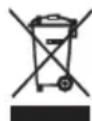
To protect your environment: please separate carton boxes and plastic bags and dispose them in corresponding waste bins. Used appliance should be delivered to the dedicated collecting points due to hazarsous components, which may effect the environment. Do not dispose this appliance in the common waste bin.
DEUTSCH
IŠANKSTINĖS RADIJO STOTYS
PRESET EQ (AINULT KAUGJUHTIMINE)
MUTE NUPP (AINULT KAUGJUHTIMINE)
UNELE TOIMINGUD (AINULT KAUGJUHTIMINE)
CONEXIUNI SISTEMULUI
PERSOANE PENTRU MAI BUNE RECEPTII
CONEXIUNI SISTEMULUI
PERSOANE PENTRU MAI BUNE RECEPTII
Gumb MUTE (SAMO DALJINSKI NADZOR)
FM / FM stereomottagning
SALTA E MODALITA RICERCA
REPEAT 1 - "REPEAT 1" .
الزر على ا Compact RANDOM (B20) " RDM " . manufacturers
:ملحوظة
natural_image
Symbol of a trash bin with crossed lines indicating no waste or restriction, no text presentPRESET EQ (TYLKO PILOT)
3: Input AC frequency
4: Output voltage
5:Output current
6: Output power
7: Average active efficiency
8:Efficiency at low load (10 %)
9: No-load power consumption
1: Modellkennung
2: Eingangsspannung
1: identificator model

- CR 1173
- SAFETY CONDITIONS IMPORTANT INSTRUCTIONS ON SAFETY OF USE PLEASE READ CAREFULLY AND KEEP FOR FUTURE REFERENCE
- DEVICE:
- REMOTE CONTROL:
- SYSTEM CONNECTIONS
- Installing the Batteries for the Battery Back-Up
- NOTES:
- Remote Control
- SETTING THE CLOCK
- CHECKING THE CLOCK
- ALARM OPERATION (REMOTE CONTROL ONLY)
- SETTING THE ALARM CLOCK
- NOTE:
- ACTIVE/DE-ACTIVE ALARM FUNCTION
- Wake to Radio, CD, USB or BUZZER Alarm
- RADIO OPERATION
- HINTS FOR BEST RECEPTION:
- PRESET RADIO STATIONS
- RECALLING PRESET MEMORY CHANNELS
- CD PLAYER OPERATION
- PLEASE READ THIS IMPORTANT INFORMATION:
- PLAYING A CD
- PROCEDURE TO PLAYBACK MP3 DISC
- To play back CD-R/RW,MP3
- TO PLAY BACK USB/MP3 PLAYER WITH FOLDER
- SKIP AND SEARCH MODE
- DIFFERENT PLAY MODES (REMOTE CONTROL ONLY)
- Repeat
- RANDOM PLAY
- INTRO PLAYBACK
- PLAY TRACK SEQUENCE PROGRAMMING
- BLUETOOTH OPERATION
- PRESET EQ (REMOTE CONTROL ONLY)
- SLEEP OPERATIONS (REMOTE CONTROL ONLY)
- USING HEADPHONES (NOT INCLUDED)
- READ THIS IMPORTANT INFORMATION BEFORE USING YOUR HEADPHONES
- RESETTING
- CARE AND MAINTENANCE
- CLEANING THE UNIT
- DEUTSCH
- IŠANKSTINĖS RADIJO STOTYS
- PRESET EQ (AINULT KAUGJUHTIMINE)
- MUTE NUPP (AINULT KAUGJUHTIMINE)
- UNELE TOIMINGUD (AINULT KAUGJUHTIMINE)
- CONEXIUNI SISTEMULUI
- PERSOANE PENTRU MAI BUNE RECEPTII
- FM / FM stereomottagning
- SALTA E MODALITA RICERCA
- PRESET EQ (TYLKO PILOT)
Brand : CAMRY
Model : CR 1173
Category : Hi-fi system