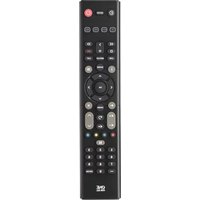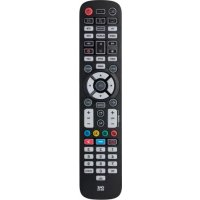
Essential 6 URC 3661 - Remote control ONE FOR ALL - Free user manual and instructions
Find the device manual for free Essential 6 URC 3661 ONE FOR ALL in PDF.



User questions about Essential 6 URC 3661 ONE FOR ALL
0 question about this device. Answer the ones you know or ask your own.
Ask a new question about this device
Download the instructions for your Remote control in PDF format for free! Find your manual Essential 6 URC 3661 - ONE FOR ALL and take your electronic device back in hand. On this page are published all the documents necessary for the use of your device. Essential 6 URC 3661 by ONE FOR ALL.
USER MANUAL Essential 6 URC 3661 ONE FOR ALL
Essential 6 Device Universal Remote Control URC3661
ENGLISH 2
DEUTSCH 14
FRANÇAIS 26
ESPAÑOL 38
ITALIANO 50
PORTUGUÊS 64
NEDERLANDS 64
DANSK 65
NORSK 65
SVERIGE 65
SUOMI 66
ΕΛΛΗΝΙΚΑ 66
РУССКИЙ 67
TÜRKÇE 67
POLSKI 68
ČESKY 68
MAGYAR 69
БЪЛГАРСКИ 69
ROMÂNĂ 70
SLOVENSKY 70
HRVATSKI 71
CODELIST 72
text_image
SETUP TV STREAM STB AUDIO BLURAY DVD SUBT. APPS LIST INFO GUIDE MENU OK HOME EXIT VOL + - CH - 1 2 3 4 5 6 7 8 9 TV 0 SEARCH ONE FOR ALL

natural_image
Color palette bar with grayscale and red sections, no text or symbols presentINTRODUCTION
Thank you for purchasing the One For All Essential 6 Device Universal Remote Control. The remote can be used to control up to 6 Audio Video Devices such as a TV, Set Top Box, Blu-ray Player or Sound Bar.
The remote also features a backlight for easy control in a darkened room, as well as antimicrobial protection.
This manual will help you to set up the Essential 6 to control all of your devices.
BATTERIES
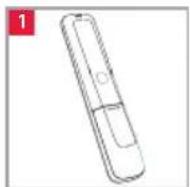
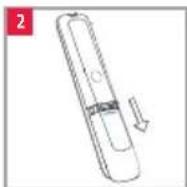
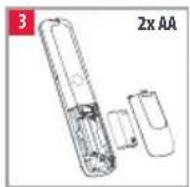
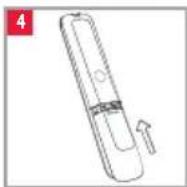
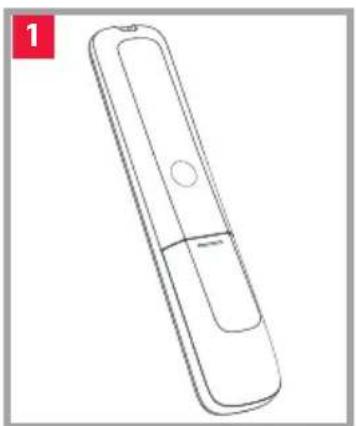
Your remote requires 2 x AA / LR06 batteries. Please insert them as shown below. Alkaline batteries are recommended.
natural_image
Line drawing of a mobile phone with a handle and circular button (no text or symbols)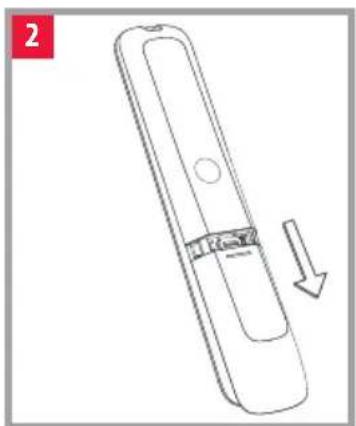
natural_image
Line drawing of a remote control device with a handle and arrow indicating rotation (no text or symbols)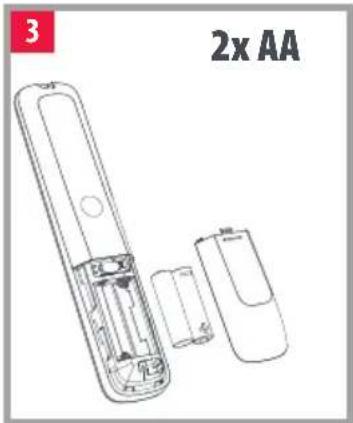
text_image
3 2x AA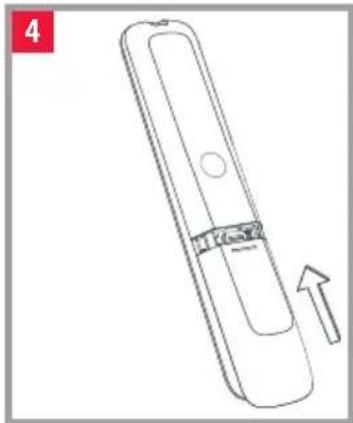
natural_image
Line drawing of a remote control device with an arrow indicating motion (no text or symbols)
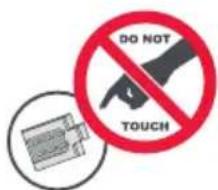
CAUTION: Risk of explosion if battery is replaced by an incorrect type. Use quality Alkaline batteries.
text_image
DO NOT TOUCH
natural_image
Color palette bar with grayscale swatches and a red horizontal bar at the bottom (no text or symbols)KEY DESCRIPTIONS
text_image
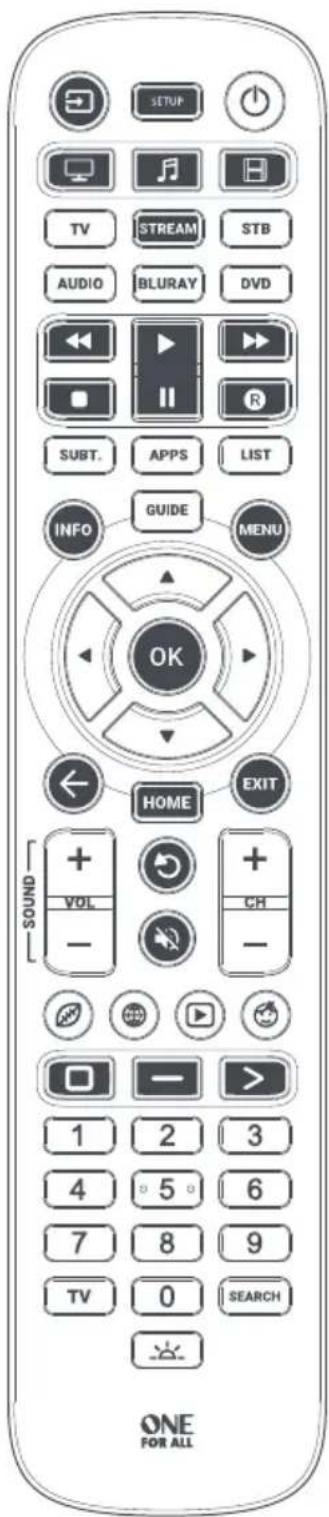
2 1 5 TV STREAM STB AUDIO BLURAY DVD 6 8 7 SUBT. APPS LIST 9 10 INFO GUIDE MENU 12 13 OK 14 HOME EXIT 16 15 17 + + VOL CH - - 19 21 22 23 24 TV 0 SEARCH 25 26 ONE FOR ALL3
KEY DESCRIPTIONS
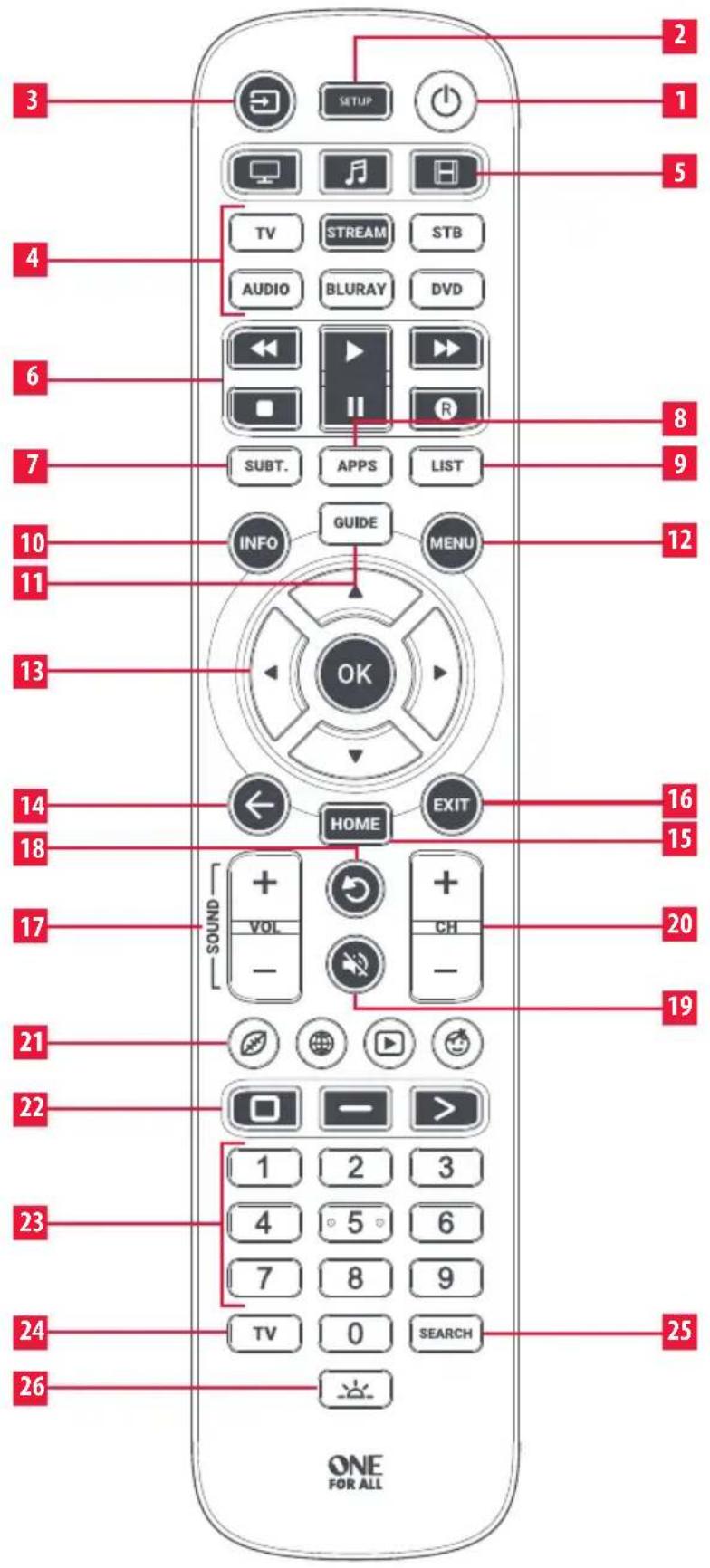
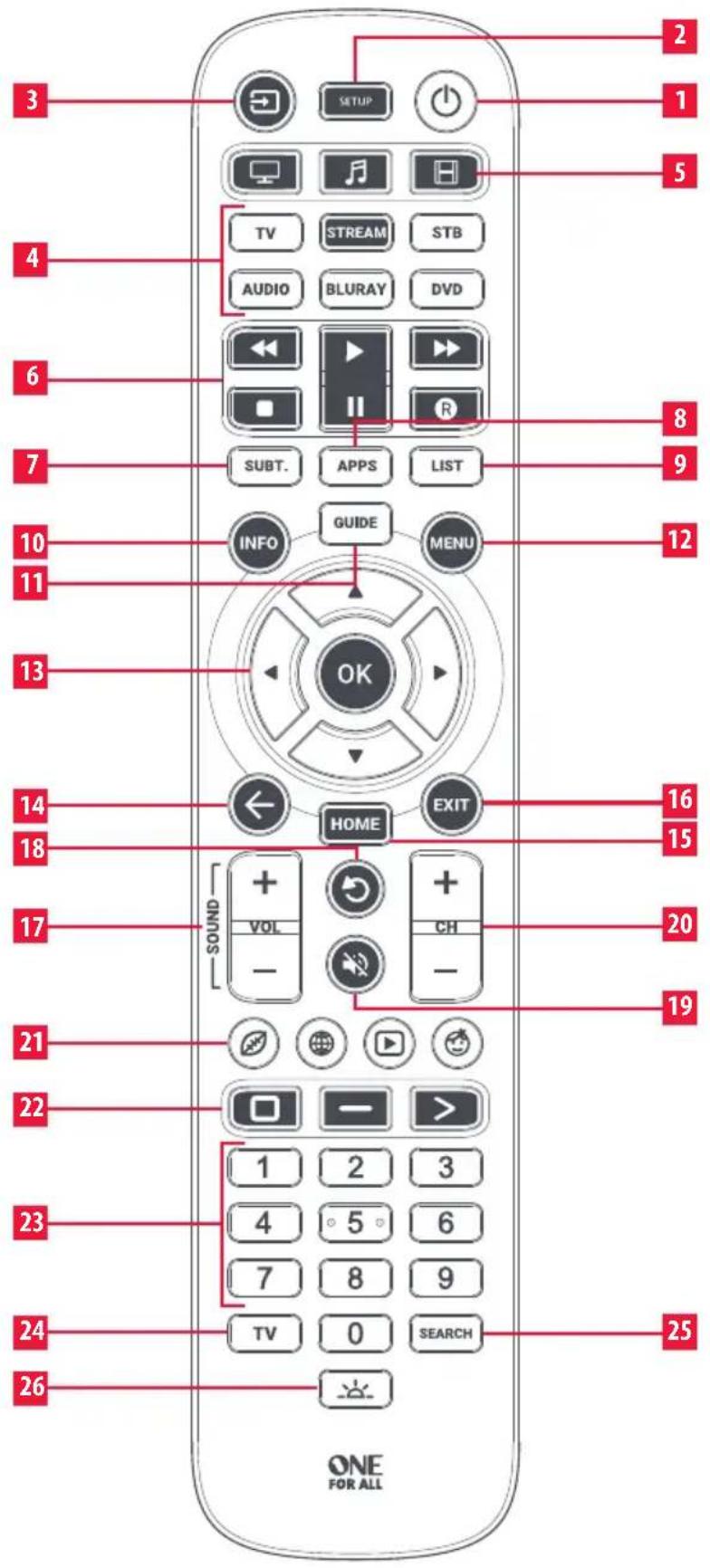
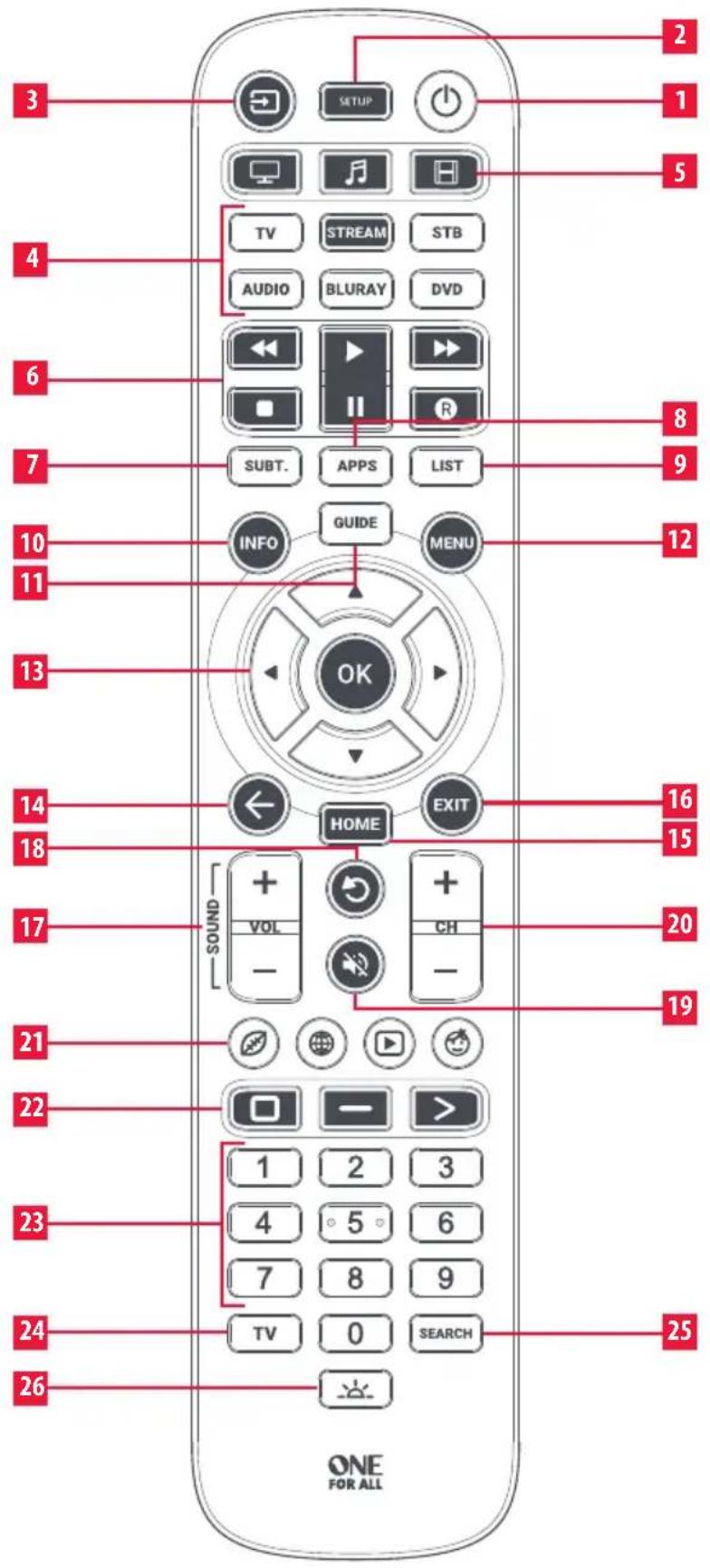
1 Power Switches your devices on and off.
2 Setup This key is used to set up the Essential remote.
3 Input Used to select Input on devices.
4 Device keys These keys are used to select which device the Essential 6 currently controls. After pressing the TV key, the remote will control your TV. To switch to controlling another device, simply press the appropriate key. The devices that can be programmed to each key are as follows:
TV: All televisions such as LED, LCD, Plasma, OLED etc.
STREAM: Streaming devices such as an Apple TV, Roku Box, Foxtel Now etc. Also works Xbox 360 and Xbox One.
STB: Set Top Boxes, including Satellite, Cable and Freeview.
AUDIO:Audio devices including Sound Bars, AV Receivers and Hi-Fi.
BLURAY: Blu-ray Players and DVD Players / Recorders DVD: DVD Players / Recorders and Blu-ray Players.
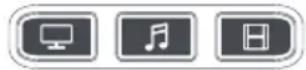
5 Activities Control up to 3 of your devices in one mode, Watch TV, Listen To Music and Watch Movie – See "Activities" for how to set up and use.
6 Playback Keys Control the playback of movies, music and TV.
7 Subtitle Display subtitles.
8 Apps
Brings up the Applications menu on Smart Devices such as Smart TVs or Streaming boxes.
9 List Displays a list of recorded programmes.
10 Info Displays information about the current programmes or channel.
11 Guide TV Guide.
12 Menu Access the installation menu of the current device.
13 Menu Directions and OK
Control the menu of the current device.
14 Back Back one step in the Menu.
15 Home Displays the Home Menu.
16 Exit Exits the menu.
17 Volume Up and Down
Control the volume of the current device. You can also set up these keys to always control one device. For details see the Volume Lock feature.
18 Last Channel Changes to the last channel viewed.
19 Mute Mutes the volume of the current device. You can also set up this key to always control one device. For details see the Volume Lock feature.
20 Channel Up & Down
Change channels on the current device.
21 RGYB keys Quick access buttons for the menu of the current device.
22 App Shortcut Keys
Keys for starting streaming apps. See the App Shortcut Keys section for details.
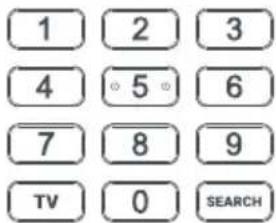
23 Digits Select channels on the current device. On Audio devices, these keys will select individual inputs.
24 TV Return to live TV.
25 Search Searchformedia.
26 Backlight On / Off Turns the backlight on or off. When on, any key press will activate the backlight for 10 seconds. Press this key to turn the backlight off and again to turn back on.



natural_image
Color palette bar with grayscale swatches and a red horizontal bar at the bottom (no text or symbols)SETUP
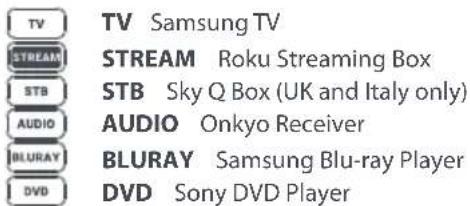
The Essential 6 remote is pre-programmed to control some of the most popular devices out of the box. If you have one of the following devices try the putting the batteries in and pressing the device key, and then press a few keys to see if the remote works your device:
Device Key To Press Device controlled
text_image
TV Samsung TV STREAM Roku Streaming Box STB Sky Q Box (UK and Italy only) AUDIO Onkyo Receiver BLURAY Samsung Blu-ray Player DVD Sony DVD PlayerIf your device is not one of those listed above, or you have extra devices to set up, there are 2 ways to do this. The easiest is SimpleSet which is used for the common brands and devices.
SIMPLESET
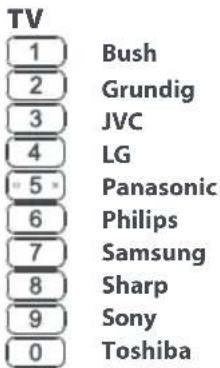
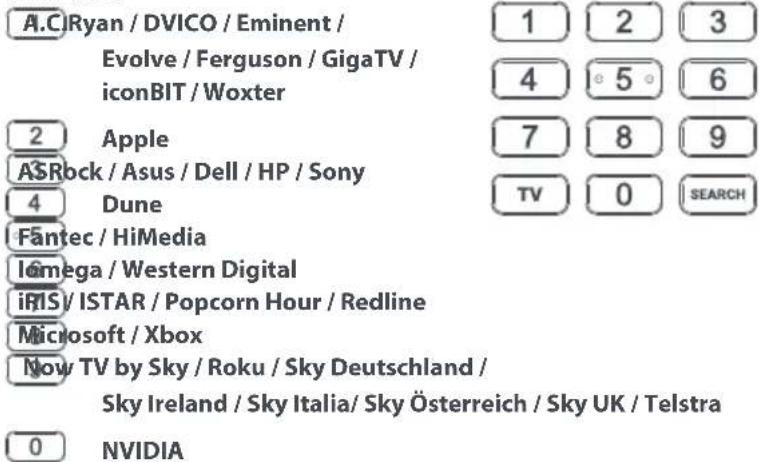
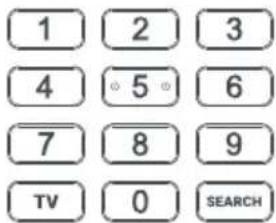
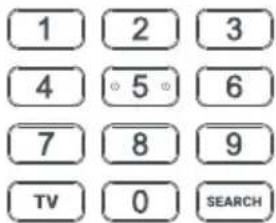
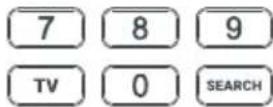
If the brand of your device is shown in the SimpleSet picture pointing to a key, you can use the SimpleSet system described in this section, please locate the brand of your device and note the key associated with it.

text_image
TV 1 Bush 2 Grundig 3 JVC 4 LG 5 Panasonic 6 Philips 7 Samsung 8 Sharp 9 Sony 0 Toshiba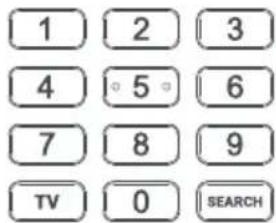
text_image
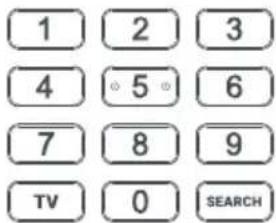
1 2 3 4 5 6 7 8 9 TV 0 SEARCH
STREAM
text_image
A.CIRyan / DVICO / Eminent / Evolve / Ferguson / GigaTV / iconBIT / Woxter 1 2 3 4 5 6 2 Apple 7 8 9 ASRock / Asus / Dell / HP / Sony 4 Dune TV 0 SEARCH Fantec / HiMedia Iomega / Western Digital iRIS / ISTAR / Popcorn Hour / Redline Microsoft / Xbox Now TV by Sky / Roku / Sky Deutschland / Sky Ireland / Sky Italia/ Sky Österreich / Sky UK / Telstra 0 NVIDIA
natural_image
Color palette bar with grayscale shades and a red horizontal bar at the bottom (no text or symbols)SETUP
SIMPLESET
STB
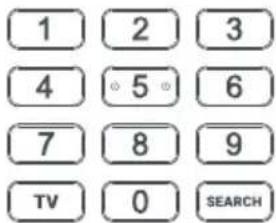
BT/Humax/TalkTalk/Tricolor TV /YouView
text_image
1 2 3 4 5 6 7 8 9 TV 0 SEARCHCanal+ / CanalSat / Deutsche Telekom / Movistar / T-Home
DStv / Foxtel / Multichoice / Sky New Zealand
To set up your device:
-
Turn on your device (not on standby) and point the Essential remote towards it. If you are setting up a Streaming device, make sure a movie or TV show is playing.
-
Press the Device key you wish to set up (for example TV).
-
Hold in the Setup key until the LED under the Device key blinks twice.
SETUP
SIMPLESET
-
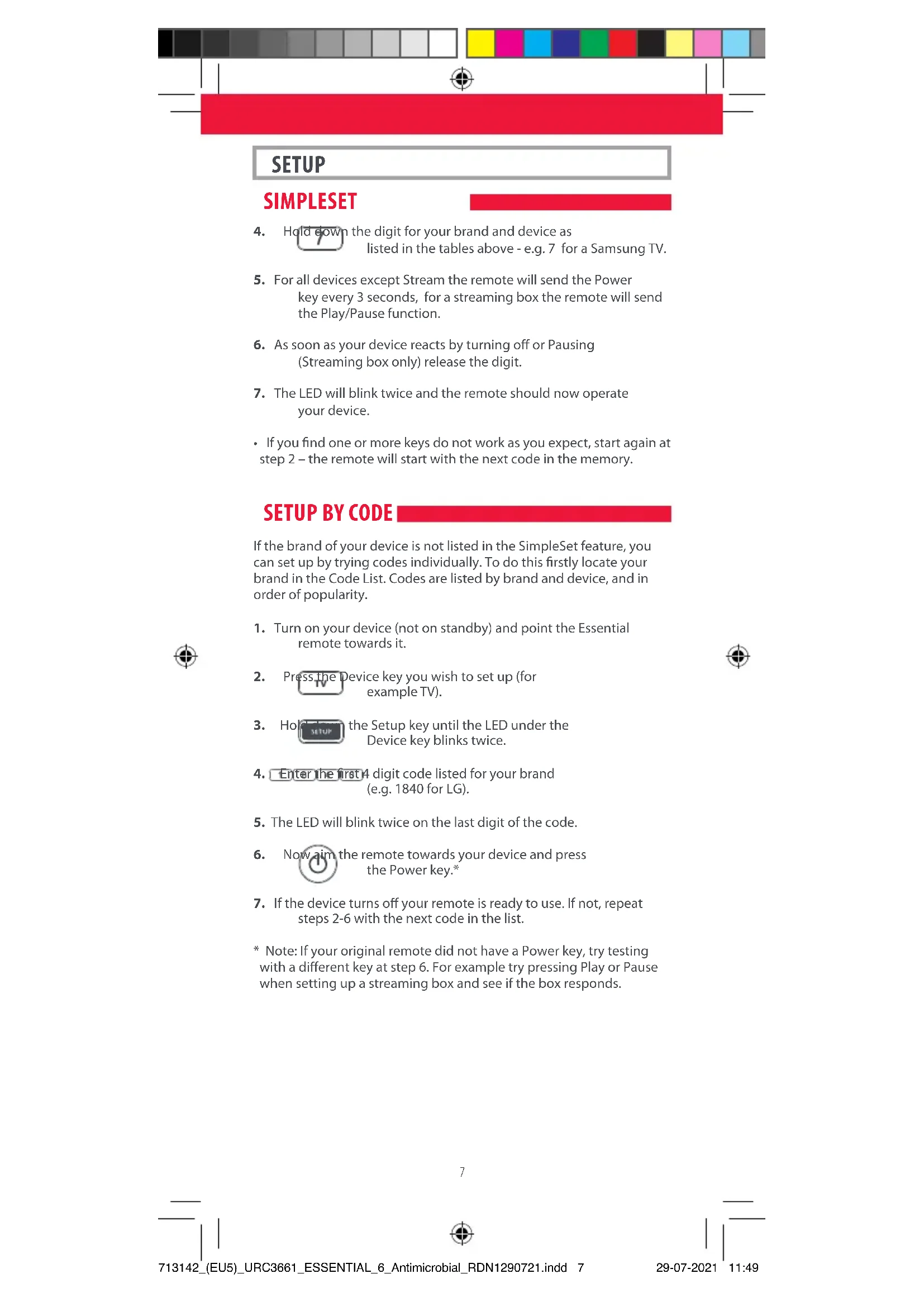
Hold down the digit for your brand and device as listed in the tables above - e.g. 7 for a Samsung TV.
-
For all devices except Stream the remote will send the Power key every 3 seconds, for a streaming box the remote will send the Play/Pause function.
-
As soon as your device reacts by turning off or Pausing (Streaming box only) release the digit.
-
The LED will blink twice and the remote should now operate your device.
- If you find one or more keys do not work as you expect, start again at step 2 – the remote will start with the next code in the memory.
SETUP BY CODE
If the brand of your device is not listed in the SimpleSet feature, you can set up by trying codes individually. To do this firstly locate your brand in the Code List. Codes are listed by brand and device, and in order of popularity.
-
Turn on your device (not on standby) and point the Essential remote towards it.
-
Press the Device key you wish to set up (for example TV).
-
Hold the Setup key until the LED under the Device key blinks twice.
-
Enter the first 4 digit code listed for your brand (e.g. 1840 for LG).
-
The LED will blink twice on the last digit of the code.
-
Now aim the remote towards your device and press the Power key.*
-
If the device turns off your remote is ready to use. If not, repeat steps 2-6 with the next code in the list.
* Note: If your original remote did not have a Power key, try testing with a different key at step 6. For example try pressing Play or Pause when setting up a streaming box and see if the box responds.

natural_image
Color palette bar with grayscale and red sections, no text or symbols presentSETUP
LEARNING
Your Essential remote control can learn any function from any other working remote control. This is a quick and easy one-time setup that allows to control any infrared controlled device you have in your living room. It also allows you to add a key or keys that may be missing to a spare key on the Essential.
To do this, firstly make sure you have all your original remote controls to hand, and that they have working batteries in.
To learn functions, the original remote should be approximately 3cm from the Essential remote, pointing towards it:
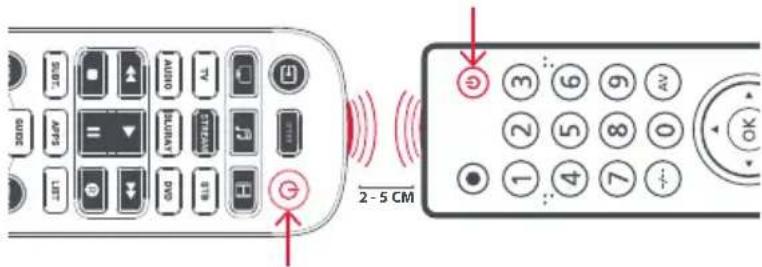
text_image
2-5 CM- Press the Device key for the device you want to learn functions onto.
- Hold in the Setup key until the LED under the Device key blinks twice.
- Press 975-5 the LED should blink twice.
- Press and release the key you want to learn a function onto (for example the TV Power key) – the LED will begin to flash rapidly.
- Press and release* the corresponding key on the original remote, for example Power.
- The LED will blink twice to indicate the key has been learned correctly.
- Repeat steps 4 and 5 for each key you want to learn – remember you can learn from multiple remotes, but only one function per key.
- With setup have learned all the functions you require, press and hold Setup key until the LED blinks twice.
* Some remotes send commands differently. If you find a function cannot be learned, try holding down the key on the original remote instead of pressing and releasing.
Hints:
- If the LED shows one long blink at step 5, the function was not learned correctly, please try again from step 4.
- If you find one or more keys don't work properly after set up, you can re-enter the learning mode at any time by repeating the procedure from step 1.
- If one or more of your original remotes aren't working, you can still set up the Essential remote by SimpleSet or Code Set Up.

natural_image
Color palette bar with grayscale swatches and a red horizontal bar at the bottom (no text or symbols)SETUP
Deleting a learned function
If you want to delete a learned function and return that keys to its original state, you can use the following procedure:
-
Press the Device key for the device you want to learn functions onto.
-
Hold the Setup key until the LED under the Device key blinks twice.
-
Press 976 - the LED should blink twice
-
Press the key you want to reset twice – the LED should blink twice and the learned function has been deleted.
VOLUME LOCK
If you primarily use one device for controlling volume, for example a Sound Bar or Audio Video Receiver, it's possible to program your Essential remote to only control that device when you use the Volume Up, Down and Mute keys. To do this:
-
Hot down the Setup key until the LED under the Device key blinks twice.
-
Press 993 the LED should blink twice.
-
Press the device key for the device to always control volume – for example Audio.
-
The LED will blink twice.
From now on, pressing the Volume Up, Down or Mute keys will always control the Audio device, no matter what device you are controlling.
To unlock the volume, and return the remote to controlling each device's volume individually, the procedure is:
-
Hold down the Setup key until the LED under the Device key blinks twice
-
Press 993 - the LED should blink twice
-
Press VOLUME DOWN – the LED will blink four times and Volume is now unlocked.
CHANNEL SHORTCUT MACROS


As well as their normal functionality, the Red, Green, Yellow and Blue keys can be reprogrammed to select your favourite channels by genre. If you press and release each of these keys, they will perform exactly the same function as your original remote.
However they can be reprogrammed so that when they are held down for 3 seconds they will send a channel number, then when held down again for 3 seconds, they will send a different channel number. You can group these channels by genre such as Sports, News, Movies and Kids.
The procedure to program is as follows: Say for example, the first
3 Sports channels are on channels 200, 201 and 239, you can assign shortcuts to these channels on the Red (Sports) key. To do this:
Firstly select the device you use to watch live TV. For example if you are a Sky subscriber and you have set up your Set Top Box on the STB key, press STB. Now you can program the channel shortcuts.
- 下down the Setup key and the Red key until the LED blinks twice.
- Enter the first channel number (200).
- Press and release the Red key.
- 2 0 1 Enter the next channel number (in this example 201)
- Repeat Steps 3 and 4 for each channel shortcut you want to add.
- After entering the last channel number you want, press and hold the Setup key.
The LED will blink twice and the shortcuts are now programmed. When watching live TV, simply hold down the Red key for 3 seconds, and the first Channel Shortcut will be sent (in this example channel 200). The next time you hold down the Red Key, the shortcut for the next Channel Shortcut will be sent (in this case channel 201).
You can reprogram each of the different colour keys with different lists of channel numbers, by holding down the Setup key and a different coloured key at step 1, and pressing and releasing the same key at step 3. Each coloured key has a different name to help you remember the channels that you have stored there. You can program up to 10 different channel numbers per key.


If you wish to reset the key to default, the procedure is as follows:
- Press the device key you have programmed the shortcuts on (for example STB).
- Hold-down the Setup key and the key you wish to reset (for example the Green key) until the LED blinks twice.
- Press and release the key to reset (for example the Green key).
- Hotdown the Setup key until the light blinks twice.
The key is now reset.
APP SHORTCUT KEYS
The Essential features three App Shortcut Keys which can be used to open apps on your Smart Devices. If your original remote control has a Netflix, Amazon Prime Video or YouTube key, these keys will perform the same function.
However if you did not have a key like this, but still had the ability to watch a streaming service, you can use this key as a shortcut by programming a macro on it. Most AV devices which are connected to the internet, such as Smart TVs or streaming Set Top Boxes have one or more applications they can run to access TV viewing via the internet. Examples of these would be Netflix, YouTube, Amazon Prime or similar.
To program the macro, you first need to know the device you use to access the service, and then the sequence of keys you need to press to always bring up the service you prefer. For example, some Panasonic TVs will start Netflix by pressing the Apps key, then Menu Down Twice, and finally the OK key. Or on an Apple TV, the sequence is Menu, Menu Down and OK.
Once you have determined the sequence for your device, follow these steps:
- Sit in front of your device with It switched on (not on standby).
- Hold down the App Shortcut key until the LED blinks twice and stays lit.
- Preset device key for the device you want to use STREAM for the macro (e.g. Stream).
- Now perform the sequence of keys exactly as would normally. The remote will operate your device and the macro is recorded in real time - so if it normally takes a few seconds for your device to react don't worry.
- One you have finished the sequence - and the
Streaming Service has started on your device - hold down the App Shortcut key until the LED blinks twice and goes out. The macro is now stored. - Make sure the Essential remote Is operating the device in question before programming.
- If you find the Macro doesn't work as expected, you can just repeat the same sequence to reprogram.
- When programming, wait for your device to respond first, the remote will remember the timing.
- The App Shortcut macro is tied to one device, remember to make sure you are watching the correct device.

Tips
ACTIVITIES
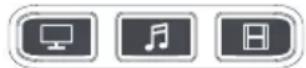
An Activity is a combination of devices. On a standard universal remote control if you want to control different devices you need to swap between them using the device keys. So you wanted to control the input of your TV, the channels and guide of your Sky box and the volume of your sound bar, you would need to swap between these by pressing the TV, STB and Audio keys.
On the Essential remotes these devices can be grouped into one Activity mode, so after pressing watch TV, the Input key will control the TV, the Volume Up, Down and Mute will control the Sound Bar and the other keys will control the Set Top Box.

natural_image
Color palette bar and a red horizontal bar with a crosshair symbol (no text or labels)The Essential remote has 3 Activity modes, specifically Watch TV, Listen To Music and Watch Movie.
Each of these modes has a choice of devices to combine.
These are:
Watch TV

Combination 1 - TV + STB + AUDIO (default)
Combination 2 - TV + STB
Combination 3 - TV + AUDIO
Listen To Music

Combination 1 - TV + BLU + AUDIO (default)
Combination 3 - TV + STREAM + AUDIO
Combination 5 – AUDIO only

Watch Movie
Combination 1 - TV + STREAM + AUDIO (default)
Combination 2 - TV + STREAM
Combination 3 - TV + BLU
Combination 4 - TV + BLU + AUDIO
If you set the default devices for any Activity on the remote (for example a TV, STB and Audio for Watch TV) that Activity will be set up automatically on the remote.
If you would like to change to a different combination, the procedure is as follows:

- Hold setup key until the LED under the device blinks twice. The LED under the current device will stay lit.
- Press the Activity key you want to set up (e.g. Watch TV).
- Press the number of the combination you want to set - e.g 3 For TV + AUD in Watch TV.
- The LED will blink twice and go out.
To access the Activities, simply press the ACTIVITY key. You can return to controlling by device by using any Device key.

natural_image
Color palette bar with grayscale swatches and a red horizontal bar at the bottom (no text or symbols)AV SHIFT
As the AV key is intended to select the input on your TV and most TVs use a menu to select from a list of inputs, when the AV key is pressed in an Activity, the Menu Up, Down, Left, Right and OK keys temporarily control the TV. If the OK key is pressed, or no key is pressed for ten seconds, these keys will revert to controlling the relevant device for the Activity (e.g. STB in Watch TV Mode).
POWER MACRO
If you hold down the Power key for 2 seconds in any Activity, the remote will send the Power function for each device contained within that Activity. So for example, holding Power in the default setting for Watch TV will turn both the TV and Set Top Box on or off


text_image
protected by Sterilouch® A RADICAL MATERIALS BRAND
text_image
QR code image containing encoded data, no visible human-readable textThis Remote contains SteriTouch®. It will be protected from the growth of bacteria, fungi and mold for its usable lifetime. Please scan the QR code or visit www.oneforall.com/antimicrobial for more information on antimicrobial protection and SteriTouch silver ion technology.
This product contains silver phosphate glass, a biocidal product which controls the growth of micro-organisms on the product surface.
This product does not contain nanomaterials. The inclusion of a biocidal product does not negate the need for normal cleaning.
Connect with us


facebook.com/ @oneforall.worldwide linkedin.com/ youtube.com/ oneforalworldwide company/one-for-all-worldwide/user/oneforal products

natural_image
Color palette bar with grayscale swatches and a red horizontal bar at the bottom (no text or symbols)DEUTSCH EINFÜHRUNG
natural_image
Line drawing of a remote control device with a handle and circular button (no text or symbols)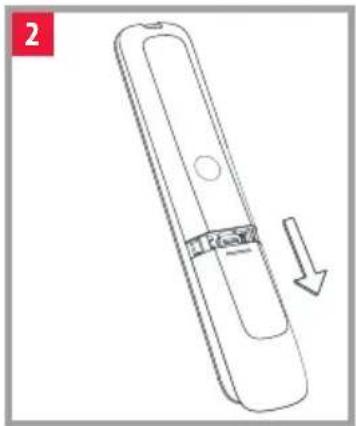
natural_image
Line drawing of a remote control device with a scroll wheel and directional arrow (no text or symbols)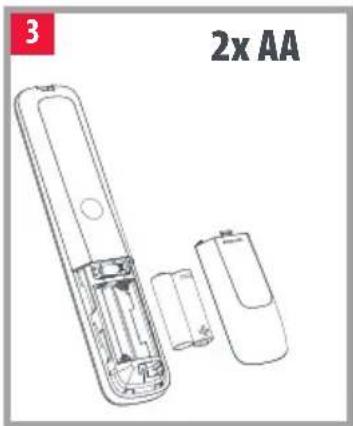
natural_image
Line drawing of a remote control device with internal components and battery casing (no text or symbols)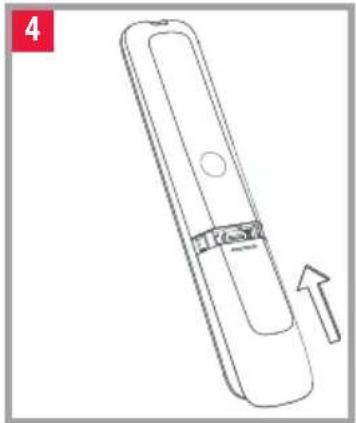
natural_image
Line drawing of a remote control device with an arrow indicating motion (no text or symbols)
natural_image
Color palette bar with grayscale swatches and a red horizontal bar at the bottom (no text or symbols)TASTENBESCHREIBUNG
text_image
2 1 5 TV STREAM STB AUDIO BLURAY DVD 6 8 7 SUBT. APPS LIST 9 10 INFO GUIDE MENU 12 13 OK 14 HOME EXIT 16 15 17 + + VOL CH - - 19 21 22 23 24 TV 0 SEARCH 25 26 ONE FOR ALL15
TASTENBESCHREIBUNG
natural_image
Color palette bar with grayscale and red sections, no text or symbols presentEINRICHTUNG
AUDIO Onkyo Receiver
BLURAY Samsung-Blu-Ray-Player
DVD Sony-DVD-Player
natural_image
Color palette bar with grayscale swatches and a red horizontal bar at the bottom (no text or symbols)EINRICHTUNG
SIMPLESET
STB
BT/Humax/TalkTalk/Tricolor TV /YouView
text_image
1 2 3 4 5 6 7 8 9 TV 0 SEARCHCanal+ / CanalSat / Deutsche Telekom / Movistar / T-Home
DStv / Foxtel / Multichoice / Sky New Zealand
natural_image
Color palette bar with grayscale and red sections, no text or symbols presentnatural_image
Color palette bar with grayscale swatches and a red horizontal bar at the bottom (no text or symbols)text_image
protected by SteriTouch® A RADICAL MATERIALS BRAND
text_image
QR code image containing encoded data, no visible human-readable textnatural_image
Color palette bar with grayscale and red sections, no text or symbols presentFRANÇAIS INTRODUCTION
natural_image
Line drawing of a mobile phone with a handle and circular button (no text or symbols)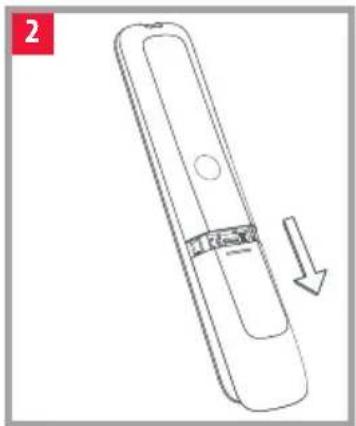
natural_image
Line drawing of a remote control device with a handle and arrow indicating rotation (no text or symbols)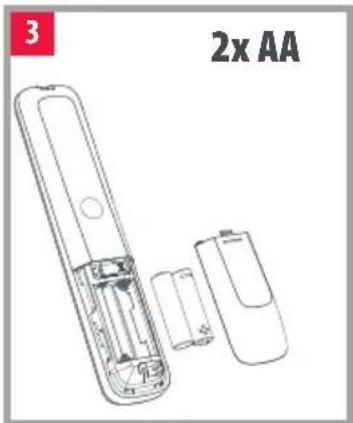
natural_image
Line drawing of a remote control device with internal components and battery casing (no text or symbols)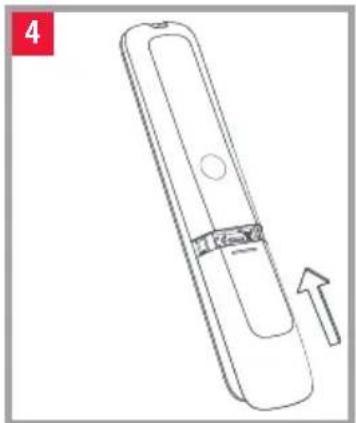
natural_image
Line drawing of a remote control device with an arrow indicating motion (no text or symbols)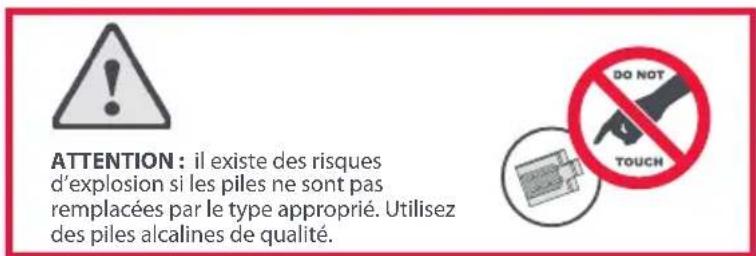
natural_image
Color palette bar with grayscale swatches and a red horizontal bar at the bottom (no text or symbols)DESCRIPTION DES BOUTONS
text_image
2 1 5 TV STREAM STB AUDIO BLURAY DVD 6 8 7 SUBT. APPS LIST 9 10 INFO GUIDE MENU 12 13 OK 14 HOME EXIT 16 15 17 + + VOL CH - - 19 21 22 23 24 TV 0 SEARCH 25 26 ONE FOR ALL27
DESCRIPTION DES BOUTONS
natural_image
Color palette bar with grayscale swatches and a red rectangle at the bottom (no text or symbols)CONFIGURATION
natural_image
Color palette bar with grayscale shades and a red horizontal bar at the bottom (no text or symbols)CONFIGURATION
SYSTÈME SIMPLESET
STB
BT / Humax / TalkTalk / Tricolor TV / YouView
text_image
1 2 3 4 5 6 7 8 9 TV 0 SEARCHCanal+ / CanalSat / Deutsche Telekom / Movistar / T-Home
DStv / Foxtel / Multichoice / Sky New Zealand
natural_image
Color palette bar with grayscale swatches and a red rectangle at the bottom (no text or symbols)MACRO ASSOCIÉE AU BOUTON D'ALIMENTATION
text_image
protected by SteriTouch® A RADICAL MATERIALS BRAND
text_image
QR code image containing encoded data, no visible human-readable textnatural_image
Color palette bar with grayscale and red sections, no text or symbols presentnatural_image
Line drawing of a mobile phone with a handle and circular button (no text or symbols)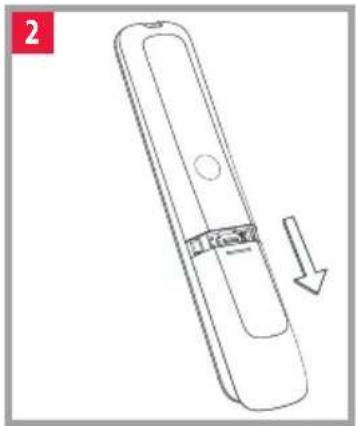
natural_image
Line drawing of a remote control device with a scroll wheel and directional arrow (no text or symbols)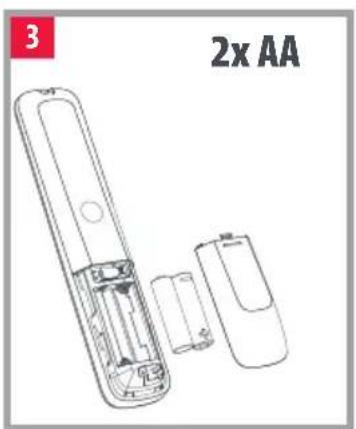
natural_image
Line drawing of a remote control device with internal components and housing (no text or symbols)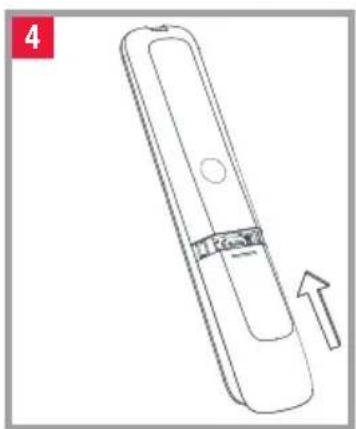
natural_image
Line drawing of a remote control device with an arrow indicating motion (no text or symbols)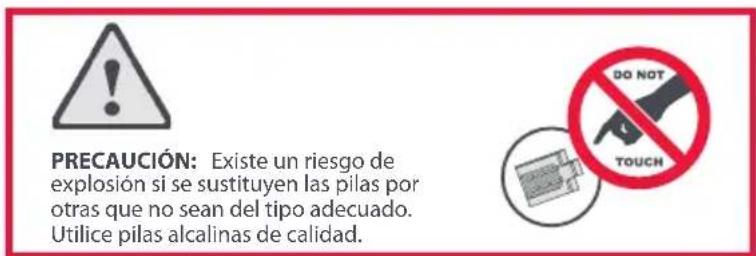
natural_image
Color palette bar with grayscale swatches and a red horizontal bar at the bottom (no text or symbols)natural_image
Color palette bar with grayscale and red sections, no text or symbols presentCONFIGURACIÓN
natural_image
Color palette bar with grayscale swatches and a red horizontal bar at the bottom (no text or symbols)CONFIGURACIÓN
SIMPLESET
STB
BT/Humax/TalkTalk/Tricolor TV /YouView
text_image
1 2 3 4 5 6 7 8 9 TV 0 SEARCHCanal+ / CanalSat / Deutsche Telekom / Movistar / T-Home
DStv / Foxtel / Multichoice / Sky New Zealand
natural_image
Color palette bar with grayscale and red sections, no text or symbols presentCONFIGURACIÓN
PROGRAMACIÓN
natural_image
Color palette bar and horizontal bar design with no text or symbols1.

natural_image
Color palette bar with grayscale swatches and a red rectangle at the bottom (no text or symbols)text_image
protected by SteriTouch® A RADICAL MATERIALS BRAND
text_image
QR code image containing encoded data, no visible human-readable textnatural_image
Color palette bar with grayscale swatches and a red horizontal bar at the bottom (no text or symbols)natural_image
Line drawing of a mobile phone with a handle and circular button (no text or symbols)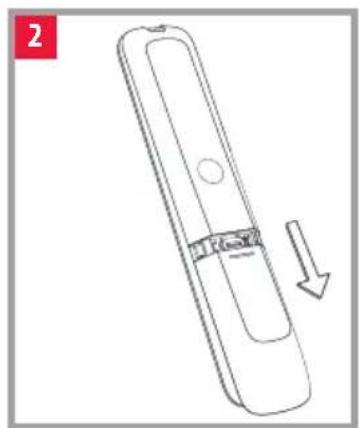
natural_image
Line drawing of a remote control device with a circular button and a downward arrow indicating rotation (no text or symbols)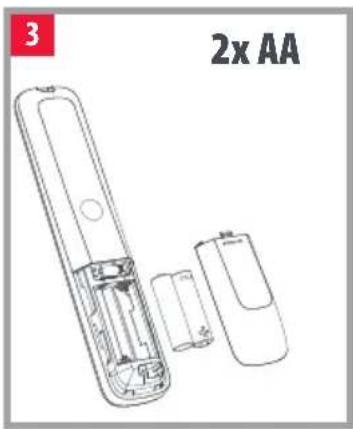
text_image
3 2x AA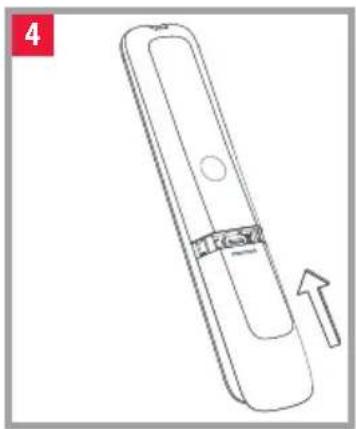
natural_image
Line drawing of a remote control device with an arrow indicating motion (no text or symbols)
natural_image
Color palette bar with grayscale swatches and a red horizontal bar at the bottom (no text or symbols)natural_image
Color palette bar with grayscale swatches and a red horizontal bar at the bottom (no text or symbols)SETUP
natural_image
Color palette bar with grayscale shades and a red horizontal bar at the bottom (no text or symbols)SETUP
SIMPLESET
STB
BT/Humax/TalkTalk/Tricolor TV /YouView
text_image
1 2 3 4 5 6 7 8 9 TV 0 SEARCHCanal+ / CanalSat / Deutsche Telekom / Movistar / T-Home
DStv / Foxtel / Multichoice / Sky New Zealand
natural_image
Color palette bar with grayscale and red sections, no text or symbols presentnatural_image
Color palette bar and a red horizontal bar with a crosshair symbol (no text or labels)ATTIVITÀ
natural_image
Color palette bar and horizontal bar design with no text or symbolsAV IN MODALITÀ SHIFT
text_image
protected by Sterilouch® A RADICAL MATERIALS BRAND
text_image
QR code image containing encoded data, no visible human-readable textfacebook.com/ @oneforall.worldwide linkedin.com/ youtube.com/ oneforalworldwide company/one-for-all-worldwide/user/oneforal products

natural_image
Color palette bar with grayscale and red sections, no text or symbols presentENGLISH
PRODUCT DISPOSAL (EUROPEAN DIRECTIVE 2012/19/EU)

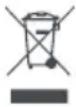
The crossed out wheeled bin symbol on this product ensures that this product is manufactured using high quality components that can be recycled and reused according European Directive 2012/19/EU. Please do not dispose of this product with your normal household waste, refer to local regulations for the proper collection or disposal of electrical and electronic products. This will help this will help in preventing negative effects on the environment and/or human health.
BATTERY DISPOSAL (EUROPEAN DIRECTIVE 2006/66/EC)
Please do not dispose of your batteries with your normal household waste, refer to local regulations for the proper collection or disposal. This will help preventing potential negative effects on the environment and/or human health.
GUARANTEE TERMS AND CONDITIONS UNIVERSAL ELECTRONICS warrants to the original purchaser that this product will be free from defects in materials and workmanship under normal and correct use for a period of two (2) years from the date of original purchase. This product will be repaired or if necessary, replaced free of charge if it has been proven to be defective within the two(2) year warranty period. The forwarding costs are on the account of the owner; the costs of returning the product are on the account of UNIVERSAL ELECTRONICS.
This warranty does not cover damage or failures caused by products or services not supplied by UNIVERSAL ELECTRONICS, or which result from not mounting the product according to manual instructions. This also applies when the product has been modified / repaired by others than UNIVERSAL ELECTRONICS or if a fault is the result of accident, misuse, abuse, neglect, mishandling, misapplication, faulty installation, improper maintenance, alteration, modifications, fire, water, lightning, natural disasters, wrong use or carelessness.
To obtain warranty service during the warranty period contact [...], and please note that we need your original purchase receipt so that we may establish your eligibility for service. If you have bought this product for purposes which are not related to your trade, business or profession, you may have legal rights under your national legislation governing the sale of consumer goods. This guarantee does not affect those rights. www.oneforall.com
DEUTSCH
natural_image
Color palette bar with grayscale swatches and a red horizontal bar at the bottom (no text or symbols)ESPAÑOL
natural_image
Color palette bar with grayscale and red sections, no text or symbols presentPORTUGUÊS
natural_image
Color palette bar with grayscale swatches and a red horizontal bar at the bottom (no text or symbols)DANSK
BORTSKAFFELSE AF PRODUKT (EU-DIREKTIV 2012/19/EU)

natural_image
Color palette bar with grayscale swatches and a red horizontal bar, no text or symbols presentУТИЛИЗАЦИЯ
UTYLIZACJA BATERII (DYREKTYWA EUROPEJSKA 2006/66/WE)
natural_image
Color palette bar and horizontal bar design with no text or symbolsHRVATSKI
ZBRINJAVANJE PROIZVODA (EUROPSKA DIREKTIVA 2012/19/EU)

Simbol prekrizene kante za otpad na ovom proizvodu jamči da je ovaj proizvod napravljen od visokokvalitetnih dijelova koje je moguće reciklirati i ponovno upotrijebiti sukladno odredbama. Europa direktive 2012/19/EU. Nemojte zbrinjavati ovaj proizvod zajedno s uobičajenim kućnim otpadom, pogledajte lokalne propise o pravilnom prikupiljanju ili zbrinjavanju elektrčnih i elektroničkih proizvoda. Na taj čete način pomoći u spriječavanju negativnih posljedica za okoliš i/ili ljudsko zdravlje.
ZBRINJAVANJE BATERIJE (EUROPSKA DIREKTIVA 2006/66/EC)
Nemojte zbrinjavati baterije zajedno s uobičajenim kućnim otpadom, pogledajte lokalne propise o pravilnom prikupljanju ili zbrinjavanju. Na taj ćete način pomoći u sprječavanju mogućih negativnih posljedica za okoliš i/ili ljudsko zdravlje.
Akai 2676,3611,1523,
3528, 3512, 3067,
3719,0714,1585,
3810,4022,0556,
2197,3434,3983,
4136
Akira 2457,2530
Akura 0714, 1585, 2676,
1983
Alba 2676,3587,3810,
1585,0714,3005,
3067,2214,4132,
1523, 2561, 3589,
3964
Allview 3611
Altius 3611
Altus 0714, 2663
Amoi 3047
AmTRAN 2127
Andersson 2676, 1585, 3719
Ankaro 3528
Antarion 3719,2676
AOC 2214,0625
Arcelik 3433
Arçelik 4212,3433,2663
Ardem 0714
Arena 2676,0714
Arielli 3528
Arise 4136
Aristona 0556
Art Mito 1585
AS 1585, 1523, 2676
Asano 4022
Audiosonic 0714,3067,1983
Audio-Technica 0653
Aukera 3572
Autovox 2676,1585
Awa 3296, 2530, 2457,
3090
Axdia 2719, 2530, 3512,
2457
Axxion 4155
Axxon 0714
Aya 2676,3719,1585
B & 0 5295
Baird 3090
Bang & Olufsen 5295
Barco 0556
Basic Line 0556
Bauer 2197
Bauhn 3611
Baur 0195
BBK 2530,1523
Beko 0714, 4212, 2125,
3433,2663
Belson
BenQ 1523
Berthen 0556
Betfred 2676,3719
Blaupunkt 3810,2426,0195,
3611,4843
Blu:sens 4059
Blue Sky 0714,0556,0625
BlueDiamond 2426
Bluesky 0714, 0556, 0625
Bluetech 2561
bogo 2561,3512,3528
BPL 4136,4539
Brandt 0625, 2676, 3296,
1585,4542,3434,
3611,0714,3528,
3983
BuBuGao 2530,1523
Bush 2676,3810,3719,
2214,3964,3005,
3589,0714,2530,
2888,4132,5201,
3983,2673,1585,
3587,3820,4346,
1983,0556,2125,
1523,2457,2719,
4136,2127
Cabletech 3296
Caixun 3528
Cameron 1523
Canox 3611
Caratec 3067
Celcus 2676,3719,1585
cello 3820,2673
Changhong 3434,3296
Chimei 1852,1666
CHL 3067
Chromex 1585
Clatronic 0714
Clayton 3719,2676
CMX 3296,3067
Condor 4136
Conia 1523
Conrad 3719
Continental Edison 2676,3719,4022,
2530,3983,2457,
3512, 1585, 3528,
4132
CPTEC 0625
Cranker 3719
Crown 0714,2676,0653,
3434,3719
Currys Essentials 2486
Daewoo 2275,0556,2125
Daewoo Display 2275
Dantax 2676,0714
Days 2561
Denver 3067,2197,3515,
4155
DEXP 3528,3434,3572,
4539, 4348, 4136
Dgtec 2457


TV
Dick Smith
Electronics 3296, 2457, 2530, 3572
Dicra 3528
Differo 2676
Digatron 2890
Digihome 3719, 2676, 3983, 4501, 5201, 1585
Digitrex 3067
Dikom 2676, 2561, 3719, 3528
diVision 2197
DMTech 2676
DNS 3572,3528,3434, 4136
Doffler 3528, 4539, 4348, 3434
Donghai 3611, 3528, 3067, 3296
DSE 3296, 2457, 2530, 3572
Dual 3719, 2197, 2676, 1585, 3067, 3611, 3820, 0714
Durabase 2676,3719
Durabrand 1595,0714
D-Vision 2197,0556
DW Display 2275
DX Antenna 1817
Dyon 3512, 3525, 2457, 2530
Easy Living 1666, 2005
ECG 2197, 2125, 3528, 3296, 0714, 3067, 3434
Eco-Star 3572
EGL 3611
Elbe 2676,0556
Elect 3067
Electriq 3719,5201
Electrolux 1585
Electronia 2676,3719
Element 4398
Elenberg 3512
Eletra 3719
Elite 1457
Emerson 1595,0714
e-motion 2426,3810,2106
Engel 3512
Enox. 2673,3820
Envision 1506
Epworth 4542,3512,3434
Erisson 4542,3528,3047,3434,4136
ESA 1595
Essentials 2486
Essentiel b 2676, 4306
e-Star 3528
Eternity 3810,2426
Everest 3528
Everline 3512,3528
Evesham Technology 1248
Evotel 2561,3589
Express Luck 3528
F&U 2530,2676,3719
FairTec 1585,2676,2561
Favi 2676
Fedders Lloyd 4136, 4539
Felson 3719,2676
Ferguson 0625, 2676, 3005, 0653, 2426, 0195, 1585, 3874
FFalcon 3047,4259
Finlux 3719, 2676, 3983, 1585, 0714, 0556, 5201, 1248
Firstline 0714,0556
Fisher 1585
Fox 3528
Fujicom 3719,2676
Fujitsu Siemens 1666, 1248
Funai 1817, 1595, 3719, 1666, 0714
Funai United 2530, 2676, 3719
Fusion 3047,3528
Futronic 1585
Futura 3296
Galatec 3528
GE 0625
Gelhard 3719
General Electric 0625
Godrej 1585
GoGen 3719,2676,1585
GoldStar 3047,0714,3512,4542,3434,3572
Goodmans 3820, 1585, 2393
1523, 1983, 2223,
2676,0714,2125,
2127,0556,0625,
2005, 2426, 2214
Gorenje 1585,2676
Gradiente 0653
Graetz 1585, 3528, 0714,
4542
Gran Prix 2197
Grandin 3434, 2676, 0714,
3719,4306,0556,
1585,2125,3983
Grundig 4212,0195,3433,
1223,2890,2663,
2125,3296,0556,
2127, 1523, 3067,
2676,2561
Grunkel 3528, 2676, 3512,
1523
GVA 3611,3296,2561,
3067
Haier 2888, 1983, 2214,
2530,3719,4398,
2457
Handic 2676
Hannspree 2786
Hanseatic 0714, 0625, 0556
Hantarex 2197
Harper 4542, 3512, 3528
Harrow 3719, 1585, 2676
HB 0714
HB Ingelen 0714
Helix 3528
Heran 1852
Hightong 4542
Hikona 1983


TV
Hi-Level 3719
Hisawa 0714
Hisense 4539, 2399, 4348,
4136, 4728, 0556,
5370,4398,2197,
3296
Hitachi 2676, 1576, 2207
3719,5201,1585,
1484, 4398, 2214,
3611,2005,3512,
2127,3983
HKC 3512
Höher 2676,0714,2125,
3434
Horizon 3719, 3528, 2676
Horizont 0714
Hugoson 1666
Hypson 0714,0556
Hyundai 2676,3719,1585,
3434,3528,4136,
1523,3512,3611
iFFALCON 4259
i-INN 3528
i-Joy 3528, 3512, 3067,
1523
Infiniton 3528
Ingelen 0714
Inno Hit 2676, 1585, 3528
Insignia 1423
Internal 0556
Inves 3528,3512
Isis 2676
ITT 3719,0714,2399,
2675, 2125, 2676,
1523
Izumi 3434,3528
Jay-tech 3611,3067
Jinxing 0556
JMB 2676,3810,3719,
0556,2426,1585
JTC 3611,3067
Jubilee 0556
JVC 0653,2118,1818,
3719,2676,3874,
3802, 2005, 3296,
4398, 3047, 3983,
4244,3572
Kaisui 3528
Karcher 2125,0714
Kathrein 0556
Kendo 3719, 1585, 2676
Kenmark 2393
Kennex 3296
Kenstar 2548
Kioto 0556
Kneissel 0556
Kogan 3572,3296,4291,
3528, 2888, 3434
Koncar 3719
Konka 3572,0714
Krüger&Matz 3296,3802
Kunft 3434,3719
Küppersbusch 2676
L&S Electronic 0714
Laurus 2676
Lava 2197
Lazer 3719
Leiker 2676
Lenco 3515,4155,4346,
1983,2676
LG 1840, 1860, 4397,
1423,2182,5168,
0714,4398,0556,
1576
Liberton 2675, 3047
Lifetec 0714
Linden 3296,3528
Linetech 2676
Linsar 2676,3719,3611,
1585
Listo 4306, 2676, 3719,
4155,4542
Lloyd 4136,4539
Loewe 1884
Logik 3831,3005,3802,
2486,3719,2673,
1585,5201,2530
Luxor 2676,3719,3983,
1585,5201
M&S 2673
Magnavox 1506, 1887, 2800,
2676,4398
Magnum 0714
Majestic 3611,3512
Manata 3512
Manhattan 2676,3719
Manta 3528,3512
Marantz 0556
Mark 0714
Marks & Spencer 2673
Mascom 2125, 2197, 2663
Master 4022
Mastro 0653
Matsui 0195,2486,2676,
1585, 1666, 0714,
0556,2561
Mediator 0556
Medion 2676,4447,4155,
2719, 1248, 0714,
1585,3067,3983,
0556,3515
Meile 3047
Melectronic 0195,0714
Melody 3047
Memory 1983
Metronic 0625
Metz 1533,4289,0195
Micromax 3572
Micromaxx 0714
Miia 3512
Mikomi 1585
Minerva 1248,0195
Mirai 1666, 1852
Mitchell & Brown 3719
Mitsai 2676, 2106, 3434,
1585
Mitsubishi 0556
Mitsubishi Electric 0556
Mitsun 4136
Mivar 0609
Mobile Tv 3719
Moserbaer 1585


TV
mp man 3067,3296
MTlogic 0714
Murphy 2676, 2426, 2673, 2005, 1585
Mx Onda 1983
My TV 3090
Myrica 1666
Myryad 0556
Mystery 3296, 2530, 3047, 3528
Nabo 3719
Navon 3719
Naxoo 3515
NEC 0653,2461,1852
Neckermann 0556
NEI 3611,3983
NEO 2676,3528,3719
Neon 2673,3820
Nesons 3528
Neufunk 0556,0714
Nevir 3528, 2676, 3719
New Tech 0556
Next 2676
Nikkei 2676, 1585, 2197, 3719, 0714, 5201
Nordmende 2676, 2548, 3512, 0195, 1585, 3528, 0714
Novex 1523
Novita 1585
NPG 3434
Nu-Tec 3090
Ocean 3434
Oceanic 4022,3719,3611
Odys 2719, 2530, 3512, 2457
OK. 3802, 2676, 3434, 3810, 3719, 3047
Okano 3168
Okeah 3434
OKI 2676,1585,2125, 3434,2947
Onida 0653
Onimax 0714
Onn 4398,2125,1585
Opera 0714
Opticum 3611
Orava 3719,3296,3528, 3512
Orima 3719
Orion 4346,2005,3874,
2676, 2108, 0714,
0556,3512,2197,
3434, 4136, 4542
Osaki 0556
Otic 1983
Otto Versand 0556,0195
Pacific 0714,0556
Packard Bell 3630
Palladium 0714,0556
Palsonic 2461,3067,4155,4291
Panasonic 1636, 3825, 4501, 0653, 3719
Panavideo 3825
Pendo 3434,4291
Philips 0556, 2800, 3614, 4209, 1887, 1506, 4398
Philips Magnavox 1887
Phocus 0714
Phonola 0556
Pioneer 1260, 1457, 1636
PJ 1506
Playsonic 0714
Polar 2197,3067
Polaroid 1523, 3296, 2676, 2125, 3611, 4132, 5201, 3719, 4542, 3512, 3589
Powerpoint 3296
Prima 2461
Princeton 3719,3983
Pro Vision 0556,0714,2197
ProCaster 3719
ProLine 3434,0625,1585,2676,2223,2393,3528
Proscan 3512,2561
Prosonic 2676, 0714, 2426, 2125, 3719, 2197, 2663, 1523, 1585, 2106
Pulier 3611
Pye 0556
Q.Bell 2561
Q.Media 3515
Qilive 3719
QONIX 3067
Quadro 2561, 2676, 3719, 3434, 1585, 2197
Quelle 0195
Radiola 0556
Radionette 0714
RCA 0625,4398
Reflexion 3067,4155
Relisys 1585
Reoc 0714,2197
Roadstar 0714
Roku 4398
Rolsen 4136,3067,3434
Romsat 3719
Rowa 3047
Rubin 3528
Saba 0625, 2676, 3434, 1585, 2005, 3528, 3719, 0714, 2947
Saga 2197
Salora 2676, 2197, 3983, 3719, 3067, 2125
Samsung 2051,3131,3970, 4096,0556,0625
Samus 3434
Sandstrøm 3802, 2399, 3047, 2197
Sansui 0714, 1248
Sanyo 1585,2461,2676,3096
Saturn 3067
SBR 0556
ScanSonic 2676


TV
Schaub Lorenz 4022, 2676, 0714,
2125, 1585, 3719,
2197
Schneider 2676,0714,0556,
1585,3528,3611,
4501
Schneider Electric 2676,0714,0556,
1585,3528,3611,
4501
Schöntech 1585,2676
Scott 3090, 1983
Seeltech 4022,3067
Seelver
0556
SEG 2673, 2125, 1523,
3434, 2719, 3067,
3719
Seiki 4346, 4132, 3964
Seizo 4132,4346
Selecline 3719,3296,3528
Sencor 2125,4132,4542,
3067, 3296, 2197,
3572,3434,0714,
3512
Sharp 1659,2951,3810
3983,2676,4843,
2214,3719,0653,
4398,1423
Shinelco
2530
Shivaki 2197,3528,3067
2561
Siemens
0195
Siera
0556
Silva Schneider 3719, 2197, 2125,
3067
SilverCrest 2676, 1585
Sinotec 4542
Sinudyne 2676
Skantic 3719
Skyworth 4542
Smart Tech 3528
Snow 1585
Sogo 3067,4155,3611,
3512
Sonic
3168
Soniq
3168,3572,3005
Sontech 1983
Sony 2778,1825,4396,
0653
Soundmax
3528
Soundwave
2673
Sphere
3067
Stan Line
3611
Starlight
3528,3296
Straus
3434
Strazus
3434
Strong
4542
Sunfeel
2676
Sungoo
1248
Sungpo
1659, 2951, 3810,
3983,2676,4843,
2214,3719,0653,
4398,1423
Sunkai
1523
Sunstech
2676,3719,3515,
2530,3528
Superior
1585
SuperTech 0556
Supra 3512, 2947, 3434,
3047, 4542, 4348,
4136
Supratech 3067
Svan 3719
Swisstec 2106
Sylvania 1595, 1817
Symphonic 1595, 1817
Tatung 1248
Tauras 2197,3067
TCL 3047,4259,4398,
2675,2530
TCM 0714
TD Systems 3719,2676,3512
Teac 3158,2168,0714,
3005,3572,1983,
1248, 2457, 3067
Tech Line 1585,2676,1636
Technica 2106, 2168, 2426,
2676
Technical 2676,3719,3983
Technics 0556
Technika 2426,3810,2106,
2168, 2676, 2197,
1585, 1983, 3005,
3067,2125,2719
TechniSat 0556
Technisson 0714
Techno 1585
Technosonic 0556,0625
Techwood 2676,3719,1585,
3983,5201
Tecnimagen 0556
Teco 0653,1523
TELE System 2125, 2676, 3434,
2530,1585
Telefunken 3719,2676,0625
3528,3983,4542,
3296,1585,3047,
3434,0714,3067,
3589
Telestar 0556
Teletech 2676
Terra 2888
Terris 2530,3296
Tesco 2426
Tesla 4542,0556,0714
Tevion 0714, 1248, 2426,
2125,2530,0556,
1523, 1585, 2197,
2461
Thes 2947
Thomas 0625
Thomas America 0625
Thomson 0625,3047,4259,
2675,0556
Tokai 3611, 3528, 3067,
3296
Toshiba 1508, 2775, 2676,
4213, 2732, 3296,
2108,0195
Tosonic 1508
TRANS-continents 0556
Transonic 3528
Trevi 3528


TV | STREAM
Triad 0556
Trio 1248
Tristan Auron 3528
Triumph 0556
Tucson 2676,3719
TV Star 3528, 3512
TVE 3589
TVTEXT 95 0556
Ultravox 1585
U-max 3434,3296
UMC 2106, 2426, 2168
Uniden 2676, 1585, 3047
United 3434, 3515, 0714,
3296, 2530, 3512,
4542, 2663, 0556,
1523, 1585, 1983,
2125
Universal 0714
Walker 2676,1585,3719
Waltham 2676,3719
Watson 0714,1248
Watsvision 2676
WeCube 1860
Wellington 3719,2676,1585
Welltech 0714
Westinghouse 3067, 3964, 4132
Westline 3719,2676
Westwood 1585
Wharfedale 1983, 2676, 0556
Wilson 0556
Windsor 2676,3719,3983,
1585
Windy Sam 0556
Wintel 0714
XCanvas 1840
XD 3719
Xenius 1585,2676
Xiahua 2461
Xiron 1983
Xoceco 2461
Xomax 3067,3515
Xoro 3067
Xpeer 2051
Yamaha 1576
Yuntu 3611
Zanussi 3434,3528
Zenith 1423
Zephir 3611
Zepto 1585
Ziggo 1818
STREAM
| 3Q | 3350 |
| A.C.Ryan | 3350 |
| ABS | 1272 |
| Acer | 1272 |
| Alienware | 1272 |
| Apple | 2615 |
| ASRock | 1272 |
| Asus | 1272 |
| Asustek | 1272 |
| BSkyB | 3061 |
| Ceton | 1272 |
| Claritas | 1272 |
| Cloud Media | 2260 |
| CyberPower | 1272 |
| Daily Media | 1272 |
| Dell | 1272 |
| Digitech | 2260 |
| Digma | 3350, 4170 |
| Dune | 3230 |
| DVICO | 3350 |
| DXtreme | 3350 |
| Econet | 3061 |
| Econet Media | 3061 |
| Elonex | 1272 |
| Eminent | 3350, 2260 |
| Evolve | 3350 |
| Fantec | 3350, 4170 |
| Ferguson | 3350 |
| Foxtel Now | 5517 |
| Fujitsu Siemens | 1272 |
| Gateway | 1272 |
| GigaTV | 3350 |
| Gmini | 3350 |
| Hewlett Packard | 1272 |
| hFX | 1272 |
| HiMedia | 4170 |
| Howard Computers | 1272 |
| HP | 1272 |
| Hush | 1272 |
| iBUYPOWER | 1272 |
| iconBIT 3350, 2260 | |
| ICY Box | 3350 |
| iNext | 3350 |
| Iomega | 2558 |
| iRIS | 4848 |
| ISTAR 2260, 4848 | |
| JadooTV | 2260 |
| Kartina TV 3230 | |
| KD Links | 3350 |
| KdLinks | 3350 |
| Kwesé | 3061 |
| Lenovo | 1272 |


STREAM | STB
Linksys 1272
Mango Hi Q 4170
Mede8er 3355
Media Center PC 1272
Microsoft 4000, 1272, 2049.
1805
Mind 1272
NiveusMedia 1272
Northgate 1272
Now TV by Sky 3061
NVIDIA 4918
Orion Telekom 3230
Packard Bell 1272
Philips 1272, 2558
PopBox 2260
Popcorn Hour 2260
Qwerty 3230
Redline 4848
Ricavision 1272
Roku 3061
Rombica 4170
Sky Austria 3061
Arcadyan Technology 2952
Arris 6076,2437,6174,
3723,1582,1585,
6264,2952
AS 1284
ASA 0740
ASCI 1334
ASDA 1284
AstaNet 3855,4291
Astell 4294,5259,2418,
3417
Astro 2026,1100,1351,
2928
AT&T 0099
Atemio 2928
Atevio 2928
Atlanta 2418,3320
Atom 1631
Audiola 2418
Audiosonic 5212
August 5552
Aurora 0879
AusIPTV 3698
Austar 0879
Austriasat 1195, 1197, 3190,
2957,1232,1561,
1631,2631
Auvisio 2738, 2813
Avanit 3365,1631,4665
Awa 2418,2813
AX 5328,4826,5038
Axil 2418,3148,1413
2738, 2813, 3424
AZ America 1631
B@ytronic 0740
Baltcom 3191
Balticum 1195, 1197, 4294
Bel Digital 2513
Belgacom TV 2047
Belson 2418
BENsat 2957,4657
Best 3749
Best Buy 3417,5552
Bevcomm 1898,1615

STB
BGTCO 1898
BIOSTEK 2738
BiS Télévisions 1232,4294
BiS TV 1232,4294
Black Diamond 1284
blade 3749
Blow 3148
Blue Valley
Telecommunications 1898
Boca 2026, 2458, 2797, 1232, 2813
Bonus 3190
Boshmann 1413,1631
Botech 2738, 2418, 2813, 3749
Bouygues Telecom 3185,3007
Boxer 2443, 1692, 2429, 4583
Brandt 2813, 3833
Brantley Telephone
Company 1898
British Telecom 4031
Brooke Telecom 1898
BSkyB 1662, 1175, 0847, 4
BT 4031
BTTV 4031
BT Vision 4031
Bulltech 2738
Burke's Garden
Telephone Company 1898
Burlington Telecom 1615
Bush 2376, 3652, 1935, 2034, 2813, 1284, 2738, 3601, 2418, 3735, 3827, 4204
Butler Bremer
Mutual Telephone 1898
Cablecom 1582, 2513, 1195, 1197
CableLink 2513,4665
Cabletech 3148
Cabovisão 2436
Cahors 3688
Caiway 2443, 2015, 2942
Canal Digitaal 2631, 4853, 2466, 2957
Canal Digital 2030, 1334, 4031
Canal+ 2657,4294,5761,
1195, 1197, 2429
CanalSat 2657,5761
CDE Lightband 1615
CGV 5145, 2034, 3751, 1232, 1413, 3190, 3753, 4294
Chequamegon
Telephone Cooperative 1898, 1615
Chess 2026,1334
Cignal 1631
Cisco 2047, 2401, 2589, 1582, 3337, 3265, 3270, 2742, 3451
Citycable 3451,3477
CityCom 1232,2957,4665
Clarke-Tech 3320
Classic 1284
Clatronic 1413, 2738
Cloud-IBox 4015
CMX 2205
Cobra 4294,5552
ColbaNet 3698
Com Hem 3662, 4926, 2357, 2942, 1915, 4031, 2015
Comag 2797, 2026, 2458,
2813, 1232, 3993, 4795, 5752, 0740, 1413, 2738, 3855, 4227, 5552
Comfort TV 3698,4860
Comsat 1413
ComSpan
Communications 1898
Connect TV 2957
Consolidated
Communications 1898
Continent 3855,4294
CoolStream 2863
CoopTel 1898,1615
Cosmo Sat 2540
Cosmote TV 3615
CP-Tel 1615, 1898
Cristor 2257
Croner 2813
Crown 1284
Crypto 5212,5552
css4you 4665
CST 2863
Cyfra+ 1409,3799
Cyfrowy Polsat 3829
D@tacom 2813,1413,1631,2738
Darty Box 2436
Dautkom 2638,4197
D-Color 3833
DCR 3517
Delcambre
Communications 1898
Delta 2443, 2015, 2942
Denver 2418,2738
Deutsche Telekabel 1197, 1195
Deutsche Telekom 3270,1692
DEXP 3833
Dgtec 1631,2418
Dick Smith Electronics 2813,2418
Dicra 2738,4294
Digenius 0740
DIGI 1195, 1197, 2443, 2026
Digiality 1334,2813
Digihome 2034, 1284, 1935
DigiLogic 1284, 2034
DigiQuest 2738, 4227, 3833, 5552, 1631, 3148, 4331, 2813
DigiSat 1232
Digital 1334
DigitAlb 1197, 1195, 1232
DigitalBox 3419, 1631, 2540, 3674, 1100


STB
Digiturk 3517
Digiwave 1631
Dilog 2957
Dion 3069
DIRECTV 0099
Dish TV Technologies 5831,2738
DishTV 2738,2813,5831
Diveo 4853
Diverse
Communications 1898
Di-Way 1631,2957
DMTech 2738
Dmyco 3109
DNA 2357,3917,2144,
2030
DNS 3833
Doffler 5212
DragonSat 2928
Dream 1237
Dream Multimedia 1237, 3628, 1652, 1923
Dreambox 1237, 3628, 1652,
1923
DSE 2813,2418
DStv 4210,5103,2059, 2060,0879
DTK Deutsche Telekabel 1197, 1195
DTVS 3073
du 2401
Dual 1232, 2034
Durabrand 1284, 2034
DVICO 5552
Dynavision 4197
Dyon 2738, 2813, 3688, 3417
e Vision 3637
Easy-One 3688,4331
ECG 2813,2738
Echolink 2513
Echostar 2955,1409
Eco-Star 1413
Edision 5210, 1631, 5141, 3191, 4197
Eir 3637
Elap 1413,3190,5212,5552,2458
Elbe 2418
eLife TV 2443
Elion 3916,1615
Elisa 3637
Elless 0740
Elta 2738
Eltax 3833
Eltrona 1195, 1197, 3440, 3441
Emily Coop Telephone 1615
Empire Access 1898
Energy Sistem 2418, 1631, 2813
Engel 3749, 3148, 5142, 2418, 2813, 5212
Entertain 3270,1692
Entone 1615, 1898
Ergo 3833
esoSAT 2797
Essentiel b 2813, 4657, 2738
3905
Etisalat 2443
Europhon 1334
Europsat 1413
Eurosky 0740
Eutra 0740,4665
Evesham Technology 2034
EVO 4197
Evo TV 4657
Evolveo 3148
F&U 5552,3833
Ferguson 2638, 2034, 1935
Fetch TV 5593
Fiber.nl 1615,2631
Finlux 1232,2034
Finnet 2357,2030
FinnSat 4572,0740,1195, 1197,1351
FlexBox 3148
FMD 1413
FoneStar 3148
Formuler 5038
Fortec Star 1631
Foxtel 1356,0879,6264,5517,2211
Fransat 2443,5259,3190,4657,4294
Free 1976,3455,6224
Freebox 1976,3455,6224
freenet TV 5052
Freesat 1692, 4204, 2928,
3827, 2376, 3735, 4294
Freesat+ 2443,3827
freeview 4204
Fte Maximal 1631,3148,5212
Fuba 2750,3726,4294,1195
Fuji Onkyo 5212, 1631
Fulan 3649
Funai United 5552,3833
Gala 2437, 2030
Galaxis 0879
Galaxy 4294
Galaxy Innovations 3191, 3649, 4197, 2928, 2799, 3458, 4826
Garant 3698,4860
General Satellite 4626
Geser 1631,2738
Get 2494
Gi 3191,3649,4197,
2928, 2799, 3458,
4826
GigaBlue 3663
GigaTV 2738,3148
Glandorf Telephone 1615, 1898
Glashart Media 1615, 1898
Globo 3855, 2026, 1334, 0740, 1429, 2957, 3191
GM Germany 3191,3649,4197
Go SAT 3190
Godigital 5212
GoGen 2738
Gold Vision 1631
Golden Interstar 3749,3191


STB
Golden Media 3191, 3649, 4197
GoldMaster 4294, 1334, 2928,
3148
Goodmans 1284, 2376, 3652,
2034, 2738, 3601
Gran Prix 0740, 4665
Grecos 1409
| Grundig 0847, 2376, 2367, |
| 2034, 1284, 2813, |
| 2738, 3424, 0879, |
| 1429 |
GTel 1898
GVA 2813
Haier 2418
Hailo 1631
Hanseatic 1100, 1351
Harper 5552
HD Box 2928
HD+ 2443, 2797, 1429, 2569, 3095, 5052
HD-Line 5315
HDThunder 4291
Hevet 1334
HickoryTech 1898
Hightong 1631,4657
Hills 1232
Hirschmann 1232, 3190, 2026, 4665, 0740, 2513
Hitachi 2034, 1284
HNE 1232
Homebase 2030, 2437
Huawei 2994, 2995
| Humax 2443, 4031, 2357, |
| 2754, 4662, 1915, |
| 1808, 2144, 1981, |
| 1983, 3517, 2889, |
| 3514, 5614, 1631, |
| 1232 |
HuronTel 1898
Hybroad 5593
Hyro 4331
Hyundai 3833,2418,2738,
| 2813 | |
| ibox | 1652 |
| i-CAN 2737, 2367, 3691,3148, 5212, 1585 |
| IceCrypt 3191, 2928, 3649, 4197, 2838 |
ID Digital 4294
ID Sat 1631, 1334
Illusion 2257,1631
Illusion Sat 2257
iM 4860,3698
| Imagin 1195, 1197, 3440, 3441 |
Imperial 1195, 1197, 1334,
1429,3419
Inea 4291, 1195, 1197
iNETBOX 1652,1237
Infomir 4860,3698
Innova 0099
Innovative Systems 1898
Inotel 2437
Interstar 3749,3191
Interzet 3698
Inverto 3095,1334
inVion 2418
Invitel 2437
InviTV 2437
iotronic 1413
1Q 2813,5552
IQ Prism 2813,5552
Irradio 3726
i-SET 4331,3417
ITT 2418
Jaeger 2797,1334
Jambox 3464, 2030, 3698,
4860
Jameson 2813
JP PTT 1615
JVC 1284
| Kabel Deutschland | 3514, 1981, 1983, 3688, 2443, 1195, 1197, 1915, 2754 |
KabelBW 2889, 1915, 1981
1983,3451,3477,
1195, 1197, 1429
KabelNoord 2015, 2443
Kablo TV 4763,3190
Kamosonic 2738
| Kaon | 2821, 2494, 2889,3615, 4853, 2631 |
Kaon Media 2821, 2494, 2889,
3615,4853,2631
Kathrein 1561,2569,4795
Kendo 1232
Kiss 3270
Kogan 3148
Kolin 1334
König 1631
| KPN | 2952, 2437, 4294,1545 |
KPU
Telecommunications 1615, 1898
Kreatel 2030
Kyostar 2026
L&S Electronic 1334
Labgear 3424
Lake Connections 1898
Lans 3833
LaSAT 0740
Laser 5552
Lattelecom 2030, 2437
Lava 1631
Lazer 2738
Lemon 1334
Lenson 4657
LG 3916,5761
Libertview 3109
Linden 2813
Line@TECH 2813
LinkBox 2957
Linsar 1284
Listo 4657,2738,2813
Imt 5517
Locus 3833
Lodos 1284
| Logik | 2034, 1284, 3652, 3735, 4204 |
| LogiSat | 2797, 2026, 2813, 2458 |
| LPC Connect | 1898 |


STB
Lumax 4294
Luxor 1935,2034
M7 2631,4853,2957,
3190, 1195, 1197,
1615,2466,2928,
1232, 1545, 1561,
2443,1631,4294,
4657
Macedonian Telecom 3270,2401
MAG 4860,3698
Magnet 1615
MagyarTelekom 1692,2367
Majestic 2738
Makedonski Telekom 3270,2401
Manhattan 4204,3827,3735
Manta 3833
Maplin 2034
Marubox 3833
Marusys 2799,3543,3458,
3544
Mascom 2738, 2205, 2813
Maskatel 1898
Matsui 1284
MaxDigital 4015
Maximum 1334,2813,2957,
4294
MAXplus 2928
Maxview 2797
Mediascape 1631
Mediaset 2750, 4294, 2367
Medion 1232, 2797, 0740,
2026, 1334
MegaSat 4665, 1631, 5262,
2813, 2034, 2418,
0740,5315,2738
Meo 2401,2466
Metronic 2738, 4294, 5259,
2418, 1334, 1631,
1413, 1935, 2026,
2443,3726,5552
Micro 2797, 2458, 2813
Micro electronic 2458, 2797, 2813
Mid Century Telecom 1615
Miraclebox 2928
Mirage 3365
Mitsai 2738
MK Digital 4015
Morgan 1232,2026
Morgan's 1232, 2026
Motorola 2437, 2030, 2952,
3464,3691,3723,
3692,4926,2401,
3916, 1585
Movistar
1585, 1692
Mtel 3855
MTS 1615,1898
Multichoice 0879, 2059, 2060,
5103,4210
Multimedia Polska 4291
Murphy 2034
Mut@nt 5328
Mysat 2738,2797
MySky Italia 2467
MySky New Zealand 1356,2211
Mystery 2813
Nabo 4665
NanoXX 2513,1631
Naxa 3833
NC+ 3799,1409
NEMR Telecom 1898
NEO 3833
NEOTION 1334
NET 2466
Net+ 3637
netBox 3637
Netgem 3637
Netia 3637
Netsat 0099
NetTV.Plus 2437,3464,3698
Neuling 2458,1232,2026
New Line 3688
NexPRO 1631,3191,3148
Next 4763
NextGen
Communications 3191
NKTelco 1615, 1898
Noos 2436
Northeast Nebraska
Telephone Company 1898
NOS 2437,2160
Not Only TV 5212
Nova 2475,0879
Nowo 2436
NPG 1631,1413
NTL 3265
NTV Plus 2443, 1692, 3190,
2928
Numericable 2436
Octagon 2928,5038,4015,
4976
Olin 1631
One Box Home 3833
OnLime 2821
Online.nl 2631,4853
Onn 2034,1284
Ono 3337
Open IPTV 1615
Openbox 2928,3109,3833
OpenFox 3833
Opensat 2957
Opentech 3190
Opentel 1232
Optex 1232, 1413, 2418,
2813,5259,5315
Optibox 3190,2928,2957
Opticum 3855, 2957, 3688,
3191,4227,2928
4665,2797,4331,
3417, 4795, 5038,
5212
Optimus Clix 2437
Optimuss 3191
Optus 1356,0879
Orange 2407,3290
Orbis 1232,1334
Orbitech 1195, 1100, 1197,
1351, 1334
Orchid 1631
Oriel 5552,5212
Orion Express 3855,4294
Orton 3191,3855,2957
Osio 5552


STB
| OteTV | 3615 |
| P&T Luxembourg 3637 | |
| P/Sat | 1232 |
| Pace 0847, 1356, 2754, | |
| 1682, 1175, 1693, | |
| 2475, 2467, 2211, | |
| 2466, 2631, 2657, | |
| 1582, 1662, 2059, | |
| 2060, 2494, 2401, | |
| 3451, 3477, 2160, | |
| 2443 | |
| Pacific | 1284 |
| Palcom | 1409 |
| Palsonic | 2813 |
| Panasat | 0879 |
| Panasonic 3494, 3504, 0847 | |
| peeKTon | 2418 |
| Penki TV 2030 | |
| Petrus 3855, 1195, 1197 | |
| Philex | 1409 |
| Philips 0099, 2561, 1582, | |
| 2466, 1692, 5377, | |
| 2631, 4657, 2211, | |
| 3615 | |
| Phoenix | 2418 |
| PHOENIX Apollo 3833 | |
| Pineland TelephoneCooperative 1898, 1615 | |
| Pino | 1334 |
| Pioneer Long Distance | 1898 |
| PLDT | 1631 |
| Pollin | 4665 |
| Polsat | 3829 |
| Portugal Telecom 2401, 2466 | |
| Post Luxembourg 3637 | |
| PostTV | 3637 |
| Pr telecom 4197 | |
| Preisner | 2458 |
| Premier | 1429 |
| Premiere 1429, 2754, 1195, | |
| 1197 | |
| Primacom 2889, 1195, 1197, | |
| 2443 | |
| Primestar | 2030 |
| PrimeTel 2030, 2437 | |
| PrimeTV | 2030 |
| Pro Video Instruments 3698 | |
| Project Mutual | |
| Telephone | 1898, 2436 |
| ProLine | 1284 |
| Promax | 4291 |
| Protek | 4826 |
| Proximus TV | 2047 |
| PSI | 3190 |
| PT | 2401, 2466 |
| PVI | 3698 |
| Pyur | 2889, 1195, 1197, |
| 2443 | |
| Qviart | 4795 |
| Qwerty | 1898, 1615 |
| Qwerty.TV | 1898 |
| Raduga TV | 2957, 4294 |
| Ravo | 5552 |
| Rebox | 2928 |
| Renkforce | 4387 |
| Revez | 4795 |
| RiksTV | 2367, 1692, 2429 |
| RIO Media 2030 | |
| Rollmaster | 1413 |
| Rolsen 5212, 5552 | |
| Ross | 2540 |
| Rostelecom | 2821 |
| Roxxs | 2799 |
| SAB | 4197, 1631, 3649, 3749 |
| Saba | 0740, 2205 |
| Sagem | 1692, 2429, 2407, 2436 |
| Sagemcom | 1692, 3514, 2436, 2407, 2429, 5286, 3799, 3007, 3185, 4583 |
| Saivod | 2418 |
| Salora | 1232 |
| Samsat | 3191 |
| Samsung | 3063, 2942, 1682, 5052, 2407, 2015, 3451, 2467, 3477, 2955, 3662, 2610, 2889, 1662, 4853, 3265, 3514, 2589, 3185, 1693 |
| Sansui | 1545 |
| Sappa | 2957 |
| Sasag | 2821, 3440, 4665 |
| SAT+ | 1409 |
| Satcom | 3833 |
| Satelco | 1232 |
| SatFilm | 1195, 1197, 3855 |
| SatHawk | 3109 |
| Satplus | 1100 |
| SAT-TN | 5315 |
| SatyCon | 1631 |
| Scarlet | 1615, 1898 |
| Schaub Lorenz | 2034, 2418 |
| Schwaiger | 0740, 2813, 2928, 1429, 4665, 1631, 2458, 2797, 5752, 3688, 1195, 1334, 2957, 3417, 3749, 3993 |
| Schwaiger CS | 1631 |
| Scientific Atlanta | 2401, 2047, 2436 |
| Scott | 2738 |
| SCS | 0740 |
| SCTV | 2821 |
| Sedea | 5212 |
| Sedea Electronique | 5212 |
| SEG | 1284, 4665, 3688, 0740, 2034, 4331 |
| Selecline | 2813 |
| Sencor 2738, 2813 | |
| Servimat | 5259 |
| Set-One | 3688, 4331 |
| SFR | 2436 |
| Shark | 1631 |
| Sharp | 1935, 2034 |
| Sherwood | 1409 |
| Shinelco | 2738 |
| Showbox | 3165 |
| Siemens 2418, 1429, 2737, 1334 |

STB
Sigmatek 2418, 2813, 2738
Signal 3833
Silva Schneider 0740
SilverCrest 2026, 2458, 2797
SIMAX 3833
SimpliTV 4498,4657
SiOL 3637
SKT 4665
Sky Austria 2754, 2443, 4662, 1429, 2357, 1915, 1195, 1197
Sky Brasil 0099
Sky Deutschland 2754, 2443, 4662, 1429, 2357, 1915, 1195, 1197
Sky Ireland 1662, 1175, 0847, 4662
Sky Italia 1693, 2467, 4662
Sky New Zealand 2211, 1356, 5286
Sky Österreich 2754, 2443, 4662, 1429, 2357, 1915, 1195, 1197
Sky Q 4662
Sky UK 1662, 1175, 0847, 4662
SkyCable 1631
Skylink 2957, 3190, 2928, 1545, 2443, 4853, 1195, 1197, 4294, 4657
Skymaster 1409, 2205, 3855, 1545, 1334, 3165 Skymax 1413
Skynet 2437, 2030
Skypex 0740
Skyplus 1334, 2026, 0740, 1175, 1232
SkySat 1100
Skytec 2928
Skytech 5552
Skyvision 2797,4657,1334
SkyWay 2928
Skyworth 1631,4657
SL 0740,2026,4665
SM Electronic 1409
Smallworld Cable 2837
Smallworld Fibre 2837
Smart 1631, 3365, 3095, 1413, 0740, 4665, 1232, 4227
Smile Content 2437
Sogno 2957
Sogo 5552
Solid 3749
Solomend 3109
Sonera 3723,2144,2030
Sony 0847,3202
SPC 3148,5212
SPCinternet 3148,5212
StarTrack 3191
Starcom 5259
Starman 2821
Starmax 2638
Steinner 2738
Stipte 1615, 1898
Stofa 3692, 2015
Strong 3905, 1409, 4657,
2813, 2418, 0879,
3424, 4498, 5110,
2738, 1284, 1682,
3833,5212
Sungpo 1935,2034
Sunny 3165
Sunray 2799
Sunsat 3190
Sunstech 2738
Supra 5212
Supratech 1413
Sven 3833
Sveon 5552
SVT World 2957
Swisscom 4445
Sydantenn 2957
Synaps 3191,4197
Synog 3749
Systec 1334
Sytech 2418
TalkTalk 2994, 2995
Tattelecom 2429
Tatung 3270
TBoston 2418
Teac 4386,2813
Technicolor 5517,3514,3185,
5761,2994,2995,
3615,3799
Technika 2034, 1284
TechniSat 1195, 1197, 1100,
3440,3441,1351,
2540, 2813
Technotrend 1429
Techwood 1284, 2034, 1935
Tecsat 4294,5259
TEKCOMM 2738,3905
Telasat 2466
TELE System 2750,3726,1409,
2813, 2738, 4294
Tele2 2144,1195,1197
Telecifra 3833
TeleColumbus 2889
Teledigital 3833
Teledünya 4763,3190
Telefonica 1585, 1692
Telefunken 3833,3674,5212
Telekarta 3855,4294
Telekom Deutschland 3270,1692
Telekom MK 3270,2401
Telekom Slovenije 3637
Telenet 1582,3451,3477
TéléSAT 2631, 2466, 4853
Telestar 1100, 2540, 1351,
4387, 1334, 1195,
1197,3419
Televes 1334
Telewire 1232
Telfort 2952,1615
Telia 3723,6076,2030,
3916, 1615
TeliaSonera 6076
Telset 4197
Telsey 2738
TelSKY 2540
Telstra 3637,1356
Tempo 5315


STB
TeNeT 1898
Teo 2437,2030
Tesler 3833,5212
Tevion 2205, 1409, 2026,
2813
T-Home 3270,1692
Thomson 1582, 1935, 4657,
1662,0847,1175,
1981, 1983, 3905,
3007,2160,2407,
1693,5110
Thurcom 3494,2821
Tiger 3109
Titan 2205
Tiviar 2928
Tividi 1429
TiVo 3662,3265,3337
TivùSat 2737,4294,3726, 4031,2750,2367
T-Mobile 2631, 1615, 2443,
3190,1545
TNT SAT 4657, 3190, 4294, 2443, 1195, 1692, 2429, 5259, 1197
Tonna 3190,2458
Topfield 4294, 1545, 2837,
2838
Toppro 2838
Topsham
Communications 1898
Toshiba 1284, 2955, 3688,
1195, 1429
TP 2407
Transonic 4362
TrekStor 2738
Triax 4665,3190,4657,
2443,4294,1351,
1413,1631,2513
Tricolor TV 4626, 1915
TT-micro 1429
Türksat Kablo 4763, 3190
TV Cabo 2160
TV Star 3191,3649
TV Vlaanderen 2631, 4853, 2466
TVA Digital 1692
TVB 1615
TViX 5552
UEC 1356,0879
UfaNet 4294
UltraPlus 2928
UNE 1692
United 2418
UniTV 3833
UnityDigital TV 2955, 1429, 2610,
1915, 2513, 2889,
3451,3477
Unitymedia 2955, 1429, 2610,
1915, 2513, 2889,
3451,3477
Universum 0740,1351
Univision 4227,5212
Unixbox 1652
UPC 1582,3451,2821,
3477,2443
UPC Cablecom 1582, 3451, 3477,
2513, 1195, 1197
UPC Direct 2443
UTStarcom 1232
ValueLine 2813
Vantage 2513,2797,5552,
3855,5752
VEA 2418
Vector 2030
Vectra 4291,1195,1197
Venus Telephone
Cooperative 1898
VEON 5831
Vestel 1284, 2034, 3517
Vianet TV 1898
Viasat 1682, 1197, 2030,
1195
Videofutur 3637
Vietnam Television
Corporation 1413, 1631, 2443
ViewSat 1232
Viken Fibernett 2030, 2437, 3691
Viola Digital 1195, 1197
Virgin Media 3265,6174,3451,
3477
Vision Technology 3419
VisionNet 1631,3191,3649
Visiosat 1413
Vistron 4665,0740
Vitecom 1413
VivaCom 2429
Vivax 2418,2813,5212,
5552
Vivo 1692
Vodafone 3514,2401,5286,
1615, 1981, 1983,
5517,3337
Vodafone Iceland 1615,3917
Vodafone Kabel
Telephone Company 1615, 1898
Walker 2034
Wavelength 1413, 1232
WayteQ 1631
Wbox 3917,2357
Welho 2357,3917
Wharfedale 1935,2034,1284
Wightman 1898
Winbox 3726
Wisi 4665, 0740, 1232,
3190,2957,4572,
4294,5259
World Vision 3191, 3833, 3688,
3148
Woxter 2418, 2813
WWi0 5111
Xcruiser 2928,4197
XDome 4294
XeoBox 2928


STB | BLU / DVD
Xoro 5111,3688,3501,
2813, 3993, 2738,
3165, 2957, 4331
XS4ALL 2952
Xsarius 2957
Xtreamer 3148
Xtrend 4826,3794,3320
Yakumo 1413
YouSee 5614
Youview 2994, 2995, 4031
ZapMaster 0740
Zehnder 1334, 1631, 1413,
3417, 3419, 3424,
2034,0740,1232
ZGemma 5101,4015
Ziggo 2443, 2589, 2015,
3477,1582,3451,
2942, 2401
Zircon 2957
Zodiac 3726
Zon 2160
Zon Optimus 2160
ZTE 2952
ZyXEL 1585
BLU / DVD
3D LAB 0539
Accurian 0675
Acoustic Solutions 2966, 0713
Admiral 3076
AEG 0675
Aiwa 0533
Akai 2966,0675
Akira 3076
Akura 2966
Alba 2966,0713,3177,
0081,0539
Allstar 0081
Amphion MediaWorks 0872
Amstrad 0713
AMTC 3076
AMW 0872
Andersson 2966
Ansonic 0831
Antarion 2966
Arcam 0732
Arena 2966
Aristona 0081, 0539, 0646
AS 2966,0713
ASA 0081
Asuka 0081
Audiolab 0081
Audio-Technica 0059
Audiovox 0675
Audix 0713
Autovox 0713
Avol 3076
Awa 1663,0872
Axxion 3076
Aya 2966
Basic Line 0713
Beko 0831
Bel Canto Design 1571
Black Diamond 0713, 1663
Blaupunkt 2624,0081
Blue Parade 1531
Blue Sky 0713
BlueDiamond 2624
Bluesky 0713
Bose 2023
Brandt 2966,0503
Bush 2966,0713,3177,
0081,0831
Byd:sign 0872
California Audio Labs 0490
Carena 0081
Carver 0081
Celcus 2966
Centrum 0713,0675
Changhong 0081,0627
Cinea 0831
Cinetec 0713,0872
Clatronic 0675
Clayton 0713,2966
CME 0081
CMX 3076
Continental Edison 2966,0831,0872
Craig 0831
Crosley 0081
Crown 0713,2966
Cybercom 0831
Cyrus 0081
Daenyx 0872
Daewoo 1663,0872,0490,
1906
Dantax 2966,0713,0539
Daytek 0872
Dayton Audio 0872
DCE 0831
De Graaf 0081
Decca 0081
Denon 1634,0490,0059
Dewo 1634
Dgtec 3076
Dick Smith Electronics 0675
Differo 2966
Digihome 2966,0713
DigiLogic 0713,1663
DiK 0831
Dikom 2966
Disney 0675,0831
DK Digital 0831
DMTech 3154
Dragon 0831
DSE 0675
Dual 0831,0081,0713,
2966
Dumont 0081
Durabrand 0675, 0713, 0831,
1663
Dyon 3076
Hitachi 0573,2966,0081, 0675,0713
Integra 0627,1634,1531,3787
Interfunk 0081
International 1663
Irradio 0081,0646
Isis 2966
JBL 0702
JMB 2966
JVC 0623,1602,2966, 0081
jWin 0831,3076
Karcher 0081,1663
Kendo 0713,0831
Kennex 0713
Kenwood 0490,1906
König 0081
Küppersbusch 2966
L&S Electronic 1663
Laurus 2966
Leiker 2966,0872
Lenco 3076,0713,2966
Lexicon 2545
LG 0741,2811,3951,
1602, 1906, 2407
Lifetec 0831
Linetech 2966
Linsar 2966
Listo 2966
Lodos 0713
Loewe 0081,0741,0539
Logik 3681, 3177, 0713
Lumatron 0713,0741
Lunatron 0741
Luxman 0573
Luxor 2966,0713
Magnavox 0675,1354,0081,
0503,0646,1846,
1506,0539,0713,
2966
Magnum 1663
Manesth 0081
Manhattan 2966,0713
Marantz 0539,0081
Mark 0713
Matsui 2966,0713
Maxim 0713,0872
MDS 0713
Mediator 0081
Medion 2966,0831,2407,
0741
Memorex 0831
Metronic 0081
Metz 0713,0081,1531
Micromedia 0503,0539
Micromega 0539
Microsoft 2083,0522
Microstar 0831
Minax 0713
Mitsubishi 0081,0059,0713
Mitsubishi Electric 0081,0059,0713
Murphy 2966, 2624
Myryad 0081
Mystral 0831
NAD 0741,0059
Naqsmi 0059
NEC 0741,1602
Neckermann 0081
NEO 2966
Nevir 0831,2966
New Acoustic
Dimension 0741,0059
Next 2966
Nikai 1663
Noblex 3076
Nokia 0081
Norcent 0872
Nordmende 2966,0831
Oceanic 0081
OK. 3076,2966
OKI 2966
Onkyo 0627,3787,0503
Oppo 2545
Optimus 0059,1531
Orava 0713
Orbit 0872
Orion 2966,0713,1663
Ormond 0713
Otto Versand 0081
Pacific 0831,0713
Packard Bell 0831
Palladium 1906,0713


BLU / DVD
Panasonic 0490, 1641, 3580,
1579,3901,1834,
3641.3584.2918.
2584.0503
Philco 0675
Philips 0081, 2789, 2056,
3353,2371,1354,
1846,0539,0646,
3594, 1506, 1813,
0675.2334.0503.
0713
Philips Magnavox 0503, 0675
Phonola 0081
Pioneer 1571, 1531, 0059,
0631,1965,2442,
2847,0081
Polaroid 2966
Polk Audio 0539,0081
Powerpoint 0872
Presidian 0675
Prinz 0831
Prism 0831
Profitronic 0081
ProLine 2966
Proscan 0522
Proson 0713
Prosonic 2966, 2624
Protech 0081
Pye 0081,0675,0539,
0646
Quelle 0081
Radialva 0081
Radiola 0081
Radionette 0741, 1906
Radiotone 0713
Ranser 3154
RCA 0522, 1531, 1965
REC 0490
Roadstar 0713,0081
Ronin 0872
Rotel 0623
Rowa 0872
S&V 1663
Saba 2966
Saivod 0831
Salora 2966,0741
Samsung 0573,0199,2951,
0298,1635,2113,
2886,3195,2329,
2269, 2942, 2833,
4108,0490
Sansui 1663
Sanyo 2966,0675,0713
1663
Satforce 3154
SBR 0081
ScanSonic 2966
Schneider 0081, 2966, 0539,
0646,0831,0713
Schneider Electric 0081, 2966, 0539,
0646,0831,0713
Sharp 0713,2966,0675
Sherwood 0741,3320
Shinsonic 0533
Shivaki 1663
Siemens 0081
Siera 0081
Silva 0741
Silva Schneider 0831,0741
SilverCrest 2966
Sinudyne 0081
Skantic 0713,0539
Smart 0713
Sonashi 0831
Soniq 3177,0831
Sony 1633,1516,0533,
3964,2132,2861,
1536,0772,1981
Soundwave 0713
Spectra 0872
SR Standard 0831
Strong 0713
Sunfeel 2966
Sungpo 0713,2966,0675
Sunstech 2966,0831
Superior 3076
SV2000 0675
Sylvania 0675,0081
Symphonic 0675
Sytech 0831
Tandberg 0713
Targa 0741,1906
Tashiko 0081
Tatung 0081
Tchibo 0741
TCM 0741
Teac 3177,1531,3154,
0675,0741,1663
Tech Line 1663
Technica 0713
Technical 2966
Technics 0490,0081
Technika 2624, 2966, 3177,
0831
Techwood 2966,0713
Tedelex 1663
TELE System 2966,3076
Telefunken 2966,3076,0059,
1663
Teletech 0713,2966
Tesco 2624
Tesla 0081
Tevion 2407,1663,2624,
3154
Theta Digital 1531
Thomson 0522, 0831
Thurcom 3580
Tosaki 2006
Toshiba 0503,2006,2966,
2705,2682,0081
Tradex
TRANS-continents 0831,0872
Trevi 0831


BLU / DVD | AUDIO
TruTech 0675
Tucson 2966
TVE 0713
U-max 0081,0627
UMC 2624
United 0713,0675
Universum 0081, 0713, 0741
Urban Concepts 0503
VDiGi 3076
Venturer 3177
Vestel 0713, 2966
Visa 0081
VisionPlus 2624
Visitech 2966
Vitek 0831
Voxson 0831
Walker 2966
Waltham 2966,0713
Wards 0059,0081
Watson 0081
Welkin 0831
Wellington 2966,0713
Weltstar 0713
Westline 2966
Wharfedale 0713
Wilson 0831
Windsor 2966,0713
Windy Sam 0573
Xbox 2083,0522
Xenius 2966
Xiron 0713
Yamada 0872
Yamaha 0539, 0490, 1354,
3320,0646
Yamakawa 0872
YBA 0872
Zenith 0741, 1906, 0503
AUDIO
A.V.International 0157
AH! 0157
Aiwa 0121, 1827, 0157,
0159
Akai 0609, 1989
Anam 0609
Arcam 0157, 1189
Argos 4122
Atoll 0157
Atoll Electronique 0157
Audio Research 0157
Audiolab 0157, 1189
Audiomeca 0157
Audioton 0157
Audiotronic 1189
AVI 0157
Awa 1827
B & O 0799
Balanced Audio
Technology 0157
Bang & Olufsen 0799
BAT 0157
3708, 4024, 3832,
5163
Bush 4122
Cairn 0157
Cambridge 0157, 1189
Cambridge Audio 1730, 1647, 0157
Canton 3000
Carver 0157, 0121, 1189
CCE 0157
Celcus 4146
Cyrus 0157
Denon 0004, 1360, 2857,
3347,0771,0272,
2516.3642.2820.
3380,3639,4111,
4551
DIKE 5070
DKK 0000
DMX Electronics 0157
Dual 0004
Dutch Originals 5070
Dynaco 0157
Epworth 0121,1827,0157,
0159
Fine Arts 1189
Fonmix 1360
Genexxa 0000
Goldmund 0157
Goodmans 4146,0609,2151
Grundig 0157, 1189
Harman/Kardon 1304,0110,3320,
2443,0157,3756,
1189
HIFIAkademie 0157
Hitachi 4590,3050,5130
Insten 2151
Integra 1805,3860,1320,
0135
Jay-tech 4146
JBL 3756,0110,5070,
1304
JTC 4146
JVC 0074,4411
Kenwood 1570, 1027, 0157,
0712
Krell 0157
LG 3217,4043
Linn 0157
Loewe 0157
Logitech 2436,1408,3561
Magnat 4485
Magnavox 0157, 1269, 3282,
1189
Majority 4146
Marantz 0157, 2114, 2138,
4121, 1189, 1269,
3347
Matsui 0157
Maxell 3997
Melectronic 0609
Meridian 0157
Micromega 0157, 1189
Miro 0000
Mission 0157
Musical Fidelity 0688
Myryad 0157,1189
NAD 0320, 1989, 1093,
0609,0000
Naim 0157
New Acoustic

AUDIO
| Dimension 0320, 1989, 1093,0609, 0000Nikko 0609NSM 0157Nubert 4331Onkyo 1805, 0135, 1320,3860, 3050, 4533Optimus 0823, 0000Orbitsound 4098Panasonic 3323, 1518, 1308Philips 1269, 0157, 4105,1189, 3282Pioneer 1935, 1123, 4560,0823Polk Audio 0157Primare 0157Proficient 0609Proson 0609Proton 0157QED 0157Quad 0157Radiola 0157RCA 1123, 0823Restek 0157Revox 0157Rotel 0793, 0157SAE 0157Samsung 2660, 3320, 2137,1304SamsungHarman/Kardon 3320Sansui 0609, 0157Sanyo 3282SAST 0157Schneider 0110Schneider Electric 0110Sentra 0688Sharp 5070, 0771Siemens 0157, 0609Silsonic 0176Simaudio 0157Sonic Frontiers 0157Sonos 3919Sony 0000, 0159, 1827,1058, 1759, 1441,1758, 1158, 3700,1454Soundwave 0609Sungpo 5070, 0771Sylvania 0157T+A 2302TAG McLaren 0157, 1189TAG McLaren Audio 0157, 1189TCstar 5070Teac 0609, 3860, 0110Technics 1308, 1518TechniSat 4486Techwood 0609Teufel 3574, 4159, 4460The Gryphon 0157Thorens 1189, 0157Thule Audio 0157Toshiba 3627, 5070, 1123Universum 0157, 0609Victor 0074Wards 0000, 0157 | Wharfedale 0609Yamaha 0176, 1276, 3580,2116, 2061, 2467,0712, 3433, 0376,0354, 0848, 1776,1949, 3602, 2021Zonda 0157 |


natural_image
Color palette bar with grayscale and red sections, no text or symbols present

Connect with us


facebook.com/ @oneforall.worldwide linkedin.com/ youtube.com/ onoforalworlddo company/one-for-all-worldwide/ user/onctoralproducts

natural_image
Color palette bar with grayscale shades and a red horizontal bar at the bottom (no text or symbols)