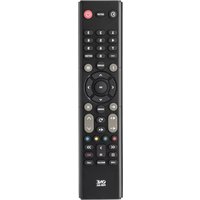
URC 2110 - Remote control ONE FOR ALL - Free user manual and instructions
Find the device manual for free URC 2110 ONE FOR ALL in PDF.


| Product Type | Universal Remote Control |
| Brand | One For All |
| Model | URC 2110 |
| Color | Black |
| Dimensions (L × W × H) | Approximately 20 × 5 × 2 cm |
| Weight | Approximately 100 g (with batteries) |
| Power Source | 2 AAA / LR03 batteries (alkaline recommended) |
| Battery Type | AAA / LR03 |
| Main Functions | Power On/Off, volume, channels, mute, guide, menu, playback keys, learning, SimpleSet, setup code |
| Compatibility | TVs from brands Samsung, LG, Philips, Sony, etc. |
| Infrared Range | Approximately 10 meters |
| Learning Function | Yes, can learn functions from other infrared remotes |
| Setup Methods | SimpleSet (automatic search) or 4-digit code |
| Audio Control | Can control volume of soundbars and audio receivers |
| LED Indicator | Yes, to confirm operations |
| Care and Cleaning | Clean with a soft, dry cloth. Do not use abrasive products. |
| Safety | Do not expose to moisture. Replace batteries with the same type. Remove used batteries. |
| Spare Parts | Not supplied. Batteries available commercially. |
| Repairability | Not user-serviceable. No replaceable internal parts. |
| General Information | Pre-programmed remote for Samsung TVs. Works with any infrared device. |
Frequently Asked Questions - URC 2110 ONE FOR ALL
User questions about URC 2110 ONE FOR ALL
0 question about this device. Answer the ones you know or ask your own.
Ask a new question about this device
Download the instructions for your Remote control in PDF format for free! Find your manual URC 2110 - ONE FOR ALL and take your electronic device back in hand. On this page are published all the documents necessary for the use of your device. URC 2110 by ONE FOR ALL.
USER MANUAL URC 2110 ONE FOR ALL
INTRODUCTION
Thank you for purchasing the One For All Essence TV Universal Remote Control. The remote can be used to control a TV and boasts multiple extra features to make the most of your living room experience.
This manual will help you to set up the Essence TV to take advantage of its features.
BATTERIES
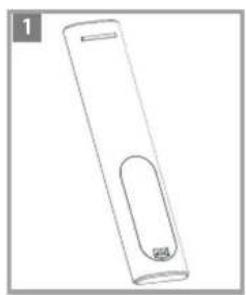
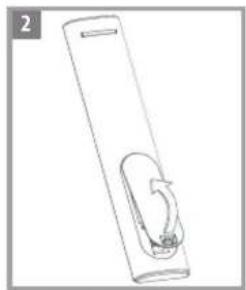
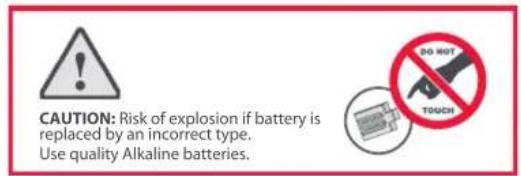
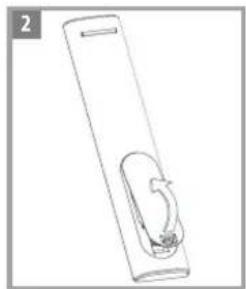
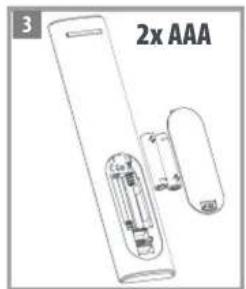
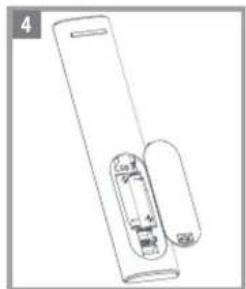
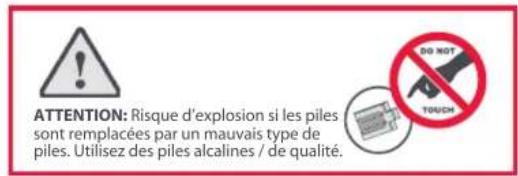
Your remote requires 2 x AAA / LR03 batteries (not Included). Please insert them as shown below. Alkaline batteries are recommended.
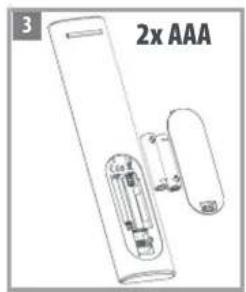
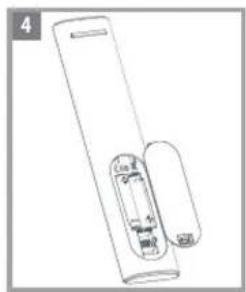
KEY DESCRIPTIONS
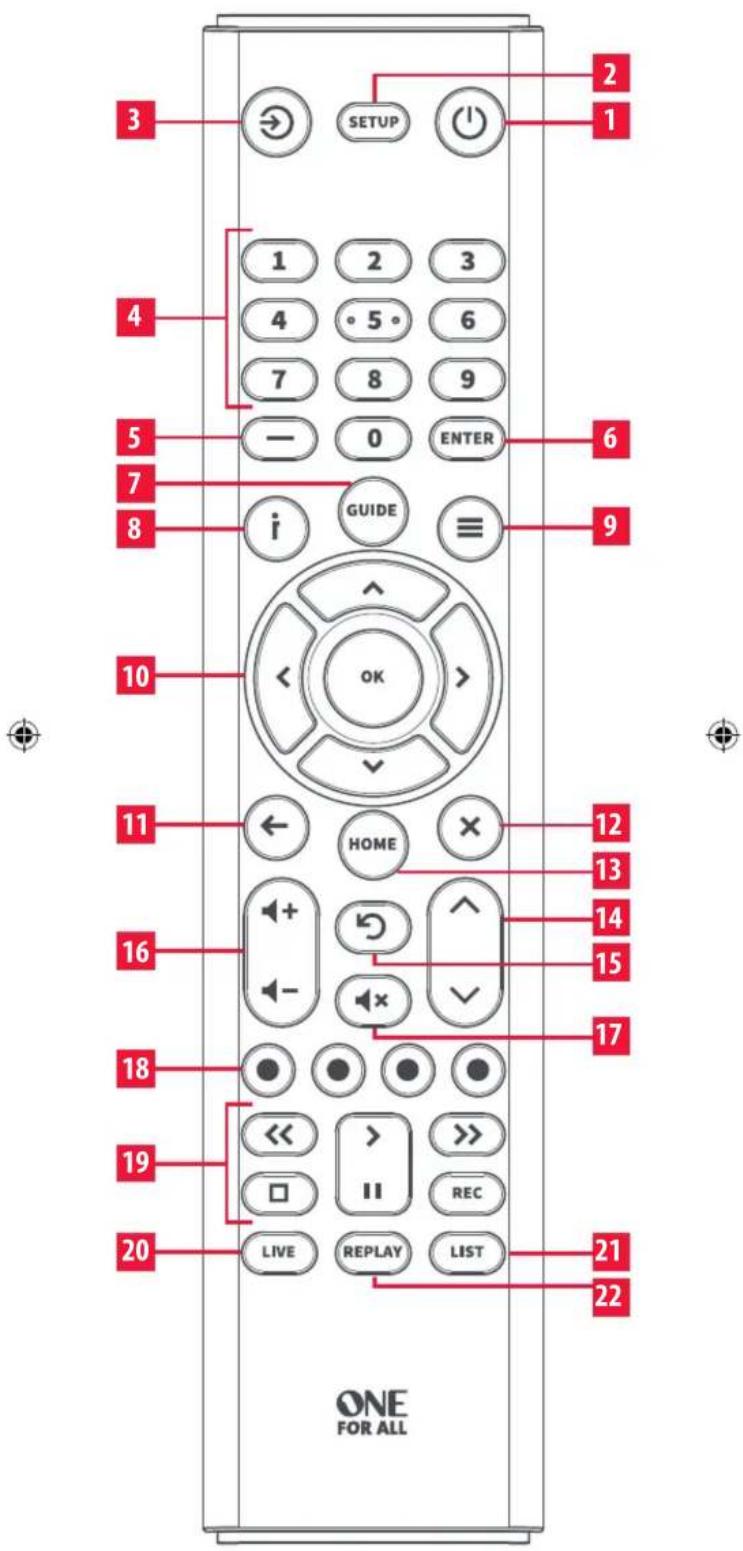
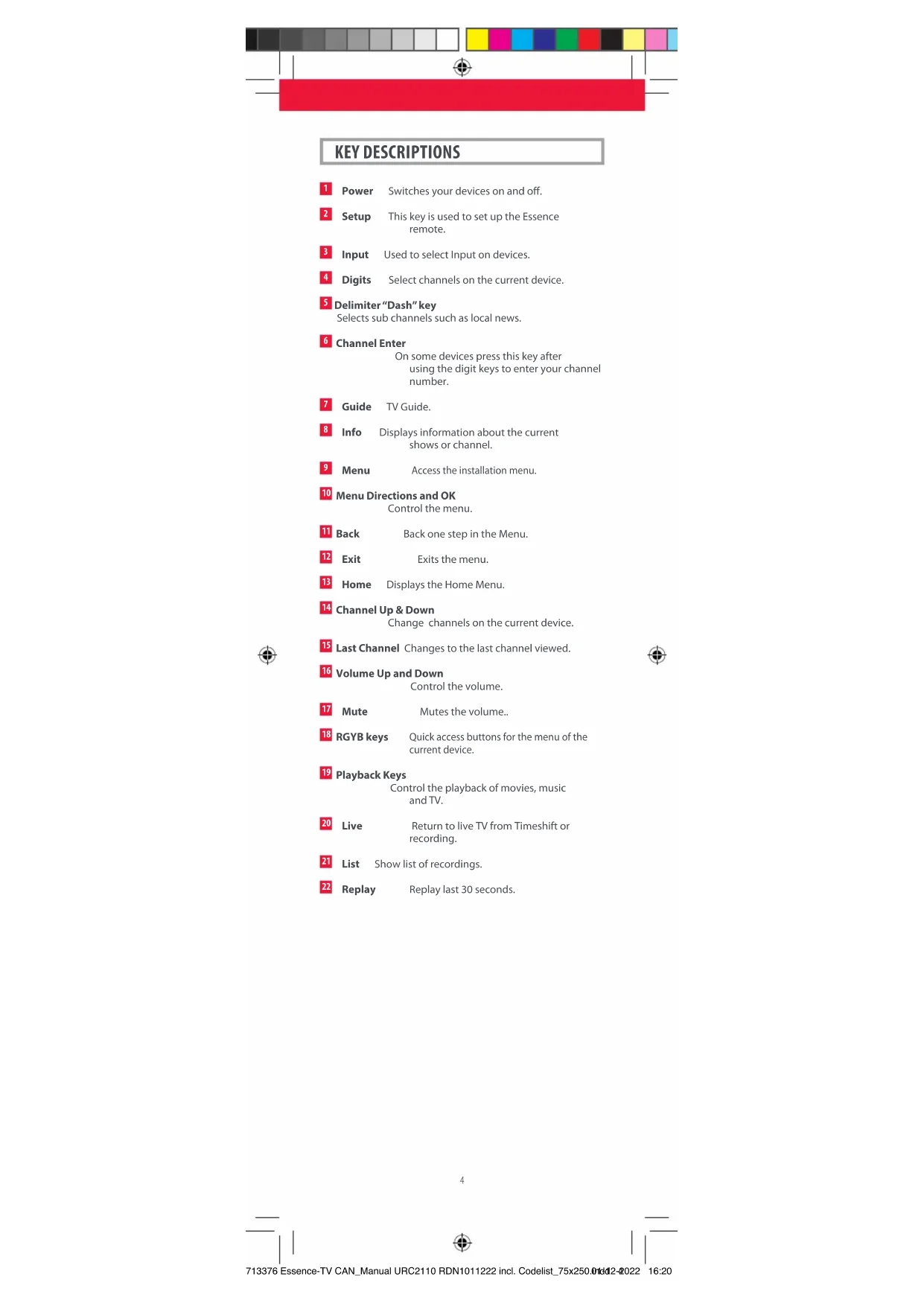
KEY DESCRIPTIONS
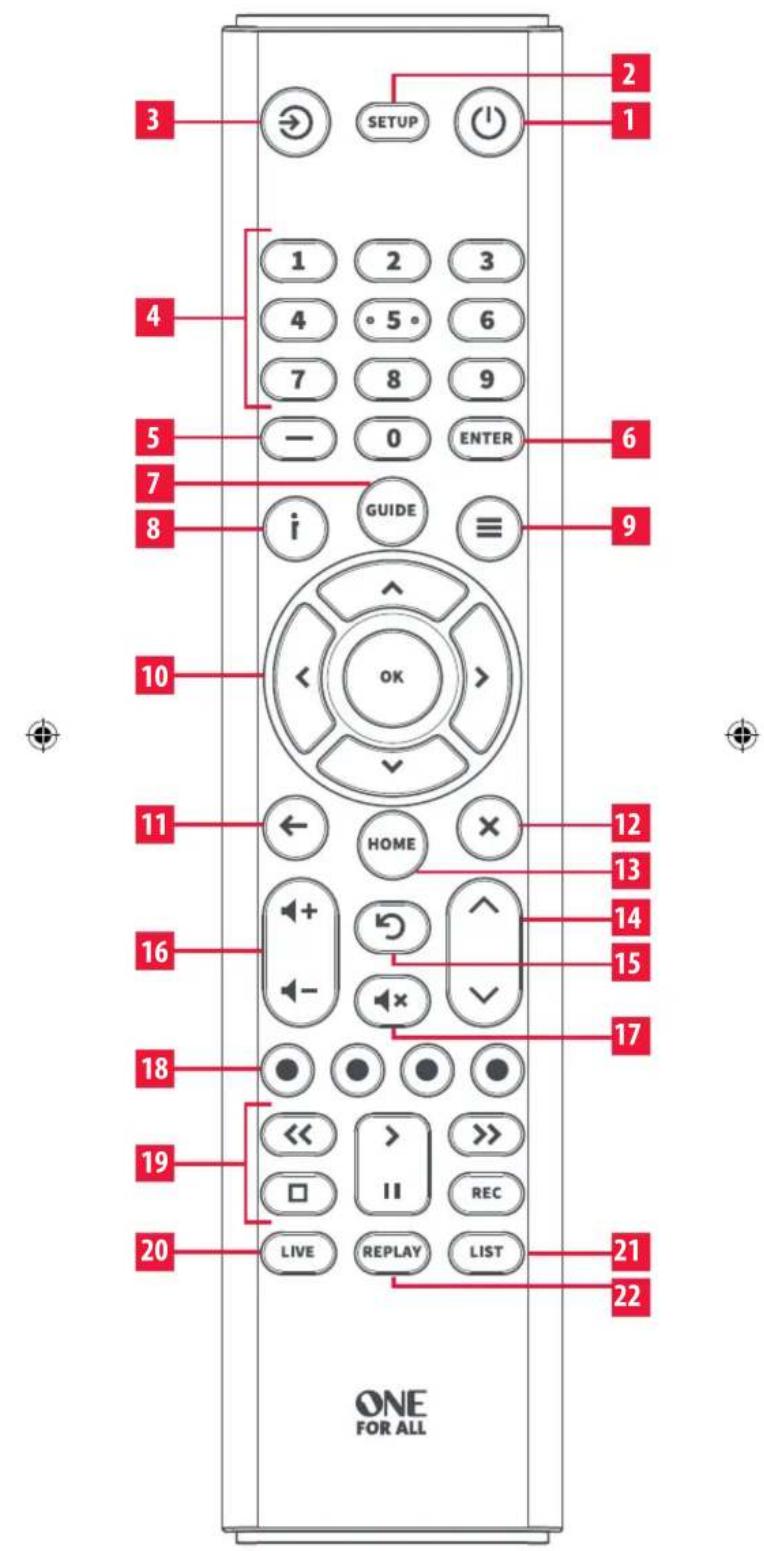
1 Power Switches your devices on and off.
2 Setup This key is used to set up the Essence remote.
3 Input Used to select Input on devices.
4 Digits Select channels on the current device.
5 Delimiter "Dash" key Selects sub channels such as local news.
6 Channel Enter On some devices press this key after using the digit keys to enter your channel number.
7 Guide TV Guide.
8 Info Displays information about the current shows or channel.
9 Menu Access the installation menu.
10 Menu Directions and OK Control the menu.
11 Back Back one step in the Menu.
12 Exit Exits the menu.
13 Home Displays the Home Menu.
14 Channel Up & Down Change channels on the current device.
15 Last Channel Changes to the last channel viewed.
16 Volume Up and Down Control the volume.
17 Mute Mutes the volume..
18 RGYB keys Quick access buttons for the menu of the current device.
19 Playback Keys Control the playback of movies, music and TV.
20 Live Return to live TV from Timeshift or recording.
21 List Show list of recordings.
22 Replay Replay last 30 seconds.
SETUP
The Essence TV remote is pre-programmed to control a Samsung TV out of the box. If you have a Samsung TV, after you have inserted batteries, press a few keys to confirm that the remote operates your TV.
SIMPLESET
If the brand of your device is shown in the SimpleSet List next to a digit key, you can use the SimpleSet system described in this section, please locate the brand of your device and note the key associated with it.
TV

LG
Onn, Insignia
Philips, Magnavox
Roku, Element
Samsung, Panasonic
Sharp, Hisense
Sony, Sanyo
TCL, RCA
Toshiba, Westinghouse
0 VIZIO


To set up your device:
- Turn on your device (not on standby) and point the Essence remote towards it.
- SETUP Hold down the SETUP key until the LED blinks twice
- Hold down the digit key for your brand as listed in the tables above - e.g. 3 for a Philips TV.
- The remote will send a Power command every 3 seconds.
- As soon as your device reacts by turning off or
- The LED will blink twice and the remote should now operate your device.
- If you find one or more keys do not work as you expect, start again at step 2 – the remote will start with the next code in the memory.
Hold down the SETUP key until the LED blinks twice
the digit key for your brand as listed in the tables above - e.g. 3 for a Philips TV.
old down the digit key for your brand as listed in the tables above - e.g. 3 for a Philips TV. - The remote will send a Power command every 3 seconds.
- As soon as your device reacts by turning off or
- The LED will blink twice and the remote should now operate your device.
- If you find one or more keys do not work as you expect, start again at step 2 – the remote will start with the next code in the memory.
SETUP BY CODE
If the brand of your device is not listed in the SimpleSet feature, you can set up by trying codes individually. To do this, firstly locate your brand in the Code List. Codes are listed by brand and device, and in order of popularity.
- Turn on your device (not on standby) and point the Essence remote towards it.
- Hold down the SETUP key until the LED blinks twice
- Enter the first 4 digit code listed for your brand (e.g. 1840 for LG).
- The LED will blink twice on the last digit of the code.
- Now aim the remote towards your device and press the POWER key.
- If the device turns off your remote is ready to use. If not, repeat steps 2-5 with the next code in the list.
- Turn on your device (not on standby) and point the Essence remote towards it.
- Enter the first 4 digit code listed for your brand (e.g. 1840 for LG).
- The LED will blink twice on the last digit of the code.
- Now aim the remote towards your device and press the POWER key.
- If the device turns off your remote is ready to use. If not, repeat steps 2-5 with the next code in the list.


SETUP BY CODE
If the brand of your device is not listed in the SimpleSet feature, you can set up by trying codes individually. To do this, firstly locate your brand in the Code List. Codes are listed by brand and device, and in order of popularity.

SETUP
LEARNING
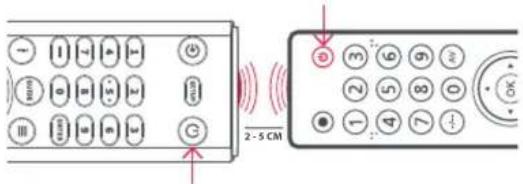
Your Essence remote control can learn any function from any other working remote control. This is a quick and easy one-time setup that allows you to control any infrared controlled device you have in your living room. It also allows you to add a key or keys that may be missing to a spare key on the Essence.
To do this, firstly make sure you have all your original remote controls to hand, and that they have working batteries in. To learn functions, the original remote should be approximately 2 - 5cm from the Essence remote, pointing towards it:
1.

Hold down the SETUP key until the LED blinks twice.
2.

LED should blink twice.
3.

ase the key you want to learn a function onto (for example the POWER key) – the LED will begin to flash rapidly.
4.

Press and release* the corresponding key on the original remote, for example POWER.
5.
6.
7.

have learned all the functions you require, press and hold SETUP key until the LED blinks twice.
*
* Some remotes send commands differently. If you find a function cannot be learned, try holding down the key on the original remote instead of pressing and releasing.
Hints:
- If the LED shows one long blink at step 5, the function was not learned correctly, please try again from step 4.
- If you find one or more keys don't work properly after set up, you can re-enter the learning mode at any time by repeating the procedure from step 1.
- If one or more of your original remotes aren't working, you can still set up the Essence remote by SimpleSet or Code Set Up.
Deleting a learned function
If you want to delete a learned function and return that key to its original state, you can use the following procedure:
1.

the SETUP key until the LED under the Device key blinks twice
2.

the LED should blink twice
3.
Press the key you want to reset twice – the LED should blink twice and the learned function has been deleted.
SETUP
SOUND BAR / AUDIO RECEIVER VOLUME CONTROL
If you have your TV connected to a Sound Bar or Audio Receiver, it's possible to set up your Essence remote to control the Volume and Mute of this device. There are two ways to do this:
AUDIO SIMPLESET
If you have a Sound Bar or Audio Device from one of the brands listed in the table below, you can use the SimpleSet method to program your remote to control it. If you do not have one of the below brands, please proceed to the next section.

Bose Denon
lk Audio
LG
Onn
Onkyo
Samsung
Sony
Yamaha
VIZIO, Sonos
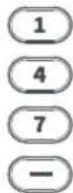
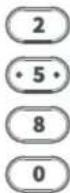
Note that each of the brands has a digit associated with it, for example 4 for LG.
To set up your remote to control your sound bar / audio device, first make sure your TV and sound bar / audio device are both powered on, and that there is something playing that you can hear (this procedure will test the Mute function). Next:
- Hold down the SETUP and VOLUME UP buttons together until the LED blinks twice.
- Now point the remote towards your sound bar / audio device and hold down the digit key for your brand (for example 4 for LG). The remote will send the Mute command to your device every 3 seconds.
- As soon as your sound bar / audio device mutes the volume, release the digit key. The LED will blink twice. The remote has now found the correct code for your Audio Device.
- Now, hold down the SETUP and VOLUME DOWN keys until the LED blinks twice. The volume up, down and Mute keys should now control your Audio Device.
AUDIO CODE SETUP
If your Sound Bar / Audio Device is not one of the brands listed above, you can also set up the remote to control it by entering a 4 digit code. The codes are listed in the Audio Codelist section of this manual, and are listed by brand and then popularity. Locate the brand of your sound bar / audio system in this code list and then the procedure is:
- SETUP Hold down the SETUP and VOLUME DOWN keys until the LED blinks twice.
SETUP
2.


Next, hold down the SETUP and VOLUME UP keys until the LED blinks twice
The remote is now ready to be programmed and, at this point, the LED will not blink when the Volume up or down keys are pressed.
- Enter the first 4 digit code for your sound bar / audio device. The LED should blink twice on the last digit.
4.

Now try the VOLUME UP, DOWN and MUTE and see they control your sound bar or audio device.
- If they work, your remote is set up. If not try again from step 1 using the next code in the list.
RESET VOLUME CONTROL
To reset the volume control to the original setting:


SETUP and VOLUME DOWN keys until the LED blinks 4 times. Volume control is now reset.


Connect with us on Facebook. Reigniez-nous sur Facebook. Facebook.com/oneforallworldwide

Connect with us on Instagram. Rejaignez-nous sur Instagram @oneforall worldwide

Connect with us on LinkedIn. Rejouignez-nowi sur LinkedIn. Linkedin.com/company/sine-for-all-worldwide

Visit our YouTube channel. Visitez native chainé youtube. youtube.com/user/oneforallproducts
8
INTRODUCTION
PRINCIPALES DESCRIPTIONS
10
PRINCIPALES DESCRIPTIONS
CONFIGURATION
Toshiba, Westinghouse
0 VIZIO


CONFIGURATION
CONFIGURATION
Astuces :
Connect with us on Instagram. Rejalignednous our Instagram. @oneforallworldwide

Connect with us on LinkedIn. Rejournee nous sur LinkedIn. linkedin.com/company/one-for-all-worldwide

Visit our YouTube channel. Visitez votre chaîne youtube. youtube.com/user/one/smallproducts
CODELIST
TV
Affinity 3717, 3870, 3577, 3716
Aiwa 3332,1362
Akai 1675,3332
AOC 3720, 2691, 1365, 2014, 20
Apex Digital 2397, 4347, 4350
Ario 2397
Asus 3340
Atak 2397
Atvio 3638, 4398, 3636, 3879
Atyme 2746
Audiovox 1564, 1276, 1769, 2121
Auria 4748, 2087, 2014, 2277, 2855
Avera 2397, 2049
Avol 2735, 4367, 3382, 3118, 1709
Axess 3593
Blu:sens 2735
Bolva 2397
Broksonic 1892, 3118
Calypso 4748
Champion 1362
Changhong 4629
Citizen 1892
Coby 3627
Contex 4053, 4280
Craig 3423, 1687
Crosley 3115
Curtis 2855, 3577, 2466, 3895, 2352, 2397, 3939, 4035, 3636, 3382, 3717, 4139
Curtis Mathes 1661
Daewoo 1661, 3115, 3879
Dell 1749
Digitrex 4207
Disney 1892
Durabrand 1595,3879
Dynex 2049, 1463, 1780, 2184
Electrograph 1755
Electrohome 1670
Electron 2466, 2855
Element 3559, 1687, 4398, 2183, 2964, 5173, 4635, 4910, 1886, 4217, 4740
Element-Roku 4398,4740
Elite 1457
Emerson 1864, 1963, 1394, 1886, 1595, 3623, 1661, 2183, 3559
Envision 1365, 2087, 2014
EQD Auria 2014, 2087, 2277
ESA 1963, 1595
eTec 2397
Exorvision 3953
Favi 3382
Fisher 1362
Fluid 2964,3559
Furrion 3332,4093,5410
Gateway 1755
GE 1447
GFM 1864, 1886, 1963
GHIA 5144,5196
GPX 3980,3977
Haier 2309, 1749, 1748, 3382, 1753, 3429 2293, 4398, 2214
Haier-Roku 4398
Supersonic 3593,2104,1753
SVA 1963
Sylvania 1963, 1864, 1886,
1394, 1595, 3332,
3577,4053
Symphonic 1963, 1595, 1394
TCL 4398,2434,3183, 5446,3879
TCL-Roku 4398
Technicolor 3577
Toshiba 2724, 3945, 5213,
4885,5394
Upstar 4182,4405,3899
V7 Videoseven 2087


TV | AUDIO SOUNDBAR
Vidao 2397
Videoseven 2087
Viewsonic 2014, 2277, 2087, 3706, 1755, 2049, 1860, 1564, 1365
Viore 3382, 2352, 3118, 2104, 3429, 3094
VisionQuest 1687
VIZIO 1758, 3758, 4905, 5454, 4723, 2707, 2757, 3415, 2512
W Box
Technologies 4686
Westinghouse 1712, 4797, 3559, 3382, 4398, 5173, 4910, 2293, 3094, 4139, 3560, 4635, 2397, 3908
Westinghouse-
Roku 4398
White
Westinghouse 1661
Wyse 1365
Xoceco 1753, 2049, 1749
Zenith 1423, 2731, 1661, 1365, 2358, 1463
AUDIO SOUNDBAR

Acoustic Audio 4683
Aiwa 0158, 1243
Altec Lansing 4609
AMC 1077
Anker 5578
Apex Digital 4334
Arcam 2241
Arvani 4293
AudioSource 3721
Aura 4293
Axess 4095
Axiim 4951
Bestisan 5271
BÖHM 4280
Bose 1933, 1629, 3959, 4307, 3708, 4024, 3706, 3832, 5163
Boston
Acoustics 3698
BYL 5271
Canston 5138
Coby 3654
Craig 4466
Current Audio 5190, 5191
Curtis 3942
Definitive
Technology 4415, 4984, 3645
Denon 3347, 2857, 2516, 3380, 4025, 2502
Dynavox 3231
Dynex 2971,3951
Emotiva 3763
Enclave Audio 4800
Energy 4941
Episode 5107
Epworth 0158,1243
GE 3297
GPX 5103
Haier 3516
Harman/
Kardon 2241,0110,2443, 1304,3320,4186, 3418,3756,3391, 3517
iLive 3175
Inkel 3770,4090,3793
Insignia 3951, 2169, 2472, 2966, 3770, 4424, 1077
Integra 1805, 3860, 2730, 4023, 4014, 2503, 3992
Jamo 4941
JBL 3756,2241,3391,3535,5132,0110
JVC 1676, 2040, 3049, 2331
Kenwood 1570, 1293
Klipsch 4941, 4198, 4200, 5152
LG 3217, 2676, 3509, 2197, 4043, 3996, 1293
Magnavox 1831, 1269, 3282
Majority 5506
Marantz 1289, 2114, 3772, 1269, 3347
McIntosh 1289
Megacra 5271
Monoprice 4505
Monster Cable 4987
Onkyo 1805, 2730, 3860, 4023, 2503, 4041, 4014, 3992, 3984, 5094
Onn 5041, 5412, 5042, 5414, 5415, 5043
Optimus 1023
Panasonic 3323, 2967, 3309, 3055, 2452, 3767, 1676
Paradigm 4536, 4846
Peerless-AV 5153
Philco 1831
Philips 1831, 1269, 4105, 2459, 3776, 3379, 3282, 3801, 2311, 3652, 2675, 4012
Pinnacle
Speakers 3774,3728
Pioneer 1935, 3057, 2432, 1023, 3956
Polk Audio 4431, 1289

AUDIO SOUNDBAR
Proficient 3661
Pyle 4333
RCA 2041, 2611, 3297,
2719, 2655, 3969,
1023, 2544, 5490
RichSound
Research 5138
Roku 5495
RSR 5138
Samsung 2660, 1868, 2809,
3320, 3382, 3154,
2137, 1304
Samsung
Harman
/Kardon 3320
Sanyo 4176,3282
Sceptre 5351
Sennheiser 5330
Sharp 3097, 3736, 3929
Sherbourn 3763
Sherwood 1077, 1567, 3120,
3136,2169,3793,
4090,3770
Sherwood
Newcastle 1567, 2169
SnapAV 5107
Sonos 3919
Sony 1622,3700,2172,
4315, 1759, 1822,
2522, 2475, 1758,
3257, 2582, 3487,
4457,0158,4285,
4366,2610
Soundcore 5578
SpeakerCraft 3661
Stereophonics 1023
TaoTronics 4672
TCL 4672,5385
Toshiba 3627
VIZIO 3935, 2454, 5095,
4911
Yamaha 2467, 2116, 3580,
3030, 2458, 3325,
3917, 4269, 2021,
0176
Zenith 1293, 2197
ZVOX 2332, 3913, 2334


WARRANTY / GUARANTEE
WARRANTY / GUARANTEE INFORMATION
Terms and Conditions for "100% Guaranteed To Work" policy, and the separate 1 Year Limited Warranty against defects in material and workmanship can be found at www.oneforall.com/remoteguarantee, or you may request hard copies via mail to Universal Electronics Inc. 15147 N. Scottsdale Road, Suite H300, Scottsdale, Arizona 85254. Please include your full name, product information, and contact information in your request communication.
www.oneforall.com
INFORMATIONS SUR LA GARANTIE
GARANTIE / INFORMATIONS SUR LA GARANTIE
Connect with us on Facebook. Rejournouir sur Facebook. facebook.com/oneforallworldwide

Connect with us on Instagram. Rejourned-nous our Instagram. ghonforallworldwide

Connect with us on LinkedIn. Rejaignez-nous sur LinkedIn. Linkedin.com/company/one-for-all-worldwide

Visit our YouTube channel. Visitez sobre chaîne youtube. youtube.com/user/one/smallproducts
Customer Support
Service client: www.oneforall-canada.ca
OFA warranty / terms & conditions:
Garantie OFA / termes et conditions: www.uneforall-canada.ca
Imported into Canada by:
Industry Canada Regulatory Information
CAN ICES-3 (B)/NMB-3 (B)
Avis d'Industrie Canada CAN ICES-3 (B)/NMB-3 (B)
713376
RDN 1011222

- INTRODUCTION
- BATTERIES
- KEY DESCRIPTIONS
- SETUP
- SIMPLESET
- TV
- TO SET UP YOUR DEVICE
- SETUP BY CODE
- LEARNING
- HINTS
- DELETING A LEARNED FUNCTION
- SOUND BAR / AUDIO RECEIVER VOLUME CONTROL
- AUDIO SIMPLESET
- AUDIO CODE SETUP
- RESET VOLUME CONTROL
- PRINCIPALES DESCRIPTIONS
- CONFIGURATION
- CODELIST
- TV | AUDIO SOUNDBAR
- AUDIO SOUNDBAR
- WARRANTY / GUARANTEE
- WARRANTY / GUARANTEE INFORMATION
- INFORMATIONS SUR LA GARANTIE
- GARANTIE / INFORMATIONS SUR LA GARANTIE
Brand : ONE FOR ALL
Model : URC 2110
Category : Remote control