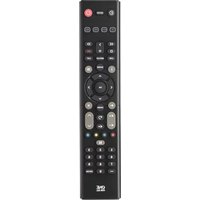
Essence 4 URC 1241 - Remote control ONE FOR ALL - Free user manual and instructions
Find the device manual for free Essence 4 URC 1241 ONE FOR ALL in PDF.



User questions about Essence 4 URC 1241 ONE FOR ALL
0 question about this device. Answer the ones you know or ask your own.
Ask a new question about this device
Download the instructions for your Remote control in PDF format for free! Find your manual Essence 4 URC 1241 - ONE FOR ALL and take your electronic device back in hand. On this page are published all the documents necessary for the use of your device. Essence 4 URC 1241 by ONE FOR ALL.
USER MANUAL Essence 4 URC 1241 ONE FOR ALL
natural_image
Color palette bar with grayscale and red sections, no text or symbols presentBATTERIES
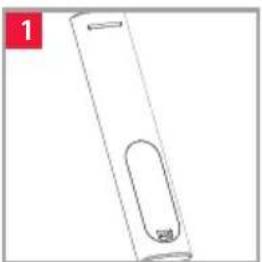
Your remote requires 2 x AAA / LR03 batteries. Please insert them as shown below. Alkaline batteries are recommended.
natural_image
Simple line drawing of a cylindrical object with a rounded bottom and a small protrusion, labeled '1' in the top-left corner (no text or symbols on the object itself)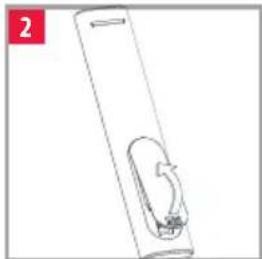
natural_image
Simple line drawing of a cylindrical object with a handle and internal structure (no text or symbols)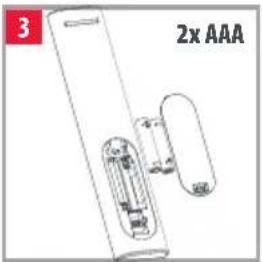
natural_image
Diagram of a device with two components, one labeled '2x AAA' (no other text or symbols)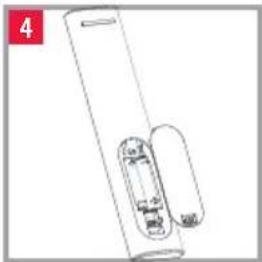
natural_image
Simple line drawing of a cylindrical object with two rectangular ends, one containing internal components (no text or symbols)
CAUTION: Risk of explosion if battery is replaced by an incorrect type. Use quality Alkaline batteries.
Thank you for purchasing the One For All Essence 4 Device Universal Remote Control. The remote can be used to control up to 4 Audio Video Devices such as a TV, Set Top Box or Sound Bar.
This manual will help you to set up the Essence 4 to control all of your devices.
Power Switches your devices on and off.
Setup This key is used to set up the Essence remote.
Input Used to select Input on devices.
Device keys These keys are used to select which device the Essence 4 currently controls. After pressing the TV key, the remote will control your TV. To switch to controlling another device, simply press the appropriate key. The devices that can be programmed to each key are as follows:
TV: All televisions such as LED, LCD, Plasma, OLED etc.
OTT: Streaming devices such as an Apple TV, Roku Box, Foxtel Now etc. Also works Xbox 360 and Xbox One.
STB: Set Top Boxes, including Satellite, Cable and Freeview.
AUD:Audio devices including Sound Bars, AV Receivers and Hi-Fi.
Playback Keys Control the playback of movies, music and TV.
Subt. Display subtitles.
Apps Brings up the Applications menu on Smart Devices such as Smart TVs or Streaming boxes.
List Displays a list of recorded programmes.
Info Displays information about the current programmes or channel.
Guide TV Guide.
Menu Access the installation menu of the current device.
Menu Directions and OK
Control the menu of the current device.
Back Back one step in the Menu.
Home Displays the Home Menu.
Exit Exits the menu.
Volume Up and Down
Control the volume of the current device. You can also set up these keys to always control one device. For details see the Volume Lock feature.
Last Channel Changes to the last channel viewed.
Mute Mutes the volume of the current device. You can also set up this key to always control one device. For details see the Volume Lock feature.
Channel Up & Down
Change channels on the current device.
RGYB keys Quick access buttons for the menu of the current device.
Netflix Netflix
Digits Select channels on the current device. On Audio devices, these keys will select individual inputs.
TV Return to live TV.
Search Searchformedia.
SETUP
The Essence 4 remote is pre-programmed to control some of the most popular devices out of the box. If you have one of the following devices try the putting the batteries in and pressing the device key, and then press a few keys to see if the remote works your device:
Device Key To Press Device controlled

TV Samsung TV
OTT Roku Streaming Box
STB Sky Q Box
AUD Onkyo Receiver
If your device is not one of those listed above, or you have extra devices to set up, there are 2 ways to do this. The easiest is SimpleSet which is used for the common brands and devices.
SIMPLESET
If the brand of your device is shown in the SimpleSet picture pointing to a key, you can use the SimpleSet system described in this section, please locate the brand of your device and note the key associated with it.
To set up your device:
-
Turn on your device (not on standby) and point the Essence remote towards it. If you are setting up a Streaming device, make sure a movie or TV show is playing.
-
Press the Device key you wish to set up (for example TV).
-
Hold down the Setup key until the LED under the Device key blinks twice.
-
Hold down the digit for your brand and device as listed in the tables above - e.g. 7 for a Samsung TV.
-
For all devices except OTT the remote will send the Power key every 3 seconds, for a streaming box the remote will send the Play/Pause function.
-
As soon as your device reacts by turning off or Pausing (Streaming box only) release the digit.
-
The LED will blink twice and the remote should now operate your device.
- If you find one or more keys do not work as you expect, start again at step 2 – the remote will start with the next code in the memory.

natural_image
Color palette bar with grayscale swatches and a red horizontal bar at the bottom (no text or symbols)SETUP
SETUP BY CODE
If the brand of your device is not listed in the SimpleSet feature, you can set up by trying codes individually. To do this firstly locate your brand in the Code List. Codes are listed by brand and device, and in order of popularity.
- Turn on your device (not on standby) and point the Essence remote towards it.
- Press the Device key you wish to set up (for example TV).
- Hold down the Setup key until the LED under the Device key blinks twice.
- Enter the first 4 digit code listed for your brand (e.g. 1840 for LG).
- The LED will blink twice on the last digit of the code.
- Now on the remote towards your device and press the Power key.*
- If the device turns off your remote is ready to use. If not, repeat steps 2-6 with the next code in the list.
* Note: If your original remote did not have a Power key, try testing with a different key at step 6. For example try pressing Play or Pause when setting up a streaming box and see if the box responds.



natural_image
Color palette bar with grayscale and red sections, no text or symbols presentSETUP
LEARNING
Your Essence remote control can learn any function from any other working remote control. This is a quick and easy one-time setup that allows to control any infrared controlled device you have in your living room. It also allows you to add a key or keys that may be missing to a spare key on the Essence.
To do this, firstly make sure you have all your original remote controls to hand, and that they have working batteries in.
To learn functions, the original remote should be approximately 3cm from the Essence remote, pointing towards it:
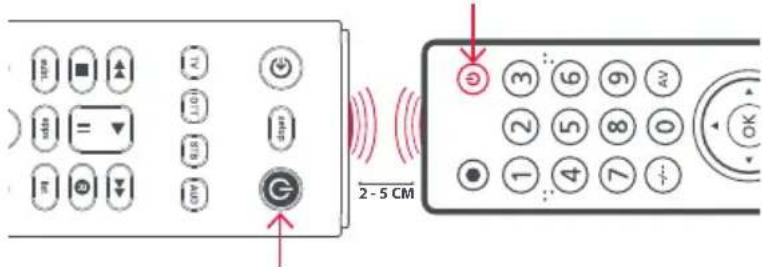
text_image
2 - 5 CM- Press the Device key for the device you want to learn functions onto.
- Hold down the Setup key until the LED under the Device key blinks twice.
- Press 975 the LED should blink twice.
- Press and release the key you want to learn a function onto (for example the TV Power key) – the LED will begin to flash rapidly.
- Press and release* the corresponding key on the original remote, for example Power.
- The LED will blink twice to indicate the key has been learned correctly.
- Repeat steps 4 and 5 for each key you want to learn – remember you can learn from multiple remotes, but only one function per key.
- When you have learned all the functions you require, press and hold Setup key until the LED blinks twice.
* Some remotes send commands differently. If you find a function cannot be learned, try holding down the key on the original remote instead of pressing and releasing.
Hints:
- If the LED shows one long blink at step 5, the function was not learned correctly, please try again from step 4.
- If you find one or more keys don't work properly after set up, you can re-enter the learning mode at any time by repeating the procedure from step 1.
- If one or more of your original remotes aren't working, you can still set up the Essence remote by SimpleSet or Code Set Up.

natural_image
Color palette bar with grayscale swatches and a red horizontal bar at the bottom (no text or symbols)SETUP
Deleting a learned function
If you want to delete a learned function and return that keys to its original state, you can use the following procedure:
-
Press the Device key for the device you want to learn functions onto.
-
Hold down the Setup key until the LED under the Device key blinks twice.
-
Press 976 - the LED should blink twice
-
Press the key you want to reset twice – the LED should blink twice and the learned function has been deleted.
VOLUME LOCK
If you primarily use one device for controlling volume, for example a Sound Bar or Audio Video Receiver, it's possible to program your Essence remote to only control that device when you use the Volume Up, Down and Mute keys. To do this:
-
Hold down the Setup key until the LED under the Device key blinks twice.
-
Press 993 the LED should blink twice.
-
Press the device key for the device to always control volume – for example Audio.
-
The LED will blink twice.
From now on, pressing the Volume Up, Down or Mute keys will always control the Audio device, no matter what device you are controlling.
To unlock the volume, and return the remote to controlling each device's volume individually, the procedure is:
-
Hold down the Setup key until the LED under the Device key blinks twice
-
Press 993 – the LED should blink twice
-
Press VOLUME DOWN – the LED will blink four times and Volume is now unlocked.
Connect with us


facebook.com/ @oneforall.worldwide linkedin.com/ youtube.com/ oneforal worldwide company/one-for-all-worldwise/user/oneforal products
natural_image
Color palette bar with grayscale, red, and black sections (no text or symbols)ESPAÑOL
natural_image
Color palette bar with grayscale swatches and a red horizontal bar at the bottom (no text or symbols)CONFIGURACIÓN
PROGRAMACIÓN
6 SUBT. Visa undertexter
natural_image
Color palette bar with grayscale and red sections, no text or symbols presentKONFIGURERA
KONFIGURERA VIA KOD
natural_image
Color palette bar with grayscale swatches and a red horizontal bar at the bottom (no text or symbols)KURULUM
KODLA KURULUM
natural_image
Color palette bar with grayscale swatches and a red horizontal bar at the bottom (no text or symbols)

Connect with us


facebook.com/ @oneforall.worldwide linkedin.com/ youtube.com/ oneforallworldwide company/one-for-all-worldwide/user/oneforalproducts


Universal Electronics BV – Europe & International P.O. Box 3332, 7500 DH Enschede The Netherlands
713426|1-3 RDN1010623