
B276HULE - Monitor ACER - Free user manual and instructions
Find the device manual for free B276HULE ACER in PDF.
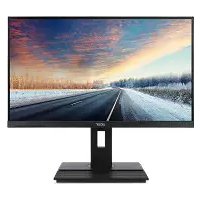



| Product Type | LCD Monitor |
| Brand | Acer |
| Model | B276HULE |
| Screen Size | 27 inches (69 cm) |
| Panel Technology | IPS |
| Maximum Resolution | 2560 x 1440 at 60 Hz |
| Brightness | 350 cd/m² (typical) |
| Contrast | 100,000,000:1 max (ACM) |
| Viewing Angle | 178° horizontal / 178° vertical |
| Response Time | 6 ms (gray to gray) |
| Display Colors | 1.07 billion |
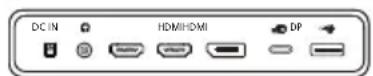
| Input Connectors | HDMI, DisplayPort, USB Type-C, USB 3.0 x4, audio (2 W x2) |
| Dimensions (W x H x D) | 611.64 x 394.28 ~ 544.28 x 247.17 mm |
| Net Weight | 8.4 kg |
| Power Supply | 19 V === 7.9 A |
| Power Consumption (on) | 28.44 W (typical) |
| Power Consumption (standby) | 0.36 W (typical) |
| Energy Efficiency Class | B |
| Ergonomic Adjustments | Tilt (-5° to +35°), swivel (-60° to +60°), height (0 to 150 mm), pivot (-90° to +90°) |
| Built-in Functions | PIP/PBP, 2W x2 speakers, OSD menu, energy-saving mode |
| Recommended Cleaning | Use a soft, solvent-free cloth; never spray liquid directly on the screen |
| Safety | Do not open the casing; avoid exposure to rain, moisture, or magnetic fields |
Frequently Asked Questions - B276HULE ACER
User questions about B276HULE ACER
0 question about this device. Answer the ones you know or ask your own.
Ask a new question about this device
Download the instructions for your Monitor in PDF format for free! Find your manual B276HULE - ACER and take your electronic device back in hand. On this page are published all the documents necessary for the use of your device. B276HULE by ACER.
USER MANUAL B276HULE ACER
Important safety instructions
Please read the following instructions carefully.
- To clean the LCD monitor screen: Be sure that your monitor is electrically rated to operate with the AC power available in your location.
- Turn off the LCD monitor and unplug the power cord.
- Spray a non-solvent cleaning solution onto a rag and clean the screen gently. NEVER SPRAY OR POUR ANY LIQUID DIRECTLY ONTO THE SCREEN OR CASE.
- PLEASE DO NOT USE ANY AMMONIA OR ALCOHOL-BASED CLEANERS ON THE LCD DISPLAY SCREEN OR CASE.
- Acer will not be liable for damage resulting from use of any ammonia or alcohol-based cleaners.
- Do not place the LCD monitor near a window. Exposing the monitor to rain, moisture or sunlight can severely damage it.
- Do not apply pressure to the LCD screen. Excessive pressure may cause permanent damage to the display.
- Do not remove the cover or attempt to service this unit yourself. An authorized technician should perform servicing of any nature.
- Store the LCD monitor in a room with a temperature of -20°C to 60°C (-4°F to 140°F). Storing the LCD monitor outside this range may result in permanent damage.
- Immediately unplug your monitor and call an authorized technician if any of the following circumstances occur:
- Monitor-to-PC signal cable is frayed or damaged.
- Liquid spills onto the LCD monitor or the monitor is exposed to rain. The LCD monitor or case is damaged.
Attaching the monitor to the base
- Remove the monitor from the packaging.
- Attach the footstand to the base. (for selected models)
- Turn clockwise to lock. Ensure that the base is locked onto the stand. (for selected models)
- Secure the base to the stand by turning the screw using the integrated tab or a suitable coin. (for selected models)
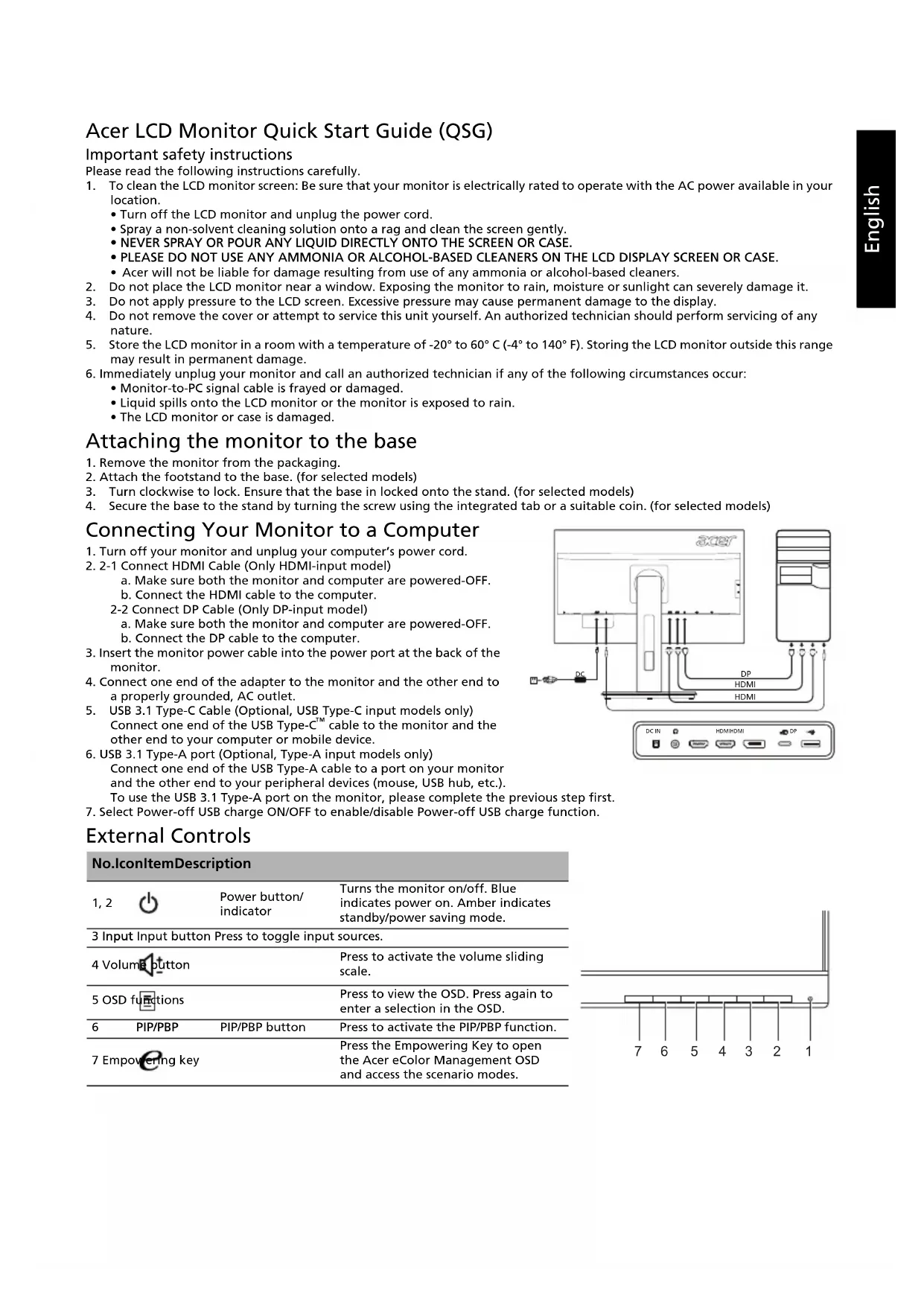
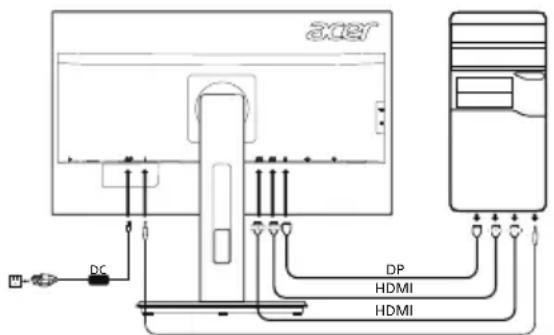
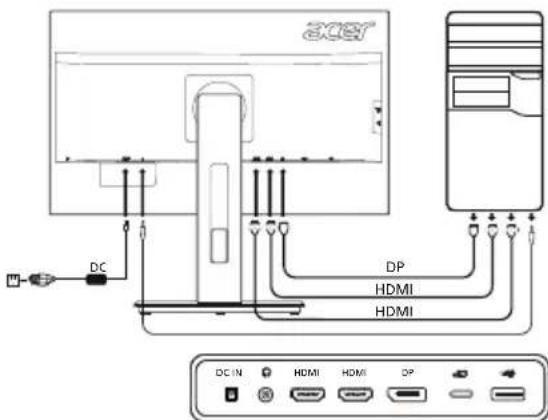
Connecting Your Monitor to a Computer
- Turn off your monitor and unplug your computer's power cord.
- 2-1 Connect HDMI Cable (Only HDMI-input model)
a. Make sure both the monitor and computer are powered-OFF.
b. Connect the HDMI cable to the computer.
2-2 Connect DP Cable (Only DP-input model)
a. Make sure both the monitor and computer are powered-OFF. b. Connect the DP cable to the computer.
- Insert the monitor power cable into the power port at the back of the monitor.
- Connect one end of the adapter to the monitor and the other end to a properly grounded, AC outlet.
- USB 3.1 Type-C Cable (Optional, USB Type-C input models only) Connect one end of the USB Type-C cable to the monitor and the other end to your computer or mobile device.
- USB 3.1 Type-A port (Optional, Type-A input models only)
Connect one end of the USB Type-A cable to a port on your monitor and the other end to your peripheral devices (mouse, USB hub, etc.).
To use the USB 3.1 Type-A port on the monitor, please complete the previous step first.
- Select Power-off USB charge ON/OFF to enable/disable Power-off USB charge function.
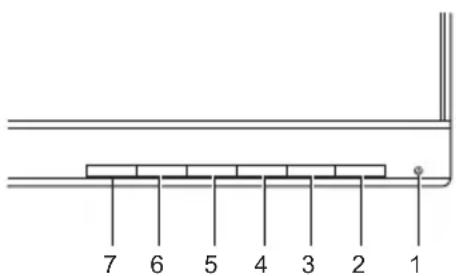
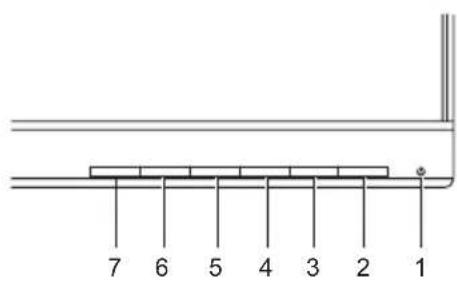
External Controls
| No.ItemDescription | ||
| 1,2 | Power button/indicator | Turns the monitor on/off. Blue indicates power on. Amber indicates standby/power saving mode. |
| 3 Input Input button Press to toggle input sources. | ||
| 4 Volume button | Press to activate the volume sliding scale. | |
| 5 OSD functions | Press to view the OSD. Press again to enter a selection in the OSD. | |
| 6 PIP/PBP | PIP/PBP button | Press to activate the PIP/PBP function. |
| 7 Empowering key | Press the Empowering Key to open the Acer eColor Management OSD and access the scenario modes. | |
Regulations and safety notices
FCC notice
This device has been tested and found to comply with the limits for a Class B digital device pursuant to Part 15 of the FCC rules. These limits are designed to provide reasonable protection against harmful interference in a residential installation. This device generates, uses, and can radiate radio frequency energy and, if not installed and used in accordance with the instructions, may cause harmful interference to radio communications.
However, there is no guarantee that interference will not occur in a particular installation. If this device does cause harmful interference to radio or television reception, which can be determined by turning the device off and on, the user is encouraged to try to correct the interference by one or more of the following measures:
Reorient or relocate the receiving antenna. Increase the separation between the device and receiver. Connect the device into an outlet on a circuit different from that to which the receiver is connected. Consult the dealer or an experienced radio/television technician for help.
CE declaration of Conformity
Hereby, Acer Inc., declares that this LCD monitor is in compliance with the essential requirements and other relevant provisions of EMC Directive 2014/30/EU, Low Voltage Directive 2014/35/EU, and RoHS Directive 2011/65/EU and Directive 2009/125/EC with regard to establishing a framework for the setting of ecodesign requirements for energy-related product.
Notice:
In order to prevent damage to the monitor, do not lift the monitor by its base.
Notice: Shielded cables
All connections to other computing devices must be made using shielded cables to maintain compliance with EMC regulations.
Notice: Peripheral devices
Only peripherals (input/output devices, terminals, printers, etc.) certified to comply with the Class B limits may be attached to this equipment. Operation with non-certified peripherals is likely to result in interference to radio and TV reception.
Caution
Changes or modifications not expressly approved by the manufacturer could void the user authority, which is granted by the Federal Communications Commission, to operate this product.
Operation conditions
This device complies with Part 15 of the FCC Rules. Operation is subject to the following two conditions: (1) this device may not cause harmful interference, and (2) this device must accept any interference received, including interference that may cause undesired operation.
Notice: Canadian users
This Class B digital apparatus complies with Canadian ICES-003.
Disposal of Waste Equipment by Users in Private Household in the European Union
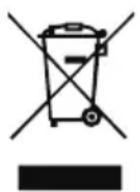
This symbol on the product or on its packaging indicates that this product must not be disposed of with your other household waste. Instead, it is your responsibility to dispose of your waste equipment by handing it over to a designated collection point for the recycling of waste electrical and electronic equipment. The separate collection and recycling of your waste equipment at the time of disposal will help to conserve natural resources and ensure that it is recycled in a manner that protects human health and the environment. For more information about where you can drop off your waste equipment for recycling, please contact your local city office, your household waste disposal service or the shop where you purchased the product.
Warning Message for Magnet
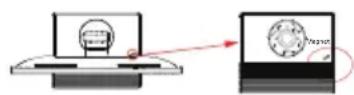
Certain electronic devices such as hard drives, USB devices, tablet computers, laptops, cellphones, watches, earphones, speakers, credit cards, magnetic ID cards, etc. are sensitive to magnetic fields and may be damaged permanently or temporarily disabled if exposed to a magnetic field that is too strong. Electronic devices should not be put close to or directly on the magnetic area of monitor base.
SPECIFICATION
| LCD Panel | Driving System TFT Color LCD | |
| Size 27"W (69 cm) | ||
| Pixel Pitch 0.233 mm (H) x 0.233 mm (V) | ||
| Brightness | 350 cd/m² (Typical) | |
| Contrast 10000000:1 Max (ACM) | ||
| Viewable Angle 178° (H) 178° (V) (CR=10) | ||
| Response Time 6 ms (G) to G) | ||
| Panel Type In-Plane Switching | ||
| Video R, G, B Analog Interface | ||
| H-Frequency HDMI: 31 90 KHz | ||
| V-Frequency HDMI: 56 76 Hz | ||
| Display Colors 1.078 Colors | ||
| Dot Clock 241.5 MHz | ||
| Maximum Resolution 2560 x 1440 @ 60 Hz | ||
| Plug & Play VESA DDCCI/DDC2B | ||
| Energy Efficiency Class B | ||
| *Annual Energy Consumption 58 (kWh) (for HDMI-input Model) | ||
| Power Consumption | On Mode | 28.44 W (Typical) |
| Sleep Mode | 0.36 W (Typical) | |
| Off Mode | 0.25 W (Typical) | |
| Input Connector | HDMI 19 pin (Only HDMI-Input Model) DP (Only DP-Input Model) Type C | |
| Input Video Signal | HDMI signal (Only HDMI-Input Model) (Optional) DP (Only DP-Input Model) (Optional) Type C | |
| Speakers | 2 W x 2 (Only Audio-Input Model) (Optional) | |
| USB | USB 3.0 x 4 | |
| Maximum Screen Size | Horizontal: 596.74 mm Vertical: 335.66 mm | |
| Power Source | 19 V --- 7.9 A | |
| Environmental Considerations | Operating Temp: 5° to 35°C Storage Temp: -20° to 60°C Operating Humidity: 20% to 80% | |
| Dimensions | 611.64 (W) x 394.28 ~ 544.28 (H) x 247.17 (D) mm | |
| Weight (N. W.) | 8.4 kg (net) | |
| Mechanism Specifications | Tilt: -5° to +35° (Only at the highest point can 35 degrees of recline be offered for the angle of elevation) Swivel: -60° to +60° Height adjustment: 0 mm to 150 mm Pivot: -90° to +90° Detachable foot stand: Yes (Detachable foot stand with screw release) | |
| External Controls | Switch/Buttons | Power Button Volume MENU/ENTER PIP/PBP Input E(Empowering) Key |
| Functions | Contrast Language Brightness OSD Timeout Focus (only Analog input model) Clock (only Analog input model) H. Position (only Analog input model) V. Position (only Analog input model) Super Sharpness Input Signal Selection 6-axis Saturate DDC/CI On/Off Display Information 6-axis Hue Display Information Gamma PIP/PBP Quick Start Mode Auto Source Color Temperature Auto Source sRGB Auto Source DP Format Reset Exit | |
| All specifications are subject to change without notice. | ||
Find manuals and other documents for your Acer product on the official Acer support website. *Annual energy consumption is calculated using the typical power consumption 4 hours per day, 365 days per year.
Installing the Monitor on the Base
- Attach the monitor to the base.
- Align the base with the stand (not for all models).
- Turn clockwise to lock. Make sure the base is locked onto the stand (not for all models).
- Secure the base to the stand by turning the screw with a suitable screwdriver or coin (not for all models).
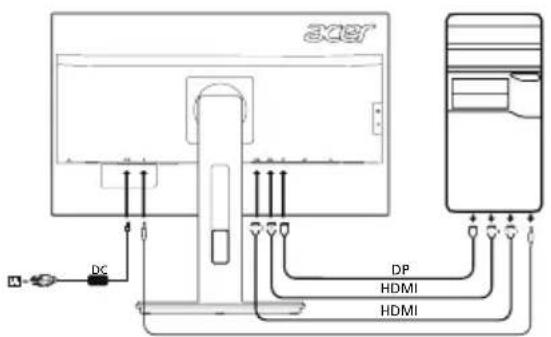
Connecting the Monitor to the Computer
- Turn off the monitor and unplug the power cord of the computer from the outlet.
- 2-1 Connect the HDMI cable (only for models with HDMI input).
a. Make sure the power to the monitor and computer is turned off. b. Connect the HDMI cable to the computer.
2-2 Connect the DP cable (only for models with DP input)
a. Make sure the power to the monitor and computer is turned off. b. Connect the DP cable to the computer.
- Connect the monitor power cable to the power port on the back panel of the device.
- Connect one end of the adapter to the monitor, and the other to a properly grounded AC outlet.
- USB 3.1 Type-C cable (optional, only for models with USB Type-C ports)
Connect one end of the USB Type-C cable to the monitor, and the other to your computer or mobile device.
- USB 3.1 Type-A port (optional, only for models with Type-A ports)
Connect one end of the USB Type-A cable to the port on the monitor, and the other to a peripheral device (e.g., USB hub or drive). To use the USB 3.1 Type-A port on the monitor, first follow the instructions from the previous step.
- Select "Charge via USB when power is off" On/Off to enable or disable the charging function via USB when the power is off.
External controls
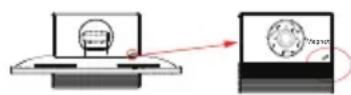
Adjusting the stand for magnet
Important safety instructions
Please read the instructions carefully.
- For the LCD monitor screen: Do not touch the screen. This monitor is intended for use with a flicker-free screen.
- Unplug the LCD monitor and remove the power cable from the outlet.
- Press the cleaning solution onto the cloth, not directly onto the screen. Do not spray or apply liquid directly onto the screen or the casing.
- Do not use ammonia-based or alcohol-based cleaners to clean the LCD screen or the casing.
- Acer is not responsible for damage caused by the use of ammonia-based or alcohol-based cleaners.
- Do not place the LCD monitor near a window. Exposure to direct sunlight, rain, or snow can seriously damage it.
- Do not apply pressure to the LCD screen. Excessive pressure may cause permanent damage to the display.
- Do not remove the cover or attempt to service the device yourself. Qualified service personnel should perform servicing.
- Store the LCD monitor in a room with temperatures ranging from -20°C to 60°C (-4°F to 140°F). Storing the LCD monitor outside this range may cause damage.
- Remember to note the model number of your monitor and contact qualified service personnel if any of the following conditions occur:
The signal cable from the monitor to the computer is loose or damaged. There is a difference in brightness between the LCD monitor and the monitors exposed to sunlight.
The LCD monitor or its casing is damaged.
Attaching the monitor to the base
- Remove the monitor from the packaging.
- Attach the stand to the base. (For selected models)
- Turn the screw on the stand clockwise to secure the stand. Make sure the base is secured to the stand. (For selected models)
- Secure the base to the stand by tightening the screw with a flat-head screwdriver or a coin. (For selected models)
Connecting the monitor to the computer
- Turn off the monitor and connect the power cable to the computer's power port.
- 2-1 HDMI cable (only for models with HDMI input) a. Make sure both the monitor and the computer are turned off. b. Connect the HDMI cable to the computer. 2-2 DP cable (only for models with DP input) a. Make sure both the monitor and the computer are turned off. b. Connect the DP cable to the computer.
- Connect the monitor's power cable to the power port on the back of the monitor.
- Connect the power adapter to the monitor, and then plug the power cord into a grounded outlet.
- USB 3.1 Type-C cable (only for models with USB Type-C input) Connect one end of the USB Type-C cable to the monitor, and the other end to the computer or mobile device.
- USB 3.1 Type-A port (only for models with Type-A output) Connect one end of the USB Type-A cable to the port on your monitor, and the other end to the connected device (e.g., mouse, USB hub, etc.). To use the USB 3.1 Type-A port on the monitor, first connect the upstream cable.
- Select On/Off for the USB charging function when the power is off, to activate/deactivate it.
Remote control
- USB 3.1 Type-C (also known as USB Type-C)
- USB 3.1 Type-A (also known as USB Type-A) is a standard USB Type-A connector.
- 1
777777777
Acer Inc., 2014/30/EU, Low Voltage Directive 2014/35/EU and RoHS Directive 2011/65/EU and Directive 2009/125/EC (to be amended) for the following sections:
y
This device complies with Part 15 of the FCC Rules. Operation is subject to the following two conditions: (1) this device may not cause harmful interference, and (2) this device must accept any interference received, including interference that may cause undesired operation.
yao:
This Class B digital apparatus complies with Canadian ICES-003.
Aaalalalalalalalalalalalalalalalalalal
4
JLCD 140 60 20 LCD
LCD
LCD

1
HDMI 2-1.2
HDMI
(USB Type-C 5.5
USB 3.1
Type-A
USB
Declaration of Conformity
We,
Acer Incorporated
8F, 88, Sec. 1, Xintai 5th Rd., Xizhi, New Taipei City 221, Taiwan
And,
Acer Italy s.r.l.
Via Lepetit, 40, 20020 Lainate (MI) Italy
Tel: +39-02-939-921, Fax: +39-02 9399-2913
www.acer.it
Product:
LCD Monitor
Trade Name:
Acer
Model Number:
B276HUL
SKU Number:
B276HUL xxxxxx
("x" = 0~9, a~z, A~Z, or blank)
We, Acer Incorporated, hereby declare under our sole responsibility that the product described above is in conformity with the relevant Union harmonization legislations as below Directive and following harmonized standards and/or other relevant standards have been applied:
EMC Directive: 2014/30/EU
EN55022:2010+AC:2011 Class B
EN55024:2010
EN61000-3-2:2006+A2:2009 Class D
EN61000-3-3:2013
LVD Directive: 2014/35/EU
EN60950-1:2006/A11:2009/A1:2010/A12:2011/A2:2013
RoHS Directive: 2011/65/EU
EN50581:2012
ErP Directive: 2009/125/EC
Regulation (EC) No. 1275/2008; EN 50564:2011
Year to begin affixing CE marking: 2016.
8F, 88, Sec. 1, Xintai 5th Rd., Xizhi, New Taipei City 221, Taiwan
Acer Italy s.r.l.
Via Lepetit, 40, 20020 Lainate (MI) Italy
Tel: +39-02-939-921, Fax: +39-02 9399-2913
www.acer.it
Product:
LCD Monitor
Trade name:
Acer
Model number:
B276HUL
Article number:
B276HUL xxxxxx;
8F, 88, Sec. 1, Xintai 5th Rd., Xizhi, New Taipei City 221, Taiwan
Y,
Acer Italy s.r.l.
Via Lepetit, 40, 20020 Lainate (MI) Italy
Tel: +39-02-939-921, fax: +39-02 9399-2913
www.acer.it
Product:
LCD monitor
Trade name:
Acer
Model number:
B276HUL
8F, 88, Sec. 1, Xintai 5th Rd., Xizhi, New Taipei City 221, Taiwan
And,
Acer Italy s.r.l.
Via Lepetit, 40, 20020 Lainate (MI) Italy
Tel: +39-02-939-921, Fax: +39-02 9399-2913
www.acer.it
Product:
LCD Monitor
Trade name:
Acer
Model number:
B276HUL
SKU number:
B276HUL xxxxxx;
( c x ) = 0 9 a~z,A\~Z,or blank)
8F, 88, Sec. 1, Xintai 5th Rd., Xizhi, New Taipei City 221, Taiwan
E,
Acer Italy s.r.l.
Via Lepetit, 40, 20020 Lainate (MI) Italy
Tel: +39-02-939-921, Fax: +39-02 9399-2913
www.acer.it
Product:
LCD Monitor
RU Jan / Senior Manager
Acer Incorporated (Taipei, Taiwan)
Jun. 27, 2016
Data
8F, 88, Sec. 1, Xintai 5th Rd., Xizhi, New Taipei City 221, Taiwan
En,
Acer Italy s.r.l.
Via Lepetit, 40, 20020 Lainate (MI) Italy
Tel: +39-02-939-921, fax: +39-02 9399-2913
www.acer.it
Product:
Trade name:
Model number:
SKU number:
LCD monitor
Acer
B276HUL
B276HULXXXXX
(x = 0 9,a z,A Z, or blank)
8F, 88, Sec. 1, Xintai 5th Rd., Xizhi, New Taipei City 221, Taiwan
E,
Acer Italy s.r.l.
Via Lepetit, 40, 20020 Lainate (MI) Italy
Tel: +39-02-939-921, Fax: +39-02 9399-2913
www.acer.it
Product:
LCD Monitor
Acer's ENERGY STAR qualified products save you money by reducing energy costs and helps protect the environment without sacrificing features or performance. Acer is proud to offer our customers products with the ENERGY STAR mark.
What is ENERGY STAR?
Products that are ENERGY STAR qualified use less energy and prevent greenhouse gas emissions by meeting strict energy efficiency guidelines set by the U.S. Environmental Protection Agency. Acer is committed to offer products and services worldwide that help customers save money, conserve energy and improve the quality of our environment. The more energy we can save through energy efficiency, the more we reduce greenhouse gases and the risks of climate change. More information refers to http://www.energystar.gov.
Acer ENERGY STAR qualified products:
- Produce less heat and reduce cooling loads, and warmer climates.
- Automatically go into "display sleep" within 5 minutes of inactivity.
- Wake the monitor when it is in Active Off mode, move the mouse or press any keyboard key.
ENERGY STAR and the ENERGY STAR mark are registered U.S. marks
Congratulations!
This product is TCO Certified - for Sustainable IT

TCO Certified is an international third party sustainability certification for IT products. TCO Certified ensures that the manufacture, use and recycling of IT products reflect environmental, social and economic responsibility. Every TCO Certified product model is verified by an accredited independent test laboratory.
This product has been verified to meet all the criteria in TCO Certified, including:
Corporate Social Responsibility
Socially responsible production - working conditions and labor law in manufacturing country
Energy Efficiency
Energy efficiency of product and power supply. Energy Star compliant, where applicable
Environmental Management System
Manufacturer must be certified according to either ISO 14001 or EMAS
Minimization of Hazardous Substances
Limits on cadmium, mercury, lead & hexavalent chromium including requirements for mercury-free products, halogenated substances and hazardous flame retardants
Design for Recycling
Coding of plastics for easy recycling. Limit on the number of different plastics used.
Product Lifetime, Product Take Back
Minimum one-year product warranty. Minimum three-year availability of spare parts. Product takeback
Packaging
Limits on hazardous substances in product packaging. Packaging prepared for recycling
Ergonomic, User-centered design
Visual ergonomics in products with a display. Adjustability for user comfort (displays, headsets)
Acoustic performance - protection against sound spikes (headsets) and fan noise (projectors, computers)
Ergonomically designed keyboard (notebooks)
Electrical Safety, minimal electro-magnetic Emissions
Third Party Testing
All certified product models have been tested in an independent, accredited laboratory.
A detailed criteria set is available for download at www.tcodevelopment.com, where you can also find a searchable database of all TCO Certified IT products.
TCO Development, the organization behind TCO Certified, has been an international driver in the field of Sustainable IT for 20 years. Criteria in TCO Certified are developed in collaboration with scientists, experts, users and manufacturers. Organizations around the world rely on TCO Certified as a tool to help them reach their sustainable IT goals. We are owned by TCO, a non-profit organization representing office workers. TCO Development is headquartered in Stockholm, Sweden, with regional presence in North America and Asia.
For customers who own the EPEAT registered-products 1 , Acer offers the following services at your costs 2 :
- Additional 3 years warranty
- For the product life extension, through the use of compatible parts of after-market, or refurbished with equal or higher specification, we offer spare parts or replacement parts for 5 years after end of production
For those INSTITUTIONAL customers who own the EPEAT registered-products 1 , Acer offers following additional services at your costs 2 :
- Product take-back program of Notebooks, Desktops and Monitors
- Battery take-back program of Battery Pack of Notebooks
- Packaging take-back program for packaging which were shipped with EPEAT registered 1 Notebooks, Desktop and Monitor products
For more details of above services, please visit local Acer website
1 EPEAT registered-products, please visit http://www.epeat.net 2 Service availability and costs vary by country; for details, please refer to local Acer website or contact local Acer representatives. 3 Service for product life extension is available in limited countries, please refer to local Acer website or contact local Acer representatives for details. 4 Service for packaging take back program is free of charge and available in limited countries, please refer to local Acer website or contact local Acer representatives for details.
Regulatory Compliance









acer
barcode
MC.T5911.00C
Model No.: B276HUL
Part No.: MC.T5911.00C



- IMPORTANT SAFETY INSTRUCTIONS
- ATTACHING THE MONITOR TO THE BASE
- CONNECTING YOUR MONITOR TO A COMPUTER
- EXTERNAL CONTROLS
- REGULATIONS AND SAFETY NOTICES
- FCC NOTICE
- CE DECLARATION OF CONFORMITY
- NOTICE
- NOTICE: SHIELDED CABLES
- NOTICE: PERIPHERAL DEVICES
- CAUTION
- OPERATION CONDITIONS
- NOTICE: CANADIAN USERS
- DISPOSAL OF WASTE EQUIPMENT BY USERS IN PRIVATE HOUSEHOLD IN THE EUROPEAN UNION
- WARNING MESSAGE FOR MAGNET
- INSTALLING THE MONITOR ON THE BASE
- CONNECTING THE MONITOR TO THE COMPUTER
- ADJUSTING THE STAND FOR MAGNET
- REMOTE CONTROL
- Y
- YAO
- DECLARATION OF CONFORMITY
- WHAT IS ENERGY STAR
- ACER ENERGY STAR QUALIFIED PRODUCTS
- CONGRATULATIONS
- THIS PRODUCT IS TCO CERTIFIED - FOR SUSTAINABLE IT
- CORPORATE SOCIAL RESPONSIBILITY
- ENERGY EFFICIENCY
- ENVIRONMENTAL MANAGEMENT SYSTEM
- MINIMIZATION OF HAZARDOUS SUBSTANCES
- DESIGN FOR RECYCLING
- PRODUCT LIFETIME, PRODUCT TAKE BACK
- PACKAGING
- ERGONOMIC, USER-CENTERED DESIGN
- ELECTRICAL SAFETY, MINIMAL ELECTRO-MAGNETIC EMISSIONS
- THIRD PARTY TESTING
- ACER
Brand : ACER
Model : B276HULE
Category : Monitor