Zoom ZVC840 - Video conferencing system Yealink - Free user manual and instructions
Find the device manual for free Zoom ZVC840 Yealink in PDF.



User questions about Zoom ZVC840 Yealink
0 question about this device. Answer the ones you know or ask your own.
Ask a new question about this device
Download the instructions for your Video conferencing system in PDF format for free! Find your manual Zoom ZVC840 - Yealink and take your electronic device back in hand. On this page are published all the documents necessary for the use of your device. Zoom ZVC840 by Yealink.
USER MANUAL Zoom ZVC840 Yealink
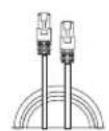
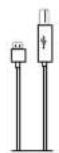
7.5 m Ethernet Cable Bracket2.5 m USB Cable
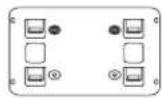

Velcro(x2)
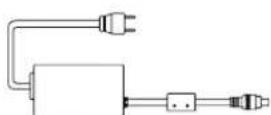
Power Adapter
Cable Ties(x5)
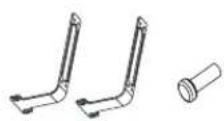
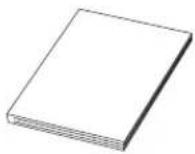
Screw (x8) Mounting ears (x2)Quick Start Guide

We recommend that you use the accessories provided or approved by Yealink. The use of unapproved third-party accessories may result in poor performance.
2 Hardware Interface Instructions

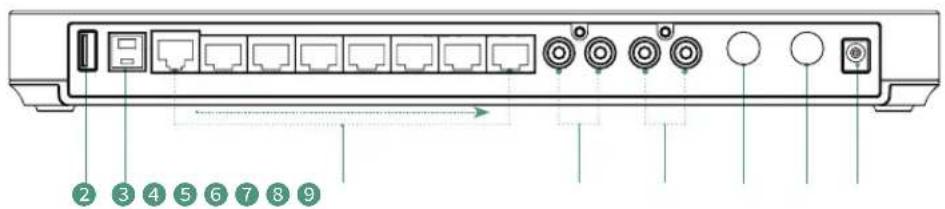
LED Indicator: different status of the AVHub.
RCA Out: connect to an audio output device via a RCA cable.
USB-A Port
6.3m Line in
USB-B Port
6.3m Line out
VC Hub/Camera Port
DC48V: connect to the power adapter.
3 LED Indicator Instructions
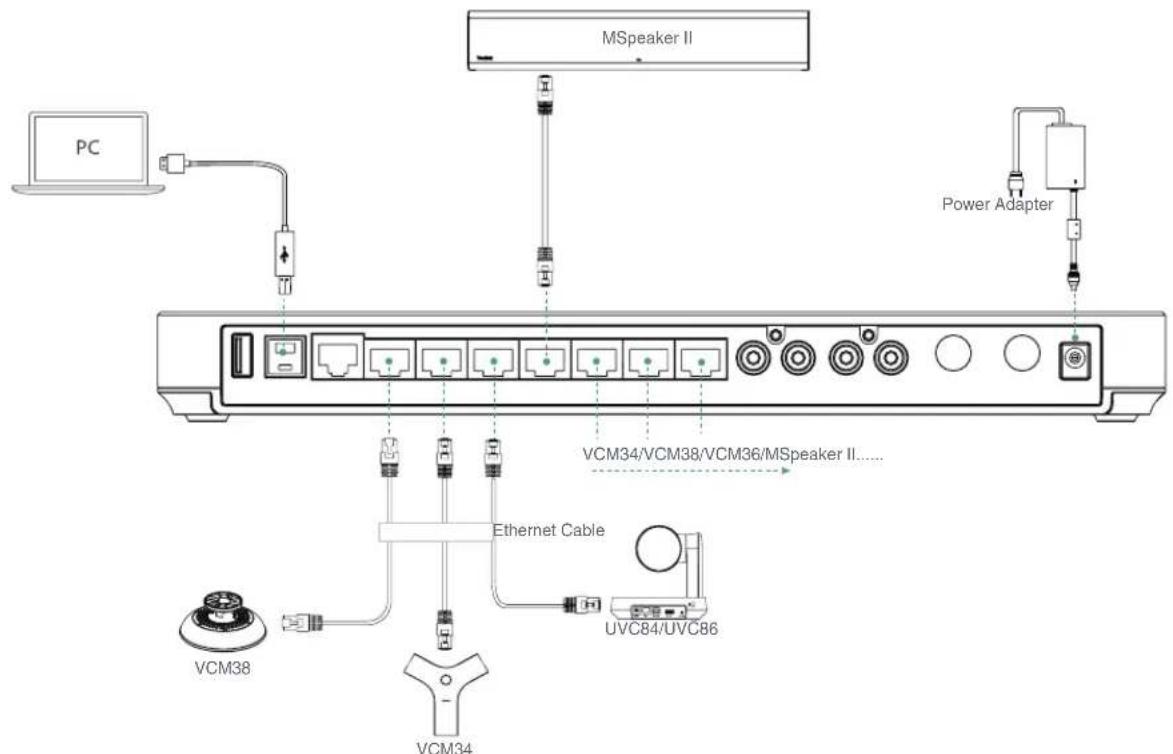
Connect to the MVC Endpoint
| LED Status | Description |
| LED indicator off | The AVHub is in a power-off. |
| Solid red | The AVHub is in sleep status. The PC is not connected after the AVHub is powered on. |
| Fast flashing red | The AVHub is restored to factory settings. |
| Solid orange | The AVHub is powering on. |
| Fast flashing orange | The firmware of AVHub is under update. |
| Solid green | The AVHub is working. |
| LED Status | Description |
| LED indicator off | The AVHub is in a power-off or shutdown status. |
| Solid red | The AVHub is in a screensaver or sleep status. After the AVHub is powered on, the VCS endpoint or PC is not connected. |
| Fast flashing red | The AVHub is restored to factory settings. The firmware of AVHub is under update. |
| Solid green | The AVHub is working. |
| Fast flashing green | Adjusting the volume or muting the AVHub device |
| Solid orange | The AVHub is powering on. |
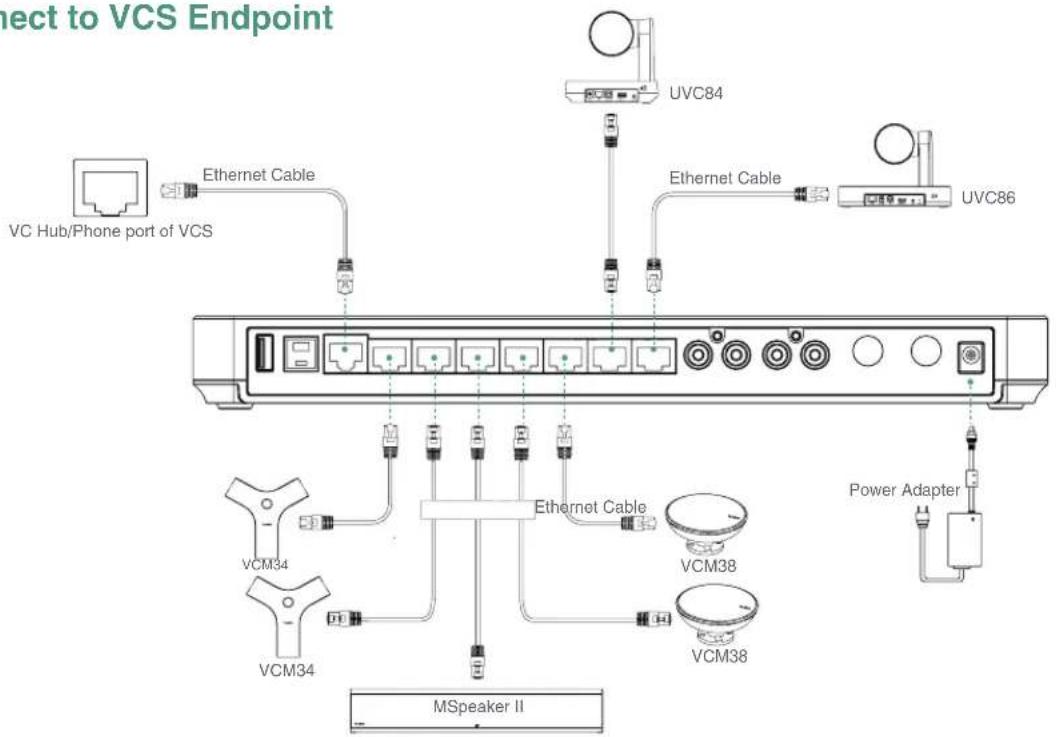
- Connect to the VCS Endpoint
ENGLISH
4 Applicable Devices
Applicable endpoint: VCS series endpoint/MVC series endpoint
Applicable accessories: VCM34/VCM36/VCM38/UVC84/UVC86/MSpeaker II/VCC22
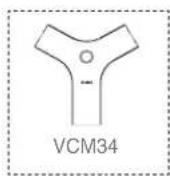
If you want to know more about the VCM34, please refer to the VCM34 Quick Start Guide.
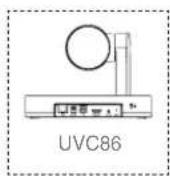
If you want to know more about the UVC86, please refer to the UVC86 Quick Start Guide.
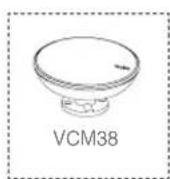
If you want to know more about the VCM38, please refer to the VCM38 Quick Start Guide.
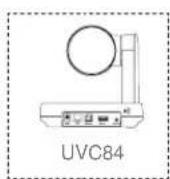
If you want to know more about the UVC84, please refer to the UVC84 Quick Start Guide.
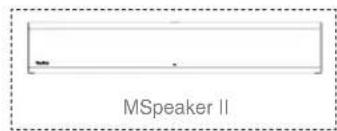
If you want to know more about the MSpeaker II, please refer to the MSpeaker II Quick Start Guide.
5 AVHub Installation
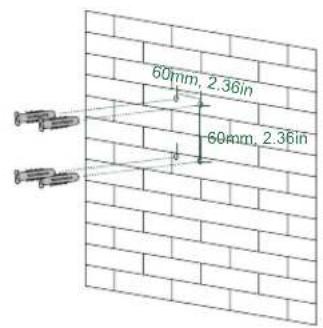
- Mount on the Wall
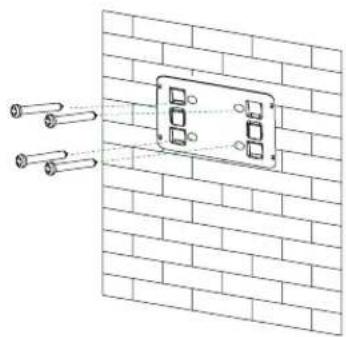
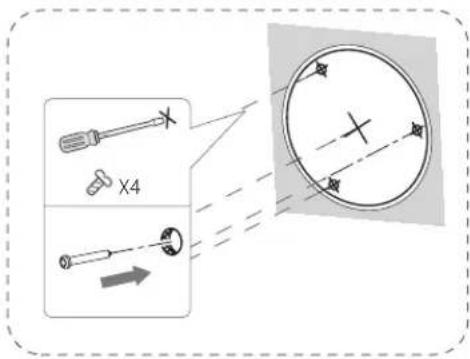

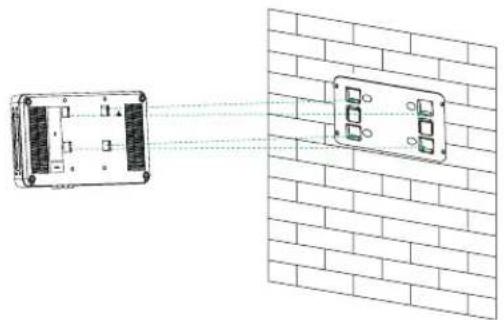
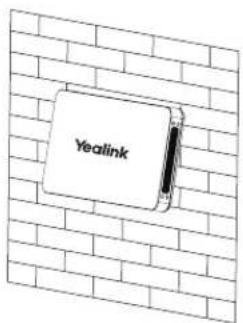
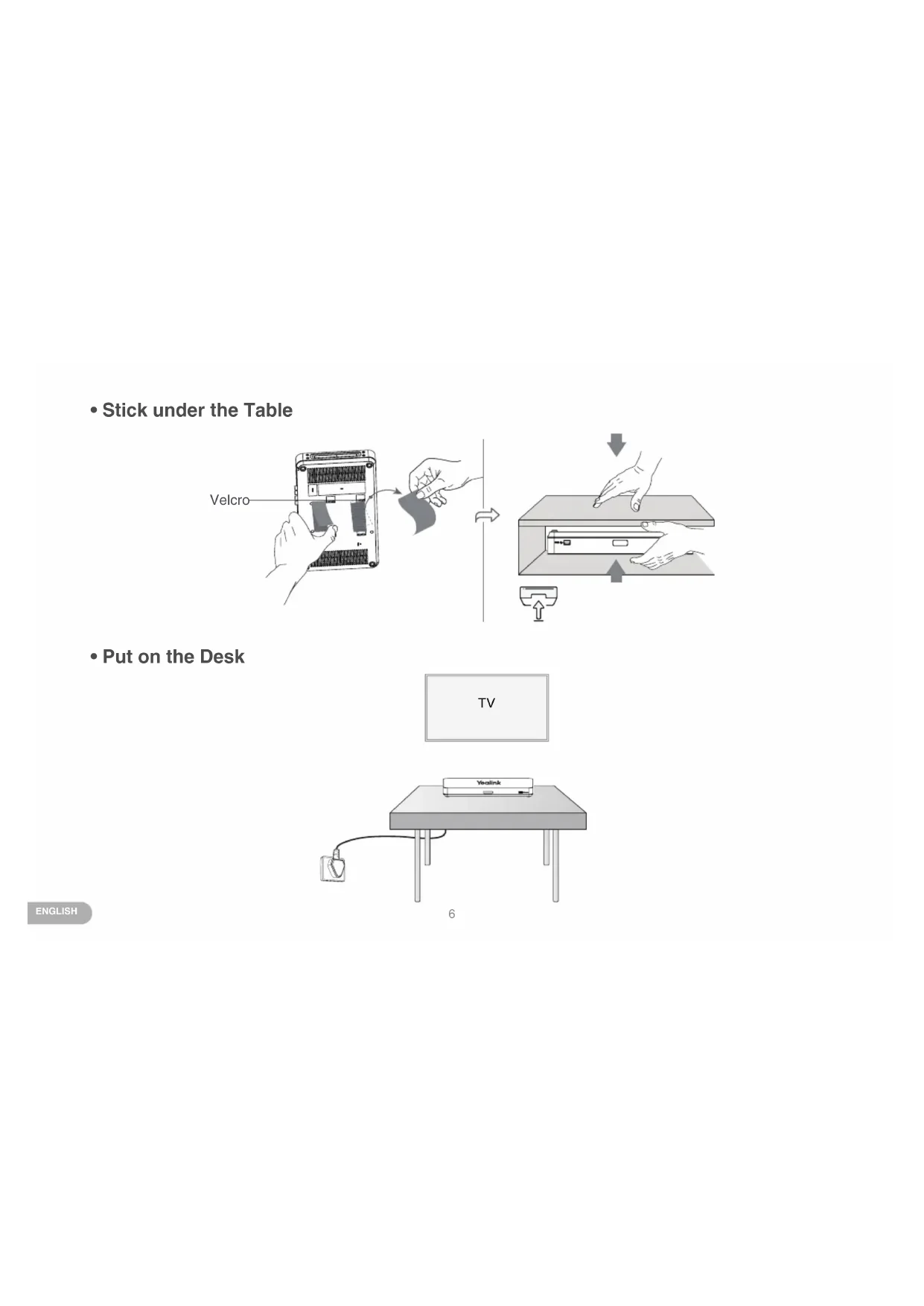
- Stick under the Table
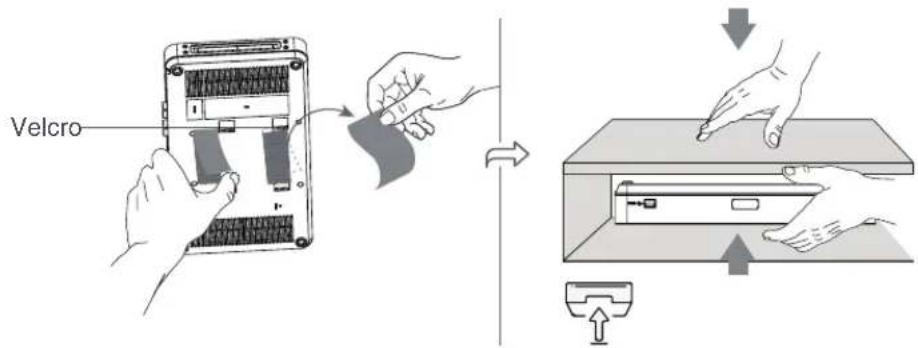
- Put on the Desk
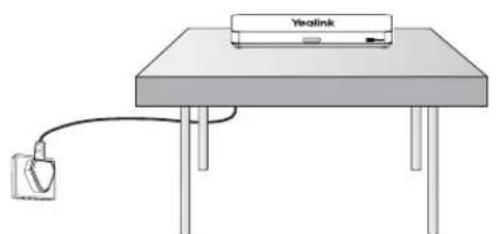
6
- Mount on the Rack
Install the mounting ears on both sides of the AVHub.
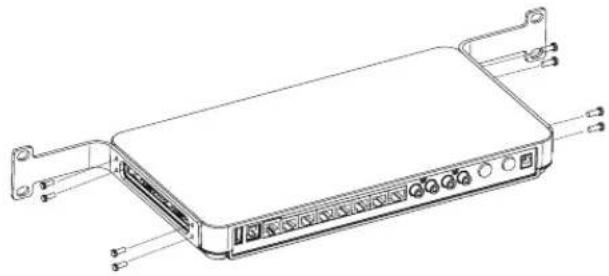
Push the AVHub into the rack, and then fix it to the rack with screws.
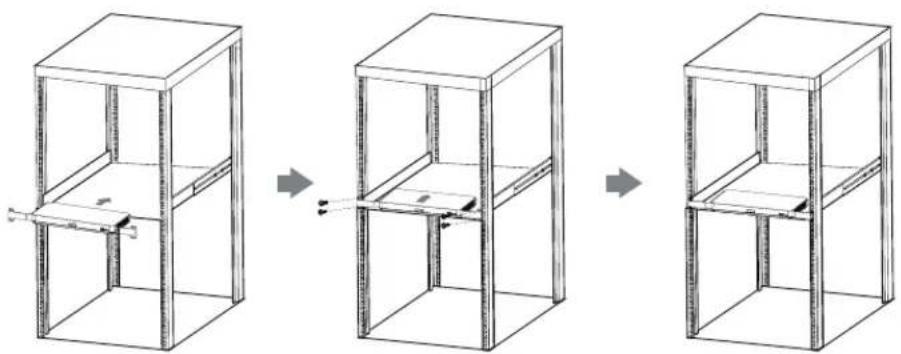

The rack in which the AVHub will be placed must be a 19-inch Rack compliant with IEC 60297. The Package Contents do not include screws.
6 Endpoint Connection

AVHub has two types of connection, you can choose to connect in VCS endpoint or USB endpoint according to your needs.
Connect to VCS Endpoint
Connect to MVC Endpoint

When you connect the UVC84/UVC86/MSpeaker II directly to the AVhub, the total number of connections must be no more than 4 devices. If the total number of connections exceeds 4 devices, you need to connect a PoE switch, and other interfaces can be connected to wired microphones.
9
ENGLISH
Connect to MVC Endpoint
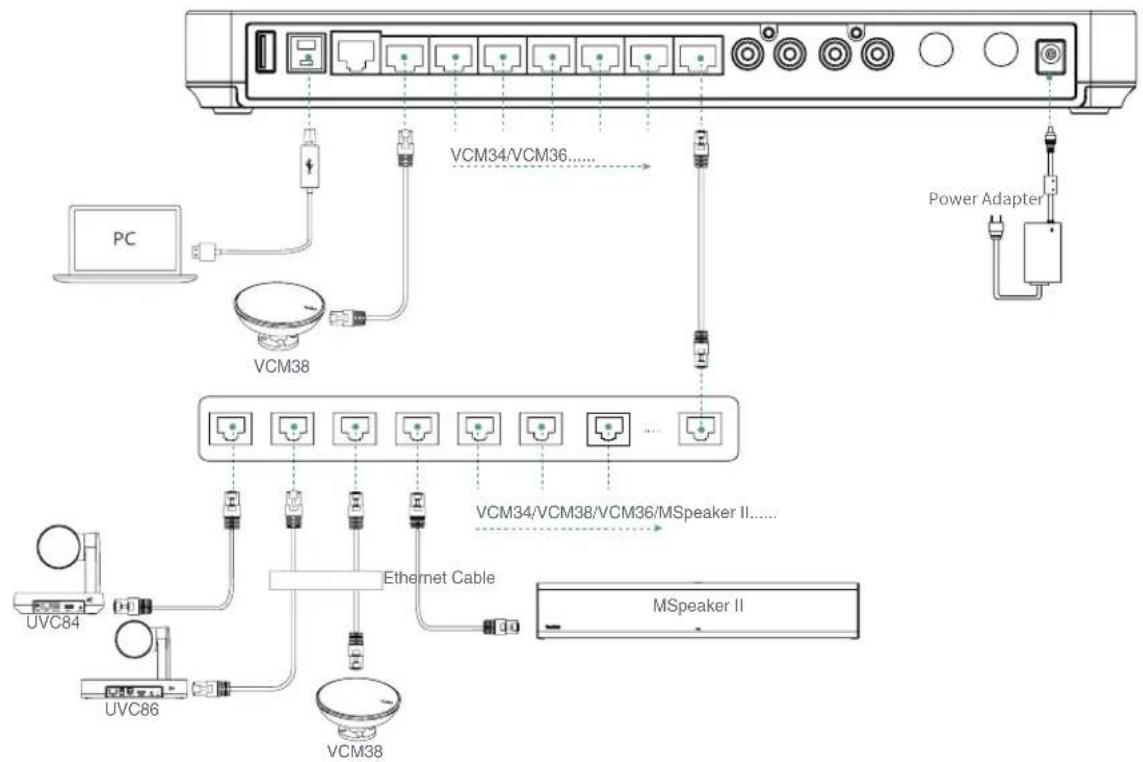

If you need more VCH ports of AVHub, you can connect the AVHub via a PoE switch.
1包装清单
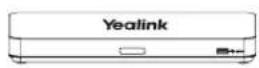
AVHub
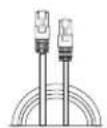
7.5m以太网线
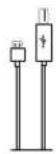
2.5 m USB 线
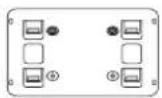
挂架

魔术贴(x2)
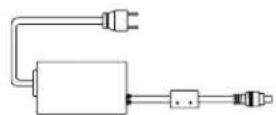
电源适配器
Declaration of Conformity
We.
YEALINK(XIAMEN) NETWORK TECHNOLOGY CO.,LTD.
Address: 309, 3rd Floor, No.16, Yun Ding North Road,
Huli District, Xiamen City, Fujian, P.R. China
Manufacturer: YEALINK(XIAMEN) NETWORK TECHNOLOGY CO.,LTD.
Address: 309, 3rd Floor, No.16, Yun Ding North Road, Huli District, Xiamen City, Fujian, P.R. China
DATE: 10th /November/2021
declare that the product
Type: Conferencing Audio & Video Hub
Model: Conferencing Audio & Video Hub
meets the essential requirements and other relevant provisions according to the following EC directive
Directive: 2014/30/EU, 2014/35/EU, RED 2014/53/EU
Conformity
The product complies with the following standards:
Safety: EN 62368-1:2014+A11:2017
EMC:EN55032:2015
EN 55035:2017
EN61000-3-2:2014
EN61000-3-3:2013
Radio:ETSI EN 301489-1V2.2.3
ETSI EN 301 489-3 V2.1.1
ETSIEN301489-17V3.2.2
ETSI EN 300 328 V2.2.3
ETSLEN301893
EN300440V2.21
Health:EN 62311:2008 EN62479:2010
In electrical and electronic equipment(RoHS2.0)
Directive 2012/19/EU of the European Parliament and of the Council of 4.July.2012 on Waste electrical and electronic equipment(WEEE)
Regulation (EC) No.1907/2006 of the European Parliament and of the Council of 18.December.2006 on Registration, Evaluation, Authorization, and Restriction of Chemicals (REACH)
NAME: Huahu Wang
DATE: 10th /November/2021
TITLE: Manager
WangHuahu
Regulatory Notices
Operating Ambient Tempatures: Operating temperature: +14 to 1225 (+10)
- Relative humidity: 5% to 90%, noncondensing.
Storage temperature: -22 to +160°F (-30 to +70°C)
Warranty
Our product warranty is limited only to the unit itself, when used normally in accordance with the operating instructions and the system environment. We are not liable for damage or loss resulting from the use of this product, or for any claim from a third party. We are not liable for problems with Yeaclin devices arising from the use of this product; we are not liable for financial damages, lost profits, claims from third parties, etc., arising from the use of this product.
DC symbol
is the DC voltage symbol.
Restriction of Hazardous Substances Directive (BoHS)
This device complies with the requirements of the EU RoHS Directive. Statements of compliance can be obtained by contacting support@ysalink.com.
Safety Instructions
Save these instructions. Read these safety instructions before use!
The following basic safety precautions should always be followed to reduce risk of fire, electrical shock, and other personal injury.

Before you install and use the device, read the safety instructions carefully and observe the situation during operation.
- During the process of storage, transportation, and operation, please always keep the device dry and clean.
During the process of storage, transportation, and operation, please avoid collision and crash of the device.
Pee t i
Without prior written consent, no organization or individual is permitted to make any changes to the structure or the safety
design of the device. Yeaing is under no circumstance lice to consequences or legal issues caused by such chenes.
- Please refer to the relevant laws and statutes while using the devices. Legal rights of others should be respected as well.
Environmental Requirements
- Place the device at a well ventilated place. Do not expose the device under direct sunlight.
- Keep the device dry and free of dubs.
- Place the device on a stable and level platform.
- Please place no heavy objects on the device in case of damage and deformation caused by the heavy load.
- Keep at least 10 cm between the device and the closest object for heat dissipation
Do not place the device on nor any inflammbia or nivulable object such as rubber made materials.
e e
- keep the device away from any
- microwave oven or a refrigerator
Operating Requirements
Do not let a child operate the device without using it.
Do not let a child play with the device or any accessory in case of accidental swallowing.
Pleases use the accessories provided or authorized by the manufacturer only.
The power supply of the device shall meet the requirements of the input voltage of the device. Pleaseusethe provided
Surge protection power socket only.
Before plugging or unplugging any cable, make sure that your hands are completely dry.
Do not spill liquid of any kind on the product or use the equipment near water, for example, near a bathtub, washbox, kitchen sink, wet basement or near a swimming pool.
Do not tread on, pull, or over-bend any cable in case of malfunction of the device.
- During a thunderstorm, stop using the device and disconnect it from the power supply. Unplug the power plug and the
of the d t t
- When there is spee, it is used for the device, or sorm abnmal noise or smell, discovered the device from the power supply.
and unplug the power plug immediately. Contact the appointed maintenance center for repairs
Do not insert any object into equipment slots that is not part of the product or auxiliary product.
- Before connecting a cable, connect the grounding ciele of the device first. Do not disconnect the grounding cable until you
Cleaning Requirements
Before cleaning the device, stop using it and disconnect it from the power supply.
- Use a piece of soft, dry and anti-static cloth to clean the device.
- Keep the power plug clean and dry. Using a dirty or wet power plug may lead to electric shock or other penalties
ENVIRONMENTAL RECYCLING
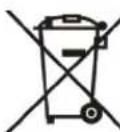
Never dispose of the device with domestic waste
Ask your Town Council about how to dispose of it in an environmentally friendly way. The cardboard
box, plastic packaging and player components may be recycled in accordance with prevailing recycling
regulations in your country
Always adhere to prevailing regulations
Those who fail to do so may be fined or prosecuted in accordance with the law. The crossed out garbage
can that appears on the device means that when it has reached the end of its useful life, it should be taken
15 a special waste disposal centre and refines separately to generate urban waste

Troubleshooting
There is a bad connection with the plug.
1. Clean the plug with a dry cloth
2. Connect it to another wall outle
The usage environment is out of operating temperature range.
1. Use in the operating temperature range
The cable between the unit and the Yeaillink device is connected incorrectly.
1. Correct the circle correction
1.
3.1.1.1.1.1.1.1.1.1.1.1.1.1.1.1.1.1.1.1.1.1.1.1.1.1.1.1.1.1.1.1.1.1.1.1.1.1.1.1.1.1.1.1.1.1.1.1.1.1.1.
2. Use the control power amplifier.
1. Clean the port
Contact your dealer or authorized service facility for any further questions.
Contact Information
YEALINK NETWORK TECHNOLOGY CO.,LTD.
909, 3rd Floor, No.16, Yun Dins North Road, Huli District, Xiamen City, Euan, P.B.C.
YEALINK (EUROPE) NETWORK TECHNOLOGY B.V.
Strawinskyean 3127, Atrum Building, 8th floor, 1077ZX Amsterdam, The Netherlands
YEALINK (USA) NETWORK TECHNOLOGY CO., LTD.
999 Pachirra Street Suite 2300, Fulton, Atlanta, GA, 30309, USA
Made in China
ENGLISH
Sicherheitsinwelle
Exceeds environmental
- College are ll cavo corructments
309, 3rd Floor, No.16, Yun Ding North Road, Hua District, Xiamen City, Fujian, Republic of Popolare Chines
YEALINK (EUHOPE) NETWORK TECHNOLOGY B.V.
Strawinsky 3127, Alnun Building, 8th floor, 10772X Amsterdam, Paaas Basse
YEALINK(LSA)NETWORKTECHNOLOGYCO.,LTD.
999 Pachirab Street Suite 2300, Fullen, Atlanta, GA, 30309, USA
Made in China

430104001928

YEALINK(XIAMEN) NETWORK TECHNOLOGY CO., LTD.
Web: www.yealink.com
Copyright©2021 YEALINK(XIAMEN) NETWORK
TECHNOLOGY CO., LTD. All rights reserved.