USER MANUAL MeetingBar A10 Yealink
natural_image
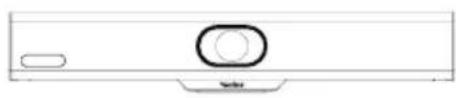
Simple line drawing of a rectangular device with a circular button and a small rectangular element on the left (no text or symbols)
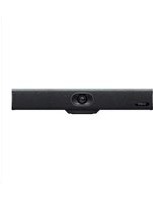
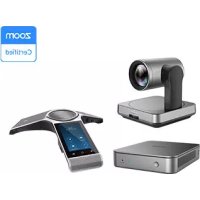
MeetingBar A10
natural_image
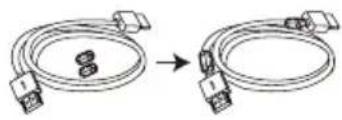
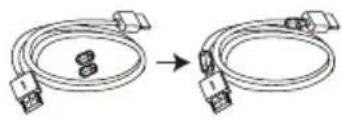
Diagram showing two cable assemblies with connectors, one being folded and the other tilted (no text or symbols)
1.8 m HDMI Cable
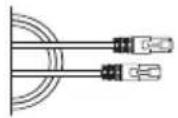
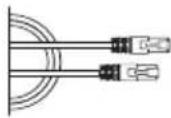
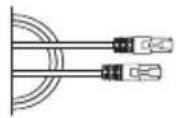
3 m Ethernet Cable
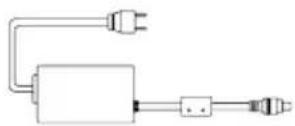
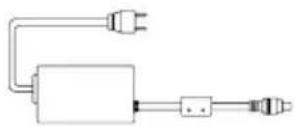
48 V/0.7 A Power Adapter
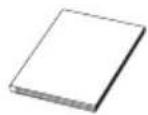
Quick Start Guide
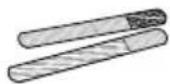
Cable Tie × 5
natural_image
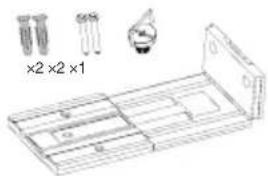
Technical line drawing of a mechanical assembly with three components and dimension annotations (no text or symbols)
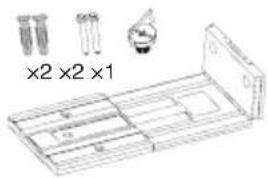
Mounting Bracket and Accessories
Optional Packages
A
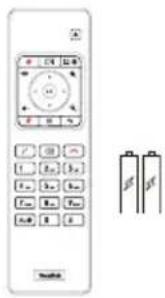
VCR11 and AAA Battery × 2
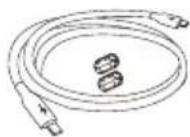
1.8 m
USB-C Cable
B
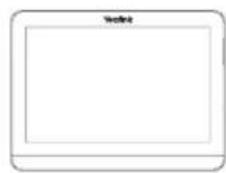
CTP18 Package
C

WPP30 Package
Read Before Start
- We recommend that you use the accessories provided or approved by Yealink. The unapproved third-party accessories may result in reduced performance.
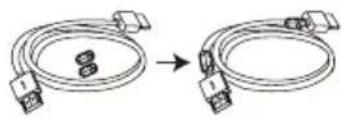
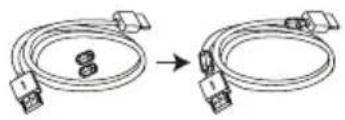
- Put the magnet rings on the HDMI cable to prevent electromagnetic interference.
2 MeetingBar A10 Installation
- Put on a desk
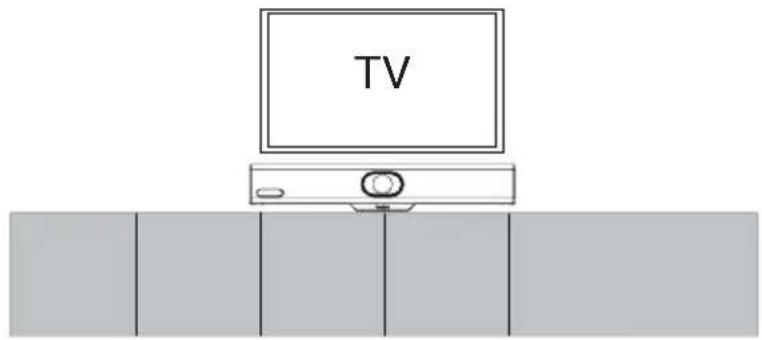
natural_image
Simple line drawing of a TV mounted on a cabinet (no text or symbols)
- Mount on a display
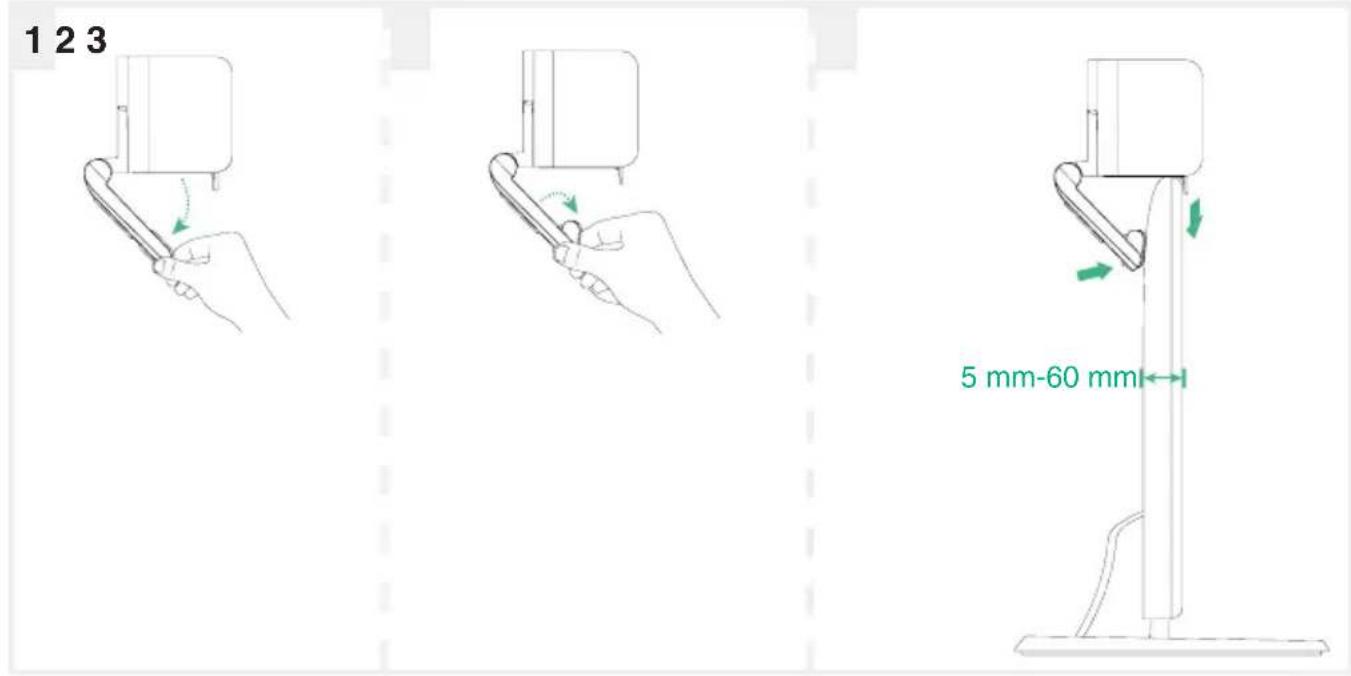
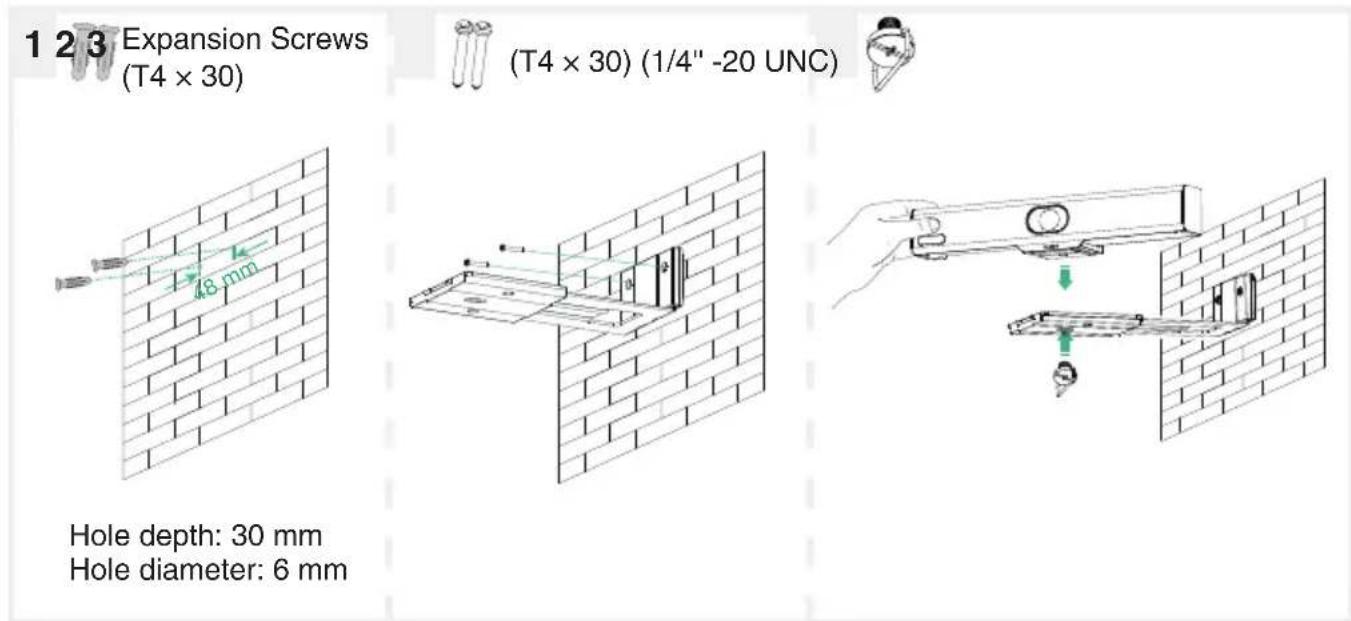
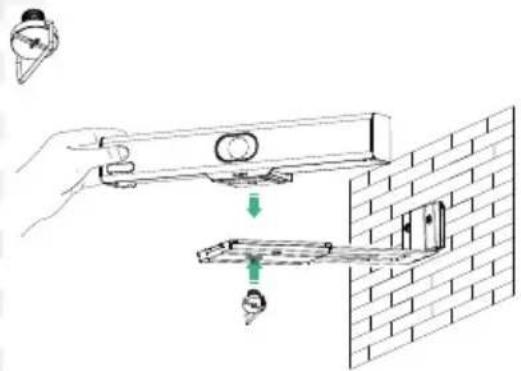
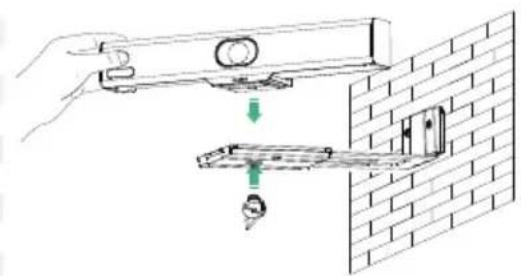
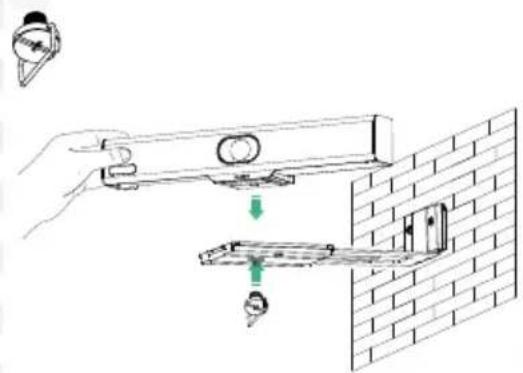
- Mount on a wall
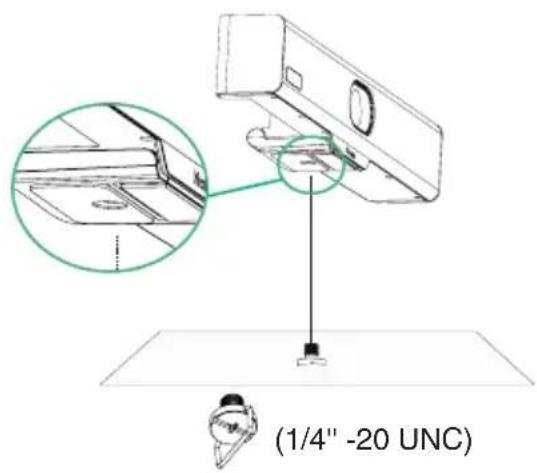
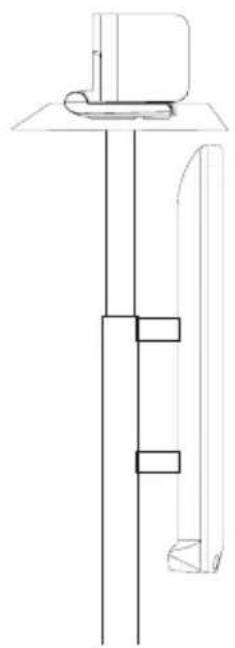
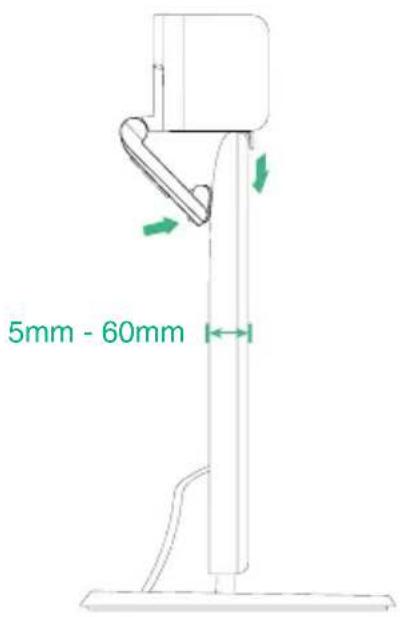
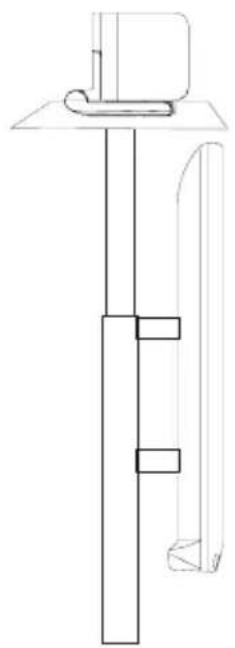
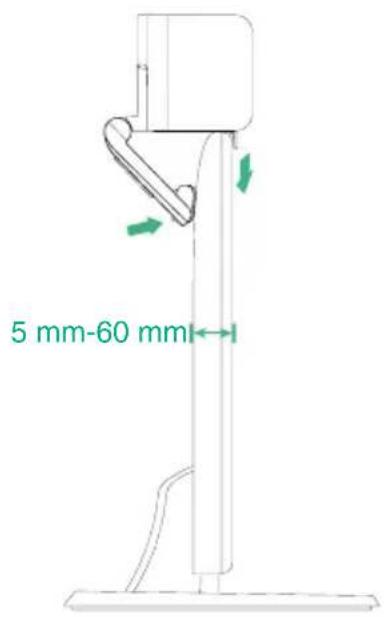
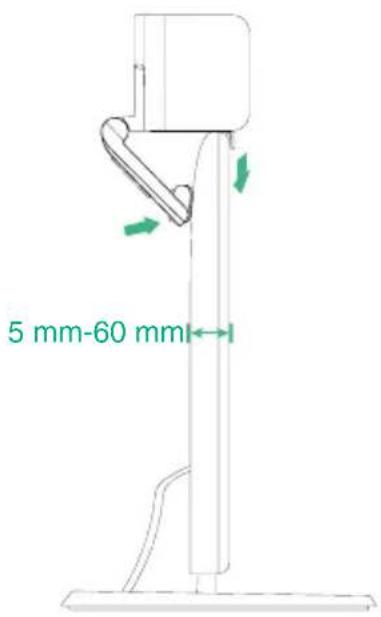
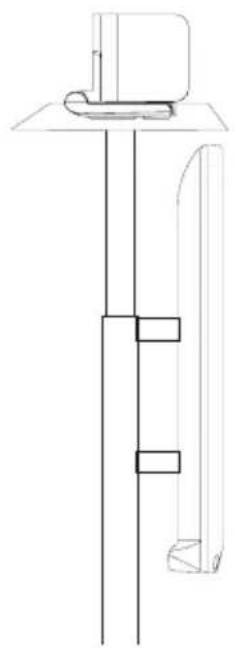
- Mount on a TV stand or a tripod
The TV stand or a tripod should be able to bear the weight of at least 5 kg.
Not Included:
natural_image
Pure technical line drawing of a vertical mechanical or architectural component with no text, numbers, or symbols
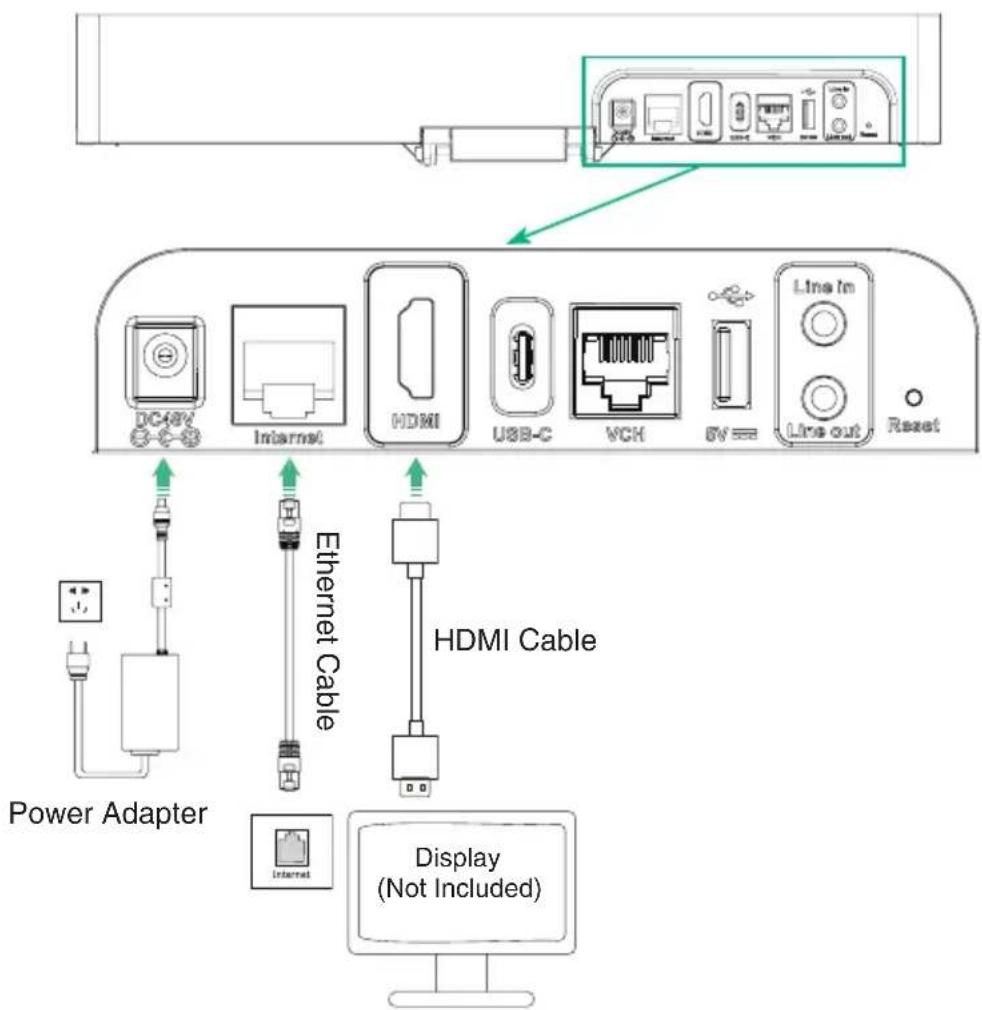
3 MeetingBar A10 Connection
4 VCR11
You can use the remote control (not applicable to Zoom version) or CTP18 to operate the A10. You can also operate the A10 directly on the touch screen if a touch display device is connected.
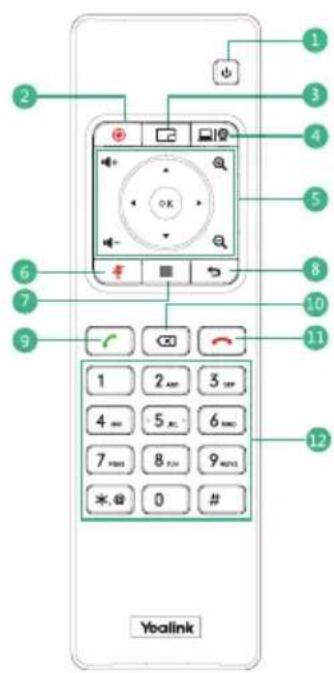
1 Power Key*
2 Record Video Key*
3 Layout Key: Adjust the layout during the meeting*
4 Custom Key: Switch to device mode*
5 Volume Key: Zoom In/Out: OK Key: Navigation Key:
6 Mute Key
7 Home Key: Return to the home screen when not on a call. Open the menu bar during the call.*
8 Return Key
9 Dial Key
10 Delete Key
11 Hang up Key
12 Character Keys
* Coming Soon
The supported keys in different modes may be various.
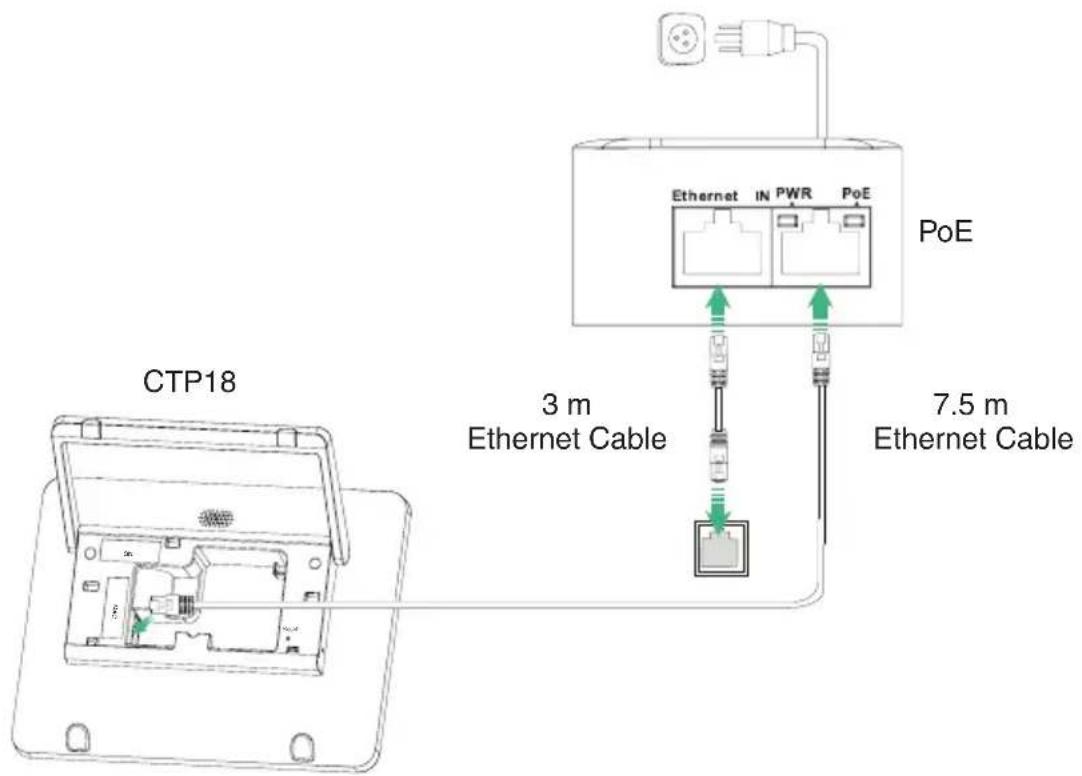
5 CTP18 Connection (Optional)
Make sure that CTP18 and the MeetingBar A10 are on the same LAN.
6 Pair with the CTP18 (Optional)
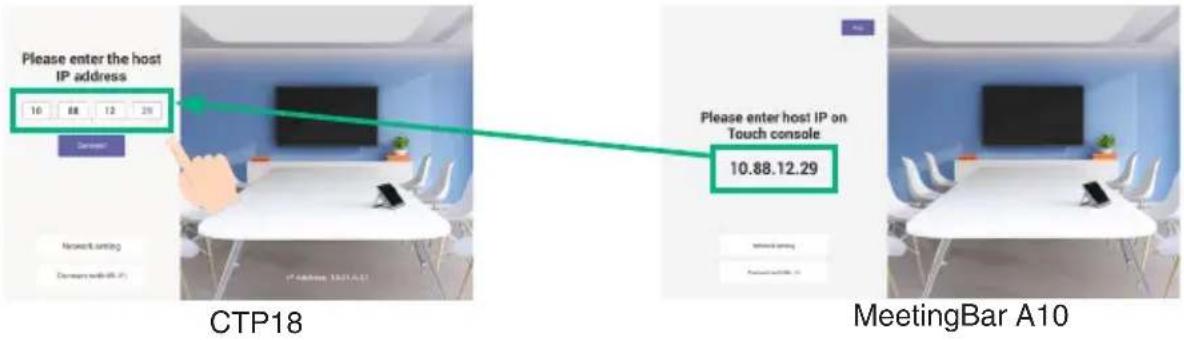
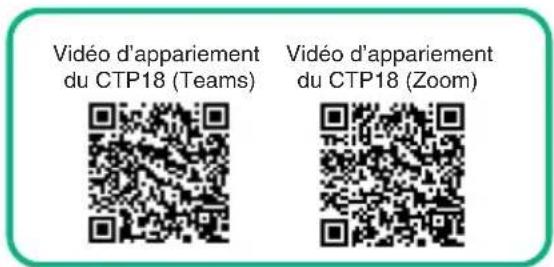
For a better pairing experience, we recommend starting the A10 first and then the CTP18. If you purchased a combination kit, MeetingBar A10 and CTP18 would be paired automatically. You can go to step 2 directly.
1 Pair manually
On the CTP18, enter the IP address of the MeetingBar A10 on display.
2 Initialization
Initialize Language, Time Zone and Auto Update, and select the desired platform. If you select Device Mode, refer to the Device Mode section.
3 Account login
i Contact the corresponding service provider to obtain an account.
Teams:
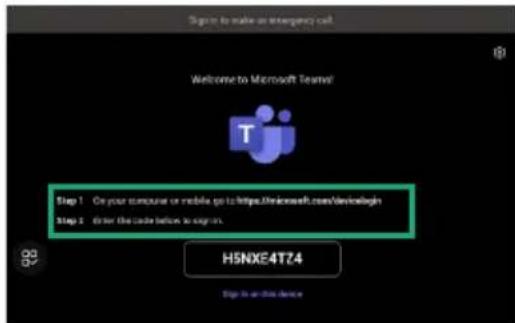
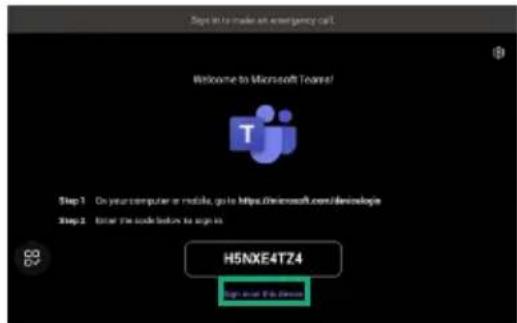
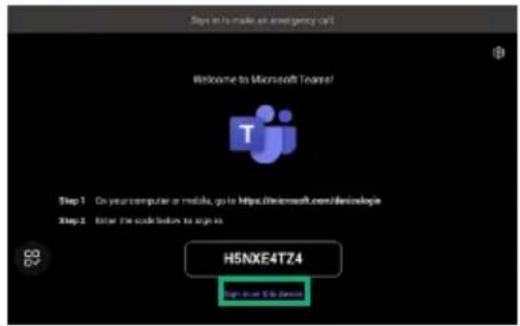
① Sign in to the same Microsoft Teams account on both CTP18 and MeetingBar A10. Method 1: Sign in on the website Method 2: Sign in on the device
Find a networked computer and operate it according to the prompts of CTP18 and A10.
Use the remote control to operate it if your display does not support touch.
② Select the desired endpoint on the CTP18.
③ Enter the pairing code displayed on the endpoint on CTP18 and complete the pairing.
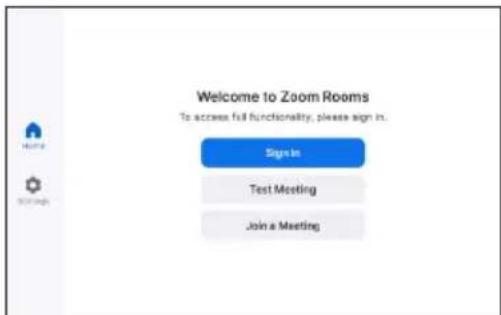
Zoom: Follow the prompts on CTP18 to sign in to the account.
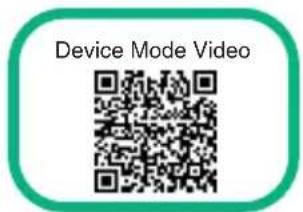
7 Device Mode
-
Do one of the following to select Device Mode:
-
When selecting a platform during power-on initialization, select Device Mode.
- Switch platforms after signing in:
Teams: Follow steps 1, 2 and 3 of Updating the Firmware section, then go to System > UC Provider on the web user interface, select Device Mode and click Confirm.
Zoom: Go to Settings > General > System Settings > UC Provider and select Device Mode.
- Refer to the Wireless Content Sharing section.
8 WPP30
WPP30 cannot be used when the endpoint uses a wireless network.
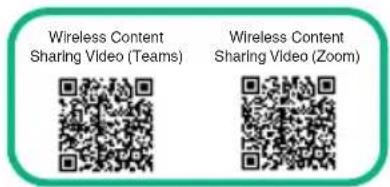
Wireless Content Sharing
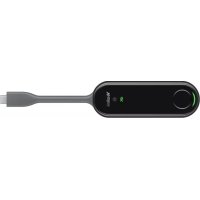
- Connect the WPP30 to the USB-A port of the MeetingBar A10. Waiting for 3 seconds, MeetingBar A10 prompts "Wireless presentation pod pairing successfully".
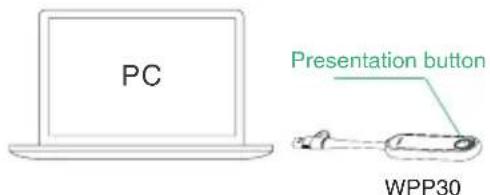
- Connect the WPP30 to the USB-A port or USB-C port of PC and press the Presentation button to share the screen.
Wireless Device-USB Mode
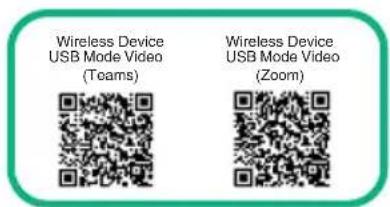
- Connect the WPP30 to the USB-A port of the MeetingBar A10. Waiting for 3 seconds, MeetingBar A10 prompts "Wireless presentation pod pairing successfully".
-
Connect the WPP30 to the USB-A port or USB-C port of the PC, and do one of the following on the Yealink Wireless Presentation Pod Software:
-
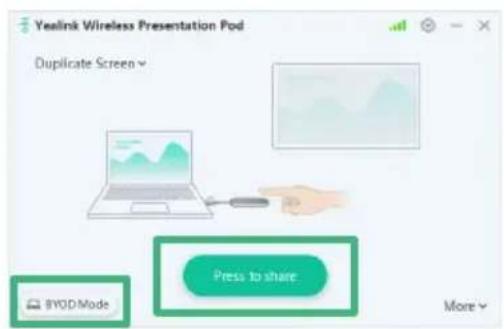
On Teams/Zoom mode, click BYOD Mode > Press to share.
- On Device Mode, click Press to share.
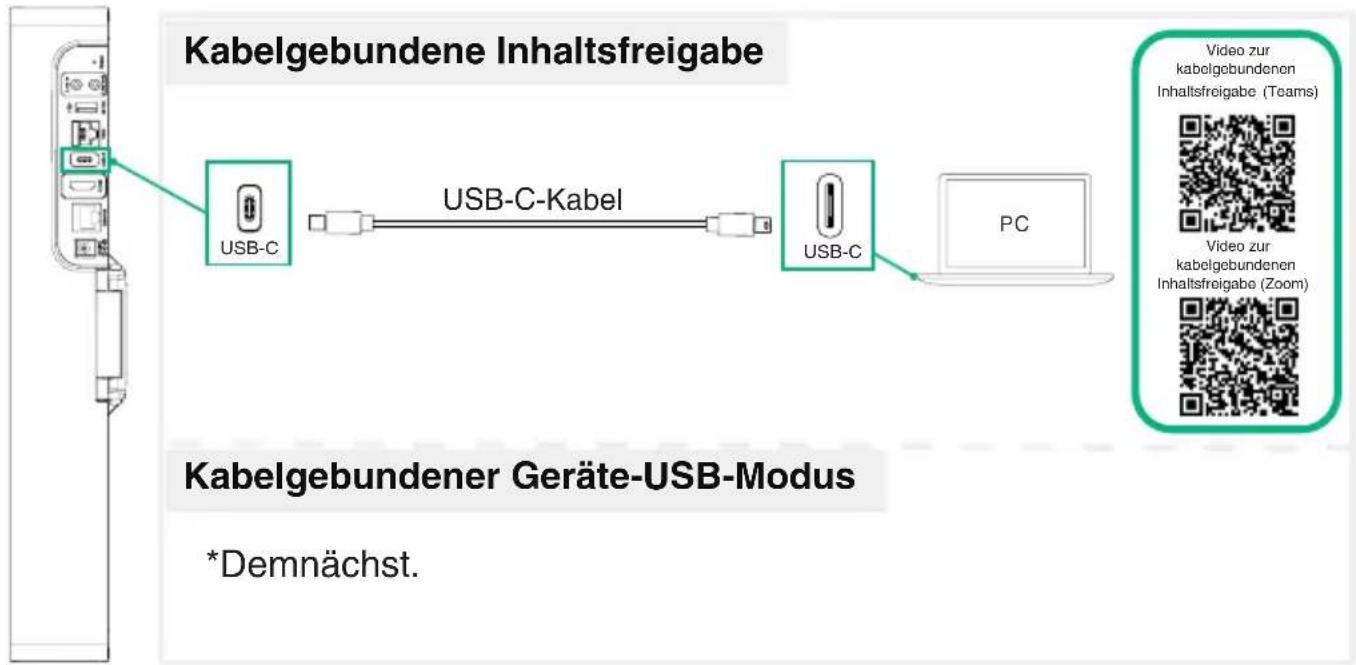
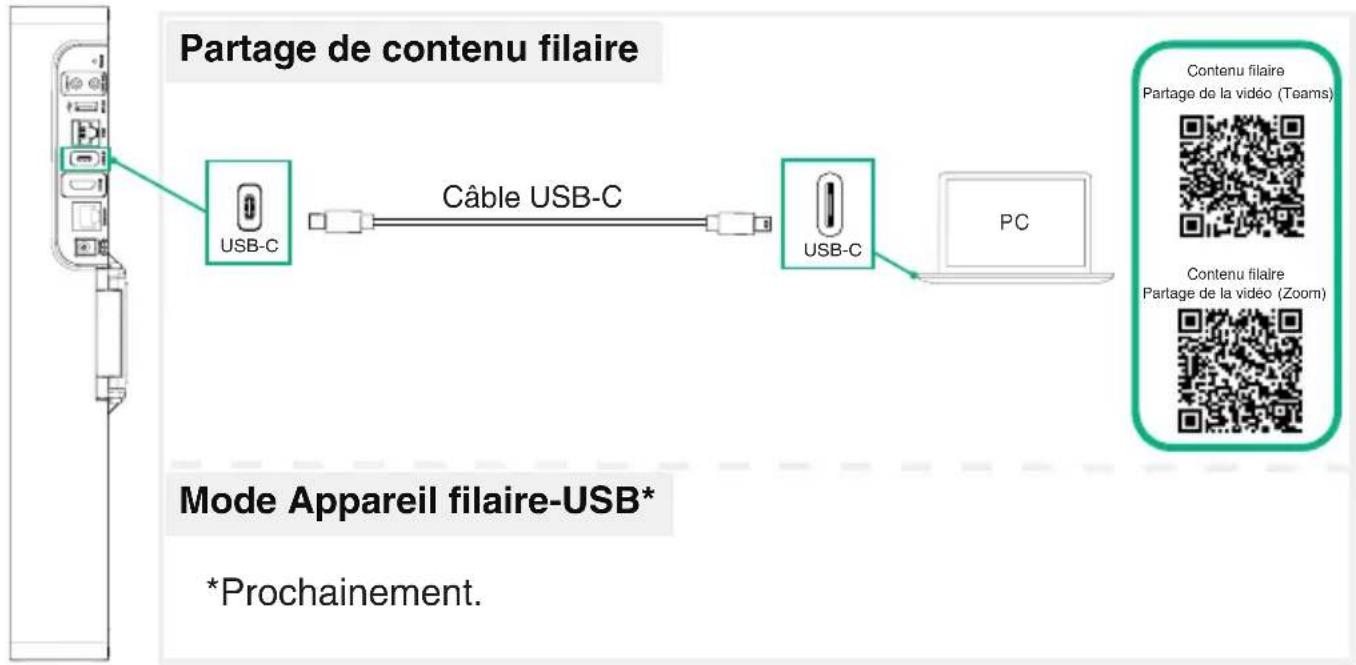
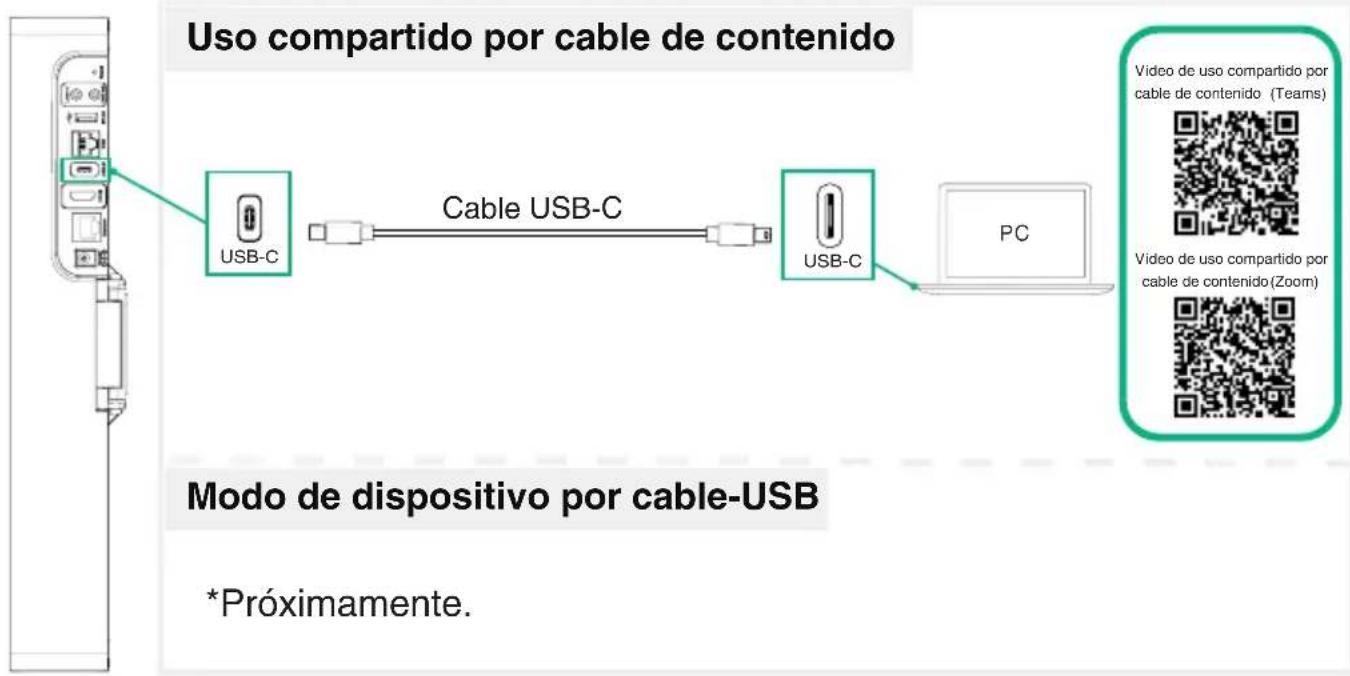
9 USB-C Cable
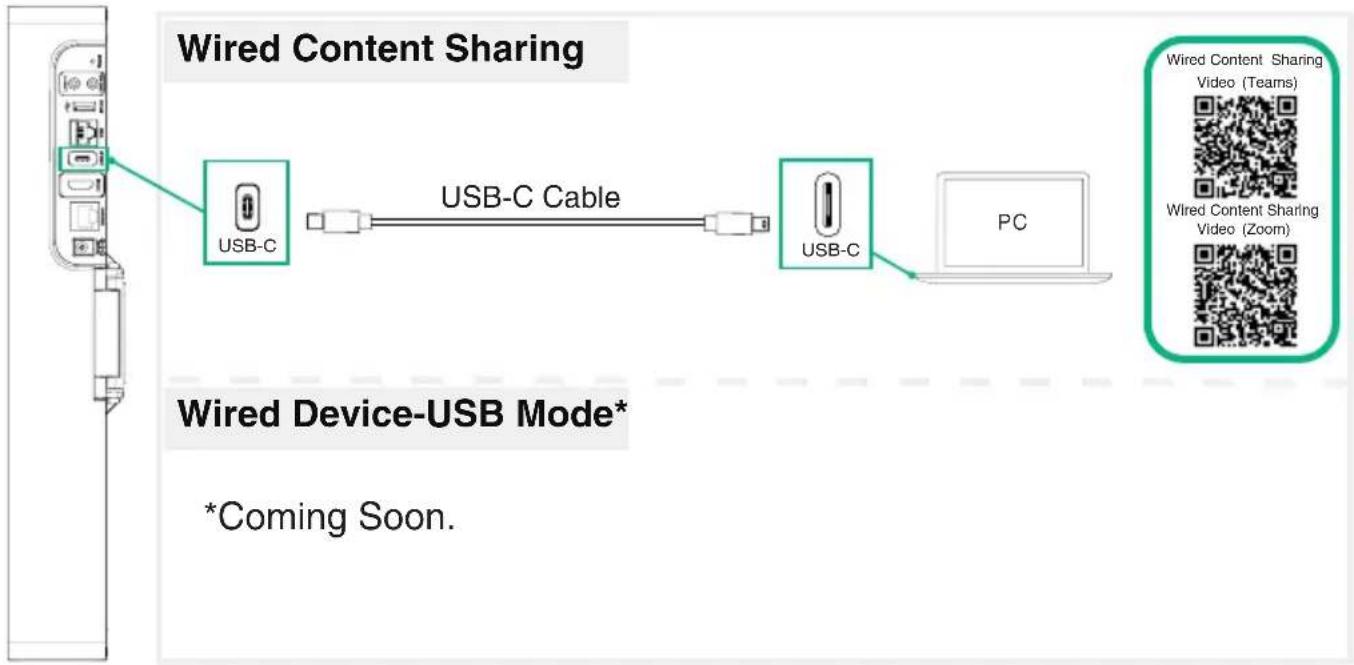
flowchart
graph LR
    A["USB-C"] -->|USB-C Cable| B["USB-C"]
    B --> C["PC"]
    D["Wired Content Sharing Video (Teams)"]
    E["Wired Content Sharing Video (Zoom)"]
    F["*Coming Soon."]
10 Updating the Firmware
Update the firmware of MeetingBar A10 and CTP18 separately.
- (Teams) Go to More > Settings > Device Settings > About to obtain the IP address.
(Zoom) Go to Settings > General > System Settings > About to obtain the IP address.
- Open a web browser and enter the device's IP address in the address bar. For example, http(s)://10.82.24.11/, and press Enter.
- Enter the administrator username and the password, and click Login. (The default user name is "admin", the password is "0000").
- Go to System > Update.
- On the right side of Device Firmware, click Select File to upload the desired firmware.
- Click Update.
Please get the latest firmware at https://support.yealink.com/.
For other functions and accessories, please refer to the Help Center.
If there are any problems during the deployment, you can submit a ticket at https://ticket.yealink.com/, and we will have corresponding engineers to deal with it.
1 Verpackungsinhalt
natural_image
Simple line drawing of a rectangular device with a circular button and a small rectangular element on the left (no text or symbols)
MeetingBar A10
natural_image
Diagram showing two cable assemblies with connectors, one being folded and the other tilted (no text or symbols)
1,8 m HDMI-Kabel
3 m Ethernet-Kabel
Netzteil
48 V/0,7 A
Kurzanleitung
Kabelbinder × 5
natural_image
Technical line drawing of a mechanical assembly with two cross-sectional views (no text or symbols)
natural_image
Simple line drawing of a TV setup with a mounted monitor and front panel (no text or symbols)
natural_image
Hand holding a tool with a green arrow indicating motion (no text or symbols)
natural_image
Line drawing of a hand holding a pen with a curved arrow indicating rotation (no text or symbols)
- Wandmontage
(1/4" - 20 UNC)
natural_image
Pure mechanical diagram showing a vertical shaft with two rectangular components and a top-mounted device (no text or symbols)
2 Initialisierung
Method 2: Sign in on the device

9 USB-C-Kabel
natural_image
Simple line drawing of a rectangular device with a circular button and a small rectangular element on the left (no text or symbols)
MeetingBar A10
natural_image
Diagram showing two cable assemblies with connectors, one being folded and the other attached (no text or symbols)
Câble HDMI de 1,8 m
natural_image
Technical line drawing of a mechanical assembly with three small components and a separate inset showing cross-sectional views (no text or symbols)
VCR11 and AAA Battery × 2
natural_image
Simple line drawing of a TV setup with a mounted monitor and front panel (no text or symbols)
natural_image
Hand holding a pen-like tool with a small container above, no text or symbols visible
natural_image
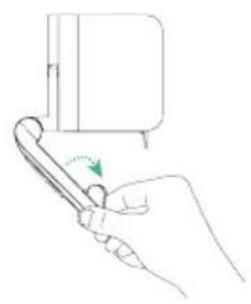
Hand holding a pen with a green arrow indicating rotation (no text or symbols)
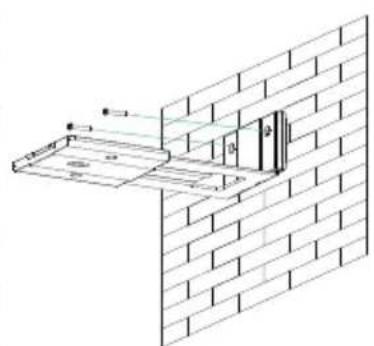
- Montage mural
(T4 × 30) (1/4" -20 UNC)
natural_image
Technical line drawing of a brick wall corner with a door and support structure (no text or symbols)
natural_image
Diagram showing a hand holding a wall-mounted device with a green arrow indicating motion, next to a brick wall and a small mechanical component (no text or symbols present)
2 Initialisation
9 Câble USB-C
flowchart
graph LR
    A["Mobile App"] --> B["USB-C"]
    B --> C["Câble USB-C"]
    C --> D["USB-C"]
    D --> E["PC"]
    F["Mode App"] --> G["App Store"]
    H["App Store"] --> I["App Store"]
    J["App Store"] --> K["App Store"]
    L["App Store"] --> M["App Store"]
    N["App Store"] --> O["App Store"]
    P["App Store"] --> Q["App Store"]
    R["App Store"] --> S["App Store"]
    T["App Store"] --> U["App Store"]
    V["App Store"] --> W["App Store"]
    X["App Store"] --> Y["App Store"]
natural_image
Simple line drawing of a rectangular device with a circular button and a small rectangular element on the left (no text or symbols)
MeetingBar A10
natural_image
Diagram showing two cable assemblies with connectors, one being folded and the other attached (no text or symbols)
Cable HDMI 1,8 m
Cable Ethernet 3 m
natural_image
Technical line drawing of a mechanical assembly with two cylindrical components and a separate inset showing cross-sectional view (no text or symbols)
VCR11 y 2 pilas AAA
natural_image
Simple line drawing of a TV setup with a mounted monitor and front panel (no text or symbols)

natural_image
Hand holding a tool with a green arrow indicating motion (no text or symbols)
natural_image
Hand holding a pen with a green arrow indicating rotation (no text or symbols)
natural_image
Diagram showing a hand installing or adjusting a wall-mounted device with a green arrow indicating motion (no text or symbols present)
natural_image
Pure technical line drawing of a vertical mechanical or architectural component with no text, numbers, or symbols
CTP18
MeetingBar A10
2. Inicialización

9 Cable USB-C
Operating Ambient Temperatures
- Operating temperature: +32 to 104^ (0 to 40^ )
• Relative humidity: 5% to 90%, noncondensing
• Storage temperature: -22 to +158°F (-30 to +70°C)
Warranty
Our product warranty is limited only to the unit itself, when used normally in accordance with the operating instructions and the system environment. We are not liable for damage or loss resulting from the use of this product, or for any claim from a third party. We are not liable for problems with Yealink device arising from the use of this product; we are not liable for financial damages, lost profits, claims from third parties, etc., arising from the use of this product.
DC symbol
--- is the DC voltage symbol.
Restriction of Hazardous Substances Directive (RoHS)
This device complies with the requirements of the EU RoHS Directive. Statements of compliance can be obtained by contacting support@yealink.com.
Safety Instructions
Save these instructions. Read these safety instructions before use!
The following basic safety precautions should always be followed to reduce risk of fire, electrical shock, and other personal injury.
General Requirements
- Before you install and use the device, read the safety instructions carefully and observe the situation during operation.
- During the process of storage, transportation, and operation, please always keep the device dry and clean.
- During the process of storage, transportation, and operation, please avoid collision and crash of the device.
- Please attempt not to dismantle the device by yourself. In case of any discrepancy, please contact the appointed maintenance center for repair.
- Without prior written consent, no organization or individual is permitted to make any change to the structure or the safety design of the device. Yealink is under no circumstance liable to consequences or legal issues caused by such changes.
- Please refer to the relevant laws and statutes while using the device. Legal rights of others should be respected as well.
Environmental Requirements
- Place the device at a well-ventilated place. Do not expose the device under direct sunlight.
- Keep the device dry and free of dusts.
- Place the device on a stable and level platform.
- Please place no heavy objects on the device in case of damage and deformation caused by the heavy load.
- Keep at least 10 cm between the device and the closest object for heat dissipation.
- Do not place the device on or near any inflammable or fire-vulnerable object, such as rubber-made materials.
- Keep the device away from any heat source or bare fire, such as a candle or an electric heater.
- Keep the device away from any household appliance with strong magnetic field or electromagnetic field, such as a microwave oven or a refrigerator.
Operating Requirements
- Do not let a child operate the device without guidance.
- Do not let a child play with the device or any accessory in case of accidental swallowing.
- Please use the accessories provided or authorized by the manufacturer only.
- The power supply of the device shall meet the requirements of the input voltage of the device. Please usethe provided surge protection power socket only.
- Before plugging or unplugging any cable, make sure that your hands are completely dry.
-
Do not spill liquid of any kind on the product or use the equipment near water, for example, near a bathtub, washbowl, kitchen sink, wet basement or near a swimming pool.
-
Do not tread on, pull, or over-bend any cable in case of malfunction of the device.
- During a thunderstorm, stop using the device and disconnect it from the power supply. Unplug the power plug and the Asymmetric Digital Subscriber Line (ADSL) twisted pair (the radio frequency cable) to avoid lightning strike.
- If the device is left unused for a rather long time, disconnect it from the power supply and unplug the power plug.
- When there is smoke emitted from the device, or some abnormal noise or smell, disconnect the device from the power supply, and unplug the power plug immediately. Contact the specified maintenance center for repair.
- Do not insert any object into equipment slots that is not part of the product or auxiliary product.
- Before connecting a cable, connect the grounding cable of the device first. Do not disconnect the grounding cable until you disconnect all other cables.
⚠️ Cleaning Requirements
- Before cleaning the device, stop using it and disconnect it from the power supply.
- Use a piece of soft, dry and anti-static cloth to clean the device.
- Keep the power plug clean and dry. Using a dirty or wet power plug may lead to electric shock or other perils.
ENVIRONMENTAL RECYCLING
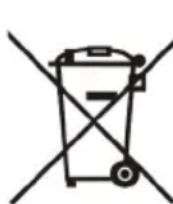
Never dispose of the device with domestic waste
Ask your Town Council about how to dispose of it in an environmentally friendly way. The cardboard box, plastic packaging and player components may be recycled in accordance with prevailing recycling regulations in your country.
Always adhere to prevailing regulations
Those who fail to do so may be fined or prosecuted in accordance with the law. The
crossed out garbage can that appears on the device means that when it has reached the end of its useful life, it should be taken to a special waste disposal centre and treated separately to general urban waste.
Troubleshooting
The unit cannot supply power to Yealink device.
There is a bad connection with the plug.
- Clean the plug with a dry cloth.
-
Connect it to another wall outlet.
The usage environment is out of operating temperature range.
-
Use in the operating temperature range.
The cable between the unit and the Yealink device is connected incorrectly.
- Connect the cable correctly.
You cannot connect the cable properly.
-
You may have connected a wrong Yealink device.
-
Use the correct power supply.
Some dust, etc., may be in the port.
- Clean the port.
Contact your dealer or authorized service facility for any further questions.
YEALINK NETWORK TECHNOLOGY CO.,LTD.
309, 3rd Floor, No.16, Yun Ding North Road, Huli District, Xiamen City, Fujian, P.R.C
YEALINK (EUROPE) NETWORK TECHNOLOGY B.V.
Strawinskylaan 3127, Atrium Building, 8th floor, 1077ZX Amsterdam, The Netherlands
YEALINK (USA) NETWORK TECHNOLOGY CO., LTD.
999 Peachtree Street Suite 2300, Fulton, Atlanta, GA, 30309, USA
Made in China
Sicherheitshinweise
309, 3rd Floor, No. 16, Yun Ding North Road, Huli District, Xiamen City, Fujian, VR China
YEALINK (EUROPE) NETWORK TECHNOLOGY B.V.
Strawinskylaan 3127, Atrium Building, 8th floor, 1077ZX Amsterdam, Niederlande YEALINK (USA) NETWORK TECHNOLOGY CO., LTD.
999 Peachtree Street Suite 2300, Fulton, Atlanta, GA, 30309, USA
Hergestellt in China
natural_image
Symbol of a trash bin crossed out by two diagonal lines, with no text or labels present.
309, 3rd Floor, No.16, Yun Ding North Road, Huli District, Xiamen City, Fujian, Chine
YEALINK (EUROPE) NETWORK TECHNOLOGY B.V.
Strawinskylaan 3127, Atrium Building, 8th floor, 1077ZX Amsterdam, Pays-Bas
YEALINK (USA) NETWORK TECHNOLOGY CO., LTD.
natural_image
Symbol of a trash bin crossed with diagonal lines, no text or numbers present
309, 3rd Floor, No.16, Yun Ding North Road, Huli District, Xiamen City, Fujian, P.R.C YEALINK (EUROPE) NETWORK TECHNOLOGY B.V.
Strawinskylaan 3127, Atrium Building, 8th floor, 1077ZX Amsterdam, The Netherlands YEALINK (USA) NETWORK TECHNOLOGY CO., LTD.
999 Peachtree Street Suite 2300, Fulton, Atlanta, GA, 30309, USA
Made in China
About Yealink
Yealink (Stock Code: 300628) is a global-leading provider of Unified Communication & Collaboration Solutions specialized in video conferencing, voice communications, and collaboration, dedicated to helping every person and organization embrace the power of "Easy Collaboration, High Productivity".
With best-in-class quality, innovative technology, and user-friendly experiences, Yealink is one of the best providers in more than 140 countries and regions, ranks No.1 in the global market share of IP Phone, and is the Top 5 leader in the video conferencing market (Frost & Sullivan, 2021).
Technical Support
Visit Yealink WIKI (http://support.yealink.com/) for firmware downloads, product documents, FAQ, and more. For better service, we sincerely recommend you to use Yealink Ticketing system (https://ticket.yealink.com) to submit all your technical issues.
YEALINK(XIAMEN) NETWORK TECHNOLOGY CO.,LTD.
Web: www.yealink.com
Addr: No.1 Ling-Xia North Road, High Tech Park, Huli District, Xiamen, Fujian, P.R.C
Copyright©2022 Yealink Inc. All right reserved.