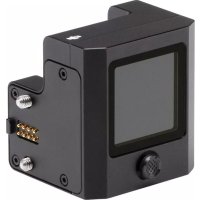
RoninS Command Unit - Tripod DJI - Free user manual and instructions
Find the device manual for free RoninS Command Unit DJI in PDF.



| Product Type | Control Unit for Ronin-S Stabilizer |
| Screen | 1.4 inch, 320×320 resolution, 550 cd/m² brightness |
| Connectivity | 8-pin male and female port, M4 port |
| Power Supply | Powered by Ronin-S via 8-pin port |
| Main Functions | Motor settings, SmoothTrack, control configuration, panoramas, timelapses |
| Control Button | 5D button with up, down, left, right, center functions |
| Available Languages | Multilingual (French, English, German, etc.) |
| Firmware Update | Possible via system menu |
| Compliance | European Directive 2014/30/EU (CE) |
| Material | Aluminum alloy |
| Operating Temperature | Not specified in the manual |
| Weight | Approx. 50 g (estimated) |
| Dimensions | Approx. 5 × 3 × 2 cm (estimated) |
| Compatible Accessories | DJI Focus Wheel for Ronin-S |
| Maintenance | Clean with a soft dry cloth. Avoid liquids. |
| Recycling | Do not dispose of with household waste. Drop off at a collection point. |
Frequently Asked Questions - RoninS Command Unit DJI
User questions about RoninS Command Unit DJI
0 question about this device. Answer the ones you know or ask your own.
Ask a new question about this device
Download the instructions for your Tripod in PDF format for free! Find your manual RoninS Command Unit - DJI and take your electronic device back in hand. On this page are published all the documents necessary for the use of your device. RoninS Command Unit by DJI.
USER MANUAL RoninS Command Unit DJI
PykoBoDCTBO noIb3OBaTeJIa
v1.0 2018.10
Contents
EN User Guide 2
CHS 使用说明 6
CHT使用者指南 10
JP 14
KR 18
DE Bedienungsanleitung 22
ES Guia del usuario 26
FR Guide de l'utilisateur 30
IT Guida dell'utente 34
NL Gebruiksaanwijzing 38
PT-PT Manual do utiliser 42
PT-BR Guia do usuario 46
RU RykoBoDCTBO NOAb3OBaTeA 50
Compliance Information 54
Disclaimer and Warning
Congratulations on purchasing your new DJI OSMO™ product. The information in this document affects your safety and your legal rights and responsibilities. Read this entire document carefully to ensure proper configuration before use. Failure to read and follow instructions and warnings in this document may result in serious injury to yourself or others, damage to your DJI OSMO product, or damage to other objects in the vicinity. This document and all other collateral documents are subject to change at the sole discretion of DJI OSMO.
By using this product, you hereby signify that you have read this disclaimer and warning carefully and that you understand and agree to abide by the terms and conditions herein. You agree that you are solely responsible for your own conduct while using this product, and for any consequences thereof. You agree to use this product only for purposes that are proper and in accordance with all applicable laws, rules, and regulations, and all terms, precautions, practices, policies and guidelines DJI OSMO has made and may make available.
DJI OSMO accepts no liability for damage, injury or any legal responsibility incurred directly or indirectly from the use of this product. The user shall observe safe and lawful practices including, but not limited to, those set forth in this document.
Notwithstanding above, your statutory rights under applicable national legislation are not affected by this disclaimer.
OSMO is a trademark of SZ DJI OSMO TECHNOLOGY CO., LTD. (abbreviated as "DJI OSMO") and its affiliated companies. Names of products, brands, etc., appearing in this document are trademarks or registered trademarks of their respective owner companies. This product and document are copyrighted by DJI OSMO with all rights reserved. No part of this product or document shall be reproduced in any form without prior written consent of or authorization from DJI OSMO.
Introduction
The DJI RONIN™-S Command Unit enables users to set parameters and control the Ronin-S during shooting without using a mobile device. Adjust
motor settings, switch operation modes, and select remote control settings by using the screen and 5D button. Users can also access the Create feature directly through the Command Unit.
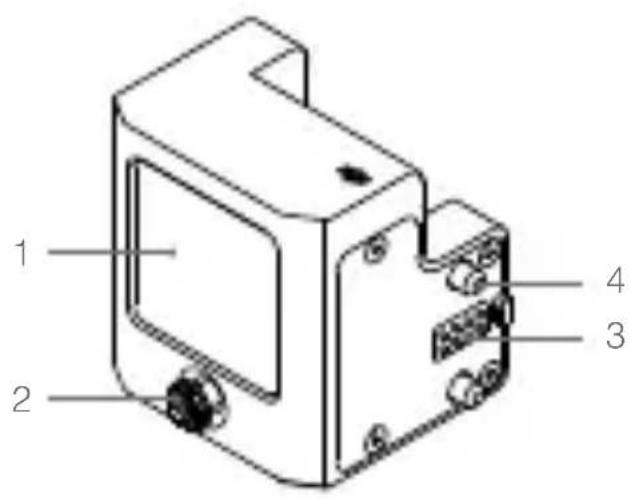
- Screen
- 5D Button
- 8-pin Port (Male)
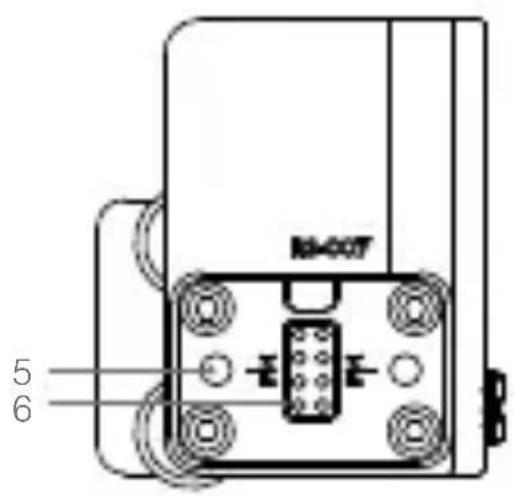
- Screw
- M4 Port
- 8-pin Port (Female)
Installation
Attach the Command Unit to either side of the Ronin-S. Be sure to tighten the screws securely. Power on the Ronin-S to use the Command Unit.
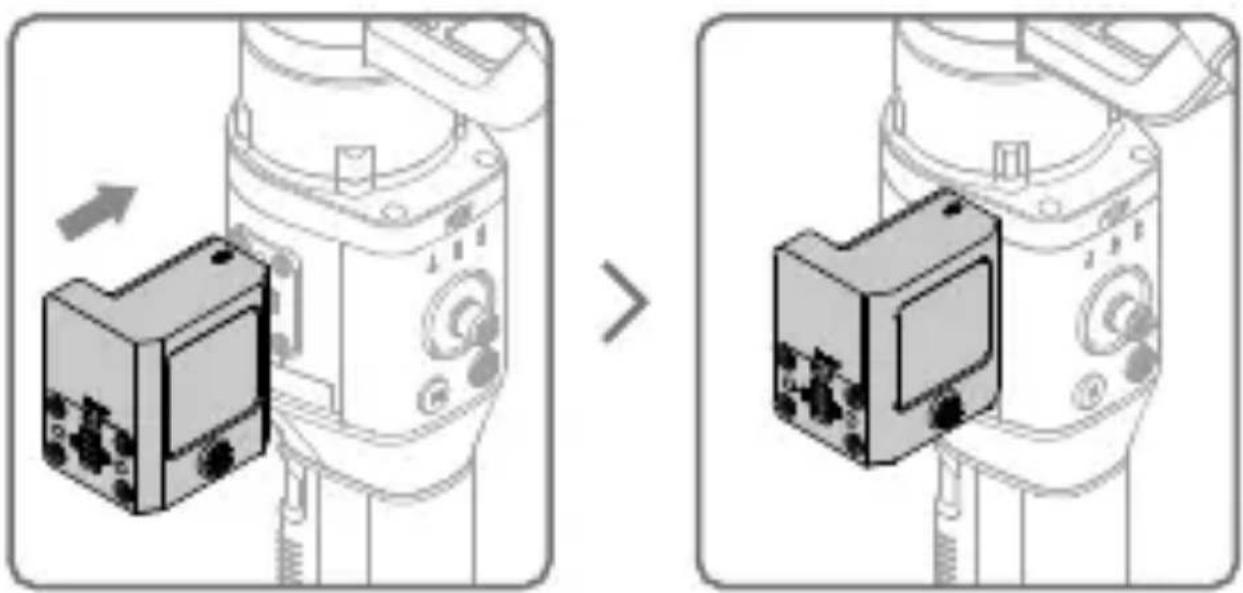
Mount Ronin-S accessories such as the DJI Focus Wheel to the Ronin-S through the Command Unit by using the M4 port and 8-pin port.
Operation
1. On-screen Information
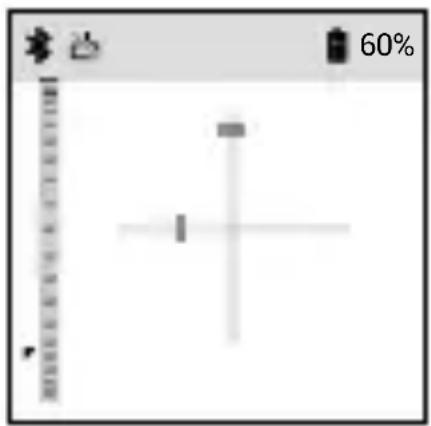
The top of the screen displays information such as the Bluetooth connection, GPS signal, the type of camera used, and the battery level of the Ronin-S. The left bar shows the position of the Focus Wheel, and the cross bar displays the real time stick input.
2. 5D Button
Left: Go back
Right: Select
Center: Select
Up: Move up
Down: Move down
3. Menu
- Motor
Auto tune or manually set the stiffness of the pan, tilt, and roll axis. Strength, filter, and control values can be set once "Advanced Settings" are enabled. - SmoothTrack
SmoothTrack can be enabled/disabled on this page. Enable the Push feature and set the deadband, speed, and sensitivity.

Control Settings
Set the deadband, speed, smoothing, and endpoint of the pan, tilt, and roll axis. Reassign channels and reverse the rotation of the pan, tilt, and roll axis.
Create Feature
Panorama: Set the parameters according to the type of camera and select "Quick Start". Set the Start and End position and the camera starts to create the Panorama. The number of photos taken and the percentage complete is displayed while shooting.
Timelapse: Set the parameters according to the type of camera and select "Quick Start". Set the Start and End position and the camera starts to create the Timelapse. The Start and End position can be the same or different. The number of photos taken, the percentage complete, and the elapsed time is displayed while shooting.
Toggle the 5D button to the left will exit the shooting.
- Settings
Reset Bluetooth passwords, switch languages, perform a balance test, calibrate the system, and restore default settings.
- About
Displays information about the device, battery, and firmware version. The Command Unit firmware is part of the Ronin-S firmware. When new firmware is available, connect the Command Unit to the Ronin-S to update.

Refer to the Ronin-S User Manual for more information about the gimbal settings.
Specifications
Screen Dimension: 1.4 inch
Resolution: 320 × 320
Lightness: 550 nits
免责声明
- BnHT
- NopT M4
- 8-KoHTaKTHbI NOPT (rHe3do)
YctaHOBka
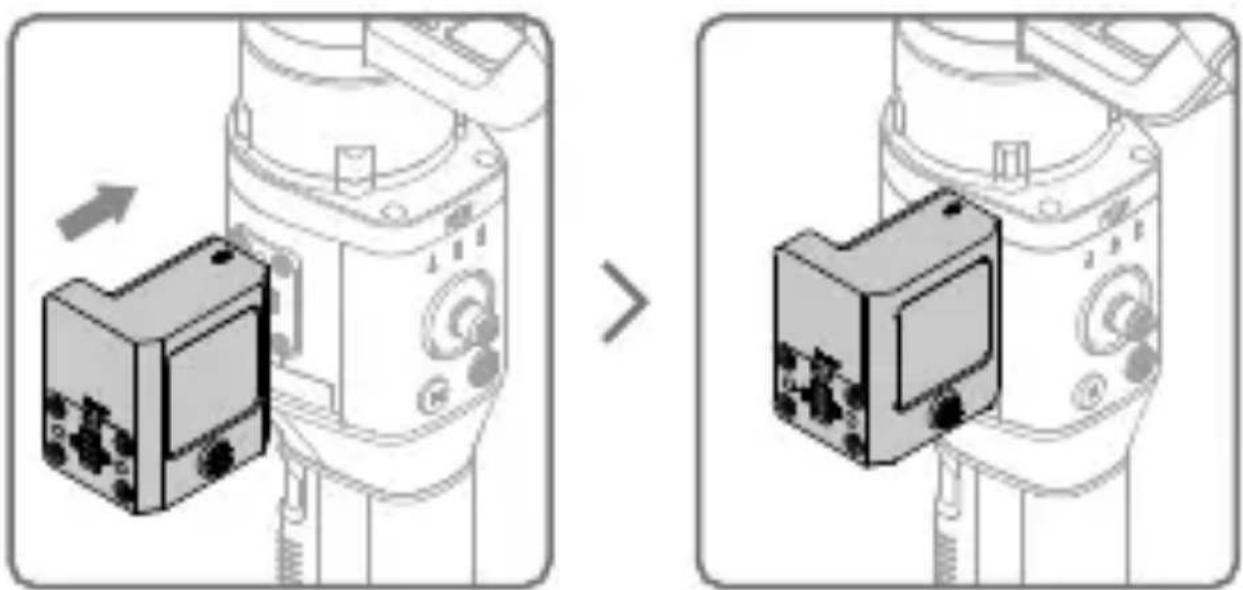
YcTaHOBInTe NylbT ynpaBHeHnC IIO6o CTOpObI Ronin-S i KpeNko 3aTaNtE BnHTbl. BkJIouHtTe Ronin-S nepei nCnoJb3OBaHNem NylbTa.
Hactpoika JecTKOCTN OCN NOBOPTa, HaKIOHa N KpeHa aBTOMaTNUeCKN INI BpyHyIO. 3NaueHnA IpoUHOCTN, pInbTpOBaHnA N ynpaBJIeHnA MOxHO yCTaHOBtB B Advanced Settings (PacupeHHbIe HactpoKn).
- SmoothTrack
SmoothTrack MoXHOBKJIIOHTb/OTKJIIOHTb Ha 3ToI CTpaHnIe. BKJIIOHTe ΦyHKcIIO Push n yCTaHOBInTe 3HaueHnIe 3OHbI HeCyBCTBInTeJbHOCTn, CKOPoCTn I CyBCTBInTeJbHOCTn.
Hactpoikn ynpaBleHna
YCTaHOBNTe 3HaueHnA 3OHbI HeCyBCTBNTeJIbHOCTN, CKOpOCTN, CrJaXnBaHnA, KOHeuHOr TOUKn OcN IOBOPota, NaKLOHa N KpeHa. IpepeacnpedeJInte KaHaJIbI INOBepHNTe BpaUeHnE OcN IOBOPota, NaKLOHa N KpeHa.
-ФункциЯCreate
This device complies with Part 15 of the FCC Rules. Operation is subject to the following two conditions: (1) This device may not cause harmful interference, and (2) This device must accept any interference received, including interference that may cause undesired operation.
Any changes or modifications not expressly approved by the party responsible for compliance could void the user's authority to operate the equipment.
EU Compliance Statement: SZ DJO Smo Technology Co., Ltd. hereby declares that this device is in compliance with the essential requirements and other relevant provisions of the Directive 2014/30/EU.
A copy of the EU Declaration of Conformity is available online at www.dji.com/ euro-compliance
EU contact address: DJI GmbH, Industriestrasse 12, 97618, Niederlauer, Germany
CAUTION: RISK OF EXPLOSION IF BATTERY IS REPLACED BY AN INCORRECT TYPE. DISPOSE OF USED BATTERIES ACCORDING TO THE INSTRUCTIONS
Environmentally friendly disposal
Old electrical appliances must not be disposed of together with the residual waste, but have to be disposed of separately. The disposal at the communal collecting point via private persons is for free. The owner of old appliances is responsible to bring the appliances to these collecting points or to similar collection points. With this little
personal effort, you contribute to recycle valuable raw materials and the treatment of toxic substances.
This device complies with ICES-003 standard. Operation is subject to the following two conditions: (1) this device may not cause interference, and (2) this device must accept any interference, including interference that may cause undesired operation of the device.
CANICES-3(B)/NMB-3(B)
RONIN is a trademark of DJI OSMO.
Copyright 2018 DJI OSMO ALL Rights Reserved.
RONIN是大疆灵眸的商标。

Brand : DJI
Model : RoninS Command Unit
Category : Tripod