
SL 01 - Mobile Phone BLAUPUNKT - Free user manual and instructions
Find the device manual for free SL 01 BLAUPUNKT in PDF.
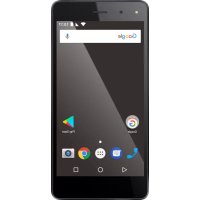



| Brand | Blaupunkt |
| Model | SL 01 |
| Product type | Mobile phone |
| Operating system | Android™ 7.0 Nougat |
| Display | 5 inch HD IPS, 854x480 pixels |
| Processor | 1.3 GHz Quad Core |
| RAM memory | 1 GB |
| Internal memory | 8 GB ROM |
| Expandable storage | Up to 32 GB via microSD card |
| Rear camera | 8 MP |
| Front camera | 2 MP |
| Battery | 2200 mAh lithium-ion |
| Power supply (charger) | Input: AC 100-240 V~50/60 Hz 0.25 A; Output: DC 5.0 V / 1.0 A |
| Compatible networks | GSM 900/1800 MHz, WCDMA 900/2100 MHz |
| Connectivity | Wi-Fi, Bluetooth |
| Number of SIM cards | Dual SIM (2 slots) or 1 SIM + SD card |
| SAR value (head) | 0.257 W/kg |
| SAR value (body) | 0.761 W/kg |
| Maintenance and cleaning | Keep dry, avoid dust and extreme temperatures, do not use chemicals |
| Safety | Power off in regulated areas, road safety, avoid interference, hearing protection |
| General information | Conforms to directives 2014/53/EU and RoHS 2011/65/EU. Imported by HTM Mobile Ltd. |
Frequently Asked Questions - SL 01 BLAUPUNKT
User questions about SL 01 BLAUPUNKT
0 question about this device. Answer the ones you know or ask your own.
Ask a new question about this device
Download the instructions for your Mobile Phone in PDF format for free! Find your manual SL 01 - BLAUPUNKT and take your electronic device back in hand. On this page are published all the documents necessary for the use of your device. SL 01 by BLAUPUNKT.
USER MANUAL SL 01 BLAUPUNKT
- Safety instructions....2
- Technical Specifications ....4
- Insert the memory card and SIM card ....5
- Switch the device on and off....6
- Using the Phone's Buttons....6
- Manage calls....6 6.1 Make calls....6 6.2 Disable Phone Calls (Airplane mode)....7 6.3 Receive a call....7 6.4 Emergency calls ....7
- The Home screen .... 7 7.1 Notification bar....8 7.2 Application Launcher....9
- Handling and maintenance.... 10
- SIM cards 11
- Recycling your device.... 11
- Declaration of Compliance 12
1. Safety instructions
ATTENTION: Please read this guide carefully. Failure to comply with the safety regulations may be dangerous or illegal, and the manufacturer cannot be held liable for any malfunction resulting from improper use.
Safe switch-on
The owner of the device is responsible for the use of the device. Never switch the device on in areas where wireless devices are prohibited or radio interference may be dangerous.
Road safety
Observe the local laws and regulations regarding smartphone usage while driving. If you make a phone call while driving, observe the following rules: Focus on driving to become aware of traffic conditions; If the device has a hands-free function, use hands-free. If the traffic situation requires, stop the car before you pick up the phone.
Interference
Wireless devices may be sensitive to interference that affects performance.
Electronic devices
To avoid demagnetization, do not leave your device for a long time close to electronic devices.
Use in hospitals
Hospitals and other healthcare facilities can use devices that are particularly sensitive to RF signals. Switch off your phone if prohibited signals are instructed to do so, or hospital staff ask for it.
Electrical medical devices
Your phone is a radio transmitter that can interfere with electronic medical devices or implants such as hearing aids, pacemakers, insulin pumps, and so on. We recommend that you keep a distance of at least 15 cm between the implant and the device, never wear your phone in the breast pocket. Follow the instructions of the
manufacturer of the medical device. If you have a medical implant and have any other questions about using mobile or wireless devices, ask your doctor.
Use on the airplane
Your device supports flying mode, please use this feature on the airplane. Follow the instructions on the airplane.
Explosion hazards and restricted areas
Turn off the device in explosion hazardous areas. Sparks in such places may lead to an explosion or fire that may result in serious injury or death. Turn off the device at gasoline or gas filling stations, especially near the fuel pumps. Follow the instructions strictly in locations such as fuel tanks, chemical plants, and explosive substances.
Use environment
The device complies with the recommended emission values for radio waves when kept at a minimum distance of 1.5 cm from the ear. When carrying the phone in a case, belt clip, or holder, make sure that it does not contain metal and that the phone is slightly separated from the body. When using other accessories, it is not possible to operate in accordance with radio frequency guidelines. If you do not use a case and do not hold the phone to your ear, keep it at least 2.5 cm away from your body, especially during data transfer.
Proper use
Please do not attempt to disassemble the device. If the product is defective, contact your distributor.
Battery and other accessories
Only use parts and accessories approved by the manufacturer. Using non-factory accessories and spare parts may result in loss of warranty.
Please do not charge the device before inserting the battery. Do not short-circuit the battery.
Charge the appliance in a well-ventilated and suitable temperature environment away from flammable and explosive materials. Handle
the used battery according to local regulations and do not throw it into household trash.
Water resistance
The appliance is not waterproof and dry. Precipitation, fog, and other liquids can corrode electronic circuits. If moisture has reached the phone, remove the battery and contact the dealer.
Backup
Make a backup of all the data stored on your device.
Connect to another device
Before connecting an external device, read the safety instructions in this manual. Do not connect an incompatible device.
2. Technical Specifications
Basic Features
- Android™ 7.0 Nougat
- 5" FWVGA display, 854x480 pixels
- 2 MP front camera
- 8 MP back camera • 1.3 GHz Quad Core processor • 1 GB RAM + 8 GB ROM memory
- microSD card up to 32 GB • Dual SIM / Single SIM + SD card • Multimedia functions
- Wi-Fi
- Bluetooth
- 2200 mAh battery • GSM 900 / 1800 MHz • WCDMA 900 / 2100 MHz
Android is a trademark of Google™ Inc.
Power Supply Features:
- Input: AC 100-240V~50/60Hz 0.25 A • Output: DC 5.0V - 1.0 A
SAR value:
- 0.257 W/Kg (Head)
- 0.761 W/Kg (Body)
3. Insert the memory card and SIM card
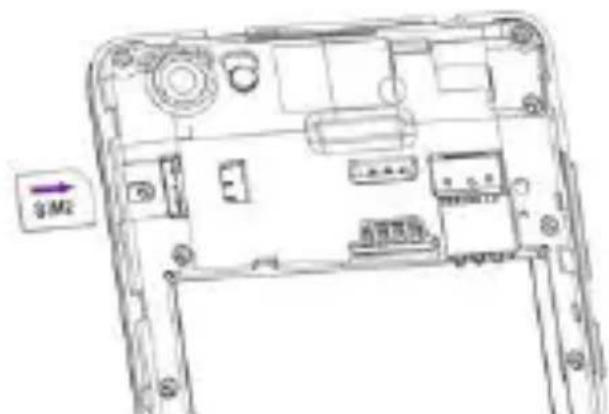
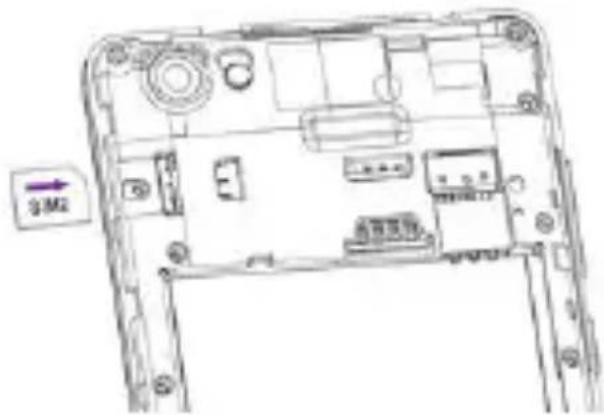
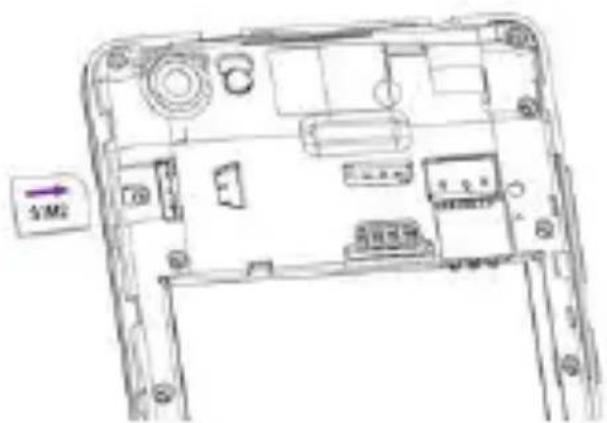
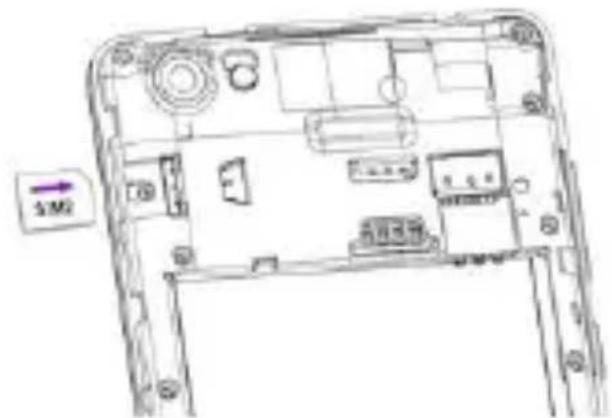
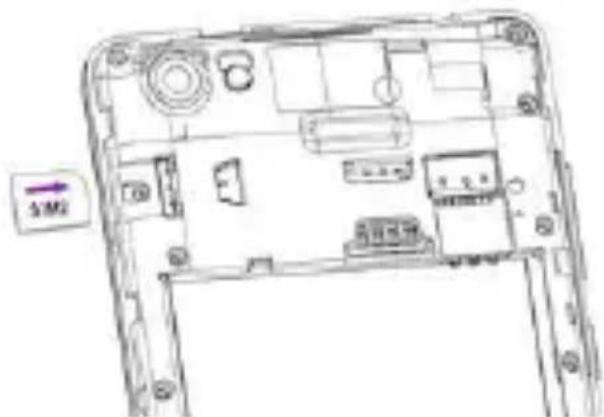
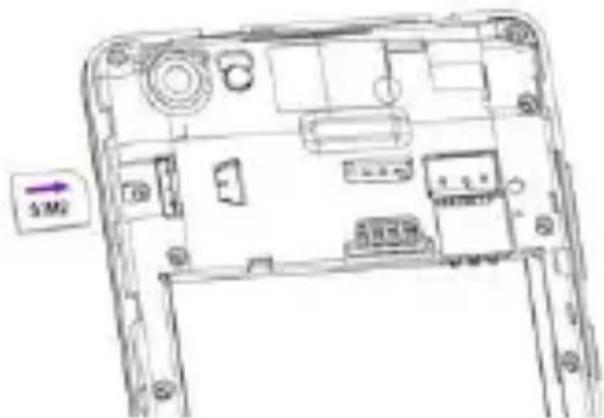
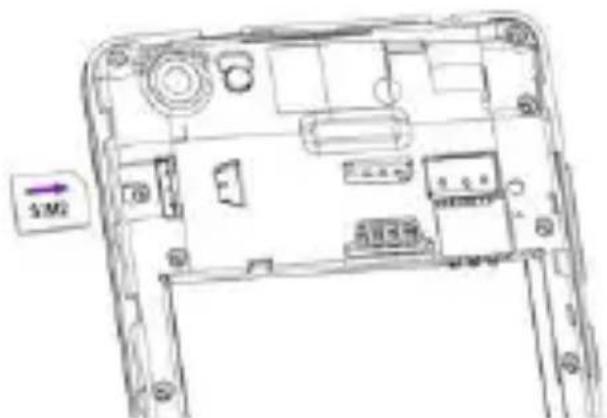
When subscribing to a service provider, they provide a SIM card to use the network. Your SIM card has a phone number and various services, but you can store data on it, for example, phone numbers. The two SIM sockets allow you to connect to two types of network. Remove the back cover and insert the SIM cards according to the mark on the device, as shown in the illustration.
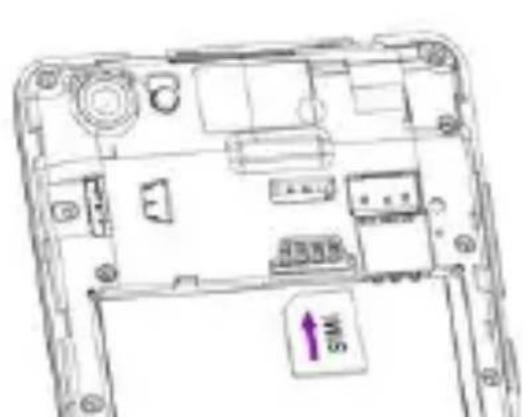
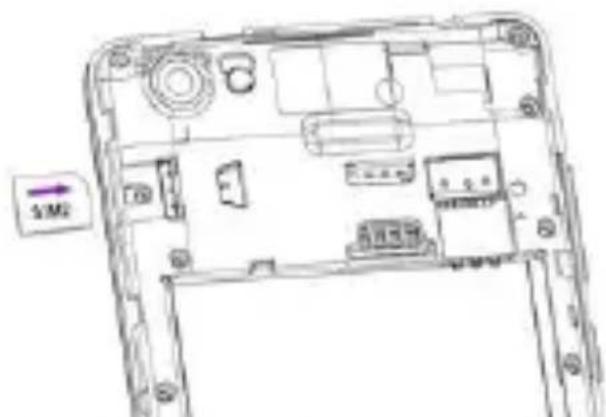
The label on the phone indicates the direction of insertion of the SD card:
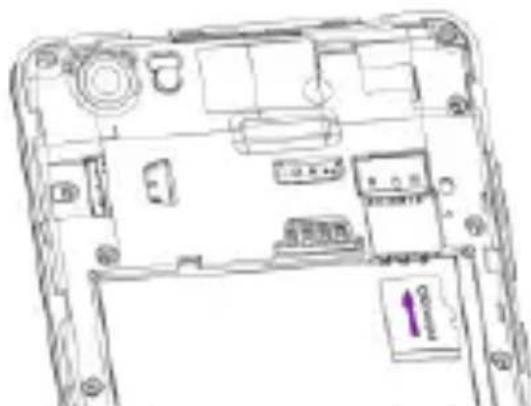
Then insert the battery and reconnect the back cover.
4. Switch the device on and off
Press and hold the Power button to turn on the power.
Press and hold the power button and select "Power off" from the Options menu.
5. Using the Phone's Buttons
| Button | Description |
 | Menu: Opens the related menu with additional options and actions, depending on the application. Press and hold to open a list of recent applications. |
 | Home: returns to Home screen. |
 | Back: returns to the previous screen you were working in |
6. Manage calls
6.1 Make calls
- Tap the icon on the main menu or the home screen to dial the desired number.
- Touch the icon on the main menu or the home screen to make a call from contacts, groups, or favorites.
- To dial an international number, touch and hold the 0 key to enter the Plus (+) symbol, and then enter the international country prefix, followed by the phone number.
- Touch the icon to call with SIM 1 or SIM 2.
- Press the Volume Up/Down keys to adjust the call volume.
- You can access Call Logs and Contacts from the dialer screen.
- While on a call, touch the icon to end the call.
6.2 Disable Phone Calls (Airplane Mode)
Some locations, like airplanes, may require you to turn off your mobile, Wi-Fi, and Bluetooth wireless connections.
- Press and hold the Power button.
- Touch Airplane mode.
6.3 Receive a Call
When you receive an incoming call, you can choose from the following options:
- Drag the phone icon to the right to answer the call.
- Drag the phone icon to the left to reject the call.
- Drag the phone icon upward to reject the call with a text message.
6.4 Emergency Calls
You can also make emergency calls without a SIM card. For more information, contact your network service provider.
7. The Home Screen
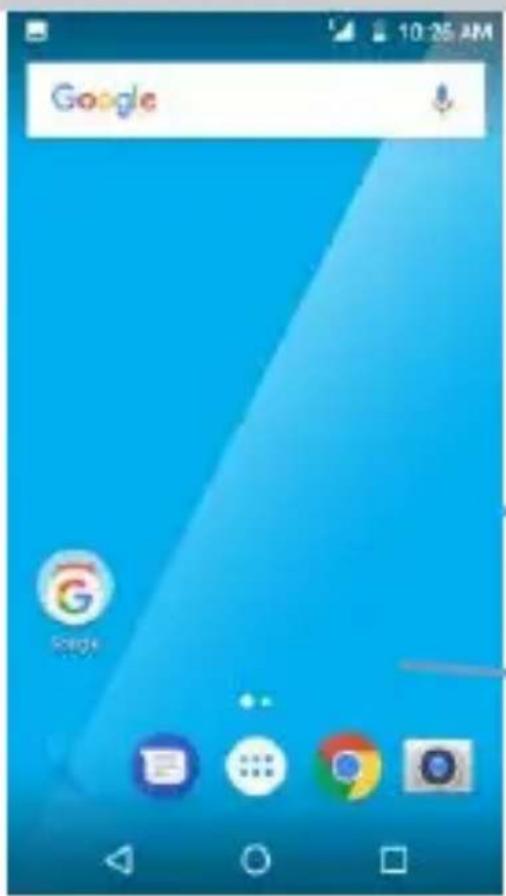
When you sign in, the home screen opens.
The Home screen is your starting point to access all the features on your phone. Touch the main menu icon at the bottom of the screen to view all installed applications.
The status bar shows the time,
Touch and hold an empty
spot to change wallpaper.
7.1 Notification bar
The notification bar shows your device status and notifications.
Notification icons indicate new messages and events. When a new notification arrives, its icon appears in the Notification Bar.
Notification Icons
Status Icons

To see more information about notifications, open the notification panel by swiping your finger over the top of the screen.
Status icons:
| Icon | Description | Icon | Description |
 | Signal strength indicator |  | Alarm has been set |
 | New missed calls |  | Wi-Fi is activated |
 | USB is connected |  | Bluetooth is on |
 | The headphone is being used |  | Battery charging symbol |
 | New message from SIM 1 |  | Airplane mode is activated |
Close the notification bar:
Drag the bottom of the notification panel to the top of the screen or simply press the back button. The notification panel will also close when responding to a notification.
7.2 Application Launcher
Press the Launcher icon to enter the Main Menu. From here you can access all installed applications and widgets.
Touch the app to start.
To add an application shortcut to the desktop screen, press and hold it until it vibrates and enters Home screen. Place it and release your finger.
Slide the Launcher left or right to bring more icons into view.
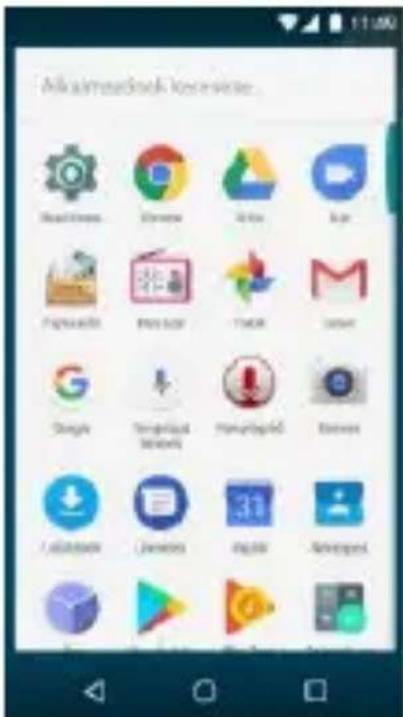
As soon as you install a new application, it comes in this list.
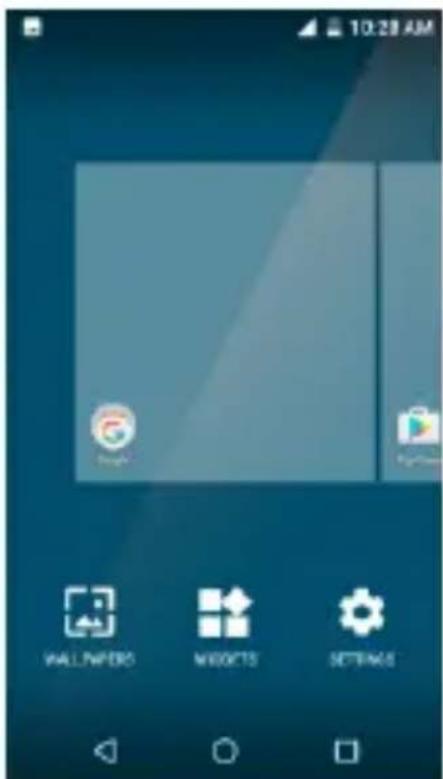
To access widgets, press the menu button on the Home screen, then tap the widget icon at the bottom of the screen. Widgets can not be started as an application.
Press and hold the selected widget until it vibrates and the Home screen open. Place and release your finger from the screen. The app may request further action to activate the widget.
You can configure the widget in the submenu, for example, size. The options displayed, depend on the given widget. If there is not enough space on the Home
screen, the widget will not be added.
To close the launcher, press the Home button or the Back button.
8. Handling and maintenance
- Battery
The device has a rechargeable battery. When the power supply is low, charge the battery.
Disconnect the charger from the power outlet and the appliance when not in use. Do not allow the battery to charge for more than a week, as it may reduce the battery life.
Extreme temperatures may also affect the battery. If the ambient temperature exceeds 40°C, do not charge the battery.
Do not use a damaged battery or charger.
Do not short-circuit the battery. For example, a metallic object such as a coin, clip or pen may cause a short circuit.
Do not leave the battery too hot (such as in a car in summer) or too cold (such as freezing), as it may reduce its service life. Try to store the battery between 15°C and 25°C. A too cold or too hot battery may temporarily not work, even if it is fully charged.
Do not throw the battery in a fire. Dispose of the used battery according to local regulations and recycle if possible.
- Maintain the appliance
Keep the appliance dry. Precipitation, mist and all other liquids can cause corrosion in the circuit boards. If it is still wet, remove the battery. Do not put it back until the product is completely dry.
Do not store the product in dusty places, as moving parts and electrical accessories may be damaged.
Do not store the device in hot places. High temperatures can shorten the life of the electrical devices, damage the battery and melt the plastic parts.
Do not store the device in a cold place. When the device returns to normal temperature, the inside moisture can damage the electrical circuits.
Open the appliance only as instructed in this manual.
Do not drop, shake the appliance as small parts break.
Do not use strong chemicals or solvents to clean the appliance.
Do not paint the appliance. Paint can clog the moving parts and hinder proper operation.
Use only approved parts, improper parts may damage the unit and may result in warranty loss. If the product does not work properly, consult the service provided on the warranty card.
The manufacturer is not liable for any malfunction resulting from improper use.
9. SIM cards
From the Menu / Settings / SIM Cards menu, you can choose a preferred SIM card for the following:
- Mobile Data Connection
- Calls
- SMS messages
In this menu you can also deactivate any of the cards.
10. Recycling your device
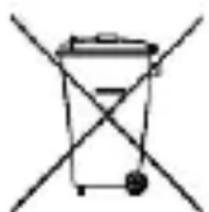
The logo on the left indicates that the product should not be disposed of in household garbage. Dispose of such devices at a collection point for hazardous waste (electronic waste).
11. Declaration of Compliance
The Blaupunkt SL 01 model complies with the essential requirements and relevant provisions of the 2014/53/EU Directive and RoHS Directive 2011/65/EU.
To view the Declaration of Compliance, please contact us at the following e-mail address: info@blaupunkt-mobile.eu
CE
Import: HTM Mobile Ltd. Address: 1118. Budapest, Dayka Gábor street 3.
For more information on this product, visit our website at www.htmmobile.hu or www.blaupunkt.com.
Google, Android, and Google Play are trademarks of Google Inc.

BLAUPUNKT
Getting Started
Mobile Phone SL 01
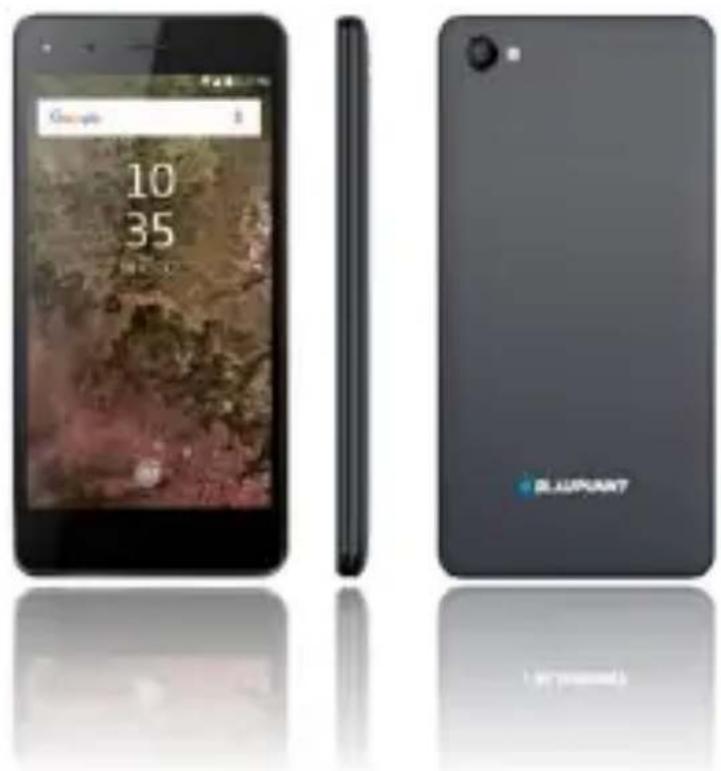
Enjoy it.
Table of Contents
Android is a trademark of Google™ Inc.

8. SIM Cards

Enjoy it.
Table of Contents
Android is a trademark of Google™ Inc.
2.2 Technical Specifications

Enjoy it.
Table of Contents
Android is a trademark of Google™ Inc.
Type Unit
The indicator icons are:
Enjoy it.
Table of contents
Android is a trademark of Google TM Inc.

Contents
Android is a trademark of Google TM Inc.
Home
Table of contents
Android is a trademark of Google TM Inc.
2.2 Technical data
Technical features:
• Input: AC 100-240V\~50/60Hz 0.25 A - Output: DC 5.0V – 1.0 A

Android is a trademark of Google TM Inc.
8. SIM cards
Table of contents
Android is a trademark of Google™ Inc.
Status icons:

8. SIM cards
Android is a trademark of Google™ Inc.



- SAFETY INSTRUCTIONS
- SAFE SWITCH-ON
- ROAD SAFETY
- INTERFERENCE
- ELECTRONIC DEVICES
- USE IN HOSPITALS
- ELECTRICAL MEDICAL DEVICES
- USE ON THE AIRPLANE
- EXPLOSION HAZARDS AND RESTRICTED AREAS
- USE ENVIRONMENT
- PROPER USE
- BATTERY AND OTHER ACCESSORIES
- WATER RESISTANCE
- BACKUP
- CONNECT TO ANOTHER DEVICE
- TECHNICAL SPECIFICATIONS
- BASIC FEATURES
- POWER SUPPLY FEATURES
- SAR VALUE
- INSERT THE MEMORY CARD AND SIM CARD
- SWITCH THE DEVICE ON AND OFF
- USING THE PHONE'S BUTTONS
- MANAGE CALLS
- MAKE CALLS
- DISABLE PHONE CALLS (AIRPLANE MODE)
- RECEIVE A CALL
- EMERGENCY CALLS
- THE HOME SCREEN
- NOTIFICATION BAR
- CLOSE THE NOTIFICATION BAR
- APPLICATION LAUNCHER
- HANDLING AND MAINTENANCE
- BATTERY
- MAINTAIN THE APPLIANCE
- SIM CARDS
- RECYCLING YOUR DEVICE
- DECLARATION OF COMPLIANCE
- BLAUPUNKT
- GETTING STARTED
- MOBILE PHONE SL
- TABLE OF CONTENTS
- TYPE UNIT
- CONTENTS
- TECHNICAL DATA
Brand : BLAUPUNKT
Model : SL 01
Category : Mobile Phone