
FL 06 - Mobile Phone BLAUPUNKT - Free user manual and instructions
Find the device manual for free FL 06 BLAUPUNKT in PDF.
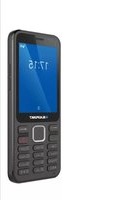


| Product Type | Mobile Phone |
| Brand | Blaupunkt |
| Model | FL 06 |
| Dimensions (approx.) | 120 x 50 x 10 mm |
| Weight (approx.) | 80 g |
| Battery Type | Li-Ion 1000 mAh |
| Standby Time | Up to 200 hours |
| Talk Time | Up to 5 hours |
| Display | 2.4 inch TFT, 240 x 320 pixels |
| Camera | 0.3 MP (VGA) |
| Memory Card Slot | microSD, up to 32 GB |
| Connectivity | Bluetooth 2.1, microUSB, 3.5mm jack |
| Radio | FM Radio (requires wired headset) |
| Torch / Flashlight | Yes |
| Main Functions | Calls, SMS, FM Radio, Music Player, Camera, Torch |
| Care and Cleaning | Wipe with a soft, dry cloth. Do not use harsh chemicals. |
| Safety | Avoid exposure to water and extreme temperatures. Use only original charger. |
| Spare Parts & Repairability | Replaceable battery, charger, and headset available. Contact support for service. |
Frequently Asked Questions - FL 06 BLAUPUNKT
User questions about FL 06 BLAUPUNKT
0 question about this device. Answer the ones you know or ask your own.
Ask a new question about this device
Download the instructions for your Mobile Phone in PDF format for free! Find your manual FL 06 - BLAUPUNKT and take your electronic device back in hand. On this page are published all the documents necessary for the use of your device. FL 06 by BLAUPUNKT.
USER MANUAL FL 06 BLAUPUNKT
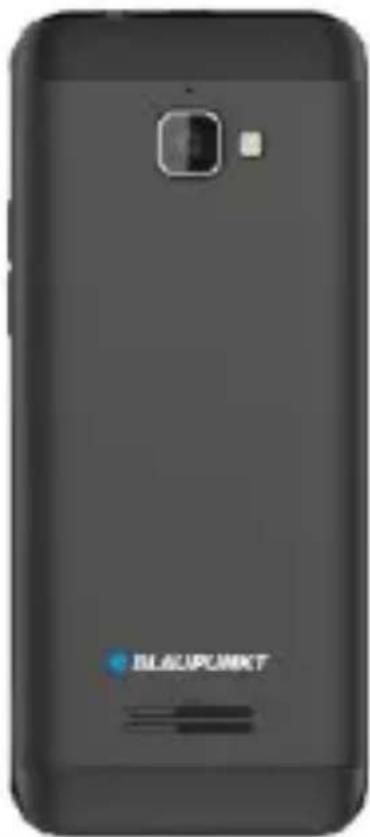
Enjoy it.
Contents
- Safety 5
- Product specifications....6
- Keys and device appearance....6
- Getting Started .... 7
4.1. Installation....7 4.2. Charging the battery....8 4.3. Maintaining the battery....8
- Power On/Off....8
- Idle screen options....9
- Calling....9
7.1. Make a call....9 7.2. Receive call....9 7.3. Emergency calls....9 7.4. Available functions during calls....9 7.5. ECT*....10 7.6. Wi-Fi calling* 11
- Messaging....11
8.1. Reading new message ...... 11
EN
8.2. Writing a new message 12
- WhatsApp 12
- Facebook Lite.... 13
- Phone....13
- Contacts.... 14
- Browser 14
- Calculator.... 15
- Calendar.... 15
- Camera....15
- Clock.... 15
- Email ...... 15
- File manager.... 16
- FM Radio....16
- Gallery....16
- Music....16
- Settings 17
23.1. Network & Internet 17
23.2. Connected devices.... 18
23.3. Battery 18 23.4. Display....18 23.5. Sound 18 23.6. Storage 19 23.7. Security & location....19 23.8. System 19
- Sound recorder....19
- Videos .... 19
- Declaration of Conformity 20
1. Safety
Please read the safety instructions carefully, as ignoring it may be dangerous or illegal.
The owner of the device is responsible for the use of this appliance.
Explosion hazards and restricted areas
Turn off the device in explosion hazardous areas. Sparks in such places may lead to an explosion or fire that may result in serious injury or death. Turn off the device at gasoline or gas filling stations, especially near the fuel pumps. Follow the instructions strictly in locations such as fuel tanks, chemical plants, and explosive substances.
Road safety
Observe the local laws and regulations regarding smartphone usage while driving. If you make a phone call while driving, observe the following rules: Focus on driving to become aware of traffic conditions; If the device has a hands-free function, use handsfree. If the traffic situation requires, stop the car before you pick up the phone.
Interference
Do not switch on the device where it is prohibited to use a mobile phone or where it may interfere with radio waves.
Qualified service
The product can only be repaired by a qualified person.
Charger, battery and other accessories
Only use a battery, charger and other accessories approved by the manufacturer. Do not connect incompatible products.
The mains power socket used must be close to the charger/holder and easily accessible, so that it can be used as an 'on/off' facility.
Hearing protection
To avoid hearing loss, do not listen to music or radio for a long time at high volume.
Water resistance
The appliance is not waterproof, so keep it dry.
Use environment
The device complies with the recommended emission values for radio waves when kept at a minimum distance of 1.5 cm from the ear. When carrying the phone in a case, belt clip or holder, make sure that it does not contain metal and that the phone is slightly distracted from the body. When using other accessories, it is not possible to operate in accordance with radio frequency guidelines. If you do not use a case and do not hold the phone on your ear, keep it at least 2.5 cm away from your body, especially during data transfer.
2. Product specifications
The device handles one Micro SIM card.
Power Supply Features:
- Input: (AC), 100-240V - 50/60Hz - 0.15A • Output: (DC), 5V - 0.55A - 2.75W
Battery Type and Voltage: Li-ion battery 3.7V-1600mAh Network type:
- GSM 900/1800MHz • WCDMA 900/2100MHz
- LTE B1/B3/B7/B20
SAR values: 0.768W/Kg (Head) - 1.643W/Kg (Body)
Note: Actual operating conditions depend on local conditions, network environment, and user habits.
3. Keys and device appearance
- Right softkey: In Menu mode: to return to the home screen
- Left softkey: In standby mode: opens the Status/Notification bar.
- Call (Dial) button: Dialing and Receiving calls. In Idle mode, open the Favorites list
- Call End Button: Press and hold to turn on/off the phone
- Navigation keys (scroll in the menu): In standby mode: opens the Menu.
- Alphanumeric keypad: Press the corresponding keys to enter numbers when dialing or the characters of the numbers when writing text.

4. Getting Started
4.1. Installation
- Open and remove the phone back protection cover
- Insert the SIM into the device. The golden contacts on the SIM card face down and the edges align with the corresponding edges of the SIM card.
- Insert the battery chip into the protruding metal point in the battery slot, insert the battery, and push
the top down until the battery engages in the recess.
- Put back the back cover.

4.2. Charging the battery
Connect the charger to the appliance and plug the other end into the socket. If the device is turned on while charging, the battery icon will move in the right corner of the display. Charging is completed when the charging indicator on the top right is lit. If charging is switched off, a charging indicator appears on the display. When charging is complete, unplug the charger from the unit.
Note: When the battery voltage is low, a warning message is displayed on the display. Charge the battery as soon as you can, to avoid any inconvenience, the device can be switched off during a telephone conversation. Your device can automatically turn off when the power level is too low.
4.3. Maintaining the battery
The device has a rechargeable battery. When not using the charger, disconnect it from the power source. For more than a week, do not leave the phone charging. Temperature influences battery capacity. Battery may need to be cooled or warmed up before charging. If the battery temperature is lower than 0 °C or higher than 45 °C, do not charge the battery. Use the battery according to its intended purpose. Do not short-circuit the battery terminals. Do not use a damaged battery. If you are using an appliance under extreme temperature conditions, the battery will not work properly and its life span will be reduced. DO NOT throw the battery into fire, follow local laws and regulations regarding the disposal of the spent battery.
5. Power On/Off
- Press and hold the End / On-Off button to turn the unit on or off.
- If you require a PIN code after power on, enter the correct PIN. If you enter the wrong number, press the "#" key to delete the number.
- To turn off the phone, press and hold the power key until a pop-up message appears, and choose Power off.
6. Idle screen options
When you are in the idle screen, and press the Left softkey, you can reach a quick menu. Here can be turned on/off the Wi-Fi, Bluetooth, mobiledata, torch and aeroplane mode. Also in this menu the incoming notifications can be checked.
When you are on the idle screen, pressing the left softkey opens a quick menu. From there, you can turn Wi-Fi, Bluetooth, mobile data, the torch, and airplane mode on or off. This menu also allows you to check incoming notifications.
7.1. Make a call
When the network service provider name appears on the display, the phone is ready to make and receive calls.
When the network service provider name appears on the display, the phone is ready to make and receive calls.
In Standby mode, press the number keys to enter the number you want to call. Press the right soft key to clear any incorrect digits. If the number is correct, press the Dial key to start the call.
To enter an international phone number format, long press the [0] key until the [+] international call sign appears on the display.
When an incoming call is alerted to your device if your service provider supports the number display, the display shows the caller's number or the caller's name (depending on whether you have saved it in the phone book).
When an incoming call is alerted to your device, if your service provider supports number display, the display shows the caller's number or the caller's name (depending on whether you have saved it in the phone book).
7.3. Emergency calls
You can immediately make an emergency call without a SIM card. Different networks can use different emergency numbers, so please contact your network operator.
You can immediately make an emergency call without a SIM card. Different networks can use different emergency numbers, so please contact your network operator.
7.4. Available functions during calls
Some operations and services are available during an active call. Many of these depend on network support, please check with your network service provider for these options. Some functions can only be used under special conditions.
- Mute: You can mute your device's microphone when you need to make a conversation while you are on the call so that someone on the other side of the line does not hear it.
- Speaker: turning on/off the handsfree mode.
- Keypad: you can use it, where DTMF (Dual-tone multifrequency signalling) using is needed.
- Hold: Hold an active call or keep it from hold.
- Add call: You can manually enter a phone number to call it.
- Start recording: making record about the call. If you want to finish it, please press the Stop recording option.
- Swap: * You can exchange the held and active calls.
- Merge: * Combine calls to a conference call.
- Transfer: * Transfer the call to another number.
- Hangup all: finishing all calls
- Hangup holding: finishing the held call
- Merge*: make a conference call from separate calls
- Manage*: manage the members of the conference call (separate calls or hang up the selected call)
7.5. ECT*
The Explicit Communication Transfer (ECT) service enables a user to transfer an ongoing call to a third party so that the other two parties can communicate with each other.
- You can transfer a single call by choosing the Transfer option. After that, you can add the number from the phonebook or input it manually. Please note that this only works when the number is given in national format. Finally, choose the Transfer option.
- If you have two separate calls at the same time (one active and one held), you can transfer them
to each other.
- During an ongoing call, you can answer another incoming call by swiping up the screen or pressing the Call button (the Active Call Waiting option is needed). After receiving the second call, press the Transfer option.
7.6. Wi-Fi calling*
If your network operator provides it, your phone can start and receive calls via a Wi-Fi network. You need an active service on your mobile subscription:
- Connect to a Wi-Fi network.
- Turn on the Wi-Fi calling option (Phone > Left softkey: Settings > Calls > Wi-Fi Calling > Enable Wi-Fi calling).
- In the Calling preference option, select the Wi-Fi preferred mode.
Note: The menu items marked with [*] only work under special conditions. Such as "Swap", which can only be achieved if one of the calls is held and the other is active. To access the conference call, you need a service that you can activate with your network.
8. Messaging
It can be opened from the idle screen or in the main menu.
8.1. Reading new message
When you receive a message, a beep and vibration will alert you to this and a pop-up window will appear on the display with the new message text.
8.2. Writing a new message
- Open the Messaging app and then press the Left softkey.
- Choose the "New message" option.
- Input the text in the "Type the text message" field.
- Input the phone number in the "Type name or number" field, or add it from the phonebook.
- If you press the paperclip icon in the right corner at the top of the screen, you can add attachment to the text (but it will be changed to MMS).
- Press the send button at the right at the bottom of the screen.
Reaching the Settings menu: In the conversation view press the Left softkey and then the Settings. You can check and change the SMS, MMS and Notification settings here, and in the General settings you can manage the message font size, storage settings and cell broadcast settings.
9. WhatsApp
It can be opened from the idle screen or in the main menu.
At the first start: the device downloads the app. The browser displays the following: For your security, your phone is not allowed to install unknown apps from this source.
- Choose the SETTINGS, then turn on Allow from this source switch.
- Then press the Right softkey and choose the INSTALL option.
- When it's done, choose OPEN, and then AGREE AND CONTINUE with the cursor.
- Input your phone number, and then press the NEXT button also with the cursor.
- You have to verify your phone number by choosing OK, or before that you can edit it.
- Choose the CONTINUE option and then ALLOW:
the phone will fill the empty field automatically.
- Type a name and choose NEXT with the cursor.
With the new message icon (at the bottom right corner) you can send text to your WhatsApp contacts. If you don't have any, you can invite them.
In the CALLS option you call your WhatsApp contacts.
10. Facebook Lite
It can be opened from the idle screen or in the main menu.
At first start: you have to agree to the Facebook Terms and Data
Policy by pressing CONTINUE with the cursor.
- The application has to be updated, press the UPDATE button, but before deciding, choose whether you would like to use mobile data if Wi-Fi is unavailable or not.
- Wait for the update, and after it, log in to your account or create a new one.
11. Phone
It can be opened from the idle screen or in the main menu.
Here can be found the favorite contacts (if you added one or more), call history, and contacts.
By pressing the Left softkey you can reach the Settings:
- Display options: sort by and name format settings can be reached here.
- Sounds and vibration: managing the sound and vibration settings.
- Quick responses: editing quick answers.
- Calls: managing Fixed dialling numbers, Wi-Fi Calling, Turn on video calling, Call forwarding, Call barring, Caller ID, and Call waiting settings (About these services please contact your operator).
- Call blocking: here you can add the phone numbers that can't call you and write messages.
- Voicemail: here can be checked and managed the voicemail settings. In the Advanced settings>Setup>Voicemail number menu path: the voicemail number can be set and edited.
- Accessibility: turning on or off TTY mode and noise reduction.
12. Contacts
It can be opened from the idle screen, the main menu, or from the phone.
For creating a new contact:
- Choose the "Create new contact" option.
- Choose the storage where you want to save the contact (phone or SIM).
- Fill in the desired fields.
- Press the SAVE option to save the number.
In the Settings menu, you can access the following options: My info (creating owner profile), setting default account for new contacts, Contacts to display, Sort by, name format and phonetic name settings, importing and exporting contacts between storages (SIM, phone storage, internal storage, and microSD card), and blocked numbers.
13. Browser
You can access the internet via this application by entering URLs in the address bar. You must have a subscription to access web pages, and you must complete the appropriate configuration settings on your device.
14. Calculator
You can use it for basic calculation operations and advanced mathematical functions as well.
15. Calendar
It can be used as a simple calendar, changing its settings, checking the actual date, jumping to a date, and creating and managing events.
To create an event:
- Press the Left softkey and the New event option
- Add the event details.
- Press the Done option to save it.
16. Camera
Use the camera to take photos and videos.
To take a photo or video, press the camera or the video icon.
To set the camera parameters, press the Settings icon at the left corner of the top of the screen.
To turn on/off the flashlight: press the icon at the top of the screen in the middle.
To change between the back and the front camera, press the icon at the right corner also at the top of the screen.
17. Clock
You can check the date and time on the clock surface. By pressing the alarm icon, you can set a new alarm, or turn the current alarm on or off. You can set a countdown, stopwatch, and city too. The stopwatch result can be shared via WhatsApp, Facebook Lite, Bluetooth, Email, Messaging. By pressing the Left softkey, you can turn on the screensaver or manage the Clock application settings.
18. Email
Here you can set an e-mail account by adding the e-mail address,
the account type (POP3 or IMAP) and the password, or with the MANUAL SETUP option by adding every important detail.
19. File manager
Here you can open, rename, or delete files in the microSD card memory or in the internal storage.
20. FM Radio
Connect the headset, then press the FM Radio icon in the main menu. You can move forward or backward through the channels and add the currently listened channel to Favourites. By opening the Radio Stations at the right of the top of the screen, the machine automatically searches for and stores available stations. Also at the right of the top of the screen: if you press the earphone icon, you can change between earphone and the speaker. With the second mode, you can listen to the radio in handsfree mode.
By pressing the Left softkey you can record the broadcast by choosing the Start recording option. In the Saved recordings menu you can listen to the recording.
21. Gallery
You can view pictures and videos taken with your camera, or those stored on your microSD card or in the internal storage.
22. Music
Here you can play the music files that were saved to the internal storage or on the microSD card. The songs are grouped by artist and album, but you can also create separate playlists from them:
- Open the song and then press the Left softkey.
- Choose the Add to playlist option, and then choose an existing list or create a new one.
23. Settings
23.1. Network & Internet
- Aeroplane mode
You can turn Aeroplane mode on or off here. By activating it, the device turns off the wireless features (mobile network, Wi-Fi, Bluetooth, FM radio, GPS) but the multimedia features (Music, Video) can still be used.
- Wi-Fi
Turn on the feature to access Wi-Fi networks. The device automatically displays available networks. Select the network you want to connect to. Enter the password if necessary.
- Mobile network
- You can turn on or off the roaming data;
- Turn on or off the Enhanced 4G LTE Mode (this switch may not be available in all software versions); ○ Choose from the following network types: 2G only, 3G only, 3G/2G Auto, 4G/3G/2G Auto;
- Check and edit access points;
- Manually search for and select a network.
- Data Usage
In this menu, you can review your data usage (both mobile and Wi-Fi), and turn your mobile data on and off. You can set the maximum amount of data that can be used through a mobile network (Billing cycle > Set data limit). Note: The service provider may calculate data traffic costs in different units.
- Hotspot & tethering
You can share your device's Internet connection via USB, via Bluetooth, or by setting up a Wi-Fi hotspot.
- VPN
Virtual private networks can be configured in this menu item.
23.2. Connected devices
Your device supports Bluetooth, which allows you to send data wirelessly.
- Turn on the function.
- From the Available Devices list, select the device you want to exchange data with. Before sending data, you need to pair your device with another device.
- To pair, make sure the code on the screen matches the code of the other device.
- If the code matches, confirm.
23.3. Battery
We get information about the battery (current charge, last full charge and screen usage since full charge). Here you can turn on or off power management settings (intelligent power saving standby, battery saver, and showing battery percentage).
23.4. Display
You can set here the brightness level, wallpaper, sleep and font size.
23.5. Sound
It is possible to set the device's ringtone, volume, and other tones.
23.6. Storage
You can check here the device and the SD-card storage.
23.7. Security & location
Here can be set different device security and privacy rules.
- Screen lock
In this menu, you can set screen lock on your device to prevent unauthorized access.
- SIM card lock
You can turn the PIN code on or off and change the SIM
23.8. System
This menu option allows you to perform language settings, set date and time, do more reset methods, set scheduled power on/off, and check software and hardware information.
24. Sound recorder
Your device supports voice recording.
- Press the Record button to start the recording.
- Press the Stop to finish it.
- If you want keep the record, press the SAVE option.
With the Left softkey you can change the voice quality and the recording mode.
25. Videos
You can view the videos taken with your camera, or those stored on your SD card or in the internal storage.
26. Declaration of Conformity
The Blaupunkt FL 06 is compliant with the essential requirements and relevant provisions of RoHS Directive 2014/53 / EU and 2011/65 / EU. The Declaration of Conformity is available on our website.

Designed and Engineered by
Blaupunkt Competence Center Mobile Europe
HTM Mobile Kft.
Assembled in P.R.C by
Mobiwire Mobiles (NingBo) Co., Ltd
Building A.No.999 Dacheng Road, Fenghua, Ningbo, Zhejiang, China 315500
For more information on this product, visit our website at www.htmmobile.hu or www.blaupunkt.com.



- CONTENTS
- EN
- SAFETY
- USE ENVIRONMENT
- PRODUCT SPECIFICATIONS
- KEYS AND DEVICE APPEARANCE
- GETTING STARTED
- INSTALLATION
- CHARGING THE BATTERY
- MAINTAINING THE BATTERY
- POWER ON/OFF
- WHEN YOU ARE IN THE IDLE SCREEN, AND PRESS THE LEFT SOFTKEY, YOU CAN REACH A QUICK MENU. HERE CAN BE TURNED ON/OFF THE WI-FI, BLUETOOTH, MOBILEDATA, TORCH AND AEROPLANE MODE. ALSO IN THIS MENU THE INCOMING NOTIFICATIONS CAN BE CHECKED
- MAKE A CALL
- WHEN THE NETWORK SERVICE PROVIDER NAME APPEARS ON THE DISPLAY, THE PHONE IS READY TO MAKE AND RECEIVE CALLS
- WHEN AN INCOMING CALL IS ALERTED TO YOUR DEVICE IF YOUR SERVICE PROVIDER SUPPORTS THE NUMBER DISPLAY, THE DISPLAY SHOWS THE CALLER'S NUMBER OR THE CALLER'S NAME (DEPENDING ON WHETHER YOU HAVE SAVED IT IN THE PHONE BOOK)
- YOU CAN IMMEDIATELY MAKE AN EMERGENCY CALL WITHOUT A SIM CARD. DIFFERENT NETWORKS CAN USE DIFFERENT EMERGENCY NUMBERS, SO PLEASE CONTACT YOUR NETWORK OPERATOR
- AVAILABLE FUNCTIONS DURING CALLS
- ECT
- WI-FI CALLING
- MESSAGING
- READING NEW MESSAGE
- WRITING A NEW MESSAGE
- FACEBOOK LITE
- PHONE
- CONTACTS
- BROWSER
- CALCULATOR
- CALENDAR
- CAMERA
- CLOCK
- FILE MANAGER
- FM RADIO
- GALLERY
- MUSIC
- SETTINGS
- NETWORK & INTERNET
- AEROPLANE MODE
- WI-FI
- MOBILE NETWORK
- DATA USAGE
- HOTSPOT & TETHERING
- VPN
- CONNECTED DEVICES
- BATTERY
- DISPLAY
- SOUND
- STORAGE
- SECURITY & LOCATION
- SCREEN LOCK
- SIM CARD LOCK
- SYSTEM
- SOUND RECORDER
- VIDEOS
- DECLARATION OF CONFORMITY
Brand : BLAUPUNKT
Model : FL 06
Category : Mobile Phone