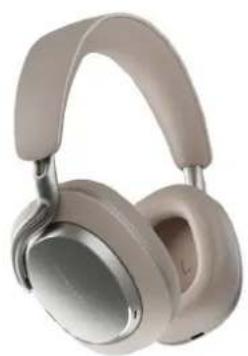
Px8 S2 - Earphones BOWERS & WILKINS - Free user manual and instructions
Find the device manual for free Px8 S2 BOWERS & WILKINS in PDF.




| Product type | Wireless over-ear noise-canceling headphones |
| Brand | Bowers & Wilkins |
| Model | Px8 S2 |
| Case dimensions | 177 mm (W) × 60 mm (D) × 234 mm (H) |
| Headphone weight | 0.31 kg |
| Power supply | Rechargeable battery, USB-C charging, fast charging |
| Battery life | Up to 30 hours of playback with ANC enabled |
| Key features | Active noise cancellation (ANC), transparency mode, Bluetooth 5.3 with aptX Lossless, multipoint connection, wear sensors, on-ear controls, Music B&W app |
| Speakers | 2 x 40 mm carbon-fiber wide-band dynamic drivers |
| Microphones | 8 microphones total (4 per earcup) |
| Supported Bluetooth codecs | aptX Lossless, aptX Adaptive, aptX HD, aptX Classic, AAC, SBC |
| Connectivity | USB-C (charging and audio), 3.5 mm jack via USB-C to 3.5 mm cable |
| Maintenance and cleaning | Clean with a soft, damp cloth, no chemicals |
| Safety | Normal use without exposure to water or excessive heat |
| Spare parts and repairability | Not specified, refer to customer service |
| Available finishes | Black Onyx, Warm Rock |
| Included accessories | Storage case, USB-C to USB-C cable, USB-C to 3.5 mm cable |
| Compatibility | iOS and Android (Music B&W app), Google Fast Pair, Apple MFi |
| Warranty | Refer to the manufacturer's documentation |
Frequently Asked Questions - Px8 S2 BOWERS & WILKINS
User questions about Px8 S2 BOWERS & WILKINS
0 question about this device. Answer the ones you know or ask your own.
Ask a new question about this device
Download the instructions for your Earphones in PDF format for free! Find your manual Px8 S2 - BOWERS & WILKINS and take your electronic device back in hand. On this page are published all the documents necessary for the use of your device. Px8 S2 by BOWERS & WILKINS.
USER MANUAL Px8 S2 BOWERS & WILKINS
Welcome to Bowers & Wilkins and Your Px8 S2 Headphones
Thank you for choosing Bowers & Wilkins. When John Bowers first established our company, he did so in the belief that imaginative design, innovative engineering and advanced technology were keys that could unlock the enjoyment of audio. His belief is one that we continue to share and inspires every product we design, tailored for new audio experiences outside of the home.
The Bowers & Wilkins Px8 S2 are high performance over-ear headphones designed to deliver the highest quality mobile personal audio experience combined with the convenience of wireless operation and the serenity of noise-cancellation. This manual will tell you everything you need to know to get the most from your Px8 S2 headphones.
Your Px8 S2 can play music streamed wirelessly from your mobile phone, tablet or computer via Bluetooth, or conventionally connected by a jack cable to a suitable analogue headphone output. Px8 S2 can also play audio via a USB connection from a computer and can be used for wireless telephony.
Px8 S2 Real World Listening features include our latest innovations in Active Noise Cancellation, Ambient Pass-Through and enhanced Wear Sensing technologies. Our latest generation noise cancellation feature delivers an uncompromised listening experience. Ambient Pass-Through enables external sounds, such as conversation or safety announcements, to be heard clearly without any need to remove the headphones. The Wear Sensing feature enables Px8 S2 to respond naturally, pausing and resuming the music simply by lifting either earpiece on or off your ear. These features can be enabled and further customised via the Bowers & Wilkins Music app, available for free on iOS and Android devices.
Px8 S2 incorporates a rechargeable battery. When fully charged, depending on the degree of Bluetooth, Active Noise Cancellation and Ambient Pass-Through use, the battery pack can provide up to 30 hours of continuous wireless media streaming with noise cancellation enabled at average playback volume levels.
1. Px8 S2 Carton Contents
• Px8 S2 over-ear wireless headphones
- Storage case
• USB-C to USB-C charging cable
• USB-C to 3.5 mm audio cable
- Document pack
2. Getting to Know Your Headphones
We recommend installing the Bowers & Wilkins Music app on your iOS or Android device. This allows you to configure your headphones in detail and provides helpful hints and tips to make the most of your new headphones.

bowerswilkins.com/downloadapp
2.1 Switching Headphones On and Off
Diagram 1 illustrates the power switch location.
Switching On
The power switch is located on the left earpiece. Slide the power switch up to the middle position. An audible cue will be played and the LED indicator will light up.
Switching Off
Slide the power switch to the bottom position. An audible cue will be played and the headphones will power down when the LED indicator is no longer lit.
Bluetooth Pairing
Slide the power switch to the upper position and hold for 5 seconds to enter Bluetooth pairing mode. It is also possible to enable pairing mode in the Bowers & Wilkins Music App.
Quick Action Button
Use the Quick Action button to adjust environmental settings or speak to a voice assistant.
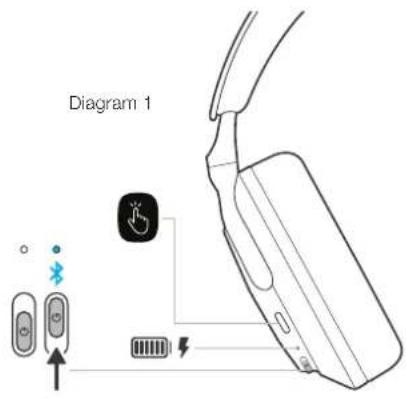
| Quick Action Button | |
| Status LED | |
| Power button |
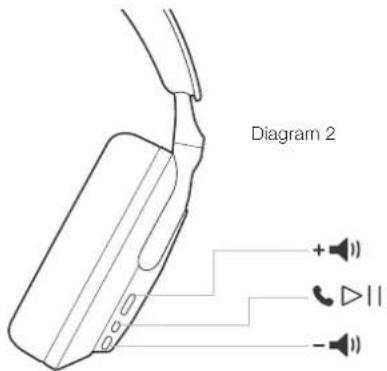
Diagram 2 illustrates the headphone controls. The buttons on the right earpiece are used for media playback and telephony.
| Volume Up Button | |
| Multi-function Button | |
| Volume Down Button |
Media Playback
| Function | Action |
| Play or pause | Press the Multi-function Button once. |
| Play next track | Press the Multi-function Button twice in quick succession.Note: functionality dependent on source device. |
| Play previous track | Press the Multi-function Button three times in quick succession.Note: functionality dependent on source device. |
| Increase Volume | Press the Volume Up Button. Holding the Volume Up Button will continue to increase the volume until it is released or the maximum volume is reached. |
| Lower Volume | Press the Volume Down Button. Holding Volume Down Button will continue to decrease the volume until it is released or the minimum volume is reached. |
Telephony
Function Action
| Answer an Incoming call Press the Multi-function Button once. |
| End a call Press the Multi-function Button twice. |
| Decline an incoming call Hold the Multi-function Button for 2 seconds. |
| Switch between two calls With two calls active, press the Multi-function Button once. |
2.2 Status Indicator
The status LED indicator is located on the left earpiece, the table below explains the illumination states:
Illumination Operational state
| Green Headphone on and battery charge >30% |
| Amber Headphone on and battery charge between 30% and 10% |
| Red Headphone on and battery less than 10% |
| Green Flashing Headphone charging |
| Red Flashing Battery level insufficient for operation |
| Blue Flashing Pairing mode enabled |
| Blue Pairing successful |
| White Flashing Incoming call |
Note: The LED states are not shown when the headphones are worn.
3. Intelligent Features
3.1 Environmental Controls
Active Noise Cancellation
Active noise cancellation is a series of advanced technologies that aids in removing undesired noise from the surrounding environment. The headphones use multiple microphones to pick up noise and the advanced audio processing can cancel out ambient sound for a more comfortable listening experience.
Note: Active noise cancellation requires a good seal between the headphones and your head for optimal performance. Removing one ear cup will stop the noise cancellation from working.
Ambient Pass-Through
The headphones also feature an ambient "Pass-Through" mode, which allows in some external sound from the surrounding environment, allowing safety announcements or conversations to be heard without taking the headphones off.
By default, the Quick Action button on the left earpiece will cycle through the following modes, but the button can be customised from the Bowers & Wilkins Music app. When set to environmental controls the Quick Action Button will cycle through the following configurations:
- Noise Cancelling On.
• Pass-Through On. - Noise Cancelling and Pass-Through Off.
3.2 Voice Assistance
Your connected device's voice assistant can be assigned to the Quick Action button on the left earpiece from the Bowers & Wilkins Music app. See Diagram 2 for button locations and section 6.2.5 on using the Bowers & Wilkins Music app.
3.3 Wear Sensors
Power saving
The headphones incorporate our latest enhanced wear detection sensors in both earpieces enabling intelligent battery conservation by pausing media playback and entering low power standby mode when removed from the head. When worn again, the headphones automatically wake and connect to the last connected Bluetooth device.
Playback Control
During media playback, the headphones will automatically pause when either earpiece is lifted from the ear. If playback has been paused, placing the earpiece back on the ear will resume playback
Note: The wears sensor can be enabled / disabled and changed in sensitivity within the Bowers & Wilkins Music App.
4. Battery Charging and Power Saving
Your headphones come with the battery partially charged and may be used immediately. For best practice we recommend you fully charge the headphones before first use. Please allow up to 2 hours to fully charge. The headphones can be used while charging.
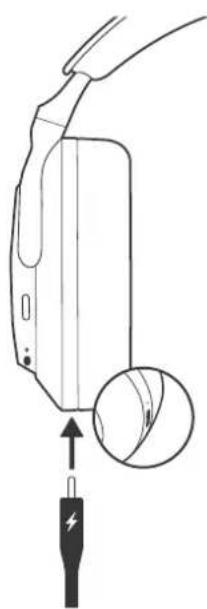
To charge:
- Use the supplied USB-C cable and connect one end to a USB power source.
- Connect the other end of the cable to the USB-C socket on the headphone's left earpiece.
natural_image
Diagram of a handheld device with a magnified inset showing a cable and a plug (no text or symbols)5. Bluetooth Connectivity
We recommend adding your headphones to the Bowers & Wilkins Music app. This allows you to configure your headphones in detail and provides helpful hints and tips to make the most of your new headphones. The Bowers & Wilkins Music app can also assist in pairing the headphones to your source service for audio playback. Please refer to section 6 for details on using your headphones with the Bowers & Wilkins Music app.
5.1 Pairing
Your headphones are designed to stream media wirelessly from Bluetooth audio devices, such as smartphones, tablets or personal computers. To do so, the headphones and source audio device must first be paired.
When you first receive your headphones, they will be ready to pair to any Bluetooth audio device. Simply turn on the headphones and they will enter Bluetooth pairing mode and start the pairing process. The status LED indicator will flash blue to indicate pairing mode is enabled.
To manually enable pairing mode (e.g. to pair a second device), slide the power switch to the upper position and hold for 5 seconds. The status LED indicator will flash blue to indicate pairing mode is enabled.
Note: To conserve power your headphones will exit pairing mode if no device has been paired after 2 minutes. Simply repeat the relevant steps below to pair subsequent devices.
5.1.1 Apple iPhone
We highly recommend installing the Bowers & Wilkins Music app, which will guide you through the pairing process, as well as allowing you to configure your headphones in detail. Please refer to section 6 for details on using your headphones with the Bowers & Wilkins Music app.
- Place the headphones no further than 10 cm (4 inches) away from your source device and ensure its Bluetooth connection is enabled.
- Open the app and follow the instructions to link your headphones to the app (refer to section 6 below if necessary).
- During the process of connecting your headphones to the app for the first time, you will be prompted to pair the headphones as an audio accessory. Tap on the confirmation popup to complete the pairing process.
- If the headphones are not being worn, the status LED will change to solid blue momentarily to indicate pairing is successful.
- If the headphones are worn, they will play a tone to indicate pairing is successful.
To pair your headphones without using the Bowers & Wilkins Music app, follow the instructions in section 5.1.2 below.
5.1.2 Mac / PC / Android / Other Devices to pair your headphones:
- Place the headphones no further than 10 cm (4 inches) away from your source device and ensure its Bluetooth connection is enabled.
- Ensure the headphones are in pairing mode (see section 5.1 above).
- Go to the Bluetooth pairing menu of your source device and select Px8 S2 from the device list. If multiple devices are listed, select the one with the headphones icon.
- If the headphones are not being worn, the status LED will change to solid blue momentarily to indicate pairing is successful.
- If the headphones are worn, they will play a tone to indicate pairing is successful.
Note: On Windows devices your "Px8 S2" will appear as two Bluetooth audio profiles; Stereo (default) and Hands-Free (for telephony). The Hands-Free profile will automatically be used when making or receiving a call (e.g. Teams, Skype, Zoom etc.). However, the system volume will remain controlling the previously selected device (Stereo profile by default). To change the volume of the headphones while on a call, use the application volume control or ensure the system volume control is set to control the Hands-Free profile.
5.1.3 Google Fast Pair
Your headphones can be paired to compatible Android handsets with Google Fast Pair. Simply turn on the headphones and bring them into close proximity of your compatible Android device and follow the on screen instructions.
5.2 Disconnect from a Device
You can quickly disconnect Px8 S2 from a device by turning them off. Slide the power switch down to the off position. An audible cue will be played and the LED indicator will turn off.
Alternatively, use your device's Bluetooth settings to select a new Bluetooth device or disable Bluetooth completely.
To stop Px8 S2 automatically connecting to your source device, the device must be deleted from the Px8 S2's paired devices list using the Bowers & Wilkins Music app; refer to section 6 below.
5.3 Multiple Bluetooth Connections
The headphones can be paired with up to two devices simultaneously but note that you can only play audio or take calls from one device at a time.
To switch playback between two connected devices:
- Pause audio on the first device or use the Play/Pause button.
- Play audio from the second device and the headphone will automatically switch over.
When streaming audio, receiving a call on the second device will automatically pause playback on the first device and the call will be routed to your headphones.
You can manage connections in further detail using the Bowers & Wilkins Music app.
6. Bowers & Wilkins Music App
We recommend pairing your headphones to your source device via the Bowers & Wilkins Music app.
The Bowers & Wilkins Music app is available for free on iOS and Android devices and provides extended setup and adjustments to features such as Active Noise Cancellation, Ambient Pass-Through and EQ settings. The app also provides further functions such as device naming, connection management and headphone software updates.
The Bowers & Wilkins Music App can be downloaded from the link below.

bowerswilkins.com/downloadapp
Once installed you will need to create a user account by following the onscreen instructions.
6.1 Adding your headphones
To pair your headphones with the Bowers & Wilkins Music App turn on the headphones and the app will automatically detect headphones that require setting up. Select your headphones and follow the instruction in the app. If the app does not detect the headphones, please ensure that the headphones are in pairing mode (see section 5.1 above).
During the process of connecting your headphones to the app for the first time, you will also be prompted to pair the headphones as an audio accessory. Tap on the confirmation popup to complete the pairing process.
6.2 Controlling Your Headphones
Commonly used features of your headphones are accessible directly on the app homepage:
- Battery status
• Environmental controls (Noise Cancellation, Pass-Through) - Device connections
6.2.1 Headphone Settings Page
Other settings can be adjusted from the Settings page. Tap the icon at the bottom of the screen to enter the Settings page, then select your headphones from the list.
6.2.2 Environmental Controls
Set the desired environmental control from the following options:
- Noise Cancelling On
• Pass-Through On - Noise Cancelling and Pass-Through Off
6.2.3 Advanced EQ
Use the sliders to customise the tone of your headphones.
Px8 S2 features a True Sound™ mode which bypasses any tonal customisation to deliver the audio as the artist and Bowers & Wilkins intended.
6.2.4 Paired Devices
Tap PAIRED DEVICES to view more detailed connection settings, including currently connected devices and previously paired devices. To delete a device from the list, tap the device and select REMOVE DEVICE.
The two most recently connected Bluetooth devices are shown in the Paired Devices shortcut buttons. The buttons will appear grey if not currently connected. Tap the buttons to attempt reconnection.
Once in the Paired Devices page, swipe a device left to delete a device from the list. Swipe a device right to make it the preferred device to connect to when the headphones are switched on.
Toggle Auto-connect to last device to prompt the headphones to connect to the previously connected device when they are switched on.
Tap PAIR A NEW DEVICE to place the headphones into Bluetooth pairing mode and pair them with a new device.
6.2.5 Quick Action Button
The left earpiece of your headphones features a button that provides quick access to commonly used functions. Customise the function of this button from the app.
Environmental Controls – each press of the Quick Action Button cycles through:
- Noise Cancelling On
- Pass-Through On
- Noise Cancelling and Pass-Through Off
Voice Assistant – press the Quick Action Button to activate your device's voice assistant.
6.2.6 Auto Standby
Toggle Auto standby on to place the headphones into a power-saving state after 15 minutes of inactivity.
6.2.7 Wear Sensor
Toggle Wear sensor on to enable intelligent playback control; lift an earpiece or remove your headphones to pause playback. Place them back on your ears to resume playback.
6.2.8 Streaming Quality
Set the streaming quality for playback when using Mobile Data or WiFi.
6.2.9 Rename product
Tap Rename product to choose a new Bluetooth name for your headphones. Note that devices already paired with the headphones may still reference the previous name.
6.3 Headphone Software Updates
Bowers & Wilkins will occasionally make available software updates that refine and optimise the performance of your headphones or add new features. We recommend installing updates whenever available to obtain the best experience with your headphones.
The Bowers & Wilkins Music app will notify you when a software update is available. Tap on the notification and then follow the in-app instructions.
7. Media Streaming Using a Wired Connection
7.1 Auxiliary Connection
In addition to Bluetooth, your headphones can also connect to audio sources using the supplied 3.5 mm audio or USB cables.
7.1.1 Connecting with the 3.5 mm Audio Cable
The 3.5 mm audio cable enables your headphones to be used with a device supporting an analogue output, such as a conventional headphone socket on aeroplanes, smartphones or a traditional hi-fi system.
- Insert the supplied USB-C to 3.5 mm audio cable into the headphone's USB-C socket on the right earpiece.
- Insert the other end into the appropriate socket on your device.
- Your headphone will automatically disconnect from any Bluetooth devices.
Note: Your headphones must have sufficient charge and be switched on to play audio from an analogue source device. The volume and play/pause buttons will not function when you are using the 3.5 mm interface.
7.1.2 USB Connection
The USB connection enables your headphones to function as a USB sound output device when connected to a capable computer.
- Insert one end of the supplied USB-C to USB-C cable into the headphone USB-C socket on the left earpiece.
- Insert the other end into the appropriate socket on your computer.
- The headphones will automatically disconnect from any Bluetooth devices.
- Find and select your headphones from the computer's audio output control panel.
Note: The headphone battery will also charge when connected to a capable USB port.
Note: If using Mac and streaming over USB for the first time, go to Apple Menu > System Preferences > Sound > Output and select "Px8 S2 USB".
8. Resetting / Troubleshooting
8.1 Power Cycle and Reset
If your Px8 S2 headphones stop working, try powering them off, waiting 5 seconds and then power them back on. If the headphones remain unresponsive, try performing a factory reset as detailed in the next section.
Note: The reboot/reset process may generate noise in the headphones – do not wear during this process.
8.2 Factory Reset
Factory reset can be used to clear the product's paired device history and restore all settings to their defaults.
To factory reset your headphones:
- Remove the headphones from your head and remove any cables from the headphones.
- Slide the power button up and simultaneously press quick action button for 3s until the LED flashes amber.
If a factory reset does not resolve the issue, please try a reboot; this is described in the next section.
8.3 Reboot
If your headphones are unresponsive, to reboot your headphones:
- Remove the headphones from your head and remove any cables from the headphones.
- Slide the power button up and simultaneously press quick action button for 6s until the LED extinguishes.
9. Caring For Your Headphones
Your headphones and case can be cleaned by a soft, clean, damp cloth and gently dabbing until clean. Do not use cleaning detergents, rubbing alcohol, or chemical cleaners/polish, doing so may damage your product.
10. Service/Support
If you need help troubleshooting a specific problem or simply have a question you would like answered, please initially consult the Headphones Support section of the Bowers & Wilkins website: www.bowerswilkins.com.
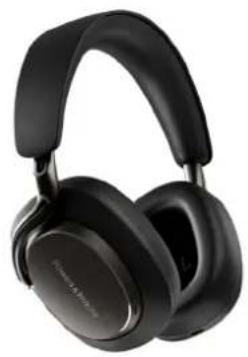
Px8 S2 Over-Ear Noise-Cancelling Wireless Headphones
Technical Information
natural_image
Black and white photo of a modern audio headphones (no visible text or symbols)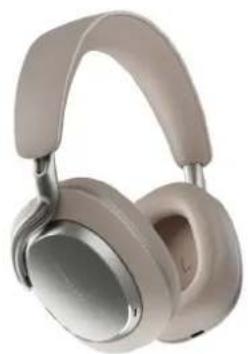
natural_image
Exterior view of a beige and silver headband headset (no text or symbols visible)| Technical Features | High-performance DSP with dedicated amplifier/DACTrue 24-bit audio connectionFive-band customisable EQ + TrueSoundTM modeBluetooth 5.3 with aptXTM Lossless technologyMultipoint connectivityActive Noise Cancellation (ANC)USB-C charging and audio interfaceFast charging supportApple MFi Made For iPhone® supportGoogle Fast Pair |
| Wearing Style | Over-Ear Noise-Cancelling Headphones |
| Bluetooth Codecs | aptX LosslessaptX AdaptiveaptX HDaptX ClassicAACSBC |
| Microphones | 8 mics total - 4 mics per earcup |
| Voice Call Quality Algorithm | ADI Pure Voice |
| Drive Units | 2 × o40mm dynamic full range carbon driver |
| Battery Life & Charging | 30 hours playback15-minute charge for 7 hours playback |
| Accessories | 1.2m USB-C to 3.5mm stereo jack audio cable1.2m USB-C to USB-C cableCarry Case |
| Weight (Headphone) | 0.31 kg |
| Dimensions (Carry Case) | 177 mm (w) × 60 mm (d) × 234 mm (h) |
| Finishes | Onyx BlackWarm Stone |
www.bowerswilkins.com

bowerswilkins.com/downloadapp
natural_image
Diagram of a handheld device with a magnified inset showing a plug inserted into a socket (no text or symbols present)5. Connectivité Bluetooth

bowerswilkins.com/downloadapp
natural_image
Black and white photo of a modern audio headset (no visible text or symbols)
natural_image
Exterior view of a beige and silver headband headset (no text or symbols visible)bowerswilkins.com/downloadapp
natural_image
Diagram of a handheld device with a magnified inset showing a plug inserted into a socket (no text or symbols)6. Bowers & Wilkins Music App
natural_image
Black and white photo of a modern audio headphones (no visible text or logos)
natural_image
Exterior view of a beige and silver headband headset (no text or symbols visible)
bowerswilkins.com/downloadapp
natural_image
Diagram of a device with a plug inserted into a socket, showing a magnified view of the socket (no text or symbols present)5. Connessione Bluetooth
6. App Bowers & Wilkins Music

bowerswilkins.com/downloadapp
6.2.8 Streaming Quality
6.2.9 Rename product
natural_image
Black and white photo of a modern audio headphones (no visible text or logos)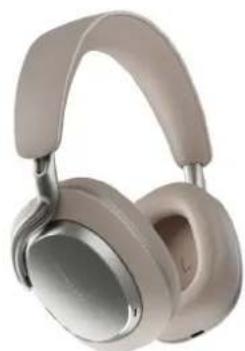
natural_image
Beige headband headphones with silver bezel (no visible text or logos)
bowerswilkins.com/downloadapp
natural_image
Diagram of a device with a plug inserted into a socket, showing a magnified view of the socket (no text or symbols present)5. Conexión Bluetooth

bowerswilkins.com/downloadapp
natural_image
Black and white photo of a modern audio headphones (no visible text or symbols)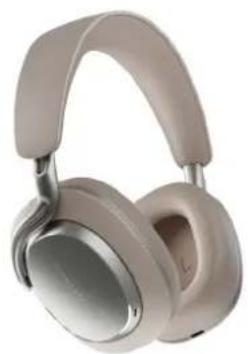
natural_image
Exterior view of a beige and silver headband headset (no text or symbols visible)
bowerswilkins.com/downloadapp
Ambient Pass-Through
natural_image
Diagram of a handheld device with an arrow pointing to a circular component, no text or symbols present5. Anslutning via Bluetooth

bowerswilkins.com/downloadapp
natural_image
Black and white photo of a black audio headphones (no visible text or logos)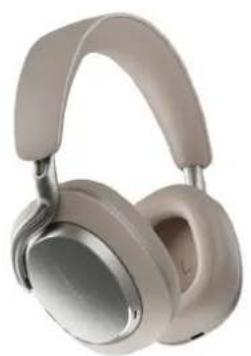
natural_image
Exterior view of a beige and silver Sony headphones (no text or symbols visible)
bowerswilkins.com/downloadapp
natural_image
Diagram of a handheld device with a magnified inset showing a plug inserted into a socket (no text or symbols)5. Bluetooth-verbinding

bowerswilkins.com/downloadapp
natural_image
Black hardcover headphones with black plastic headband (no visible text or symbols)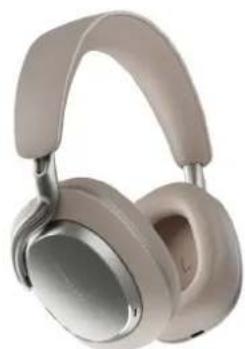
natural_image
Exterior view of a beige and silver headband headset (no text or symbols visible)
bowerswilkins.com/downloadapp
2.1 Ligar e desligar os auscultadores
natural_image
Diagram of a device with a plug inserted into a housing, showing a magnified view of the internal structure (no text or symbols present)
bowerswilkins.com/downloadapp
natural_image
Black and white photo of a modern audio headset (no visible text or symbols)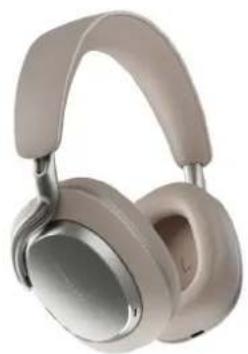
natural_image
Exterior view of a beige and silver headband headset (no text or symbols visible)
bowerswikins.com/downloadapp
2.1 打开和关闭耳机
图 1 展示了电源开关的位置。
打开电源
natural_image
Diagram of a device with a plug inserted into a socket, showing a magnified view of the socket (no text or symbols present)5. 蓝牙连接

bowerswilkins.com/downloadapp
natural_image
Black and white photo of a modern audio headset (no visible text or symbols)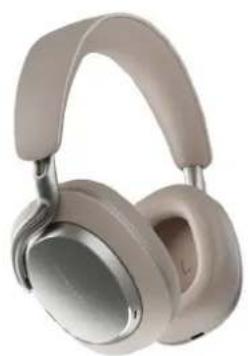
natural_image
Exterior view of a beige and silver headband headset (no text or symbols visible)
bowerswilkins.com/downloadapp
メディア再生
機能 操作法
natural_image
Diagram of a device with a plug inserted into a socket, showing a magnified view of the socket (no text or symbols present)5. Bluetooth 接続

bowerswilkins.com/downloadapp
natural_image
Black and white photo of a modern audio headphones (no visible text or logos)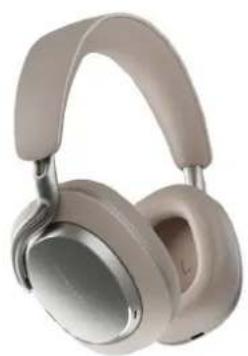
natural_image
Exterior view of a beige and silver headband headset (no text or symbols visible)bowerswilkins.com/downloadapp
natural_image
Diagram of a handheld device with a magnified inset showing a plug inserted into a socket (no text or symbols)5. Konektivita Bluetooth

bowerswilkins.com/downloadapp
natural_image
Black and white photo of a modern audio headphones (no visible text or logos)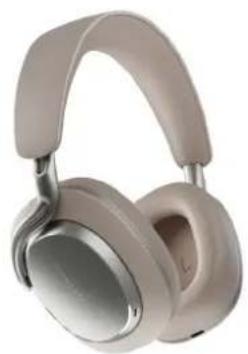
natural_image
Exterior view of a beige and silver headband headset (no text or symbols visible)
bowerswilkins.com/downloadapp
natural_image
Diagram of a device with a plug inserted into a socket, showing a magnified view of the socket (no text or symbols present)
bowerswilkins.com/downloadapp
natural_image
Black hardcover headphones with black plastic headband (no visible text or symbols)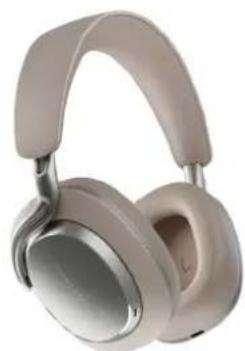
natural_image
Exterior view of a beige and silver headband headset (no text or symbols visible)bowerswilkins.com/downloadapp
2.1 헤드폰 전원 켜기와 끄기
natural_image
Diagram of a device with a plug inserted into a socket, showing a magnified view of the socket (no text or symbols present)5. 블루투스 연결

bowerswilkins.com/downloadapp
natural_image
Black and white photo of a modern audio headphones (no visible text or logos)
natural_image
Exterior view of a beige and silver headband headset (no text or symbols visible)| 블루투스 코덱 | aptX Lossless |
| aptX Adaptive | |
| aptX HD | |
| aptX Classic | |
| AAC | |
| SBC |

bowerswilkins.com/downloadapp
natural_image
Diagram of a handheld device with a magnified inset showing a cable inserted into a socket (no text or symbols)
bowerswilkins.com/downloadapp
natural_image
Black and white photo of a modern black audio headphones (no visible text or logos)
natural_image
Exterior view of a beige Sony headphones (no text or symbols visible)
bowerswilkins.com/downloadapp
2.1 開啟及關閉耳機
圖 1 展示了電源開關的位置。
開機
媒體播放
功能動作
播放或暂停按一下多功能按钮。
natural_image
Diagram of a device with a plug inserted into a socket, showing a magnified view of the socket (no text or symbols present)5. 藍牙連接

bowerswilkins.com/downloadapp
natural_image
Black and white photo of a modern audio headset (no visible text or symbols)