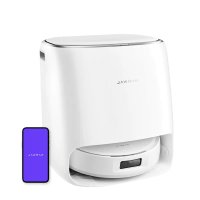
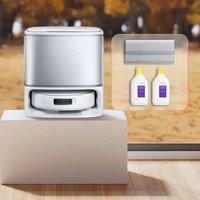
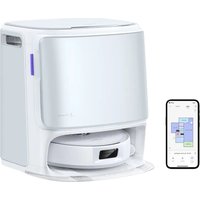
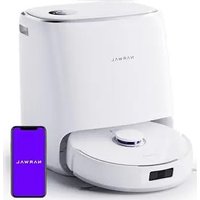
USER MANUAL Freo Pro Narwal
The manal may be updated from time to time based on product updates and user feedback. Please scan the CR codes below to browse the official websites and view the latest version.
In case of any problem in using the product, please contact: Kuroval after-sales customer service through the following ways: Customer service email:
supportnglobalharwalcomNortAmical
support k@gocal narwa.com (Sout Korea)
*For other countries, please refer to the after-sales contact information provided by your local vendors.
We wish you a personal experience!
Nouovousouhaitorsarebome experience!
CONTENTS CONTENU
en 02
es 06
ko 10
ja 14
fr-ca 18
zh-tw 22

WWW.NARWAL.COM

Electronic version of this user manual
Eskronne Ronsenies Benueherhandbuch
Regional Availability and Compatibility
Based on user experience consideration and relevant legal and compliant requirements, Narval products normally sold by Narwal (and its authorized retailers) are only available for use and after-sales service support. In the country or region in which they were originally sold. If a product is shipped to any other countries or regions you might not be able to use the Narval App to hand the product or perform real-time operations. We recommend that you consider the technical values of the Narval product from Narval or its authorized distributors in order to explain the local product use and service experience.
For avoidance of doubt, Narwi products sold by Narwi (and its authorised retailers) in the IRC are only available for use and after sales service support in the PRC (for this purpose, excluding HongKong, Mosa and Taiwan).
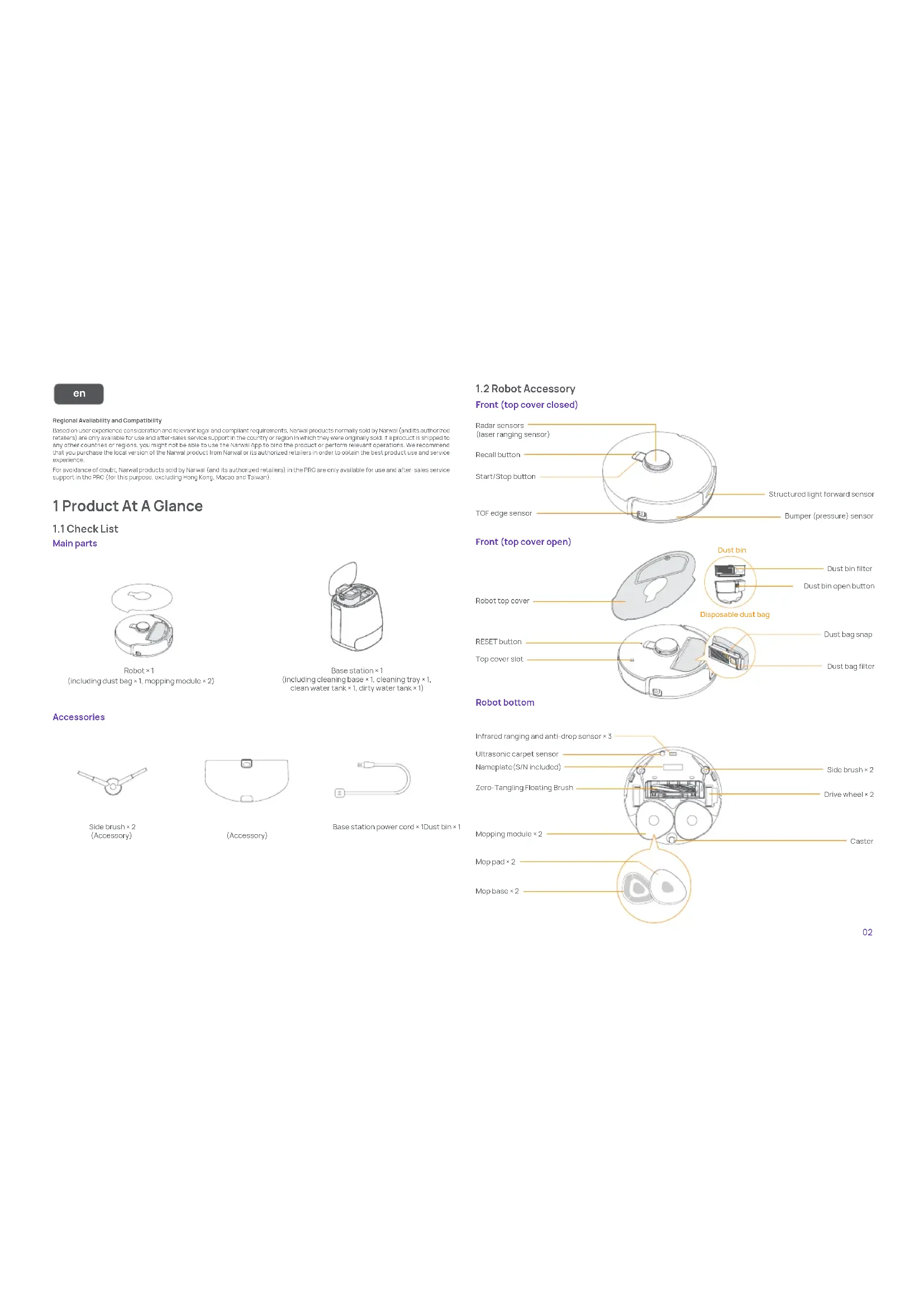
1 Product At A Glance
1.1 Check List
Main parts
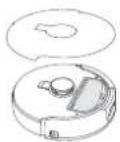
Robot×1
(including dust bag 1 ,mopping module × 2

Base station × 1
Including cleaning base × 1 cleaning tray × 1
clean water tank × 1 dirty water tank × 1
Accessories
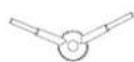
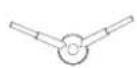
Side brush × 2 (Accessory)
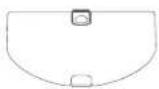
(Accessory)
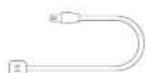
Base station power cord×Dust bin×1
1.2 Robot Accessory
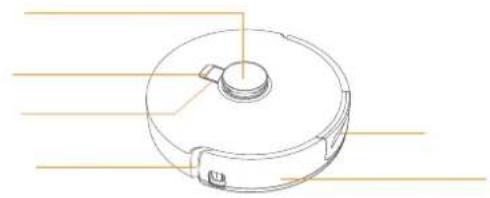
Front (top cover closed)
Radar sensors
Structured light forward sensor
Bumper (pressure) sensor
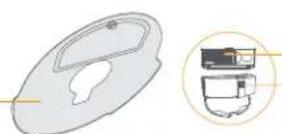
Front (top cover open)
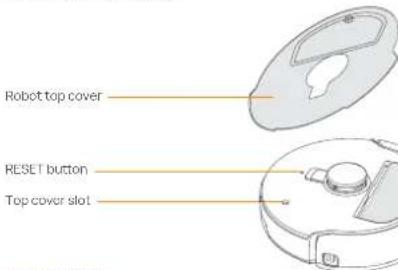
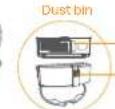
Disposable dust bag
Dustbinfilter Dustbinopenbutton
RESET button
Top cover slot
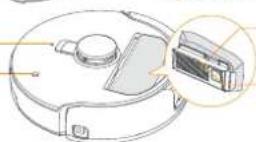
Dust bag snap
Dustbag filter
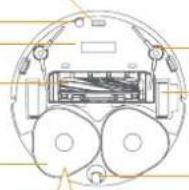
Robot bottom
Infrared ranging and anti-drop sensor 5
Ultrasonic carpet sensor
Nameplate (S/N included)
Zero-Tangling Floating Brush
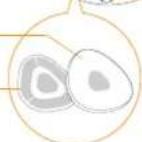
Mopping module × 2

Slide brush 2
Drive wheel 一 ^ 一 2
Moppad 2
Mop base × 2
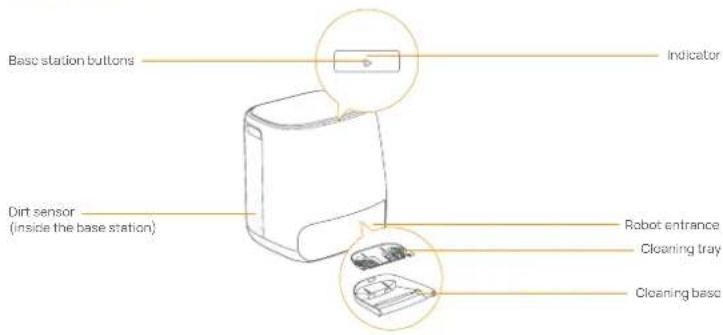
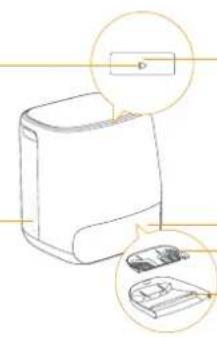
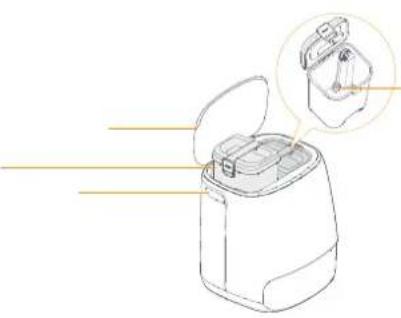
1.3 Base station Front (lid closed)
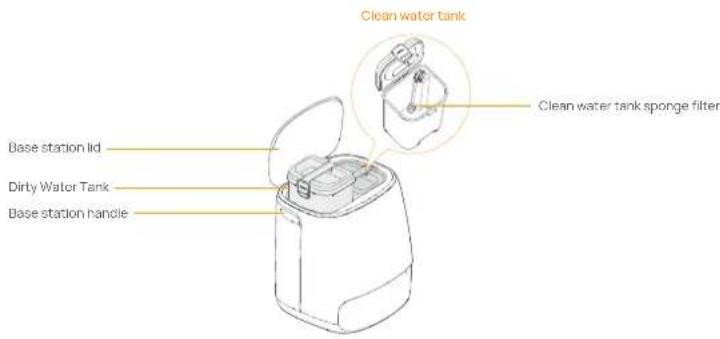
Front (lid open)

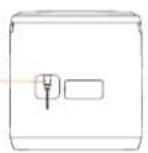
Back
| Button | Action Function |
| Start/Stop | | Short press | Start/pause/resume the current task |
| Press and hold for 2s | Power on/off |
| Recall | | Short press | Return to the base station |
| Press and hold for 2s | Turn On/Off Child Lock |
| Reset | | Short press | Enter the pairing mode |
| Press and hold for 5s | Unbind the account and clear user data |
| Press and hold for 10s | Restore factory settings |
Base station buttons
| Button Action Function |
| Short press | Start/pause/resume the current task |
| Double click | Start/cancel pop washing |
| Press and hold for 2s | End current task |
| Press and hold for 10s | Enter/exit the pairing mode |
| Short press for 5 consecutive times | Refresh/discharge self-check |
Base station indicators
| Indicator Meaning |
| Off | Standby/drying/disinfection underway |
| Steady | Taskunceroway (cleaning/mapping/mop washing/recalling) |
| Slow flashing | Pairing/updating/revill/discharge self-check underway |
| Fast flashing | Error/disconnected |
2. Get Ready Before Use
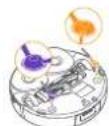
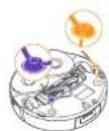
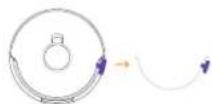
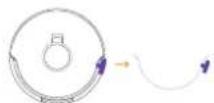
(1)Install the side brushes
Press side brushes into the slots as indicated by color until they click into place.
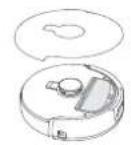
(2)Remove the anti-collision foam
Open the robot top cover and remove the anti-collision foam.

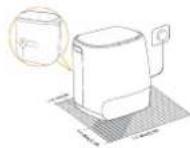
(3)Place the base station
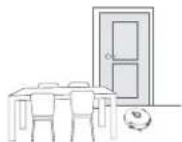
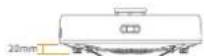
Plug the power cord into the socket on the back of the base station and connect it to a power outlet, and leave an open space of at least 0.45m in front of the base station for the robot to enter and leave the base station.
Note: If the base station is placed tilted or there are table legs, curtains and ornaments around, the robot's obstacle avoidance function may be triggered, affecting its only end and exit.
(5) Add clean water
Before mopping, add water to the clean water tank for mop washing.
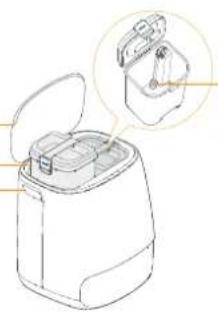
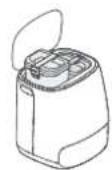
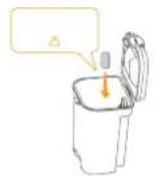
- Open the case station lid. Take out the clean water tank, snap it open and fill it with clean water.
- Snap the tank shut and put the water tank back into the basq station.
NOTE: DO NOT add any third-party detergents or disinfectants into the clean water tank to avoid product damage.

(4)Add floor cleaning tablet
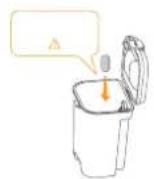
Add a Floor cleaning tablet to the clean water tank. Note. Cleaning Tablet should be purchased separately.

(6)Boot settings
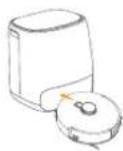
Push the robot into the base station with side brushes facing outward. The base station will beep once to indicate that charging is successful and the robot will turn itself on and prompt a voice message.

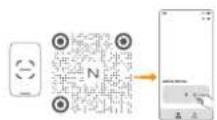
(7)Connect and bind the robot in the App
Download the Narwal App and follow the instructions for connecting and binding the robot.
1. In the App device page, tap "Settings" > "Device" and then press hold "Practical Readout" for 20 sec to select the device, any command.
The power-saving mode is only available in North America.

3. How to Use
Before using the robot, please make sure you have finished the installation and base station setup in Chapter 2.
3.1 Organize the home environment

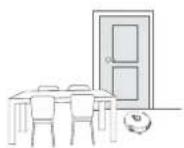
A cut away the clutter on the floor, e.g. scattered red cables, rags, slippers, clothes, and books/sleeppers, clothes and towels

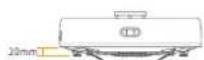
C. Leave other doors closed and install the fence to prevent the robot from entering elevated or low areas.

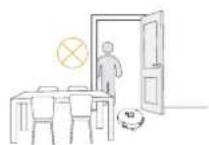
E. DON NOT stand in front of the robot, on the threshold, or in narrow aisles to avoid omission.
3.2 Mapping
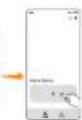
Before cleaning a new home, the robot needs to explore the environment and create a map. Before first-time cleaning, you can trigger mapping by short pressing the [Start/Stop] button on the base station or tapping [Start Mapping] in the App.
1Once a map is created, it can be edited in the App
2. Please do not move the base station after a map is created, or you have to restart mapping. If large furniture in your home is rearranged it is recommended to create a zoom map.
3.3 Cleaning
Select cleaning modes
The product comes with four built-in cleaning modes: Vacuum, Mop, Vacuum and Mop, and Vacuum then Mop. You can select and adjust parameters like cleaning cycles, suction, and mop humidity for each mode in the App.
Note: Before any task that includes vacunming, please make sure that the robot top cover is proper in place to avoid any vacunming error.
Set Freo Mind
The Freo Mind is an intelligent cleaning assistant. You can select the cleaning mode and then activate Freo Mind in the App. When the Freo Mind is enabled, the robot can:
- set cleaning parameters based on the environmental data collected by sensors;
-ennance edge-to-edge cleaning
Start cleaning task
You can start the robot for cleaning in three ways:
- Short press the [Start/Stop] button on the robot to start cleaning. The robot will activate the Vacuum Mode by default;
- Short press the [Start/Stop] button on the base station to start cleaning. The robot will activate the Vacuum and Mop Mode by default;
Note: You can adjust the default cleaning mode for pressing buttons on the base station and set more cleaning parameters in the App.
Pause/resume the current task
You can pause/resume the current task in this:
- Tap - Pesuil - Resume button in the App;
- Short press the Start/Stop button on the robot;
- Short press the Start/Stop button on the base station.
Mop washing
If the robot is set for multiple mopping runs or the area for cleaning is large, the robot will automatically return to the basing position for non-washing.
The number of mopping runs and returns can be modified in the App before cleaning starts, and cannot be modified during the current cleaning task.
End current task
The robot will navigate itself back to the base station when cleaning ends. You can view the current cleaning report in the App. You can manually end the task in the following three ways:
- Press and hold
- Finish button for 2s in Eco App.
- Short press the Home button on the robot
Mop Drying
After the last mopping run, the robot will return to the base station for mop washing and drying. The drying time can be modified in the App.
You can also start mop washing and drying manually in the following two ways:
- Tap - Mop Washing & Drying button in the App:
4. Parameters
4.1 Specifications
| Robot(YJCC023) | Base Station(YJCB023) |
| Dimensions: 350*350*107 mm | Dimensions: 415*370*434 mm |
| Weight: 4.25 kg | Weight: 8.5 kg |
| Wireless Connection: 2.4GHz, 802.11b/g/n | |
| Charging time: About 3 hours | Rated power: 60W |
| Rated voltage (working): 14.4V= (lithium ion battery, >5000mAh) | Rated output: 20V= 2.25A |
| Rated input: 20V= 2.25A | |
| Wi-Fi | |
| Protocol: IEEE 802.11b/g/n | |
| Frequency Range: 2412-2472MHz | |
| Max. Transmitter Power (EIRP): ≤20dBm | |
| Bluetooth | Bluetooth |
| Protocol: BLE 5.0 | Protocol: BLE 5.0 |
| Frequency Range: 2402-2480MHz | Frequency Range: 2402-2480MHz |
| Max. Transmitter Power (EIRP): ≤10dBm | Max. Transmitter Power (EIRP): ≤10dBm |
| Battery (Robot) |
| Battery Pack Quantity Per Pack: | 1 pcs |
| Battery Type: | Rechargeable Li-ion Battery |
| Nominal Voltage: | 14.4V= |
| Quantity of Battery Coils Per Battery Pack: | 8 pcs |
| Rated Capacity, Rated Energy: | 5000mAh, 72Wh |
es
m = 311


















N

fr-ca
Brosse laterale x2 (Accessory)
(2)Retirez la mousse anti-collision
m = 311 ;
限用物管含有情况揭示明表
Declaration of the Presence Condition of the Restricted Substances Marking
| 設備名稱Equipment name:拖拖一體機器人Robot Vacuum and mop型號(型式)Type designation (Type):YJCC023(with Charging Station YJCBO23) |
| 單元Unit | 限用物管及其它化学認證Restricted substances and its chemical symbols |
| 铅Lead(Pb) | 汞Mercury(Hg) | 镉Cadmium(Xd) | 六氟锌Hexavalent chromium(CrHg) | 多溴聯苯Polybrominated biphenyls[PbB] | 多溴二硫化Polybrominated diphenyl ethers[PBDE] |
| 電路板 | - | ○ | ○ | ○ | ○ | ○ |
| 金屬件 | - | ○ | ○ | ○ | ○ | ○ |
| 鋼體 | ○ | ○ | ○ | ○ | ○ | ○ |
| 電池 | ○ | ○ | ○ | ○ | ○ | ○ |
| 配件 | ○ | ○ | ○ | ○ | ○ | ○ |
備考1. '超出0.1wt%及'超出0.01wt%’指限用物之百分比含量出百分比含量基平值
Note 1: "Exceeding 0.1 wt %" and "exceeding 0.01 wt %" indicate that the percentage content of the
restricted substance exceeds the reference percentage value of presence condition.
備考2. 係指該項限用物置之百分比含显未超出百分之百含显基準值
Note 2: "C" indicates that the percentage content of the restricted substance does not exceed the
percentage of reference value of presence
備考3. 一係指該項限用物置為排除項目
Note 3:The"indicates that the restricted substance corresponds to the exemption.SJ/T11364的规定编制

WWW.NARWAL.COM
Manufacturer/Fabricant: Yunjing Intelligence Innovation (Shenzhen) Co., Ltd.
Address/Adresse: Room A2901, Yunzhongcheng, Building 1, Vanke Yuncheng VI, Dashi 2nd Road, Xili Community, Xili Street, Nanshan District, Senzhen, Guangdong, China

Copyright © 2025 Yunjing Intelligence Innovation (Shenzhen) Co., Ltd. All Rights Reserved.