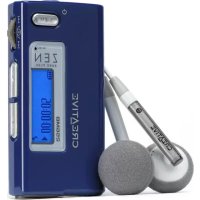
ZEN Sleek - Mp3 player CREATIVE - Free user manual and instructions

Find the device manual for free ZEN Sleek CREATIVE in PDF.

📄 200 pages English EN 💬 AI Question
Notice CREATIVE ZEN Sleek - page 2
Manual assistant
Powered by ChatGPT
Waiting for your message
Product information

Brand : CREATIVE

Model : ZEN Sleek

Category : Mp3 player

Download the instructions for your Mp3 player in PDF format for free! Find your manual ZEN Sleek - CREATIVE and take your electronic device back in hand. On this page are published all the documents necessary for the use of your device. ZEN Sleek by CREATIVE.

USER MANUAL ZEN Sleek CREATIVE

3. Next/Fast Forward button

7. Previous/Rewind button

CLE_Marlin 2_QS.book Page 1 Friday, September 9, 2005 11:43 AM2 Using the Vertical Touch Pad In this document, we will use the term "Select," to mean that you should move your thumb up and down the Vertical Touch Pad to scroll through menu options, and then select the option by firmly tapping the Vertical Touch Pad.

To lock the buttons on your player, slide the switch to the right.

For more information, see “Turn On Player” on page 6.

Move your thumb up and down the Vertical Touch Pad to scroll through menu items. To rapidly scroll through menu items, hold down the top or bottom portion of the Vertical Touch Pad with your thumb. To select a menu item, firmly tap the Vertical Touch Pad. CLE_Marlin 2_QS.book Page 2 Friday, September 9, 2005 11:43 AM3 Getting Started

Charge Your Player The high performance lithium-ion battery supplied with your player needs to be fully charged before you use it. The battery is fully charged in approximately two hours. To charge your player's battery, connect the power adapter to the USB synchronization cable and wall outlet. Connect the USB synchronization cable to the Dock connector on your player as shown in the diagram below. Removing the USB synchronization cable When removing the USB synchronization cable, press the two buttons on the sides of the USB synchronization cable connector to release the self-lock structure.

CLE_Marlin 2_QS.book Page 3 Friday, September 9, 2005 11:43 AM4

1. Turn on your computer.

You must log in as an administrator in Windows

before you can set up the software. For more information, refer to your operating system's online Help.

2. Insert the Installation and Applications CD into your CD-ROM/DVD-ROM drive.

Your CD should start automatically. If it does not, follow the steps below:

3. Follow the instructions on the screen to complete the installation. Select the Full

5. When your computer restarts, follow the product registration instructions on the

screen. DO NOT connect your player to your computer before setting up the software. You need an Internet connection to register your product. CLE_Marlin 2_QS.book Page 4 Friday, September 9, 2005 11:43 AM5

6. When prompted, connect your player to your computer’s USB port using the supplied

USB synchronization cable. CLE_Marlin 2_QS.book Page 5 Friday, September 9, 2005 11:43 AM6

1. To turn on Zen Sleek Photo, press and hold the Power button until the OLED

2. When you turn on your player for the first time, the menu will be in English. To change

i. Press and hold the Menu/Back button. The main menu appears.

ii. Select the System option.

iii. Select the Language option, and then select the language that you want.

For tips on using the Vertical Touch Pad, see “Using the Vertical Touch Pad” on page 2, or refer to the User’s Guide on the Installation and Applications CD.

3. Congratulations! You can now use your player. Zen Sleek Photo is preloaded with

some music and photos to get you started immediately. To start listening to music, connect the earphones and press the Play/Pause button. To start viewing photos in a slideshow, press the Menu/Back button, select Photos and press the Play/Pause button. To listen to your own music or view your own photos, proceed to the next step. During playback, move your thumb up and down the Vertical Touch Pad to adjust the volume. CLE_Marlin 2_QS.book Page 6 Friday, September 9, 2005 11:43 AM7

Rip Music and Copy Files Rip music from your CD collection to your player, or copy audio files (such as music you have purchased online) from your computer. Before ripping or copying files, make sure your player is connected to your computer as shown on page 5. To rip music from your CD collection

1. Double-click the My Computer icon on your desktop.

4. Follow the instructions on the screen.

If you are connected to the Internet, album information is automatically retrieved. To copy audio files or photos from your computer

1. Double-click the My Computer icon on your desktop.

3. Click the Add Media button and follow the instructions on the screen.

Note that you can only transfer audio files or photos using the Add Media button. CLE_Marlin 2_QS.book Page 7 Friday, September 9, 2005 11:43 AM8 To copy data files using Creative Media Explorer

1. Double-click the My Computer icon on your desktop.

4. Locate your data files and copy them to your player or computer using the

drag-and-drop method. You can also transfer audio files and photos using the Browse Documents button.

Disconnect Player When you have finished transferring music, audio files or data files, disconnect Zen Sleek Photo. DO NOT disconnect your player if you see the first picture below on the OLED. Track or data file transfer is still in progress and disconnecting your player may damage the content being transferred. Wait until you see the second picture below before disconnecting your player. Docked Docked CLE_Marlin 2_QS.book Page 8 Friday, September 9, 2005 11:43 AM9 Listening to FM Radio You can automatically scan for all available radio stations and save up to 32 radio presets.

1. Press and hold the Menu/Back button.

The main menu appears.

2. Connect the earphone cable to your player’s Headphone jack.

The earphone cable acts as an antenna for radio reception and must be connected to your player when using FM Radio.

Autoscan. The player scans for all radio stations that can be received clearly. At the end of the autoscan, Zen Sleek Photo automatically saves all stations as preset channels and tunes in to the first preset.

5. Press the Next/Fast Forward button or Previous/Rewind button to select

6. To fine tune or manually scan for a radio station:

i. Press the Play/Pause button to switch to the manual tuning view.

ii. Press the Next/Fast Forward button or Previous/Rewind button to fine tune or

manually scan for a radio station. CLE_Marlin 2_QS.book Page 9 Friday, September 9, 2005 11:43 AM10 Managing Music and Data Creative MediaSource Player/Organizer, Creative Media Explorer and Creative Media Toolbox applications are included with your Zen Sleek Photo. These applications are installed when you set up the Zen Sleek Photo software on your computer. Creative Media Explorer Use Creative Media Explorer, if you:

  • are new to MP3 and WMA ripping and want to build up a library
  • prefer to manage Zen Sleek Photo as a removable disk drive To start Creative Media Explorer, click the Creative Media Explorer icon under My Computer. Creative MediaSource Use Creative MediaSource, if you:
  • frequently need to play back or organize music in your computer
  • require other features such as recording and audio conversion To start Creative MediaSource, double-click . For more information about using Creative MediaSource, double-click the Creative MediaSource icon on your desktop, refer to the Creative MediaSource online Help, which offers a comprehensive “How do I” section. CLE_Marlin 2_QS.book Page 10 Friday, September 9, 2005 11:43 AM11 Frequently Asked Questions How do I purchase music on the Internet? You can legally buy music online from digital music stores. Music files that you purchase can be stored on your computer, and be transferred later to your player. What does the PlaysForSure logo mean? The PlaysForSure logo makes it easy to find digital music stores that are compatible with your player. If you see the PlaysForSure logo, you can be sure that the music bought can be played on your player. After playing a sequence of tracks, the player skips a track. The player will only play valid formats (MP3, WAV, WMA or WMA with DRM). Other types of files will be skipped. Zen Sleek Photo does not turn on or stops responding. What do I do? Do one or more of the following:
  • Make sure the Lock switch is not in the Lock position.
  • Your battery may need to be recharged. Connect the power adapter to the USB synchronization cable and wall outlet. Connect the USB synchronization cable to the Dock connector on your player. If necessary, turn on the power outlet. Can I jog with my Zen Sleek Photo? You should not subject Zen Sleek Photo to continuous shocks, such as those that are likely to occur while you jog or run. Can I play DRM-protected WMA files on my player? Yes. To transfer DRM-protected WMA files to your player, you can use Creative Media Explorer, Creative MediaSource or Windows Media Player. CLE_Marlin 2_QS.book Page 11 Friday, September 9, 2005 11:43 AM12 More Information User's Guide Read the User's Guide found on your Installation and Applications CD to learn more about your player's many features. Go to d:\manual\<language>\manual.chm (replace d:\ with the drive letter of your CD-ROM/DVD-ROM drive, and <language> with a language that your User's Guide is available in) Creative Knowledge Base Resolve and troubleshoot technical queries at Creative's 24-hour self-help Knowledge Base. Go to www.creative.com, select your region and then select Support. Product Registration Registering your product ensures you receive the most appropriate service and product support available. You can register your product during installation or at www.creative.com/register. Please note that your warranty rights are not dependent on registration. Customer Support Services and Warranty You can find Customer Support Services, Warranty and other information in the Installation and Applications CD. (replace d:\ with the drive letter of your CD-ROM/DVD-ROM drive, <region> with the region that you are in, and <language> with the language that your document is in) Customer Support Services d:\support\<region>\<language>\support.chm Warranty d:\warranty\<region>\<language>\warranty.chm Please keep your Proof of Purchase for the duration of the warranty period. User’s Guide d:\manual\<language>\manual.chm CLE_Marlin 2_QS.book Page 12 Friday, September 9, 2005 11:43 AM13 Safety Information Refer to the following information to use your player safely, and to reduce the chance of electric shock, short-circuiting, damage, fire, hearing impairment or other hazards.
  • Do not dismantle or attempt to repair your player, battery or power adapter. Refer all servicing to Creative or authorized repair agents.
  • Do not expose your player or battery to temperatures outside the range of 0°C to 45°C (32°F to 113°F).
  • Do not pierce, crush or set fire to your player or battery.
  • Keep your player away from strong magnetic objects.
  • Do not subject your player to excessive force or impact.
  • Do not expose your player or battery to water or moisture. If your player is moisture-resistant (see product packaging for details), take care not to immerse your player in water or expose it to rain.
  • Do not listen to audio at high volume for prolonged periods of time.
  • Do not attempt to remove the embedded battery. The player must be disposed of according to local environmental regulations. To replace the battery, return your player to your regional support office. For product service information, go to www.creative.com Improper handling may void the warranty for your player. For more information, read the warranty available with your product. CLE_Marlin 2_QS.book Page 13 Friday, September 9, 2005 11:43 AM14 The use of the WEEE Symbol indicates that this product may not be treated as household waste. By ensuring this product is disposed of correctly, you will help protect the environment. For more detailed information about the recycling of this product, please contact your local authority, your household waste disposal service provider or the shop where you purchased the product. Copyright © 2005 Creative Technology Ltd. All rights reserved. The Creative logo, Zen and Creative MediaSource are trademarks or registered trademarks of Creative Technology Ltd. in the United States and/or other countries. Windows is a registered trademark of Microsoft Corporation. Gracenote is a registered trademark of Gracenote, Inc. CLE_Marlin 2_QS.book Page 14 Friday, September 9, 2005 11:43 AM15 Français Félicitations ! Nous vous remercions d'avoir acheté Creative Zen™ Sleek Photo, le lecteur multiformat de Creative. Lisez la suite pour savoir comment utiliser votre nouveau lecteur. Pour tirer le meilleur parti de votre lecteur, lisez également le Guide d’utilisateur situé sur le CD d’installation et des applications.

2. Bouton Lecture/Pause

CLE_Marlin 2_QS.book Page 17 Friday, September 9, 2005 11:43 AM18

CLE_Marlin 2_QS.book Page 31 Friday, September 9, 2005 11:43 AM32

CLE_Marlin 2_QS.book Page 46 Friday, September 9, 2005 11:43 AM47

CLE_Marlin 2_QS.book Page 59 Friday, September 9, 2005 11:43 AM60

CLE_Marlin 2_QS.book Page 73 Friday, September 9, 2005 11:43 AM74

CLE_Marlin 2_QS.book Page 87 Friday, September 9, 2005 11:43 AM88

CLE_Marlin 2_QS.book Page 101 Friday, September 9, 2005 11:43 AM102

CLE_Marlin 2_QS.book Page 115 Friday, September 9, 2005 11:43 AM116

CLE_Marlin 2_QS.book Page 128 Friday, September 9, 2005 11:43 AM129

CLE_Marlin 2_QS.book Page 141 Friday, September 9, 2005 11:43 AM142

CLE_Marlin 2_QS.book Page 154 Friday, September 9, 2005 11:43 AM155

7. Przycisk Previous/Rewind

CLE_Marlin 2_QS.book Page 168 Friday, September 9, 2005 11:43 AM169

CLE_Marlin 2_QS.book Page 183 Friday, September 9, 2005 11:43 AM184