
Sound Blaster Tactic3D Alpha - Headphones CREATIVE - Free user manual and instructions
Find the device manual for free Sound Blaster Tactic3D Alpha CREATIVE in PDF.


| Product Type | Gaming headset with USB adapter |
| Brand | Creative |
| Model | Sound Blaster Tactic3D Alpha |
| Connectivity | THX TruStudio Pro USB adapter; 3.5mm stereo jack for microphone; 3.5mm stereo plug for audio; 3.5mm stereo plug for voice input |
| Power Source | USB powered via THX TruStudio Pro adapter |
| Audio Technology | THX TruStudio Pro (Crystalizer, Surround, Bass, Dialog Plus, Smart Volume); VoiceFX voice morphing |
| Microphone | Noise-canceling detachable microphone with mute switch |
| Controls | Volume control dial on earcup; microphone mute switch |
| Software | Sound Blaster Tactic3D Control Panel (THX TruStudio Pro, Equalizer, VoiceFX, Appearance, Passcode); Creative ALchemy (Windows only) |
| System Requirements (Minimum) | Windows: 1.6 GHz CPU, 512 MB RAM, USB 1.1/2.0, 600 MB free disk space; Mac: 1.6 GHz Intel Core Duo, 1 GB RAM, USB port |
| Operating Systems | Windows 7/Vista/XP (32/64-bit); Mac OS X 10.5 or higher |
| Maintenance & Cleaning | Clean with a dry cloth only; keep away from water and moisture |
| Safety Warnings | Do not listen at high volumes for prolonged periods to prevent hearing loss; avoid use while driving or crossing roads; do not expose to extreme temperatures or moisture |
| Regulatory Compliance | FCC Part 15 Class B, CE, ICES-003, Australia/NZ EMC, RoHS (Turkey) |
Frequently Asked Questions - Sound Blaster Tactic3D Alpha CREATIVE
User questions about Sound Blaster Tactic3D Alpha CREATIVE
0 question about this device. Answer the ones you know or ask your own.
Ask a new question about this device
Download the instructions for your Headphones in PDF format for free! Find your manual Sound Blaster Tactic3D Alpha - CREATIVE and take your electronic device back in hand. On this page are published all the documents necessary for the use of your device. Sound Blaster Tactic3D Alpha by CREATIVE.
USER MANUAL Sound Blaster Tactic3D Alpha CREATIVE
User's Guide
Congratulations!
Experience the next phase of gaming audio evolution with the Sound Blaster® Tactic 3D Alpha and Sound Blaster® Tactic 3D Sigma gaming headsets! Acoustically optimized and evolved to match up with today and tomorrow's 3D gaming systems, the Sound Blaster Tactic 3D Alpha and Sound Blaster Tactic 3D Sigma are equipped with THX® TruStudio Pro™ technology designed by the legendary sound engineering teams at Creative Labs and THX.
System Requirements
Minimum Requirements
- 600 MB of free hard disk space
• Available USB 1.1 or 2.0 port - Internet connection to download drivers and applications available for this product
For Windows
- M i c® Windows® 7 32-bit or 64-bit, Windows Vista® 32-bit or 64-bit with Service Pack 1 or higher, Windows XP Professional x64 Edition or Windows XP with Service Pack 2 or higher
• I n® Pentiem®4 or AMD® equivalent processor, 1.6 GHz or faster - Intel, AMD or 100% compatible motherboard chipset
- 512 MB RAM
For Mac
• M a 10.5 or \$igher
- Intel Core™ Duo processor, 1.6 GHz or faster
- 1 GB RAM
Recommended Requirements
For Windows
• Intel Core 2 Duo or AMD equivalent processor, 2.0 GHz or faster
- 1 GB RAM
For Mac
• Intel Core Duo processor 1.8 GHz or faster
- 2 GB RAM
NOTE Due to programming changes, the recommended system requirements for the software may change over time.
About Your Headset
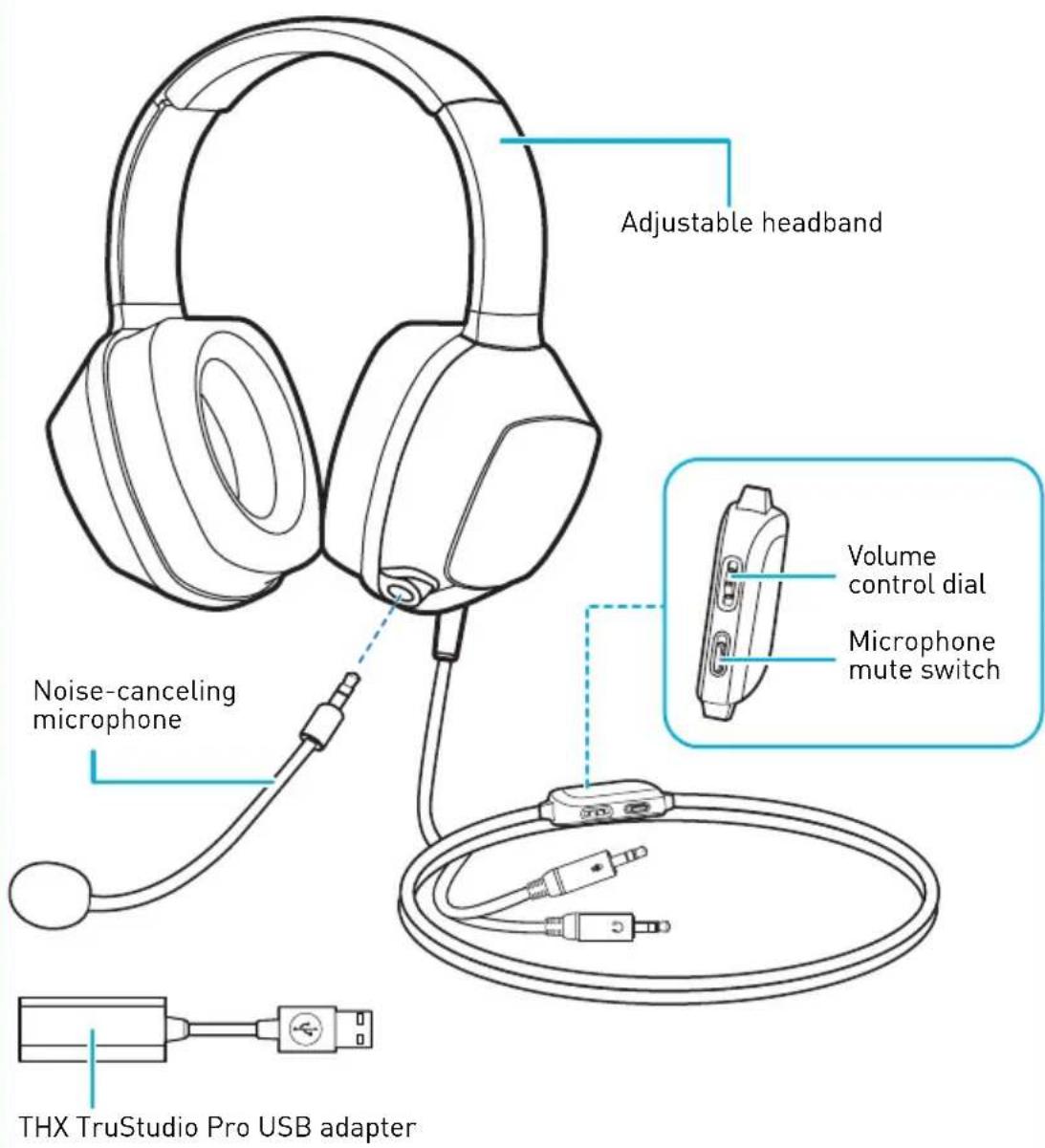
Sound Blaster Tactic 3D Gaming Headset
Setting Up Your Headset
Before using your headset, you should install the drivers and applications for it by following the steps below. This lets you enjoy the full features of your headset such as THX TruStudio Pro audio enhancements and VoiceFX voice morphing technology.
Step 1: Download the software
Visit www.soundblaster.com/Tactic3D to download the latest drivers and applications available for your headset.
Step 2: Connect the THX TruStudio Pro USB adapter to your computer's USB port

NOTE If prompted for the audio drivers, click the Cancel button.
Step 3: Install the software
For all supported Windows OS
1 Navigate to the folder where you have downloaded the software.
2 Double-click the downloaded file.
3 To complete the installation, follow the instructions on the screen.
4 When prompted, restart your computer.
You can launch the application by clicking Start ▶ Programs or All Programs ▶ Creative ▶ Sound Blaster Tactic(3D) headset ▶ Sound Blaster Tactic(3D) Control Panel
For Mac OS
1 Double-click the downloaded file to uncompress it.
2 Double-click the uncompressed DMG file.
3 Double-click the Install icon.
4 To complete the installation, follow the instructions on the screen.
You can launch the Sound Blaster Tactic(3D) Control Panel from the Applications folder.
Step 4: Set the default audio device (For Mac OS only)
1 Go to System Preferences, then click Sound.
2 Click the Output tab, then select Sound Blaster Tactic(3D) headset.
3 Click the Input tab, then select Sound Blaster Tactic(3D) headset.
Using Your Headset
Connect the headset to the THX TruStudio Pro USB adapter

Put on the headset
Adjust the headband so that the headset rests lightly on your head. Do not tighten excessively.

CAUTION Adjust headset volume to a comfortable level. Do not listen to audio on your headset at high volumes for prolonged periods of time as hearing loss might result.
Sound Blaster Tactic 3D Control Panel
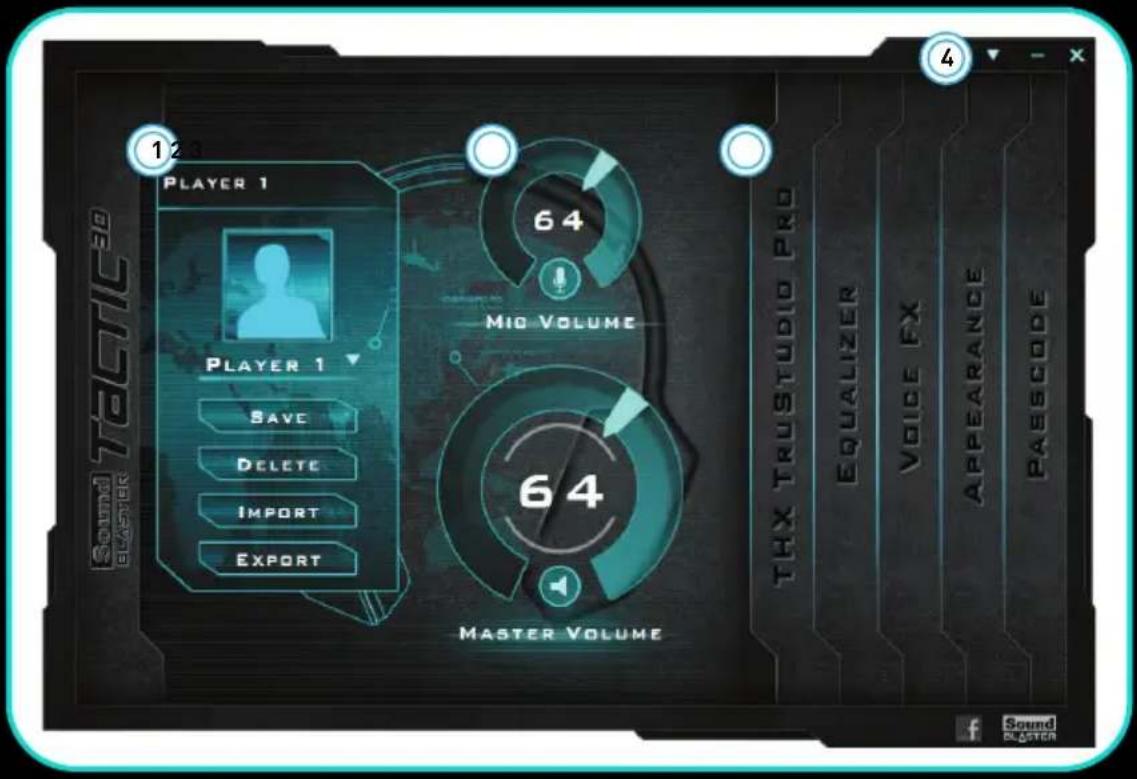
Managing your TacticProfiles
Activate a profile by clicking and selecting it from the list.
Click to save all settings to the current profile or create a new profile. Click to delete the active profile.
Customizing your avatar
You can customize the avatar for each profile by clicking the portrait and selecting another one from the list.
Sharing TacticProfiles
You can export your custom settings and share them with others, or import other gamers' custom settings.

NOTE
- TacticProfiles for Sound Blaster Tactic 3D Alpha and Sound Blaster Tactic 3D Sigma are not compatible with each other.
- TacticProfiles for Windows and Mac are not compatible with each other.
Adjusting your volume settings
Drag the headset or microphone volume marker to adjust the volume level.
You can mute/unmute the headset or microphone by clicking their respective icon.

Configuring your software settings
Click each feature to access its settings page. More information on each feature can be found in their respective sections in this manual.

Configuring your general settings
You can change the language settings or restore settings to their default values. Click and select the option from the list.

THX TruStudio Pro Settings

1 Audio Test controls
Play/Pause or Stop the demo video.
2 THX TruStudio Pro enhancements
Select to enable or disable each enhancement.
3 Enhancement Level slider
Adjust the amount of enhancement to apply.
Enhancing your audio experience
You can adjust the amount to apply for each enhancement by dragging its slider left to decrease or right to increase. To test the effects of the audio enhancements, click and listen to the demo video.
Equalizer Settings

1 EQ presets
Select an equalizer preset to apply to your audio.
2 EQ sliders
Adjust the equalizer settings.
Customizing your EQ settings
Select the EQ checkbox to enable this feature, then click the EQ drop-down arrow and select a preset from the list.
Selecting a preset will move the EQ sliders to the appropriate values. You can adjust the equalizer setting by dragging the sliders up or down to the desired level.
You can save your custom settings as new presets or delete existing ones.
NOTE The list of default EQ presets cannot be deleted.
VoiceFX Settings
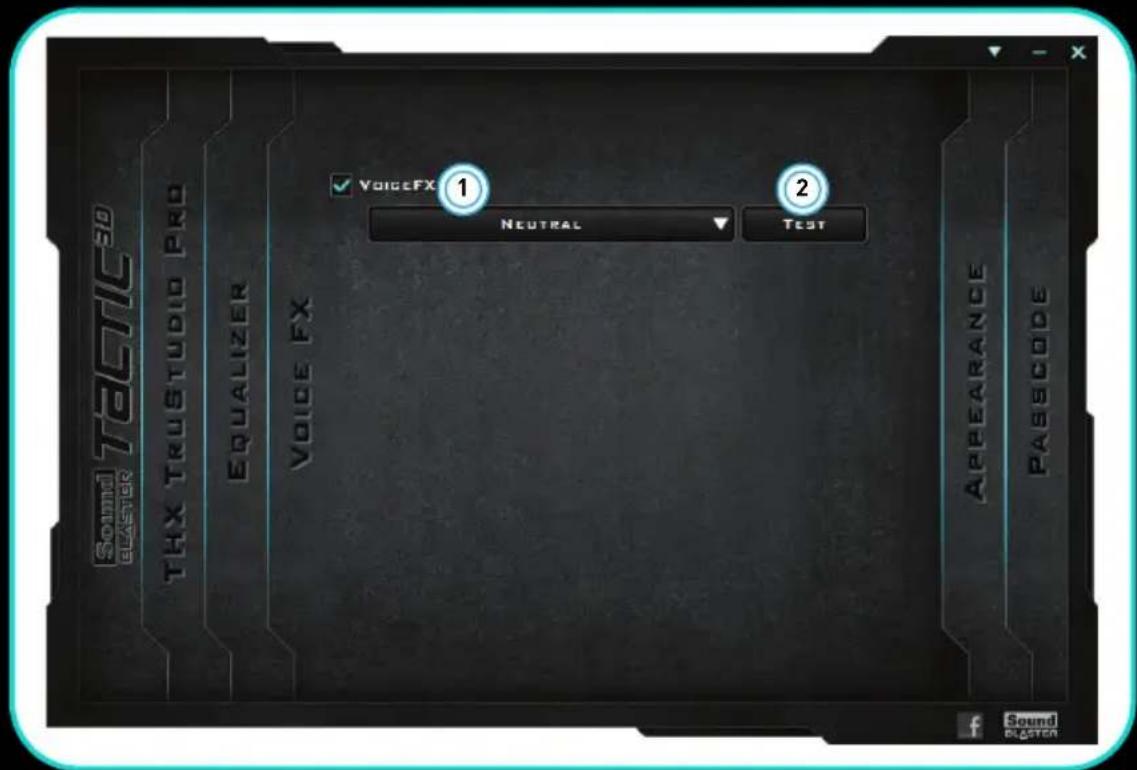
1 VoiceFX presets
Select a VoiceFX preset to apply to your voice input.
2 VoiceFX audio test
Listen to your voice with the selected VoiceFX preset applied.
Customizing your VoiceFX settings
Select the VoiceFX checkbox to enable this feature, then click the VoiceFX drop-down arrow and select a preset from the list.
Click to listen to how your voice will sound with the selected VoiceFX preset applied.
Appearance Settings
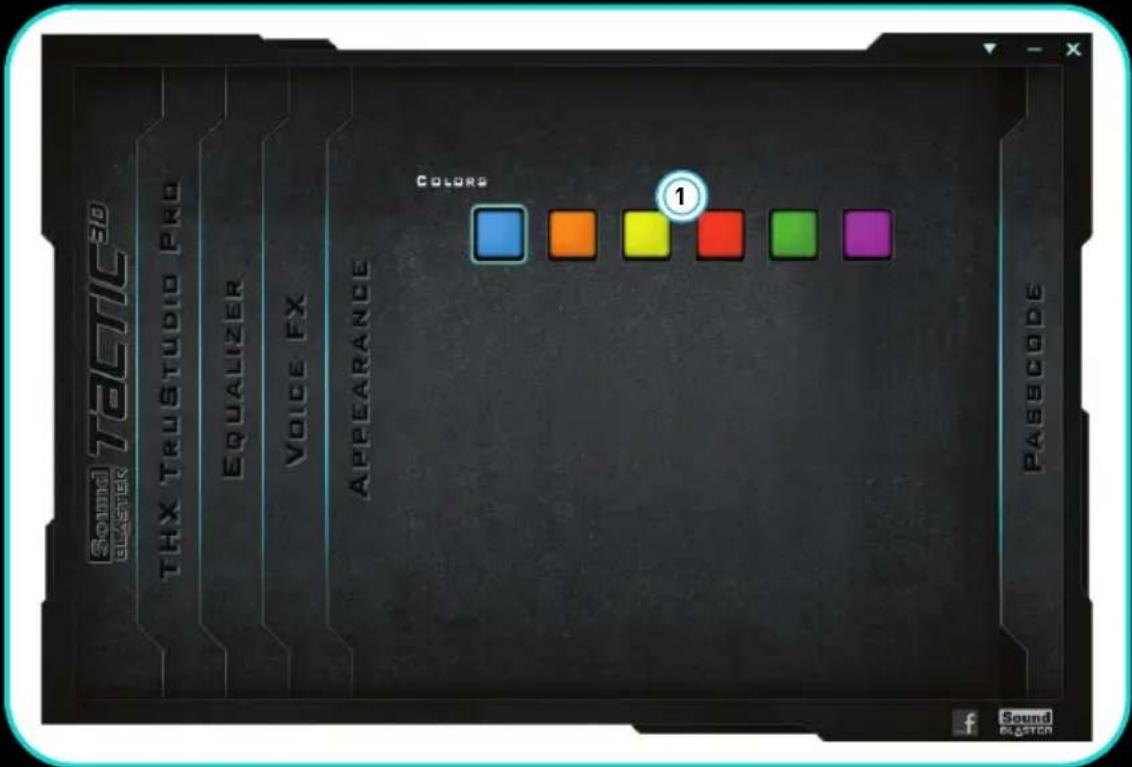
1 Color selector
Select a highlight color for the software user interface.
Choosing a color
Click on the color that you want to use as the highlight.
Passcode Settings
The Passcode settings page lets you enter secret codes to unlock new customization options for Sound Blaster Tactic 3D Control Panel.

1 Passcode display
Displays the currently entered passcode.
2 Passcode Entry keys
Enter a passcode to unlock new customization options.
Entering a passcode
Click the Passcode Entry keys to enter your desired combination into the display, then click

If the passcode is correct, you will receive a prompt and new customization options will be available.
HINT
The first passcode is hidden somewhere in the control panel.
Using Your Headset
Playing Games
Your headset is equipped with cutting edge audio technologies and software to enhance the audio in your games. THX TruStudio Pro will elevate your gaming experience to the next level, allowing you to hear sound details in games you have never heard before!
THX TruStudio Pro Surround provides immersion control of sounds not just around you, but also above and below for a full 3D audio experience. Hear the natural sense of audio depth, spaciousness and stunning 3D surround effects from your audio content. Enjoy an unbelievably true-to-life audio experience, whether it's over stereo speakers or headphones.
THX TruStudio Pro Crystalizer restores the dynamic range that is lost when iTunes and MP3 music gets compressed. This makes the music sound as good as the artist originally intended, and adds an enhanced level of realism for movies and games.
THX TruStudio Pro Bass fills in the low frequency tones and gives the extra impact for a better entertainment experience. It dramatically improves the sound experience without a subwoofer.
THX TruStudio Pro Dialog Plus enhances the voices in movies for clearer dialog, allowing the listener to hear the dialog over the rest of the soundtrack and over ambient noise in the listening environment.
THX TruStudio Pro Smart Volume addresses the problem of abrupt volume level changes during playback and between songs by automatically and continuously measuring volume, and intelligently applying gain and attenuation to compensate for those changes.
Communicating with Voice over Internet Protocol (VoIP)
Use the headset to enjoy outstanding acoustic performance in popular VoIP applications like Ventrilo® and TeamSpeak®. Hear and be heard clearly by teammates during multiplayer games to get the tactical edge.
Configuring Creative ALchemy
When playing DirectSound®3D games on Windows 7 and Windows Vista, the game loses its immersiveness and environmental effects due to changes in audio architecture.
To restore these effects and experience the full audio immersion, follow the steps below:
Enable Windows XP compatibility mode
1 Navigate to the folder where you have installed the game.
2 Right-click on the game's launcher and select Properties.
3 Select the Compatibility tab and select the Compatibility Mode checkbox.
4 Click the Compatibility Mode drop-down arrow and Select Windows XP (Service Pack 2), then click OK.
Enable the game in Creative ALchemy
1 Click Start ▶ Programs or All Programs ▶ Creative ▶ ALchemy ▶ Creative ALchemy. The game should be detected automatically and appear in the left column.
2 Select the game and click >> to move it to the right column.
3 Close the application.
When you launch the game you should hear the original effects.
NOTE If the game is not detected, do the following:
- Navigate to the folder where you have installed the game.
- Right-click on the game's launcher and select Run as administrator.
- Exit the application and launch Creative ALchemy again. The game should now appear in the left column.
Software Suite
Visit www.soundblaster.com/Tactic3D to download the latest drivers and applications available for your headset.
The following applications are designed for you to access the basic as well as the advanced features of your headset.
Creative Software Suite
For PC:
• Sound Blaster Tactic 3D Control Panel
- Creative ALchemy
• Creative System Information
For Mac:
• Sound Blaster Tactic 3D Control Panel
NOTE • The applications available for your headset may differ from those listed here.
- Some applications are available for certain operating systems only.
General Specifications
Connectivity
- One 3.5 mm (1/8") stereo jack on left ear cup for connecting the detachable microphone
Interfaces
• One THX TruStudio Pro USB adapter
• One 3.5 mm (1/8") stereo plug for audio
- One 3.5 mm (1/8") stereo plug for voice input
THX TruStudio Pro Technology
• THX TruStudio Pro Crystalizer
• THX TruStudio Pro Surround
• THX TruStudio Pro Bass
• THX TruStudio Pro Dialog Plus
• THX TruStudio Pro Smart Volume
Troubleshooting
Problems with Multiple Audio Devices
The onboard audio chipset seems to be in conflict with Sound Blaster Tactic 3D.
Disable your computer's onboard audio chipset. See your computer's motherboard documentation for details
Problems with Sound
No sound from the headset.
Check the following:
- The volume settings in Sound Blaster Tactic 3D Control Panel and system audio are properly adjusted and not muted.
- There is no hardware conflict between the headset and a peripheral device.
There is clipping/distortion during audio playback.
Check the following:
- Your computer system should be running in high performance mode. You may need to disable any power saving features.
Problems with THX TruStudio Pro
Some features are disabled when playing certain games.
When playing games that use DirectSound3D or OpenAL sound engines, certain audio features will be disabled automatically. This is to avoid distorting the environmental audio cues present in the game. These features will be re-enabled automatically when you exit the game.
Safety Information
Refer to the following information to use your product safely, and to reduce the chance of electric shock, short-circuiting, damage, fire, hearing impairment or other hazards. Improper handling may void the warranty for your product. For more information, read the warranty available with your product.
- Read these instructions.
- Keep these instructions.
- Heed all warnings.
- Follow all instructions.
- Do not use this apparatus near water.
- Clean only with dry cloth.
- Do not block any ventilation openings. Install the product in accordance with the instructions.
- Do not install near heat sources such as radiators, heat registers, stoves, or other apparatus (including amplifiers) that produce heat.
- Do not expose your product to temperatures outside the range of 0°C to 40°C (32°F to 104°F).
- Do not pierce, crush or set fire to your product.
- Keep your product away from strong magnetic objects.
- Do not subject your product to excessive force or impact.
- Do not defeat the purpose of the polarized or grounding-type plug. A polarized plug has two blades with one wider than the other. A grounding type plug has two blades and a third grounding prong. The wide blade or the third prong are provided for your safety. If the provided plug does not fit into your outlet, consult an electrician for replacement of the obsolete outlet.
- Protect the power cord from being walked on or pinched particularly at plugs, convenience receptacles, and the point where they exit from the apparatus.
- Only use attachments/accessories specified by the manufacturer.
- Use only with the cart, stand, tripod, bracket or table specified by the manufacturer, or sold with the apparatus. When a cart is used, use caution when moving the cart/apparatus combination to avoid injury from tip-over.
- Unplug this apparatus during lightning storms or when unused for long periods of time.
- Do not dismantle or attempt to repair your product.
Refer all servicing to authorized and qualified service personnel. Servicing is required when the apparatus has been damaged in any way, such as power-supply cord or plug is damaged, liquid has been spilled or objects have fallen into the apparatus, the apparatus has been exposed to rain or moisture, does not operate normally, or has been dropped.
- WARNING: To reduce the risk of fire or electric shock, do not expose your product to water or moisture. If your product is moisture-resistant, take care not to immerse your product in water or expose it to rain.
Earphones
- When a conductive apparatus, such as earphones, is used in close proximity with a CRT television or CRT monitor, the latter may emit an electrostatic discharge. The electrostatic discharge can be felt as a static shock. While this static shock is usually harmless, it is good practice to avoid close contact with CRT devices when using earphones.
- Do not listen to audio on your earbuds or headphones at high volume for prolonged periods of time as hearing loss may result. For users in the United States, go to www.hei.org for more information.
- Do not listen to your audio device at high volume when driving, cycling or crossing the road, especially in heavy traffic, or in any other traffic condition where such use will hinder safe travel on the roads. We recommend that consumers be extremely cautious when using this device on the road.
WEEE DIRECTIVE 2002/96/EC
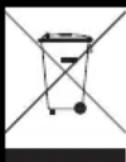
The use of the WEEE Symbol indicates that this product may not be treated as household waste. By ensuring this product is disposed of correctly, you will help protect the environment. For more detailed information about the recycling of this product, please contact your local authority, your household waste disposal service provider or the shop where you purchased the product.
IMPORTANT — A LIRE AVEC ATTENTION
Declaration of Conformity
According to the FCC96 208 and ET95-19
Manufacturer/Importer's Name: Creative Labs, Inc.
Manufacturer/Importer's Address: 1901 McCarthy Boulevard
Milpitas, CA. 95035
United States
Tel: (408) 428-6600
declares under its sole responsibility that the product
Trade Name: Creative Labs
Model Numbers: GH0120A, GH0120B
has been tested according to the FCC / CISPR22 requirement for Class B devices and found compliant with the following standards:
EMI/EMC: ANSI C63.4, FCC Part 15 Subpart B
Complies with Canadian ICES-003 Class B
This device complies with part 15 of the FCC Rules.
Operation is subject to the following two conditions:
This device may not cause harmful interference, and
This device must accept any interference received, including interference that may cause undesirable operation.
DECLARATION OF CONFORMITY
(according to ISO/IEC 17050-1 and EN 17050-1)
Manufacturer's Name: Creative Technology Ltd
Manufacturer's Address: 31, International Business Park Creative Resource Singapore 609921
Product Name: Sound Blaster Tactic3D Alpha
Product Model Number: GH0120A, GH0120B
conforms to the following specifications and regulations:
EMC: Class B
EN 55022:2006 +A1:2007
EN 55024:1998 +A1:2001 +A2:2003
The product herewith complies with the requirement of EMC Directive (2004/108/EC) and carries the CE marking accordingly.
Year to begin fixing CE mark 2010
Supplementary Information:
This device does not fall under the scope of EuP regulation.
Singapore Location
21 st Sep 2010 Date

Chua Hiap Chew Vice President On Behalf of the Company
Regulatory Information
Notice for the USA
FCC Part 15: This equipment has been tested and found to comply with the limits for a Class B digital device, pursuant to Part 15 of the FCC Rules. These limits are designed to provide reasonable protection against harmful interference in a residential installation. This equipment generates, uses and can radiate radio frequency energy and, if not installed and used in accordance with instructions, may cause harmful interference to radio communications. However, there is no guarantee that interference will not occur in a particular installation. If this equipment does cause harmful interference to radio or television reception, which can be determined by turning the equipment off and on, the user is encouraged to try to correct the interference by one or more of the following measures:
- Reorient or relocate the receiving antenna.
- Increase the separation between the equipment and receiver.
- Connect the equipment into an outlet on a circuit different from that to which the receiver is connected.
- Consult the dealer or an experienced radio/TV technician for help.
This device complies with part 15 of the FCC Rules. Operation is subject to the following two conditions:
1 This device may not cause harmful interference, and
2 This device must accept any interference received, including interference that may cause undesired operation.
CAUTION: To comply with the limits of the Class B digital device, pursuant to Part 15 of the FCC Rules, this device must be installed with computer equipment certified to comply with Class B limits.
All cables used to connect to the computer and peripherals must be shielded and grounded. Operation with non-certified computers or non-shielded cables may results in interference to radio or television reception.
MODIFICATION: Any changes or modifications not expressly approved by the grantee of this device could void the user's authority to operate the device.
California Proposition 65 Statement
WARNING: Handling this product may expose you to chemicals known to the State of California to cause cancer and birth defects or other reproductive harm.
Wash hands after handling.
Explanatory Note: California Safe Drinking Water and Toxic Enforcement Act of 1986 (Proposition 65) requires special product labeling for products containing certain chemicals known to the State of California to cause cancer, birth defects or other reproductive harm. Creative has chosen to provide a warning based on its knowledge about the presence of one or more listed chemicals without attempting to evaluate the level of exposure. With Creative's products, the exposure may be below the Proposition 65 level of concern, or could even be zero. However, out of an abundance of caution, Creative has elected to place the Proposition 65 warning on its products.
This Class B digital apparatus complies with Canadian ICES-003.
CANADIAN CLASS B STATEMENT: This digital device does not exceed the Class B limits for radio noise emissions from digital apparatus as set out in the interference-causing equipment standard entitled "Digital Apparatus," ICES-003 of the Department of Communications.
MODIFICATION: Any changes or modifications not expressly approved by the grantee of this device could void the user's authority to operate the device.
This product conforms to the following:
EMC Directive 2004/108/EC.
Mains operated products for the European market comply with Low Voltage Directive 2006/95/EC and Commission Regulation(s) Implementing Directive (2005/32/EC)
Communication / RF wireless products for the European market comply with R&TTE Directive 1999/5/EC.
CAUTION: To comply with the Europe CE requirement, this device must be installed with CE certified computer equipment which meet with Class B limits.
All cables used to connect this device must be shielded, grounded and no longer than 3m in length. Operation with non-certified computers or incorrect cables may result in interference to other devices or undesired effects to the product.
MODIFICATION: Any changes or modifications not expressly approved by Creative Technology Limited or one of its affiliated companies could void the user's warranty and guarantee rights.
Notice for Australia / New Zealand
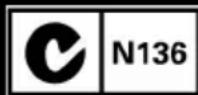
Complies with the requirements of the ACMA Radiocommunications (Electromagnetic Compatibility) Standard 2008
Turkey RoHS Statement
Information in this document is subject to change without notice and does not represent a commitment on the part of Creative Technology Ltd. No part of this manual may be reproduced or transmitted in any form or by any means, electronic or mechanical, including photocopying and recording, for any purpose without the written permission of Creative Technology Ltd.
Copyright © 2010 Creative Technology Ltd. All rights reserved. Creative, the Creative logo, Sound Blaster, the Sound Blaster logo, Creative ALchemy are trademarks or registered trademarks of Creative Technology Ltd. in the United States and/or other countries. THX and the THX TruStudio Pro logo are trademarks of THX Ltd. which may be registered in some jurisdictions. All other trademarks are properties of their respective owners. All specifications are subject to change without prior notice. Use of this product is subject to a limited hardware warranty. Actual contents may differ slightly from those pictured. The software included in this packaging may not be used separately from the hardware. Before using the software, you must agree to be bound by the terms and conditions of the end user license agreement.
Version 1.0
September 2010


- USER'S GUIDE
- CONGRATULATIONS
- SYSTEM REQUIREMENTS
- MINIMUM REQUIREMENTS
- FOR WINDOWS
- FOR MAC
- RECOMMENDED REQUIREMENTS
- ABOUT YOUR HEADSET
- SETTING UP YOUR HEADSET
- STEP 1: DOWNLOAD THE SOFTWARE
- STEP 2: CONNECT THE THX TRUSTUDIO PRO USB ADAPTER TO YOUR COMPUTER'S USB PORT
- STEP 3: INSTALL THE SOFTWARE
- FOR ALL SUPPORTED WINDOWS OS
- FOR MAC OS
- STEP 4: SET THE DEFAULT AUDIO DEVICE (FOR MAC OS ONLY)
- USING YOUR HEADSET
- PUT ON THE HEADSET
- SOUND BLASTER TACTIC 3D CONTROL PANEL
- MANAGING YOUR TACTICPROFILES
- CUSTOMIZING YOUR AVATAR
- SHARING TACTICPROFILES
- NOTE
- ADJUSTING YOUR VOLUME SETTINGS
- CONFIGURING YOUR SOFTWARE SETTINGS
- CONFIGURING YOUR GENERAL SETTINGS
- ENHANCING YOUR AUDIO EXPERIENCE
- EQUALIZER SETTINGS
- CUSTOMIZING YOUR EQ SETTINGS
- VOICEFX SETTINGS
- CUSTOMIZING YOUR VOICEFX SETTINGS
- APPEARANCE SETTINGS
- CHOOSING A COLOR
- PASSCODE SETTINGS
- ENTERING A PASSCODE
- PLAYING GAMES
- COMMUNICATING WITH VOICE OVER INTERNET PROTOCOL (VOIP)
- CONFIGURING CREATIVE ALCHEMY
- ENABLE WINDOWS XP COMPATIBILITY MODE
- ENABLE THE GAME IN CREATIVE ALCHEMY
- SOFTWARE SUITE
- CREATIVE SOFTWARE SUITE
- FOR PC
- GENERAL SPECIFICATIONS
- CONNECTIVITY
- INTERFACES
- THX TRUSTUDIO PRO TECHNOLOGY
- TROUBLESHOOTING
- PROBLEMS WITH MULTIPLE AUDIO DEVICES
- PROBLEMS WITH SOUND
- NO SOUND FROM THE HEADSET
- THERE IS CLIPPING/DISTORTION DURING AUDIO PLAYBACK
- PROBLEMS WITH THX TRUSTUDIO PRO
- SAFETY INFORMATION
- EARPHONES
- WEEE DIRECTIVE 2002/96/EC
- IMPORTANT — A LIRE AVEC ATTENTION
- DECLARATION OF CONFORMITY
- REGULATORY INFORMATION
- NOTICE FOR THE USA
- CALIFORNIA PROPOSITION 65 STATEMENT
- WASH HANDS AFTER HANDLING
- NOTICE FOR AUSTRALIA / NEW ZEALAND
- TURKEY ROHS STATEMENT
Brand : CREATIVE
Model : Sound Blaster Tactic3D Alpha
Category : Headphones