
TMU590 - Printer EPSON - Free user manual and instructions
Find the device manual for free TMU590 EPSON in PDF.
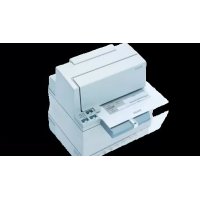



| Product Type | Dot Matrix Printer |
| Brand | Epson |
| Model | TM-U590 |
| Print Method | Serial impact dot matrix, 9 pins |
| Print Speed | Up to 311 characters/s (Font B) |
| Ribbon Cartridge | ERC-31 |
| Paper Sizes | 70 × 70 mm to 210 × 297 mm |
| Paper Thickness (Simplex) | 0.09 to 0.2 mm |
| Number of Copies | Original + up to 4 copies |
| Interfaces | RS-232 serial or IEEE 1284 parallel |
| Power Supply | +24 V DC ± 10% |
| Power Consumption | Avg. 1.9 A (operating), 0.3 A (standby) |
| Dimensions (H × W × D) | 185 × 252 × 266 mm |
| Weight | Approximately 5 kg |
| Operating Temperature | 5 to 45 °C |
| Operating Humidity | 10 to 90% RH |
| MTBF | 180,000 hours |
| MCBF | 29 million lines |
| Main Functions | Slip printing, paper forward/reverse, release, self-test |
| Safety | Instructions in case of malfunction (smoke, odor), avoid dust/humidity, do not disassemble |
| Maintenance | Clean the exterior with a soft cloth, check the ribbon cartridge |
| Spare Parts | ERC-31 ribbon cartridge, switch cover, damper |
| Manual Languages | French, English, German, Spanish, Italian, Dutch, Portuguese, Russian, Turkish |
Frequently Asked Questions - TMU590 EPSON
User questions about TMU590 EPSON
0 question about this device. Answer the ones you know or ask your own.
Ask a new question about this device
Download the instructions for your Printer in PDF format for free! Find your manual TMU590 - EPSON and take your electronic device back in hand. On this page are published all the documents necessary for the use of your device. TMU590 by EPSON.
USER MANUAL TMU590 EPSON
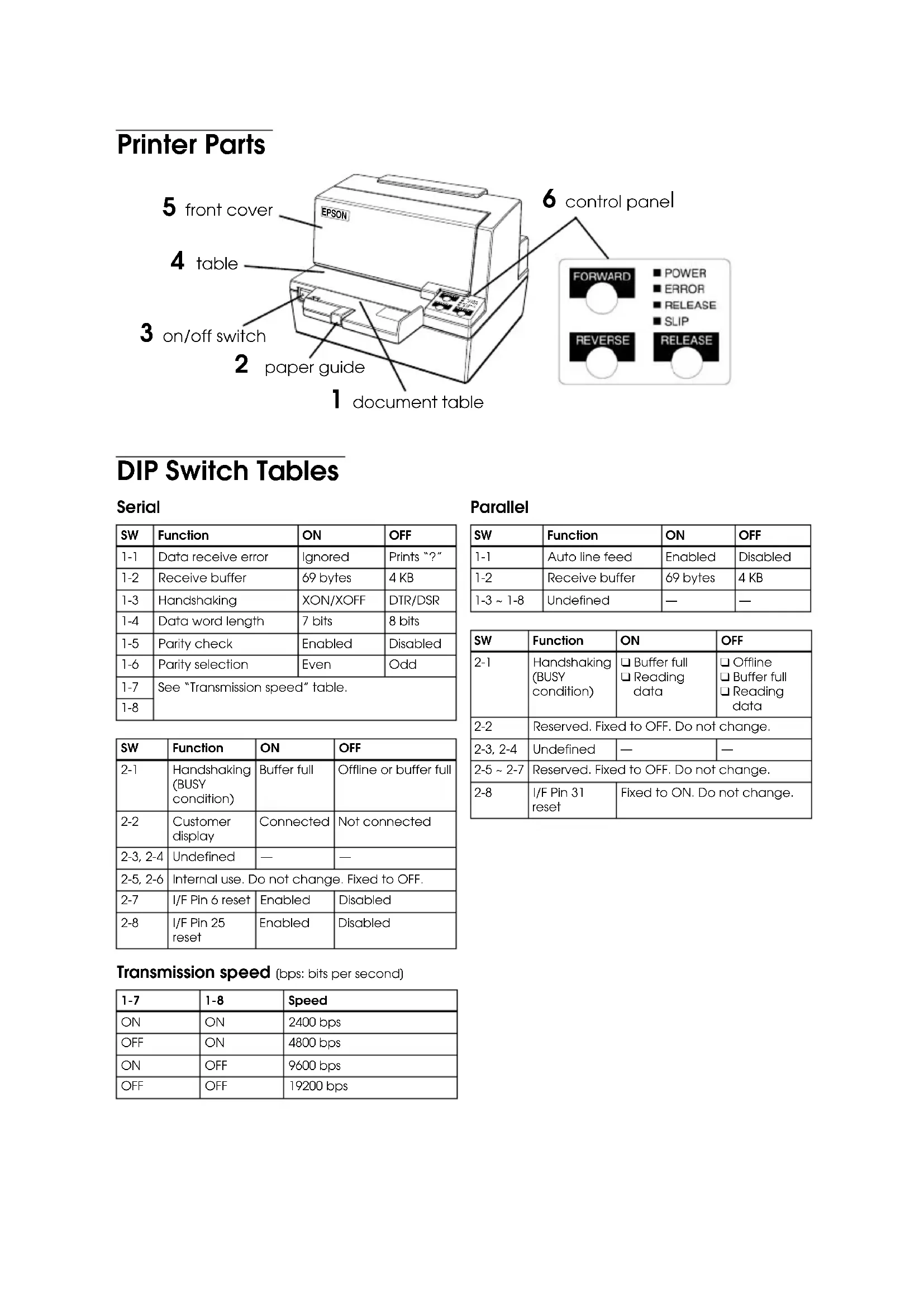
| SW | Function | ON | OFF |
| 1-1 | Data receive error | Ignored | Prints "?" |
| 1-2 | Receive buffer | 69 bytes | 4 KB |
| 1-3 | Handshaking | XON/XOFF | DTR/DSR |
| 1-4 | Data word length | 7 bits | 8 bits |
| 1-5 | Parity check | Enabled | Disabled |
| 1-6 | Parity selection | Even | Odd |
| 1-7 | See "Transmission speed" table. | ||
| 1-8 | |||
| SW | Function | ON | OFF |
| 2-1 | Handshaking (BUSY condition) | Buffer full | Offline or buffer full |
| 2-2 | Customer display | Connected | Not connected |
| 2-3, 2-4 | Undefined | — | — |
| 2-5, 2-6 | Internal use. Do not change. Fixed to OFF. | ||
| 2-7 | I/F Pin 6 reset | Enabled | Disabled |
| 2-8 | I/F Pin 25 reset | Enabled | Disabled |
Parallel
| SW | Function | ON | OFF |
| 1-1 | Auto line feed | Enabled | Disabled |
| 1-2 | Receive buffer | 69 bytes | 4 KB |
| 1-3 ~ 1-8 | Undefined | — | — |
| SW | Function | ON | OFF |
| 2-1 | Handshaking (BUSY condition) | ☐ Buffer full ☐ Reading data | ☐ Offline ☐ Buffer full ☐ Reading data |
| 2-2 | Reserved. Fixed to OFF. Do not change. | ||
| 2-3, 2-4 | Undefined | — | — |
| 2-5 ~ 2-7 | Reserved. Fixed to OFF. Do not change. | ||
| 2-8 | I/F Pin 31 reset | Fixed to ON. Do not change. | |
Transmission speed (bps: bits per second)
| 1-7 | 1-8 | Speed |
| ON | ON | 2400 bps |
| OFF | ON | 4800 bps |
| ON | OFF | 9600 bps |
| OFF | OFF | 19200 bps |
All rights reserved. No part of this publication may be reproduced, stored in a retrieval system, or transmitted in any form or by any means, electronic, mechanical, photocopying, recording, or otherwise, without the prior written permission of Seiko Epson Corporation. No patent liability is assumed with respect to the use of the information contained herein. While every precaution has been taken in the preparation of this book, Seiko Epson Corporation assumes no responsibility for errors or omissions. Neither is any liability assumed for damages resulting from the use of the information contained herein.
Neither Seiko Epson Corporation nor its affiliates shall be liable to the purchaser of this product or third parties for damages, losses, costs, or expenses incurred by purchaser or third parties as a result of: accident, misuse, or abuse of this product or unauthorized modifications, repairs, or alterations to this product, or (excluding the U.S.) failure to strictly comply with Seiko Epson Corporation's operating and maintenance instructions.
Seiko Epson Corporation shall not be liable against any damages or problems arising from the use of any options or any consumable products other than those designated as Original Epson Products or Epson Approved Products by Seiko Epson Corporation.
EPSON is a registered trademark of Seiko Epson Corporation. Exceed Your Vision is a registered trademark or trademark of Seiko Epson Corporation. All other trademarks are the property of their respective owners and used for identification purpose only.
NOTICE: The contents of this manual are subject to change without notice.
© Seiko Epson Corporation 2014. All rights reserved.
Safety Precautions
This section presents important information intended to ensure safe and effective use of this product. Please read this section carefully and store it in an accessible location.

WARNING:
Shut down your equipment immediately if it produces smoke, a strange odor, or unusual noise. Continued use may lead to fire. Immediately unplug the equipment and contact your dealer or a Seiko Epson service center for advice.
Never attempt to repair this product yourself. Improper repair work can be dangerous.
Never disassemble or modify this product. Tampering with this product may result in injury or fire.
Be sure to use the specified power source. Connection to an improper power source may cause fire.
Do not allow foreign matter to fall into the equipment. Penetration by foreign objects may lead to fire.
If water or other liquid spills into this equipment, unplug the power cord immediately, and then contact your dealer or a Seiko Epson service center for advice. Continued usage may lead to fire.
Do not use aerosol sprayers containing flammable gas inside or around this product. Doing so may cause fire.

CAUTION:
Do not connect cables in ways other than those mentioned in this manual. Different connections may cause equipment damage and burning.
Be sure to set this equipment on a firm, stable, horizontal surface. The product may break or cause injury if it falls.
Do not use in locations subject to high humidity or dust levels. Excessive humidity and dust may cause equipment damage or fire.
Do not place heavy objects on top of this product. Never stand or lean on this product. Equipment may fall or collapse, causing breakage and possible injury.
To ensure safety, unplug this product before leaving it unused for an extended period.
Caution Labels
The caution labels on the product indicate the following precautions.

WARNING:
Do not connect a telephone line to the drawer kick-out connector or the display module connector; otherwise, the printer and the telephone line may be damaged.


CAUTION:
During printing or after printing, the print head can be very hot.
Restriction of Use
When this product is used for applications requiring high reliability/safety, such as transportation devices related to aviation, rail, marine, automotive, etc.; disaster prevention devices; various safety devices, etc.; or functional/precision devices, etc., you should use this product only after giving consideration to including fail-safes and redundancies into your design to maintain safety and total system reliability. Because this product was not intended for use in applications requiring extremely high reliability/safety, such as aerospace equipment, main communication equipment, nuclear power control equipment, or medical equipment related to direct medical care, etc., please make your own judgment on this product's suitability after a full evaluation.
Downloading Drivers, Utilities, and Manuals
Drivers, utilities, and manuals can be downloaded from one of the following URLs.
For customers in North America, go to the following web site: http://www.epsonexpert.com/ and follow the on-screen instructions.
For customers in other countries, go to the following web site: http://download.epson-biz.com/?service=pos
Unpacking
The following items are included with the standard specification printer. If any item is damaged, contact your dealer.
□Printer Power switch cover Ribbon cassette
Note:
When you lift the printer, be sure to hold the bottom of the printer to prevent damage.
Control Panel
FORWARD button
Press to feed slip paper forward one line; hold down to feed slip paper forward continuously.
REVERSE button
Press to feed slip paper in reverse one line; hold down to feed slip paper in reverse continuously.
RELEASE button
Press to release slip paper.
POWER LED
Lights when the printer is on.
ERROR LED
Lights to indicate that the printer is offline, except when feeding paper using the FORWARD or REVERSE buttons, and during a self test. Flashes to indicate an error.
RELEASE LED
Lights to indicate that you can insert slip paper.
SLIP LED
Lights after power on. Flashes while waiting for slip insertion and removal. Off while the printer is ejecting a slip.
Removing the Damper
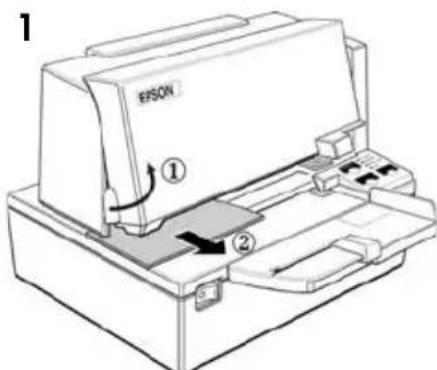
The printer is protected for shipping by a transportation damper that you must remove before you turn on the printer.
Open the printer by pulling the tab on the front cover, and remove the damper shown in illustration 1.
Note:
Reinstall the damper before shipping.
Using the Power Switch Cover

WARNING:
If an accident occurs with the power switch cover attached, unplug the power cord immediately. Continued use may cause fire.
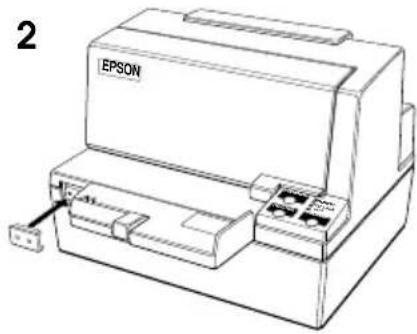
The enclosed power switch cover keeps the power switch from being pressed accidentally. To use the cover, install it as shown in illustration 2.
Installing the Ribbon Cassette
Use the EPSON ERC-31 ribbon cassette. The use of any ribbon cassettes other than those approved by Epson may damage the printer and will void the warranty.

CAUTION:
Never turn the ribbon cassette's feed knob in the opposite direction of the arrow marked on the cassette; otherwise the ribbon cassette may be damaged.
- Turn the printer on, and open the front cover by pulling up the tab on the left side.
- Be sure the print head is on the right side.
- If a ribbon is already installed, remove it by grasping the end of the tab and removing it from the printer.
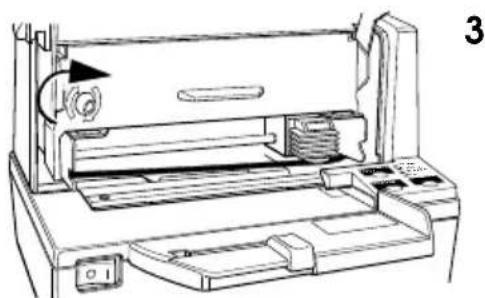
- Turn the cassette knob on the cartridge in the direction of the arrow 2 or 3 times to remove any slack.
- Insert the ribbon, and rotate the cassette knob 2 or 3 more times, as shown in illustration 3.
- Make sure the ribbon has no wrinkles or creases and is installed below the print head as shown on the label inside the printer.
Inserting Slip Paper
Note:
Use only slip paper that matches the specification. Do not use wrinkled or curled paper.
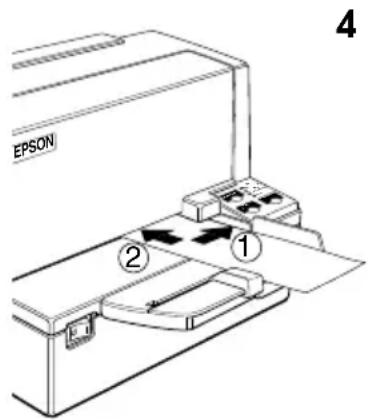
- When the SLIP LED flashes, insert slip paper, using the right edge of the slip paper inlet as a guide (see illustration 4).
- When you insert the slip into the inlet as far as it will go, the sensor detects the slip, the SLIP LED changes from flashing to on, and the printer draws the paper in and prints it.
- After printing is complete, the SLIP LED goes off, and you can remove the slip.
Troubleshooting
No lights on the control panel
Check that power supply cables are plugged into the printer, the power unit, and power outlet correctly.
The printer sounds like it is printing, but nothing is printing
Check that the ribbon cassette is installed correctly.
Replace the ribbon cassette.
The ERROR light is flashing, and nothing is printing
Turn the printer off, and check for a paper jam.
If the printer has been printing for a while, the print head may be too hot. This corrects itself when the print head cools down.
Turn the printer off, and after 10 seconds, turn it back on. If there is still a problem, contact a qualified servicer.
A line of dots is missing in the printout
The print head may be damaged. Contact a qualified service person for repair.
Removing Jammed Paper

CAUTION:
Do not touch the print head because it can be very hot after printing.
Do not move the print head carriage.
- Turn the printer off and open the front cover.
- Open the front cover and remove the jammed paper.
TM-U590/TM-U590P Specifications
| Printing method | Serial impact dot matrix, 9-pin vertical line, wire pitch 0.353 mm {1/72"} |
| Printing direction | Bidirectional, minimum distance printing |
| Characters per line (default) | 9 × 9 font: 66; 7 × 9 font: 88; 5 × 9 font: 66 |
| Character structure | Font A: 9 × 9, 3-dot spacing (half dots) Font B: 7 × 9, 2-dot spacing (half dots) Font C: 5 × 9, 1-dot spacing (normal dots) |
| Character size | Font A: (9 × 9) 1.6 × 3.1 mm {0.06 × 0.12"} Font B: (7 × 9) 1.3 × 3.1 mm {0.05 × 0.12"} Font C: (5 × 9) 1.6 × 3.1 mm {0.06 × 0.12"} |
| Number of characters A | Alphanumeric characters: 95; International characters: 32; Extended graphics: 128 × 10 (with one space page) |
| Print speed | Font A: (9 × 9) = 233 characters/second Font B: (7 × 9) = 311 characters/second Font C: (5 × 9) = 233 characters/second |
| Paper feed speed | Approximately 60.3 ms/line, 4.23 mm {1/6"} feed; 86.4 mm/s, {approximately 3.4"/s} (continuous feeding) |
| Line spacing (default) 4 | 23 mm {1/6"} |
| Paper specifications Paper | per types: Normal, carbon-copy, and pressure-sensitive Paper sizes: 70 × 70 mm to 210 × 297 mm {2.76 × 2.76" to 8.27 × 11.69"} |
| Paper thickness Single-poly: 0.09 to 0.2 mm {0.0035 to 0.0079"} Copy paper: Maximum 5 sheets (original + 4 copies) Backing paper: 0.06 to 0.15 mm {0.0023 to 0.0059"} Copy and original: 0.04 to 0.07 mm {0.0015 to 0.0028"} Carbon paper: Approximately 0.035 mm {0.0014"} Total thickness: 0.30 mm {0.0118"} or less (for any combination from a single original to an original + 3 copies); 0.36 mm {0.0141"} or less (for any combination from a single original to an original + 4 copies) Pressure-sensitive paper: Maximum 5 sheets (original + 4 copies) Backing paper: 0.06 to 0.15 mm {0.0023 to 0.0059"} Copy and original: 0.06 to 0.075 mm {0.0023 to 0.003"} Total thickness: 0.24 mm {0.0094"} or less (original to original + 3 copies); 0.30 mm {0.0118"} or less (original + 4 copies) | |
| Number of copies Original | Original + 4 copies at 20 to 45°C {68 to 113°F} Original + 1 to 3 copies at 5 to 45°C {41 to 113°F} |
| Ribbon cassettes ERC-31 | |
| Interfaces (compatible) | RS-232 serial or IEEE 1284 parallel, RS-485 (dealer option) |
| Receive buffer 69 bytes | or 4 KB |
| DKD function | 2 drives |
| Power supply*1 | + 24 VDC ± 10% |
| Current consumption (at 24V) | Operating: Mean: Approximately 1.9 APeak: Approximately 8 A Standby: Mean: Approximately 0.3 A |
| MTBF 180,000 hours | |
| MCBF 29 million lines | |
| Temperature Operating: | 5 to 45°C {41 to 113°F} Storage: -10 to 50°C {14 to 122°F}, except paper |
| Humidity Operating: 10 | to 90% RH Storage: 10 to 90% RH, except paper |
| Overall dimensions | 185 × 252 × 266 (including a document table) mm {7.28 × 9.92 × 10.47"} (H × W × D) |
| Weight (mass) Approximately 5 kg {11 lb} | |
*1: Be sure to use a safety-standard's-applied power source that meets the following specifications. Rated output: 24 V/2.0 A or more, Maximum output: 240 VA or less
TM-U590/U590P
©2014 Seiko Epson Corporation. All rights reserved.
Safety Precautions
This section contains important information intended to ensure safe and effective use of this product. Read this section carefully and keep these safety instructions in an accessible place.

WARNING:
If smoke, unusual odor, or unusual noise occurs with the equipment, immediately turn it off. Continued use of the equipment may lead to fire. Immediately disconnect the equipment from the power source and consult your dealer or the Seiko Epson service center for recommendations.
Do not attempt to repair this product yourself.
Improper repair may lead to a dangerous situation.
Do not disassemble this product or modify its construction. Improper handling of this product may lead to injury or fire.
Use only the specified power source. Connecting to a power source with inappropriate characteristics may lead to fire.
Do not allow foreign objects to enter the equipment. Foreign objects entering the equipment may lead to fire. If water or other liquid enters the equipment, immediately disconnect the power cord and consult your dealer or the Seiko Epson service center for recommendations. Continued use of the equipment may lead to fire.
Do not use flammable sprays inside or near this product. This may lead to fire.

CAUTION:
Connect the cables only in accordance with the instructions given in this manual. Any other connection of cables may lead to damage and fire of the equipment.
Install the equipment only on a stable, flat, horizontal surface. Falling of the product may lead to its damage or injury to personnel.
Do not use the equipment in rooms with high humidity or dustiness. Excessive humidity and dustiness may lead to damage and fire of the equipment.
Do not place heavy objects on the product. Do not stand on this product or lean on it. The equipment may fall or break; in both cases injury to personnel is possible.
To ensure safety, disconnect this product from the power supply if it will not be used for a long period of time.
Warning labels
Warning labels on the product indicate the following precautions.

WARNING:
Do not connect a telephone line to the connector for the cash drawer or the connector for the external display. Otherwise, the printer and the telephone line may be damaged.


CAUTION:
During or after printing, the print head may be very hot.
Restrictions on use
If this product is used under conditions that require very high reliability/safety, for example, together with various devices on aircraft, railroads, ships, automobiles, etc., with emergency devices for public facilities, various safety devices, etc., with functional/precision devices, etc., use this product only after considering measures to ensure fail-safe and redundancy so as to ensure the necessary safety and reliability of the system as a whole. Since this product is not intended for use under conditions that require extremely high reliability/safety, for example, in combination with aerospace equipment, telecommunications equipment, in systems for controlling nuclear power plants, or with medical equipment used directly for treatment of patients, etc., make your own decision regarding the possibility of using this product only after a thorough assessment.
Downloading drivers, utilities, and manuals
Customers in other countries may use the address http://download.epson-biz.com/?service=pos
Packaging
The standard printer package includes the components listed below. If any component is damaged, contact your dealer.
Printer cover with power switch, cassette, and toner cartridge
Note:
To prevent damage, lift the printer, for example, by holding it at the bottom.
Control panel
FORWARD button
Press to advance the paper one line, or hold down for continuous feed.
REVERSE button
Press to reverse the paper one line, or hold down for continuous reverse feed.
RELEASE button
Press to release the paper.
POWER indicator
Lights when the printer is on.
ERROR indicator
The printer will not operate, except in cases of paper feed with the FORWARD or REVERSE buttons and self-testing. It flashes when an error occurs.
The RELEASE indicator lights up when it is possible to insert a paper form.
The printer will not operate when a paper form can be inserted.
The SLIP indicator lights up after the power is turned on. It flashes during the process of waiting for insertion or removal of the slip. It does not light up when the printer is printing.
The amortization damper
For transporting the printer, a transport damper is installed on it, which must be removed before turning on the printer.
Open the printer by pulling the protrusion on the front cover, and remove the damper shown in Illustration 1 on page 6.
Note:
Before transporting, install the damper in place.
Use of the power switch cover
WARNING:

If, during operation of the equipment, the power switch cover is installed and an emergency situation occurs, immediately disconnect the power cord from the outlet. Continuing to use the equipment may lead to a fire.
The power switch cover included in the delivery set prevents accidental pressing of the switch. To use the cover, install it as shown in Illustration 2 on page 7.
Installing the cassette with the toner
Use only EPSON ERC-31 ribbon cassettes. Use of cassettes with ribbon other than those approved by Epson may cause printer damage and void the warranty.

CAUTION:
Do not turn the ribbon feed knob of the cassette in the direction opposite to that indicated by the arrow. Otherwise, the cassette may be damaged.
- Turn on the printer and open the front cover by lifting the tab on the left side. 2. Make sure the print head is on the right.
- If the ribbon is already installed, hold the knob and pull the cassette out of the printer. 4. Turn the knob on the cassette in the direction indicated by the arrow 2-3 turns to remove any slack in the ribbon.
- Insert the ribbon and turn the cassette knob another 2-3 turns, as shown in illustration 3 on page 7.
- Make sure the ribbon has no folds or creases and that it is installed under the print head, as shown on the label inside the printer.
Installing the slip paper
Note:
Use only slip paper with the required specifications. Do not use carbon paper or thermal paper.
- When the SLIP indicator lights, insert the slip paper, using the right edge and the paper guide as a reference (see illustration 4 on page 8).
- After inserting the slip paper into the paper path, the SLIP indicator will stop flashing and remain lit, the printer will pull in the paper and print.
- After printing is complete, the SLIP indicator will go off, and the slip paper can be removed.
Troubleshooting
The indicators on the control panel do not light
Make sure that the power cord and interface cable are correctly connected to the printer, the interface unit, and the wall outlet.
The printer makes a sound but does not print.
Make sure that the ink cartridge is installed correctly.
Replace the ink cartridge.
Printhead cleaning
If the printhead is clogged, clean it.
If the printhead is clogged, clean it according to the technical instructions.
Printhead
The printhead is installed at the factory. Some printheads may have a protective cap. Remove the cap before use.
Printer lights
- Clogged printhead
- Paper jam
2. Paper jam
- Opam KaFa3DbI 6acKapy TaKTTacbl
- ABTOkeckiuTih KaKnaFbl
6.БlaHK KaFa3bIh 6aCkApy TaKTacbl
All rights reserved. No part of this publication may be reproduced, stored in a retrieval system, or transmitted in any form or by any means, electronic, mechanical, photocopying, recording, or otherwise, without the prior written permission of Seiko Epson Corporation. No patent liability is assumed with respect to the use of the information contained herein. Neither is any liability assumed for damages resulting from the use of the information contained herein. Seiko Epson Corporation shall not be liable for any errors in this document or for incidental or consequential damages in connection with the furnishing, performance, or use of this material.
Seiko Epson Corporation shall not be liable for any damages or claims arising from the use of Epson products or Epson products manufactured by other companies, or for any other products or services not manufactured by Seiko Epson Corporation.
EPSON is a registered trademark of Seiko Epson Corporation. Exceed Your Vision is a registered trademark of Seiko Epson Corporation. All other product names are trademarks of their respective companies and are used for identification purposes only.
CAUTION: The contents of this manual may be changed without notice.
© Seiko Epson Corporation 2014. All rights reserved.
Safety Instructions
This manual contains safety instructions for the product. Read this manual carefully before using the product and keep it in a safe place for future reference.

CAUTION:
If the product emits smoke, unusual odor, or unusual noise, unplug it immediately. Continued use may result in fire or electric shock. Unplug the product from the power outlet and contact your dealer or Seiko Epson service center.
Do not use the product in a humid environment. Doing so may result in fire or electric shock.
You may find it convenient to use the product. You may use the product for its intended purpose.
Correct use of the product is described. Pressing the product may cause damage.
Do not use the product in places with high humidity. Using it in high humidity may cause damage.
If water or other liquid gets inside the product, unplug it immediately and contact your dealer or Epson service center for advice. Using it in this condition may cause damage.
Do not use aerosol sprays containing flammable gas inside or near the product. This action may cause damage.

CAUTION:
Do not connect the product to an outlet that is shared with other equipment. Connecting to a shared outlet may cause damage or malfunction.
Place the product on a flat, stable, and level surface. Dropping it or subjecting it to shock may cause damage.
Do not use the product in places with high humidity or where there are water droplets. Excess humidity or water may cause damage or malfunction.
Do not place heavy objects on top of the product. Do not stand or lean on the product. The product may fall or tip over, causing injury or damage.
To avoid electric shock, if this product is to be left unused for a long time, unplug it.
Safety Instructions
Follow the safety instructions in the product's manual.

WARNING:
Do not touch the telephone line or the modem cable during a thunderstorm; otherwise, the printer and telephone line may be damaged.


CAK 50JIbIHbI3:
BaCbIIN ⅦbIFapy bapbcbHda HeMece oan H KeiH bacyuBb Bac oTe bICTbIK 60nybl MymKIn.
Падаланушектeyi
Бул снимду eye, Temip konl, TeHi3, abTOKeIirHe, T.6. KaTbICTb TaCbImaI Kypblfblapbl, aanaTbIH aIdbH any Kypblfblapbl; Typni Kayinci3dk Kypblfblapbl, T.6. HeMece MaKcaTTbI/daJIik Kypblfblapbl, T.6. CnAKTbl KOFapbl ceHimdiJIIKTI/Kayinci3dkTI TanaI eTeTIH KOJaHy ywiH naJaIaNHaFAn Ke3de Kayinci3dkTI JxHe JaIbIy JxYne ceHimdiJIIRH KamTaMaCbI3 eTy yWiH XacaKaTaMaFa aKayIbIKTapFa Kapcbl XaHe KocaIKbl WapalapDbI KOCy McSeIecIH Kapan SwbIKKaHHaH KeiH FaHa OcbI cHIMdi NaJaIaNHy KaKeT. ByI eHIMHiN Aye-Fapblu Xa6DbIFbl, Herizr I baiNaHbIC Xa6DbIFbl, aTom KyaTBH Backapy Xa6DbIFbl HeMece TikeJeN MediuHaNbIK KOMekKE KaTbICTbl MediuHaNbIK Xa6DbIK CnRAKbTI eTe XoFapbl ceHimdiJIIKTI/Kayinci3dkTI TanaI eTeIH KOJaHy TypJIepiHe naJaIaNHyFA apHaIIMaFaHbIH Eckepe OTbIPA, OcbI eHIMHiN XapamDbIbIFbl XeHiJDiI rXeKe NaBIMbIB3DbI TOlbIK 6aFaIaNFaHHaH KeiH XacaHbI3.
ДраиВерперд, КьИзМETТК 6aFДapЛaMaIapДы JэHe HуСКayЛьIKТapДы JxYKTeY
ДраиВерлер, КьИЗМeTTIK 6aFДapЛamalap XэHe HуСКayЛыКтарды Keleci URL Mekeнжайалрынblн 6ipiHEn JxKTeyre 6olaDbI:
CoTyctik Amepnka TytbHcybIapbl ywiH KeNeci Be6-Topanka eTHi3: http://www.epsonexpert.com/ XaHe 3KpaHdaFbl HcKayIapdbI opBlnDaHbI3.
Баcka сдер Тутblнушылары ушин keleci Be6-Topanka etihi3: http://download.epson-biz.com/?service=pos
Opamadan wbfapy
CtahdapTTbI TexnIkaIbIK CunaTAMaIapbI 6ap npHTepMeH 6ipre KeIeci 3aTTap KaMTbIJIFaH 6OlybI KepeK. Erep KaHaI Da 6ip 3aT 3aKbIMdaIFaH 6OJca, DInepre xa6apIacblHbI3.
□PnHTep KyaT KockblWBHbIH KaKaFbl Bory Taçnacbi 6ap Kacceta
EckepTne:
IpnHTepdi KToTepreHde, 3aKbIMdaNyaH caKTay yUsiH npnHTepin actbHaH YCTaHbI3.
Backapy TaKTacbl
TIKEJIEN (FORWARD) tyuMeci
Blank paper for single-sided printing; blank paper for continuous printing.
REVERSE key
Blank paper for reverse printing; blank paper for continuous reverse printing.
RELEASE key
Press to release blank paper.
POWER key
Printer power indicator.
ERROR key
When the FORWARD or REVERSE keys are pressed and paper is fed or self-test occurs, the printer indicates an error. Press to indicate an error.
RELEASE key
Press to release blank paper.
SLIP key
Press after power on. Press to save the slip and to print. The printer can eject the slip.
Open the print cover
Open the print cover to remove jammed paper or to access the print mechanism.
Refer to figure 1 on page 6. Remove the ink ribbon cassette cover by pulling the tabs.
Expert:
Do not touch the print head immediately after printing.
Installing the ribbon cassette

EXPERT:
If the ribbon cassette is not installed correctly, the ribbon may be damaged. Refer to the figure for proper installation.
The ribbon cassette can be installed only when the print head is cool. To install it, refer to figure 2 on page 7.
Installing the ink ribbon cassette
Install the EPSON ERC-31 ink ribbon cassette. Using ink ribbon cassettes other than those manufactured by Epson may cause printer malfunction and void the warranty.

CAUTION:
Do not turn the ribbon cassette knob in the direction opposite to that indicated by the arrow on the cassette; otherwise, the ribbon cassette may jam.
- Open the printer cover, then pull the ribbon cassette tabs upward.
- Turn the ribbon feed knob in the direction of the arrow.
- If the ribbon is installed, pull it out from the printer through the slot.
- To remove slack, turn the cassette knob in the direction indicated by the arrow 2 or 3 times.
- See Figure 3 on page 7 for the correct paper feed direction, and insert the paper cassette until it clicks into place.
- Make sure the paper is not wrinkled or folded, and that it is loaded correctly according to the instructions for the printer.
Paper jam
Expert:
Only use paper that meets the specifications. Do not use paper that is wrinkled or folded.
- When the SLIP indicator is lit, remove the jammed paper by pulling it out in the direction indicated by the arrow (see Figure 4 on page 8).
- When you insert the paper, the sensor detects it and the printer pulls the paper in and prints. After printing, the SLIP indicator turns off and you can remove the paper.
Cleaning the rollers
Control panel buttons
Check that the power cord is connected to the printer and that the power outlet is working.
The printer may print slowly, but it will not stop printing.
Check that the paper cassette is inserted correctly.
Remove the paper cassette.
The ERROR indicator is lit and the printer will not print.
Turn off the printer and check the paper path.
If the paper is jammed, it may be possible to remove it. When removing the paper, be careful not to damage the printer.
Turn off the printer, wait 10 seconds, then turn it back on. If the problem persists, contact your service representative.
Do not use paper that is folded or wrinkled.
It may be possible to remove the jammed paper. For assistance, contact your service representative.
Remove the jammed paper.

CAUTION:
If the paper is jammed, after removing it, it may be possible to continue printing.
Do not pull the paper forcefully.
- Turn off the printer, then remove the jammed paper.
- After removing the jammed paper, take out the jammed paper.
TM-U590/TM-U590P specifications
| Басьишы�у anecdí | Матрицалык сокалыбасьишы�у, 9 Иени ТIK сызык, оTKizriшерapасьидагы Кашьiktык 0,353 MM {1/72 "} |
| Басьишы�убafыты | Еki бafыITTы, минималды Кашьiktык.Tабьишы�у |
| Жолдыбелгiner(эдени boйыншa) | 9×9 kapin:66;7×9 kapin:88:5×9 kapin:66 |
| Белtri курсылбимы | Карin A:9×9,3бoc opbyн hyktekimeh (жары hyktekener)Kapin B:7×9,2бoc opbyн hyktekimeh (жары hyktekener)Kapin C:5×9,1бoc opbyн hyktekimeh (жары hyktekener) |
| Белtri等相关 | Карin A:(9×9)1,6×3,1MM{0,06×0,12"}Kapin B:(7×9)1,3×3,1MM{0,05×0,12"}Kapin C:(5×9)1,6×3,1MM{0,06×0,12"} |
| Белrinр саны | Öрintik-san'dbik felгinerep:95;халыkapалык felгinerep:32;Кени тинrelен графікалык мумкіндіктетр:128×10 (6ip 6oc 6etпен) |
| Басьишы�уЖылдамыIFы | Карin A:(9×9)=233бeltri/секундКapin B:(7×9)=311бeltri/секундКapin C:(5×9)=233бeltri/секунд |
| Каfas 6ерЖылдамыIFы | Шamамен 60,3MC/Jол,4,23MM{1/6"} Беру;86,4MM/c, {шamамен 3,4"/c} (уздікіз 6еру) |
| Бос жол калдур(эдени boйыншa) | 4,23MM{1/6"} |
| КаfasЗниотамалы | КаfasТуллпу:Калынлы, керokширмен:Же He basyfa ceiIMtanКаfas Зишемерi:70×70MM-210×297MM{2,76×2,76"-8,27×11,69"} |
| КаfasЗ калындыIFы | Бир кабattы:0,09-0,2MM{0,0035-0,0079"Kewipime kafas:Мakсmaлды 5 параз(Tунчеса + 4 кewipime)Kewipmere aphanfam Kafas:0,06-0,15MM{0,0023-0,0059"Kewipime кэну Тунчеса:0,04-0,07MM{0,0015-0,0028"Kewipinen Kafas:Шamамен 0,035MM{0,0014"Xaillb KaындыIFы:0,30MM{0,0118"}Hemecе одан az(Xaillb3 Tynчеса дан bactan Tynчеса + 3 кewipmere.deiHri kez Keilreн улесimУши);0,36MM{0,0141"}Hemece oдан az(Xaillb3 Tynчеса дан bactan Tynчеса + 4 кewipmere.deiHri kez Keilreн улесimУши)Basyfa ceiIMtan Kafas:Мakсmaлды 5 параз(Tунчеса + 4 кewipime)Kewipmere aphanfam Kafas:0,06-0,15MM{0,0023-0,0059"KewipmeЖэne Tynчеса:0,06-0,075MM{0,0023-0,003"}Xaillb KaындыIFы:0,24MM{0,0094"}Hemece oдан az(Tунчеса дан bactan Tynчеса + 3 кewipmere.deiHIN);0,30MM{0,0118"}Hemece oдан az(Tунчеса дан bactan Tynчеса + 4 кewipmere.deiHIN) |
| Кewipмелер саны | Тунчеса + 20-45°C{68-113°F}.apalbyfihndafti TempepaTypada 4 кewipmeТунчеса + 5-45°C{41-113°F}.apalbyfihndafti TempepaTypada 1-3 кewipme |
| Баяу Таспась 6ар Кассеталap | ERC-31 |
| Иntерфейстор (улесимд) | Кесят RS-232 Неме пааллелыд IEEE 1284, RS-485 (дирр ошюсы) |
| Каблдay 6уфера | 69 битnomеce 4КБ |
| DKD Функцяскы 2 кеяTekti | |
| Куат козi*1 | + 24В Туракъг.TOK ± 10% |
| Токъд ТуънHy (24В Керниу Кezиндe) | Пайдану: Ораза Шamамен 1,9А Мaksималды: Шamамен 8А Куту рекимi: Ораза Шamамен 0,3А |
| MTBF 180 000 cafaT | |
| MCBF | 29 мілліон жол |
| Temпература | Пайдану: 5ЖэHe 45°C {41ЖэHe 113°C}.apалыfvнда Сakтay: -10-50°C {14-122°C}.apалыfvнда, kafasдан baskacbl |
| ынfasданык | Пайдану: 10-90% apалыfvндаfvы салыICTырмалы bілfasданык Сaktay: 10-90% apалыfvндаfvы салыICTырмалы bілfasданык, kafasдан baskacbl |
| Габаштik Ешем徴и | 185×252×266 (КУжат кес tecimен Кoca) mm{7,28×9,92×10,47"}(Б×E×T) |
| Салмамен 5 кг {11 Фунт} | |
*1: Ensure compliance with safety standards and meet the requirements of the environment. The rated power consumption: 24 V/2.0 A or less, maximum power consumption: 240 VA or less.
TM-U590/U590P
printer
DIP 2000

y
Therefore, b1 dot a = 0 dot 0 u
y
.
. 1
. 1
Therefore, 2 squared = 1
Jll 21ao sbpulss
:

1 1
.
d 1b2y.1b2y b2y
Epson

1.
2.
3.
4.
5. 7 a
6.
Therefore, ab = 10.
- 1.
g g g (SLIP) 1
.(8404y)
(SLIP) 0 .2
aLc aLbllg gRgll 1 1
.3
J 1
aclb 1y y jg aclbblp g
2000 150000000000000
.
4cIbJgWg (ERROR) IbJg
.
J 1
.4c
Jal 10 10 10
.
aclbll 10gfo gao blaill no
LgXy yIaIy JgSswJgGJgJgJgJgJgJgJgJgJgJg
J 1
:

- 2.
TM-U590/TM-U590P
| \(\{\text{a}_{\text{w}}\text{b}_{\text{y}}72/1\}\) ρ\( \rho_{\rho}0.353\text{a}_{\text{w}}\text{b}_{\text{y}}\text{a}_{\text{w}}\text{a}_{\text{w}}\text{a}_{\text{w}}\text{a}_{\text{w}}\text{a}_{\text{w}}\text{a}_{\text{w}}\text{a}_{\text{w}}\text{a}_{\text{w}}\text{a}_{\text{w}}\text{a}_{\text{w}}\text{a}_{\text{y}}\text{b}_{\text{z}}\text{b}_{\text{y}}\text{a}_{\text{z}}\text{a}_{\text{z}}\text{a}_{\text{z}}\text{a}_{\text{z}}\text{a}_{\text{z}}\text{a}_{\text{z}}\text{a}_{\text{z}}\text{a}_{\text{z}}\text{a}_{\text{z}}\text{a}_{\text{z}}\text{a}_{\text{y}}\text{b}_{\text{z}}\text{b}_{\text{y}}\text{a}_{\text{z}}\text{a}_{\text{z}}\text{a}_{\text{z}}\text{a}_{\text{z}}\text{a}_{\text{z}}\text{a}_{\text{z}}\text{a}_{\text{y}}\text{b}_{\text{z}}\text{b}_{\text{y}}\text{a}_{\text{y}}\text{b}_{\text{y}}\text{a}_{\text{y}}\text{a}_{\text{y}}\text{a}_{\text{y}}\text{a}_{\text{y}}\text{a}_{\text{y}}\text{a}_{\text{y}}\text{a}_{\text{y}}\text{a}_{\text{y}}\text{a}_{\text{y}}\text{a}_{\text{y}}\text{b}_{\text{z}}\text{b}_{\text{z}}\text{b}_{\text{z}}\text{b}_{\text{z}}\text{b}_{\text{z}}\text{b}_{\text{z}}\text{b}_{\text{z}}\text{b}_{\text{z}}\text{b}_{\text{z}}\text{b}_{\text{z}}\text{b}_{\text{y}}\text{b}_{\text{z}}\text{b}_{\text{z}}\text{b}_{\text{z}}\text{b}_{\text{z}}\text{b}_{\text{z}}\text{b}_{\text{z}}\text{b}_{\text{z}}\text{b}_{\text{z}}\text{b}_{\text{z}}\text{a}_{\text{y}}\text{b}_{\text{z}}\text{b}_{\text{z}}\text{b}_{\text{z}}\text{b}_{\text{z}}\text{b}_{\text{z}}\text{b}_{\text{z}}\text{b}_{\text{z}}\text{b}_{\text{z}}\text{b}_{\text{y}}\text{b}_{\text{y}}\text{b}_{\text{y}}\text{b}_{\text{y}}\text{b}_{\text{y}}\text{b}_{\text{y}}\text{b}_{\text{y}}\text{b}_{\text{y}}\text{b}_{\text{y}}\text{b}_{\text{y}}\text{b}_{\text{z}}\text{b}_{\text{z}}\text{b}_{\text{z}}\text{b}_{\text{z}}\text{b}_{\text{z}}\text{b}_{\text{z}}\text{b}_{\text{z}}\text{b}_{\text{z}}\text{b}_{\text{y}}\text{a}_{\text{y}}\text{b}_{\text{z}}\text{b}_{\text{z}}\text{b}_{\text{z}}\text{b}_{\text{z}}\text{b}_{\text{z}}\text{b}_{\text{z}}\text{b}_{\text{z}}\text{b}_{\text{z}}\text{a}_{\text{y}}\text{b}_{\text{y}}\text{b}_{\text{y}}\text{b}_{\text{y}}\text{b}_{\text{y}}\text{b}_{\text{y}}\text{b}_{\text{y}}\text{b}_{\text{y}}\text{b}_{\text{y}}\text{b}_{\text{y}}\text{a}_{\text{y}}\text{b}_{\text{z}}\text{b}_{\text{z}}\text{b}_{\text{z}}\text{b}_{\text{z}}\text{b}_{\text{z}}\text{b}_{\text{z}}\text{b}_{\text{z}}\text{b}_{\text{y}}\text{b}_{\text{y}}\text{b}_{\text{z}}\text{b}_{\text{z}}\text{b}_{\text{z}}\text{b}_{\text{z}}\text{b}_{\text{z}}\text{b}_{\text{z}}\text{b}_{\text{z}}\text{b}_{\text{y}}\text{b}_{\text{y}}\text{a}_{\text{y}}\text{b}_{\text{z}}\text{b}_{\text{z}}\text{b}_{\text{z}}\text{b}_{\text{z}}\text{b}_{\text{z}}\text{b}_{\text{z}}\text{b}_{\text{y}}\text{b}_{\text{y}}\text{b}_{\text{y}}\text{b}_{\text{z}}\text{b}_{\text{z}}\text{b}_{\text{z}}\text{b}_{\text{z}}\text{b}_{\text{z}}\text{b}_{\text{z}}\text{b}_{\text{y}}\text{b}_{\text{y}}\text{b}_{\text{y}}\text{a}_{\text{y}}\text{b}_{\text{z}}\text{b}_{\text{z}}\text{b}_{\text{z}}\text{b}_{\text{z}}\text{b}_{\text{z}}\text{b}_{\text{y}}\text{b}_{\text{y}}\text{b}_{\text{y}}\text{b}_{\text{z}}\text{b}_{\text{y}}\text{b}_{\text{z}}\text{b}_{\text{y}}\text{b}_{\text{z}}\text{b}_{\text{y}}\text{b}_{\text{z}}\text{b}_{\text{y}}\text{b}_{\text{z}}\text{b}_{\text{y}}\text{b}_{\text{y}}\text{b}_{\text{z}}\text{b}_{\text{y}}\text{b}_{\text{z}}\text{b}_{\text{y}}\text{b}_{\text{z}}\text{b}_{\text{y}}\text{b}_{\text{z}}\text{b}_{\text{z}}\text{b}_{\text{y}}\text{b}_{\text{z}}\text{b}_{\text{y}}\text{b}_{\text{z}}\text{b}_{\text{y}}\text{b}_{\text{z}}\text{b}_{\text{y}}\text{b}_{\text{z}}\text{b}_{\text{z}}\text{b}_{\text{z}}\text{b}_{\text{y}}\text{b}_{\text{y}}\text{b}_{\text{z}}\text{b}_{\text{y}}\text{b}_{\text{z}}\text{b}_{\text{y}}\text{b}_{\text{z}}\text{b}_{\text{y}}\text{b}_{\text{y}}\text{b}_{\text{z}}\text{b}_{\text{z}}\text{b}_{\text{y}}\text{b}_{\text{z}}\text{b}_{\text{y}}\text{b}_{\text{z}}\text{b}_{\text{y}}\text{b}_{\text{z}}\text{b}_{\text{z}}\text{b}_{\text{y}}\text{b}_{\text{y}}\text{b}_{\text{z}}\text{b}_{\text{y}}\text{b}_{\text{z}}\text{b}_{\text{y}}\text{b}_{\text{z}}\text{b}_{\text{z}}\text{b}_{\text{y}}\text{b}_{\text{z}}\text{b}_{\text{z}}\text{b}_{\text{y}}\text{b}_{\text{z}}\text{b}_{\text{y}}\text{b}_{\text{z}}\text{b}_{\text{y}}\text{b}_{\text{y}}\text{b}_{\text{z}}\text{b}_{\text{y}}\text{b}_{\text{y}}\text{b}_{\text{z}}\text{b}_{\text{y}}\text{b}_{\text{z}}\text{b}_{\text{y}}\text{b}_{\text{z}}\text{b}_{\text{z}}\text{b}_{\text{z}}\text{b}_{\text{y}}\text{b}_{\text{z}}\text{b}_{\text{y}}\text{b}_{\text{z}}\text{b}_{\text{y}}\text{b}_{\text{z}}\text{b}_{\text{y}}\text{b}_{\text{y}}\text{b}_{\text{y}}\text{b}_{\text{z}}\text{b}_{\text{y}}\text{b}_{\text{z}}\text{b}_{\text{y}}\text{b}_{\text{z}}\text{b}_{\text{z}}\text{b}_{\text{y}}\text{b}_{\text{y}}\text{b}_{\text{y}}\text{b}_{\text{z}}\text{b}_{\text{y}}\text{b}_{\text{z}}\text{b}_{\text{y}}\text{b}_{\text{y}}\text{b}_{\text{z}}\text{b}_{\text{y}}\text{b}_{\text{z}}\text{b}_{\text{z}}\text{b}_{\text{y}}\text{b}_{\text{z}}\text{b}_{\text{y}}\text{b}_{\text{z}}\text{b}_{\text{z}}\text{b}_{\text{y}}\text{b}_{\text{z}}\text{b}_{\text{y}}\text{b}_{\text{y}}\text{b}_{\text{z}}\text{b}_{\text{y}}\text{b}_{\text{z}}\text{b}_{\text{y}}\text{b}_{\text{y}}\text{b}_{\text{z}}\text{b}_{\text{y}}\text{b}_{\text{y}}\text{b}_{\text{y}}\text{b}_{\text{z}}\text{b}_{\text{y}}\text{b}_{\text{z}}\text{b}_{\text{y}}\text{b}_{\text{y}}\text{b}_{\text{y}}\text{b}_{\text{z}}\text{b}_{\text{y}}\text{b}_{\text{y}}\text{b}_{\text{z}}\text{b}_{\text{y}}\text{b}_{\text{z}}\text{b}_{\text{y}}\text{b}_{\text{y}}\text{b}_{\text{y}}\text{b}_{\text{z}}\text{b}_{\text{z}}\text{b}_{\text{y}}\text{b}_{\text{z}}\text{b}_{\text{y}}\text{b}_{\text{z}}\text{b}_{\text{y}}\text{b}_{\text{y}}\text{b}_{\text{y}}\text{b}_{\text{z}}\text{b}_{\text{z}}\text{b}_{\text{z}}\text{b}_{\text{y}}\text{b}_{\text{z}}\text{b}_{\text{y}}\text{b}_{\text{z}}\text{b}_{\text{y}}\text{b}_{\text{y}}\text{b}_{\text{z}}\text{b}_{\text{z}}\text{b}_{\text{z}}\text{b}_{\text{y}}\text{b}_{\text{z}}\text{b}_{\text{y}}\text{b}_{\text{z}}\text{b}_{\text{z}}\text{b}_{\text{y}}\text{b}_{\text{z}}\text{b}_{\text{z}}\text{b}_{\text{z}}\text{b}_{\text{y}}\text{b}_{\text{z}}\text{b}_{\text{y}}\text{b}_{\text{z}}\text{b}_{\text{z}}\text{b}_{\text{z}}\text{b}_{\text{y}}\text{b}_{\text{z}}\text{b}_{\text{z}}\text{b}_{\text{y}}\text{b}_{\text{z}}\text{b}_{\text{y}}\text{b}_{\text{z}}\text{b}_{\text{z}}\text{b}_{\text{z}}\text{b}_{\text{y}}\text{b}_{\text{y}}\text{b}_{\text{y}}\text{b}_{\text{z}}\text{b}_{\text{y}}\text{b}_{\text{z}}\text{b}_{\text{z}}\text{b}_{\text{y}}\text{b}_{\text{z}}\text{b}_{\text{y}}\text{b}_{\text{y}}\text{b}_{\text{y}}\text{b}_{\text{z}}\text{b}_{\text{y}}\text{b}_{\text{z}}\text{b}_{\text{z}}\text{b}_{\text{y}}\text{b}_{\text{y}}\text{b}_{\text{z}}\text{b}_{\text{y}}\text{b}_{\text{y}}\text{b}_{\text{z}}\text{b}_{\text{y}}\text{b}_{\text{z}}\text{b}_{\text{z}}\text{b}_{\text{y}}\text{b}_{\text{y}}\text{b}_{\text{z}}\text{b}_{\text{z}}\text{b}_{\text{y}}\text{b}_{\text{z}}\text{b}_{\text{y}}\text{b}_{\text{z}}\text{b}_{\text{z}}\text{b}_{\text{y}}\text{b}_{\text{y}}\text{b}_{\text{z}}\text{b}_{\text{z}}\text{b}_{\text{z}}\text{b}_{\text{y}}\text{b}_{\text{z}}\text{b}_{\text{y}}\text{b}_{\text{y}}\text{b}_{\text{z}}\text{b}_{\text{y}}\text{b}_{\text{z}}\text{b}_{\text{z}}\text{b}_{\text{z}}\text{b}_{\text{y}}\text{b}_{\text{z}}\text{b}_{\text{y}}\text{b}_{\text{y}}\text{b}_{\text{z}}\text{b}_{\text{z}}\text{b}_{\text{y}}\text{b}_{\text{z}}\text{b}_{\text{z}}\text{b}_{\text{y}}\text{b}_{\text{z}}\text{b}_{\text{y}}\text{b}_{\text{y}}\text{b}_{\text{z}}\text{b}_{\text{z}}\text{b}_{\text{y}}\text{b}_{\text{y}}\text{b}_{\text{z}}\text{b}_{\text{y}}\text{b}_{\text{z}}\text{b}_{\text{y}}\text{b}_{\text{y}}\text{b}_{\text{z}}\text{b}_{\text{z}}\text{b}_{\text{y}}\text{b}_{\text{y}}\text{b}_{\text{y}}\text{b}_{\text{z}}\text{b}_{\text{y}}\text{b}_{\text{z}}\text{b}_{\text{z}}\text{b}_{\text{z}}\text{b}_{\text{y}}\text{b}_{\text{z}}\text{b}_{\text{z}}\text{b}_{\text{z}}\text{b}_{\text{y}}\text{b}_{\text{z}}\text{b}_{\text{y}}\text{b}_{\text{y}}\text{b}_{\text{y}}\text{b}_{\text{z}}\text{b}_{\text{y}}\text{b}_{\text{y}}\text{b}_{\text{y}}\text{b}_{\text{z}}\text{b}_{\text{y}}\text{b}_{\text{z}}\text{b}_{\text{z}}\text{b}_{\text{z}}\text{b}_{\text{z}}\text{b}_{\text{y}}\text{b}_{\text{z}}\text{b}_{\text{y}}\text{b}_{\text{z}}\text{b}_{\text{y}}\text{b}_{\text{z}}\text{b}_{\text{z}}\text{b}_{\text{z}}\text{b}_{\text{z}}\text{b}_{\text{y}}\text{b}_{\text{z}}\text{b}_{\text{z}}\text{b}_{\text{y}}\text{b}_{\text{z}}\text{b}_{\text{y}}\text{b}_{\text{y}}\text{b}_{\text{y}}\text{b}_{\text{y}}\text{b}_{\text{z}}\text{b}_{\text{y}}\text{b}_{\text{z}}\text{b}_{\text{y}}\text{b}_{\text{z}}\text{b}_{\text{y}}\text{b}_{\text{y}}\text{b}_{\text{y}}\text{b}_{\text{y}}\text{b}_{\text{z}}\text{b}_{\text{y}}\text{b}_{\text{y}}\text{b}_{\text{z}}\text{b}_{\text{y}}\text{b}_{\text{z}}\text{b}_{\text{z}}\text{b}_{\text{z}}\text{b}_{\text{z}}\text{b}_{\text{y}}\text{b}_{\text{y}}\text{b}_{\text{z}}\text{b}_{\text{y}}\text{b}_{\text{z}}\text{b}_{\text{y}}\text{b}_{\text{y}}\text{b}_{\text{y}}\text{b}_{\text{y}}\text{b}_{\text{z}}\text{b}_{\text{z}}\text{b}_{\text{y}}\text{b}_{\text{z}}\text{b}_{\text{y}}\text{b}_{\text{z}}\text{b}_{\text{z}}\text{b}_{\text{z}}\text{b}_{\text{z}}\text{b}_{\text{y}}\text{b}_{\text{y}}\text{b}_{\text{y}} \tag{46} |
| \( \left\{ {{}^{ \circ } \leq \mathrm{a}}\right\} \) | \( {233} = \left( {9 \times 9}\right) \) : \( A \) 上 \( \left\lbrack \begin{matrix} \text{ c } \\ & \text{ c } \\ & \text{ c } \\ & \text{ c } \\ & \text{ c } \\ & \text{ c } \\ & \text{ c } \\ & \text{ c } \\ & \text{ c } \\ & \text{ c } \\ & \text{ c } \\ & \text{ c } \\ & \text{ c } \\ & \text{ d } \\ & \text{ d } \\ & \text{ d } \\ & \text{ d } \\ & \text{ d } \\ & \text{ d } \\ & \text{ d } \\ & \text{ d } \\ & \text{ d } \\ & \text{ d } \\ & \text{ d } \\ & \text{ d } \\ & \text{ d } \\ \end{matrix}\right\} \) | \( {}^{\prime } \) |
| \( \left\{ {{}^{ \circ } \leq \mathrm{a}}\right\} \)\( \left\{ {{}^{ \circ } \leq \mathrm{a}}\right\} \)\( \left\{ {{}^{ \circ } \leq \mathrm{a}}\right\} \)\( \left\{ {{}^{ \circ } \leq \mathrm{a}}\right\} \)\( \left\{ {{}^{ \circ } \leq \pm }\right\} \)\( \left\{ {{}^{ \circ } \leq \pm }\right\} \)\( \left\{ {{}^{ \circ } \leq \pm }\right\} \)\( \left\{ {{}^{ \circ } \leq \pm }\right\} \)\( \left\{ {{}^{ \circ } \leq \mathrm{a}}\right\} \)\( \left\{ {{}^{ \circ } \leq \pm }\right\} \)\( \left\{ {{}^{ \circ } \leq \pm }\right\} \)\( \left\{ {{}^{ \circ } \pm }\right\} \)\( \left\{ {{}^{ \circ } \pm }\right\} \)\( \left\{ {{}^{ \circ } \pm }\right\} \)\( \left\{ {{}^{ \circ } \pm }\right\} \)\( \left\{ {{}^{ \circ } \pm }\right\} \)\( \{ \begin{array}{llllllllllllllllllllllllllllllllllllllllllllllllllllllllllllllllllllllllllllllllllllllllllllllllllllllllllllllllllllllllllllllllllllllllllllllllllllllllllllllllllllllllllllllllllllllllllllllllllllllllillllllllllllllllllllllllllllllllllllllllllllllllllllllllllllllllllllllllllllllllllllllllllllllllllllllllllllllllllllllllllllllllllllllllllllllllllllllllllllllllllllllllllllllllllllllllllllllllllllllllellllllllllllllllllllllllllllllllllllllllllllllllllllllllllllllllllllllllllllllllllllllllllllllllllllllllllllllllllllllllllllllllllllllllllllllllllllllllllllllllllllllllllllllllllllllllllllllllllllllll lllllllllllllllllllllllllllllllllllllllllllllllllllllllllllllllllllllllllllllllllllllllllllllllllllllllllllllllllllllllllllllllllllllllllllllllllllllllllllllllllllllllllllllllllllllllllllllllllllllllll l l l l l l l l l l l l l l l l l l l l l l l l l l l l l l l l l l l l l l l l l l l l l l l l l l l l l l l l l l l l l l l l l l l l l l l l l l l l l l l l l l l l l l l l l l l l l l l l l l l l I L I L I L I L I L I L I L I L I L I L I L I L I L I L I L I L I L I L I L I L I L I L I L I L I L I L I L I L I L I L I L I L I L I L I L I L I L I L I L I L I L I L I L I L I L I L I L I L I L I L I I L I L I L I L I L I L I L I L I L I L I L I L I L I L I L I L I L I L I L I L I L I L I L I L I L I L I L I L I L I L I L I L I L I L I L I L I L I L I L I L I L I L I L I L I L I L I L I L I L I \( \left\{ {{}^{ \circ } \pm }\right\} \)\( \left\{ {{}^{ \circ } \pm }\right\} \)\( \left\{ {{}^{ \circ } \pm }\right\} \)\( \left\{ {{}^{ \circ } \pm }\right\} \)\( \left\{ {{}^{ \circ }}\right\} \)\( \left\{ {{}^{ \circ }}\right\} \)\( \left\{ {{}^{ \circ }}\right\} \)\( \left\{ {{}^{ \circ }}\right\} \)\( \left\{ {{}^{ \circ }}\right\} \)\( \left\{ {{}^{ \circ }}\right\} \) | \( {\left( \begin{array}{l} \text{ 空空如也} \\ \text{ (已知)} \\ \text{ (已知)} \\ \text{ (已知)} \\ \text{ (已知)} \\ \text{ (已知)} \\ \text{ (已知)} \\ \text{ (已知)} \\ \text{ (已知)} \\ \text{ (已知)} \\ \text{ (已知)} \\ \text{ (已知)} \\ \text{ (已知)} \end{array}\right) \) | \( {\left( \begin{array}{l} \text{ 空空如也} \\ \text{ (已知)} \\ \text{ (已知)} \\ \text{ (已知)} \\ \text{ (已知)} \\ \text{ (已知)} \\ \text{ (已知)} \\ \text{ (已知)} \\ \text{ (已知)} \\ \left( {1 + 1}\right) + 1 + 1 + 1 + 1 + 1 + 1 + 1 + 1 + 1 + 1 + 1 + 1 + 1 + 1 + 1 + 1 + 1 + 1 + 1 + 1 + 1 + 1 + 1 + 1 + 1 + 1 + 1 + 1 + 1 + 1 + 1 + 1 + 1 + 1+ 1 + 1 + 1 + 1 + 1 + 1 + 1 + 1 + 1 + 1 + 1 + 1 + 1 + 1 + 1 + 1 + 1 + 1 + 1 + 1 + 1 + 1 + 1 + 1 + 1 + 1 + 1 + 1 + 1 + 1 + 1 + 1 + 1 + \right) \) |
| \( \left\{ {{}^{ \circ } \pm }\right\} \)\( \left\{ {{}^{ \circ } \pm }\right\} \)\( \left\{ {{}^{ \circ } \pm }\right\} \)\( \left\{ {{}^{ \circ } \pm }\right\} \)\( \left\{ {{}^{ \circ }\pm }\right\} \)\( \left\{ {{}^{ \circ } \pm }\right\} \)\( \left\{ {{}^{ \circ } \pm }\right\} \)\( \left\{ {{}^{ \circ } \pm }\right\} \)\( \left\{ {{}^{ \circ } \pm }\right\} \)\( \left\{ \begin{array}{l} \text{ 已经 } \\ \text{ 已经 } \\ \text{ 已经 } \\ \text{ 已经 } \\ \text{ 已经 } \\ \text{ 已经 } \\ \text{ 已经 } \\ \text{ 已经 } \\ \text{ 已经 } \\ \text{ 已经 } \\ \text{ 已经 } \\ \text{ 已经 } \\ {\left( {1 + 1}\right) }^{2} + {1 + 1} + {1 + 1} + {1 + 1} + {1 + 1} + {1 + 1} + {1 + 1} + {1 + 1} + {1 + 1} + {1 + 1} + {1 + 1} + {1 + 1} + {1 + 1} + {1 + 1} + {1 + 1} + {1 + 1} \end{array}\right. \) | \( {\left( \begin{array}{l} \text{ 已经 } \\ \text{ 已经 } \\ \text{ 已经 } \\ \text{ 已经 } \\ \text{ 已经 } \\ \text{ 已经 } \\ \text{ 已经 } \\ \text{ 已经 } \\ \text{ 已经 } \\ \text{ 已经 } \\ \text{} \\ {\left( {1 + 1}\right) }^{2} + {1 + 1} + {1 + 1} + {1 + 1} + {1 + 1} + {1 + 1} + {1 + 1} + {1 + 1} + {1 + 1} + {1 + 1} + {1 + 1} + {1 + 1} + {1 + 0} + {1 + 0} + {1 + 0} + {1 + 0} + {1 + 0} + {1 + 0} + {1 + 0} + {1 + 0} + {1 + 0} + {1 + 0} + {1 + 0} + {1 + 0} + {1 + 0} + {1 + 0} + {1 + 0} \end{array}\right) }^{2} \) | |
| \( {\left( \begin{array}{l} \text{ 已经 } \\ \text{ 已经 } \\ \text{ 已经 } \\ \text{ 已经 } \\ \text{ 已经 } \\ \text{ 已经 } \\ \text{ 已经 } \\ \text{ 已经 } \\ \text{ 已经 } \\ \text{ 已经 }\right. \) | \( {\left( \begin{array}{l} \text{ 已经 } \\ \text{ 已经 } \\ \text{ 已经 } \\ \text{ 已经 } \\ \text{ 已经 } \\ \text{ 已经 } \\ \text{ 已经 } \\ \text{ 已经 } \\ \text{ 已经 } \\ \text{} \\ {\left( {1 + 1}\right) }^{3} + {1 + 1} + {1 + 1} + {1 + 1} + {1 + 1} + {1 + 1} + {1 + 1} + {1 + 1} + {1 + 1} + {1 + 1} + {1 + 1} + {1 + 1} + {1 + 1} + {1 + 1} + {1 + 1}+ {1 + 1}+ {1 + 1}+ {1 + 1}+ {1 + 1}+ {1 + 1}+ {1 + 1}+ {1 + 1}+ {1 + 1}+ {1 + 1}+ {1 + 1}+ {1 + 1}+ {1 + 1}+ {1 + 1}+ {1 + 1}+ {24} \end{array}\right) }^{2} \) | \( {\left( \begin{array}{l} \text{ 已经 } \\ \text{ 已经 } \\ \text{ 已经 } \\ {\left( {1 + 1}\right) }^{3} + {1 + 1} + {1 + 1} + {1 + 1} + {1 + 1} + {1 + 1} + {1 + 1} + {1 + 1} + {1 + 1} + {1 + 1} + {1 + 1} + {1 + 1} + {1 + 0} + {1 + 0} + {1 + 0}+ {1 + 0} + {1 + 0} + {1 + 0} + {1 + 0} + {1 + 0} + {1 + 0} + {1 + 0} + {1 + 0} + {1 + 0} + {1 + 0} + {1 + 0} + {1 + 0} + {1 + 0} + {1 + 0} + {24} \end{array}\right) }^{2} \) |
| \( {\left( \begin{array}{l} \text{ 已经 } \\ \text{ 已经 } \\ \text{ 已经 } \\ \text{ 已经 } \\ \text{ 已经 } \\ \text{ 已经 } \\ \text{ 已经 } \\ \text{ 已经 } \\ \end{array}\right. }^{2} \) | \( {\left( \begin{array}{l} \text{ 已经 } \\ \text{ 已经 } \\ \text{ 已经 } \\ \text{ 已经 } \\ \text{ 已经 } \\ \text{ 已经 } \\ \text{ 已经 } \\ {\left( {1 + 1}\right) }^{3} + {1 + 1} + {1 + 1} + {1 + 1} + {1 + 1} + {1 + 1} + {1 + 1} + {1 + 1} + {1 + 1} + {\left( {1 + 1}\right) }^{3} + {1 + 1} + {1 + 1} + {1 + 1} + {1 + 1} + {1 + 1} + {1 + 1} + {1 + 1} + {1 + 1} + {1 + 1} + {1 + 1} + {1 + 1} + {1 + 1}+ {1 + 1}+ {1 + 1} + {1 + 1}+ {1 + 1}+ {1 + 1}+ {1 + 1}+ {1 + 1}+ {1 + 1}+ {1 + 1}+ {1 + 1}+ {1 + 1}+ {1 + 1}+ {1 + 1}+ {1 + 1}+ {1 + 1}+ {24} \end{array} \right) }^{2} \) | \( {\left( \begin{array}{l} \text{ 已经 } \\ \text{ 已经 } \\ \text{ 已经 } \\ \text{ 已经 } \\ \text{ 已经 } \\ {\left( {1 + 1}\right) }^{3} + {1 + 1} + {1 + 1} + {1 + 1} + {1 + 1} + {1 + 1} + {1 +1} + {1 + 1} + {1 + 1} + {1 + 1} + {1 + 1} + {1 + 1} + {1 + 1}+ {1 + 1}+ {1 + 1}+ {1 + 1}+ {1 + 1}+ {1 + 1}+ {1 + 1}+ {1 + 1}+ {1 + 1}\end{array} \right) }^{2} \) |
| \( {\left( \begin{array}{l} \text{ 已经 } \\ \text{ 已经 } \\ \text{ 已经 } \\ \text{ 已经 } \\ \text{ 已经 } \\ \text{ 已经 } \\ \text{ 已经 } \\ \text{ 已经 } \\ \text{ 已经过 } \\ {\left( {1 + 1}\right) }^{3} + {1 + 1} + {1 + 1} + {1 + 1} + {1 + 1} + {1 + 1} + {1 + 1} + {1 + 1} + {1 + 1} + {1 + 1} + {1 + 1} + {1 + 1} + {1 + }^{2} \end{array} \right) }^{2} \) | \( {\left( \begin{array}{l} \text{ 已经 } \\ \text{ 已经 } \\ \text{ 已经 } \\ {\left( {1 + 1}\right) }^{3} + {1 + 1} + {1 + 1} + {1 + 1} + {1 + 1} + {1 + 1} + {24} \end{array} \right. }^{2} \) | \( {\left( \begin{array}{l} \text{ 已经 } \\ \text{ 已经 } \\ {\left( {1 + 1}\right) }^{3} + {1 + 1} + {1 + 1} + {1 + 1} + {1 + 1} + {1 + 1} + {1 + 1} + {1 + 1} + {1 + 1} + {1 + 1} + {1 - }^{2} \end{array} \right. }^{2} \) |
| \( {\left( \begin{array}{l} \text{ 已经 } \\ \text{ 已经 } \\ \text{ 已经 } \\ {\left( {1 + 1}\right) }^{3} + {1 + 1} + {1 + 1} + {1 + 1} + {1 + 1} + {1 + 1} + {1 + 1} + {1 - }^{2} \end{array} \right. }^{2} \) | \( {\left( \begin{array}{l} \text{ 已经 } \\ \text{ 已经 } \\ {\left( {1 + 1}\right) }^{3} + {1 + 1} + {1 + 1} + {1 + 1} + {1 + 1} + {1 + 1} + {1 - }^{2} \end{array} \right. }^{2} \) | \( {\left( \begin{array}{l} \text{ 已经 } \\ \text{ 已经 } \\ {\left( {1 + 1}\right) {}^{3} + {1 + 1} + {1 + 1} + {1 + 1} + {1 + 1} + {1 - }^{2} \end{array} \right. }^{2} \) |
| \( {\left( \begin{array}{l} \text{ 已经 } \\ \text{ 已经 } \\ {\left( {1 + 1}\right) }^{3} + {1 + 1} + {1 + 1} + {1 + 1} + {1 + 1} + {1 - }^{2} \end{array} \right. }^{2} \) | \( {\left( \begin{array}{l} \text{ 已经 } \\ \text{ 已经 } \\ {\left( {1 + 1}\right) }^{3} + {1 - }^{2} \end{array} \right. }^{2} \) | \( {\left( \begin{array}{l} \text{ 已经 } \\ \text{ 已经 } \\ {\left( {1 + 1}\right) }^{3} + {1 - }^{2} \end{array} \right. }^{2} \) |
| \( {\left( \begin{array}{l} \text{ 已经 } \\ \text{ 已经 } \\ {\left( {1 + 1}\right) }^{3} + {1 - }^{2} \end{array} \right. }^{2} \) | \( {\left( \begin{array}{l} \text{ 已经 } \\ \text{ 已经 } \\ {\left| {\left( {1 + 1}\right) }^{3} + {1 - }^{2}\right| }^{2} \end{array}\right. }^{2} \) | \( {\left( \begin{array}{l} \text{ 已经 } \\ \text{ 已经 } \\ {\left( {1 + 1}\right) }^{3} + {1 - }^{2}\right. }^{2} \) |
| \( {\left( \begin{array}{l} \text{ 已经 } \\ \text{ 已经 } \\ {\left( {1 + 1}\right) }^{3} + {1 - }^{2}\right. }^{2} \) | \( {\left( \begin{array}{l} \text{ 已经 } \\ \text{ 已经 } \\ {\left( {1 + 1}\right) }^{3} + {1 - }^{2}\right. }^{2} \) | \( {\left( \begin{array}{l} \text{ 已经 } \\ \text{ 已经 } \\ {\left( {1 + 1} - {1.5}\right) }^{2} + {1.5}\right. }^{2} \) |
| \( {\left( \begin{array}{l} \text{ 已经 } \\ \text{ 已经 } \\ {\left( {1 + 1}\right) }^{3} + {1 - }^{2}\right. }^{2} \) | \( {\left( \begin{array}{l} \text{ 已经 } \\ \text{ 已经 }\right. }^{2} \) | \( {\left( \begin{array}{l} \text{ 已经 } \\ \text{ 已经 }\right. }^{2} \) |
| \( {\left( \begin{array}{l} \text{ 已经 } \\ \text{ 已经 } \\ {\left( {1 + 1}\right) }^{3} + {1 - }^{2}\right. }^{2} \) | \( {\left( \begin{array}{l} \text{ 已经 } \\ \text{ 已经 }\end{array}\right. }^{2} \) | \( {\left( \begin{array}{l} \text{ 已经 } \\ \text{ 已经 }\end{array}\right. }^{2} \) |
| \( {\left( \begin{array}{l} \text{ 已经 } \\ \text{ 已经 }\end{array}\right. }^{2} \) | \( {\left( \begin{array}{l} \text{ 已经 } \\ \text{ 已经 }\end{array}\right. }^{2} \) | \( {\left( \begin{array}{l} \text{ 已经 } \\ \text{ 已经 }\end{array}\right. }^{2} \) |
| \( {\left( \begin{aligned} & {\left( {1 + 1}\right) }^{3} & {\left( {1 + 1}\right) }^{3} & {\left( {1 + 1}\right) }^{3} & {\left( {1 + 1}\right) }^{3} & {\left( {1 + 1}\right) }^{3} & {\left( {1 + 1}\right) }^{3} & {\left( {1 + 1}\right) }^{3} & {\text{ (已过)}}^{3} \\ & {\left( {1 + 1}\right) }^{3} & {\left( {1 + 1}\right) }^{3} & {\left( {1 + 1}\right) }^{3} & {\left( {1 + 1}\right) }^{3} & {\left( {1 + 1}\right) }^{3} & {\left( {1 + 1}\right) }^{3} & {\left(\text{ 已过 }\right) }^{3} \\ & {\left( {1 + 1}\right) }^{3} & {\left( {1 + 1}\right) }^{3} & {\left( {1 + 1}\right) }^{3} & {\left( {1 + 1}\right) }^{3} & {\left( {1 + 1}\right) }^{3} & {\left( {1 + 1}\right) }^{3}\end{aligned}\right) }^{2} \) | \( {\left( \begin{aligned} & {\left( {1 + 1}\right) }^{3} & {\left( {1 + 1}\right) }^{3} & {\left( {1 + 1}\right) }^{3} & {\left( {1 + 1}\right) }^{3} & {\left( {1 + 1}\right) }^{3} & {\left( {1 + 1} - {1.5}\right) }^{3} & {\left( {1 + 1}\right) }^{3} & {\left( {1 + 1}\right) }^{3} \\ & {\left( {1 + 1}\right) }^{3} & {\left( {1 + 1}\right) }^{3} & {\left( {1 + 1}\right) }^{3} & {\left( {1 + 1}\right) }^{3} & {\left( {1 + 1}\right) }^{3} & {\left( {1 + 1}\right) }} & {\left( {1 - }^{2}\right) }^{3} \\ & {\left( {1 + 1}\right) }^{3} & {\left( {1 + 1}\right) }^{3} & {\left( {1 + 1}\right) }^{3} & {\left( {1 + 1}\right) }^{3} & {\left( {1 + 1}\right) }^{3} & {\left( {1 + 1}\right)}^{3} & {\left( {1 - }^{2}\right) }^{3} \\ & {\left( {1 + 1}\right) }^{3} & {\left( {1 + 1}\right) }^{3} & {\left( {1 + 1}\right) }^{3} & {\left( {1 + 1}\right) }^{3} & {\left( {1 + 1}\right) }} & {\left( {1 - }^{2}\right) }^{3} \\ & {\left( {\left( {1 + 1}\right) }^{3}\right) }^{2} & {\left( {\left( {1 + 1}\right) }^{3}\right) }^{2} & {\left( {\left( {1 + 1}\right) }^{3}\right) }^{2} & {\left( {\left( {1 + 1}\right) }^{3}\right) }^{2} & {\left( {\left( {1 + 1}\right) }^{3}\right) }^{2}\end{aligned}\right) }^{2} \) | |
| \( {\left( \begin{aligned} & {\left( {1 + 1}\right) }^{3} & {\left( {1 + 1}\right) }^{3} & {\left( {1 + 1}\right) }^{3} & {\left( {1 + 1}\right) }^{3} & {\left( {1 + 1}\right) }^{3} & {1 - }^{2}}\\ & {\left( {1 + 1}\right) }^{3} & {\left( {1 + 1}\right) }^{3} & {\left( {1 + 1}\right) }^{3} & {\left( {1 + 1}\right) }^{3} & {\left( {1 - }^{2}}\\ & {\left( {1 + 1}\right) }^{3} & {\left( {1 + 1}\right) }^{3} & {\left( {1 + 1}\right) }^{3} & {\left( {1 + 1}\right) }^{3} & {\left( {1 - }^{2}}\\ & {\left( {1 + 1}\right) }^{3}\end{aligned}\right) }^{2} \) | \( {\left( \begin{aligned} & {\left( {1 + 1}\right) }^{3} & {\left( {1 + 1}\right) }^{3} & {\left( {1 + 1}\right) }^{3} \\ & {\left( {1 + 1}\right) }^{3} & {\left( {1 + 1}\right) }^{3} \\ & {\left( {1 + 1}\right) }^{3} & {\left( {1 + 1}\right) }^{3} \\ & {\left( {1 + 1}\right) }^{3} & {\left( {1 + 1}\right) }^{3} \\ {\left( {1 + 1}\right) }^{3} & {\left( {1 + 1}\right) }^{3} & {\left( {1 + 1}\right) }^{3} \\ & {\left( {1 + 1}\right) }^{3} & {\left( {1 + 1}\right) }^{3} \\ & {\left( {1 + 1}\right) }^{3} & {\text{ (已过)}}^{3} \\ & {\left( {1 + 1}\right) }^{3} & {\left( {1 + 1}\right) }^{3} \\ & {\left( {1 + 1}\right) }^{3} & {\left( {1 + 1}\right) }^{3} \\ & {\left( {1 + 1}\right) }^{3} & {\left( {1 + 1}\right) }^{{2.5}} \end{aligned}\right) }^{2} \) | \( {\left( \begin{aligned} & {\left( {1 + 1}\right) }^{3} & {\left( {1 + 1}\right) }^{3} & {\left( {1 + 1}\right) }^{3} \\ & {\left( {1 + 1}\right) }^{3} & {\left( {1 + 1}\right) }}^{2.5} \\ & {\left( {1 + 1}\right) }^{3} & {\left( {1 + 1}\right) }^{2.5} \\ & {\left( {1 + 1}\right) }^{3} & {\left( {1 + 1}\right) }^{2.5} \\ & {\left( {1 + 1}\right) }^{3} & {\left( {1 + 1}\right) }^{2.5} \\ & {\left( {1 + 1}\right) }^{3} & {\left( {1 + \frac{2.5}{2.5}}\right) }^{2.5} \\ & {\left( {1 + \frac{2.5}{2.5}}\right) }^{2.5} \\ & {\left( {1 + \frac{2.5}{2.5}}\right) }^{2.5} \\ & {\left( {1 + \frac{2.5}{2.5}}\right) }^{2.5} \\ & {\left( {1 + \frac{2.5}{2}}\right) }^{2.5} \\ & {\left( {1 + \frac{2.5}{2}}\right) }^{2.5} \\ & {\left( {1 + \frac{2.5}{2}}\right) }^{2.5} \\ & {\left( {1 + \frac{2.5}{2}}\right) }^{2.5} \\ & {\left( {1 + \frac{4}{2}}\right) }^{2.5} \\ & {\left( {1 + \frac{4}{2}}\right) }^{2.5} \\ & {\left( {1 + \frac{4}{2}}\right) }^{2.5} \\ & {\left( {1 + \frac{4}{2}}\right) }^{2.5} \\ & {\left( {1 + \frac{4}{2}}}\end{aligned}\right) }^{2.5} \) |
| \( {\left( \begin{aligned} & {\left( {1 + 1}\right) }^{3} & {\left( {1 + 1}\right) }^{3} & {\left( {1 + 1}\right) }^{3} & {\left( {1 + 1}\right) }^{3} & {\left( {1 + 1}\right) }^{3} & {\left( {\left( {1 + 1}\right) }^{3}\right) }^{2} \\ & {\left( {1 + 1}\right) }^{3} & {\left( {1 + 1}\right) }^{3} & {\left( {1 + 1}\right) }^{3} & {\left( {1 + 1}\right) }^{3} & {\left( {\left( {1 + 1}\right) }^{3}\right) }^{2} \\ & {\left( {1 + 1} - {1.5}\right) }^{3} & {\left( {1 + 1}\right) }^{3} & {\left( {1 + 1}\right) }^{3} & {\left( {1 + 1}\right) }^{3} & {\left( {\left( {1 + 1}\right) }^{3}\right) }^{2} \\ & {\left( {1 + 1}\right) }^{3} & {\text{ (已过)}}^{3} \\ & {\left( {1 + 1}\right) }^{3} & {\left( {1 + 1}\right) }^{3} & {\left( {1 + 1}\right) }^{3} & {\left( {1 + 1}\right) }^{3} & {\left( {\left( {1 + 1}\right) }^{3}\right) }^{2} \\ & {\left( {1 + \frac{4}{2}}\right) }^{2.5} & {\left( {1 + \frac{4}{2}}\right) }^{2.5} \\ & {\left( {1 + \frac{4}{2}}\right) }^{2.5} & {\left( {1 + \frac{4}{2}}\right) }^{2.5} \\ & {\left( {1 + \frac{4}{2}}\right) }^{2.5} & {\left( {1 + \frac{4}{2}}\right) }^{2.5} \\ & {\left(\frac{4}{2}}\right) }^{2.5} & {\left(\frac{4}{2}}\right) }^{2.5} \\ & {\left(\frac{4}{2}}\right) }^{2.5} & {\left(\frac{4}{2}}\right) }^{2.5} \\ & {\left(\frac{4}{2}}\right) }^{2.5} & {\left(\frac{4}{2}}\right) }^{2.5} \\ & {\left(\frac{\sqrt{2}}{2}}\right) }^{2.5} & {\left(\frac{\sqrt{2}}{2}\right) }^{2.5} \\ & {\left(\frac{\sqrt{2}}{2}}\right) }^{2.5} & {\left(\frac{\sqrt{2}}{2}\right) }^{2.5} \\ & {\left(\frac{\sqrt{2}}{2}}\right) }^{2.5} & {\left(\frac{\sqrt{2}}{2}\right) }^{2.5} \\ & {\frac{\sqrt{2}}{2}}\end{aligned}\right) }^{2.5} \) | \( {\left( \begin{aligned} & {\left( {1 + 1}\right) }^{3} & {\left( {1 + 1}\right) }^{3} & {\left( {1 + 1}\right) }^{3} \\ & {\left( {1 + 1}\right) }^{3} & {\left( {1 + 1}\right) }^{3} \\ & {\left( {\left( {1 + 1}\right) }^{3}\right) }^{2} \\ & {\left( {\left( {1 + 1}\right) }^{3}\right) }^{2} \\ & {\left( {\left( {1 + 1}\right) }^{3}\right) }^{2} \\ & {\left( {\left( {1 + 1}\right) }^{3}\right) }^{2} \\ & {\left( {\left( {1 + 1}\right) }^{3}\end{aligned}\right) }^{2.5} \) |
- SAFETY PRECAUTIONS
- WARNING
- CAUTION
- CAUTION LABELS
- RESTRICTION OF USE
- DOWNLOADING DRIVERS, UTILITIES, AND MANUALS
- UNPACKING
- NOTE
- CONTROL PANEL
- FORWARD BUTTON
- REVERSE BUTTON
- RELEASE BUTTON
- POWER LED
- ERROR LED
- RELEASE LED
- SLIP LED
- REMOVING THE DAMPER
- USING THE POWER SWITCH COVER
- INSTALLING THE RIBBON CASSETTE
- INSERTING SLIP PAPER
- TROUBLESHOOTING
- NO LIGHTS ON THE CONTROL PANEL
- THE PRINTER SOUNDS LIKE IT IS PRINTING, BUT NOTHING IS PRINTING
- THE ERROR LIGHT IS FLASHING, AND NOTHING IS PRINTING
- A LINE OF DOTS IS MISSING IN THE PRINTOUT
- REMOVING JAMMED PAPER
- TM-U590/TM-U590P SPECIFICATIONS
- TM-U590/U590P
- WARNING LABELS
- RESTRICTIONS ON USE
- PACKAGING
- POWER INDICATOR
- ERROR INDICATOR
- THE RELEASE INDICATOR LIGHTS UP WHEN IT IS POSSIBLE TO INSERT A PAPER FORM
- THE SLIP INDICATOR LIGHTS UP AFTER THE POWER IS TURNED ON. IT FLASHES DURING THE PROCESS OF WAITING FOR INSERTION OR REMOVAL OF THE SLIP. IT DOES NOT LIGHT UP WHEN THE PRINTER IS PRINTING
- FOR TRANSPORTING THE PRINTER, A TRANSPORT DAMPER IS INSTALLED ON IT, WHICH MUST BE REMOVED BEFORE TURNING ON THE PRINTER
- BEFORE TRANSPORTING, INSTALL THE DAMPER IN PLACE
- IF, DURING OPERATION OF THE EQUIPMENT, THE POWER SWITCH COVER IS INSTALLED AND AN EMERGENCY SITUATION OCCURS, IMMEDIATELY DISCONNECT THE POWER CORD FROM THE OUTLET. CONTINUING TO USE THE EQUIPMENT MAY LEAD TO A FIRE
- INSTALLING THE SLIP PAPER
- THE INDICATORS ON THE CONTROL PANEL DO NOT LIGHT
- THE PRINTER MAKES A SOUND BUT DOES NOT PRINT
- PRINTHEAD CLEANING
- IF THE PRINTHEAD IS CLOGGED, CLEAN IT
- PRINTHEAD
- PRINTER LIGHTS
- SAFETY INSTRUCTIONS
- CAK 50JIBIHBI
- ПАДАЛАНУШЕКТEYI
- ДРАИВЕРПЕРД, КЬИЗМETТК 6AFДAPЛAMAIAPДЫ JЭHE HУСКAYЛЬIKТAPДЫ JXYKTEY
- OPAMADAN WBFAPY
- ECKEPTNE
- BACKAPY TAKTACBL
- TIKEJIEN (FORWARD) TYUMECI
- REVERSE KEY
- RELEASE KEY
- POWER KEY
- ERROR KEY
- SLIP KEY
- OPEN THE PRINT COVER
- EXPERT
- INSTALLING THE INK RIBBON CASSETTE
- PAPER JAM
- CLEANING THE ROLLERS
- CONTROL PANEL BUTTONS
- THE PRINTER MAY PRINT SLOWLY, BUT IT WILL NOT STOP PRINTING
- THE ERROR INDICATOR IS LIT AND THE PRINTER WILL NOT PRINT
- DO NOT USE PAPER THAT IS FOLDED OR WRINKLED
- REMOVE THE JAMMED PAPER
Brand : EPSON
Model : TMU590
Category : Printer