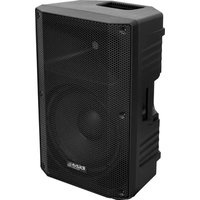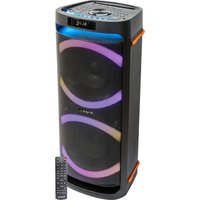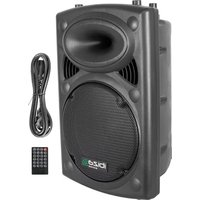
SPLBOX100 - Speaker IBIZA SOUND - Free user manual and instructions
Find the device manual for free SPLBOX100 IBIZA SOUND in PDF.



| Product type | Portable audio system with speaker |
| Brand | Ibiza Sound |
| Model | SPLBOX100 |
| RMS output power | 35 W + 2 x 12 W |
| Woofer (bass speaker) | 5.5" (14 cm) |
| Midrange speaker | 2 x 3" |
| Impedance | 4 Ω |
| Frequency response | 40 Hz - 18 kHz |
| Power supply | 220-240 V AC, 50/60 Hz |
| Audio sources | Bluetooth, USB, SD, Line In (RCA), Tuner FM |
| Microphone inputs | 2 (MIC1 & MIC2) |
| Functions | Recording to USB/SD, Equalizer (Rock, Jazz, Classic), Bass/treble/echo control, Repeat, Mic priority, Standby |
| Display | LED |
| Remote control | Included |
| Included accessories | Manual, remote control, 3.5mm jack cable |
| Safety | Splash protection; do not expose to water, moisture or direct sunlight |
| Maintenance and cleaning | Wipe with a dry soft cloth; do not use abrasive products |
| Repairability | Do not disassemble the device as it will void the warranty; contact the dealer if problems persist |
| Compliance | CE (Safety EN60065, EMC, Radio EN300328) |
Frequently Asked Questions - SPLBOX100 IBIZA SOUND
User questions about SPLBOX100 IBIZA SOUND
0 question about this device. Answer the ones you know or ask your own.
Ask a new question about this device
Download the instructions for your Speaker in PDF format for free! Find your manual SPLBOX100 - IBIZA SOUND and take your electronic device back in hand. On this page are published all the documents necessary for the use of your device. SPLBOX100 by IBIZA SOUND.
USER MANUAL SPLBOX100 IBIZA SOUND
natural_image
Black and blue handheld device with two circular buttons and a blue lens (no visible text or symbols)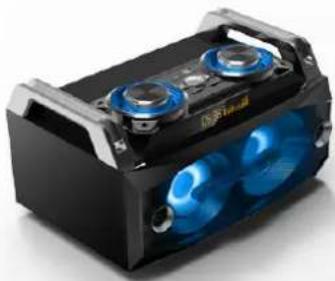
natural_image
Black and white photo of a handheld electronic device with blue heat sinks (no visible text or symbols)Ref.: SPLBOX100 / SPLBOX120
GB – Instruction Manual
This product is a portable audio system supporting Bluetooth, USB, SD card, external sound source input and amplification and FM radio.
Precautions
Read the manual prior to first using the product and keep it for further reference.
For best sound performances, keep the unit away from water, moisture, direct sunlight, extreme temperatures.
Place the unit in such a way that it can't fall down.
Never disassemble the unit. Otherwise, it may invalidate the warranty.
Warning:

-
The apparatus shall not be exposed to dripping or splashing and no objects filled with liquids, such as vases, shall be placed on the apparatus to avoid any accident.
-
To prevent fire or electric shock, please check the compliance of the voltage of power grid with the specified supply voltage of this unit.
Accessories
□Unit
□User Manual
□ Remote Control
□ Line input cable with 3.5mm jack
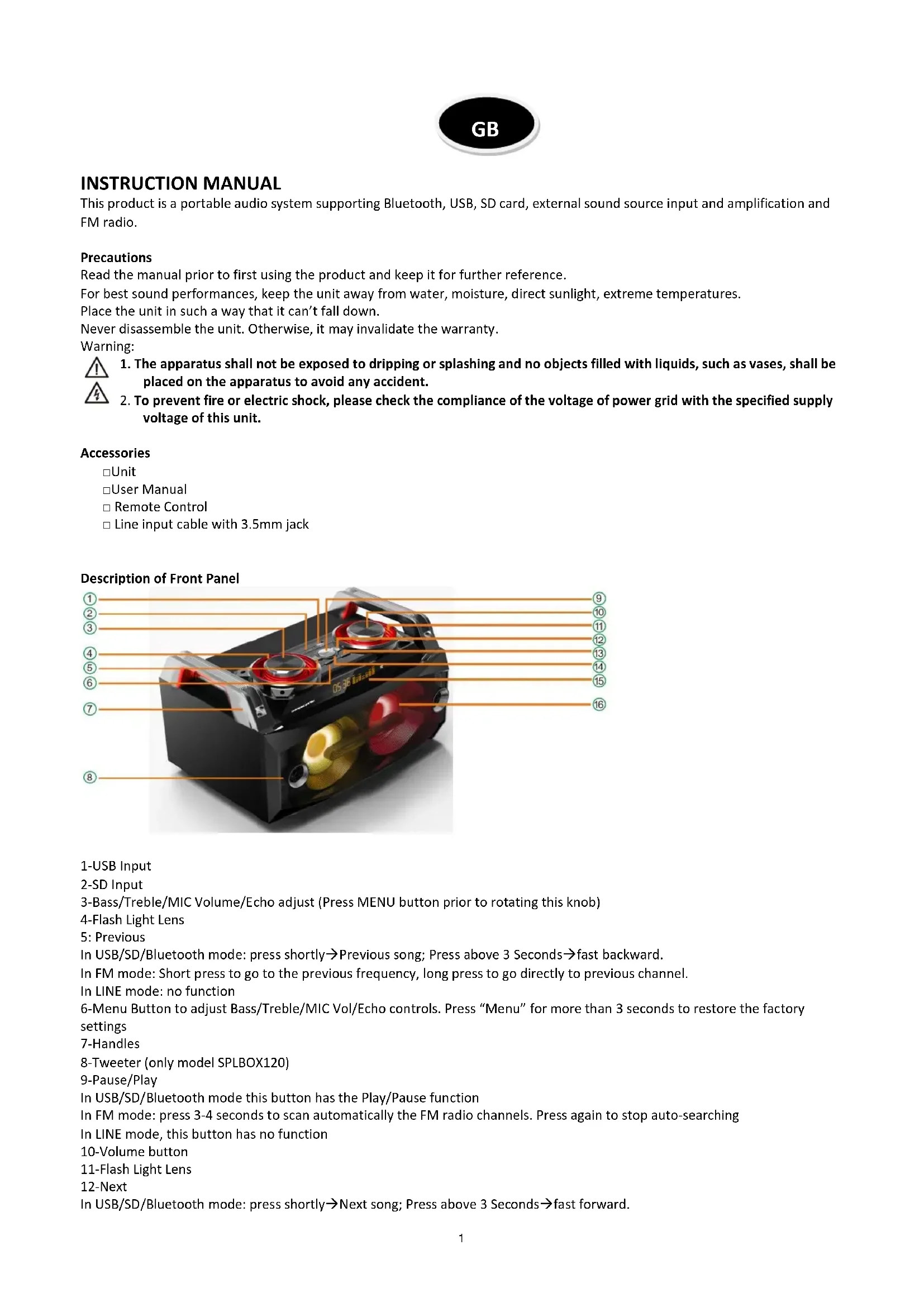
Description of Front Panel
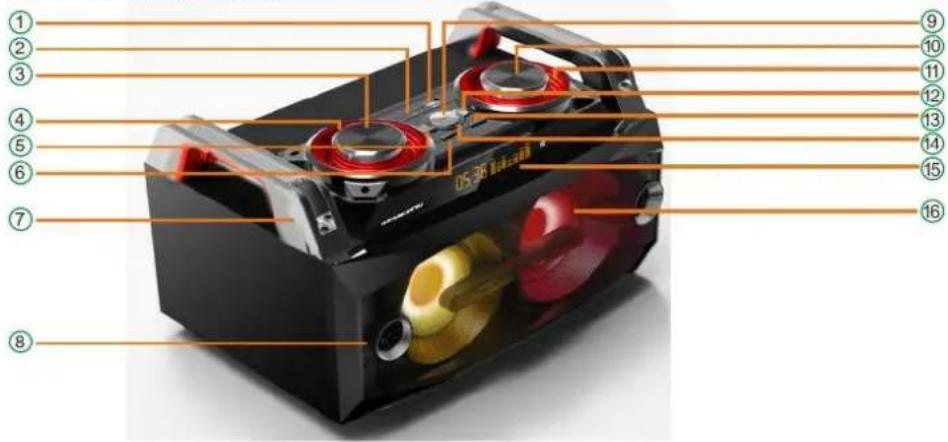
1-USB Input
2-SD Input
3-Bass/Treble/MIC Volume/Echo adjust (Press MENU button prior to rotating this knob)
4-Flash Light Lens
5: Previous
In USB/SD/Bluetooth mode: press shortly→Previous song; Press above 3 Seconds→fast backward.
In FM mode: Short press to go to the previous frequency, long press to go directly to previous channel.
In LINE mode: no function
6-Menu Button to adjust Bass/Treble/MIC Vol/Echo controls. Press "Menu" for more than 3 seconds to restore the factory settings
7-Handles
8-Tweeter (only model SPLBOX120)
9-Pause/Play
In USB/SD/Bluetooth mode this button has the Play/Pause function
In FM mode: press 3-4 seconds to scan automatically the FM radio channels. Press again to stop auto-searching
In LINE mode, this button has no function
10-Volume button
11-Flash Light Lens
12-Next
In USB/SD/Bluetooth mode: press shortly→Next song; Press above 3 Seconds→fast forward.
In FM mode: Short press to go to the next frequency, long press to go directly to next channel.
In LINE mode: no function
13-Mode: Short press to cycle through FM/Bluetooth/LINE IN/USB/SD Mode
14-Record:
Insert a USB/SD support and plug in the microphone prior to start recording. You can record from the external microphone, Line in and FM input and save your record to the USB/SD storage device.
Press and hold the REC button for more than 3 seconds to start recording,
Press shortly to play your recording
15-LED Display Screen
16-Full Frequency Speaker
Description of Rear Panel
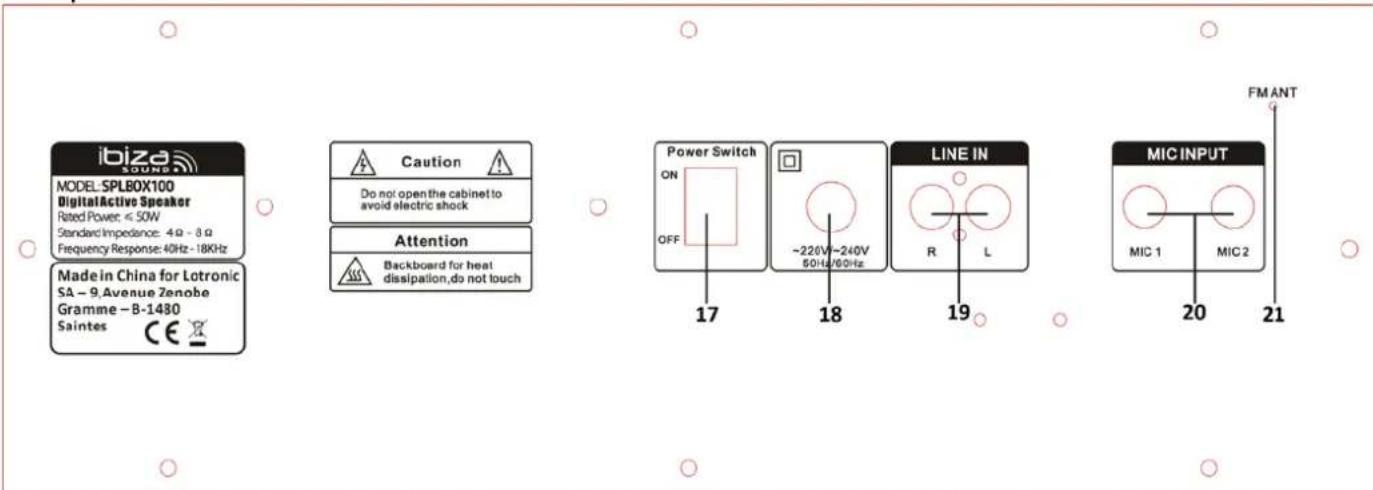
- ON/OFF switch
- Mains lead
- LINE input (left & right) for DVD, MP3; MP4, MP5 player, PC and other audio devices
- MIC1 & MIC2 inputs
- FM antenna: Change the position until you get a better FM signal reception.
Description of Remote Control
-
MUTE: Stops the sound. Press again to switch the sound on again.
-
Previous
In USB/SD/Bluetooth mode: press shortly→Previous song; Press above 3
Seconds→fast backward.
In FM mode: Short press to go to the previous frequency, long press to go directly to previous channel.
In LINE mode: no function
-
Mode: Short press to cycle through FM/Bluetooth/LINE IN/USB/SD Mode
-
Record function
-
Reduce echo effect
-
Adjustment of low frequencies
-
EQ: Sound effects: Rock, Jazz, classic, etc.
-
Microphone volume adjustment
-
Standby button
-
Pause/Play
In USB/SD/Bluetooth mode this button has the Play/Pause function
In FM mode: press 3-4 seconds to scan automatically the FM radio channels. Press again to stop auto-searching
In LINE mode, this button has no function
- Next
In USB/SD/Bluetooth mode: press shortly→Next song; Press above 3 seconds→fast forward.
In FM mode: Short press to go to the next frequency, long press to go directly to next channel.
In LINE mode: no function
- Switches the LEDs on the front panel ON and OFF. It has no incidence on the rhythmic flashing light
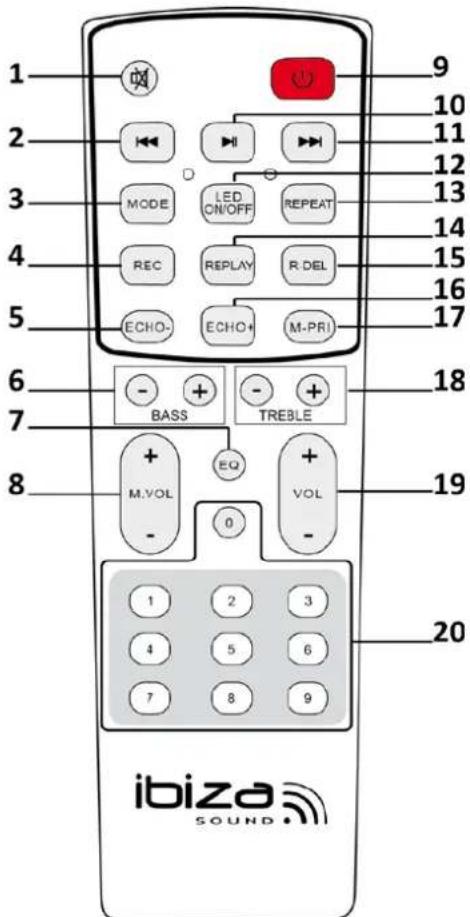
- Repeat: single-all-cancel repeat
- Play recorded files on the USB/SD media
- Delete recorded files on the SD/USB storage device
- Increase echo effect
- MIC priority: If you use the Karaoke function and the song is playing at the same time, press this button and the MIC sound will override the sound from USB/SD.
- Adjustment of high frequencies
- Volume adjustment
- Number buttons
In USB/SD mode: press to access directly the track
In FM mode: press to select directly a stored radio station
In all other modes, these buttons have no function.
Operating Instructions
● Bluetooth Pairing Mode:
Press MODE button on the unit or the remote control until BLUETOOTH is selected.
1). Put the cell phone within 3 meters;
2). Activate the Bluetooth features on your cell phone so that the cell phone starts to search for the Bluetooth device. Please refer to the users' manual for details
3). Select "SPLBOX100" or "SPLBOX120" from the device found by the cell phone;
4). For some cell phones, the users have to key in the identification code "0000" and press ENTER key to pair the unit and cell phone.
5). Press RETURN key on the cell phone to exit from the cell phone menu and play music with the unit when there is no barrier between two cell phones within 10 meters. At this time, you can play music with the unit.
6). Shortly press PLAY/PAUSE button to play or pause music. Short press “◀◀” or “▶▶” key to select the previous or next track.
- FM (radio) Mode:
Press MODE button shortly after startup to switch over to "FM" status.
Auto radio station search and storage: Long press on the PLAY/PAUSE button and the unit will automatically search for radio stations in the radio frequency range between 87.5 and 108.0 MHz. 20 radio stations may be stored. Press a number button on the remote to access directly a stored radio station.
•LINE IN MODE:
Press MODE button on the unit or the remote control until LINE is selected. Play the music of the device connected to the LINE input (19) on the rear panel.
- USB Mode:
- After startup, press MODE to select "USB" and insert the USB device. The unit will automatically read and play the music in the USB device.
- Press "▶II" key shortly to pause or play the track.
- Shortly press "◀◀" key to skip to the previous track.
- Shortly press "▶▶" key to skip to the next track.
- SD Mode:
- After startup, press MODE to select "SD" and insert the SD card. The unit will automatically read and play the music in the SD card.
- Press "▶II" key shortly to pause or play the music.
- Shortly press "◀◀" key to skip to the previous track.
- Shortly press "▶▶" key to skip to the next track.
Specifications
RMS output power: 35W + 2x 12W
Woofer 5.5"/14cm
Mid-range 2 x 3" (SPLBOX100)/2 x 4" (SPLBOX120)
Tweeter....2 x 1.5" (only model SPL120)
Speaker impedance: 4Ω (Ohm)
Frequency response....40-18kHz
Input voltage 220-240Vac 50/60Hz
Product dimensions: 360x285x225mm (SPLBOX100) / 380x320x235mm (SPLBOX120)
Product weight: SPLBOX100/5.5KG/SPLBOX120:6.5kg
The product design and specifications may be changed without prior notice!
Troubleshooting
| Problem | Possible cause | Solution |
| No sound output when power on | 1: No input sound source2: Volume knob in the lowest position3: USB/SD no plug | 1:Connect a Line signal2: Adjust volume3: Insert a USB/SD Card |
| Distortion of sound | 1:Volume too loud2: Audio file error | 1:Turn volume lower2:Check and change the audio file3: Adjust Bass/Treble by “MENU” and “Main volume” |
| No sound from the Microphone | 1:Microphone socket not fully plugged in2: Microphone switch is not on3: Microphone volume in lowest | 1:Completely plug in the microphone socket2:Power on microphone3:Adjust microphone volume |
| No sound from the USB/SD card | 1:incompatible song format2: Illegal operation causes failures3:USB/SD Card not inserted properly | 1:songs format should be MP3/WMA2: Power off, then power on3:Insert USB/SD card properly |
| FM Radio problems | 1:Can’t search radio channels2:FM no sound3:FM Channels too little4:FM sound not clear | 1: The FM ANT is not expanded2: Switch to next Channel and try3: Try and position the FM ANT to a different angle4: Twist FM ANT to other side or try “Auto scan” |
| Speaker has big noise | 1:Wired Microphone too close to the speaker2:Wired Microphone switch on but no use3: Microphone volume too loud4:Mobile phone too close to the speaker5:Too close to the equipment which interfere the speaker | 1:Do not let wired Microphones head point at the speaker2:Turn off wired microphone if not in use3:Reduce microphone volume4: Keep mobile away from the speaker during calls5:Keep the speaker away from other sources of interference |
| Blue-connect Failure | 1: Blue-connect Disconnected2: Blue-connect Connected but no voice3: Blue-connect effective distance too short | 1: Find the right device Name “ SPLBOX100” or “SPLBOX120”. Or press "MENU" Button to Restore Factory Settings.2: Confirm if you connected the right device Name “ SPLBOX100” or “SPLBOX120” (voice prompt will remind: "Bluetooth connected")3: Try to keep away from barriers, such as walls, glasses...etc |
Remarks: If the problem persists, please contact your dealer.

Electric products must not be put into household waste. Please bring them to a recycling centre. Ask your local authorities or your dealer about the way to proceed.
MANUEL D'UTILISATION
Dimensions: 360x285x225mm (SPLBOX100) / 380x320x235mm (SPLBOX120)
Poids SPLBOX100/ 5.5KG / SPLBOX120: 6.5kg
1-USB Eingang
2-SD Eingang
Tweeter....2 x 1.5" (only model SPL120)
- ON/OFF stikalo
- Napajalni kabel
- LINE vhod (levo in desno) za DVD, MP3; MP4, MP5 predvajalnik, PC in druge audio naprave
- MIC1 in MIC2 vhodi
- FM antena: Spremenite položaj, dokler ne boste dobili boljši FM sprejem signala.
Srednjetonec.... 2 x 3" (SPLBOX100)/2 x 4" (SPLBOX120)
Visokotonec 2 x 1.5" (samo model SPL120)
1-Intrare USB
2-Intrare SD/MMC
Difuzor inalte.... 2×1.5" (only model SPL120)
Impedanta difuzor 4Ω
Raspuns in frecventa....40 - 18 kHz
Tensiune de intrare 220-240 VAC 50/60Hz
Dimensiuni produs: 360x285x225mm (SPLBOX100) / 380x320x235mm (SPLBOX120)
Greutate produs: SPLBOX100/ 5.5KG / SPLBOX120: 6.5kg
EC Declaration of Conformity
Hereby we,
LOTRONIC SA
Avenue Zénobe Gramme, 9
1480 SAINTES
Belgique
+32.2.390.91.91
Certify and declare under our sole responsibility that the following product:
Trade name:

Product name:
SOUND BOX SYSTEM WITH USB AND BLUETOOTH
Type or model:
SPLBOX100 - SPLBOX120
Conforms to the essential requirements of the:
LVD directive 2006/95/CE and RTTE directive 1999/5/EC
Based on the following specifications applied:
Safety : EN60065:2014
Place and date of issue: Saintes (Belgium), on 02/10/2015
AKBAR Guive
Technical Manager
LOTRONIC SA the Gramme 11
Av. Zenobe Grant 1480 Saintes
Belgium
Tel. +32.2.390.91.5
Tel. +82 33 2 390.93.19
Fax +32.2.087 125 178
LOTRONIC
international

CE
Directive LVD 2006/95/CE - Directive R&TTE 1999/5/CE
Responsible technique
LOTRONIC SA
Av. Zenobe Gramme 11
1480 Saintes
Belgium
Tel. +32.2.390.91.91
Fax +32.2.390.93.19
TVA BE 0887 125 178