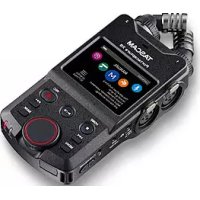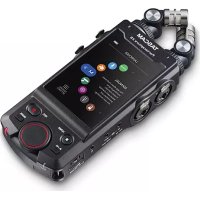
Portacapture X8 - Audio recorder TASCAM - Free user manual and instructions
Find the device manual for free Portacapture X8 TASCAM in PDF.



User questions about Portacapture X8 TASCAM
0 question about this device. Answer the ones you know or ask your own.
Ask a new question about this device
Download the instructions for your Audio recorder in PDF format for free! Find your manual Portacapture X8 - TASCAM and take your electronic device back in hand. On this page are published all the documents necessary for the use of your device. Portacapture X8 by TASCAM.
USER MANUAL Portacapture X8 TASCAM
TASCAM is a registered trademark of TEAC Corporation.
The microSDXC Logo is a trademark of SD-3C, LLC.

- MPEG Layer-3 audio coding technology licensed from Fraunhofer IIS and Thomson.
Supply of this product does not convey a license nor imply any right to distribute MPEG Layer-3 compliant content created with this product in revenue-generating broadcast systems (terrestrial, satellite, cable and/or other distribution channels), streaming applications (via Internet, intranets and/or other networks), other content distribution systems (pay-audio or audio-on-demand applications and the like) or on physical media (compact discs, digital versatile discs, semiconductor chips, hard drives, memory cards and the like). An independent license for such use is required. For details, please visit http://mp3licensing.com.
Microsoft and Windows are either registered trademarks or trademarks of Microsoft Corporation in the United States and/or other countries.
Apple and Mac are trademarks of Apple Inc.
App Store is a service mark of Apple Inc. - IOS is a trademark or registered trademark of Cisco in the U.S. and other countries and is used under license.
Android, Google Play and Google Play logo are trademarks of Google Inc.
ASIO is a trademark and software of Steinberg Media Technologies GmbH.

- Other company names, product names and logos in this document are the trademarks or registered trademarks of their respective owners.
TEAC CORPORATION
https://tascam.com/us/
Phone: +1-323-726-0303
10410 Pioneer Blvd. Suite #1 Santa Fe Springs, California 90670, U.S.A.
TEAC UK Ltd.
https://www.tascam.eu/en/
Phone: +44-1923-797205
Luminous House, 300 South Row, Milton Keynes,
Buckinghamshire, MK9 2FR, United Kingdom
TEAC EUROPE GmbH
https://www.tascam.eu/de/
Phone: +49-611-71580
Room 817, Xinian Center A, Tairan Nine Road West, Shennan Road, Futian District, Shenzhen, Guangdong Province 518040, China
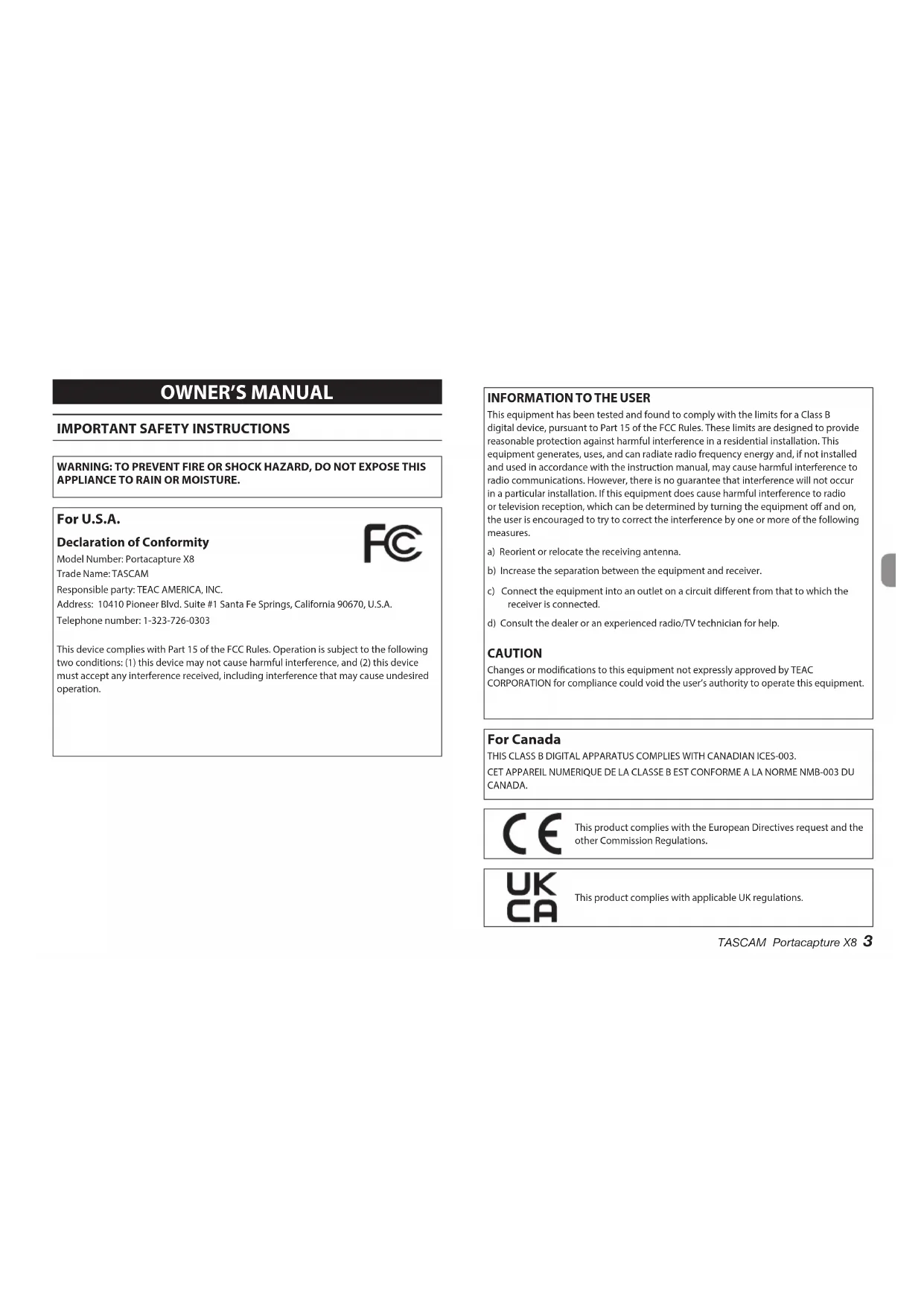
IMPORTANT SAFETY INSTRUCTIONS
WARNING: TO PREVENT FIRE OR SHOCK HAZARD, DO NOT EXPOSE THIS APPLIANCE TO RAIN OR MOISTURE.
For U.S.A.
Declaration of Conformity
Model Number: Portacapture X8
Trade Name:TASCAM
Responsible party: TEAC AMERICA, INC.
Address: 10410 Pioneer Blvd. Suite #1 Santa Fe Springs, California 90670, U.S.A.
Telephone number: 1-323-726-0303
This device complies with Part 15 of the FCC Rules. Operation is subject to the following two conditions: (1) this device may not cause harmful interference, and (2) this device must accept any interference received, including interference that may cause undesired operation.

INFORMATION TO THE USER
This equipment has been tested and found to comply with the limits for a Class B digital device, pursuant to Part 15 of the FCC Rules. These limits are designed to provide reasonable protection against harmful interference in a residential installation. This equipment generates, uses, and can radiate radio frequency energy and, if not installed and used in accordance with the instruction manual, may cause harmful interference to radio communications. However, there is no guarantee that interference will not occur in a particular installation. If this equipment does cause harmful interference to radio or television reception, which can be determined by turning the equipment off and on, the user is encouraged to try to correct the interference by one or more of the following measures.
a) Reorient or relocate the receiving antenna.
b) Increase the separation between the equipment and receiver.
c) Connect the equipment into an outlet on a circuit different from that to which the receiver is connected.
d) Consult the dealer or an experienced radio/TV technician for help.
CAUTION
Changes or modifications to this equipment not expressly approved by TEAC CORPORATION for compliance could void the user's authority to operate this equipment.
For Canada
THIS CLASS B DIGITAL APPARATUS COMPLIES WITH CANADIAN ICES-003. CET APPAREIL NUMERIQUE DE LA CLASSE B EST CONFORME A LA NORME NMB-003 DU CANADA.

This product complies with the European Directives request and the other Commission Regulations.

This product complies with applicable UK regulations.
- Read these instructions.
- Keep these instructions.
- Heed all warnings.
- Follow all instructions.
- Do not use this apparatus near water.
- Clean only with dry cloth
- Do not block any ventilation openings. Install in accordance with the manufacturer's instructions.
- Do not install near any heat sources such as radiators, heat registers, stoves, or other apparatus (including amplifiers) that produce heat.
- Only use attachments/accessories specified by the manufacturer.
- Unplug this apparatus during lightning storms or when unused for long periods of time.
- Refer all servicing to qualified service personnel. Servicing is required when the apparatus has been damaged in any way, such as power-supply cord or plug is damaged, liquid has been spilled or objects have fallen into the apparatus, the apparatus has been exposed to rain or moisture, does not operate normally, or has been dropped.
- Caution should be taken when using earphones or headphones with the product because excessive sound pressure (volume) from earphones or headphones can cause hearing loss.
- If you are experiencing problems with this product, contact TEAC for a service referral. Do not use the product until it has been repaired.
WARNING
- To prevent possible hearing damage, do not listen at high volume levels for long periods.

CAUTION
-
Do not expose this apparatus to drips or splashes.
-
Do not place any objects filled with liquids, such as vases, on the apparatus.
- Do not install this apparatus in a confined space such as a book case or similar unit.
- If the product uses batteries (including a battery pack or installed batteries), they should not be exposed to sunshine, fire or excessive heat.
- CAUTION for products that use replaceable lithium batteries: there is danger of explosion if a battery is replaced with an incorrect type of battery. Replace only with the same or equivalent type.
CAUTIONS ABOUT BATTERIES
This product uses batteries. Misuse of batteries could cause a leak, rupture or other trouble. Always abide by the following precautions when using batteries.
- Never recharge non-rechargeable batteries. The batteries could rupture or leak, causing fire or injury.
- When installing batteries, pay attention to the polarity indications (plus/minus ( / ) orientation), and install them correctly in the battery compartment as indicated. Putting them in backward could make the batteries rupture or leak, causing fire, injury or stains around them.
- When you store or dispose batteries, isolate their terminals with insulation tape or something like that to prevent them from contacting other batteries or metallic objects.
- When throwing used batteries away, follow the disposal instructions indicated on the batteries and the local disposal laws.
- Do not use batteries other than those specified. Do not mix and use new and old batteries or different types of batteries together. The batteries could rupture or leak, causing fire, injury or stains around them.
- Do not carry or store batteries together with small metal objects. The batteries could short, causing leak, rupture or other trouble.
- Do not heat or disassemble batteries. Do not put them in fire or water. Batteries could rupture or leak, causing fire, injury or stains around them.
- If the battery fluid leaks, wipe away any fluid on the battery case before inserting new batteries. If the battery fluid gets in an eye, it could cause loss of eyesight. If fluid does enter an eye, wash it out thoroughly with clean water without rubbing the eye and then consult a doctor immediately. If the fluid gets on a person's body or clothing, it could cause skin injuries or burns. If this should happen, wash it off with clean water and then consult a doctor immediately.
- The unit power should be off when you install and replace batteries.
- Remove the batteries if you do not plan to use the unit for a long time. Batteries could rupture or leak, causing fire, injury or stains around them. If the battery fluid leaks, wipe away any fluid on the battery compartment before inserting new batteries.
- Do not disassemble a battery. The acid inside the battery could harm skin or clothing.
For European Customers
Disposal of electrical and electronic equipment and batteries and/or accumulators
(a) All electrical/electronic equipment and waste batteries/accumulators should be disposed of separately from the municipal waste stream via collection facilities designated by the government or local authorities.
(b) By disposing of electrical/electronic equipment and waste batteries/accumulators correctly, you will help save valuable resources and prevent any potential negative effects on human health and the environment.
(c) Improper disposal of waste electrical/electronic equipment and batteries/ accumulators can have serious effects on the environment and human health because of the presence of hazardous substances in the equipment.
(d) The Waste Electrical and Electronic Equipment (WEEE) symbols, which show wheeled bins that have been crossed out, indicate that electrical/electronic equipment and batteries/accumulators must be collected and disposed of separately from household waste.
If a battery or accumulator contains more than the specified values of lead (Pb), mercury (Hg), and/or cadmium (Cd) as defined in the Battery Directive (2006/66/EC, 2013/56/EU), then the chemical symbols for those elements will be indicated beneath the WEEE symbol.
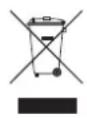

Pb,Hg,Cd
(e) Return and collection systems are available to end users. For more detailed information about the disposal of old electrical/electronic equipment and waste batteries/ accumulators, please contact your city office, waste disposal service or the shop where you purchased the equipment.
Introduction
Thank you very much for purchasing the TASCAM Portacapture X8.
Before using this unit, read this Owner's Manual carefully so that you will be able to use it correctly and enjoy working with it for many years. After you have finished reading this manual, please keep it in a safe place for future reference. You can also download this Owner's Manual from the TAS-CAM website.
Note about the Reference Manual
This Owner's Manual explains the main functions of this unit. Please see the Reference Manual for information about all the unit's functions.
You can download the Reference Manual from the TASCAM website.
TASCAM website
https://tascam.jp/int/product/ portacapture_x8/docs
Contents
IMPORTANT SAFETY INSTRUCTIONS. 3
Introduction 6
Note about the Reference Manual. 6
Items included with this product. 7
Accessories sold separately 7
Names of Parts. 8
Quick Start Guide 9
Connecting the included mics 9
Inserting microSD cards. 9
Powering the unit. 10
Turning the power on and off. 10
Setting the language, date and time 11
Formattling (initializing) microSD cards. 11
Basic screen operations. 12
Recording and playing files. 13
Useful features. 15
LAUNCHER 15
Controlling this unit from a smartphone. 16
Connecting cameras 16
Connecting computers and smartphones by USB. 16
Recording operation flow. 17
Troubleshooting 19
Precautions for placement and use. 20
Beware of condensation. 20
Cleaning the unit. 20
About TASCAM customer support service. 20
Specifications/rated values 20
Recorder specifications. 20
Analog audio input ratings. 20
Analog audio output. 21
Control input/output ratings 21
Audio performance 21
Recording times (in hours: minutes) 21
Other 22
Information is given about products in this manual only for the purpose of example and does not indicate any guarantees against infringements of third-party intellectual property rights and other rights related to them. TEAC Corporation will bear no responsibility for infringements on third-party intellectual property rights or other liabilities that occur as a result of the use of this product.
Properties copyrighted by third parties cannot be used for any purpose other than personal enjoyment and the like without the permission of the right holders recognized by copyright law. Always use this equipment properly.
TEAC Corporation will bear no responsibility for rights infringement committed by users of this product.
Items included with this product
This product includes the following items.
Keep the packing materials for transportation in the future.
Please contact the store where you purchased this unit if any of these items are missing or have been damaged during transportation.
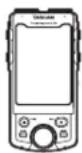
Main unit × 1 Included mics × 1 (left/right pair)
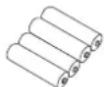
AA alkaline batteries × 4

mics × 1 (left/right pair)
Owner's Manual × 1 (this document including warranty)
TASCAM ID registration guide × 1
Accessories sold separately
This product does not include the following items. Please purchase any that you need for your uses.
- microSD cards
This is necessary to record and play files with this unit. This unit can use microSD cards that are Class 10 or higher and compatible with SD, SDHC or SDXC standards. A list of microSD cards that have been confirmed for use with this unit can be found on the TEAC Global Site (http://teac-global.com). Check the page for this product. You can also contact TASCAM customer support.
USB cables
A USB cable must be prepared to connect this unit to a computer (Windows/Mac) or smartphone. This unit has a USB Type-C port. Prepare a USB cable suitable for the USB port of the computer or smartphone being used.
Connecting to an iOS device with a lightning port
A genuine Apple Lightning to USB Camera Adapter and a commercially-available Type-A to Type-C cable are necessary.
Connecting to a computer or smartphone with a USB Type-C port
A commercially-available Type-C to Type-C cable is necessary.
Connecting to a computer or smartphone with a USB micro-B port
A commercially-available micro-B to Type-C cable is necessary.
Connecting to a computer or smartphone with a USB Type-A port
A commercially-available Type-A to Type-C cable is necessary.
PS-P520U AC adapter
This is necessary to operate this unit using AC power supply.
NOTE
This unit does not have a battery charging function when using an AC adapter.
AK-BT1 Bluetooth adapter
This is necessary to control this unit from a smartphone using Bluetooth connection.
Names of Parts
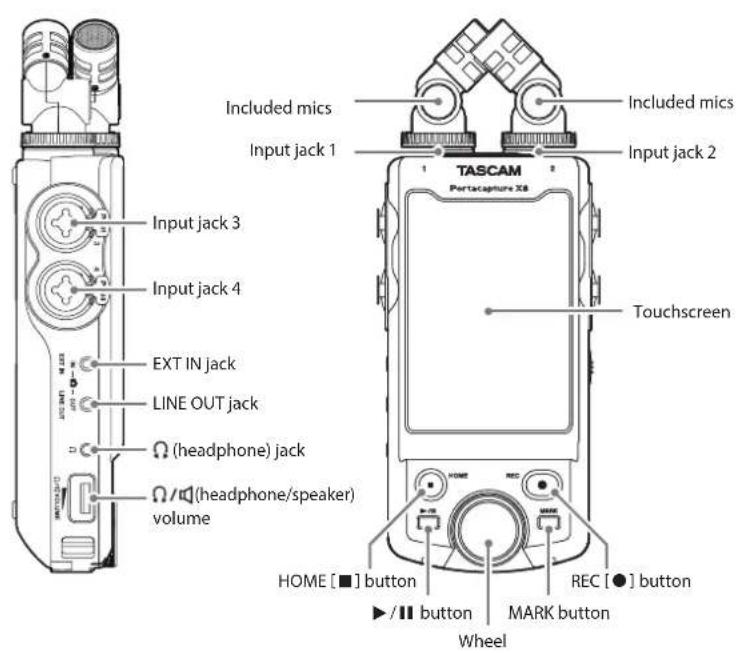
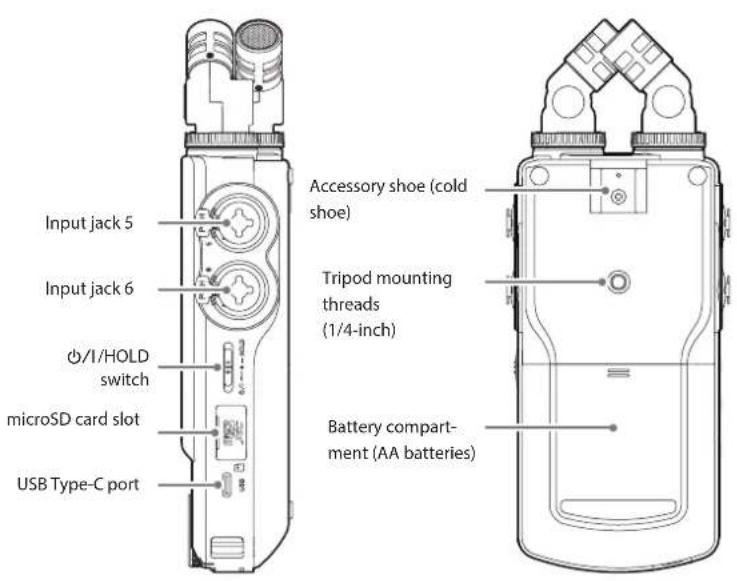

Bluetooth device connector:
Connect and use an AK-BT1 Bluetooth adapter here.(see "Controlling this unit from a smartphone" on page 16)
The included mics can be connected in two ways. (see "Connecting the Included mics" on page 9)
Input jacks 1/2:
Connect the included mics or other mics that are compatible with plug-in power to use these (3.5mm TRS)
Input jacks 3/4/5/6:
Connect other mics or line output devices to use these (XLR/TRS)
Quick Start Guide
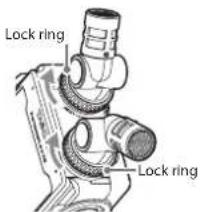
Connecting the included mics
The included mics can be connected in two ways.
X-Y connection
This enables recording with a clear stereo field and reduced phase difference.
A-B stereo connection
This enables recording with a wide left-right stereo field.
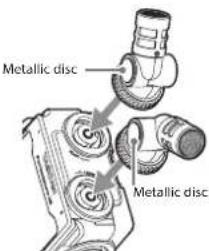
- Connect the mics so that their the metallic discs face the same direction as the touchscreen.
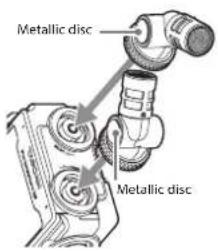
X-Y connection A-B stereo connection
The included mics become usable by turning their lock rings completely until they are tight.
The included mics will not be recognized if their lock rings have not been turned completely.
Always use the included mics together as a pair.
NOTE
- Reverse these procedures to disconnect the mics.
The angles of the included mics cannot be adjusted.
The included mics cannot be rotated.
TIP
Input jacks 1/2 support plug-in power and can be used to connect lavalier mics with standard 3.5mm (1 / 8^ ) TRS plugs (Tip: HOT, Ring: COLD, Sleeve: GND).
- Turn their locking rings to fix them in place.
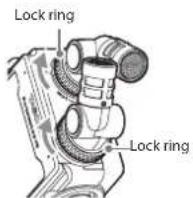
X-Y connection A-B stereo connection
Inserting microSD cards
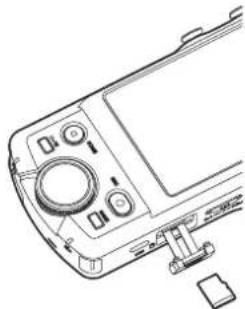
Open the microSD slot cover and insert a microSD card.
NOTE
microSD cards are delicate media.
In order to avoid damaging microSD cards, take the following precautions when handling them.
- Do not leave them in extremely hot or cold places.
- Do not leave them in extremely humid places.
- Do not let them get wet.
- Do not put things on top of them or twist them.
Do not hit them. - Do not remove or insert them during recording, playback, data transmission or other access.
- When transporting them, put them into cases, for example.
Powering the unit
This unit can be powered in two ways: with AA batteries or by external power using the USB port.
Using AA batteries
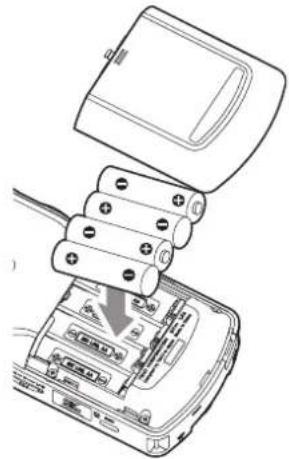
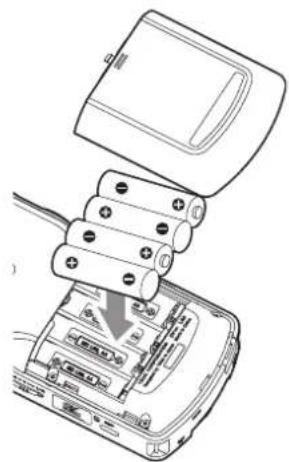
- Remove the battery compartment cover, and insert 4 AA batteries with their and marks oriented as shown.
- Reattach the battery compartment cover.
NOTE
- This unit cannot recharge Ni-MH batteries. Use a commercially available recharger.
- The included alkaline batteries are for confirming operation of the unit and might not last very long.
Using external power
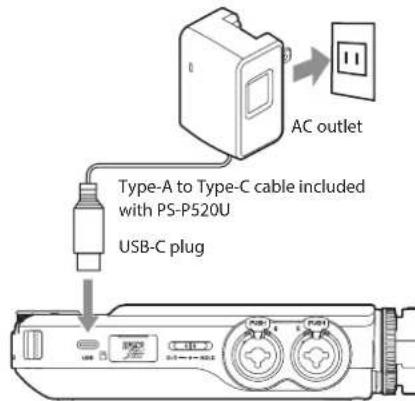
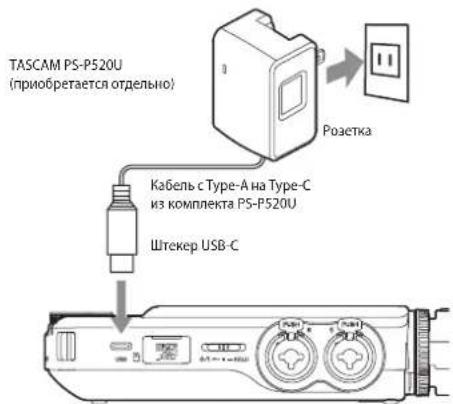
Connect the USB port on the unit to an external power supply.
This illustration below is an example of connecting a PS-P520U AC adapter (sold separately) to the unit.
TASCAM PS-P520U (sold separately)
CAUTION
We highly recommend using the AC adapter designed for use with this unit (PS-P520U sold separately). When using another external power supply, use one with the following specifications.
Supplied voltage: 5 V
- Supplied current: 1.5A or more
Using an external power supply with specifications other than the above could cause malfunction, overheating, fire or other problems.
If anything abnormal occurs, stop use and contact the retailer where you purchased the unit or a TASCAM customer support service to request repair.
NOTE
If an external power supply that provides current less
than 1.5 A is connected, the unit will automatically enable the POWER SAVE MODE, restricting some functions.
- When using the factory default setting, if an external power supply is connected, power from it will be used even if batteries are also installed.
Power supply settings can be changed with the GENERAL SETTINGS screen > POWER/DISPLAY page > POWER SOURCE SELECT item.
See the Reference Manual for details.
Turning the power on and off
Turning the power on
Slide the /1 HOLD switch toward /1 until the display is activated. Then, release the switch.
When the unit starts up, the touchscreen display becomes active.
The first time the unit is started, the LANGUAGE screen will open. From the second time, the HOME screen of the app selected on the LAUNCHER screen when the unit was last turned off will reopen.
Turning the power off
Slide the /1 HOLD switch toward /1 until the display is deactivated. Then, release the switch.
Setting the language, date and time
Selecting the language
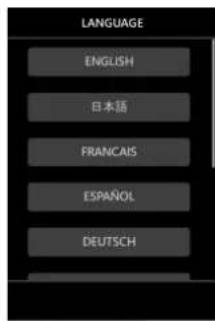
The first time the unit is turned on after purchase, the LANGUAGE screen will open.
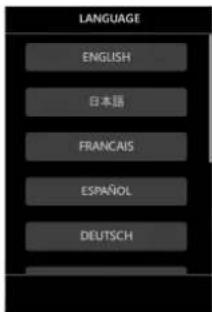
- Swipe the screen vertically to find the desired language.
Options
ENGLISH: Use English (default setting)
日本語: Use Japanese
FRANCAIS: Use French
ESPANOL: Use Spanish
DEUTSCH: Use German
ITALIANO: Use Italian
中文:Use Chinese
Hans: Use Korean
pycckn r3bik: Use Russian
- Tap the desired language to set it.
NOTE
The language setting can be set again using the GENERAL SETTINGS screen > SYSTEM page > LANGUAGE item. See the Reference Manual for details.
Setting the date and time
After setting the language and whenever the date and time has been reset, the DATE/TIME screen will open to enable setting them.
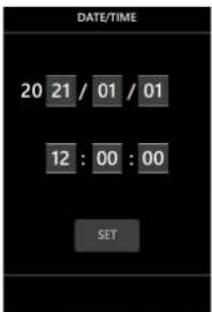
-
Touch and swipe the numbers to set the date and time.
-
Tap the SET button to confirm the settings.
NOTE
After the date and time are set, the format confirmation screen will open if a microSD card that requires formatting is loaded.
- Date and time settings can also be changed using the GENERAL SETTINGS screen >SYSTEM page >DATE/TIME item.(see "GENERAL SETTINGS screen" on page 15)
Formatting (initializing) microSD cards
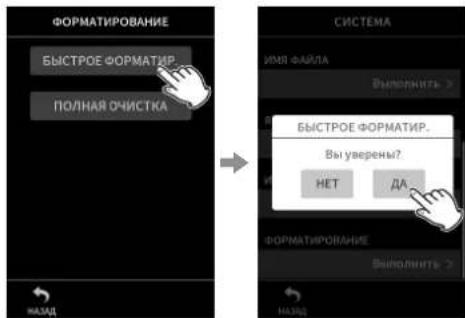
The following message will appear if an unformatted card is loaded.
Tap QUICK FORMAT or ERASE FORMAT to start formatting.
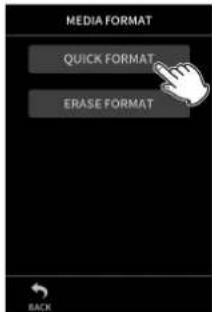
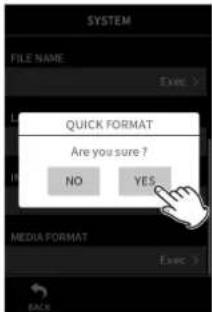
We recommend using ERASE FORMAT when formatting microSD cards the first time they are used with this unit.
After formatting completes successfully, the LAUNCHER (app selection) screen will open.
CAUTION
Formatting will erase all data on a microSD card.
Back up to a computer, for example before formatting a card.
NOTE
- Formatting can also be executed using the GENERAL SETTINGS screen > SYSTEM page > MEDIA FORMAT item. (see "GENERAL SETTINGS screen" on page 15)
- Using the ERASE FORMAT option might improve writing performance that has decreased due to repeated use. If "Write error REC continue" or "Card slow Check BOF MARK" appears during recording, format the card using the ERASE FORMAT option.
- ERASE FORMAT checks the memory for errors while formatting, so it takes more time than QUICK FORMAT.
Basic screen operations
Functions can be set and adjusted by tapping, swiping and sliding on the touchscreen of this unit.
The first time the unit is started, after setting the language, date and time, the LAUNCHER screen will open. The LAUNCHER screen can be used to launch various recording apps and setting screens.
Launching recording apps
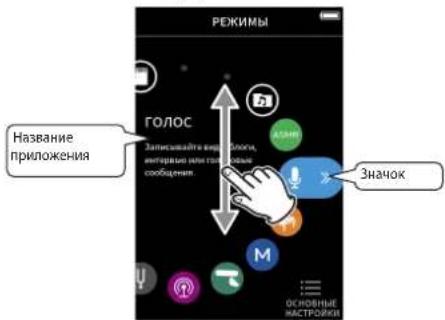
- As shown in the illustration below, swipe the middle of the screen to select the app to launch.
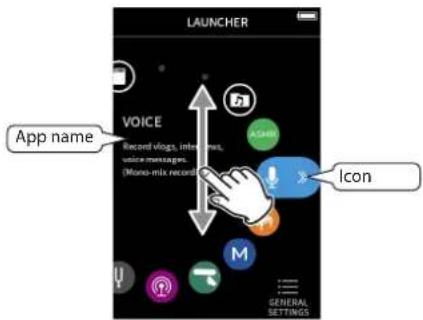
- Tap its icon to launch the app.
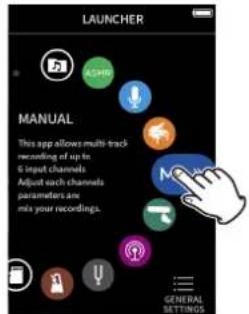
The recording app HOME screen will open.
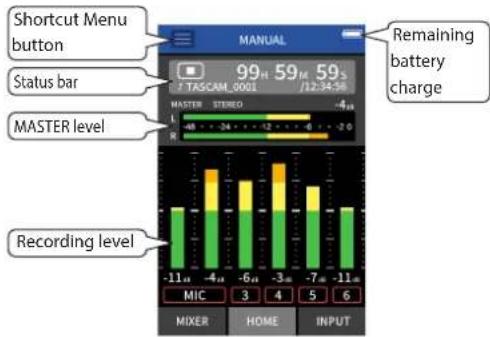
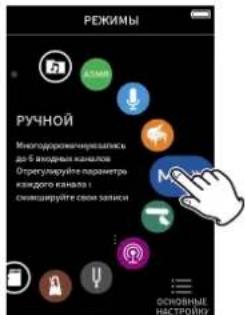
MANUAL recording app example
Switching screens
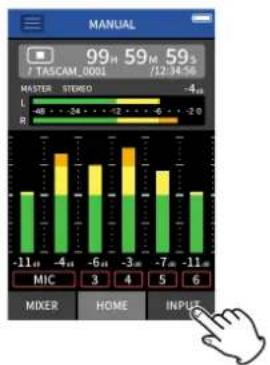
Tap the name of the screen at the bottom of the display to switch to it.
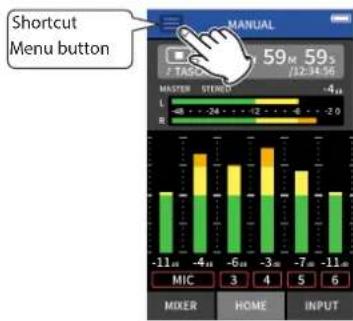
The Shortcut Menu will open at the bottom of the screen.
- Tap the LAUNCHER icon in the Shortcut Menu.
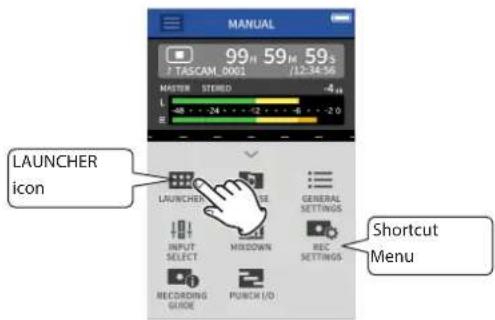
The LAUNCHER screen will reopen.
Returning to the LAUNCHER screen
- Tap the Shortcut Menu button at the top of the screen.
Recording and playing files
Recording
To record, open the recording app shown on the LAUNCHER screen that suits the type of recording (see "Recording apps" on page 15).
After launching the recording app, the input levels of each track and their mix must also be set in order to conduct recording at suitable levels.
This unit has a Recording Guide function designed to prevent users from accidentally skipping important steps or doing them out of order. This function can only be used with the MANUAL app. (When shipped new the Recording Guide function is on by default.)
After the MANUAL app is launched, operation procedures will be shown. Follow their instructions to make adjustments. When the Recording Guide function is active, setting screens open in the following order, enabling settings to be made in the correct sequence.
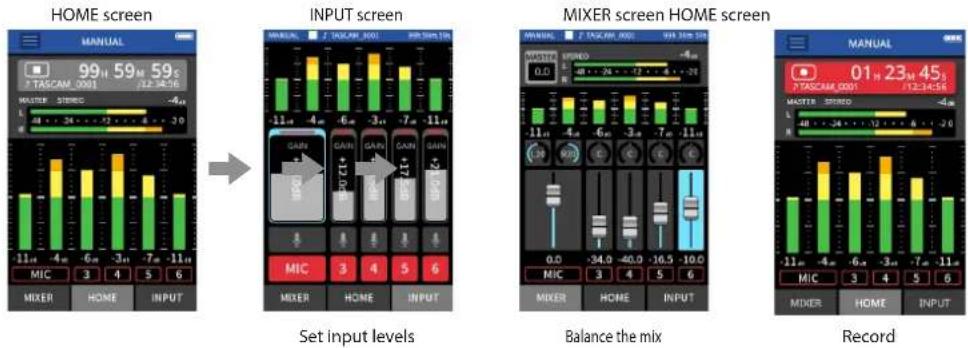
NOTE
- By default (Recording Guide function activated), recording cannot be started before proceeding through the guided steps to the MIXER screen.
- If the Recording Guide function is not needed, open the MANUAL app HOME screen, press the Shortcut Menu, and set "RECORDING GUIDE" to "OFF". This enables recording to be started from other screens in addition to the MIXER screen.
See "Recording operation flow" on page 17 for differences in recording operations when the Recording Guide function is on or off.
In this manual, recording procedures are explained for the MANUAL app (with the Recording Guide function on), which is the basic way to use the unit. See the Reference Manual for explanations of recording procedures using other apps.
Procedure 1: Launch the recording app
- Launch the MANUAL app on the LAUNCHER screen.
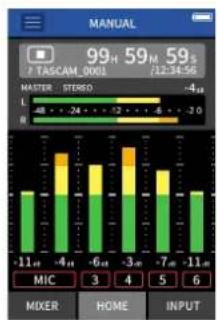
The recording app HOME screen will open.
Procedure 2: Set input levels
- Press the REC [●] button on the unit.
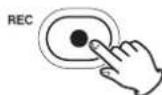
The REC indicator will blink.
-
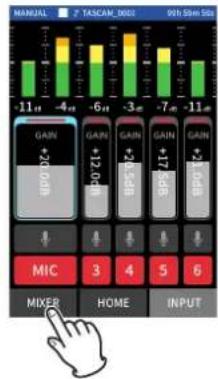
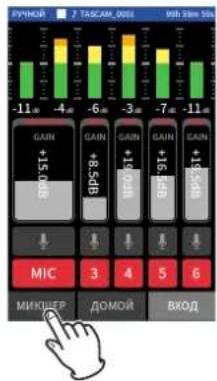
Tap INPUT at the bottom right of the screen to open the INPUT screen.
-
Tap MIC or numbers 3 to 6 to turn the recording tracks on/off.
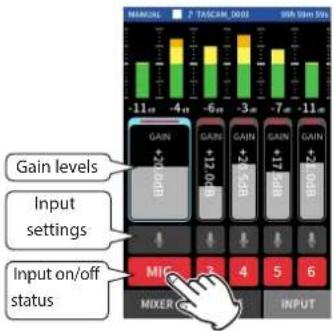
Tracks shown with red backgrounds will be recorded.
- Slide the track GAIN faders to adjust their input levels.
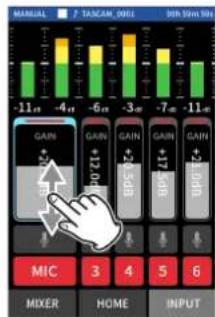
While watching the level meters, adjust the GAIN faders until the highest that the meters reach is about -12dB
NOTE
If an input level exceeds -2 dB, the PEAK indicator on the unit will light.
Procedure 3: Set the mixer
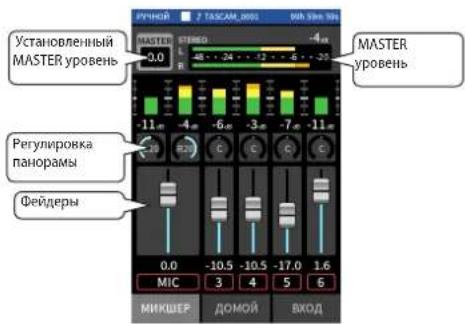
- Tap MIXER at the bottom left of the screen to open the MIXER screen.
- Slide the faders of each track to adjust the balance of levels sent to the MASTER.
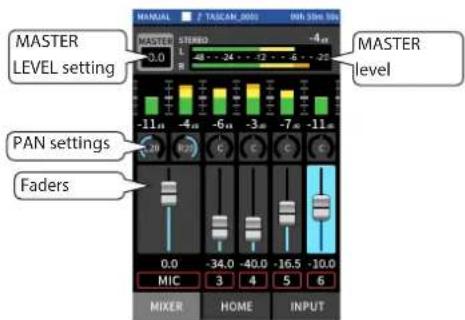
If the input level is too low the recorded sound will be quiet, but if it is too high the sound will be distorted (or break up).
Procedure 4: Start recording
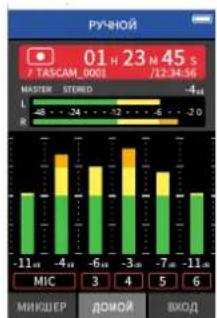
- Press the REC [●] button to start recording.
When recording starts, the REC indicator will light.
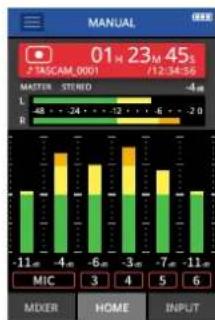
- Press the HOME [■] button to stop recording.

When recording stops, the REC indicator will become unlit.
Starting playback
Press the /11 button to start playback.
NOTE
To listen to the playback sound through the built-in speaker, set the GENERAL SETTINGS screen > I/O SETTINGS page > SPEAKER item to ON. This is set to OFF when shipped new from the factory.
Pausing playback
During playback, press the or HOME [ ] button to pause playback.
Press the button again to resume playback.
Stopping playback
Press the HOME [ ] button when paused or playing to return to the beginning of the file.
NOTE
See the Reference Manual for explanations of the other playback functions.
Listening with headphones
Connect headphones to the (headphone) jack.
CAUTION
Before connecting headphones, lower the headphone/speaker) volume control to the minimum level. Failure to do so might cause sudden loud noises, which could harm your hearing or result in other trouble.
Adjusting the volume
Use the (headphone/speaker) volume control to adjust the volume output from the built-in speaker and headphones.
Useful features
Here are examples of some functions. See the Reference Manual for details about use and other functions.
LAUNCHER
The LAUNCHER can be used to launch recording apps and open setting screens.
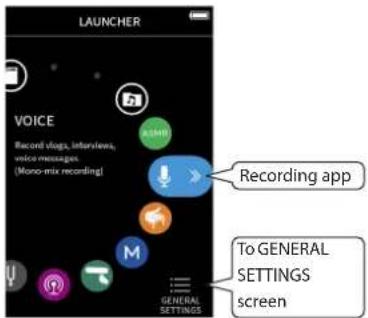
Recording apps
The following apps for typical recording situations are available.
| MANUAL | This is the basic app of the unit. Multitrack recording of up to six channels is possible. |
| VOICE | This recording app is good for capturing interviews and meetings. |
| POODCAST | This app is good for recording podcasts with up to four people. |
| MUSIC | This recording app is good for easily capturing instrumental and vocal performances. |
| FIELD | This recording app is good for recording outdoors. |
| ASMR | The screen effect changes in response to the input sound in this app. |
| ASMR |
NOTE
The designs and functions of apps and other features could change with firmware updates.
GENERAL SETTINGS screen
Tap items to make detailed settings for the unit.
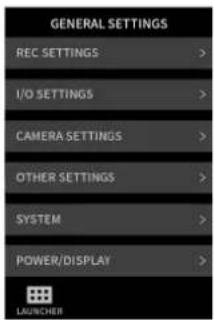
See the Reference Manual for information about all the settings.
Controlling this unit from a smartphone
When an AK-BT1 Bluetooth adapter is connected to the Bluetooth device connector of this unit, this unit can be controlled from an iOS/Android device using a controller app. See the Reference Manual for how to connect the AK-BT1 Bluetooth adapter (sold separately) to this unit and how to install and use the controller app.
Connecting cameras
The following functions can be used when connected to a Digital SLR camera.
Output slate tones and set levels
Lower the LINE OUT jack output level to suit the camera
TIP
Slate tones are signals input simultaneously into both the audio of video files and the files recorded by this unit. They can be used to synchronize audio when editing video files.
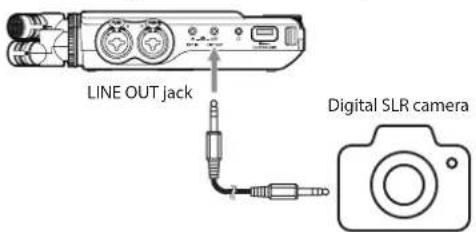
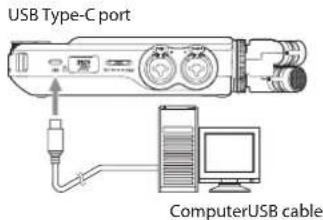
Connecting computers and smartphones by USB
The following functions can be used when connected by USB to a computer (Windows/Mac) or smartphone.
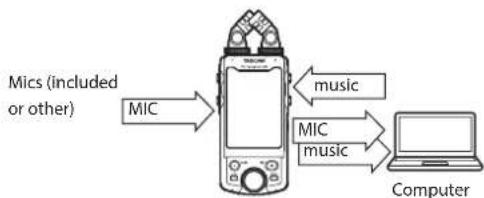
Use the unit as a USB mic.
- Simultaneously record to a computer while recording on the microSD card in the unit (backup recording)
Monitor sound from the computer
Add sound through the unit's mics to sound playing on the computer and stream it live on the Internet (loopback)
Use as a microSD card reader (when connected to a computer only)
NOTE
A USB cable (sold separately) must be prepared to connect this unit to a computer or smartphone. (see "Accessories sold separately" on page 7)
Recording operation flow
This unit has Recording Guide and REC Pause functions. Depending on their on/off settings, pressing buttons will have the following effects.
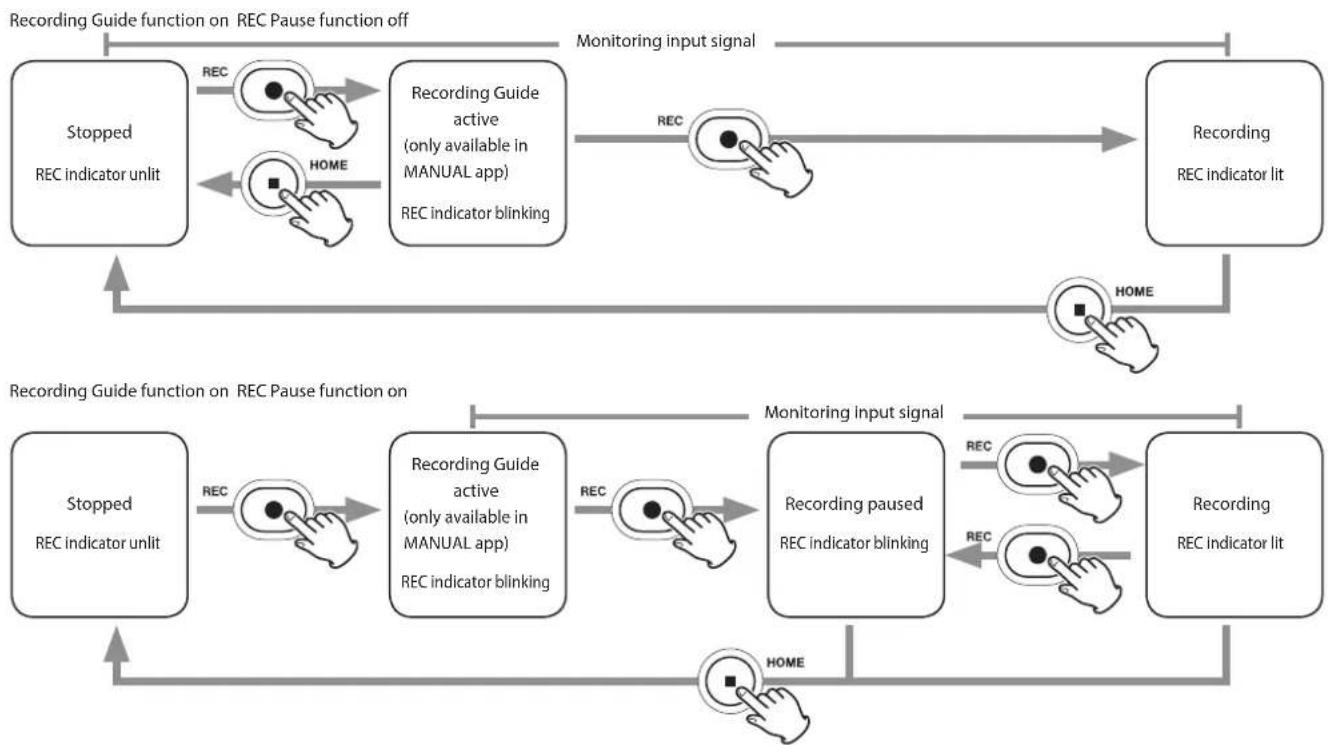
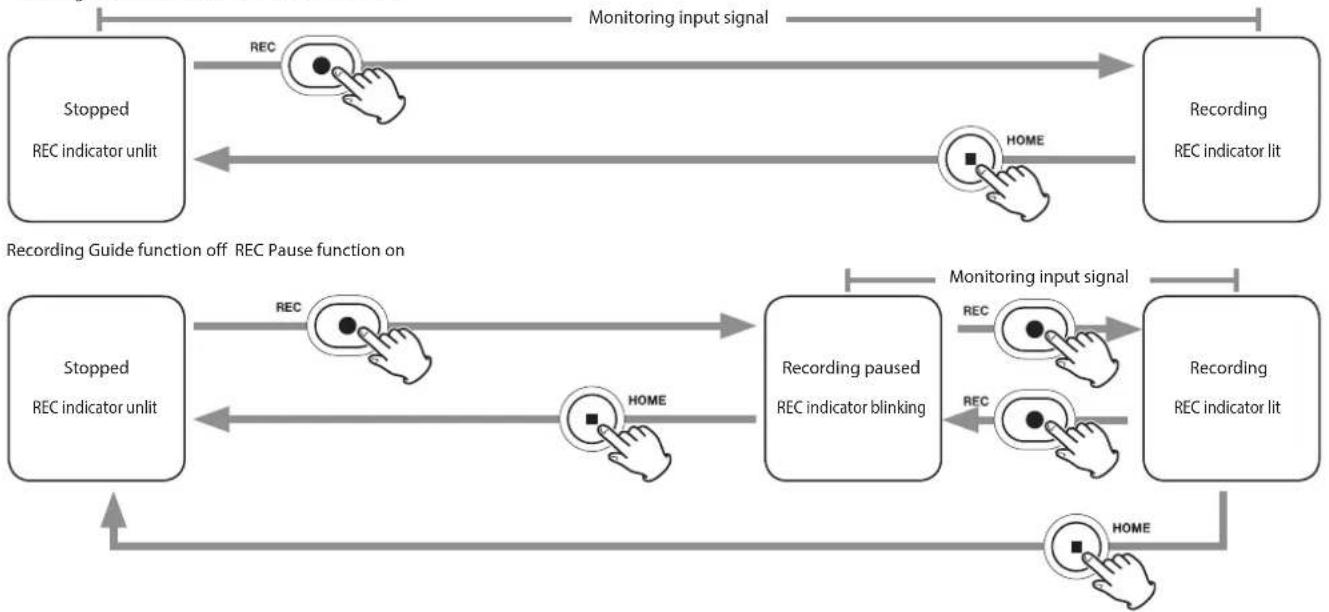
Recording Guide function off REC Pause function off
The Recording Guide function can only be used with the MANUAL app. With apps other than the MANUAL app, the Recording Guide function will be disabled regardless of its on/off setting.
This unit has a REC Pause function that causes it to start monitoring the input signal when the REC [●] button is pressed. This function can be used with all recording apps.
The REc Pase fucn can be used to reduce power consumption when recording is stopped. In addition, a recording can be started and paused repeatedly without stopping to save it as a single file.
The REC Pause function is off when shipped new from the factory.
When the REC Pause function is off, the input signal is always monitored when a recording app is active.
When the REC Pause function is on, the input signal is only monitored when the Recording Guide function is active, recording is paused or recording is in progress.
The REC Pause function can be set on the GENERAL SETTINGS screen > REC SETTINGS page.
Troubleshooting
If you are having trouble with the operation of this unit, please check the following before seeking repair. If these measures do not solve the problem, please contact the store where you purchased this unit or TASCAM customer support service.
Power will not turn on
- Confirm that the /1 / HOLD switch is not set to HOLD.
- Confirm that batteries are installed correctly.
- Confirm that the TASCAM PS-PS20U AC adapter (sold separately) power plug and the USB connector are securely connected. The unit might not operate properly through a USB hub.
The unit turns off automatically
- Confirm that the automatic power saving function is disabled.
The automatic power saving function can be turned on/off using the GENERAL SETTINGS screen > POWER/ DISPLAY page > AUTO POWER SAVE item.
- Since this unit complies with the European Standby Power Regulations (ErP), the automatic power saving function operates regardless of whether the unit is being powered by an AC adapter or batteries. If you do not want to use the automatic power saving function, set it to "OFF". (The factory default setting is "30 min")
Operation is not possible using the unit controls
- Confirm that the /1 HOLD switch is not set to HOLD.
- When the microSD card reader function is active on the display, other operation is not possible.
The microSD card is not recognized
- Confirm that the microSD card is inserted completely.
No sound is output
- Confirm the unit's headphone/speaker output level.
- Check the monitoring system connections and volume level.
- No sound is output from the speaker in the following conditions.
The (headphone/speaker) volume is set to "0".
GENERAL SETTINGS screen > I/O SETTINGS page > SPEAKER is set to "OFF"(see "GENERAL SETTINGS screen" on page 15)
The unit is recording or in recording standby
The LINE OUT or headphones jack is in use.
Recording is not possible
- Confirm that the microSD card has enough open space.
- Recording becomes impossible when the total number of files reaches 5000.
The input sound is extremely quiet or loud
- Check input level settings.(see "Recording and playing files" on page 13)
- Check the output levels of connected external equipment.
A file cannot be deleted
A protected (read only) file cannot be erased.
This unit's files do not appear on the computer
- Confirm that the unit is properly connected to the computer using its USB port. The unit might not operate properly if connected through a USB hub.
- Confirm that the unit screen shows "microSD card reader".
The wrong language was set accidentally
- Slide the / I / HOLD switch toward the / I icon until the unit turns off. Then, while pressing and holding the HOME [■] button, slide the / I / HOLD switch toward the / I icon again.
The language selection menu will appear, and you will be able to select the language.
Noise is occurring
If this unit is near a TV, radio, power amplifier or other device with a large transformer, noise could occur with this unit or other devices nearby.(see "Precautions for placement and use" on page 20)
The built-in speaker volume is low
- Turn the (edphone/speaker) volume in the direction that increases the number.
- If input levels were low during recording, it might be difficult to hear even when the speaker is at its maximum volume. If the maximum input level during recording is close to 0 dB, the built-in speaker will output at near maximum volume
If more volume is needed, connect an external speaker with a built-in amp or an amp with a speaker connected to it.
The date/time is incorrect
- They can be set again using the GENERAL SETTINGS screen > SYSTEM page > DATE/TIME item.(see "GENERAL SETTINGS screen" on page 15)
Precautions for placement and use
The operating temperature range of this unit is 0 - 40^
- Do not install this unit in the following types of locations. Doing so could degrade the sound quality and/or cause malfunctions.
Places with significant vibrations
Next to a window or in another location exposed to direct sunlight
Near heaters or other extremely hot places
Extremely cold places
Very humid or poorly ventilated places. Very dusty places
Places exposed directly to rain or other water
If this unit is placed near a power amplifier or other device with a large transformer, it could cause a hum. If this occurs, increase the distance between this unit and the other device.
- This unit could cause color irregularities on a TV screen or noise from a radio if used nearby. If this occurs, use this unit farther away.
- This unit might produce noise if a mobile phone or other wireless device is used nearby to make calls or send or receive signals. If this occurs, increase the distance between this unit and those devices or turn them off.
- Do not place this unit on top of a power amplifier or other device that generates heat.
Beware of condensation
Condensation could occur if the unit is moved from a cold place to a warm place, it is used immediately after a cold room has been heated or it is otherwise exposed to a sudden temperature change. To prevent this, or if this occurs, let the unit sit for one or two hours at the new room temperature before using it.
Cleaning the unit
Use a dry soft cloth to wipe the unit clean. Do not wipe with chemical cleaning cloths, thinner, alcohol or other chemical agents. Doing so could damage the surface or cause discoloration.
About TASCAM customer support service
TASCAM products are supported and warranted only in their country/region of purchase.
To receive support after purchase, on the TASCAM Distributors list page of the TEAC Global Site (https://teac-global.com/), search for the local company or representative for the region where you purchased the product and contact that organization.
When making inquiries, the address (URL) of the shop or web shop where it was purchased and the purchase date are required. Moreover, the warranty card and proof of purchase might also be necessary.
Specifications/rated values
Recorder specifications
Recording media
microSD card (64 MB - 2 GB)
microSDHC card (4 GB - 32 GB)
microSDXC card (48 GB - 512 GB)
Recording/playback formats
WAV (BWF):44.1/48/96/192kHz, 16/24-bit or 32-bit float
MP3: 44.1/48kHz, 128/192/256/320kbps
Number of channels
Input channels: 6 channels maximum
Recording tracks: 8 tracks maximum
Analog audio input ratings
Mic inputs (balanced)
Input jacks 3/4/5/6 (input set to "MIC")
Connectors:
XLR-3-31 equivalent(1: GND, 2: HOT, 3: COLD)
6.3mm (1/4") standard TRS jacks (Tip: HOT, Ring: COLD, Sleeve: GND)
(phantom power supported by XLR only)
Input impedance: 2.2k or h
Maximum input level: +2 dBu
Minimum input level: -75 dBu
Input jacks 3/4/5/6 (input set to "LINE")
Connectors:
XLR-3-31 equivalent(1: GND, 2: HOT, 3: COLD)
6.3mm (1 / 4^n) standard TRS jacks
Input impedance: 9k or higher
Nominal input level: +4 dBu (GAIN setting at minimum)
Maximum input level: +24 dBu
Minimum input level: -53 dBu
Mic inputs (unbalanced): Input jacks 1/2
(support plug-in power)
Line input (unbalanced):EXT IN jack
Nominal input level: -10 dBV (GAIN setting at minimum)
Maximum input level: +10 dBV
Minimum input level: -48 dBV
Analog audio output
Line output (unbalanced): LINE OUT jack
Output impedance: 200
Nominal output level: -14 dBV
Maximum output level: +6 dBV
Headphone output: headphone jack
less, into 32 Ω load)
Built-in speaker
0.4 W (mono)
Control input/output ratings
USB port
Connector: Type-C
Format: USB 2.0 HIGH SPEED mass storage class
Bluetooth device connector
For Bluetooth adapter (AK-BT1) only
Audio performance
Frequency response
Input jacks 1-6 and EXT IN jack
20 Hz - 20 kHz at 48 kHz: +0/-0.3 dB (JEITA)
20 Hz - 60 kHz at 192 kHz: +0/-2.5 dB (JEITA)
S/N ratio
Input jacks 1-2 (20kHz SPCL LPF, A-weighting)
101dB(48kHz)
104dB (192 kHz)
Input jacks 3-6,EXT IN jack (20kHz SPCL LPF,A-weighting)
102dB(48kHz)
105dB (192 kHz)
Total harmonic distortion ratio (THD+N)
Input jacks 1-2 (1kHz sine wave, -5 dBFS input, GAIN at
minimum, 20kHz SPCL LPF)
0.005%
Input jacks 3-6 (LINE IN) (1kHz sine wave, -5 dBFS input,
GAIN at minimum, 20kHz SPCL LPF)
0.008%
Input jacks 3-6 (MIC IN) (1kHz sine wave, -5 dBFS input,
GAIN at minimum, 20kHz SPCL LPF)
0.006%
Note: JEITA indicates conformance to JEITA CP-2150
Recording times (in hours: minutes)
| File format (recording setting) | Card capacity (32GB) | |
| 320kbps MP3 (stereo) | 44.1kHz | 222:13 |
| 16-bit WAV (stereo) 50:23 | ||
| 24-bit WAV (stereo) 96kHz 15:25 | ||
| 24-bit WAV (stereo) | 192kHz | 7:42 |
| 32-bit float WAV (stereo) | 192kHz | 5:47 |
- The recording times shown above are estimates. They might differ depending on the microSD, microSDHC or microSDXC card in use.
The recording times shown above are not continuous recording times, but rather they are the total possible recording times for the microSD/microSDHC/microSDXC card.
If recorded in mono, maximum recording times will be about double those above.
If using dual recording, maximum recording times will be about half those above.
Other
Power
4 AA batteries (alkaline, NiMH or lithium-ion)
USB bus power from a computer
AC adapter (TASCAM PS-P520U, sold separately)
Power consumption
7.5 W (maximum)
Battery operation time (continuous operation)
Using alkaline batteries (EVOLTA)
| Use conditions | Operation time |
| Input through input jacks 1/2 (included mics) | |
| Phantom power unused | About 11:00 |
| STEREO WAV (BWF)/44.1kHz | |
| 24-bit recording | |
| POWER SAVE MODE on | |
| Input through input jacks 1/2 (included mics) and 5/6 | About 5:30 |
| Phantom power used (+48V, 3mA×2 load) | |
| STEREO WAV (BWF)/44.1kHz | |
| 24-bit recording | |
| POWER SAVE MODE on |
Using NiMH batteries (eneloop)
| Use conditions | Operation time |
| Input through input jacks 1/2 (included mics) | |
| Phantom power unused | About 9:30 |
| STEREO WAV (BWF)/44.1kHz | |
| 24-bit recording | |
| POWER SAVE MODE on | |
| Input through input jacks 1/2 (included mics) and 5/6 | |
| Phantom power used (+48V, 3mA×2 load) | About 5:30 |
| STEREO WAV (BWF)/44.1kHz | |
| 24-bit recording | |
| POWER SAVE MODE on |
- Using lithium-ion batteries (Energizer Ultimate Lithium)
| Use conditions | Operation time |
| Input through input jacks 1/2 (included mics) | |
| Phantom power unused | About 18:00 |
| STEREO WAV (BWF)/44.1kHz | |
| 24-bit recording | |
| POWER SAVE MODE on | |
| Input through input jacks 1/2 (included mics) and 5/6 | |
| Phantom power used (+48V, 3mA×2 load) | About 10:00 |
| STEREO WAV (BWF)/44.1kHz | |
| 24-bit recording | |
| POWER SAVE MODE on |
NOTE
When using phantom power, the operation time might be reduced depending on the mic being used.
Dimensions
77 x 40 x 205.6 mm (width x height x depth, excluding protrusions)
Weight
472/381 g (with/without batteries)
Operating temperature range
0-40°C
- Illustrations in this manual might differ in part from the actual product.
- Specifications and external appearance might be changed without notification to improve the product.
MODED'EMPLOI
INSTRUCTIONS DE SECURITE IMPORTANTES
AVERTISSEMENT:POUR PREVENIR LES RISQUES D'INCENDIE ET D'ELECTROCUTION,N'EXPOSEZ PAS CET APPAREIL A LA PLUIE NI A L'HUMIDITE.
Pour le Canada
THIS CLASS B DIGITAL APPARATUS COMPLIES WITH CANADIAN ICES-003. CET APPAREIL NUMÉRIQUE DE LA CLASSE B EST CONFORME À LA NORME NMB-003 DU CANADA.

MP3:44,1/48 kHz,128/192/256/320 kbit/s
Nombre de canaux
Canaux d'entrée
6 canaux au maximum
passe-bas SPCL 20 kHz
0,006%
Responsible: TEAC AMERICA, INC.
Dirección: 10410 Pioneer Blvd. Suite #1 Santa Fe Springs, California 90670, U.S.A.
TelEfo:1-323-726-0303

XLR-3-31 (1: Masse, 2: helβ (+), 3: kalt (-))
XLR-3-31 (1: Masse, 2: heiβ (+), 3: kalt (-))
Format: USB 2.0 High-Speed, Mass Storage Class
101 dB (48 kHz), 104 dB (192 kHz)
102 dB (48 kHz), 105 dB (192 kHz)
- Tap the Shortcut Menu button at the top of the screen.
WAV (BWF):44.1/48/96/192 kHz, 16/24 bit o float a 32 bit
MP3: 44,1/48 kHz, 128/192/256/320 kbps
Numero canali:
XLR-3-31 (1: GND, 2: HOT, 3: COLD)
Presa TRS standard da 6,3 mm (1/4")
(Suggerimento: CALDO, Anello: FREDDO, Manicotto: GND)
XLR-3-31 (1: GND, 2: HOT, 3: COLD)
Presa TRS standard da 6,3 mm (1/4")
PykoBOCTBO NO 3KCIpyaTuN TaKHe MOxHO cKaHa Ha caH Te KOMpaHn TASCAM.

Be6caT TASCAM
https://tascam.jp/int/product/ portacapture_x8/docs
Copepkanne
BAXHbIE INHCTPYKUINIIO E3O1ACHOCTN 101
BveJeHne 103
PpmeaHnKacaouueeHaCToHJero
PykoBocBa nonb3oBateTn. 103
KoJIeKaIaIa 104
PpHAnEeKHOCTn, npno6peTaembe otDenebHO 104
Ha3BaHnKOMnOHeHTOB 105
KpaTKoe BBoDHOe pyKOBOcTBO 106
IopKIOHueHe cBEmhIX MKNpOoHOB 106
UCTAHOBKa KapTb microSD. 106
IITAHHe yCTpoiCTBa 107
BkIOueHnI OTKIOUeHne NITAHN1. 107
HaCtpoKa Ra3bKa, DaTbN BpeMeH 108
DopMaTnpoBaHne microSD kapT 108
OCHOBHbIe DeHCTBnC DnCnneem 109
3aInbcBBOcnpo3BeDHeMe faHOB. 110
Pioe3hble oco6eHHocTn 112
NYCK 112
UnpabneHne yctpoCTBOM co cmapTfoHa. 113
IopKloueHne kAmpel. 113
IoiKIOUeHHe KOMMbIeTOB IN CmApTfoHOB Uepe3 USB....113
IocneobatebHoctb onepaun 3aunCn 114
BbIbJIeHne IyctpaHeHne HncpabHOcTei 116
Mepb npedoctopokxhoTnpa3meuenm
MCNoB30BAHNN 117
136eaiTe KOHdEHCaun 117
OuNTka yctpoHCTBa 117
O cny6be noDepkKn KOMnAHn TASCAM. 117
XapakTepeNTM/ HomHaJIbHbe 3aueHHn. 117
XapakTepeKCTnKepeOpepa 117
IapametpbiahanoroboroaynoBXo.. 117
Ahaorobb aydno Bixo.. 118
BxOHBie/BbXOBHbIe npaMeTpbl pa3bEMOB ynpabHeHHa....118
3BykoBbIe xapaKTepeTmKn 118
BpMa 3aIcN (Hacb: MmHyTbI) 119
PpOee 119
Hhopmaun 06 n3denn, npBeneHHa B hactoIeM pyKOBODCTBE, Hocnt cnpabOCHbX hapkTePnHe codepkmt rapaHTN oTHOCMTbeHO hapyuHemn HNTENKEyIbHbIX npAB. Kopnpaun TEAC He Hecet OTBeTCTBHeHcO7n 3a HapuHEnu HNTenKeTyIbHbIX npab TpeBnx IuN uIObIe dpyrne HapyuHema, BO3HNKUWe B pe3yIbTaTe NcNoJIb3OBAHm DaHNOrO n3denn.
Co6CTBENHOCTh TpeTbNX NmU, 3aunuHnHa ABTOPCKM npabOM, He MOKET NcONb3OBATcbrA DnI HbIX cenei, KpOme NmHoro yDobOnbCTBn, 6e3 paaeeHnna 0bndaTeNe InpAB, np3HaHHbx 3aKOHom 06 ABTOPCKNX npabX. BcERda NcONb3yte YcTPOCTBO NO HA3HaueHnHO.
Kopnpaun TEAC He Hecet OTBETCBENHO 3a HpyeHn npab co TcPOHbI NOBbOBAteNeu3denn.
KomnneKtaun
PereChnHHeBHe NHEKe KOMNHOENTb BxOaTb KOMNIeKT
IzEINm. CoXpaHAnTeYyakOBky HcNyauH Heo6XoDnMocTH
TpaHCNOPTnPOBKn B 6dyuCHe.
ECINKAKNE-TO KOMNOHEThbOTCYCTBYOT UIN6bIINIOBpeKeDeHb npTpaHCnpTIPOBKe, CBXKNTecb CnpOaBcUMyCTPOICTBa.
OCHOBHOyeTpoNCTBOX1CbEMHbEMNKpOoHbI

(napa nebbn/npaBb)
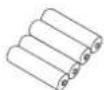
UeNoHbIe 6aTapeIN Tnna AA
PykoBOCTBOIIOB08aTeNA(HOCTOIAEpyKOCTBOH, BKNIOAraPHTNHNbTANOH)
PykoBocTBO no peRnCTpaTm TASCAM x1
PpHnAdnHexHoCTn, npNo6peTaemble OTdJIbHO
IpeueHnHbIe HNke KOMnoHENTb He BXoAT B KOMNIKET NOCTABKN 3dCINRA.
IOxaynCTa, npNo6peTaTe INX B3A8NCMOCTo NT BaHXN
notpe6hOcTe.
- microSD KapTB
Heo6xOIMMbI 3aIINu Bocnpn3BeHnHaaiNoB Ha yCTPOCTBE.
BdHOMYCTPOIcTBeMOTyNcNOIb3OBaTcKaPbTmicroSD KNaCC10NNbIbeoCMBecMbtecSD,SDHCuSDXC cTaHdaptam.
IpeHb microSD KapT, KOtOpBie rapaHTnpoBaHNO MORY IncnO3OBatcBc DAnHbIM yCTPOBCTOBm, PnBEDeH HA CaiTe TEAC (http://teaac-global.com).PIOBepBe cTpaHUY N3dEINNA TaKke MoXHO obpattnCb B Cnyk6y noNDpEckx TASCAM.
Kabeni USB
Ддяпкюнчелданноу yctpoiCTBAК KOMnbiotepy(Windows/Mac) Ии смгфоу,notpe6yetc USBKa6bIeN.
Даимhoe yctpoIcTbO Mmeert USB nopT Type-C.
Погготовьтse USBKaebi IIN cootbetCTbyuOero USB nptra
KOMNBoTePera ИИМсрТФэ.
Iopknouenke Kios yctpoiCTby cepes nopt lightning
Notpe6yertcaФmpeHnbl aanTep AppleLighting Ha USBKaMepy nOcTyHbB bnpOdaKe Ka6ebcType-AHa Type-C.
IopKIOueHHe K KombIoTepy nn CmApTfoHy no USB npTy Type-C
Iotpe6yertcdoctynbB npodae kaebc Type-AHa Type-C.
PoiKIOUeHne K KomIbOTepy Hnn CMapTfoHy uepe3 USB nopt micro-B
Iotpe6ytercdoctynbB npdaJe Ka6enb C Type-B HType-C.
IopKIOUeHne K KombIoTepy nn CmapToHny uepe USBnopTType-A
Notpe6yertcdoctynbB npdaKe ka6enb C Type-A Ha Type-C.
- CeTeBoi anaTep PS-P520U
Mcnonb3yetyra pa6o7b yctpoa ot cetn.
NPMMEYAHVE
DaHHe yCTPOIcTBo He NMeET 0yHKu3aJa4aAkyMnTTOPOB INP NOIKIOHcEHN K CETN 3NEKTPoNTAHIN.
(XLR/TRS) nCnOsb3yOtcaI npoNkIOueHnBHeuHNxMknpo-foHOOBnnnneHbIX BbxIOoD apyrnx yctpoCTB
KpaTkoe BBOdHoe pyKOBoDCTBO
IopKIOUeHne cBEmHbIX MUKPOOHOB
CbEMHbIe MKNpOfoHb MoKHO NOKIOuHaT bDyMa CnOCo6aMIM.
X-Y noKIOHcHne
B 30TMOJNOJKeHIN npa MKNPOQHOHOB 3akpbita, O6eNCueYBa B03MOXHOKCTB3nCnB YBCIOXB NCHOTC TCEpeo AkyCTUHeCKO RONLA CHNMEHbIe PA3HOCTbIO #a3.
A-B CTepeo nOdknOuHne
B3OM NOJOKeHIN 3aHcB npOu3BODITcC uWpOKIM CTpeo nonem neBO -npabo.
- PnnoocoeHHHnnnpocneHte, YTO6bI MetaJIueckne DnCKN 6bln C ToJ Kc TcPOhbl, TOn nKpaH.
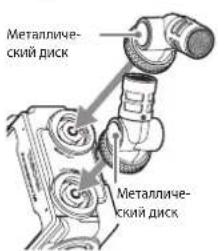
X-Y noKnquHHe A-B Ctepeo noKnquHHe
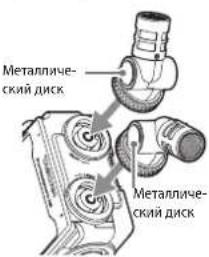
- NOBEPHNTe fNKNCNPYIOue KOnbua, YTO6b3aKpENNTb MKNPOPOHOHa yCTpoIcTBe.
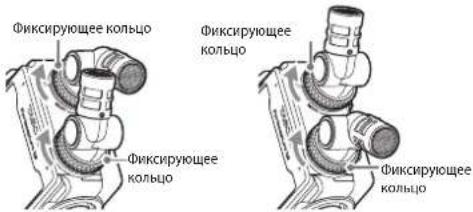
X-Y noKnioHHe A-B Ctepeo noKnIOHHe
CbEMHbI MmKpOoHbI CTaHOBATc DOCTyINbI pNIOBOPoT OIKCNpyUoxx KOeue doynopa.
MkoohMOKETOCTATCBHEONOHHbIM,ECINERO
fKnCpuyuee KOJIbO He bIIO NOHOCbIO NOBEPHYTO DO
ynopa.
Bcerda nCnONb3yIte CbEhMbIE MKNPOΦOHBi BMeCTe KaK
napy.
ПОНМЕЧАНЕ
- OToeDHHITb MMKPOOHb MOXHO, npOeJAB To Jke cAmoe B o6paTHOM nopAKe.
- YmblcBemMbIX MKNpOoHOB HepeRyInpyOTcA.
CbeMHbIe MKNpOoHbI He Bo3MOJHO NOBOpaMBA Tb.
COBET
Pa3bMbXoDa1/2nOoepKKBaOTnOaHy nHTaHnMn MOrTcNtOB3BaTcBcTeHmHbMMMKPOFOHMn Co cTaHdAPThMTRS DkEKOM 3,5 MM (KOHuK:TopuH, KOpU: XOnoHbTH, TInb3a:3EmN).
YcTaHOBka KapTbI microSD
Otkpoite Kpbuky cnoTa microSD KapbI N BCTabBe KapTy microSD.
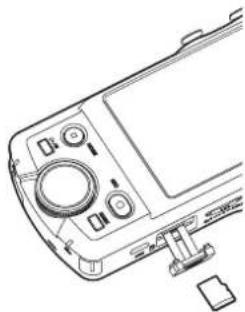
ПОНМЕЧАНЕ
Kap'tbmiicroSD Tpe6yot 6pekHoro 06paueHn.
YTObI He doynctnb NobpegxednHm microSD kaptb,co6no DaTe cneyoue MebpippeoctopoxhoCTN.
He octabnIte Kapty naMaTH B MeCTaX C NOBbUeHHOI NIN NOHKeHHO TEMNepatypoi;
He octabnnte KapTu NamrTu B MeCTax C NoBbIeHHOu BlaXHOCTbO;
He donnyckaTne HAMOKaHnra;
He KnaIHTe Ha HnX BeuH n He CzaBnBaIITe; He donyckaTe yapOB no HMM;
He 3nBekaiTe H He BCTAJIReTte Ix BO BPEM3aIINC, BOCPON3BeEHH, NpepaHn daHbIX INPOWIX K HIM o6paueHH;
-ПиТранспорТИрOBKE,HANPMМeP,xpaHITe INB KOKTeHepax.
Питанные点点头Ва
IITAHNEYCTPOINCTBAOCUHTBNAETCBNATDBMYCNOCO6AMN:OT 6aTapei TnA A, NIO NT BHEHrero NCTOCHMKA Hepe3 USB nopt.
IcnoB3OBAHHe 6aTapei Tnna AA
1.CHMIHTe KpblkUy OTeKApE 6aTapeN NCTabBe T4AA 6aTapeN, paCnONIOB H B COOTBeTCTBm C063HaueHENMIM I KOKNA3HO HA INIOPTcPAMIN.
2. 3akpoIe KpMkUy OTeKa dIaTapei.
TPIMMEYAHNE
- YcTpoIcTBo He MoKTe 3apKaTaB Ni-MH AkkymyIaTObpI. IcNoJIb3yITe CneuHaJIbHoE 3apAHOe yCtpoIcTB0.
- PpinaeraembIe IeJIOVHbIe 6aTapeIN ppeHa3NaueHbI dI npOBepKn pa6oToCnOc6HOCTu yCTPOIcTBn Hne npocnykata donro.
McnoB3OBAHHe BHeuHero nTuHa
IpoCoeHNHTeKUSBnOpyHa daHHom yctpOHTBe NITAHHe OT BHEUHERO HCTOCHNKA. Ha IIOHcTpaunB KauCteBepnpMepa npNBOJNTcnoDknOueHne KycTOBcTeBcEBoR OaanTepe PS-P520U (npHObpeTaerOTdEBH).
BHIMAHME
KpAnepekekomehoBAHO nONb3OBAHnE cTeB0rApaTepa P5-PS20U (npno6peTaETCAOTdEnbHO), CNEuMaNBO pArpa6oTaHHORI dAnDHOyCTPOCTBa.PnNcNOb3OBAHm DpyrTO BHeuHrero NtOCHNIM NITAHIN, y6eJeTecb, TTObOH OH COOTBCTBOBANCDeYIOHM xapakTePNCNTKAM:
- TódaBaemoe HapnKeHHe: 5 B
- IopdaBaembI TK:1,5A uinn 6onee
NcnoB3ObaHHe BHeuHHX NcTOUHKO BnTAHnC pIpyrHMn
xapaKTepeNCTkAMMO KMeT PnBeCTK N HeCNpPABHOCTn,
nepePey, Bo3oparHIO nApyrrm NpO6NeMaM.
Pn HcnpABoHNO paObe YcToPcHTBa, PnEpaTHe NC-
NoBb3ObaHHe N o6pTaTHeCB B MaraTHN, B KOTOpOM Bbyero
npHo6pEni, N16o B CnY6y noDpeKnn KomnHnn TASCAM
dna OcyueCTBHeHn peMOHa.
ПРМЕЧАМЕ
B CNYae NOKIOUHNE BHEUHIEO HCTOHTNKA NITAHNA, CNA TOKA KOTOPOR MOHeIe 1,5A, YCTPOIcTBAOABOTMATueckn BKNOuT HEPTOCBOPEFAOUI PEKIM, HEKOTOpbIe phyHKUINB KOTOPOM He paobotaoi.
- Pn3 3abOcKHX HAcTPOKAX NO yMOnuHnK, KOrda NooCoeHNrRECA BHeUHHN MCTOCHNK NITAHN, YCtPOCTBO NITaTeC TOnbKO OT Hero, DaJe EINB BYCTPOCTBO BCTABJIeHb Batape. NapamETpbl 3AEkTPONTAHnMOxHO N3MeHnHb, NepeJra B OCHOBHbIE HACTPOKNI > NITAHNE/IDNCIJIEN > BbIbOP ICT.NITAHN.
-Boone noopobhna Hnfoepmaa npboDntcB PykoBocCTBe no 3Kcniyyataa.
BknIOueHne nOTKnIOueHne nHTaHn
BkIOueHne nTahn
TIOHnAte nepeKIOuATeB 1/HOLD B CTOPOHy 1/ HnyepKBAIte, NOKa HE BKNIOHTC3 KpAH. TIOcE 3TOr OpeKIOUaTeB I MOKHO OTNCTMb.
CencopbHn 3KpAH BKNIOaHTc npn 3anyKe yCTpoNCTBa.
Pn nepbom 3anyckc yctpoCTBA OTkpbaOTc HAcTPOKn, 0T6bblbpaBtR3blk.Co BTOporo pasa OTkpbaeTc rnaBBH kpan DOMO Nocnelero OTkpORB MBeHIOYCK npINOxKeHH, Korda yctpoCTBO bIbIO BHKIOVcHO.
BbIKIOueHne nTuHaHn
CmeTHTe nepeKIOHATenb 1/HOLD B cToPOHy 0/1 n yepKBAIte, NOKA kpan He nOraCHet. 3aTeM OTNtCTHe nepeKIOHATenb.
HactpoiKa 3bIka, DaTbI IN BpeMeHN
Bb6op 3bika
Pn npBbM BkUOeHm NoCn NOKyKn, yCTpoIcTBO nppeIar aet Bb6paTb R3blK.
- POKPYTNE 3KpaH BepTNKaNbHO HnHaINrHE Heo6xOdMbn.
Bapnntbl:
ENGLISH: AHRNIHCKN (no yMOJIaHnIO)
日本語: AnOHcKm
FRANCAIS: ΦpaHcy3ckn
ESPANOL: McnaHckn
DEUTsCH: Hemeukn
ITALIANO: ITaIbAChckn
中文: KUTaickn
Kopeiickn
pycckn n3bik: Pycckn
- HAKMITE Ha COOTBETCTBYHOUYKHNKY, YTO6bI yCTaHOBTb HEo6xOuIMbI Ra3bIK.
ПРИМЕЧАНМE
RbIK BCERda MOKHO I3MeHbTc HOba,nepeyB a OCHOBHbIE HACTPOIKN CNTEMA> R3bIK. PIOpO6Hee cm. B PyKoBOJCTBe no KcKnpyataun.
HactpoKa DaTbI IN BpeMeHu
Iocne yctaHOBKn3bka, npn c6poueHHbx datne BpeMeHN BCerda ABtOMaTHeCKNEpdeJIaERaTcR 3aJaTB HOBIE 3HaCEHmBAHCTPOINkDATA/BPEMn

1.Дуya cTahOBKn DaTbI N BpeMeHN DoTpOHBTeCb N pOkpyTIne 3HauHnA.
2. HAnMnTe KhoNky YCT, TTo6bI noTBePepnHb HAcTpoNkY.
ПОНМЕЧАНЕ
Pocne toro, KAK data nBpeMa3aHaHb, pRn yctahOBKe Kaptb microSD, Tpe6youe fopMaTHPOBaHNH, 6yET 3anpoJHeO COOTBeTcBvUOe NoDTBpeKJdHHe.
-ДагуИВРЕМАТСКЕМОЖКМЗМЕНИБ,пелейдВОCHOBHbIE HACTPOIKN>CUCTEMA>DATA/BPEM.(cM.«KpaH OCHOBHbIE HACTPOIKN»Ha ctp.112)
Форматураиме microSD kapT
Pn yctahOBke He oFopmatnpoBaHHO KapbI NOBnEaTcNEyIOOe coo6ueHHe.HakmTe BbICTP.ΦOPMAT.Imn IONHAROHCTKA,TOb6HauTa bOpmatpoBaHne.
-ПипговьнICIOЛьбОВAHн KapT microSDcДанныm yctpoICTBOM peKOMeHnyeTcR IOJIHAR OYHCTKA.
PocieyneHoro3aepuHnFOopmatnpoBaHNOOTKpbBa-etrMeHOIpyCK(Bb6Op npnoKeHH-pekmMOB).
BHUMAHNE
PnФopmatpobAHmBce daHhble Ha KapTe microSD ydaHOTcA.
IpeKJeHemHaatbOpMaTnpOBaHne,coxpaHnTe Bce Heo6- XOdMble qaiNbHa KOMNBoTepe.
ПРМЕЧАНЕ
ΦOPMATPOBAHNE MOKHO TAKKE BUNONHTB,NEPEIAB OCHOBHbIE HACTPOKN >CUCTEMA >OFOMATNPOBAHNE. (cM.3KpaH OCHOBHbIE HACTPOKN>Ha ctp.112
CnmooBIOOnmNIOHAROCHTKAMOHOyUHHTb npno3BOJNTBHOCTb,KOTOPaH CHMHNACb BCIEDCTMB MHOKOPATHORHOICN63OBAHcEcmB XOe 3aONNCNPOBNETcCOo6ueHHe
- POJIHAR OCHICTKA npoxoJNT C npOBepKO KAPtBHa OaOn6Kn, H noTOMy 3aHMAET 60bnwe BpemHe, Yem 5bICTP. DOPMAT.
OchOBhBie DeIcTBnC dncnneem
ФИКIMMOKHO HAcTpaNbTaJKeCTaMHaKaTua,CBaImaI CKOJIbKeHnHa DAICINIEe DaHHORO yCTpoHCTBA.
Pn nepbom 3anycke yctpoCTBa nocne yctahOBKn A3bIa, DaTbN BpEMeH,OTKpbBaTeCA MeHIO PYCK.
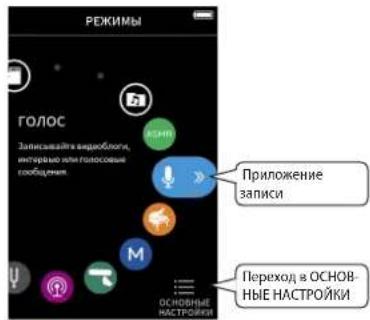
MeHIOYCKMCNOLbEyETcDn3aNyckpa3nHbIX npINOKeHm HAcTPOE.
3anyc npnloxeHH 3anuc
- Bb6epiTe npinoKeHne, npoBeTn no cepeDInHe ekpaHa, KaK nok3aHO Ha IIIOCTpaMn.
- HaxMMTE Ha 3HaOK, qTObI 3aYcTnIb npnOKeHne.
Ppno3oienepexoHa rnaBnBnEkpA npINOKeHnA.
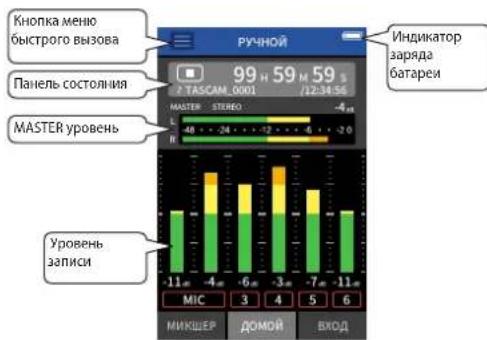
PpIIOJKeHnE PuyHOI peKIM 3aINCn
IpeekloueHne Mekdy 3kpaHaMa
IaepexoKa Kpym3KpaHnHaKMITE Ha BknaKn BHN3y
Bo3BpaueHne B MeHIO NYCK
- HaxMMte Ha KONKy MeHO 6bICTpO Bb3OBA BBepx y
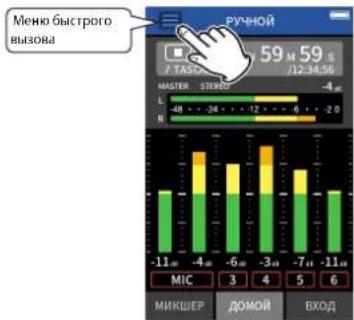
MeHIO 6bIcTPOR0 Bm3OBA OTKpOeTcBHN3y DnCnEa.
2.B MEHIO 6bICTPOBO B3OBA HAXMNTE 3HAOKIYCK.
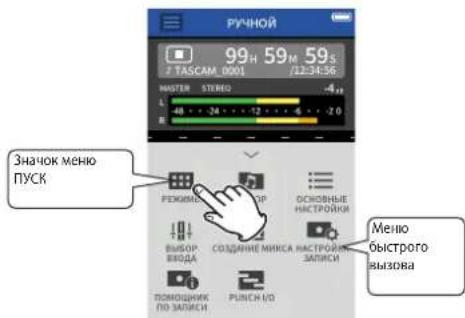
BHOBBOTKPOECTMCHIO TYCK.
3anmbbBOcnpOn3BeDeHne faJIOB
3anncb
IJnTO, 0TOb6H NauHb 3aNcB, bVbEpeTBe B MHeO IYCK npInIOXeHne COOTBE TCTBYIOE TINa,(Cm. EpInIOXeHnna 3aNcHnHa CTp.112). 3aNyTMB npInIOXeHne 3aNcHn, Heo6xOIMO TaKke OtpErynIpOBaT bYPOBn H KaKdOro TpeKa HBCero MNIkCa, qTOb6 Ib oceNeHTb DOnKHOe KaeCTBO 3ByyAHnn.
PepycmTpeHHbBvctpOCTBE NOMOUIHK 3ANUCHne no3oBNIT npOnyCTtB HnHcero BAKHO, nnpocEnH, TTO6bIe 6bIIO
CenAHO npabuHBO.ErO MoKHO 3aYcNTb TohkoB npiJIOKeHN PUYHO PEKIM. (PnN oKynke NOMUICHK 3ANICN BvctpoiCTBe
BKIOEN NO yMOUHNO.)
PnI nepeXoe B VPUHO, anyckcaTeTn noarOBa npoceDpya NOMOUIHKA. pOnu3BeHTe HactpOKn, cJeYnHCTpyKUM.
Korda IOMOUIHK 3ANICN AKTNBPOBaH, nocLeNoBateBnHO OTKpbBAkTCs EkaPaHbHACTPOE, oecChueINBa npaBnHbN no npaDOK.
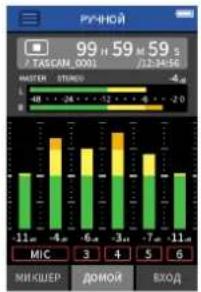
DOMOIBXODMUKUEP DOMO
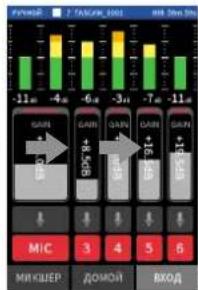
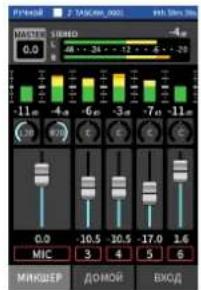
Peynpo8ka ypo8ne Bxa DanaHc dopoxek 3annb
ПРМЕЧАНМ
Ito ymoHnHIO (NOMOUIHK 3AINCN aKIMBPOAH), 3aINc b He BO3MOXHO HAATb 6e3 npoxoJeHH BCEX N0UAROBbIX HCHpyKlui, NaCTpMaBAIOxM NKUEP.
EcnI NOMOUIHK 3AINCNI He HyeKeH, 3aynCTte PuyHOJ peKIM, nHa rnaBHM 3kpaHe DOMOHN HAKMITE MeHIO b6ictPO Ro BbIOBa, nYctAHOBITE I NOMOUIHK 3AINCNI Ha BBkN.1. Pocne 3TOrO 3aINCb MOeT HauHbTaC He TOnbKO C3kpaH MKNUEP.
Ha cxemBocnoedobateNBcHb oneapn 3anncn Ha ctp.114 yka3aHb pa3nHn B deCTBmX B 3aBNCMOCTN OTTO, BKIOueH HIN BblKIOUeH IOMOLHNIK 3AINCU.
IINPnIMepa npoecca 3annc B daHONpmyoOCTBE onncaH PYHOIpeXMM (co BKIOeHHH OyHKne IOMOuHK 3AICN) KOTOpB IABTcOCHOBHM peKMMo paobToYCTPOCTBA.
Onncn npouecca 3aHNCB pyrnx peximax CM. B PykoBOdCTBe no 3Kcnnyatau.
War 1:3anyck npunokenhaannc
- BbIbePte PuyHOB mHeIO IyCK n3anyCTne npnnoKeHne.
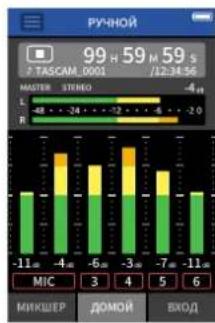
OTkoepoetcero rnaBHBn kpaH DOMOJ.
Uar 2: Perynpobka ypOBneBxOda
- HaxMMTE KONKY REC [●] Ha naHEn yCTpoCTBA.
HaHnet MInraTb MHINKATop REC.
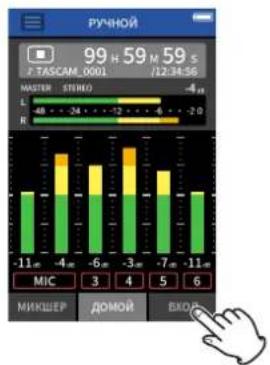
- HAMATE BHN3y cnpaba BknaKy BXOД,HTO6bI nepeTIN K peYnIpOBKe Ha kpaHc BXOД.
3.HaMMTE MIK Nn uΦpbl 3-6 dNn BKNIOeHn/OTKIOe-Hn DOpOKeK.
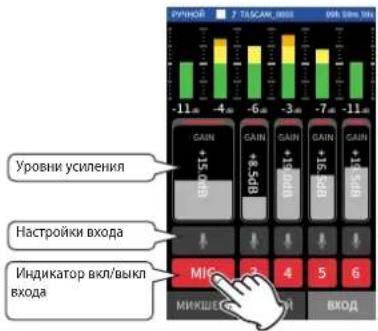
TpeKn C KpaChbIM FOHOM 6ydyT aINCbBaTBcA.
- OtperyIpyTe BXOHNbIe ypOBHn FeiIepaMn GAIN.
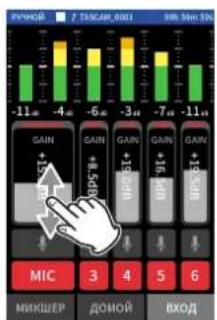
Cnla 3a HJNkATOPAMy yPONBHe, yCTAHOBITE feHepbI GAIN TAKM o6pazOM, YTO6bMy MACKmAbhOe 3NaueHne He npBeBwano-12 dB.
ПОНМЕЧАНЕ
ECIN BXOHN yPOBENb npeBcNt-2 dB,3aROpNTc INHnKaTOP NIKOB PEAK.
War 3: HacTpoNka MmKwepa
- Npeepiune B MKNUEP, Haxab Bn3y cneBa Ha Bknaiky MKNUEP.
- Otperynnpyite feiepk kaxdo rto tpeka, qro6b c6aIahcnpoBaTb ypOBHn, nocblnaembe Ha MASTER.
EcnBxOHOyPBOeHbYcTahOBaTbCmKOMH3KM,3nA CaHHb3BvK6yETTMXMMHOeCNecNnOoHtBeroCmKOM BbcKO,3BvK6yETNCKaTaBCr (nnnppeBabc)
War4:Hauano3anncn
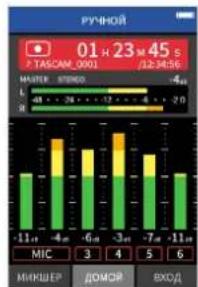
- Haxmte KhONky REC [●], qTO6bHaHAtb 3aInCb
KordaHaHnHaetc3aNmb,3aropaetcHHdkatopREC.
- HAXMATEHOME[1],TTO6b3aKOHHTb3aNtCb
Korla3anbcPpekpaaaetcraHnHaKaTOpRECraHeT.
Bocnpon3BedeHne
TTo6bHaaytBBOcPon3BeHeHn,HaxMnTeKhONkY
ПРМЕЧАНЕ
Дл.TORO,уTO6bI npocnyuHb 3aNcHbpe3BCTpoeHHbIMnHAMNK,nepeHNTe B OCHOBHbIE HACTPOIKN> HACTPOIKN BXOD/BbIX.> DnHAMNK n yctahOBHTe BKN.Hoboe yctpoiCTBO nocTaNtAETC aZabodOKy cYtaHOBK BblJI.
PpnoctahOBKa Bocnpoun3BedeHn
YroblnoCTABNTBBOCPON3BDEHHeHa nay3y,Bo BpemBAOcnpo HnBcEHnnaHAKMNTEKHOKNI KHOKNYHOOME[ ] DnA Bo3o6bHOBnHnna BOCPON3BDEHnna HAKMNTEKHOKNI eue pa3.
OctaHOBka BocpnOn3BeDeHn
IINI INEPEXOJa K Hauany faHnA Bo BpEm Naay3bl NnN Bocnpn3BedeHn HAKMTe KHONKY HOME [ ]
ПРМЕЧАНМ
OnmAHnEpynXyHKuBocpOa3BcDHeHn npbOHTCB nONHOM PykoBDCTBe No kCnnyataa.
IpoCnyuWbAHne uepe3 HayuHnKu
IIOcOeMHInTe HayuHnK K COOTBeTcBtYIOUeM ypa3bEMy
BHIMAHME
PpeJde, cem noCoedHHnHb hayuHmKn, nepeBedeHe peryTnptpOBNa rpoKoCTn (HnHKn/duHAMNK)Ha MHMMy. EcmTOrHO cdenaTb, TO B03MOKHO BO3HKNHOBeHne p3eKnnr pOOMKn 3BykOB, KOTOpbe Mory T NOpeBnT bCynx nnNIOeB 3a co6oB paazHnhIbe np6eMbI.
Hactpoika rporkoctn
Mn3MeHmR TpMOKcTn BCTpoEHORO DnHaMMKa Nn HAYuHMKOB MCN0b3yIe peryrIaTOp dHHNKu/DnHAMWK).
Pone3hble oco6eHHoCTu
3decbnpBODATCRnpMepeblnHbHECKOBKxpyHKUIN. OINCAHNOHCNOLB3OBAHMOpyRnxpyHKUINCM.B NOIHOM PykoBOCTBE no 3Kcnnyataun.
NYCK
MeHIOIYCKMncnB3yETcIaOTKpbITnnpNIOXeHm3aNNm HacTpoek.
PpnoTokeHn3aunnc
Cnnyuue npinnoxemnpdycmOTpehIpnpa3nHbIX TmNHybIX CNTyau3aNPNC.
BbIaBleHne uycpaHene HncnpaBHOCTeI
Ecn yctpoiCTBOM 03HKnKn KaKne-1n6o npObleMb, npKeJe Yem obaaatcbra 3a NMOuBbno, npO3BcDInTe yka3AHHe NHHke npOBepK. Ecn 3n Mepb He NmOpyr peWHTb npObleMy, o6paTiteb C Maarain, rDe Bbl npNo6peN yctpoiCTBO, HnB Cnyk6y noDiepKKn KompanHn TASCAM.
YcTPOINCTBO He BKIOUaETCA.
Y6eHntecb,TOpeKIOuATEIb 1/HOLD He yCTaHOBnE B nonokHe HOLD.
- y6eintecb, cyo 6atapeyn yctahOBHeHb npabInbHO.
6yedntbcbTOM,HToBnKNAUSBtkepAaNTepaNtAHN TASCAMPS-P520U(npo6petaeTcOJIbHO)noDcoenHHebHnADekHo. YcpoiCTBOMOKeHtePaoToTBoDNKHBIM o6pa3omnpnncnOB3oAHIN USB p3aEBTbTeHnE
YcTpoIcTBHeNpOu3BOLbHO BbIKIOuaETCA.
- Y6eJntEcB, 4TO FOYHKUAR ABTomuueckoro 3Heperoc6pekeHnOTKJIOHcEA.
ΦYHKMIOA BOMTMAHCEKORO 3HEPRO66EPEKENHMOKHO BKLOUHTB/BOKLIQUHTB,nepeiAB OCHOBHIE HACTPOKNI>NTTAHME/DNCLNEJ >ABTO 3EHPOFCSEPEKENHVE. - DAnHoe H3dJIeNE OTBaEaET EbponeckIM CTAndaptam 3HePROc6peKEnHn. IIO3OMy FyHKZnABTOMATUeCKORO 3HePROc6peKEnHn AKTNbVpyTeC KAK npu paboTe OT 6BatApel, TAK N ot aadntepa.EcnB BBy HE XOTITE NCNOLB 3OBaTb FyHKZnABTOMATUeCKORO 3HePROc6peKEnHn, nepeBeNTte eB COCTOnHne BblJL.(3AbOcckA yCTAHOBKa -<30MHN.)
YcTPOIcTBo He ynpabnraTeC nOMOuBIO KHOHOK
- Y6eDntecb, rTO nepeKluHateB O/1/HOLD He yCTaHOBnE B nonoJxHe HOLD.
KorDaHaDnCnneeOTo6paKaTecPexMnKapTpnaepa microSD,pyrne onepaunCycTpoCTBOMHeBO3MOXHbI.
KapTa microSD He uHTaTeTc
- y6eunTeCb,HTo kapTa microSD bCTaBHeHa nonHocTbO
Het 3Byka
-
PpOBCpBtE BbIXoHOnyPpOBcHb HayuHKnOB/INHaAMnKa.
PpOBepbTe coeMHHeHn CNTeMb MOHTOpOB uypoBeHb rPOMKcTn. -
PIPMNTE BO BHIMAHHE, YTO PIPN HIXEcneJeYIOUx yCNOBHX 3BYK HA DUNHAMMK He BbBOIDTCA.
Korpa peryarnot rpomkoc/nyuHmKOB/DnHAMKa)ycTaHOBneHa0
KOrda B MEnH OCHOBHIE HACTPOIKN HACTPOIKN BXO/BbIX. INHAMIKBb6paHO bBkI.>cm. Kpah OCHOBHbIE HACTPOIKN>ha ctp.112)
KOrda yCTPOBCTBO HAXOINTCB COCTOBHN 3aHNCN NIN B peKIMe rTOBHOCTN K3aHNCN
Korda mCnonb3yOTc pa3bEMbl HaywnkoB n LINE OUT.
3aNCb HeBO3MOXHa
- Y6eIntecb, 4TO Ha microSD Kapte doctatoHc Cbo6oHno naRTn.
Ecnn 6ouee KOnneCTBO qaiIOB DOCTHraet 5000,TO3aINCb CTaHOHTCA HeBO3MOXHOI.
BxOHOH 3BYK OueHb Tuxn nn OueHb rpoMkn
-ПоверпгЕНACTPOДКINBXODA.(CM.«3aIuNbИBOCpOIMBe- 德нueФainOB>Ha ctp.110)
-Поверпь Быхогье урбнл покючehorno CTopoнhero
obopydobаня.
Hebo3MOxHO CTepeTb faH
3aunueHhbe aaib(TolkoDnYTeHn)Henb3a ctepeB.
Фаиblу yctpoiCTBa He BnHbI Ha KOMnbTepe.
Y6edntBc, YTO yctpoTbCTO nIOJIIOHoe K KomblbOTepy C noMoIbIb IO USB-npTa DOnJIbHM oBpa3oM. YcTPOCTBO MOpET He pa0bTaTb npaBnIBNo pIruHCNOBzAOHmUI USB pa3eBTbTeTneA.
- Y6eIntecb,HTO Ha nCnIe yctpOCTBa oTO6paJaaTcHnAaNtbc « microSD KapTpueP».
CnyauH0 6bl BbipAH He TOTaBik.
- Npebejeitne nepeknloateIb /I/HOLD b noJokHe /I n depKITE, NOKA yCTPOICTBO He BblIOJIOTTC.3aTEM, pni OHOHBpeMeHHOM HAKATNI KHNIKI HOME [ ] , nepebeJeTe nepeknloateIb /I/HOLD K 3HaHcy /I eue pa3. POBBITc MEHO BbOpa Ra3bKa, IN Bbl CMOKeTe BbOpaTb Ra3k CHOBA.
NoaBnAeTcA yM
EcnnyycptocTBNOcnoNb3yeTcNObIIOCTnCtenEBNtOPOm,paHOnpneMHNKOM,yCNNTENEMnnDpyrNcYcptOBomC6bnbIMTPaHCfOpMaTOpOM,B03MOKHO NOBJIeHMeUyMaBDAHNOHNNB DpyrNcxYcptOCTBX.(cm.«MebpI npedocTOPOKHOCTn pnpaMeueHHNcIONbOBOAHN»Ha ctp.117)
POMKocTb BCTpoeHHoro DnHaMnKa CnWkoM MaIa
PObepHtepepyIaTOp rpoMkoCTA yuHmKn/duHaMMK)B CTOPOHyyBENueHn.
- Ecn npn 3aHNC BxOHBie ypoBn HbIIN CnIKOM MaNb,TO OHa MOKet C TpyDn pOcN LhBaTcb DaKe npi MaKcMnAbHbHO rPoMCKoTH DnHaMaKc. Ecn MaKcMunBbHb BXOHDy oypoBeH np3AaNC b310K 0d5 To BCTPOeHHb DnHAMKn 6ByET BbIababT noHT MnKaCMnAbHyIO rPoMKoCTb.
EcnH Heoo6xOIMO Cenatb rPOMue, NOKIOHHTBE HHEHIO AkyCTNueCKyHO CTEmY, AKTNBUHNO Nn CYCNNTeEM.
He npabnblbne daTa/BpeMa
- YctaHOBHTb npabHbHbe 3HAeHnHMAOxHNO, nepeIaB OCHOBHbIE HACTPOKNI >CNTEMA >DATA/BPEMr.(CM. «3kpah OCHOBHbIE HACTPOKN» ha ctrp. 112)
Mepbl npedoctopoxkno npn pa3me-ueHHN nncnoB3OBAHm
- Dnana3OH pa6OHH TempeaTp yCtpoiCTBa:0-40°C.
- He yctahabnbaeT yctpoTb Bo cneDyuux MeCTax (B npOTBHOM Cnyae BO3MOKHO yxUwENHe KAcETBa 3ByKa N/ nnH enPABINbHoe OYHKUHOHNPOBAHNE)
C NOBILIEHINHbIMyOUPBHMN BIOpaunn HApOTIN OKHa INBe3e, Ige BO3MOXHO BO3dIeCTBne nPnMbIX COINHEUYbIYueh
BbMn3N OOBpReBaTeNeH N Bpyrnx MecTax C OueHb BblcoKo TMnepaTpyoI
PnOueHb H3KoTemNepaType
C BbICOKM yPObHem BnAaXHOCT Nnn PINOxO BeHTnAuaeH
CnOBbiWeHHbIMypOBHcEMnbIN
NIOIINPIMbIM BO3DeHCTBmE MDOXJN Dpynx OCAkOB
PnnpomoeHmBbN3yCnnIeTneMoHocTHnIMdpYrOo 0obopyDOBAHn,cOpEpaJcero6oBbUohpTaHcFOPMAtop, BOzMOHOyRyuHEHe. B TACOM CnyueyBeuNbTe paccToHHe MeKdy yctPoIcbTcBOm n DpyTNm oOpyDobAHm.
-Пи ИСПОЛБЗОВАнМа БИЗКOM расСТОНИДанHoe yctpoICTBO MOXET Bbl3BAtb YBEtOBoBte NOmEXnHa 3kpAne TelenB3Opa IINI WIM pAnOpNpEmNHka.В 3TOM cIpyaepacONNoKHTe yCTpoICTBO DAJIWE OT TelenB3Opa IINI pAnOpNpEMNHka.
- YcTpoHCTBO MOKET BOcPOM3BODHTb Wym,ecn HsHa 6bn3KOM paccTOHHN IcIb3yTCaMObHbI TeneoOH NmI dpYrme 6ecpOBoHDhye YcTPOHCTBA DnI BEOHOB NmI npHema n nepeaam CnHrAON. B TakOM cnyae yBemMbte paCtToHMe MEJx YcTPOHCTBM N dpyHM oOpdyoBaHmE NmI BkIOHnTe OOpoyoBaHnE.
He pacnonarateyctpoiCTBO HA ycmntene MOHcT MnIpyrom 60bpyoBAMH, BbDJIHOeM TEOIO.
U36eraTe KOHdEHCaUN
KoHcHcaHMQKET BO3HNKHTb npn nepemeeHm yctpoNCTBa nXOJOna B TEIIO, npn nCNoB3OBAHm YCTPOINCTBa B 6bIcTPOHarpETOM NOMEeHHM IN INB HbIX CUYAAx PE3KOR0 H3MeHHeHTEMepaTpbl. Yo6bl ETOHO h6KaTaB mEIN cEIN yKe pON30WlNO3MeHHe NEMpeAtpbl, BIDepKInTe yCTPOINCTBO npn HOBOI TEmpeAType NOMEeHHM B TceHHeN OdHOrO IN DByx ACOB nepeT M, KAK erO nCNoB3OBaTb.
Ouuctka yctpoiCTBa
IpoTnpaTe yCTpOCTBO CYX0 MARGKoTKaHbNo. He npToPaaTe cAnfETkAMN, IPONTNAHBMIM XMMNECKMMN OUCHTEBAMN, paCTbOpHTeMe, CNPTOM IN DpyTM NXMNECKMMN BEECTBaM. 3TO MOKET Bb3BaTb NOBPEXDEHNe HmN o6ecuBEHBAHne NOBEXHOCTN.
O cny6e noepKKn KOMnHaHn TASCAM
N3dennr TASCAM o6cnyknBaTOc n o6ecneuHbAOTc rapaHTnHbIM pemOHOM TOBko B cTPAHE/perIOHe nx npNOpeTeHH. Ecn nooc NoKynKn NpOtebyETc NOepeKkna, HAnIte B cnNKeCNEtPb6bTePOB TASCAM h OoHuaNBHom caIe TEAC (https:// teac-global.com/) KOMNAHIO npEcdTaBNTeR b PeroHOe, Ige 6blno npNO6pTeHO n3dJe.
PnO6paueHmNtpe6yTcAadec (noHTobBmNmURL) Mara3HaNmI INHTepHET-Mar3HaNHa, rE 6bINO npNo6pTeHO n3dne. Tacke MoKet Ntpe6oBaTcb rapaHTmHb TaTOH n NOdTBeKpDeHne NOKynK.
XapakTepnCTnK/NOMHbHbIe 3HaueHnA
XapakTepeNtKnepeKoppepa
YcTpoIcbTaXpaHEnHaHbIX
Kapta microSD (64 MB-2 GB)
Kapra microSDHC (4-32 F6)
Kapta microSDXC (48-512 GB)
ΦopMaTbI 3aHcN/BOcnpON3BeDeHHA
WAV(BWF):44,1/48/96/192KΓU,16/246ntnn326nt float
MP3: 44,1/48 kTμ, 128/192/256/320 k6mT/c
KoMnueCTBO KaHaJIOB
Bxodhble kaHabl: MaKcMym 6 kaHaoB
TpeK3aHcM:MAKcMym8TpekoB
NapametpbiaaHanooroboroaydnoBxoja
Mnkp0oHHbIe BXoBbl (c6aHaHcnpoBaHHbIe)
Pa3bEmblBxoJa 3/4/5/6 (onuia «MVK» BnactpoiKaX BxoJa)
Pa3bEmbl:
3KBMBAeHTbIM XLR-3-31
(1:3emna,2:Topnyn,3:XoNoDhBm)
6,3 MM CTaHdApThbI pa3bEM TRS
(KoHnK:TopaH,KnbQo:XoNoDhB,Γmbl3a:3emna)
(ΦaHTOMHoe nntaHne noDnepKnBaetcraTobko XLR)
BxodHoe cnpotmbneHne:2,2kΩnn60nbwe
MaKcImMaJIbHbBxOJHOyPoBeHb:+2dBu
MmHMaJIbHbI BxOdHou yPoBeHb:-75dBu
PazbemblBxoJa:3/4/5/6(onuNJIHHeHbI)BaHa-ctpOikax BxoJa)
Pa3bEmbl:
XKBBBAeHTHbY XLR-3-31
(1:3emn,2:Topnyn,3:Xonodhbn)
6,3MM CtaHdapThbIe TRS pa3bEmbl
Bxodhoe conpoTnBneHne: 9 kO nn6onbwe
HOMHaIbHbIyypOeHbBXoJa:+4dBu(GAINHaMHmym)
MaKcmmabHbI BxOJHOyPObeHb: +24 dBu
MHHMaJIbHbI BXoJHOyypoBeHb:-53dBu
MnKpofoHHbIe BxOdbI (Hec6aHaHCupoBaHHbe):
Pa3bEmblBxoja1/2
MaKcMmaJIbHbI BxOJHOy yPoBeHb: +1dB8
MmHmMaBbH BxOaHOypoeHb: -69,3D8B
JIHHeHbI BxOaI (He6aHaHcnpoBaHHbI):pa3b-
EMEXTIN
Pa3bEM:3,5 MM cTepeo MmHn Dxek
BxoHoe conpoTnBHeHne:8,5KOMnn6oee
HOMHaIbHbI ypoBeHb BXoJa:-10 dB(GAIN HaMHmMyM)
MaKcHMaJIbHbI BxOAnHOyPoBeHb: +10dB
MunmMaJIbHbI BxOJHOypoBeHb:-48dB
Ahaorobbi aydno BbIXoJ
JIHeHbI BbIXoD (Hec6aHaHCnpoBaHHbI):
pa3bEM LINE OUT
Pa3bEM:3,5MMCTepeoMmHnDxek
BbXoHoe cOpnoTnBHeHne:200Ω
HOMHaJIbHbI yPOBeHb BbIXOa:-14dB8
MaKmMnAbHbMypOBeHbBbIXoHa: +6dB8
BbIXoI dIyHwHnKOB:pa3bEIMnIryHawHnKOB
Pa3bEM:3,5MMCTepeo MmHn Dxek
MaKcMmAbHbHbBbIXoD:45MBT+45MBT(THD+N0,1%nn
MeHbue, npn Harpy3ke 32Ω)
BCTpoeHHbI dHAmNK
0,4BT(MOH)
BxOHyIe/BbIXoHbIe npaMeTpbl pa3bMoB ynpaBHeHn
Nopt USB
Pazbem:Type-C
ΦopMaT: USB 2.0 BbICOKOCKOPOCTHO mass storage class
Pa3bEM IOKNoeHn Bluteoth yctpoCTBa
FS, GAIN HA MHHMMy, 20 KfPSPCL LPF)
0,005%
BxOJ-5dBFS,GAINHaMmHmym,20KfSPCLLPF)
0.008%
Pa3bMbBxOda3-6(MICIN)CnHycoaDabHbHcHrHan1Kt
BxOJ-5 dBFS, GAIN Ha MMHMMM, 20 KfSPCL LPF)
0,006%
PnmeaHHe:JEITA-O3HaayeCoT BoBETCTBne CTaHdpTy JEITA
CP-2150
Bpem3annc (acbl: mHyTb)
| Формат Файla (настоюк запис) | Оьемпамяту кары(32 GB) | |
| 320 kbps MP3 (CTEPEO) | 44,1 кц | 222:13 |
| WAV 16 bits (CTEPEO) 50:23 | ||
| WAV 24 bits (CTEPEO) 96 кц | 5:25 | |
| WAV 24 bits (CTEPEO) | 192 кц 7 | 42 |
| 32 bits float WAV (CTEPEO) | 192 кц 5 | 47 |
Yka3aHHeO BbIue BpEMh 3aUNcRAJRETcR pN6BUN3tEnbHbM. OHO MoKet pa3nUaTbC R 3aBACmOCTH OT TORO, KAKA KapTa mncb3yctca: microSD/cmicroSDHC/microSDXC.
- YkaaahHoe BbIe BpemA 3anncn He aBnEETCA HnepeBbHbIM BpemHeM 3anncn, a Copee o6bum 0B3mOKhBbIM BpemHeM 3anncn dant kapt microSD/microSDHC/microSDXC.
BpeKIMMeMOHO npOdoJNKeTbHocTh 3aIncMOnKet6bItb npImepHO BDOE 0bnwe yka3aHHoB Ta6nue.
PnI NIOJIb3OBAHIMIIBOHN3AINCNMAHbHAIPOdoJIXNtBHOCTb6ydtnpMepHO BBOe MeHbye KkaAHHOB Ta 7abnne.
PpOee
ПиТангe
4 AA 6atapei (alkaline, NiMH nHn lithium-ion) IITAHNE Uepe3 USB c KOMMbIOTepa
Ceteb0B6IoknITAHNA(TASCAMPS-P520E,npmo6peTaetcnoTdienho)
Notpe6MaMA MOHocTb
7,5BT(MAKCIMMaBHO)
BpMa pa60tbl ot 6atapei (HenpepbHna pa6oTa)
Pnp pa6oTe oruOenbix 6atapei (EVOLTA)
This warranty gives you specific legal rights and you may also have other rights which vary from state to state. This warranty is only valid within the country the unit was originally purchased.
WHAT IS COVERED AND WHAT IS NOT COVERED
Except as specified below, this warranty covers all defects in materials and workmanship in this product. The following are not covered by the warranty:
1. Damage to or deterioration of the external cabinet.
2. Damage resulting from accident, misuse, abuse or neglect.
3. Damage resulting from failure to perform basic daily maintenance and/or calibration or otherwise resulting from failure to follow instructions contained in your owner's manual.
4. Damage occurring during shipment of the product. (Claims must be presented to the carrier)
5. Damage resulting from repair or attempted repair by anyone other than TEAC or an authorized TASCAM service station.
6. Damage resulting from causes other than product defects, including lack of technical skill, competence, or experience of the user.
7. Damage to any unit which has been altered or on which the serial number has been defaced, modified or is missing.
WHOIS COVERED UNDER THE WARRANTY
This warranty may be enforced only by the original purchaser. This warranty is not valid if the product was purchased through an unauthorized dealer.
LENGTH OF WARRANTY
All parts except heads and disk drives are warranted for one (1) year from the date of original purchase. Heads and disk drives are warranted for ninety (90) days from date of original purchase. Labor is warranted for ninety (90) days from date of original purchase.
WHAT WE WILL PAY FOR
We will pay all labor and material expenses for items covered by the warranty. Payment of shipping charges is discussed in the next section of this warranty.
HOW YOU CAN GET WARRANTY SERVICE
Your unit must be serviced by an authorized TASCAM service station in the United States. (This warranty is not enforceable outside the U.S.) If you are unable to locate an authorized TASCAM service station in your area, please contact us. We either will refer you to an authorized service station or instruct you to return the unit to the factory. Whenever warranty service is required, you must present a copy of the original dated sales receipt from an Authorized TASCAM Dealer.
You must pay any shipping charges if it is necessary to ship the product to service. However, if the necessary repairs are covered by the warranty, we will pay return surface shipping charges to any destination within the United States.
LIMITATION OF IMPLIED WARRANTYES
Any implied warranties, INCLUDING WARRANTY OF MERCHANTABILITY AND FITNESS FOR A PARTICULAR PURPOSE, are limited in duration to the length of this warranty.
EXCLUSION OF DAMAGES
TEAC's liability for any defective product is limited to repair or replacement of the product, at TEAC's option. TEAC shall not be liable for:
- Damages based upon inconvenience, loss of use of the product, loss of time interrupted operation or commercial loss; or
- Any other damages, whether incidental, consequential or otherwise.
Some states do not allow limitations on how long an implied warranty lasts and/or do not allow the exclusion or limitation of incidental or consequential damages, so the above limitations and exclusions may not apply to you.
To locate an Authorized Service Center in Your Area CALL 1-323-726-0303
This product is subject to the legal warranty regulations of the country of purchase. In case of a defect or a problem, please contact the dealer where you bought the product.
Ce produit est sujat aux reglementsation concernant la garantie legale dans le pays d'achat.
En cas de debut ou de probleme, veillez contacter le revenieur chez qui vous ave z'acheté le produit.
Dieses Gerat unterliegt den gesetzlichen Gewährleistungsbestimmungen des Landes, in dem es erworben wurde.itte werden sie sich im Gewährleistungsfall an den Handler, bei dem sie das Gerat erworben haben.
Questo appareccchio è conforme alle norme sulla garanzia vigilanti nel rispectiva Paese in cui esso è slato acquisitato. Si prega di rivoligersi al proprio commerciale, presso il quale è slato acquistato l'appareccchio, in caso in cui vogli richiedere una prestazione in garanzia.
Las conditiones de garantía de este来电pto estar susujetas a las dispuestos legales sobre garantía del pais en el que ha sido adquirido. En caso de garantía, tebe dirigirse al establishmentmente adquiren el来电pto.
<日本>
無料修理規定(持方达分修理)
This warranty gives you specific legal rights, and you may also have other rights that vary by country, state or province.
If you have a warranty claim or request, please contact the dealer where you bought the product.
If you require repair services for your TASCAM equipment, please contact the dealer where the product was purchased from or the TASCAM Distributor in your country. A list of TASCAM Distributors can be found on our website at: https://teac-global.com/
WARRANTY/保証書
https://teac-global.com/
Dcaler's address / Adresse du revendeur / Adresse des Händlers
Indirizzo del commerciante / Direcction del establecimento / Apecu/epa/住所
Memo/修理×王
NTIAPK株式会社
T206-8530东京都多摩市落合1-47
内容利用
テアツ修理専一
T 358-0026 垣玉泉入周市小谷田 858
電話:04-2901-1033 0570-000-501