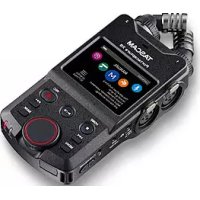
Portacapture X6 - Audio recorder TASCAM - Free user manual and instructions
Find the device manual for free Portacapture X6 TASCAM in PDF.



User questions about Portacapture X6 TASCAM
0 question about this device. Answer the ones you know or ask your own.
Ask a new question about this device
Download the instructions for your Audio recorder in PDF format for free! Find your manual Portacapture X6 - TASCAM and take your electronic device back in hand. On this page are published all the documents necessary for the use of your device. Portacapture X6 by TASCAM.
USER MANUAL Portacapture X6 TASCAM
Please see the Reference Manual for information about all the unit's functions. You can download the Reference Manual from the TASCAM website. A Reference Manual in Russian has not been prepared, so please refer to the materials in English or in another language.
●TASCAM is a registered trademark of TEAC Corporation.
●The microSDXC Logo is a trademark of SD-3C, LLC.

●MPEG Layer-3 audio coding technology licensed from Fraunhofer IIS and Thomson.
●Supply of this product does not convey a license nor imply any right to distribute MPEG Layer-3 compliant content created with this product in revenue-generating broadcast systems (terrestrial, satellite, cable and/or other distribution channels), streaming applications (via Internet, intranets and/or other networks), other content distribution systems (pay-audio or audio-on-demand applications and the like) or on physical media (compact discs, digital versatile discs, semiconductor chips, hard drives, memory cards and the like). An independent license for such use is required. For details, please visit http://mp3licensing.com.
●Microsoft and Windows are either registered trademarks or trademarks of Microsoft Corporation in the United States and/or other countries.
●Apple and Mac are trademarks of Apple Inc.
●App Store is a service mark of Apple Inc.
- IOS is a trademark or registered trademark of Cisco in the U.S. and other countries and is used under license.
●Android, Google Play and Google Play logo are trademarks of Google Inc.
●ASIO is a trademark and software of Steinberg Media Technologies GmbH.

text_image
ASIO COMPATIBLEASIO is a registered trademark of Steinberg Media Technologies GmbH
●Other company names, product names and logos in this document are the trademarks or registered trademarks of their respective owners.
TEAC CORPORATION
https://tascam.com/us/
Phone: +1-323-726-0303
10410 Pioneer Blvd., Unit #1, Santa Fe Springs, California 90670, U.S.A
TEAC UK Ltd.
https://www.tascam.eu/en/
Phone: +44-1923-797205
Luminous House, 300 South Row, Milton Keynes, Buckinghamshire, MK9 2FR, United Kingdom
TEAC EUROPE GmbH
https://www.tascam.eu/de/
Phone: +49-611-71580
Room 817, Xinian Center A, Tairan Nine Road
West, Shennan Road, Futian District, Shenzhen, Guangdong Province 518040, China
Owner's Manual
IMPORTANT SAFETY INSTRUCTIONS
WARNING: TO PREVENT FIRE OR SHOCK HAZARD, DO NOT EXPOSE THIS APPLIANCE TO RAIN OR MOISTURE.
For U.S.A.
Supplier's Declaration of Conformity
Model Number: Portacapture X6
Trade Name: TASCAM
Responsible party: TEAC AMERICA, INC.
Address: 10410 Pioneer Blvd., Unit #1,
Santa Fe Springs, California 90670, U.S.A
Telephone number: 1-323-726-0303

This device complies with Part 15 of the FCC Rules. Operation is subject to the following two conditions: (1) this device may not cause harmful interference, and (2) this device must accept any interference received, including interference that may cause undesired operation.

This product complies with the European Directives request and the other Commission Regulations.

This product complies with applicable UK regulations.
INFORMATION TO THE USER
This equipment has been tested and found to comply with the limits for a Class B digital device, pursuant to Part 15 of the FCC Rules. These limits are designed to provide reasonable protection against harmful interference in a residential installation. This equipment generates, uses, and can radiate radio frequency energy and, if not installed and used in accordance with the instruction manual, may cause harmful interference to radio communications. However, there is no guarantee that interference will not occur in a particular installation. If this equipment does cause harmful interference to radio or television reception, which can be determined by turning the equipment off and on, the user is encouraged to try to correct the interference by one or more of the following measures.
a) Reorient or relocate the receiving antenna.
b) Increase the separation between the equipment and receiver.
c) Connect the equipment into an outlet on a circuit different from that to which the receiver is connected.
d) Consult the dealer or an experienced radio/TV technician for help.
CAUTION
Changes or modifications to this equipment not expressly approved by TEAC CORPORATION for compliance could void the user's authority to operate this equipment.
For Canada
THIS CLASS B DIGITAL APPARATUS COMPLIES WITH CANADIAN ICES-003.
CET APPAREIL NUMERIQUE DE LA CLASSE B EST CONFORME A LA NORME NMB-003 DU CANADA.
- Read these instructions.
- Keep these instructions.
- Heed all warnings.
- Follow all instructions.
- Do not use this apparatus near water.
- Clean only with dry cloth.
- Do not block any ventilation openings. Install in accordance with the manufacturer's instructions.
- Do not install near any heat sources such as radiators, heat registers, stoves, or other apparatus (including amplifiers) that produce heat.
- Only use attachments/accessories specified by the manufacturer.
- Unplug this apparatus during lightning storms or when unused for long periods of time.
- Refer all servicing to qualified service personnel. Servicing is required when the apparatus has been damaged in any way, such as power-supply cord or plug is damaged, liquid has been spilled or objects have fallen into the apparatus, the apparatus has been exposed to rain or moisture, does not operate normally, or has been dropped.
- Caution should be taken when using earphones or headphones with the product because excessive sound pressure (volume) from earphones or headphones can cause hearing loss.
- If you are experiencing problems with this product, contact TEAC for a service referral. Do not use the product until it has been repaired.
WARNING
To prevent possible hearing damage, do not listen at high volume levels for long periods.

CAUTION
- Do not expose this apparatus to drips or splashes.
- Do not place any objects filled with liquids, such as vases, on the apparatus.
- Do not install this apparatus in a confined space such as a book case or similar unit.
- If the product uses batteries (including a battery pack or installed batteries), they should not be exposed to sunshine, fire or excessive heat.
- CAUTION for products that use replaceable lithium batteries: there is danger of explosion if a battery is replaced with an incorrect type of battery. Replace only with the same or equivalent type.
- Installed battery subjected to extremely low air pressure may result in an explosion or the leakage of flammable liquid or gas.
CAUTIONS ABOUT BATTERIES
This product uses batteries. Misuse of batteries could cause a leak, rupture or other trouble. Always abide by the following precautions when using batteries.
- Never recharge non-rechargeable batteries. The batteries could rupture or leak, causing fire or injury.
- When installing batteries, pay attention to the polarity indications (plus/minus ( / ) orientation), and install them correctly in the battery compartment as indicated. Putting them in backward could make the batteries rupture or leak, causing fire, injury or stains around them.
- When you store or dispose batteries, isolate their terminals with insulation tape or something like that to prevent them from contacting other batteries or metallic objects.
-
When throwing used batteries away, follow the disposal instructions indicated on the batteries and the local disposal laws.
-
Do not use batteries other than those specified. Do not mix and use new and old batteries or different types of batteries together. The batteries could rupture or leak, causing fire, injury or stains around them.
- Do not carry or store batteries together with small metal objects. The batteries could short, causing leak, rupture or other trouble.
- Do not heat or disassemble batteries. Do not put them in fire or water. Batteries could rupture or leak, causing fire, injury or stains around them.
- If the battery fluid leaks, wipe away any fluid on the battery case before inserting new batteries. If the battery fluid gets in an eye, it could cause loss of eyesight. If fluid does enter an eye, wash it out thoroughly with clean water without rubbing the eye and then consult a doctor immediately. If the fluid gets on a person's body or clothing, it could cause skin injuries or burns. If this should happen, wash it off with clean water and then consult a doctor immediately.
- The unit power should be off when you install and replace batteries.
- Remove the batteries if you do not plan to use the unit for a long time. Batteries could rupture or leak, causing fire, injury or stains around them. If the battery fluid leaks, wipe away any fluid on the battery compartment before inserting new batteries.
- Do not disassemble a battery. The acid inside the battery could harm skin or clothing.
For European Customers
Disposal of electrical and electronic equipment and batteries and/or accumulators
(a) All electrical/electronic equipment and waste batteries/accumulators should be disposed of separately from the municipal waste stream via collection facilities designated by the government or local authorities.
(b) By disposing of electrical/electronic equipment and waste batteries/accumulators correctly, you will help save valuable resources and prevent any potential negative effects on human health and the environment.
(c) Improper disposal of waste electrical/electronic equipment and batteries/accumulators can have serious effects on the environment and human health because of the presence of hazardous substances in the equipment.
(d) The Waste Electrical and Electronic Equipment (WEEE) symbols, which show wheeled bins that have been crossed out, indicate that electrical/electronic equipment and batteries/accumulators must be collected and disposed of separately from household waste.
If a battery or accumulator contains more than the specified values of lead (Pb), mercury (Hg), and/or cadmium (Cd) as defined in the Battery Directive (2006/66/EC, 2013/56/EU), then the chemical symbols for those elements will be indicated beneath the WEEE symbol.
(e) Return and collection systems are available to end users. For more detailed information about the disposal of old electrical/electronic equipment and waste batteries/ accumulators, please contact your city office, waste disposal service or the shop where you purchased the equipment.
Introduction
Thank you very much for purchasing the TASCAM Portacapture X6.
Before using this unit, read this Owner's Manual carefully so that you will be able to use it correctly and enjoy working with it for many years. After you have finished reading this manual, please keep it in a safe place for future reference.
You can also download this Owner's Manual from the TASCAM website.
Note about the Reference Manual
This Owner's Manual explains the main functions of this unit. Please see the Reference Manual for information about all the unit's functions.
You can download the Reference Manual from the TASCAM website.
A Reference Manual in Russian has not been prepared, so please refer to the materials in English or in another language.
Portacapture X6
https://tascam.jp/int/product/portacapture_x6/docs
Contents
IMPORTANT SAFETY INSTRUCTIONS....3
Introduction 5
Note about the Reference Manual....5
Items included with this product....6
Accessories sold separately....6
Names of Parts....7
Quick Start Guide 8
Setting the built-in mics....8
Inserting microSD cards....8
Preparing the power supply 8
Turning the power on and off....9
Setting the language, date and time .....9
Formatting (initializing) microSD cards....10
Basic screen operations....10
Recording and playing files 11
Useful functions....13
LAUNCHER....13
Controlling this unit from a smartphone....14
Connecting cameras 14
Connecting computers and smartphones by USB....14
Troubleshooting 15
Precautions for placement and use....16
Beware of condensation....16
Cleaning the unit....16
About TASCAM customer support service....16
Specifications/rated values....17
Recorder....17
Analog audio input ratings....17
Analog audio output....17
USB....17
USB audio....17
Bluetooth device connector....17
Other....17
Information is given about products in this manual only for the purpose of example and does not indicate any guarantees against infringements of third-party intellectual property rights and other rights related to them. TEAC Corporation will bear no responsibility for infringements on third-party intellectual property rights or other liabilities that occur as a result of the use of this product.
Properties copyrighted by third parties cannot be used for any purpose other than personal enjoyment and the like without the permission of the right holders recognized by copyright law. Always use this equipment properly.
TEAC Corporation will bear no responsibility for rights infringements committed by users of this product.
Items included with this product
This product includes the following items.
Keep the box and packing materials for transportation in the future.
Please contact the store where you purchased this unit if any of these items are missing or have been damaged during transportation.
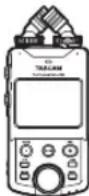
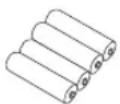
Main unit × 1 AA alkaline batteries × 4
TASCAM ID registration guide × 1
Owner's Manual × 1 (this document including warranty)
Accessories sold separately
This product does not include the following items. Please purchase any that you need for your uses.
- microSD cards
A card is necessary to record and play files with this unit.
A list of microSD cards that have been confirmed for use with this unit can be found on the TASCAM website (https://tascam.jp/int/product/portacapture_x6/docs). Check the page for this product. You can also contact TASCAM customer support.
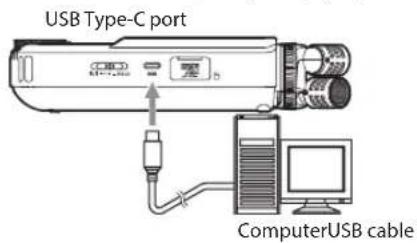
- USB cables (for communication or data transfer) This unit has a USB Type-C port. A USB cable must be prepared to connect this unit to a computer (Windows/Mac) or smartphone.
- USB cables designed only for charging cannot be used.
Connecting to an iOS device with a lightning port
A genuine Apple Lightning to USB Camera Adapter and a commercially-available Type-A to Type-C cable are necessary.
Connecting to a computer or smartphone with a USB Type-C port
A commercially-available Type-C to Type-C cable is necessary.
Connecting to a smartphone with a USB micro-B port
A commercially-available micro-B to Type-C cable is necessary.
Connecting to a computer with a USB Type-A port
A commercially-available Type-A to Type-C cable is necessary.
- PS-P520U AC adapter
This is necessary to operate this unit using AC power.
NOTE
This unit does not have a function to charge rechargeable batteries when using an AC adapter.
- AK-BT1 Bluetooth adapter
This is necessary to control this unit from a smartphone using Bluetooth connection.
Names of Parts
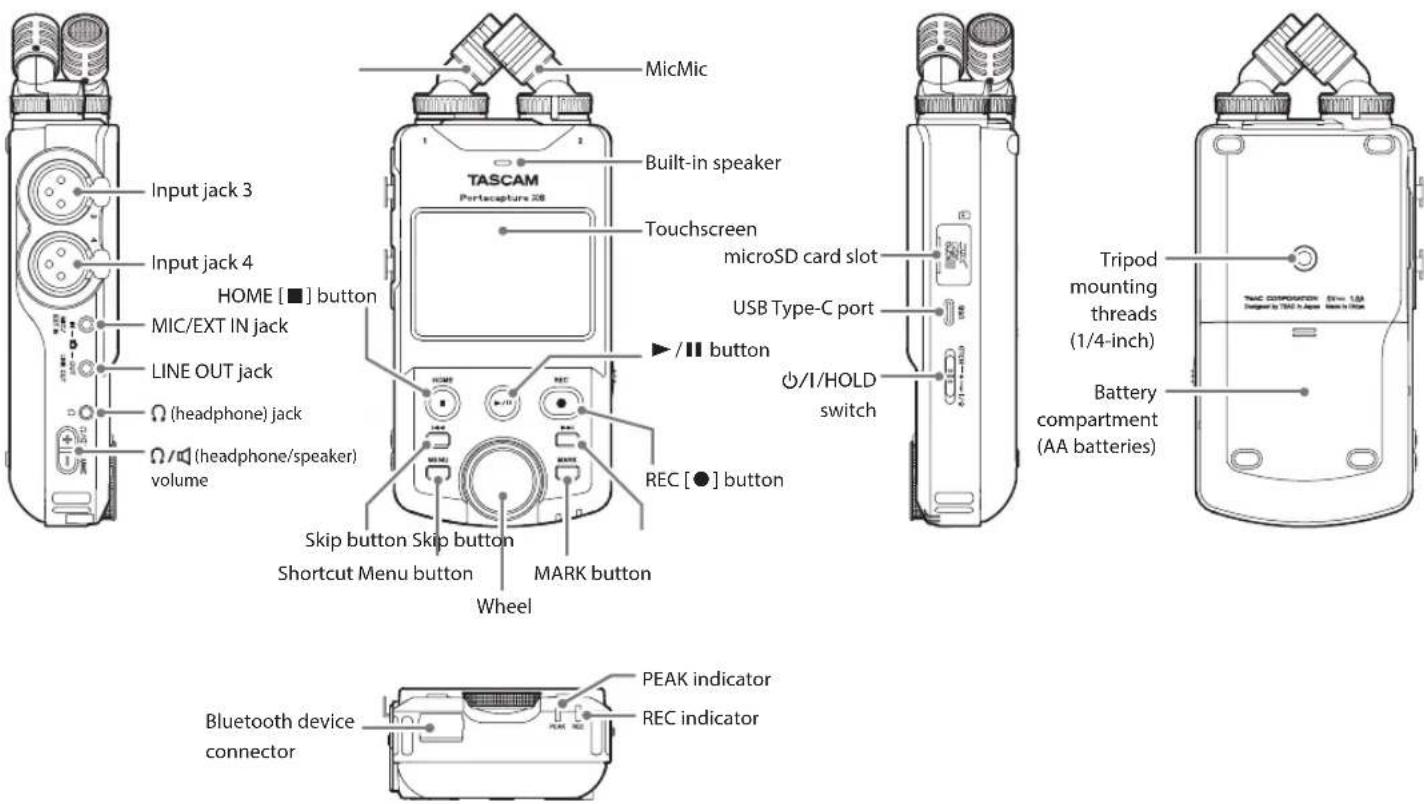
text_image
Input jack 3 Input jack 4 HOME [■] button MIC/EXT IN jack LINE OUT jack (headphone) jack (headphone/speaker) volume MicMic Built-in speaker Touchscreen microSD card slot USB Type-C port ▶ / II button ○/I/HOLD switch REC [●] button Skip button Skip button Shortcut Menu button MARK button Wheel Bluetooth device connector PEAK indicator REC indicator Tripod mounting threads (1/4-inch) Battery compartment (AA batteries)Bluetooth device connector:
Connect and use an AK-BT1 Bluetooth adapter here.
(See "Controlling this unit from a smartphone" on page 14)
Input jacks 3/4:
Connect other mics or line output devices to use these (XLR)
Quick Start Guide
Setting the built-in mics
Using the built-in microphones
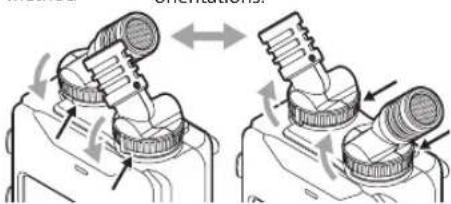
This unit's built-in mics are adjustable, enabling the mic format to be changed by setting their angles.
True X-Y method
This enables recording with a clear stereo field and reduced phase difference.
A-B method
This enables recording with a wide left-right stereo field.
Turn the mics True X-Y to change their method orientations. A-B method
natural_image
Diagram showing mechanical assembly with arrows indicating motion or transformation (no text or symbols)Hold the rings indicated by the black arrows and turn the built-in mics to change their angles. The built-in mics will not be set properly if their rings have not been turned until they stop.
Inserting microSD cards
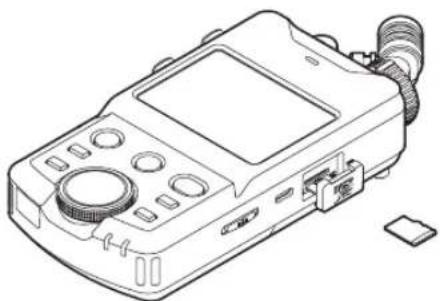
Open the microSD slot cover and insert a microSD card.
natural_image
Line drawing of a handheld electronic device with control panel and connector (no text or symbols)Preparing the power supply
This unit can be powered in two ways: with AA batteries or by external power using the USB port.
Using AA batteries
-
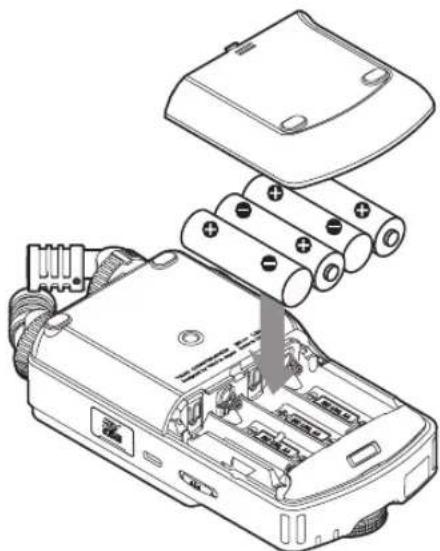
Remove the battery compartment cover, and install 4 AA batteries with their ⊕ and ⊖ marks as shown in the battery compartment.
-
Reattach the battery compartment cover.
natural_image
Technical line drawing of an electronic device with battery pack and internal components (no text or symbols)NOTE
- This unit cannot recharge Ni-MH batteries. Use a commercially available recharger.
• The included alkaline batteries are for confirming operation of the unit. For this reason, they might not last very long.
Using external power
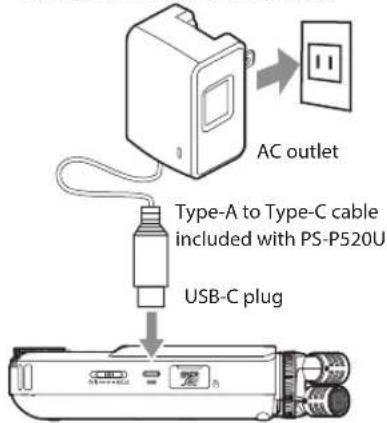
Connect the USB port on the unit to an external power supply.
The illustration below is an example of connecting a PS-P520U AC adapter (sold separately) to the unit.
TASCAM PS-P520U (sold separately)
text_image
AC outlet Type-A to Type-C cable included with PS-P520U USB-C plugCAUTION
We highly recommend using the AC adapter designed for use with this unit (PS-P520U sold separately). When using another external power supply, use one with the following specifications.
• Supplied voltage: 5 V
• Supplied current: 1.5A or more
Using an external power supply with specifications other than the above could cause malfunction, overheating, fire or other problems.
Turning the power on and off
Turning the power on
Slide the ⏻/I/HOLD switch toward ⏻/I until the display is activated. Then, release the switch. When the unit starts up, the touchscreen display becomes active.
text_image
TASCAM Portacapture X6The first time the unit is started, a screen to set the display language will open. From the second time, the HOME screen of the app selected from the LAUNCHER screen when the unit was last turned off will reopen.
Turning the power off
Slide the power switch toward ⏻/1 until the display turns off. Then, release the switch.
Setting the language, date and time
Selecting the language
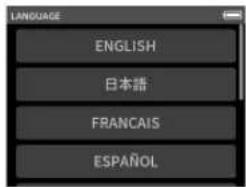
The first time the unit is turned on after purchase, the LANGUAGE screen will open.
text_image
LANGUAGE ENGLISH 日本語 FRANCAIS ESPAÑOLTap the desired language to confirm it.
NOTE
The language setting can also be changed using the GENERAL SETTING screen > SYSTEM page > LANGUAGE item. See the Reference Manual for details.
Setting the date and time
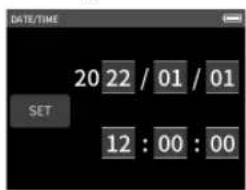
After setting the language and whenever the date and time has been reset, the DATE/TIME screen will open to enable setting them.
text_image
DATE/TIME 20 22 / 01 / 01 SET 12 : 00 : 00- Touch and swipe the numbers to set the date and time.
- Tap the SET button to confirm the settings.
NOTE
The date and time setting can also be changed using the GENERAL SETTING screen > SYSTEM page > DATE/TIME item. (See "Using AA batteries" on page 8)
TASCAM Portacapture X6
Formatting (initializing) microSD cards
The following message will appear if an unformatted card is loaded.
Tap OK to start formatting.
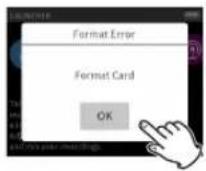
- After formatting completes successfully, the LAUNCHER (app selection) screen will open.
CAUTION
Formatting will erase all data on a microSD card. Back up to a computer, for example before formatting a card.
Basic screen operations
Functions can be set and adjusted by tapping, swiping and sliding on the touchscreen of this unit.
The first time the unit is started, after setting the language, date and time, the LAUNCHER screen will open.
The LAUNCHER screen can be used to launch various recording apps and setting screens.
Launching recording apps
- As shown in the illustration below, swipe the middle of the screen to select the app to launch.
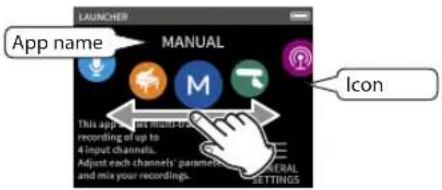
text_image
App name MANUAL This app is not rated to recording up to 4 input channels. Adjust each channel's parameters and mix your recordings. Icon GENERAL SETTINGS- Tap its icon to launch the app.
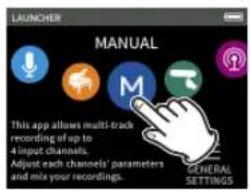
text_image
LAUNCHER MANUAL This app allows multi-track recording of up to a input channels. Adjust each channels' parameters and mix your recordings. GENERAL SETTINGSThe recording app HOME screen will open.
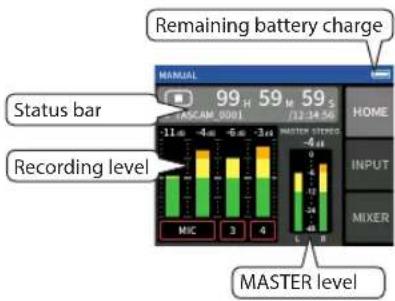
text_image
Remaining battery charge 99 H 59 M 59 S TASCAM 0001 12:34:56 STATUS bar Recording level MIC 3 4 MASTER STREED -4 -6 -3 -1 -4 -1 -4 -1 -4 -1 INPUT MIXER MASTER levelMANUAL recording app example
Switching screens
Tap the name of a screen at the right of the display to switch to it.
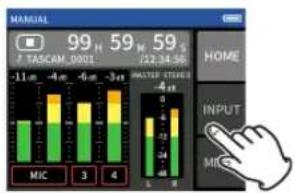
text_image
7 TASCAN_0001 99 H 59 M 59 S -11 m -4 m -6 m -3 m MIC 3 4 MASTER STICKS 4 m HOME INPUT MICReturning to the LAUNCHER screen
- Press the Shortcut Menu button at the bottom left of the unit.
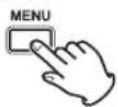
- Tap the LAUNCHER icon in the Shortcut Menu.

text_image
LAUNCHER icon LAUNCHER BROWSE GENERAL SETTINGS INPUT SELECT MIXDOWN REC SETTINGS RECORDING GUIDE PUNCH I/O Shortcut menuThis reopens the LAUNCHER screen
Recording and playing files
Recording
To record, open the recording app shown on the LAUNCHER screen that suits the type of recording(See "Recording apps" on page 13).
After launching the recording app, the input levels of each track and their mix must also be set in order to record at suitable levels.
This unit has a recording guide function designed to prevent users from accidentally skipping important steps or doing them out of order. This function can only be used with the MANUAL app. (When shipped new the recording guide is on by default.)
After the MANUAL app is launched, operation procedures will be shown. Follow their instructions to make adjustments.
When the recording guide is active, setting screens open in the following order, enabling settings to be made in the correct sequence.
HOME screen
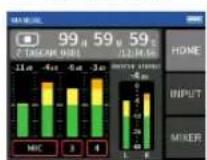
INPUT screen

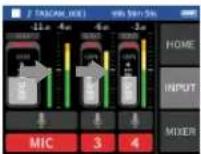
Set input levels
MIXER screen HOME screen
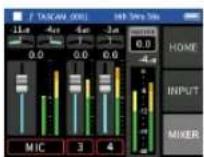
Balance the mix Record
In this manual, recording procedures are explained for the MANUAL app (with the RECORDING GUIDE function on), which is the basic way to use the unit. See the Reference Manual for explanations of recording procedures using other apps.
Procedure 1: Launch the recording app
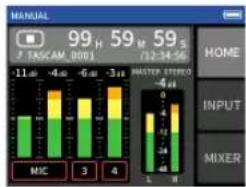
- Launch the MANUAL app from the LAUNCHER screen.
bar
MANUAL | Category | Value (Hz) | |---|---| | MIC | -11 | | 3 | -4 | | 4 | -6 | | 5 | -3 | | 6 | -2 | | 7 | -1 | | 8 | 0 | | 9 | 59 | | 10 | 59 | | 11 | 72-34-56 | | 12 | 59-34-56 | | 13 | -4 | | 14 | -4 | | 15 | -4 | | 16 | -4 | | 17 | -4 | | 18 | -4 | | 19 | -4 | | 20 | -4 | | 21 | -4 | | 22 | -4 | | 23 | -4 | | 24 | -4 | | 25 | -4 | | 26 | -4 | | 27 | -4 | | 28 | -4 | | 29 | -4 | | 30 | -4 | | 31 | -4 | | 32 | -4 | | 33 | -4 | | 34 | -4 | | 35 | -4 | | 36 | -4 | | 37 | -4 | | 38 | -4 | | 39 | -4 | | 40 | -4 | | 41 | -4 | | 42 | -4 | | 43 | -4 | | 44 | -4 | | 45 | -4 | | 46 | -4 | | 47 | -4 | | 48 | -4 | | 49 | -4 | | 50 | -4 | | 51 | -4 | | 52 | -4 | | 53 | -4 | | 54 | -4 | | 55 | -4 | | 56 | -4 | | 57 | -4 | | 58 | -4 | | 59 | -4 | | 60 | -4 | | 61 | -4 | | 62 | -4 | | 63 | -4 | | 64 | -4 | | 65 | -4 | | 66 | -4 | | 67 | -4 | | 68 | -4 | | 69 | -4 | | 70 | -4 | | 71 | -4 | | 72 | -4 | | 73 | -4 | | 74 | -4 | | 75 | -4 | | 76 | -4 | | 77 | -4 | | 78 | -4 | | 79 | -4 | | 80 | -4 | | 81 | -4 | | 82 | -4 | | 83 | -4 | | 84 | -4 | | 85 | -4 | | 86 | -4 | | 87 | -4 | | 88 | -4 | | 89 | -4 | | 90 | -4 | | 91 | -4 | | 92 | -4 | | 93 | -4 | | 94 | -4 | | 95 | -4 | | 96 | -4 | | 97 | -4 | | 98 | -4 | | 99 | -4 | | MIC: Minimum; MIC: Maximum; MAX: Minimum; MAX: Maximum; METER: Minimum; METER: Maximum; INPUT: Minimum; MIXER: Minimum; MIXER: Maximum; H. TASCAM, DDTI, TASCAM, DDTI, TASCAM, DDTI, TASCAM, DDTI, TASCAM, DDTI, TASCAM, DDTI, TASCAM, DDTI, TASCAM, DDTI, TASCAM, DDTI, TASCAM, DDTI, TASCAM, DDTI, TASCAM, DDTI, TOSCAM, DDTI, TOSCAM, DDTI, TOSCAM, DDTI, TOSCAM, DDTI, TOSCAM, DDTI, TOSCAM, DDTI, TOSCAM, DDTI, TOSCAM, DDTI, TOSCAM, DDTI, TOSCAM, DDTI, TOSCAM, DDTI, TOSCIM, DDTI, TOSCIM, DDTI, TOSCIM, DDTI, TOSCIM, DDTI, TOSCIM, DDTI, TOSCIM, DDTI, TOSCIM, DDTI, TOSCIM, DDTI, TOSCIM, DDTI, TOSCIM, DDTI, TOSCIM, DDTI, TOSCIMThe recording app HOME screen will open.
Procedure 2: Set input levels
- Press the REC [●] button on the unit.
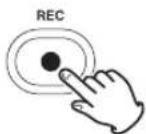
The REC indicator will blink.
- Tap INPUT at the right of the screen to open the INPUT screen.
NOTE
- By default (recording guide activated), recording cannot be started before proceeding through the guided steps to the MIXER screen.
- If the recording guide is not needed, open the MANUAL app HOME screen, press the Shortcut Menu button, and set RECORDING GUIDE to OFF. This enables starting recording from other screens in addition to the MIXER screen.
-
See the Reference Manual for recording operation differences when the recording guide function is on or off.
-
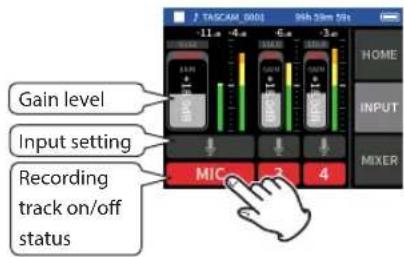
Tap MIC or numbers 3 to 4 to turn the recording tracks on/off.
text_image
J TAGCIAL 0001 9th 24m 5h -11.4 -4.4 6.4 -3.4 HOME INPUT MIXER Gain level Input setting Recording track on/off status MIC 2 4Tracks shown with red backgrounds will be recorded.
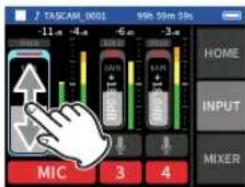
- Slide the track GAIN faders to adjust their input levels.
text_image
TASCAM_0001 99h 59m 20s -11.4 -4.4 -6.4 -3.4 Slight GND MIXER HOME INPUT MIXER MIC 3 4While watching the level meters, adjust the GAIN faders until the highest that the meters reach is about -12 dB.
NOTE
If the input level exceeds -2 dB, the PEAK indicator on the unit will light.
Procedure 3: Set the mixer
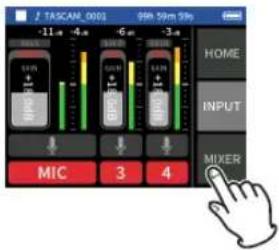
- Tap MIXER at the right of the screen to open the MIXER screen.
text_image
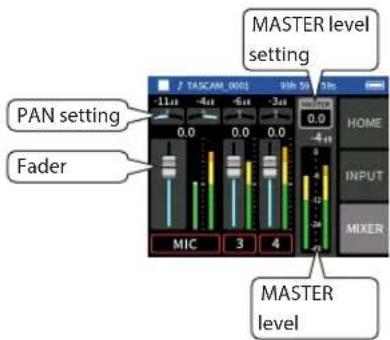
J. TASCAL_0001 99h 59m 99y -11 m -4 m -6 m -3 m HOME INPUT MIXER MIC 3 4- Slide the faders of each track to adjust the balance of levels sent to the MASTER.
text_image
MASTER level setting PAN setting Fader MIC 3 4 TASCAM 0001 98h 50 3m HOME INPUT MIXER MASTER level- If an input level is too low the recorded sound will be quiet, but if it is too high the sound will be distorted (or break up).
Procedure 4: Start recording
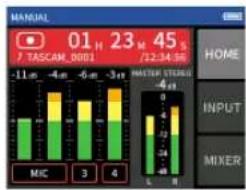
- Press the REC [ ●] button on the unit to start recording.
When recording starts, the REC indicator will become lit.
bar
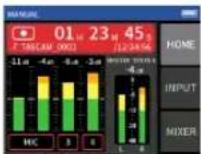
TASCAM_0001 01 H 23 M 45 S (12:34:56) MIC -11 m -4 m -6 m -3 m MASTER STRESS 4 m INPUT MIXER HOME- Press the HOME [■] button on the unit to stop recording.

When recording stops, the REC indicator will become unlit.
Starting playback
Press the ▶/■ button to start playback.
NOTE
To listen to the playback sound from the built-in speaker, set the GENERAL SETTINGS screen > I/O SETTINGS page > SPEAKER item to ON. This is set to OFF when shipped new from the factory.
Pausing playback
During playback, press the ▶/■ or HOME [■] button to pause playback. Press the ▶/■ button again to resume playback.
Stopping playback
Press the unit HOME [■] button when paused or playing to return to the beginning of the file.
NOTE
See the Reference Manual for explanations of the other playback functions.
Listening with headphones
Connect headphones to the (headphone) jack.
CAUTION
Before connecting headphones, lower the Ω/Δ (headphone/speaker) volume control to the minimum level. Failure to do so might cause sudden loud noises, which could harm your hearing or result in other trouble.
Adjusting the volume
Use the (headphone/speaker) volume control to adjust the volume output from the built-in speaker and headphones.
Useful functions
We explain some additional functions in this section. See the Reference Manual for details about their use and more functions.
LAUNCHER
The LAUNCHER can be used to launch recording apps and open settings screens.
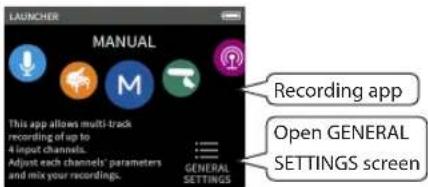
text_image
LAUNCHER MANUAL Recording app This app allows multi-track recording of up to 4 input channels. Adjust each channels' parameters and mix your recordings. GENERAL SETTINGS GENERAL SETTINGS screenRecording apps
The following apps for typical recording situations are available.
| MANUAL | This is the basic app of the unit. Multitrack recording of up to four channels is possible. |
| VOICE | This recording app is good for capturing interviews and meetings. |
| PODCAST | This app is good for recording podcasts with up to two people. |
| MUSIC | This recording app is good for easily capturing instrumental and vocal performances. |
| FIELD | This app is good for recording outdoors. |
| ASMR | The screen effect changes in response to the input sound in this recording app. |
NOTE
The designs and functions of apps and other features could change with firmware updates.
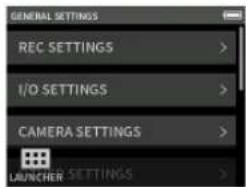
GENERAL SETTINGS screen
Tap items to make specific settings for the unit.
text_image
GENERAL SETTINGS REC SETTINGS > I/O SETTINGS > CAMERA SETTINGS > LAUNCHER SETTINGS >See the Reference Manual for information about all the settings.
Controlling this unit from a smartphone
When an AK-BT1 Bluetooth adapter is connected to the Bluetooth device connector of this unit, this unit can be controlled from an iOS/Android device using a controller app.
See the Reference Manual for how to connect the AK-BT1 Bluetooth adapter (sold separately) to this unit and how to install and use the controller app.
Connecting cameras
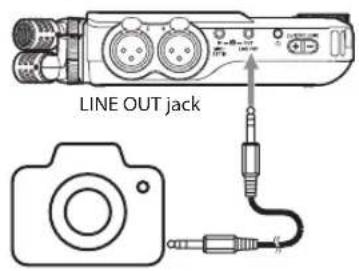
The following functions can be used when connected to a Digital SLR camera.
• Output slate tones and set levels
- Lower the LINE OUT jack output level to suit the camera
TIP
Slate tones are signals input simultaneously into both the audio of video files and the files recorded by this unit. They can be used to synchronize audio when editing video files.
text_image
LINE OUT jackDigital SLR camera
Connecting computers and smartphones by USB
The following functions are possible when connected by USB to a computer (Windows/Mac) or smartphone.
- Use the unit as a USB mic
- Simultaneously record to a computer while recording on the microSD card in the unit (backup recording)
• Monitor sound from the computer - Add sound through the unit's mics to sound playing on the computer and stream it live on the Internet (loopback)
- Use as a microSD card reader (only when connected to a computer)
NOTE
A USB cable (sold separately) must be prepared to connect this unit to a computer or smartphone. (See "Accessories sold separately" on page 6)
text_image
USB Type-C port ComputerUSB cable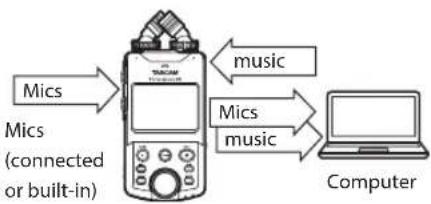
flowchart
graph LR
    A["Mics"] --> B["Computer"]
    C["Mics (connected or built-in)"] --> B
    D["music"] --> B
    E["Mics"] --> B
    F["music"] --> B
Troubleshooting
If you are having trouble with the operation of this unit, please check the following before seeking repair. If these measures do not solve the problem, please contact the store where you bought the unit or TASCAM customer support service.
Power will not turn on
- Confirm that the ⏻/I/HOLD switch is not set to HOLD.
- Confirm that batteries are installed correctly.
- Confirm that the TASCAM PS-P520U AC adapter (sold separately) power plug and the USB connector are securely connected. The unit might not operate properly through a USB hub.
The unit turns off automatically
- Confirm that the automatic power saving function is disabled.
- The automatic power saving function can be turned on/off using the GENERAL SETTINGS screen > POWER/DISPLAY page > AUTO POWER item.
- Since this unit complies with the European Standby Power Regulations (ErP), the automatic power saving function operates regardless of whether the unit is being powered by an AC adapter or batteries. If you do not want to use the automatic power saving function, set it to "OFF". (The factory default setting is "30 min".)
Operation is not possible using the unit controls
- Confirm that the ⏻/I/HOLD switch is not set to HOLD.
- When the microSD card reader function is active on the display, other operations are not possible.
The microSD card is not recognized.
- Confirm that the microSD card is inserted completely.
No sound is output
- Confirm the unit's headphone/speaker output level.
- Check the monitoring system connections and volume level.
-
No sound is output from the speaker in the following conditions.
-
The (headphone/speaker) volume value is set to "0".
- The GENERAL SETTINGS screen > I/O Settings page > SPEAKER is set to "OFF" (See "GENERAL SETTINGS screen" on page 13).
- The unit is recording or in recording standby
- The LINE OUT or headphones jack is in use.
Recording is not possible
- Confirm that the microSD card has enough open space.
- Recording becomes impossible when the total number of files reaches 5000.
The input sound is extremely quiet or loud
- Check input level settings. (See "Recording and playing files" on page 11)
- Check the output levels of connected external equipment.
A file cannot be erased
- A protected (read only) file cannot be erased.
This unit's files do not appear on the computer.
- Confirm that the unit is properly connected to the computer using its USB port. The unit might not operate properly if connected through a USB hub.
- Confirm that the unit screen shows "SD card reader".
The wrong language was set accidentally
- Slide the ⏻/I/HOLD switch toward the ⏻/I icon until the unit turns off. Then, while pressing the HOME [■] button, slide the ⏻/I/HOLD switch toward the ⏻/I icon again.
The language selection menu will appear, and you will be able to select the language.
Noise is occurring
- If this unit is near a mobile phone, TV, radio, power amplifier or other device with a large transformer, noise could occur with this unit or other devices nearby. (See "IMPORTANT SAFETY INSTRUCTIONS" on page 3)
TASCAM Portacapture X6
The built-in speaker volume is low
- Press the + side of the (headphone/speaker) volume control.
- If input levels were low during recording, it might be difficult to hear even when the speaker is at its maximum volume. If the maximum input level during recording is close to 0 dB, the built-in speaker will output at near maximum volume
- If more volume is needed, connect an external speaker with a built-in amp or an amp with a speaker connected to it.
The date/time is incorrect
- The date and time setting can be changed using the GENERAL SETTING screen > SYSTEM page > DATE/TIME item. (See "GENERAL SETTINGS screen" on page 13)
Precautions for placement and use
- The operating temperature range of this unit is 0–40 °C.
- Do not install this unit in the following types of locations. Doing so could degrade the sound quality and/or cause malfunctions.
- Places with significant vibrations
- Next to a window or in another location exposed to direct sunlight
• Near heaters or other extremely hot places
• Extremely cold places
• Very humid or poorly ventilated places - Very dusty places
- Places exposed directly to rain or other water
- If this unit is placed near a power amplifier or other device with a large transformer, it could cause a hum. If this occurs, increase the distance between this unit and the other device.
- This unit could cause color irregularities on a TV screen or noise from a radio if used nearby. If this occurs, use this unit farther away.
- This unit might produce noise if a mobile phone or other wireless device is used nearby to make calls or send or receive signals. If this occurs, increase the distance between this unit and those devices, put them into airplane mode or turn them off.
- Do not place this unit on top of a power amplifier or other device that generates heat.
Beware of condensation
Condensation could occur if the unit is moved from a cold place to a warm place, it is used immediately after a cold room has been heated or it is otherwise exposed to a sudden temperature change. To prevent this, or if this occurs, let the unit sit for one or two hours at the new room temperature before using it.
Cleaning the unit
Use a dry soft cloth to wipe the unit clean. Do not wipe with chemical cleaning cloths, thinner, alcohol or other chemical agents. Doing so could damage the surface or cause discoloration.
About TASCAM customer support service
TASCAM products are supported and warranted only in their country/region of purchase. To receive support after purchase, on the TASCAM Distributors list page of the TEAC Global Site (https://teac-global.com/), search for the local company or representative for the region where you purchased the product and contact that organization. When making inquiries, the address (URL) of the shop or web shop where it was purchased and the purchase date are required. Moreover, the warranty card and proof of purchase might also be necessary.
Specifications/rated values
Recorder
Supported media
microSD cards (64 MB - 2 GB)
microSDHC cards (4 GB - 32 GB)
microSDXC cards (48 GB - 512 GB)
• Media must be at least Class10.
Supported file systems
SD cards: FAT16
SDHC cards: FAT32
SDXC cards: exFAT
Recording/playback formats
WAV (BWF): 44.1/48/96kHz, 16/24-bit or 32-bit float
MP3: 44.1/48kHz, 128/192/256/320kbps
Number of channels
Number of input channels: 4 maximum
Number of recording tracks: 6 maximum
Analog audio input ratings
Mic inputs (balanced)
Input jacks 3/4 (when input set to MIC)
Connectors:
XLR-3-31 equivalent (1: GND, 2: HOT, 3: COLD)
(supports phantom power only when MIC input selected)
Input impedance: 2.2 kΩ or more
Maximum input level: +2 dBu
Minimum input level: -75 dBu
Input jacks 3/4 (when input set to LINE)
Connector:
XLR-3-31 equivalent (1: GND, 2: HOT, 3: COLD)
Input impedance: 9 kΩ or more
Nominal input level: +4 dBu (GAIN setting at minimum)
Maximum input level: +24 dBu
Minimum input level: -53 dBu
Line input (unbalanced): MIC/EXT IN jack
Connector: 3.5mm (1/8") stereo mini jack
Input impedance:
10 kΩ or higher (when plug-in power is OFF)
1.8 kΩ or higher (when plug-in power is ON)
Nominal input level: -20 dBV (GAIN setting at minimum)
Maximum input level: 0 dBV
Minimum input level: -67 dBV
Analog audio output
Line output (unbalanced): LINE OUT jack
Connector: 3.5mm (1/8") stereo mini jack
Output impedance: 210 Ω
Nominal output level: -14 dBV
Maximum output level: +6 dBV
- 0 dBu = 0.775 Vrms
- 0 dBV = 1 Vrms
Headphone output: headphone jack
Connector: 3.5mm (1/8") stereo mini jack
Maximum output: 45mW + 45mW (0.1%
THD+N or less, into 32Ω
load)
Built-in speaker
0.4 W (mono)
USB
Port: USB Type-C
Transfer mode: USB 2.0 Hi-Speed
Device classes: Mass storage, USB Audio Class 2.0
(USB class compliant)
USB audio
Sampling frequencies
44.1, 48, 96 kHz
Quantization bit depth: 24-bit
Number of input channels: 6 (output from unit)
Number of output channels: 2 (input to unit)
Bluetooth device connector
For Bluetooth adapter (AK-BT1) only
Other
Power
4 AA batteries (alkaline, NiMH or lithium-ion)
USB bus power from a computer
TASCAM PS-P520U AC adapter (sold separately)
Power consumption
7.5 W (maximum)
Battery operation time (continuous operation)
● Using alkaline batteries (EVOLTA)
| Use conditions | Operation time |
| Input through inputs 1–2 (built-in mics) Phantom power unused44.1kHz/24-bit stereo WAV (BWF) recordingAUTO POWER SAVE mode on | About13.5 hours |
| Input through inputs 1–2 (built-in mics) and input jacks 3–4 (using phantom power: +48V, 3mA×2 load)44.1kHz/24-bit stereo WAV (BWF) recordingAUTO POWER SAVE mode off | About 5.5 hours |
NOTE
When using phantom power, the operation time might be reduced depending on the mics being used.
Dimensions
75 × 174.3 × 37.2 mm (width × height × depth, excluding protrusions)
Weight
365/265 g (with/without batteries)
Operating temperature range
0–40°C
- Illustrations in this manual might differ in part from the actual product.
- Specifications and external appearance might be changed without notification to improve the product.
MODE D'EMPLOI
INSTRUCTIONS DE SÉCURITÉ IMPORTANTES
AVERTISSEMENT : POUR PRÉVENIR LES RISQUES D'INCENDIE ET D'ÉLECTROCUTION, N'EXPOSEZ PAS CET APPAREIL À LA PLUIE NI À L'HUMIDITÉ.

natural_image
Diagram showing two mechanical components with arrows indicating motion or assembly (no text or symbols)natural_image
Line drawing of a handheld electronic device with control panel and ports (no text or symbols)natural_image
Technical line drawing of an electronic device with battery pack and internal components (no text or symbols)NOTE
text_image
TASCAM_0901 9th 50m 50s -11 -4 -6 -3 HOME ENTREED MIXER MIC 3 4text_image
Prise LINE OUTResponsible: TEAC AMERICA, INC.
Dirección: 10410 Pioneer Blvd., Unit #1, Santa Fe Springs, California 90670, U.S.A
natural_image
Diagram showing two mechanical components with arrows indicating motion or assembly (no text or symbols)natural_image
Line drawing of a handheld electronic device with ports and control panel (no text or symbols)natural_image
Technical line drawing of an electronic device with battery pack and internal components (no text or symbols)NOTA
Tarjetas SDHC: FAT32
natural_image
Diagram showing two mechanical components with arrows indicating motion or assembly (no text or symbols)natural_image
Line drawing of a handheld electronic device with control panel and ports (no text or symbols)natural_image
Technical line drawing of an electronic device with battery pack and internal components (no text or symbols)Anmerkung
text_image
LAUNCHER MANUELL M SymbolXLR-3-31 (1: Masse, 2: heiß (+), 3: kalt (−))
XLR-3-31 (1: Masse, 2: heiß (+), 3: kalt (−))
44,1 kHz, 48 kHz, 96 kHz
natural_image
Diagram showing two mechanical components with arrows indicating motion or assembly (no text or symbols)natural_image
Line drawing of a handheld electronic device with ports and connectors (no text or symbols)Accendere l'unità
natural_image
Technical line drawing of an electronic device with battery pack and internal components (no text or symbols)NOTA
File system supportati
Schede SD: FAT16
Schede SDHC: FAT32
Schede SDXC: exFAT
WAV (BWF): 44.1/48/96/192 kHz, 16/24 bit o float a 32 bit
MP3: 44,1/48 kHz, 128/192/256/320 kbps
Numero canali:
XLR-3-31 (1: GND, 2: HOT, 3: COLD)
XLR-3-31 (1: GND, 2: HOT, 3: COLD)
natural_image
Diagram showing two mechanical components with arrows indicating motion or assembly (no text or symbols)natural_image
Line drawing of a handheld electronic device with control panel and ports (no text or symbols)Питание устройства
natural_image
Technical line drawing of an electronic device with battery pack and internal components (no text or symbols)ПРИМЕЧАНИЕ
text_image
TASCAM 0001 9th 50m 30s HOME INPUT MIXER MIC 3 4text_image
J TASCAM_0001 9th 50m 30s -11 -4 -6 -2 HOME INPUT MIXER MIC 3 4natural_image
Line drawing of a handheld electronic device with ports and buttons (no text or symbols)電源の準備
natural_image
Technical line drawing of an electronic device with battery pack and internal components (no text or symbols)メモ
bar
TASCAM_0001 | 时间 | 数值 | |---|---| | 01 H | 23 M 45 S | -11.4 | -4.4 | | 3 H | -6.4 | | 4 S | -3.4 | | 5 S | -4.4 | | 6 S | -4.4 | | 7 S | -4.4 | | 8 S | -4.4 | | 9 S | -4.4 | | 10 S | -4.4 | | 11 S | -4.4 | | 12 S | -4.4 | | 13 S | -4.4 | | 14 S | -4.4 | | 15 S | -4.4 | | 16 S | -4.4 | | 17 S | -4.4 | | 18 S | -4.4 | | 19 S | -4.4 | | 20 S | -4.4 | | 21 S | -4.4 | | 22 S | -4.4 | | 23 S | -4.4 | | 24 S | -4.4 | | 25 S | -4.4 | | 26 S | -4.4 | | 27 S | -4.4 | | 28 S | -4.4 | | 29 S | -4.4 | | 30 S | -4.4 | | 31 S | -4.4 | | 32 S | -4.4 | | 33 S | -4.4 | | 34 S | -4.4 | | 35 S | -4.4 | | 36 S | -4.4 | | 37 S | -4.4 | | 38 S | -4.4 | | 39 S | -4.4 | | 40 S | -4.4 | | 41 S | -4.4 | | 42 S | -4.4 | | 43 S | -4.4 | | 44 S | -4.4 | | 45 S | -4.4 | | 46 S | -4.4 | | 47 S | -4.4 | | 48 S | -4.4 | | 49 S | -4.4 | | 50 S | -4.4 | | 51 S | -4.4 | | 52 S | -4.4 | | 53 S | -4.4 | | 54 S | -4.4 | | 55 S | -4.4 | | 56 S | -4.4 | | 57 S | -4.4 | | 58 S | -4.4 | | 59 S | -4.4 | | 60 S | -4.4 | | 61 S | -4.4 | | 62 S | -4.4 | | 63 S | -4.4 | | 64 S | -4.4 | | 65 S | -4.4 | | 66 S | -4.4 | | 67 S | -4.4 | | 68 S | -4.4 | | 69 S | -4.4 | | 70 S | -4.4 | | 71 S | -4.4 | | 72 S | -4.4 | | 73 S | -4.4 | | 74 S | -4.4 | | 75 S | -4.4 | | 76 S | -4.4 | | 77 S | -4.4 | | 78 S | -4.4 | | 79 S | -4.4 | | 80 S | -4.4 | | 81 S | -4.4 | | 82 S | -4.4 | | 83 S | -4.4 | | 84 S | -4.4 | | 85 S | -4.4 | | 86 S | -4.4 | | 87 S | -4.4 | | 88 S | -4.4 | | 89 S | -4.4 | | 90 S | -4.4 | | 91 S | -4.4 | | 92 S | -4.4 | | 93 S | -4.4 | | 94 S | -4.4 | | 95 S | -4.4 | | 96 S | -4.4 | | 97 S | -4.4 | | 98 S | -4.4 | | 99 S | -4.4 | | 100 S | -12.2, +12.2, +12.2, +12.2, +12.2, +12.2, +12.2, +12.2, +12.2, +12.2, +12.2, +12.2, +12.2, +12.2, +12.2, +12.2, +12.2, +12.3, +12.3, +12.3, +12.3, +12.3, +12.3, +12.3, +12.3, +12.3, +12.3, +12.3, +12.3, +12.< In the United States >
This warranty gives you specific legal rights and you may also have other rights which vary from state to state. This warranty is only valid within the country the unit was originally purchased.
WHAT IS COVERED AND WHAT IS NOT COVERED
Except as specified below, this warranty covers all defects in materials and workmanship in this product. The following are not covered by the warranty:
- Damage to or deterioration of the external cabinet.
- Damage resulting from accident, misuse, abuse or neglect.
- Damage resulting from failure to perform basic daily maintenance and/or calibration or otherwise resulting from failure to follow instructions contained in your owner's manual.
- Damage occurring during shipment of the product. (Claims must be presented to the carrier)
- Damage resulting from repair or attempted repair by anyone other than TEAC or an authorized TASCAM service station.
- Damage resulting from causes other than product defects, including lack of technical skill, competence, or experience of the user.
- Damage to any unit which has been altered or on which the serial number has been defaced, modified or is missing.
WHO IS COVERED UNDER THE WARRANTY
This warranty may be enforced only by the original purchaser. This warranty is not valid if the product was purchased through an unauthorized dealer.
LENGTH OF WARRANTY
All parts except heads and disk drives are warranted for one (1) year from the date of original purchase. Heads and disk drives are warranted for ninety (90) days from date of original purchase. Labor is warranted for ninety (90) days from date of original purchase.
WHAT WE WILL PAY FOR
We will pay all labor and material expenses for items covered by the warranty. Payment of shipping charges is discussed in the next section of this warranty.
HOW YOU CAN GET WARRANTY SERVICE
Your unit must be serviced by an authorized TASCAM service station in the United States. (This warranty is not enforceable outside the U.S.) If you are unable to locate an authorized TASCAM service station in your area, please contact us. We either will refer you to an authorized service station or instruct you to return the unit to the factory. Whenever warranty service is required, you must present a copy of the original dated sales receipt from an Authorized TASCAM Dealer. You must pay any shipping charges if it is necessary to ship the product to service. However, if the necessary repairs are covered by the warranty, we will pay return surface shipping charges to any destination within the United States.
LIMITATION OF IMPLIED WARRANTIES
Any implied warranties, INCLUDING WARRANTIES OF MERCHANTABILITY AND FITNESS FOR A PARTICULAR PURPOSE, are limited in duration to the length of this warranty.
EXCLUSION OF DAMAGES
TEAC's liability for any defective product is limited to repair or replacement of the product, at TEAC's option. TEAC shall not be liable for:
- Damages based upon inconvenience, loss of use of the product, loss of time interrupted operation or commercial loss; or
- Any other damages, whether incidental, consequential or otherwise.
Some states do not allow limitations on how long an implied warranty lasts and/or do not allow the exclusion or limitation of incidental or consequential damages, so the above limitations and exclusions may not apply to you.
To locate an Authorized Service Center in Your Area
CALL 1-323-726-0303
This product is subject to the legal warranty regulations of the country of purchase. In case of a defect or a problem, please contact the dealer where you bought the product.
These warranty provisions in Japanese are valid only in Japan.
&In other countries/areas >
This warranty gives you specific legal rights, and you may also have other rights that vary by country, state or province.
If you have warranty claim or request, please contact the dealer where you bought the product.
If you require repair services for your TASCAM equipment, please contact the dealer where the product was purchased from or the TASCAM Distributor in your country. A list of TASCAM Distributors can be found on our website at: https://teac-global.com/
WARRANTY / 保証書
https://teac-global.com/
Memo / 修理メモ
10410 Pioneer Blvd., Unit #1, Santa Fe Springs,
CA 90670, U.S.A
Phone: +1-323-726-0303