DS-M7.1 - Audio recorder TASCAM - Free user manual and instructions
Find the device manual for free DS-M7.1 TASCAM in PDF.


| Product Type | Portable Audio Recorder |
| Brand | TASCAM |
| Model | DS-M7.1 |
| Dimensions (W x H x D) | Approx. 70 x 140 x 35 mm |
| Weight (including batteries) | Approx. 300 g |
| Power Supply | 2 x AA batteries or USB bus power |
| Recording Media | SD/SDHC card (up to 32 GB) |
| Recording Formats | WAV (16-bit/44.1 kHz, 48 kHz), MP3 (128-320 kbps) |
| Microphone Input | Built-in stereo electret condenser microphone |
| Line Input | 3.5 mm stereo mini jack |
| Headphone Output | 3.5 mm stereo mini jack |
| USB Interface | Micro USB (mass storage class) |
| Battery Life | Approx. 15 hours (with alkaline batteries) |
| Recording Time | Up to 96 hours on 32 GB card (MP3 128 kbps) |
| Frequency Response | 20 Hz - 20 kHz |
| Signal-to-Noise Ratio | 80 dB (typical) |
| Display | LCD with backlight |
| Controls | Transport buttons, menu navigation, volume wheel |
| Mounting | Shoe mount compatible |
| Included Accessories | USB cable, windscreen, strap |
| Maintenance & Cleaning | Wipe with dry cloth; avoid liquids; keep connectors clean |
| Safety | Keep away from water, extreme temperatures, and direct sunlight. Do not disassemble. |
| Spare Parts & Repairability | Contact TASCAM support for parts and service; user-replaceable batteries |
Frequently Asked Questions - DS-M7.1 TASCAM
User questions about DS-M7.1 TASCAM
0 question about this device. Answer the ones you know or ask your own.
Ask a new question about this device
Download the instructions for your Audio recorder in PDF format for free! Find your manual DS-M7.1 - TASCAM and take your electronic device back in hand. On this page are published all the documents necessary for the use of your device. DS-M7.1 by TASCAM.
USER MANUAL DS-M7.1 TASCAM
TEAC Professional Division
D00671100A
DS-M7.1
Professional Digital Surround Monitor Controller
text_image
TASCAM DS-M7.1 POWER SCREEN SETTING VALUE CURSOR MUTE CONTROL ALT SPK SOLD/MUTE SUB/RTN DOWN MIX MUTE ALL MONO STATUS SYSTEM INSERT DOMAIN BASE MCT INPUT OUTPUT DELAY TRIM TEST SHIFT SND/ST TEST BASS WDT DIMOWNER'S MANUAL

CAUTION
RISK OF ELECTRIC SHOCK DO NOT OPEN

CAUTION: TO REDUCE THE RISK OF ELECTRIC SHOCK, DO NOT REMOVE COVER (OR BACK). NO USER-SERVICEABLE PARTS INSIDE. REFER SERVICING TO QUALIFIED SERVICE PERSONNEL.

The lightning flash with arrowhead symbol, within an equilateral triangle, is intended to alert the user to the presence of uninsulated “dangerous voltage” within the product’s enclosure that may be of sufficient magnitude to constitute a risk of electric shock to persons.

The exclamation point within an equilateral triangle is intended to alert the user to the presence of important operating and maintenance (servicing) instructions in the literature accompanying the appliance.
This appliance has a serial number located on the rear panel. Please record the model number and serial number and retain them for your records.
Model number
Serial number
WARNING: TO PREVENT FIRE OR SHOCK HAZARD, DO NOT EXPOSE THIS
APPLIANCE TO RAIN OR MOISTURE.
Important Safety Precautions
IMPORTANT (for U.K. Customers)
DO NOT cut off the mains plug from this equipment.
If the plug fitted is not suitable for the power points in your home or the cable is too short to reach a power point, then obtain an appropriate safety approved extension lead or consult your dealer.
If nonetheless the mains plug is cut off, remove the fuse and dispose of the plug immediately, to avoid a possible shock hazard by inadvertent connection to the mains supply.
If this product is not provided with a mains plug, or one has to be fitted, then follow the instructions given below:
IMPORTANT: The wires in this mains lead are coloured in accordance with the following code:
GREEN-AND-YELLOW : EARTH
BLUE : NEUTRAL
BROWN : LIVE
WARNING: This apparatus must be earthed.
As the colours of the wires in the mains lead of this apparatus may not correspond with the coloured markings identifying the terminals in your plug proceed as follows:
The wire which is coloured GREEN-and-YELLOW must be connected to the terminal in the plug which is marked by the letter E or by the safety earth symbol 12 or coloured GREEN or GREEN-and-YELLOW.
The wire which is coloured BLUE must be connected to the terminal which is marked with the letter N or coloured BLACK.
The wire which is coloured BROWN must be connected to the terminal which is marked with the letter L or coloured RED.
When replacing the fuse only a correctly rated approved type should be used and be sure to re-fit the fuse cover.
IF IN DOUBT — CONSULT A COMPETENT ELECTRICIAN.
For Canada
AC POWER CORD CONNECTION
CAUTION:
TO PREVENT ELECTRIC SHOCK, MATCH WIDE BLADE OF PLUG TO WIDE SLOT, FULLY INSERT.
CORDE DE CONNEXION CA
ATTENTION:
POUR ÉVITER LES CHOCS ÉLEC- TRIQUES, INTRODUIRE LA LAME LA PLUS LARGE DE LA FICHE DANS LA BORNE CORRESPONDANTE DE LA PRISE ET POUSSER JUSQU'AU FOND.
For U.S.A
TO THE USER
This equipment has been tested and found to comply with the limits for a Class A digital device, pursuant to Part 15 of the FCC Rules. These limits are designed to provide reasonable protection against harmful interference when the equipment is operated in a commercial environment. This equipment generates, uses, and can radiate radio frequency energy and, if not installed and used in accordance with the instruction manual, may cause harmful interference to radio communications.
Operation of this equipment in a residential area is likely to cause harmful interference in which case the user will be required to correct the interference at his own expense.
CAUTION
Changes or modifications to this equipment not expressly approved by TEAC CORPORATION for compliance could void the user's authority to operate this equipment.
For the consumers in Europe
WARNING
This is a Class A product. In a domestic environment, this product may cause radio interference in which case the user may be required to take adequate measures.
The equipment draws nominal non-operating power from the AC outlet with its POWER switch in the off position.
IMPORTANT SAFETY INSTRUCTIONS
CAUTION:
- Read all of these Instructions.
- Save these Instructions for later use.
- Follow all Warnings and Instructions marked on the audio equipment.
1) Read Instructions — All the safety and operating instructions should be read before the product is operated.
2) Retain Instructions — The safety and operating instructions should be retained for future reference.
3) Heed Warnings — All warnings on the product and in the operating instructions should be adhered to.
4) Follow Instructions — All operating and use instructions should be followed.
5) Cleaning — Unplug this product from the wall outlet before cleaning. Do not use liquid cleaners or aerosol cleaners. Use a damp cloth for cleaning.
6) Attachments — Do not use attachments not recommended by the product manufacturer as they may cause hazards.
7) Water and Moisture — Do not use this product near water — for example, near a bath tub, wash bowl, kitchen sink, or laundry tub; in a wet basement; or near a swimming pool; and the like.
8) Accessories — Do not place this product on an unstable cart, stand, tripod, bracket, or table. The product may fall, causing serious injury to a child or adult, and serious damage to the product. Use only with a cart, stand, tripod, bracket, or table recommended by the manufacturer, or sold with the product. Any mounting of the product should follow the manufacturer's instructions, and should use a mounting accessory recommended by the manufacturer.
9) A product and cart combination should be moved with care. Quick stops, excessive force, and uneven surfaces may cause the product and cart combination to overturn.

natural_image
Symbolic icon of a person lifting a large object, enclosed in a circle (no text or symbols)10) Ventilation — Slots and openings in the cabinet are provided for ventilation and to ensure reliable operation of the product and to protect it from overheating, and these openings must not be blocked or covered. The openings should never be blocked by placing the product on a bed, sofa, rug, or other similar surface. This product should not be placed in a built-in installation such as a bookcase or rack unless proper ventilation is provided or the manufacturer's instructions have been adhered to.
11) Power Sources — This product should be operated only from the type of power source indicated on the marking label. If you are not sure of the type of power supply to your home, consult your product dealer or local power company. For products intended to operate from battery power, or other sources, refer to the operating instructions.
12) Grounding or Polarization — This product may be equipped with a polarized alternating-current line plug (a plug having one blade wider than the other). This plug will fit into the power outlet only one way. This is a safety feature. If you are unable to insert the plug fully into the outlet, try reversing the plug. If the plug should still fail to fit, contact your electrician to replace your obsolete outlet. Do not defeat the safety purpose of the polarized plug.
13) Power-Cord Protection — Power-supply cords should be routed so that they are not likely to be walked on or pinched by items placed upon or against them, paying particular attention to cords at plugs, convenience receptacles, and the point where they exit from the product.
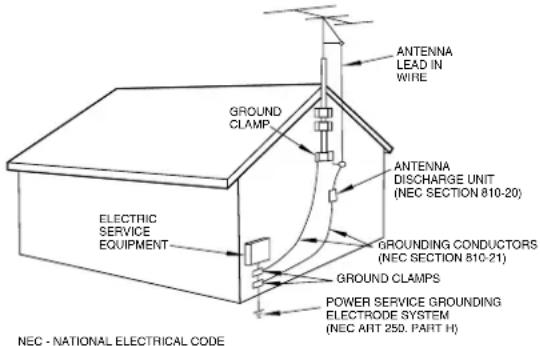
14) Outdoor Antenna Grounding — If an outside antenna or cable system is connected to the product, be sure the antenna or cable system is grounded so as to provide some protection against voltage surges and built-up static charges. Article 810 of the National Electrical Code, ANSI/NFPA 70, provides information with regard to proper grounding of the mast and supporting structure, grounding of the lead-in wire to an antenna discharge unit, size of grounding conductors, location of antenna-discharge unit, connection to grounding electrodes, and requirements for the grounding electrode.
"Note to CATV system installer:
This reminder is provided to call the CATV system installer's attention to Section 820-40 of the NEC which provides guidelines for proper grounding and, in particular, specifies that the cable ground shall be connected to the grounding system of the building, as close to the point of cable entry as practical.
Example of Antenna Grounding as per National Electrical Code, ANSI/NFPA 70
text_image
ANTENNA LEAD IN WIRE GROUND CLAMP ANTENNA DISCHARGE UNIT (NEC SECTION 810-20) GROUNDED CONDUCTORS (NEC SECTION 810-21) GROUND CLAMPS POWER SERVICE GROUNDING ELECTRODE SYSTEM (NEC ART 250. PART H) ELECTRIC SERVICE EQUIPMENT NEC - NATIONAL ELECTRICAL CODE15) Lightning — For added protection for this product during a lightning storm, or when it is left unattended and unused for long periods of time, unplug it from the wall outlet and disconnect the antenna or cable system. This will prevent damage to the product due to lightning and power-line surges.
16) Power Lines — An outside antenna system should not be located in the vicinity of overhead power lines or other electric light or power circuits, or where it can fall into such power lines or circuits. When installing an outside antenna system, extreme care should be taken to keep from touching such power lines or circuits as contact with them might be fatal.
17) Overloading — Do not overload wall outlets, extension cords, or integral convenience receptacles as this can result in risk of fire or electric shock.
18) Object and Liquid Entry — Never push objects of any kind into this product through openings as they may touch dangerous voltage points or short-out parts that could result in a fire or electric shock. Never spill liquid of any kind on the product.
19) Servicing — Do not attempt to service this product yourself as opening or removing covers may expose you to dangerous voltage or other hazards. Refer all servicing to qualified service personnel.
20) Damage Requiring Service — Unplug this product from the wall outlet and refer servicing to qualified service personnel under the following conditions:
a) when the power-supply cord or plug is damaged.
b) if liquid has been spilled, or objects have fallen into the product.
c) if the product has been exposed to rain or water.
d) if the product does not operate normally by following the operating instructions. Adjust only those controls that are covered by the operating instructions as an improper adjustment of other controls may result in damage and will often require extensive work by a qualified technician to restore the product to its normal operation.
e) if the product has been dropped or damaged in any way.
f) when the product exhibits a distinct change in performance – this indicates a need for service.
21) Replacement Parts — When replacement parts are required, be sure the service technician has used replacement parts specified by the manufacturer or have the same characteristics as the original part.
Unauthorized substitutions may result in fire, electric shock, or other hazards.
22) Safety Check — Upon completion of any service or repairs to this product, ask the service technician to perform safety checks to determine that the product is in proper operating condition.
23) Wall or Ceiling Mounting — The product should be mounted to a wall or ceiling only as recommended by the manufacturer.
24) Heat — The product should be situated away from heat sources such as radiators, heat registers, stoves, or other products (including amplifiers) that produce heat.
Table of Contents
1 - About the unit
Installing the DS-M7.1....6
2 - Parts of the DS-M7.1
Front panel....8
Function keys....9
Rear panel....11
3 - Connections
Connecting the console ....13
Connecting the tracking recorder ....13
Connecting the mastering (stem) recorder14
A note on the word clock ....14
Inverting the word clock.... 15
Word clock errors 15
Inserts....16
Monitor connections....16
Other monitoring settings.... 17
Control room stereo inputs ....17
Dimmer and mute control connections .....18
4 - Routing and patching
Choosing the surround format....19
A note on LCRS.... 20
Configuring the Input Summing Router..... 20
Matching output channels to surround channels.... 20
5 - Using the DS-M7.1
Muting and soloing....21
Soloing 21
Bass management ....21
Type 1 bass management....23
Type 2 bass management....23
High speed operation.... 23
6 - Note on DS-M7.1 usage
7 - Downmixing
A note on the mono downmix ....25
7.1 formats 26
6.1 format.... 28
5.1 format.... 30
LCRS format.... 32
LR format.... 33
8 – Specifications
Analog connections ....34
AES/EBU connections....34
Specifications 35
I/O specifications....35
Analog monitor section....35
Analog CR inputs (stereo) 35
Audio performance....36
Analog outputs 36
Analog inputs....36
General specifications....37
Dimensional drawings......37
Making up a remote control cable 38
Standard cable 38
Extended cable....38
Block diagram 39
The TASCAM DS-M7.1 is designed to help you manage the monitoring of mixes of surround sound projects.
All major surround formats are supported, from LCRS to 7.1.
Providing flexible switching and routing facilities between a digital recording console such as the TAS-
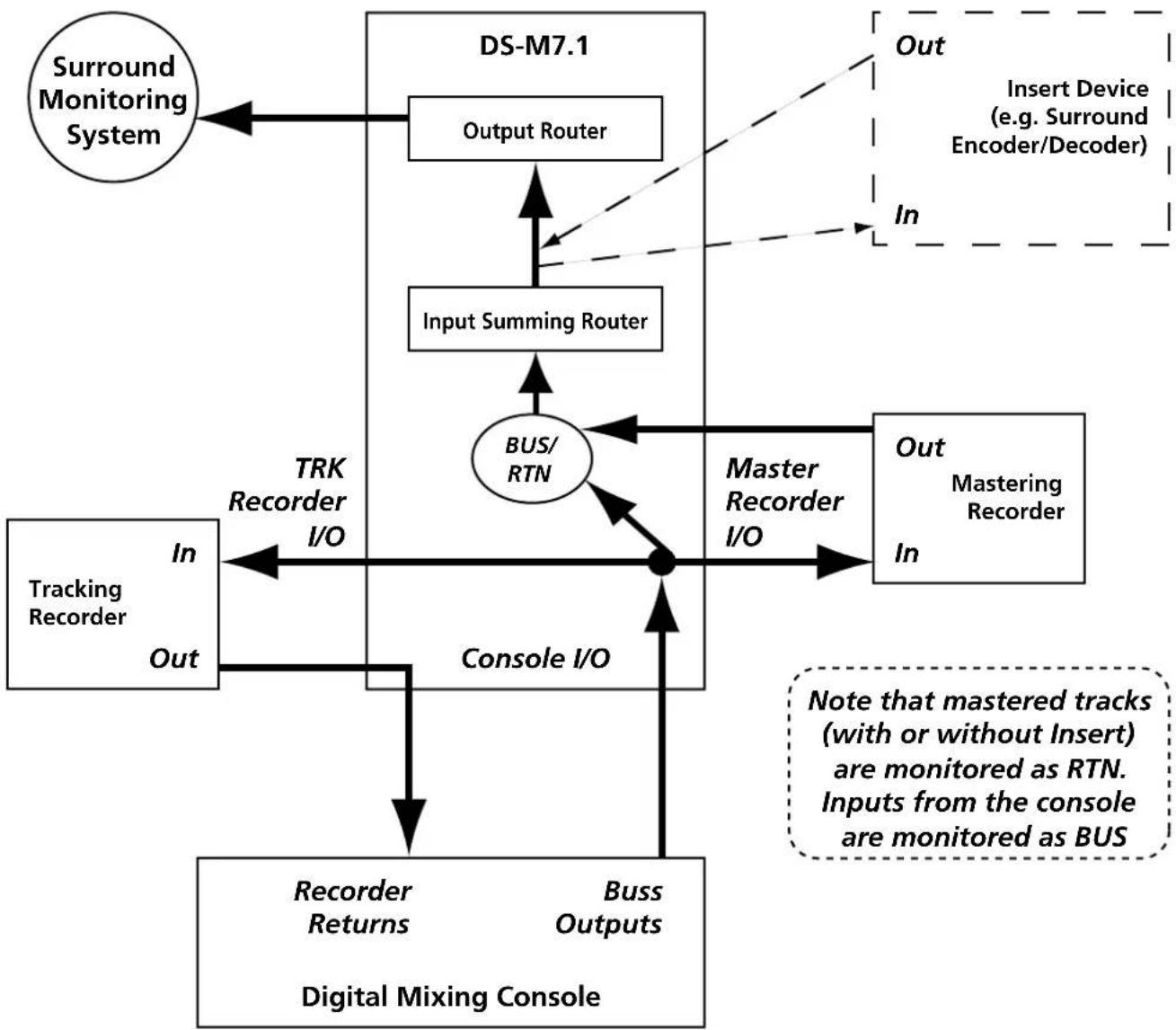
CAM DM-24 and digital multitrack (tracking) recorders as well as the multitrack recorder being used to master the surround mix (the stem recorder), the DS-M7.1 can be used for monitoring of the mix as it comes off the console, as well as the recorded mix from the mastering recorder, with the push of one front panel key.
flowchart
graph TD
    A["Surround Monitoring System"] --> B["DS-M7.1"]
    B --> C["Output Router"]
    C --> D["Input Summing Router"]
    D --> E["BUS/RTN"]
    E --> F["Out Master Recorder I/O"]
    F --> G["Out Mastering Recorder In"]
    H["Tracking Recorder"] --> I["In Out"]
    I --> J["Recorder Returns"]
    J --> K["Buss Outputs"]
    K --> L["Console I/O"]
    L --> M["Digital Mixing Console"]
    N["Insert Device (e.g. Surround Encoder/Decoder)"] -.-> B
    O["Note that mastered tracks (with or without Insert) are monitored as RTN. Inputs from the console are monitored as BUS"]
The signals are switched and routed in the digital domain, allowing the highest possible quality to be maintained throughout the system.
Monitoring signals are output in both digital and analog format, and either can be selected as best suits the needs of the facility in which the DS-M7.1 is installed.
Downmixing is an important part of the surround mix process, and the DS-M7.1 allows the operator to
select from a very wide range of downmix options and settings.
Bass management for monitoring comparisons with consumer-oriented systems which lack a dicrete LFE channel is well supported, with user-selectable cross-over and level settings, etc.
Connections are made using industry-standard cables, and the slots for up to three optional TASCAM expansion cards provide great flexibility,
1 - About the unit
allowing almost every common industry format to be supported by the DS-M7.1.
Full calibration facilities are provided, with a built-in pink noise generator, to allow for quick, easy and accurate setup of the unit. Channel delay is provided to compensate for acoustic delay when surround speakers are used in a large space.
An analog or digital insert can be placed in the monitoring path, in order to hear the surround mix through a surround encoder. This is useful for hearing the effect of the encoding process.
Muting and soloing of individual channels, with flexible soloing options, allows checking of any desired combination of surround channels.
SPL indication and control is available from the front panel, allowing the surround monitoring to be carried out accurately, according to the different guidelines and standards within the industry.
A dedicated pair of analog stereo inputs can be fed from the console's main control room outputs, allowing the same speaker/amplifier system to be used for
the L and R channels in both surround and stereo operation modes. The last pair of the surround speakers (channels 7 and 8) can also be dedicated as small-alternative stereo speakers when the primary surround application is 5.1 or LCRS.
For flexibility, the front panel controls can be removed and connected to the main unit in the machine room, allowing full control to be maintained from the listening position.
The unit itself is simple and easy to use, taking advantage of a menu-driven 20x4 alphanumeric display and rotary encoder system, with important mode keys illuminated for quick verification of their status.
This manual accompanies the unit, together with a Setup Guide, which should be used when you are first setting up and calibrating the unit.
For best results we recommend that you follow these procedures regarding level and delay adjustment whenever you make a substantial change to your monitoring environment.
Installing the DS-M7.1
When you unpack the DS-M7.1, you should find, in addition to this manual:
- A rack-mounting kit
- A standard power cable whose plug should match the one for your region.
- A Setup Guide
- Warranty information, etc.
If any of these is missing, contact your TASCAM distributor.
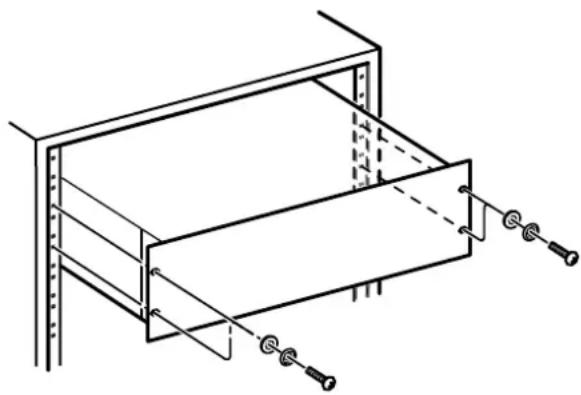
The DS-M7.1 is designed to fit into 3U of standard 19" rack space. Remove the feet before installing it in a rack. We suggest that you leave at least 1U of space above the unit to allow for cooling.
Do not install the unit in an enclosed space (bookcase, etc.).
natural_image
Technical line drawing of a mechanical assembly with hanging components and structural supports (no text or symbols)Always check that the power requirements printed on the rear panel of the unit match those available in your working environment. If they do not, or if you are in any doubt, consult a qualified electrician.
Temperature considerations The ambient operating temperature should be between 5°C and 40°C (41°F and 104°F).
Connections All connections to and from the DS-M7.1 should be made and broken with the power turned OFF.
Using the front panel as a remote control unit When you use the front panel as a remote control unit, you have the choice of using either the front or rear 9-pin D-sub connector. If the DS-M7.1 is to be installed in a machine room some distance from the mixing location, we suggest using the rear connector, where the cable may be routed more conveniently.
Follow the instructions given here (“Making up a remote control cable” on page 38) when making up a cable for use with the remote control. If you do not follow these instructions, there is a risk of incorrect operation, or even damage to the unit.
Front panel
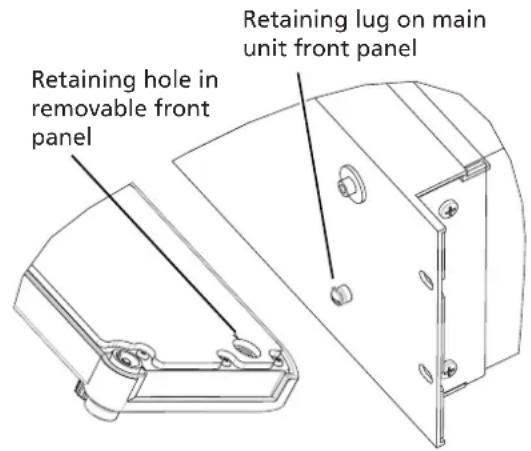
The part of the front panel of the unit which houses the display and controls can be removed and connected via an appropriate cable, up to 20m (60ft.) in length by turning the captive thumbscrews at the top of the panel counterclockwise.
text_image
Retaining hole in removable front panel Retaining lug on main unit front panelNote that the front panel is retained by the thumb-screws, and when it is removed from or replaced on the main unit, care must be taken to match the retaining hole on the front panel with the retaining lug on the main unit, as shown here:
When removed in this way, the front panel can be used as a remote control unit, with the main unit located in the machine room of the studio facility, together with the multitrack and mixdown recorders. See “Making up a remote control cable” on page 38 regarding the production of a suitable cable.
text_image
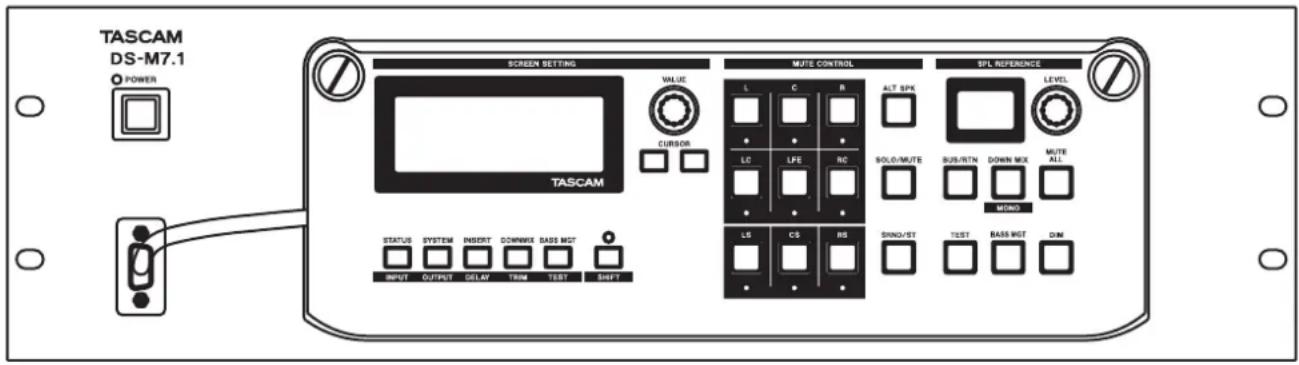
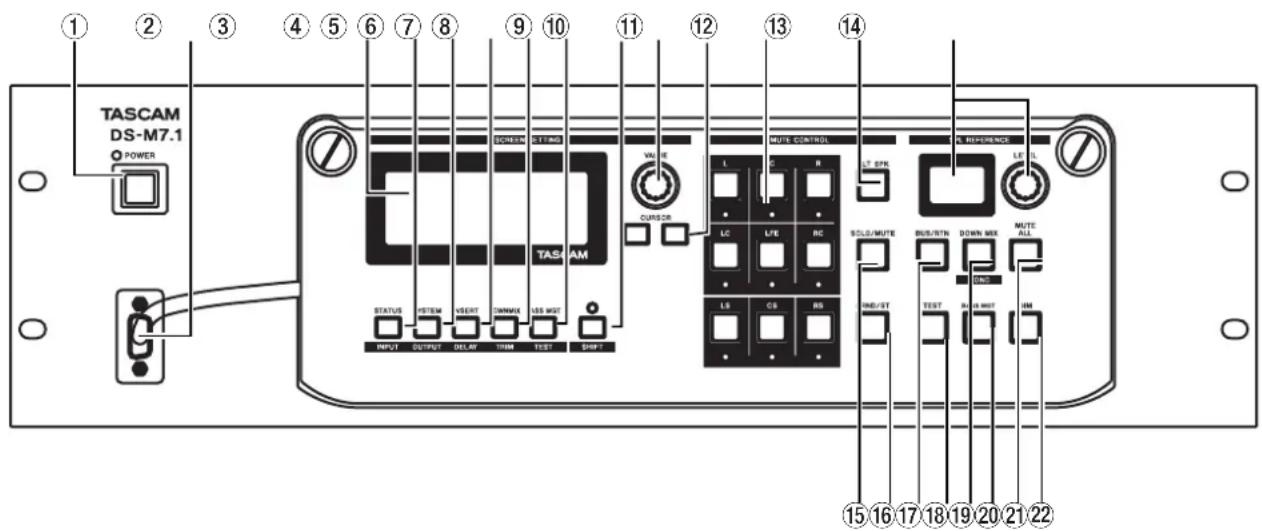
TASCAM DS-M7.1 POWER ① ② ③ ④ ⑤ ⑥ ⑦ ⑧ ⑨ ⑩ ⑪ ⑫ ⑬ ⑭ ⑮ ⑯ ⑰ ⑱ ⑲ ⑳ ⑮ ⑯ STATUS VISTEM VSET TMWAL SS WD INPUT OUTPUT DELAY THM TEST SHIFT POWER SETTING TASH AM CURSOR L S R L S PTK SOLD/MUTE BUS/RTN DOWN MIX MUTE ALL TEST WM IM MUT R REFERENCE LS CS RS 15 16 17 18 19 20 21 22① POWER switch and indicator Press to turn the power on and off.
NOTE
To avoid possible damage to the DS-M7.1 and to other units or your ears, always make sure that the volume of the amplifier connected to the DS-M7.1 which is driving the monitor speakers is turned down before turning the DS-M7.1 on or off.
② REMOTE IN 2 Connect the front panel (remote control) to this 9-pin D-sub connector using
a suitable cable. An alternative connector is provided on the rear panel.
③ DISPLAY This backlit 20x4 alphanumeric display shows the parameters and settings of the unit.
NOTE
Note that the display also serves as a clock warning indicator. If the selected word clock source is not available or is invalid, the display flashes and a message is displayed. See "Word clock errors" on page 15.
Function keys
These keys all have two functions: the unshifted function, as shown by the label above the keys, and the color-coded (to match the SHIFT key) shifted function, as shown by the lower label. The shifted function is enabled when the SHIFT indicator is lit.
④ STATUS/INPUT The STATUS key brings up the Status screen, where the settings relating to the master status of the system can be viewed (but not changed).
As the INPUT key, it is used to route and assign the inputs.
⑤ SYSTEM/OUTPUT As the SYSTEM key, system settings are made on the screen brought up by pressing this key.
As the OUTPUT key, it enables assignment of the monitor outputs to the channels of the selected surround format.
⑥ INSERT/DELAY The DS-M7.1 allows either an analog or digital insert loop in the monitoring path. Use the INSERT key to control this insert.
In shifted mode, the DELAY key is used to compensate for speaker placement. See the Setup Guide for details.
⑦ DOWNMIX/TRIM Downmixing refers to the practice of monitoring a surround mix “folded down” to a format with fewer channels, in order to check mix compatibility. The DS-M7.1 allows you, for example, to hear how a 5.1 mix will sound when played through a 2-speaker stereo system. Use this to set up the downmix parameters.
As the shifted TRIM key, this key is used to set up the relative levels of the surround channels. See the Setup Guide for details.
⑧ BASS MGT/TEST Used to select the type of Bass Management used, and to set up the subwoofer crossover frequency, relative level, etc. for when bass management is enabled (see “Bass management” on page 21).
As the shifted TEST key, it is used to set up the pink noise parameters for level testing. See the Setup Guide for details.
⑨ SHIFT key and indicator This latching shift key alters the behavior of the function keys listed above. It also is used with the DOWN MIX key for mono downmixing.
⑩ VALUE Use this rotary encoder to set the values shown on the display.
⑪ CURSOR keys Use these keys to navigate between the parameters shown on the display.
⑫ MUTE CONTROL keys and
indicators These correspond to the channels of the different surround formats supported by the DS-M7.1. When a surround format is selected, the indicators of those channels which are valid for the format are lit. For example, if 5.1 is selected, the L, C, R, LS, RS and LFE indicators are lit.
The keys act as monitor mute keys or solo keys (depending on the status of the SOLO/MUTE key, and are also used for selecting channels when setting up the relative levels of the channels (see the Setup Guide for details).
⑬ ALT SPK Pressing this key selects speakers connected to the LC and RC channels. When in surround mode, pressing this key automatically performs an LR downmix to the LC and RC channels.
⑭ SPL REFERENCE indicator and
LEVEL control Use these to set and view the SPL level output by the DS-M7.1 when it is properly calibrated. See the Setup Guide for full details of its operation and its relationship to the software SPL setting.
NOTE
If the output level is adjusted with this control so that it exceeds the level set in the LCD menu (see the Setup Guide), there is a risk of clipping and degradation of sound quality.
⑮ SOLO/MUTE Switches the function of the MUTE CONTROL keys between muting and soloing (the type of solo mode, exclusive or mix, is user-selectable).
⑯ SRND/ST Switches easily between the selected surround format from the CONSOLE or MASTER I/O connectors and stereo (input from the dedicated CR stereo inputs on the rear panel).
⑰ BUS/RTN Switches monitoring between the bus inputs (from the mixing console—the indicator is unlit) and the return inputs (from the mixdown recorder—the indicator is lit).
The default as shipped from the factory is bus (the indicator is unlit).
2 – Parts of the DS-M7.1
⑱ TEST Used in setup to turn the internal pink noise generator on and off. See the Setup Guide for details.
⑲ DOWN MIX/MONO Switches between the selected surround format and the currently-selected downmix mode (the downmix mode is selected using the SYSTEM function key).
When pressed together with the SHIFT key, this key downmixes directly to mono from any surround format.
⑳ BASS MGT Turns the bass management function on and off (settings are made with the BASS MGT function key)
②1 MUTE ALL Cuts all the monitor signals simultaneously.
②2 DIM Reduces the monitor output by a software-selectable amount.
The default value, as shipped from the factory, is an attenuation of -20dB.
Rear panel
See the section on Connections for details of how to make connections to and from the DS-M7.1.
text_image
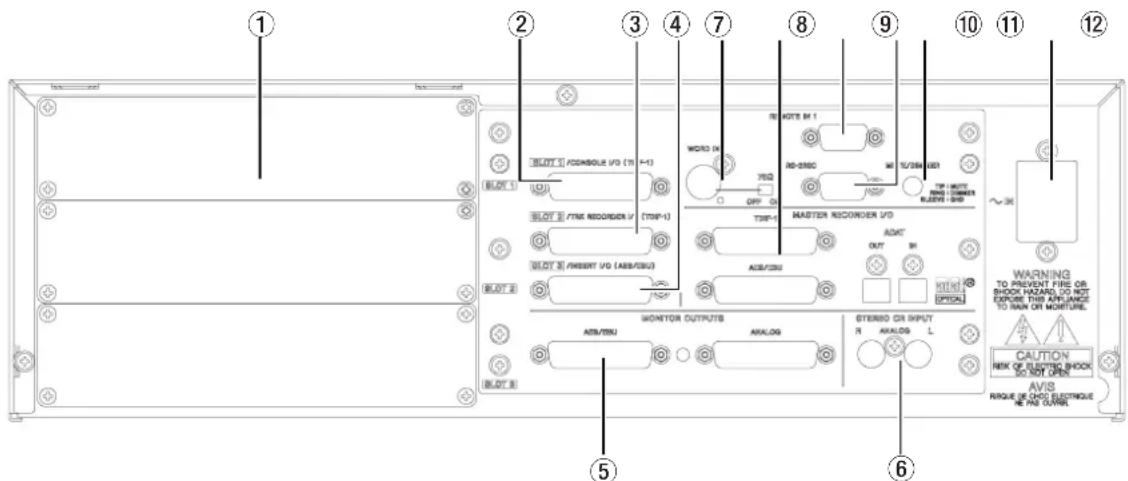
1 2 3 4 7 8 9 10 11 12 BLLOT 1 BLLOT 2 BLLOT 3 BLLOT 4 BLLOT 5 BLLOT 6 BLLOT 7 BLLOT 8 BLLOT 9 BLLOT 10 BLLOT 11 BLLOT 12 WORD IN 70Ω OFF ON TSP-1 MASTER RECORDER UO ADB/TSU ADB/TSU WINCTOR OUTPUTS ADB/TSU AXALOG STERSO OR INPUT R AXALOG L ~3V WARNING TO PREVENT FIRE OR SHOCK HAZARD, DO NOT EXPIRE THIS AMPLIANCE TO RUN OR MOBURE. CAUTION RISK OF ELEVATED SHOCK DO NOT OPEN AVIS RIGUE OR SHOCK RESTRIQUE HE HAS OUTRUN① Expansion slots The DS-M7.1 is fitted with three expansion slots, which can take different types of I/O card. Consult your TASCAM dealer for details concerning the availability and the fitting of these cards. When a card is fitted, it can be used as an alternative to one of the three connectors immediately to the right of the slots, as described below.
NOTE
Although an analog IF-AN/DM card may be fitted in any slot, only one such card may be fitted at a time.
② SLOT 1/CONSOLE I/O (TDIF) This 25-pin D-sub connector sends and receives up to eight channels of digital audio in TDIF format to and from a suitably-equipped digital mixing console such as the TASCAM DM-24. If a card is fitted in slot 1, it may be used as an alternative to this connector.
③ SLOT 2/TRK RECORDER I/O (TDIF)
This 25-pin D-sub connector sends and receives up to eight channels of digital audio in TDIF format to and from a suitably-equipped multitrack recorder, such as the TASCAM DTRS series, or MX-2424 recorders. If a card is fitted in slot 2, it may be used as an alternative to this connector.
④ SLOT 3/INSERT I/O (AES/EBU) This 25-pin D-sub connector sends and receives eight channels of digital audio in AES/EBU format. It can be used for inserting a surround encoder/decoder in the monitoring path. If a card is fitted in slot 3, it may be used as an alternative to this connector.
NOTE
When making connections to the DS-M7.1 using the AES/EBU connectors, note that channels 1 and 2 must always contain some signal. If there is no signal in these two channels, no other AES/EBU channels can be received. Also note that if the preamble is not correctly received on a pair of AES/EBU input channels, those channels will be muted.
⑤ MONITOR OUTPUTS There are two sets of monitor outputs, which work in parallel, providing up to eight channels of surround monitor outputs apiece. Both are output from 25-pin D-sub connectors and require appropriate “breakout” cables (consult your dealer for details). The ANALOG connectors work as balanced +4dBu outputs, while the AES/EBU connector provides digital audio in AES/EBU format.
⑥ STEREO CR INPUT These balanced +4dBu inputs allow the stereo CR outputs from a mixing console to be fed into the DS-M7.1, allowing the same amplifier/speaker monitoring system to be used for surround and stereo monitoring, without repatching.
NOTE
Note the relationship between analog and digital signal levels on the DS-M7.1. The maximum analog level is +24dBu, equivalent to 0 dBFS digital. The nominal level is +4dBU, corresponding to a digital level of -20dBFS.
⑦ WORD IN Use this BNC connector to receive an external word clock signal. The 75Ω switch allows termination to be set ON or OFF (usually ON).
2 – Parts of the DS-M7.1
⑧ MASTER RECORDER I/O There are three sets of connectors for connecting the master recorder: TDIF-1 (combined input and output), ADAT (separate input and output “lightpipe” connectors) and AES/EBU (combined input and output).
⑨ REMOTE IN 1 Use this as an alternative to the front panel REMOTE IN 2 connector when using the front panel as a remote control. See “Making up a remote control cable” on page 38 for details.
⑩ RS-232C Reserved for future software upgrades.
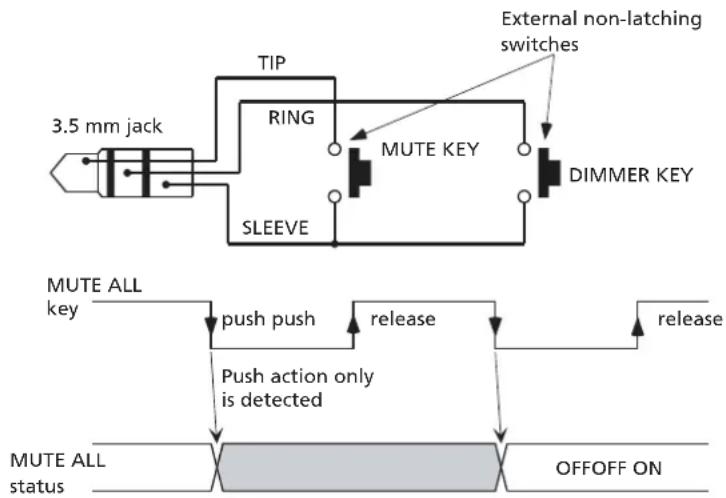
⑪ MUTE/DIMMER This 3.5 mm stereo mini jack socket is used to connect switches which can be used for remote MUTE ALL/DIM operation. Con-
nect tip to sleeve for the mute control, and ring to sleeve for the dimmer. Switches used in this way are active when closed, and should be non-latching. See “Dimmer and mute control connections” on page 18.
⑫ \~ IN (power input) Use the supplied power cord to connect the DS-M7.1 to the power supply. Ensure that the power supply is the correct voltage (as marked on the rear panel of the unit). If you are in any doubt, consult a qualified electrician.
NOTE
Always connect and disconnect the power with the power switch on the front panel of the DS-M7.1 turned OFF. If the power cord is connected or disconnected with this switch on, there is a risk of damage to the unit.
This section describes not only the connections you make between other equipment and the DS-M7.1, but also the software steps necessary to make that other equipment recognizable by and usable with the unit.
Read this section carefully, especially the section on word clock, as it is essential to the proper operation of your system, and may even result in damage to your equipment if the appropriate steps are not carried out.
NOTE
When making connections between the DS-M7.1 and other equipment, whether audio or control, both the DS-M7.1 and the other equipment must be turned off, otherwise damage may be caused to the DS-M7.1 and/or the other equipment.
Only use TASCAM-supplied and TASCAM-approved cables when making TDIF connections to the DS-M7.1. Though the cables and connectors may resemble computer cables, they serve different purposes, and meet a different set of specifications. The use of cables other than TASCAM cables will at best cause the equipment to work erratically, and at worst cause damage to the equipment.
Also note that while the TDIF and AES/EBU connectors on this unit are physically identical, the wiring and signals passed through them are very different. Take care to connect only TDIF equipment to TDIF connectors, and AES/EBU equipment to AES/EBU connectors, otherwise damage may occur to your equipment.
If the use of cables other than TASCAM cables causes or results in damage, the warranty is voided.
It is assumed that all necessary optional cards have been fitted to the DS-M7.1.
See the diagram on page 5 as well as the block diagram (“Block diagram” on page 39) if you are unsure of signal flow within the DS-M7.1.
Consult your TASCAM dealer for details of suitable approved cables that may be used when using your DS-M7.1 with other equipment.
If you need an extension to the front panel cable to allow the front panel to be used as a remote control unit, see "Making up a remote control cable" on page 38.
Connecting the console
The console can be connected to the built-in CONSOLE I/O connector, or to an optional card fitted in slot 1.
Inputs from the console Typically, the console's busses are connected to the DS-M7.1 inputs. They are sent simultaneously to the tracking and mastering recorders, and may be monitored from the DS-M7.1 as the BUS signals. Since these are used for both tracking and mastering, obviously, the console signal paths must be repatched when the mode is changed. No reconnections need to be made on the DS-M7.1.
Outputs to the console The returns from the DS-M7.1 to the console are driven (as a "thru" assignment) by the tracking recorder (track returns) and should be assigned appropriately on the console, following normal working practice. They may not be monitored directly from the DS-M7.1.
When this connection, together with all other connections, have been made, you should set up the DS-M7.1 to recognize the appropriate the console source (TDIF or slot), as described here.
1 Press the SYSTEM key and press the cursor keys until the cursor highlights the ConsSel parameter:
[SYSTEM] >
MasterSel TDIF
ConsSel TDIF
TrkRecSel TDIF
2 Use the VALUE control to select between TDIF and SLOT1.
When this is done, the inputs and outputs must be routed appropriately, as described later.
Connecting the tracking recorder
The tracking (multitrack) recorder can be connected to the built-in TRK RECORDER I/O TDIF connector, or to an optional card fitted in slot 2.
Inputs from the tracking recorder These connect to the recorder outputs. They are routed to
3 - Connections
the console outputs, and may not be monitored directly from the DS-M7.1.
Outputs to the tracking recorder These connect to the recorder inputs. These may be monitored as BUS signals from the DS-M7.1.
When this connection, together with all other connections, have been made, you should set up the DS-M7.1 to recognize the appropriate tracking recorder source (TDIF or slot), as described here.
1 Press the SYSTEM key and press the cursor keys until the cursor highlights the TrkRecSel parameter:
[SYSTEM] >
MasterSel TDIF
ConsSel TDIF
TrkRecSel TDIF
2 Use the VALUE control to select between TDIF and SLOT2.
When this is done, the inputs and outputs must be routed appropriately, as described later.
Connecting the mastering (stem) recorder
The mastering recorder can be connected to any of the following: the built-in TDIF, ADAT “lightpipe” or AES/EBU connector.
Inputs from the mastering recorder These are the outputs from the master recorder. They can be passed through the insert device (described below) if desired, and then monitored from the DS-M7.1 as the RTN signals.
Outputs to the mastering recorder These are the signals output from the console. They can be passed through the insert device (described below) if desired, and then monitored from the DS-M7.1 as the BUS signals.
When this connection, together with all other connections, have been made, you should set up the DS-
M7.1 to recognize the appropriate the tracking recorder source (TDIF, AES/EBU or ADAT optical), as described here.
1 Press the SYSTEM key and press the cursor keys until the cursor highlights the MasterSel parameter:
[SYSTEM] >
MasterSel TDIF
ConsSel TDIF
TrkRecSel TDIF
2 Use the VALUE control to select between TDIF, AES/EBU and ADAT.
When this is done, the inputs and outputs must be routed appropriately, as described later.
A note on the word clock
Note that the DS-M7.1 cannot act as the word clock master in a digital system. It must therefore receive its word clock from a master clock elsewhere in the system, and this must be the only clock in the system.
Use of more than one master clock in the system can lead to serious sound degradation, and possible damage to speakers and equipment.
The word clock can be taken from either the dedicated WORD IN BNC connector, the console input (or the equivalent slot) or the master recorder (any of the three possible inputs).
If the dedicated WORD IN connector is used, be sure to set the termination switch as determined by the needs of the rest of your system.
Since the word clock is important to correct operation, not only of the DS-M7.1, but of the whole audio system, an explanation of how to set up the word clock is given here.
1 If the word clock setting in memory does not correspond to the actual word clock connection physically present, the display will flash.
2 Press the SYSTEM key and press the cursor keys until the screen shows something like:
[SYSTEM] <>
ClockSel Console
TDIF
48kHz
3 With the cursor at the top field, use the VALUE control to select between Word IN,
Console and MasterRec (mastering recorder).
The second and third lines of the screen will be automatically filled in depending on both the source and the settings made elsewhere in the system as described in “Routing and patching” on page 19. Possible values are:
| Source Possible sources | Possible sampling frequencies (kHz) | |
| Word In Word | In only 44.1, 48, 88.2, 96 | |
| Console TDIF | (internal) 44.1, 48 | |
| EX TDIF (slot) 44.1, 48 | ||
| EX AES/EBU (slot) 44.1, 48 (normal), 88.2, 96 (high) | ||
| EX ADAT (slot) 44.1, 48 | ||
| Master Rec TDIF (internal) 44.1, 48 | ||
| AES/EBU (internal) 44.1 48 (normal), 88.2, 96 (high) | ||
| ADAT (internal) 44.1, 48 | ||
NOTE
High-speed connections cannot be made using the TAS-CAM DM-24 digital mixing console. They may not be supported by other equipment, and you should check carefully in the documentation of all the components of your system to ensure that this is a valid option.
Only the analog and AES/EBU connections and option cards support 96k operation on the DS-M7.1.
Inverting the word clock
In some cases, the polarity of the word clock received at the WORD IN connector may be inverted relative to what the DS-M7.1 expects (since no industry standard has been universally adopted). In this case, you may need to invert the polarity of the clock so that it syncs accurately with the other devices in the setup.
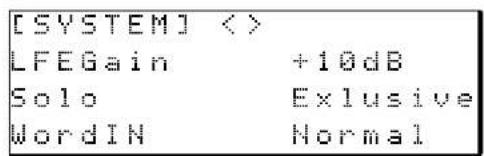
1 Press the SYSTEM key, and use the cursor keys until a screen similar to the following appears:
text_image
[SYSTEM] <> LFEGain +10dB Solo Exclusive WordIN Normal2 Switch the WordIN parameter between Normal and Reverse.
Word clock errors
In the event of a word clock error, the display backlight flashes, the output is muted, and the screen
shows [SYSTEM] *n where n is a number representing the error, as explained below:
| Error number | Meaning | Appropriate action to take |
| 9 | No master clock. | Check the connections between the DS-M7.1 and the clock master, and check the settings on the clock master to ensure that it is actually outputting a word sync signal. |
| 1 | Master clock out of range (44.1 kHz) | Check the settings of the clock master, and make sure that it is within ±6% of the stated nominal frequency |
| 2 | Master clock out of range (48 kHz) | |
| 3 | Master clock out of range (88.2 kHz) | |
| 4 | Master clock out of range (96 kHz) |
Error number Meaning Appropriate action to take
| 7 | Frequency error | The master clock is not a recognized frequency (e.g. 32 kHz). Check the master settings and correct, if necessary. |
| 8 | AES/EBU preamble error (normal) At normal sampling frequencies, the preamble of the AES/EBU signal acting as the clock source cannot be read by the DS-M7.1. Check and correct settings on the clock master. | |
| 9 | AES/EBU preamble error (high-speed) | At high sampling frequencies (88.2 kHz and 96 kHz), the preamble of the AES/EBU signal acting as the clock source cannot be read by the DS-M7.1. Check and correct settings on the clock master. |
Inserts
Either analog or digital insert units can be connected to operate after the BUS/RTN switch. These are selectable pre- or post- the Input Summing Router.
These inserts can be pre- or post- the input summing router (placed between the inputs and the RTN/BUS selector switch) and always pre- the RTN/BUS switch. See the block diagram at the end of this manual for details.
Either AES/EBU digital devices, or analog (standard +4dBu balanced) may be used here. Note that when making connections to an analog insert unit, because of the nature of the connectors used, two connections need to be made, one for input and one for output.
After the connection has been made, you should set up the insert as follows:
1 Press the INSERT key so that the screen shows something like:
[INSERT]
State DISABLED
Mode POST SUM
Return ANALOG
2 There are three parameters. Use the cursor keys to select them. First, select whether the insert loop is enabled (ENABLED) or disabled (DISABLED).
3 Next, select the position of the insert loop, as described above: either PRE SUM or POST SUM (i.e. before or after the input summing router).
4 Finally, set the Return type: ANALOG (analog) or DIGITAL (digital).
Monitor connections
There are two sets of monitor connections, analog and digital.
The analog connections are standard balanced +4dBu connections, and the digital outputs are in AES/EBU format.
NOTE
The sampling frequency output from the digital monitor outputs is the input frequency. If you are mixing a high sampling frequency project, you must therefore make sure that your digital monitoring setup can handle these frequencies, or use the DS-M7.1's analog monitoring ports.
The analog and digital signals are output in parallel, and there is no switching between them.
TIP
The AES/EBU monitoring signals can be used in parallel with the analog monitoring signals to drive a suitably-equipped meter bridge.
However, there is one setting that can be made for the AES/EBU digital ports; the “pick-off” point for the monitoring.
This can be set so that all the downmix, bass management and delay settings, together with all muting and soloing and level settings described in “Other monitoring settings” on page 17, are ignored, or so that these settings take effect through the digital port.
This affects the digital outputs only—the analog outputs will always reflect these settings.
1 Press the SYSTEM key, and use the cursor keys until a screen similar to the following appears:
[SYSTEM] < MonOut POST
2 Use the VALUE control to select between POST (the digital signals mirror the analog signals) and PRE (the parameters described above are ignored).
Other monitoring settings
There are other system settings related to the monitor system, which affect the analog outputs and the digital outputs in “post” mode.
These are the SPL Reference Level, the Dimmer level, the Surround level and the LFE Gain.
SPL Reference Level sets the reference value of the SPL which will be used in the monitoring environment. See the Setup Guide for details of how this works.
It is accessed and set in the screen described here, however.
Dimmer level This sets the amount by which the monitor signal is dimmed (or attenuated) when the DIM key is active.
1 Press the SYSTEM key, and use the cursor keys until a screen similar to the following appears:
[SYSTEM] <>
Dimmer -60dB
SPLRefLevel 82dB
SurroundLv1 -10dB
2 Use the VALUE control to set the Dimmer parameter value between -60dB and -10dB in 5dB steps.
Surround level This sets the amount by which the surround (rear speaker) level is attenuated.
1 Press the SYSTEM key, and use the cursor keys until a screen similar to the following appears:
[SYSTEM] <>
Dimmer -60dB
SPLRefLevel 82dB
SurroundLv1 -10dB
2 Use the VALUE control to set the SurroundLvl parameter value to between 0dB and -10dB in 1dB steps.
LFE gain This refers to the amount of relative gain added to the LFE channel.
1 Press the SYSTEM key, and use the cursor keys until a screen similar to the following appears:
[SYSTEM] <> LFEGain +10dB
Solo Exclusive
WordIN Normal
2 Use the VALUE control to set the LFEGain parameter value to any of the following values: 0, +6, +7, +8, +9 or +10 (dB).
Control room stereo inputs
These balanced +4dB inputs are used for a direct feed of the master CR analog outputs (your console may give these a different name, but they are the stereo outputs used for monitoring in the control room) to the DS-M7.1.
These outputs can be monitored directly from the DS-M7.1 using the SRND/ST key.
Note that the stereo inputs are subject to the same downmix, delay, processing etc. as the surround inputs. See the block diagram for details.
Dimmer and mute control connections
A remote box for mute (MUTE ALL) and dimmer control may be made up and used so that the control of these functions can be carried out from a location in the listening environment other than the main mixing location.
Use non-latching push-to-make switches wired to a common sleeve ground with the dimmer wired to ring, and the mute to the tip of a standard 3.5mm stereo plug. The detection of the change in level, rather than the open/closed status of the switch triggers the change in the unit's status.
A remote box fitted with these switches can operate alongside the appropriate front panel switches (it does not replace them).
See “Dimmer level” on page 17, “Dimming the output” on page 21 and “Muting all the channels” on page 21.
flowchart
graph TD
    A["3.5 mm jack"] --> B["TIP"]
    B --> C["RING"]
    C --> D["MUTE KEY"]
    D --> E["DIMMER KEY"]
    F["MUTE ALL key"] --> G["push push"]
    G --> H["release"]
    H --> I["release"]
    J["MUTE ALL status"] --> K["OFFOFF ON"]
    L["External non-latching switches"] --> D
    M["Push action only is detected"] --> K
4 - Routing and patching
When the physical external connections have been made, it is time to set up the internal connections within the DS-M7.1 as described here.
Since project needs and applications vary, the DS-M7.1 provides flexibility in the way in which incoming signals are received and monitored.
Choosing the surround format
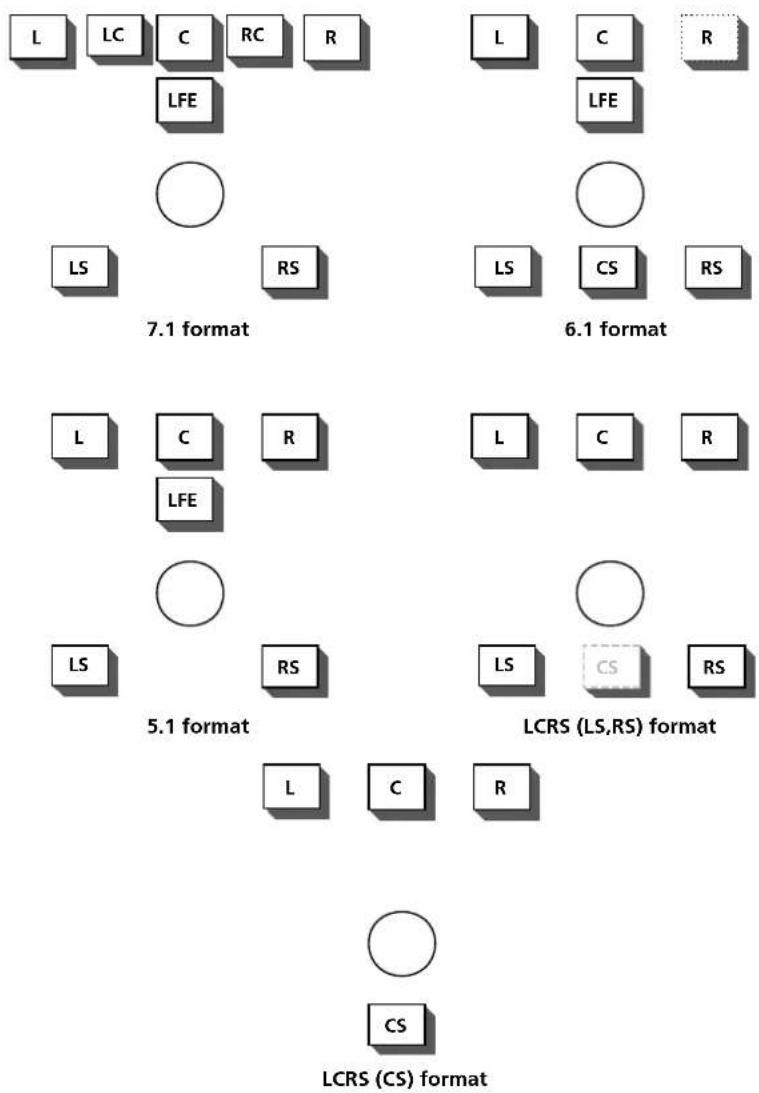
First, you must decide in what format the incoming signals are to be processed. The available options are: 7.1, 6.1, 5.1, LCRS (LS, RS), LCRS (CS) and LR.
These may be graphically represented in the following way (LR (stereo) is not shown, as it is assumed the reader is familiar with this format!):
text_image
L LC C RC R LFE L C R LFE ○ ○ LS RS LS CS RS 7.1 format 6.1 format L C R L C R LFE ○ ○ LS RS LS CS RS 5.1 format LCRS (LS,RS) format L C R ○ ○ CS LCRS (CS) formatConsult one of the standard reference works on the subject if you are unsure under which circumstances each format is used (a note on the two LCRS formats is given below).
Note how the placement of the speakers relative to the listener is mirrored by that of the MUTE
CONTROL keys of the DS-M7.1 (except in the 7.1 mode).
To set the surround format and the routing of the inputs through the input summing router (you may want to consult the block diagram at this stage):
4 – Routing and patching
1 With the SHIFT indicator lit, press the STATUS/INPUT key so that the screen displays the following:
| [INPUT SUM ROUTER] |
| Format LCRS(LS,RS) |
| Input 12345678 |
| Output 1 *---- |
2 Use the cursor keys to navigate to the Input parameter, and set the value (VALUE control) to one of those listed above.
As you select the surround pattern, note how the green indicators under each MUTE CONTROL key light and go out, reflecting the surround pattern you have selected.
A note on LCRS
The DS-M7.1 supports two variants of the LCRS format to support a control room set up for 5.1 or 6.1 operation without the need to repatch the speakers.
LCRS (LS, RS) In the first of these format, a “phantom” speaker is created by attenuating the LS(S) sig-
nal by 3dB and then assigning it to the LS and RS speakers.
LCRS (CS) This format assigns the LS(S) signal to the LC(CS) speaker.
You should choose the appropriate LCRS format depending on your control room setup.
Configuring the Input Summing Router
You should now configure the Input Summing Router. This does not affect the physical output assignments made by the Output Router but will affect what goes to the insert in post mode.
Since you may have more channels in the surround format you are mixing to than you do offboard insert equipment, you may need to combine more than one input with the Input Summing Router before sending the signals to an inserted device.
The DS-M7.1 allows you to do this, in the following way.
1 On the bottom line of the screen above, move the cursor to the Output field, and use the
Value control to pick the desired Input Summing Router output.
2 Move the cursor to the bottom right of the screen, representing the eight inputs of the Input Summing Router, and use the cursor and VALUE control to assign (*) or release (--) an input to and from an output. When this is done, repeat the first step for the next Input Summing Router output.
Note that this way of working allows an input channel to be assigned to more than one monitor output, and a monitor output to be fed by more than one input.
Matching output channels to surround channels
The next stage is to match the numbered output of the Input Summing Router (as routed and summed earlier) to the named surround output channels of the surround pattern you have set up earlier. You may not need to do this if your setup matches standard settings.
1 With the SHIFT indicator lit, press the SYSTEM/OUTPUT key so that the screen displays something like the following:
| [OUTPUT] | ||||||
| L | 1 | C | 3 | R 2 | ||
| LC | 7 | LFE | 4 | RC | 8 | |
| LS | 5 | RS | 6 | |||
The screen above shows a 7.1 surround pattern. If you have picked another pattern, you will see only those channels which are relevant to your pattern.
2 Use the cursor keys and VALUE control to navigate to the surround channels and assign the outputs to them.
NOTE
The output router is always active. It cannot be bypassed.
Once you have set up the connections, assigned the inputs and outputs, and followed the procedures in the Setup Guide, you can start using your DS-M7.1.
Return or bus? Use the RTN/BUS key to select between return inputs (the signal coming in from the mastering recorder)—the key lights in this mode—and bus inputs (from the console).
Surround or stereo? Select either the surround or the stereo program source (from the analog TRS monitor inputs) using the SRND/ST key.
Dimming the output Press the DIM key to dim the output by the amount set in "SPL Reference Level" on page 17. The DIM key lights when active.
Alternative speakers A pair of speakers connected to the LC and RC outputs of the monitors can be used as an alternative pair of speakers (e.g. near-field reference) and accessed using the ALT SPK key. This will automatically produce a stereo downmix to these speakers.
NOTE
This function is only useful for surround patterns that do not use the LC and RC speakers. If these speakers are used (7.1), the function is available, but not very useful.
Muting and soloing
Muting Typically, the MUTE CONTROL keys are used to mute individual channels, or combinations of channels, in the monitor mix.
When the appropriate key(s) is/are pressed in this mute mode, they light.
Muting all the channels The MUTE ALL key can be pressed so that it flashes, and mutes all channels together.
Soloing
The SOLO/MUTE key can be pressed so that it lights. In this case, the MUTE CONTROL keys act as solo keys and flash when they are active (soloing their channel).
There are two methods of soloing, exclusive soloing (only one channel at a time is soloed) and mix soloing, where channels are added to the mix one at a time (the reverse of muting, where they are subtracted one at a time).
Exclusive versus mix solo To change between the two solo modes:
1 Press the SYSTEM key, and use the cursor keys until a screen similar to the following appears:
[SYSTEM] <> LFEGain +10dB
Solo Exclusive
WordIN Normal
2 Use the VALUE control to set the Solo parameter value to Mix or Exclusive.
Bass management
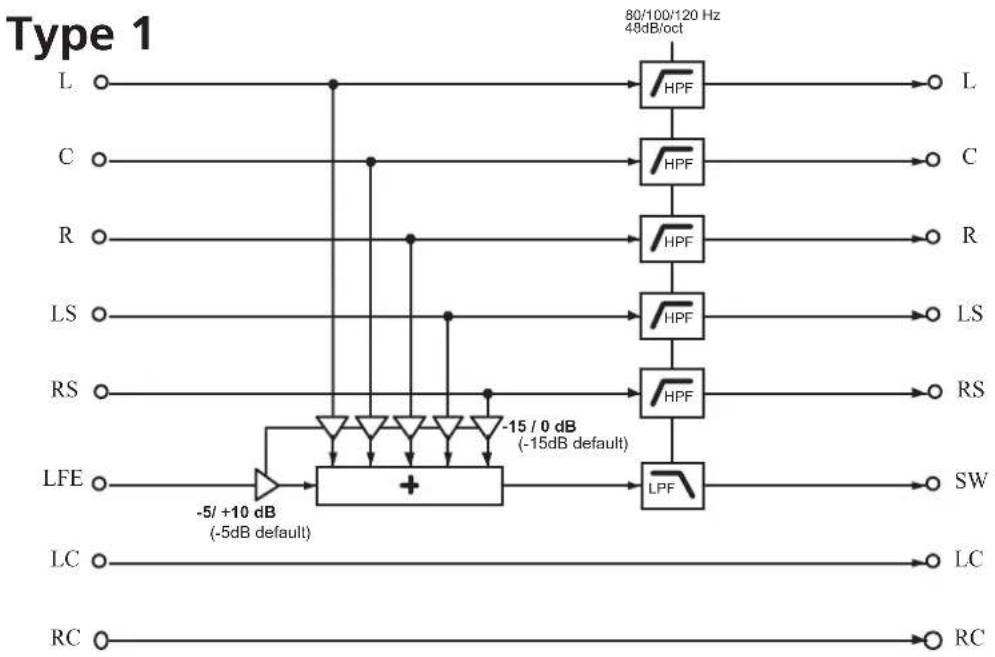
Bass management refers to the ability to derive the LFE output based on a crossover from the satellite speakers instead of from the console LFE output bus. This is useful for simulating various consumer speaker systems which utilize bass management instead of a discrete LFE channel.
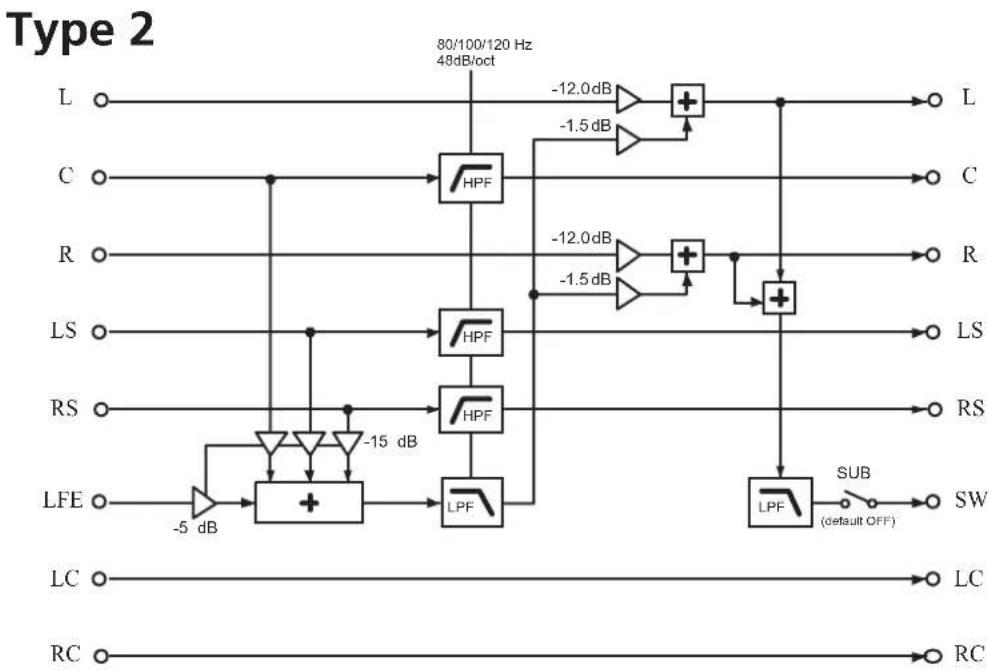
There are two types: type 1, where the subwoofer signal is created from the main channels, and type 2, where the LFE channel is fed to the other channels to create the illusion of a separate bass channel. See the illustrations here:
Turn the selected bass management on or off with the BASS MGT key under the SPL meter. When this is off, the normal levels apply.
These two types are provided for the simulation of systems with and without dedicated subwoofers. Note that the bass management has nothing to do with the actual mix to and from the tracking (stem) recorder—it is purely for monitor signals.
Press the BASS MGMT function key (under the display) to enter the setup screen.
5 – Using the DS-M7.1
The parameter to the left on the second line allows you to choose between the two types: TYPE1 and TYPE2.
flowchart
graph TD
    L --> HPF1["HPF"] --> L
    C --> HPF2["HPF"] --> C
    R --> HPF3["HPF"] --> R
    LS --> HPF4["HPF"] --> LS
    RS --> HPF5["HPF"] --> RS
    LFE --> +1["+"]
    -5/+10dB["~5/-10 dB default"] --> +1
    +1 --> LPF1["LPF"] --> SW
    LC --> LPF2["LPF"] --> LC
    RC --> RC["RC"] --> RC
    HPF1 --> 80/100/120_Hz["80/100/120 Hz\n48dB/oct"] --> L
    HPF2 --> 80/100/120_Hz["80/100/120 Hz\n48dB/oct"] --> C
    HPF3 --> 80/100/120_Hz["80/100/120 Hz\n48dB/oct"] --> R
    HPF4 --> 80/100/120_Hz["80/100/120 Hz\n48dB/oct"] --> LS
    HPF5 --> 80/100/120_Hz["80/100/120 Hz\n48dB/oct"] --> RS
    LPF1 --> -15/0dB["~15 dB default"] --> SW
flowchart
graph TD
    L --> HPF1["HPF"]
    C --> HPF1
    R --> HPF2["HPF"]
    LS --> HPF3["HPF"]
    RS --> HPF4["HPF"]
    LFE --> +1["+"]
    +1 --> LPF1["LPF"]
    +1 --> LPF2["LPF"]
    LPF1 --> -12.0dB["-1.5 dB"]
    LPF2 --> -12.0dB
    -12.0dB --> +2["+"]
    -1.5dB --> +2
    +2 --> Sub["SUB (default OFF)"]
    Sub --> SW["SW"]
    LC --> +1
    RC --> +1
    LFE --> -5dB["-5 dB"]
    +1 --> +1
    +1 --> +2
    +2 --> LFE
    LFE --> -15dB["-15 dB"]
    -15dB --> +1
    -12.0dB --> +2
    -1.5dB --> +2
    +2 --> R["R"]
    R --> LS["L"]
    LS --> R
    LS --> RS["RS"]
    RS --> SW
    SW --> LC
Type 1 bass management
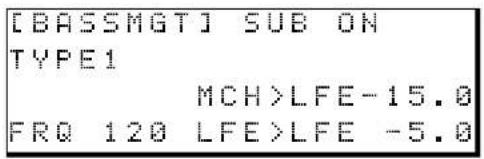
When type 1 bass management is selected, the screen looks something like this:
text_image
[BASSMGT] SUB ON TYPE1 MCH>LFE-15.0 FRQ 120 LFE>LFE -5.0FRQ The frequency at which the crossover occurs: 80, 100 or 120 (Hz).
MCH>LFE The amount of main channel signal (L, C, R, LS, RS) added to the LFE monitor channel.
This is set together with the LFE>LFE parameter as described below.
LFE>LFE The amount of LFE signal added to the LFE monitor channel. This is set together with the MCH>LFE parameter described above.
Two sets of values are available for these linked parameters:
| Set 1 Set 2 | |
| MCH>LFE | -15.0dB 0dB |
| LFE>LFE | -5.0dB +10dB |
Type 2 bass management
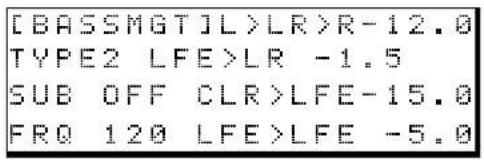
When type 2 bass management is selected, the screen looks something like this:
text_image
[BASSMGT]L>LR>R-12.0 TYPE2 LFE>LR -1.5 SUB OFF CLR>LFE-15.0 FRQ 120 LFE>LFE -5.0Apart from the type, there are only two parameters on this screen that can be changed:
SUB Turns the sub channel on and off.
FRQ The frequency at which the crossover occurs: 80, 100 or 120 (Hz).
All other settings are fixed and are provided for information only.
High speed operation
Remember that although the DS-M7.1 is capable of high-speed operation (88.2kHz and 96kHz sampling frequencies) as determined by the frequency of the word clock source (see “A note on the word clock” on page 14), as mentioned earlier, this is not an option supported by the TASCAM DM-24 digital mixing console, and it may not be supported by other units.
Even if a high clock rate is selected in the SYSTEM setup screen, the incoming clock at the BNCWORD
IN can be either the base rate (48k for 96k, or 44.1k for 88.2k) of the selected high-speed rate or the actual high-speed rate.
Always consult the documentation of other units before attempting high-speed connections.
NOTE
When high-speed signals are received in AES/EBU format, and the preamble is not correctly detected on channels 5 and 6, these channels, together with channels 7 and 8, will be muted.
6 – Note on DS-M7.1 usage
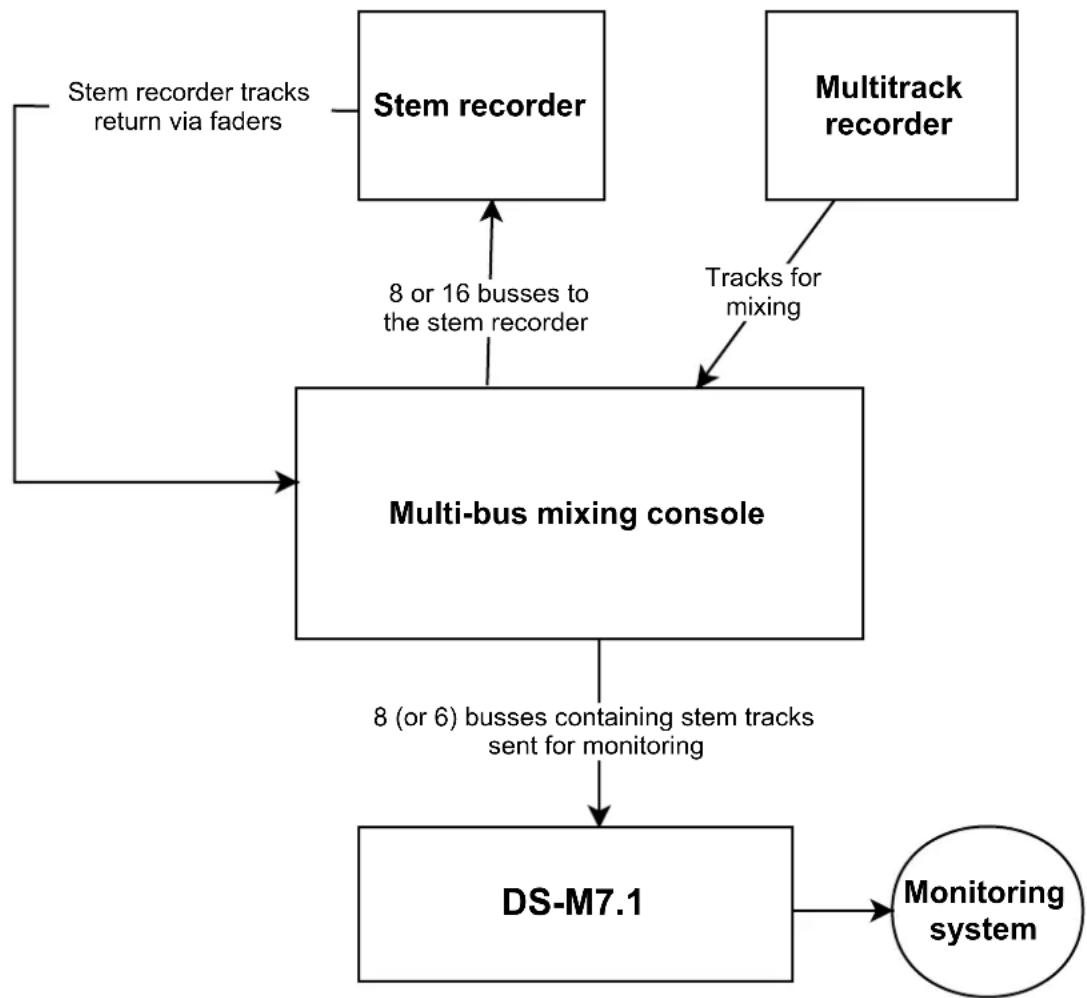
Many pre-mixes for film are made that are greater than 8 tracks. The DS-M7.1 can still be useful in these conditions, as explained here.
If a large format (24 or more output busses) console is used, a number (8 or 16) of the busses can be used to feed the stem recorder.
The returns from the stem recorder can then be fed back through the console inputs and routed to a different set of eight busses, which are then used to feed the DS-M7.1 for monitoring.
Although this does not allow BUS/RTN switching, the DS-M7.1's monitoring control (bass management and downmix facilities, etc.) can still be used to great effect in this environment.
flowchart
graph TD
    A["Stem recorder"] -->|8 or 16 busses to the stem recorder| B["Multi-bus mixing console"]
    C["Multitrack recorder"] -->|Tracks for mixing| B
    B -->|8 (or 6) busses containing stem tracks sent for monitoring| D["DS-M7.1"]
    D --> E["Monitoring system"]
    F["Stem recorder tracks return via faders"] --> A
Downmixing, as explained earlier, is the process of folding a surround mix into a format using fewer channels. This is done for the purpose of checking compatibility.
Downmixing is enabled and disabled on the DS-M7.1 using the DOWN MIX/MONO key under the SPL readout and control. When downmixing is active, the key is lit (it flashes in mono downmix mode, see below).
The settings for downmix are made using the DOWNMIX function key.
1 Press the DOWNMIX function key so that the screen shows something similar to the following:
| [DOWNMIX] |
| Pattern 7.1>5.1 |
| LC>L,RC>R -1.5dB |
| LC+RC>C -4.5dB |
2 The first parameter, Pattern, sets the downmix "folddown" pattern. The patterns available here depend on the source format currently in use:
| Source pattern | Available downmix targets |
| 7.1 5.1 | |
| LR | |
| MONO |
| Source pattern | Available downmix targets |
| 6.1 5.1 | |
| LR | |
| MONO | |
| 5.1 LCRS | |
| 4.1 | |
| LR | |
| MONO | |
| LCRS (both formats) - see “A note on LCRS” on page 20 | LR |
| MONO | |
| LR MONO | |
| LR & LcRC MONO |
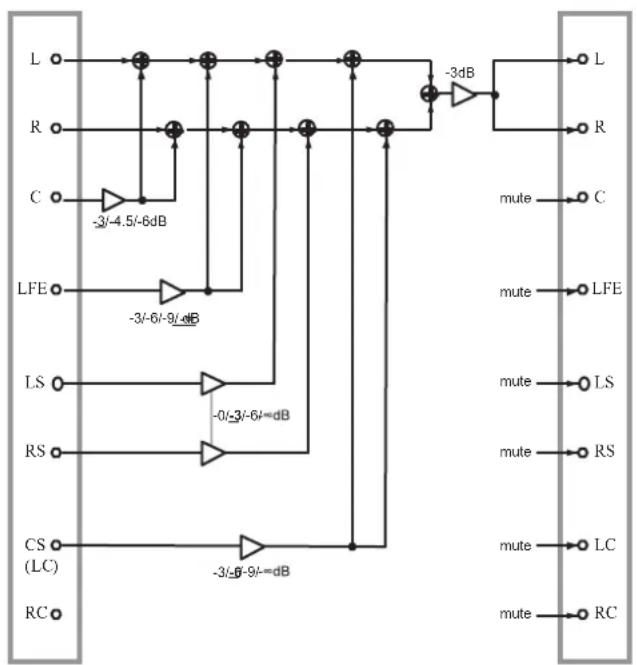
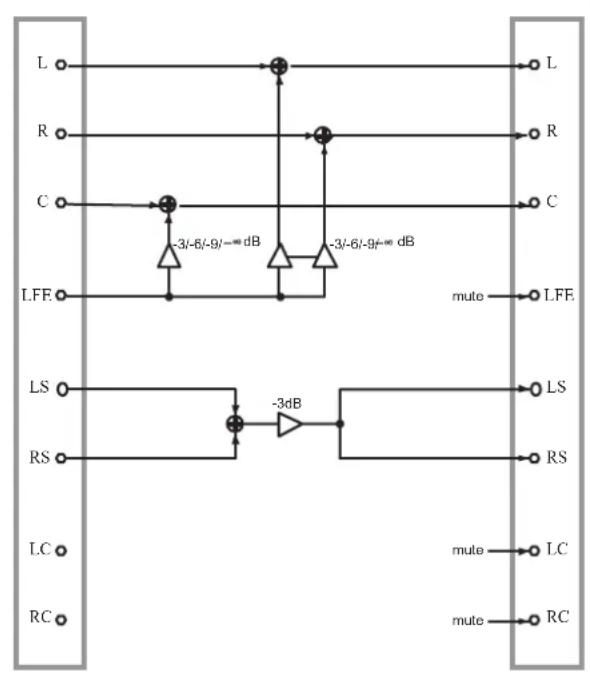
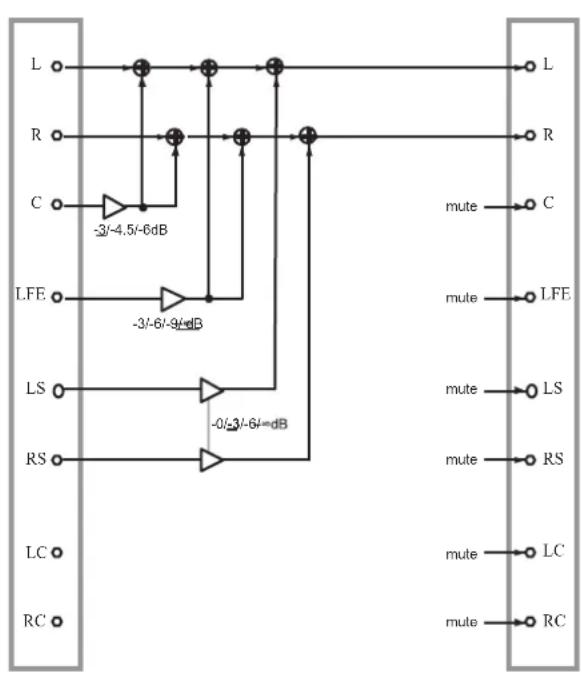
Depending on the value picked here, the other values (that is, the amount by which the source busses are attenuated before they are folded into the target busses) will change.
Note that some busses may pass through more than one attenuator before reaching their destination.
These patterns are shown graphically, with an list of the parameters and options available in each pattern.
The default downmix pattern for all source patterns is LR.
A note on the mono downmix
The mono downmix is accessed using the shifted DOWN MIX key. When the SHIFT key is held down and the DOWN MIX/MONO key is pressed (whether it
is currently active or not), the mono downmix is enabled.
Pressing the DOWN MIX/MONO key while it is flashing returns it to its previous status.
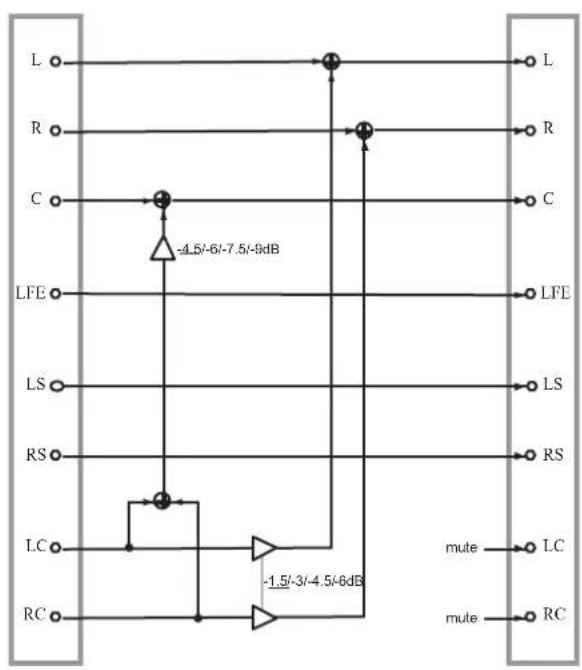
7.1 formats
text_image
L R C LFE LS RS LC RC -4.5/-6/-7.5/-9dB -1.5/-3/-4.5/-6dB LFE LS RS mute LC mute RC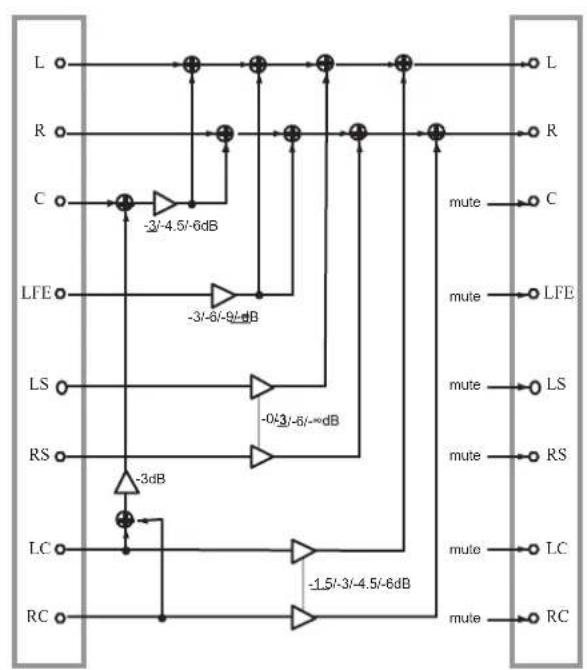
flowchart
graph TD
    L --> A["+"]
    R --> B["+"]
    C --> C["+"]
    LFE --> D["-3/-4.5/-6dB"]
    LS --> E["-3/-6/-9dB"]
    RS --> F["-0/3/-6/-4dB"]
    LC --> G["-3dB"]
    RC --> H["-1.5/-3/-4.5/-6dB"]
    A --> I["+"]
    B --> J["+"]
    C --> K["+"]
    D --> L["+"]
    E --> M["+"]
    F --> N["+"]
    G --> O["+"]
    H --> P["+"]
    I --> Q["L"]
    J --> R["R"]
    K --> S["C"]
    LFE --> T["LFE"]
    LS --> U["LS"]
    RS --> V["RS"]
    LC --> W["LC"]
    RC --> X["RC"]
    I --> Y["mute"]
    J --> Z["mute"]
    K --> AA["mute"]
    LFE --> AB["mute"]
    LS --> AC["mute"]
    RS --> AD["mute"]
    LC --> AE["mute"]
    RC --> AF["mute"]
7.1 > 5.1 7.1 > LR
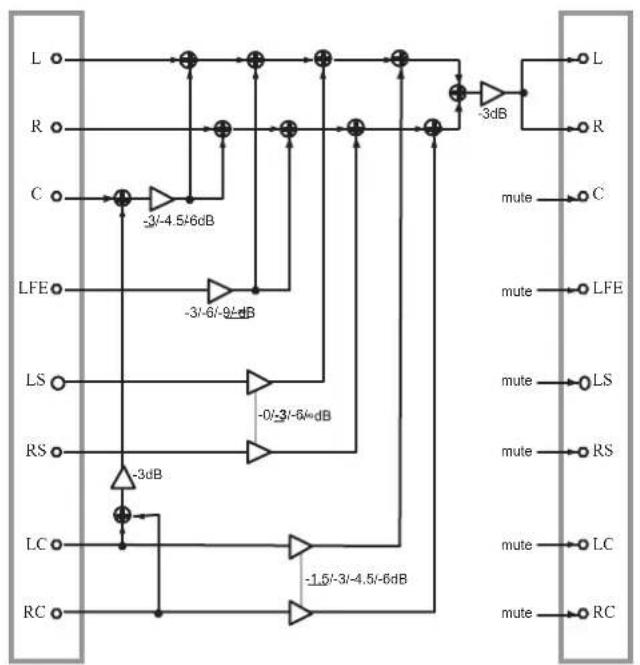
flowchart
graph TD
    L["Input L"] --> A1["+"]
    R["Input R"] --> A2["+"]
    C["Input C"] --> A3["+"]
    LFE["Input LFE"] --> B1["+"]
    LS["Input LS"] --> B2["+"]
    RS["Input RS"] --> B3["+"]
    LC["Input LC"] --> B4["+"]
    RC["Input RC"] --> B5["+"]
    A1 --> D1["+"]
    A2 --> D2["+"]
    A3 --> D3["+"]
    B1 --> D4["+"]
    B2 --> D5["+"]
    B3 --> D6["+"]
    B4 --> D7["+"]
    B5 --> D8["+"]
    D1 --> E1["-3dB"]
    D2 --> E2["-3/-6/-9/2 dB"]
    D3 --> E3["-0/-3/-6/4 dB"]
    D4 --> E4["-3dB"]
    D5 --> E5["-1.5/-3/-4.5/-6 dB"]
    D6 --> E6["-3dB"]
    D7 --> E7["-3dB"]
    E1 --> F1["L"]
    E2 --> F2["R"]
    E3 --> F3["LFE"]
    E4 --> F4["LS"]
    E5 --> F5["RS"]
    E6 --> F6["LC"]
    E7 --> F7["RC"]
    F1 --> G1["L"]
    F2 --> G2["R"]
    F3 --> G3["LFE"]
    F4 --> G4["LS"]
    F5 --> G5["RS"]
    F6 --> G6["LC"]
    F7 --> G7["RC"]
7.1 > mono
7.1 > 5.1 In the 7.1 to 5.1 downmix, the attenuation values are:
| Source > Target Values in dB (default underscored) | |
| LC>L, RC>R -1.5, -3,-4.5, -6 | |
| LC+RC>C-4.5 | _, -6, -7.5, -9 |
7.1 > LR In the 7.1 to LR (stereo) downmix, the attenuation values are:
| Source > Target Values in dB (default underscored) | |
| C > L,R -3,-4.5,-6 | — |
| LFE>L,R -3,-6,-9,-∞ | |
| LS,RS>L,R 0,-3,-6,-∞ | |
| LC+RC+c>L,R-1.5,-3,-4.5,-6 | |
7.1 > mono In the 7.1 to mono downmix, the attenuation values are:
| Source > Target Values in dB (default underscored) | |
| C > L+R -3, -4.5, -6 _ | |
| LFE>L+R -3, -6, -9, -∞ | |
| LS,RS>L+R 0, -3, -6, -_∞ | |
| LC,RC>L+R -1.5, -3,-4.5, -6 |
6.1 format
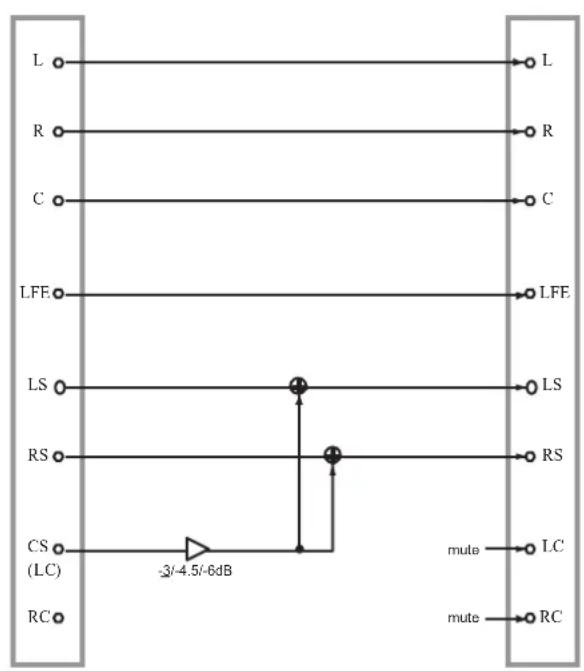
text_image
L R C LFE LS RS CS (LC) RC -3/-4.5/-6dB LFE LS RS mute LC mute RC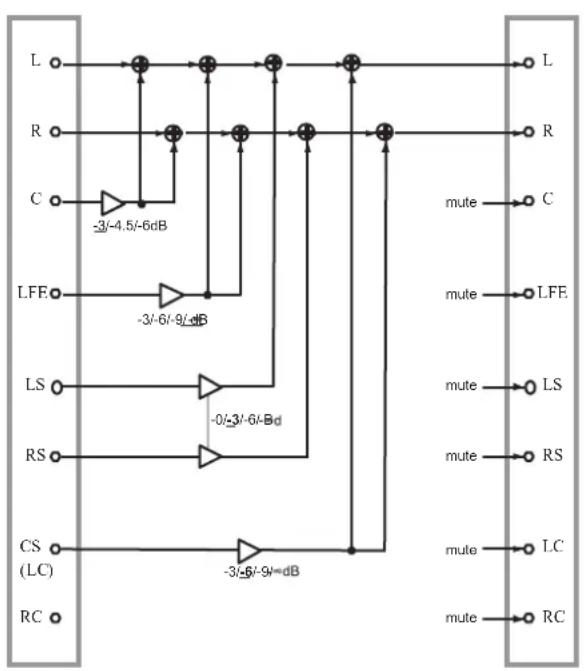
flowchart
graph TD
    L --> A["+"]
    R --> B["+"]
    C --> C["+"]
    LFE --> D["-3/-4.5/-6dB"]
    LS --> E["-3/-6/-9/-dB"]
    RS --> F["-0/-3/-6/-8d"]
    CS["CS (LC)"] --> G["-3/-6/-9/-dB"]
    RC --> G
    A --> H["+"]
    B --> H
    C --> H
    D --> I["+"]
    E --> I
    F --> J["+"]
    G --> J
    H --> K["L"]
    I --> L["C"]
    J --> M["LFE"]
    K --> N["+"]
    L --> O["+"]
    M --> P["+"]
    N --> Q["+"]
    O --> R["+"]
    P --> S["+"]
    Q --> T["+"]
    R --> U["+"]
    S --> V["+"]
    T --> W["+"]
    U --> X["L"]
    V --> Y["LC"]
    W --> Z["RC"]
6.1 > 5.1 6.1 > LR
flowchart
graph TD
    L["Input L"] --> A1["Inverter"]
    R["Input R"] --> A2["Inverter"]
    C["Input C"] --> A3["Inverter"]
    LFE["Input LFE"] --> A4["Inverter"]
    LS["Input LS"] --> A5["Inverter"]
    RS["Input RS"] --> A6["Inverter"]
    CS["Input CS (LC)"] --> A7["Inverter"]
    RC["Input RC"] --> A8["Inverter"]
    A1 --> B1["+"]
    A2 --> B2["+"]
    A3 --> B3["+"]
    A4 --> B4["+"]
    A5 --> B5["+"]
    A6 --> B6["+"]
    A7 --> B7["+"]
    A8 --> B8["+"]
    B1 --> C1["-3dB"]
    B2 --> C2["-3dB"]
    B3 --> C3["-3dB"]
    B4 --> C4["-3dB"]
    B5 --> C5["-3dB"]
    B6 --> C6["-3dB"]
    B7 --> C7["-3dB"]
    B8 --> C8["-3dB"]
    C1 --> D1["L"]
    C2 --> D2["R"]
    C3 --> D3["C"]
    C4 --> D4["LFE"]
    C5 --> D5["LS"]
    C6 --> D6["RS"]
    C7 --> D7["CS (LC)"]
    C8 --> D8["RC"]
    D1 --> E1["-3/-4.5/-6dB"]
    D2 --> E2["-3/-6/-9/-dB"]
    D3 --> E3["-0/-3/-6/-=dB"]
    D4 --> E4["-3/-6/-9/-=dB"]
    D5 --> E5["-3/-6/-9/-=dB"]
    D6 --> E6["-3/-6/-9/-=dB"]
    D7 --> E7["-3/-6/-9/-=dB"]
    D8 --> E8["-3/-6/-9/-=dB"]
6.1 > mono
6.1 > 5.1 In the 5.1 to 5.1 downmix, the attenuation values are:
| Source > Target | Values in dB (default underscored) |
| CS (LC)>LS,RS -3, | -4.5, -6 |
6.1 > LR In the 6.1 to LR (stereo) downmix, the attenuation values are:
| Source > Target Values in dB (default underscored) | |
| C > L,R -3,-4.5,-6 | — |
| LFE>L,R -3,-6,-9,-∞ | |
| LS,RS>L,R 0,-3,-6,-∞ | |
| CS (LC)>L,R -3,-6,-9,-∞ | |
6.1 > mono In the 6.1 to mono downmix, the attenuation values are:
| Source > Target Values in dB (default underscored) | |
| C > L+R -3, -4.5, -6 _ | |
| LFE>L+R -3, -6, -9, - | ∞ |
| LS,RS>L+R 0, -3, -6, -_ | ∞ |
| CS(LC)>L+R -3, -6, -9, - | ∞ |
5.1 format
text_image
L R C LFE LS RS LC RC -3/-6/-9/--- dB -3/-6/-9/--- dB LFE LS RS LC RC -3dB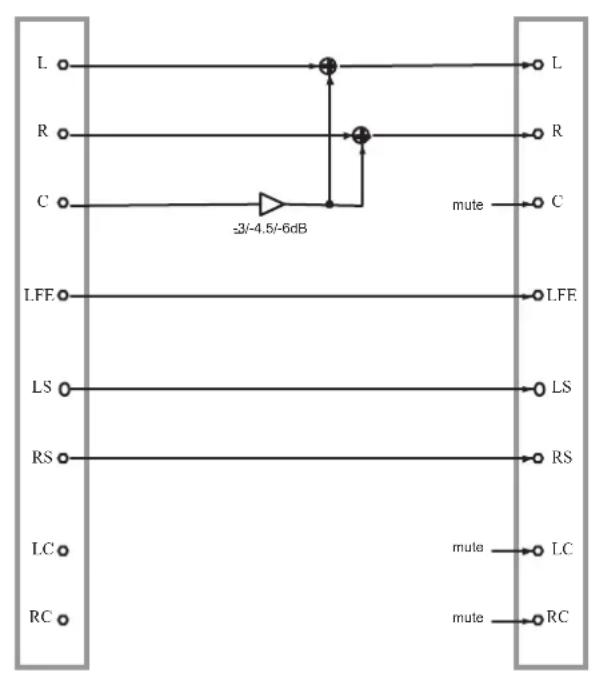
text_image
L R C -3/-4.5/-6dB LFE LS RS LC RC L R C mute LFE LS RS LC mute RC5.1 > LCRS 5.1 > 4.1
text_image
L R C -3/-4.5/-6dB LFE LS RS LC RC -3/-6/-9/6dB -0/-3/-6/-=dB L R C mute C mute LFE mute LS mute RS mute LC mute RC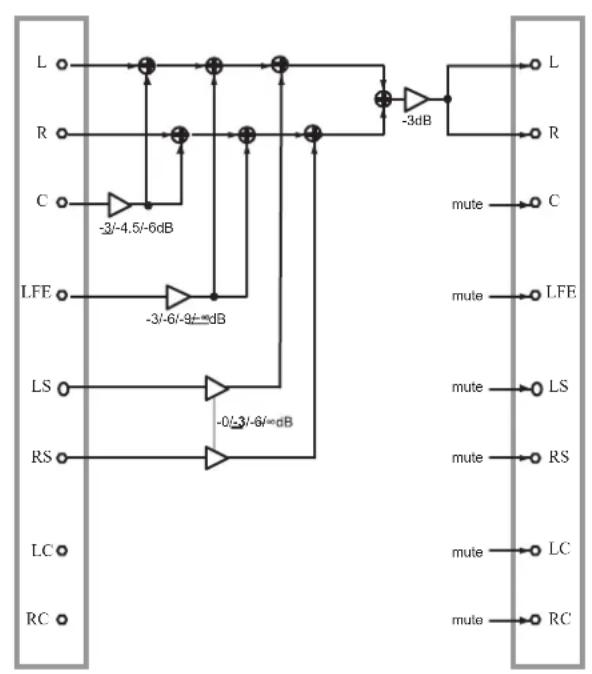
flowchart
graph TD
    A["L"] --> B["+"]
    C["R"] --> D["+"]
    E["C"] --> F["+"]
    G["LFE"] --> H["+"]
    I["LS"] --> J["+"]
    K["RS"] --> L["+"]
    M["LC"] --> N["+"]
    O["RC"] --> P["+"]
    B --> Q["-3/-4.5/-6dB"]
    D --> R["-3/-6/-9/-∞dB"]
    F --> S["-0/-3/-6/∞dB"]
    H --> T["-3dB"]
    J --> U["-3dB"]
    L --> V["-3dB"]
    W["L"] --> X["L"]
    Y["R"] --> Z["R"]
    AA["mute"] --> AB["C"]
    AC["mute"] --> AD["LFE"]
    AE["mute"] --> AF["LS"]
    AG["mute"] --> AH["RS"]
    AI["mute"] --> AJ["LC"]
    AK["mute"] --> AL["RC"]
5.1 > LR 5.1 > mono
5.1 > LCRS In the 5.1 to LCRS downmix, the attenuation values are:
| Source > Target Values in dB (default underscored) | |
| LFE >C -3, -6, -9, - | ∞ |
| LFE>L,R -3, -6, -9, - | ∞ |
5.1 > 4.1 In the 5.1 to 4.1 downmix, the attenuation values are:
| Source > Target Values in dB (default underscored) | |
| C >L,R | -3-4.5,-6 |
5.1 > LR In the 5.1 to LR (stereo) downmix, the attenuation values are:
| Source > Target Values in dB (default underscored) | |
| C >L,R -3, -4.5, -6 | — |
| LFE>L,R -3, -6, -9, -∞ | |
| LS,RS>L,R 0, -3, -6, -∞ | |
5.1 > mono In the 5.1 to mono downmix, the attenuation values are:
| Source > Target Values in dB (default underscored) | |
| C > L+R -3, -4.5, -6 _ | |
| LFE>L+R -3, -6, -9, -∞ | |
| LS,RS>L+R 0, -3, -6, -∞ | |
LCRS format
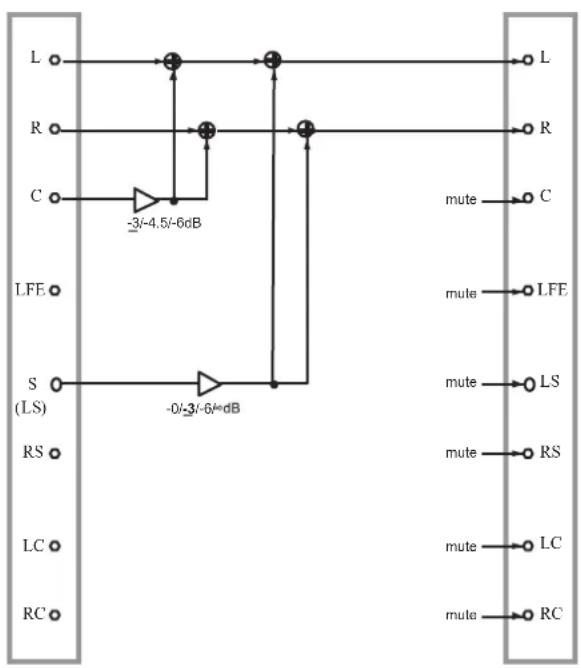
text_image
L R C -3/-4.5/-6dB LFE S (LS) RS LC RC -0/-3/-6/-6dB L R C mute C mute LFE mute LS mute RS mute LC mute RC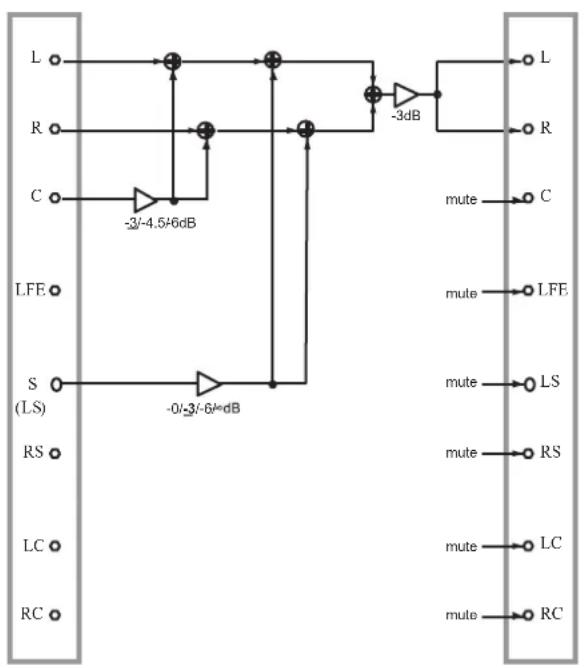
text_image
L R C -3/-4.5/6dB LFE S (LS) RS LC RC -0/-3/-6/6dB -3dB L R mute C mute LFE mute LS mute RS mute LC mute RCLCRS > LR LCRS > mono
As mentioned earlier, there are two LCRS configurations. The first is the LCRS (LS, RS) configuration, This allows a control room set up for 5.1 or 6.1 to use an LCRS configuraiton without repatching the speakers. This is possible, since the Ls and Rs speakers are assigned the same signal, thereby creating a “phantom” Cs speaker.
The second is the LCRS (CS) configuration, where the LS(S) signal is assigned to the CS speaker of a 6.1 configuration.
Both configurations use the same downmix settings, as shown here.
LCRS > LR In the LCRS to LR (stereo) downmix, the attenuation values are:
| Source > Target | Values in dB (default underscored) |
| C >L,R -3,-4.5,-6 | — |
| S(LS)>L,R 0,-3 | _, -6, -∞ |
LCRS > mono In the LCRS to mono downmix, the attenuation values are:
| Source > Target Values in dB (default underscored) | |
| C >L+R -3, -4.5, -6 | — |
| S(LS)>L+R 0, -3 | _, -6, -∞ |
LR format
text_image
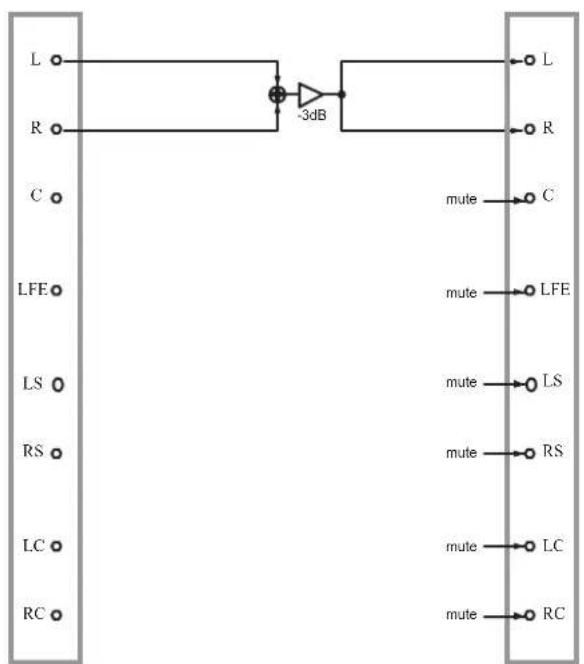
L R C LFE LS RS LC RC -3dB L R mute C mute LFE mute LS mute RS mute LC mute RCLR to mono
LR > mono In the LR to mono downmix, there are no parameters (changeable attenuation values)
8 – Specifications
The following information is provided for reference when connecting the DS-M7.1 to other equipment. Always take care when making these connections.
text_image
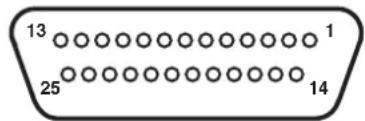
13 25 1 14This shows the pinouts when viewing the rear panel of the DS-M7.1.
Analog connections
The pinouts for the 25-pin D-sub connectors used for both analog input and analog output are as follows:
| Pin Signal | Pin Signal | ||
| 1 | CH 8 + | 2 | CH. 8 Gnd |
| 3 | CH. 7 – | 4 | Ch. 6 + |
| 5 | CH. 6 Gnd | 6 | CH. 5 – |
| 7 | CH. 4 + | 8 | CH. 4 Gnd |
| 9 | CH. 3 – | 10 | CH. 2 + |
| 11 | CH. 2 Gnd | 12 | CH. 1 – |
| Pin Signal Pin Signal | |||
| 13 | NC | 14 | CH. 8 – |
| 15 | CH. 7 + | 16 | CH. 7 Gnd |
| 17 | CH. 6 – | 18 | CH. 5 + |
| 19 | CH. 5 Gnd | 20 | CH. 4 – |
| 21 | CH. 3 + | 22 | CH. 3 Gnd |
| 23 | CH. 2 – | 24 | CH. 1 + |
| 25 | CH. 1 Gnd | ||
AES/EBU connections
The pinouts The pinouts for the 25-pin D-sub connectors used for AES/EBU I/O (insert and monitor, as well as are as follows:
| Pin Signal | Pin Signal | ||
| 1 | D. Out 4 + | 2 | Gnd |
| 3 | D. Out 3 – | 4 | D. Out 2 + |
| 5 | Gnd | 6 | D. Out 1 – |
| 7 | D. In 4 + | 8 | Gnd |
| 9 | D. In 3 – | 10 | D. In 2 + |
| Pin Signal Pin Signal | |||
| 11 | Gnd | 12 | D. In 1 – |
| 13 | NC | 14 | D. Out 4 – |
| 15 | D. Out 3 + | 16 | Gnd |
| 17 | D. Out 2 – | 18 | D. Out 1 + |
| 19 | Gnd | 20 | D. In 4 – |
| 21 | D. In 3 + | 22 | Gnd |
| 23 | D. In 2 – | 24 | D. In 1 + |
| 25 | Gnd | ||
Specifications
I/O specifications
| CONSOLE I./O | TDIF-1 format (built-in) 8 channels each of input and output (25-pin D-sub) or slot 1 |
| TRK RECORDER I/O | TDIF-1 format (built-in) 8 channels each of input and output (25-pin D-sub) or slot 2 |
| MASTER RECORDER I/O TDIF-1 format (25-pin D-sub) | AES-1992 (AES/EBU) format (25-pin D-sub)ADAT (TOSLINK “lightpipe” format) x 2 (built-in), 8 channels each of input and output |
| INSERT I/O AES/EBU (25-pin D-sub), balanced analog (25-pin D-sub x 2), 8 channels each of input and output or slot 3 | |
| MONITOR OUTPUTS AES/EBU (25-pin D-sub), balanced analog (25-pin D-sub), 8 channels of output | |
| WORD IN | BNC, TTL level with 75Ω termination switch |
| MUTE/DIM remote connector TRS 3.5mm jack (common sleeve, tip=mute, ring=dim), TTL level input (falling edge detection) | |
| REMOTE IN (1 and 2) 9-pin D-sub connectors (1=front, 2=rear) for connection of the remote control panel. Power +8V, Differential Tx and Rx | |
RS-232C 9-pin D-sub connector conforming to RS-232C standards
The CONSOLE, MASTER and INSERT connectors may each have an optional slot card selected as alternative I/O sources.
These slots may be filled by any of the following (but only one analog IF-AN/DM card may be fitted at a time).
Also note that when such analog cards are fitted, the headroom should be set on the cards to 20dB, using the switches and jumpers on the cards, and following the documentation supplied with thcards.
IF-AE/DM AES-1992 (AES/EBU) — can be used with high-speed mode
IF-AD/DM ADAT "lightpipe" interface (SYNC in this card is not available with the DS-M7.1)
IF-TD/DM TDIF card (REMOTE OUT connector not available with DS-M7.1)
IF-AN/DM Analog I/O (use with 20dB headroom) — can be used in high-sampling mode
All these cards use PCI 120-pin edge connectors and conform to the TASCAM TDMCS standard.
Analog monitor section
| Nominal output level | +4dBu |
| Maximum output level | +24dBu |
| Output impedance | < 100Ω |
| DAC resolution | 24bits |
Analog CR inputs (stereo)
| Nominal input level | +4dBu |
| Maximum input level | +24dBu |
| Input impedance | >10kΩ |
| ADC resolution | 24bits |
Audio performance
Analog outputs
Master recorder input(AES/EBU) -> Monitor output(Analog)
T.H.D < 0.004% 1kHz 0dBFSinput, Fs=48kHz
S/N > 113dB Fs=48kHz, A-weight
Dynamic range > 113dB 1kHz -60dBFS input, Fs=48kHz, A-weight
Frequency response < ±0.5dB 20Hz-20kHz, 1kHz 0dBFS input, Fs=48kHz
< +0.5/-1.5dB 20Hz-40kHz, 1kHz 0dBFS input, Fs=96kHz
Crosstalk > 100dB 100dB1kHz 0dBFS input, Fs=48kHz
Master recorder input(AES/EBU) -> Analog insert output(SLOT3 : IF-AN/DM)
T.H.D < 0.006% 1kHz 0dBFS input, Fs=48kHz
S/N > 111dB Fs=48kHz, A-weight
Dynamic range > 111dB 1kHz -60dBFS input, Fs=48kHz, A-weight
Frequency response < ±0.5dB 20Hz-20kHz, 1kHz 0dBFS input, Fs=48kHz
< ±1.0dB 20Hz-40kHz, 1kHz 0dBFS input, Fs=96kHz
Crosstalk > 100dB 1kHz 0dBFS input, Fs=48kHz
Analog inputs
Stereo CR input (analog) -> Monitor output(AES/EBU)
T.H.D < 0.003% 1kHz +24dBu input, Fs=48kHz
S/N >113dB Fs=48kHz, A-weight
Dynamic range >113dB 1kHz -36dBu input, Fs=48kHz, A-weight
Frequency response < ±0.5dB 20Hz-20kHz, 1kHz +24dBu input, Fs=48kHz
< ±0.5dB 20Hz-40kHz, 1kHz +24dBu input, Fs=96kHz
Crosstalk > 100dB 1kHz +24dBu input, Fs=48kHz
Analog insert input (SLOT3 : IF-AN/DM) -> Monitor output(AES/EBU)
T.H.D < 0.003% 1kHz +24dBu input, Fs=48kHz
S/N > 106dB Fs=48kHz, A-weight
D-range > 106dB 1kHz -36dBu input, Fs=48kHz, A-weight
Frequency response < ±0.5dB 20Hz-20kHz, 1kHz +24dBu input, Fs=48kHz
< ±0.5dB 20Hz-40kHz, 1kHz +24dBu input, Fs=96kHz
Crosstalk > 100dB 1kHz +24dBu input, Fs=48kHz
General specifications
| Sampling frequencies supported: 44.1kHz, 48kHz, 88.2kHz, 96kHz (as determined by incoming word clock) all ±6% | |
| Word length 24 bit | |
| Voltage requirements USA/Canada 120 VAC, 60 Hz | U.K. 240 VAC, 50 HzEurope 230VAC, 50HzAustralia 240 VAC, 50 Hz |
| Power consumption 32 W | |
| Applicable electromagnetic environment E4 | |
| Peak inrush current 1.9A | |
| Dimensions (main unit) w x h x d 482 x 148 x 330(mm) | 19 x 5.8 x 13 (in) |
| Dimensions (main unit with remote control and cable) w x h x d | 482 x 148 x 401 (mm)19 x 5.8 x 15.8 (in) |
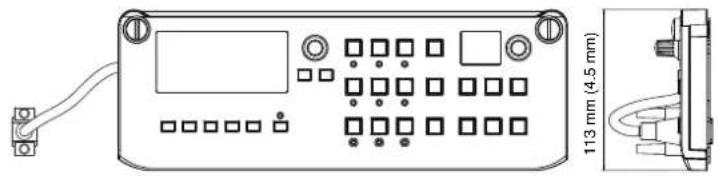
| Dimensions (remote control unit, excluding cable) w x h x d | 316 x 39 x 113 (mm)12.4 x 1.5 x 4.5 (in) |
| Weight (main unit) 8.65 kg (19 lbs) | |
| Weight (remote control unit) 0.85kg (1.9lbs) | |
| Operating temperature 5°C to 40°C (41°F to 104°F) | |
| Supplied accessories Power cord, warranty card | |
Dimensional drawings
natural_image
Front view of a device control panel with buttons and display, shown with an inset detail view (no text or symbols)
text_image
316 mm (12.4 in) 39 mm (1.5 in)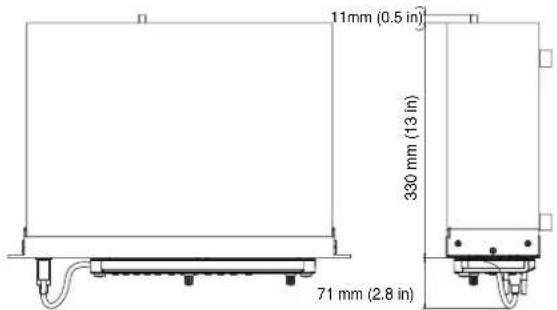
text_image
11mm (0.5 in) 330 mm (13 in) 71 mm (2.8 in)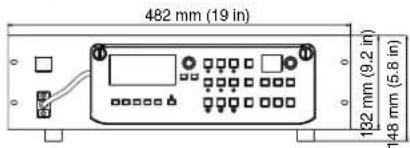
text_image
482 mm (19 in) 132 mm (9.2 in) 148 mm (5.8 in)Making up a remote control cable
It is possible to make two kinds of remote control cable, allowing the front panel of the DS-M7.1 to be detached and used as a remote control unit.
The first type may be up to 5 m (about 15 feet) long (standard cable), and may use a general-purpose cable.
The second type (extended) allows remote control up to 20 m (over 65 feet) away, and must be constructed using a specially-specified cable (described here).
No guarantee of correct operation can be given if a cable over 20 m, or a cable which is not constructed according to the guidelines here, is used to connect the remote control unit to the main unit.
Standard cable
In this case, a standard RS-232C extension cable of up to 5 m in length may be purchased from a computer supply outlet and used.
This cable should be a “straight” shielded cable, with a male 9-pin D-sub connector on one end, and a female 9-pin D-sub connector on the other. The wir-
ing should be straight through, with 1 connected to 1, 2 to 2, etc. through to 9 to 9.
Note that cables sold for extension purposes are usually fitted with male and female connectors, and for that reason, we recommend the use of these cables.
Extended cable
This cable must be made specially, using a cable with the following specifications:
Shielded twisted-pair cable of at least 22AWG should be used, with a length of 20 m or less.
A male 9-pin D-sub connector should be attached at one end, and a female 9-pin D-sub connector at the other.
Pin connections should be made straight through: 1 to 1, 2 to 2, through to 9 to 9.
All pins (and frame ground) should be connected.
Block diagram
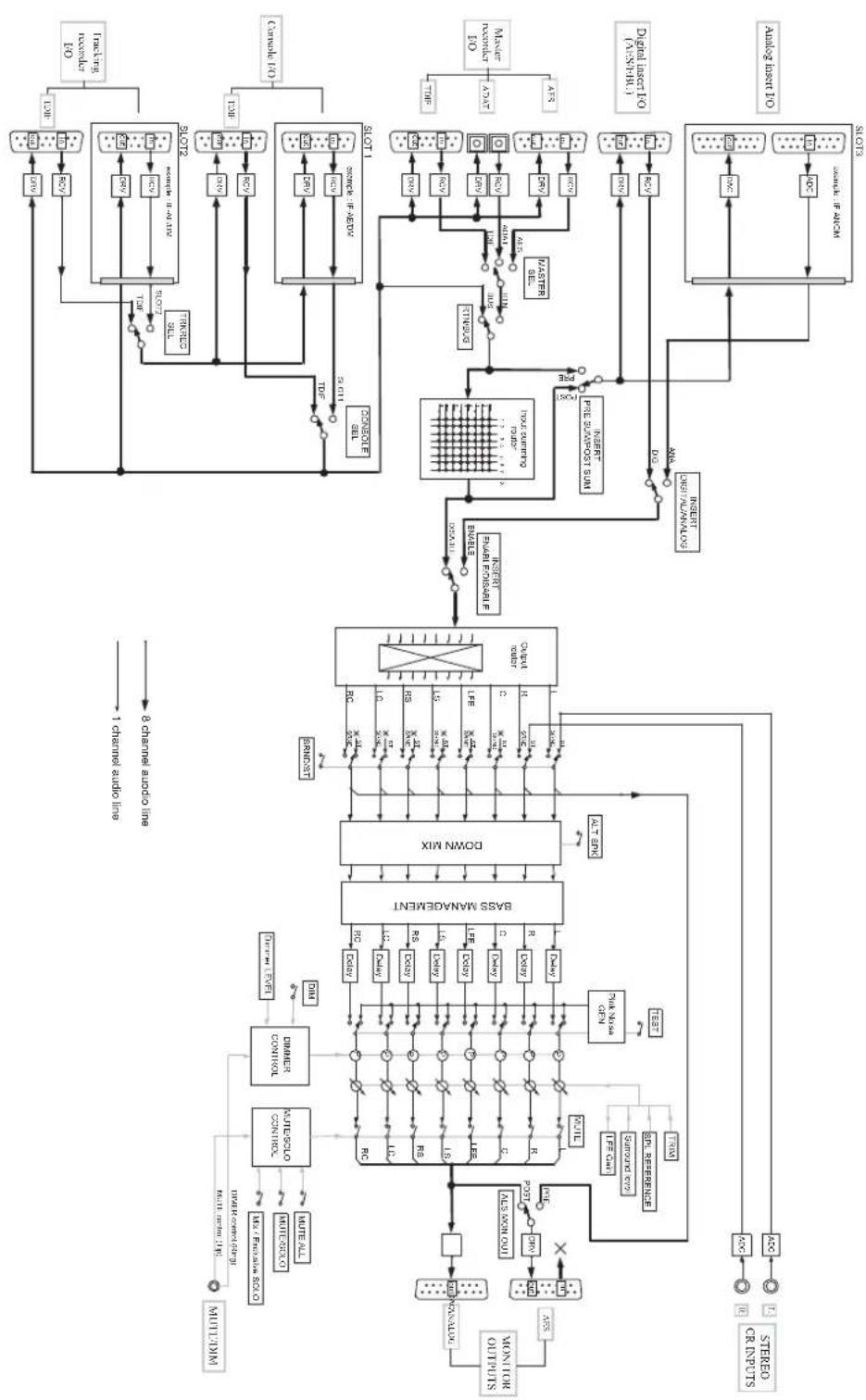
flowchart
graph TD
    A["MINUTKIN"] --> B["MAIN SMO CONTROL"]
    C["MINUTKIN"] --> D["MAIN SMO CONTROL"]
    E["MINUTKIN"] --> F["MAIN SMO CONTROL"]
    G["MINUTKIN"] --> H["MAIN SMO CONTROL"]
    I["MINUTKIN"] --> J["MAIN SMO CONTROL"]
    K["MINUTKIN"] --> L["MAIN SMO CONTROL"]
    M["MINUTKIN"] --> N["MAIN SMO CONTROL"]
    O["MINUTKIN"] --> P["MAIN SMO CONTROL"]
    Q["MINUTKIN"] --> R["MAIN SMO CONTROL"]
    S["MINUTKIN"] --> T["MAIN SMO CONTROL"]
    U["MINUTKIN"] --> V["MAIN SMO CONTROL"]
    W["MINUTKIN"] --> X["MAIN SMO CONTROL"]
    Y["MINUTKIN"] --> Z["MAIN SMO CONTROL"]
    AA["MINUTKIN"] --> AB["MAIN SMO CONTROL"]
    AC["MINUTKIN"] --> AD["MAIN SMO CONTROL"]
    AE["MINUTKIN"] --> AF["MAIN SMO CONTROL"]
    AG["MINUTKIN"] --> AH["MAIN SMO CONTROL"]
    AI["MINUTKIN"] --> AJ["MAIN SMO CONTROL"]
    AK["MINUTKIN"] --> AL["MAIN SMO CONTROL"]
    AM["MINUTKIN"] --> AN["MAIN SMO CONTROL"]
    AO["MINUTKIN"] --> AP["MAIN SMO CONTROL"]
    AQ["MINUTKIN"] --> AR["MAIN SMO CONTROL"]
    AS["MINUTKIN"] --> AT["MAIN SMO CONTROL"]
    AU["MINUTKIN"] --> AV["MAIN SMO CONTROL"]
    AW["MINUTKIN"] --> AX["MAIN SMO CONTROL"]
    AY["MINUTKIN"] --> AZ["MAIN SMO CONTROL"]
    BA["MINUTKIN"] --> BB["MAIN SMO CONTROL"]
    BC["MINUTKIN"] --> BD["MAIN SMO CONTROL"]
    BE["MINUTKIN"] --> BF["MAIN SMO CONTROL"]
    BG["MINUTKIN"] --> BH["MAIN SMO CONTROL"]
    BI["MINUTKIN"] --> BJ["MAIN SMO CONTROL"]
    BK["MINUTKIN"] --> BL["MAIN SMO CONTROL"]
    BM["MINUTKIN"] --> BN["MAIN SMO CONTROL"]
    BO["MINUTKIN"] --> BP["MAIN SMO CONTROL"]
    BQ["MINUTKIN"] --> BR["MAIN SMO CONTROL"]
    BS["MINUTKIN"] --> BT["MAIN SMO CONTROL"]
    BU["MINUTKIN"] --> BV["MAIN SMO CONTROL"]
    BW["MINUTKIN"] --> BX["MAIN SMO CONTROL"]
    BY["MINUTKIN"] --> BZ["MAIN SMO CONTROL"]
    CA["MINUTKIN"] --> CB["MAIN SMO CONTROL"]
    CC["MINUTKIN"] --> CD["MAIN SMO CONTROL"]
    CE["MULESOL"] --> CF["MULESOL CONTROL"]
    CF --> CG["MULESOL"]
    CF --> CH["MULESOL"]
    CF --> CI["MULESOL"]
    CF --> CJ["MULESOL"]
    CF --> CK["MULESOL"]
    CF --> CL["MULESOL"]
    CF --> CD["MULESOL"]
    CF --> DD["MULESOL"]
    CF --> DE["MULESOL"]
    CF --> FD["MULESOL"]
    CF --> DG["MULESOL"]
    CF --> DH["MULESOL"]
    CF --> DI["MULESOL"]
    CF --> DJ["MULESOL"]
    CF --> DK["MULESOL"]
    CF --> DL["MULESOL"]
    CF --> DV["MULESOL"]
    CF --> DW["MULESOL"]
    CF --> DX["MULESOL"]
    CF --> DXM["MULESOL"]
    CF --> DXN["MULESOL"]
    CF --> DXO["MULESOL"]
    CF --> DXP["MULESOL"]
    CF --> DXQ["MULESOL"]
    CF --> DXR["MULESOL"]
    CF --> DXR1["MULESOL"]
    CF --> DXR2["MULESOL"]
    CF --> DXR3["MULESOL"]
    CF --> DXR4["MULESOL"]
    CF --> DXR5["MULESOL"]
    CF --> DXR6["MULESOL"]
    CF --> DXR7["MULESOL"]
    CF --> DXR8["MULESOL"]
    CF --> DXR9["MULESOL"]
    CF --> DXR10["MULESOL"]
    CF --> DXR10M
    CF --> DXR10M
    CF --> DXR10M
    CF --> DXR10M
    CF --> DXR10M
    CF --> DXR10M
    CF --> DXR10M
    CF --> DXR10M
    CF --> DXR10M
    CF --> DXR10M
    CF --> DXR10M
    CF --> DXR10M

    subgraph BASS MANAGEMENT
        B["BASS MANAGEMENT"]
        B["BASS MANAGEMENT"]
        B["BASS MANAGEMENT"]
        B["BASS MANAGEMENT"]
        B["BASS MANAGEMENT"]
        B["BASS MANAGEMENT"]
        B["BASS MANAGEMENT"]
        B["BASS MANAGEMENT"]
        B["BASS MANAGEMENT"]
        B["BASS MANAGEMENT"]
        B["BASS MANAGEMENT"]
        B["BASS MANAGEMENT"]
        B["BASS MANAGEMENT"]
        B["BASS MANAGEMENT"]
        B["BASS MANAGEMENT"]
        B["BASS MANAGEMENT"]
        B["BASS MANAGEMENT"]
        B[Bauss 5.0kΩink/decade/decade/decade/decade/decade/decade/decade/decade/decade/decade/decade/decade/decade/decade/decade/decade/decade/decade/decade/decade/decade/decade/decade/decade/decade/decade/decade/decade/decade/decade/decade/decade/decade/decade/
            direction TB
            direction LR
            direction SB
            direction BT
            direction DB
            direction DC
            direction DV
            direction DB
            direction SC
            direction SD
            direction TB
            direction LR
            direction SB
            direction BT
            direction DB
            direction DC
            direction DV
            direction DB
            direction SC
            direction SD
            direction TB
            direction LR
            direction SB
            direction TC
            direction SD
            direction TB
            direction LR
            direction SB
            direction TC
            direction SD
            direction TB
            direction LR
            direction SB
            direction TC
            direction SD
            direction TB
            direction LR
            direction SB
            direction TC
            direction SD
            direction TB
            direction LR
            direction SB
            direction TC
            direction SD
            direction TB
            direction LR
            direction SB
            direction DC
            direction TB
            direction LR
            direction SB
            direction TC
            direction SD
            direction TB
            direction LR
            direction SB
            direction TC
            direction SD
            direction TB
            direction LR
            direction SB
            direction TC
            direction SD
            direction TB
            direction LR
            direction SB
            direction TC
            direction SD
            direction TB
            direction LR
            direction SB
            direction TC
            direction SB
            direction TB
            direction LR
            direction SB
            direction TC
            direction SD
            direction TB
            direction LR
            direction SB
            direction TC
            direction SD
            direction TB
            direction LR
            direction SB
            direction TC
            direction SD
            direction TB
            direction LR
            direction SB
            direction TC
            direction SD
            direction TB
            direction LR
            direction SB
            direction TC
            direction TB
            direction LR
            direction SB
            direction TC
            direction TB
            direction LR
            direction SB
            direction TC
            direction TB
            direction LR
            direction SB
            direction TC
            direction TB
            direction LR
            direction SB
                    (Note: The channel audio line is the channel audio line).
TASCAM
TEAC Professional Division
DS-M7.1
TEAC CORPORATION
Phone: (0422) 52-5082 3-7-3, Nakacho, Musashino-shi, Tokyo 180-8550, Japan
TEAC AMERICA, INC.
Phone: (323) 726-0303 7733 Telegraph Road, Montebello, California 90640
TEAC CANADA LTD.
Phone: 905-890-8008 Facsimile: 905-890-9888 5939 Wallace Street, Mississauga, Ontario L4Z 1Z8, Canada
TEAC MEXICO, S.A. De C.V
Phone: 5-851-5500 Campesinos No. 184, Colonia Granjes Esmeralda, Delegaacion Iztapalapa CP 09810, Mexico DF
TEAC UK LIMITED
Phone: 01923-819699 5 Marlin House, Croxley Business Park, Watford, Hertfordshire. WD1 8TE, U.K.
Phone: (03) 9672-2400 Facsimile: (03)9672-2249 280 William Street, Port Melbourne, Victoria 3000, Australia