EFDT860 - Cellphone SAMSUNG - Free user manual and instructions
Find the device manual for free EFDT860 SAMSUNG in PDF.
 FR
FR
 BG
BG
 CS
CS
 DA
DA
 DE
DE
 EL
EL
 EN
EN
 ES
ES
 ET
ET
 FI
FI
 HU
HU
 IT
IT
 KK
KK
 KO
KO
 LT
LT
 LV
LV
 NL
NL
 NO
NO
 PL
PL
 PT
PT
 RO
RO
 RU
RU
 SK
SK
 SL
SL
 SV
SV
 TR
TR
 UK
UK
 ZH
ZH
| Product Type | Protective keyboard with tablet stand case |
| Brand | Samsung |
| Model | EFDT860 |
| Compatibility | Samsung Galaxy Tab S6 |
| Dimensions (approx.) | Approximately 250 x 180 x 15 mm (closed) |
| Weight (approx.) | Approximately 400 g |
| Material | Plastic, adhesive pad |
| Color | Black (as shown) |
| Power | Powered by tablet via connector |
| Main functions | Keyboard with function keys, touchpad, adjustable stand, S Pen storage |
| Special keys | [Fn]+[Dex] for Samsung DeX, [Lang] to change language, navigation keys |
| Touchpad | Yes, with multi-touch gestures |
| Screen protection | The screen turns off when closing the keyboard |
| Maintenance and cleaning | Clean the adhesive pad with a damp cloth, dry completely |
| Safety | Do not apply excessive pressure on the keyboard; do not wash the pad under running water |
| Spare parts and repairability | Not specified by manufacturer; contact Samsung after-sales service |
| General information | User manual available in multiple languages; copyright Samsung Electronics 2019 |
Frequently Asked Questions - EFDT860 SAMSUNG
User questions about EFDT860 SAMSUNG
0 question about this device. Answer the ones you know or ask your own.
Ask a new question about this device
Download the instructions for your Cellphone in PDF format for free! Find your manual EFDT860 - SAMSUNG and take your electronic device back in hand. On this page are published all the documents necessary for the use of your device. EFDT860 by SAMSUNG.
USER MANUAL EFDT860 SAMSUNG
- Please read this manual before using the device to ensure safe and proper use.
Images may differ in appearance from the actual product. - Some content may differ from your device depending on the region, and is subject to change without prior notice.
- For the latest version of the manual, refer to the Samsung website, www.samsung.com.
- The keyboard is optimised to connect with the SAMSUNG Galaxy Tab S6 and may not be compatible with other devices. Before connecting the keyboard with devices other than the SAMSUNG Galaxy Tab S6, make sure they are compatible with the keyboard.
- This product includes certain free/open source software. To see the instructions for viewing the open source licence, go to the Samsung website (opensource.samsung.com).
Instructional icons

Warning: situations that could cause injury to yourself or others

Caution: situations that could cause damage to your device or other equipment

Note: notes, usage tips, or additional information
Getting started
Package contents
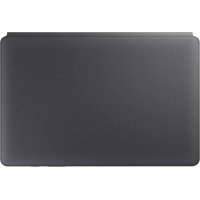
- Stand cover
Keyboard

- The items supplied with the device and any available accessories may vary depending on the region or service provider.
- Appearances and specifications are subject to change without prior notice.
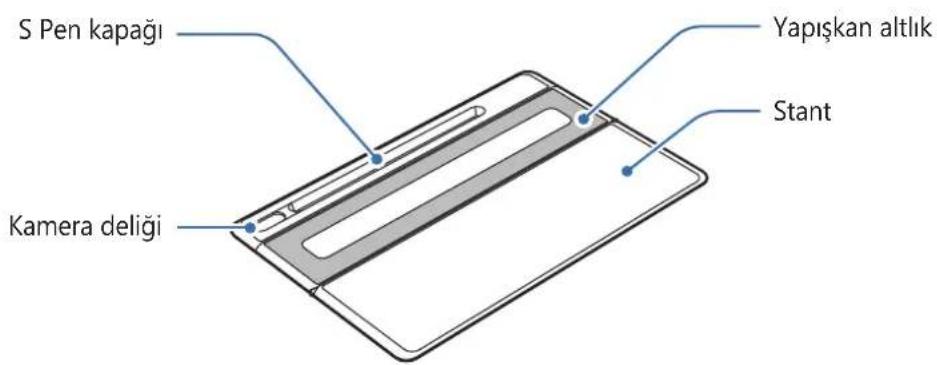
Device layout
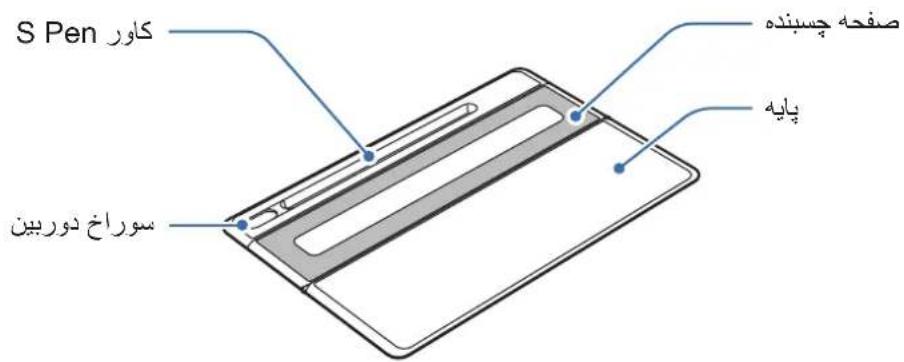
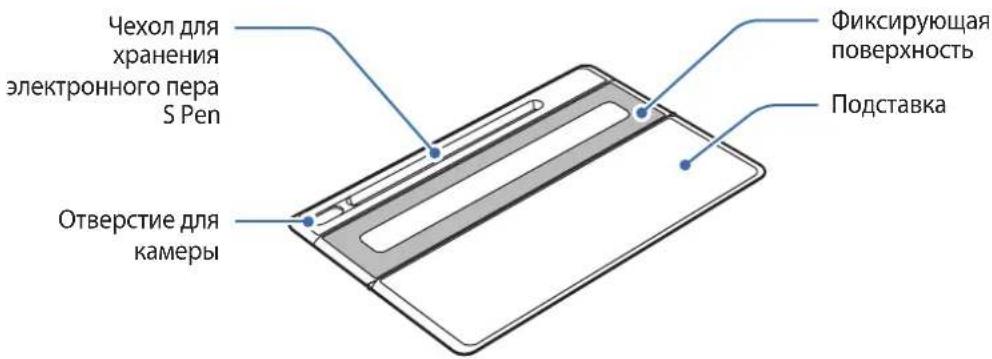
Stand cover:
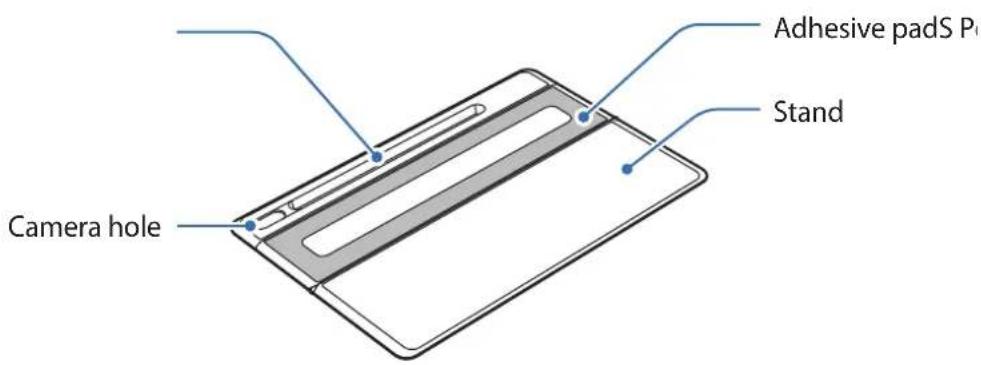
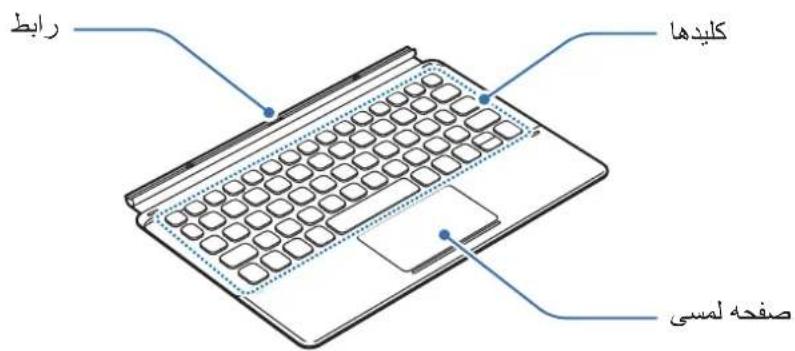
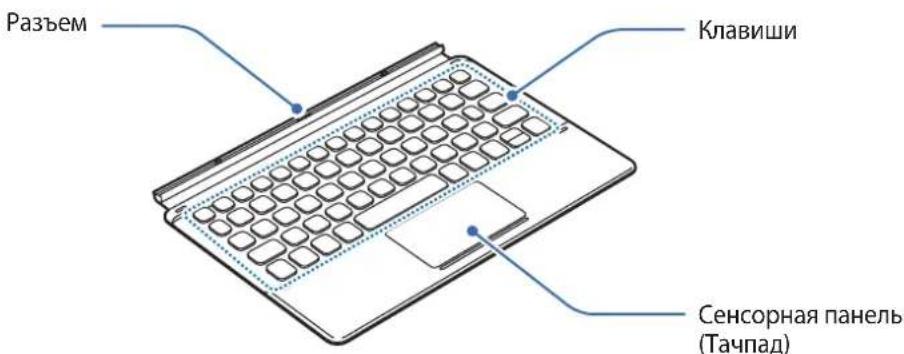
Keyboard:
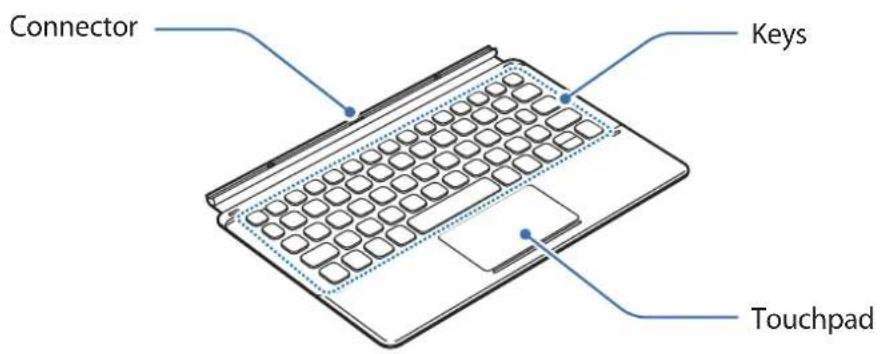
Using the Keyboard
Attaching the keyboard
1 Remove the protective film from the adhesive pad.
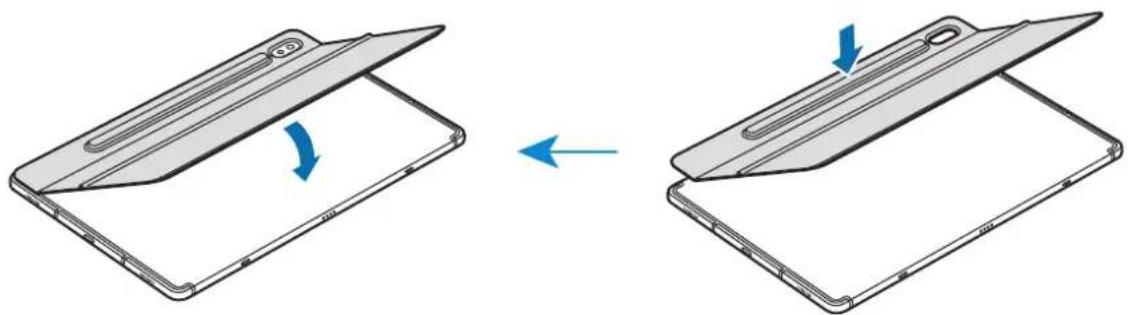
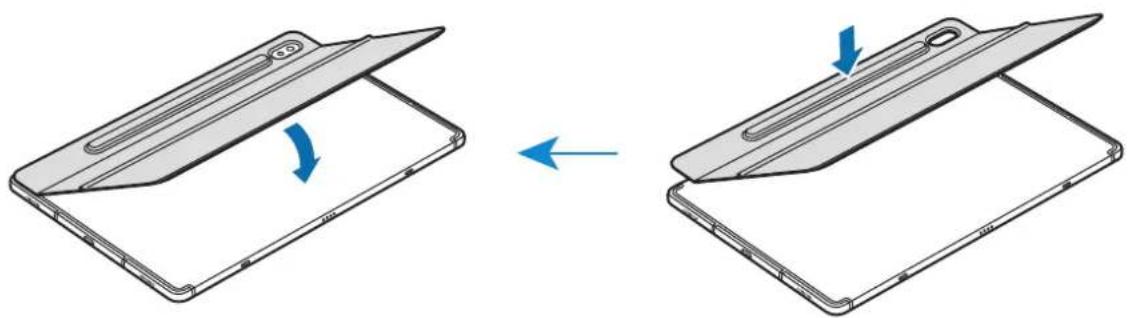
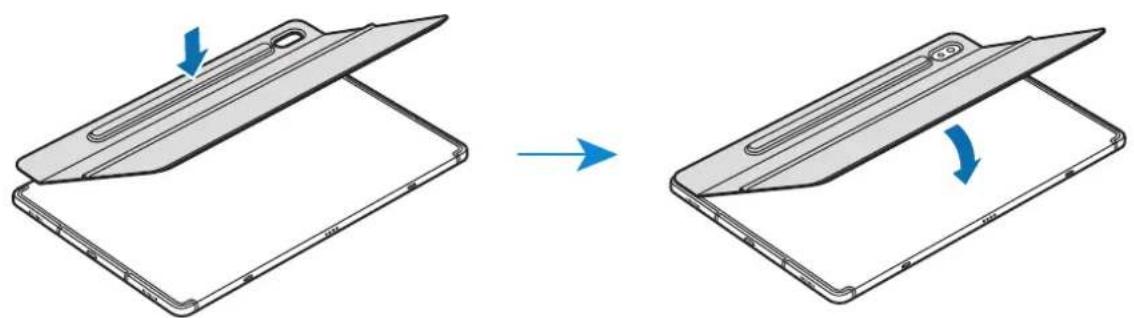
2 Check the location of the camera and the camera hole, and then align each corner of the S Pen cover with the tablets.
3 Attach the S Pen cover first, and then press down the rest part of the stand cover.
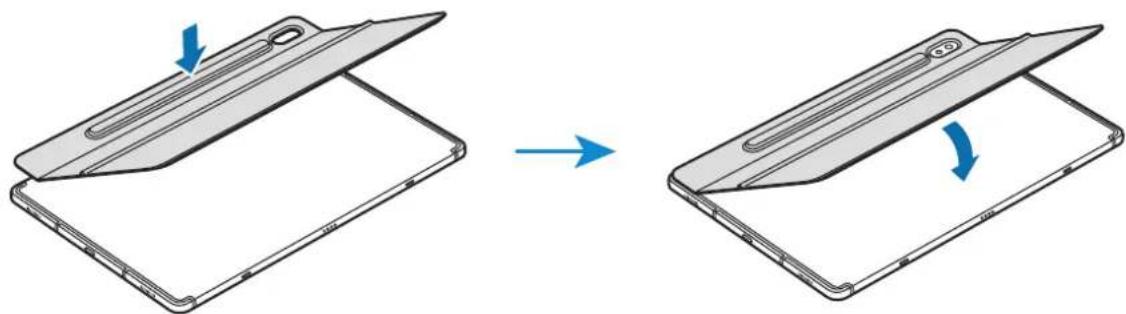

- To improve adhesive strength, make sure to clean the back of the tablet before attaching the stand cover.
The stand cover will be fixed firmly after an hour.
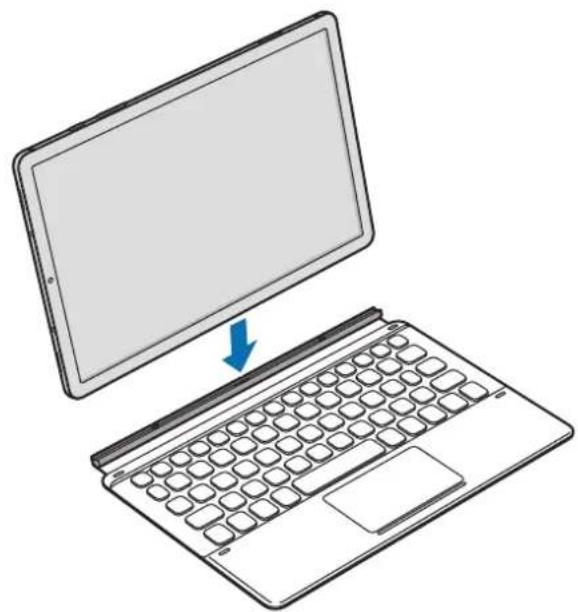
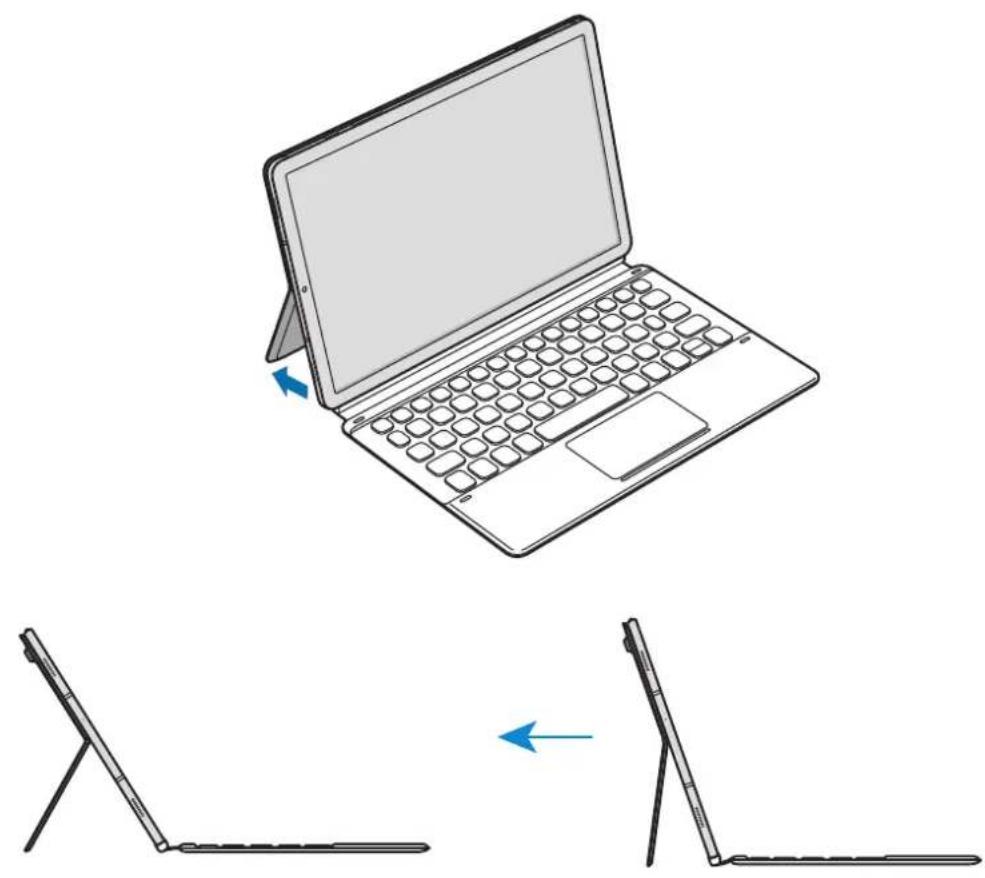
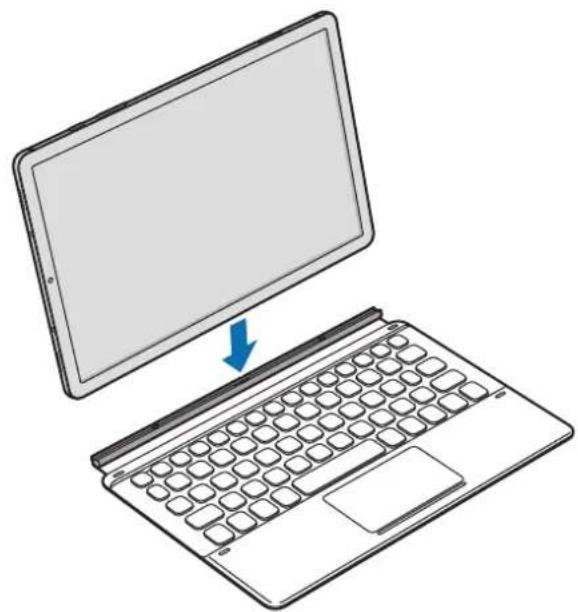
4 Line up the connectors of the tablet and the keyboard, and then attach the keyboard to the tablet.
You can use the keyboard instantly.
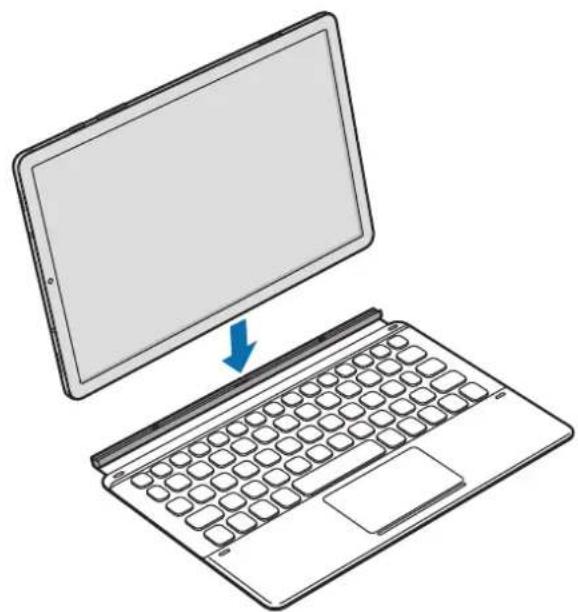

You can use the keyboard as a screen cover. The screen turns off when you cover it with the keyboard, and it turns on when you open the keyboard.

Do not apply excessive pressure on the keyboard while covering the tablet's screen. Doing so may cause screen damage.
Adjusting the tablet angle
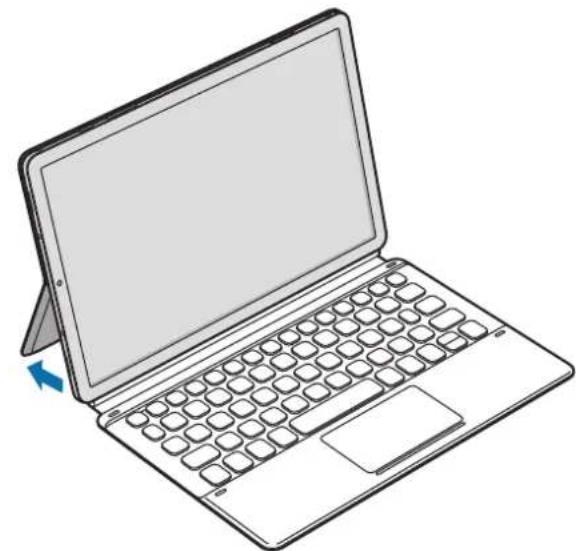
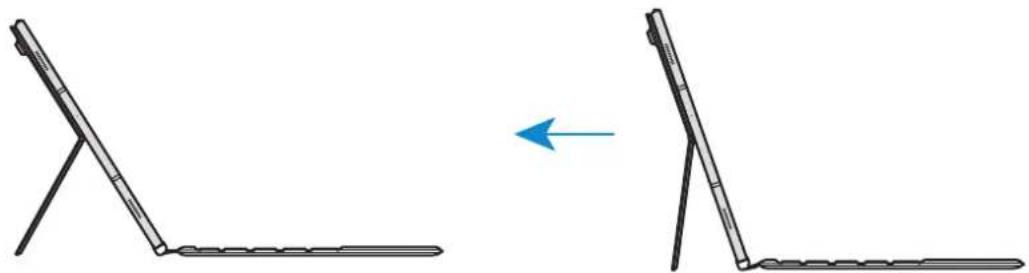
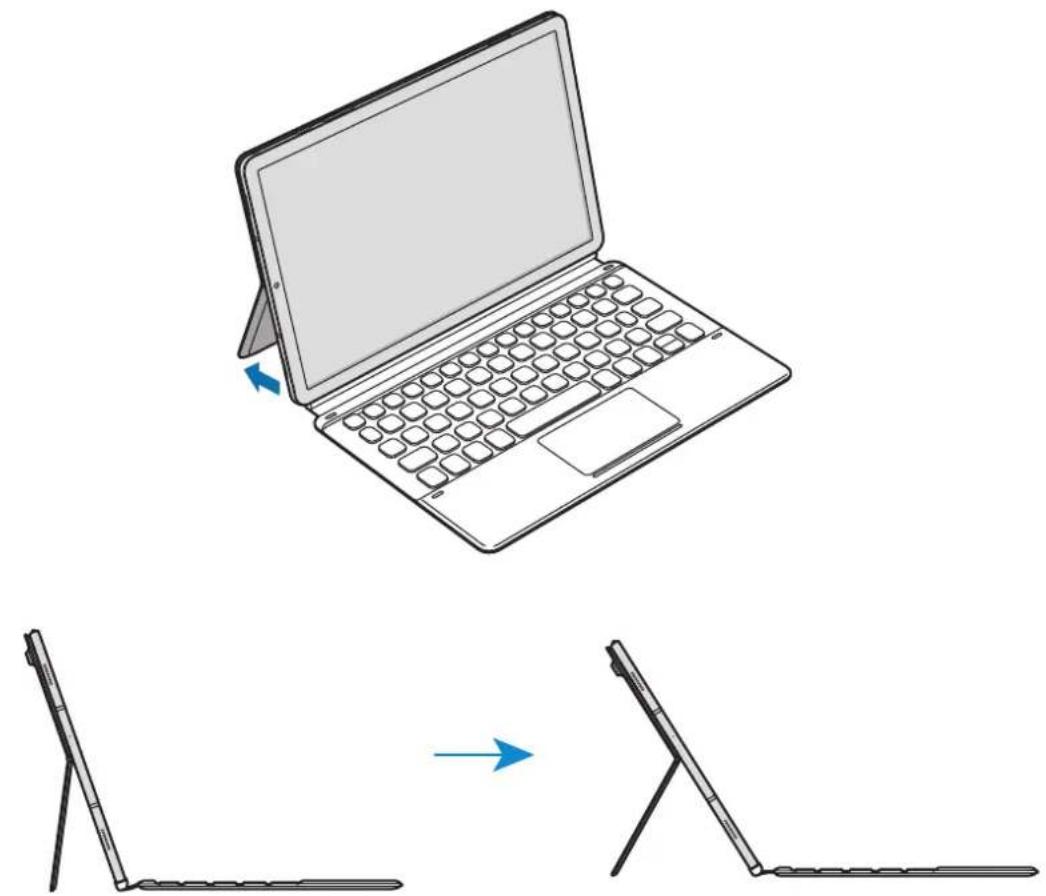
You can adjust the tablet angle with the stand cover. Flip out and adjust the stand until you find the desired angle.
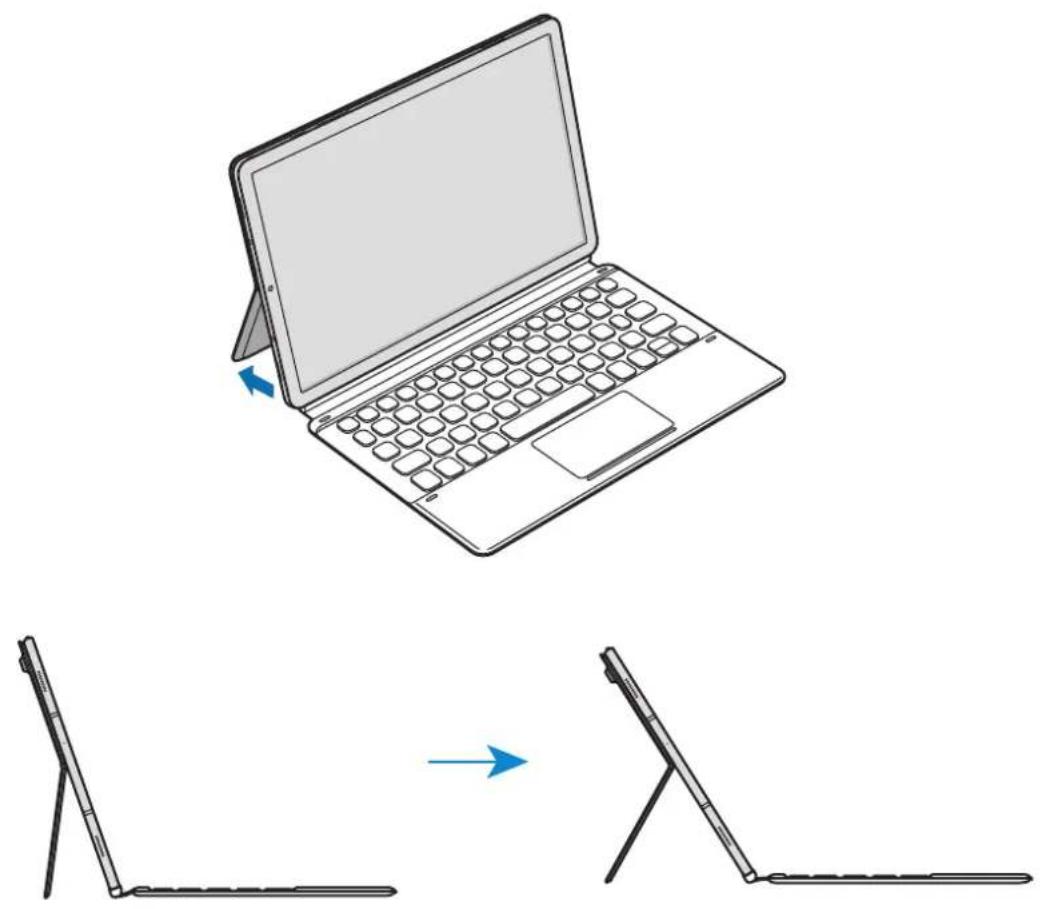

Do not tilt the stand cover excessively. Doing so may cause damage to the hinge.
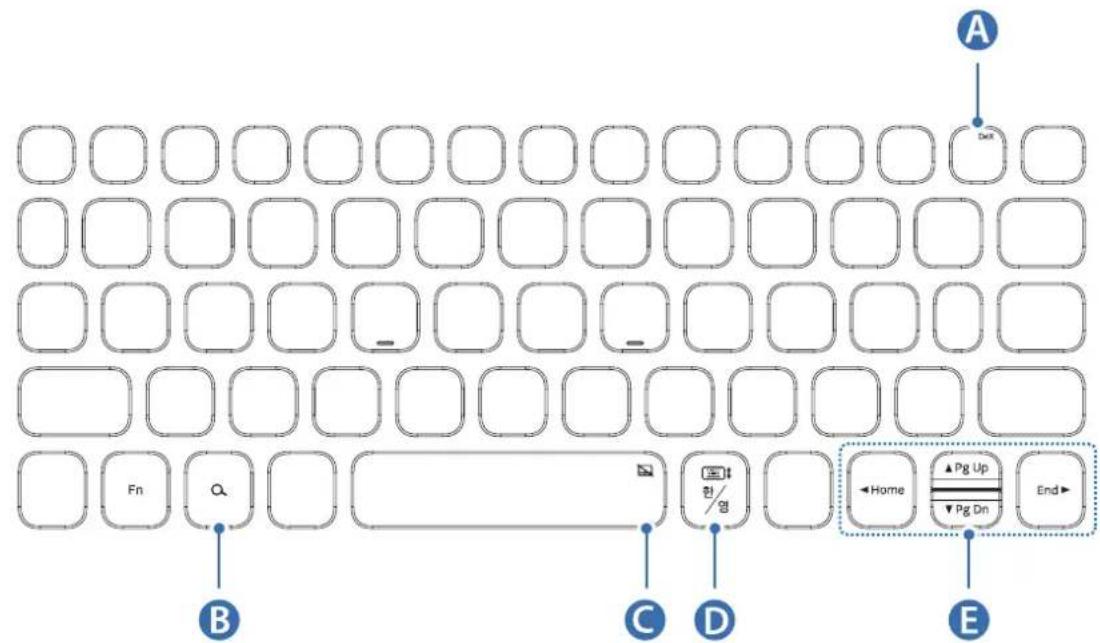
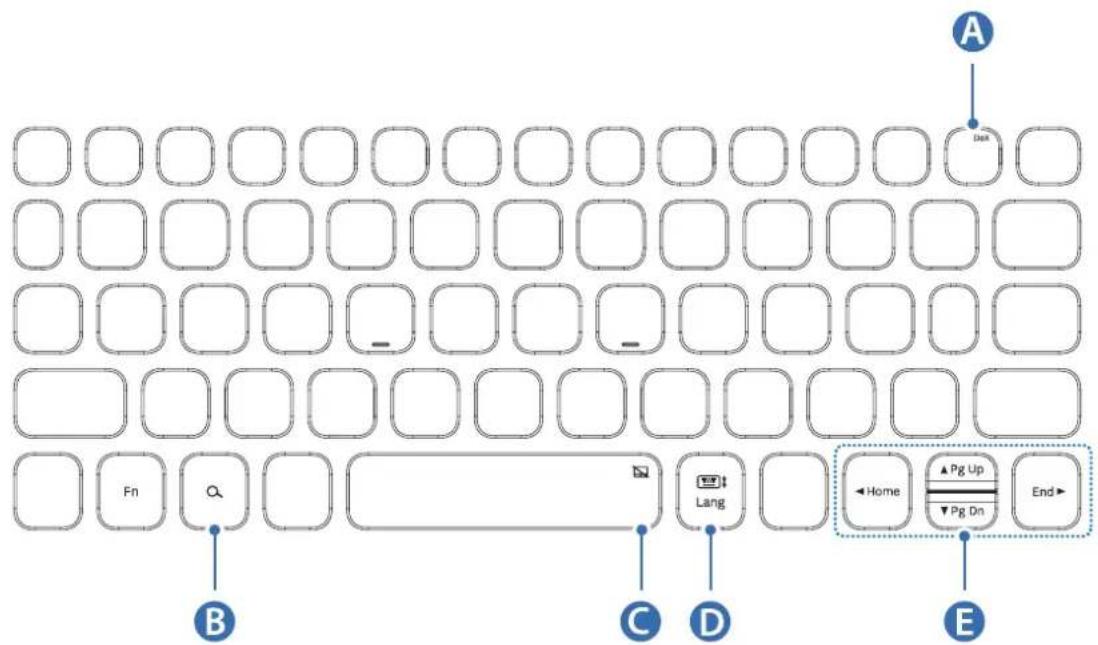
Using the keys
Set the input language on the tablet before you use the keyboard. For more information about setting the input language, refer to the tablet's user manual.

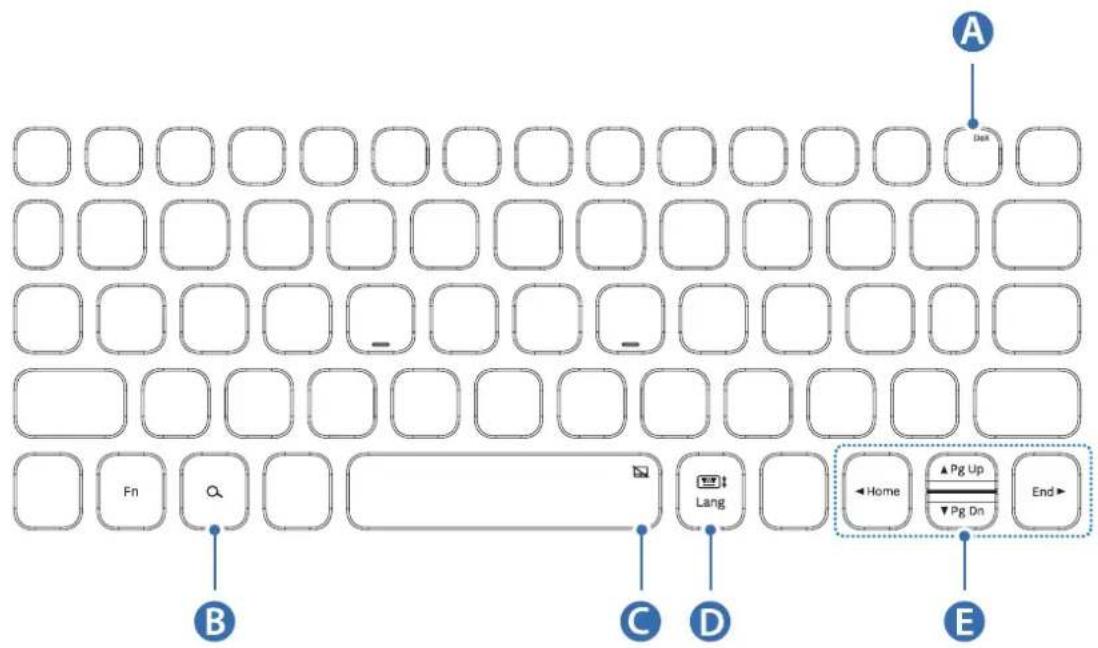
| A | • [Fn] + [Dex]: Launch or close Samsung DeX. |
| B | • Search the contents. |
| C | • [Fn] + enable or disable the touchpad. |
| D | • [Lang]: Change between input languages. • [Fn] + able or disable the on-screen keyboard. |
| E | • ▲/▼ / ▲/▲: Move cursor or system caret; • [Fn] + [▲]: Page Up • [Fn] + [▼]: Page Down • [Fn] + [▲]: Home • [Fn] + [▲]: End |

For more information about Samsung DeX, refer to the tablet's user manual.
Using the touchpad
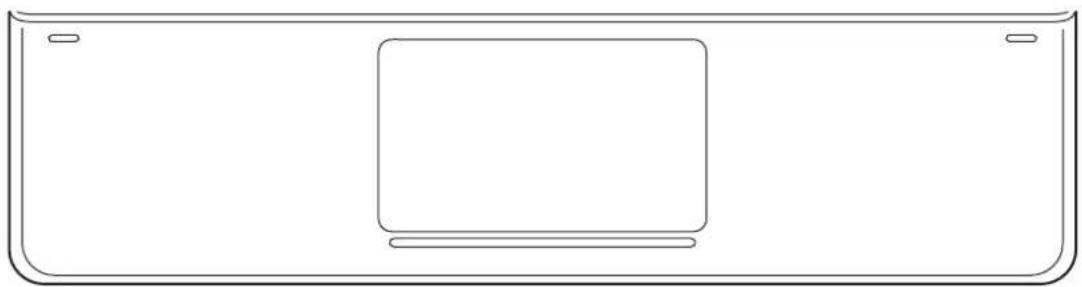
You can use the touchpad to control the cursor on the tablet screen or use the additional features.
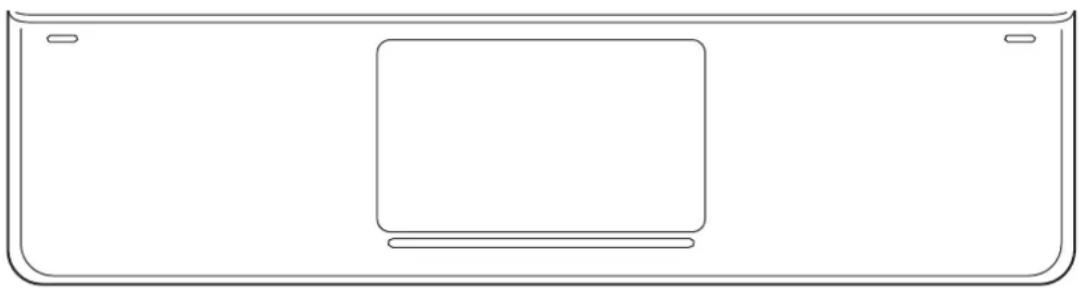
| Actions Functions | |
| Clicking/Tapping | • Click |
| Tapping with two fingers | • Open the context menu. |
| Dragging | • Move the cursor. |
| Dragging with two fingers | • Scroll the page. • Write in the handwriting mode. |
| Spreading/ Pinching | • Zoom in/ Zoom out |
| Holding and dragging | • Move the selected object. |
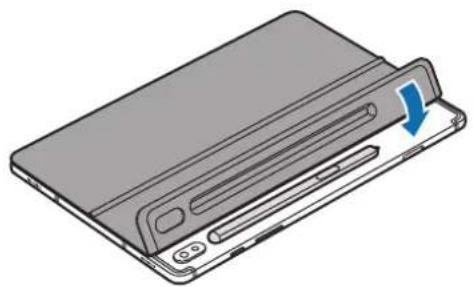
Storing the S Pen
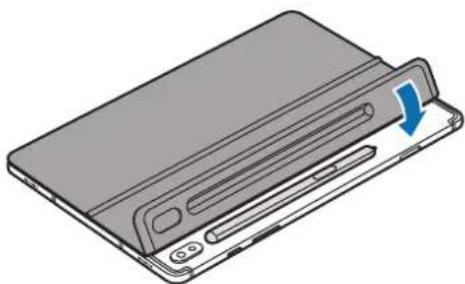
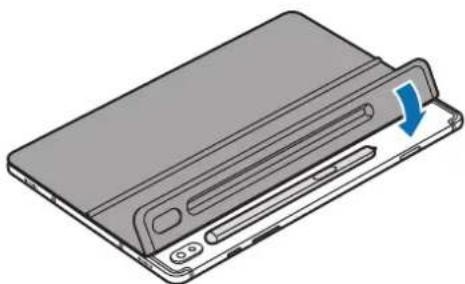
1 Attach the S Pen to the tablet as shown in the image below.
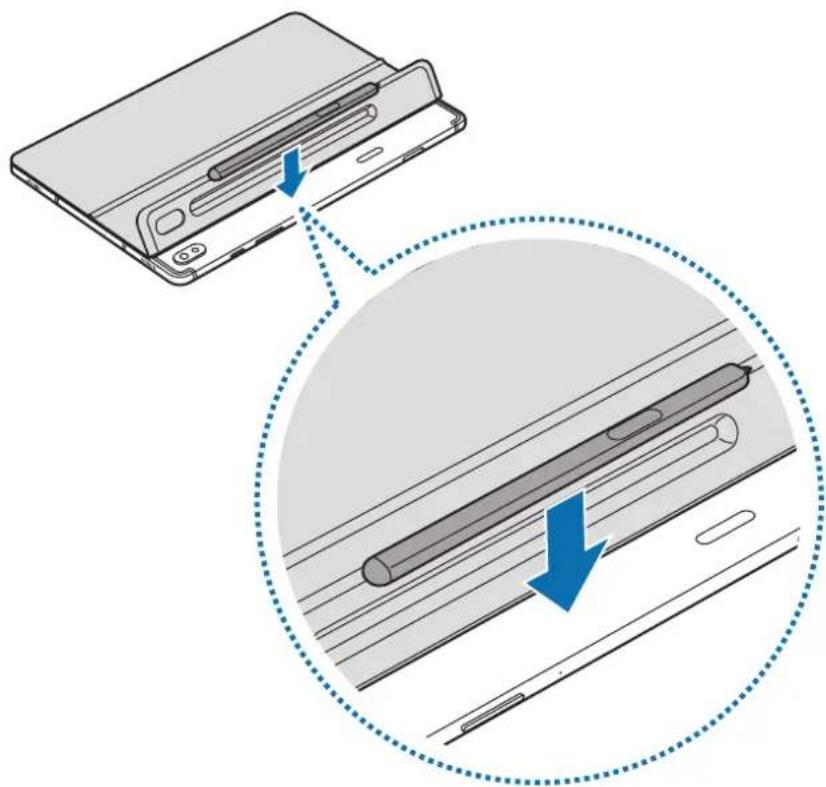

Make sure to place the nib of the S Pen to face the opposite side of the camera. The S Pen will not charge if it is misplaced.
2 Cover the S Pen with the S Pen cover.
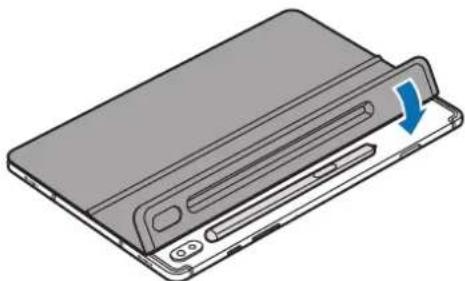
Cleansing the adhesive pad
The adhesive strength may be reduced if the surface of the pad is dirty. Cleanse the pad gently with a wet towel when it gets dirty.

Dry the adhesive pad completely after cleansing it. It may not stay firmly if moisture remains in the pad.

Do not wash the adhesive pad under running water. Doing so may cause damage to the device.
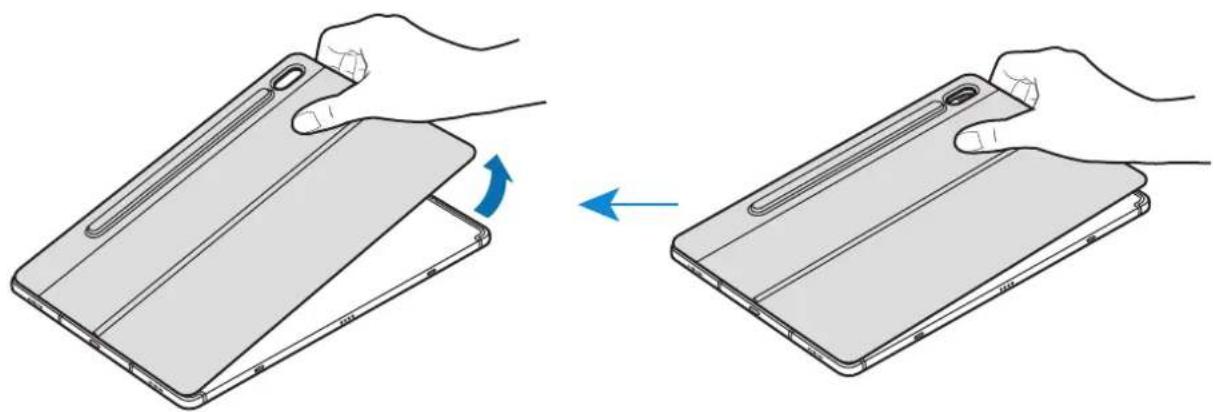
Detaching the stand cover
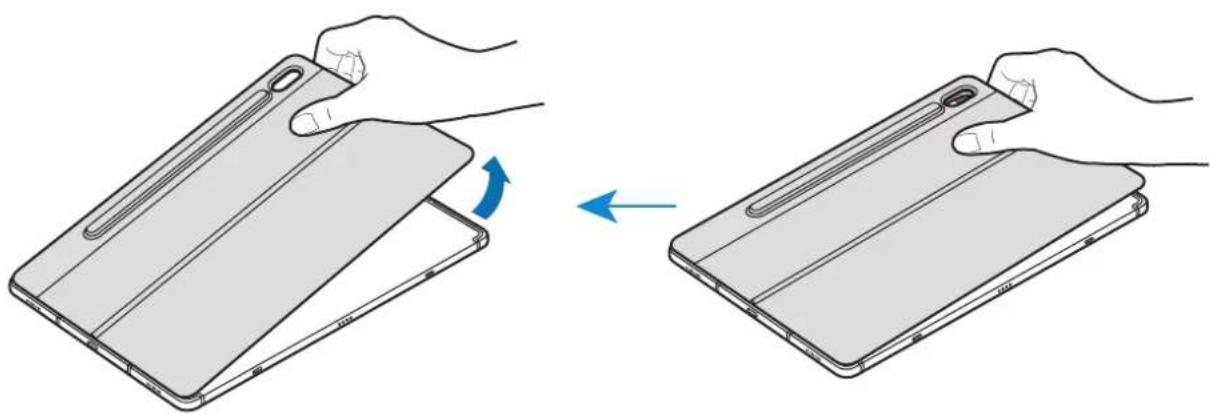
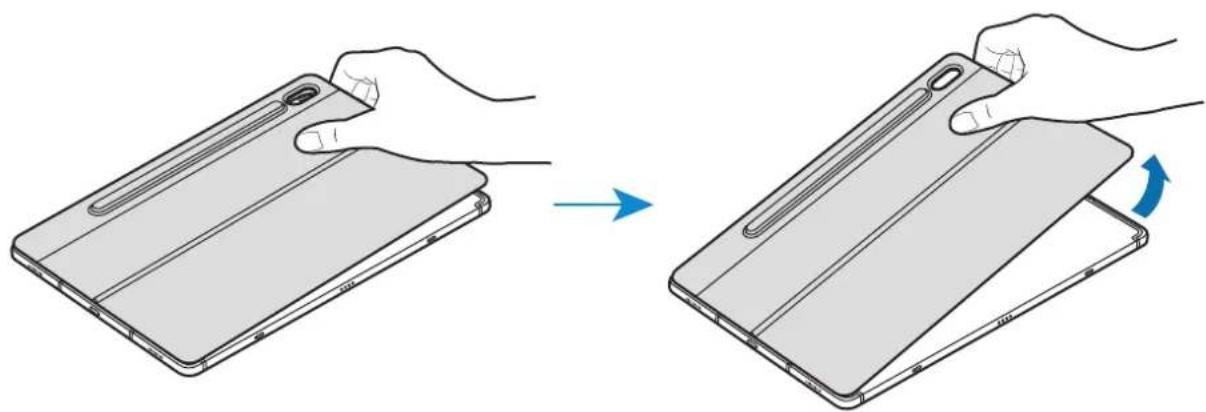
Push the fingers into the gap between the adhesive pad and the tablet, and then make sure to lift the stand cover gently while pushing the back of the adhesive pad.
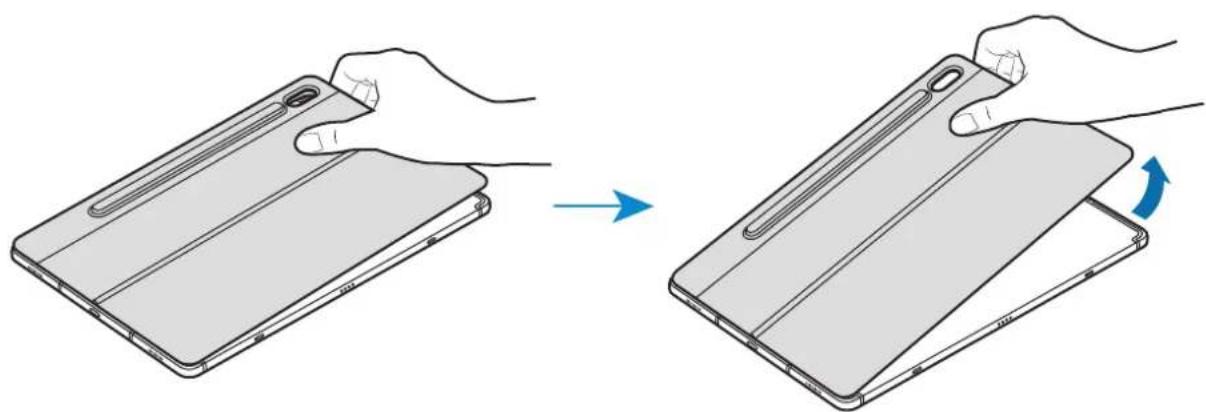

Do not lift the parts of the stand cover other than the adhesive pad. Doing so may cause damage to the device.
Copyright
Copyright © 2019 Samsung Electronics
This user manual is protected under international copyright laws.
No part of this user manual may be reproduced, distributed, translated, or transmitted in any form or by any means, electronic or mechanical, including photocopying, recording, or storing in any information storage and retrieval system, without the prior written permission of Samsung Electronics.
Trademarks
SAMSUNG and the SAMSUNG logo are registered trademarks of Samsung Electronics.
- All other trademarks and copyrights are the property of their respective owners.
Copyright © 2019 Samsung Electronics
Copyright © 2019 Samsung Electronics
- Los articulos que se incluyen con el dispositivo, como como los accesos disponibles,SEO,SEO,SEO,SEO,SEO,SEO,SEO,SEO,SEO,SEO,SEO,SEO,SEO,SEO,SEO,SEO,SEO,SEO,SEO,SEO,SEO,SEO,SEO,SEO,SEO,SEO,SEO,SEO,SEO,SEO,SEO,SEO,SEO,SEO,SEO,SEO,SEO,SEO,SEO,SEO,SEO,SEO,SEO,SEO,SEO,SEO,SEO,SEO,SEO,SEO, SEO, SEO, SEO, SEO, SEO, SEO, SEO, SEO, SEO, SEO, SEO, SEO, SEO, SEO, SEO, SEO, SEO, SEO, SEO, SEO, SEO, SEO, SEO, SEO, SEO, SEO, SEO, SEO, SEO, SEO, SEO, SEO, SEO, SEO, SEO, SEO, SEO
- El aspecto y las specifications你能 sufrir Cambios sin previo aviso.
Copyright © 2019 Samsung Electronics
© "Samsung Electronics", 2019
Alternativekanduringevarkundesupportpatelefon81556480.
Opphavrsrett
© 2019 Samsung Electronics
Denne brukerhandboken er beskyttet ifolge internasjonale lover om opphavsrett.
Ingen deler ay donne brukerhandboken kan reproduceres, distribueres, oversettes
- Cihazla ve mevcut aksesuarlarla birlikte verilen parçalar bölgeye veya servis saglayiciya®,®,®,®,®,®,®,®,®,®,®,®,®,®,®,®,®,®,®,®,®,®,®,®,®,®,®,®,®,®,®,®,®,®,®,®,®,®,®,®,®,®,®,®,®,®,®,®,®,®,®,®,®,®,®,®,®,®,®,®,®,®,®,®,®,®,®,®,®,®,®,®,®,®,®,®,®,®,®,®,®,®,®,®,®,®,®,®,®,®,®,®,®,®,®,®,®,®,®,®,®.
- Cihazla ve mevcut aksesuarlarla birlikte verilen parçalar bölgeye veya servis saglayiciya®,®,®】, olarak degişiklik,gosterebilir.
Görünüm ve teknik Özelliklerde önceden haber verilmedendehyegrisiklik yapilabilir.
Cihaz Yerleşimi
Stand kapa:
Klavye:
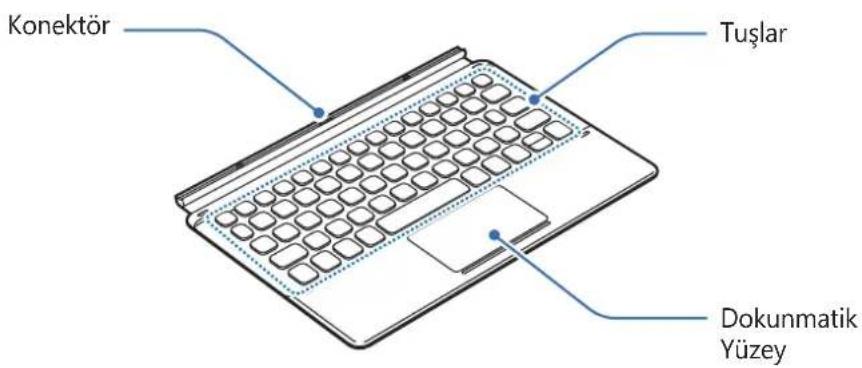
Klavyeyi Kullanma
Klavyeyi takma
Telif Hakki © 2019 Samsung Electronics
OE BC.OA = 1
i 1

.
O
:S
12 < - 52 < - 42
15 0
15
1
S Pen 1
jji jip
S Pen 1
1

2
1
1J 1

J 1
2

i
1 1
. 1

Laiis ji ola
i j 150
S Pen 51.234567890 S Pen

S Pen 1 S Pen
#
1
aaii i 1

1

4y
1 1
1 1

G
Samsung Electronics 19
Samsung Electronics j 1 k o j 1 j 1 j 1 j 1 j 1 j 1 j 1 j 1 j 1 j 1 j 1 j 1 j 1 j 1 j 1 j 1 j 1 j 1 j 1 j 1 j 1 j 1 j 1 j 1 j 1 j 1 j 1 j
J 1
a a a a a a a a a a a
1 1
Jolalcbill Jaiu biaol p S plc Ie
Jolal 1bll jgl jgl jgl jgl jgl jgl jgl jgl jgl jgl jgl jgl jgl jgl jgl jgl jgl jgl jgl jgl jgl jgl jgl jgl jgl jgl jgl jgl jgl jgl jgl jgl jgl jgl jgl jgl jgl jgl jgl jgl jgl jgl jgl jgl jgl jgl jgl jgl jgl jgl j

1
Lioie Ieiai ay, 1yI yI yI yI yI yI yI yI yI yI yI yI yI yI yI yI yI yI yI yI yI yI yI yI yI yI yI yI yI yI yI yI yI yI yI

aaiiie 1

y j 1
yIglll yIgll lJy jyIyIyIyIyIyIyIyIyIyIyIy
Jai 1


J 1
| .Samsung DeX®: [Fn] + [Dex] | A |
| .اللهutron: [Fn] | B |
| .اللهutron: [Fn] | C |
| .اللهutron: [Lang] | D |
| .اللهutron: [Fn] | E |
| .اللهutron: [Fn] | F |
JgSs

wlll
aaii i 1
| العربية | |
| بىشام / رزدالنام | |
| بىشام بورسانيت | |
| العربية/العربية | |
| العربية/العربية | |
| العربية/العربية | |
| العربية/العربية | |
| العربية/العربية | |
| العربية/العربية | |
| العربية/العربية | |
| العربية/العربية | |
| العربية/العربية | |
| العربية/العربية/العربية | |
| العربية/العربية/العربية | |
| العربية/العربية/العربية | |
| العربية/العربية/العربية | |
| العربية/العربية/العربية | |
| العربية/العربية/العربية | |
| العربية/العربية/العربية |
S
1

S 1

S pIe IeBz S pIe AaBz
a
i 1
1 1

jlll l 1

Jolll lll
e jll laiy yj yolall eblal g jn n 5g jgl jg jgl jg jgl jgl jgl jgl jgl
jlll l l l l l l l l l l l l l l l l l l l l l

e 1
i 19 2
i 1
Jilw g yI aai jy Iaia Jg Jg Jg Jg Jg Jg Jg Jg Jg Jg Jg Jg Jg Jg Jg Jg Jg Jg Jg Jg Jg Jg Jg Jg Jg Jg Jg Jg Jg Jg Jg Jg Jg Jg Jg Jg Jg Jg Jg Jg Jg Jg Jg
. Samsung Electronics
y
SAMSUNG SAMSUNG
Samsung Electronics
BHeHn BnD yCTpoIcTba
Yexon-NoDCTaBka:
KnaBnAtya:
© Samsung Electronics, 2019
Lcienoci6nK KopncTyBaay 3axuueHO 3riHNO 3 MIXHaPOdHMN 3aKOHAMN 0oNo aBTOpcbKnx npab.
3a6bOpHeNo BiIDTBopIOBaTu, po3nOBcIoxJyBaTu, nepeKlaIaTu a6o nepeDaBaTu B 6ydI kIyKIMN 3acO6aMn, eJeKTPOHHmN a6o MexaHicHNMn, BKIOUHO i3 KcePOKoIIIOBaHHaM, 3aINCyBaHHaM a6o 36epiraHHaM Ha 6yb-IAKOMy npncTrooi dIra 36epirAHHaDAnx ChnB iNfOpMaciIHO-nOswKOBi nCCTeMi, XODHy cactHy cboRo noci6Hnka KopNCtYBaau 6e3 nonepedhboro nncbMOBOrdo3BOny KomnaHii Samsung Electronics.
Tobaphi 3HaKN
- SAMSUNG i norotin SAMSUNG € 3apeectrobaHIMn TOBAPHIMn 3HaKaAMn KOMNaHII Samsung Electronics.
- Yci iHsi TOBapHi 3HaKn iABTopcbKi npaba HaJexKaTb BiIDNOBIDHM BJaCHNkAm.
MaHbI3dbl Kipicne
Kayinci3 XeHe dypbc naiDalaHydbl KaMTaMaCbI 3 ety ywiH KypblfbiHbl naDalaHyaH 6ypbIH OcbI HcCKayDbI OKblHbI3.
KeckiHep 乌bHaBbI eHIMHe3reWeJey 60nybIMymKIn.
- AиMaKka 6aJIaHbICTbl Kypblfbldaftb Kei6ip Ma3Myn E3reWe 6Olybl MymKIn XaHe aIbIH aIa eckepTyci3 e3reptijyIMykIN.
- HycayIbIKTbIH, COHfbl HycKaCbIH Samsung KOMnHaNcBihB, Be6-caTbIHaH KaPaHbI3: www.samsung.com.
- NepheTaKaTa SAMSUNG Galaxy Tab S6 KypbIbIcBiHa Kocy ywiH OHTaIIaHDbIpblFaH XaHe 6aCa Ka KypbIbIaIapMeH yIeCneYi MymKiH. NepheTaKaTahbI SAMSUNG Galaxy Tab S6 KypbIbIcBiHaH 6aCa Ka KypbIbIaIapFka Kocnac 6ypbIH, OlapDbIH nepHeTaKaTameH yIeCiMdi EkeHHe K3 XeTKi3iH3.
- Бул сим кебip teriH/aшык Ke3deH aIbIHfah 6aFaplamaIbIK KypaIadapDbI KaMTnIbI. AшыК
6actanKbI KoIbI 6ap 6aFaplamaIbIK XacaKaTamaHa apHaIFaH IInceH3nIaMEn KaIaN TaHbICyFa
6olatbIHbH 6ily yushi Samsung (opensource.samsung.com) Be6-caTbHa KipiHiz.
Hycayb6enriueeep

A6aIbI3: 3iH3re Hemece 6ackaIapfa XapaKaT KeJItipetIH KaFdaIap

A6aIbI3: Kypblfba Hemece 6aca Ka6dkTapfa HyKcaH KeJItipetIH KaFdaJap

Eckenpy: Ka36aIap, naIaIaHy TpaIbI KeHeCTep Hemece KocBIMma MJIImTTeP
KymbICTbi 6actay
KopantbIH iwiHderici
TipekKaKnaFbl
- NepheTaKaTa

KypbIbIme 6epiTeH 3JeMeHTTep XHe Ke3 KeJIreH KOJIkeTI Mdi KepeK-JapaKTap aIMaKa HeMece Kbl3MeT npoBaIdepiHe 6aJIaHbICTbI apTppl 6Olybl MyMKIH.
CbiptkblTyplepi MeH TexHnkaIbIK cnaTtAmalapbI eceptYci3 3reptiLiyIMMkiH.
KypblfblHbIH KypblbIMbl
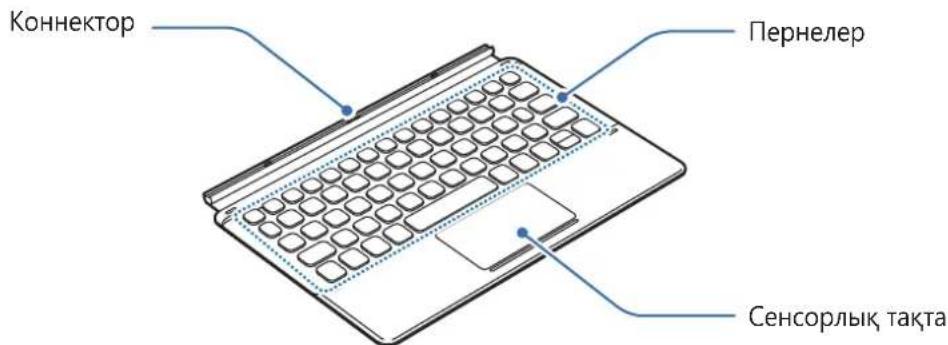
Tipek kaKnaFbI:

NepHetaKaT
2 S kaJaMbIH S kaJaMbIHbIH KaKaIaFbIMeH Ka6bIHbI3.
Ka6bickak Tocemdi Ta3aJay
TecemHH 6eti lac 6oJfAH XaFdaJa, Xa6bicy Kywi a3aHObI MymKIn. JactaHfaH Ke3de, DblMKblc yJrimeH MyKnT Ta3aHaB13.

Xabickak Tceemdi ta3an 6oIfahHaH KeiH, ToIbIbIme H KeTIpiH3. TceMe bIraKaIca, oI 6epik 6ekitlmeyi MymkiH.

Xabickak tocehiwi afbH cy actbHa xyyfa 60MaNbI. Byna iCTey Kypblfba 3aKbIM KeItipyi MymkiH.
Tipek KaKnaFbIH aXkbIpaTy
CaycaKTapbHb3dbj KAbckak TcEeM MeH nlaHweT apacbHdafb caHbIayf kaipri3iH3, codaH Kein Jka6bickak TocemHH apTKbl XaftbH nTepiN TypbH, TIpeK KaKaNaFbH mHdETTI Typde KaJlan KTepehi3.

TipeK KaKaIaFbIbIH Xa6bIcKa TceMHeH 6acKa 6eJIkTepi H KTepeMeHi3. ByaI icTey Kypblfblfa 3aKbIM KeJItipyi MymKiH.
ABTOPbIK KyKbIK
AВТОРЛБИК KУΚБИК © 2019 Samsung Electronics
Бул падаланушынckaylbifbl xaibikapalbIK abTOPbIK KkybkIK Typalbl 3aHap 6oynbIHwa Kopraflan.
Бул падаланшынсayьыньи, ewkahandai 6eJIirH Ke3 KeIre HJIrde Hemece Ke3 KeJIreH TAcIMeH, 3JIeKTPoHNdbiK, Hemece MexaHnKaJIbIK 6OJIcBiH, OHbIH iUHne FOToKeWipy, Jazy Hemece aKnapaT caKTay KypalbHa JAnHe KaIbIn any JxuNeciHe caKTay apKbIbSamsung Electronics KOpnpaunraCbIHn, aIdbIn aJa Jxaz6aHa KeIicimHci3 KaIta JxacayfA, TaPaTyfA, aydapyfa Hemece bepyre 6olMaIdbi.
Cayda 6eIrilepi
SAMSUNG JAne SAMSUNG Iorotnni — Samsung Electronics KOpnpauncBbHt TipKeIreH cayda 6elrilepi.
- Baplbk 6aca cayda 6eirilepi MeH aBTOpbIK KYKbIKTap OlanpIbIH Tnicti nelepiHmehwiri 6oIbn Ta6bila.
Leer primo
© Samsung Electronics, 2019.
1 本章的版本为2015年版,所有内容均是2015年版。
2 2
3 TaeBefLReSfKnRbruRbHnHnHnHnHnHnHnHnHnHnHnHnHnHnHnHnHnHnHnHnHnHnHnHnHnHnHnHnHnHnHnHnHnHnHnHnHnHnHnHnHnHnHnHnHnHnHnHnHnHnH

-부沓難を載いき履さ連ド専は部部の頭面を発状かが当の主産。
- SNaNnTnNnNnNnNnNnNnNnNnNnNnNnNnNnNnNnNnNnNnNnNnNnNnNnNnNnNnNnNnNnNnNnNnNnNnNnNnNnNnNnNnNnNnNnNnNnNnNnNnNnNn
KIBoDnTaeBLOfHJF, KOBtoRtoAouhslu.

StTnD KBrTo IeOHe OJHcN Aodro TaeBtLto sUoHsHsHsHsHsHsHsHsHsHsHsHsHsHsHsHsHsHsHsHsHsHsHsHsHsHsHsHsHsHsHsHsHsHsHsHsHsHsHsHsHsHsHsHsHsHsHsHsHsHsH

StaTnDtoMriHaeJtJtAe.
자kan사용하기
賊藥者承認,如不認知,請勿使用。