AW 85 - Smartwatch BEURER - Free user manual and instructions
Find the device manual for free AW 85 BEURER in PDF.



| Product Type | Activity Smartwatch |
| Brand | Beurer |
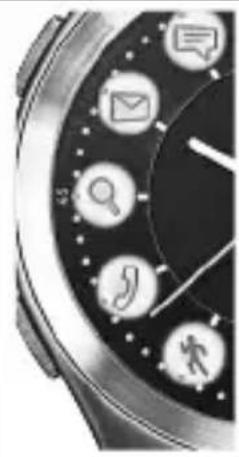
| Model | AW 85 |
| Case Dimensions | 0.47 x 2.5 x 0.13 cm (height x diameter x thickness) |
| Weight | 61 g |
| Power Supply | Lithium-ion battery 3.7 V / 30 mAh, recharge via USB charging dock |
| Battery Life | Approximately 30 days in normal use (depending on activity) |
| Water Resistance | Up to 50 meters (5 ATM) |
| Connectivity | Bluetooth Smart 4.0, frequency 2.4 GHz |
| Compatibility | iPhone 5 or later, Android 4.3+ with Bluetooth Smart 4.0 |
| Main Functions | Notifications (messages, emails, calls), smartphone/watch locator, remote photo trigger, daily goal (steps, distance, calories, active time), alarm (5 settings), 24/7 activity tracking |
| Display | LED (5 indicators) + second hand |
| Sensors | 3D accelerometer |
| Care and Cleaning | Clean with a soft cloth. Do not immerse for long periods. Do not use detergent or solvent. |
| Safety | Protect from shocks, excessive moisture, strong magnetic fields and flames. Use only the supplied charging station. |
| Package Contents | AW 85 watch, charging dock, instruction manual |
| Warranty | 2 years (according to manufacturer's conditions) |
Frequently Asked Questions - AW 85 BEURER
User questions about AW 85 BEURER
0 question about this device. Answer the ones you know or ask your own.
Ask a new question about this device
Download the instructions for your Smartwatch in PDF format for free! Find your manual AW 85 - BEURER and take your electronic device back in hand. On this page are published all the documents necessary for the use of your device. AW 85 by BEURER.
USER MANUAL AW 85 BEURER
Read these instructions for use carefully and keep them for later use, be sure to make them accessible to other users and observe the information they contain.
- Getting to know your device 27
- Signs and symbols 28
- Important notes 28
- Device description 30
- First steps 32
5.1 Charging and activating the activity watch 32
5.2 Connecting the activity watch to a smartphone 33
5.3 Setting the time manually 33
5.4 Synchronising the time using your smartphone 33
- Functions 34
6.1 Messages 34
6.2 E-mail 35
6.3 Incoming/missed calls 36
6.4 Alarm 36
6.5 Daily activity target 37
6.6 Bluetooth connection lost 38
6.7 Smartphone locate function 39
6.8 Activity watch locate function 39
6.9 Camera remote timer 40
6.10 Connecting the activity watch to a new smartphone 40
6.11 Battery dead 41
6.12 Transferring and saving the data 41
- Cleaning 41
8.What to do if there are problems? 42 - Disposal 44
- Technical specifications 45
Dear customer,
Thank you for choosing one of our products. Our name stands for high-quality, thoroughly tested products for applications in the areas of heat, gentle therapy, blood pressure/diagnosis, weight, massage, beauty, air, babycare and sport. Read these instructions for use carefully and keep them for later use, be sure to make them accessible to other users and observe the information they contain.
With kind regards, Your Beurer team
Included in delivery
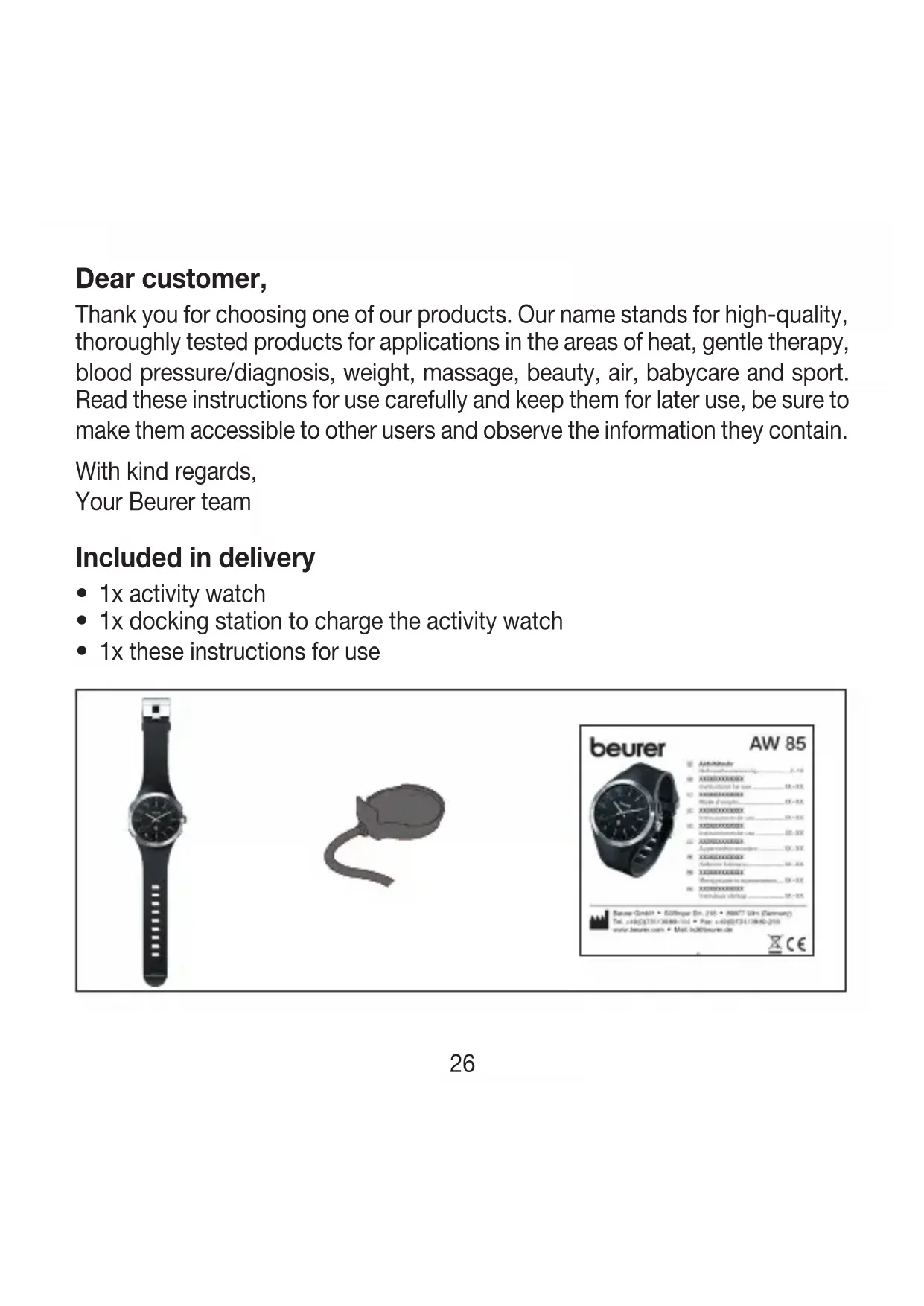
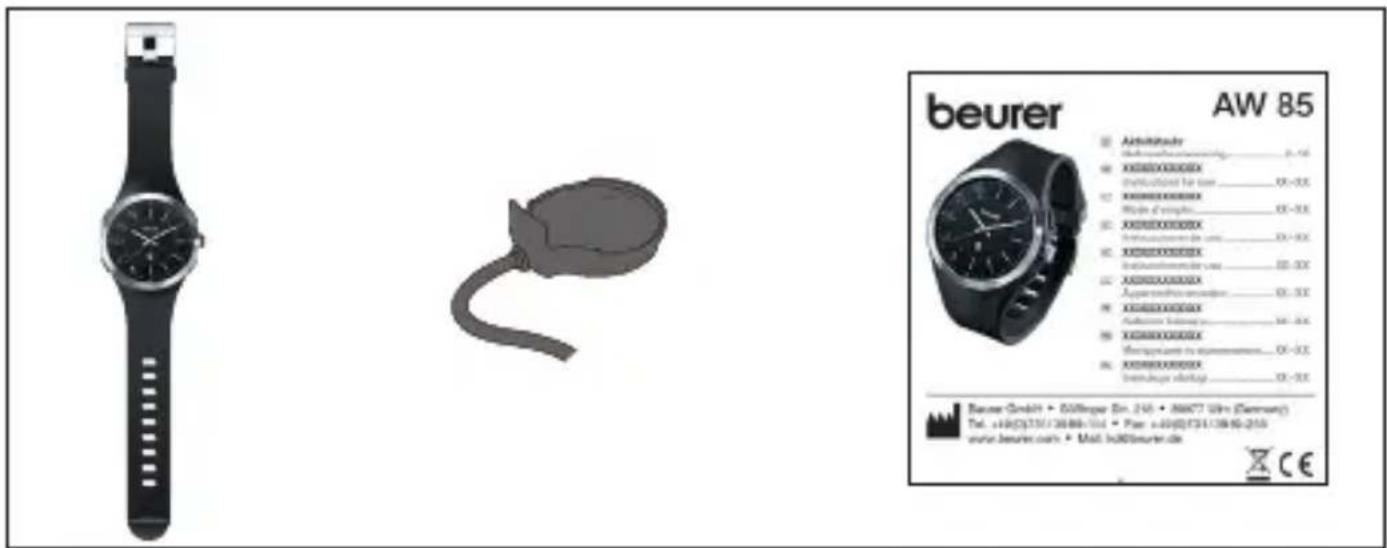
1x activity watch
- 1x docking station to charge the activity watch
- 1x these instructions for use
1. Getting to know your device
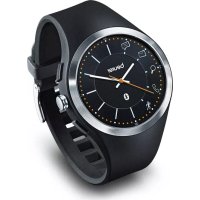
The Beurer AW 85 activity watch not only tells you the time, it can also be used to record your activity and will notify you of incoming messages, e-mails or calls, all with the convenience of a device worn on the wrist. The AW 85 lets you see key information at a glance and keep up to date with all your notifications.
The activity watch incorporates the following functions (providing the activity watch is connected to a smartphone and the "beurer Health Manager" app is installed):
- Notification of messages received on your smartphone (SMS, WhatsApp, Twitter etc.)
- Notification of e-mails received on your smartphone
- Notification of calls received on your smartphone
- Smartphone locate function: pressing a button on the activity watch sounds an acoustic signal on your smartphone to help you find your phone more easily (within an unobstructed range of around 5 m).
- Activity watch locate function: an acoustic signal will sound when enabled in the app to make it easier to find your watch (within an unobstructed range of around 5 m).
- Camera timer: pressing a button on the activity watch opens the camera app on your smartphone and pressing it again triggers the camera.
- Status request of the daily target entered (steps, distance)
2. Signs and symbols
The following symbols appear in these instructions for use:
| ▲ | WARNING Warning instruction indicating a risk of injury or damage to health |
| ▲ | IMPORTANT Safety note indicating possible damage to the device/accessory |
| i | Note Note on important information |
3. Important notes
WARNING
- The device is intended for private use only. This device may only be used for the purpose for which it is designed and in the manner specified in the instructions for use. Improper use can be dangerous. The manufacturer is not liable for damage resulting from improper or careless use.
- The activity watch is waterproof down to 50 metres.
- Protect the watch and its accessories from impacts, humidity, dirt, major temperature fluctuations and direct sunlight.
- Do not use the device in the vicinity of strong electromagnetic fields and keep it away from radio systems.
-
Do not hold the watch up to a naked flame since there is a risk of the watch exploding.
-
To ensure flawless Bluetooth® transfer, it is essential to avoid very strong magnetic fields (e.g. transformers), otherwise there may be disruptions to transfer.
Notes on handling rechargeable batteries
- If your skin or eyes come into contact with fluid from a rechargeable battery cell, flush out the affected areas with water and seek medical assistance.
- Choking hazard! Small children may swallow and choke on rechargeable batteries. Store rechargeable batteries out of the reach of small children.
- If the battery leaks, put on protective gloves and clean the battery compartment with a dry cloth.
- Protect batteries from excessive heat.
- Risk of explosion! Never throw batteries into a fire.
- Do not disassemble, split or crush the rechargeable batteries.
- Only use chargers specified in the instructions for use.
- Batteries must be charged correctly prior to use. The instructions from the manufacturer and the specifications in these instructions for use regarding correct charging must be observed at all times.
4. Device description
Note
In very strong light (e.g. sunlight), the alarm should be set to vibrate to ensure that the alarm is noticed.
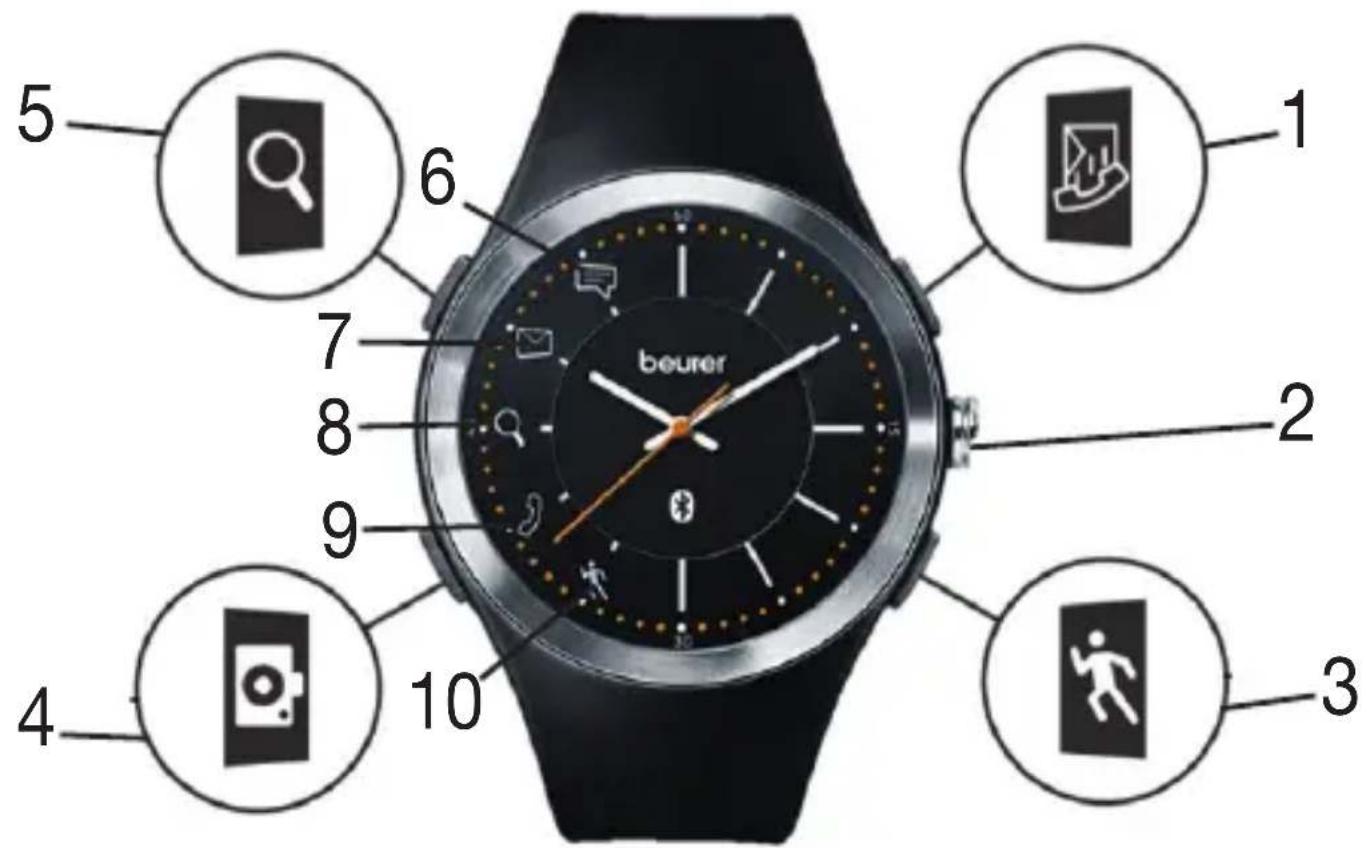
Buttons overview
| 1 STATUS button | Press once: to show all notifications (calls/e-mails/mes-sages) Hold down (>2 seconds): to clear all notifications | |
| 2 Crown | Manual time adjustment | |
| 3 DAILY TARGET/ PAIRING button | Press once: to show the current achievement of targets (ex-ample: At 50-74% of the daily target, 3 LEDs are illuminated. At 75-99% 4 LEDs are illuminated) Hold down (>5 seconds): to start pairing with the smartphone | |
| 4 CAMERA button | Press button once: to open the camera app on your smart-phone Press button again: to trigger the camera | |
| 5 SEARCH button | Press once: to search for smartphone Hold down (>2 seconds): Bluetooth® function is switched off. Hold down for a second time (>2 seconds): Bluetooth® function is switched on. |
Symbols overview
| 6 MESSAGES symbol | to show incoming/received messages | |
| 7 E-MAIL symbol | to show incoming/received e-mails | |
| 8 SIGNAL symbol | Bluetooth® connection between smartphone and activity watch lost. Activity watch searching for connection to smartphone. | |
| 9 CALL symbol | to display incoming/received/missed calls | |
| 10 DAILY TARGET symbol | to display your daily target |
5. First steps
5.1 Charging and activating the activity watch
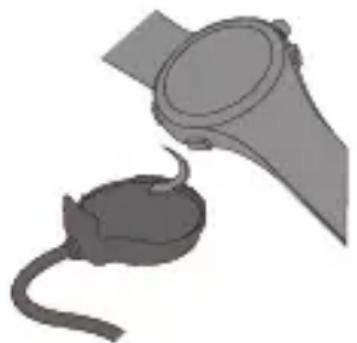
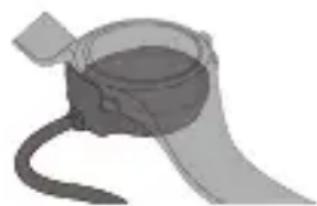
Charge the activity watch prior to the first use (for at least 5 hours) using the docking station supplied. The activity watch will activate automatically.

IMPORTANT
Only ever use the docking station included in the delivery to charge the watch. Non-approved docking stations/charger leads could damage the activity watch!
To charge the activity watch, proceed as follows:
- Connect the supplied docking station via USB to a computer that is switched on.
- Connect the other end of the docking station to the activity watch as shown. The call symbol will flash while the watch is charging.
- Once the battery is fully charged, the symbol will disappear.
- Take the docking station off the activity watch.
5.2 Connecting the activity watch to a smartphone
To allow you to utilise all the features of the activity watch to the full, the watch should first be connected to your smartphone. Only one smartphone may be connected to the activity watch at any one time.
Ensure that your smartphone is compatible with the activity watch. You can find a list of all compatible smartphones using the QR code on the product packaging or by going to www.beurer.com
- Download the "beurer Health Manager" app from the App Store / Google Play Store.
- Activate Bluetooth® on your smartphone.
- Start the "beurer Health Manager" app.
- In the app, select Settings Add device AW 85 and follow the instructions in the app.
5.3 Setting the time manually
In addition to automatic time synchronisation, you can also adjust your activity watch manually at any time.
- Pull out the crown on the activity watch.
- Turn the crown to set the time
- The push the crown back in.
5.4 Synchronising the time using your smartphone
You are able to synchronise the time on your activity watch with the time on your smartphone. Proceed as follows:
- In the "beurer HealthManager" app select Settings AW 85 Synchronise time. The activity watch second hand stops.
- Set the exact time currently displayed on the activity watch in the time field of the app.
- Tap on Synchronise in the app. The time on the face of the activity watch will now be automatically synchronised with the time on the smartphone.
If the time displayed on the face is less than 10 minutes ahead of the new desired smartphone time, the seconds on the activity watch stop until both times are the same.
6. Functions
The following functions are available to you when your activity watch is connected to a smartphone (see "Connecting the activity watch to a smartphone"). Activate the app's access to the smartphone's notification services. Make sure that the push notifications are active. If you are using an iPhone, the notifications must be displayed in the Notification Centre. The app must always be open in the background, otherwise the individual functions cannot be used.
6.1 Messages

You can be notified by an alert (signal light, acoustic signal or vibration) on your activity watch when you receive a message (e.g. SMS or WhatsApp) on your smartphone.
- In the "beurer HealthManager" app go to Settings AW 85 Notifications Unread messages and select the type of alert you want for messages (signal light, acoustic signal or vibration). When you receive a message on your smartphone, your chosen alert will be triggered on the activity watch.
- To see if you have received a message on your smartphone, press the STATUS button on your activity watch. If the messages symbol illuminates, this means you have received a new message on your smartphone.
6.2 E-mail

You can be notified by an alert (signal light, acoustic signal or vibration) on your activity watch when you receive an e-mail on your smartphone.
- In the "beurer HealthManager" app go to Settings AW 85 Notifications Unread e-mails and select the type of alert you want for e-mails (signal light, acoustic signal or vibration). When you receive an e-mail on your smartphone, your chosen alert will be triggered on the activity watch.
- To see if you have received an e-mail on your smartphone, press the STATUS button on your activity watch. If the e-mail symbol illuminates, this means you have received a new e-mail on your smartphone.
If there are more unread e-mails in your mailbox than can be displayed by the Notification Centre of your iPhone: A new alarm sounds when each e-mail is read until the number of remaining unread e-mails is lower than the number of e-mails that can be displayed in the Notification Centre.
6.3 Incoming/missed calls
You can be notified by an alert (signal light, acoustic signal or vibration) on your activity watch when your smartphone is ringing.
- In the "beurer HealthManager" app go to Settings AW 85 Notifications Incoming calls and select the type of alert you want for incoming calls (signal light, acoustic signal or vibration). When you receive a call on your smartphone, your chosen alert will be triggered on the activity watch.
- To see whether a missed call has been received on your smartphone, press the STATUS button on the activity watch. If the call symbol illuminates, this means you received a call in your absence.
6.4 Alarm
You can set five different alarm times using the app.
As soon as the alarm time is reached, the activity watch starts to vibrate/beep and the LEDs light up alternately on the display.
- In the "beurer HealthManager" app go to Settings AW 85 Alarm and select one of the five alarm times.
- To set the desired alarm time, tap on the field with the time next to the alarm.
6.5 Daily activity target

The built-in 3D acceleration sensor on your activity watch can measure your activity (steps, distance, calories and active time) on the wrist. "beurer HealthManager" allows you to enter a daily activity target (steps, calories or active time).
- In the "beurer HealthManager" app go to Settings Target Activity and choose your daily target.
- To display your current progress towards your daily target, press the DAILY TARGET button LEDs on the activity watch will now illuminate to show your progress (see table below).
Symbol Daily target progress
All 5 LEDs illuminate = ≥ 100 % of your daily target The bottom 4 LEDs illuminate = 75- 99 % of your daily target The bottom 3 LEDs illuminate = 50- 74 % of your daily target The bottom 2 LEDs illuminate = 25- 49 % of your daily target Only the bottom LED illuminates = 0- 24 % of your daily target
The activity watch only shows your progress towards your daily target. You can view further information (e.g. calories burned) in the "beurer HealthManager". Activity data is automatically transferred when the watch connects to your smartphone. The sensor logs movement when at least 30 movements have been made.
6.6 Bluetooth connection lost

When the signal symbol flashes, the Bluetooth connection between your smartphone and activity watch has been lost. This can happen if the smartphone and the activity watch are too far away from each other or there is interference from other devices.
- To check if the Bluetooth® connection between your smartphone and the activity watch has been lost, press the STATUS button If the signal symbol flashes, for example, the connection has been broken.
- iPhone: If your phone is an iPhone and the Bluetooth® connection cannot be made, go to Bluetooth® in your smartphone settings and delete the AW 85 from the list of connected Bluetooth® devices. Now re-connect the AW 85 in the app via Bluetooth®.
Android: If you are using an Android smartphone and the Bluetooth® connection cannot be made, disconnect Bluetooth® in the app and then connect the AW 85 again.
Also check whether Bluetooth® is activated on your AW85. To turn Bluetooth® on and off, press the SEARCH button for about two seconds. If Bluetooth® is turned off on the AW85, no information is displayed on the face when the STATUS button SEARCH button or CAMERA button pressed.
The activity watch automatically connects to the smartphone as soon as both devices are in range (provided that Bluetooth® is activated on the smartphone and the activity watch). Once the two devices have successfully connected, the activity watch will briefly vibrate. If the two devices do not automatically connect, press the PAIRING button for two seconds to re-enable the connection.
6.7 Smartphone locate function
If you have misplaced your smartphone, the activity watch allows you to locate it acoustically (the devices must be connected by Bluetooth® and be within an unobstructed range of 5 m).
- Press the SEARCH button on the activity watch. Acoustic signals will now sound on the smartphone (for three seconds).
6.8 Activity watch locate function
If you have misplaced your activity watch and cannot find it any more, you can locate it acoustically using your smartphone (provided that both devices are connected via Bluetooth® and are in a range of approx. 5 m in an open space).
- Open the "beurer HealthManager" app.
- Tap Settings AW 85 Search for watch
- An acoustic signal will sound on the activity watch and the watch will illuminate (depending on the settings you have chosen).
- You can turn the acoustic signal off on your smartphone.
6.9 Camera remote timer
You can use the activity watch to trigger the camera on your smartphone (both devices must be connected by Bluetooth® and be within an unobstructed range of 5 m). The watch allows you to easily and conveniently take photos using the camera.
- Open the "beurer HealthManager" app.
- Press the CAMERA button on the activity watch. The camera app will open on your smartphone.
- Press the CAMERA button © the activity watch again. An acoustic signal will sound and an instruction to take a photograph is sent to the smartphone. When your smartphone camera is triggered, two brief acoustic signals will sound one after the other.
In order to use this function, the smartphone must be switched on and the Beurer HealthManager app must be open.
6.10 Connecting the activity watch to a new smartphone
If you want to connect the activity watch to a different smartphone, you first need to delete the connection to the previous smartphone. Proceed as follows:
- iPhone: If you have been using an iPhone so far, go to Bluetooth® in your smartphone settings and delete the AW 85 from the list of connected Bluetooth® devices. Also disconnect in the app. Connect the new smartphone as described in "5.2 Connecting the activity watch to a smartphone".
- Android: If you have been using an Android smartphone so far, disconnect Bluetooth® in the app. Connect the new smartphone as described in "5.2 Connecting the activity watch to a smartphone".
6.11 Battery dead
If the battery charge level drops below 20% , you will get a message on your smartphone. Additionally whenever you press one of the buttons, the DAILY TARGET SYMBOL and the MESSAGES SYMBOL appear on the activity watch and the second hand will move in 5 second increments. In this case, charge the activity watch as described in "5.1 Charging and activating the activity watch".
It is not guaranteed that the functions will work once the activity watch is in this state. When charging the battery, always charge it to 100% .
6.12 Transferring and saving the data
The activity watch saves the data for up to 30 days.
We recommend that you transfer data within 30 days to prevent data losses. The beurer HealthManager app must be open for data transfer. The data is transferred automatically, provided that there is a Bluetooth® connection and the activity watch is paired with the smartphone.
7. Cleaning
Clean the watch with a soft cloth. Do NOT hold the watch under running water for extended periods. Do not use any corrosive, gaseous or chemical cleaning agents or solvents.
8. What to do if there are problems?
| Problem Possible solution | |
| No Bluetooth® connection possible between smartphone and activity watch. | Switch Bluetooth® off and on again on your smartphone. |
| If you have an iPhone, follow the instructions from the iPhone section of “6.6 Bluetooth connection lost”. | |
| Restart the app. | |
| Make sure that Bluetooth® is activat-ed on your activity watch (see page 31 “Search button”).Bluetooth® is deactivated if no information is displayed when you press the STATUS button SEARCH button or CAMERA button . | |
| Close all other apps and remove all other Bluetooth® devices from the Bluetooth® settings of the smart-phone. | |
| The smartphone time cannot be transferred to the activity watch. | Follow the instructions from “5.4 Synchronising the time using your smartphone” exactly. You must enter the incorrect time currently displayed on your activity watch in the app. |
| The activity watch cannot be charged with the charger. | Make sure that the activity watch is lying precisely on the charger while charging. |
| The activity watch is not displaying any new notifications/e-mails/calls although some have been received on the smartphone. | Check your smartphone to see whether the “Push function” for notifications/e-mails/calls has been activated. |
| The activity watch cannot find a smartphone. The smartphone cannot find an activity watch. | Make sure that Bluetooth® has been activated on the activity watch and the smartphone and that both devices are in a range of 5 m of each other. |
9. Disposal
For environmental reasons, do not dispose of the device in the household waste at the end of its useful life. Dispose of the device at a suitable local collection or recycling point. Dispose of the device in accordance with EC Directive – WEEE (Waste Electrical and Electronic Equipment). If you have any questions, please contact the local authorities responsible for waste disposal.
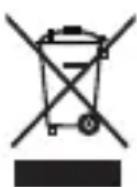
Rechargeable battery disposal
The empty, completely flat rechargeable batteries must be disposed of through specially designated collection boxes, recycling points or electronics retailers. You are legally required to dispose of the rechargeable batteries.
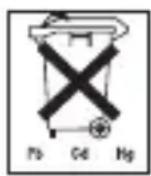
The codes below are printed on rechargeable batteries containing harmful substances:
PB = Battery contains lead,
Cd = Battery contains cadmium,
Hg = Battery contains mercury.
10. Technical specifications
| Dimensions of watch housing 0.47 | x 25 x 0.13 cm |
| Compatibility | • iPhone 5 and later • Android 4.3 Bluetooth®Smart 4.0 Ready devices, and later (scan the QR code for a list of compatible smartphones) |
| Weight 61 g | |
| Water resistance 50 m | |
| Transmission frequency 2.4 GHz | Bluetooth®Smart 4.0 |
| Input voltage DC 5 V | === 0.09 Wh |
| Battery 3.7 V/30 mAh lithium-ion battery |
We hereby guarantee that this product complies with the European R&TTE Directive 1999/5/EC. Please contact the specified service address to obtain more detailed information, such as the CE conformity declaration.
The word mark Bluetooth® and accompanying logo are registered trademarks of Bluetooth® SIG, Inc. Any and all use of these marks by Beurer GmbH is done so under licence.
FRANÇAIS

Chere cliente, cher client,
3. Consels important
AVERTISSEMENT
Remarques relatives aux batteries
Kak Tolbko Hactynt 3aHaHHoe BpeM, Yacbl HaHyT Bn6pnpoBaTb/naBaTb CnHaJI, a CBeToIOMbI Ha dncnlee HaHyT rOpetb nonepMeHHO.
- Велиserг栓ы реллоржени beurer HealthManager в мени Настroduи → AW 85 → Сигнад онлайн有很大 по Враимеи.
- Дя настюки Heo6xOIMoro BpeMeHn CnHaJa NaXmTe Ha NOJIe CO BpeMeHem PraDOM C CnHaJOM.
6.5 ZeIb dHa. AKTINBHOCTb

6.11 AkkymyJIaTOp pa3pJKeH
Iprn pa3pndke aKKymyIaTopa 6oJee yem Ha 20% Ha BaWem cMaprfohe noBJIaETcra INΦopMaunHoe coo6eHne. DOnonHntelbHo, npKakdOm hXkATNI KHOKN Ha Yacax C daTnKOM aKTUBHOCTN OTO6paXaETcra CnMBOL CEJIb DNHy n CnMBoJ COO5UEHNA, a ceKyHdHaer cTpeJka DBNXeTcra C WaROM B 5 ceKynD. B 3tOM clyuae BblONHnte 3apRky YacOB, KaK ONCaHO B rJaBe «5.1 3apRkA N aKTINBaCnY YacOB C daTnKOM aKTUBHOCTN»
Ecni yacbi HaxoJrTcB 3Tom COCTOHN,TO 3TN cyHKuN 60JIbWe He BblONHJrTc. Pn KaKdoi NOD3apJKe 3apJkaTe aKKyMyI JrTop Ha 100%
6.12 Перадау и xpaHeHneперсоньныдaHHbIX
YacbI coxpaHOT daHHbIe 3a 30 dHei.
Mbl pekomehnyem nepedaBb TaHHbIe B TeueHne 30 dHei, YTO6bl
n36exaTb notepU DaHHbIX. IJy nepeDaun DaHHbIX Heo6xOIMo
OTKpbITb npInooXeHne beurer HealthManager. DaHHbIe nepedaIoTcra
ABTomATnueckN, pRn 3TOM co3daetc coeINHeHne no Bluetooth,
Yacbl C daTnKOM aKTINBHOCTN NOkJIIOuHaOTcR K CMaprfoHy
7. Ouinctka
BbINOJIHrTe OUncTkU yacOB npn NOMOuMЯrKoTpIaNk (caIΦeTK). HE depXHTe YacBIpOdoJXHTeJIbHOe BpeM npD BoIo. He nCnoJIb3yIte eKnE, ra30-06pa3HbIe IIN XIMInueCKNe YInCTaUne CpeIcTBA IIN paCTBOpITeIi.