AS 99 - Smartwatch BEURER - Free user manual and instructions
Find the device manual for free AS 99 BEURER in PDF.



| Product type | Smartwatch / Activity tracker |
| Brand | Beurer |
| Model | AS 99 |
| Weight | Approx. 39 g (with cable and charging cradle) |
| Compatible wrist circumference | 14.5 to 19.5 cm |
| Battery | Lithium-polymer 100 mAh, max. 5 days standby |
| Power supply | 5 V, 200 mA via USB cable with charging cradle |
| Charging time | Approximately 2 hours |
| Connectivity | Bluetooth 4.0 Low Energy, 2.4 GHz frequency |
| App compatibility | iOS ≥ 10.0, Android ≥ 5.0, Bluetooth ≥ 4.0 |
| Water resistance rating | IP67 (protection against short immersion) |
| Sensors | Optical heart rate sensor, 3D accelerometer |
| Main functions | Time/date, pedometer, distance, calories, activity time, daily goal, heart rate, sleep, vibrating alarm, call/message notifications, stopwatch, smartphone finder, remote photo trigger |
| Display | Touch screen, adjustable orientation |
| Memory | Up to 14 days of activity and 14 nights of sleep |
| Material | Silicone strap, plastic case |
| Care | Clean with a damp cloth, remove dead skin from strap |
| Spare parts | USB charging cable (ref. 749.421), strap (ref. 164.119) |
| Warranty | 3 years (subject to country conditions) |
Frequently Asked Questions - AS 99 BEURER
User questions about AS 99 BEURER
0 question about this device. Answer the ones you know or ask your own.
Ask a new question about this device
Download the instructions for your Smartwatch in PDF format for free! Find your manual AS 99 - BEURER and take your electronic device back in hand. On this page are published all the documents necessary for the use of your device. AS 99 by BEURER.
USER MANUAL AS 99 BEURER
EN Activity sensor Instructions for use 38
- Getting to know your device 40
- Signs and symbols 43
3.Notes 44 - Initial use 46
- Charging the battery 47
- Functions 48
6.1 Overview of functions 48
6.2 Time/date/battery indicator ....54
6.3 Heart rate 54
6.4 Steps/movements 55
6.5 Distance covered 55
6.6 Calorie consumption 55
6.7 Active time 56
6.8 Progress towards daily target .... 56
6.9 Alarm 56
6.10 Notifications (messages/calls)..56
6.11 Sleep mode 58
6.12 Activity alarm 59
6.13 Settings 59
6.14 Additional features 61
- Transferring data to your smartphone 63
- Replacement parts and wearing parts 64
- Cleaning 64
- Frequently asked questions 65
- Disposal 70
- Technical data 71
- Warranty/service 72

Read these instructions for use carefully and keep them for later use, be sure to make them accessible to other users and observe the information they contain.
Included in delivery
Check that the exterior of the delivery cardboard packaging is intact and make sure that all contents are present. Before use, ensure that there is no visible damage to the device or accessories and that all packaging material has been removed. If you have any doubts, do not use the device and contact your retailer or the specified Customer Service address.
1 x instructions for use
1 x Activity sensor
1 x USB charging cable incl. charging cradle
1. Getting to know your device
Dear customer,
Thank you for choosing a product from our range. Our name stands for high-quality, thoroughly tested products for applications in the areas of heat, weight, blood pressure, blood glucose, body temperature, pulse, gentle therapy, massage and air. Please read these instructions for use carefully and keep them for later use. Be sure to make them accessible to other users and observe the information they contain. With kind regards, Your Beurer team
Why wear an activity sensor?
Exercise is a prerequisite for leading a healthy life. Physical activity keeps you fit and lowers the risk of heart disease and circulation problems. Exercising helps you to lose weight and you will notice that your well-being improves. Physical activity covers all exercises that use up energy. As a result, daily activities such as walking, cycling, climbing the stairs and household chores play an important part. The AS 99 activity sensor enables you to objectively assess and record your daily motion activity. In this way, it can also motivate you to increase your daily exercise. The activity sensor also has a sensor for measuring your heart rate. This allows you to measure your heart rate in real time on your wrist.
With the free "beurer HealthManager" app, you can easily transfer your motion activity from the activity sensor to your smartphone. This means that you can easily get a clear view of your recordings on your smartphone at any time. You can view the heart rate recordings via live tracking (only possible using the app), for example using the Runtastic app or similar sports apps. You can also be notified of messages (e.g. text message or WhatsApp) or calls received, all with the convenience of a device worn on the wrist. As a result, you see key information at a glance and keep up to date with all your notifications.
The activity sensor in combination with the "beurer HealthManager" app offers the following functions:
- Display of time and date
- Heart rate measurement
Automatic recording of heart rate - Display of daily step count, distance, calorie consumption, active time and progress towards daily target (in %)
- Overview of individual sleep phases
Vibration alarms - Move reminder
- Notifications for calls and messages (e.g. text message or WhatsApp).
- Stopwatch
- Smartphone search
- Remote timer for smartphone camera
System requirements:
For the "beurer HealthManager" app
- iOS≥10.0/
AndroidTM ≥ 5.0
-Bluetooth®≥4.0
Data transfer via Bluetooth® wireless technology
The activity sensor uses Bluetooth® low energy technology, frequency band 2.4000-2.4835 GHz, the maximum transmission power emitted in the frequency band < 20 dBm, compatible with Bluetooth® 4.0 smartphones/tablets.
Technical information is subject to change without notification to allow for updates.
2. Signs and symbols
The following symbols appear in these instructions for use and on the device:
| WARNING Warning notice indicating a risk of in-jury or damage to health. | Manufacturer | ||
| CE | This product satisfies the requirements of the applicable European and national directives. | Read the instructions for use | |
| IP 67 | Dust-proof and protected against the effects of temporary immersion in water | 5 V, 200 mA | Power supply |
| Disposal in accordance with the Waste Electrical and Electronic Equipment EC Directive – WEEE | |||
3. Notes
WARNING
Avoid contact with sun cream and similar substances as these could damage the plastic parts.
- Keep packaging material away from children. Choking hazard!
- The activity sensor is protected against the effects of temporary immersion in water. The activity sensor is protected against splashes of water, e.g. rain. During showering or immersion of the activity sensor, it is possible in rare cases that the water pressure may be too high and cause damage to the activity sensor. Use when swimming is not recommended.
- The activity sensor contains magnets. Therefore, consult your doctor before using the activity sensor if you have a pacemaker, defibrillator or any other electronic implant.
- Consult a doctor before you start a new training programme.
- This device is not a medical device. The measured values and the heart rate measurement of the activity sensor are not suitable for diagnosing, treating, curing or preventing illnesses.
Notes on handling batteries
- If your skin or eyes come into contact with battery fluid, rinse the affected areas with water and seek medical assistance.
- Protect batteries from excessive heat.
- Risk of explosion! Never throw batteries into a fire.
- Fully charge the battery prior to initial use (see Section 5).
- Do not disassemble, open or crush the batteries.
- Only use chargers specified in the instructions for use.
- Batteries must be charged correctly prior to use. The instructions from the manufacturer and the specifications in these instructions for use regarding correct charging must be observed at all times.
- Fully charge the battery at least every 3 months.
4. Initial use
To use the activity sensor for the first time, charge the battery as described in Section "5. Charging the battery".
- Ensure that your smartphone is connected to the Internet.
- Activate Bluetooth® on your smartphone.
- Download the free "beurer HealthManager" app from the Apple App Store (iOS) or from Google Play (Android™).
Depending on the smartphone settings, additional charges may be incurred for connecting to the Internet or transferring data.
- Open the "beurer HealthManager" app and follow the instructions. In the settings menu of the app, select and connect the AS 99. A randomly generated six-digit PIN code is displayed on the activity sensor, and at the same time an input field appears on the smartphone in which you must enter this six-digit PIN code. After successfully connecting, you can set your personal data. If desired, you can activate/set alarms, be notified of calls/messages or activate/set a move reminder.
Tips for successfully pairing the activity sensor with your smartphone
- Position the smartphone as close as possible to your activity sensor.
- Maintain a distance of 30m from other Bluetooth® sensors/devices.
5. Charging the battery
When the battery level indicator on the activity sensor shows an empty battery, you need to charge the battery. To charge the battery, proceed as follows:
- Turn on your computer and insert the USB plug of your USB charging cable into the USB socket.
- As shown, connect the magnetic fastening of the USB charging cradle with your activity sensor. Ensure that the charging cradle is positioned correctly. Only then will the battery be charged.
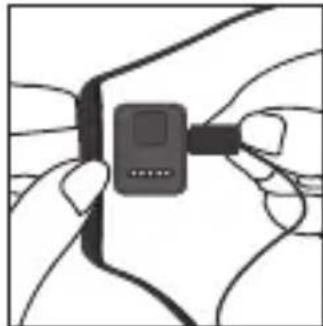
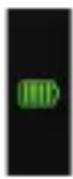
- The current charge status is shown by the battery status indicator. It usually takes approx. 2 hours to fully charge the battery. Once the device's battery is fully charged, the following message appears on the display.

WARNING
Do NOT charge the activity sensor if the two charger contacts on the rear of the device are wet. If necessary, carefully dab the two charger contacts dry with a cloth. If a battery leaks, put on protective gloves and dispose of the device.
6. Functions
6.1 Overview of functions
The activity sensor has the following functions: Time, date and battery state, heart rate measurement, pedometer, calorie consumption, distance covered, active time, daily target, stopwatch, alarm, move reminder, sleep mode, message/call notification, smartphone search and remote timer for smartphone camera.
The values are reset to zero every day at midnight. The counting then starts again from the beginning.
To switch between the individual functions, swipe across the display of the activity sensor.
To perform other functions that have not been listed in this section, go to the settings menu in the "beurer HealthManager" app.
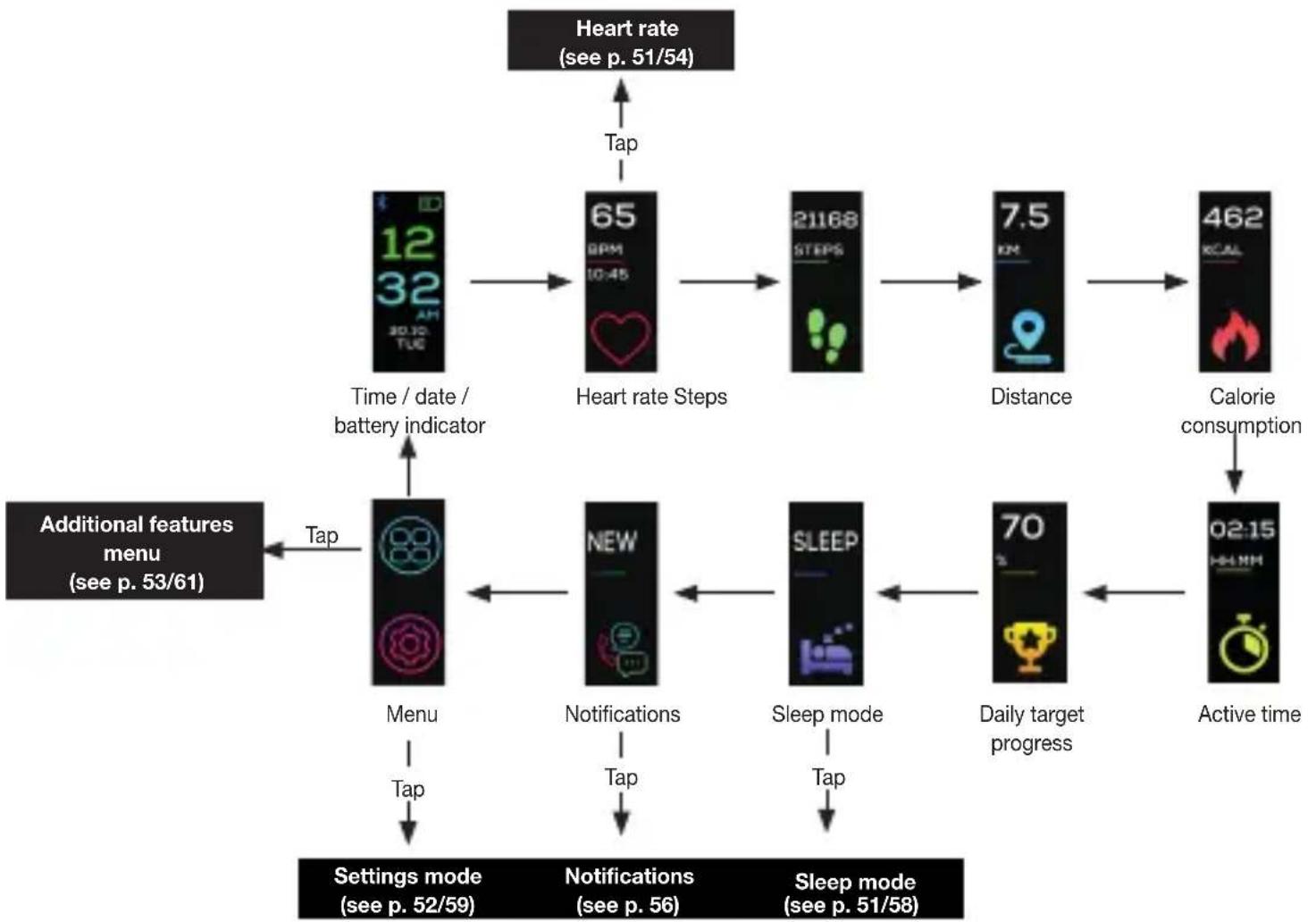
Heart rate
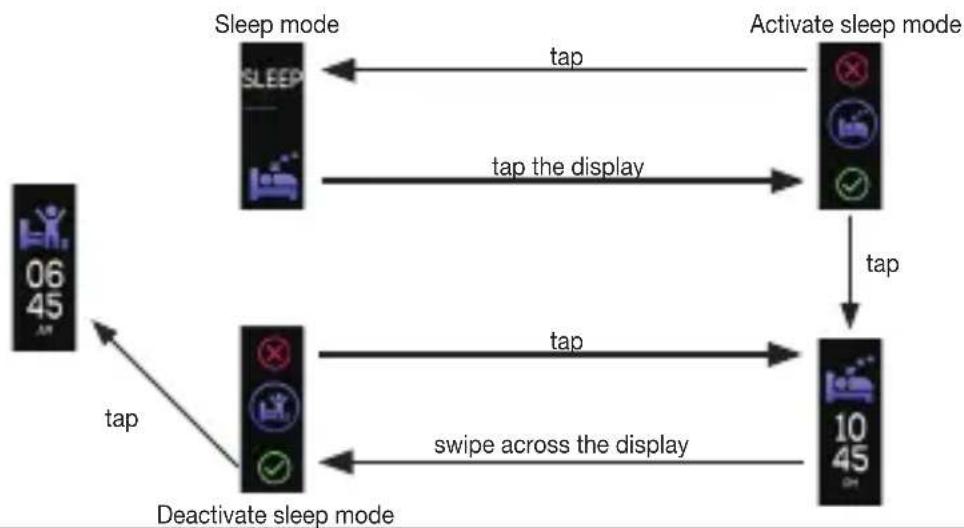
Sleep mode
Settings menu
Additional features menu
6.2 Time/date/battery indicator
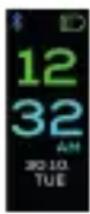
The activity sensor displays the current time, date and battery state. Once the activity sensor has been synchronised with the smartphone, the current time and date on the smartphone are transferred to the activity sensor. If lights up blue at the top of the display, the activity sensor is connected with the app via Bluetooth®. If does not appear on the display, either the activity sensor is not connected with the smartphone, or Bluetooth® is deactivated on the activity sensor.
6.3 Heart rate
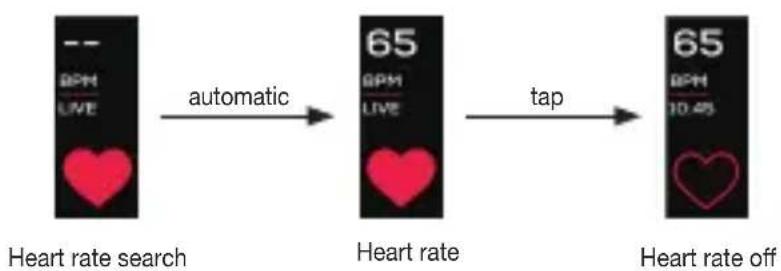
The activity sensor has an optical sensor that helps you to measure your heart rate in real time. To take a heart rate measurement, swipe across the display of the activity sensor until the following screen - which shows the most recent measurement - appears in the display.
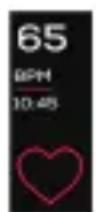
Tap the display briefly. The activity sensor starts to record the heart rate. As soon as the activity sensor has recorded a heart rate, the measured value appears on the display.
If the activity sensor fails to record a heart rate, check whether the light sensor on the rear has sufficient contact with the skin and is free of skin particles and dust. Then tap the display again to activate the heart rate measurement. Incident light
and too much movement may distort the measurement. Therefore, check that the device is fitted tightly enough but without cutting into your skin.
6.4 Steps/movements
The activity sensor shows movements in steps. The steps are recorded with a 3D sensor inside the activity sensor.
6.5 Distance covered
The activity sensor calculates your stride length using the height you have entered in the app. You can also individually adjust the stride length. The activity sensor then uses the stride length and the number of steps to calculate the distance you have covered. The distance displayed is only a rough guide and does not necessarily correspond to the actual distance.
6.6 Calorie consumption
The activity sensor calculates your calorie consumption using the details you have entered in the app (height, age, gender, weight) and the steps you have taken. When you wake up in the morning, the activity sensor will already show a figure for the number of calories consumed, as your body also burns calories whilst resting. The device automatically includes the number of calories consumed during resting.
6.7 Active time
The active time shows you how long you have been active. The active time only counts the time during which you have been moving.
6.8 Progress towards daily target
You can set a daily target in the settings of the "beurer HealthManager" app (e.g. 10,000 steps). You can see the current progress towards the set daily target (in %) on the display of the activity sensor.
6.9 Alarm
You can set different alarm times via the "beurer HealthManager" app. As soon as the alarm time is reached, the activity sensor starts to vibrate and the chosen alarm appears on the display.
6.10 Notifications (messages/calls)
Messages
You can be notified via the display of the activity sensor when you receive messages (e.g. text message or WhatsApp) via push on your smartphone. The prerequisites for this are that the activity sensor is connected to your smartphone via Bluetooth® and the "beurer HealthManager" app is installed.
When a message is received, a notification first appears on the display. You can access your messages by tapping on the display. You can read the messages by tapping again (in the event of longer messages, the entire content is not displayed).
To view the most recently received messages, switch to the following display.
Tap on the notifications to open them.
You can select to view missed calls, texts and messages using the following symbol on the display.
Calls
In the settings of the "beurer HealthManager" app you can choose to be notified of calls on the activity sensor. The prerequisites for this are that the activity sensor is connected to your smartphone via Bluetooth® and the "beurer HealthManager" app is installed.

The notifications only appear on the display of the activity sensor if you have activated the "push function" on your smartphone.
If the senders are stored on your smartphone with their name and number, the name will be displayed.
6.11 Sleep mode
To measure your movements when you are asleep, switch the device to sleep mode before you go to sleep. To do so, tap once on the sleep mode symbol on the display. Then tap the green tick to confirm. After one second, the activity sensor automatically enters sleep mode. When you wake up in the morning, tap on the switched-on display and tap the green tick to confirm the action in order to wake up the activity sensor out of sleep mode (see p.
Optionally, you can use the app to set a time window during which the activity sensor automatically switches to sleep mode and subsequently returns to activity mode. You can also set a sleep reminder. If you start to move about again before the time window has passed, the activity sensor will come out of sleep mode automatically. If you go to sleep again during the set time window, the activity sensor will return to sleep mode as soon as it detects that you are asleep.
Important: the activity sensor consumes significantly more power when heart rate measurement is activated. The battery of the activity sensor may be empty when you wake up and need to be charged.
6.12 Activity alarm
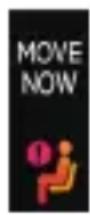
In the settings of the "beurer HealthManager" app, you can set a move reminder. You can define a start and end time for when the move reminder is active, for example from 9 a.m. to 6 p.m. You can also define an inactivity period. Then if you do not move enough during the set inactivity period, the activity sensor starts to vibrate and a notification appears in the display.
6.13 Settings
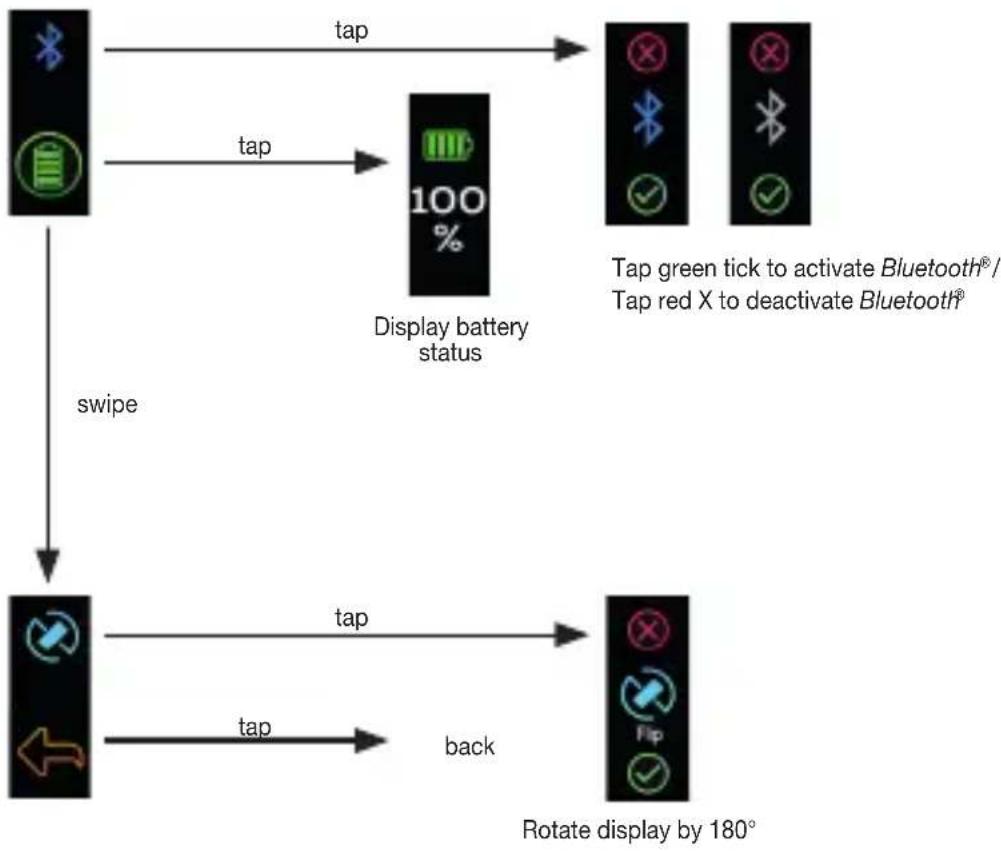
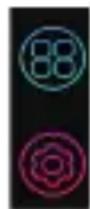
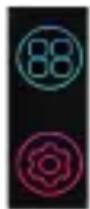
By tapping the following symbol on the display, you are able to use the following settings options:
6.13.1 Activating/deactivating Bluetooth®
Tap the following symbol on the display to switch to the Bluetooth® settings menu. Tap the green tick to activate Bluetooth® or the red X to deactivate it.
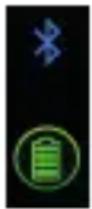

If you deactivate Bluetooth®, the activity sensor cannot be connected to the "beurer HealthManager" app.
When Bluetooth® is activated and connected to your smartphone, the Bluetooth® symbol appears on the main display in blue.
6.13.2 Battery symbol
Tap the following symbol on the display to view the current battery level.
6.13.3 Rotating the display
Tap the following symbol on the display to rotate the display by 180^ . Tap the green tick to rotate the display by 180^ or tap the red X to retain the current display orientation.
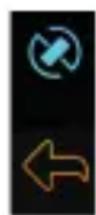

You can also switch the display orientation from horizontal to vertical in the settings menu of the "beurer HealthManager" app.
6.14 Additional features
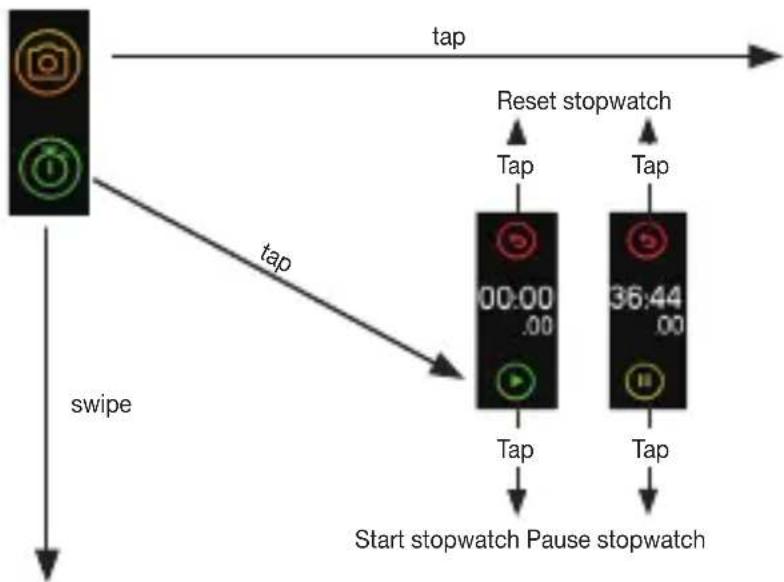
By tapping the following symbol n the display, you can use the following features:
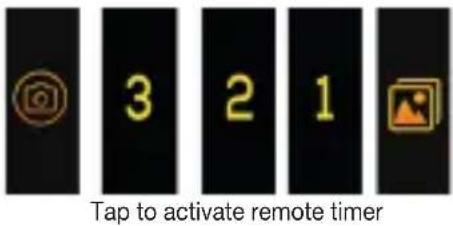
6.14.1 Remote timer for smartphone camera
With the activity sensor, you can also trigger the smartphone camera. This allows you to easily and conveniently take photos without having to hold the smartphone in your hand.
To trigger the smartphone camera with the activity sensor:
-
both devices must be connected via Bluetooth®
-
the "beurer HealthManager" app must be open on the smartphone.
To trigger the smartphone camera using the activity sensor, open the "beurer HealthManager" app on your smartphone.
Tap the following symbol in the display to open the camera. Tap the camera symbol again to activate the 3-second self-timer.
6.14.2 Stopwatch
Tap the following symbol on the display to open the stopwatch. Tap the green triangle to start the stopwatch. To pause the stopwatch, press the yellow pause button. To reset the stopwatch, tap the red arrow. To exit the stopwatch, swipe across the screen and tap the yellow arrow to return to the additional features menu.
If you return to the main menu when the stopwatch is running, the stopwatch continues to run in the background.
6.14.3 Smartphone search function
If you cannot find your smartphone, you have the option of making the smartphone ring and vibrate using the activity sensor. To make the smartphone ring and vibrate using the activity sensor:
- both devices must be connected via Bluetooth®
- sound and vibration must not be deactivated on the smartphone
- the "beurer HealthManager" app must be open on the smartphone.
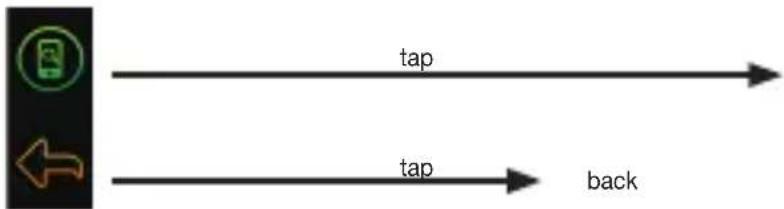
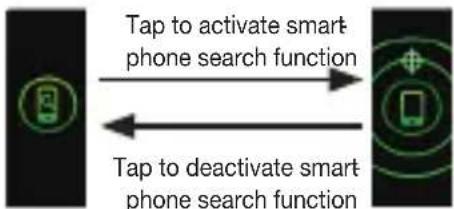
Tap the following symbol on the display to open the smartphone search function.
Tap the display again to make the smartphone ring and vibrate.
Tap the activity sensor display once again to stop the phone from ringing and vibrating.
7. Transferring data to your smartphone
To transfer the recorded data from your activity sensor to the "beurer HealthManager" app, proceed as follows:
- Activate Bluetooth® on your smartphone and on the activity sensor.
- Open the "beurer HealthManager" app.
- Connect your activity sensor to the app. Your data is now automatically transferred to the smartphone.
8. Replacement parts and wearing parts
Replacement parts and wearing parts are available from the corresponding service address (according to the service address list). Please state the corresponding order number.
| Designation Item number and/or order number | |
| USB charging cable 749.421 | |
| Wrist band 164.119 | |
9. Cleaning
Regularly clean your activity sensor with a damp cloth. Remove skin residue and dirt from the strap and especially from the contact surfaces on the inside of the strap so that the material is not damaged.
10. Frequently asked questions
What is the correct way to wear the activity sensor?
Wear the activity sensor on your left wrist if you are right-handed, or on your right wrist if you are left-handed.
What benefits does the activity sensor offer me?
Exercise is a prerequisite for leading a healthy life. Physical activity keeps you fit and lowers the risk of heart disease and circulation problems. Exercising helps you to lose weight and you will notice that your well-being improves. Physical activity covers all exercises that use up energy. As a result, daily activities such as walking, cycling, climbing the stairs and household chores play an important part. The activity sensor enables you to objectively assess and record your daily motion activity. In this way, it can also motivate you to increase your daily exercise. A daily quota of at least 7,000–10,000 steps or 30 minutes of activity are ideal. (Source: according to WHO, Dr Catrine Tudor-Locke, Dr David R. Bassett Jr)
How does the activity sensor record my steps?
The activity sensor continually records your physical activity using the in-built 3D sensor. All your physical movements are then converted into steps. The information on the distance covered can therefore differ from the actual distance.
How can I analyse my activity and sleep data?
You can transfer your saved data to a smartphone (Android™ and iOS) via the Bluetooth® interface of your activity sensor, where you can then analyse it. To do so, you only need the free "beurer HealthManager" app on your smartphone.
The activity sensor uses Bluetooth® low energy technology, 2.4 GHz frequency band.
How do I synchronise my data with the app?
To transfer the recorded data from your activity sensor to the "beurer HealthManager" app, follow the instructions in Section "7. Transferring data to your smartphone" on page 63.
The data transfer to the smartphone does not work.
There could be several reasons for this:
-
Check that your smartphone/tablet is compatible with the "beurer HealthManager" app. To do so, refer to the necessary system requirements in Section 1.
-
The activity sensor is in "sleep mode". To exit "sleep mode", swipe across the display and confirm that you want to exit sleep mode by tapping the green tick.
-
Bluetooth® is not activated on your smartphone or on the AS 99. Activate Bluetooth® in the settings of your smartphone and on the AS 99, as described in Section 6.13.1.
-
The battery in the activity sensor is flat. If the activity sensor does not switch on, charge it with the USB charging cable supplied.
-
Check that you are using the correct app. Data transfer is only possible with the "beurer HealthManager" app.
- The activity sensor is connected to another smartphone. You can tell whether the AS 99 is connected to a smartphone, as you will see a blue Bluetooth® symbol on the main screen of the AS 99.
Disconnect the activity sensor first before connecting it to another smartphone.
iPhone:
If you are using an iPhone and the Bluetooth® connection cannot be established, first disconnect Bluetooth® in the "beurer HealthManager" app.
Then go to Bluetooth® in your iPhone settings and delete the AS 99 from the list of connected Bluetooth® devices. Now re-connect the AS 99 in the "beurer HealthManager" app via Bluetooth®.
AndroidTM:
If you are using an Android™ smartphone and the Bluetooth® connection cannot be established, disconnect Bluetooth® in the "beurer HealthManager" app and then re-connect the AS 99.
When should I charge the battery in the activity sensor?
Charge the activity sensor battery if appears on the display.
In order to continuously record data, never allow the battery to deplete completely. The amount of time that the battery lasts varies depending on how much you use the activity sensor.
How do I correctly charge the battery in the activity sensor?
To charge the activity sensor correctly, follow the instructions in the section "Charging the battery".
Can I wear the activity sensor whilst cycling?
You can also wear the activity sensor whilst cycling. It is crucial that you wear the sensor correctly. You can wear the sensor on your leg or in a narrow or side trouser pocket. You should not wear it on your belt. Otherwise, data on the distance covered will deviate from the actual distance as the activity sensor will interpret all your physical movements as steps.
How many days/nights can the activity sensor record?
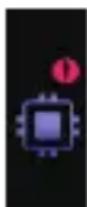
The activity sensor can record up to 14 days and 14 nights. If all memory spaces are full, the following warning will appear on the display. You can continue to use the activity sensor, but any new data will not be saved until you have synchronised the saved data. We therefore recommend that you carry out the data transfer at least once a week.
How do I activate sleep mode?
To do this, follow the instructions in the section "Sleep mode".
How can I activate the vibration alarm?
Enter the desired alarm time in the "beurer HealthManager" app.
Synchronise the activity sensor with the app after entering/changing the alarm time.
Can I also wear the activity sensor in the shower or whilst swimming?
The activity sensor is protected against the effects of temporary immersion in water. The activity sensor is protected against splashes of water, e.g. rain. During showering or immersion of the activity sensor, it is possible in rare cases that the water pressure may be too high and cause damage to the activity sensor. Use when swimming is not recommended.
How do I correctly dispose of the activity sensor?
You can find information about this in the section "Disposal".
How can I clean the activity sensor?
Carefully clean the activity sensor from time to time using a damp cloth.
Where can I reorder the USB charging cable/fastening clip?
See section "Accessories and wearing parts".
What is included in the delivery?
An activity sensor and a USB charging cable incl. charging cradle are included in the delivery.
What do the symbols on the activity sensor and packaging mean?
Please see the section "Signs and symbols".
11. Disposal
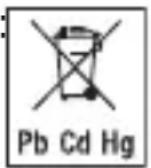
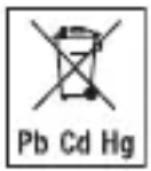
Batteries must not be disposed of in the household waste. They may contain poisonous heavy metals and are subject to special refuse treatment.
- The codes below are printed on batteries containing harmful substances;
Pb = Battery contains lead
Cd = Battery contains cadmium
Hg = Battery contains mercury
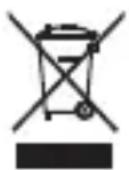
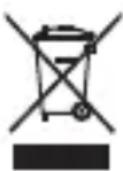
For environmental reasons, do not dispose of the device in the household waste at the end of its useful life.
Dispose of the device at a suitable local collection or recycling point in your country. Dispose of the device in accordance with EC Directive - WEEE (Waste Electrical and Electronic Equipment).
If you have any questions, please contact the local authorities responsible for waste disposal.
12. Technical data
- Weight: approx. 39 g (incl. cable and charging cradle)
- Suitable for wrist circumferences from approx. 14.5 to approx. 19.5 cm
- Battery: 100 mAh Li-ion polymer
- Battery life: max. 5 days in stand-by mode
- Permissible operating conditions: 10 - 40^
Memory capacity: 14 days
Power supply: 5V,200mA
Water resistance: IP 67 - Bluetooth® low energy technology, 2.4 GHz frequency band
We hereby confirm that this product complies with the European RED Directive 2014/53/EU. The CE Declaration of Conformity for this product can be found at: www.beurer.com/web/we-landingpages/de/cedclarationofconformity.php.
The word mark Bluetooth® and the associated logo are registered trademarks of Bluetooth SIG, Inc. Any and all use of these brands by Beurer GmbH is done so under licence. Other trademarks and trade names are the property of the relevant holder.
13. Warranty/service
In case of a claim under the warranty please contact your local dealer or the local representation which is mentioned in the list "service international".
In case of returning the unit please add a copy of your receipt and a short report of the defect.
The following warranty terms shall apply:
- The warranty period for BEURER products is either 3 years or - if longer - the country specific warranty period from date of Purchase.
In case of a warranty claim, the date of purchase has to be proven by means of the sales receipt or invoice.
- Repairs (complete unit or parts of the unit) do not extend the warranty period.
- The warranty shall not be valid for damages because of
a. improper treatment, e.g. nonobservance of the user instructions.
b. repairs or tampering by the customer or unauthorised third parties.
c. transport from the manufacturer to the consumer or during transport to the service centre.
d. The warranty shall not be valid for accessories which are subject to normal wear and tear (cuff, batteries etc.).
- Liability for direct or indirect consequential losses caused by the unit are excluded even if the damage to the unit is accepted as a warranty claim.
FRANÇAIS
Sommaire
Chere cliente, cher client,
Remarques relatives aux batteries
Download on the App Store

Google Play
Ecnn aKKymyIaTOp noteK, HadeHbTe 3aunTHbIe nepuATKn u yTuJIn3npyIte npn6Op.
6.Функции
6.1 O63opФункин
Pn HaxaTn Ha a dncnlee MOxHO nCNoB3OBaTb cJeDyUOuNe BO3MOXHOCTn yHKuN.
Kak npabnIbHo 3apJxKaTb aKKymyIaTChka aKTNBHOCTn?
Для па вьно 3ардк Датунka aKTиВHOCTN сеу Te yka3aHЯМВ pa3deJIe «Зардka akKуMЛЯTOpa».
Moxho Hocntb daTnK aKTNBHOCTN BO BpeMa e3bl Ha BeLoCIne?
BbIMoKTe Hocntb DaTnK aKTNBHOCTN IN BO BpeMra3DbI Ha BeLoCInpe.ДЯ 3ToRO Heo6xOJIMO pa3MeCTNTb DaTnK B NOxDoxJaIeM MeCTe. Zeleco06pa3Ho pa3Me-7aTb DaTnK Ha Hore,By3KOM IIN 6OKOBOM KapMaHc 6pOK;He peKOMeHdyETcR pa3MeJeHne Ha Nocrce.OdHaKO DaHHbIe O npoiDeHNOM pacCToHm MOryT OTJN ChBaTcR OT aKTNUeCKO JINHBI PyTN, TaK KaK DaTnK aKTNBHOCTN NepeCHNTbIBaET BCE BaunФn3NuCeKNe DnXKeHnB WarN.
B TeueHne cKoJIbKnx IHei/HoueI npOIoJXaETcpeRnCTpaunI daHHbIX DaT-YNKOM aKTUBHOCTn?
IaTnK aKTINBHOCTm MoXeT peRnCTpnpoBaTb daHhble do 14 dHei 14 Houe. EcIn Bce JaeyKn NaMrtu 3aHrTbI, Ha DnCnIee NORBITc npedynpeJxdeHne.
Bb mojkeTe npoJoxnTb nCnoJb3OBaTb daTnK aKTnBHOCTN, OndaKO HO BbIe dAHHbIe He 6ydt COxpaHrTbcR, Noka Bbl He cInxpoHn3npyeTe daHHbIe. PoToM yMbI peKOMeHnyem BblOJHrTb nepeDaUy daHHbIX He pexe ODHorO pa3a B HeJeIIO.
Kak aKTbBnpoBaTb peXm m cha?
BHHMaTeIbHo cIeDyIte yKa3aHnM B pa3dJe «Pexm cHa».
Kak aKTbBnPoBaTb 6yDnJIbHnK C Bn6pOcRHaJom?
YkaXte Heo6xOIMoe BpeMraCpa6aTbIBaHn8 6yDnJIbHnKa B npIIOXeHn beurer HealthManager.
IocJe BBOda/IN3MeHEnBpeMeHcpa6aTbIBaHn8 6yDnJIbHnKa CnHXpOHn3npyTe DaTtHK aKTINBHOCTN C npNJIOXKeHNEM.
Mory liy Hocntb daTcHK aKTHBHOCTN, KOrda npHmao Duy nIi nn Ipaio?
ДатунakakTINBHOCTN 3aunueHOT npOHnKHOBEHnBODI npn NorpyxHnHa HnpoDIOJIKNTEJbHOE BpEMr.ДaтунakakTINBHOCTN 3aunueHOT 6pbI3r BOdBi,HaNPIMePOTdoXd.IprnoJIb3OBAHm Dyuem nIIN prn NorpyxHn DaTUnKa aKTINBHOCTN B BODY B OTJeNbHbIX CnyaX daBLeHne BOdBi MOxET 6bITb BblSe DOnyCTUMOro 3HaueHnry,чTO MOxET pInBeCTN K NOBpeXDeHnO daTUnKa.ИсрЛьЗOBaHnE Bo BpEmrПлabAHnHe peKOMeHdyetcR.
Kak cIeJyET yTnIIN3InPoBaTb daTtNK aKTNBHOCTN?
CleyuTe yka3aHnM B pa3dene «Ytln3aunrA»
Kak ouhuaTb daTunk aKTUBHOCTn?
Bpemr O T BpemHn aKKypaTHO npOTnpaIe DaTcNk aKTNBHOCTN BlaXHOJ caJIpeTKoJ.
TO O3HaHT CmBOLbl Ha daTnke aKTHBHOCTN Ha yNaKOBKe?
BHHMaTeIbHo n3yUHTe pa3dEe «TOncHnK CmBoJAm».
11.Ут tunьачая
Pb = 6atapeiKa coepKNT CBnHeu,
Cd = 6 atapeiKa cOepKNT KaMn,
Hg = 6atapeiKa coepKnt pTyTb.
B INTEpecax 3aunTbI OKpykaIOUeI cpebl NO OKOHuaHn Cpoka Cnyx6blcJeYET yTNIN3NPOBaT bPn6Op OTdEJIbHO OT 6bITOBORo Mycopa.
YtUN3aunr npON3BOIDTCraYepe3 COOTBETCTByUOune nyHKtbI c6opab B Bauei cTpaHe. Pnp6Op CneDyET YtUN3nPOBaTb CoIaCHO dInpeKTNBE EC no OTxODam 3JeKTPnueckoro n 3JeKTPoHOro o6OpydoBaHnra - WEEE (Waste Electrical and Electronic Equipment).
Download on the App Store

Google Play
Electronic Equipment).
The Bluetooth® word mark and logos are registered trademarks owned by Bluetooth SIG, Inc. and any use of such marks by Beurer GmbH is under license. Other trademarks and trade names are those of their respective owners.
Apple and the Apple logo are trademarks of Apple Inc., registered in the U.S. and other countries. App Store is a service mark of Apple Inc., registered in the U.S. and other countries. Google Play and the Google Play logo are trademarks of Google LLC.
Android is a trademark of Google LLC.

Beurer GmbH · Söflinger Straße 218 · 89077 Ulm, Germany www.beurer.com · www.beurer-healthguide.com www.beurer-gesundheitsratgeber.com