EasyManual
HIFI SO510 - Hi-fi system SONORO - Free user manual and instructions
Find the device manual for free HIFI SO510 SONORO in PDF.


| Technical Features | Built-in amplifier, output power of 2 x 50 W, compatibility with digital audio formats, Bluetooth connectivity, USB input, AUX input. |
|---|---|
| Usage | Ideal for listening to music at home, compatible with various audio devices, easy to set up and use thanks to an intuitive interface. |
| Maintenance and Repair | Regularly clean the grills and ports, check connections, consult the manual for troubleshooting procedures. |
| Safety | Use only with a compatible power supply, avoid exposure to moisture, do not block ventilation. |
| General Information | Compact dimensions, modern design, 2-year manufacturer warranty, technical support available. |
Frequently Asked Questions - HIFI SO510 SONORO
User questions about HIFI SO510 SONORO
0 question about this device. Answer the ones you know or ask your own.
Ask a new question about this device
Download the instructions for your Hi-fi system in PDF format for free! Find your manual HIFI SO510 - SONORO and take your electronic device back in hand. On this page are published all the documents necessary for the use of your device. HIFI SO510 by SONORO.
USER MANUAL HIFI SO510 SONORO
DAB (Digital Audio Broadcasting)
i DRC (Dynamic Range Compression)
- Hotel California
- Acoustics
New Age - Classical
-Jazz - Rock
| Hörmodul Titel-Nr. Titel | ||
| 1 | 1 Intro — Relaxing by feeling your pulse | |
| 2 Relaxing by feeling your pulse | ||
| 2 | 1 Quick Relaxation Exercise — Relax by letting go of stress | |
| 2 Relaxing by meditating on our breath | ||
| 3 | 1 Intro — A journey of the imagination “Beach and Warmth” | |
| 2 A journey of the imagination “Beach and Warmth” | ||
| 4 | 1 Intro — Progressive Muscle Relaxation according to Jacobson | |
| 2 Progressive Muscle Relaxation according to Jacobson | ||
| 5 | 1 Relax music 1 | |
| 2 Relax music 2 | ||
| 3 Relax music 3 | ||
| 4 Relax music 4 | ||
| 5 Relax music 5 | ||
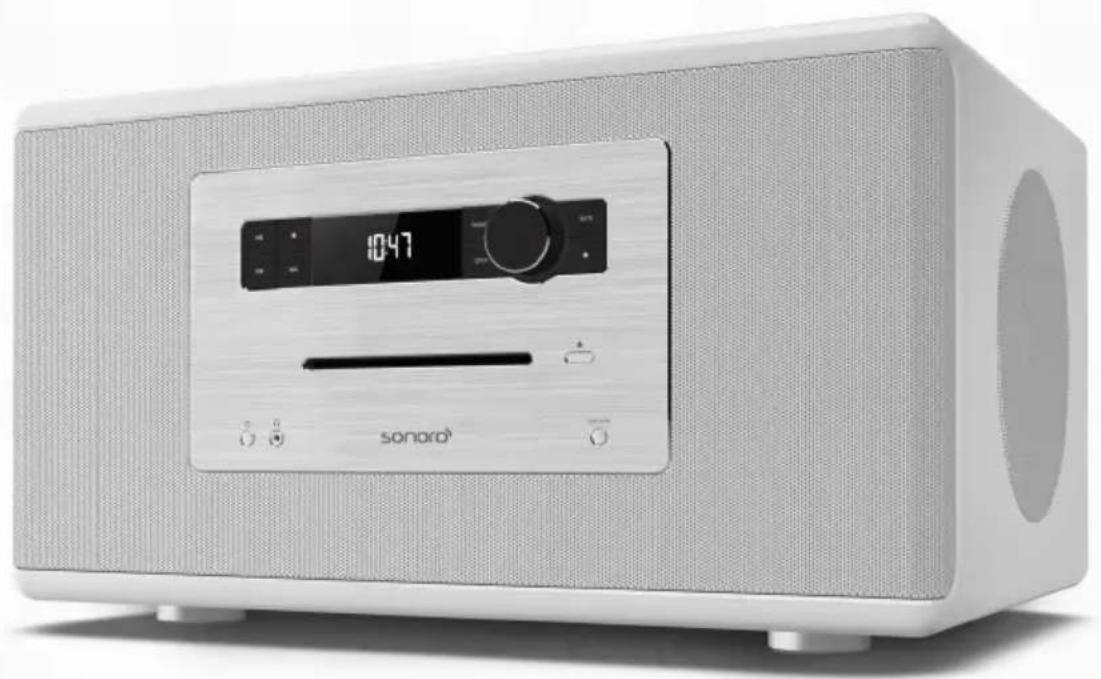
High-end music system with Bluetooth® technology
sonoro audio GmbH
Nordkanalallee 94
41464 Neuss
GERMANY
Telephone: +49 2131 8834-141
Fax: +49 2131 7517-599
Email: support@sonoro.de
2 For your own safety 63
2.1 Symbols in this manual 63
2.2 Intended use 63
2.3 Children and persons with limited cognitive abilities 64
2.4 Power supply 64
2.5 Batteries 64
2.6 Laser 64
2.7 Transport/shipping 65
2.8 Ambient conditions 65
2.9 Operation 65
2.10 Headphone use 66
2.11 In case of defects 66
2.12 Disposal at end of useful life 66
3 Getting to know your sonoroHIFI 67
3.1 Scope of delivery 67
3.2 Controls and ports 68
3.3 Display 75
3.4 Menu overview.. 77
3.5 Compatible formats.. 77
3.6 Technical data. 77
3.7 Marks of approval and certificates 78
3.8 Declaration of Conformity 78
4 Unpacking your sonoroHIFI and commencing operation 80
4.1 Unpacking the device 80
4.2 Inserting the battery 80
4.3 Connecting the power supply 82
4.4 Attaching the optional stand 83
4.5 Connecting the antenna 88
4.6 Switching the device on and off 88
4.7 Connecting the headphones 89
4.8 Display brightness level 89
4.9 Setting the date and time 90
4.10 Setting the display language 92
4.11 Resetting the device to the factory settings 92
5 Experience audio with the sonoroHIFI 93
5.1 Adjusting the volume 93
5.2Sound settings 93
5.2.1 Adjusting the bass and treble 93
5.2.2 Setting the equaliser effect 93
5.3 Selecting an audio source 94
5.3.1 Radio playback 94
5.3.1.1 FM radio. 95
5.3.1.2 DAB radio 96
5.3.2 CD playback 98
5.3.3 Bluetooth playback 99
5.3.4 AUX playback 101
5.3.5Playback via Optical In 101
5.4 Playing back demo music 101
5.5 Muting the audio playback 102
6 Relaxing with the sonoroHIFI 103
6.1 Play Relax Music 103
6.2 Playing meditative music 103
7 Falling asleep and waking up with the sonoroHIFI 106
7.1 Setting the alarm 106
7.2 Activating/deactivating the alarm 107
7.3 Switching off the alarm sound 107
7.4 Snooze settings. 107
7.5 Sleep timer settings 108
8 Troubleshooting problems with the sonoroHIFI 109
9 Cleaning your sonoroHIFI 110
10 Warranty 111
1 Introduction
Thank you for purchasing a sonoroHIFI.
This manual and the safety instructions provide all the information required for trouble-free and safe operation of the device.
- Read these operating instructions and the safety instructions in their entirety before using the device.
- Keep these operating instructions for future reference.
If you pass the device on to a third party, please provide them with the operating instructions and safety instructions as well.
Failure to follow these operating instructions can result in serious injury or damage to the device.
We assume no liability for damage resulting from failure to observe the instructions in this manual.
The images in this manual are intended to illustrate the actions necessary to operate the device.
Enjoy your device!
Contact data
| Address sonoro audio GmbH Nordkanalallee 94 41464 Neuss GERMANY |
| Phone +49 2131 8834-141 |
| Fax +49 2131 7517-599 |
| E-mail support@sonoro.de |
| Internet www.sonoro.de |
i
In order to make it easier for you to operate your sonoroHIFI, the device's controls are marked clearly in these operating instructions. Symbols for buttons on the device have a grey background, while symbols for buttons on the remote control have a black background.
Example:

=SETUPbutton on the device

= SETUP button on the remote control
2 For your own safety
2.1 Symbols in this manual
Safety instructions
Important information for your safety is highlighted accordingly. Always take care to observe these instructions in order to avoid accidents and damage to the device:

WARNING!
Indicates a potentially hazardous situation that may result in fatal or serious injury.

CAUTION!
Indicates a potentially hazardous situation that may result in minor or moderate injury.

NOTICE!
Indicates a potentially hazardous situation that may result in material and environmental damage.
Helpful tips and recommendations
i
Highlights information and useful recommendations.
2.2 Intended use
The device is intended for personal use only. It is not intended for commercial use. The device is solely intended for the following tasks:
Playback of FM/DAB radio stations.
Playback of audio/MP3 and WMA CDs.
Audio playback from external devices connected via AUX or Optical In.
Audio playback from Bluetooth-enabled devices (e.g. mobile phones).
Any other use is considered improper use and is prohibited. We assume no liability for damages resulting from improper use.
2.3 Children and persons with limited cognitive abilities
- Do not leave the device unattended and do not use it when children or persons who are unable to judge the associated risks are nearby.
Persons (including children) who are not able to safely operate the device due to their physical, sensory or mental capabilities, or a lack of experience or knowledge regarding the device, should not operate this device without proper supervision or instruction by a responsible person. Please keep it safely out of their reach. - Keep batteries out of reach of children. Risk of swallowing! If you notice or suspect that someone has swallowed a battery, seek medical aid immediately.
Remember that packaging materials should not be toyed with. Risk of suffocation!
2.4 Power supply
The device is powered electrically, so there is always a risk of electric shock. As such, pay particular attention to the following instructions:
- Never touch the power plug with wet hands.
- When you want to pull the power plug from the wall outlet, always pull directly on the plug itself. Never pull on the power cable, as this could damage it.
Ensure unobstructed access to the power outlet so that the power plug can be pulled out immediately in case of an emergency.
Make sure that the power cable is not bent, pinched or run over. Lay the power cable in such a way that it is not a tripping hazard or within reach of children. - Keep the device away from rain, moisture and any heat sources.
Only operate the device if the electrical voltage indicated on the device nameplate and the power plug matches the voltage of your power outlet. Incorrect voltage may irreparably damage the device.
In order to prevent fire hazards, disconnect the device completely from the power supply when you will not be using the device for a long period of time. Do this by unplugging the power plug from the AC outlet.
The power cord is used as a disconnected device, the disconnect device shall remain readily accessible.
Symbols

This is CLASS II apparatus with double insulation, and no protective earth provided.

Nature of supply: a.c. only
2.5 Batteries
Never attempt to recharge or open the batteries. Explosion hazard!
Never damage or warp the batteries.
Never throw the batteries into an open fire or expose them to high temperatures.
Failure to observe these guidelines may cause fluid to escape from the battery, which can cause skin irritation. In case of contact:
- Wash off the fluid with plenty of clear water.
- Do not rub your eyes. Instead, rinse eyes with plenty of clear water for 10 minutes and seek immediate medical attention.
Only use batteries of the same or an equivalent type. Explosion hazard!
Remove the batteries from the battery compartment as soon as they are empty, or if you do not intend to use the device for a long period of time.
Take attention to the environmental aspects of battery disposal
If the battery compartment does not close securely, stop using the product and keep it away from children.
2.6 Laser
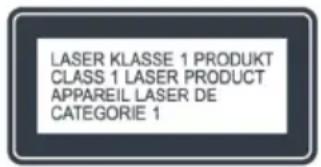
Fig. 1: Laser
This device is classified as a Class 1 laser device. Laser beams can injure your eyes. As such, please observe the following instructions:
Do not attempt to take the device apart.
To avoid risks: All maintenance and repair work must always be performed by the manufacturer or its customer service department.
2.7 Transport/shipping
CAUTION!
Risk of injury due to heavy weight!
Due to its weight, the device can cause injury if carried by a single person during transportation, either during lifting or if it is dropped on body parts.
- Always work in a team of two when lifting and transporting the device.
- Always work in a team of two when attaching the stand.
Improper transport/shipping can lead to damage to the device's surface or the media inside it, thus preventing it from working properly.
Personal safety
Whilst driving in a vehicle, store the device in such a way that it does not endanger the occupants.
Preventing damage to the device
The front, edges and corners of the device are all vulnerable to pressure. Protect these areas to prevent them from being subjected to excessive loads. Never tilt the device over its corners or edges. Always work in a team of two when lifting the device to turn it. Never place the device facedown.
To transport or ship the device, please pack it in the enclosed protective cases and store it in its original packaging. Keep the original packaging for this purpose.
If you lose the original packaging, use another box of sufficient size for transport. There must be a minimum clearance of 10cm between the device housing/external control elements and all sides of the box. Fill this space with polystyrene.
Protecting the media inside the device
To avoid damage to the medium inside the device, remove it before transport/shipping.
2.8 Ambient conditions
In order to ensure that the device can be operated safely, certain ambient conditions must be observed.
■ Weather, moisture and temperatures
-
Protect the device and remote control from the weather, moisture and high temperatures. Never use the device outdoors, and never place it in areas with increased exposure to sunlight.
-
Protect the device and remote control from liquids. Never place objects containing liquids on or next to the device.
Installation location
- Never use the device or remote control in areas with high levels of humidity, e.g. bathrooms.
- Never use the device or remote control in areas with high levels of humidity, e.g. bathrooms. Protect it from heavy soiling, e.g. splashes of grease and uncleaned extraction air in the kitchen.
- Never place the device on or in the immediate vicinity of fire and heat sources, e.g. burning candles, stove tops or radiators.
- Both the room in which you install the device and its position in the room will have a significant effect on the sound of your sonoroHIFI. Ideally, it should be positioned without obstructions and opposite the listening position, with a clearance of approx. 50~cm from walls at the rear and sides. Since every room is different, we recommend experimenting with the position a little.
The device is suitable for use in tropical and/or moderate climates.
Installation surface
- Place the device on a sturdy surface to prevent severe mechanical vibrations.
- Do not place the device on surfaces into which it may sink, as this will obstruct the ventilation openings. This prevents heat from building up inside the device.
Ventilation
- Set up the device in such a way that adequate ventilation is ensured in order to prevent heat form building up inside the device.
- Do not cover the ventilation openings on the rear and underside of the device by covering the ventilation openings with items, such as newspapers, table-cloths, curtains, etc.
- Always keep a minimum distance of 10cm from other objects or walls.
- Never remove the 4 feet from the underside of the device.
2.9 Operation
The rubber feet of the device may produce stains on certain surfaces. Use a suitable surface.
Do not use any media other than those specified in this manual.
- Do not insert any objects other than the permitted CDs into the CD slot of the device. Special formats will damage your device.
- Never use any power or antenna cables other than those permitted. Using the wrong power supply with damage your device.
2.10 Headphone use
Always decrease the volume of the device before putting on the headphones. Increase the volume to the desired level only after the headphones are in the correct position.
- Do not set the volume too high when using the headphones. If you hear permanent noise or background noise in your ears (ringing), immediately decrease the volume or stop using the headphones altogether.
Never adjust the volume so high that you are no longer aware of your immediate surroundings.
2.11 In case of defects
If the device develops a defect, do not attempt to repair it on your own.
If the power plug, adapter or power cable of this device is damaged, they must be replaced by the manufacturer or the manufacturer's customer service department to prevent risk of electric shock.
Should any fluid enter the device, or if the device has been dropped or otherwise damaged, have it checked by an authorised dealer. Immediately disconnect the device from the power supply and contact an authorised dealer as soon as possible.
2.12 Disposal at end of useful life
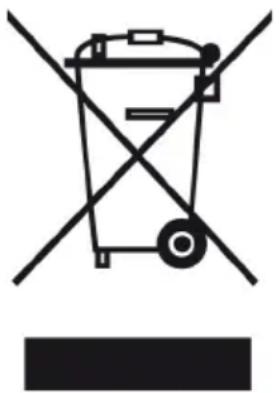
Fig. 2: Do not dispose of in household waste
Devices that are marked with this symbol (Fig. 2) should not be disposed of in household waste. They must be returned to a collection point for the recycling of electrical and electro-technical devices. Information regarding the disposal of old equipment can be obtained from your municipality, local waste disposal company and the store where you purchased this device. Proper disposal of old devices prevents environmental damage and does not jeopardise your health.
Batteries may contain toxic heavy metals and are subject to hazardous waste treatment. Return the batteries to a municipal collection point or have them disposed of by a specialist company.
ENVIRONMENT!
Environmental hazard as a result of incorrect disposal!
Incorrect disposal can be hazardous to the environment.
- Enlist authorised, specialist companies to dispose of electrical scrap and electronic components.
- If in doubt, contact your local municipal authority or specialist disposal company for information on environmentally conscious disposal.
3 Getting to know your sonoroHIFI
3.1 Scope of delivery
In addition to the sonoroHIFI itself, the following accessories are also includes in the scope of delivery:
Remote control
Two batteries (CR2032, 3 V)
Power cable
FM/DAB cable antenna
sonoroHIFI cleaning cloth
sonoroHIFI protective case
Operating instructions
3.2 Controls and ports
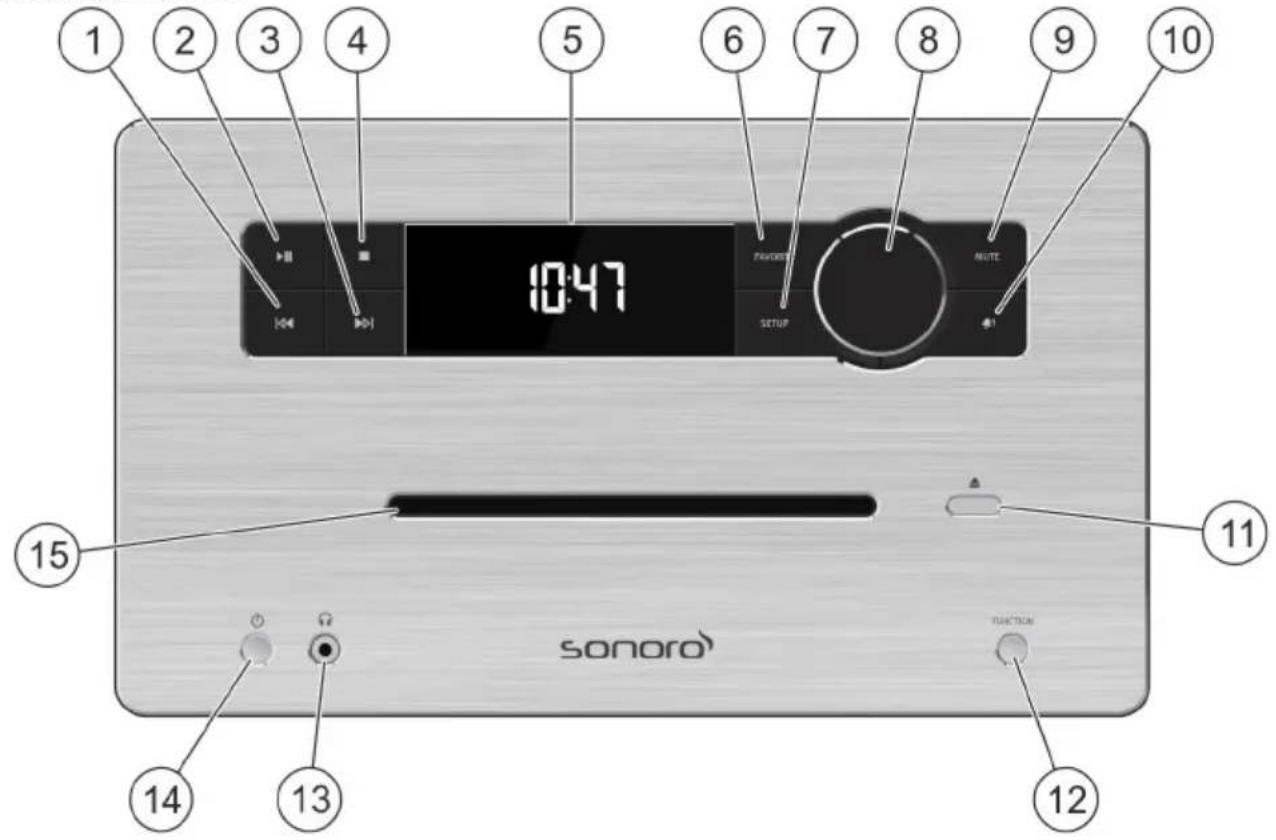
sonoroHIFI, front view
Fig. 3: sonoroHIFI, front view
① Skip back button
② Play/Pause button
③ Skip forwards button
④ Stop button
⑤ Display
6 Favourite button
⑦ Setup button
8 Click wheel
Mute button
10 Alarm button
Eject button
Function button
13 Headphone port
Standby on/off button
CD slot
| Item Control/port Function | ||
| ① | Skip back button Press briefly: navigate through menu options; go back to previous track/station; search for FM/DAB station. Press and hold: rewind. | |
| ② | Play/Pause button Press briefly: start/pause playback. | |
| ③ | → | Skip forwards buttonPress briefly: navigate through menu options; go to next track/station; search for FM/DAB station.Press and hold: fast forward. |
| ④ | □ | Stop buttonPress briefly: stop playback; DAB mode: retrieve DAB info.Press and hold: Bluetooth mode: disconnect and delete Bluetooth connection. |
| ⑤ | Display | DisplayIn standby: displays the current time and date.With device on: shows information on the current mode. |
| ⑥ | FAVORITE | Favourite buttonPress briefly: go to next FM/DAB station in favourites list.Press and hold: add station to favourites list. |
| ⑦ | SETUP | Setup buttonPress briefly: open settings menu. |
| ⑧ | ○ | Click wheelPress briefly: confirm selection in menu; start/stop audio playback; switch off alarm.Press and hold (standby): start demo music.Press and hold (device on): manually set FM frequency. |
| ○ | Turn: adjust volume; navigate through menu options. | |
| ⑨ | MUTE | Mute buttonPress briefly (standby): set snooze.Press briefly (device on): mute playback; activate snooze.Press and hold (device on): activate snooze. |
| ⑩ | □ | Alarm buttonPress briefly: activate/deactivate alarm; switch off alarm.Press and hold: set alarm. |
| ⑪ | ▲ | Eject buttonPress briefly: eject CD. |
| ⑫ | FUNCTION □ | Function buttonPress briefly: change playback mode. |
| Item Control/Port Function | ||
| 13 | Headphone port | Headphone port Port for headphones. |
| 14 | Standby on/off button Press briefly: switch between standby mode and device on; switch off alarm. | |
| 15 | CD slot | CD slot Takes CDs into the device. |
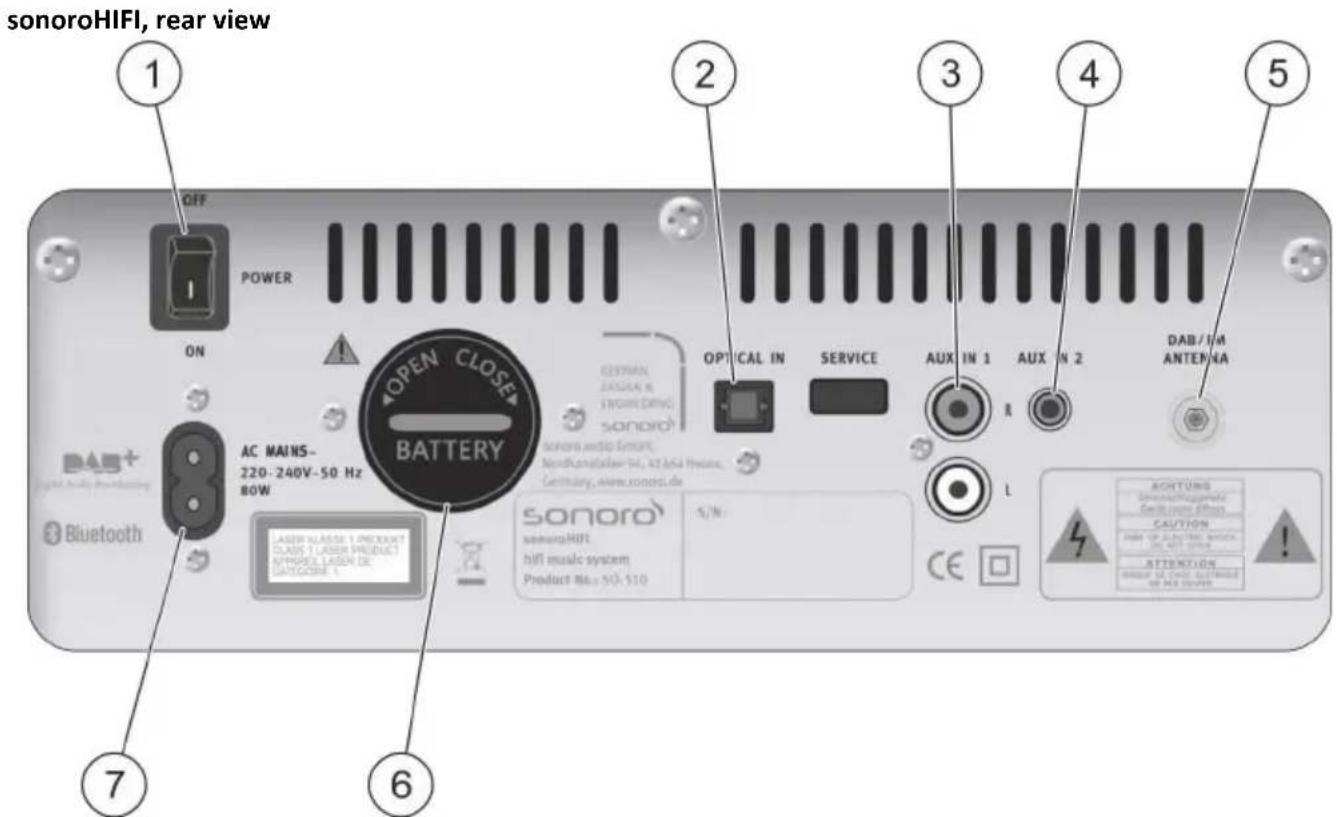
Fig. 4: Ports at rear of sonoroHIFI
① Mains power on/off
② OPTICAL IN
AUX IN 1
AUX IN 2
DAB/FM antenna
6 Battery compartment
⑦ AC INPUT
| Item Co | ntrol/port Function | |
| ① | Mains power on/off | Switches the device on/off. |
| ② | OPTICAL IN Port | for external audio devices (TOSLINK cable). |
| ③ | AUX IN 1 Port for | external audio devices (RCA). |
| ④ | AUX IN 2 Port for | external audio devices (3.5 mm jack). |
| ⑤ | DAB/FM antenna Port | port for the antenna (included) or an external antenna. |
| ⑥ | Battery compa-ment | The battery (CR2032, 3V) keeps the clock running in case of power failure. |
| ⑦ | AC INPUT 220 - | 240 V power connection for the included power supply cable. |
sonoroHIFI remote control
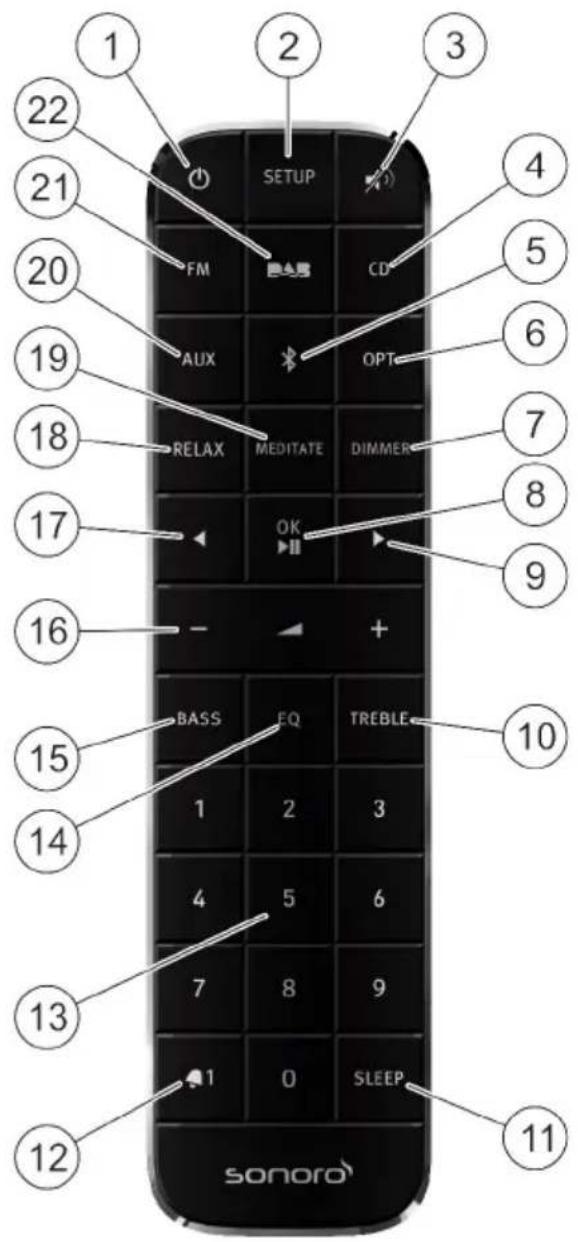
Fig. 5: sonoroHIFI remote control
① Standby on/off button
② Setup button
Mute button
CD button
⑤ Bluetooth button
Optical in button
⑦ Dimmer button
OK/Play/Pause button
Skip forwards button
Treble button
Sleep button
12 Alarm button
Number buttons (0-9)
⑭ EQ button
15 Bass button
Volume button
Skip back button
Relax button
19 Meditate button
20 AUX button
FM button
DAB button
| Item Control Function | ||
| ① | ○ | Standby on/off buttonPress briefly: switch between standby mode and device on; switch off alarm. |
| ② | SETUP | Setup buttonPress briefly: open settings menu. |
| ③ | × | Mute buttonPress briefly (standby): set snooze.Press briefly (device on): mute playback; activate snooze.Press and hold (device on): activate snooze. |
| ④ | CD | CD buttonPress briefly: Switch on CD mode; in CD mode : display ID3 tag if available. |
| ⑤ | × | Bluetooth buttonPress briefly: Switch on Bluetooth mode; in Bluetooth mode: display track information if available. |
| ⑥ | OPT | Optical in buttonPress briefly: Switch on OPT mode. |
| ⑦ | DIMMER | Dimmer buttonPress briefly: increase the display brightness for 3 sec.Press and hold: adjust display brightness level. |
| ⑧ | OK/PH | OK/Play/Pause buttonPress briefly: start/pause playback; confirm selection in menu. |
| ⑨ | × | Skip forwards buttonPress briefly: navigate through menu options; go to next track/station; search for FM/DAB station.Press and hold: fast forward. |
| ⑩ | TREBLE | Treble buttonPress briefly: adjust the treble. |
| ⑪ | SLEEP | Sleep buttonPress briefly: activate/deactivate sleep timer.Press and hold: set sleep timer. |
| ⑫ | × | Alarm buttonPress briefly: activate/deactivate alarm; switch off alarm.Press and hold: set alarm. |
| ⑬ | 0 to 9 | Number buttons (0 - 9)Press briefly: retrieve stored FM/DAB station; load CD track.Press and hold: store FM/DAB station. |
| 14 | EQ | EQ button Press briefly: set equaliser effect. |
| 15 | BASS | Bass button Press briefly: adjust the bass. |
| 16 | - + | Volume button Press briefly: adjust the volume. |
| 17 | ← | Skip back button Press briefly: navigate through menu options; go back to previous track/station; search for FM/DAB station. Press and hold: rewind. |
| 18 | RELAX | Relax button Press briefly: play Relax Music. |
| 19 | MEDITATE | Meditate button Press briefly: play meditative music. |
| 20 | AUX | AUX button Press briefly: switch on AUX mode. |
| 21 | FM | FM button Press briefly: switch on FM radio mode. |
| 22 | BAS | DAB button Press briefly: switch on DAB radio mode; in DAB mode: retrieve DAB info. |
i
In order to make it easier for you to operate your sonoroHIFI, the device's controls are marked clearly in these operating instructions. Symbols for buttons on the device have a grey background, while symbols for buttons on the remote control have a black background.
Example:
SETUP = SETUP button on the device
SETUP = SETUP button on the remote control
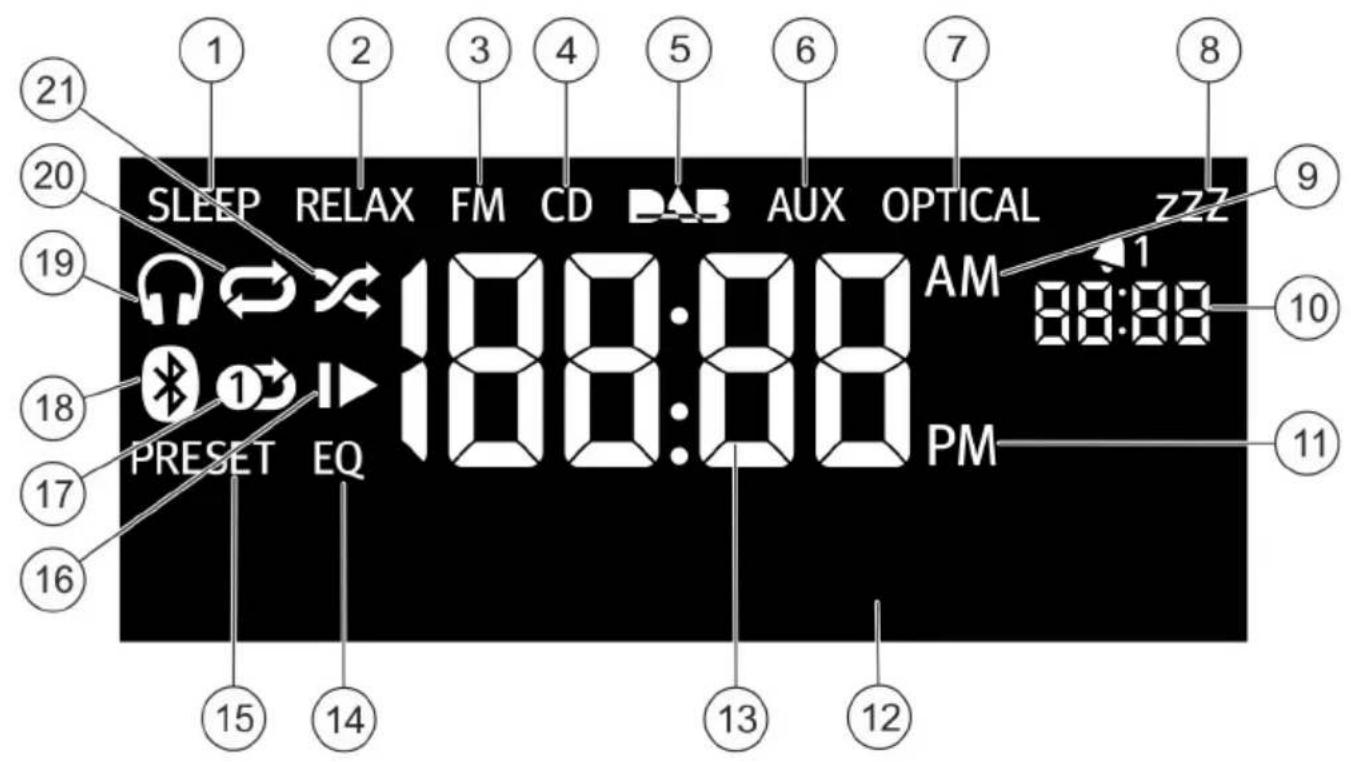
3.3 Display
Fig. 6: Display, sonoroHIFI
① Sleep timer function
② Relax mode
FM mode
CD mode
DAB mode
6 AUXmode
Optical in mode
8 Snooze function
Time suffix in the 12-hour setting
Alarm function
Time suffix in the 12-hour setting
Display for text elements
Current time
4 Equaliser effect
15 Saved programme channel for current station
CD mode: CD Resume
CD mode: Repeat One
Bluetooth mode
19 Headphones
CD mode: Repeat Disc
CD mode: Shuffle Disc
| Item Symbol Function | ||
| ① | SLEEP The sleep timer function is on. | |
| ② | RELAX The Relax mode is on. | |
| ③ | FM FM mode is on. | |
| ④ | CD CD mode is on. | |
| ⑤ | DAB DAB mode is on. | |
| ⑥ | AUX AUX mode is on. | |
| ⑦ | OPTICAL Optical in mode is on. | |
| ⑧ | zzz The snooze function is on. | |
| ⑨ | AM Time suffix in the 12-hour setting (1st half of day). | |
| 10 | 8888 | The alarm function is on. Shows the alarm time. |
| 11 | PM Time suffix in the 12-hour setting (2nd half of day). | |
| 12 | Text field Display for text elements, e.g. display date, menu, settings. | |
| 13 | Time Displays the current time. | |
| 14 | EQ The equaliser effect is on. | |
| 15 | PRESET Display the saved programme channel for the current station (if the current station is saved). | |
| 16 | |▶ | CD mode: „CD Resume“ is on. The CD will resume playback from the position at which playback was last paused. |
| 17 | 0> | CD mode: „Repeat One“ is on. The current track will played again when it finishes. |
| 18 | 8 | Bluetooth mode is on. |
| 19 | ○ | Headphones are connected. |
| 20 | ○ | CD mode: „Repeat Disc“ is on. All the tracks on the CD will be played again when the CD finishes. |
| 21 | × | CD mode: „Shuffle Disc“ is on. The tracks on the CD are played in a random order. |
3.4 Menu overview
sonoroHIFI has two different basic modes.
Standby
Device on
Different settings can be adjusted in each of these modes. The table below shows which settings are available in which mode.
| Setting Standby Device or | ||
| Display brightness level | ✓ | ✓ |
| Manual time adjustment | ✓ | |
| Manual date adjustment | ✓ | |
| Switch display date on/off | ✓ | |
| Time format | ✓ | |
| Date format | ✓ | |
| Automatic date and time updates | ✓ | |
| Display language | ✓ | |
| Alarm settings | ✓ | ✓ |
| Activate/deactivate alarm | ✓ | ✓ |
| Snooze settings | ✓ | ✓ |
| Activate snooze | ✓ | ✓ |
| Sleep timer settings | ✓ | |
| Volume | ✓ | |
| Sound settings | ✓ | |
| Audio settings and play-back | ✓ | |
| Play demo music | ✓ | |
| Play Relax Music | ✓ | |
| Play meditative music | ✓ | |
| Resetting the device to the factory settings | ✓ |
3.5 Compatible formats
A NOTICE!
Material damage due to using an incorrect CD format!
Inserting an incorrect CD format, such as a minidisc, can damage the device.
-Only use compatible CD formats.
CD-DA
CD-R
CD-RW
MP3-CD
WMA-CD
3.6 Technical data
sonoroHIFI device
| Specification Value | |
| Dimensions (L x B x H) approx. 53 | 0 x 400 x 297 mm |
| Weight approx. 22 kg | |
| FM reception range 87.5 MHz - 108 MHz | |
| DAB/DAB+ reception range 174,9 | 28 MHz - 239.2 MHz |
| Tuning range (FM) 50 KHz | |
| Power cable, power | Input: 220 - 240 V ~50 Hz |
| Bluetooth Version: 4.1 | Profile: AVRCP 1.5, A2DP 1.3Supports SBC, AAC, Bluetooth aptX® streaming |
| AUX IN 1 Port: RCA | Sensitivity: 500 mV |
| AUX IN 2 Port: 3.5 mm jack | Sensitivity: 250 mV |
| Optical In, TOSLINK Supports line | ar PCMSample rate: 32 kHz, 44,1 kHz, 48 kHz, 96 kHz,Channel: Stereo 16 bit, 24 bit |
| Batteries Lithium battery: 3 V, type CR2032 | |
| Laser Class 1 | |
| Ports Headphones, AUX IN 1, AUX IN 2, Optical In | |
| CD Playback formats: Audio CD, MP3 CD, WMA CD, CD-R* und CD-RW*(*Playback dependent on quality of recording and medium.) | |
i
A stand is available for the sonoroHIFl.
sonoroSTAND (sonoroHIFI stand)
| Specification Value | |
| Dimensions (L x B x H) approx. 52 | 0 x 370 x 517 mm |
| Weight approx. 7.9 kg |
3.7 Marks of approval and certificates
Bluetooth

Bluetooth
The Bluetooth® word mark and logos are registered trademarks owned by the Bluetooth SIG, Inc. and any use of such marks by sonoro audio GmbH is under license. Other trademarks and trade names are those of their respective owners.
Qualcomm aptX

Qualcomm aptX is a product of Qualcomm Technologies International, Ltd. Qualcomm is a trademark of Qualcomm Incorporated, registered in the United States and other countries, used with permission. aptX is a trademark of Qualcomm Technologies International, Ltd., registered in the United States and other countries, used with permission.
3.8 Declaration of Conformity
CE
Product: sonoroHIFI
Model: SO-510
Manufacturer: sonoro audio GmbH, Nordkanalallee 94, 41464 Neuss, Germany
We hereby declare that the sonoroHIFI meets the essential requirements of the EMC Directive 2014/30/EU, the Low Voltage Directive 2014/35/EU, the Radio Equipment Directive 2014/53/EU, the Ecodesign Directive 2009/125/EC and the Directive on the restriction of the use of certain hazardous substances in electrical and electronic equipment 2011/65/EU, including changes valid at the time of the declaration, due to its design, engineering and build.
4 Unpacking your sonoroHIFI and commencing operation
4.1 Unpacking the device
All parts of the device are delivered in a single cardboard box. Keep all the packaging material in case you need to transport or ship your sonoroHIFI again at a later date.

WARNING!
Risk of suffocation when playing with the packaging!
The packaging material presents a choking hazard.
-
Keep the packaging material out of reach of children and people who are unable to judge the hazard involved.
-
Open the box and remove the operating instructions and the accessories at top of the box.
- Before all work, read the operating instructions all the way through, including the safety instructions.
3.

CAUTION!
Due to its weight, the device can cause injury if removed by a single person.
Remove the device in a team of two, following the steps below:
Grip onto the carrying handles of the sonoro protective case.
Lift the device out of the box vertically.
Carefully set the device down on a sturdy surface.
- Check the contents are all present and undamaged.

Scope of delivery" on page 67
Should you detect any damage, contact your dealer or sonoro audio GmbH customer support immediately.

"Contact data" on page 63
- Place the device in a suitable location.

Ambient conditions" on page 65
- Remove the protective film from the display.
4.2 Inserting the battery

WARNING!
Risk of injury from improper handling of batteries!
Risk of injury from explosions caused by improper handling of batteries!
- Keep batteries out of reach of children. Risk of swallowing! If you notice or suspect that someone has swallowed a battery, seek medical aid immediately.
- Never attempt to recharge or open the batteries. Explosion hazard!
- Never damage or warp the batteries.
- Never throw the batteries into an open fire or expose them to high temperatures.
-
Failure to observe these guidelines may cause fluid to escape from the battery, which can cause skin irritation. In case of contact:
-
Wash off the fluid with plenty of clear water.
-
Do not rub your eyes. Instead, rinse eyes with plenty of clear water for 10 minutes and seek immediate medical attention.
-
Only use batteries of the same or an equivalent type. Explosion hazard!
- Remove the batteries from the battery compartment as soon as they are empty, or if you do not intend to use the device for a long period of time.

NOTICE!
Material damage from improper handling of batteries!
Incorrectly inserted batteries can damage the device.
- Do not insert the batteries the wrong way round.
- Observe the correct polarity.
Inserting the batteries in the device
i
The battery ensures that the clock functions in case of power failure.
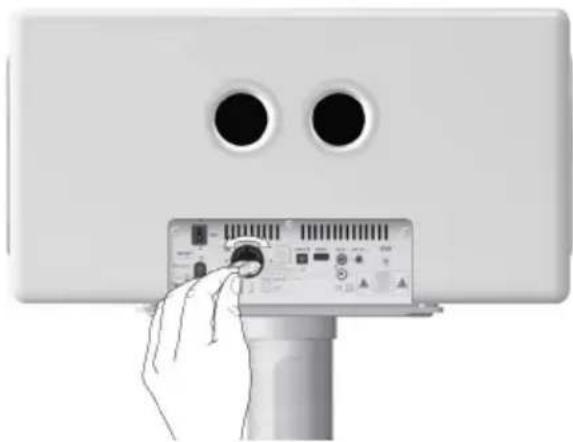
Fig. 7: Inserting the battery
- Open the battery compartment cover on the back of the device by turning it anti-clockwise using a small coin (Fig. 7).
- Remove the battery compartment cover.
- Insert the supplied batteries (CR2032, 3 V) with the label (,^# ) side up.
- Insert the battery compartment cover.
- Close the battery compartment by turning the cover clockwise using a small coin.
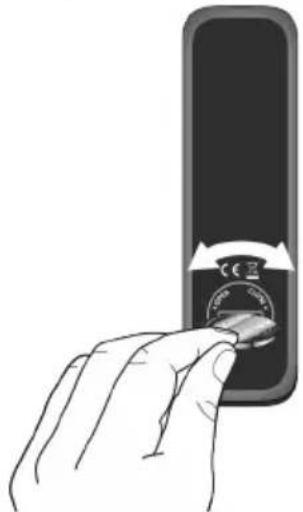
Inserting the battery in the remote control
Fig. 8: Inserting the battery
- Open the battery compartment cover on the back of the remote control by turning it anticlockwise using a small coin (Fig. 8).
- Remove the battery compartment cover.
- Insert the supplied batteries (CR2032, 3 V) with the label (,^不) side up.
- Insert the battery compartment cover.
- Close the battery compartment by turning the cover clockwise using a small coin.
4.3 Connecting the power supply

WARNING!
Risk of injury in case of damage, or due to improper treatment of the power cable!
If the power cable is damaged or treated improperly, there is a risk of electric shock.
- Unplug the power plug from the AC outlet by pulling it out horizontally.
- Never use the power cable if it is damaged.

NOTICE!
Material damage due to incorrect connection voltage!
Connection values that exceed the maximum permissible values for the device can irreparably damage the device.
- Always use the included power supply.
- Technical data" on page 77
- Only operate the device if the specified electrical voltage matches the voltage of your power outlet.
Power is supplied to the device via the power cable.
- Insert the power cable connector into the power port on the back of the device.
i
The connector does not disappear completely into the power port on the device.
- Insert the power plug into the socket.
The power supply has been established.
4.4 Attaching the optional stand
Scope of delivery for sonoroHIFI stand
1 Checking the scope of delivery
Check that the entire scope of the sonoroHIFI stand is present and undamaged before attaching the stand.
If any parts are missing or damaged, contact your dealer or sonoro audio GmbH customer support immediately (Contact data" on page 63).
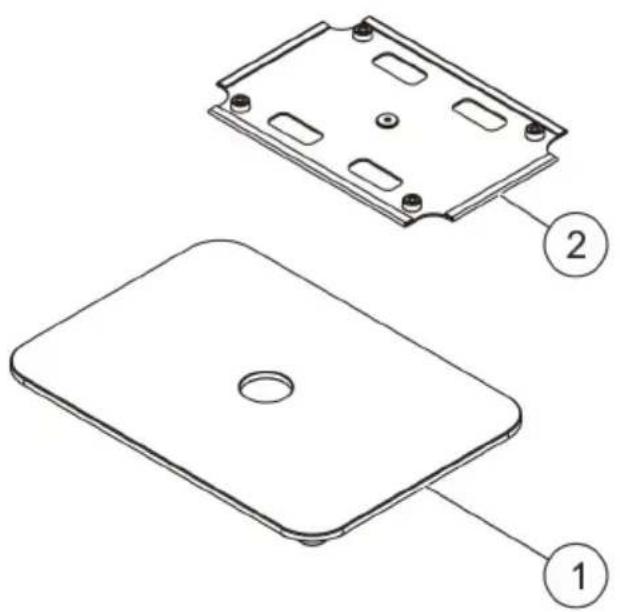
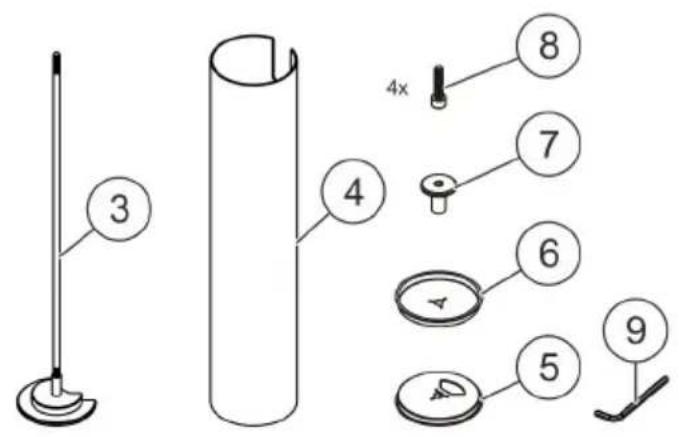
Fig. 9: Scope of delivery for sonoroHIFI stand
① Baseplate
② Mounting plate
Pre-assembled threaded rod
4 Stand tube
⑤ Protective cover with cable opening
6 Protective cover without cable opening
7 Threaded sleeve
Screws (4x)
9 Allen key

CAUTION!
Risk of injury due to heavy weight!
Due to its weight, the device can cause injury if carried by a single person during transportation, either during lifting or if it is dropped on body parts.
- Always work in a team of two when lifting and transporting the device.
- Always work in a team of two when attaching the stand.

NOTICE!
Material damage due to incorrect attachment will result in material damage!
Incorrect attachment can cause damage to the surface and lead to malfunctions.
- When attaching the stand, place a cloth underneath the device to prevent the surface from being scratched.
The device is very heavy. Always work in a team of two for any assembly work in order to prevent the device from falling.
Always take care to ensure that cables do not get trapped when performing any work on the device. - The front, edges and corners of the device are all vulnerable to pressure. Protect these areas to prevent them from being subjected to excessive pressure.
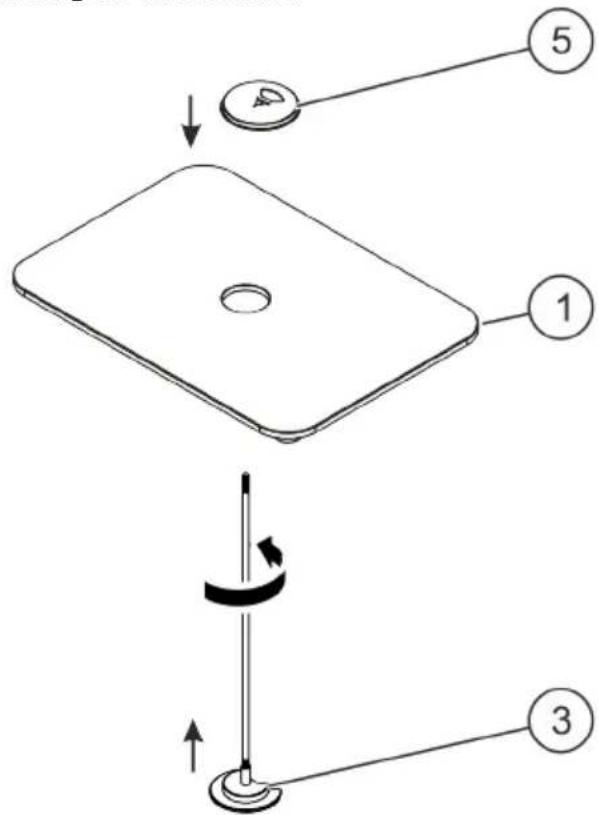
Attaching the threaded rod
Fig. 10: Attaching the threaded rod
- Insert the pre-assembled threaded rod through the baseplate from below ①
- Turn the threaded rod until the cut-out is pointing away from you.
- Place the protective cover with cable opening on the threaded rod ③
- Make sure that the cut-out in the protective cover with cable opening points away from you.
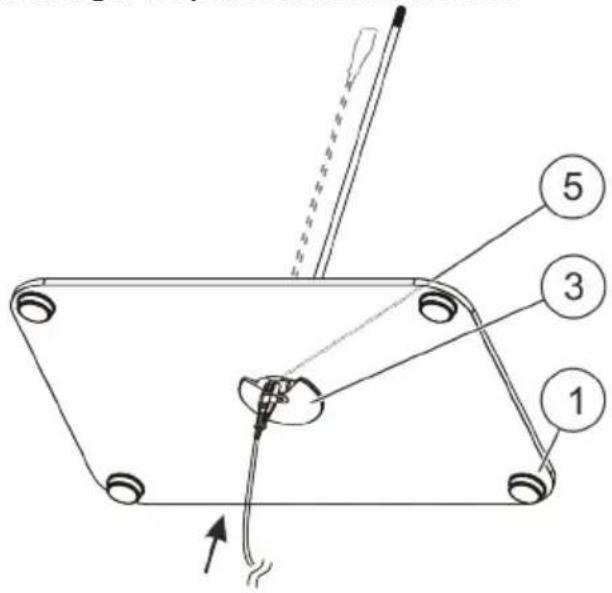
Threading in the power and antenna cables
Fig. 11: Threading in the power and antenna cables
- From below, thread the power cable and - if required - the antenna cable through the cutout in the threaded rod through the opening in the baseplate and through the cut-out in the protective cover with cable opening
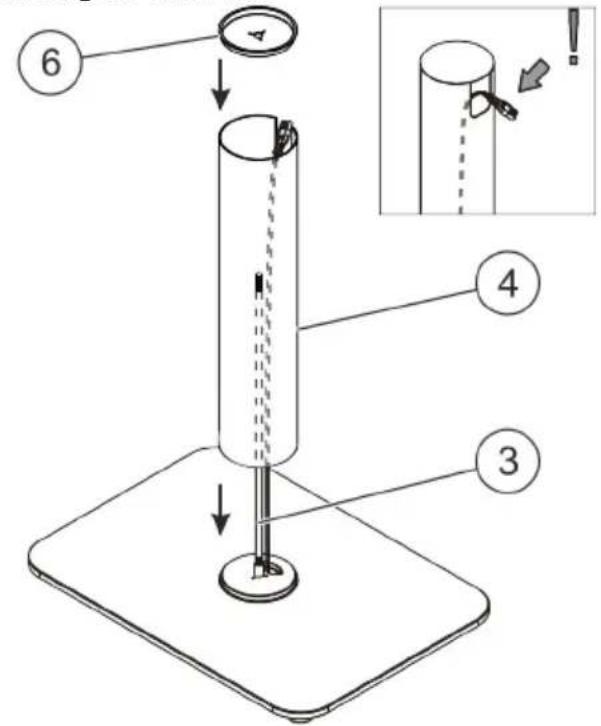
Attaching the stand tube
Fig. 12: Attaching the stand tube
- Position the stand tube with the milled opening facing upwards and place it on the threaded rod ③
- Make sure that the milled opening in the stand tube is on the same side as the cut-outs for cable routing underneath the tube.
i
The stand tube ④ acts as a cable duct for the power and antenna cables.
- Route the power cable and, if required, the antenna cable through the milled opening in the stand tube 4.
- Place the protective cover without cable opening on the threaded rod . 4
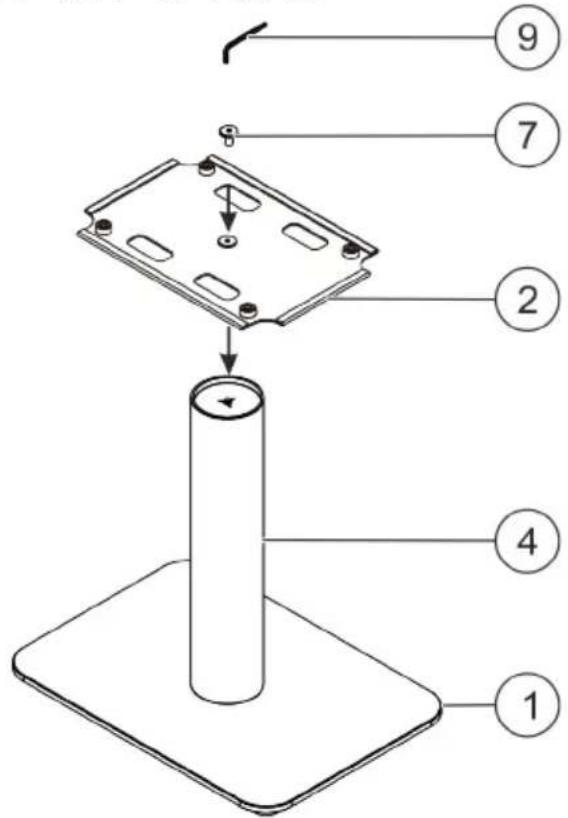
Attaching the mounting plate
Fig. 13: Attaching the mounting plate
- Place the mounting plate on the stand tube with the spacers facing upwards.
- Make sure that the mounting plate is aligned with the baseplate beneath it.
- Fix the mounting plate to the stand tube. 4 To do this, turn the threaded sleeve clockwise using the Allen key to tighten it.
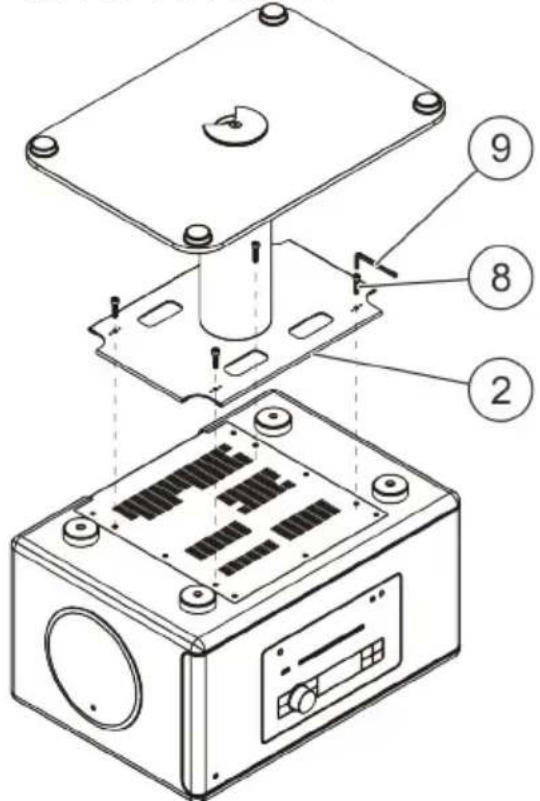
Attaching the stand to the sonoroHIFI
Fig. 14: Attaching the stand to the sonoroHIFI
- Carefully turn your sonoroHIFI upside-down and lay it on its top.
- Turn the stand around and place it on the device, mounting plate first.
i
You do not need to remove the pre-mounted feet from the device in order to do this.
- Fix the stand onto the underside of the sonoro-HIFI by turning the four supplied screws 8 clockwise using the Allen key until they are tight.
The stand is now mounted.
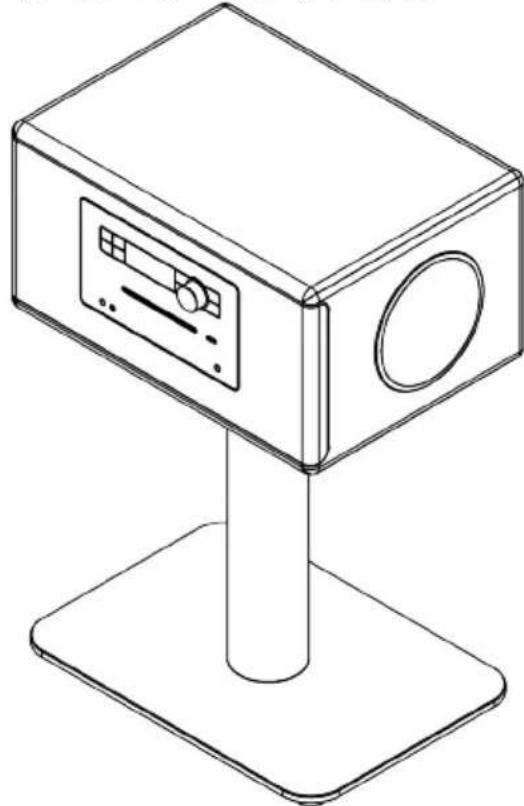
Turning the sonoroHIFI the right way up
Fig. 15: Attached sonoroHIFI stand
16.

NOTICE!
Damage to the device due to incorrect handling!
Never tilt the device over its stand.
- Working in a team of two, lift up the device in order to turn it the right way round and position it where you want it.
4.5 Connecting the antenna
i
The supplied antenna is an auxiliary antenna. If the device cannot get sufficient reception via the roof/DAB antenna, the auxiliary antenna can be connected to help.
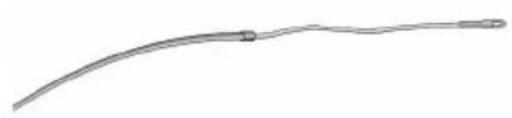
Fig. 16: Antenna cable
A NOTICE!
Reduced reception and device defects due to incorrect connection of the antenna cable!
If the antenna cable is not connected and set up properly, this may cause material damage and reception problems.
- Never place the AHTGYYADAdG close to metal objects or other electrical devices. There may be metal rails in your walls, especially close to the doors and edges. Please note that the influence of these rails can impair the reception of your sonoroHIFI.
- Try out different antenna positions to find a suitable reception area.
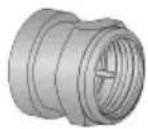
Fig. 17: Connecting the antenna
- Screw the supplied FM/DAB antenna (Fig. 17) into the DAB/FM antenna port on the back of the device.
- Unfold and align the antenna so that you have the best possible reception.
For the best possible reception, ensure that the antenna is always positioned vertically
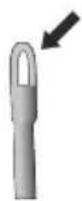
Fig. 18: Antenna fixing loop
- Fix the loop at the end of the antenna cable (Fig. 18) in the desired position using a drawing pin or piece of sticky tape, for example.
4.6 Switching the device on and off
Switching the device on
- Establish a power supply by switching the mains power switch on the back of the device to "On" ([I]).
The device is in standby mode.
i
After you have switched the device on for the first time, the LCD display shows the operation language selection, clock display and the message „Tune to FM RDS station to set time & date".
- You can now set the display date and time manually.
Setting the date and time" on page 90
i
If your device is receiving a station with an RDS signal in FM/DAB mode, the time and date will be set automatically (unless this function has been disabled).
- Press .
The device is on.
Switching the device off
- Press

The device is in standby mode.
- Disconnect the power supply by switching the mains power switch on the back of the device to Off ([0]).
4.7 Connecting the headphones
A set of headphones with a 3.5mm stereo jack (not included in the package) can be connected to the device.
WARNING!
Risk of injury from improper headphone use!
Improper use of headphones can damage your hearing.
-
Do not set the volume too high when using the headphones.
-
Turn to the left to set the volume to minimum.
-
Insert the headphone jack into the headphone port on the front of the device.
The speakers are muted. The display shows symbol
- Slowly turn to the right to increase the volume.
1 Deactivation of EQ effects
If an equaliser effect (3D HIFI, Loudness, Crisp Sound) is set on your device, it will be deactivated automatically when you connect your headphones. The EQ symbol on the display will disappear.
The bass and treble settings will remain unchanged when you connect your headphones.
4.8 Display brightness level
The display brightness level can be adjusted using the "Display Dimmer" setting.
Setting on the device itself
- Press .
- Turn until the display shows "Settings".
- Press.
You are now in the „Settings" menu. The display shows the „Time Format" setting.
- Turn until the display shows the „Display Dimmer" setting.
- Press.
You are now in the „Display Dimmer" setting. The display shows „Display High".
- Adjust the brightness level from 8-15 by turning
- Press to confirm your selection.
The display brightness level for well-lit rooms is now set. The display shows „Display Low".
- Adjust the brightness level from 1-8 by turning
- Press to confirm your selection.
The display brightness level for low-lit rooms is now set.
Setting using the remote control
-
Press and hold. DIMMER
-
Adjust the brightness level from 8-15 by pressing and
-
Press to confirm your selection.
The display brightness level for well-lit rooms is now set. The display shows "Display Low".
- Adjust the brightness level from 1-8 by
pressing and
- Press to confirm your selection.
The display brightness level for low-lit rooms is now set.
4.9 Setting the date and time
You can make the following adjustments to the date and time:
Set the time (manually).
Set the date (manually).
Switch the display date on/off.
Set the time format.
Set the date format.
Set the automatic time/date update function.
i
After 10 seconds of inactivity, the device automatically goes into Standby mode. Any changes to the settings that have not been completed will not be saved.
Manual time adjustment
Prerequisite: The device is in standby mode.
- Press or SETUP
The display shows the „Set Time“ setting.
- Press
You are now in the „Set Time“ setting. The hour display flashes.
-
Turn until the display shows the correct hour.
-
Press to confirm the hour.
The minute display flashes.
-
Turn until the display shows the correct minute.
-
Press to confirm the minute.
The time is set.
i
Use the and buttons to switch between the hours and minutes displays.
Manual date adjustment
Prerequisite: The device is in standby mode.
- Press or SETUP
The display shows the „Set Time“ setting.
-
Turn until the display shows the „Set Date" setting.
-
Press.
The day display flashes.
-
Turn until the display shows the correct day.
-
Press to confirm the day.
The month display flashes.
-
Turn until the display shows the correct month.
-
Press to confirm the month.
The year display flashes.
-
Turn until the display shows the correct year.
-
Press to confirm the year.
The date is set.
i
Use the and buttons to switch between the day, month and year displays.
Switch display date on/off
Prerequisite: The device is in standby mode.
- Press or SETUP
The display shows the "Set Time" setting.
-
Turn until the display shows the "Display Date" setting.
-
Press.
You are now in the „Display Date" setting.
- To activate the date display: Turn until the display reads "On".
To deactivate the date display: Turn until the display reads "Off".
- Press to confirm your selection.
The date display is activated/deactivated.
Time format
Prerequisite: The device is on.
- Press SETUP or SETUP
The display shows the „Bass“ setting.
-
Turn until the display shows „Settings".
-
Press.
You are now in the „Settings" menu. The display shows the „Time Format" setting.
-
Press again.
-
Turn to select the time format you want to use. You can choose from the following formats:
12-hour format
24-hour format
i
In 12-hour format, the time display is followed by either AM'' (for the 1st half of the day) or PM'' (for the 2nd half of the day).
- Press to confirm your selection.
The time format is set.
Date format
Prerequisite: The device is on.
- Press SETUP or SETUP
The display shows the „Bass“ setting.
-
Turn until the display shows Settings
-
Press.
You are now in the „Settings“ menu. The display shows the „Time Format“ setting.
-
Turn (O) until the display shows the „Date Format" setting.
-
Press again.
You are now in the „Date Format“ setting.
- Turn (O) to select the date format you want to use.
You can choose from the following formats:
Weekday, day, month, year.
Weekday, month, day, year
Weekday, month (in words), day, year
- Press to confirm your selection.
The date format is set.
Setting the automatic time/date update function
Switching on the automatic time/date update function automatically synchronizes the time and date in the FM radio and DAB radio operating modes.
Prerequisite: The device is on.
- Press SETUP or SETUP
The display shows the „Bass“ setting.
-
Turn until the display shows Settings
-
Press.
You are now in the „Settings" menu. The display shows the „Time Format" setting.
-
Turn until the display shows the „Set Time" setting.
-
Press again.
You are now in the „Clock Update“ setting.
- To activate the automatic time/date display: Turn until the display reads „Auto Clock".
To deactivate the automatic time/date display: Turn until the display reads „Manual Clock".
- Press to confirm your selection.
The automatic time/date update function is set.
4.10 Setting the display language
You can set the language for the menu and the playback display.
Prerequisite: The device is on.
- Press or SETUP
The display shows the „Bass“ setting.
-
Turn until the display shows „Settings".
-
Press.
You are now in the „Settings" menu. The display shows the „Time Format" setting.
-
Turn until the display shows the Language setting.
-
Press again.
You are now in the „Language“ setting.
- Turn to set the desired language. You can choose from the following display languages:
German
French
■ English
- Press to confirm your selection.
The display language is set.
4.11 Resetting the device to the factory settings
If necessary, you can reset all the settings you have altered, such as language, time format and saved stations, to the factory settings.
Prerequisite: The device is on.
- Press the or button.
The display shows the „Bass“ setting.
- Turn until the display shows Settings".
- Press to go to the „Settings" menu.
The display shows the „Time Format“ setting. - Turn until the display shows the „Reset" setting.
- Press to go to the „Reset" setting.
- Turn until the display shows the „System Reset“ setting.
- Press to confirm your selection.
The device is reset to the factory settings.
5 Experience audio with the sonorHIFI
5.1 Adjusting the volume
1.
WARNING!
Risk of hearing damage due to listening at excessive volumes!
Adjust the volume carefully. Turn (to) increase or decrease the volume.
Alternatively:
Adjust the volume carefully
using
The display shows the „Vol(ume)“ setting and a setting bar.
- Press

to confirm the selected volume.

The volume is set.
5.2 Sound settings
5.2.1 Adjusting the bass and treble
When the device is on, you can adjust the bass and treble levels to tailor the sound of the audio playback to your needs.
Adjusting the bass and treble levels on the device itself
Prerequisite: The device is on.
- Press

-
Turn (O) until the display shows the „Bass“ setting (to adjust the bass) or the „Treble“ setting (to adjust the treble).
-
Press to go to the menu for the selected setting.
-
Turn to set the bass and treble levels.
-
Press again to confirm your selection. The bass and treble levels are set.
Setting the bass and treble levels using the remote control
Prerequisite: The device is on.
- Press BASS (to adjust the bass level setting) or TREBLE (to adjust the treble level setting).
- Press on and oset the bass and treble to the levels you want.
- Press to confirm your selection. The bass and treble levels are set.
5.2.2 Setting the equaliser effect
When the device is on, you can use different equaliser effects to tailor the sound of the audio playback to your needs. You can choose from the following equaliser effects:
3D HIFI extends the stereo area, thus improving the depth of your music playback.
Loudness adapts the treble and bass levels to suit the current volume, so that delicate sounds can still be heard clearly when you listen to your music quietly.
- Crisp Sound artificially steps up the signal to provide a clear sound when you are listening to low-fidelity music. Crisp Sound is particularly well suited to the playback of compressed audio files, such as MP3s.
Activating the equaliser effect on the device itself Prerequisite: The device is on.

- Press
- Turn until the display shows the "Equalizer Effect" setting.
- Press.
You are now in the „Equalizer Effect“ setting. - Turn to set the desired equaliser effect.
- Press again to confirm your selection.
The display shows the selected equaliser effect and the word "On". The equaliser effect is activated.
Activating the equaliser effect using the remote control
Prerequisite: The device is on.
-
Press . EQ
-
Press on and to set the desired equaliser effect.
-
Press to confirm your selection.
The display shows the selected equaliser effect and the word On . The equaliser effect is activated.
Deactivating the equaliser effect
Prerequisite: The device is on.
- To deactivate your selection and switch off the equaliser effect, go to the „Equalizer Effect“ setting and press or gain.
The display shows the equaliser effect and the text ^,Off^ . The equaliser effect is deactivated.
5.3 Selecting an audio source
The sonoroHIFI allows you to play back radio and audio data from a variety of media. You can choose from the following sources:
Radio (FM, DAB)
CD
Bluetooth
AUX IN 1 or AUX IN 2
Optical In
Selecting an audio source
Prerequisite: The device is on.
- Press FUNCTION repeatedly until the source you want to use is displayed.
Alternatively:
Press the button for the source you want to use on the remote control.
FM FM mode
ABmode
CD CD mode
- bluetooth mode
AUX AUX mode
OCTical in mode
The display shows the selected source.
- Press or confirm your selection.
Audio playback will start automatically.
5.3.1 Radio playback
The sonoroHIFI allows you to listen to both FM and DAB radio.
Switching on radio mode
- Press FUNCTION repeatedly until the display shows FM Radio" or DAB Radio".
- Press or t onfirm your selection.
Alternatively:
Briefly press
Radio mode is on. The display shows „FM Radio" or „DAB Radio", and the corresponding symbol (Fig. 19/1) lights up on the top half of the display.
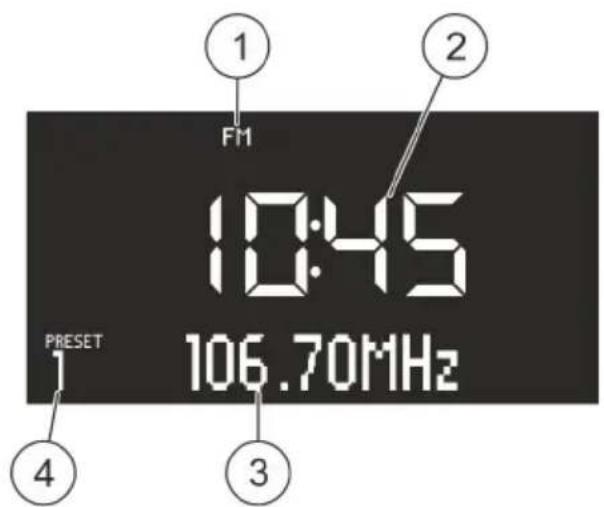
Fig. 19: Display in radio mode
① Mode: FM or DAB radio.
② Time
③ Station name, RDS text (if the station transmits RDS text) or frequency.
④ Saved programme channel, if the radio station is stored in the programme memory.
i
RDS is only available for stations in the FM frequency range and only if the corresponding station transmits RDS data.
5.3.1.1 FM radio
FM (Frequency Modulation")
Allows you to receive analogue VHF radio. FM radio is transmitted via VHF band II and covers a frequency range of 87.5 MHz to 108.0 MHz.
Finding FM stations
Automatic search
Prerequisite: The device is in FM mode.
- Press and hold the or to activate the automatic search function.
The display shows the text „Auto Tuning".
- Press to confirm your selection.
Alternatively:
Manual search
Prerequisite: The device is in FM mode.
- Press and hold to activate the manual station search function.
The display shows the text „Manual Tune".
- Turn to change the frequency range.
- Press to confirm your selection.
Alternatively:
Search using the automatic search
Prerequisite: The device is in FM mode.
- Press .
The display shows the text ,FM Preset List". - Turn until the display shows FM Auto Search".
- Press.
The display shows the „Auto Search YES" text.
- Press again to confirm your selection.
The automatic full scan is started. After the search is complete, the playback will automatically jump to the first station on the list.
i
The automatic full scan function automatically creates and saves a station list with up to 30 stations. The stations are sorted according to the strongest reception.
Storing FM stations
Storing using the remote control
Prerequisite: The device is in FM mode.
- Press and hold one of the station preset buttons (1o)9h the remote control.
The station is saved. The display shows the station preset number.
Alternatively:
Saving on the device itself
Prerequisite: The device is in FM mode.
1. Press
Turn unitl the display shows the text ,FM Preset Store".
- Press to confirm your selection.
The display shows the station preset number.
-
Turn to select the desired station preset.
-
Press again.
The station is saved. The display shows the station preset number.
Alternatively:
- Press and hold . FAVORITE
The shortcut for the „FM Preset Store“
Retrieving saved FM stations
Retrieval using the remote control
Prerequisite: The device is in FM mode.
- Briefly press one of the station preset buttons
The selected station is retrieved.
Alternatively:
Retrieving on the device itself
Prerequisite: The device is in FM mode.
- Press to retrieve a station from your favourites list.
- To retrieve the next station from your favourites list, press again.
The selected station is retrieved.
5.3.1.2 DAB radio
i DAB (Digital Audio Broadcasting)
Allows you to receive digital radio. DAB radio is transmitted via VHF band III and covers a frequency range of 174.9 MHz to 239.2 MHz.
Finding DAB stations
Manual search
Prerequisite: The device is in DAB mode.
- Press .
The display shows the „DAB Preset List" text. - Turn until the display shows „DAB Manual Tune".
- Press o to cirm your selection.
- Turn to set the different frequencies.
- Press to confirm your selection.
Alternatively:
Search using the automatic search
Prerequisite: The device is in DAB mode.
1. Press . SETUP
The display shows the „DAB Preset List" text.
-
Turn until the display shows „DAB Full Scan".
-
Press to confirm your selection.
The automatic full scan is started. Once the search is complete, the device will automatically go to the first station on the list.
i
When DAB mode is switched on for the first time or the device has been reset to the factory settings, the full scan is performed automatically.
Storing a DAB station
Storing using the remote control
Prerequisite: The device is in DAB mode.
- Press and hold one of the station preset buttons (to) the remote control.
The station is saved. The display shows the station preset number.
Alternatively:
Saving on the device itself
Prerequisite: The device is in DAB mode.
- Press and hold FAVORITE to add the station to your favourites list.
The shortcut for the „DAB Preset Stroe"
Retrieving saved DAB stations
Retrieval using the remote control
Prerequisite: The device is in DAB mode.
- Briefly press one of the station preset buttons
(1 to 7)
The selected station is retrieved.
Alternatively:
Retrieving on the device itself
Prerequisite: The device is in DAB mode.
- Press FAVORITE briefly to retrieve a station from your favourites list.
- To retrieve the next station from your favourites list, press again.
The selected station is retrieved.
Deleting inactive DAB stations
If the DAB station list created using the DAB full scan function is out of date (e.g. after a change of address), you can remove inactive stations as follows:
Prerequisite: The device is in DAB mode.
1. Press .
The display shows the „DAB Preset List" text.
2. Turn until the display shows „Prune List".
3. Press to begin pruning.
Inactive DAB stations are deleted. In the meantime, „Pruning“ is displayed.
Retrieving DAB info
DABinfo
In DAB mode, you can retrieve information on the station, programme, etc. This information is displayed in the following order:
- Station name (starting point)
- Broadcaster
- DLS ("Dynamic Label Service" = text with programme-related information, e.g. artist, track, etc.)
-Programme type (e.g.sport) - Station frequency
- Signal quality
Retrieving on the device itself
Prerequisite: The device is in DAB mode.
- Press .

The display shows the DAB information in the order listed above.
- To retrieve more information, press

- Proceed accordingly to retrieve further DAB information.
Alternatively:
Retrieval using the remote control
Prerequisite: The device is in DAB mode.
- Press

The display shows the DAB information in the order listed above.
- To retrieve more information, press

- Proceed accordingly to retrieve further DAB information.
Changing the DRC settings
i DRC (Dynamic Range Compression)
If a set DAB station supports DRC, the DRC setting can be used to adjust the intensity of the bass and treble, and adapt the volume to the surroundings. You can choose from the following settings:
- ^ 一 DRC High
- DRC Low
-,DRC Off"
Prerequisite: The device is in DAB mode.
- Press

The display shows the „DAB Preset List" text.
- Turn

until the display shows „DRC Setting".
- Press


firm your selection.
- Turn on press and required setting.


- Press o to confirm the setting.
The DRC is set.
5.3.2 CD playback
A NOTICE!
Material damage due to improper operation!
Improper operation will cause malfunctions and damage to your device.
- Do not insert any recording media that deviate from the standard CD format (e.g. mini-discs, etc.) into the CD player. The CD player may not be able to play or eject such formats correctly.
- Do not use damaged or dirty CDs.
- Insert only one disc at a time into the CD player.
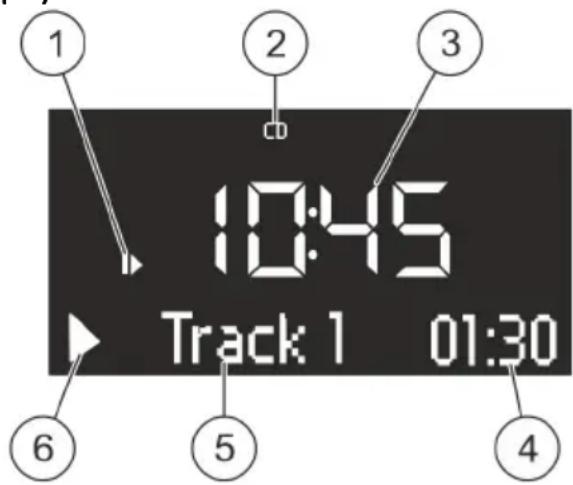
Display in CD mode
① Playback order ( , Setting the playback order" on page 99)
CD mode
③ Time
4 Elapsed time in minutes
⑤ Track number
⑥ Playback status (Play/Pause)
Inserting a CD
- Slowly insert the CD into the CD slot with the label side up until the device pulls the CD in.
i
If the device is in a different mode, it will automatically switch to CD mode.
CD playback begins.
Start playback of a CD that is already in the device Prerequisite: The device is on.
- Press FUNCTION until the display shows CD^
- Press or confirm your selection.
Alternatively:
Briefly press CD
CD mode is switched on. CD playback is now possible.
Controlling playback in CD mode
Prerequisite: CD mode is switched on.
- You can control playback in CD mode using the relevant buttons on the remote control or the device itself. The following buttons are active in CD mode:
/Play/Pause start playback; pause playback; resume playback.
skip forwards" = skip to next track (brief press); fast forward through current track (press and hold).
■ skip backwards" = skip to previous track (brief press); rewind through current track (press and hold).
"Stop" = stop playback.
i
If you want to listen to a particular track on the CD, you can select this track number directly using the number buttons .9
Setting the playback order
- Press to open the CD menu.
- Turn to select the order in which you want to play the tracks. You can choose from the following options:
"Repeat One" = the current track will played again when it finishes. This function is deactivated when you switch modes or eject the CD.
Repeat Disc^ = all the tracks on the CD will be played again when the CD finishes. This function is deactivated when you switch modes or eject the CD.
"Shuffle Disc" = the tracks on the CD are played in a random order. This also happens when you press or . This function is deactivated when you switch modes or eject the CD.
CD Resume" = the CD will resume playback from the position at which playback was last paused, even if you have switched modes or switched the device to standby mode. This function is deactivated when you eject the CD. This function is intended for audio books, for example.
- Press to confirm your selection.
The playback order is set.
Ejecting a CD
Prerequisite: CD mode is switched on.
- Press

The CD is ejected.
5.3.3 Bluetooth playback
Mobile phones and other Bluetooth-enabled devices can be paired with the sonoroHIFI via Bluetooth. The device can store up to 8 Bluetooth devices, and pairs with previously configured devices automatically when Bluetooth is enabled on the external device in question.
Switching on Bluetooth mode
Prerequisite: The device is on.
-
Press FUNCTION until the display shows "Bluetooth".
-
Press or confirm your selection.
Alternatively:
Briefly press
Bluetooth mode is now active. The display shows „Searching“, and the symbol flashes on the top half of the display.
Pairing Bluetooth devices
i
Refer to the manual of your external device for help.
Prerequisites:
The device is in Bluetooth mode.
Bluetooth is activated on the external device (e.g. mobile phone).
- Follow the instructions in the external device's manual to pair it with the sonoroHIFI via Bluetooth.
After pairing, the display shows the „Bluetooth" text.
Controlling playback in Bluetooth mode
Prerequisite: An external device is connected to the sonoroHIFI via Bluetooth.
- Follow the instructions in the external device's manual to start playback.
2.
i
The buttons on the sonoroHIFI and its remote control will can be used to control some of the functions on the external device.
You can control playback in Bluetooth mode using the relevant buttons on the remote control or the device itself. The following buttons are active in Bluetooth mode:
/ /Praise/Pause" start playback; pause playback; resume playback.
■ / skip forwards" = skip to next track (brief press); fast forward through current track (press and hold).
■ / skip backwards" = skip to previous track (brief press); rewind through current track (press and hold).
"Stop" = switching music track information if it is available.
Deleting connected devices
Prerequisite: The device is in Bluetooth mode.
- Press and hold
to disconnect the Bluetooth ete the external device.
i
The device can store up to 8 pairings with external Bluetooth devices. When it is paired with a 9th external device, the external device in the first storage space is automatically deleted.
5.3.4 AUX playback
i
The AUX IN 1 input can be used to connect and play back from other audio devices using an RCA cable.
- The AUX IN 2 input can be used to connect and play back from other audio devices using a 3.5 mm jack.
Prerequisite: The device is on.
- Plug the RCA cable into the AUX IN 1 input/the 3.5mm jack into the AUX IN 2 input on the back of the device.
- Press FUNCTION repeatedly until the display shows „Aux.1 Input" or „Aux.2 Input".
- Press oTo a firm your selection.
Alternatively:
Briefly press AUX
- Turn on the external device and use it to control playback.
5.3.5Playback via Optical In
i
The Optical In input can be used to connect and play back from other audio devices using a TOSLINK cable.
Prerequisite: The device is on.
- Insert the TOSLINK cable into the Optical In input on the back of the device.
- Press repeatedly until the display shows "Optical Input".
- Press or to OK firm your selection.
Alternatively:
Briefly press OPT
- Turn on the external device and use it to control playback.
5.4 Playing back demo music
1 Demo music
Demo music can be played in standby mode to demonstrate the device in a shop, for example. The following tracks are available as demo music:
- Hotel California
- Acoustics
New Age - Classical
-Jazz - Rock
Activating demo music
Prerequisite: The device is in standby mode.
- Press and hold for approx. 3 seconds.
Demo music mode is activated. - Use or to select the track you wish to play.
The display shows the title of the demo music.
i
The following buttons are active:




Deactivating demo music
- Press .
Alternatively:
Press and hold for approx. 3 seconds.
Demo music mode is deactivated.
5.5 Muting the audio playback
Prerequisite: The device is in playback mode.
Muting the sound
- Press or to mut the sound.
The display shows the text „Volume Mute". The sound is muted.
Switching the sound back on
- Press MUTE orain to switch the sound back on.
The sound is switched on again.
6 Relaxing with the sonoroHIFI
6.1 Play Relax Music
Relax Music
The "Relax" function on your sonoroHIFI allows you to relax. A range of natural sounds to help you relax and rest are saved in your sonoroHIFI.
You can choose from the following tracks:
Ocean Surf
-Whales
- Birds
-Rain
WindChimes
-Fireplace
Prerequisite: The device is on.
- Press FUNCTION repeatedly until the display shows „Relax Music".
Alternatively:
Briefly press RELAX
The device switches to Relax mode.
- Press / or to select stack.
Alternatively:
Press one of the memory buttons to .
The track will start to play.
i
The following buttons are active:





6.2 Playing meditative music
1 Meditative music
The "Meditate" function on your sonoroHIFI also allows you to relax. It consists of audio modules saved in your sonoroHIFI that provide instructions to help you meditate.
You can choose from the following audio modules:
-Quickrelaxation
- Meditative relaxation
Progressive muscle relaxation
-A journey of the imagination
Relax music
Playing meditative music
Prerequisite: The device is on.
- Press FUNCTION repeatedly until the display shows "Meditate Music".
Alternatively:
Briefly press MEDITATE
The device switches to Meditate mode.
- Press one of the memory buttons 1 to 5o choose one of the 5 audio modules ( 念 _ 念 Overview of German audio modules" on page 104).
The first track in the selected audio module starts to play.
3.To play another track from the same module, press / /
Setting the language for the meditative music Prerequisite: The device is in Meditate mode.
- Press


The display shows the „Bass“ setting.
-
Turn until the display shows „Music Content".
-
Press to go to the Language menu.
-
Turn to select the required language for your mediation.
You can choose from the following languages:
German
■ „English“
French
i
The language chosen for the Meditate function does not affect the language of the user interface.
-
Setting the display language" on page 92
-
Press again to confirm your selection.
The meditative music will be played in the selected language. The display also shows the tracks in the selected language.
Overview of German audio modules
Overview of English audio modules
| Audio module Track no. | Track title | |
| 1 | 1 Intro — Relaxing by feeling your pulse | |
| 2 Relaxing by feeling your pulse | ||
| 2 | 1 Quick Relaxation Exercise — Relax by letting go of stress | |
| 2 Relaxing by meditating on our breath | ||
| 3 | 1 Intro — A journey of the imagination “Beach and Warmth” | |
| 2 A journey of the imagination “Beach and Warmth” | ||
| 4 | 1 Intro — Progressive Muscle Relaxation according to Jacobson | |
| 2 Progressive Muscle Relaxation according to Jacobson | ||
| 5 | 1 Relax music 1 | |
| 2 Relax music 2 | ||
| 3 Relax music 3 | ||
| 4 Relax music 4 | ||
| 5 Relax music 5 | ||
Overview of French audio modules
7 Falling asleep and waking up with the sonoroHIFI
You can use the device to wake up with FM/DAB radio, CD, Relax Music or alarm ringtones.
7.1 Setting the alarm
The alarm functions can be used both in standby mode and when the device is on. The Alarm menu takes you through the following steps: Setting the alarm time Setting the alarm source Setting the alarm volume Setting the alarm repetition frequency.
i
If you do not enter any information for approx. 10 seconds when setting the alarm, the setting screen closes without saving your settings.
Setting the alarm time
- Press and ho


The display shows the „Set Alarm 1 Time“ setting
- Press
You are now in the „Set Alarm 1 Time“ setting. The hour display flashes.
-
Turn until the display shows the correct hour.
-
Press to confirm the hour.
The minute display flashes.
-
Turn until the display shows the correct minute.
-
Press to confirm the minute.
The alarm time is set. The display shows the alarm source „Ringtone".
i
Use the and on and but- tons to switch between the hours and minutes displays.
Setting the alarm source
- Turn to select the alarm source.
| FM Select an FM station preset from the station memory that you wish to start the device with and wake up to. | |
| DAB Select a DAB station preset from the station memory that you wish to start the device with and wake up to. | |
| CD Select a track from the CD you wish to start the device with and wake up to. | |
| Relax Music Select a Relax Music track from the memory that you wish to start the device with and wake up to. | |
| Ringtone Select a ringtone from the memory that you wish to start the device with and wake up to. | |
| Beep | |
| Awakening | |
| Bird | |
| Guitar | |
| Piano | |
| Xylophone | |
- Press to confirm the selected alarm source.
The alarm source is set. The display shows the alarm volume under „Alarm Volume".
Setting the alarm volume
-
Adjust the volume from 1-32 by turning
-
Press to confirm the selected volume.
The alarm volume is set. The display shows the alarm repetition frequency „Daily".
Setting the alarm repetition frequency
- Turn to set the desired alarm repetition frequency. You can choose between the following settings:
"Once"
,Daily"
"Weekends"
Weekdays
- Press to confirm the selected repetition frequency.
The alarm repetition frequency is set. The alarm settings are now complete.
7.2 Activating/deactivating the alarm
i
When a set of headphones is connected, the alarm will only sound through the headphones. Make sure there are no headphones connected if you want to activate the alarm.
Activating the alarm
1.To activate the alarm,briefly press or 1
The display shows The alarm is activated.
Deactivating the alarm
- To deactivate the alarm, press / again
8888 is no longer displayed. The alarm is deactivated.
7.3 Switching off the alarm sound
Prerequisite: The alarm sounds.
- Press one of the following buttons to switch off the alarm:
The alarm stops sounding and is switched off.
i
If you want the alarm to sound again a set time after it has been switched off, use the Snooze function.
- „Snoopze settings" on page 107
i
When the alarm has stopped sounding, the set alarm is activated for the next day (unless the "Once" alarm repetition option has been selected).
- Setting the alarm" on page 106
7.4 Snooze settings
Snoopze is a wake-up function that causes the alarm to go off again after a set time interval. You can predefine this time interval or set it after the first alarm signal has gone off.
Setting the Snooze time interval
- Standby mode: Briefly press
Alternatively:
If the device is on: Press and hold
The display shows the „Snoopze“ setting.
-
Turn until the display shows the required time interval for the snooze function.
-
Press to confirm the selected time interval.
The time interval is set.
i
Alternatively, you can turn when the alarm sounds to set the snooze time. Press to confirm the selection.
Activating snooze
Prerequisite: The alarm sounds.
- Press

The Snooze function is activated and the ZZZ appears above the alarm symbol in the display. The display shows the time remaining until the alarm sounds again.
7.5 Sleep timer settings
Sleep Timer is a function you can use when going to bed. It automatically switches the device to standby mode after a predefined time interval.
Setting the time interval for the sleep timer
Prerequisite: The device is on.
- Press and hold

The display shows the „Sleep“ setting.
- Turn

time interval for the Sleep Timer function.

The maximum time interval is 120 minutes.
- Press to confirm the selected time interval.
The time interval is set.
i
Alternatively, you can also adjust the „Sleep“ setting in the following menu path: Setup Settings Sleep Timer Sleep.
Activating the sleep timer
- Press

The sleep timer is activated. The display shows the Sleep symbol.
i
When the set time interval expires, playback gradually fades out.
Deactivating the sleep timer
- Press
The sleep timer is deactivated. Sleep is no longer displayed.
i
When the device is switched off by the sleep timer, it will start in the mode you were listening to last when you turn it on again.
8 Troubleshooting problems with the sonoroHIFI
Malfunctions can occur with any electrical equipment. This is not necessarily due to a device defect. As such, you should check the following table to see if you can eliminate the problem yourself.
| Malfunction Possible cause Solution | ||
| Device does not turn on | Power cable is not properly con- nected | Connect the power cable properly. “,Connecting the power supply” on page 82 |
| Device not responding | Error in the device Switch the device | off and on again. “,Switching the device on and off” on page 88 If the problem persists, please contact sonoro audio GmbH customer support. “,Contact data” on page 63 |
| No sound | Headphones are connected Disconnect | act the headphone jack from the port on the front of the device. |
| Volume is set to minimum Increase the volume. | the volume. “,Adjusting the volume” on page 93 | |
| Sound is turned off Switch on the sound. | and. “,Muting the audio play-back” on page 102 | |
| Device not set to correct mode Select | another audio source. “,Selecting an audio source” on page 94 | |
| CD playback does not start | Incompatible CD format Insert a different CD. | |
| CD is dirty Clean the CD. | ||
| CD is damaged Insert a different CD. | ||
| CD is upside down in the CD slot Ejected the CD and insert it correctly into the CD slot. | ||
| The CD is not an original Insert the original CD or a different CD. | ||
| No Bluetooth connection, or Blue- tooth connection interrupted | Malfunctions due to other radio transmitters or devices | Increase the distance between the sonoroHIFI and the source of the interference. |
| Software on external Bluetooth device not up to date | Make sure that your external Blue- tooth device has the latest software version installed. Contact the manufacturer of your external Blue- tooth device to establish what soft- ware versions are available. | |
| Unable to control an external Blue-tooth device using the sonoroHIFI, or control only works sporadically | The software on the external Blue-tooth device is blocking the sonoro-HIFI from controlling it. | Control playback directly via the external Bluetooth itself. |
| Poor FM/DAB reception | FM/DAB antenna is not properly aligned | Realign the antenna. Connecting the antenna" on page 88 |
| Remote control does not work, or only works sporadically | Distance too great Reduce the distance | ce between the remote control and the device. |
| Battery empty Replace the battery in | the remote control. Inserting the battery" on page 80 | |
| Alarm does not work | Alarm is not switched on Switch on the alarm. Activating/deactivating the alarm" on page 107 | the alarm. Setting the alarm" on page 106 |
| Alarm volume is set to minimum Inc | ease the alarm volume. Setting the alarm" on page 106 | |
| Headphones are connected Disconnect the headphones jack from the port on the front of the device. | ||
| Device displaying incorrect time | DAB station transmitting incorrect time | Deactivate the automatic time setting and set the time manually. Setting the date and time" on page 90 |
9 Cleaning your sonoroHIFI
A NOTICE!
Material damage due to improper cleaning!
Improper cleaning can result in damage to the device or cause certain functions to stop working.
- Never use abrasive or solvent-based cleaning agents, as these may damage the surface of the device.
- Never use hot or compressed air to dry the device.
- The edges and corners of the device are vulnerable to pressure. Protect these areas to prevent them from being subjected to excessive pressure.
Cleaning off fingerprints and light soiling
- Clean the device only from the outside with a soft, dry cloth. Use the sonoroHIFI cleaning cloth included in the scope of delivery.
Scope of delivery" on page 67
Cleaning off heavy soiling
- Clean the device only from the outside with a slightly damp cloth.
- Dry the device with a soft, dry cloth.
10 Warranty
When submitting warranty claims, the following applies without restricting your legal rights:
Warranty claims can only be asserted within a period of max. 2 years (1 year in North America and Australia), calculated from the date of purchase.
sonoro audio GmbH shall, at its own discretion, repair or replace the device free of charge any defects caused by material or manufacturing defects within the warranty period.
In case of a complaint, please contact our customer service department. You can find contact details under "Contact data" on page 63 or at www.sonoro.de.
No new warranty period begins following repair or replacement of the device. The warranty period of 2 years (1 year in North America and Australia) from date of purchase remains applicable.
Excluded from the warranty are batteries, damage caused by improper use, normal wear and tear, as well as defects which only minimally affect the value or usability of the device. The warranty also expires in case of any modifications not made by our authorised service centre.
sonoroHIFI (SO-510)
Pied support sonoroHIFI
Radio (FM, DAB)
CD
Bluetooth
AUX IN 1 ou AUX IN 2
Optical In
1 DAB (Digital Audio Broadcasting)
1 DRC (Dynamic Range Compression)
5.3.4 Lecture via AUX
i
5.3.5 Lecture via Optical In
i
| Module d'écoute N° du titre | Titre | |
| 1 | 1 Intro — Relaxing by feeling your pulse | |
| 2 Relaxing by feeling your pulse | ||
| 2 | 1 Quick Relaxation Exercise — Relax by letting go of stress | |
| 2 Relaxing by meditating on our breath | ||
| 3 | 1 Intro — A journey of the imagination "Beach and Warmth" | |
| 2 A journey of the imagination "Beach and Warmth" | ||
| 4 | 1 Intro — Progressive Muscle Relaxation according to Jacobson | |
| 2 Progressive Muscle Relaxation according to Jacobson | ||
| 5 | 1 Relax music 1 | |
| 2 Relax music 2 | ||
| 3 Relax music 3 | ||
| 4 Relax music 4 | ||
| 5 Relax music 5 | ||
Radio (FM, DAB)
CD
Bluetooth
AUX IN 1 o AUX IN 2
Optical In
1 DAB (Digital Audio Broadcasting)
1 DRC (Dynamic Range Compression)
| Modulo di ascolto N° traccia | Brano | |
| 1 | 1 Intro — Relaxing by feeling your pulse | |
| 2 Relaxing by feeling your pulse | ||
| 2 | 1 Quick Relaxation Exercise — Relax by letting go of stress | |
| 2 Relaxing by meditating on our breath | ||
| 3 | 1 Intro — A journey of the imagination “Beach and Warmth” | |
| 2 A journey of the imagination “Beach and Warmth” | ||
| 4 | 1 Intro — Progressive Muscle Relaxation according to Jacobson | |
| 2 Progressive Muscle Relaxation according to Jacobson | ||
| 5 | 1 Relax music 1 | |
| 2 Relax music 2 | ||
| 3 Relax music 3 | ||
| 4 Relax music 4 | ||
| 5 Relax music 5 | ||
Radio (FM, DAB)
CD
Bluetooth
AUX IN 1 of AUX IN 2
Optical In
Audiobron selectoren
DAB (Digital Audio Broadcasting)
1 DRC (Dynamic Range Compression)
- "DRC High (DRC hoog)"
- "DRC Low (DRC laag)"
- "DRC Off (DRC uit)"
| Luistermodule Tracknr. Titel | ||
| 1 | 1 Intro — Relaxing by feeling your pulse | |
| 2 Relaxing by feeling your pulse | ||
| 2 | 1 Quick Relaxation Exercise — Relax by letting go of stress | |
| 2 Relaxing by meditating on our breath | ||
| 3 | 1 Intro — A journey of the imagination “Beach and Warmth” | |
| 2 A journey of the imagination “Beach and Warmth” | ||
| 4 | 1 Intro — Progressive Muscle Relaxation according to Jacobson | |
| 2 Progressive Muscle Relaxation according to Jacobson | ||
| 5 | 1 Relax music 1 | |
| 2 Relax music 2 | ||
| 3 Relax music 3 | ||
| 4 Relax music 4 | ||
| 5 Relax music 5 | ||