TWireless Black (PC) - Game controller THRUSTMASTER - Free user manual and instructions
Find the device manual for free TWireless Black (PC) THRUSTMASTER in PDF.



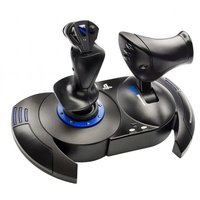
| Product type | Wireless video game controller |
| Brand | Thrustmaster |
| Model | T-Wireless Black (PC) |
| Compatibility | PC (Windows Vista, 7, 8) and PlayStation 3 |
| Power supply | 3 LR03/AAA batteries (1.5 V) not included |
| Battery life | Automatic shutdown after 5 minutes of inactivity |
| Connectivity | Wireless via USB receiver |
| Action buttons | 8 buttons |
| Analog sticks | 2 analog sticks with digital buttons |
| Directional pad | Yes |
| Additional buttons | SELECT, START, HOME, MAP |
| Programming | Swapping buttons and sticks via MAP button |
| Receiver | USB, compatible with PC and PS3 |
| Dimensions (approx.) | 155 x 105 x 65 mm |
| Weight (without batteries) | Approximately 250 g |
| LED indicators | On controller and receiver (signal, low battery) |
| Maintenance | Clean with a soft, dry cloth |
| Safety | Do not expose to water, use recommended batteries |
| Warranty | 2 years (EU), 1 year outside EU (according to legislation) |
| Environment | Do not dispose of with household waste, recycle |
| Warning | Not suitable for children under 14 years |
| Spare parts | Not available for user repair |
| Repairability | Technical support only (support.thrustmaster.com) |
Frequently Asked Questions - TWireless Black (PC) THRUSTMASTER
User questions about TWireless Black (PC) THRUSTMASTER
0 question about this device. Answer the ones you know or ask your own.
Ask a new question about this device
Download the instructions for your Game controller in PDF format for free! Find your manual TWireless Black (PC) - THRUSTMASTER and take your electronic device back in hand. On this page are published all the documents necessary for the use of your device. TWireless Black (PC) by THRUSTMASTER.
USER MANUAL TWireless Black (PC) THRUSTMASTER
- 8 action buttons
- SELECT and START buttons
- D-Pad
- Gamepad LED
- MAP button (for programming)
-
HOME button for PlayStation®3
-
2 analog mini-sticks / 2 digital action buttons
- POWER switch
- Battery compartment
- Receiver LED
- PC and PS3 connector on Wireless receiver
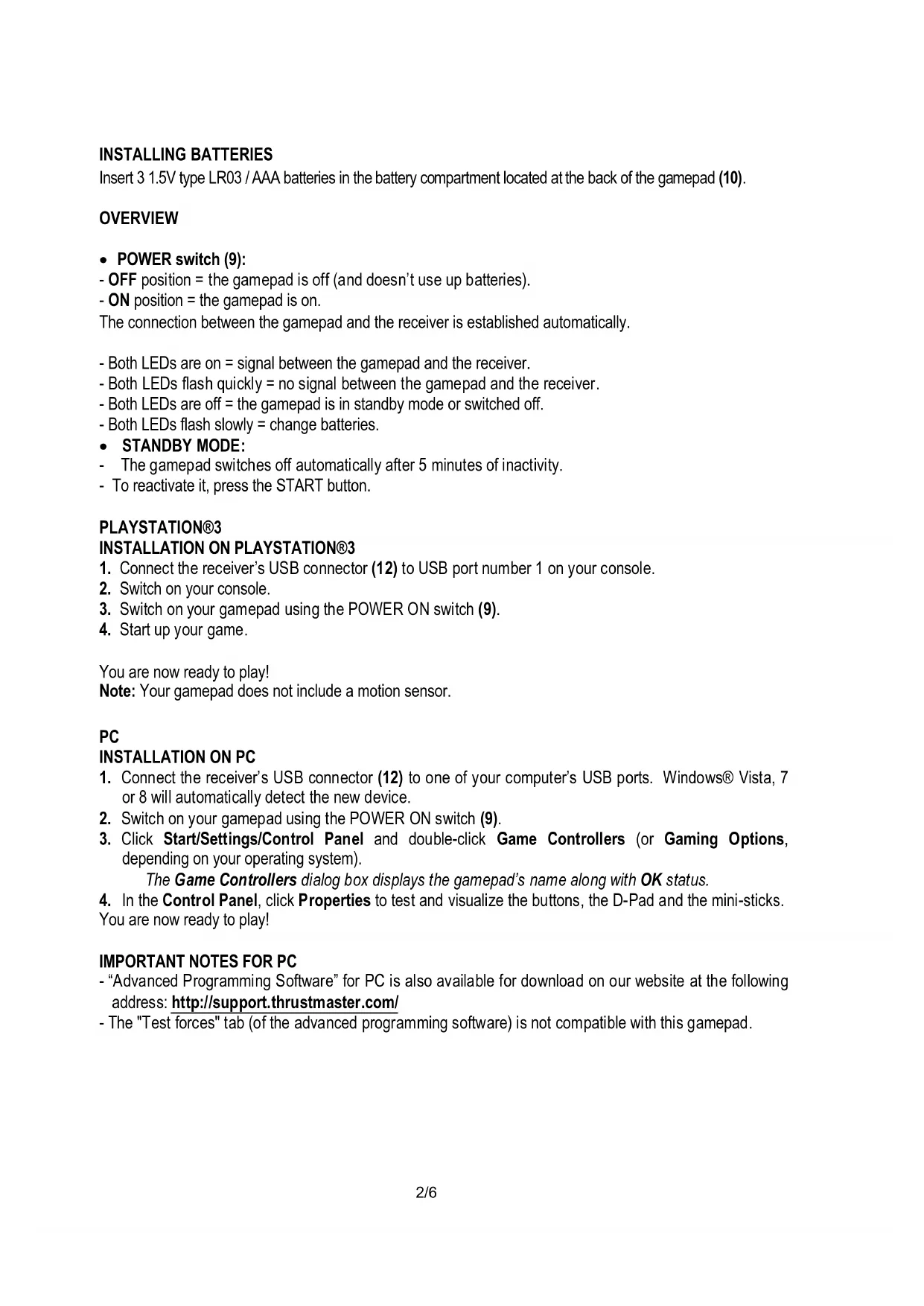
INSTALLING BATTERIES
Insert 3 1.5V type LR03 / AAA batteries in the battery compartment located at the back of the gamepad (10).
OVERVIEW
-
POWER switch (9):
-
OFF position = the gamepad is off (and doesn't use up batteries).
- ON position = the gamepad is on.
The connection between the gamepad and the receiver is established automatically.
- Both LEDs are on = signal between the gamepad and the receiver.
- Both LEDs flash quickly = no signal between the gamepad and the receiver.
- Both LEDs are off = the gamepad is in standby mode or switched off.
- Both LEDs flash slowly = change batteries.
STANDBY MODE:
- The gamepad switches off automatically after 5 minutes of inactivity.
- To reactivate it, press the START button.
PLAYSTATION®3
INSTALLATION ON PLAYSTATION®3
- Connect the receiver's USB connector (12) to USB port number 1 on your console.
- Switch on your console.
- Switch on your gamepad using the POWER ON switch (9).
- Start up your game.
You are now ready to play!
Note: Your gamepad does not include a motion sensor.
PC
INSTALLATION ON PC
- Connect the receiver's USB connector (12) to one of your computer's USB ports. Windows® Vista, 7 or 8 will automatically detect the new device.
- Switch on your gamepad using the POWER ON switch (9).
- Click Start/Settings/Control Panel and double-click Game Controllers (or Gaming Options, depending on your operating system).
The Game Controllers dialog box displays the gamepad's name along with OK status.
- In the Control Panel, click Properties to test and visualize the buttons, the D-Pad and the mini-sticks. You are now ready to play!
IMPORTANT NOTES FOR PC
- "Advanced Programming Software" for PC is also available for download on our website at the following address: http://support.thrustmaster.com/
- The "Test forces" tab (of the advanced programming software) is not compatible with this gamepad.
ADVANCED FUNCTIONS
PROGRAMMING BUTTONS / MINI-STICKS / D-PAD
All buttons, directions of the mini-sticks and of the D-Pad can be switched using the MAP button (5).
Examples of possible applications:
- Switching the functions of buttons
- Switching the 2 mini-sticks (in this case, you must map the 4 directions of the first mini-stick to the 4 directions of the second)
- Switching the D-Pad with a mini-stick (in this case, you must map the 4 directions of the D-Pad to the 4 directions of the mini-stick in question).
- Programming/switching procedure:
| Steps Action | LED (4) (on gamepad) | |
| 1 | Press and release the MAP button (5) | RED |
| 2 | Press and release the button or direction to switch | FLASHES IN RED |
| 3 | Press and release the button or direction where you wish to place the function | GREEN |
The two functions are now switched.
- To return to "default" programming (to erase all of your programming):
| Steps Action | LED (4) (on gamepad) | |
| 1 | Press and hold the MAP button (5) for 2 seconds | FLASHES IN GREEN |
| 2 | Release the MAP button (5) | GREEN |
Your programming is now erased.
Please note that your programming also disappears each time the gamepad is disconnected or when the gamepad (or console) is in standby or restarts.
TROUBLESHOOTING AND WARNING
- My gamepad doesn't function properly or doesn't seem to be properly calibrated:
- Please exit the game, switch off your gamepad and unplug the receiver from your console or PC. Resume normal game play by plugging the receiver back in, then switch on the gamepad and launch the game again.
-
Never move the mini-sticks when connecting your gamepad (to avoid any calibration problems).
-
I can't configure my gamepad:
-
In your game's "Options/Controller/Gamepad" menu: select the most appropriate configuration.
- Please refer to you game's user manual or online help for more information.
- You can also use your gamepad's "programming" function to resolve this type of problem.
When you're done using your gamepad, we recommend that you always set your gamepad's POWER switch (9) to the OFF position (to extend battery life).
CONSUMER WARRANTY INFORMATION
Worldwide, Guillemot Corporation S.A., whose registered office is located at Place du Granier, B.P. 97143, 35571 Chantepie, France (hereinafter "Guillemot") warrants to the consumer that this Thrustmaster product shall be free from defects in materials and workmanship, for a warranty period which corresponds to the time limit to bring an action for conformity with respect to this product. In the countries of the European Union, this corresponds to a period of two (2) years from delivery of the Thrustmaster product. In other countries, the warranty period corresponds to the time limit to bring an action for conformity with respect to the Thrustmaster product according to applicable laws of the country in which the consumer was domiciled on the date of purchase of the Thrustmaster product (if no such action exists in the corresponding country, then the warranty period shall be one (1) year from the original date of purchase of the Thrustmaster product).
Notwithstanding the above, rechargeable batteries are covered by a warranty period of six (6) months from the date of original purchase.
Should the product appear to be defective during the warranty period, immediately contact Technical Support, who will indicate the procedure to follow. If the defect is confirmed, the product must be returned to its place of purchase (or any other location indicated by Technical Support).
Within the context of this warranty, the consumer's defective product shall, at Technical Support's option, be either replaced or returned to working order. If, during the warranty period, the Thrustmaster product is subject to such reconditioning, any period of at least seven (7) days during which the product is out of use shall be added to the remaining warranty period (this period runs from the date of the consumer's request for intervention or from the date on which the product in question is made available for reconditioning, if the date on which the product is made available for reconditioning is subsequent to the date of the request for intervention). If permitted under applicable law, the full liability of Guillemot and its subsidiaries (including for consequential damages) is limited to the return to working order or the replacement of the Thrustmaster product. If permitted under applicable law, Guillemot disclaims all warranties of merchantability or fitness for a particular purpose.
This warranty shall not apply: (1) if the product has been modified, opened, altered, or has suffered damage as a result of inappropriate or abusive use, negligence, an accident, normal wear, or any other cause unrelated to a material or manufacturing defect (including, but not limited to, combining the Thrustmaster product with any unsuitable element, including in particular power supplies, rechargeable batteries, chargers, or any other elements not supplied by Guillemot for this product); (2) if the product has been used for any use other than home use, including for professional or commercial purposes (game rooms, training, competitions, for example); (3) in the event of failure to comply with the instructions provided by Technical Support; (4) to software, said software being subject to a specific warranty; (5) to consumables (elements to be replaced over the product's lifespan: disposable batteries, audio headset or headphone ear pads, for example); (6) to accessories (cables, cases, pouches, bags, wrist-straps, for example); (7) if the product was sold at public auction.
This warranty is nontransferable.
The consumer's legal rights with respect to laws applicable to the sale of consumer goods in his or her country are not affected by this warranty.
Additional warranty provisions
During the warranty period, Guillemot shall not provide, in principle, any spare parts, as Technical Support is the only party authorized to open and/or recondition any Thrustmaster product (with the exception of any reconditioning procedures which Technical Support may request that the consumer carry out, by way of written instructions - for example, due to the simplicity and the lack of confidentiality of the reconditioning process - and by providing the consumer with the required spare part(s), where applicable).
Given its innovation cycles and in order to protect its know-how and trade secrets, Guillemot shall not provide, in principle, any reconditioning notification or spare parts for any Thrustmaster product whose warranty period has expired.
In the United States of America and in Canada, this warranty is limited to the product's internal mechanism and external housing. In no event shall Guillemot or its affiliates be held liable to any third party for any consequential or incidental damages resulting from the breach of any express or implied warranties. Some States/Provinces do not allow limitation on how long an implied warranty lasts or exclusion or limitation of liability for consequential or incidental damages, so the above limitations or exclusions may not apply to you. This warranty gives you specific legal rights, and you may also have other rights which vary from State to State or Province to Province.
Liability
If permitted under applicable law, Guillemot Corporation S.A. (hereinafter "Guillemot") and its subsidiaries disclaim all liability for any damages caused by one or more of the following: (1) the product has been modified, opened or altered; (2) failure to comply with assembly instructions; (3) inappropriate or abusive use, negligence, an accident (an impact, for example); (4) normal wear; (5) the use of the product for any use other than home use, including for professional or commercial purposes (game rooms, training, competitions, for example). If permitted under applicable law, Guillemot and its subsidiaries disclaim all liability for any damages unrelated to a material or manufacturing defect with respect to the product (including, but not limited to, any damages caused directly or indirectly by any software, or by combining the Thrustmaster product with any unsuitable element, including in particular power supplies, rechargeable batteries, chargers, or any other elements not supplied by Guillemot for this product).
FCC STATEMENT
- This device complies with Part 15 of the FCC Rules. Operation is subject to the following two conditions:
(1) This device may not cause harmful interference, and
(2) This device must accept any interference received, including interference that may cause undesired operation.
- Changes or modifications not expressly approved by the party responsible for compliance could void the user's authority to operate the equipment.
NOTE: This equipment has been tested and found to comply with the limits for a Class B digital device, pursuant to Part 15 of the FCC Rules. These limits are designed to provide reasonable protection against harmful interference in a residential installation. This equipment generates, uses and can radiate radio frequency energy and, if not installed and used in accordance with the instructions, may cause harmful interference to radio communications. However, there is no guarantee that interference will not occur in a particular installation. If this equipment does cause harmful interference to radio or television reception, which can be determined by turning the equipment off and on, the user is encouraged to try to correct the interference by one or more of the following measures:
-- Reorient or relocate the receiving antenna.
-- Increase the separation between the equipment and receiver.
-- Connect the equipment into an outlet on a circuit different from that to which the receiver is connected.
-- Consult the dealer or an experienced radio/TV technician for help.
THRUSTMASTER
TECHNICAL SUPPORT
http://support.thrustmaster.com


Statement of Compliance with EU Regulations
Guillemot Corporation S.A. hereby declares that the device T-Wireless Black complies with the main requirements and other relevant clauses of Directive RTTE 1999/5/CE. The compliance statement can be viewed at the following site: http://www.thrustmaster.com/certificates/T-Wireless_Back/Doc-T-Wireless_Back.pdf
COPYRIGHT
© 2017 Guillemot Corporation S.A. All rights reserved. Thrustmaster® is a registered trademark of Guillemot Corporation S.A. “PlayStation”, “PlayStation®” and “ΔOXO®” are registered trademarks of Sony Interactive Entertainment, Inc. Windows® Vista, 7 and 8 are registered trademarks of Microsoft Corporation in the United States and/or in other countries. All other trademarks and brand names are hereby acknowledged and are the property of their respective owners. Illustrations not binding. Contents, designs and specifications are subject to change without notice and may vary from one country to another. Made in China.
ENVIRONMENTAL PROTECTION RECOMMENDATION
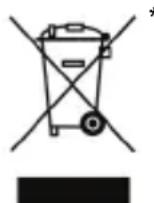
In the European Union: At the end of its working life, this product should not be disposed of with standard household waste, but rather dropped off at a collection point for the disposal of Waste Electrical and Electronic Equipment (WEEE) for recycling.
This is confirmed by the symbol found on the product, user manual or packaging.
Depending on their characteristics, the materials may be recycled. Through recycling and other forms of processing Waste Electrical and Electronic Equipment, you can make a significant contribution towards helping to protect the environment.
Please contact your local authorities for information on the collection point nearest you.
For all other countries: Please adhere to local recycling laws for electrical and electronic equipment.
Retain this information. Colours and decorations may vary.
This product conforms to all standards regarding children 14 years of age and older. This product is not suitable for use by children less than 14 years of age.
Works with 3 LR03 / AAA (1.5V) batteries, not included. Do not recharge non-rechargeable batteries. Used batteries must be removed from the toy. Different types of batteries or new and used batteries must not be mixed. Only batteries of the recommended type or similar type must be used. Batteries must be inserted with the correct polarity. The terminals of a battery must not be short-circuited. When the batteries are dead, remove them and place them in containers designated for collecting used batteries. www.thrustmaster.com
*Applicable to EU and Turkey only


T-Wireless Black
Compatible:PC-PlayStation®3
INFORMATIONS RELATIVES A LA GARANTIE AUX CONSOMMATEURS
http://www.thrustmaster.com/certificates/T-Wireless_Back/Doc-T-Wireless_Back.pdf
COPYRIGHT
www.thrustmaster.com
http://www.thrustmaster.com/certificates/T-Wireless_Back/Doc-T-Wireless_Back.pdf
COPYRIGHT
www.thrustmaster.com
http://www.thrustmaster.com/certificates/T-Wireless_Back/Doc-T-Wireless_Back.pdf
COPYRIGHT
www.thrustmaster.com
http://www.thrustmaster.com/certificates/T-Wireless_Back/Doc-T-Wireless_Back.pdf
COPYRIGHT
www.thrustmaster.com
http://www.thrustmaster.com/certificates/T-Wireless_Back/Doc-T-Wireless_Back.pdf
COPYRIGHT
www.thrustmaster.com
http://www.thrustmaster.com/certificates/T-Wireless_Back/Doc-T-Wireless_Back.pdf
DIREitos DE AUTOR
www.thrustmaster.com
TEXHUNECKNEXAPAKTEPNCTIKN
- 8dyHKUHOHaJIbHbIX KHOIOK.
- Khonkn SELECT (Bb6op) n START (Nyck)
- MhorononuHnHa KhOnka D-pad
4.Индикатор irpoBOrO nyIbTa - Khonka MAP (nporpaMMPOBaHne yHKn)
- Khoinka HOME dny PlayStation®3
7.2 aHaIOROBbIX MHN-koCTnka/
2UHpObBIXФyHKUHOHaJIbHbIX KHOPIK
8. IpekeJIIOUaTeIb nITaHnA POWER
9. OTeK dIa 3JIeMeHToB nITaHn
10.ИнданkaTOp npneMHnka
11. Pa3bEm nIg NK u PS3 Ha 6ecnpoBODHom npHemNke
YCTAHOBKA BATAPEEK
YctaHOBnTe Tpr 6bapeKn 1,5B (LR03 / Tnna AAA) B OTCek Dnra 6bataeek Ha TbInbHoi CTOpOHe nrgoBOrKOHTpOJIpepa (10).
OE30P
BbIKHouateIb 3JIeKtpOnHTaHn8 (9):
-Полхене OFF(BbIK) = irpoBoi KoHTpoJInep BbIKIIOUeH (и He paCXOdyET 3apd 6aTapei).
-Полхени ON (Вкн) = Иробов КОНТРОЛпер Вкнючен.
ABTomatueckoe yCTaHOBJeHne CoEINHeHn Mekdy IrgoBbIM KOHTpOJIpePOM INpneMHNIKOM.
-06a cBeToDIOda BKNIOueHbI = CnHraJI MekJy INrpoBbIM KOHTPOJIpePOM INpneMHIKOM.
-06a cBeToDnOda 6bICTpo MmraIOT = Het CnHana MeJxu INrpoBbIM KOHTpOJIpePOM IN pIneMHIKOM.
-06a cBeToAnoJa BbIKNIOueHbI = nroboo KoHTpOJIepBpeXIMe OxNdaHn nn BBKIOUeH.
-06a cBeToIOHO MaENHeHNO MmraIOT = 3aMeHInTe 6aTaapeiKn.
PEKIM OXINDAHNA:
- IrpOBoI KOHTpOllnep aBtOMaTnueckn OTKJIIOuaeTcay Yepe3 5 MInHy T 6e3JeNCTBna.
-Haxmnte KhoNky START, yTo6bI BkHIOuHTb erO cHOBa.
PLAYSTATION®3
ПОДКЛЮЧЕНЕ K PLAYSTATION®3
- PnncoeHnHTe pa3bem USB npneMHnka (12) K USB-nopTy 1 Ha KOHcOJI.
- BkJIIOHcHTe KOHCOJIb.
- BknoHTe irpoBoi KoHTpOJIep npn nOmoU npeKIOUaTeTn POWER ON (BKIOUcHHe IITAHN) (9).
4.3anyctntu npy.
Tenepb MoXHO HaunHaTb Npy!
Baw 6ecnpoobHO uapoeo KoHmpnep T-he BKnIOyema e c6b daMuk deuxkeHua.
#
IIOKJIIOUeyHNE K NIK
- PodknioHte pa3bem USB npneMnka (12) K oDHomy n3 nopTOB USB ha kOMnbIOTpe. OepauOnHHbc cNCTeMbI Windows® ABTomatNueckn 6hApyKAT HOBOE yCTPOICTBO.
- BkIIOHTe IrpoBoi KOHTpOJIeP npi NOMOUI nepeKIOUaTeTn PAWER ON (9).
- Μεικητe Start (Пуck)/Settings (Hactpoиka)/Control Panel (Пань ураленя), пооче чero cdenaite Двонов счелчok на пункte Game Controllers (Иробьг KoHTpoPnIepbI) (Ип Gaming Options (Иробьг устpoиCTBa),ВЗвиCMOCTN OT yctahOBJIeHHO ONepaUNHOH CNTembl). DuANO2Ooe OKHO Game Controllers (Ирobьг KoHmpoNJIepbI) 6bIbODum UMR uap0820 KOHmpoNIIepa u KHonky coSmorHua OK.
- B OkHe Control Panel (Pahenb ynpablenna), Bbl6epnte nyHKT Properties (CboicTba) : P03BOJRAET npOBepNTb n npOCMOTpeb Ha3HaueHne KHOON KOHTpOJInepa, MaHInyIaTopa D-pad mHN-IXKOCTNUKOB.
Tenepb MoXHo HaunHaTb Npy!
BAXHbIE PIPMEUAHN JIJI PIK
- PacuipenHHn nporpaMMHn naket Advanced Programming Software nja PIK moXHo taKxe 3aRpy3ntb Ha hAeM Be6-caTe: http://support.thrustmaster.com/
- Bknapa Test forces (PpOBepka cn) pacuHpeHHoro nporpaMMHoro naketa He noDaepxnBaetcra dnaHHoro irpoBoro nybta.
ФУHKUIMДЛОNBtHbIX NOJIb3OBATEJIEN
KHONKINPOPGAMMPOBAHNA/MHN-IXKOCTNK/MAHNYJYTOPD-PAD
Bce KhoNKn, a TAKKe OcN MHN-koNCTKOB N D-Pad MoryT nepeonpeJeTbcr npn nOouN KHOKN PEONPPEDEJEHN (5).
- PpIMepbI BO3MOxHOrO npIMHeHnA:
- IpeonpeJeHne yHKuK HONOK
-Пepeклочене Функци 2 МИн-ДжоICTКOB мжду сбоь (В зTom счуае Нжно Ha3нанть чтырпспавгеляпервого MИн-ДжоICTКА чтБIPЕм HANpaBгеляM BTOPOrO MИн-ДжоICTKa) - Ha3naeHne cyHKm MaHnynyIaTopa D-pad Ha MHN-dXoNCTNK (B 3tOM cnyae Heo6xOIMHO3HaHTb YeIpe HnpaBHeH N-D pad YeTbIpem HnpaBHeHm BbIbpaHOro MHN-dKOCTNa).
- Ipoueypa nporpammpoBaHna (nepeonpepeHnA):
Pocne 3toro 2 dyuT nepeKIOueHbI.
NONCK, YCTPAHEHNE HENCPABHOCTE IN I PEPDYNPEKDEHNA
MoI nrgoBoi KOHTpOJIeP cyHKUOHpyHt HnPaBnBHO nH He OTKaJIb6poBaH:
B cnyaehenonaok BO Bpempa60tbl, BO3HnkaIOuNX B C8ra3N CO CTaNueckm 3JNEKtpnueCTBOM, BBiIInTe n3 irpbI IN OTcoeINHTE yCTpoNCTBO OT KOMNIOTepa NIN KOHCOLN. CHOBA NOkNIouHTe npHeMHNK, BKIOUHTe IrpoBOH KOHTPOJIlep HauHNTe irpy Chayana.
-
He nepeDburaTe MUNH-dKoCTnKn BO BpeM NOkNIOueHn KOnTpOIppea (BO n36eKaHne HapuHeHn npoucecca KaIb6pOBKn).
-
Ra He Mory Hactpontb irpoBOn KOHTponJIep:
B MeHIO Options (Iapametpb) / Controller (KoHTpOJIep)/Gamepad (IrpoBoi KoHTpOJIep)" irpbI: BbI6epITe HAnboJee IOnXODaIyU KOHfNpyaIIO.
DIOJINHHTeJIbHyIO INHOpMaUIO CMOTpIte B pyKOBOCTBe NOJB3OBaTeJI NIRpbI NINB VHTepHete.
-Дяpeшнг STOn np6bemI TaKKe MoXHO BOCNoB3OBAtbcr «PpOpaMMHOr» cyHKUeN rIpOBOr KOHTpOJIpepa. 1o OKOHauu uCnoB3OaHua U2poB02 KOHmPoIIpepa Mbl peKOMeHyem cce2da bIKIOyamnb numaHue ycmpoucmea, nepedeunhye nepeKnUoyameIb POWER (9) e noLoXHeue OFF (ymobblyeenuumcbpok pa6ombl6amapeu).
CbeHnO noTpe6ntbcko rapaHTnn
Kopnpaun Guillemot Corporation S.A., 3apeHCTpnpoBaHHa no aDpecy Place du Granier, B.P. 97143, 35571 Chantepie, Phanu, (daee - «Guillemot») rapaHTnpye T CBOIM KIneHTam BO BCem MIpE, YTO B daHOM n3denn Thrustmaster He 6ydt BbBHeNo HnKaNX DeΦeKToB MaTePnAIOB IN pOn3BODCTBa B TeueHne rapaHTnHoro nepnoDa, KOtOpbI paBeH cPOky npEdyBHeHn IpeTeH3N NO COOTBETCTBnO dJa daHoro n3denn. B CTpaHax Ebponeckoro Co03a 3TOT cPOK COOTBETCTByET DByM (2) roJam c MOMENTa NoCTabKn n3denn Thrustmaster. B dpynx cTpaHx rapaHTnHbI nepnoD paBeH cPOky npEdyBHeHn IpeTeH3N NO COOTBETCTBnO dJa n3denn Thrustmaster, onpeTeJeMOMy COOTBEcTByUoUIM 3aKOHOaTeJIbCTBOM cTpaHbI, B KOtOpO npOXINBAN NOTpe6ntel Ha MOMENT npNo6peTeHn n3denn Thrustmaster (ecnn noDo6hle npTeH3N He DeiCTBYOT B COOTBETCTByUoSeI cTpaHe, rapaHTnHbI nepnoD paBHReTcA ODHOMY (1) rOdy C npBOHaJIbHOJ DaTbI npNo6peTeHn n3denn Thrustmaster).
B cnyae o6hapxhenia dekeKTOB n3deJnBa BO BpeMa rapaHTnHoro nepnoJa He3aMeIITeBHO 6bpatntecb B cnykby TexHnecko noDepkKn, cotpydHkn KOtOpO onpeJeT daJIbHeMHyo npouedpy. Ecnn dekeKT 6ydt noDTBePjDeH, n3deJnne cNe dyet BerHyb IO MeCtU npNo6peTeHna (NJN B JIO6oe DpyrOe MeCTO, yka3aHHe Ocnykbo TExHnecko noDepkKn).
B pamkax DeiCTBnra paoHTnn DepeKTHoe n3dJIe 6ydt, no ycmOTpeHnO cnyjkbI TexHuecko IODepkKn, 3aMeHeNo nn BO3BpaUeHO B pa6Oee coCtOAHne. EcnB TeueHne rapaHTnHorO cPoka n3dJIe Thrustmaster 6ydt IOOBpJKeHO TAKOMY BOCCTaHOBLeHNO, K OCTaBWeMycs rapaHTnHOMy CPOky np6abTaeTcR nepoN D BPemHn, Ho He MeHee cEMN (7) dHe, BO BpEmK KOtporo n3dJIe HaxoDnIOcb BHe yNtpe6bNeHn (NaHOM 3toro nepnoDa cHTaETcRa DaTa 3anpoCa NOKynteI O BMeWateJBCTBe IIN DaT a PpeOCTaBHeHn DEpeKTHOrO n3dJIe IIN BOCCTaHOBLeHn, eCNI n3dJIe 6blIO npEOCTaBHeNo IIN BOCCTaHOBHeHn PO3DHee, Yem 6bl IN CdeHaN 3aNpoc O BMeWateJBCTBe). B Mepe, pa3peSeHHo IIpIMeHMbIM 3aKOHOaTeNbCTBOM, IONHAR OTBECTBEHHOCTB KOMnHnGuillemot I ee DoOpHnx KOMnHi (B TOM qncle KocBeHHbI yUep6) ORpaHUYBaETCR BOCCTaHOBHeHm pa6Oero COCTaHn IIN 3aMeHOn n3dJIe Thrustmaster. B Mepe, pa3peSeHHo IIpIMeHMbIM 3aKOHOaTeNbCTBOM, KOMnHn Guillemot OTKa3bIBaETCR OT NIObIX rapaHTN KOMMepuecko IPIROHDCHN IIN pInrOHOCTN DnA ONpeDEHeHHo CEJI.
Hactoa rapaHTn He paocpTaPareTc: (1) Ha cTuayu, KOrda n3dene 6bIo BnuOn3MeHeo, OTKpbIto, MoNfUPOBaHO IIN NOLyNuIIO NOBpeKDeHnB B pe3yIbTaTe HeOpyCTmOrO IIN HnPaBnBHoro nCNoB3OBaHnA, He6peXHoCTn IIN HechAcTHoro Cnyuae, ECTeCTBeHHoro n3HOCA IIN NIOBOI DpyrO npuHbI, He CBraHHo C DeEeKToM MaepnaIOB IIN IpON3BODcTBa (BKIOUaA, NOMmo npOeyro, NcNoB3OBaHne n3denn Thrustmaster COBmecTHO C NIObIMn HnOxODaIzMMN 3JIeMaHTAMn, B YAcTHOCn — C 6ILOkAmn PNTAHnA, AKKymJrTOpaMn, 3ApJNDhIMN yCTpoiCTBaMn IIObIMn DpyrIMN 3JIeMaHTAMn, He BXOJaUMN B KomIIeKtaUg Guillemot dJe DaHHORo n3denn); (2) Ha cLyuAn IcNoB3OBaHn PPOdykTa B LIObIX CEJAX, KpOME 6bITOBbIX, B TOM YNCLe Ha cLyuAn IPOceCCNOHaBHO IIN KOMMEpeCKTO pImeHnA (HaPIMeP, B INPOBbIX 3aJax, dJe IPOVeDEHne 0bUeHnI u CopeBHOBaHn); (3) Ha cTuayu, KOrda yka3aHnA Cnyj6bl TexHueckO IOndepKKn He 6bl N BblONHeHbI; (4) Ha PO, TaK KaK Ha TakoE PO paocpocpaHreTc OTdeJIbHaR rapaHTn; (5) Ha pacxOdHbIe MaepnaJIbI (3JIeMeHTbI, IpeDaHa3NaeeHbIe dJe 3aMeHbI B TeueHne cPoka Cnyk6bl I3denn: HapnPmeP, 6bTapeKIn UyHbIe NDoUShKn dJe raphHTyp IIN HayUnHKOB); (6) Ha akCeCCyapbl (HaPIMeP, Ka6eNi, YexJIbI, CymKn, fytJIaRbI, HapYHbIe peMeuKn); (7) Ha cLyuAn IPOdaXn n3denn C oTKpbITOrO ayKunoHa.
DaanHra rapaHTnHe nOndJeKNT nepedaue.
Hactoia rapahtna He yueemniet npab notpe6nteIy, npedocTabnembIX emy npimehmbIMN 3aKohmB OTHoWeHn IpOdaXn NOTpe6nteJIbcknx TOBaPOB B COOTBeTCTByIOSe CTpaHe.
DonoHHTeIbHbIe ycIOBnra paoTHm
B TeueHne rapaHTnHoro cpoKa KOMpaHnaGuillemot, B obSeM n ceJOM, He npedocTabIeT HnKaKnx 3aNaChbIX qacte, TaK KaK BCKpbITHe n/Inn MoDnΦnKaUIO NIObIx IN3dEIN Thrustmaster Bnpabe OcyuaceTBJIbTb TOnbKO CnyX6a TexNueeCKo NODepkKn (3a NCKJIoueHMe KaKx-JIbO pOceDpy n MOndnФnKaUcII, KOtbpIE CnyX6a TexNueeCKo NODepkKn MOxET PpeINOXHTb BblONHITb KIneHTy PyTeM NcBMeHHbIX INCTpyKcN I NpeDOCTaBNeHn, PpN HeOBxOIMMOCTn, Tpe6yEmbIX 3aNaChbIX qacte: HApPmep, B CB83n C OTCyTCTBnEM CTAtyCa CNOXHOCTn ININ KOHnDEHuaJIbHOCTn y TaKoB BOCCTaHOBTelbHOIpOceDypbl).
C yueTOM nepnoa ocBOeHnHOBbIX n3deJn B ueJx 3aunTBcBOX HOy-xay N KOMMepuecknx TaH KOMnaHn Guillemot, B obsem n cenom, He npedocTabJeT kakx-NoBo YBeDMHeN O BOCCTaHOBJIeHNn nn 3apachbIX qacteI JnIO6bIX n3deJn Thrustmaster C nCTeKuIM rapaHTnHBIM Cpokom.
OTBetCTBeHHOCTb
B Mepe, pa3peSeHHo npImeHmblm 3aKoHOdaTeIbCTBOM, kOMnHaGuillemot Corporation S.A. (danee - «Guillemot») n ee doyepHne npedpnaTnO tKa3bBAIOCTcO T IIObo OTBeTCTBeHHocTn 3a IIObo yue6b, Bb3BaHbI OndHM Nn HecKOBKMn N3 CNeDyUOx PhaTOpOB: (1) BVIOJN3MeHeHne, BCKpbITne nn MOiΦnKaZnAizn I3DeJIINr; (2) Heco6bIoHeHne IHCTpyKzni no c6opke; (3) HeOnyctIMoe INn HnnpabNtBHe OcnoJIb30BaHHe, He6peXHoCTb, HecactHbI CnyuAa (HApPIMep, fN3NuEckoe BO3deICTBHe); (4) eCTeCTBeHHbI N3HOC; (5) NCIOJIb30BaHHe npOdyKTa B IIObIX CENrX, KpOME bItOBbIX, B TOM YNCLe IpOpeCCNOHAJBHe OII KOMMepueeCKOE npimeHne (HaNPIMep, B IVropBbIX 3aJax, dIpy PPOBeHne o6yehnI n COpeBHObaHn). B Mepe, pa3peSeHHo npImeHmblm 3aKoHOdaTeIbCTBOM, kOMnAHGuillemot n ee doyepHne npedpnaTnOTKa3bBAIOCTcO T IIObo OTBeTCTBeHHocTn 3a IIObo yue6b, He CB3aHHbI C deFekTAMMaTePNAIOB NII N3ROTOBJeHnA, B OTHOWeHN DaHHORO I3DeJIINr (BKlNoay, NOMMo npOeyro, IIO6oYue6b, Bb3BaHHbI npRMO NII ONOpceDobAHHO IIO6bIM npOrpamMbIM ObScneyeHem NII NcNoJIb30BaHHeM I3DeJIINr Thrustmaster c IIO6bIMn HENoDxOJaIIMN 3JIeMeHTAmN, B YAcTHoCTN - 6IokAMN NITaHnA, AKKymyIaTOPaMn, 3apNdHBIMyCTpoIcTBAMN IIIO6bIMn DpyIIMN 3JIeMeHTAmN, He BXODaIIMN B KOMPiKeTAciHIO Guillemot dIra DAHHoro I3DeJIINr).
ДeКлараши O COOTBETCTBи Tpe6oBaHnM DnpeKTHBbI EC
Guillemot Corporation S.A. HacToaIIM 3aABnEeT, yTo ycTePoIcTBo T-Wireless Black COoTBeTCTByET OCHOBHbIM Tpe6oBaHnM n dpyrIM CtaTbAm DnpeKTHBbl R&TTE 1999/5/EC. CBnTeJIbCTBO O COOTBeTCTBn CMOTpIte Ha caIte:
http://www.thrustmaster.com/certificates/T-Wireless_Back/Doc-T-Wireless_Back.pdf
ABTOPCKOE IPIPABO
© 2017 Guillemot Corporation S.A. Bce npaba 3aunuhebl. Thrustmaster® JBnIETcra 3apeHCTpnpoBauHHoToproBOm MapKoGuillemot Corporation. «》,PlayStation,«」3 «△OXO» JBnIOTcra 3apeHCTpnpoBauHHbIMn TOBapHBIMn 3HaKaAMN KOMnAHmN Sony Interactive Entertainment Inc. Microsoft® Windows® JBnIeTcra 3apeHCTpnpoBauHHoToproBOm MapKo Microsoft Corporation B CoeINHeHHbIX StTaTX AmePKn n/Inn dpynx cTpaHax. Bce npoune ToproBbIe MapKn n ΦIpMeHHbIe Ha3BaHnI PrnPBeDeHHbIe B DaHHom DOKyMeHTe, JBnIOTcra CO6CTBeHHOCtBu COOTBeTcByUOxN X BnaDJIeB. INnIOCTpaCm MOrY He COOTBeTcBOBaTb BHeUHEmy BVdu/ФунКцЯM KOHNKeTHOrO n3dJIIn. CopeJXaHne pyKOBoDcTBA, KOHCTpyKzIaN I TexHnueckne XapaKTepNCtKN n3dJIIn n3MeHryOTc8 Be3 ppeDbapNTbHOrO yBeDOMNeHnI n 3aBNCrT OT cTpaHbI npno6peTeHnI.
CoxpaHnte 3Tu nHOpMaUIO. LBeTa u oOpMJIeHne MOrTy OTnNuAtbcra Oyka3aHHbIX.
HactoIIN npOyKT COOTBETCTByET BcEM cTaNapTaM BOTHOweHN DeTeB BO3pacte 14 let n CTapSe. IcnoIb3OBaHne daHHoro npOyKTA dEtbMn MnaDwe 14 let HeOnyCTmO.
Pa60aet Ha 3 3JIeMeHTax PNTAHN LR03/AAA 1,5 B (He BXoJrB KOMnIKeT). HeIb3r 3apjKaTb Hepe3apjXaEMbIe 6atapeKNI. IVcNoIb3OBaHHbIe 6atapeKNI CneDyET N3BLeHb N3 npIbTa. He DOnyckaTeCg OHOBpeMeHHOE IcNoIb3OBAHHe HOBIX INcNoIb3OBaHHbIX 3JIeMeHTOB PNTAHN. IVcNoIb3OBAbTb TOnIbKO 3JIeMeHTbI PNTAHN peKOMeHdyEmbIX INJn aHaONuHbIX TINOB. Ppi YcTAHOBe 3JIeMeHTOB PNTAHN CO6JIIODaTb PONApHocTb. He dOnyckaeTc 3AmblKaHne PONOCOB 3JIeMeHTOB PNTAHN. Ppi Bblpa6OTke pecypca 3JIeMeHTOB PNTAHN I3 Heo6xOIMO IN3BLeHb IN yTINl3nPoBaTb B CNEUJaIBHO OTBeJeHHbIKOHTEHep.
www.thrustmaster.com
EAC
T-Wireless Black
http://www.thrustmaster.com/certificates/T-Wireless_Back/Doc-T-Wireless_Back.pdf
TVEUATika 6ikaiwpat
© 2017 Guillemot Corporation S.A. Me tvv epiuafn Tavtoc diakwatoG H ovuaia Thrustmaster® evai Eupiok o ngu Gillemot Corporation S.A. Ta loyotua "B", "PlayStation", "Kur
www.thrustmaster.com
^*I muo vE EE kai Toupkia
T-Wireless Black
PROGRAMLAMA TUŞLARI / MINI CUBUKLAR / D-PAD
http://www.thrustmaster.com/certificates/T-Wireless_Back/Doc-T-Wireless_Back.pdf
TELIF HAKKI
www.thrustmaster.com
http://www.thrustmaster.com/certificates/T-Wireless_Back/Doc-T-Wireless_Back.pdf.
PRAWA AUTORSKIE
www.thrustmaster.com
Properties (Control Panel 4
y
1
gai jigusdy aolcbla
y
http://support.thrustmaster.com/
gamepad g (aiaaa a a a a a) (j) "Test forces"
4g11 1 / jn 1 1
.(5)MAPJALIyAeJyAeJyAeJyAeJyAeJyAeJyAeJyAeJyAeJyAeJyAeJyAeJyAeJyAeJyAeJyAeJyAeJyAeJyAeJyAeJyAeJyAeJyAeJyAeJyAeJyAe
:alaiaii ciaybiy jie ayia
- y1y2 = 1
y 1
()
y
(1) 1,2,3,4,5,6,7,8 的值.
1
Gullemot (Guillemot) 1905, 1906.
Gullemot Corporation S.A 1907.
Thrustmaster 1908.
Thrustmaster 2003.
Thrustmaster 2004.
Thrustmaster 2005.
Thrustmaster 2006.
Thrustmaster 2007.
Thrustmaster 2008.
Thrustmaster 2009.
Thrustmaster 2010.
Thrustmaster 2011.
Thrustmaster 2012.
Thrustmaster 2013.
Thrustmaster 2014.
Thrustmaster 2015.
Thrustmaster 2016.
Thrustmaster 2017.
Thrustmaster 2018.
Thrustmaster 2019.
Thrustmaster 2020.
Thrustmaster 2021.
Thrustmaster 2022.
Thrustmaster 2023.
Thrustmaster 2024.
Thrustmaster 2025.
Thrustmaster 2026.
Thrustmaster 2027.
Thrustmaster 2028.
Thrustmaster 2029.
Thrustmaster 2030.
Thrustmaster 2031.
Thrustmaster 2032.
Thrustmaster 2033.
Thrustmaster 2034.
Thrustmaster 2035.
Thrustmaster 2036.
Thrustmaster 2037.
Thrustmaster 2038.
Thrustmaster 2039.
Thrustmaster 2040.
Thrustmaster 2041.
Thrustmaster 2042.
Thrustmaster 2043.
Thrustmaster 2044.
Thrustmaster 2045.
Thrustmaster 2046.
Thrustmaster 2047.
s
Jg 10000000000000000000000000000000000000000000000000000000000000000000000000000000
Gullemot 1520202020202020202020202020202020202020202020202020202020202020202020202020202020202020202020202020202
THRUSTMASTER
http://support.thrustmaster.com

2g 1
T-Wireless Black Guillemot Corporation S.A.
http://www.thrustmaster.com/certificates/T-Wireless_Back/Doc-T-Wireless_Back.pdf
jai 1
Thrustmaster® 2017 Guillemot Corporation S.A. "OxBox" and "PlayStation", "Gullemot Corporation S.A. Windows® 2017 PlayStation", Microsoft Corporation is a leading software company in the global market, providing cutting-edge products and services that bring new opportunities to customers worldwide.
aaiyaiyaiyaiyaiyaiyaiyaiyaiyaiyaiyaiyaiyaiyaiyaiyaiyaiyaiyaiyaiyaiyaiyaiyaiyaiyaiyaiyaiyaiyaiyaiyaiyaiyaiyaiyaiyaiyaiyaiyaiyaiyaiyaiyaiyaiyaiyaiyaiyaiyai
www.thrustmaster.com
1