
Pulsefire Dart - Mouse HYPERX - Free user manual and instructions
Find the device manual for free Pulsefire Dart HYPERX in PDF.
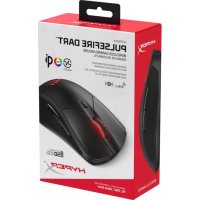

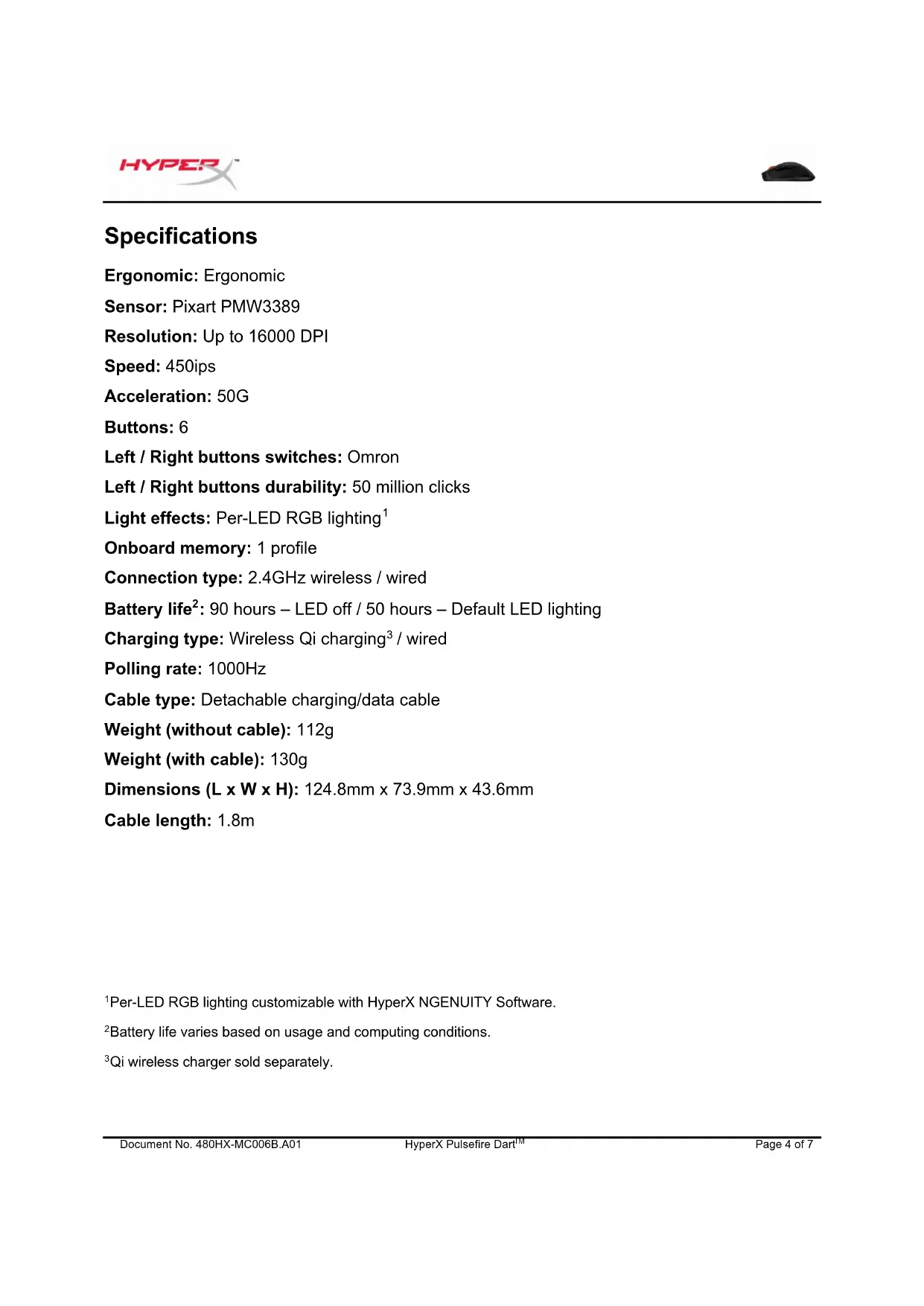


| Product type | Wireless/wired gaming mouse |
| Brand | HyperX |
| Model | Pulsefire Dart |
| Sensor | Pixart PMW3389 optical |
| Maximum resolution | 16,000 DPI |
| Maximum speed | 450 ips |
| Maximum acceleration | 50 G |
| Number of buttons | 6 (left, right, scroll wheel, DPI button, forward, back) |
| Switches | Omron (50 million clicks) |
| Lighting | RGB LED customizable via HyperX NGENUITY software |
| Connection type | Wireless 2.4 GHz / Wired USB-C |
| Battery life | 90 hours (LEDs off) / 50 hours (default LED lighting) |
| Charging type | Qi wireless (charger not included) / Wired USB-C |
| Polling rate | 1000 Hz |
| Onboard memory | 1 profile |
| Weight (without cable) | 112 g |
| Weight (with cable) | 130 g |
| Dimensions (L × W × H) | 124.8 × 73.9 × 43.6 mm |
| Cable length | 1.8 m |
| Package contents | Mouse, USB receiver, USB cable adapter, USB-C to USB-A cable, documentation |
| Customization software | HyperX NGENUITY (free download) |
| Console compatibility | PS4, Xbox (via USB cable or receiver) |
| Factory reset | Hold DPI button + scroll wheel for 5 seconds |
Frequently Asked Questions - Pulsefire Dart HYPERX
User questions about Pulsefire Dart HYPERX
0 question about this device. Answer the ones you know or ask your own.
Ask a new question about this device
Download the instructions for your Mouse in PDF format for free! Find your manual Pulsefire Dart - HYPERX and take your electronic device back in hand. On this page are published all the documents necessary for the use of your device. Pulsefire Dart by HYPERX.
USER MANUAL Pulsefire Dart HYPERX
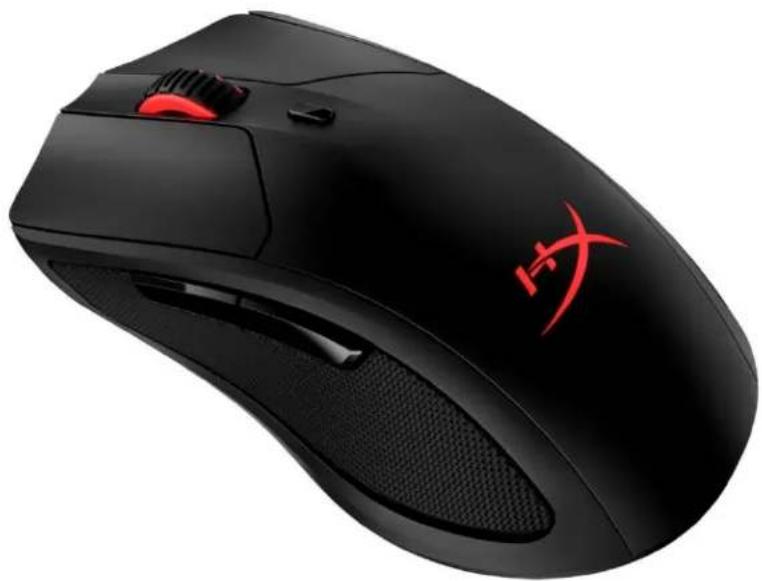
HyperX Pulsefire Dart™
Find the language and latest documentation for your HyperX Pulsefire Dart here.
HyperX Pulsefire Dart Installation Guide
For instructions in English, Spanish, German, French, Italian, Portuguese, Polish, Russian, Turkish, Japanese, and Vietnamese.
Simplified Chinese......简体中文说明书
Traditional Chinese ... 繁體中文說明
HyperX Pulsefire Dart™
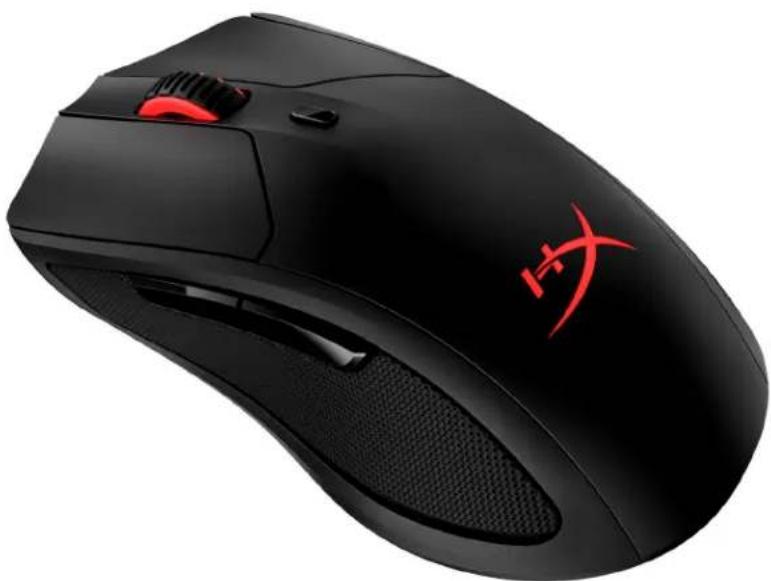
Part Number
HX-MC006B
TABLE OF CONTENTS
Overview 3 Specifications 4 Installation. 5 Wireless Mode 5 Wired Mode. 5 Charging 6 Wireless Charging 6 Wired Charging 6 Function Keys 7 HyperX NGENUITY Software 7 Using with Console 7 Factory Reset. 7
Overview
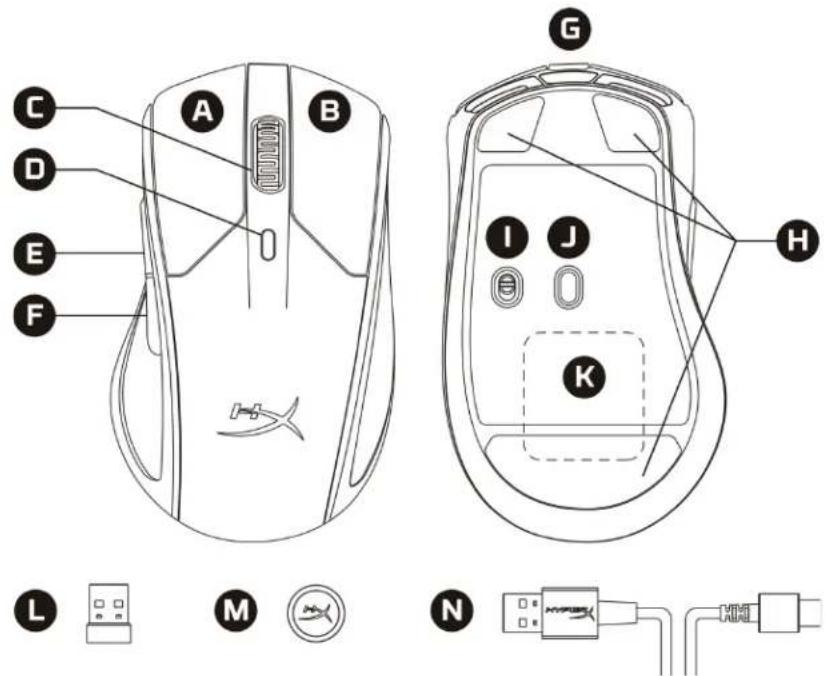
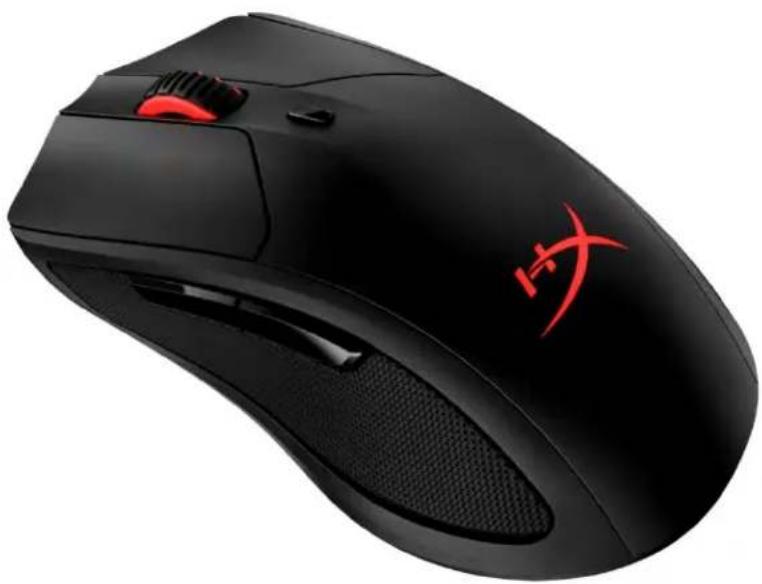
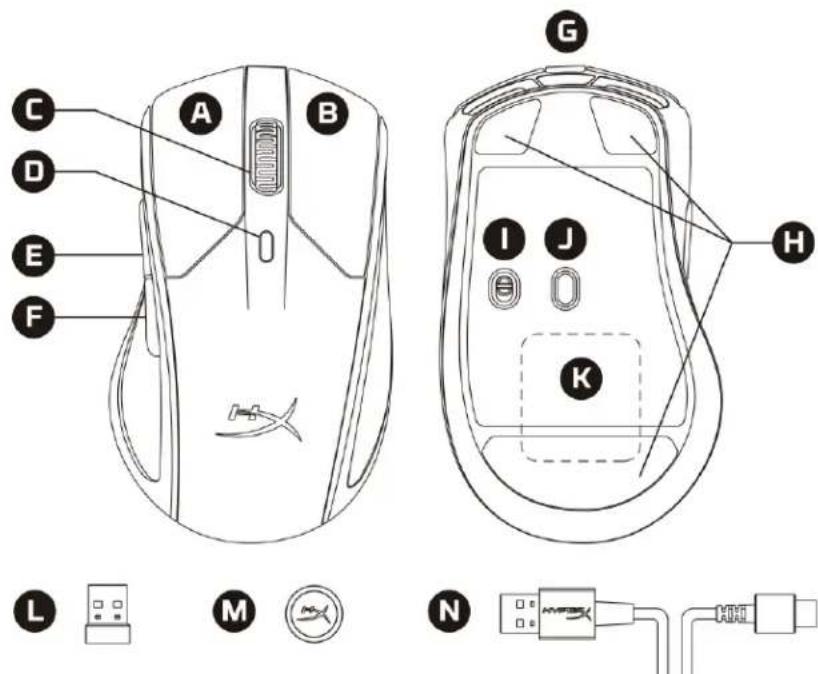
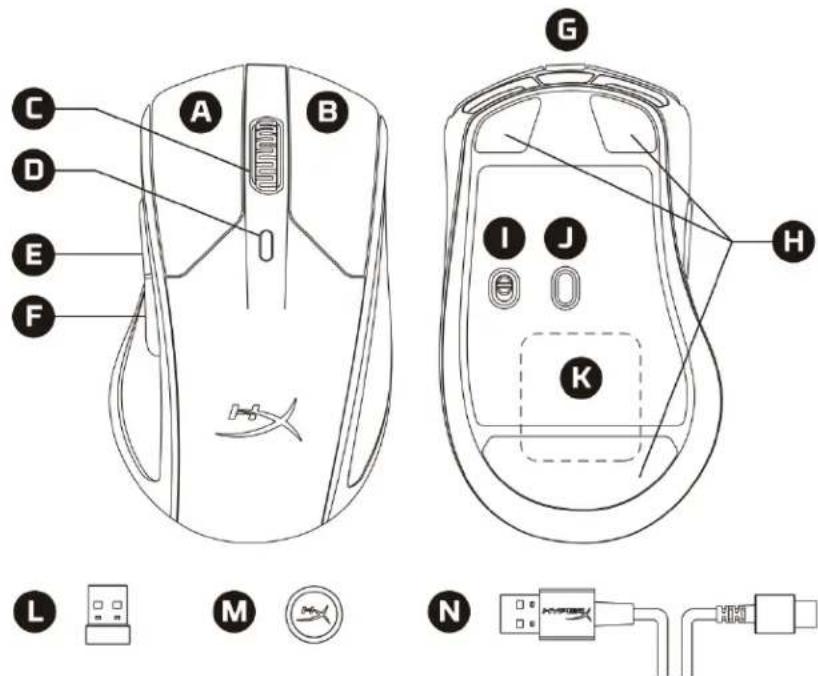
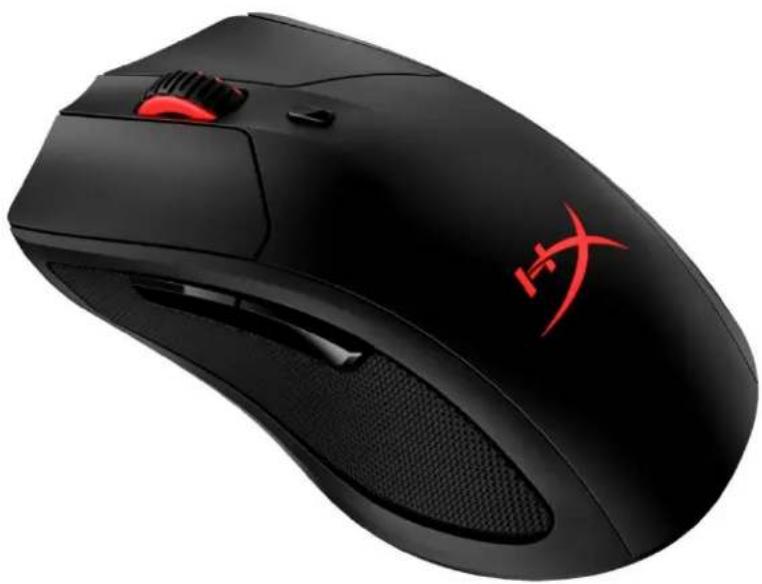
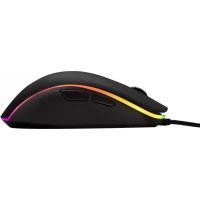
A. Left click button B. Right click button C. Mouse wheel D. DPI button E. Forward click button F. Backward click button G. USB-C port H. Mouse skates I. Power switch J. Optical gaming sensor K. Built-in wireless charging receiver module L. USB receiver M. USB cable adapter N. USB-C to USB-A extension cable
Specifications
Ergonomic: Ergonomic
Sensor: Pixart PMW3389
Resolution: Up to 16000 DPI
Speed: 450ips
Acceleration: 50G
Buttons: 6
Left / Right buttons switches: Omron
Left / Right buttons durability: 50 million clicks
Light effects: Per-LED RGB lighting
Onboard memory: 1 profile
Connection type: 2.4GHz wireless / wired
Battery life: 90 hours - LED off / 50 hours - Default LED lighting
Charging type: Wireless Qi charging / wired
Polling rate: 1000Hz
Cable type: Detachable charging/data cable
Weight (without cable): 112g
Weight (with cable): 130g
Dimensions (L x W x H): 124.8mm x 73.9mm x 43.6mm
Cable length: 1.8m
1Per-LED RGB lighting customizable with HyperX NGENUITY Software.
2Battery life varies based on usage and computing conditions.
3Qi wireless charger sold separately.
Installation
Wireless Mode
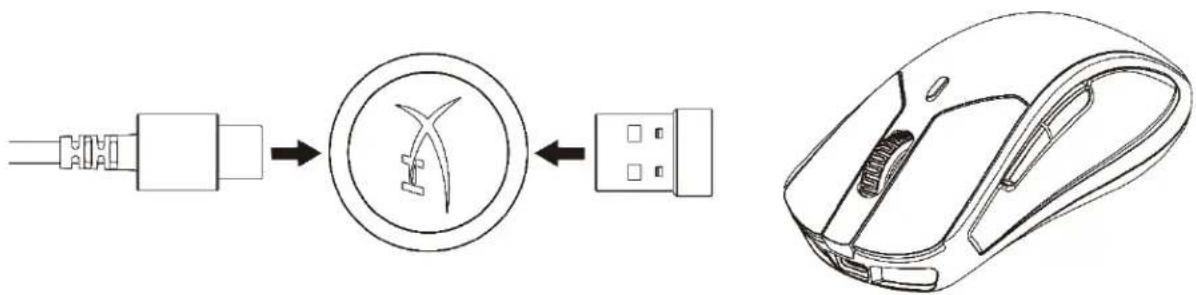
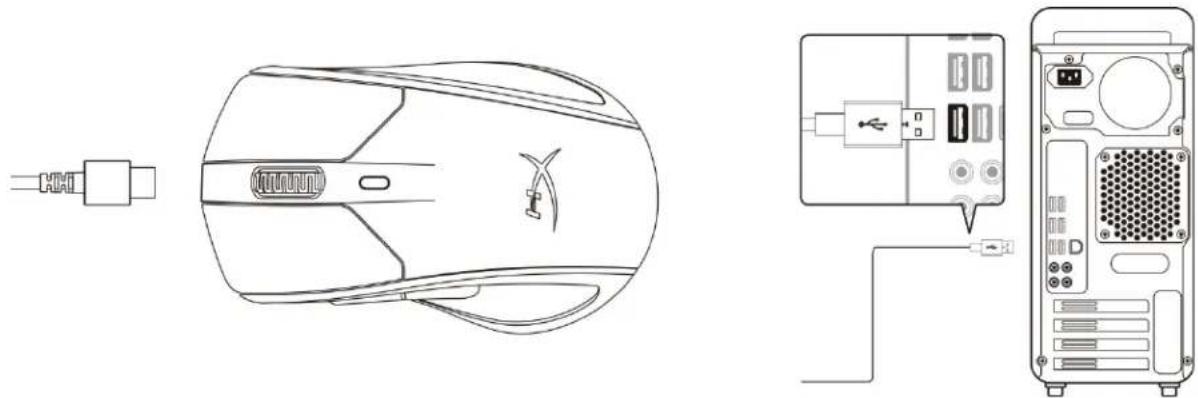
Connect your USB receiver to USB cable adapter, and USB-C to USB-A extension cable to a PC USB port. For optimal placement, please keep the USB receiver within 20 cm of the mouse.
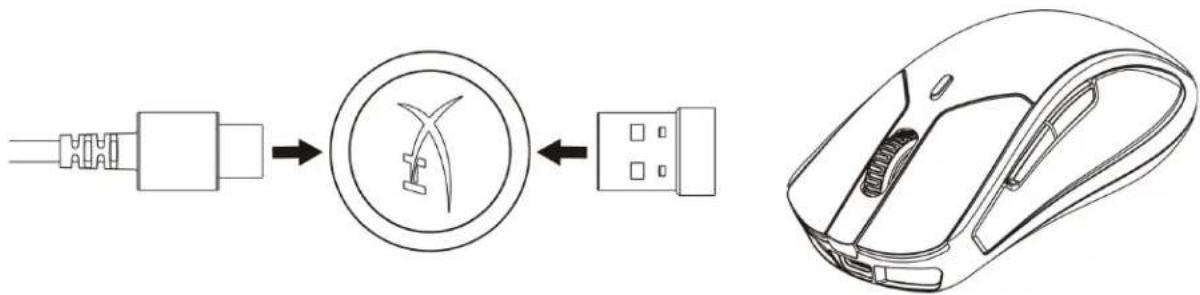
Wired Mode
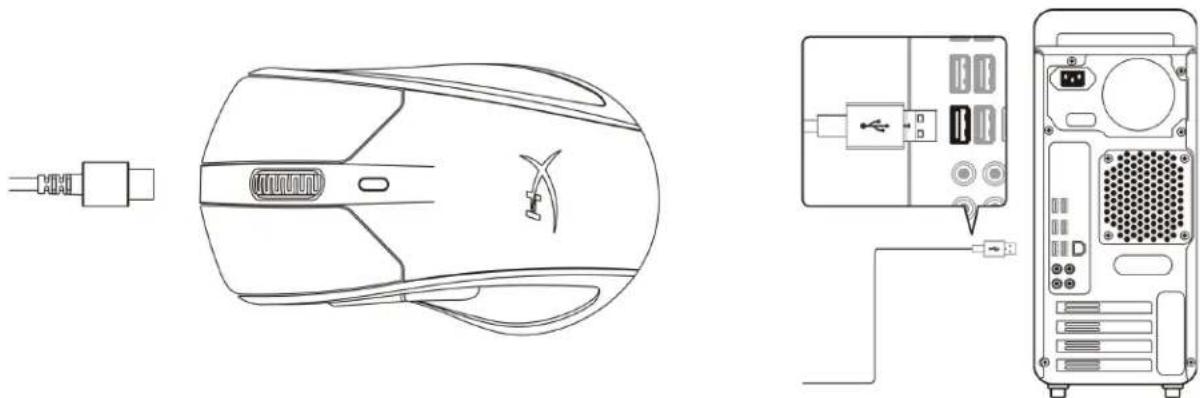
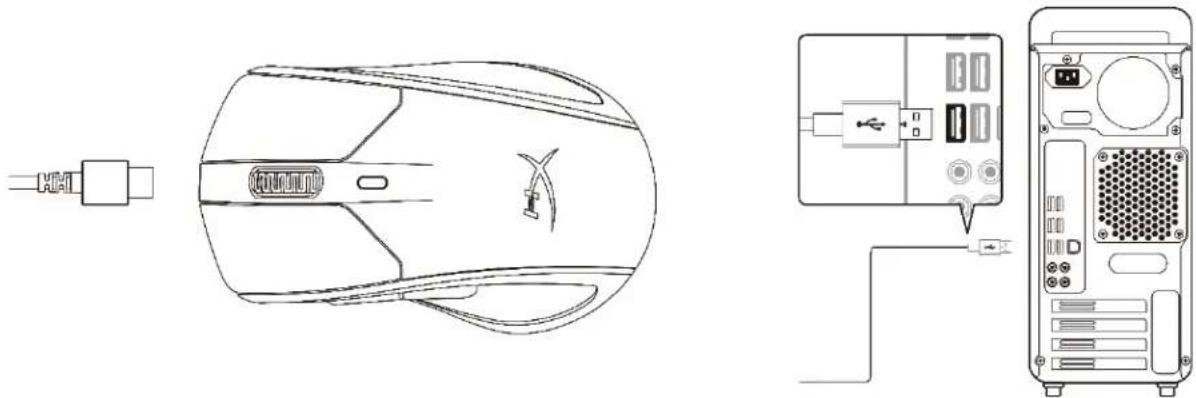
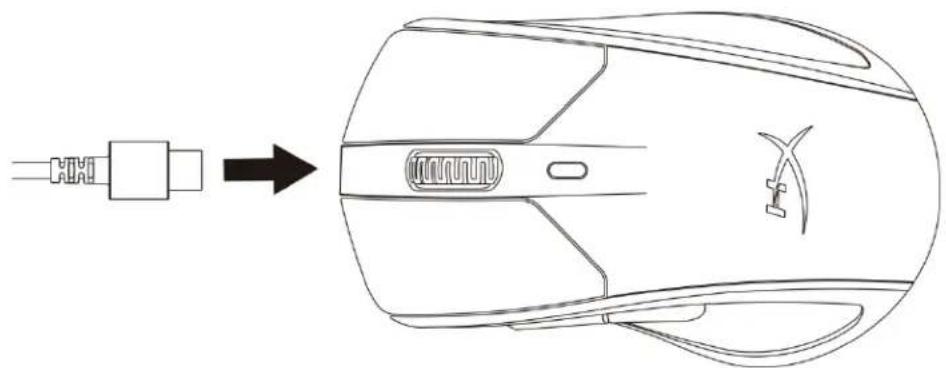
Connect your USB-C to USB-A extension cable to your mouse and to a PC USB port.
Charging
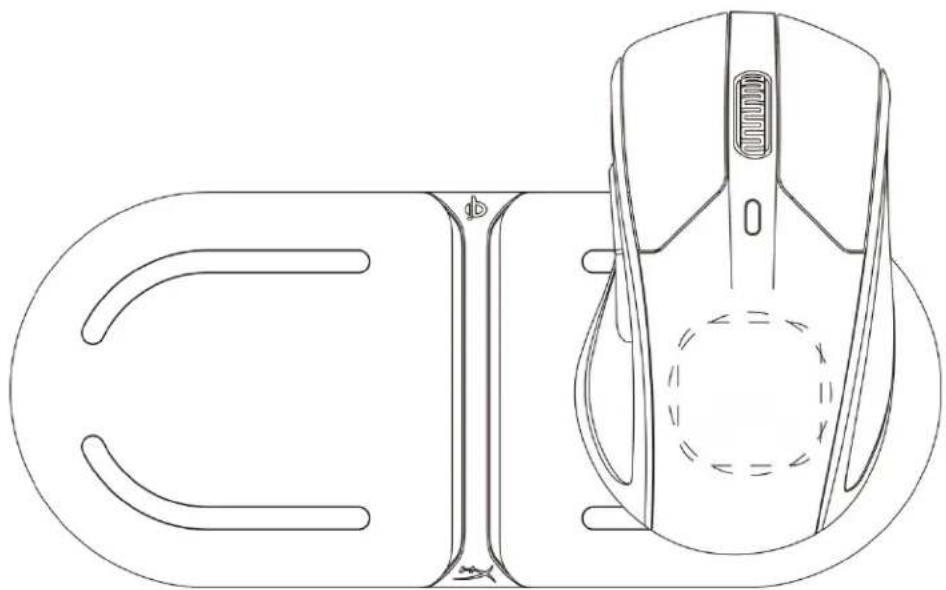
Wireless Charging
*Charging base not included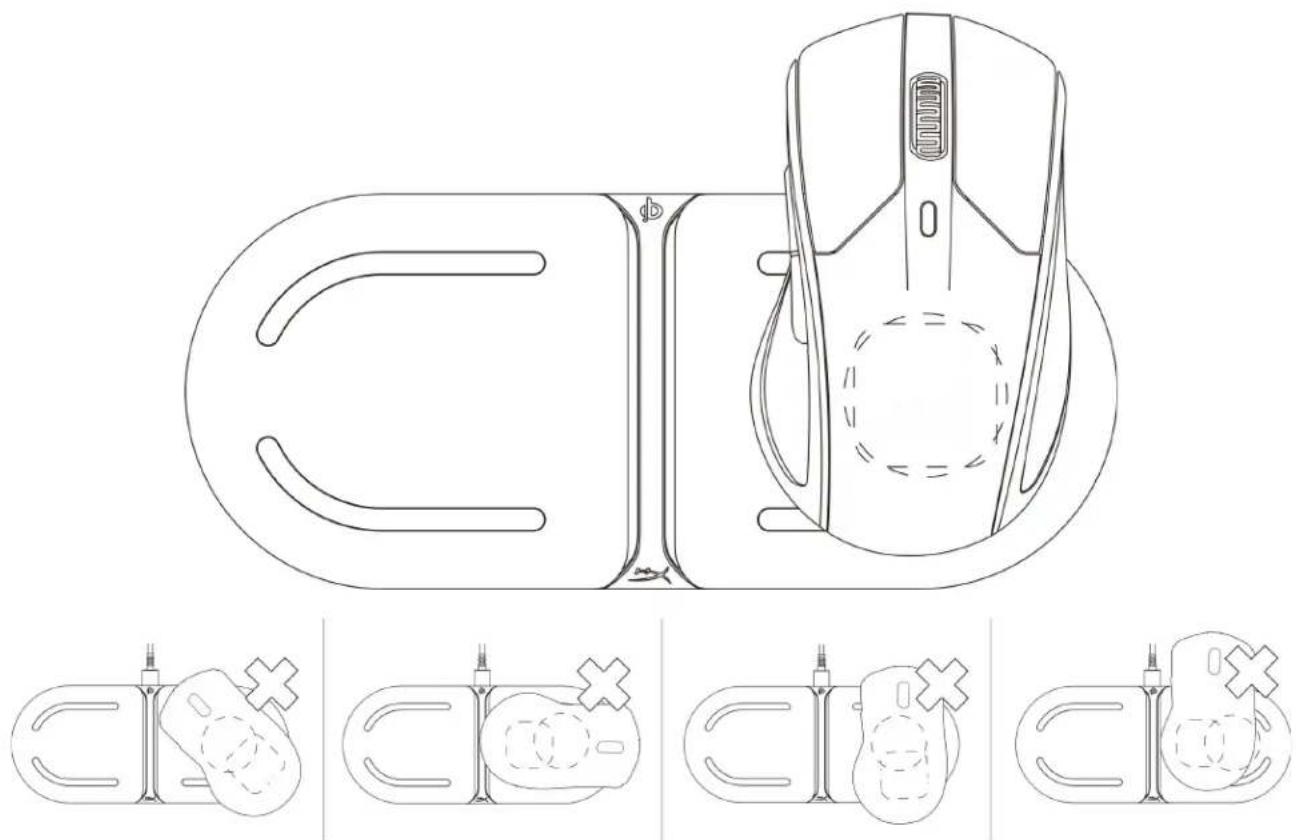
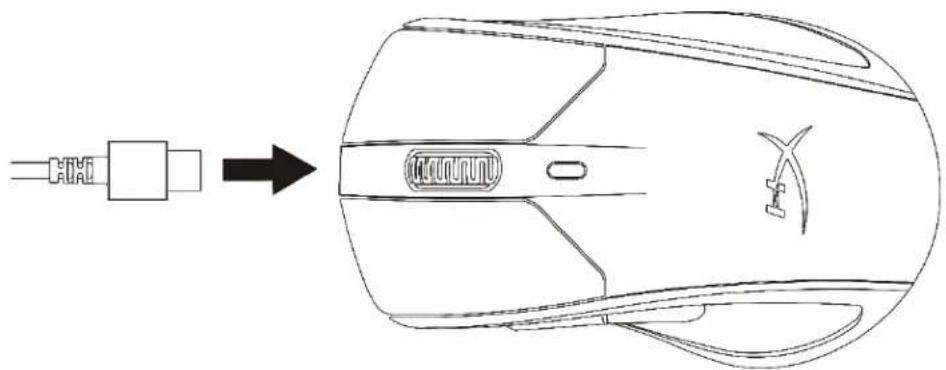
Wired Charging
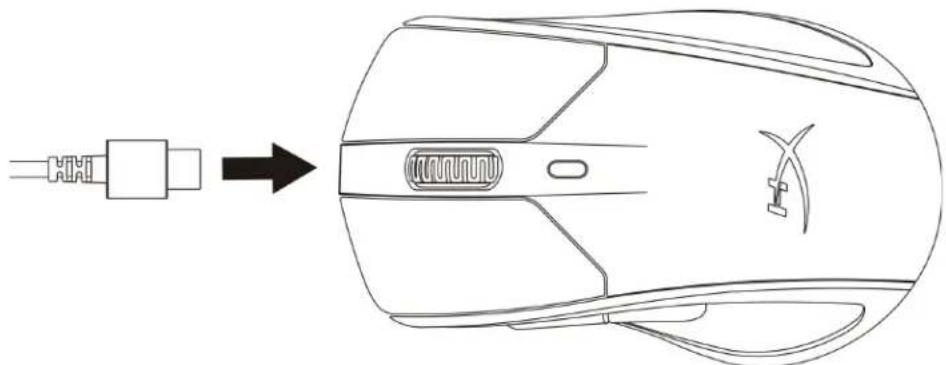
Function Keys
| Function Keys | Secondary Feature |
| DPI button | Change between DPI presets. Default values are: - 800 DPI (blue). - 1600 DPI (yellow). - 3200 DPI (green). |
HyperX NGENUITY Software
To customize lighting, DPI, and macro settings, download the HyperX NGENUITY Software here: hyperxgaming.com/ngenuity.
Using with Console
Connect to PS4 or Xbox One using the included USB cable or dongle attachment.
Factory Reset
If you are experiencing any issue with the mouse, you can perform a factory reset. Onboard memory will be cleared, and all settings will revert back to default.
| Function Keys | Secondary Feature |
| Hold DPI button + mouse wheel button down for 5 seconds | Perform a factory reset on the mouse. |
Questions or Setup Issues?
Contact the HyperX support team at: hyperxgaming.com/support/
HyperX Pulsefire Dart™
Weight (without cable): 112 g
HyperX Pulsefire Dart™
Part Number
HX-MC006B
CONTENTS
Overview 3
Specifications 4
Installation 5
HyperX Pulsefire Dart™
Part number
HX-MC006B
TABLE OF CONTENTS
Overview 3
Specifications 4
Installation 5
Wireless mode 5
Wired mode 5
HyperX Pulsefire Dart™
Part number
HX-MC006B
TABLE OF CONTENTS
HyperX Pulsefire Dart™
Product Code
HX-MC006B
TABLE OF CONTENTS
HyperX Pulsefire Dart™
Part Number
HX-MC006B
TABLE OF CONTENTS
HyperX Pulsefire Dart™
Product Code
HX-MC006B
CONTENTS
1. Overview 3 2. Technical Specifications 4 3. Setup 5 4. Wireless Mode 5 5. Wired Mode 5 6. Charging 6 7. Wireless Charging 6 8. Wired Charging 6 9. Function Keys 7 10. HyperX NGENUITY Software 7 11. Console Use 7 12. Factory Reset 7
Overview
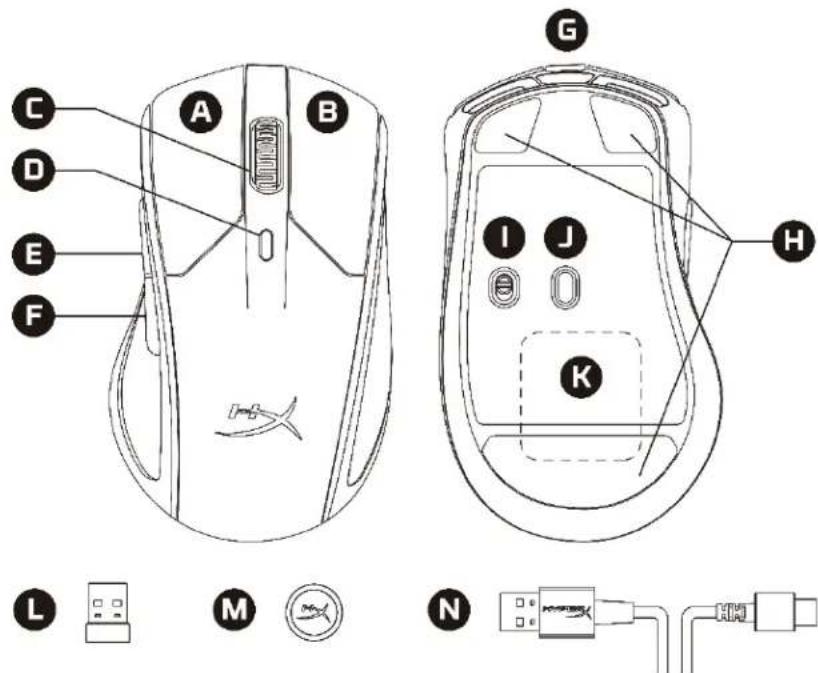
A. Left mouse button B. Right mouse button C. Scroll wheel D. DPI button (dots per inch) E. Forward button F. Backward button G. USB-C port H. Mouse charging contacts I. Power switch J. Gaming optical sensor K. Wireless charging receiver module L. USB receiver M. USB cable adapter N. USB-C to USB-A extension cable
Technical specifications
Speed: 450 IPS (inches per second)
Acceleration: 50G
Buttons: 6
Left/right button switches: Omron
Left/right button switch lifespan: 50 million clicks
Lighting effects: RGB backlight with individual adjustment of each LED
Built-in memory: 1 profile
Connection type: wireless 2.4GHz / wired
Battery life: 90 hours - with backlight off / 50 hours - with default backlight on
Charging type: wireless charging Qi³ / wired
Polling rate: 1000Hz
Cable type: detachable cable for charging/data transfer
Weight (without cable): 112g
Weight (with cable): 130g
Dimensions (L x W x H): 124.8mm x 73.9mm x 43.6mm
Cable length: 1.8m
1Individual adjustment of each RGB light zone via HyperX NGENUITY. 2Battery life depends on usage conditions and tasks performed. 3Wireless charging pad Qi sold separately.
Setup
Wireless
Connect the USB receiver to the USB cable adapter, and the extension cable for USB-C to USB-A to the USB port of the PC. For optimal placement, position the USB receiver within 20cm of the mouse.
Wired
Connect the extension cable for USB-C to USB-A to the mouse and to the USB port of the PC.
Charging
Wireless charging
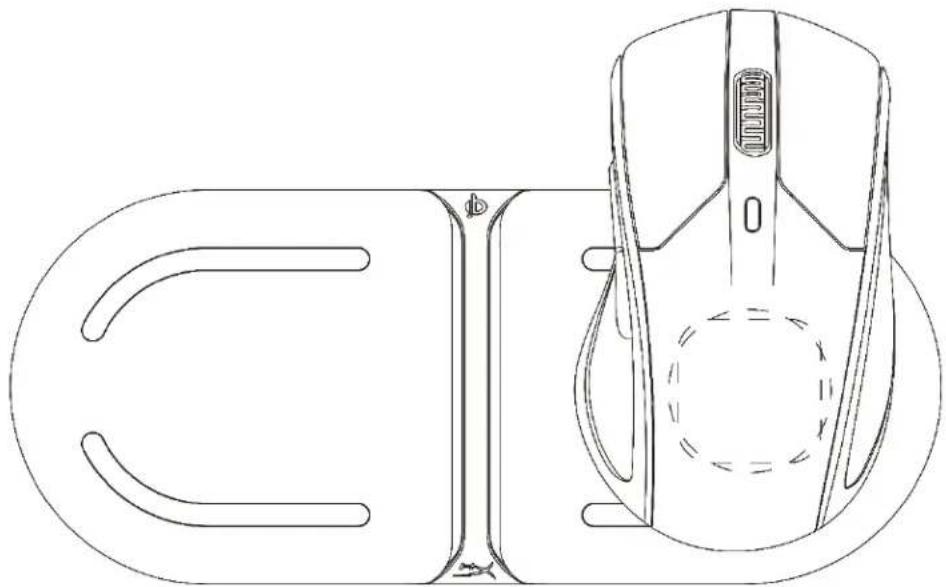
*Charging pad not included in the package.
Wired charging
HyperX Pulsefire Dart™
Part Number
HX-MC006B
CONTENTS
HyperX Pulsefire Dart™
Part number
HX-MC006B
Table of contents
HyperX Pulsefire Dart™
HX-MC006B
Table of contents
4 5 5 5 6 6 6 7 HyperX NGENUITY Software 7 7
A. Package contents
B. Features
C. Specifications
D. DPI sale
JoMy, DPI Jf MaKr Ro Sefgnt to sAuaJ aRy of HperX NGENUITY sFbT WnHt DnsroLd hsi. hyperxgaming.com/ngenuity.
F0HJ 1
公堂基本就新
马乌斯之说者有在,公明其本,自。
HyperX Pulsefire Dart™
HX-MC006B
#
3 570 5 Tnun 5 5 6 6 6 Lauon 7 HyperX NGenuity 7 7 17
W
A. 甲组的频率为 1/3 B. 甲组的频率是乙组的3倍 C. 与 a aln D. DPI E. 1 uan anuun F. 甲用 n 次甲用 G. wǎn USB-C H. uuiuuaui 1. J. 1234567890 K. 1 L. 甲醇甲醇甲醇USB M. 服务器 USB N. USB-C to USB-A
57a#
Tnssnnns 17n: swnnnnns wannny nnaaennnna
5: Pixart PMW3389
16000 DPI
450 IPS
50G
6
Omron
50
RGB LED
1
2.4GHz /
192:90-LED/50WLED
:
1000Hz
any/nyananaaunla
USB-C to USB-A
5

JWon
| tomorrow | tomorrow |
| tomorrow | tomorrow |
| tomorrow | tomorrow |
| tomorrow | tomorrow |
Jawwunur HyperX NGenuity
JyWwDawavvN DPI 7nraaanrnnnnaeauuHperX NGenuity n: hyperxgaming.com/ngenuity.
n72vunnaaiau
PS4XbXbox One USB
512aunanannnu
wnnwwuynnna nnnn nnannnnnnnnnnnnnnnnnnnnnnnnnnnnnnnnnnnnnnnnnnnnnnnnnnnnnnnnnnnnnnnnnnnnnnnnnnnnnnnnnnnnnnnnnnnnnnnnnnnnnnnnnnnnnnnnnnnnnnnnnnnnnnnnnnnnnn
| NJNWAAN | NJNWAAN |
| NJNWA + DPI +NJNWA = 5NJNWA | NJNWA =NJNWA =NJNWA =NJNWA =NJNWA =NJNWA =NJNWA =NJNWA =NJNWA =NJNWA =NJNWA =NJNWA =NJNWA =NJNWA =NJNWA =NJNWA =NJNWA =NJNWA =NJNWA =NJNWA =NJNWA =NJNWA =NJNWA =NJNWA =NJNWA =NJNWA |
muaaunnnaanrnnnnae
Hyperxgaming.com/support/
HyperX Pulsefire Dart™
Ma san pham
HX-MC006B
MUC LUC
Overview 3 Specifications 4 Installation 5 Wireless mode 5 Wired mode 5 Charging 6 Wireless charging 6 Wired charging 6 Function keys 7 HyperX NGENUITY software 7 Use with game consoles 7 Reset the mouse 7
Overview
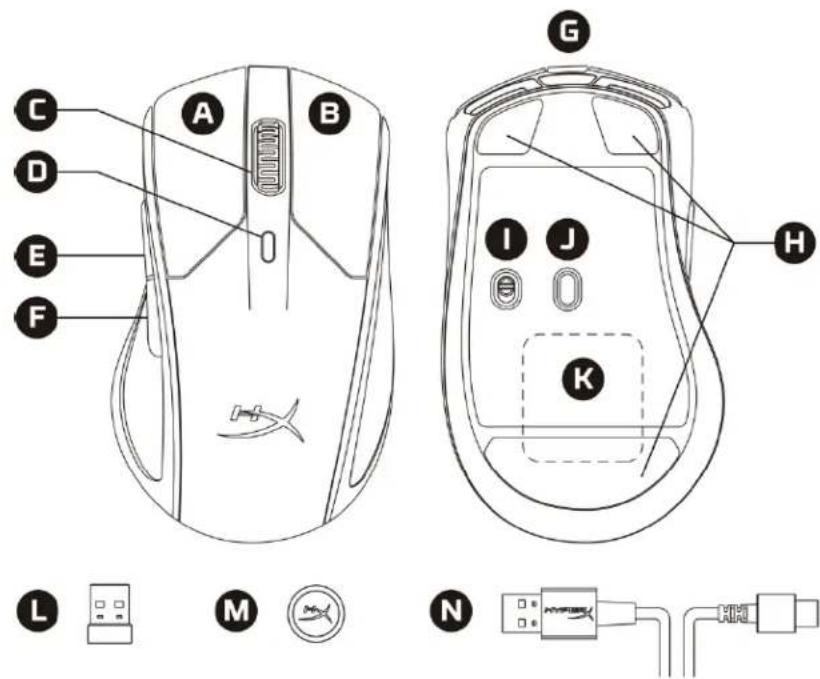
A. Left button B. Right button C. Scroll wheel D. DPI button E. Left side button F. Back button G. USB-C port H. Mouse feet
I. Power switch J. Optical gaming sensor K. Integrated wireless charging module L. USB receiver M. USB cable adapter N. USB-C to USB-A extension cable
Specifications
Ergonomic design: Ergonomic design
Use with game consoles
HyperX Pulsefire Dart™
Product model
HX-MC006B
Table of contents
HyperX Pulsefire Dart™
Product model
HX-MC006B
Table of contents
- HYPERX PULSEFIRE DART™
- HYPERX PULSEFIRE DART INSTALLATION GUIDE
- PART NUMBER
- TABLE OF CONTENTS
- OVERVIEW
- SPECIFICATIONS
- INSTALLATION
- WIRELESS MODE
- WIRED MODE
- CHARGING
- WIRELESS CHARGING
- WIRED CHARGING
- HYPERX NGENUITY SOFTWARE
- USING WITH CONSOLE
- FACTORY RESET
- QUESTIONS OR SETUP ISSUES
- CONTENTS
- TECHNICAL SPECIFICATIONS
- SETUP
- WIRELESS
- WIRED
- 公堂基本就新
- W
- A
- JAWWUNUR HYPERX NGENUITY
- N72VUNNAAIAU
- AUNANANNNU
- MUAAUNNNAANRNNNNAE
- MUC LUC
- USE WITH GAME CONSOLES
Brand : HYPERX
Model : Pulsefire Dart
Category : Mouse