EasyManual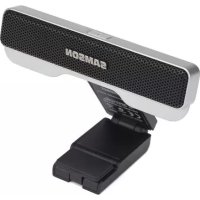
Go Mic Connect - Microphone SAMSON - Free user manual and instructions
Find the device manual for free Go Mic Connect SAMSON in PDF.



User questions about Go Mic Connect SAMSON
0 question about this device. Answer the ones you know or ask your own.
Ask a new question about this device
Download the instructions for your Microphone in PDF format for free! Find your manual Go Mic Connect - SAMSON and take your electronic device back in hand. On this page are published all the documents necessary for the use of your device. Go Mic Connect by SAMSON.
USER MANUAL Go Mic Connect SAMSON
This device complies with Part 15 of the FCC rules. Operation is subject to the following two conditions:
(1) This device must not cause harmful interference, and
(2) This device must accept any interference received including interference that may cause undesired operation.
Suitable for home or office use.

If you want to dispose this product, do not mix it with general household waste. There is a separate collection system for used electronic products in accordance with legislation that requires proper treatment, recovery and recycling.
Private household in the 28 member states of the EU, in Switzerland and Norway may return
their used electronic products free of charge to designated collection facilities or to a retailer (if you purchase a similar new one).
For Countries not mentioned above, please contact your local authorities for a correct method of disposal.
By doing so you will ensure that your disposed product undergoes the necessary treatment, recovery and recycling and thus prevent potential negative effects on the environment and human health.
Copyright 2015, V2
Samson Technologies
45 Gilpin Avenue
Hauppauge, New York 11788-8816
Phone: 1-800-3-SAMSON (1-800-372-6766)
Fax: 631-784-2201
www.samsontech.com
C E
Introduction
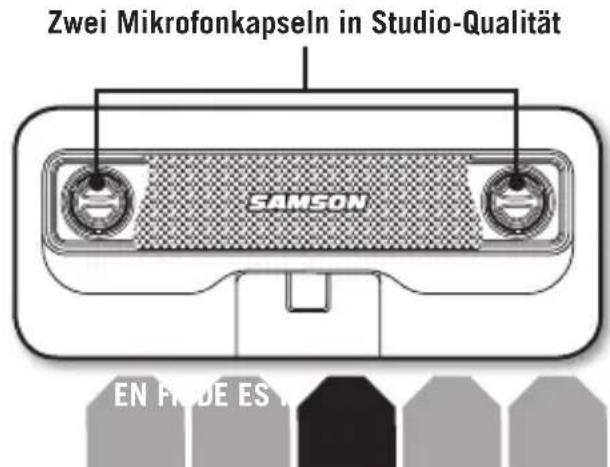
Samson's Go Mic Connect Portable Stereo USB Microphone is the next step in advanced audio solutions for digital communication, including VoIP, digital broadcasting and speech-to-text dictation software. At the root of the design are two matched high-quality microphones and advanced audio converters, which provide vastly improved audio performance over standard computer microphones. The microphone features a unique, compact design that mounts to the top of your laptop or computer monitor, as well as a headphone output for zero-latency monitoring.
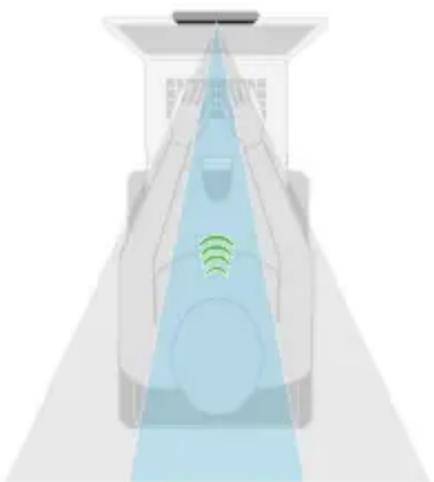
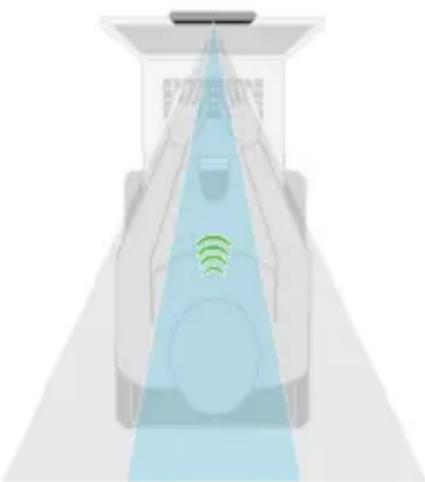
Additionally the Go Mic Connect features state-of-the-art digital processing which provides Focused Pattern Technology and Active Noise Cancellation. Focused Pattern Technology creates a concentrated pickup pattern that blocks sounds beyond the focal area. This is perfect for noisy office environments, such as call centers, where conversations are going on all around you and you need to ensure that only your voice is captured. Active Noise Cancellation on the input and output signals improves intelligibility of the audio heard through VoIP communication. Powering the advanced features of the Go Mic Connect is the Samson Sound Deck software (available as a free download from www.samsontech.com).
The Samson Go Mic Connect combines studio-quality sound for exceptional audio via Skype™, FaceTime®, Google Hangouts™ and more. Whether you are leading a webinar, recording a podcast, or staying in touch with your family, the Go Mic Connect is the most comprehensive solution for high-quality recording. Just plug it in and start communicating!
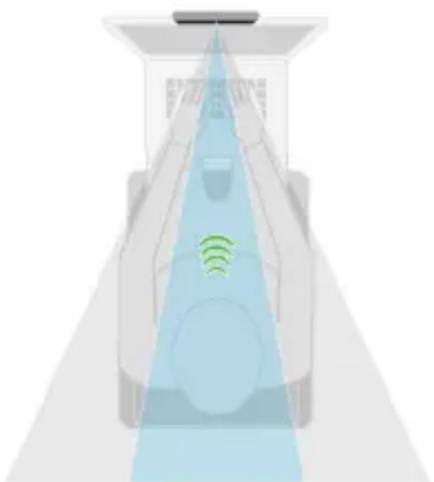
Focus Pattern Technology

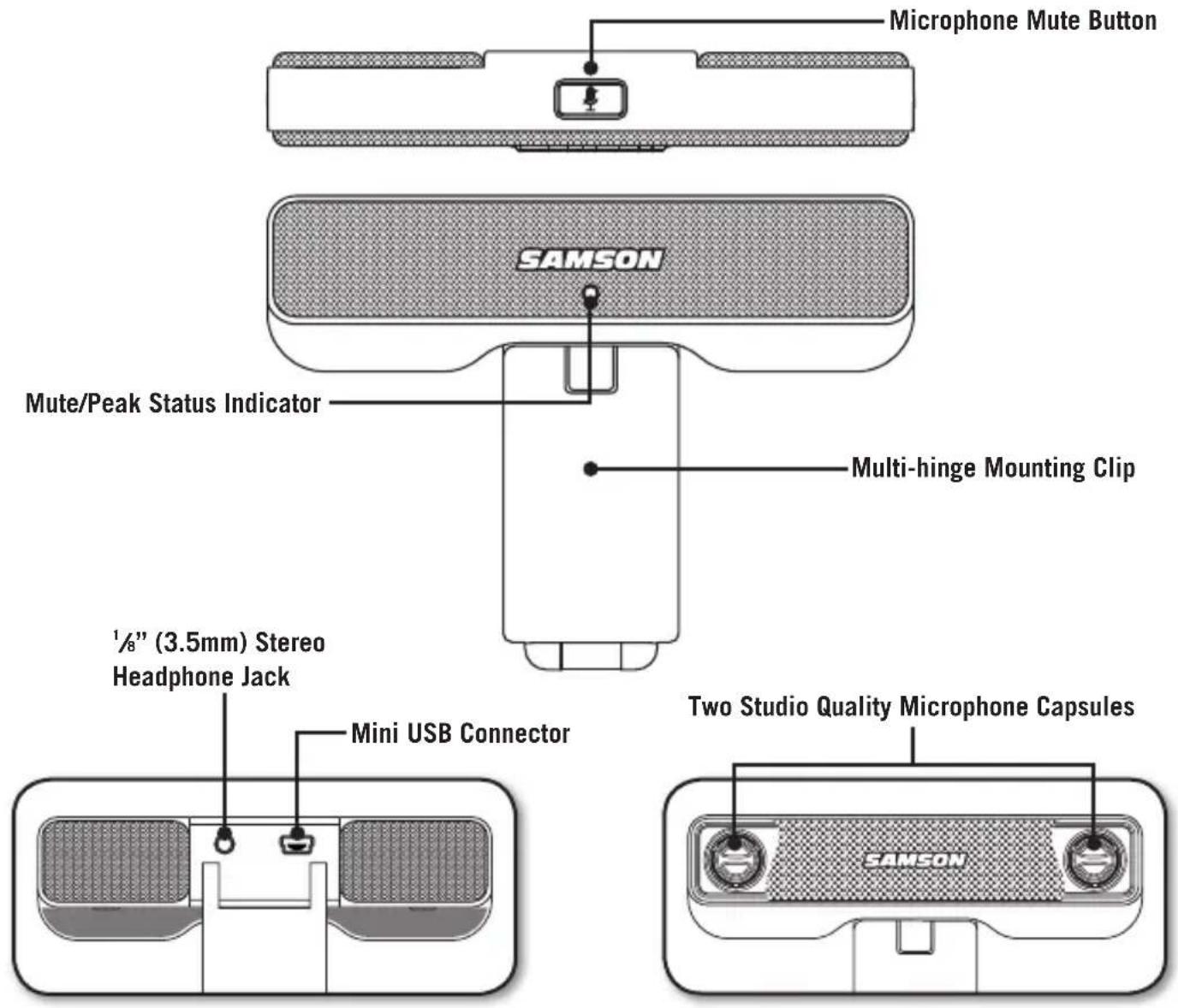
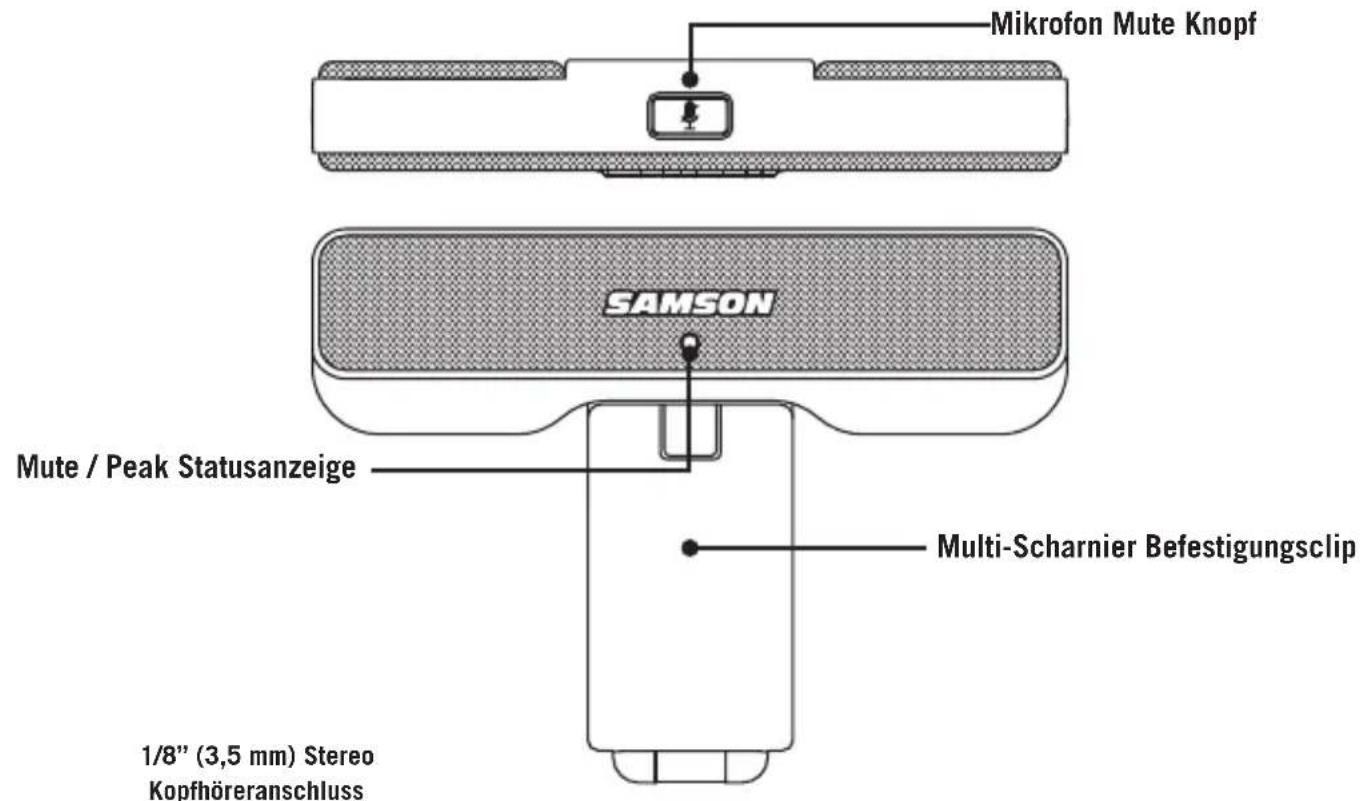
Microphone Features
Quick Start
-
Affix the Go Mic Connect to a monitor or arrange it on a flat service.
-
Position the microphone so that it is facing the sound source.
-
Connect the included USB cable from the microphone into an available USB port on your computer.
-
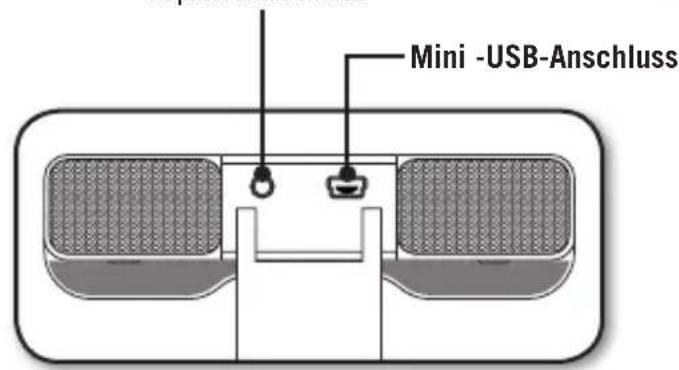
If you are using headphones, connect your headphones or speakers to the headphone output located on the rear of the Go Mic Connect.
-
Launch your audio software and select the Go Mic Connect as the audio input and output devices.
-
Set the level of the Go Mic Connect by slowly raising the level of the microphone while talking or singing into the microphone at the performance level. If you see the peak indicator illuminate red, your signal will be distorted. Turn the microphone level control down until it no longer flashes red.
-
The headphones will provide a mix of the direct signal that the microphone is picking up and the return audio from your software. If you want to only hear the audio back from your software you will need to turn off the direct monitoring.
-
If you find that there is a lot of background noise in your audio, turn on the Active Noise Canceling function in the Sound Deck Software.
-
When using the microphone in a busy environment, try turning on the Focus Pattern Technology in the Sound Deck Software to ensure you only pick up the sound of your voice.
-
Press RECORD and start capturing your performance!

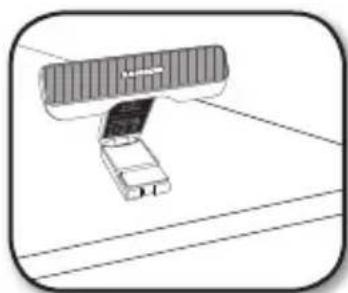

Computer Setup
Installing the Go Mic Connect is a simple procedure that takes just a few minutes. Simply connect the included USB cable and begin recording. The following sections of this manual provide detailed instructions on setting up your Go Mic Connect in Windows or MAC OS.
Windows
- The first time you plug the Go Mic Connect into a USB port, Windows will install the universal USB drivers for that port.
- To set the Go Mic Connect as your default input/recording device, or to change its settings, open the Control Panel's Hardware & Sound settings, then click SOUND. Under the Recording tab, you can select the Samson Go Mic Connect from the list of devices and press the Set Default button to set the microphone as the default audio input and output device.
- To set the gain of the microphone, click the Properties button, and then select the Levels tab. If the Microphone Level setting is displayed by percentage, right-click the slider and change the setting to decibels. Slide the control until the desired level is reached. A good starting point is to set the slider to 0dB. If you find that the microphone's red clip LED is lighting frequently, turn this control down until the LED no longer flashes red.
- Download and install the Samson Sound Deck software from www.samsontech.com
- Launch the Sound Deck software (found in the Windows task bar) and listen to the effect of each algorithm.
Apple MAC OSX
- To start using the Samson Go Mic Connect, simply plug it in. The LED will illuminate to indicate it is receiving USB power. The MAC will recognize the USB audio device and automatically install a universal driver.
- To select the Go Mic Connect as the computer's audio input, open System Preferences from the dock or the main Apple Menu.
- Next, open the Sound preferences, choose the Input tab and select Go Mic Connect. To set the gain of the microphone, adjust the Input volume slider at the bottom of the Sound dialog box. The Input Level meter will show the recording level.
- Download and install the Samson Sound Deck software from www.samsontech.com
- In Synstem Preference, click on the Samson Sound Deck icon to launch the software and turn on the available algorithms.
Samson Sound Deck Software
Samson's Sound Deck computer software expands the operation of the Go Mic Connect by providing Focused Pattern Technology™ and Active Noise Reduction algorithms. Sound Deck software works with Windows and Mac OSX operating systems and can be downloaded at Samson's website www.samsontech.com/gomicconnect.
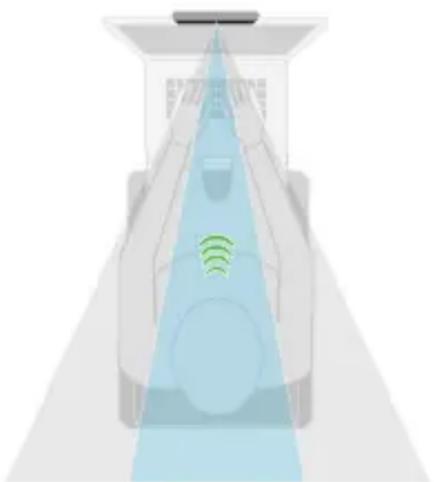
Focused Pattern Technology increases the directionality of the microphone's pickup pattern. When activated, all sound that originates outside the focus area is significantly reduced, making the Go Mic Connect ideal for communications in a noisy environment.
The Active Noise Reduction algorithm enhances speech applications by reducing ambient noise in your environment such as computer fans and air conditioners. Continuous and repetitive noise is effectively removed from the microphone input, providing cleaner audio for speech recognition, videoconferencing, gaming, and voice over internet communication.
Sound Deck for Windows operating systems includes Echo Erase which is an acoustic echo cancellation algorithm. This allows for two-way conversation with the Go Mic Connect while minimizing any echo or feedback caused by monitoring audio with speakers.

Focused Pattern Technology

Noise Cancellation Technology minimizes background noise

Echo EraseTM Technology eliminates echo/feedback

Specifications
Polar Pattern. . . . . . . . Omni-directional
Capsules. Two, 10mm condenser capsule
Frequency Response . . . . . 20Hz - 20kHz
Software Filter Algorithm . . . Digital Noise Reduction, Focus Pattern Technology, Echo Stop (Windows only)
Sample Rate. 44.1/48kHz
Bit Rate 16 Bit
Power Requirements . 5V 50mA
Max SPL 130 dB
Dimensions 4.3" x 0.6" x 3.2" / 110mm x 16mm x 82mm
Weight. 0.3lb / 139g
Minimum System Requirements
Windows (PC)
- Windows XP / Vista / Win 7 / Win 8 / Win 10
- 800MHz or higher, 256MB RAM or larger, USB port
Mac OS
Mac OS X 10.4.9 or higher
- 733MHz or higher, 512MB RAM or larger, USB port
At Samson, we are continually improving our products, therefore specifications and images are subject to change without notice.
Focus Pattern Technology

Focused Pattern Technology

Noise Cancellation Technology minimizes background noise

Echo EraseTM Technology eliminates echo/feedback

Specifications
Courbe de directivite . . . . . . . . . . . . . . . . . . . . . . . . . . . . . . . . . . . . . . . . . . . . . . . . . . . . . . . . . . . . . . . . . . . . . . . . . . . . . . . . . . . . . . . .
Focus Pattern TechnologyTM
Mikrofon Features
Kurzanleitung

Focused Pattern Technology

Noise Cancellation Technology minimizes background noise

Echo EraseTM Technology eliminates echo/feedback

Spezifikationen
Richtcharakteristik. Mit kugelformiger Richtcharakteristik / Omni-directional
Focus Pattern TechnologyTM

Focused Pattern Technology
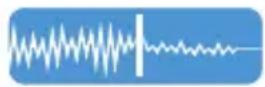
Noise Cancellation Technology minimizes background noise

Echo EraseTM Technology eliminates echo/feedback

Especillasiones
Patron polar . . . . . . . . . . . . . . . . . . . . . . . . . . . . . . . . . . . . . . . . . . . . . . . . . . . . . . . . . . . . . . . . . . . . . . . . . . . . . . . . . . .. Omnidireccionai
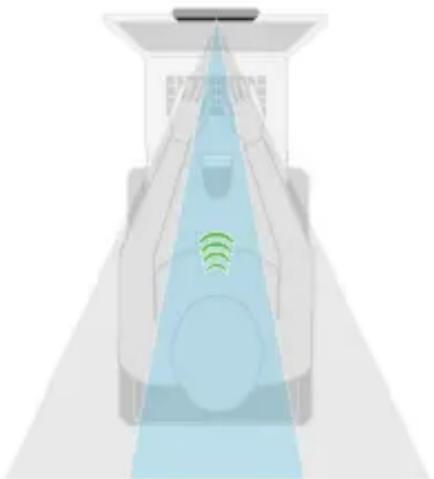
Focus Pattern TechnologyTM

Focused Pattern Technology

Noise Cancellation Technology minimizes background noise

Echo EraseTM Technology eliminates echo/feedback
ENF DE ES

Specifiche
Algorimo filtro software Digital Noise Reduction, Focused Pattern Technology, Echo Stop (solo per Windows)