
EJCG950 - Cellphone SAMSUNG - Free user manual and instructions
Find the device manual for free EJCG950 SAMSUNG in PDF.
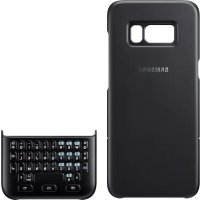



| Product Type | Keyboard case for mobile phone |
| Brand | Samsung |
| Model | EJCG950 |
| Dimensions (approx.) | 150 x 80 x 15 mm |
| Weight (approx.) | 200 g |
| Power supply | Powered by the phone via connection (no separate battery) |
| Main functions | Full physical keyboard, shortcut keys (Home, Back, Recent apps), voice dictation, number and symbol input, input language change |
| Care and cleaning | Clean with a soft dry cloth. Do not use chemicals. |
| Safety | Remove the keyboard carefully to avoid damage. Use only Samsung approved accessories. |
| Spare parts and repairability | Not user-repairable. Contact Samsung support for repair or replacement. |
| General information | Keyboard case compatible with some Samsung phones. Designed to replace the virtual keyboard. Comes with a quick start guide. |
Frequently Asked Questions - EJCG950 SAMSUNG
User questions about EJCG950 SAMSUNG
0 question about this device. Answer the ones you know or ask your own.
Ask a new question about this device
Download the instructions for your Cellphone in PDF format for free! Find your manual EJCG950 - SAMSUNG and take your electronic device back in hand. On this page are published all the documents necessary for the use of your device. EJCG950 by SAMSUNG.
USER MANUAL EJCG950 SAMSUNG
Please read this manual before using the device to ensure safe and proper use.
- Images may differ in appearance from the actual product. Content is subject to change without prior notice.
- Before using the keyboard and the keyboard cover, make sure they are compatible with your device.
Instructional icons

Warning: situations that could cause injury to yourself or others

Caution: situations that could cause damage to your device or other equipment

Notice: notes, usage tips, or additional information
Getting started
Package contents
Check the product box for the following items:
- Keyboard Quick start guide

- The items supplied with the device and any available accessories may vary depending on the region or service provider.
- The supplied items are designed only for this device and may not be compatible with other devices.
- Appearances and specifications are subject to change without prior notice.
- You can purchase additional accessories from your local Samsung retailer. Make sure they are compatible with the device before purchase.
- Use only Samsung-approved accessories. Using unapproved accessories may cause performance problems and malfunctions that are not covered by the warranty.
- Availability of all accessories is subject to change depending entirely on manufacturing companies. For more information about available accessories, refer to the Samsung website.
Device layout
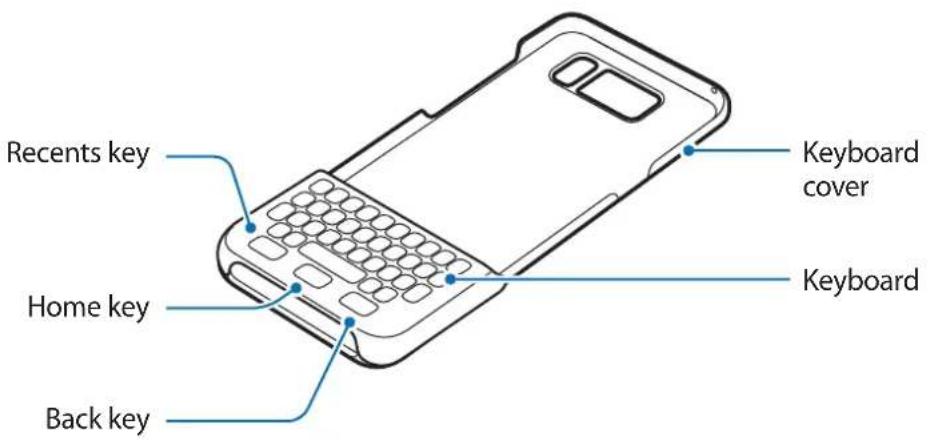
Keys and functions
| Name Function | |
| Recents | • Press to open the list of recent apps. |
| Home | • Press to return to the Home screen. • Press and hold to launch Google. |
| Back | • Press to return to the previous screen. |

Some key functions may not work properly if a screen protector is attached to the mobile device.
Using the keyboard
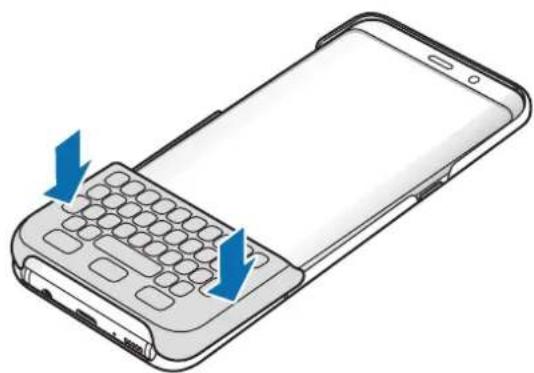
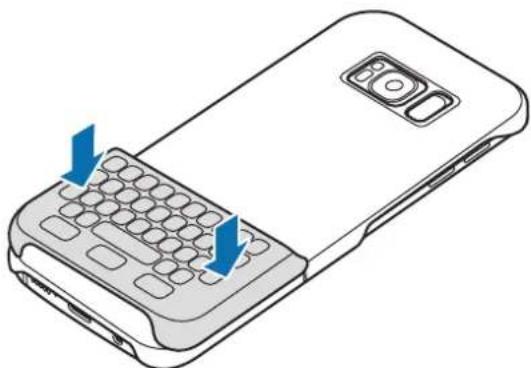
Attaching the keyboard
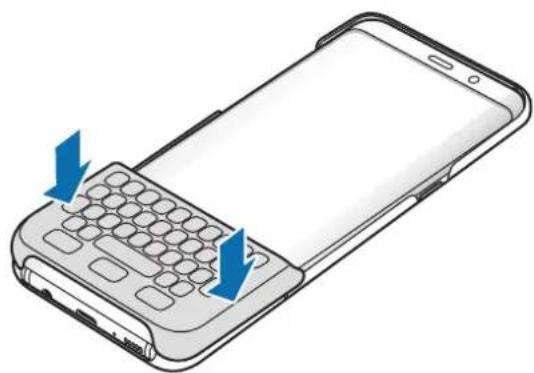
Attach the keyboard to your device and use it instead of the on-screen keyboard to enter text.
1 Secure the keyboard cover on the back of the device.
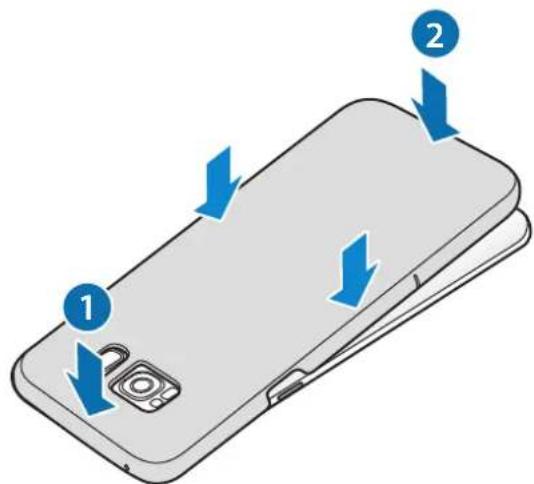
2 Attach the keyboard to the bottom of the device.
Detaching the keyboard
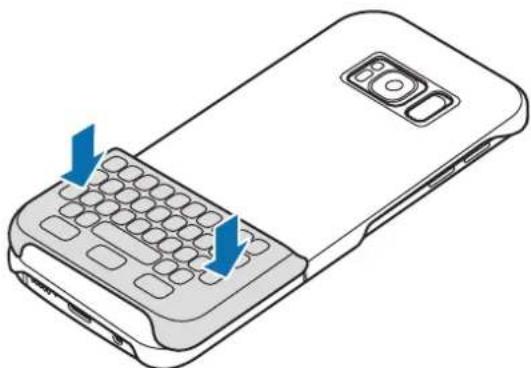
You can attach the keyboard to the keyboard cover when you are not using it.
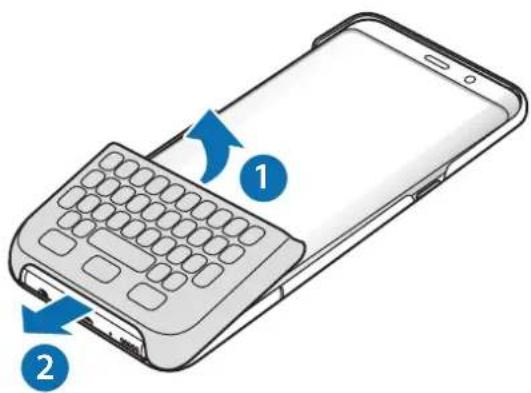
1 Lift the top of the keyboard to detach it from the device.
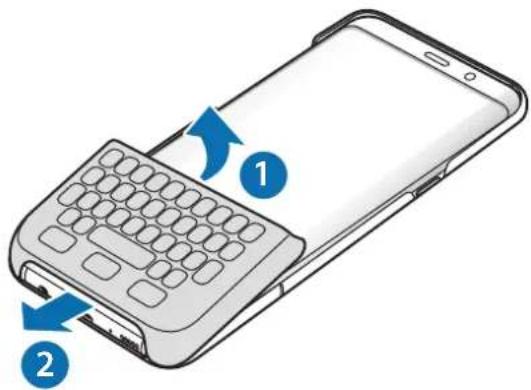

Detaching the keyboard improperly may damage the keyboard or the device.
2 Attach the keyboard to the back of the device at the bottom of the keyboard cover.
Using the keyboard
You can enter text using the attached keyboard.
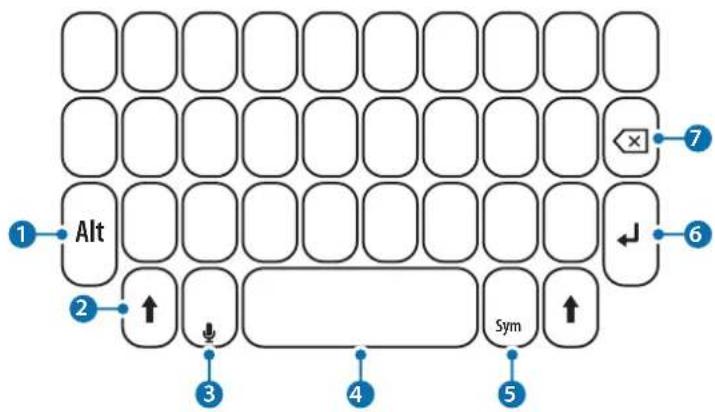
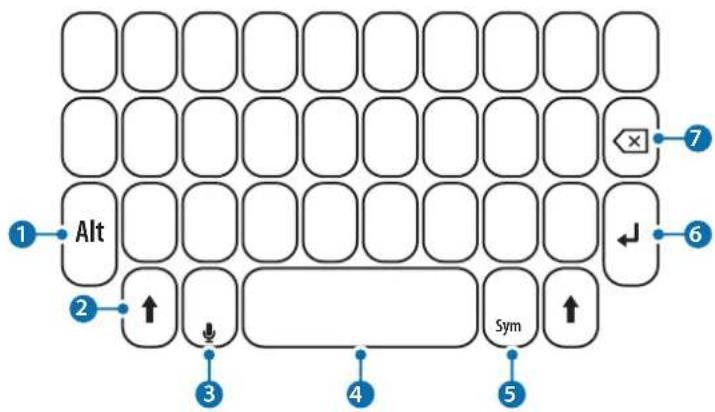
Key Function
1
- Press in combination with other keys to enter numbers or symbols. In the numeric fields, you can enter numbers or symbols directly.
- Press and hold to enter number or symbol mode.
- Press to enter uppercase characters.
2
- Press the key to capitalise the first letters of words, and press and hold the key to enter all caps.
- Press to exit number or symbol mode.
3
Press to enter text by voice.
- Press and hold to use additional keyboard functions.
4
Press to enter a space.
5
- Press to enter symbols.
6
- Press to break to the next line.
7
- Press to delete the text ahead of the cursor's position.
Changing the input language
Press and hold the Shift key and then press the Space bar. Alternatively, press and hold the Alt key and then press the Enter key.

Some key functions may not work properly depending on the software version of the connected device. For more information about updating device software, refer to each device's user manual.
Copyright
Copyright © 2017 Samsung Electronics
This manual is protected under international copyright laws.
No part of this manual may be reproduced, distributed, translated, or transmitted in any form or by any means, electronic or mechanical, including photocopying, recording, or storing in any information storage and retrieval system, without the prior written permission of Samsung Electronics.
Trademarks
SAMSUNG and the SAMSUNG logo are registered trademarks of Samsung Electronics. All other trademarks and copyrights are the property of their respective owners.
Copyright © 2017 Samsung Electronics
Copyright © 2017 Samsung Electronics
Copyright © 2017 Samsung Electronics
Copyright © 2017 Samsung Electronics
Copyright © 2017 Samsung Electronics
Copyright © 2017 Samsung Electronics
Copyright © 2017 Samsung Electronics
This manual is protected by international copyright law.
This manual may not be reproduced, distributed, translated, or excerpted in any form or by any means, including electronic or mechanical, including photocopying, recording, or storage in any information retrieval system, without the prior permission of Samsung Electronics.
Trademarks
SAMSUNG and the SAMSUNG logo are registered trademarks of Samsung Electronics. All other trademarks and copyrights are the property of their respective owners.
Read me first
Before using the device, carefully read this manual to ensure safe and proper use.
- Images may differ from the actual product. Content is subject to change without prior notice.
- Before using the keyboard and the keyboard cover, check that they are compatible with your device.
Symbols used

Warning: situations in which you or other people could be injured

Copyright © 2017 Samsung Electronics
This manual is protected by international copyright laws.
No part of this manual may be reproduced, distributed, translated, or transmitted in any form or by any means, electronic or mechanical, including photocopying, recording, or storing in any information storage and retrieval system, without the prior written permission of Samsung Electronics.
Trademarks
SAMSUNG and the SAMSUNG logo are registered trademarks of Samsung Electronics. All other trademarks and copyrights are the property of their respective owners.
Read me first
Copyright © 2017 Samsung Electronics
This manual is protected by international copyright laws.
No part of this manual may be reproduced, distributed, translated, or transmitted in any form or by any means, electronic or mechanical, including photocopying, recording, or storage in any information storage and retrieval system, without prior written permission from Samsung Electronics.
Trademarks
SAMSUNG and the SAMSUNG logo are registered trademarks of Samsung Electronics. All other trademarks and copyrights are the property of their respective owners.
Read this first
Copyright © 2017 Samsung Electronics
Copyright © 2017 Samsung Electronics
Copyright © 2017 Samsung Electronics
Copyright © 2017 Samsung Electronics
Copyright © 2017 Samsung Electronics
Copyright © 2017 Samsung Electronics
SAMSUNG CUSTOMER SERVICE DEPARTMENT:
Copyright © 2017 Samsung Electronics
Copyright © 2017 Samsung Electronics
For more information about the basic functions and updating of the device, refer to the user manual of each device.
Samsung Call Center: 444 77 11
Manufacturer: SAMSUNG ELECTRONICS CO., LTD 443-742 129, SAMSUNG-RO, YEONGTONG-GU SUWON KYONGGI-DO SOUTH KOREA Tel: +82-2-2255-0114
Importer: Samsung Electronics Istanbul Paz. ve Tic. Ltd. Şti Address: Flatofis Istanbul Üs Merkezi Otakçilar Cad. No:78 Kat:3 No:B3 Eyüp 34050 ISTANBUL TÜRKİYE Tel:+90 212 467 0600
Copyright
Copyright © 2017 Samsung Electronics

15
1
J 1

i j 1 i j k l m n o p q r s t


:du 1
∴ S ΔOBC = S ΔCOD + SΔBOC
Eg (slal)
i 1

jLjw jy d y 0000 1 0000 0000 0000 0000 0000
.
.
Copyright © 2017 Samsung Electronics
Samsung Electronics
Read me first
Please read this manual before using the device to ensure safe and proper use.
- Images may differ in appearance from the actual product. Content is subject to change without prior notice.
- Before using the keyboard and the keyboard cover, make sure they are compatible with your device.
Instructional icons

Warning: situations that could cause injury to yourself or others

Caution: situations that could cause damage to your device or other equipment

Notice: notes, usage tips, or additional information
Getting started
Package contents
Check the product box for the following items:
- Keyboard Quick start guide

- The items supplied with the device and any available accessories may vary depending on the region or service provider.
- The supplied items are designed only for this device and may not be compatible with other devices.
- Appearances and specifications are subject to change without prior notice.
- You can purchase additional accessories from your local Samsung retailer. Make sure they are compatible with the device before purchase.
- Use only Samsung-approved accessories. Using unapproved accessories may cause performance problems and malfunctions that are not covered by the warranty.
- Availability of all accessories is subject to change depending entirely on manufacturing companies. For more information about available accessories, refer to the Samsung website.
Device layout
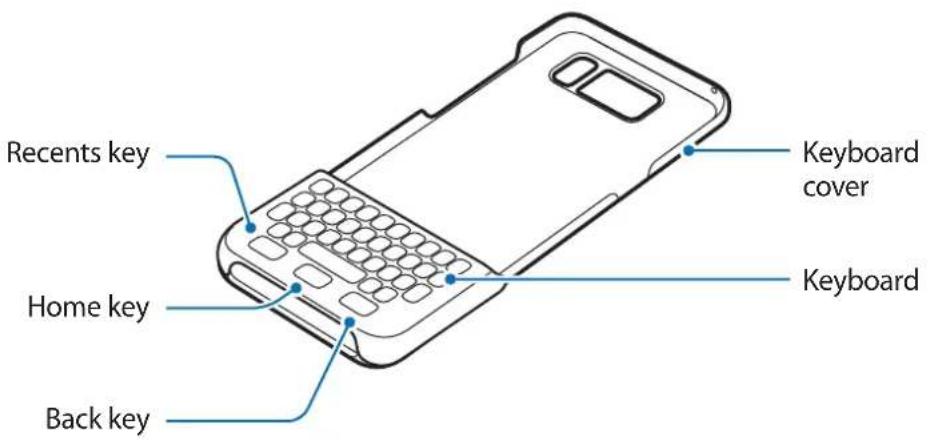
Keys and functions
| Name Function | |
| Recents | • Press to open the list of recent apps. |
| Home | • Press to return to the Home screen. • Press and hold to launch Google. |
| Back | • Press to return to the previous screen. |

Some key functions may not work properly if a screen protector is attached to the mobile device.
Using the keyboard
Attaching the keyboard
Attach the keyboard to your device and use it instead of the on-screen keyboard to enter text.
1 Secure the keyboard cover on the back of the device.
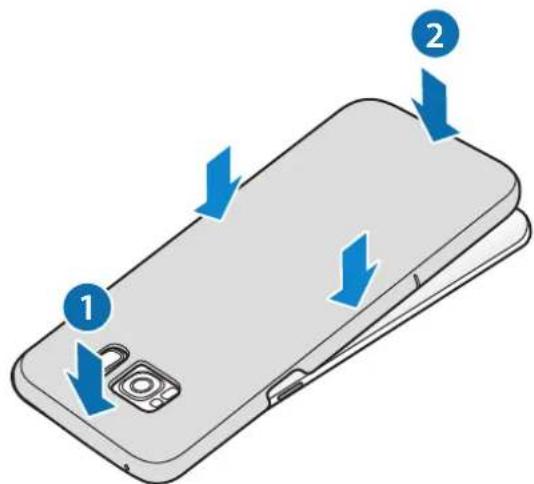
2 Attach the keyboard to the bottom of the device.
Detaching the keyboard
You can attach the keyboard to the keyboard cover when you are not using it.
1 Lift the top of the keyboard to detach it from the device.

Detaching the keyboard improperly may damage the keyboard or the device.
2 Attach the keyboard to the back of the device at the bottom of the keyboard cover.
Using the keyboard
You can enter text using the attached keyboard.
Key Function
1
- Press in combination with other keys to enter numbers or symbols. In the numeric fields, you can enter directly numbers or symbols.
- Press and hold to enter number or symbol mode.
- Press to enter uppercase characters.
2
- Press the key to capitalize the first letters of words, and press and hold the key to enter all caps.
- Press to exit number or symbol mode.
3
Press to enter text by voice.
- Press and hold to use additional keyboard functions.
4
Press to enter a space.
5
- Press to enter symbols.
6
- Press to break to the next line.
7
- Press to delete the text ahead of the cursor's position.
Changing the input language
Press and hold the Shift key and then press the Space bar. Alternatively, press and hold the Alt key and then press the Enter key.

Some key functions may not work properly depending on the software version of the connected device. For more information about updating device software, refer to each device's user manual.
Copyright
Copyright © 2017 Samsung Electronics
This manual is protected under international copyright laws.
No part of this manual may be reproduced, distributed, translated, or transmitted in any form or by any means, electronic or mechanical, including photocopying, recording, or storing in any information storage and retrieval system, without the prior written permission of Samsung Electronics.
Trademarks
SAMSUNG and the SAMSUNG logo are registered trademarks of Samsung Electronics. - All other trademarks and copyrights are the property of their respective owners.
Copyright © 2017 Samsung Electronics
© Samsung Electronics, 2017.

Brand : SAMSUNG
Model : EJCG950
Category : Cellphone