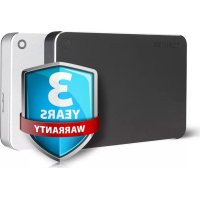
Canvio Premium Mac - Hard Drive TOSHIBA - Free user manual and instructions
Find the device manual for free Canvio Premium Mac TOSHIBA in PDF.



| Product type | External hard drive |
| Brand | Toshiba |
| Model | Canvio Premium Mac |
| Interface | USB 3.0 (backward compatible with USB 2.0) |
| Default formatting | NTFS (Windows) or HFS+ (Mac version) |
| Compatible operating systems | Windows 10, 8.1, 7 ; macOS 10.8 to 10.11 |
| Power supply | Via USB bus (bus-powered) |
| Capacity | 1 TB, 2 TB, 4 TB (depending on model) |
| Features | Backup, storage, pre-installed format, Time Machine compatible (without Tuxera) |
| Connection | Micro-B USB 3.0 connector |
| Cooling | Fanless, passive dissipation |
| Noise level | Virtually silent |
| Maintenance | Clean with a soft cloth, device disconnected |
| Safety | Safe removal via system icon |
| Package contents | Hard drive, USB cable, documentation, instruction manual |
| Certifications | CE, REACH |
| Warranty | Check the Toshiba website for details |
Frequently Asked Questions - Canvio Premium Mac TOSHIBA
User questions about Canvio Premium Mac TOSHIBA
0 question about this device. Answer the ones you know or ask your own.
Ask a new question about this device
Download the instructions for your Hard Drive in PDF format for free! Find your manual Canvio Premium Mac - TOSHIBA and take your electronic device back in hand. On this page are published all the documents necessary for the use of your device. Canvio Premium Mac by TOSHIBA.
USER MANUAL Canvio Premium Mac TOSHIBA
Introduction 3
Check the Components 3
System Requirements 4
Installing the drive. 4
Connecting the drive to your computer. 5
Dismount and disconnect the drive 5
Further Advise 6
Frequently Asked Questions 6
Troubleshooting 7
TOSHIBASupport 8
Regulatory statements 9
Introduction
Thank you for choosing our TOSHIBA Canvio Premium Hard Drive.
Please read this User's Manual carefully, as it contains all relevant information for installation, usage and maintenance of the drive, as well as security and safety advice.
In case it does not behave as expected, please refer to the "Frequently Asked Questions" section at the end of this manual.
Check the Components
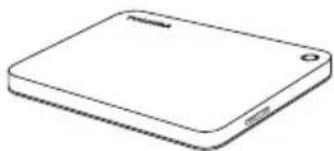
Canvio Premium (including User's Manual and Instruction Manual for Safety and Comfort)
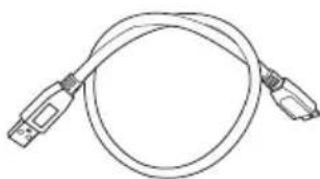
USB 3.0 Micro-B Cable

USB Type-C adapter
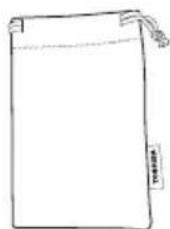
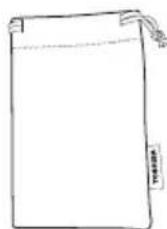
Pouch

Support document
This User's Manual is uploaded on the drive itself. We recommend to backup the User's Manual onto a CD or your local hard drive, directly after the drive being installed.
Please refer to "Instruction Manual for Safety and Comfort" that is preloaded in this External HDD.
System Requirements
Windows 10, Windows 8.1, Windows 7
OS X 10.11, 10.10, 10.9, 10.8 with included NTFS driver for Mac
This drive is formatted in NTFS for Windows®. In case for use with both Windows® PC and Mac, by installing "Tuxera NTFS for Mac" on Mac, user can read and write data to both Windows® PC and Mac. But in this case, user cannot use the Time Machine function of OS X. (Canvio Premium for Mac is formatted in HFS+.)
One free port of USB 3.0 or USB 2.0
NOTE
USB 3.0 is backward compatible with USB 2.0.
Installing the drive
Some information about bus-powered operation and the supplied USB cable:
- Your drive is bus-powered. Therefore, there is no need to connect an external power supply as all needed current will be supplied by the connected USB port(s). If the drive is not provided with enough power, it will not operate.
Passive USB hubs or USB connectors like keyboards, mice or similar products cannot be used or connected to the drive.
Make sure that the connectors will be inserted correctly.
Never use pressure for connecting the cables. Check the polarity before connecting!
Connecting the drive to your computer
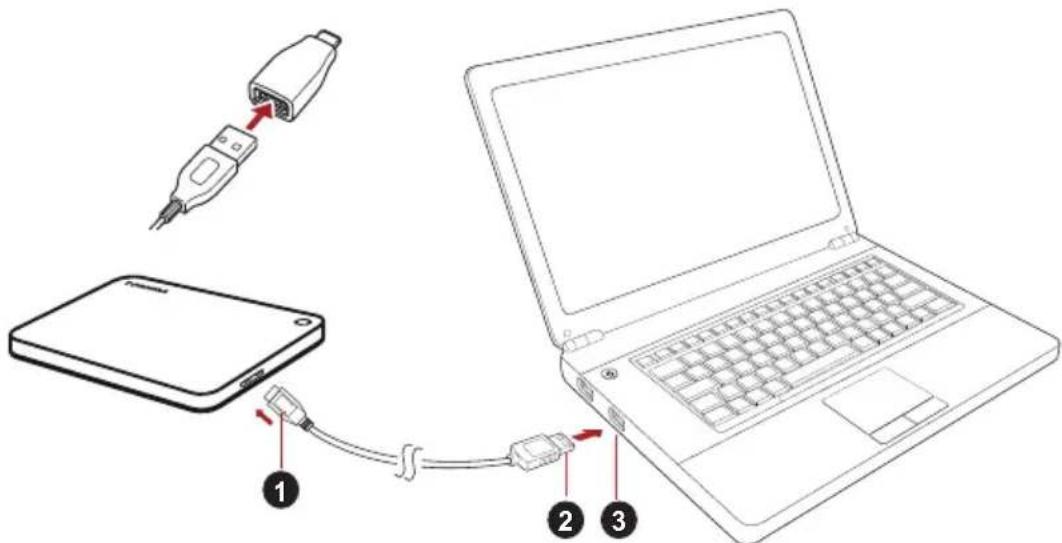
- USB 3.0 Micro-B connector 3. USB 3.0 host
backward compatible to USB 2.0
-
USB 3.0 Standard-A connector
-
With your computer powered on and fully booted up, plug the USB 3.0 Standard-A connector into a USB port of your host system, or an active USB HUB.
NOTE
You may need USB 3.0 Express Card Host Controller for your computer if the computer doesn't have USB 3.0 port. You also can connect the device to USB 2.0 port of your computer, However the transfer rate will be downgraded to that of USB 2.0.
- Now, plug the USB 3.0 micro-B connector into the corresponding port of the drive itself.
Immediately,
the Power/Data indicator light will illuminate
the drive will power up
the drive should mount and a new drive icon should appear in "My Computer"
Dismount and disconnect the drive
It is strongly recommended not to unplug the drive by just unplugging the cable connection as it may be that data is written to the drive at that time.
Such data will be lost and the drive may be damaged physically!
Please follow the steps below for a safe dismount of the drive (Windows®).
- Click the "Hardware and Eject Media - icon"
A pop-up message box will appear listing the external devices connected to your computer.
- Select the TOSHIBA drive to eject.
After a few seconds, you will get the notification that it is now safe to remove the device. - Click "OK" and you can unplug the drive now.
Cleaning the drive case / enclosure
Before cleaning the drive, make sure that it's physically disconnected from the computer. We suggest to use standard products for cleaning it and to make sure that possible remaining liquid on the surface will be wiped off.
Further Advise
For any further action of normal operation such as renaming the drive, backup data, or file management, we suggest to read your operation system user's manual.
Also for maintenance tasks such as defragmenting and optimisation we suggest to refer to the operating system user's manual.
We also strongly suggest having anti-virus software installed to protect your data against intended damage caused by virus or trojan programs.
Frequently Asked Questions
Q: Do I need to format my drive after installation?
A: This drive is formatted by NTFS for Windows®. In case for use both Windows® PC and Mac, by installing "Tuxera NTFS for Mac" to Mac, user can read and write data both Windows® PC and Mac. But in this case, user cannot use the Time Machine function of OS X. (Canvio Premium for Mac is formatted in HFS+.)
Q: Do I need USB drivers for Windows?
A: No, they are already available with your operating system.
Q: Can I boot my system from the drive?
A: No, because Windows® does not support booting from external hard drives.
Q: Why doesn't the drive need a fan?
A: The drives are designed to have optimal heat dissipation, and therefore no fan is required. This results in a near silent operation.
Q: Why is the capacity of my drive (as shown in Windows®) lower than the drives actual stated capacity?
A: This difference can be explained because of the different methods of calculating the capacity.
Hard drive manufacturers calculate on the decimal system, while the operating system calculates in the binary system.
Example decimal:
[ 1\mathrm{{TB}} = 1,{000}\mathrm{{GB}} ]
[ 1GB = 1,000MB = 1,000,000KB = 1,000,000,000 bytes ]
Example binary:
[ 1GB = 1,024MB = 1,048,576KB = 1,073,741,824 bytes ]
As a result, a 1TB (decimal) hard disk appears in Windows to have just 931GB (binary).
Q: Can I use my drive to copy an operating system from one computer to another?
A: No, you must follow the operating system supplier instructions for installation. A simple copy does not work.
Q: Does Toshiba offer a data recovery services?
A: Yes, Toshiba offers a Data Recovery Service for external hard drives. Please check our website www.toshiba-europe.com/services for further information about this service.
Troubleshooting
My computer does not recognize the disk drive at all.
Make sure all of your connections are secure.
If your drive is connected via a USB hub, make sure that it has its own power supply.
If using an add-on card, make sure it is working properly and update the software/firmware.
Is it dangerous if the drive feels warm whilst in operation?
A: This is normal, and therefore not dangerous.
The drive gives me a "Device cannot start."
A: Two possible reasons. It is either a power problem and you should check the connections, or the drive has a malfunction and requires service.
I cannot see my drive in "My Computer", but it does appear in the Device Manager.
A: Follow these instructions:
- Right-click "My Computer".
- Select "Manage" in the pop-up menu.
- Select "Disk Management". You should see a list of available storage devices.
- Check whether your drive is listed.
- Right-click the right hand box and select "Delete Partition" in the pop-up menu.
- Right-click the box and select "Create New Partition" in the pop-up menu.
- Then select "Primary Partition" in the partition wizard window. Click next.
- A drive letter will be displayed, which you can change. Click next.
- Confirm to format the drive.
NOTE
When you format the drive all the data on your drive will be deleted.
As I try to format the drive, I receive the message "Could not complete format".
A: This can be caused by formatting the drive with FAT file system. Try "NTFS" file system. This should solve the problem.
TOSHIBA Support
Need help?
Please contact TOSHIBA's hard drive and storage products support page: www.toshiba.eu/externalstorage/support
For warranty claims, please check: computers.toshiba.eu/options-warranty
Regulatory statements
CE Compliance
CE
This product is CE marked in accordance with the requirements of the applicable EU Directives.
Responsible for CE marking is Toshiba Europe GmbH, Hammfelddamm 8, 41460 Neuss, Germany. A copy of the official Declaration of Conformity can be obtained from following website: http://epps.toshiba-tec.com.
Working Environment
The Electromagnetic Compliance (EMC) of this product has been verified typically for this product category for a so called Residential, Commercial & Light Industry Environment. Any other working environment has not been verified by Toshiba and the use of this product in these working environments is maybe restricted or cannot be recommended. Possible consequences of the use of this product in non verified working environments can be: Disturbances of other products or of this product in the nearby surrounding area with temporarily malfunction or data loss/ corruption as result. Example of non verified working environments and related advices:
Industrial environment (e. g. where 3-phase 380V mains is being used mainly): Danger of disturbances of this product due to possible strong electromagnetic fields especially near to big machinery or power units.
Medical environment: The compliance to the Medical Product Directive has not been verified by Toshiba, therefore this product cannot be used as a medical product without further verification. The use in usual office environments e.g. in hospitals should be no problem if there is no restriction by the responsible administration.
Automotive environment: Please search the owner instructions of the related vehicle for advices regarding the use of this product (category).
■ Aviation environment: Please follow the instructions of the flight personnel regarding restrictions of use.
Additional Environments not Related to EMC
- Outdoor use: As a typical home/office equipment this product has no special resistance against ingress of moisture and is not strong shock proofed.
- Explosive atmosphere: The use of this product in such special working environment (Ex) is not allowed.
Following information is only valid for EU-member States:
REACH - Compliance Statement
The new European Union (EU) chemical regulation, REACH (Registration, Evaluation, Authorization and Restriction of Chemicals), entered into force on 1 June 2007.
Toshiba will meet all REACH requirements and is committed to provide our customers with information about the chemical substances in our products according to REACH regulation.
Disposal of products
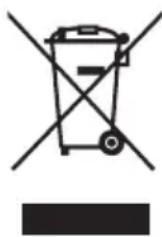
The use of the symbol indicates that this product may not be treated as household waste. By ensuring this product is disposed of correctly, you will help prevent potential negative consequences for the environment and human health, which could otherwise be caused by inappropriate waste handling of this product. For more detailed information about recycling of this product, please contact your local city office, your household waste disposal service or the shop where you purchased the product.
The following information is valid only for Turkey:
Compliant with AEEE Regulation.
Notices
©2016 TOSHIBA Europe GmbH. All rights reserved.
TOSHIBA reserves the right to make technical changes. TOSHIBA assumes no liability for damages incurred directly or indirectly from errors, omissions or discrepancies between this product and the documentation.
The Toshiba name and its logos are registered trademarks of Toshiba. Other trademarks mentioned or appearing in this document are the property of their respective owners. Errors and omissions excepted.
Windows is a registered trademark of Microsoft Corporation in the United States and other countries.
Mac and OS X are trademarks of Apple Inc., registered in the U.S. and other countries.
USB Type-CTM is a trademark of USB Implementers Forum.
One Gigabyte (1GB) means 10^9 = 1,000,000,000 bytes and one Terabyte (1TB) means 10^12 = 1,000,000,000,000 bytes using powers of 10. A computer operating system, however, reports storage capacity using powers of 2 for the definition of 1GB = 2^30 = 1,073,741,824 bytes and 1TB = 2^40 = 1,099,511,627,776 bytes, and therefore shows less storage capacity. Available storage capacity (including examples of various media files) will vary based on file size, formatting, setting, software and operating system and other factors.
Obsah
www.toshiba.eu/externalstorage/support
1 GB = 1.024 MB = 1.048.576 KB = 1.073.741.824 byte
Derfor vil en hardisk på 1 TB (decimalt) i Windows se ud til kun at have 931 GB (binært).
www.toshiba.eu/externalstorage/support
1 GB = 1.024 MB = 1.048.576 KB = 1.073.741.824 bytes
www.toshiba.eu/externalstorage/support
1 Gt = 1000 Mt = 1000000 kt = 1000000000 tavua
Binaarijärjestelmä:
1 Gt = 1024 Mt = 1048576 kt = 1073741824 tavua
www.toshiba.eu/externalstorage/support
Cable USB 3.0 micro-B
Étui
1 Go = 1000 Mo = 1000000 Ko = 100000000 octets
Exemple binaire :
1 Go = 1 024 Mo = 1 048 576 Ko = 1 073 741 824 octets
www.toshiba.eu/externalstorage/support
1GB = 1.024MB = 1.048.576KB = 1.073.741.824 bytes
www.toshiba.eu/externalstorage/support
Tia aIomegaic yyyunonc, eTIOKEeOeITe Tn dIeuovon: computers.toshiba.eu/options-warranty
www.toshiba.eu/externalstorage/support
U vezi popravaka u jamstvenom roku potražite:
computers.toshiba.eu/options-warranty
Regulativne izjave
CE sukladnost
CE
Ovaj proizvod nosi CE oznaku sukladno zahtjevima važecih direktiva EZ. Toshiba Europe GmbH, Hammfelddamm 8, 41460 Neuss, Njemačka odgovorna je za CE oznake. Kopija službene Izjave o sukladnosti se moze pronaći na ovoj internetskoj stranici: http://epps.toshiba-tek.com.
Radno okruženje
Elektromagnetska sukladnost (EMC) ovo proizvoda se obicno verificirira za kategoriju ovo proizvoda i vrijedi za takozvana stambena, komercijalna i lakoindustrijska okruženja. Sva druga okruženja u Toshibi nisu verificirana i upotreba ovo proizvoda u tim radnim okruženjima moze bitiograničena ili se ne preporučuje. Moguce posljedice korištenja ovo proizvoda u neverificiranim okruženjima mogu biti: ometanje rada drugih uredaja ili ovo gureda u blizem okolnom području, posljedica Čega je povremeni neispravan rad ili gubitak/ostećenje podataka. Primjeri neverificiranih radnih okruženja i odgovarajući savjeti:
Industrijsko okruženje (npr. gdje se pretežno koristi trofazna mreža od 380 V): opasnost od smetnji na ovom uredaju zbog moguciñs năžnih elektromagnetskih polja osobito u blizini velikih strojeva ili jedinica za napajanje.
■ Medicinska okrużenja: sukladnost s direktivom o medicinskim proizvodima;nije verificirana u Toshibi, te se stoga ovaj proizvod bez dalnjih verifikacja ne smije koristiti kao medicinski proizvod. Upotreba u uobićajenim uredskim okrużenjima, npr. u bolnicama ne predstavlja problem ako odgovarajuca administracja;nije nametnula odgovarajucaogranićenia.
Automobilska oprema: molimo vas potražite savjete o upotrebi ovog proizvoda (kategorije) u vlasnickim uputama svakog pojedinog vozila.
Zrakoplovna oprema: držite se uputa koje cete dobiti od zrakoplovnog osoblja u vezi ograničenja uporabe.
www.toshiba.eu/externalstorage/support
1 GB = 1.024 MB = 1.048.576 KB = 1.073.741.824 byte
www.toshiba.eu/externalstorage/support
A: Volg deque instructions:
www.toshiba.eu/externalstorage/support
Feilmeldingen Device cannot start (Kan/DD) vises.
www.toshiba.eu/externalstorage/support
For garantikrav, se computers.toshiba.eu/options-warranty
www.toshiba.eu/externalstorage/support
1GB = 1.024MB = 1.048.576KB = 1.073.741.824 bytes
www.toshiba.eu/externalstorage/support
www.toshiba.eu/externalstorage/support
Tpe6obahna K cncteme
Windows 10, Windows 8.1, Windows 7
OS X 10.11, 10.10, 10.9, 10.8 c BXOДЯЦМ B KOMПЛeКТ NOCTaВКИ ДрайВером NTFS ДпЯ Mac
3TOT DnCK OTΦOpMaTIpOBaH B CnCTeMe NTFS dJa Windows®.
Ecn ero nlaHpyetc nCNoB3OBaTb KaK c KOMNbIOTepaMn NOp ynpabJIeHHeM Windows®, TaN C KOMNbIOTepaMn Mac, Ha TAKne KOMNbIOTepbI Mac MOxHO uCTaHOBtB npOrpaMMHoe oBeCneHHe Tuxera NTFS for Mac, YTO NO3BOJNT OcyuEcTBJrTb YTeHne I 3aNNcb DaHHbIX C NOMOuBIO CNCTeM O6Ox TINOB. Ppr 3TOM NOLb3OBaTbc4 fYHKUeN Time Machine onepauOnHOu CNCTeMbI OS X 6ydet HeBO3MOxHO.
B: HxHbI Jn dpaBepbl USB Jn Jn Windows?
O: Het, OHyXe IMeIOTcB OnepaCNoHHoN CnCTeMe.
B: MoKHO JI 3aRpyKaTb CnCTeMy c 3ToRo DnCKa?
O: Het, notomy yTO cnCTema Windows He noDepxNBAeT 3aRpy3ky C BHeUHIX JecTKNX DnCKOB.
B: Noyemy 3TOMy DnCKy He HuyKeH BeHTnJIaTOp?
O: KOHCTpyKUra DNCKa OBeCneuNbae ONTmAmlbHoe paccenBaHne Tenna, NO3tOMy BeHTnIaRTop He Tpe6yEtca. B pe3yIbTaTe N3dEne pa6oTaet NOUTN 6ecwymHO.
B: Noyemy emkoctb dNcKa (OTo6paXaemar B Windows®) MeHbWe ero 0aKTnuecko3aBneHHoemKOCTn?
O: Pa3nue o6barcheTc npimeHHeHem pa3hbx cnocobpaCyTea EMKoCTN.
ПОНЗВОДИТЕЛЖЕСТКИXДИСКOBБынOLHЯOTpacuetВдесяТУ"HОcNCTeMe,a onepaционнаясNTeMa-BДBOUHOU.
Ppimep paucheta B DecaTnHoi cnCTeMe:
1 TB = 1000 GB
www.toshiba.eu/externalstorage/support
Support for TOSHIBA 7
Bestammelser 8
Inledning
Tack for att du valde hardsisken TOSHIBA Canvio Premium.
www.toshiba.eu/externalstorage/support
www.toshiba.eu/externalstorage/support
Ak si chcete uplatnit naroK vyplvajuci zo zaruky, pozrite si stranku: computers.toshiba.eu/options-warranty
www.toshiba.eu/externalstorage/support
www.toshiba.eu/externalstorage/support
Garanti talepleri icin lufen 山 adresi ziyaret edin:
computers.toshiba.eu/options-warranty
J 3.0 Express Card Host Controller J 2.0 J 2.0 J 2.0
gao
USB 3.0 micro-B JgJgJgJgJgJgJgJgJgJgJgJgJgJgJgJgJgJgJgJgJgJgJgJgJgJgJgJgJgJgJgJgJgJgJgJgJgJgJgJgJgJgJgJgJgJgJgJgJgJgJg
L
1
"My Computer"
山
aall aagaaagaaagaaagaaagaaagaaagaaagaaagaaagaaagaaagaaagaaagaaagaaagaaagaaagaaagaaagaaagaaagaaagaaagaaagaaagaaagaaagaaagaaagaaagaaagaaagaaagaaagaaagaaagaaagaaagaaagaaagaaagaaagaaagaaagaaagaaagaa
i 1
.(Windows®)
"Hardware and Eject Media" 1
jsslllalgall jy jy yaiiaaii ailln r g
TOSHIBA
J 1
"OK" 15 -y
/
aaii i 1
1 1
a#la
i 1
J 1 J 1 J 1 J 1 J 1 J 1 J 1 J 1 J 1
.
aal 1 1 1 1 1 1 1 1 1 1 1 1 1 1 1 1 1 1 1 1
(trojan) 1
i
4j j 1 j 1
Windows NTFS
Tuxera" 5 Mac 0s
Aikg jzj m piaiwwk Ss Mac 1eNTFS for Mac
J Mac 5
OS X Time Machine
(.HFS+ Mac Canvio Premium
Windows USB JJ
L 1
J:
.
a 1
1,000,000,000 = 1,000,000 = 1,000 = 1
:
1073741824 = 1048576 = 1024 = 1
1 1 1
Windows
() 931
j 1 j 1 1 1 1 1 1 1 1 1 1
Jy 1
:
Data Recovery Service
www.toshiba-europe.com/
aodll oia jie clogalld jia jad services
JSLIJI
y
i
USB
A
add-on card)
1
1
a
1j 1
.(jL)“Device cannot start"
j g jyogill n no gaaa i b yg aiklo lai lal jnlaa o
a 11111111
Device Manager My Computer
:
"My Computer" 15
"Manage" jai -
"Disk Management" -
aaii jjil 0jgai sji
"Delete Partition" jJjI JJI IJI JI JI JI JI JI JI JI JI
-aiall 2jdo jai
aaiial
-aijol
"Create New Partition"
aaii
-
"Primary Partition"
-1yllil 1c jai. puiill lles
-1sll 1c jai .0yss
-1
aiee eae
"Could not complete format"
.
.FAT 1000000000000000000000000000000000000000000000000000
.
focuus j
: 1
www.toshiba.eu/externalstorage/support
computers.toshiba.eu/options-warranty: jjz
a#i1
CE
CE
JLJIiIe JIJIJIJIJIJIJIJIJIJIJIJIJIJIJIJIJIJIJIJIJIJIJIJIJIJIJIJIJIJIJIJIJIJIJIJIJIJIJIJIJIJIJIJIJIJIJIJIJIJIJIJIJIJIJIJIJIJIJIJIJIJIJIJIJIJIJIJIJIJIJIJIJIJIJIJIJIJIJIJIJIJIJIJIJIJIJIJIJIJIJIJIJIJIJIJIJIJIJIJIJIJIIJLIJLIJLIJLIJLIJLIJLIJLIJLIJLIJLIJLIJLIJLIJLIJLIJLIJLIJLIJLIJLIJLIJLIJLIJLIJLIJLIJLIJLIJLIJLIJLIJLIJLIJLIJLIJLIJLIJLIJLIJLIJLIJLIJLIJLIJLIJLIJLIJLIJLIJ